A Programme Under the compumitra Series
WEB SERVER CONTROLS SET – 1
LAB WORK GUIDE
1
OUTLINE
 Web Server Control
 'ASP:HyperLink' (Page 3).
Property Setting.
2
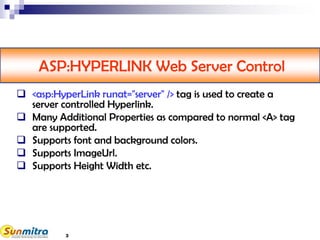
ASP:HYPERLINK Web Server Control
 <asp:HyperLink runat="server" /> tag is used to create a
server controlled Hyperlink.
 Many Additional Properties as compared to normal <A> tag
are supported.
 Supports font and background colors.
 Supports ImageUrl.
 Supports Height Width etc.
3
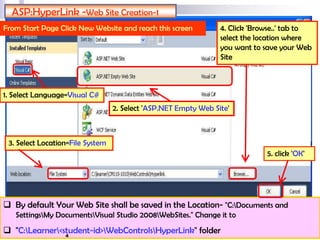
 By default Your Web Site shall be saved in the Location- "C:Documents and
SettingsMy DocumentsVisual Studio 2008WebSites." Change it to
 "C:Learner<student-id>WebControlsHyperLink" folder
ASP:HyperLink -Web Site Creation-1
From Start Page Click New Website and reach this screen
2. Select 'ASP.NET Empty Web Site'
3. Select Location=File System
4. Click 'Browse..' tab to
select the location where
you want to save your Web
Site
5. click 'OK'
1. Select Language=Visual C#
4
ASP:HyperLink -Web Site Creation-2
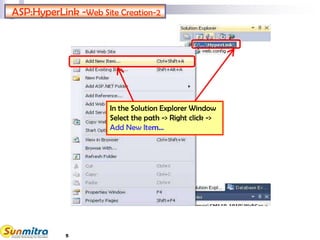
In the Solution Explorer Window
Select the path -> Right click ->
Add New Item…
5
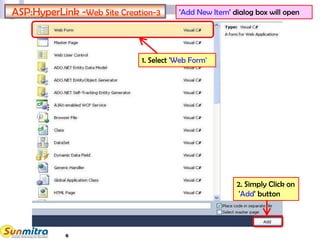
ASP:HyperLink -Web Site Creation-3 'Add New Item' dialog box will open
1. Select 'Web Form'
2. Simply Click on
'Add' button
6
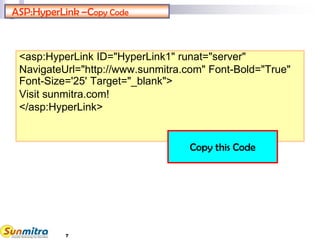
ASP:HyperLink –Copy Code
<asp:HyperLink ID="HyperLink1" runat="server"
NavigateUrl="http://www.sunmitra.com" Font-Bold="True"
Font-Size='25' Target="_blank">
Visit sunmitra.com!
</asp:HyperLink>
Copy this Code
7
ASP:HyperLink –Paste Code
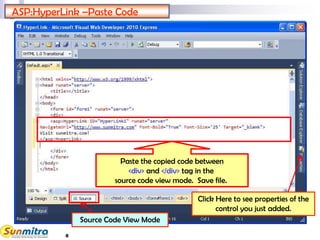
Paste the copied code between
<div> and </div> tag in the
source code view mode. Save file.
Source Code View Mode
Click Here to see properties of the
control you just added.
8
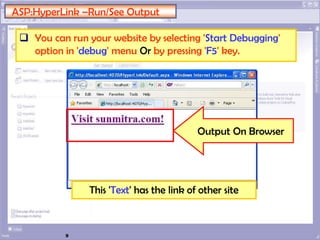
ASP:HyperLink –Run/See Output
 You can run your website by selecting 'Start Debugging'
option in 'debug' menu Or by pressing 'F5' key.
Output On Browser
This 'Text' has the link of other site
9
ASP:Hyperlink: Modification Trials - 1
 Use properties window to Change the
Font-Bold="False" and Font-Size="XX_Large"
See that properties you set are also added
automatically in the code of your .aspx file.
Run the program to see the effect.
 Using Properties Add ImageURL and NavigateURL
as
ImageUrl="http://www.sunmitra.com/images/s
unmitra.gif" and
NavigateUrl="http://www.google.com"
Run and understand the difference between two.
10
ASP:Hyperlink: Modification Trials - 2
 Using Properties, Try to set Font Name and Font
Names (for multiple fonts)
Multiple fonts are useful to set when the first ones
are not available. Fonts work only when they are
available to local system where browser is there.
 Try to see the design view when ImageUrl is set.
You will see that when ImageUrl is set the hyperlink
name you type can not be rendered.
You can however set the tooltip attribute. (Same
attribute in HTML Server control is called the Title
Attribute).
11
 Ask and guide me at
sunmitraeducation@gmail.com
 Share this information with as
many people as possible.
 Keep visiting www.sunmitra.com
for programme updates.
12

Web Controls Set-1

  • 1.
    A Programme Underthe compumitra Series WEB SERVER CONTROLS SET – 1 LAB WORK GUIDE 1
  • 2.
    OUTLINE  Web ServerControl  'ASP:HyperLink' (Page 3). Property Setting. 2
  • 3.
    ASP:HYPERLINK Web ServerControl  <asp:HyperLink runat="server" /> tag is used to create a server controlled Hyperlink.  Many Additional Properties as compared to normal <A> tag are supported.  Supports font and background colors.  Supports ImageUrl.  Supports Height Width etc. 3
  • 4.
     By defaultYour Web Site shall be saved in the Location- "C:Documents and SettingsMy DocumentsVisual Studio 2008WebSites." Change it to  "C:Learner<student-id>WebControlsHyperLink" folder ASP:HyperLink -Web Site Creation-1 From Start Page Click New Website and reach this screen 2. Select 'ASP.NET Empty Web Site' 3. Select Location=File System 4. Click 'Browse..' tab to select the location where you want to save your Web Site 5. click 'OK' 1. Select Language=Visual C# 4
  • 5.
    ASP:HyperLink -Web SiteCreation-2 In the Solution Explorer Window Select the path -> Right click -> Add New Item… 5
  • 6.
    ASP:HyperLink -Web SiteCreation-3 'Add New Item' dialog box will open 1. Select 'Web Form' 2. Simply Click on 'Add' button 6
  • 7.
    ASP:HyperLink –Copy Code <asp:HyperLinkID="HyperLink1" runat="server" NavigateUrl="http://www.sunmitra.com" Font-Bold="True" Font-Size='25' Target="_blank"> Visit sunmitra.com! </asp:HyperLink> Copy this Code 7
  • 8.
    ASP:HyperLink –Paste Code Pastethe copied code between <div> and </div> tag in the source code view mode. Save file. Source Code View Mode Click Here to see properties of the control you just added. 8
  • 9.
    ASP:HyperLink –Run/See Output You can run your website by selecting 'Start Debugging' option in 'debug' menu Or by pressing 'F5' key. Output On Browser This 'Text' has the link of other site 9
  • 10.
    ASP:Hyperlink: Modification Trials- 1  Use properties window to Change the Font-Bold="False" and Font-Size="XX_Large" See that properties you set are also added automatically in the code of your .aspx file. Run the program to see the effect.  Using Properties Add ImageURL and NavigateURL as ImageUrl="http://www.sunmitra.com/images/s unmitra.gif" and NavigateUrl="http://www.google.com" Run and understand the difference between two. 10
  • 11.
    ASP:Hyperlink: Modification Trials- 2  Using Properties, Try to set Font Name and Font Names (for multiple fonts) Multiple fonts are useful to set when the first ones are not available. Fonts work only when they are available to local system where browser is there.  Try to see the design view when ImageUrl is set. You will see that when ImageUrl is set the hyperlink name you type can not be rendered. You can however set the tooltip attribute. (Same attribute in HTML Server control is called the Title Attribute). 11
  • 12.
     Ask andguide me at sunmitraeducation@gmail.com  Share this information with as many people as possible.  Keep visiting www.sunmitra.com for programme updates. 12