

Working with
Volunteers and
Teamwork...
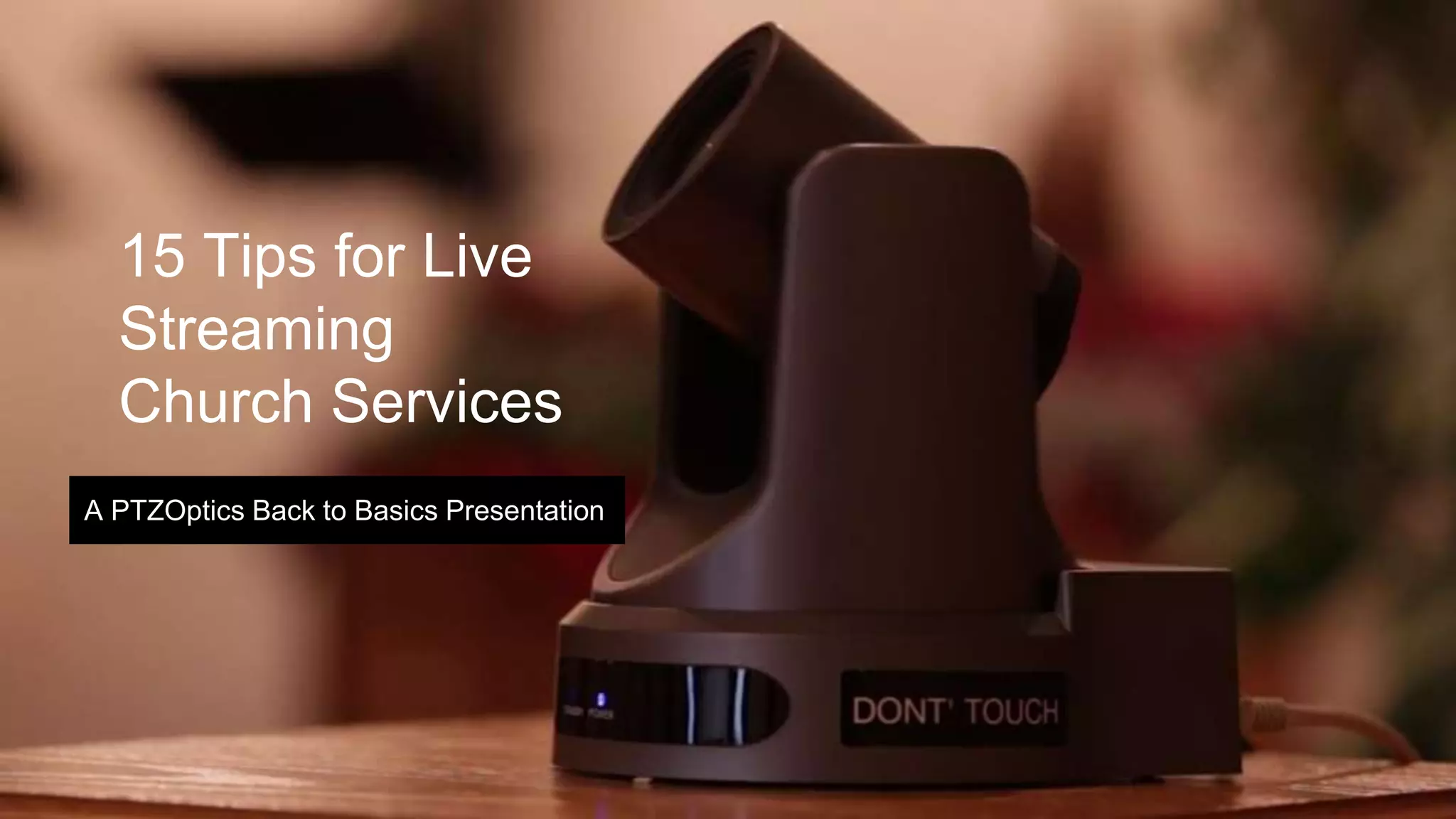
15 Tips for Live
Streaming
Church Services
A PTZOptics Back to Basics Presentation
Facebook Groups we reached out to for advice
Tom Sinclair’s Streaming Idiots
Facebook Groups are a great place to reach out for useful
advice
Church Sound & Media Techs
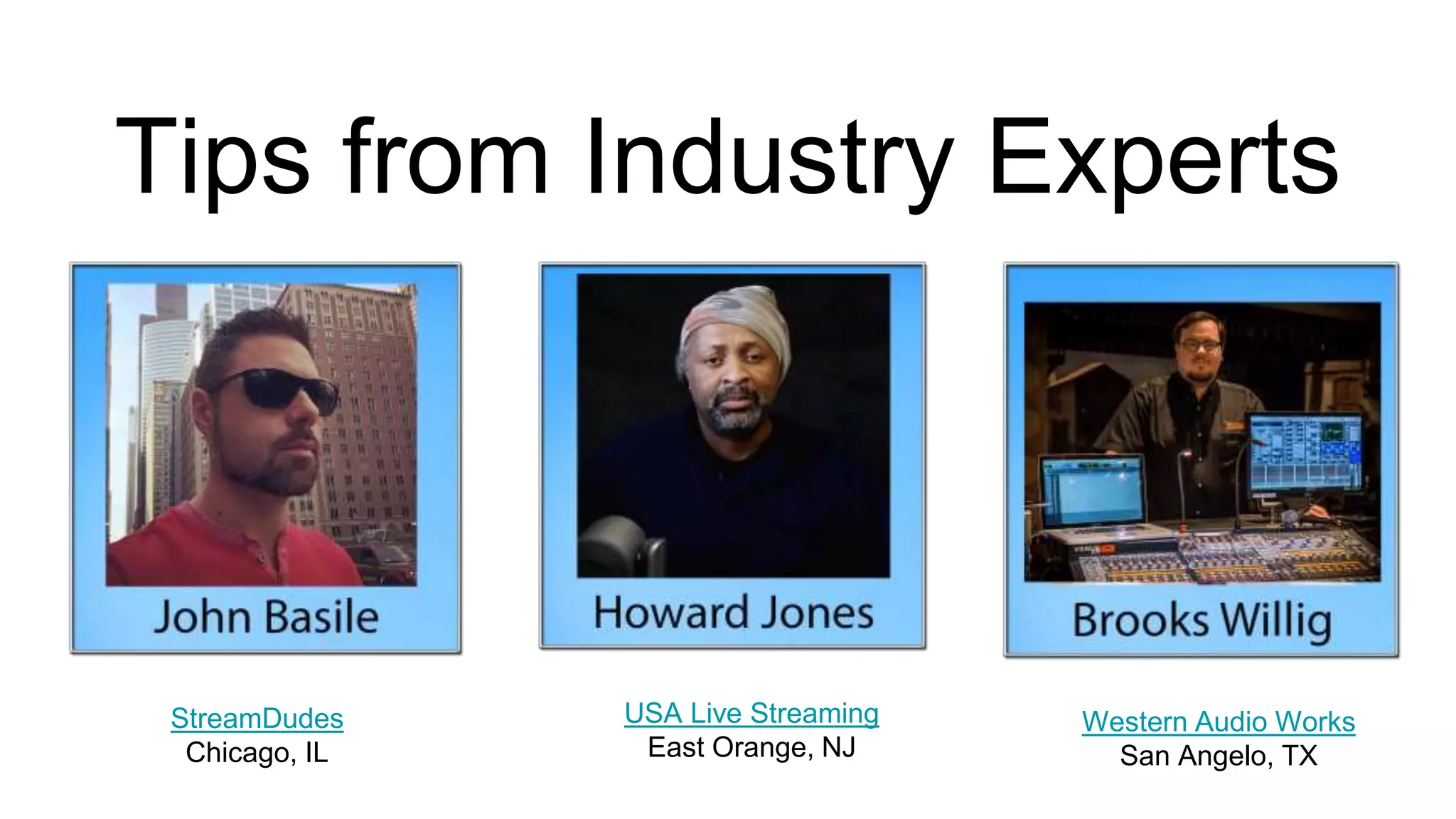
Tips from Industry Experts
StreamDudes
Chicago, IL
USA Live Streaming
East Orange, NJ
Western Audio Works
San Angelo, TX
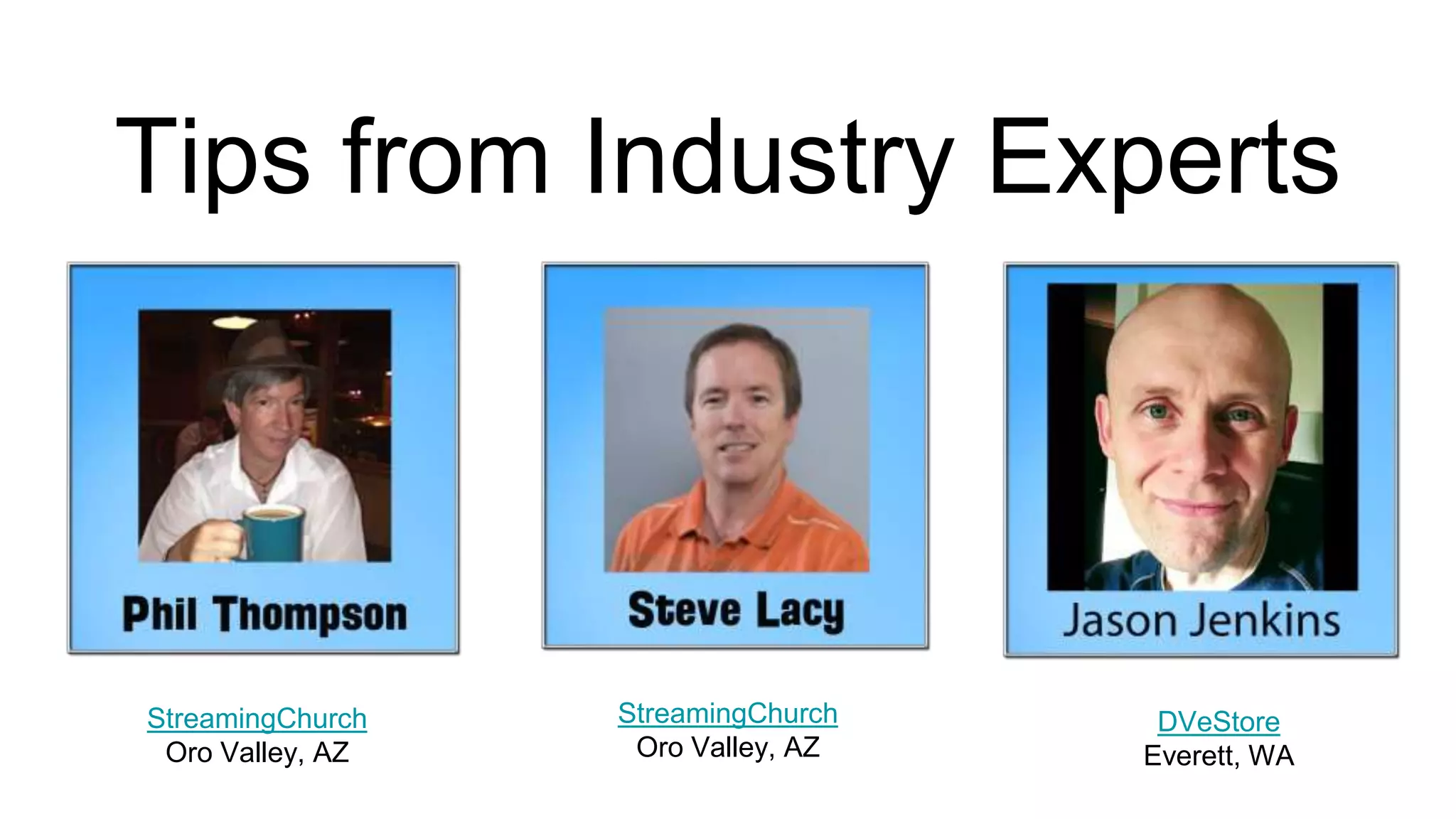
Tips from Industry Experts
StreamingChurch
Oro Valley, AZ
StreamingChurch
Oro Valley, AZ
DVeStore
Everett, WA
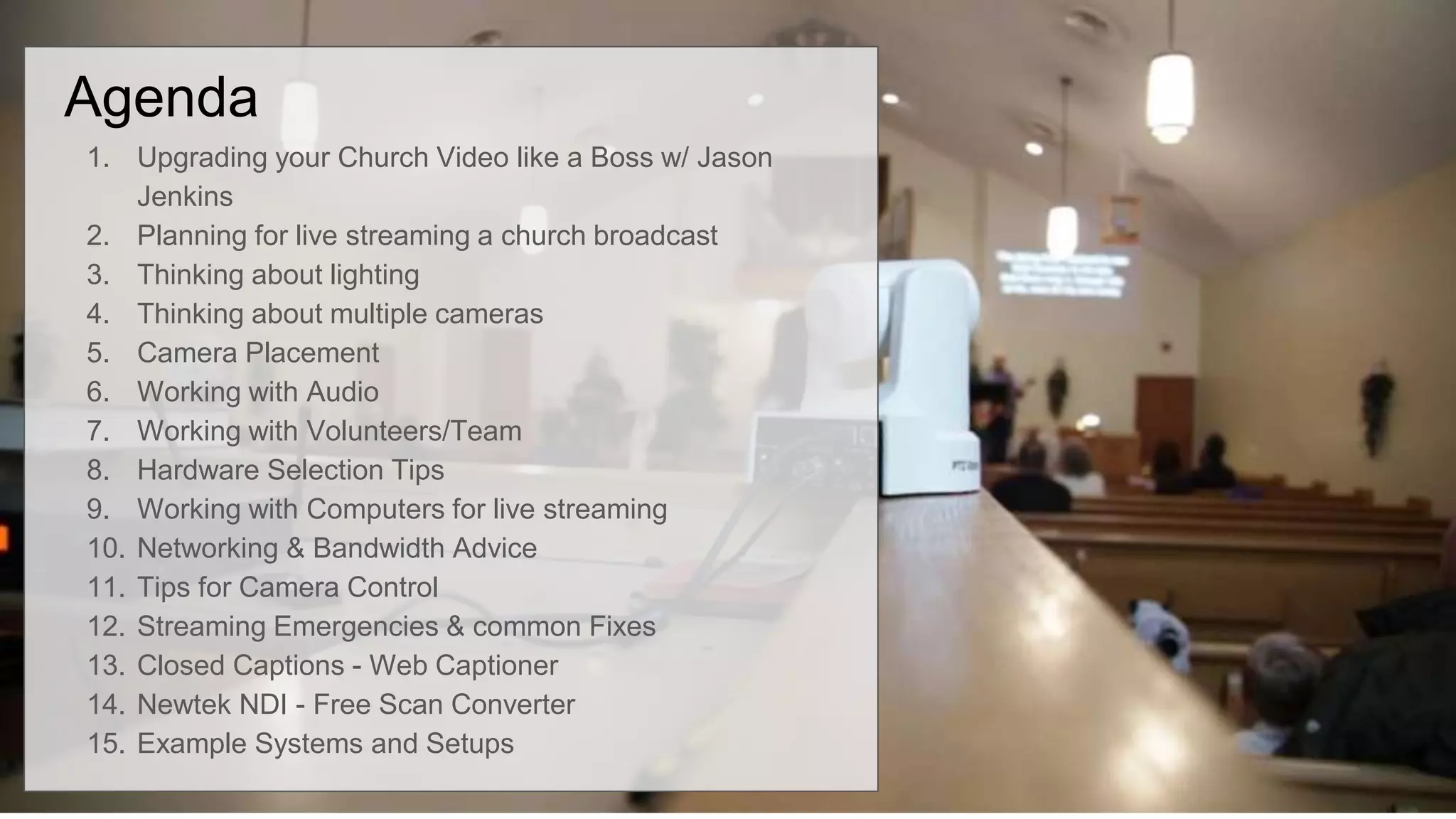
Agenda
1. Upgrading your Church Video like a Boss w/ Jason
Jenkins
2. Planning for live streaming a church broadcast
3. Thinking about lighting
4. Thinking about multiple cameras
5. Camera Placement
6. Working with Audio
7. Working with Volunteers/Team
8. Hardware Selection Tips
9. Working with Computers for live streaming
10. Networking & Bandwidth Advice
11. Tips for Camera Control
12. Streaming Emergencies & common Fixes
13. Closed Captions - Web Captioner
14. Newtek NDI - Free Scan Converter
15. Example Systems and Setups
Upgrade your Church Video Like a Boss
#1 What do you want to accomplish?
Jason often hears
1. We want to increase the production value of our
services by sending live video and graphics to multiple
screens.
2. We want to live stream our church services, to
increase our audience and spread the good word!
3. We want to record our sermons, and upload them to
Vimeo or YouTube, so that our house-bound
parishioners can watch them at home.
Upgrade your Church Video Like a Boss
#2 How many cameras do you want? Will you have camera
operators?
A church just starting out may only need a single camera.
Others may want three to five, or more… If they don’t have
employees or volunteers to operate these cameras, the
conversation turns to PTZ cameras (Pan, Tilt and Zoom).
You may want to consider the scalability of your system.
Can you easily add cameras in the future? Can you easily
add additional video inputs or outputs later on?
Upgrade your Church Video Like a Boss
#3 How is your Audio?
You can have the greatest video in the world and bad audio
will make the entire stream a wasted effort.
It could be that a simple microphone upgrade could
significantly improve your audio results.
You may need a more powerful transmitter to counteract
signal loss.
Upgrade your Church Video Like a Boss
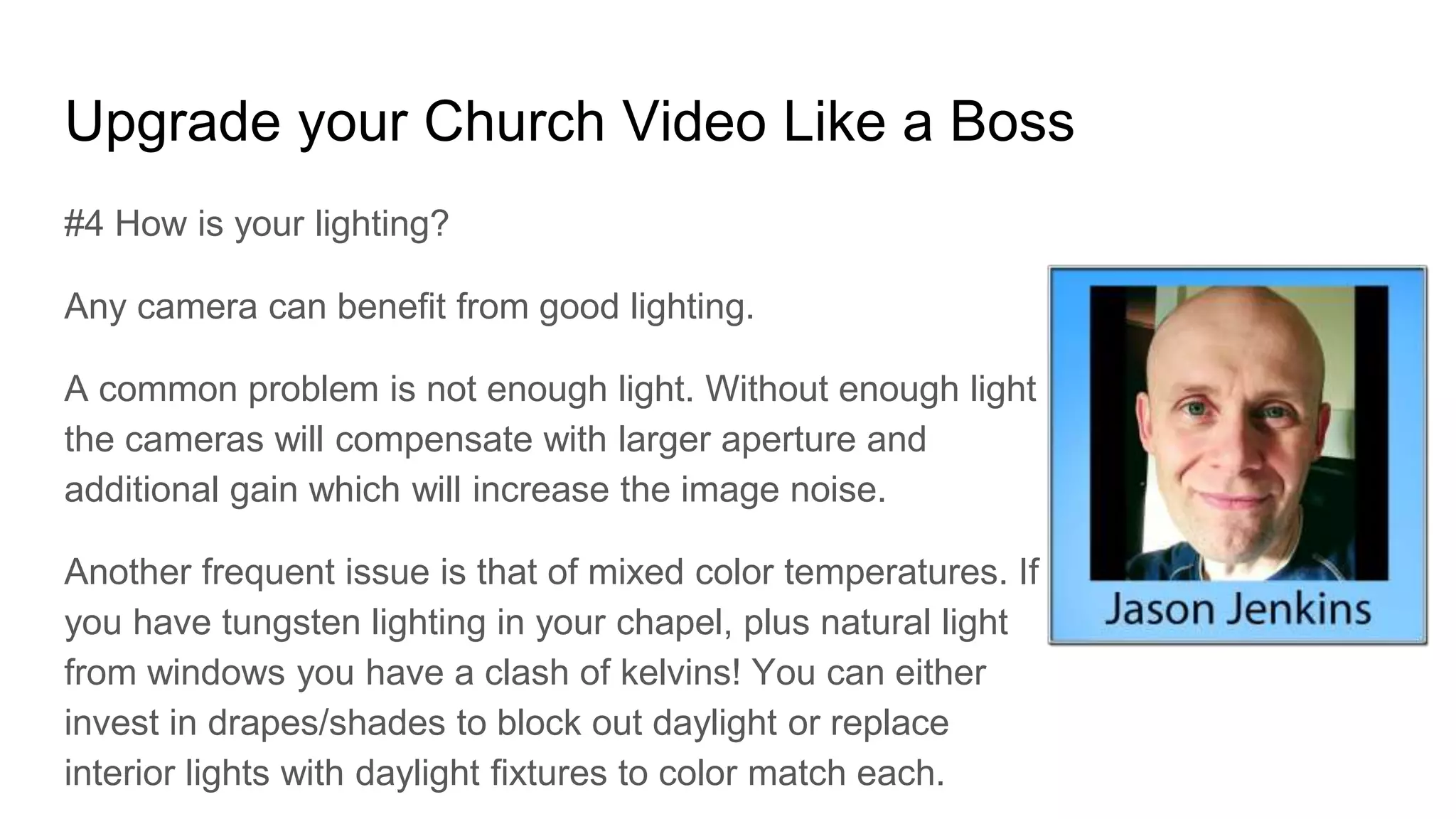
#4 How is your lighting?
Any camera can benefit from good lighting.
A common problem is not enough light. Without enough light
the cameras will compensate with larger aperture and
additional gain which will increase the image noise.
Another frequent issue is that of mixed color temperatures. If
you have tungsten lighting in your chapel, plus natural light
from windows you have a clash of kelvins! You can either
invest in drapes/shades to block out daylight or replace
interior lights with daylight fixtures to color match each.
Upgrade your Church Video Like a Boss
#5 What equipment do you have now and what new
equipment will be integrated?
Appliance Switchers
● Roland
● TriCaster
● BlackMagic ATEM
● Livestream
● Wirecast
Software Switchers
● vMix (PC only)
● mimoLive (Mac only)
● BlackMagic ATEM (PC/Mac)
● Wirecast (PC/Mac)
● Livestream Studio (PC only)
Learn more at the DVeStore Blog:
https://www.dvestore.com/blog/upgrade-your-church-video-
like-a-boss/
#1 Planning for house of worship live broadcasting
Dos:
Do plan for your first months worth of streaming services to have issues.
Do try to have someone you trust watch from outside your churches network. Either cell data or from
home. Allow them to provide you live feedback via text.
Don’t’s:
Don’t expect perfection without practice. And it’s hard to practice without a “live” service.
Don’t be discouraged by a small audience. Everyone attending online is someone who would not be in
service otherwise.
Don’t look at your streaming statistics on a regular basis. Statistics and metrics are for businesses, you
are using the internet to perform the Great Commission. There are no numbers requirements in that
verse. 😜 - Christopher M. Chinni
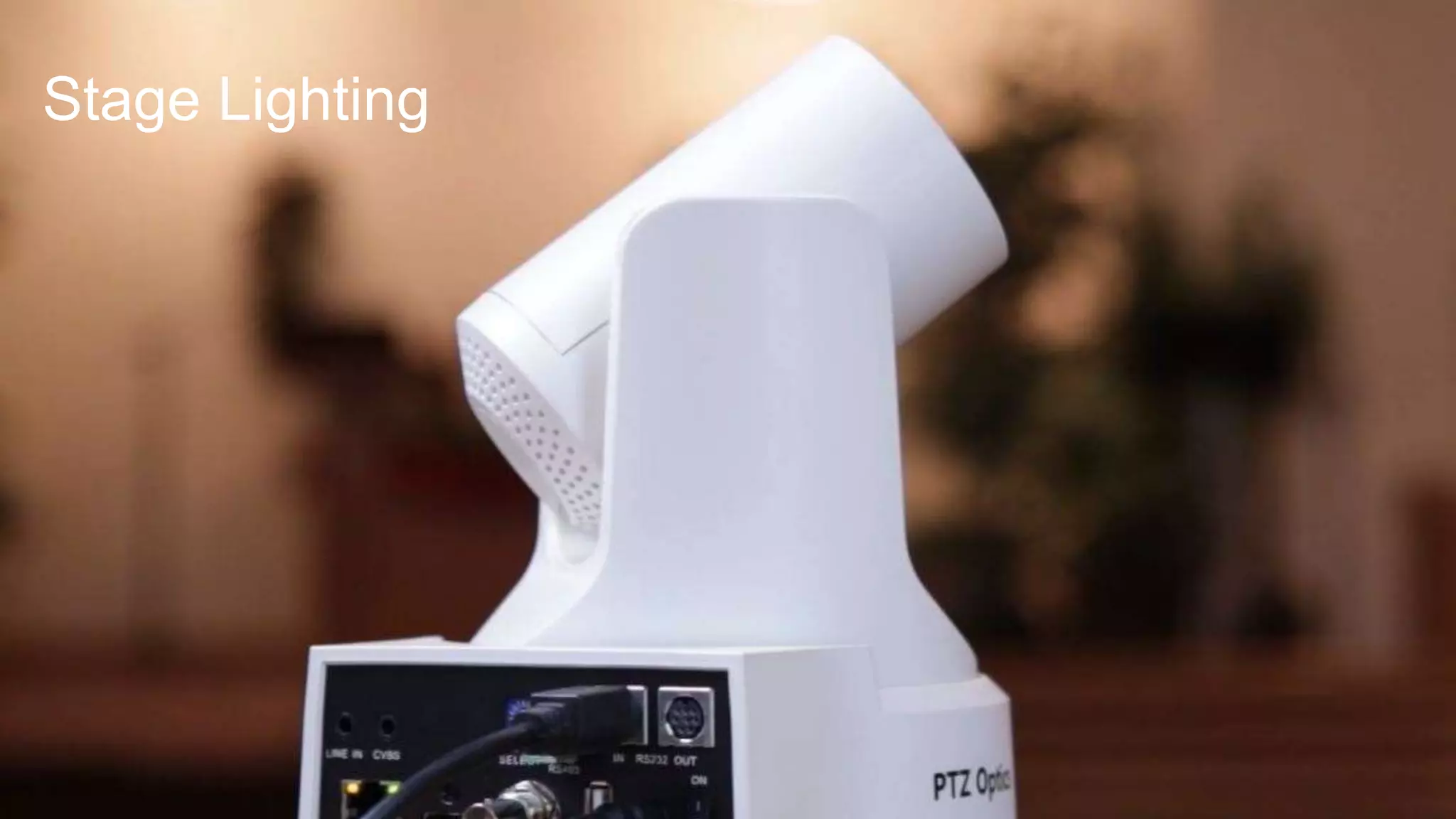
Stage Lighting
#2 Tips for live streaming a church service
Lighting:
1. Lighting will make or break your video quality. Buy gear with a long term
plan in mind - Barry Carpenter
2. For churches you need good quality lighting (as mentioned), at least two
takes/shots (tight and wide) should do. Incorporate media that is shown in
church via another computer/device (this is now shot #3). Ensure clean
audio input from main mixer. But most importantly engage the viewers
along the way. - Carlos Gonzalez
3. Good lighting is very important to quality video.
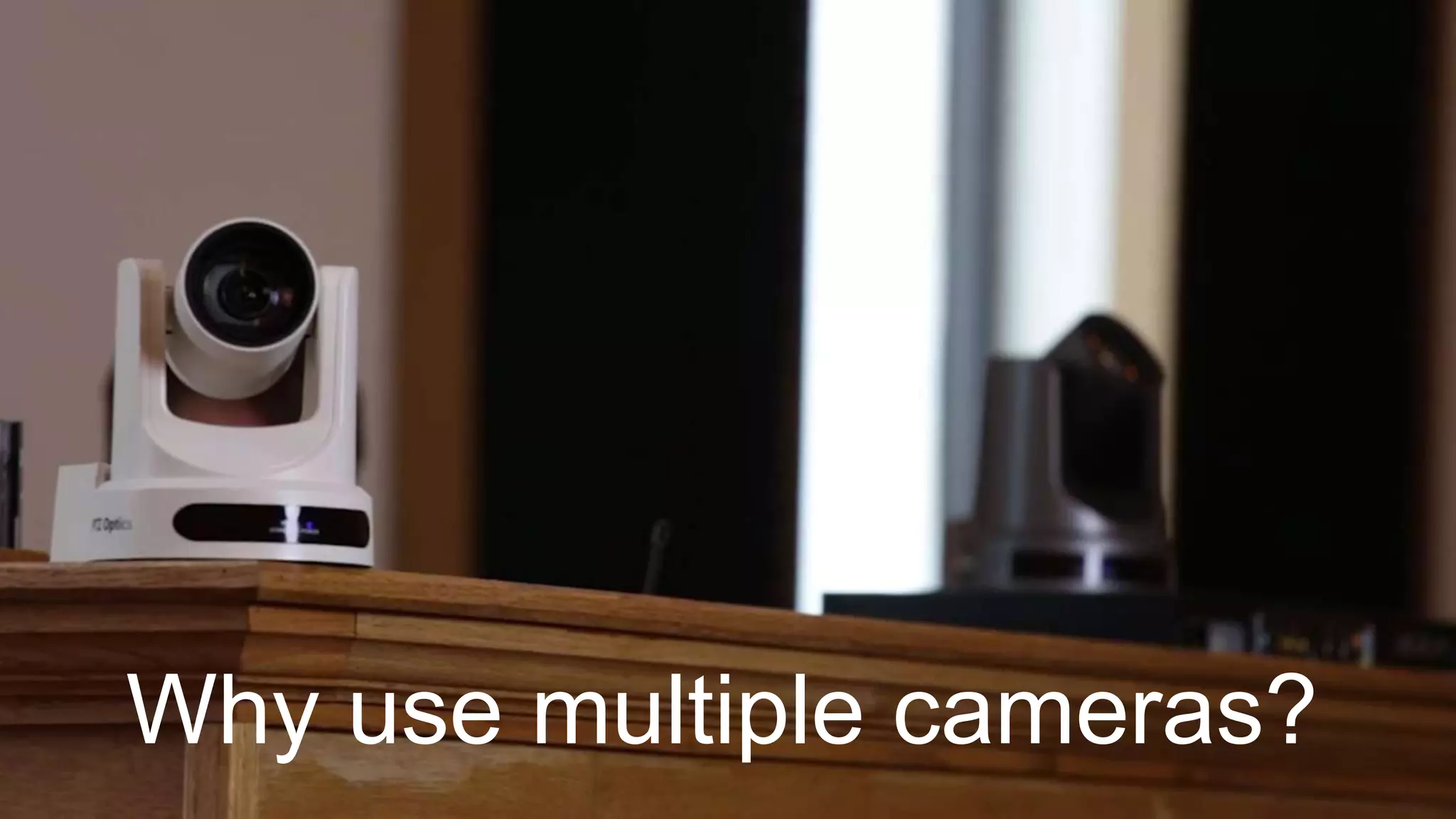
Why use multiple cameras?
#2 Using multiple Cameras
If you have multiple cameras I find it would be better to frame the camera shot off air and then switch to
the camera and move the off air camera to the next shot and switch.
When recalling presets from the controller, the camera zoom will quickly snap to the recalled zoom setting
and the camera will then pan to the programed position.
The PTZ cameras are great solutions for churches that don’t have much room to put camera platforms or
operators. They are great for churches with limited staff, since one person could frame the camera shots
and switch all from one small console.
Brooks Willig
Owner
Custom Audio, Video, Power Cables and Panels
(325) 374-3438 cell
www.westernaudioworks.com
westernaudioworks@gmail.com
Camera
Placement
Camera Placement Tips for Churches
We mounted the camera close to eye level with someone standing at the pulpit.
This angle is best for live IMAG shot. If it was at a higher angle like on a ceiling it
could have this looking down from heaven kind of shot feel, great for when you
want to show the crowd or people in a room but not so great when you need to
watch the preacher on stage for a long time.
With the camera zoomed a lot, the image will move much faster when panning or
tilting with the controller. Small slow movements are necessary if you have to
follow a speaker on stage. Moving the camera even a half of a degree can cause
a shift in the view position of the camera when zoomed in very much. - Brooks
Willig
Working with Audio
Audio Tips for Church Streaming
Audio
Good audio is half of a good video. Bad audio will get you discounted quickly.
You need to at least get a feed from your sound console, preferably a mix for
broadcast, which is different from FOH.
Try to capture audio the Front of House mix from the church mixer if you do not
have enough hardware in terms of a second mixer for a separate mix of the
church. - Alfredo Tigolo
Use a couple good shotgun mics to pickup ambient sound from the room, pick up
worshipers, shouting, singing, etc. Keep the gain down far enough to pick up
sounds yet avoid echoing - James Bond
Audio Tips for Church Streaming
Audio
With Sound, do not only rely on the sound desk. Always, have at least i mic into
the system as a backup. Usually off the lectern. . - Chris Morton
Working with
Volunteers and
Teamwork...
Working with Volunteers
Remember that just because it seems simple and easy to use to you doesn't mean it will be for your
volunteers so always follow the Keep It Simple Stupid principle when designing a system only add as
much complexity as is needed to get the job done and only when your team is comfortable add new
things.
Start with 1 or 2 cams more than that starts to become more complex to manage.
Minimize the number of adapters and converters you use, because at the worst possible time one of them
will fail. Also have a few spares on hand in case one breaks.
Avoid HDMI like plague due to the hdcp copy protection protocols on that format. SDI is your best bet for
reliability and quality. NDI is great but only if you have the networking chops to build out the infrastructure
to handle it. - Kevin Amos Schmuhl
Working with Volunteers in Video Production
Volunteers. Perhaps this should have been higher on the list, maybe the number
one thing to consider. You need to make sure your volunteers are ready to go
and that they understand their responsibilities and the equipment. I also believe
having regular meetings with your volunteers (other than Sunday’s), can be very
beneficial and build relationships.
Review order of service with your team. This is more than just the people running
video, sound and cameras, this should include everybody that is involved in the
service from the pastor, the band or worship leader, to the person making
announcements, and whoever else is involved on the platform. You may need to
know details about where on the stage someone might be and who is on what
microphone, etc.. -Phil Thompson
Working with a Team
I think one of the key aspects is the team integration. Most church set-ups will not
have the ability to have two consoles, and multiple camera ops, sound techs, and
graphics teams. I think the tip is to do a realistic plan with the people you have
now to determine just how far you want to go. From this point begin with a budget,
add 10% and spec equipment. Audio is really important and adding in a room mic
or two can really make all the difference in the world, better yet if you can add a
little effects to it through a bus mix out. We just took our level to live captioning
through ATEM which is no small feat. We also display the lyrics using
ProPresenter while in worship. We have a campus license and use the
master/slave option. Here is a video of WebCaptioner doing its thing. FF just a few
minutes, we let it build up since it is all mumbo jumbo from trying to caption the
worship part. - Ryan Michael
Working with a Team
Assign production roles to anybody assisting with the production. This is very
important with amateur and/or volunteer production teams as it allows specific
people to “own” a particular part of a workflow. Assigning roles makes it easier for
people to learn broadcast critical elements of a production, without overwhelming
them. This leads to better broadcasts and accountability on specific tasks. - John
Basile
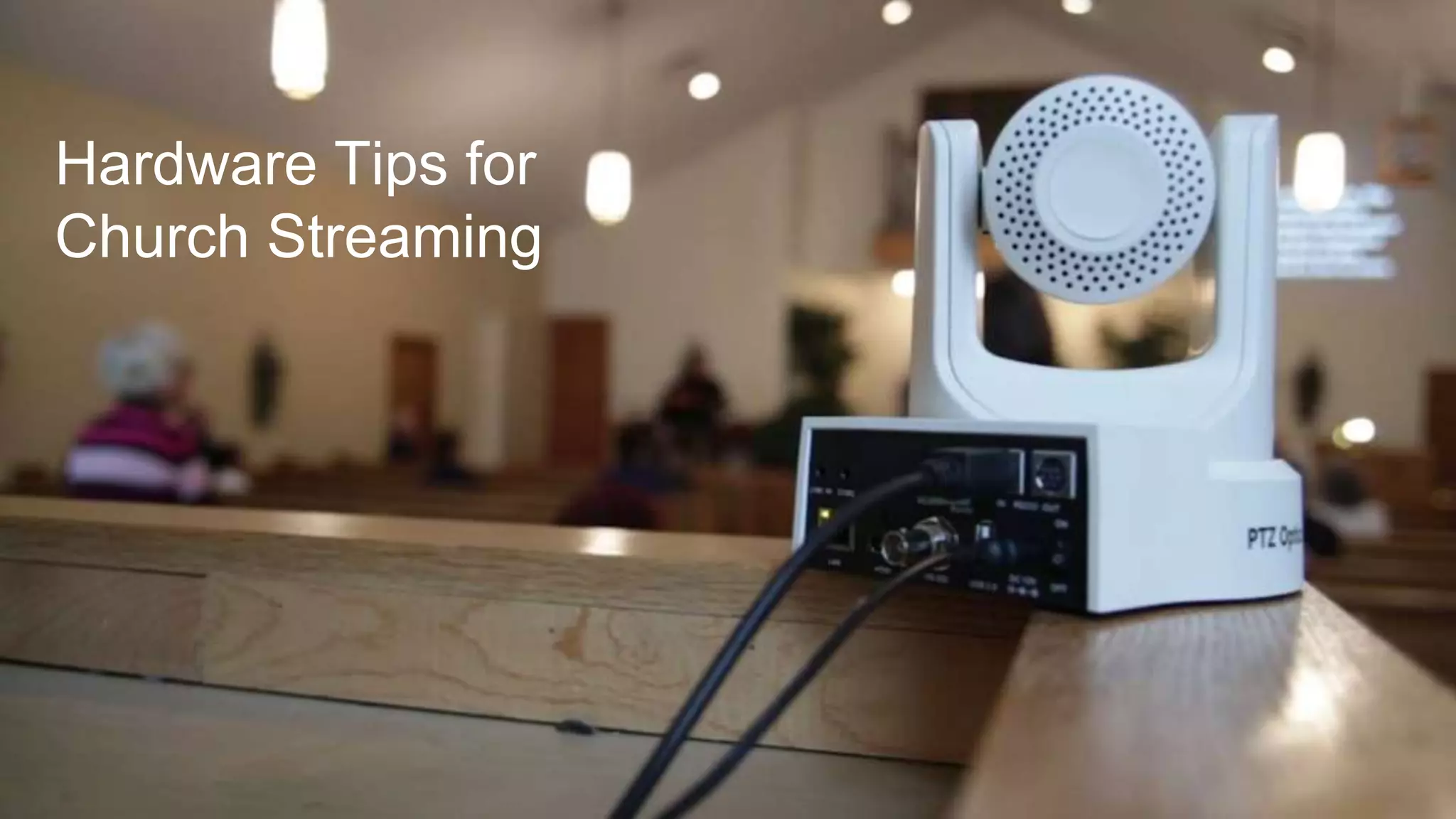
Hardware Tips for
Church Streaming
Hardware Tips for Church Streaming
Hardwire only. Do not try streaming from your laptop with wifi only. Also, most
streaming software works best on PC's. - Frank Chyz
The KISS Rule. Keep It Simple Stupid. Start slow and add flash as you learn and
feel comfortable. - Dan Abrams
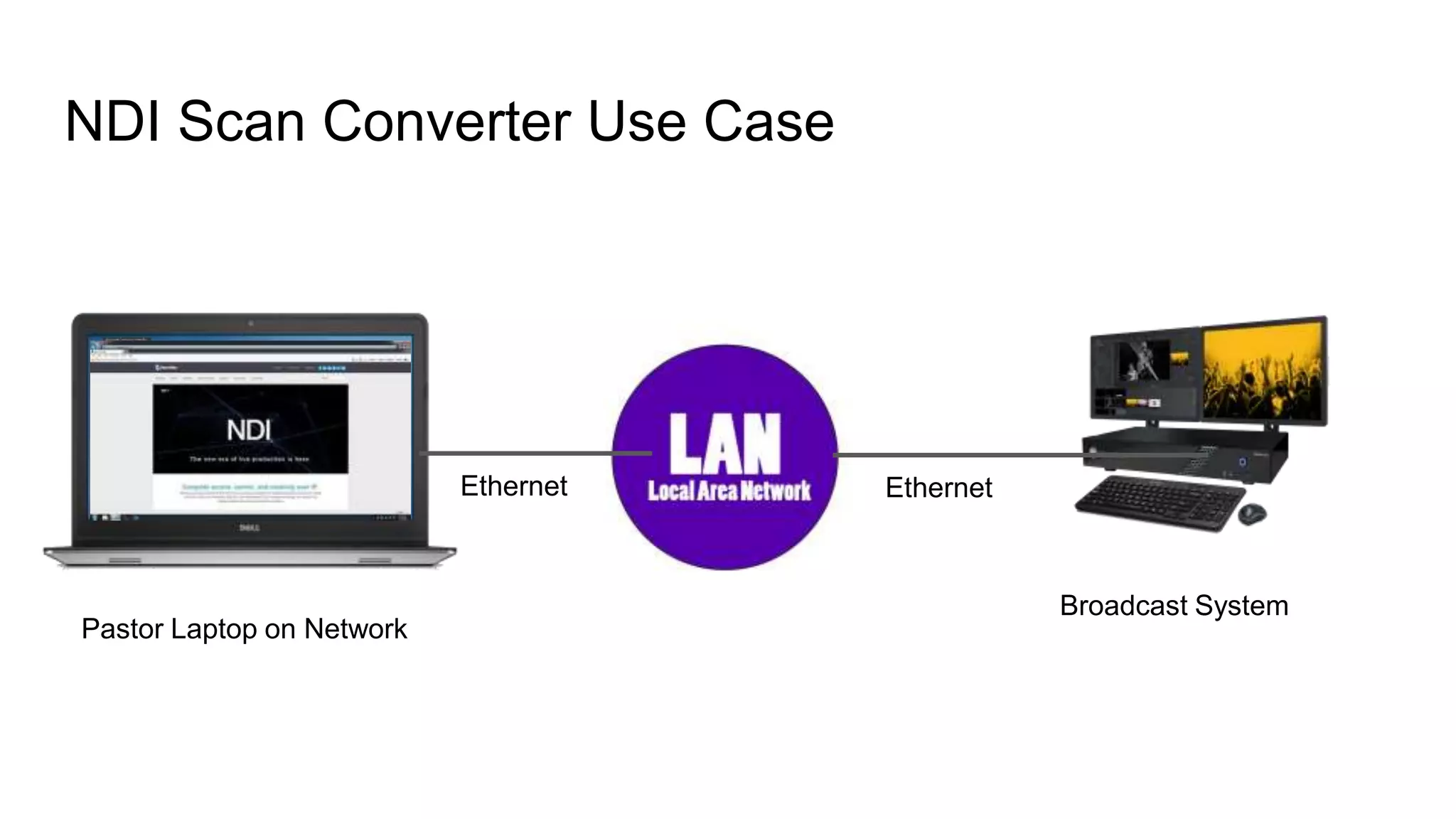
NDI is your friend. Run NDI scan converter on your presentation computer so that
you can bring in sermon graphics, scriptures, PowerPoint, worship lyrics, ect… -
Mackenly Jones
Hardware Tips for Church Streaming
Power Conditioners. I simply cannot stress the importance of having a great
power conditioner or surge suppression system. In venues with older wiring, this is
an absolute must as voltage fluctuations caused by projectors, large amplifiers
and lighting can put your equipment at risk and affect overall system performance.
- John Basile
A good cross-converter is worth its weight in gold. You never know when a
component might fail or if a guest speaker wants to bring their own equipment into
your workflow, having a good cross-converter on hand can make all of the
difference.
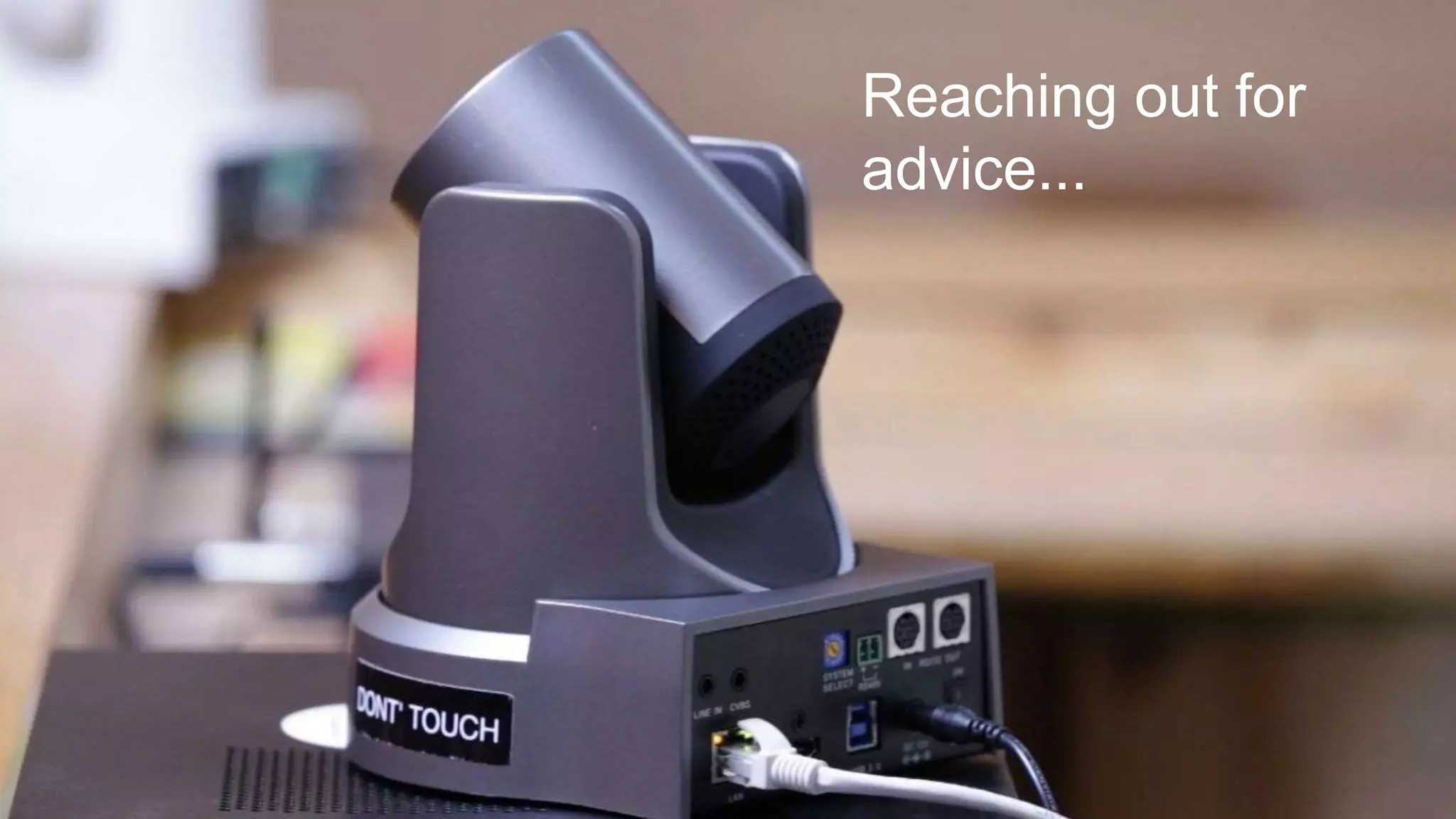
Reaching out for
advice...
Reach out for advice
There are a lot or great advice given here. What can really help anyone get their
mind around what it takes to broadcast a service is to go visit a church in your
area who is doing what you want to do, make a phone call and see if they will let
you take a tour and ask question. Bring some people from leadership and
volunteers. After a visit you will have a good idea on what needs to be done to do
it well. Even if you don't have the budget it will give you perspective. - Benjamin
Dillenback
Facebook is a great place to share ideas with fellow broadcasters!
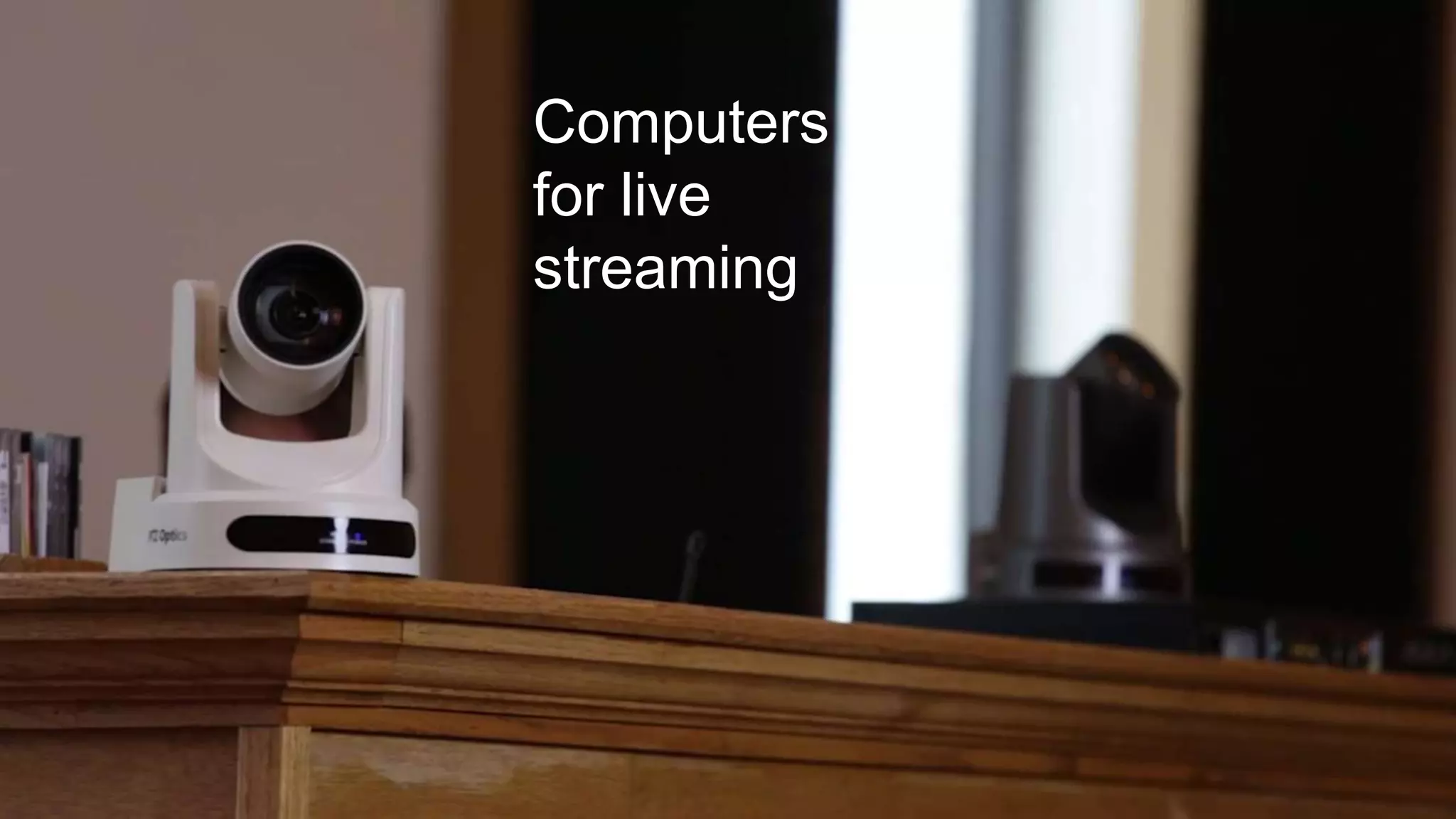
Computers
for live
streaming
Computers for church streaming
Learn how to build and optimise computers, if you go the vMix route. Your computer might act weird just before the gig, you
should know how to fix it yourself. A help desk might not be available on a sunday morning or a saturday night, so being
able to detect and fix problems yourself is important. Also dedicate a machine to livestreaming only. This means: no
browsing, video editing, gaming… - Ittai De Vree
CPU Load on Computer. I put this down the list aways because to really get an accurate idea on how your processor is
doing you need to have everything up and running including your live encoder as you stream. If your computer is running
above 70% CPU, I would be a little nervous. If it’ above 80%, I would be really nervous. If it’s above 90% I would leave the
room and run for the hills. Just kidding about that one, but anytime your CPU runs over 70 to 80%, it’s going to cause
problems with your streaming video. Video buffering, video pixelation, and more problems will develop. If your CPU runs
high you need to examine the resolution that you are streaming. You may need to lower it. If you are sending multiple
streams, that can be taxing on your computer. If you are recording your service using your live encoder that can drain your
computer’s resources. One solution is to beef up your computer’s processor and ram. - Phil Thompson
Networking &
Bandwidth Tips
Bandwidth tips for church streaming
Whatever bandwidth you’re broadcasting in (total, all upstream outputs) add a minimum of 40% for
overhead.
So if you’re encoding three bitrates on site, a 1080p 6mbps stream, plus a 2.5mbps 720p stream, plus a
1.5mbps 480p stream (total of 10mbps), you don’t just need 10mbps, you need 14mbps (minimum, for
mission critical applications you want at least double, 20mbps).
Remember that this is upstream bandwidth, not down. Many cable modems provide very asymmetrical
data rates: 300mbps down, but only 20mbps up, say.
And you need to make sure you’re getting this rate steady while the network is under the normal use it will
be while streaming. I’m Jewish, so I don’t really know what Christians do with their phones during a
religious service, but if there are people on the network using it, it will take some of you bandwidth away. -
Dan Abrams
Bandwidth tips for church streaming
NDI is rapidly becoming an industry standard, so make sure your network is
ready. Since NDI relies on a good amount of bandwidth, a robust router and
switches capable of 1Gbps speed is a necessity for reliable streaming. Speaking
of- utilizing products such products such as NDI-enabled PTZOptics cameras
along with solid PoE+ can make upgrading your current cameras easier than ever.
- John Basile
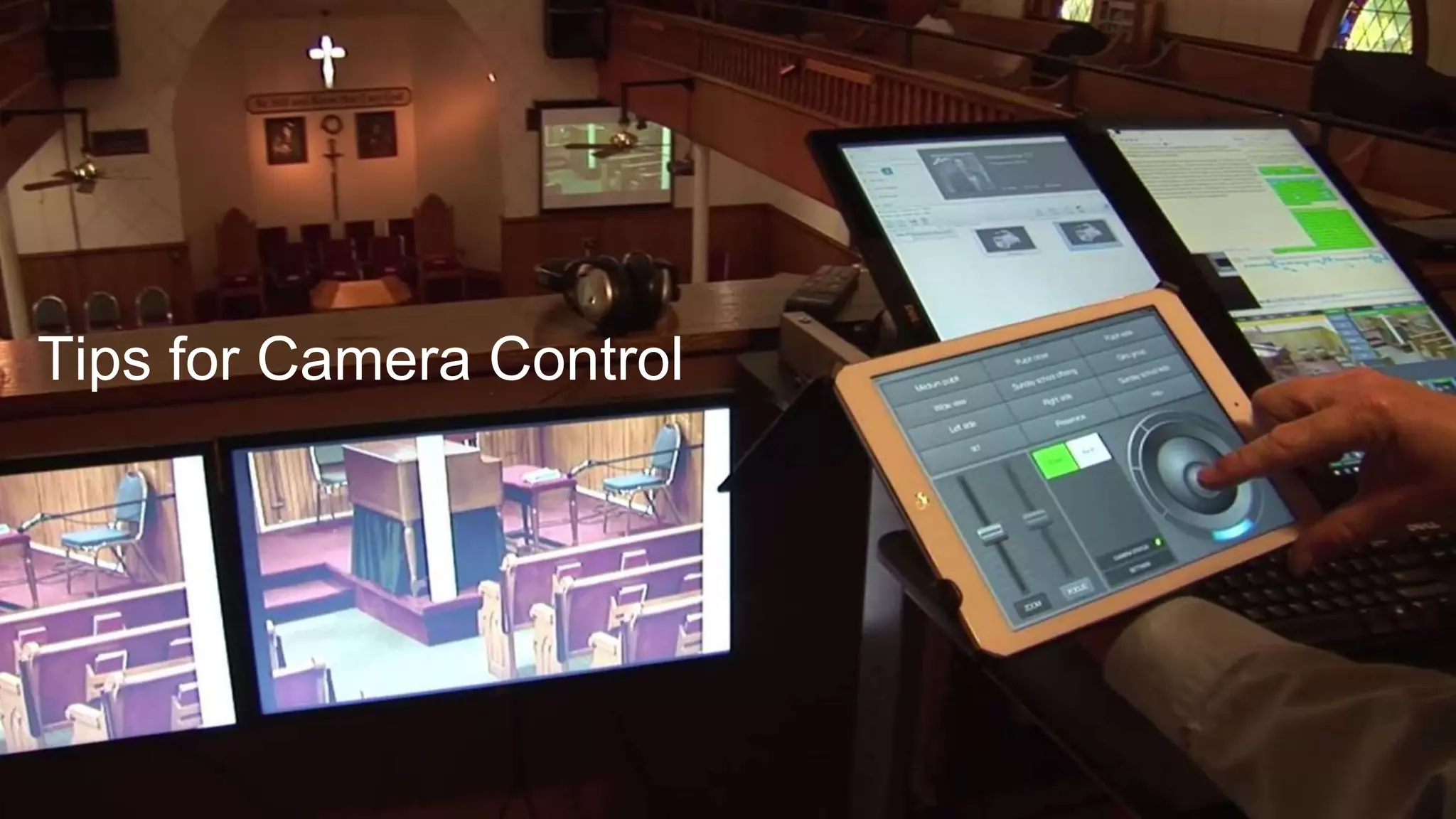
Tips for Camera Control
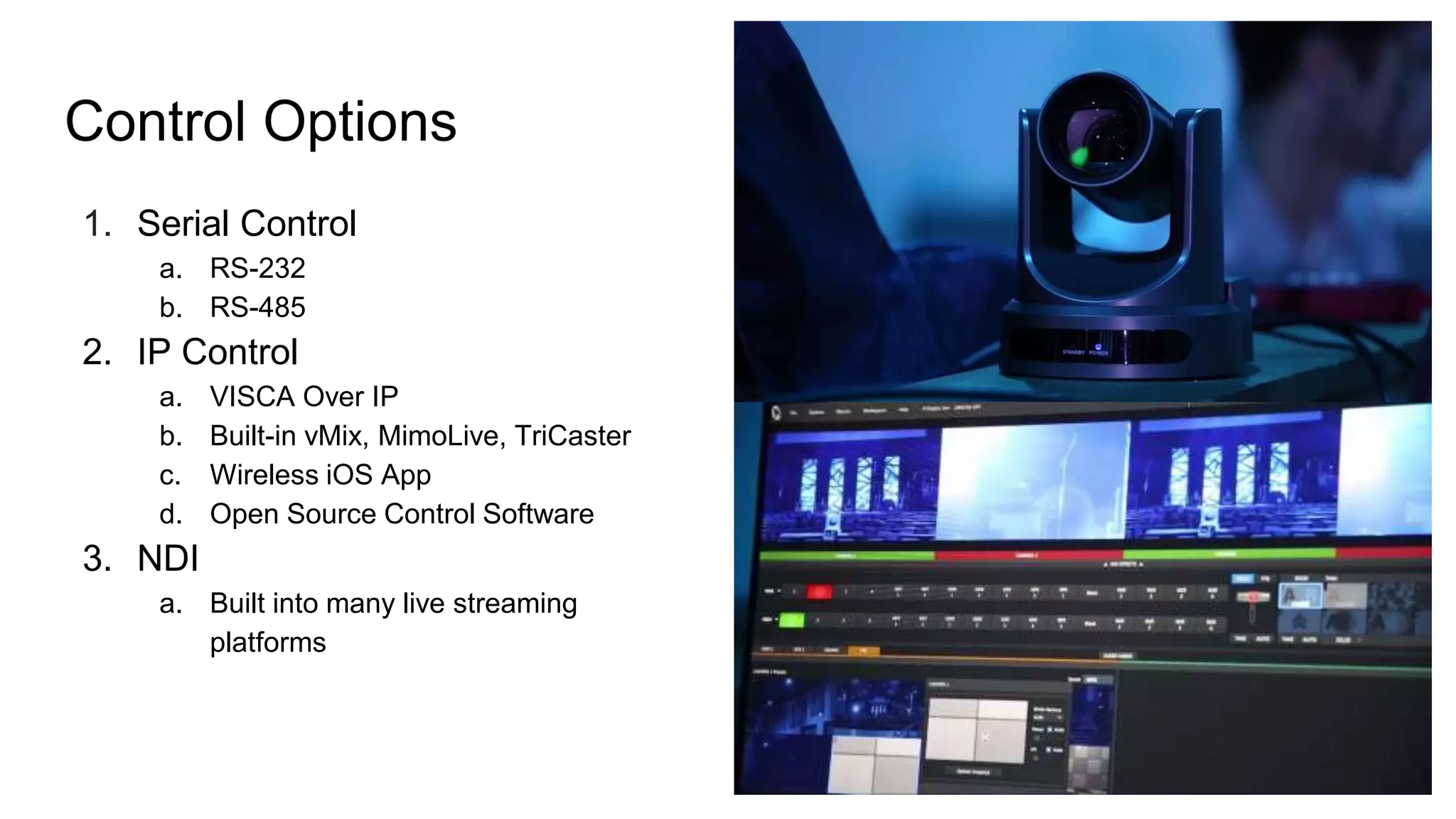
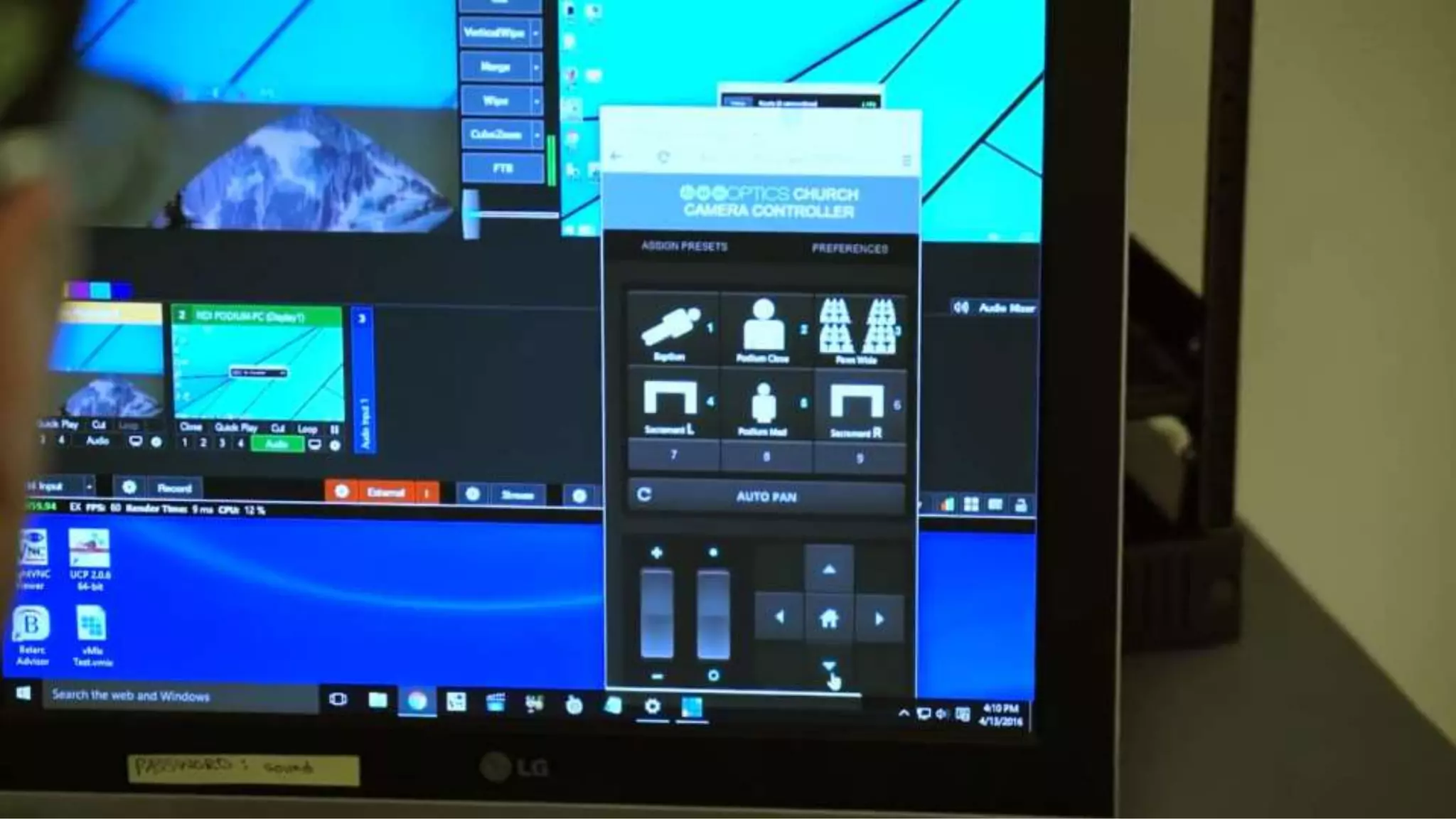
Control Options
1. Serial Control
a. RS-232
b. RS-485
2. IP Control
a. VISCA Over IP
b. Built-in vMix, MimoLive, TriCaster
c. Wireless iOS App
d. Open Source Control Software
3. NDI
a. Built into many live streaming
platforms
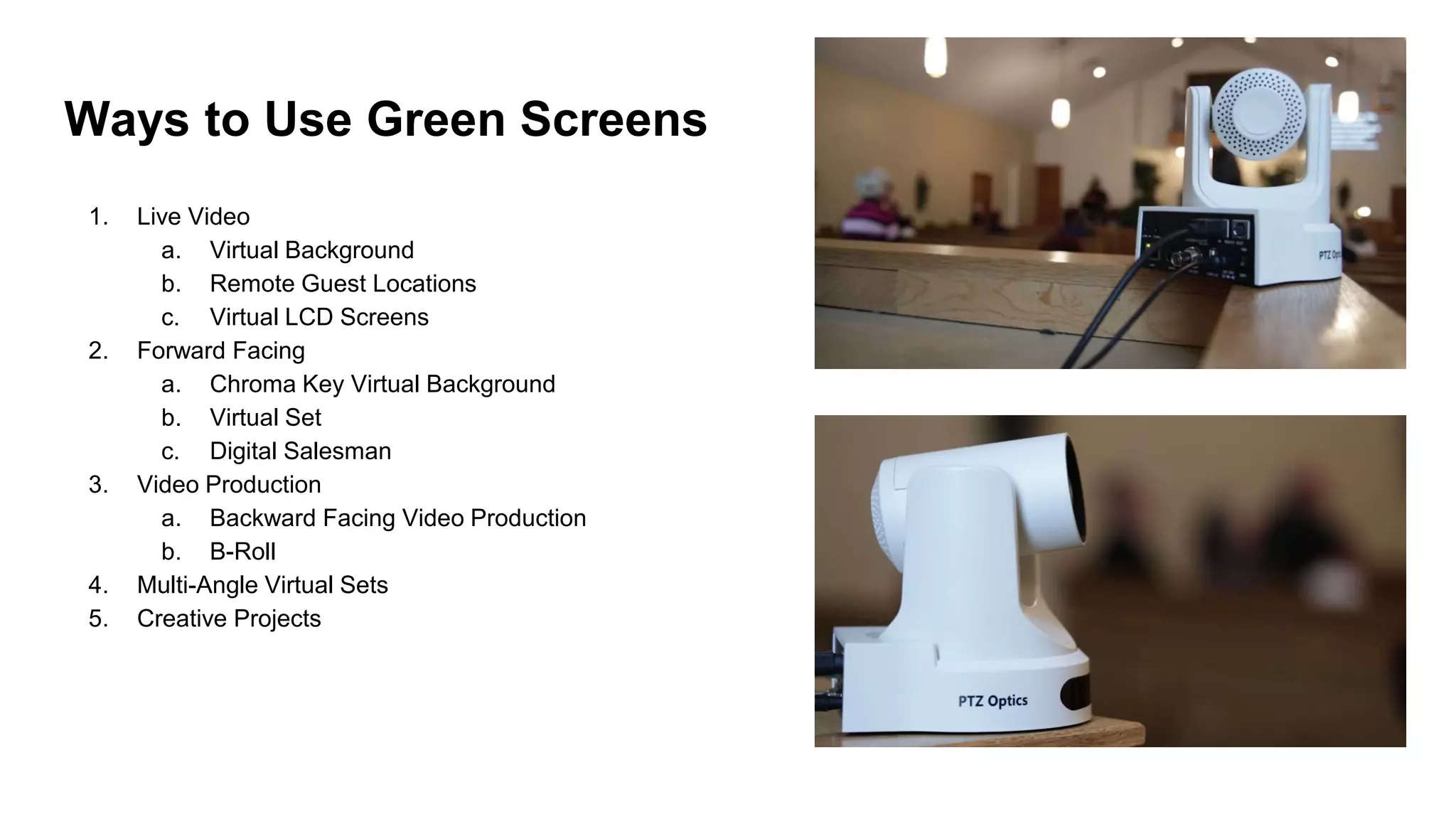
Ways to Use Green Screens
1. Live Video
a. Virtual Background
b. Remote Guest Locations
c. Virtual LCD Screens
2. Forward Facing
a. Chroma Key Virtual Background
b. Virtual Set
c. Digital Salesman
3. Video Production
a. Backward Facing Video Production
b. B-Roll
4. Multi-Angle Virtual Sets
5. Creative Projects
Streaming
Emergencies!
Tips from Phil
Thompson
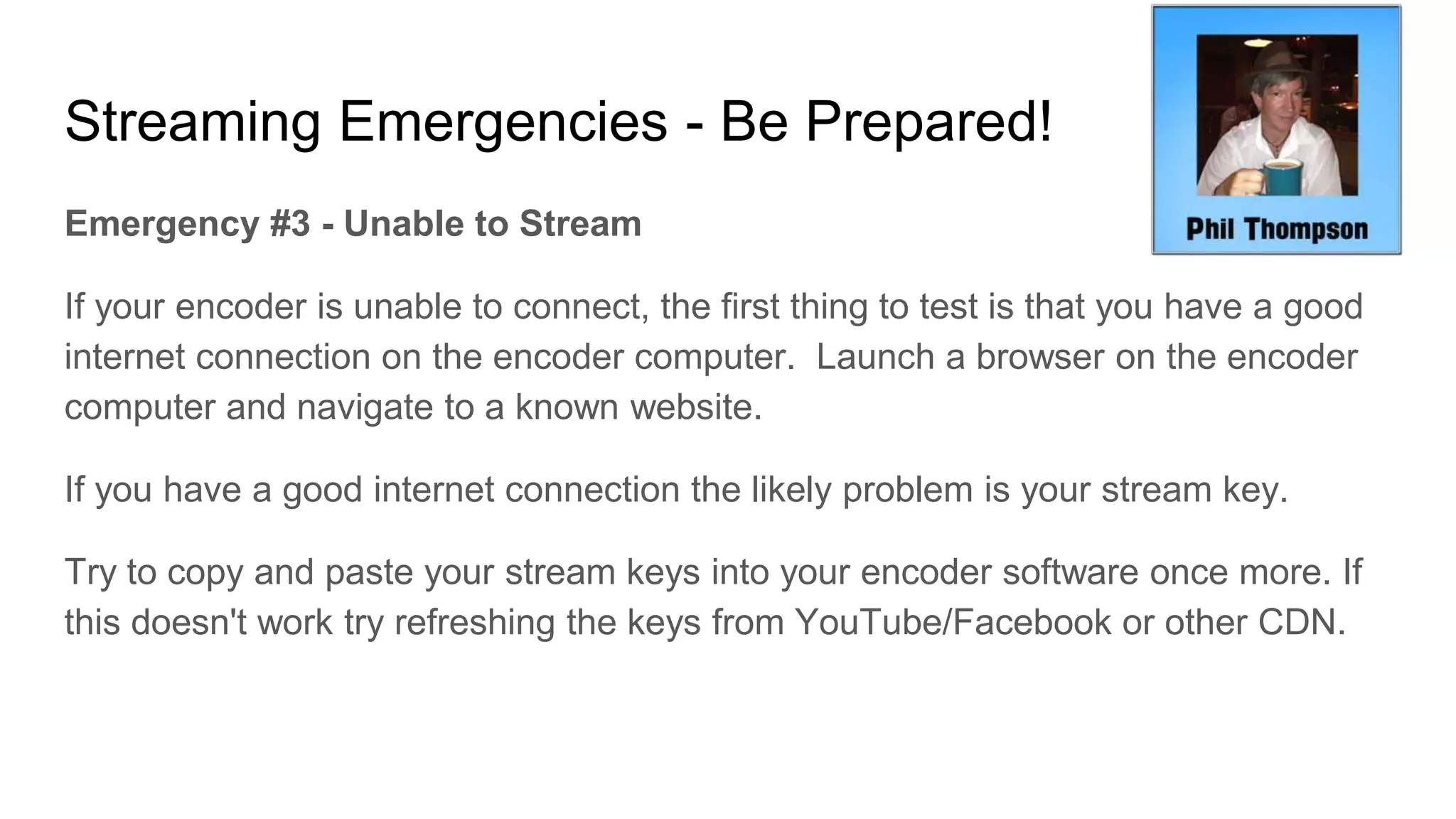
Streaming Emergencies - Be Prepared!
Emergency #1 - Buffering & Skipping
What happens when you video stream starts to buffer and skup? The common
issue here is lack of bandwidth. You need to increase your upload speed most
likely. In Wirecast, the broadcast icon will change colors from green to yellow or
red. In vMix, the stream button will change color from red (which means
broadcasting live without issue) to yellow or orange. In OBS, there’s a similar alert
on the lower right hand part of the screen showing the stream status.”
Next run a speed test at speedof.me to measure your current upload speed.
Remember we are looking for upload speed not download speeds.
Streaming Emergencies - Be Prepared!
As a rule you should have twice the amount of upload speeds as you are
consuming with you stream.
720p can be between 1.5-4MBps.
1080p can be between 2-6MBps.
4K can be between 8-30MBps.
Tip: Consider putting a password on your WiFi. Your church members may be
consuming the bandwidth you need to broadcast. So password protect your WiFi
Access point during live broadcasts.
Another option is purchasing a dedicated ISP service for your broadcast PC.
Streaming Emergencies - Be Prepared!
Emergency #2 - Pixelation
“Pixelation is normally due to your encoder not able to encode your stream fast
enough. Commonly, the moving parts of the video image are pixelated while the
static items remain crisp. The encoder works hardest when the video contains
moving subjects and backgrounds. Encoding your stream can be very taxing on
your computer. You’ll want to make sure that the CPU on your computer doesn’t
reach above 80% at any time you’re streaming.
Option 1: Reduce the workload of your computer
Option 2: Upgrade your computer
Streaming Emergencies - Be Prepared!
Emergency #2 - Pixelation
To reduce the load on your computer, you can change your encoder settings to
either remove some additional streams and/or change the settings of your existing
streams. Removing one of your two streams can reduce the CPU load by almost
50%. The key parameters to reduce the workload when encoding a single stream
include the stream resolution, the stream bit rate and the stream frame rate.
Changing your frame rate from 60 frames per second to 30 frames per second
can reduce the encoder workload by 50%. So set your frames per second at 30
frames per second. Reducing your broadcast speed and resolution can also
dramatically reduce the workload on your encoder. Although certain resolutions
require minimum broadcast bit rates to broadcast properly.
Streaming Emergencies - Be Prepared!
Emergency #3 - Unable to Stream
If your encoder is unable to connect, the first thing to test is that you have a good
internet connection on the encoder computer. Launch a browser on the encoder
computer and navigate to a known website.
If you have a good internet connection the likely problem is your stream key.
Try to copy and paste your stream keys into your encoder software once more. If
this doesn't work try refreshing the keys from YouTube/Facebook or other CDN.
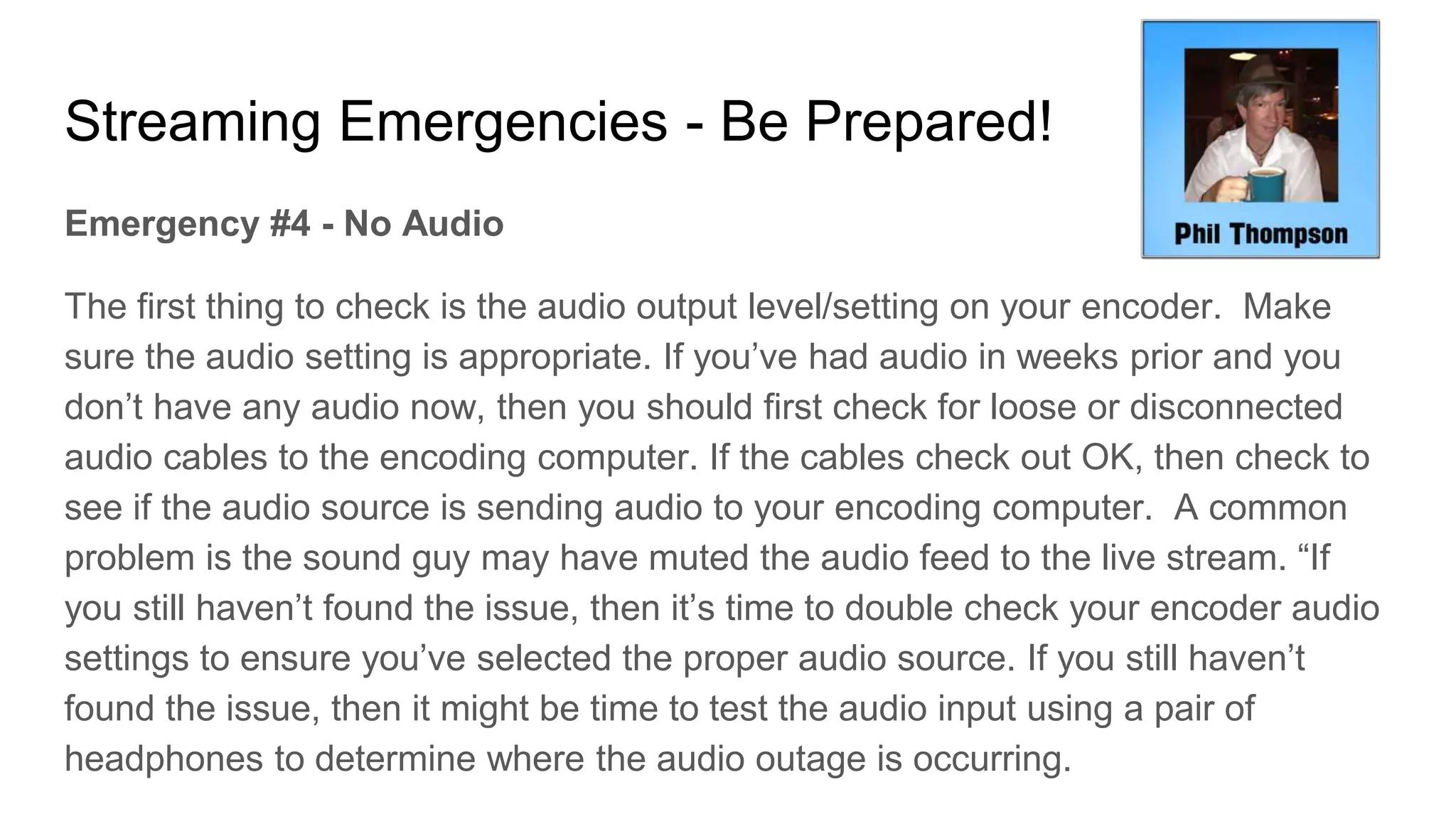
Streaming Emergencies - Be Prepared!
Emergency #4 - No Audio
The first thing to check is the audio output level/setting on your encoder. Make
sure the audio setting is appropriate. If you’ve had audio in weeks prior and you
don’t have any audio now, then you should first check for loose or disconnected
audio cables to the encoding computer. If the cables check out OK, then check to
see if the audio source is sending audio to your encoding computer. A common
problem is the sound guy may have muted the audio feed to the live stream. “If
you still haven’t found the issue, then it’s time to double check your encoder audio
settings to ensure you’ve selected the proper audio source. If you still haven’t
found the issue, then it might be time to test the audio input using a pair of
headphones to determine where the audio outage is occurring.
Example
Church
Layout
from Jason
Jenkins!
NDI Scan Converter Use Case
Broadcast System
EthernetEthernet
Pastor Laptop on Network
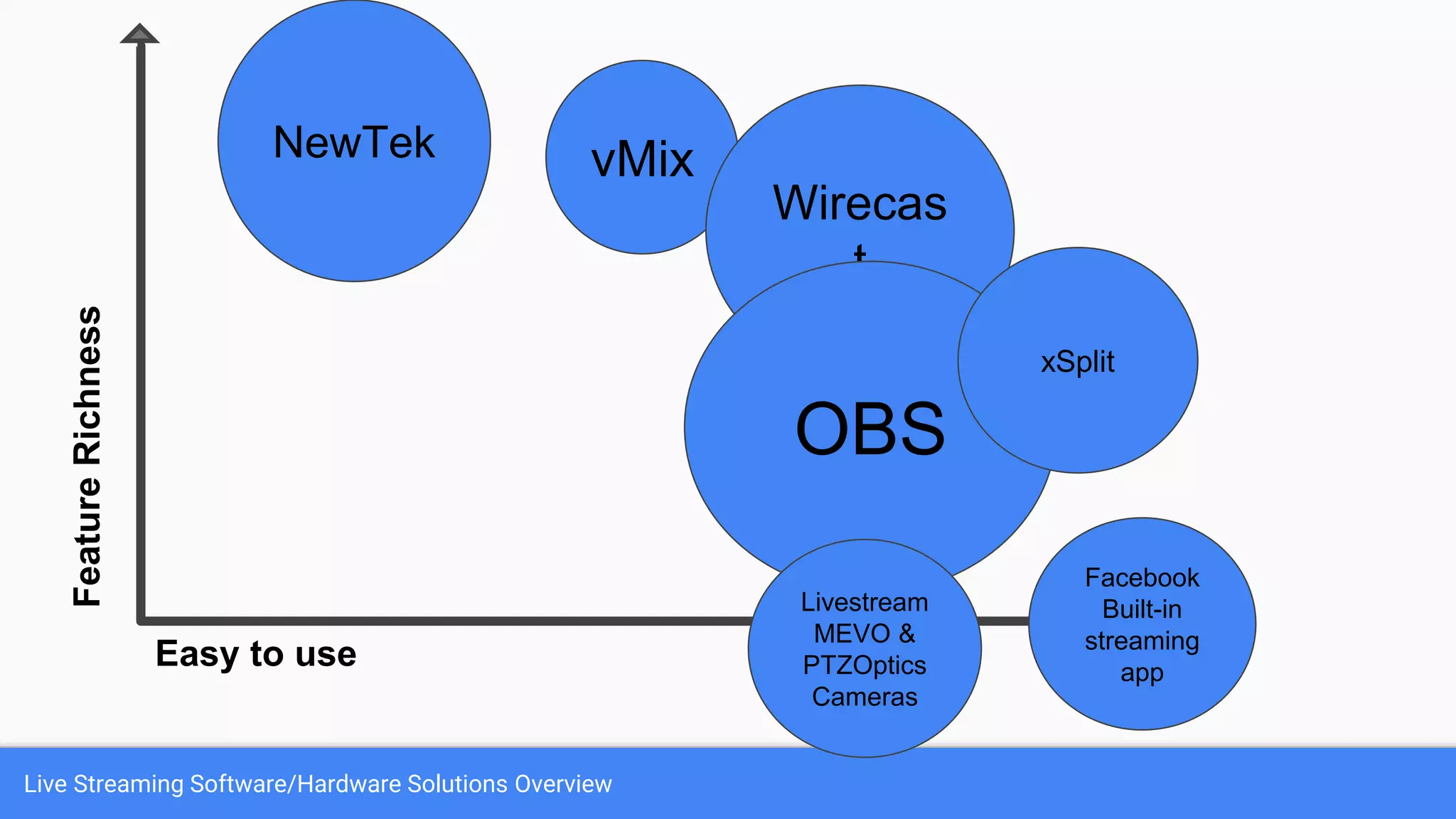
Live Streaming Software/Hardware Solutions Overview
Easy to use
FeatureRichness
NewTek vMix
Wirecas
t
OBS
xSplit
Facebook
Built-in
streaming
app
Livestream
MEVO &
PTZOptics
Cameras
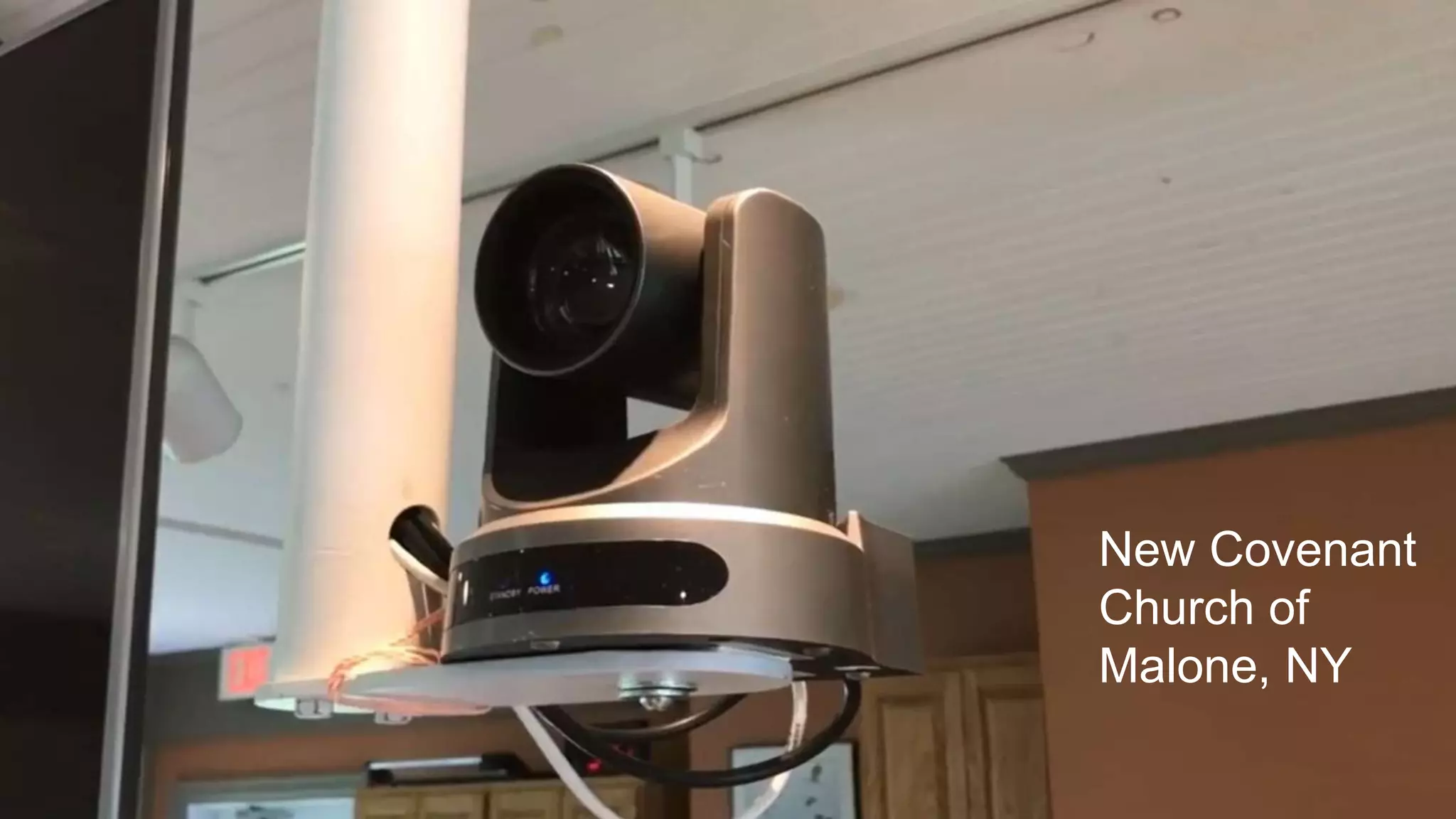
New Covenant
Church of
Malone, NY
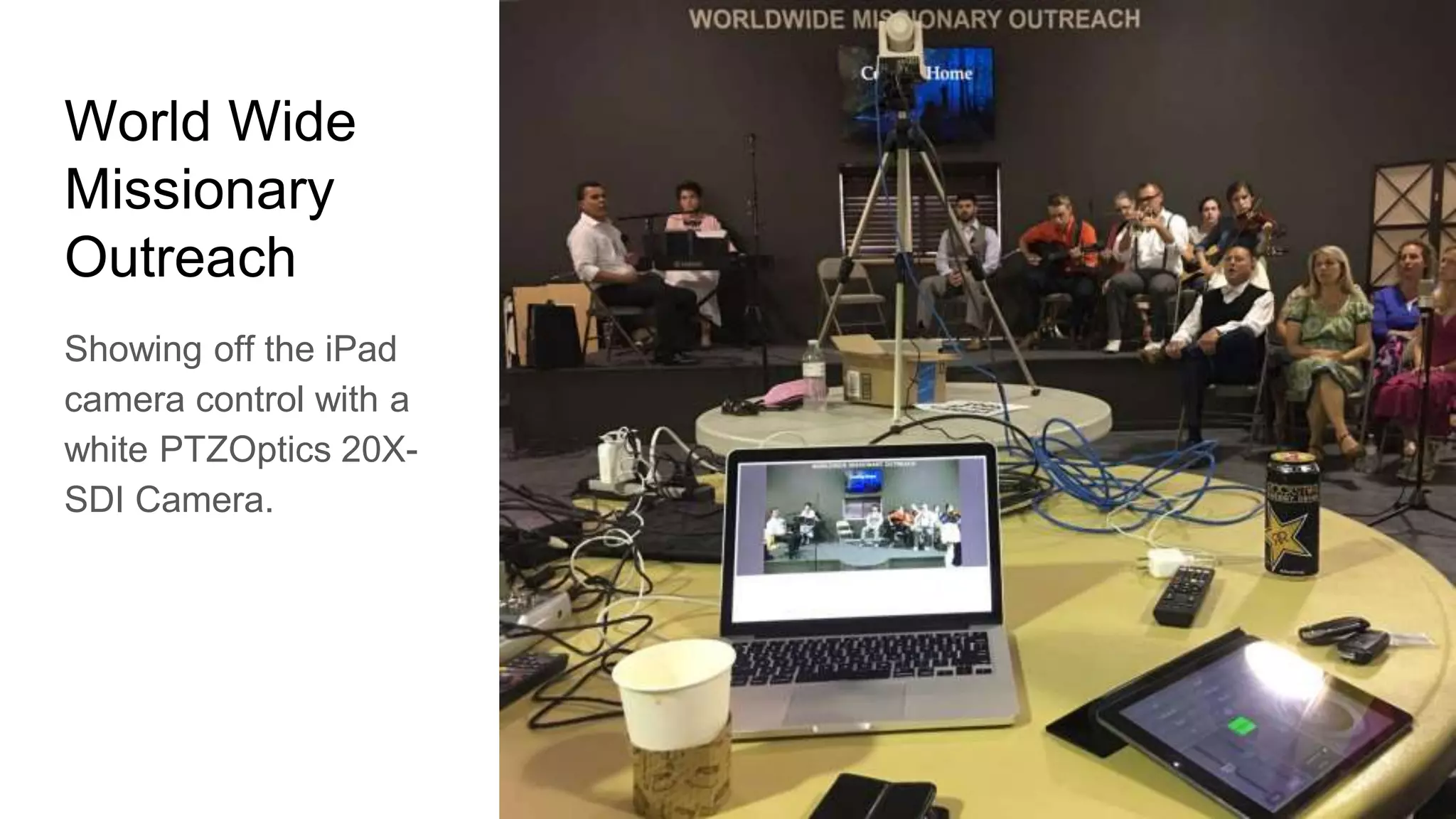
World Wide
Missionary
Outreach
Showing off the iPad
camera control with a
white PTZOptics 20X-
SDI Camera.
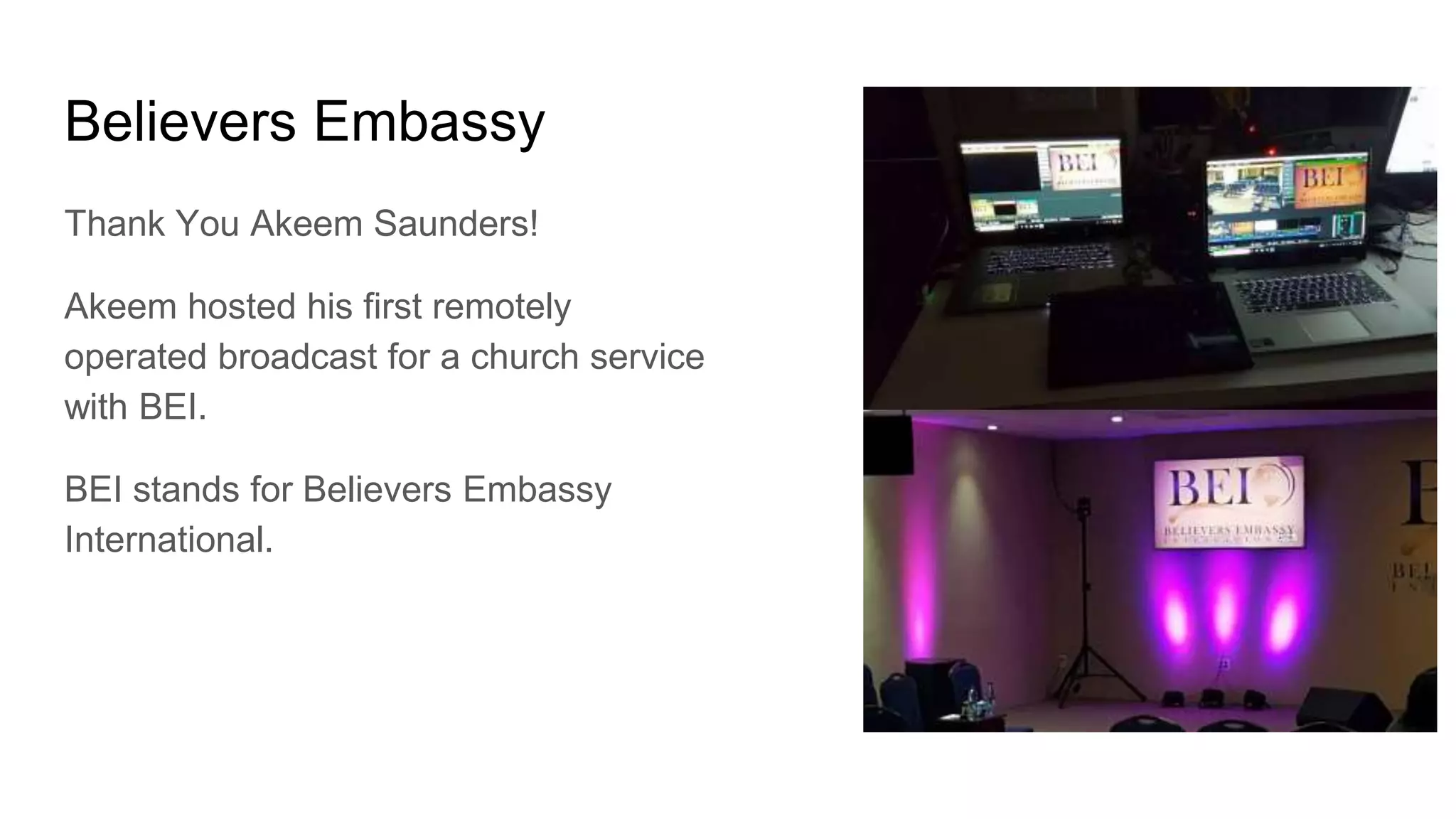
Believers Embassy
Thank You Akeem Saunders!
Akeem hosted his first remotely
operated broadcast for a church service
with BEI.
BEI stands for Believers Embassy
International.
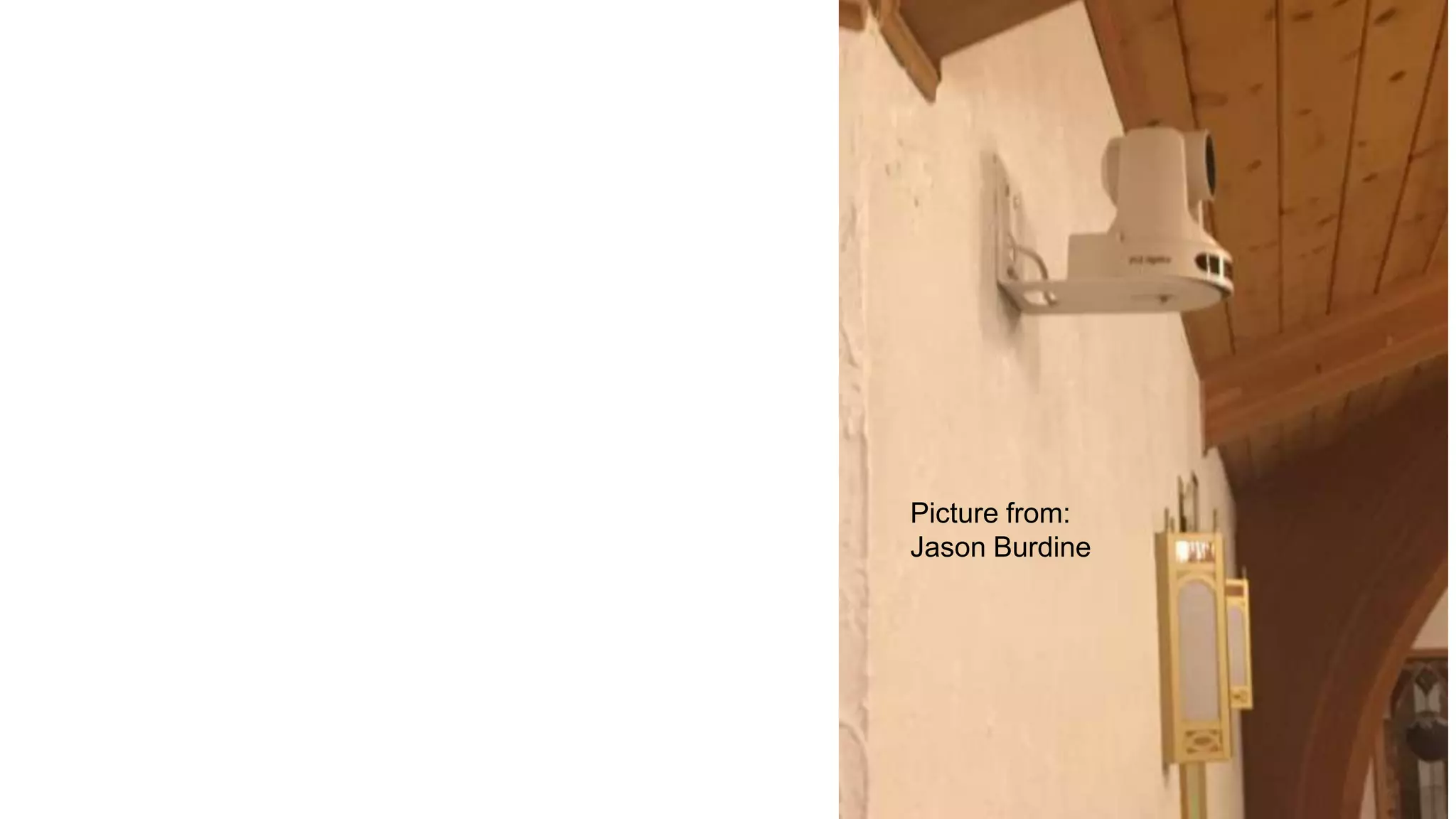
Picture from:
Jason Burdine
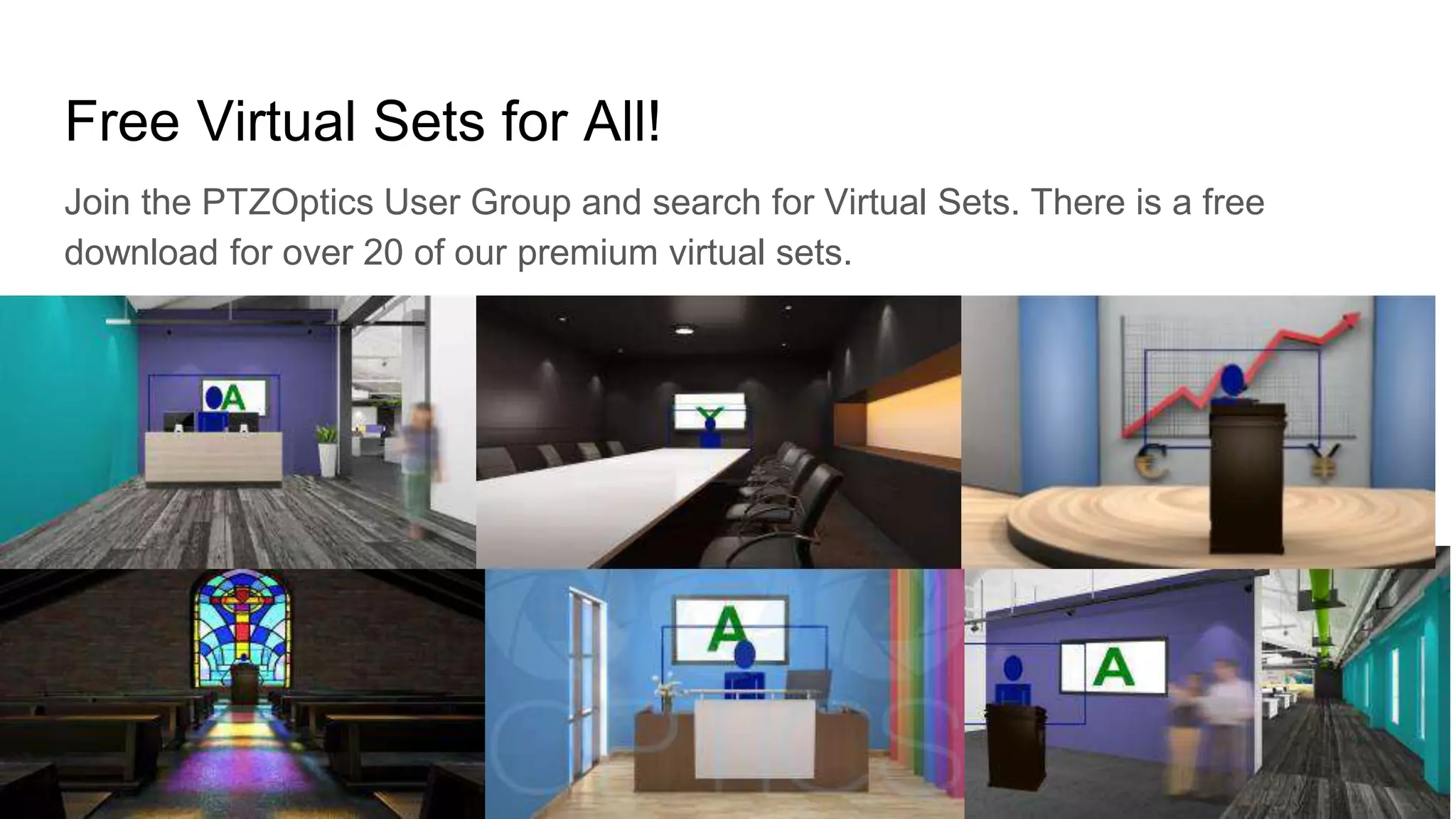
Free Virtual Sets for All!
Join the PTZOptics User Group and search for Virtual Sets. There is a free
download for over 20 of our premium virtual sets.

Tips for live streaming in churches

  • 1.
    Working with Volunteers and Teamwork... 15Tips for Live Streaming Church Services A PTZOptics Back to Basics Presentation
  • 2.
    Facebook Groups wereached out to for advice Tom Sinclair’s Streaming Idiots Facebook Groups are a great place to reach out for useful advice Church Sound & Media Techs
  • 3.
    Tips from IndustryExperts StreamDudes Chicago, IL USA Live Streaming East Orange, NJ Western Audio Works San Angelo, TX
  • 4.
    Tips from IndustryExperts StreamingChurch Oro Valley, AZ StreamingChurch Oro Valley, AZ DVeStore Everett, WA
  • 5.
    Agenda 1. Upgrading yourChurch Video like a Boss w/ Jason Jenkins 2. Planning for live streaming a church broadcast 3. Thinking about lighting 4. Thinking about multiple cameras 5. Camera Placement 6. Working with Audio 7. Working with Volunteers/Team 8. Hardware Selection Tips 9. Working with Computers for live streaming 10. Networking & Bandwidth Advice 11. Tips for Camera Control 12. Streaming Emergencies & common Fixes 13. Closed Captions - Web Captioner 14. Newtek NDI - Free Scan Converter 15. Example Systems and Setups
  • 6.
    Upgrade your ChurchVideo Like a Boss #1 What do you want to accomplish? Jason often hears 1. We want to increase the production value of our services by sending live video and graphics to multiple screens. 2. We want to live stream our church services, to increase our audience and spread the good word! 3. We want to record our sermons, and upload them to Vimeo or YouTube, so that our house-bound parishioners can watch them at home.
  • 7.
    Upgrade your ChurchVideo Like a Boss #2 How many cameras do you want? Will you have camera operators? A church just starting out may only need a single camera. Others may want three to five, or more… If they don’t have employees or volunteers to operate these cameras, the conversation turns to PTZ cameras (Pan, Tilt and Zoom). You may want to consider the scalability of your system. Can you easily add cameras in the future? Can you easily add additional video inputs or outputs later on?
  • 8.
    Upgrade your ChurchVideo Like a Boss #3 How is your Audio? You can have the greatest video in the world and bad audio will make the entire stream a wasted effort. It could be that a simple microphone upgrade could significantly improve your audio results. You may need a more powerful transmitter to counteract signal loss.
  • 9.
    Upgrade your ChurchVideo Like a Boss #4 How is your lighting? Any camera can benefit from good lighting. A common problem is not enough light. Without enough light the cameras will compensate with larger aperture and additional gain which will increase the image noise. Another frequent issue is that of mixed color temperatures. If you have tungsten lighting in your chapel, plus natural light from windows you have a clash of kelvins! You can either invest in drapes/shades to block out daylight or replace interior lights with daylight fixtures to color match each.
  • 10.
    Upgrade your ChurchVideo Like a Boss #5 What equipment do you have now and what new equipment will be integrated? Appliance Switchers ● Roland ● TriCaster ● BlackMagic ATEM ● Livestream ● Wirecast Software Switchers ● vMix (PC only) ● mimoLive (Mac only) ● BlackMagic ATEM (PC/Mac) ● Wirecast (PC/Mac) ● Livestream Studio (PC only) Learn more at the DVeStore Blog: https://www.dvestore.com/blog/upgrade-your-church-video- like-a-boss/
  • 11.
    #1 Planning forhouse of worship live broadcasting Dos: Do plan for your first months worth of streaming services to have issues. Do try to have someone you trust watch from outside your churches network. Either cell data or from home. Allow them to provide you live feedback via text. Don’t’s: Don’t expect perfection without practice. And it’s hard to practice without a “live” service. Don’t be discouraged by a small audience. Everyone attending online is someone who would not be in service otherwise. Don’t look at your streaming statistics on a regular basis. Statistics and metrics are for businesses, you are using the internet to perform the Great Commission. There are no numbers requirements in that verse. 😜 - Christopher M. Chinni
  • 12.
  • 13.
    #2 Tips forlive streaming a church service Lighting: 1. Lighting will make or break your video quality. Buy gear with a long term plan in mind - Barry Carpenter 2. For churches you need good quality lighting (as mentioned), at least two takes/shots (tight and wide) should do. Incorporate media that is shown in church via another computer/device (this is now shot #3). Ensure clean audio input from main mixer. But most importantly engage the viewers along the way. - Carlos Gonzalez 3. Good lighting is very important to quality video.
  • 14.
  • 15.
    #2 Using multipleCameras If you have multiple cameras I find it would be better to frame the camera shot off air and then switch to the camera and move the off air camera to the next shot and switch. When recalling presets from the controller, the camera zoom will quickly snap to the recalled zoom setting and the camera will then pan to the programed position. The PTZ cameras are great solutions for churches that don’t have much room to put camera platforms or operators. They are great for churches with limited staff, since one person could frame the camera shots and switch all from one small console. Brooks Willig Owner Custom Audio, Video, Power Cables and Panels (325) 374-3438 cell www.westernaudioworks.com westernaudioworks@gmail.com
  • 16.
  • 17.
    Camera Placement Tipsfor Churches We mounted the camera close to eye level with someone standing at the pulpit. This angle is best for live IMAG shot. If it was at a higher angle like on a ceiling it could have this looking down from heaven kind of shot feel, great for when you want to show the crowd or people in a room but not so great when you need to watch the preacher on stage for a long time. With the camera zoomed a lot, the image will move much faster when panning or tilting with the controller. Small slow movements are necessary if you have to follow a speaker on stage. Moving the camera even a half of a degree can cause a shift in the view position of the camera when zoomed in very much. - Brooks Willig
  • 18.
  • 19.
    Audio Tips forChurch Streaming Audio Good audio is half of a good video. Bad audio will get you discounted quickly. You need to at least get a feed from your sound console, preferably a mix for broadcast, which is different from FOH. Try to capture audio the Front of House mix from the church mixer if you do not have enough hardware in terms of a second mixer for a separate mix of the church. - Alfredo Tigolo Use a couple good shotgun mics to pickup ambient sound from the room, pick up worshipers, shouting, singing, etc. Keep the gain down far enough to pick up sounds yet avoid echoing - James Bond
  • 20.
    Audio Tips forChurch Streaming Audio With Sound, do not only rely on the sound desk. Always, have at least i mic into the system as a backup. Usually off the lectern. . - Chris Morton
  • 21.
  • 22.
    Working with Volunteers Rememberthat just because it seems simple and easy to use to you doesn't mean it will be for your volunteers so always follow the Keep It Simple Stupid principle when designing a system only add as much complexity as is needed to get the job done and only when your team is comfortable add new things. Start with 1 or 2 cams more than that starts to become more complex to manage. Minimize the number of adapters and converters you use, because at the worst possible time one of them will fail. Also have a few spares on hand in case one breaks. Avoid HDMI like plague due to the hdcp copy protection protocols on that format. SDI is your best bet for reliability and quality. NDI is great but only if you have the networking chops to build out the infrastructure to handle it. - Kevin Amos Schmuhl
  • 23.
    Working with Volunteersin Video Production Volunteers. Perhaps this should have been higher on the list, maybe the number one thing to consider. You need to make sure your volunteers are ready to go and that they understand their responsibilities and the equipment. I also believe having regular meetings with your volunteers (other than Sunday’s), can be very beneficial and build relationships. Review order of service with your team. This is more than just the people running video, sound and cameras, this should include everybody that is involved in the service from the pastor, the band or worship leader, to the person making announcements, and whoever else is involved on the platform. You may need to know details about where on the stage someone might be and who is on what microphone, etc.. -Phil Thompson
  • 24.
    Working with aTeam I think one of the key aspects is the team integration. Most church set-ups will not have the ability to have two consoles, and multiple camera ops, sound techs, and graphics teams. I think the tip is to do a realistic plan with the people you have now to determine just how far you want to go. From this point begin with a budget, add 10% and spec equipment. Audio is really important and adding in a room mic or two can really make all the difference in the world, better yet if you can add a little effects to it through a bus mix out. We just took our level to live captioning through ATEM which is no small feat. We also display the lyrics using ProPresenter while in worship. We have a campus license and use the master/slave option. Here is a video of WebCaptioner doing its thing. FF just a few minutes, we let it build up since it is all mumbo jumbo from trying to caption the worship part. - Ryan Michael
  • 25.
    Working with aTeam Assign production roles to anybody assisting with the production. This is very important with amateur and/or volunteer production teams as it allows specific people to “own” a particular part of a workflow. Assigning roles makes it easier for people to learn broadcast critical elements of a production, without overwhelming them. This leads to better broadcasts and accountability on specific tasks. - John Basile
  • 26.
  • 27.
    Hardware Tips forChurch Streaming Hardwire only. Do not try streaming from your laptop with wifi only. Also, most streaming software works best on PC's. - Frank Chyz The KISS Rule. Keep It Simple Stupid. Start slow and add flash as you learn and feel comfortable. - Dan Abrams NDI is your friend. Run NDI scan converter on your presentation computer so that you can bring in sermon graphics, scriptures, PowerPoint, worship lyrics, ect… - Mackenly Jones
  • 28.
    Hardware Tips forChurch Streaming Power Conditioners. I simply cannot stress the importance of having a great power conditioner or surge suppression system. In venues with older wiring, this is an absolute must as voltage fluctuations caused by projectors, large amplifiers and lighting can put your equipment at risk and affect overall system performance. - John Basile A good cross-converter is worth its weight in gold. You never know when a component might fail or if a guest speaker wants to bring their own equipment into your workflow, having a good cross-converter on hand can make all of the difference.
  • 29.
  • 30.
    Reach out foradvice There are a lot or great advice given here. What can really help anyone get their mind around what it takes to broadcast a service is to go visit a church in your area who is doing what you want to do, make a phone call and see if they will let you take a tour and ask question. Bring some people from leadership and volunteers. After a visit you will have a good idea on what needs to be done to do it well. Even if you don't have the budget it will give you perspective. - Benjamin Dillenback Facebook is a great place to share ideas with fellow broadcasters!
  • 31.
  • 32.
    Computers for churchstreaming Learn how to build and optimise computers, if you go the vMix route. Your computer might act weird just before the gig, you should know how to fix it yourself. A help desk might not be available on a sunday morning or a saturday night, so being able to detect and fix problems yourself is important. Also dedicate a machine to livestreaming only. This means: no browsing, video editing, gaming… - Ittai De Vree CPU Load on Computer. I put this down the list aways because to really get an accurate idea on how your processor is doing you need to have everything up and running including your live encoder as you stream. If your computer is running above 70% CPU, I would be a little nervous. If it’ above 80%, I would be really nervous. If it’s above 90% I would leave the room and run for the hills. Just kidding about that one, but anytime your CPU runs over 70 to 80%, it’s going to cause problems with your streaming video. Video buffering, video pixelation, and more problems will develop. If your CPU runs high you need to examine the resolution that you are streaming. You may need to lower it. If you are sending multiple streams, that can be taxing on your computer. If you are recording your service using your live encoder that can drain your computer’s resources. One solution is to beef up your computer’s processor and ram. - Phil Thompson
  • 33.
  • 34.
    Bandwidth tips forchurch streaming Whatever bandwidth you’re broadcasting in (total, all upstream outputs) add a minimum of 40% for overhead. So if you’re encoding three bitrates on site, a 1080p 6mbps stream, plus a 2.5mbps 720p stream, plus a 1.5mbps 480p stream (total of 10mbps), you don’t just need 10mbps, you need 14mbps (minimum, for mission critical applications you want at least double, 20mbps). Remember that this is upstream bandwidth, not down. Many cable modems provide very asymmetrical data rates: 300mbps down, but only 20mbps up, say. And you need to make sure you’re getting this rate steady while the network is under the normal use it will be while streaming. I’m Jewish, so I don’t really know what Christians do with their phones during a religious service, but if there are people on the network using it, it will take some of you bandwidth away. - Dan Abrams
  • 35.
    Bandwidth tips forchurch streaming NDI is rapidly becoming an industry standard, so make sure your network is ready. Since NDI relies on a good amount of bandwidth, a robust router and switches capable of 1Gbps speed is a necessity for reliable streaming. Speaking of- utilizing products such products such as NDI-enabled PTZOptics cameras along with solid PoE+ can make upgrading your current cameras easier than ever. - John Basile
  • 36.
  • 37.
    Control Options 1. SerialControl a. RS-232 b. RS-485 2. IP Control a. VISCA Over IP b. Built-in vMix, MimoLive, TriCaster c. Wireless iOS App d. Open Source Control Software 3. NDI a. Built into many live streaming platforms
  • 39.
    Ways to UseGreen Screens 1. Live Video a. Virtual Background b. Remote Guest Locations c. Virtual LCD Screens 2. Forward Facing a. Chroma Key Virtual Background b. Virtual Set c. Digital Salesman 3. Video Production a. Backward Facing Video Production b. B-Roll 4. Multi-Angle Virtual Sets 5. Creative Projects
  • 40.
  • 41.
    Streaming Emergencies -Be Prepared! Emergency #1 - Buffering & Skipping What happens when you video stream starts to buffer and skup? The common issue here is lack of bandwidth. You need to increase your upload speed most likely. In Wirecast, the broadcast icon will change colors from green to yellow or red. In vMix, the stream button will change color from red (which means broadcasting live without issue) to yellow or orange. In OBS, there’s a similar alert on the lower right hand part of the screen showing the stream status.” Next run a speed test at speedof.me to measure your current upload speed. Remember we are looking for upload speed not download speeds.
  • 42.
    Streaming Emergencies -Be Prepared! As a rule you should have twice the amount of upload speeds as you are consuming with you stream. 720p can be between 1.5-4MBps. 1080p can be between 2-6MBps. 4K can be between 8-30MBps. Tip: Consider putting a password on your WiFi. Your church members may be consuming the bandwidth you need to broadcast. So password protect your WiFi Access point during live broadcasts. Another option is purchasing a dedicated ISP service for your broadcast PC.
  • 43.
    Streaming Emergencies -Be Prepared! Emergency #2 - Pixelation “Pixelation is normally due to your encoder not able to encode your stream fast enough. Commonly, the moving parts of the video image are pixelated while the static items remain crisp. The encoder works hardest when the video contains moving subjects and backgrounds. Encoding your stream can be very taxing on your computer. You’ll want to make sure that the CPU on your computer doesn’t reach above 80% at any time you’re streaming. Option 1: Reduce the workload of your computer Option 2: Upgrade your computer
  • 44.
    Streaming Emergencies -Be Prepared! Emergency #2 - Pixelation To reduce the load on your computer, you can change your encoder settings to either remove some additional streams and/or change the settings of your existing streams. Removing one of your two streams can reduce the CPU load by almost 50%. The key parameters to reduce the workload when encoding a single stream include the stream resolution, the stream bit rate and the stream frame rate. Changing your frame rate from 60 frames per second to 30 frames per second can reduce the encoder workload by 50%. So set your frames per second at 30 frames per second. Reducing your broadcast speed and resolution can also dramatically reduce the workload on your encoder. Although certain resolutions require minimum broadcast bit rates to broadcast properly.
  • 45.
    Streaming Emergencies -Be Prepared! Emergency #3 - Unable to Stream If your encoder is unable to connect, the first thing to test is that you have a good internet connection on the encoder computer. Launch a browser on the encoder computer and navigate to a known website. If you have a good internet connection the likely problem is your stream key. Try to copy and paste your stream keys into your encoder software once more. If this doesn't work try refreshing the keys from YouTube/Facebook or other CDN.
  • 46.
    Streaming Emergencies -Be Prepared! Emergency #4 - No Audio The first thing to check is the audio output level/setting on your encoder. Make sure the audio setting is appropriate. If you’ve had audio in weeks prior and you don’t have any audio now, then you should first check for loose or disconnected audio cables to the encoding computer. If the cables check out OK, then check to see if the audio source is sending audio to your encoding computer. A common problem is the sound guy may have muted the audio feed to the live stream. “If you still haven’t found the issue, then it’s time to double check your encoder audio settings to ensure you’ve selected the proper audio source. If you still haven’t found the issue, then it might be time to test the audio input using a pair of headphones to determine where the audio outage is occurring.
  • 47.
  • 48.
    NDI Scan ConverterUse Case Broadcast System EthernetEthernet Pastor Laptop on Network
  • 49.
    Live Streaming Software/HardwareSolutions Overview Easy to use FeatureRichness NewTek vMix Wirecas t OBS xSplit Facebook Built-in streaming app Livestream MEVO & PTZOptics Cameras
  • 50.
  • 51.
    World Wide Missionary Outreach Showing offthe iPad camera control with a white PTZOptics 20X- SDI Camera.
  • 52.
    Believers Embassy Thank YouAkeem Saunders! Akeem hosted his first remotely operated broadcast for a church service with BEI. BEI stands for Believers Embassy International.
  • 53.
  • 55.
    Free Virtual Setsfor All! Join the PTZOptics User Group and search for Virtual Sets. There is a free download for over 20 of our premium virtual sets.