










PDFs for Lawyers
Working with PDFs in daily practice
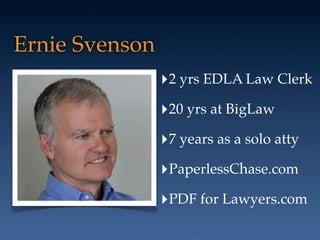
Ernie Svenson
‣2 yrs EDLA Law Clerk
‣20 yrs at BigLaw
‣7 years as a solo atty
‣PaperlessChase.com
‣PDF for Lawyers.com
My Book: Blogging in One Hour for Lawyers
http://bit.ly/12fmwHN
My Goal
‣Teach lawyers to use technology to
- work smarter (e.g. automate)
- get work done faster
- and get better results
- with lower costs ($$$)
- and lower stress!!
Paperless
‣Is the path to getting those benefits
- no physical storage restrictions
- easier copying & transmitting
- ability to work outside office
- easier to find information
‣But being able to work with PDFs is key
“the cloud”
Agenda
You will learn to:
‣ Find key words and phrases quickly in a single PDF, or group of PDFs
‣ Create searchable comments and highlighting, and edit them to tag key issues
‣ Set options that will most help you work with legal documents
‣ Navigate through PDFs quickly, easily
‣ Zoom in on hard to read text, and zoom back out instantly
‣ Rotate pages super fast, without futzing around looking for menus or tool
buttons.
You will receive:
‣ 1 Page “Cheat Sheet” of PDF keyboard shortcuts
‣ 1 Page “Cheat Sheet” of PDF keyboard accelerators
‣ Copy of this PDF presentation
‣ All sent to you via Adobe SendNow (so you can see how useful it is)
- Only $19/year
‣ Continuing tips & helpful suggestions, if you subscribe to the free
PDFforLawyers.com email newfeed
click here to subscribe
PDFs
portable document format
now in widespread use
a/k/a: ‘digital paper’
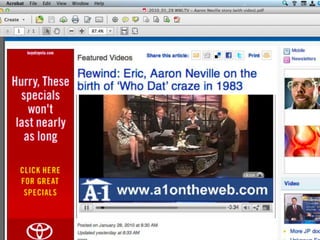
More than just
“digital paper”
The end
of the PowerPoint
PDF Skills Matter
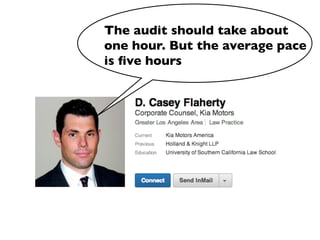
The audit should take about
one hour. But the average pace
is five hours
Audit covers
‣Printing to PDF
‣Know how to use Acrobat
- most attys lack even ‘Reader’ skills
‣Extract pages
‣Rearrange pages
‣Search PDF, or batch of PDFs
Basic Skills
‣Zoom in on small text
‣Quickly jump to a page, and then return
‣Rearrange pages
‣Insert pages
‣Rotate page, or range of pages
‣Delete page, or range of pages
‣Filling forms, and saving
More Key Skills
‣Create bookmarks to tag key pages
‣Create sticky notes (marginalia)
‣Search PDFs
‣OCR to make searchable
‣Bates-stamping documents
‣Redact information from documents
‣Creating fillable forms
Adobe Reader
Free
The Adobe Reader/Acrobat Interface
Toolbar
Nav pane
Tools & Comment
Prefs
For more information on setting
preferences click here (Borstein blog post)
Preferences
Preferences
Preferences
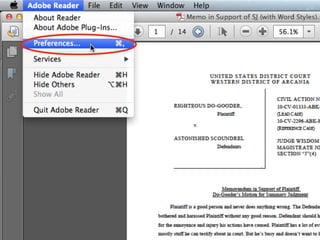
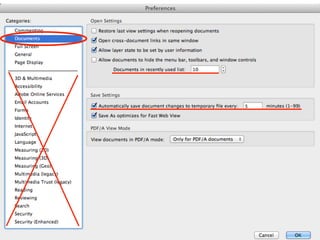
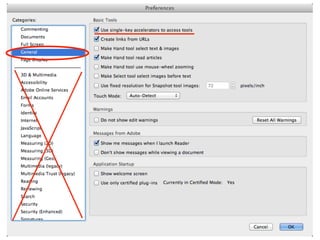
‣ Ctrl + K (Windows); Cmd + , (Mac)
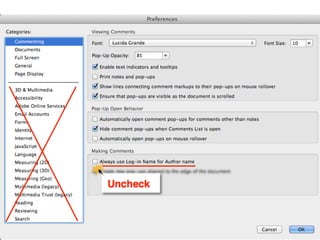
‣ Under Commenting
- Uncheck “Always use Log-in Name for Author name”
‣ Under Documents
- Increase “Documents in Recently Used List” to 10
- Adjust save settings to more often than “5 minutes” (if you want)
‣ Under General
- Check “Enable single-key accelerators to access tools”
Toolbars
Toolbar
Toolbar
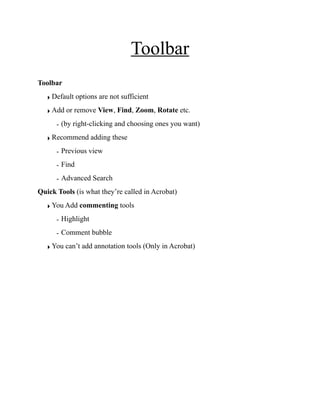
‣ Default options are not sufficient
‣ Add or remove View, Find, Zoom, Rotate etc.
- (by right-clicking and choosing ones you want)
‣ Recommend adding these
- Previous view
- Find
- Advanced Search
Quick Tools (is what they’re called in Acrobat)
‣ You Add commenting tools
- Highlight
- Comment bubble
‣ You can’t add annotation tools (Only in Acrobat)
Right-click here to add tools
Demo
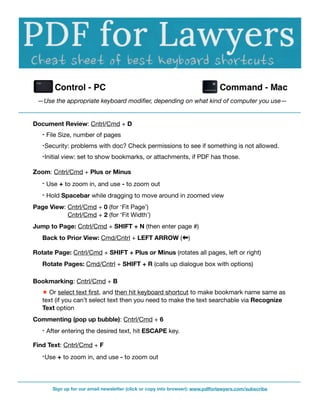
—Use the appropriate keyboard modifier, depending on what kind of computer you use—
Document Review: Cntrl/Cmd + D
‣ File Size, number of pages
‣Security: problems with doc? Check permissions to see if something is not allowed.
‣Initial view: set to show bookmarks, or attachments, if PDF has those.
Zoom: Cntrl/Cmd + Plus or Minus
‣ Use + to zoom in, and use - to zoom out
‣ Hold Spacebar while dragging to move around in zoomed view
Page View: Cntrl/Cmd + 0 (for ‘Fit Page’)

 
 Cntrl/Cmd + 2 (for ‘Fit Width’)
Jump to Page: Cntrl/Cmd + SHIFT + N (then enter page #)
Back to Prior View: Cmd/Cntrl + LEFT ARROW ( )
Rotate Page: Cntrl/Cmd + SHIFT + Plus or Minus (rotates all pages, left or right)
Rotate Pages: Cmd/Cntrl + SHIFT + R (calls up dialogue box with options)
Bookmarking: Cntrl/Cmd + B
★ Or select text first, and then hit keyboard shortcut to make bookmark name same as
text (if you can’t select text then you need to make the text searchable via Recognize
Text option
Commenting (pop up bubble): Cntrl/Cmd + 6
‣ After entering the desired text, hit ESCAPE key.
Find Text: Cntrl/Cmd + F
‣Use + to zoom in, and use - to zoom out
Sign up for our email newsletter (click or copy into browser): www.pdfforlawyers.com/subscribe
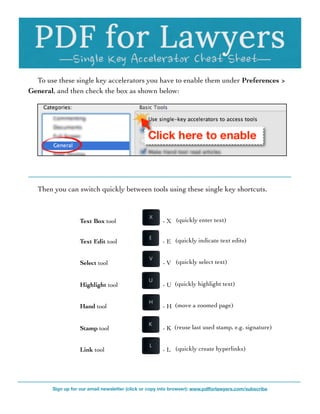
To use these single key accelerators you have to enable them under Preferences >
General, and then check the box as shown below:
Then you can switch quickly between tools using these single key shortcuts.
Text Box tool 	


 - X (quickly enter text)
Text Edit tool 	


 - E (quickly indicate text edits)
Select tool 	


 - V (quickly select text)
Highlight tool 	


 - U (quickly highlight text)
Hand tool 	


 - H (move a zoomed page)
Stamp tool 	


 - K (reuse last used stamp, e.g. signature)
Link tool 	


 - L (quickly create hyperlinks)
Sign up for our email newsletter (click or copy into browser): www.pdfforlawyers.com/subscribe
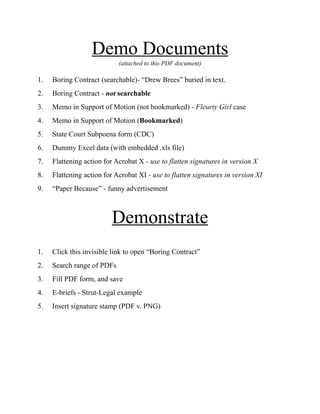
Demo Documents
(attached to this PDF document)
1. Boring Contract (searchable)- “Drew Brees” buried in text.
2. Boring Contract - not searchable
3. Memo in Support of Motion (not bookmarked) - Fleurty Girl case
4. Memo in Support of Motion (Bookmarked)
5. State Court Subpoena form (CDC)
6. Dummy Excel data (with embedded .xls file)
7. Flattening action for Acrobat X - use to flatten signatures in version X
8. Flattening action for Acrobat XI - use to flatten signatures in version XI
9. “Paper Because” - funny advertisement
Demonstrate
1. Click this invisible link to open “Boring Contract”
2. Search range of PDFs
3. Fill PDF form, and save
4. E-briefs - Strut-Legal example
5. Insert signature stamp (PDF v. PNG)
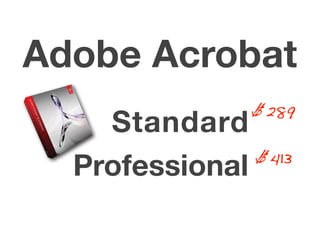
Standard
Professional
Adobe Acrobat
$289
$413
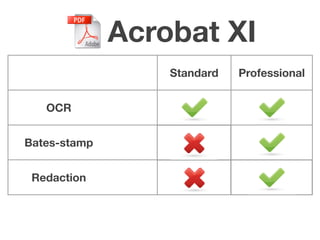
Acrobat XI
Standard Professional
OCR
Bates-stamp
Redaction
Compare PDFs
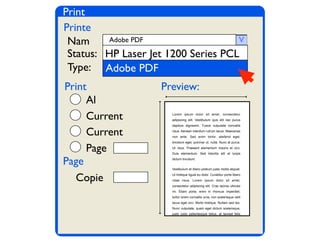
Print PDFs
– not really printing
– create PDF (w/o print & scan)
– perfect digital capture
Print
Printe
Print
Page
Preview:
Nam
Status:
Type: HP Laser Jet 1200 Series
Lorem ipsum dolor sit amet, consectetur
adipiscing elit. Vestibulum quis elit nec purus
dapibus dignissim. Fusce vulputate convallis
risus. Aenean interdum rutrum lacus. Maecenas
non ante. Sed enim tortor, eleifend eget,
tincidunt eget, pulvinar ut, nulla. Nunc at purus.
Ut risus. Praesent elementum mauris et orci.
Duis elementum. Sed lobortis elit et turpis
dictum tincidunt.
Vestibulum et libero pretium justo mollis aliquet.
Ut tristique ligula eu dolor. Curabitur porta libero
vitae risus. Lorem ipsum dolor sit amet,
consectetur adipiscing elit. Cras lacinia ultrices
mi. Etiam porta, enim in rhoncus imperdiet,
tortor lorem convallis urna, non scelerisque velit
lacus eget orci. Morbi tristique. Nullam sed leo.
Nunc vulputate, quam eget dictum scelerisque,
justo justo pellentesque tellus, at laoreet felis
HP Laser Jet 1200 Series PCL
Al
Current
Current
Page
Copie
v
HP Laser Jet 1200 Series PCL
Adobe PDFAdobe PDF
Adobe PDF
Using PDFs more effectively

Using PDFs more effectively

  • 1.
    PDFs for Lawyers Workingwith PDFs in daily practice
  • 2.
    Ernie Svenson ‣2 yrsEDLA Law Clerk ‣20 yrs at BigLaw ‣7 years as a solo atty ‣PaperlessChase.com ‣PDF for Lawyers.com
  • 3.
    My Book: Bloggingin One Hour for Lawyers http://bit.ly/12fmwHN
  • 4.
    My Goal ‣Teach lawyersto use technology to - work smarter (e.g. automate) - get work done faster - and get better results - with lower costs ($$$) - and lower stress!!
  • 5.
    Paperless ‣Is the pathto getting those benefits - no physical storage restrictions - easier copying & transmitting - ability to work outside office - easier to find information ‣But being able to work with PDFs is key “the cloud”
  • 6.
    Agenda You will learnto: ‣ Find key words and phrases quickly in a single PDF, or group of PDFs ‣ Create searchable comments and highlighting, and edit them to tag key issues ‣ Set options that will most help you work with legal documents ‣ Navigate through PDFs quickly, easily ‣ Zoom in on hard to read text, and zoom back out instantly ‣ Rotate pages super fast, without futzing around looking for menus or tool buttons. You will receive: ‣ 1 Page “Cheat Sheet” of PDF keyboard shortcuts ‣ 1 Page “Cheat Sheet” of PDF keyboard accelerators ‣ Copy of this PDF presentation ‣ All sent to you via Adobe SendNow (so you can see how useful it is) - Only $19/year ‣ Continuing tips & helpful suggestions, if you subscribe to the free PDFforLawyers.com email newfeed click here to subscribe
  • 7.
    PDFs portable document format nowin widespread use a/k/a: ‘digital paper’
  • 8.
  • 10.
    The end of thePowerPoint
  • 11.
  • 13.
    The audit shouldtake about one hour. But the average pace is five hours
  • 14.
    Audit covers ‣Printing toPDF ‣Know how to use Acrobat - most attys lack even ‘Reader’ skills ‣Extract pages ‣Rearrange pages ‣Search PDF, or batch of PDFs
  • 16.
    Basic Skills ‣Zoom inon small text ‣Quickly jump to a page, and then return ‣Rearrange pages ‣Insert pages ‣Rotate page, or range of pages ‣Delete page, or range of pages ‣Filling forms, and saving
  • 17.
    More Key Skills ‣Createbookmarks to tag key pages ‣Create sticky notes (marginalia) ‣Search PDFs ‣OCR to make searchable ‣Bates-stamping documents ‣Redact information from documents ‣Creating fillable forms
  • 18.
  • 19.
    The Adobe Reader/AcrobatInterface Toolbar Nav pane Tools & Comment Prefs For more information on setting preferences click here (Borstein blog post)
  • 20.
  • 21.
    Preferences Preferences ‣ Ctrl +K (Windows); Cmd + , (Mac) ‣ Under Commenting - Uncheck “Always use Log-in Name for Author name” ‣ Under Documents - Increase “Documents in Recently Used List” to 10 - Adjust save settings to more often than “5 minutes” (if you want) ‣ Under General - Check “Enable single-key accelerators to access tools”
  • 26.
  • 27.
    Toolbar Toolbar ‣ Default optionsare not sufficient ‣ Add or remove View, Find, Zoom, Rotate etc. - (by right-clicking and choosing ones you want) ‣ Recommend adding these - Previous view - Find - Advanced Search Quick Tools (is what they’re called in Acrobat) ‣ You Add commenting tools - Highlight - Comment bubble ‣ You can’t add annotation tools (Only in Acrobat) Right-click here to add tools
  • 28.
  • 29.
    —Use the appropriatekeyboard modifier, depending on what kind of computer you use— Document Review: Cntrl/Cmd + D ‣ File Size, number of pages ‣Security: problems with doc? Check permissions to see if something is not allowed. ‣Initial view: set to show bookmarks, or attachments, if PDF has those. Zoom: Cntrl/Cmd + Plus or Minus ‣ Use + to zoom in, and use - to zoom out ‣ Hold Spacebar while dragging to move around in zoomed view Page View: Cntrl/Cmd + 0 (for ‘Fit Page’) Cntrl/Cmd + 2 (for ‘Fit Width’) Jump to Page: Cntrl/Cmd + SHIFT + N (then enter page #) Back to Prior View: Cmd/Cntrl + LEFT ARROW ( ) Rotate Page: Cntrl/Cmd + SHIFT + Plus or Minus (rotates all pages, left or right) Rotate Pages: Cmd/Cntrl + SHIFT + R (calls up dialogue box with options) Bookmarking: Cntrl/Cmd + B ★ Or select text first, and then hit keyboard shortcut to make bookmark name same as text (if you can’t select text then you need to make the text searchable via Recognize Text option Commenting (pop up bubble): Cntrl/Cmd + 6 ‣ After entering the desired text, hit ESCAPE key. Find Text: Cntrl/Cmd + F ‣Use + to zoom in, and use - to zoom out Sign up for our email newsletter (click or copy into browser): www.pdfforlawyers.com/subscribe
  • 30.
    To use thesesingle key accelerators you have to enable them under Preferences > General, and then check the box as shown below: Then you can switch quickly between tools using these single key shortcuts. Text Box tool - X (quickly enter text) Text Edit tool - E (quickly indicate text edits) Select tool - V (quickly select text) Highlight tool - U (quickly highlight text) Hand tool - H (move a zoomed page) Stamp tool - K (reuse last used stamp, e.g. signature) Link tool - L (quickly create hyperlinks) Sign up for our email newsletter (click or copy into browser): www.pdfforlawyers.com/subscribe
  • 31.
    Demo Documents (attached tothis PDF document) 1. Boring Contract (searchable)- “Drew Brees” buried in text. 2. Boring Contract - not searchable 3. Memo in Support of Motion (not bookmarked) - Fleurty Girl case 4. Memo in Support of Motion (Bookmarked) 5. State Court Subpoena form (CDC) 6. Dummy Excel data (with embedded .xls file) 7. Flattening action for Acrobat X - use to flatten signatures in version X 8. Flattening action for Acrobat XI - use to flatten signatures in version XI 9. “Paper Because” - funny advertisement Demonstrate 1. Click this invisible link to open “Boring Contract” 2. Search range of PDFs 3. Fill PDF form, and save 4. E-briefs - Strut-Legal example 5. Insert signature stamp (PDF v. PNG)
  • 32.
  • 33.
  • 34.
    Print PDFs – notreally printing – create PDF (w/o print & scan) – perfect digital capture
  • 35.
    Print Printe Print Page Preview: Nam Status: Type: HP LaserJet 1200 Series Lorem ipsum dolor sit amet, consectetur adipiscing elit. Vestibulum quis elit nec purus dapibus dignissim. Fusce vulputate convallis risus. Aenean interdum rutrum lacus. Maecenas non ante. Sed enim tortor, eleifend eget, tincidunt eget, pulvinar ut, nulla. Nunc at purus. Ut risus. Praesent elementum mauris et orci. Duis elementum. Sed lobortis elit et turpis dictum tincidunt. Vestibulum et libero pretium justo mollis aliquet. Ut tristique ligula eu dolor. Curabitur porta libero vitae risus. Lorem ipsum dolor sit amet, consectetur adipiscing elit. Cras lacinia ultrices mi. Etiam porta, enim in rhoncus imperdiet, tortor lorem convallis urna, non scelerisque velit lacus eget orci. Morbi tristique. Nullam sed leo. Nunc vulputate, quam eget dictum scelerisque, justo justo pellentesque tellus, at laoreet felis HP Laser Jet 1200 Series PCL Al Current Current Page Copie v HP Laser Jet 1200 Series PCL Adobe PDFAdobe PDF Adobe PDF