The Fastest Way to Have Web Presence! Presented by: Cathy Nelson & Liz Martin Rock Hill School District #3   WYSIWYG? Do You
 
Our Future Students!
W hat  Y ou  S ee  I s  W hat  Y ou  G et! Html editors that show you the end results as you type You see what the final product will look like as you create it.
Plan, Plan, Plan Before Beginning What do I want it to say? Why do I want it to say it? Who is my primary audience? Secondary? How can this information be presented? Textually graphically both
Develop a Strategy One page or multiple pages connected navigation appearance titles pictures
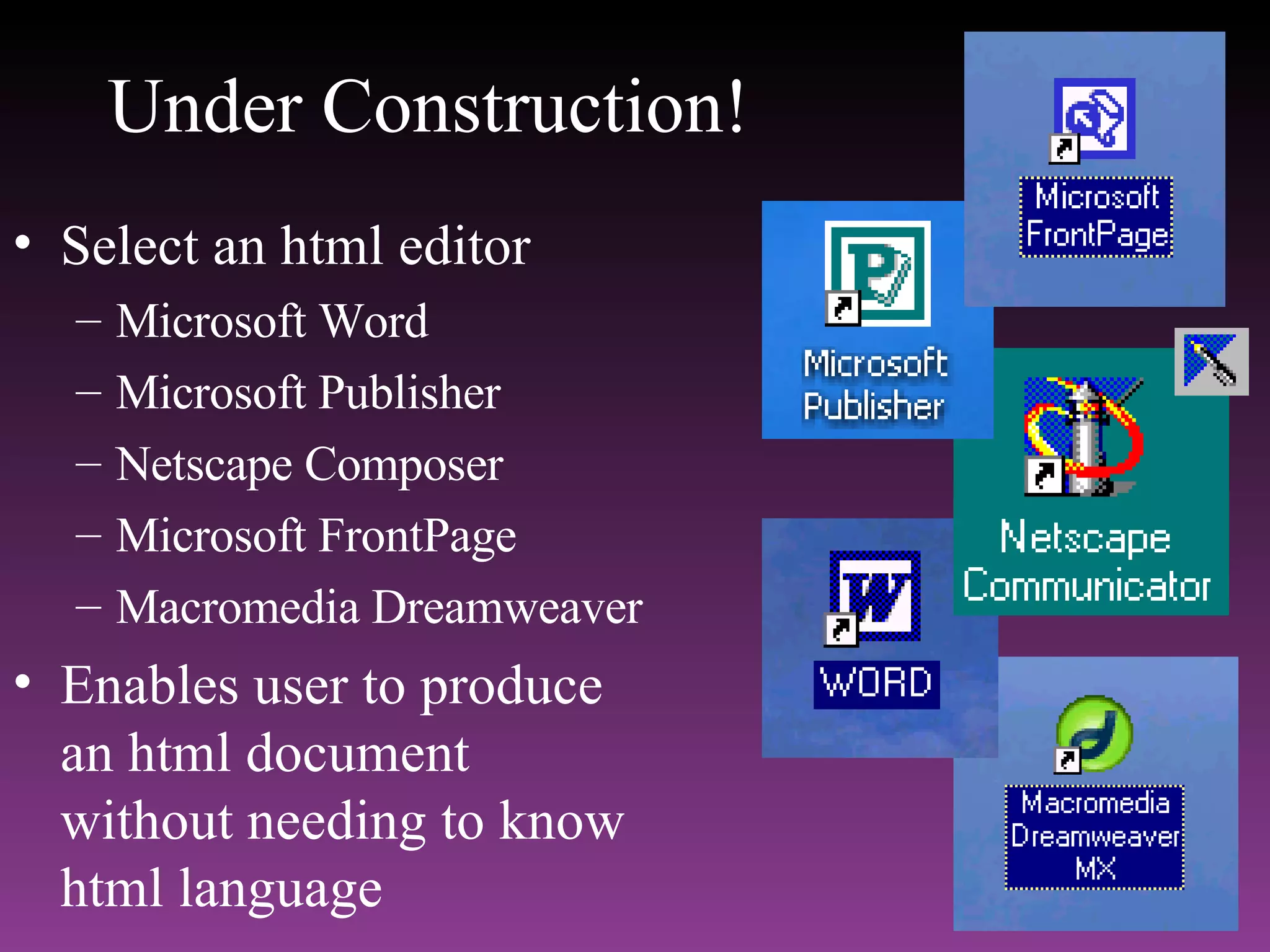
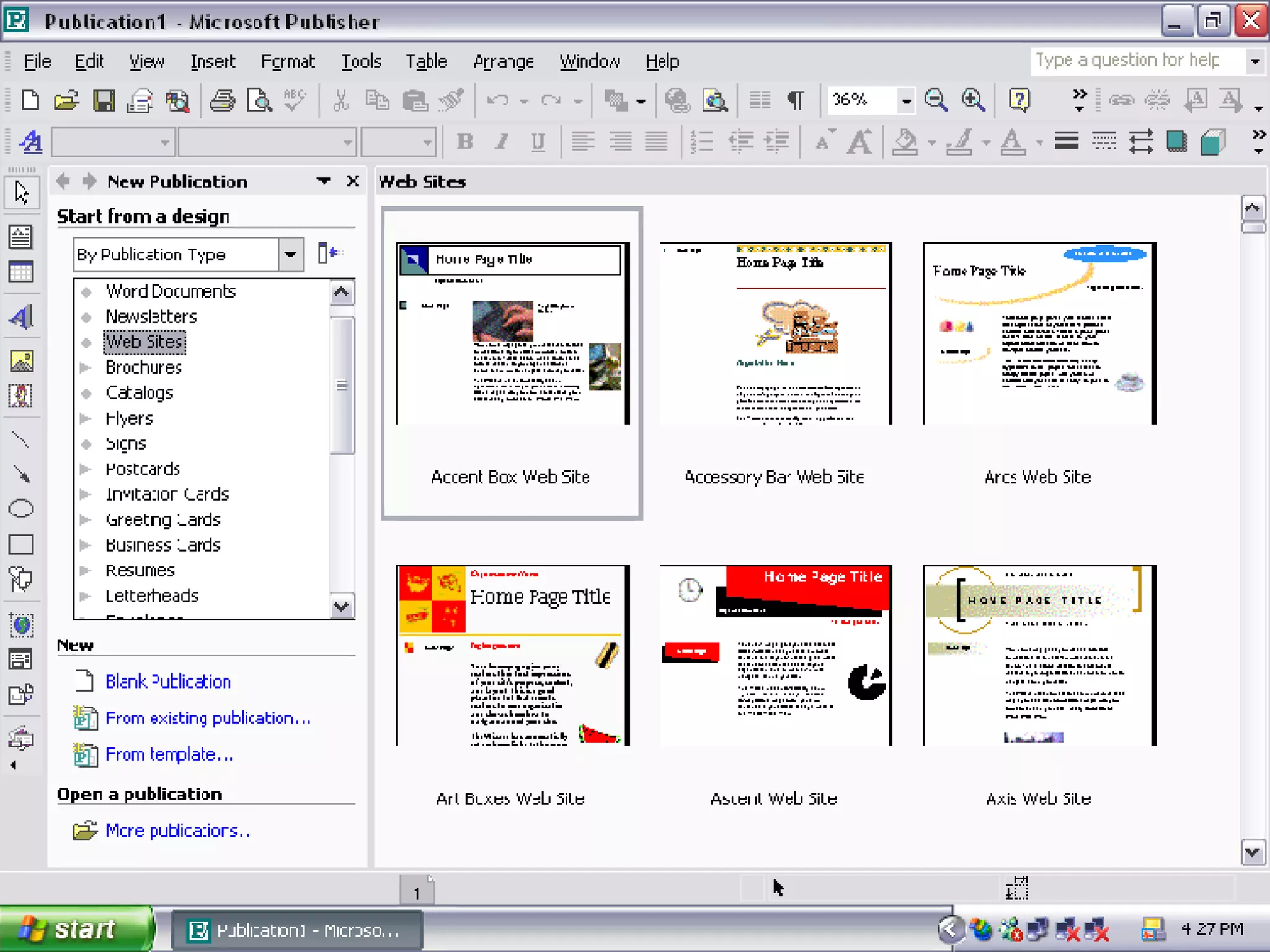
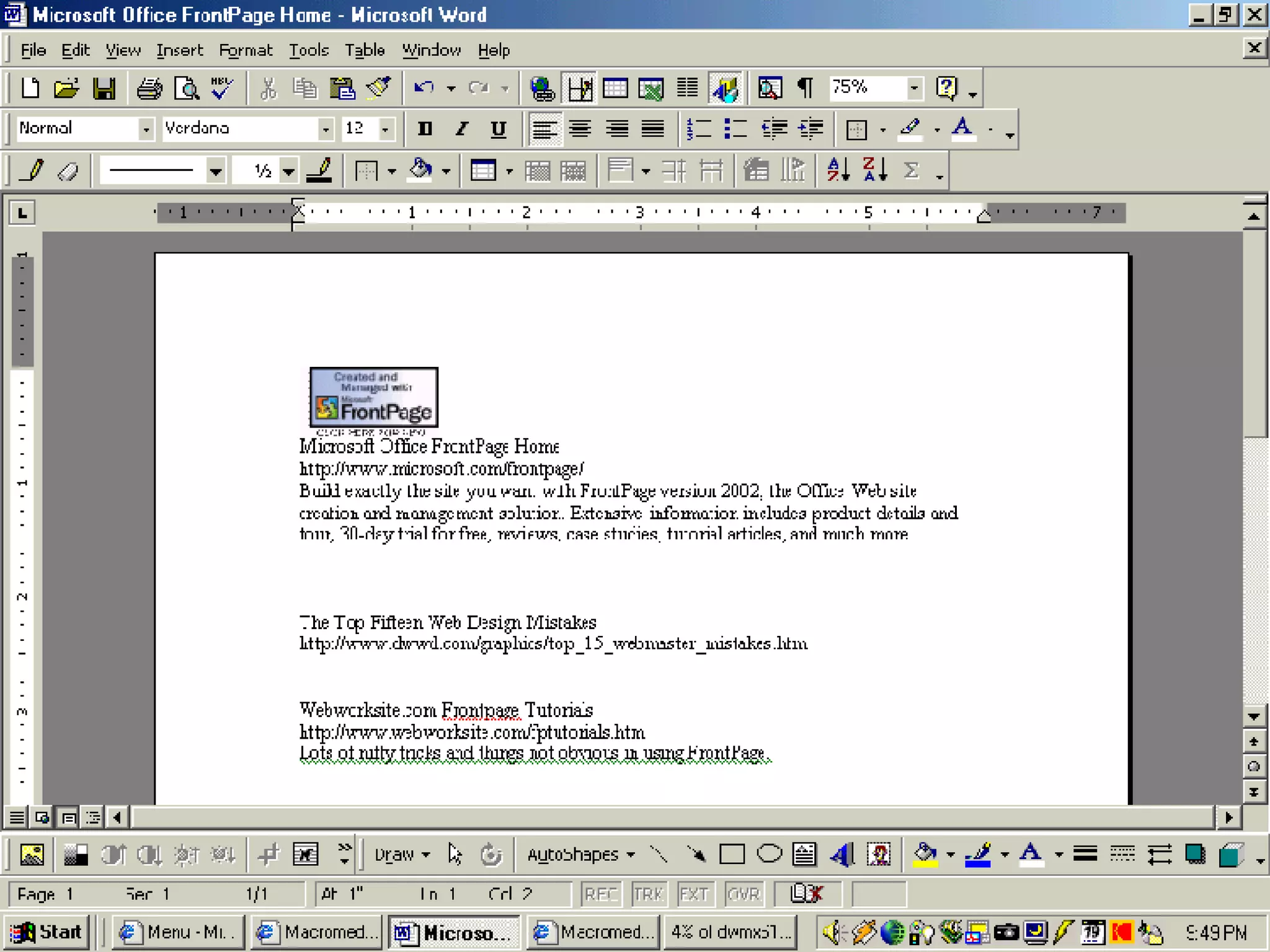
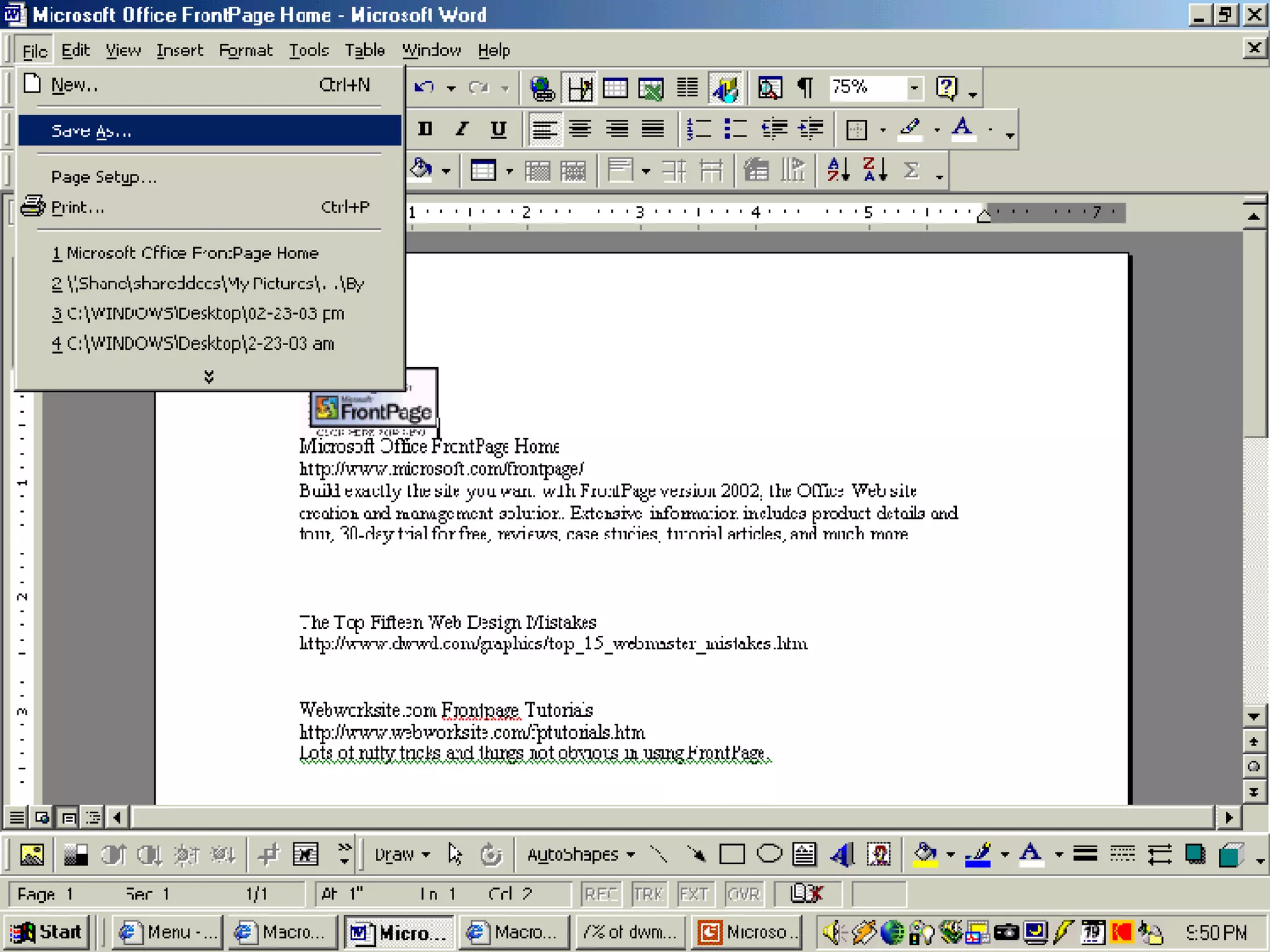
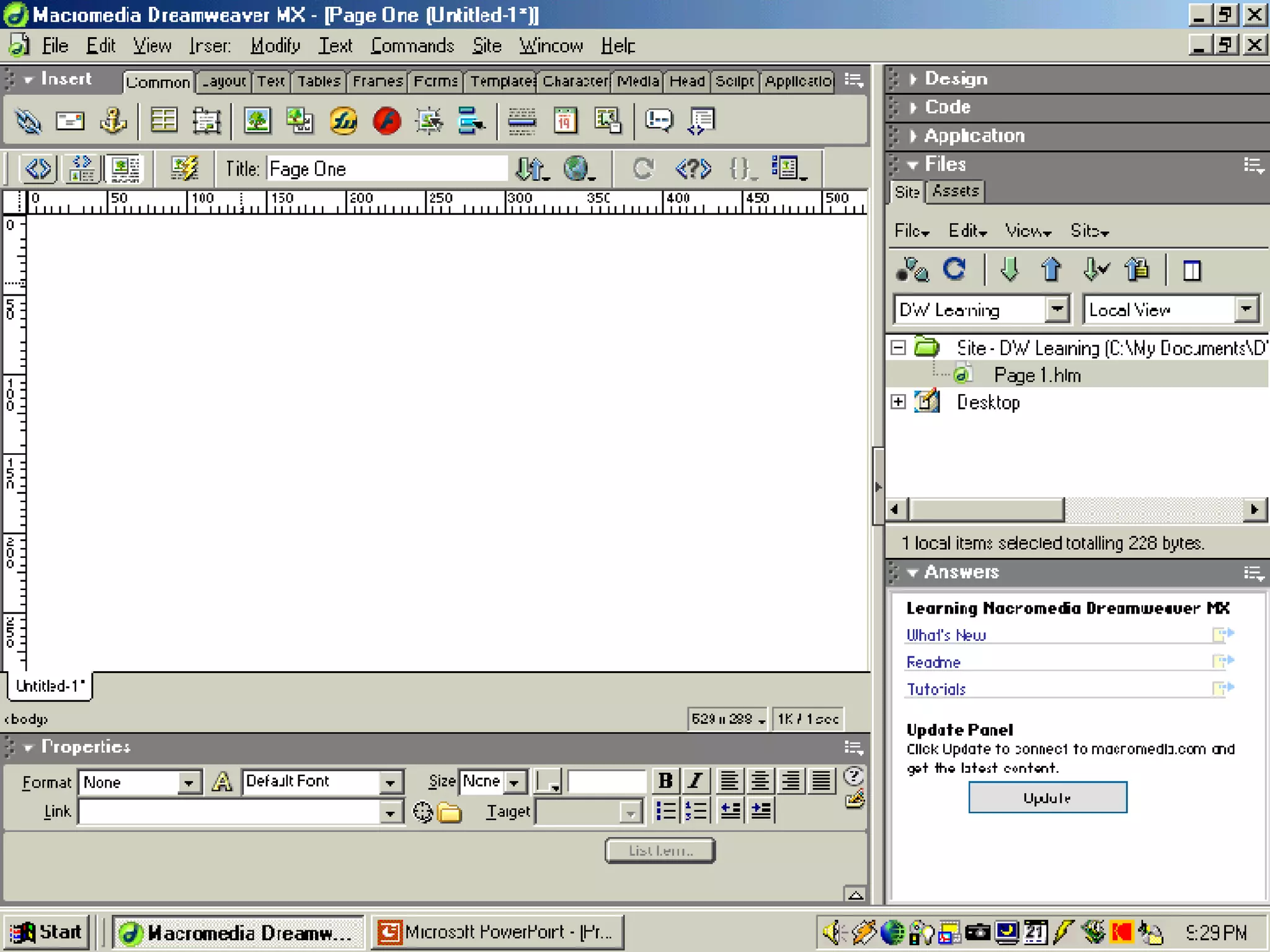
Under Construction! Select an html editor Microsoft Word Microsoft Publisher Netscape Composer Microsoft FrontPage  Macromedia Dreamweaver Enables user to produce  an html document  without needing to know  html language
Netscape Composer Media Center Template Netscape Composer Tutorial
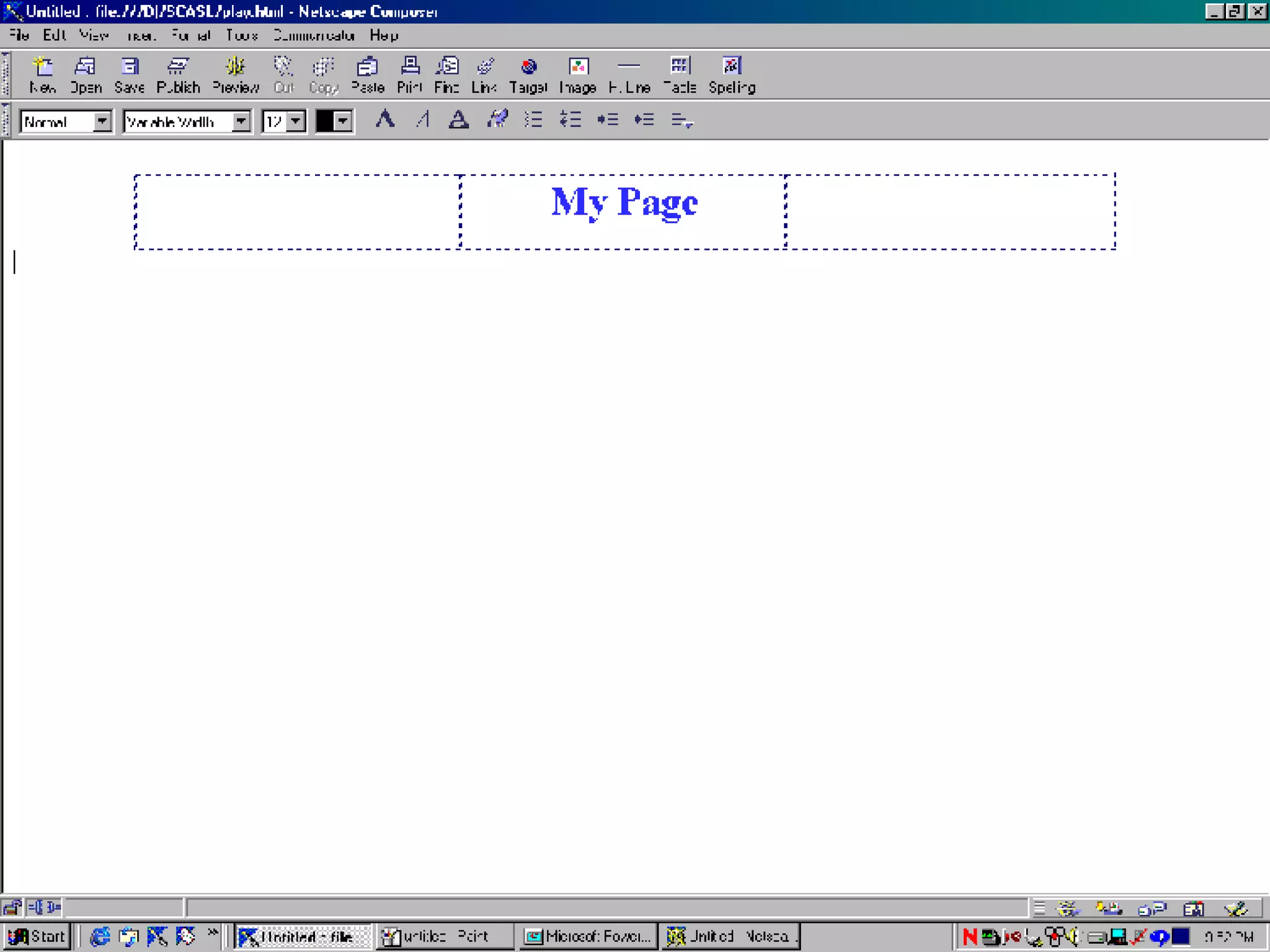
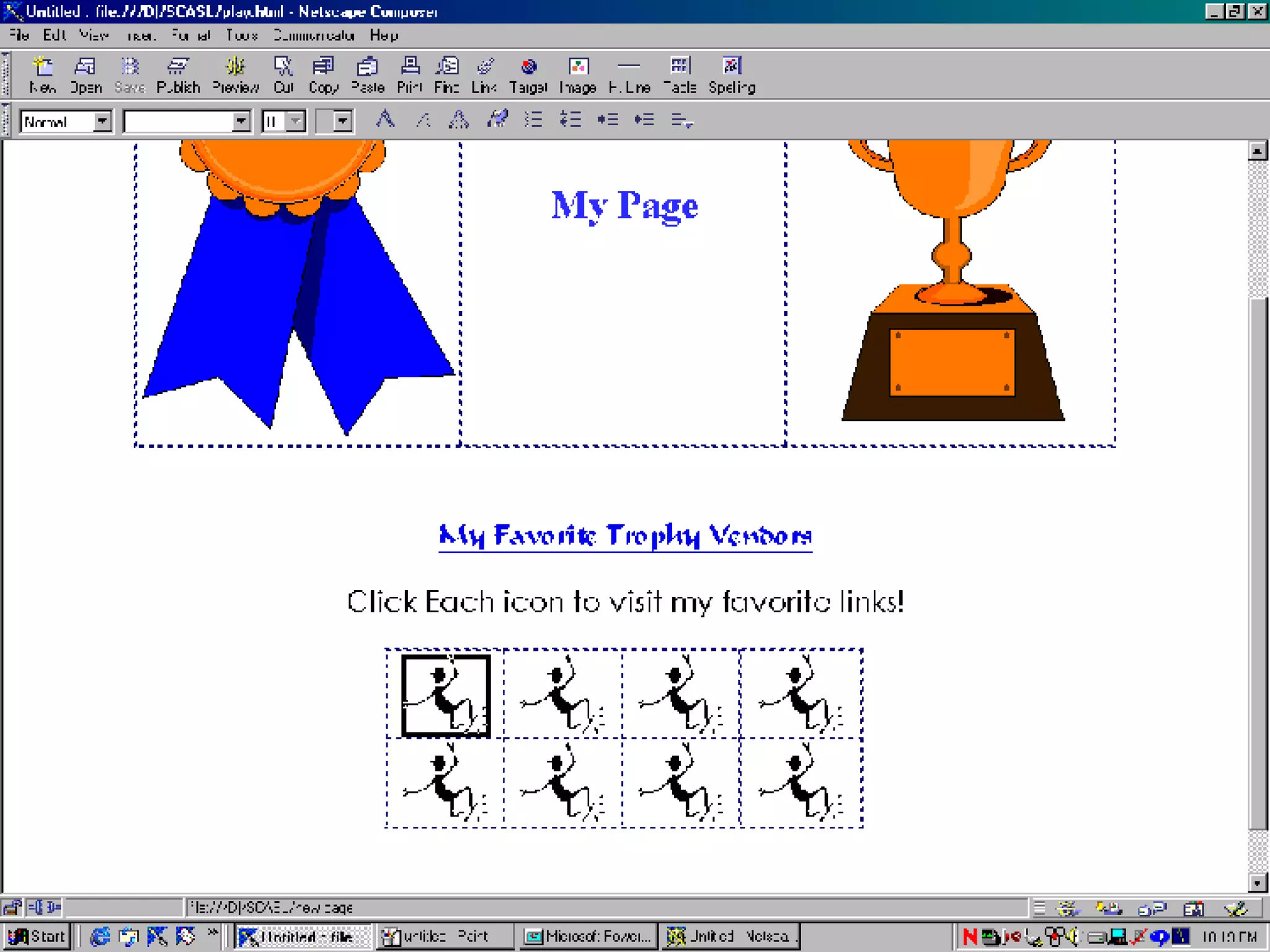
The Composer Environment Opens to a blank page like this Many of its features are similar to a word processor.
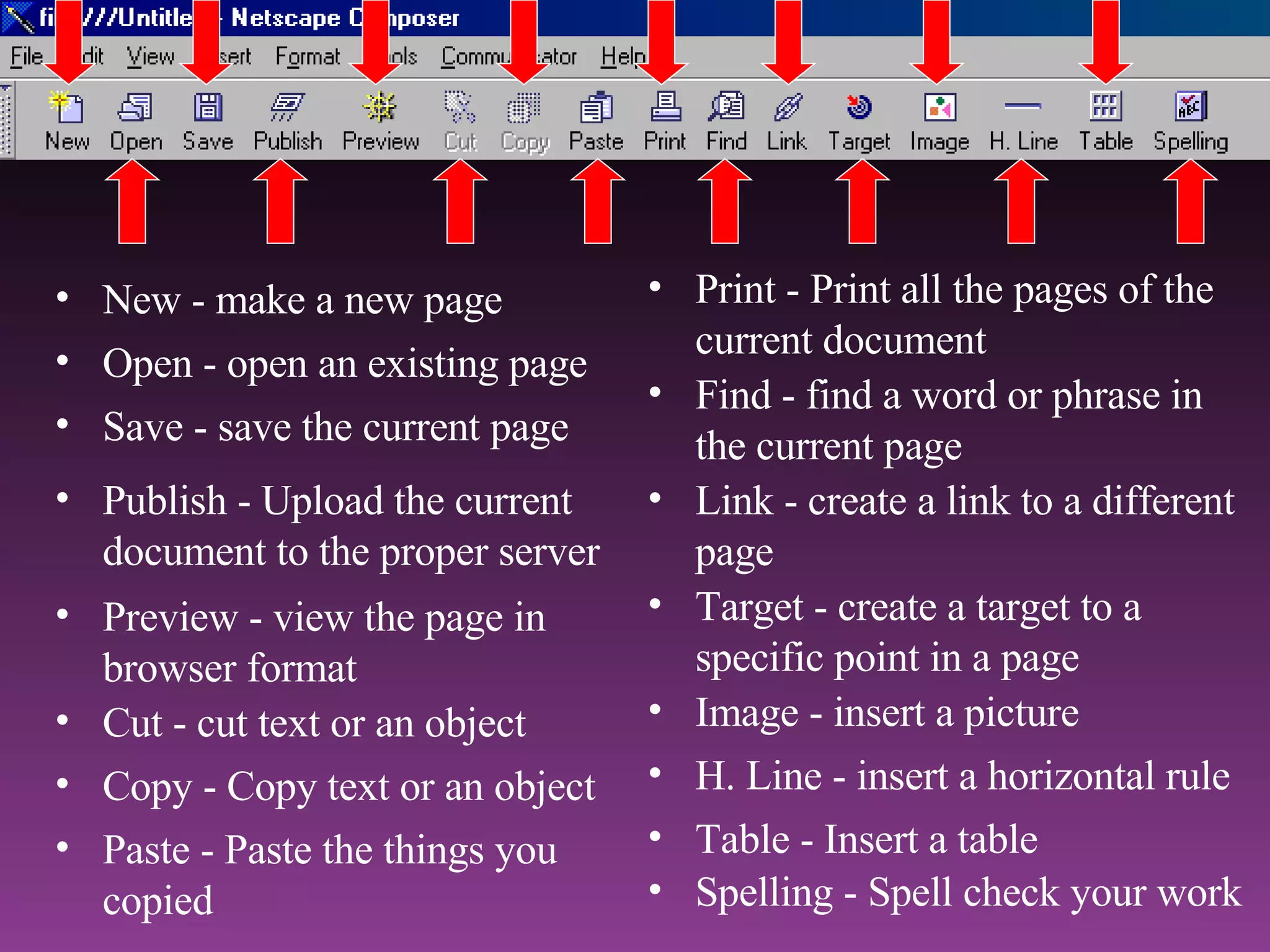
Toolbars Menu Bar access functions of composer with “drop-down” menus Composition Toolbar shortcuts to several of the more common functions used
Print - Print all the pages of the current document New - make a new page Open - open an existing page Save - save the current page Publish - Upload the current document to the proper server Cut - cut text or an object Copy - Copy text or an object Paste - Paste the things you copied Find - find a word or phrase in the current page Link - create a link to a different page Image - insert a picture H. Line - insert a horizontal rule Table - Insert a table Spelling - Spell check your work Preview - view the page in browser format Target - create a target to a specific point in a page
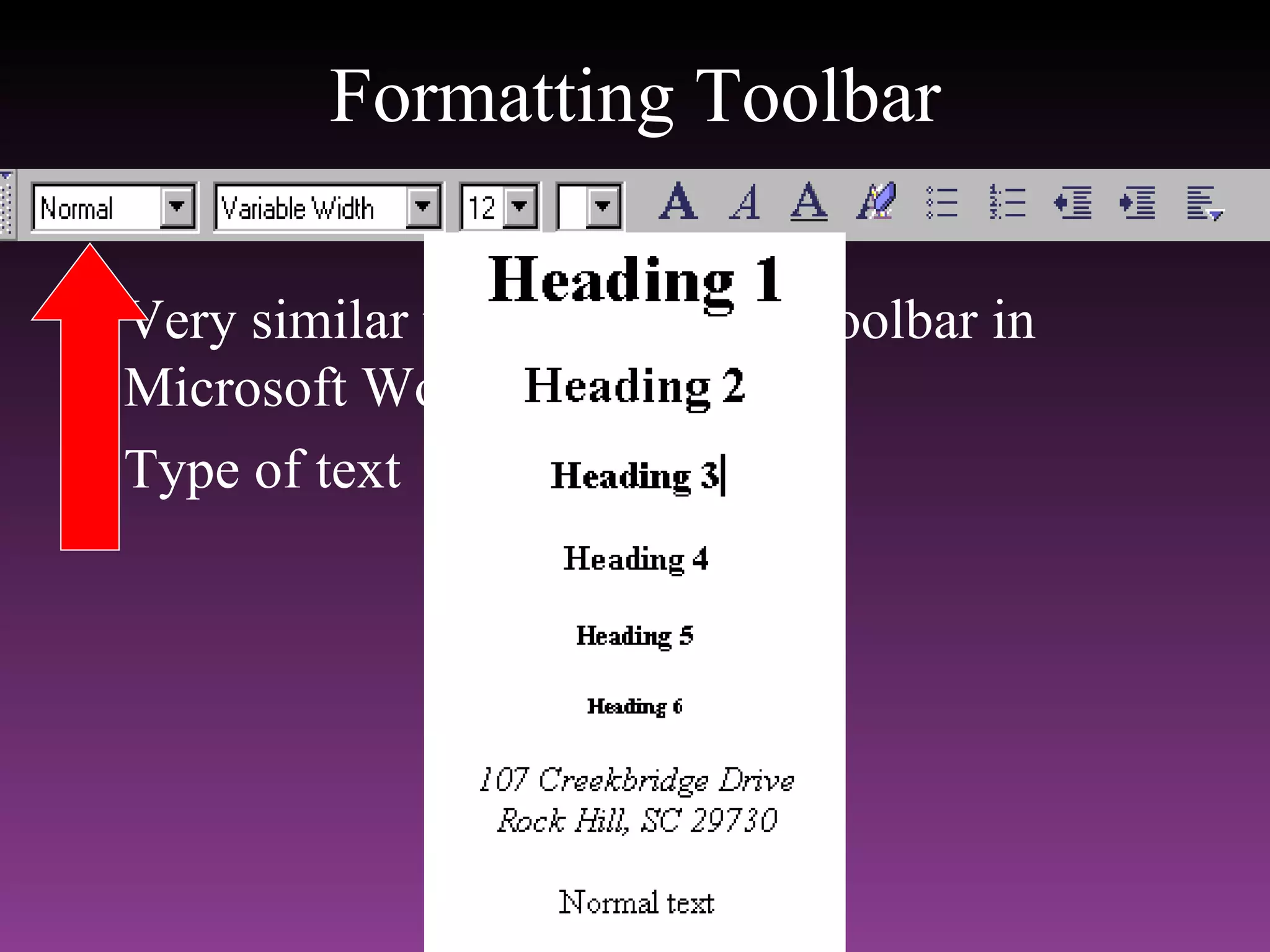
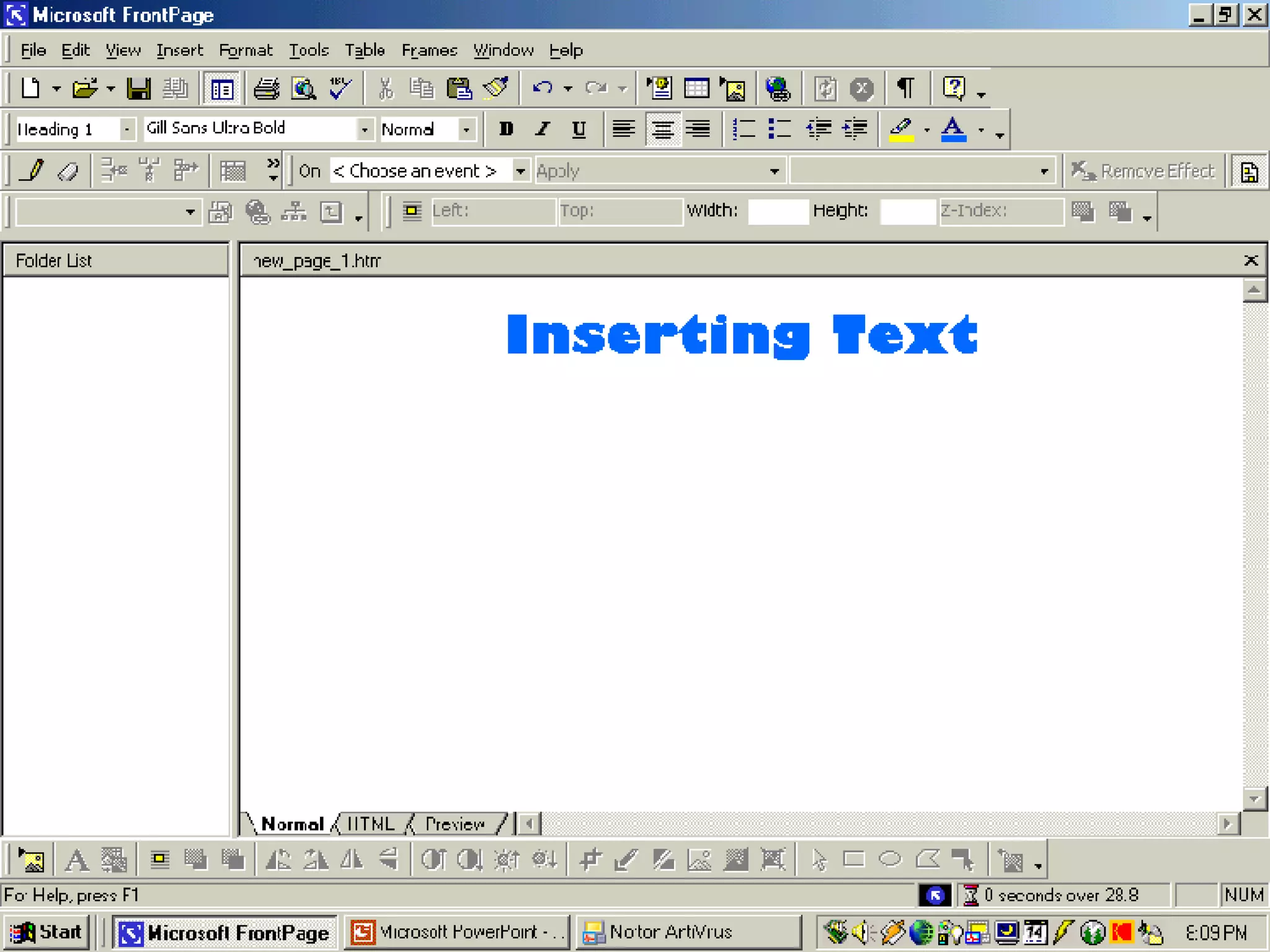
Formatting Toolbar Very similar to the formatting toolbar in Microsoft Word Type of text


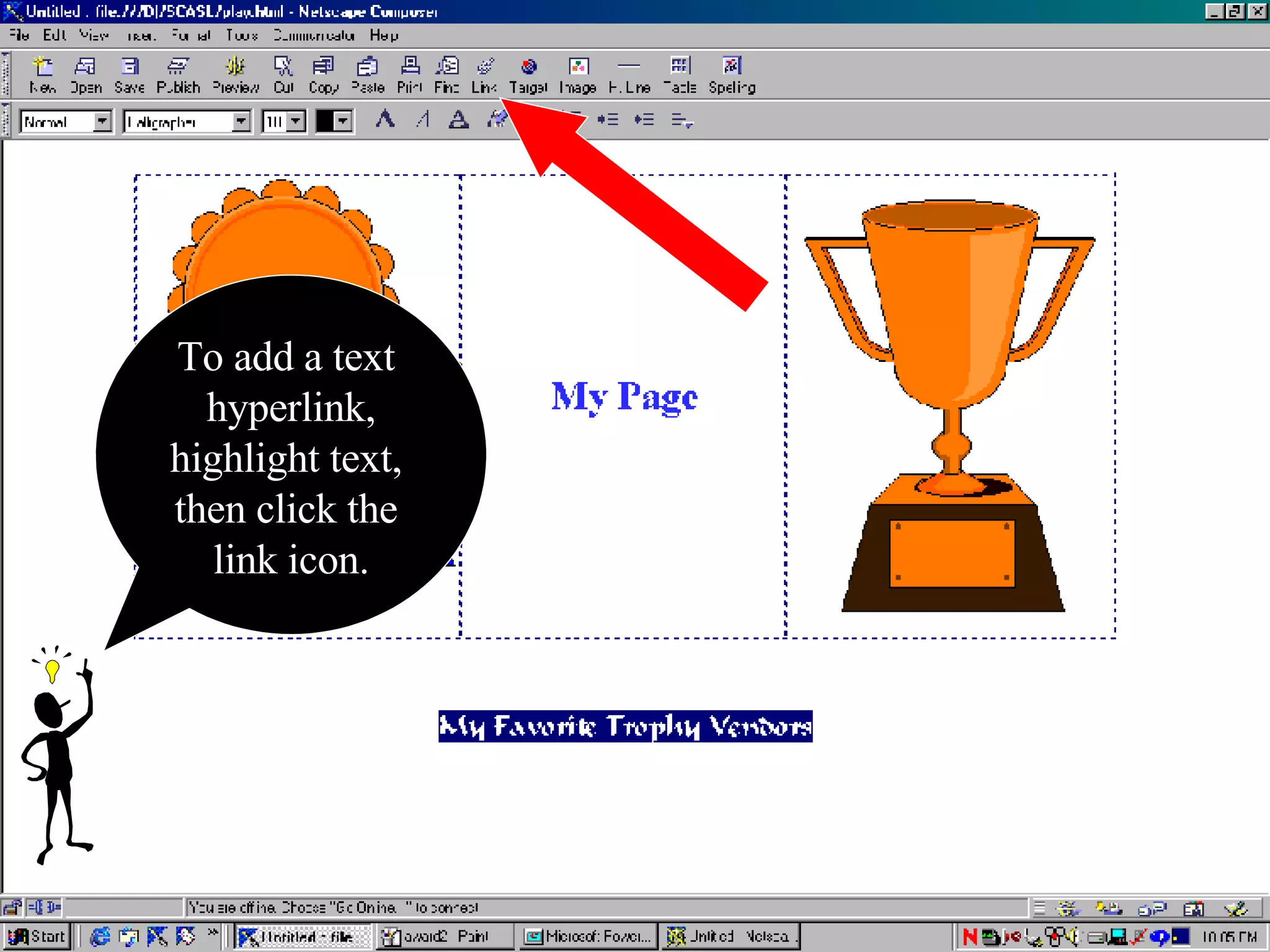
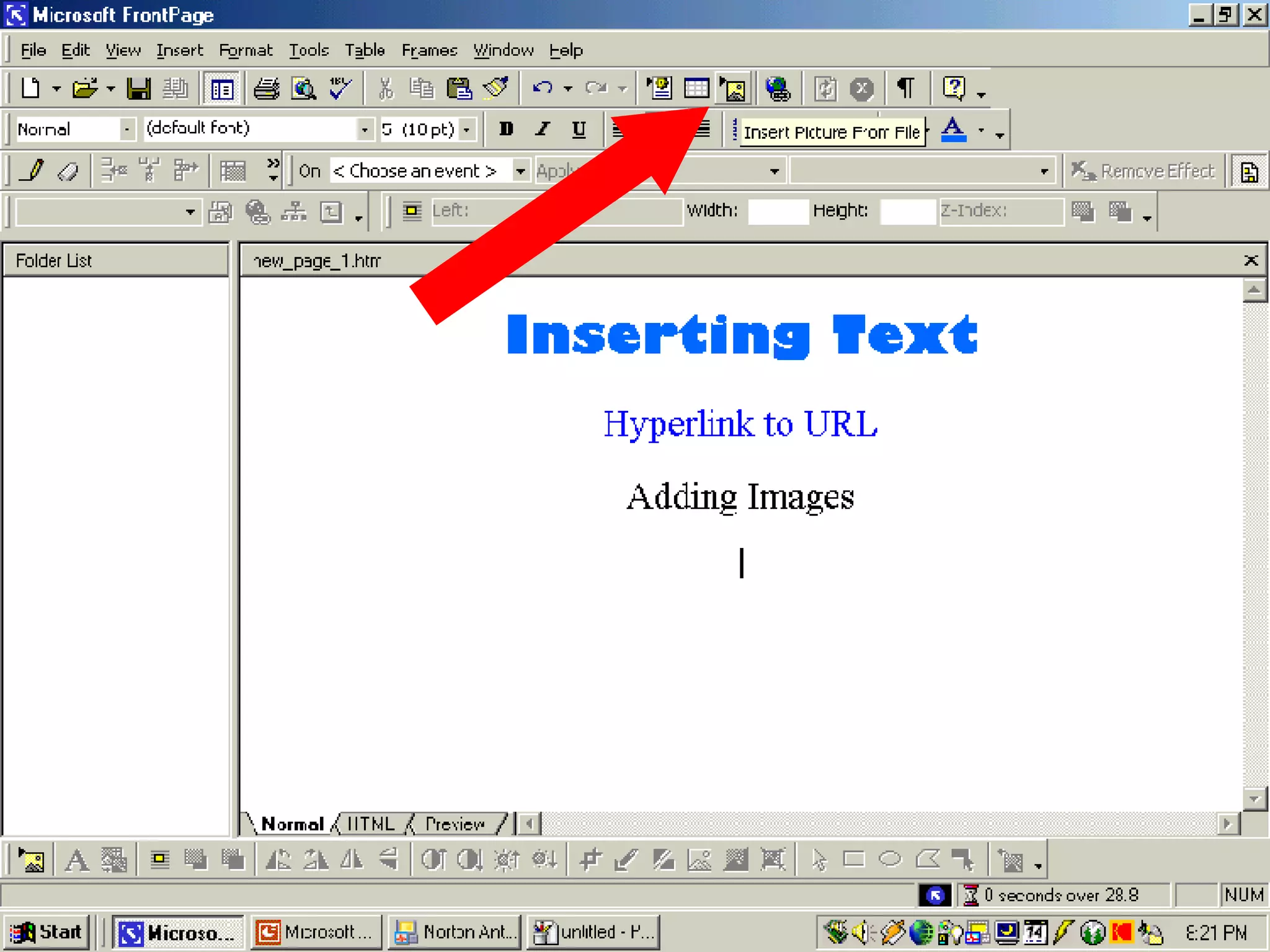
To add a text  hyperlink, highlight text,  then click the  link icon.


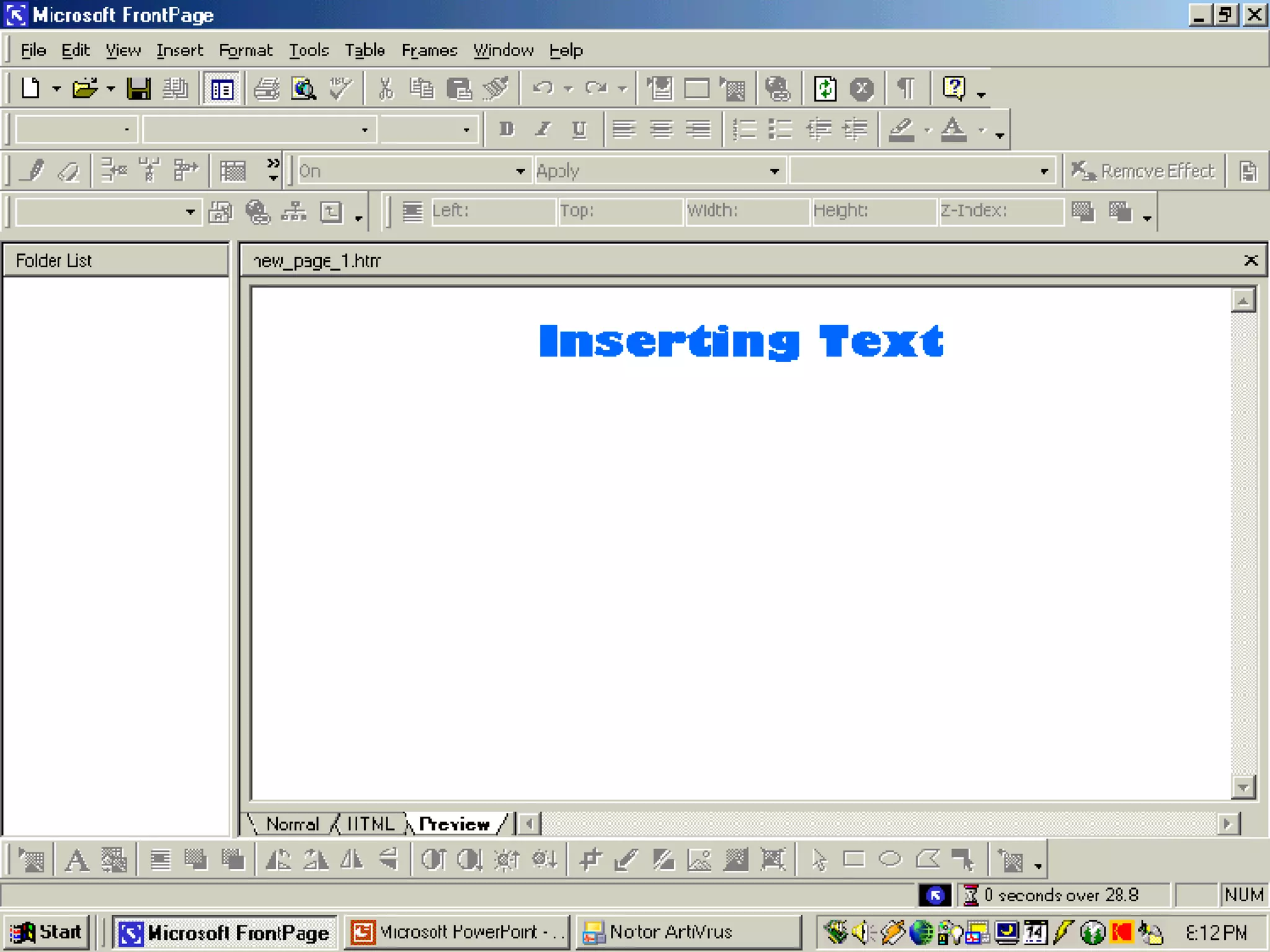
Microsoft FrontPage Front Page Guide


Tool Bar Button used to make hyperlink
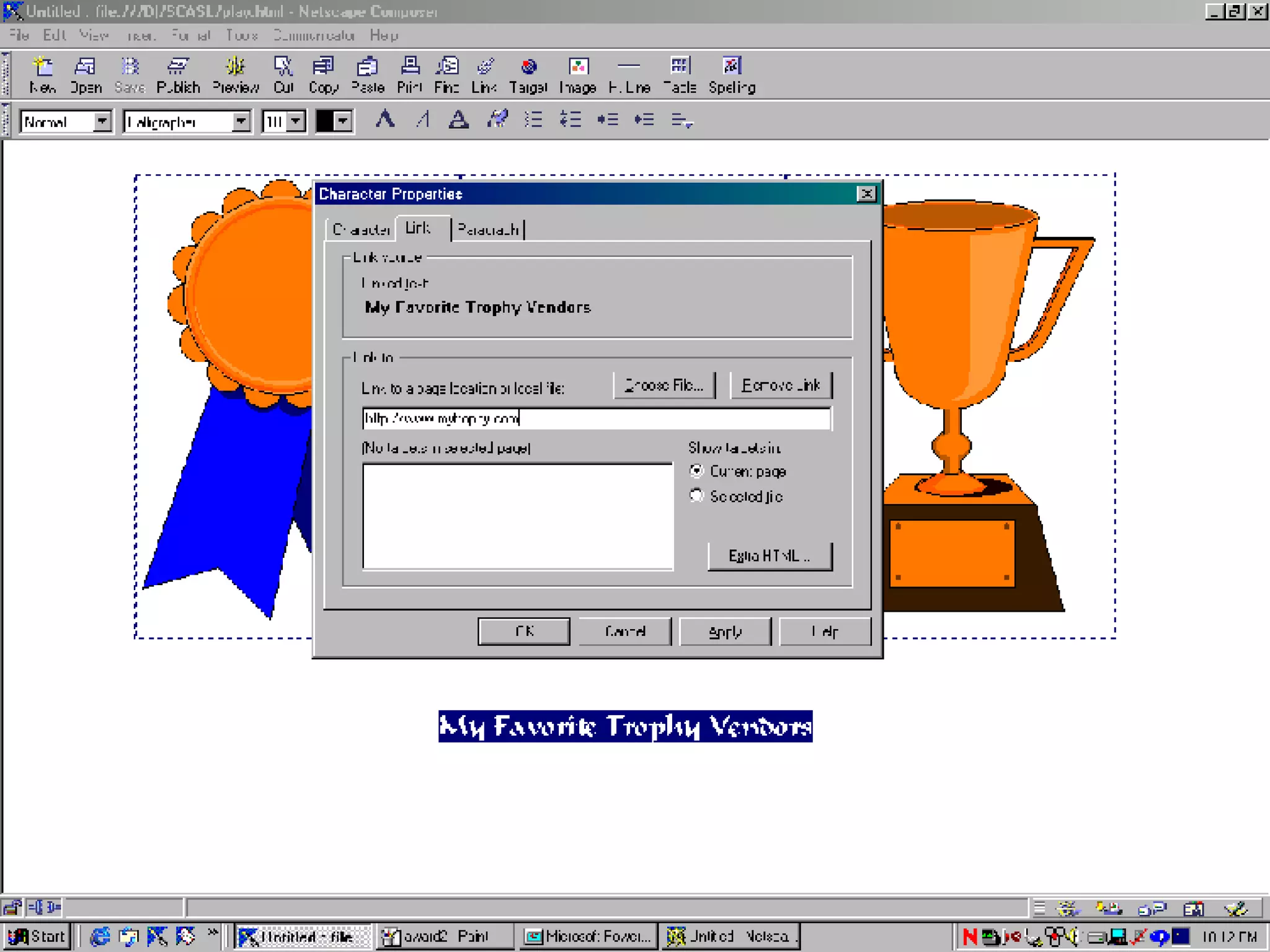
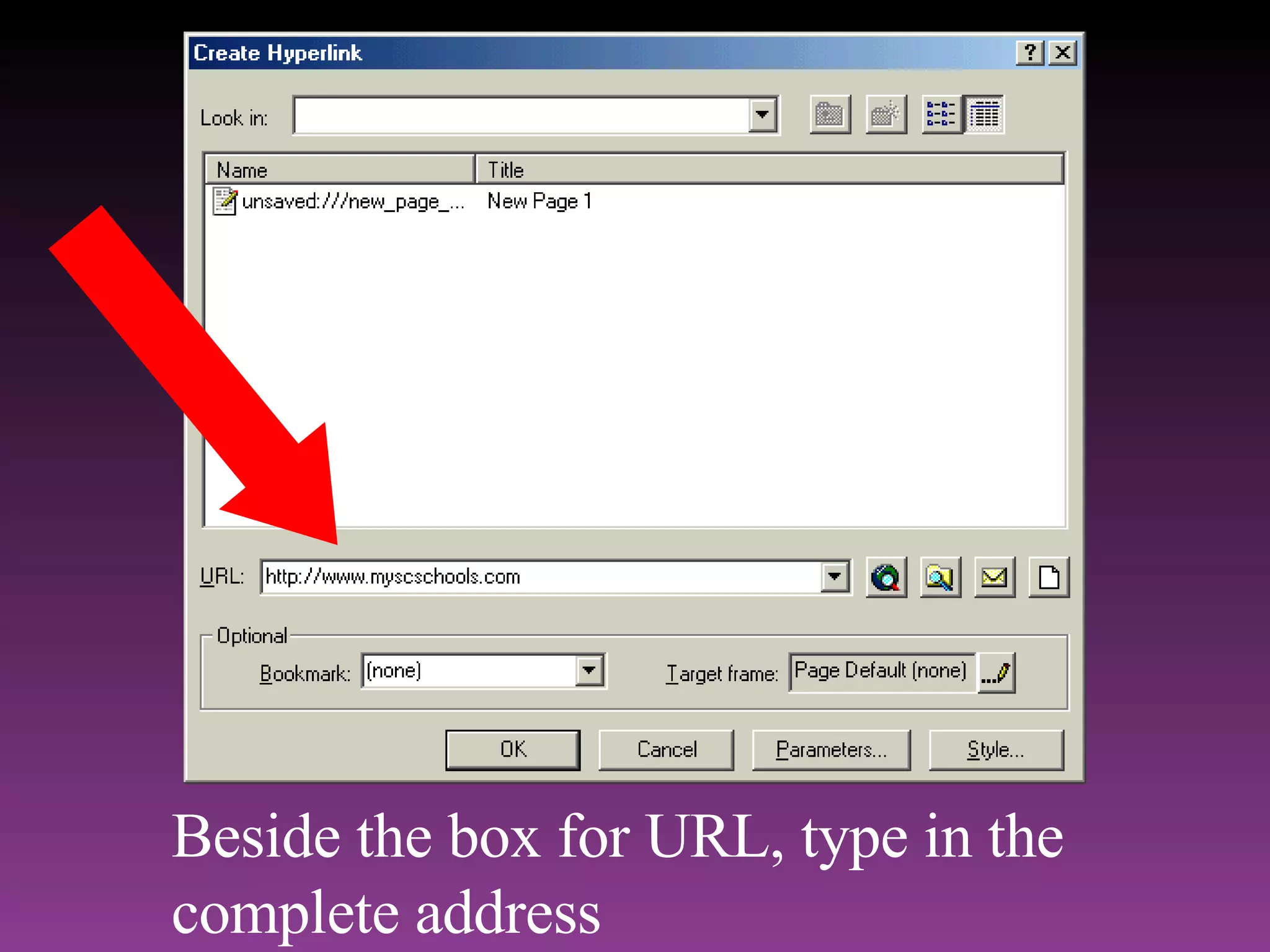
Beside the box for URL, type in the complete address


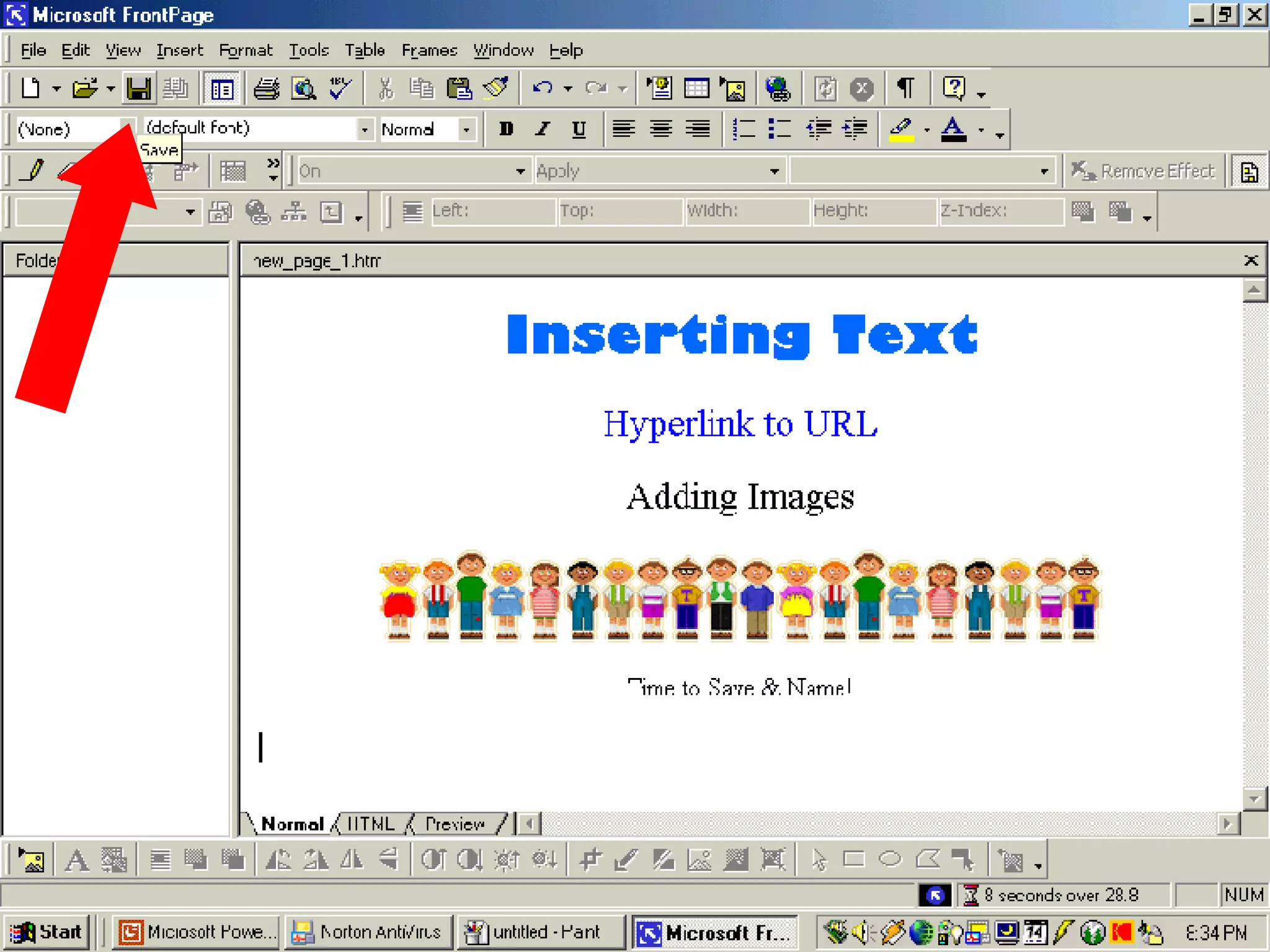
Be sure to save often!  Use the disk icon on the toolbar!
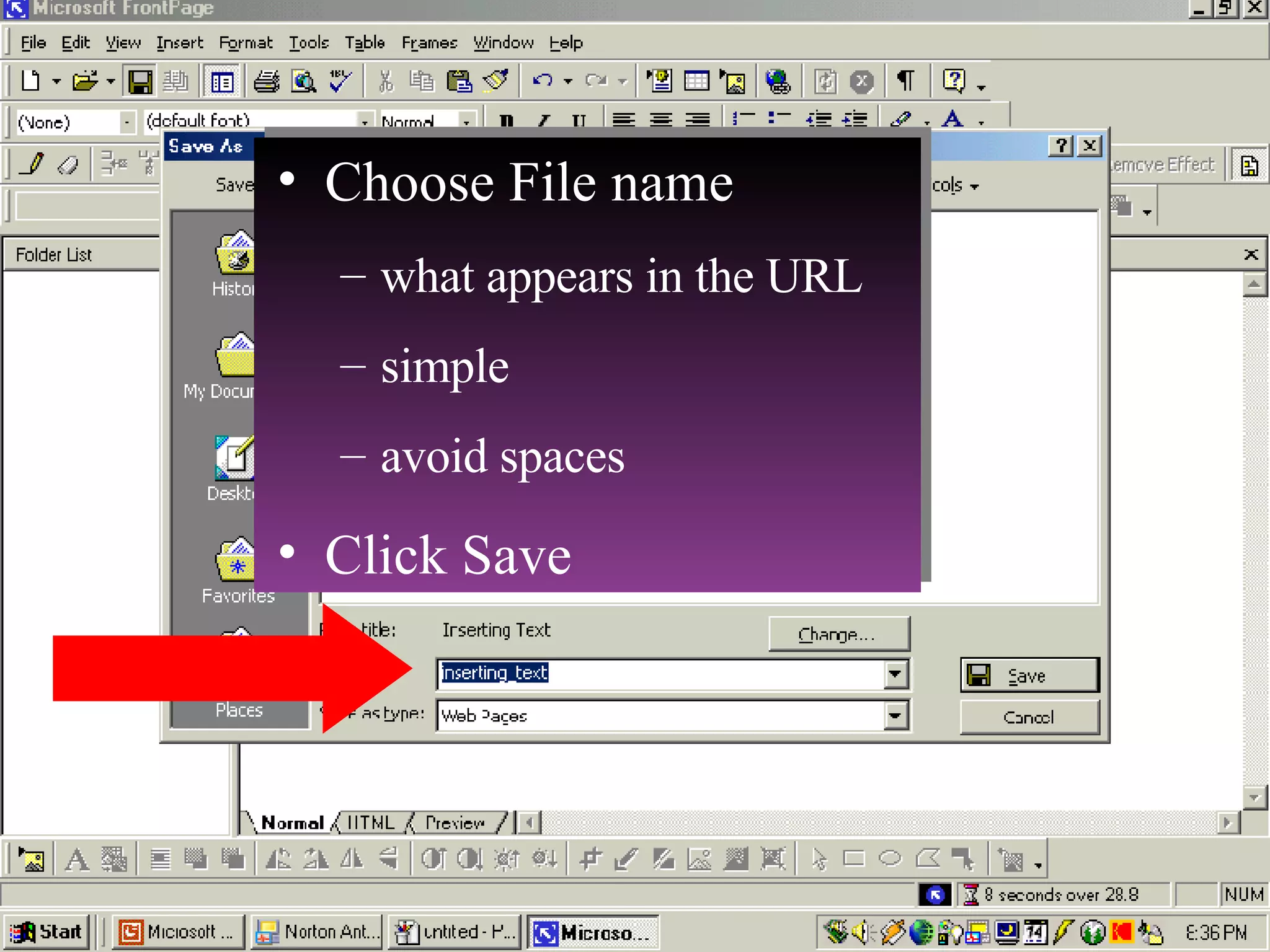
Choose where to save it web folder my documents desktop
Choose File name what appears in the URL simple avoid spaces Click Save
Notice the name of the Page Title It appears across the top blue line on web pages Change it to a more appropriate name here.
 
When you save, you will be prompted to save embedded objects, like images.
A folder will be created. Inside will be the web page file and image files used
2 ways: Click the plain white page icon Go to “File,” “New Page”
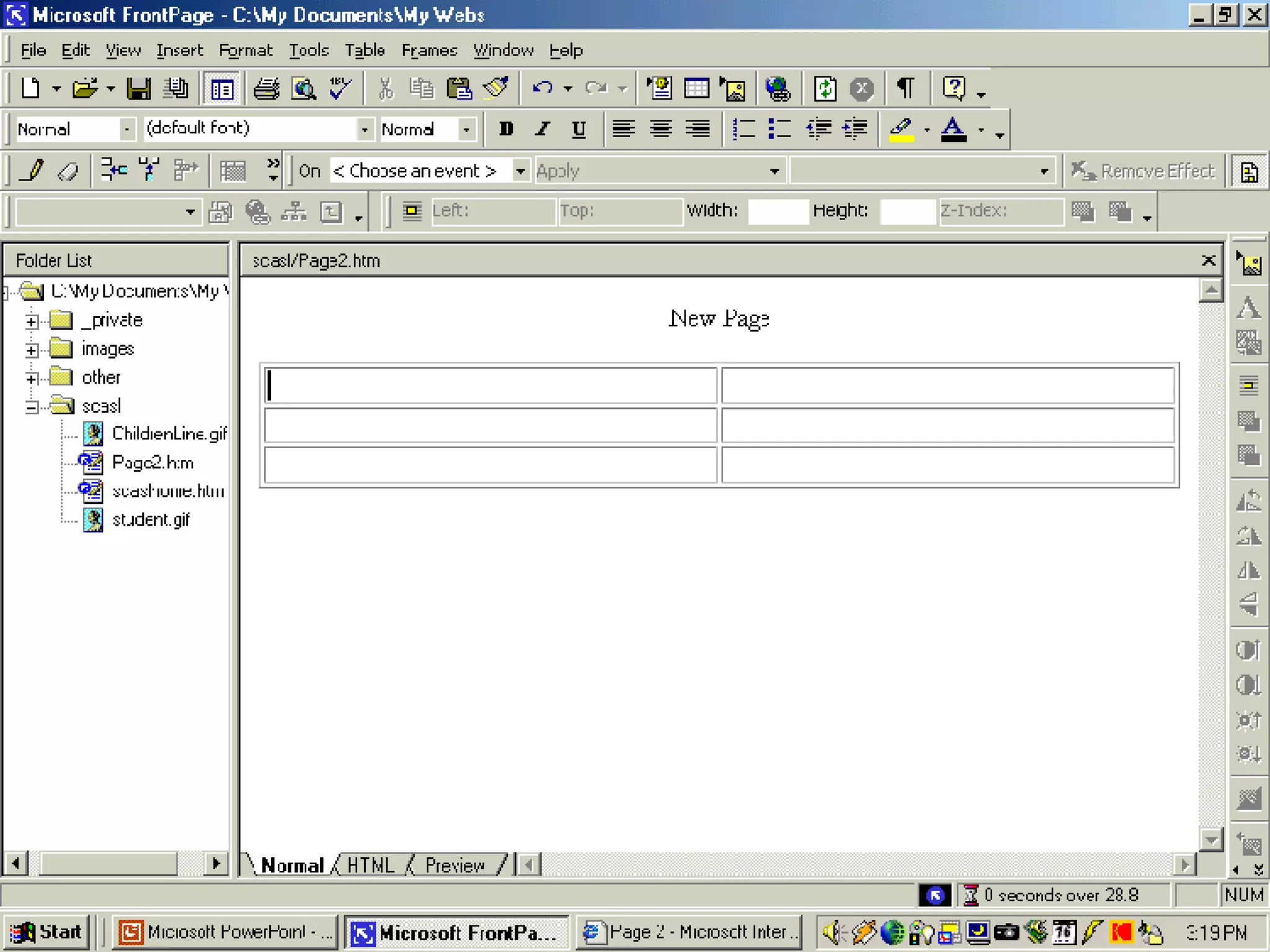
Make the new page Save it in the same folder It appears on left side of screen as another html file Dress it up now, or come back to it later.
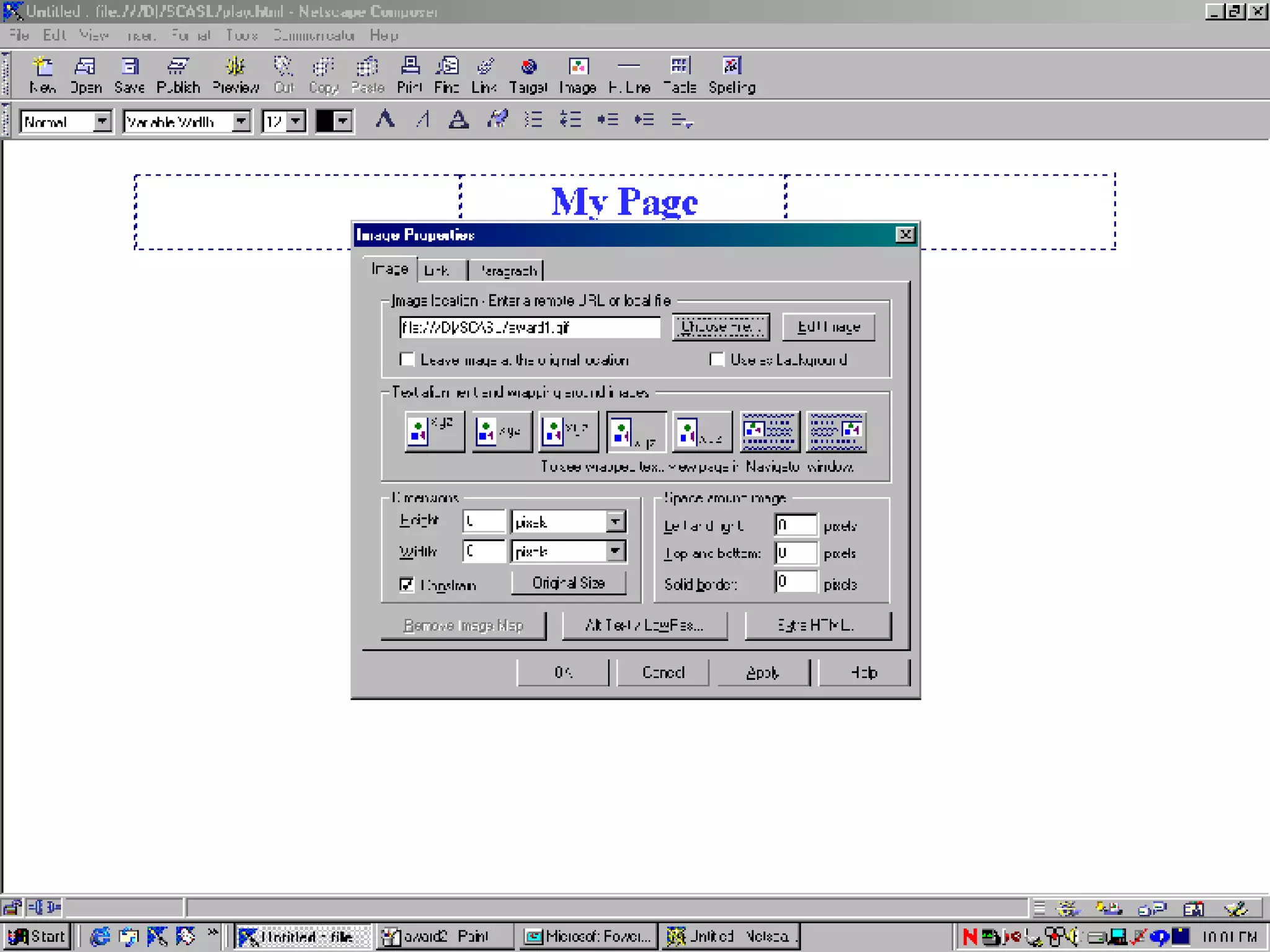
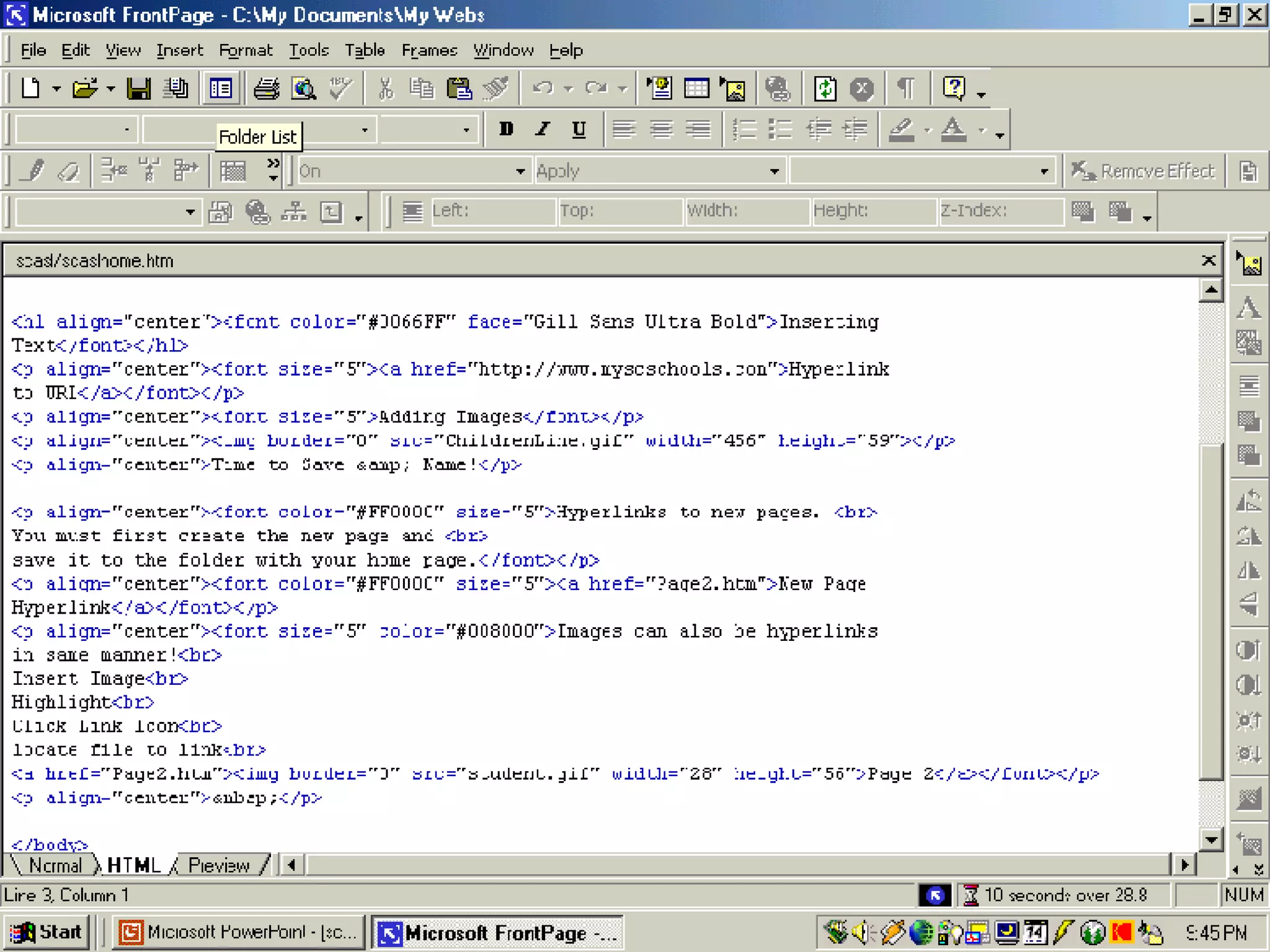
To connect (hyperlink) two pages Highlight the text or image Click your hyperlink button (earth & chain link icon) Find your folder with your html pages Click on the page you want to link


Microsoft Publisher Publisher Template
 
 
Microsoft Word Microsoft Word Template


Macromedia DreamWeaver


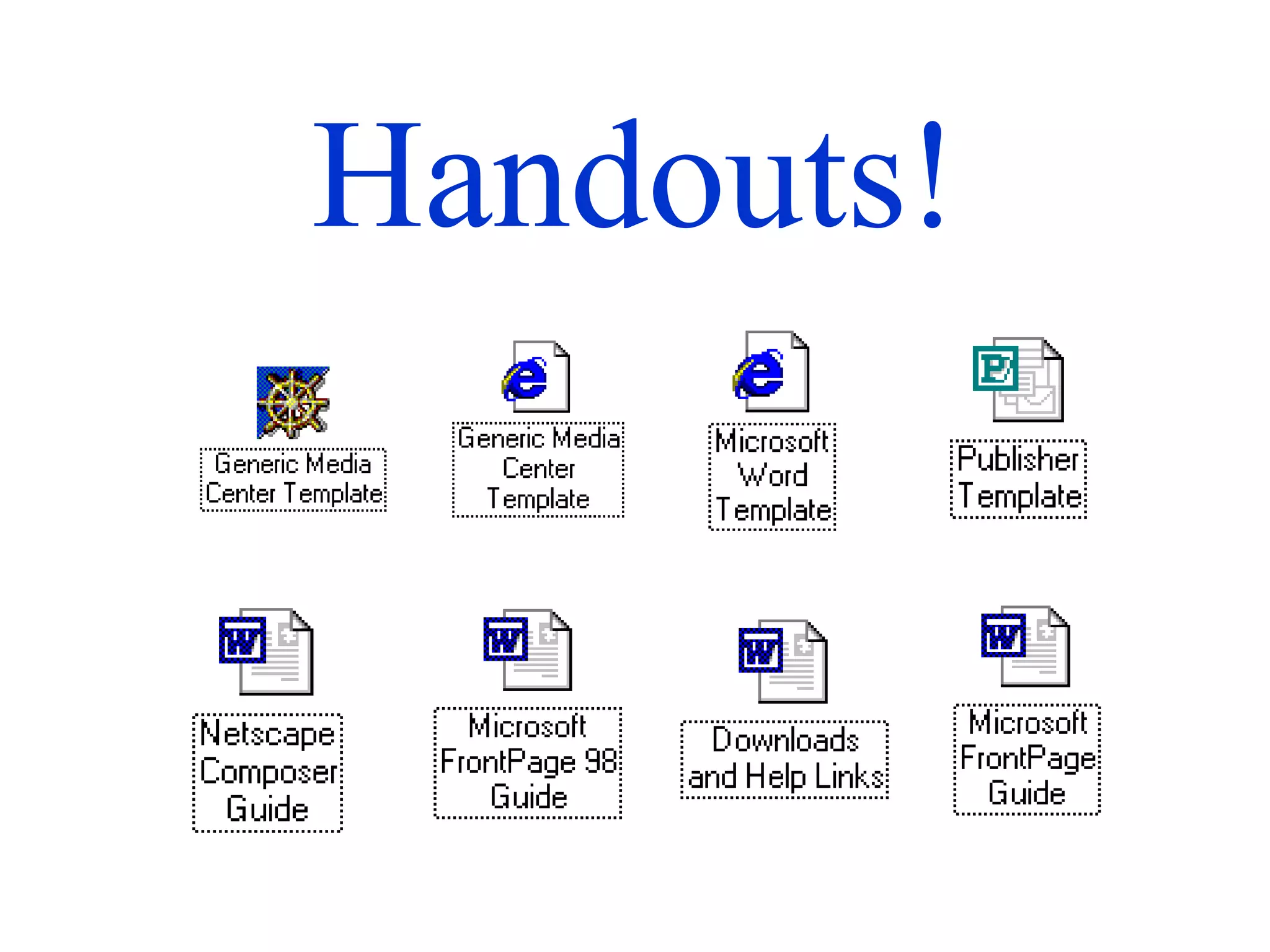
Handouts!
Special Thanks Christopher J. Smith formerly the North Central Regional Technology Specialist currently the Rock Hill School District 3 Technology Coordinator Kierston Byrd Principal at The Children’s School  at Sylvia Circle Linda Crute Principal at Northside Elementary School Joe Keeton Follett Representative
Contact Us! Catherine Nelson Media Specialist Northside Elementary School [email_address] Liz Martin Media Specialist The Children’s School at Sylvia Circle [email_address] THE END EN

Wysiwyg

  • 1.
    The Fastest Wayto Have Web Presence! Presented by: Cathy Nelson & Liz Martin Rock Hill School District #3 WYSIWYG? Do You
  • 2.
  • 3.
  • 4.
    W hat Y ou S ee I s W hat Y ou G et! Html editors that show you the end results as you type You see what the final product will look like as you create it.
  • 5.
    Plan, Plan, PlanBefore Beginning What do I want it to say? Why do I want it to say it? Who is my primary audience? Secondary? How can this information be presented? Textually graphically both
  • 6.
    Develop a StrategyOne page or multiple pages connected navigation appearance titles pictures
  • 7.
    Under Construction! Selectan html editor Microsoft Word Microsoft Publisher Netscape Composer Microsoft FrontPage Macromedia Dreamweaver Enables user to produce an html document without needing to know html language
  • 8.
    Netscape Composer MediaCenter Template Netscape Composer Tutorial
  • 9.
    The Composer EnvironmentOpens to a blank page like this Many of its features are similar to a word processor.
  • 10.
    Toolbars Menu Baraccess functions of composer with “drop-down” menus Composition Toolbar shortcuts to several of the more common functions used
  • 11.
    Print - Printall the pages of the current document New - make a new page Open - open an existing page Save - save the current page Publish - Upload the current document to the proper server Cut - cut text or an object Copy - Copy text or an object Paste - Paste the things you copied Find - find a word or phrase in the current page Link - create a link to a different page Image - insert a picture H. Line - insert a horizontal rule Table - Insert a table Spelling - Spell check your work Preview - view the page in browser format Target - create a target to a specific point in a page
  • 12.
    Formatting Toolbar Verysimilar to the formatting toolbar in Microsoft Word Type of text
  • 13.
  • 14.
  • 15.
  • 16.
  • 17.
  • 18.
  • 19.
  • 20.
  • 21.
  • 22.
  • 23.
  • 24.
    To add atext hyperlink, highlight text, then click the link icon.
  • 25.
  • 26.
  • 27.
  • 28.
  • 29.
  • 30.
  • 31.
  • 32.
  • 33.
  • 34.
    Tool Bar Buttonused to make hyperlink
  • 35.
    Beside the boxfor URL, type in the complete address
  • 36.
  • 37.
  • 38.
  • 39.
  • 40.
  • 41.
    Be sure tosave often! Use the disk icon on the toolbar!
  • 42.
    Choose where tosave it web folder my documents desktop
  • 43.
    Choose File namewhat appears in the URL simple avoid spaces Click Save
  • 44.
    Notice the nameof the Page Title It appears across the top blue line on web pages Change it to a more appropriate name here.
  • 45.
  • 46.
    When you save,you will be prompted to save embedded objects, like images.
  • 47.
    A folder willbe created. Inside will be the web page file and image files used
  • 48.
    2 ways: Clickthe plain white page icon Go to “File,” “New Page”
  • 49.
    Make the newpage Save it in the same folder It appears on left side of screen as another html file Dress it up now, or come back to it later.
  • 50.
    To connect (hyperlink)two pages Highlight the text or image Click your hyperlink button (earth & chain link icon) Find your folder with your html pages Click on the page you want to link
  • 51.
  • 52.
  • 53.
  • 54.
  • 55.
  • 56.
  • 57.
  • 58.
  • 59.
  • 60.
  • 61.
  • 62.
  • 63.
  • 64.
  • 65.
  • 66.
  • 67.
  • 68.
  • 69.
  • 70.
  • 71.
  • 72.
  • 73.
  • 74.
  • 75.
  • 76.
  • 77.
  • 78.
  • 79.
  • 80.
    Special Thanks ChristopherJ. Smith formerly the North Central Regional Technology Specialist currently the Rock Hill School District 3 Technology Coordinator Kierston Byrd Principal at The Children’s School at Sylvia Circle Linda Crute Principal at Northside Elementary School Joe Keeton Follett Representative
  • 81.
    Contact Us! CatherineNelson Media Specialist Northside Elementary School [email_address] Liz Martin Media Specialist The Children’s School at Sylvia Circle [email_address] THE END EN