Hyper Text Markup Language
INTRODUCTION TO HTML HTML, stands for HyperText Markup Language, is the predominant markup language for web pages. It provides a means to create structured documents by denoting structural semantics for text such as headings, paragraphs, lists, links, quotes, and other items. It allows images and objects to be embedded and can be used to create interactive forms.  It can load scripts in languages such as JavaScript which affect the behavior of HTML webpages.
Html tags HTML uses markup tags to describe web pages  HTML tags are keywords surrounded by angle brackets like <html> HTML tags normally come in pairs like <b> and </b> The first tag in a pair is the start tag, the second tag is the end tag Start and end tags are also called opening tags and closing tags The html tags should be enclosed inside <html> .....</html>
<head> tag The head element contains general information, also called meta-information, about a document.  It starts and ends with <head>...</head>
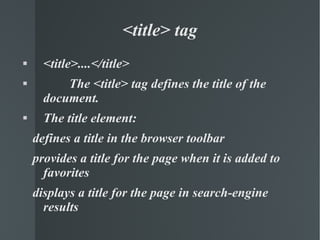
<title>....</title>  The <title> tag defines the title of the document. The title element: defines a title in the browser toolbar provides a title for the page when it is added to  favorites displays a title for the page in search-engine results <title> tag
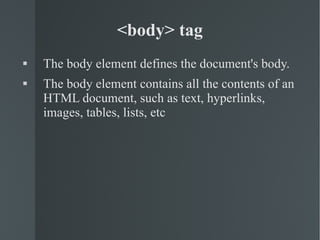
<body> tag The body element defines the document's body. The body element contains all the contents of an HTML document, such as text, hyperlinks, images, tables, lists, etc
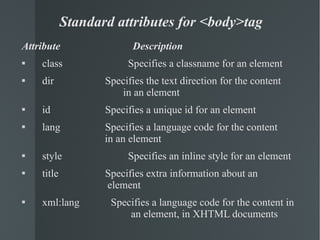
Standard attributes for <body>tag Attribute    Description class   Specifies a classname for an element dir   Specifies the text direction for the content  in an element id   Specifies a unique id for an element lang   Specifies a language code for the content  in an element style   Specifies an inline style for an element title   Specifies extra information about an  element xml:lang  Specifies a language code for the content in  an element, in XHTML documents
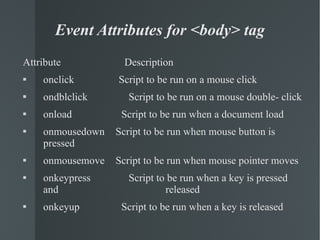
Event Attributes for <body> tag Attribute   Description onclick   Script to be run on a mouse click ondblclick   Script to be run on a mouse double- click onload   Script to be run when a document load onmousedown   Script to be run when mouse button is pressed onmousemove   Script to be run when mouse pointer moves onkeypress   Script to be run when a key is pressed and  released onkeyup   Script to be run when a key is released
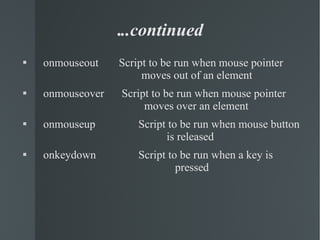
. ..continued onmouseout   Script to be run when mouse pointer  moves out of an element onmouseover   Script to be run when mouse pointer  moves over an element onmouseup   Script to be run when mouse button  is released onkeydown   Script to be run when a key is  pressed
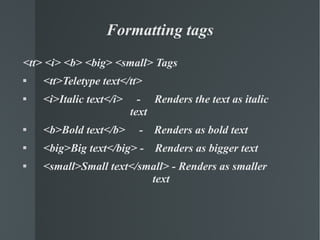
Formatting tags <tt> <i> <b> <big> <small> Tags <tt>Teletype text</tt> <i>Italic text</i>  -  Renders the text as italic  text <b>Bold text</b>  -  Renders as bold text <big>Big text</big> -  Renders as bigger text <small>Small text</small> - Renders as smaller  text
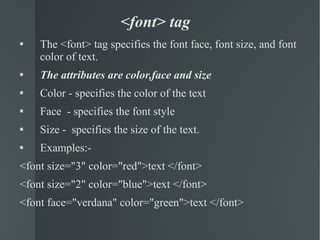
<font> tag The <font> tag specifies the font face, font size, and font color of text. The attributes are color,face and size Color - specifies the color of the text Face  - specifies the font style Size -  specifies the size of the text. Examples:- <font size=&quot;3&quot; color=&quot;red&quot;>text </font> <font size=&quot;2&quot; color=&quot;blue&quot;>text </font> <font face=&quot;verdana&quot; color=&quot;green&quot;>text </font>
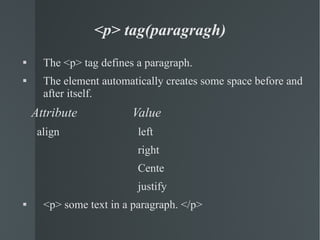
<p> tag(paragragh) The <p> tag defines a paragraph. The element automatically creates some space before and after itself.  Attribute  Value align  left right Cente justify <p> some text in a paragraph. </p>
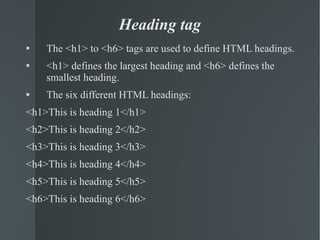
Heading tag The <h1> to <h6> tags are used to define HTML headings. <h1> defines the largest heading and <h6> defines the smallest heading. The six different HTML headings: <h1>This is heading 1</h1> <h2>This is heading 2</h2> <h3>This is heading 3</h3> <h4>This is heading 4</h4> <h5>This is heading 5</h5> <h6>This is heading 6</h6>
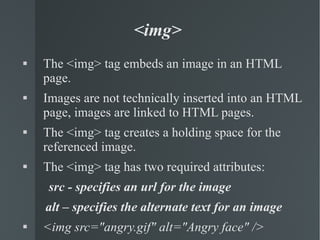
<img>  The <img> tag embeds an image in an HTML page. Images are not technically inserted into an HTML page, images are linked to HTML pages.  The <img> tag creates a holding space for the referenced image. The <img> tag has two required attributes: src - specifies an url for the image alt – specifies the alternate text for an image  <img src=&quot;angry.gif&quot; alt=&quot;Angry face&quot; />
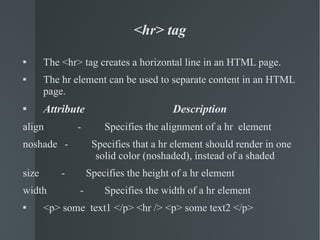
<hr> tag The <hr> tag creates a horizontal line in an HTML page. The hr element can be used to separate content in an HTML page. Attribute    Description align   -  Specifies the alignment of a hr  element noshade  -  Specifies that a hr element should render in one  solid color (noshaded), instead of a shaded size   -  Specifies the height of a hr element width   -  Specifies the width of a hr element <p> some  text1 </p> <hr /> <p> some text2 </p>
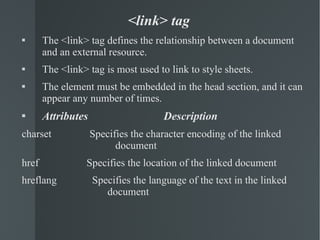
<link> tag The <link> tag defines the relationship between a document and an external resource. The <link> tag is most used to link to style sheets. The element must be embedded in the head section, and it can appear any number of times. Attributes  Description charset   Specifies the character encoding of the linked  document href   Specifies the location of the linked document hreflang   Specifies the language of the text in the linked  document
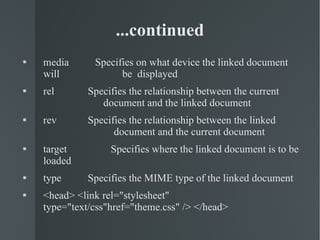
media   Specifies on what device the linked document will  be  displayed rel   Specifies the relationship between the current  document and the linked document rev   Specifies the relationship between the linked  document and the current document target   Specifies where the linked document is to be loaded type   Specifies the MIME type of the linked document <head> <link rel=&quot;stylesheet&quot; type=&quot;text/css&quot;href=&quot;theme.css&quot; /> </head>  ...continued
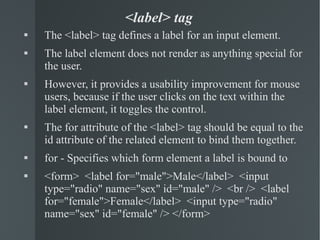
<label> tag The <label> tag defines a label for an input element. The label element does not render as anything special for the user.  However, it provides a usability improvement for mouse users, because if the user clicks on the text within the label element, it toggles the control. The for attribute of the <label> tag should be equal to the id attribute of the related element to bind them together. for - Specifies which form element a label is bound to  <form>  <label for=&quot;male&quot;>Male</label>  <input type=&quot;radio&quot; name=&quot;sex&quot; id=&quot;male&quot; />  <br />  <label for=&quot;female&quot;>Female</label>  <input type=&quot;radio&quot; name=&quot;sex&quot; id=&quot;female&quot; /> </form>
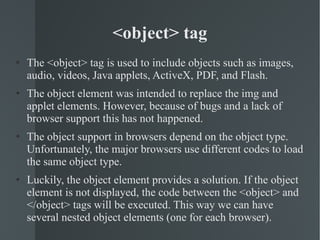
<object> tag The <object> tag is used to include objects such as images, audio, videos, Java applets, ActiveX, PDF, and Flash. The object element was intended to replace the img and applet elements. However, because of bugs and a lack of browser support this has not happened. The object support in browsers depend on the object type. Unfortunately, the major browsers use different codes to load the same object type. Luckily, the object element provides a solution. If the object element is not displayed, the code between the <object> and </object> tags will be executed. This way we can have several nested object elements (one for each browser).

Html

  • 1.
  • 2.
    INTRODUCTION TO HTMLHTML, stands for HyperText Markup Language, is the predominant markup language for web pages. It provides a means to create structured documents by denoting structural semantics for text such as headings, paragraphs, lists, links, quotes, and other items. It allows images and objects to be embedded and can be used to create interactive forms. It can load scripts in languages such as JavaScript which affect the behavior of HTML webpages.
  • 3.
    Html tags HTMLuses markup tags to describe web pages HTML tags are keywords surrounded by angle brackets like <html> HTML tags normally come in pairs like <b> and </b> The first tag in a pair is the start tag, the second tag is the end tag Start and end tags are also called opening tags and closing tags The html tags should be enclosed inside <html> .....</html>
  • 4.
    <head> tag Thehead element contains general information, also called meta-information, about a document. It starts and ends with <head>...</head>
  • 5.
    <title>....</title> The<title> tag defines the title of the document. The title element: defines a title in the browser toolbar provides a title for the page when it is added to favorites displays a title for the page in search-engine results <title> tag
  • 6.
    <body> tag Thebody element defines the document's body. The body element contains all the contents of an HTML document, such as text, hyperlinks, images, tables, lists, etc
  • 7.
    Standard attributes for<body>tag Attribute Description class Specifies a classname for an element dir Specifies the text direction for the content in an element id Specifies a unique id for an element lang Specifies a language code for the content in an element style Specifies an inline style for an element title Specifies extra information about an element xml:lang Specifies a language code for the content in an element, in XHTML documents
  • 8.
    Event Attributes for<body> tag Attribute Description onclick Script to be run on a mouse click ondblclick Script to be run on a mouse double- click onload Script to be run when a document load onmousedown Script to be run when mouse button is pressed onmousemove Script to be run when mouse pointer moves onkeypress Script to be run when a key is pressed and released onkeyup Script to be run when a key is released
  • 9.
    . ..continued onmouseout Script to be run when mouse pointer moves out of an element onmouseover Script to be run when mouse pointer moves over an element onmouseup Script to be run when mouse button is released onkeydown Script to be run when a key is pressed
  • 10.
    Formatting tags <tt><i> <b> <big> <small> Tags <tt>Teletype text</tt> <i>Italic text</i> - Renders the text as italic text <b>Bold text</b> - Renders as bold text <big>Big text</big> - Renders as bigger text <small>Small text</small> - Renders as smaller text
  • 11.
    <font> tag The<font> tag specifies the font face, font size, and font color of text. The attributes are color,face and size Color - specifies the color of the text Face - specifies the font style Size - specifies the size of the text. Examples:- <font size=&quot;3&quot; color=&quot;red&quot;>text </font> <font size=&quot;2&quot; color=&quot;blue&quot;>text </font> <font face=&quot;verdana&quot; color=&quot;green&quot;>text </font>
  • 12.
    <p> tag(paragragh) The<p> tag defines a paragraph. The element automatically creates some space before and after itself. Attribute Value align left right Cente justify <p> some text in a paragraph. </p>
  • 13.
    Heading tag The<h1> to <h6> tags are used to define HTML headings. <h1> defines the largest heading and <h6> defines the smallest heading. The six different HTML headings: <h1>This is heading 1</h1> <h2>This is heading 2</h2> <h3>This is heading 3</h3> <h4>This is heading 4</h4> <h5>This is heading 5</h5> <h6>This is heading 6</h6>
  • 14.
    <img> The<img> tag embeds an image in an HTML page. Images are not technically inserted into an HTML page, images are linked to HTML pages. The <img> tag creates a holding space for the referenced image. The <img> tag has two required attributes: src - specifies an url for the image alt – specifies the alternate text for an image <img src=&quot;angry.gif&quot; alt=&quot;Angry face&quot; />
  • 15.
    <hr> tag The<hr> tag creates a horizontal line in an HTML page. The hr element can be used to separate content in an HTML page. Attribute Description align - Specifies the alignment of a hr element noshade - Specifies that a hr element should render in one solid color (noshaded), instead of a shaded size - Specifies the height of a hr element width - Specifies the width of a hr element <p> some text1 </p> <hr /> <p> some text2 </p>
  • 16.
    <link> tag The<link> tag defines the relationship between a document and an external resource. The <link> tag is most used to link to style sheets. The element must be embedded in the head section, and it can appear any number of times. Attributes Description charset Specifies the character encoding of the linked document href Specifies the location of the linked document hreflang Specifies the language of the text in the linked document
  • 17.
    media Specifies on what device the linked document will be displayed rel Specifies the relationship between the current document and the linked document rev Specifies the relationship between the linked document and the current document target Specifies where the linked document is to be loaded type Specifies the MIME type of the linked document <head> <link rel=&quot;stylesheet&quot; type=&quot;text/css&quot;href=&quot;theme.css&quot; /> </head> ...continued
  • 18.
    <label> tag The<label> tag defines a label for an input element. The label element does not render as anything special for the user. However, it provides a usability improvement for mouse users, because if the user clicks on the text within the label element, it toggles the control. The for attribute of the <label> tag should be equal to the id attribute of the related element to bind them together. for - Specifies which form element a label is bound to <form> <label for=&quot;male&quot;>Male</label> <input type=&quot;radio&quot; name=&quot;sex&quot; id=&quot;male&quot; /> <br /> <label for=&quot;female&quot;>Female</label> <input type=&quot;radio&quot; name=&quot;sex&quot; id=&quot;female&quot; /> </form>
  • 19.
    <object> tag The<object> tag is used to include objects such as images, audio, videos, Java applets, ActiveX, PDF, and Flash. The object element was intended to replace the img and applet elements. However, because of bugs and a lack of browser support this has not happened. The object support in browsers depend on the object type. Unfortunately, the major browsers use different codes to load the same object type. Luckily, the object element provides a solution. If the object element is not displayed, the code between the <object> and </object> tags will be executed. This way we can have several nested object elements (one for each browser).