Why Does it matter?
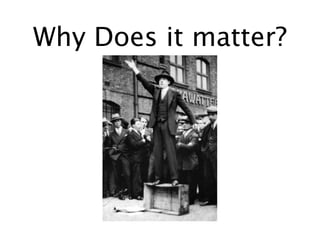
Why Does it matter?
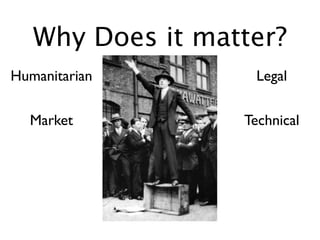
Humanitarian       Legal

  Market          Technical
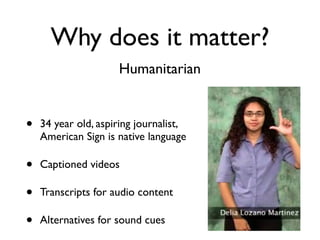
Why does it matter?
                     Humanitarian


•   34 year old, aspiring journalist,
    American Sign is native language

•   Captioned videos

•   Transcripts for audio content

•   Alternatives for sound cues
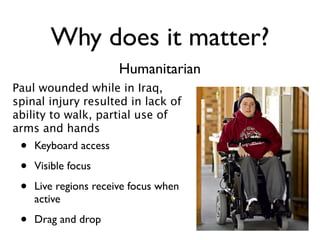
Why does it matter?
                       Humanitarian
Paul wounded while in Iraq,
spinal injury resulted in lack of
ability to walk, partial use of
arms and hands
 •   Keyboard access

 •   Visible focus

 •   Live regions receive focus when
     active

 •   Drag and drop
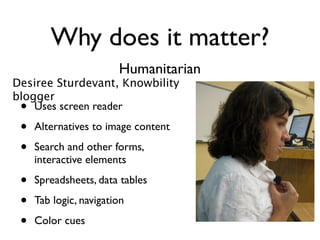
Why does it matter?
                        Humanitarian
Desiree Sturdevant, Knowbility
blogger
 •  Uses screen reader

 •   Alternatives to image content

 •   Search and other forms,
     interactive elements

 •   Spreadsheets, data tables

 •   Tab logic, navigation

 •   Color cues
Why does it matter?
                           Market
•   Number of people with disabilities is growing

•   55 million Americans / 1 billion worldwide

•   $200 billion in discretionary spending

•   More as population ages
Why does it matter?
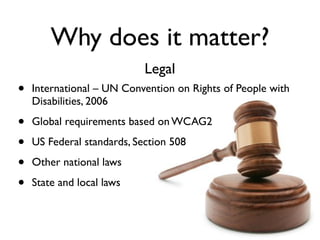
                            Legal
•   International – UN Convention on Rights of People with
    Disabilities, 2006

•   Global requirements based on WCAG2

•   US Federal standards, Section 508

•   Other national laws

•   State and local laws
Why does it matter?
                              Legal
         Website Accessibility Under Title II of the ADA

“The Americans with Disabilities Act (ADA) and, if the
government entities receive federal funding, the Rehabilitation
Act of 1973 generally require that state and local governments
provide qualified individuals with disabilities equal access to their
programs, services, or activities...”
Why does it matter?
                             Legal
         Website Accessibility Under Title II of the ADA

“One way to help meet these requirements is to ensure that
government websites have accessible features for people with
disabilities...”
Why does it matter?
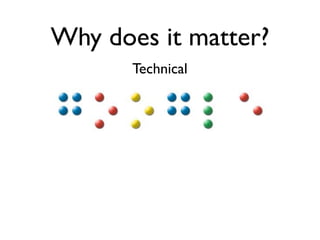
       Technical
Why does it matter?
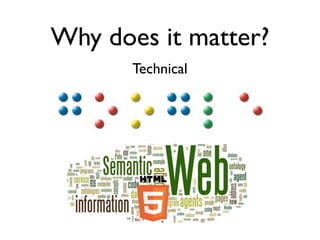
       Technical
Why does it matter?
       Technical
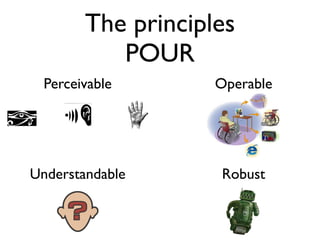
The principles
           POUR
  Perceivable       Operable


Understandable      Robust
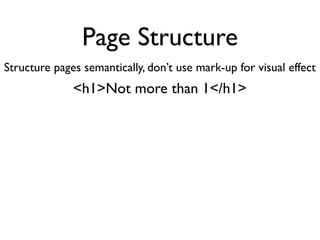
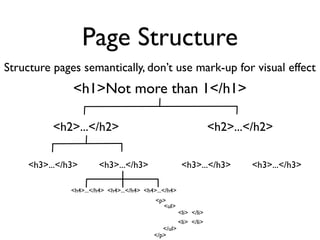
Page Structure
Structure pages semantically, don’t use mark-up for visual effect
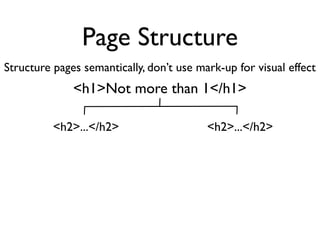
Page Structure
Structure pages semantically, don’t use mark-up for visual effect
              <h1>Not more than 1</h1>
Page Structure
Structure pages semantically, don’t use mark-up for visual effect
              <h1>Not more than 1</h1>

          <h2>...</h2>                    <h2>...</h2>
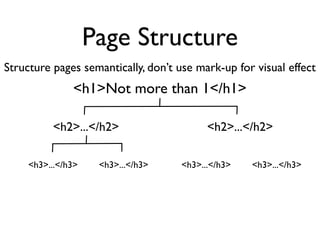
Page Structure
Structure pages semantically, don’t use mark-up for visual effect
               <h1>Not more than 1</h1>

           <h2>...</h2>                   <h2>...</h2>

     <h3>...</h3>    <h3>...</h3>   <h3>...</h3>   <h3>...</h3>
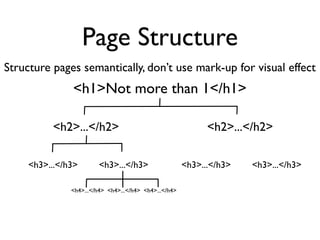
Page Structure
Structure pages semantically, don’t use mark-up for visual effect
               <h1>Not more than 1</h1>

           <h2>...</h2>                                       <h2>...</h2>

     <h3>...</h3>        <h3>...</h3>                   <h3>...</h3>   <h3>...</h3>

               <h4>...</h4> <h4>...</h4> <h4>...</h4>
Page Structure
Structure pages semantically, don’t use mark-up for visual effect
               <h1>Not more than 1</h1>

           <h2>...</h2>                                              <h2>...</h2>

     <h3>...</h3>        <h3>...</h3>                    <h3>...</h3>        <h3>...</h3>

               <h4>...</h4> <h4>...</h4> <h4>...</h4>
                                             <p>
                                               <ul>
                                                        <li> </li>
                                                        <li> </li>
                                               </ul>
                                            </p>
Images
Images
•   Active (linked) image alt-text is the function of the
    image, what the image does, where the link goes.

•   If image is text, then the alt-text must contain the
    same information as the text in the image.

•   If image conveys information (ie graph, chart) alt-
    text must convey the same information.

•   If image is decorative, redundant or generally
    conveys no information, then use alt=”” also
    known as empty alt text

•   Use alt=”” on a linked image ONLY when text
    information is included within the anchor.
Images
Images
<img src=… alt=“The Kentucky Center" ... >
Images
<img src=… alt=“The Kentucky Center" ... >


<img src=… alt=“Register Now" … >
Images
             <img src=… alt=“The Kentucky Center" ... >


             <img src=… alt=“Register Now" … >


<img src="decor.gif" alt="" width="1" height="1">
Images


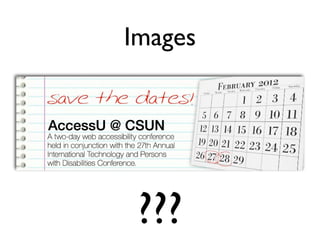
 ???
Keyboard
Keyboard
• Many assistive technologies are mapped to
  the keyboard, not just for screen readers
• Logical tab order
• Visible focus
• Tab order is organized and in sequence
  with the visual order
• Don’t forget drop-down menus, radio
  buttons, check boxes and media controls
Links
Links
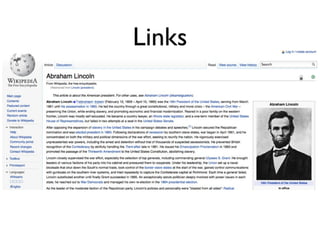
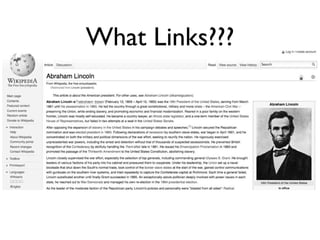
What Links???
Links
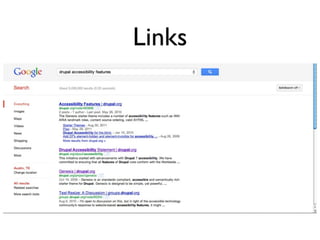
Links
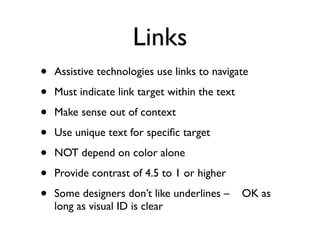
•   Assistive technologies use links to navigate

•   Must indicate link target within the text

•   Make sense out of context

•   Use unique text for specific target

•   NOT depend on color alone

•   Provide contrast of 4.5 to 1 or higher

•   Some designers don’t like underlines –      OK as
    long as visual ID is clear
Tables
Tables
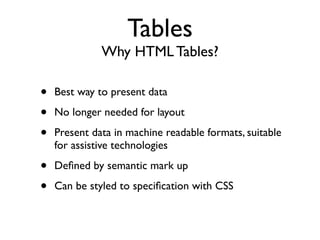
              Why HTML Tables?

•   Best way to present data

•   No longer needed for layout

•   Present data in machine readable formats, suitable
    for assistive technologies

•   Defined by semantic mark up

•   Can be styled to specification with CSS
Tables
       Rules of thumb for data tables

•   Use <summary> attribute – only read by screen
    readers – to define table structure

•   Use <caption> element for onscreen title.

•   Keep structure as simple as possible.

•   Use <th> element for header cells.

•   Use <scope> attribute to distinguish column/row
Tables
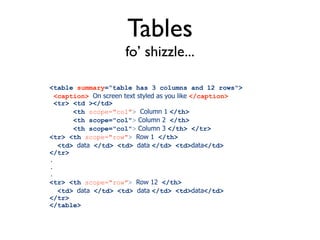
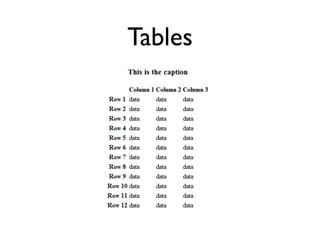
                      fo’ shizzle...

<table summary=“table has 3 columns and 12 rows">
  <caption> On screen text styled as you like </caption>
  <tr> <td ></td>
       <th scope="col"> Column 1 </th>
       <th scope="col"> Column 2 </th>
       <th scope="col"> Column 3 </th> </tr>
<tr> <th scope="row"> Row 1 </th>
   <td> data </td> <td> data </td> <td>data</td>
</tr>
.
.
.
<tr> <th scope="row"> Row 12 </th>
   <td> data </td> <td> data </td> <td>data</td>
</tr>
</table>
Tables
Forms
Forms
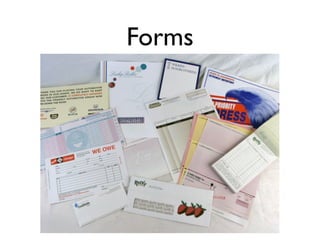
                      Rules of thumb

• Tell users what the form is for
• Keep form design as simple as possible
• Place labels adjacent to input fields (just above or
  just to the left)
• A common way of going through a form is using the
  tab key – make sure your tab order follows the form
• Position label close to the field in visual display as
  well as code
Forms
                      pooped...
• Don’t use color as only method to indicate required
  fields.
• Automatic form focus may hinder users who expect
  predictable behavior. Forms Mode in screen reader
  has that function.
• Default values in text fields. Most users will skip
  over a field that has text already in it.
• Auto-tab If the user isn't watching the screen, they
  will tab ahead and skip the second field
Forms
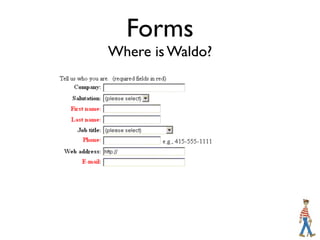
Where is Waldo?
Forms

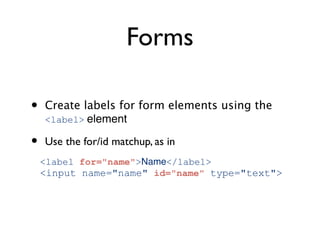
•   Create labels for form elements using the
    <label> element

•   Use the for/id matchup, as in
    <label for="name">Name</label>
    <input name="name" id="name" type="text">
Forms
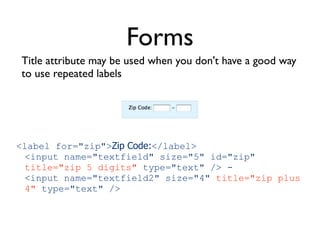
Title attribute may be used when you don't have a good way
to use repeated labels


<label for="zip">Zip Code:</label>
 <input name="textfield" size="5" id="zip"
 title="zip 5 digits" type="text" /> -
 <input name="textfield2" size="4" title="zip plus
 4" type="text" />
Forms
             “strawberry FIELDS forever...”


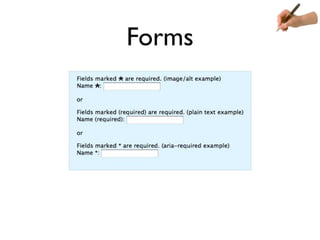
Inform the user first: put required message before the form
controls
 1. use word (required) in the <label> or
 2. use an "asterisk" (or image of your choice) with
    alt="required", image with alt must be within the
    <label>
 3. use ARIA "aria-required" attribute
Forms
Forms
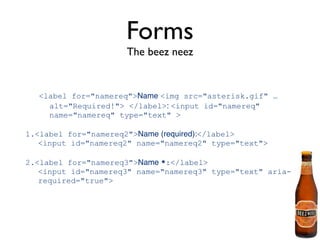
                     The beez neez


  <label for="namereq">Name <img src="asterisk.gif" …
    alt="Required!"> </label>: <input id="namereq"
    name="namereq" type="text" >

1.<label for="namereq2">Name (required):</label>
   <input id="namereq2" name="namereq2" type="text">

2.<label for="namereq3">Name *:</label>
   <input id="namereq3" name="namereq3" type="text" aria-
   required="true">
Testing
Testing
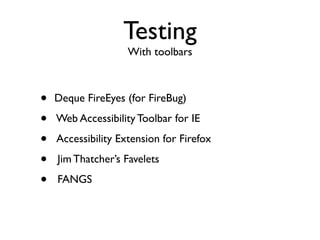
                    With toolbars


•   Deque FireEyes (for FireBug)

•   Web Accessibility Toolbar for IE

•   Accessibility Extension for Firefox

•   Jim Thatcher’s Favelets

•   FANGS
Testing
                         With screen-readers

•   JAWS demo is free

•   NVDA free open source for Windows

•   SystemAccess from Serotek

•   FireVox is Firefox extension*

•   FANGS is screen reader emulator


    * Not available for FireFox 7 and up
Testing
            Automated one-page testers


•   Wave - http://wave.webaim.org/

•   WorldSpace - http://worldspace.dequecloud.com/
    worldspace/wsservice/eval/checkCompliance.jsp
Testing
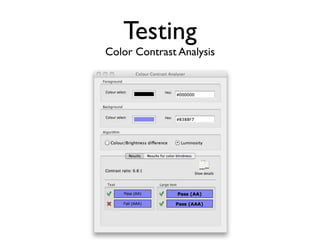
Color Contrast Analysis
More?
           “Please Sir, can I have some more?”

•   Drupal Accessibility Statement:
    http://drupal.org/about/accessibility

•   Accessibility and Drupal:
    http://drupal.org/node/394094

•   Accessibility (for Drupal theming)
    http://drupal.org/node/464472

•   Drupal Accessibility group
    http://groups.drupal.org/accessibility
Thank You!


Stalk me on twitter @gdruckman
                or
         Just google me!

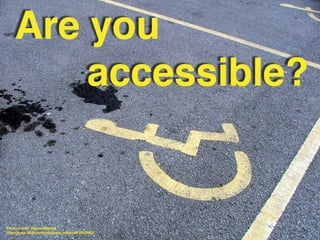
Are you accessible

  • 3.
    Why Does itmatter?
  • 4.
    Why Does itmatter? Humanitarian Legal Market Technical
  • 5.
    Why does itmatter? Humanitarian • 34 year old, aspiring journalist, American Sign is native language • Captioned videos • Transcripts for audio content • Alternatives for sound cues
  • 6.
    Why does itmatter? Humanitarian Paul wounded while in Iraq, spinal injury resulted in lack of ability to walk, partial use of arms and hands • Keyboard access • Visible focus • Live regions receive focus when active • Drag and drop
  • 7.
    Why does itmatter? Humanitarian Desiree Sturdevant, Knowbility blogger • Uses screen reader • Alternatives to image content • Search and other forms, interactive elements • Spreadsheets, data tables • Tab logic, navigation • Color cues
  • 8.
    Why does itmatter? Market • Number of people with disabilities is growing • 55 million Americans / 1 billion worldwide • $200 billion in discretionary spending • More as population ages
  • 9.
    Why does itmatter? Legal • International – UN Convention on Rights of People with Disabilities, 2006 • Global requirements based on WCAG2 • US Federal standards, Section 508 • Other national laws • State and local laws
  • 10.
    Why does itmatter? Legal Website Accessibility Under Title II of the ADA “The Americans with Disabilities Act (ADA) and, if the government entities receive federal funding, the Rehabilitation Act of 1973 generally require that state and local governments provide qualified individuals with disabilities equal access to their programs, services, or activities...”
  • 11.
    Why does itmatter? Legal Website Accessibility Under Title II of the ADA “One way to help meet these requirements is to ensure that government websites have accessible features for people with disabilities...”
  • 12.
    Why does itmatter? Technical
  • 13.
    Why does itmatter? Technical
  • 14.
    Why does itmatter? Technical
  • 15.
    The principles POUR Perceivable Operable Understandable Robust
  • 16.
    Page Structure Structure pagessemantically, don’t use mark-up for visual effect
  • 17.
    Page Structure Structure pagessemantically, don’t use mark-up for visual effect <h1>Not more than 1</h1>
  • 18.
    Page Structure Structure pagessemantically, don’t use mark-up for visual effect <h1>Not more than 1</h1> <h2>...</h2> <h2>...</h2>
  • 19.
    Page Structure Structure pagessemantically, don’t use mark-up for visual effect <h1>Not more than 1</h1> <h2>...</h2> <h2>...</h2> <h3>...</h3> <h3>...</h3> <h3>...</h3> <h3>...</h3>
  • 20.
    Page Structure Structure pagessemantically, don’t use mark-up for visual effect <h1>Not more than 1</h1> <h2>...</h2> <h2>...</h2> <h3>...</h3> <h3>...</h3> <h3>...</h3> <h3>...</h3> <h4>...</h4> <h4>...</h4> <h4>...</h4>
  • 21.
    Page Structure Structure pagessemantically, don’t use mark-up for visual effect <h1>Not more than 1</h1> <h2>...</h2> <h2>...</h2> <h3>...</h3> <h3>...</h3> <h3>...</h3> <h3>...</h3> <h4>...</h4> <h4>...</h4> <h4>...</h4> <p> <ul> <li> </li> <li> </li> </ul> </p>
  • 22.
  • 23.
    Images • Active (linked) image alt-text is the function of the image, what the image does, where the link goes. • If image is text, then the alt-text must contain the same information as the text in the image. • If image conveys information (ie graph, chart) alt- text must convey the same information. • If image is decorative, redundant or generally conveys no information, then use alt=”” also known as empty alt text • Use alt=”” on a linked image ONLY when text information is included within the anchor.
  • 24.
  • 25.
    Images <img src=… alt=“TheKentucky Center" ... >
  • 26.
    Images <img src=… alt=“TheKentucky Center" ... > <img src=… alt=“Register Now" … >
  • 27.
    Images <img src=… alt=“The Kentucky Center" ... > <img src=… alt=“Register Now" … > <img src="decor.gif" alt="" width="1" height="1">
  • 28.
  • 29.
  • 30.
    Keyboard • Many assistivetechnologies are mapped to the keyboard, not just for screen readers • Logical tab order • Visible focus • Tab order is organized and in sequence with the visual order • Don’t forget drop-down menus, radio buttons, check boxes and media controls
  • 31.
  • 32.
  • 33.
  • 34.
  • 35.
    Links • Assistive technologies use links to navigate • Must indicate link target within the text • Make sense out of context • Use unique text for specific target • NOT depend on color alone • Provide contrast of 4.5 to 1 or higher • Some designers don’t like underlines – OK as long as visual ID is clear
  • 36.
  • 37.
    Tables Why HTML Tables? • Best way to present data • No longer needed for layout • Present data in machine readable formats, suitable for assistive technologies • Defined by semantic mark up • Can be styled to specification with CSS
  • 38.
    Tables Rules of thumb for data tables • Use <summary> attribute – only read by screen readers – to define table structure • Use <caption> element for onscreen title. • Keep structure as simple as possible. • Use <th> element for header cells. • Use <scope> attribute to distinguish column/row
  • 39.
    Tables fo’ shizzle... <table summary=“table has 3 columns and 12 rows"> <caption> On screen text styled as you like </caption> <tr> <td ></td> <th scope="col"> Column 1 </th> <th scope="col"> Column 2 </th> <th scope="col"> Column 3 </th> </tr> <tr> <th scope="row"> Row 1 </th> <td> data </td> <td> data </td> <td>data</td> </tr> . . . <tr> <th scope="row"> Row 12 </th> <td> data </td> <td> data </td> <td>data</td> </tr> </table>
  • 40.
  • 41.
  • 42.
    Forms Rules of thumb • Tell users what the form is for • Keep form design as simple as possible • Place labels adjacent to input fields (just above or just to the left) • A common way of going through a form is using the tab key – make sure your tab order follows the form • Position label close to the field in visual display as well as code
  • 43.
    Forms pooped... • Don’t use color as only method to indicate required fields. • Automatic form focus may hinder users who expect predictable behavior. Forms Mode in screen reader has that function. • Default values in text fields. Most users will skip over a field that has text already in it. • Auto-tab If the user isn't watching the screen, they will tab ahead and skip the second field
  • 44.
  • 45.
    Forms • Create labels for form elements using the <label> element • Use the for/id matchup, as in <label for="name">Name</label> <input name="name" id="name" type="text">
  • 46.
    Forms Title attribute maybe used when you don't have a good way to use repeated labels <label for="zip">Zip Code:</label> <input name="textfield" size="5" id="zip" title="zip 5 digits" type="text" /> - <input name="textfield2" size="4" title="zip plus 4" type="text" />
  • 47.
    Forms “strawberry FIELDS forever...” Inform the user first: put required message before the form controls 1. use word (required) in the <label> or 2. use an "asterisk" (or image of your choice) with alt="required", image with alt must be within the <label> 3. use ARIA "aria-required" attribute
  • 48.
  • 49.
    Forms The beez neez <label for="namereq">Name <img src="asterisk.gif" … alt="Required!"> </label>: <input id="namereq" name="namereq" type="text" > 1.<label for="namereq2">Name (required):</label> <input id="namereq2" name="namereq2" type="text"> 2.<label for="namereq3">Name *:</label> <input id="namereq3" name="namereq3" type="text" aria- required="true">
  • 50.
  • 51.
    Testing With toolbars • Deque FireEyes (for FireBug) • Web Accessibility Toolbar for IE • Accessibility Extension for Firefox • Jim Thatcher’s Favelets • FANGS
  • 52.
    Testing With screen-readers • JAWS demo is free • NVDA free open source for Windows • SystemAccess from Serotek • FireVox is Firefox extension* • FANGS is screen reader emulator * Not available for FireFox 7 and up
  • 53.
    Testing Automated one-page testers • Wave - http://wave.webaim.org/ • WorldSpace - http://worldspace.dequecloud.com/ worldspace/wsservice/eval/checkCompliance.jsp
  • 54.
  • 55.
    More? “Please Sir, can I have some more?” • Drupal Accessibility Statement: http://drupal.org/about/accessibility • Accessibility and Drupal: http://drupal.org/node/394094 • Accessibility (for Drupal theming) http://drupal.org/node/464472 • Drupal Accessibility group http://groups.drupal.org/accessibility
  • 56.
    Thank You! Stalk meon twitter @gdruckman or Just google me!