Principles and Best Practices
                            By Samuel Chow


UI DESIGN PRINCIPLES
MOTIVATION

• Covers GUI, user interface in software
• Lessons that I learned from my own projects
• Observations I have made from working with
  clients and other work
• Share my observations as well as outline UX
  principles and best practices
  – This presentation focuses more on the
    fundamentals
ATTRIBUTION
• As I reflected on UX and design, I remember a
  class I sat in at MIT called 6.831 – UI Design
  and Implementation
• Much of this presentation were taken from the
  course materials archived at MIT
  OpenCourseware:

       Robert Miller, 6.831 UI Design and
        Implementation, Fall 2004. (MIT
  OpenCourseWare: Massachusetts Institute of
 Technology), http://j.mp/OIKov1 (Accessed Sep
 17, 2012). License: Creative Commons BY-NC-
                        SA
OVERVIEW
• User experience (UX) is a critical aspect of
  software development
• Usability = effective user interface (UI)
• Usability ≠ pretty fancy graphics or window
  interface
• View the UI thru user’s eyes. Don’t try to
  predict usability in advance, get the user
  insights early
• Bad interface can’t be fixed by help manual or
  tutorial
• And of course, usable software sells
USABILITY
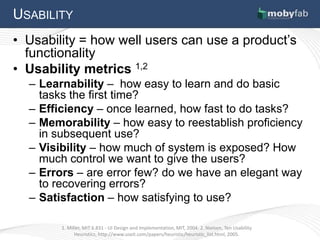
• Usability = how well users can use a product’s
  functionality
• Usability metrics 1,2
  – Learnability – how easy to learn and do basic
    tasks the first time?
  – Efficiency – once learned, how fast to do tasks?
  – Memorability – how easy to reestablish proficiency
    in subsequent use?
  – Visibility – how much of system is exposed? How
    much control we want to give the users?
  – Errors – are error few? do we have an elegant way
    to recovering errors?
  – Satisfaction – how satisfying to use?

        1. Miller, MIT 6.831 - UI Design and Implementation, MIT, 2004. 2. Nielsen, Ten Usability
              Heuristics, http://www.useit.com/papers/heuristic/heuristic_list.html, 2005.
BALANCING METRICS

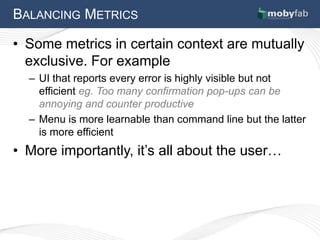
• Some metrics in certain context are mutually
  exclusive. For example
  – UI that reports every error is highly visible but not
    efficient eg. Too many confirmation pop-ups can be
    annoying and counter productive
  – Menu is more learnable than command line but the latter
    is more efficient
• More importantly, it’s all about the user…
USER INSIGHTS
• It's not all about talking to the users or asking
  what they want

"If I had asked my customers what they wanted,
 they would have told me a faster horse." Henry
                      Ford

• Develop a deep understanding of the users 1
  eg. observe, empathize, listen
  – What does the user see? What does the user think
    and feel? What’s the user’s pain?

          1. Empathy Map, Innovation Games. http://innovationgames.com/empathy-map/.
USER PERCEPTION
• Different users value different usability metrics
• It’s all about user perception
• This is why we must define who our target. For
  example:
  – Novice users value learnability1
     • Eg. CAD UI should be easy to learn for new users (menu-
       driven and help pages)
  – Power users value efficiency
     • Eg. Word processor UI should have shortcuts for
       commonly used tasks (CTRL-C for copy, etc)
  – Infrequent users value memorability (sort of
    learnability)
     • Eg. UI for an info kiosk should focus on memorability (use
       standard navigation or a UI consistent with the standard
       UI)
               1. Miller, MIT 6.831 - UI Design and Implementation, MIT, 2004.
UI DESIGN MODELS

• 3 UI models to use when designing 1
  – System model = the logic and rules of the
    system
  – Interface model = how the system is presented
    to the user thru its UI
  – User model = how the user perceive the
    system and thinks it works


• Most software engineers don’t spend
  enough time designing the user model

            1. Miller, MIT 6.831 - UI Design and Implementation, MIT, 2004.
LEARNABILITY
• People don’t learn instantly
• Human learning psychology 101 1. 2 Key
  concepts:
  – Recognition – remembering with the help of a
    visible cue or metaphor (or knowledge in the world)
  – Recall – remembering with no help from help from
    the outside world (or knowledge in the head)
  – Recognition is much easier than recall eg. Menus and
    toolbars are more learnable than command codes
  – So when in doubt, use a recognizable metaphors
    that are consistent with the real world
• Cue and consistency improves learnability

              1. Miller, MIT 6.831 - UI Design and Implementation, MIT, 2004.
VISIBILITY
• Visibility is making the state and behavior of
  the system visible and perceivable by the
  user.
  – Where is the user in the system? eg. Navigation
    menu, path
  – What is the current state of the system? eg. Is the
    button being tapped? Color code?
  – What is the result of a user action? eg. Show
    spinner if the system is loading data.
  – Is there a change in the system state that user
    should be aware of? eg. Tell the user to save his/her
    work before the app exits.
VISIBILITY (PART 2)
• Key concepts and best practices in optimizing
  visibility
• Things that should be invisible
      – Don’t expose the system’s internal state (aka dirty
        laundry) 1
• Things that should be visible
      – Perceived affordances (see next slide)
• How to present visible things
      – Links should be clear how “beneficial” it is to follow
        the link to its destination 2
      – User’s attention is focused on one input channel at
        (area of visual field) a time (aka Spotlight metaphor)
        3


1. Jakob Nielsen, Top 10 App Design Mistakes 2008 2. Chi et al, Using Information Scent to Model User Information Needs and Actions
                           on the Web 2001 3. Miller, MIT 6.831 UI Design and Implementation, MIT, 2004.
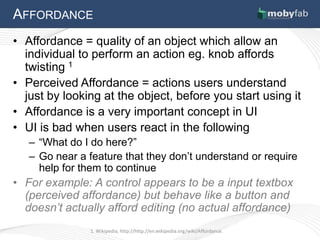
AFFORDANCE
• Affordance = quality of an object which allow an
  individual to perform an action eg. knob affords
  twisting 1
• Perceived Affordance = actions users understand
  just by looking at the object, before you start using it
• Affordance is a very important concept in UI
• UI is bad when users react in the following
   – “What do I do here?”
   – Go near a feature that they don’t understand or require
     help for them to continue
• For example: A control appears to be a input textbox
  (perceived affordance) but behave like a button and
  doesn’t actually afford editing (no actual affordance)
                1. Wikipedia, http://http://en.wikipedia.org/wiki/Affordance.
EFFICIENCY

• UI Efficiency = what is the bottleneck
  between the user and the system? 1
• 2 key factors:
  – Human element – how efficient do human
    process information (beyond the scope of this
    deck)
  – Design element – how do we design a UI that’s
    both efficient and usable (outline some best
    practices in the industry)


             1. Miller, MIT 6.831 - UI Design and Implementation, MIT, 2004.
EFFICIENCY (PATTERNS / BEST PRACTICES)

•   Use defaults
•   Use autocomplete
•   Retain histories
•   Aggregate a set of info
    – eg. A set of questions can be aggregated with
      checkboxes for individual selection and assign them to
      an action
• Shortcuts
ERRORS
• Causes of error
  – System
  – Human (UI should help avoid and mitigate user
    errors)
• Types of error 1
  – Slip = Users go off course with a procedure
    substituting one action for another eg. Pouring OJ
    instead of milk to your cereal bowl
  – Lapse = Failure of memory eg. Walking away from an
    ATM without the card
  – Mistake = Error made in planning or rule application
    eg. faulty reasoning or applying a rule in a situation where it
    shouldn’t be applied

               1. Miller, MIT 6.831 - UI Design and Implementation, MIT, 2004.
ERROR AVOIDANCE AND MITIGATION
• Most slips and lapses are caused
  habits, inattention, and similarity to another UI
• Good UI manages error by 1
  – Avoiding the common action sequences that led to
    human errors
  – Keep dangerous commands away from common
    ones
  – Avoid actions with similar description ie. different
    things should look and act differently
  – Keep procedure short – fewer steps lead to fewer
    things to forget
  – Minimize interruptions

             1. Miller, MIT 6.831 - UI Design and Implementation, MIT, 2004.
WRITING GOOD ERROR MESSAGES
• Best error message is none 1
  – Errors should be eliminated or prevented in the
    first place
  – Trivial, nonsensical errors can be ignored
• Be precise
  – “Only letters and numbers are allowed.”
• Restate user’s input
  – “Cannot find file myfile.xls”
• Human language
  – System message eg. stacktrace shouldn’t be
    shown
             1. Miller, MIT 6.831 - UI Design and Implementation, MIT, 2004.
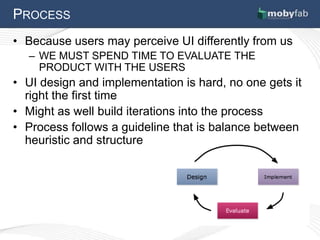
PROCESS
• Because users may perceive UI differently from us
  – WE MUST SPEND TIME TO EVALUATE THE
    PRODUCT WITH THE USERS
• UI design and implementation is hard, no one gets it
  right the first time
• Might as well build iterations into the process
• Process follows a guideline that is balance between
  heuristic and structure
Questions?


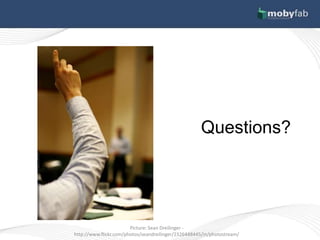
                        Picture: Sean Dreilinger -
http://www.flickr.com/photos/seandreilinger/2326448445/in/photostream/

UI Design - Lessons Learned, Principles, and Best Practices

  • 1.
    Principles and BestPractices By Samuel Chow UI DESIGN PRINCIPLES
  • 2.
    MOTIVATION • Covers GUI,user interface in software • Lessons that I learned from my own projects • Observations I have made from working with clients and other work • Share my observations as well as outline UX principles and best practices – This presentation focuses more on the fundamentals
  • 3.
    ATTRIBUTION • As Ireflected on UX and design, I remember a class I sat in at MIT called 6.831 – UI Design and Implementation • Much of this presentation were taken from the course materials archived at MIT OpenCourseware: Robert Miller, 6.831 UI Design and Implementation, Fall 2004. (MIT OpenCourseWare: Massachusetts Institute of Technology), http://j.mp/OIKov1 (Accessed Sep 17, 2012). License: Creative Commons BY-NC- SA
  • 4.
    OVERVIEW • User experience(UX) is a critical aspect of software development • Usability = effective user interface (UI) • Usability ≠ pretty fancy graphics or window interface • View the UI thru user’s eyes. Don’t try to predict usability in advance, get the user insights early • Bad interface can’t be fixed by help manual or tutorial • And of course, usable software sells
  • 5.
    USABILITY • Usability =how well users can use a product’s functionality • Usability metrics 1,2 – Learnability – how easy to learn and do basic tasks the first time? – Efficiency – once learned, how fast to do tasks? – Memorability – how easy to reestablish proficiency in subsequent use? – Visibility – how much of system is exposed? How much control we want to give the users? – Errors – are error few? do we have an elegant way to recovering errors? – Satisfaction – how satisfying to use? 1. Miller, MIT 6.831 - UI Design and Implementation, MIT, 2004. 2. Nielsen, Ten Usability Heuristics, http://www.useit.com/papers/heuristic/heuristic_list.html, 2005.
  • 6.
    BALANCING METRICS • Somemetrics in certain context are mutually exclusive. For example – UI that reports every error is highly visible but not efficient eg. Too many confirmation pop-ups can be annoying and counter productive – Menu is more learnable than command line but the latter is more efficient • More importantly, it’s all about the user…
  • 7.
    USER INSIGHTS • It'snot all about talking to the users or asking what they want "If I had asked my customers what they wanted, they would have told me a faster horse." Henry Ford • Develop a deep understanding of the users 1 eg. observe, empathize, listen – What does the user see? What does the user think and feel? What’s the user’s pain? 1. Empathy Map, Innovation Games. http://innovationgames.com/empathy-map/.
  • 8.
    USER PERCEPTION • Differentusers value different usability metrics • It’s all about user perception • This is why we must define who our target. For example: – Novice users value learnability1 • Eg. CAD UI should be easy to learn for new users (menu- driven and help pages) – Power users value efficiency • Eg. Word processor UI should have shortcuts for commonly used tasks (CTRL-C for copy, etc) – Infrequent users value memorability (sort of learnability) • Eg. UI for an info kiosk should focus on memorability (use standard navigation or a UI consistent with the standard UI) 1. Miller, MIT 6.831 - UI Design and Implementation, MIT, 2004.
  • 9.
    UI DESIGN MODELS •3 UI models to use when designing 1 – System model = the logic and rules of the system – Interface model = how the system is presented to the user thru its UI – User model = how the user perceive the system and thinks it works • Most software engineers don’t spend enough time designing the user model 1. Miller, MIT 6.831 - UI Design and Implementation, MIT, 2004.
  • 10.
    LEARNABILITY • People don’tlearn instantly • Human learning psychology 101 1. 2 Key concepts: – Recognition – remembering with the help of a visible cue or metaphor (or knowledge in the world) – Recall – remembering with no help from help from the outside world (or knowledge in the head) – Recognition is much easier than recall eg. Menus and toolbars are more learnable than command codes – So when in doubt, use a recognizable metaphors that are consistent with the real world • Cue and consistency improves learnability 1. Miller, MIT 6.831 - UI Design and Implementation, MIT, 2004.
  • 11.
    VISIBILITY • Visibility ismaking the state and behavior of the system visible and perceivable by the user. – Where is the user in the system? eg. Navigation menu, path – What is the current state of the system? eg. Is the button being tapped? Color code? – What is the result of a user action? eg. Show spinner if the system is loading data. – Is there a change in the system state that user should be aware of? eg. Tell the user to save his/her work before the app exits.
  • 12.
    VISIBILITY (PART 2) •Key concepts and best practices in optimizing visibility • Things that should be invisible – Don’t expose the system’s internal state (aka dirty laundry) 1 • Things that should be visible – Perceived affordances (see next slide) • How to present visible things – Links should be clear how “beneficial” it is to follow the link to its destination 2 – User’s attention is focused on one input channel at (area of visual field) a time (aka Spotlight metaphor) 3 1. Jakob Nielsen, Top 10 App Design Mistakes 2008 2. Chi et al, Using Information Scent to Model User Information Needs and Actions on the Web 2001 3. Miller, MIT 6.831 UI Design and Implementation, MIT, 2004.
  • 13.
    AFFORDANCE • Affordance =quality of an object which allow an individual to perform an action eg. knob affords twisting 1 • Perceived Affordance = actions users understand just by looking at the object, before you start using it • Affordance is a very important concept in UI • UI is bad when users react in the following – “What do I do here?” – Go near a feature that they don’t understand or require help for them to continue • For example: A control appears to be a input textbox (perceived affordance) but behave like a button and doesn’t actually afford editing (no actual affordance) 1. Wikipedia, http://http://en.wikipedia.org/wiki/Affordance.
  • 14.
    EFFICIENCY • UI Efficiency= what is the bottleneck between the user and the system? 1 • 2 key factors: – Human element – how efficient do human process information (beyond the scope of this deck) – Design element – how do we design a UI that’s both efficient and usable (outline some best practices in the industry) 1. Miller, MIT 6.831 - UI Design and Implementation, MIT, 2004.
  • 15.
    EFFICIENCY (PATTERNS /BEST PRACTICES) • Use defaults • Use autocomplete • Retain histories • Aggregate a set of info – eg. A set of questions can be aggregated with checkboxes for individual selection and assign them to an action • Shortcuts
  • 16.
    ERRORS • Causes oferror – System – Human (UI should help avoid and mitigate user errors) • Types of error 1 – Slip = Users go off course with a procedure substituting one action for another eg. Pouring OJ instead of milk to your cereal bowl – Lapse = Failure of memory eg. Walking away from an ATM without the card – Mistake = Error made in planning or rule application eg. faulty reasoning or applying a rule in a situation where it shouldn’t be applied 1. Miller, MIT 6.831 - UI Design and Implementation, MIT, 2004.
  • 17.
    ERROR AVOIDANCE ANDMITIGATION • Most slips and lapses are caused habits, inattention, and similarity to another UI • Good UI manages error by 1 – Avoiding the common action sequences that led to human errors – Keep dangerous commands away from common ones – Avoid actions with similar description ie. different things should look and act differently – Keep procedure short – fewer steps lead to fewer things to forget – Minimize interruptions 1. Miller, MIT 6.831 - UI Design and Implementation, MIT, 2004.
  • 18.
    WRITING GOOD ERRORMESSAGES • Best error message is none 1 – Errors should be eliminated or prevented in the first place – Trivial, nonsensical errors can be ignored • Be precise – “Only letters and numbers are allowed.” • Restate user’s input – “Cannot find file myfile.xls” • Human language – System message eg. stacktrace shouldn’t be shown 1. Miller, MIT 6.831 - UI Design and Implementation, MIT, 2004.
  • 19.
    PROCESS • Because usersmay perceive UI differently from us – WE MUST SPEND TIME TO EVALUATE THE PRODUCT WITH THE USERS • UI design and implementation is hard, no one gets it right the first time • Might as well build iterations into the process • Process follows a guideline that is balance between heuristic and structure
  • 20.
    Questions? Picture: Sean Dreilinger - http://www.flickr.com/photos/seandreilinger/2326448445/in/photostream/