Microsoft Excel has the basic features of all spreadsheets,
using a grid of cells arranged in numbered rows and letter-
named columns to organize data manipulations like arithmetic
operations.
Microsoft Excel is a spreadsheet application developed
by Microsoft for Microsoft Windows and Mac OS. It features
calculation, graphing tools.
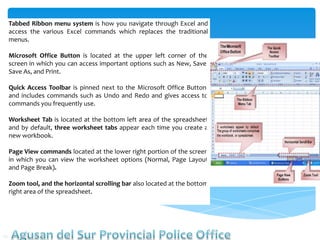
Tabbed Ribbon menu system is how you navigate through Excel and
access the various Excel commands which replaces the traditional
menus.
Microsoft Office Button is located at the upper left corner of the
screen in which you can access important options such as New, Save,
Save As, and Print.
Quick Access Toolbar is pinned next to the Microsoft Office Button,
and includes commands such as Undo and Redo and gives access to
commands you frequently use.
Worksheet Tab is located at the bottom left area of the spreadsheet
and by default, three worksheet tabs appear each time you create a
new workbook.
Page View commands located at the lower right portion of the screen
in which you can view the worksheet options (Normal, Page Layout
and Page Break).
Zoom tool, and the horizontal scrolling bar also located at the bottom
right area of the spreadsheet.
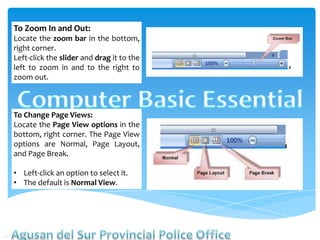
To Zoom In and Out:
Locate the zoom bar in the bottom,
right corner.
Left-click the slider and drag it to the
left to zoom in and to the right to
zoom out.
To Change Page Views:
Locate the Page View options in the
bottom, right corner. The Page View
options are Normal, Page Layout,
and Page Break.
• Left-click an option to select it.
• The default is Normal View.
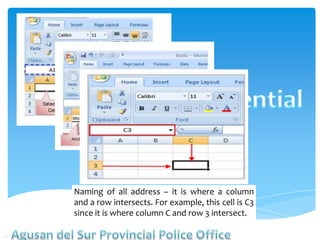
Naming of all address – it is where a column
and a row intersects. For example, this cell is C3
since it is where column C and row 3 intersect.
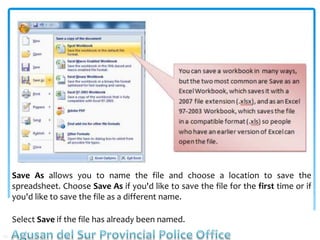
Save As allows you to name the file and choose a location to save the
spreadsheet. Choose Save As if you'd like to save the file for the first time or if
you'd like to save the file as a different name.
Select Save if the file has already been named.
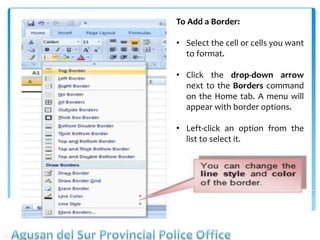
To Add a Border:
• Select the cell or cells you want
to format.
• Click the drop-down arrow
next to the Borders command
on the Home tab. A menu will
appear with border options.
• Left-click an option from the
list to select it.
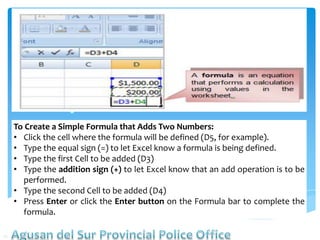
To Create a Simple Formula that Adds Two Numbers:
• Click the cell where the formula will be defined (D5, for example).
• Type the equal sign (=) to let Excel know a formula is being defined.
• Type the first Cell to be added (D3)
• Type the addition sign (+) to let Excel know that an add operation is to be
performed.
• Type the second Cell to be added (D4)
• Press Enter or click the Enter button on the Formula bar to complete the
formula.
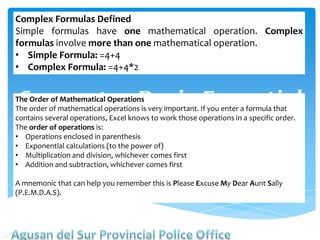
Complex Formulas Defined
Simple formulas have one mathematical operation. Complex
formulas involve more than one mathematical operation.
• Simple Formula: =4+4
• Complex Formula: =4+4*2
The Order of Mathematical Operations
The order of mathematical operations is very important. If you enter a formula that
contains several operations, Excel knows to work those operations in a specific order.
The order of operations is:
• Operations enclosed in parenthesis
• Exponential calculations (to the power of)
• Multiplication and division, whichever comes first
• Addition and subtraction, whichever comes first
A mnemonic that can help you remember this is Please Excuse My Dear Aunt Sally
(P.E.M.D.A.S).
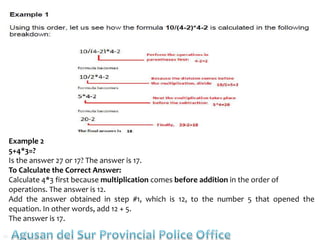
Example 2
5+4*3=?
Is the answer 27 or 17? The answer is 17.
To Calculate the Correct Answer:
Calculate 4*3 first because multiplication comes before addition in the order of
operations. The answer is 12.
Add the answer obtained in step #1, which is 12, to the number 5 that opened the
equation. In other words, add 12 + 5.
The answer is 17.
Tutorial for EXCEL.pptx

Tutorial for EXCEL.pptx

  • 2.
    Microsoft Excel hasthe basic features of all spreadsheets, using a grid of cells arranged in numbered rows and letter- named columns to organize data manipulations like arithmetic operations. Microsoft Excel is a spreadsheet application developed by Microsoft for Microsoft Windows and Mac OS. It features calculation, graphing tools.
  • 3.
    Tabbed Ribbon menusystem is how you navigate through Excel and access the various Excel commands which replaces the traditional menus. Microsoft Office Button is located at the upper left corner of the screen in which you can access important options such as New, Save, Save As, and Print. Quick Access Toolbar is pinned next to the Microsoft Office Button, and includes commands such as Undo and Redo and gives access to commands you frequently use. Worksheet Tab is located at the bottom left area of the spreadsheet and by default, three worksheet tabs appear each time you create a new workbook. Page View commands located at the lower right portion of the screen in which you can view the worksheet options (Normal, Page Layout and Page Break). Zoom tool, and the horizontal scrolling bar also located at the bottom right area of the spreadsheet.
  • 4.
    To Zoom Inand Out: Locate the zoom bar in the bottom, right corner. Left-click the slider and drag it to the left to zoom in and to the right to zoom out. To Change Page Views: Locate the Page View options in the bottom, right corner. The Page View options are Normal, Page Layout, and Page Break. • Left-click an option to select it. • The default is Normal View.
  • 5.
    Naming of alladdress – it is where a column and a row intersects. For example, this cell is C3 since it is where column C and row 3 intersect.
  • 6.
    Save As allowsyou to name the file and choose a location to save the spreadsheet. Choose Save As if you'd like to save the file for the first time or if you'd like to save the file as a different name. Select Save if the file has already been named.
  • 7.
    To Add aBorder: • Select the cell or cells you want to format. • Click the drop-down arrow next to the Borders command on the Home tab. A menu will appear with border options. • Left-click an option from the list to select it.
  • 8.
    To Create aSimple Formula that Adds Two Numbers: • Click the cell where the formula will be defined (D5, for example). • Type the equal sign (=) to let Excel know a formula is being defined. • Type the first Cell to be added (D3) • Type the addition sign (+) to let Excel know that an add operation is to be performed. • Type the second Cell to be added (D4) • Press Enter or click the Enter button on the Formula bar to complete the formula.
  • 9.
    Complex Formulas Defined Simpleformulas have one mathematical operation. Complex formulas involve more than one mathematical operation. • Simple Formula: =4+4 • Complex Formula: =4+4*2 The Order of Mathematical Operations The order of mathematical operations is very important. If you enter a formula that contains several operations, Excel knows to work those operations in a specific order. The order of operations is: • Operations enclosed in parenthesis • Exponential calculations (to the power of) • Multiplication and division, whichever comes first • Addition and subtraction, whichever comes first A mnemonic that can help you remember this is Please Excuse My Dear Aunt Sally (P.E.M.D.A.S).
  • 10.
    Example 2 5+4*3=? Is theanswer 27 or 17? The answer is 17. To Calculate the Correct Answer: Calculate 4*3 first because multiplication comes before addition in the order of operations. The answer is 12. Add the answer obtained in step #1, which is 12, to the number 5 that opened the equation. In other words, add 12 + 5. The answer is 17.