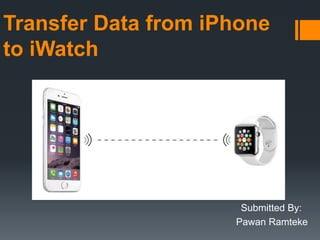
Transfer Data from iPhone
to iWatch
Submitted By:
Pawan Ramteke
WatchConnectivity Framework
When watchOS 1 was introduced, it provided a minimal level of
support for the implementation of communication between an
iOS app running on an iPhone and WatchKit app running on a
paired Apple Watch.
The shortcomings of watchOS 1 have been addressed in
watchOS 2 with the introduction of the WatchConnectivity
framework.
WatchConnectivity Communication
Options
 Watch Connectivity provides four different ways in which an iOS app and the
corresponding WatchKit app can communicate:
 Application Context Mode
 User Information Transfer Mode
 File Transfer Mode
 Interactive Messaging Mode
Application Context Mode
 Application context mode allows small amounts of data contained in a
dictionary object to be passed between one app and another.
 The data is transferred in the background and delivered to the receiving app
via a delegate method the next time the receiving app runs.
 If more recent data is sent by the sending app before the background transfer
has taken place, the older data is overwritten by the new data.
 This ensures that when the transfer takes place, only the most recent data
will be delivered to the receiving app.
User Information Transfer Mode
 User information transfer mode is similar to application context mode in that it
facilitates the transfer of small amounts of dictionary based data between
apps.
 As with application context mode, transfers are performed in the background
subject to timing decided by the system.
 Unlike application context mode, however, user information transfers are
placed in a delivery queue so that each message will be received by the
destination app.
File Transfer Mode
 As the name suggest, file transfer mode allows files to be transferred
between apps.
 Transfers are performed in the background and placed in a temporary
directory on the destination device from which they must be moved to avoid
subsequent deletion by the system.
Interactive Messaging Mode
 Interactive messaging mode allows messages to be sent immediately to the
receiving app.
 The receiving app is notified of the message arrival via a delegate method
call and passed the message.
 Before sending an interactive message, the sending app must first check that
the destination app is reachable.
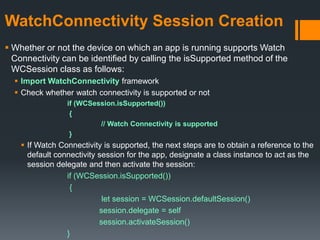
WatchConnectivity Session Creation
 Whether or not the device on which an app is running supports Watch
Connectivity can be identified by calling the isSupported method of the
WCSession class as follows:
 Import WatchConnectivity framework
 Check whether watch connectivity is supported or not
if (WCSession.isSupported())
{
// Watch Connectivity is supported
}
 If Watch Connectivity is supported, the next steps are to obtain a reference to the
default connectivity session for the app, designate a class instance to act as the
session delegate and then activate the session:
if (WCSession.isSupported())
{
let session = WCSession.defaultSession()
session.delegate = self
session.activateSession()
}
Obtaining Session State Information
 Once a session is active, a variety of properties can be used within the iOS app
to obtain additional information relating to the session.
 For Example
 To verify that the iPhone is currently paired with an Apple Watch:
 if session.paired == true
{
// Devices are paired
}
 To check from within the iOS app whether the WatchKit app is installed on the
paired Apple Watch device:
 if session.watchAppInstalled == true
{
// WatchKit app is installed
}
 To verify that the corresponding app is reachable before attempting to send a
message:
 if session.reachable == true
{
// App is reachable
}
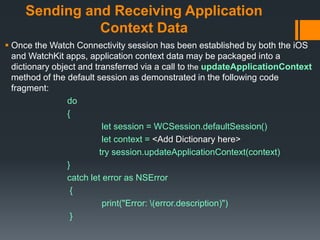
Sending and Receiving Application
Context Data
 Once the Watch Connectivity session has been established by both the iOS
and WatchKit apps, application context data may be packaged into a
dictionary object and transferred via a call to the updateApplicationContext
method of the default session as demonstrated in the following code
fragment:
do
{
let session = WCSession.defaultSession()
let context = <Add Dictionary here>
try session.updateApplicationContext(context)
}
catch let error as NSError
{
print("Error: (error.description)")
}
 The receiving app will be notified of the arrival of a context update via a call to
the session:didReceiveApplicationContext method of the object
designated as the delegate during the session initialization process.
func session(session: WCSession, didReceiveApplicationContext
applicationContext: [String : AnyObject])
{
print("Received context:(context)”)
}
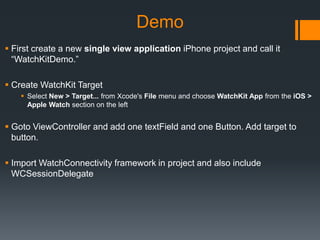
Demo
 First create a new single view application iPhone project and call it
“WatchKitDemo.”
 Create WatchKit Target
 Select New > Target... from Xcode's File menu and choose WatchKit App from the iOS >
Apple Watch section on the left
 Goto ViewController and add one textField and one Button. Add target to
button.
 Import WatchConnectivity framework in project and also include
WCSessionDelegate
In the button target method, add the following code
if(WCSession.isSupported())
{
print("Supported")
do
{
session.delegate = self
session.activateSession()
try session.updateApplicationContext(["data":txtField.text!])
}
catch let error as NSError
{
print(error.description)
}
}
if session.reachable
{
print("Reachable")
}
Watch Interface
 In Watch Folder , find interface.storyboard and add one label in the
storyboard
 Goto Interface Controller and add following code in the awakeWithContext
()
if(WCSession.isSupported())
{
print("Supported")
let session = WCSession.defaultSession()
session.delegate = self
session.activateSession()
}
 Add delegate method didReceiveApplicationContext , in that set the text
of label which is send from iphone
func session(session: WCSession, didReceiveApplicationContext
applicationContext: [String : AnyObject])
{
lbl.setText(applicationContext["data"]as? String)
}
Output
Thank You

Transfer data from iPhone to iWatch

  • 1.
    Transfer Data fromiPhone to iWatch Submitted By: Pawan Ramteke
  • 2.
    WatchConnectivity Framework When watchOS1 was introduced, it provided a minimal level of support for the implementation of communication between an iOS app running on an iPhone and WatchKit app running on a paired Apple Watch. The shortcomings of watchOS 1 have been addressed in watchOS 2 with the introduction of the WatchConnectivity framework.
  • 3.
    WatchConnectivity Communication Options  WatchConnectivity provides four different ways in which an iOS app and the corresponding WatchKit app can communicate:  Application Context Mode  User Information Transfer Mode  File Transfer Mode  Interactive Messaging Mode
  • 4.
    Application Context Mode Application context mode allows small amounts of data contained in a dictionary object to be passed between one app and another.  The data is transferred in the background and delivered to the receiving app via a delegate method the next time the receiving app runs.  If more recent data is sent by the sending app before the background transfer has taken place, the older data is overwritten by the new data.  This ensures that when the transfer takes place, only the most recent data will be delivered to the receiving app.
  • 5.
    User Information TransferMode  User information transfer mode is similar to application context mode in that it facilitates the transfer of small amounts of dictionary based data between apps.  As with application context mode, transfers are performed in the background subject to timing decided by the system.  Unlike application context mode, however, user information transfers are placed in a delivery queue so that each message will be received by the destination app.
  • 6.
    File Transfer Mode As the name suggest, file transfer mode allows files to be transferred between apps.  Transfers are performed in the background and placed in a temporary directory on the destination device from which they must be moved to avoid subsequent deletion by the system.
  • 7.
    Interactive Messaging Mode Interactive messaging mode allows messages to be sent immediately to the receiving app.  The receiving app is notified of the message arrival via a delegate method call and passed the message.  Before sending an interactive message, the sending app must first check that the destination app is reachable.
  • 8.
    WatchConnectivity Session Creation Whether or not the device on which an app is running supports Watch Connectivity can be identified by calling the isSupported method of the WCSession class as follows:  Import WatchConnectivity framework  Check whether watch connectivity is supported or not if (WCSession.isSupported()) { // Watch Connectivity is supported }  If Watch Connectivity is supported, the next steps are to obtain a reference to the default connectivity session for the app, designate a class instance to act as the session delegate and then activate the session: if (WCSession.isSupported()) { let session = WCSession.defaultSession() session.delegate = self session.activateSession() }
  • 9.
    Obtaining Session StateInformation  Once a session is active, a variety of properties can be used within the iOS app to obtain additional information relating to the session.  For Example  To verify that the iPhone is currently paired with an Apple Watch:  if session.paired == true { // Devices are paired }  To check from within the iOS app whether the WatchKit app is installed on the paired Apple Watch device:  if session.watchAppInstalled == true { // WatchKit app is installed }  To verify that the corresponding app is reachable before attempting to send a message:  if session.reachable == true { // App is reachable }
  • 10.
    Sending and ReceivingApplication Context Data  Once the Watch Connectivity session has been established by both the iOS and WatchKit apps, application context data may be packaged into a dictionary object and transferred via a call to the updateApplicationContext method of the default session as demonstrated in the following code fragment: do { let session = WCSession.defaultSession() let context = <Add Dictionary here> try session.updateApplicationContext(context) } catch let error as NSError { print("Error: (error.description)") }
  • 11.
     The receivingapp will be notified of the arrival of a context update via a call to the session:didReceiveApplicationContext method of the object designated as the delegate during the session initialization process. func session(session: WCSession, didReceiveApplicationContext applicationContext: [String : AnyObject]) { print("Received context:(context)”) }
  • 12.
    Demo  First createa new single view application iPhone project and call it “WatchKitDemo.”  Create WatchKit Target  Select New > Target... from Xcode's File menu and choose WatchKit App from the iOS > Apple Watch section on the left  Goto ViewController and add one textField and one Button. Add target to button.  Import WatchConnectivity framework in project and also include WCSessionDelegate
  • 13.
    In the buttontarget method, add the following code if(WCSession.isSupported()) { print("Supported") do { session.delegate = self session.activateSession() try session.updateApplicationContext(["data":txtField.text!]) } catch let error as NSError { print(error.description) } } if session.reachable { print("Reachable") }
  • 14.
    Watch Interface  InWatch Folder , find interface.storyboard and add one label in the storyboard  Goto Interface Controller and add following code in the awakeWithContext () if(WCSession.isSupported()) { print("Supported") let session = WCSession.defaultSession() session.delegate = self session.activateSession() }  Add delegate method didReceiveApplicationContext , in that set the text of label which is send from iphone func session(session: WCSession, didReceiveApplicationContext applicationContext: [String : AnyObject]) { lbl.setText(applicationContext["data"]as? String) }
  • 15.
  • 16.