WatchKit
Create Your First WatchKit App
Introduction
 The apple watch requires an iPhone paired with it to run the
apps without an iPhone the watch apps will not work.
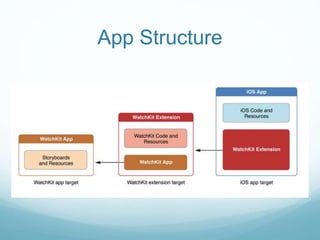
 For creating watch app, we need two separate bundles:
 WatchKit app: The WatchKit app contains only storyboard and
resource files associated with our apps UI.
 WatchKit extension: The WatchKit extension contains the code
for managing the WatchKit apps UI and responding user
interactions.
App Structure
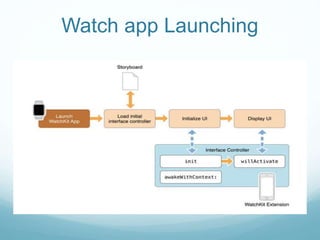
Watch app Launching
WatchKit Framework
 The whole apple watch is managed by the few classes the most
used are as :
 WKInterfaceController
 WKUserInterfaceNotificationController
 WKInterfaceDevice
 WKInterfaceObject
WKInterfaceController
 WKInterfaceController in WatchKit is as same as
UIViewController in UIKit.
 WKInterfaceController is a lot more restricted and has a
different life cycle. There are different methods to work with as
following.
WKUserInterfaceNotificationController
 The WKUserNotificationInterfaceController class manages a
dynamic user interface for a local or remote notification.
 After initializing your interface controller, WatchKit calls the
didReceiveRemoteNotification:withCompletion: or
didReceiveLocalNotification:withCompletion: method to
provide you with the payload data from the notification.
WKInterfaceDevice
 This class contains basic information related to the
iWatch.
 This includes:
 Screen bounds
 Scale
 Current locale
 You can also use it to manage your images cache.
WatchKit allows you to store up to 20 MB of cached
images on the iWatch.
WKInterfaceObject
 This is the base class for all UI controls supported by WatchKit. As
we cannot use UI views from UIKit. All we can do is use the ones
that WatchKit provides.
 WKInterfaceButton
 WKInterfaceDate
 WKInterfaceGroup
 WKInterfaceImage
 WKInterfaceLabel
 And more..
Creating Watch App
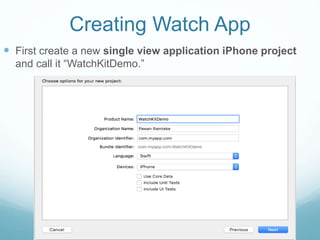
 First create a new single view application iPhone project
and call it “WatchKitDemo.”
Create WatchKit Target
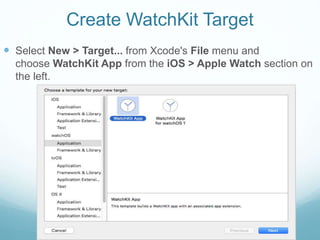
 Select New > Target... from Xcode's File menu and
choose WatchKit App from the iOS > Apple Watch section on
the left.
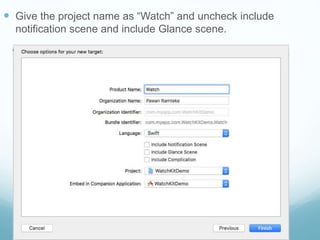
 Give the project name as “Watch” and uncheck include
notification scene and include Glance scene.
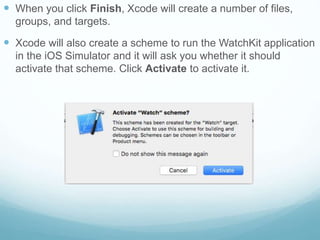
 When you click Finish, Xcode will create a number of files,
groups, and targets.
 Xcode will also create a scheme to run the WatchKit application
in the iOS Simulator and it will ask you whether it should
activate that scheme. Click Activate to activate it.
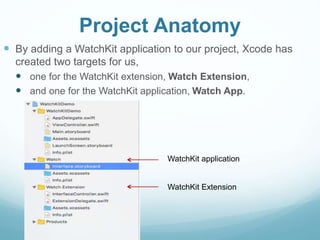
Project Anatomy
 By adding a WatchKit application to our project, Xcode has
created two targets for us,
 one for the WatchKit extension, Watch Extension,
 and one for the WatchKit application, Watch App.
WatchKit application
WatchKit Extension
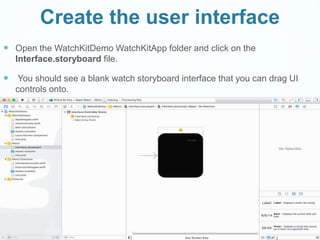
Create the user interface
 Open the WatchKitDemo WatchKitApp folder and click on the
Interface.storyboard file.
 You should see a blank watch storyboard interface that you can drag UI
controls onto.
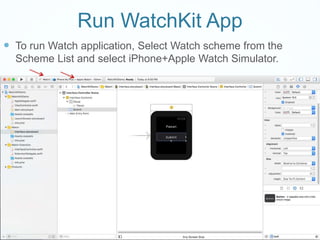
Run WatchKit App
 To run Watch application, Select Watch scheme from the
Scheme List and select iPhone+Apple Watch Simulator.
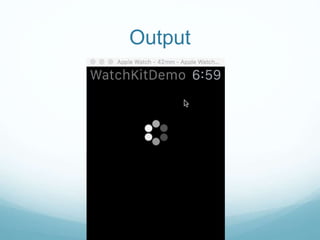
Output
Create your First Watchkit App

Create your First Watchkit App

  • 1.
  • 2.
    Introduction  The applewatch requires an iPhone paired with it to run the apps without an iPhone the watch apps will not work.  For creating watch app, we need two separate bundles:  WatchKit app: The WatchKit app contains only storyboard and resource files associated with our apps UI.  WatchKit extension: The WatchKit extension contains the code for managing the WatchKit apps UI and responding user interactions.
  • 3.
  • 4.
  • 5.
    WatchKit Framework  Thewhole apple watch is managed by the few classes the most used are as :  WKInterfaceController  WKUserInterfaceNotificationController  WKInterfaceDevice  WKInterfaceObject
  • 6.
    WKInterfaceController  WKInterfaceController inWatchKit is as same as UIViewController in UIKit.  WKInterfaceController is a lot more restricted and has a different life cycle. There are different methods to work with as following.
  • 7.
    WKUserInterfaceNotificationController  The WKUserNotificationInterfaceControllerclass manages a dynamic user interface for a local or remote notification.  After initializing your interface controller, WatchKit calls the didReceiveRemoteNotification:withCompletion: or didReceiveLocalNotification:withCompletion: method to provide you with the payload data from the notification.
  • 8.
    WKInterfaceDevice  This classcontains basic information related to the iWatch.  This includes:  Screen bounds  Scale  Current locale  You can also use it to manage your images cache. WatchKit allows you to store up to 20 MB of cached images on the iWatch.
  • 9.
    WKInterfaceObject  This isthe base class for all UI controls supported by WatchKit. As we cannot use UI views from UIKit. All we can do is use the ones that WatchKit provides.  WKInterfaceButton  WKInterfaceDate  WKInterfaceGroup  WKInterfaceImage  WKInterfaceLabel  And more..
  • 10.
    Creating Watch App First create a new single view application iPhone project and call it “WatchKitDemo.”
  • 11.
    Create WatchKit Target Select New > Target... from Xcode's File menu and choose WatchKit App from the iOS > Apple Watch section on the left.
  • 12.
     Give theproject name as “Watch” and uncheck include notification scene and include Glance scene.
  • 13.
     When youclick Finish, Xcode will create a number of files, groups, and targets.  Xcode will also create a scheme to run the WatchKit application in the iOS Simulator and it will ask you whether it should activate that scheme. Click Activate to activate it.
  • 14.
    Project Anatomy  Byadding a WatchKit application to our project, Xcode has created two targets for us,  one for the WatchKit extension, Watch Extension,  and one for the WatchKit application, Watch App. WatchKit application WatchKit Extension
  • 15.
    Create the userinterface  Open the WatchKitDemo WatchKitApp folder and click on the Interface.storyboard file.  You should see a blank watch storyboard interface that you can drag UI controls onto.
  • 16.
    Run WatchKit App To run Watch application, Select Watch scheme from the Scheme List and select iPhone+Apple Watch Simulator.
  • 17.