Getting Started with PowerPoint
Presented by
Lindsay Reed
Welcome
Come in
Take a Seat
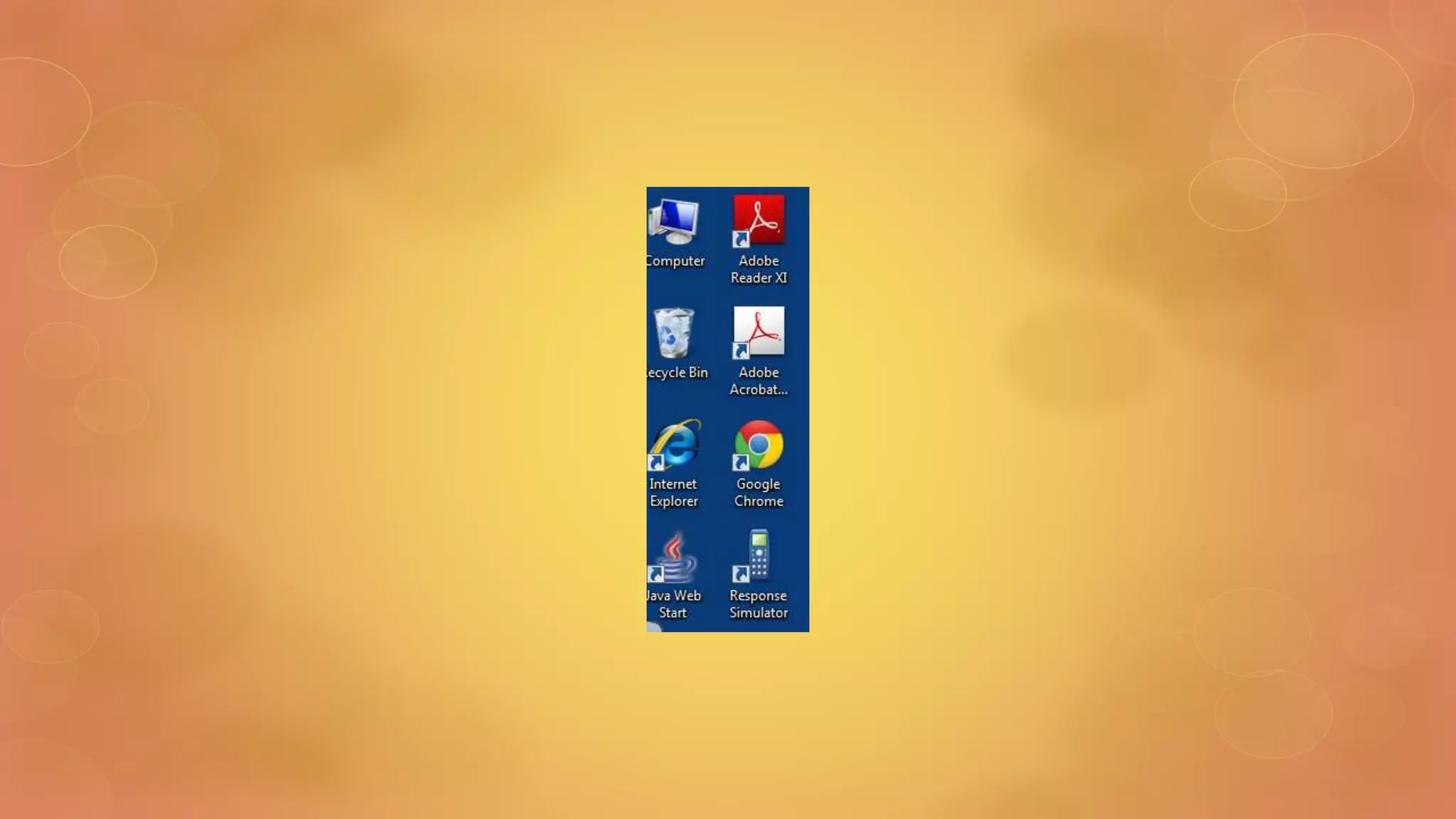
Login to the Computer
Login Instructions
Username: holly.train
Password: holly2007
Introduction
 Introduce the subject of the presentation.
 State how presentation will benefit audience.
 State presenter’s level of expertise in subject.
 Tip: Click and scroll in the notes pane below to see more instructions, or to
add your own speaker notes.
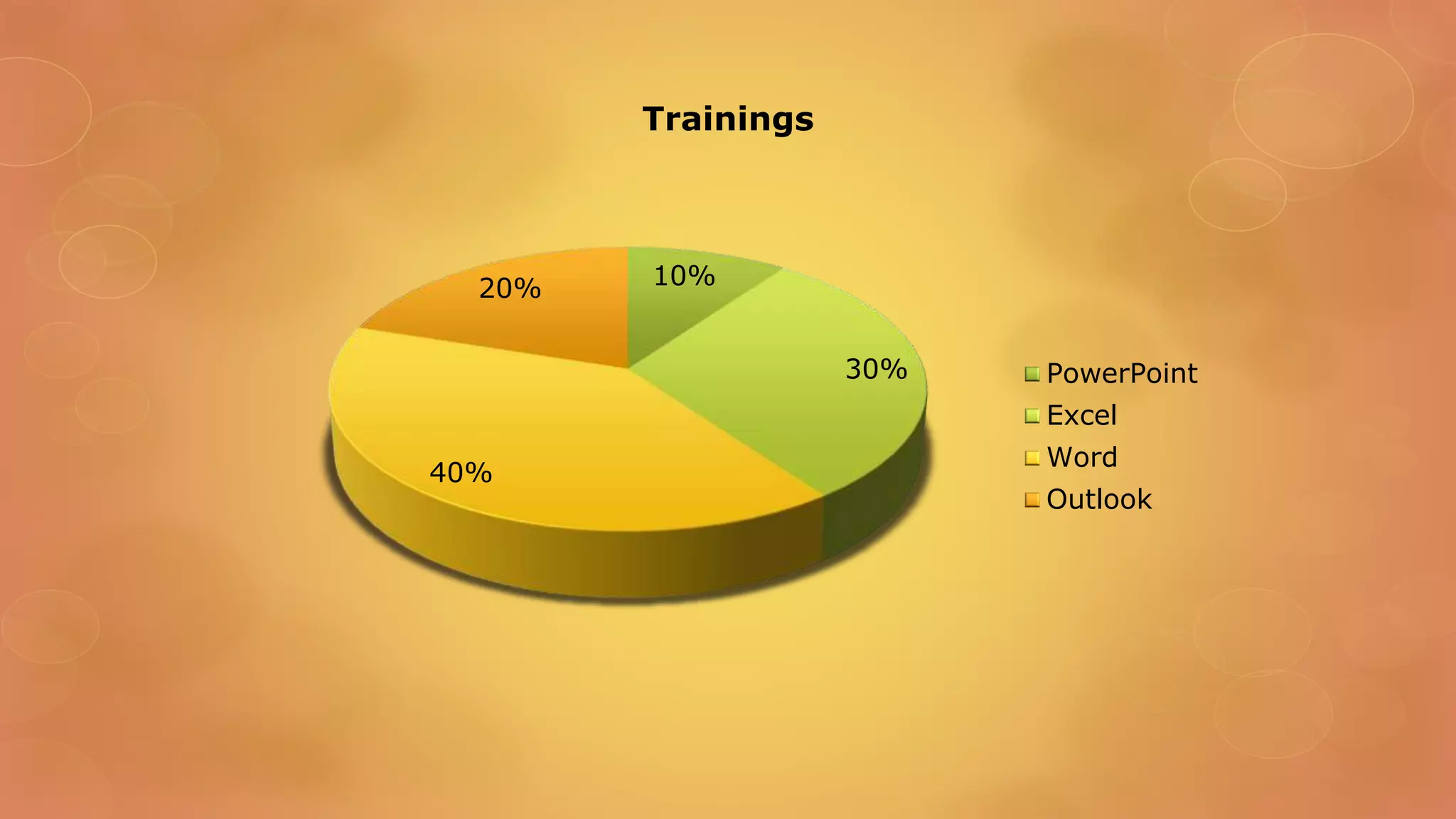
10%
30%
40%
20%
Trainings
PowerPoint
Excel
Word
Outlook
Training Outline
 Lesson 1: Name
 Provide brief description, if desired.
 Lesson 2: Name
 Provide brief description, if desired.
 Lesson 3: Name
 Provide brief description, if desired.
Lesson 1: Objectives
 List the intended outcomes for this training session.
 Each objective should be concise, should contain a verb, and should have a
measurable result.
 Tip: Click and scroll in the notes pane below to see examples, or to add your
own speaker notes.
Lesson 1: Content
 Add text here.
 To add a picture, chart, or other
content in the right column, click
the appropriate icon.
 To add a slide, click New Slide on
the Insert menu, or press CTRL+M.
Lesson 1: Wrap-up
 Summarize important points.
 Allow time for questions.
Lesson 2: Objectives
 List the intended outcomes for this training session.
 Each objective should be concise, should contain a verb, and should have a
measurable result.
Lesson 2: Content
 Add text here.
 To add a picture, chart, or other
content in the right column, click
the appropriate icon.
 To add a slide, click New Slide on
the Insert menu, or press CTRL+M.
Lesson 2: Wrap-up
 Summarize important points.
 Allow time for questions.
Lesson 3: Objectives
 List the intended outcomes for this training session.
 Each objective should be concise, should contain a verb, and should have a
measurable result.
Lesson 3: Content
 Add text here.
 To add a picture, chart, or other
content in the right column, click
the appropriate icon.
 To add a slide, click New Slide on
the Insert menu, or press CTRL+M.
Lesson 3: Wrap-up
 Summarize important points.
 Allow time for questions.
Summary of Training
 List important points from each lesson.
 Provide resources for more information on subject.
 List resources on this slide.
 Provide handouts with additional resource material.
Assessment and Evaluation
 Prepare a quiz or challenge to assess how much information participants
learned.
 Survey participants to see if they found the training beneficial.

Training presentation

  • 1.
    Getting Started withPowerPoint Presented by Lindsay Reed
  • 2.
    Welcome Come in Take aSeat Login to the Computer
  • 3.
  • 4.
    Introduction  Introduce thesubject of the presentation.  State how presentation will benefit audience.  State presenter’s level of expertise in subject.  Tip: Click and scroll in the notes pane below to see more instructions, or to add your own speaker notes.
  • 6.
  • 7.
    Training Outline  Lesson1: Name  Provide brief description, if desired.  Lesson 2: Name  Provide brief description, if desired.  Lesson 3: Name  Provide brief description, if desired.
  • 8.
    Lesson 1: Objectives List the intended outcomes for this training session.  Each objective should be concise, should contain a verb, and should have a measurable result.  Tip: Click and scroll in the notes pane below to see examples, or to add your own speaker notes.
  • 9.
    Lesson 1: Content Add text here.  To add a picture, chart, or other content in the right column, click the appropriate icon.  To add a slide, click New Slide on the Insert menu, or press CTRL+M.
  • 10.
    Lesson 1: Wrap-up Summarize important points.  Allow time for questions.
  • 11.
    Lesson 2: Objectives List the intended outcomes for this training session.  Each objective should be concise, should contain a verb, and should have a measurable result.
  • 12.
    Lesson 2: Content Add text here.  To add a picture, chart, or other content in the right column, click the appropriate icon.  To add a slide, click New Slide on the Insert menu, or press CTRL+M.
  • 13.
    Lesson 2: Wrap-up Summarize important points.  Allow time for questions.
  • 14.
    Lesson 3: Objectives List the intended outcomes for this training session.  Each objective should be concise, should contain a verb, and should have a measurable result.
  • 15.
    Lesson 3: Content Add text here.  To add a picture, chart, or other content in the right column, click the appropriate icon.  To add a slide, click New Slide on the Insert menu, or press CTRL+M.
  • 16.
    Lesson 3: Wrap-up Summarize important points.  Allow time for questions.
  • 17.
    Summary of Training List important points from each lesson.  Provide resources for more information on subject.  List resources on this slide.  Provide handouts with additional resource material.
  • 19.
    Assessment and Evaluation Prepare a quiz or challenge to assess how much information participants learned.  Survey participants to see if they found the training beneficial.

Editor's Notes

  • #5 How presentation will benefit audience: Adult learners are more interested in a subject if they know how or why it is important to them. Presenter’s level of expertise in the subject: Briefly state your credentials in this area, or explain why participants should listen to you.
  • #8 Lesson descriptions should be brief.
  • #9 Example objectives At the end of this lesson, you will be able to: Save files to the team Web server. Move files to different locations on the team Web server. Share files on the team Web server.