Tally
Accounting Package
      UNIT - 3
Objectives of this session

Voucher Entry
Voucher Types
Role of Buttons
Exercise
Introduction

In accounting, vouchers are the main input besides the
opening balances which you put in the masters. The
output is the form of Reports.

Tally recognizes a number of vouchers, which can be
used to enter the first information of the transaction.
Vouchers are of different types. Some of them are
already defined in the Tally software.
Voucher Types

Some of the general vouchers are as follows:
o Sales Voucher

o Purchase Voucher

o Payment Voucher

o Receipt Voucher

o Journal Voucher

Other than the predefined vouchers of the Tally software, users
  can create vouchers of their own desire and requirement also.
Voucher Entry
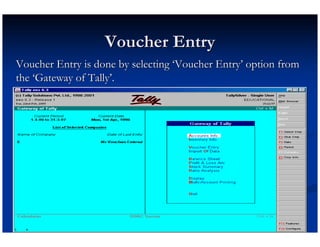
Voucher Entry is done by selecting ‘Voucher Entry’ option from
the ‘Gateway of Tally’.
Voucher Entry
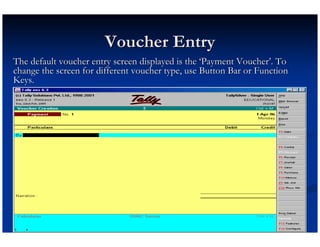
The default voucher entry screen displayed is the ‘Payment Voucher’. To
change the screen for different voucher type, use Button Bar or Function
Keys.
Voucher Type Selection
Voucher type selection is the mental work done by you
not by computer and it is totally based on the accounting
concepts.
Exercise
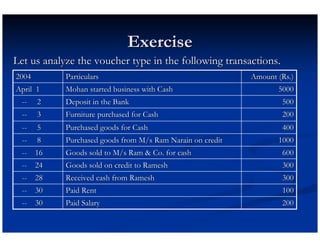
Let us analyze the voucher type in the following transactions.
2004        Particulars                                     Amount (Rs.)
April 1     Mohan started business with Cash                       5000
  --   2    Deposit in the Bank                                     500
  --   3    Furniture purchased for Cash                            200
  --   5    Purchased goods for Cash                                400
  --   8    Purchased goods from M/s Ram Narain on credit          1000
  -- 16     Goods sold to M/s Ram & Co. for cash                    600
  -- 24     Goods sold on credit to Ramesh                          300
  -- 28     Received cash from Ramesh                               300
  -- 30     Paid Rent                                               100
  -- 30     Paid Salary                                             200
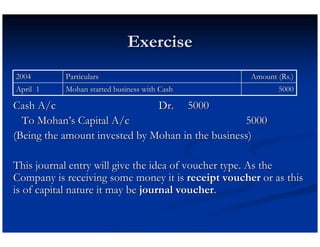
Exercise
2004       Particulars                              Amount (Rs.)
April 1    Mohan started business with Cash                5000

Cash A/c                       Dr. 5000
  To Mohan’s Capital A/c                          5000
(Being the amount invested by Mohan in the business)

This journal entry will give the idea of voucher type. As the
Company is receiving some money it is receipt voucher or as this
is of capital nature it may be journal voucher.
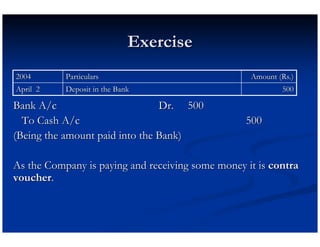
Exercise
2004       Particulars                             Amount (Rs.)
April 2    Deposit in the Bank                             500

Bank A/c                        Dr. 500
  To Cash A/c                                     500
(Being the amount paid into the Bank)

As the Company is paying and receiving some money it is contra
voucher.
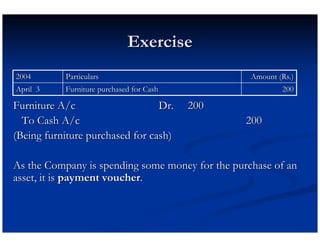
Exercise
2004       Particulars                            Amount (Rs.)
April 3    Furniture purchased for Cash                   200

Furniture A/c                    Dr.      200
  To Cash A/c                                    200
(Being furniture purchased for cash)

As the Company is spending some money for the purchase of an
asset, it is payment voucher.
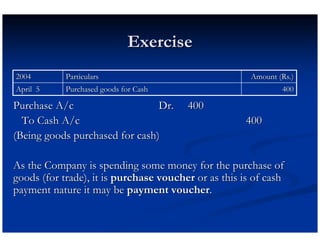
Exercise
2004        Particulars                                Amount (Rs.)
April 5     Purchased goods for Cash                           400

Purchase A/c                    Dr.     400
  To Cash A/c                                         400
(Being goods purchased for cash)

As the Company is spending some money for the purchase of
goods (for trade), it is purchase voucher or as this is of cash
payment nature it may be payment voucher.
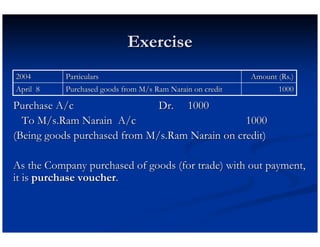
Exercise
2004       Particulars                                     Amount (Rs.)
April 8    Purchased goods from M/s Ram Narain on credit          1000

Purchase A/c                  Dr. 1000
  To M/s.Ram Narain A/c                         1000
(Being goods purchased from M/s.Ram Narain on credit)

As the Company purchased of goods (for trade) with out payment,
it is purchase voucher.
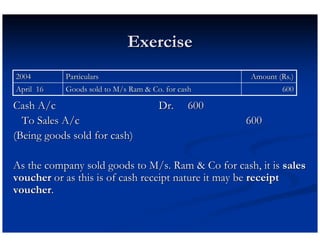
Exercise
2004       Particulars                             Amount (Rs.)
April 16   Goods sold to M/s Ram & Co. for cash            600

Cash A/c                             Dr.     600
  To Sales A/c                                     600
(Being goods sold for cash)

As the company sold goods to M/s. Ram & Co for cash, it is sales
voucher or as this is of cash receipt nature it may be receipt
voucher.
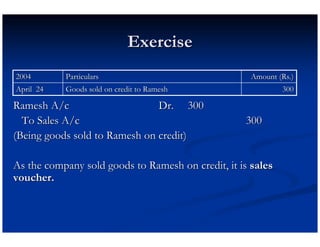
Exercise
2004       Particulars                               Amount (Rs.)
April 24   Goods sold on credit to Ramesh                    300

Ramesh A/c                     Dr. 300
  To Sales A/c                                     300
(Being goods sold to Ramesh on credit)

As the company sold goods to Ramesh on credit, it is sales
voucher.
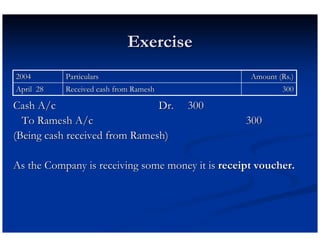
Exercise
2004       Particulars                             Amount (Rs.)
April 28   Received cash from Ramesh                       300

Cash A/c                       Dr.     300
  To Ramesh A/c                                   300
(Being cash received from Ramesh)

As the Company is receiving some money it is receipt voucher.
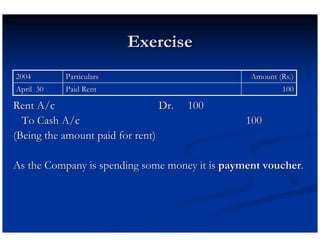
Exercise
2004       Particulars                           Amount (Rs.)
April 30   Paid Rent                                     100

Rent A/c                         Dr.   100
  To Cash A/c                                   100
(Being the amount paid for rent)

As the Company is spending some money it is payment voucher.
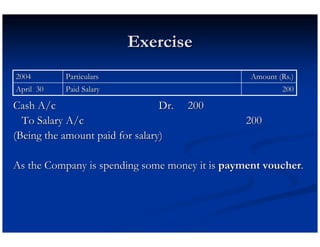
Exercise
2004       Particulars                           Amount (Rs.)
April 30   Paid Salary                                   200

Cash A/c                         Dr.   200
  To Salary A/c                                 200
(Being the amount paid for salary)

As the Company is spending some money it is payment voucher.
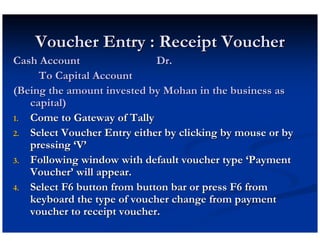
Voucher Entry : Receipt Voucher
Cash Account                 Dr.
     To Capital Account
(Being the amount invested by Mohan in the business as
   capital)
1. Come to Gateway of Tally
2. Select Voucher Entry either by clicking by mouse or by
   pressing ‘V’
3. Following window with default voucher type ‘Payment
   Voucher’ will appear.
4. Select F6 button from button bar or press F6 from
   keyboard the type of voucher change from payment
   voucher to receipt voucher.
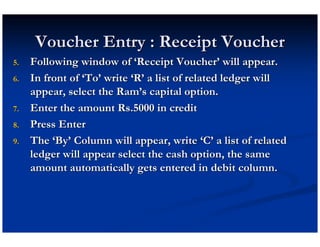
Voucher Entry : Receipt Voucher
5.   Following window of ‘Receipt Voucher’ will appear.
6.   In front of ‘To’ write ‘R’ a list of related ledger will
     appear, select the Ram’s capital option.
7.   Enter the amount Rs.5000 in credit
8.   Press Enter
9.   The ‘By’ Column will appear, write ‘C’ a list of related
     ledger will appear select the cash option, the same
     amount automatically gets entered in debit column.
Voucher Entry : Receipt Voucher
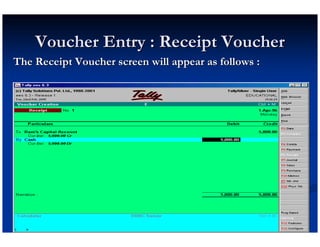
The Receipt Voucher screen will appear as follows :
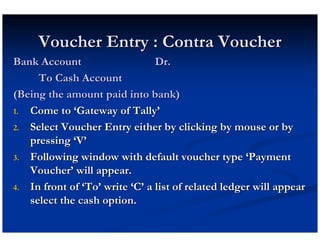
Voucher Entry : Contra Voucher
Bank Account                    Dr.
     To Cash Account
(Being the amount paid into bank)
1. Come to ‘Gateway of Tally’

2. Select Voucher Entry either by clicking by mouse or by
   pressing ‘V’
3. Following window with default voucher type ‘Payment
   Voucher’ will appear.
4. In front of ‘To’ write ‘C’ a list of related ledger will appear
   select the cash option.
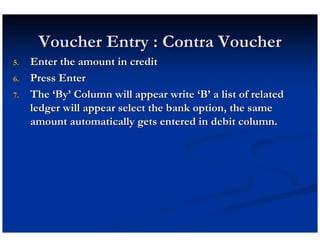
Voucher Entry : Contra Voucher
5.   Enter the amount in credit
6.   Press Enter
7.   The ‘By’ Column will appear write ‘B’ a list of related
     ledger will appear select the bank option, the same
     amount automatically gets entered in debit column.
Voucher Entry : Contra Voucher
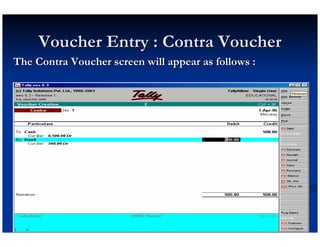
The Contra Voucher screen will appear as follows :
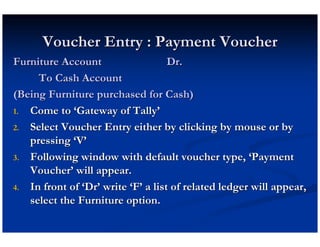
Voucher Entry : Payment Voucher
Furniture Account                   Dr.
     To Cash Account
(Being Furniture purchased for Cash)
1. Come to ‘Gateway of Tally’

2. Select Voucher Entry either by clicking by mouse or by
   pressing ‘V’
3. Following window with default voucher type, ‘Payment
   Voucher’ will appear.
4. In front of ‘Dr’ write ‘F’ a list of related ledger will appear,
   select the Furniture option.
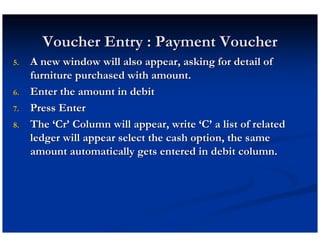
Voucher Entry : Payment Voucher
5.   A new window will also appear, asking for detail of
     furniture purchased with amount.
6.   Enter the amount in debit
7.   Press Enter
8.   The ‘Cr’ Column will appear, write ‘C’ a list of related
     ledger will appear select the cash option, the same
     amount automatically gets entered in debit column.
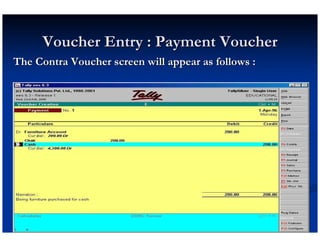
Voucher Entry : Payment Voucher
The Contra Voucher screen will appear as follows :
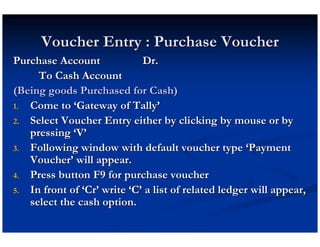
Voucher Entry : Purchase Voucher
Purchase Account             Dr.
     To Cash Account
(Being goods Purchased for Cash)
1. Come to ‘Gateway of Tally’
2. Select Voucher Entry either by clicking by mouse or by
   pressing ‘V’
3. Following window with default voucher type ‘Payment
   Voucher’ will appear.
4. Press button F9 for purchase voucher
5. In front of ‘Cr’ write ‘C’ a list of related ledger will appear,
   select the cash option.
Voucher Entry : Purchase Voucher
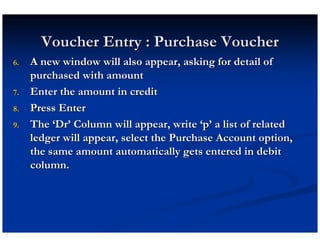
6.   A new window will also appear, asking for detail of
     purchased with amount
7.   Enter the amount in credit
8.   Press Enter
9.   The ‘Dr’ Column will appear, write ‘p’ a list of related
     ledger will appear, select the Purchase Account option,
     the same amount automatically gets entered in debit
     column.
Voucher Entry : Purchase Voucher
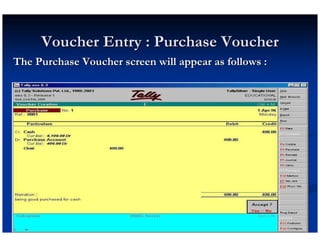
The Purchase Voucher screen will appear as follows :
Role of Button
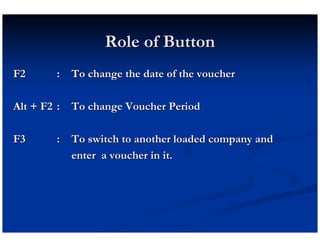
F2      : To change the date of the voucher

Alt + F2 : To change Voucher Period

F3      : To switch to another loaded company and
          enter a voucher in it.
Role of Button
                                          continue …
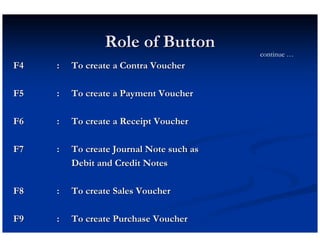
F4   :   To create a Contra Voucher

F5   :   To create a Payment Voucher

F6   :   To create a Receipt Voucher

F7   :   To create Journal Note such as
         Debit and Credit Notes

F8   :   To create Sales Voucher

F9   :   To create Purchase Voucher
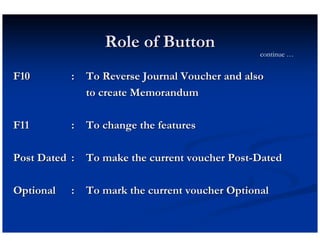
Role of Button
                                               continue …


F10        : To Reverse Journal Voucher and also
             to create Memorandum

F11        : To change the features

Post Dated : To make the current voucher Post-Dated

Optional   : To mark the current voucher Optional
Thank You


A Course by


              (Centre for Knowledge Transfer)

Tally tutor 3

  • 1.
  • 2.
    Objectives of thissession Voucher Entry Voucher Types Role of Buttons Exercise
  • 3.
    Introduction In accounting, vouchersare the main input besides the opening balances which you put in the masters. The output is the form of Reports. Tally recognizes a number of vouchers, which can be used to enter the first information of the transaction. Vouchers are of different types. Some of them are already defined in the Tally software.
  • 4.
    Voucher Types Some ofthe general vouchers are as follows: o Sales Voucher o Purchase Voucher o Payment Voucher o Receipt Voucher o Journal Voucher Other than the predefined vouchers of the Tally software, users can create vouchers of their own desire and requirement also.
  • 5.
    Voucher Entry Voucher Entryis done by selecting ‘Voucher Entry’ option from the ‘Gateway of Tally’.
  • 6.
    Voucher Entry The defaultvoucher entry screen displayed is the ‘Payment Voucher’. To change the screen for different voucher type, use Button Bar or Function Keys.
  • 7.
    Voucher Type Selection Vouchertype selection is the mental work done by you not by computer and it is totally based on the accounting concepts.
  • 8.
    Exercise Let us analyzethe voucher type in the following transactions. 2004 Particulars Amount (Rs.) April 1 Mohan started business with Cash 5000 -- 2 Deposit in the Bank 500 -- 3 Furniture purchased for Cash 200 -- 5 Purchased goods for Cash 400 -- 8 Purchased goods from M/s Ram Narain on credit 1000 -- 16 Goods sold to M/s Ram & Co. for cash 600 -- 24 Goods sold on credit to Ramesh 300 -- 28 Received cash from Ramesh 300 -- 30 Paid Rent 100 -- 30 Paid Salary 200
  • 9.
    Exercise 2004 Particulars Amount (Rs.) April 1 Mohan started business with Cash 5000 Cash A/c Dr. 5000 To Mohan’s Capital A/c 5000 (Being the amount invested by Mohan in the business) This journal entry will give the idea of voucher type. As the Company is receiving some money it is receipt voucher or as this is of capital nature it may be journal voucher.
  • 10.
    Exercise 2004 Particulars Amount (Rs.) April 2 Deposit in the Bank 500 Bank A/c Dr. 500 To Cash A/c 500 (Being the amount paid into the Bank) As the Company is paying and receiving some money it is contra voucher.
  • 11.
    Exercise 2004 Particulars Amount (Rs.) April 3 Furniture purchased for Cash 200 Furniture A/c Dr. 200 To Cash A/c 200 (Being furniture purchased for cash) As the Company is spending some money for the purchase of an asset, it is payment voucher.
  • 12.
    Exercise 2004 Particulars Amount (Rs.) April 5 Purchased goods for Cash 400 Purchase A/c Dr. 400 To Cash A/c 400 (Being goods purchased for cash) As the Company is spending some money for the purchase of goods (for trade), it is purchase voucher or as this is of cash payment nature it may be payment voucher.
  • 13.
    Exercise 2004 Particulars Amount (Rs.) April 8 Purchased goods from M/s Ram Narain on credit 1000 Purchase A/c Dr. 1000 To M/s.Ram Narain A/c 1000 (Being goods purchased from M/s.Ram Narain on credit) As the Company purchased of goods (for trade) with out payment, it is purchase voucher.
  • 14.
    Exercise 2004 Particulars Amount (Rs.) April 16 Goods sold to M/s Ram & Co. for cash 600 Cash A/c Dr. 600 To Sales A/c 600 (Being goods sold for cash) As the company sold goods to M/s. Ram & Co for cash, it is sales voucher or as this is of cash receipt nature it may be receipt voucher.
  • 15.
    Exercise 2004 Particulars Amount (Rs.) April 24 Goods sold on credit to Ramesh 300 Ramesh A/c Dr. 300 To Sales A/c 300 (Being goods sold to Ramesh on credit) As the company sold goods to Ramesh on credit, it is sales voucher.
  • 16.
    Exercise 2004 Particulars Amount (Rs.) April 28 Received cash from Ramesh 300 Cash A/c Dr. 300 To Ramesh A/c 300 (Being cash received from Ramesh) As the Company is receiving some money it is receipt voucher.
  • 17.
    Exercise 2004 Particulars Amount (Rs.) April 30 Paid Rent 100 Rent A/c Dr. 100 To Cash A/c 100 (Being the amount paid for rent) As the Company is spending some money it is payment voucher.
  • 18.
    Exercise 2004 Particulars Amount (Rs.) April 30 Paid Salary 200 Cash A/c Dr. 200 To Salary A/c 200 (Being the amount paid for salary) As the Company is spending some money it is payment voucher.
  • 19.
    Voucher Entry :Receipt Voucher Cash Account Dr. To Capital Account (Being the amount invested by Mohan in the business as capital) 1. Come to Gateway of Tally 2. Select Voucher Entry either by clicking by mouse or by pressing ‘V’ 3. Following window with default voucher type ‘Payment Voucher’ will appear. 4. Select F6 button from button bar or press F6 from keyboard the type of voucher change from payment voucher to receipt voucher.
  • 20.
    Voucher Entry :Receipt Voucher 5. Following window of ‘Receipt Voucher’ will appear. 6. In front of ‘To’ write ‘R’ a list of related ledger will appear, select the Ram’s capital option. 7. Enter the amount Rs.5000 in credit 8. Press Enter 9. The ‘By’ Column will appear, write ‘C’ a list of related ledger will appear select the cash option, the same amount automatically gets entered in debit column.
  • 21.
    Voucher Entry :Receipt Voucher The Receipt Voucher screen will appear as follows :
  • 22.
    Voucher Entry :Contra Voucher Bank Account Dr. To Cash Account (Being the amount paid into bank) 1. Come to ‘Gateway of Tally’ 2. Select Voucher Entry either by clicking by mouse or by pressing ‘V’ 3. Following window with default voucher type ‘Payment Voucher’ will appear. 4. In front of ‘To’ write ‘C’ a list of related ledger will appear select the cash option.
  • 23.
    Voucher Entry :Contra Voucher 5. Enter the amount in credit 6. Press Enter 7. The ‘By’ Column will appear write ‘B’ a list of related ledger will appear select the bank option, the same amount automatically gets entered in debit column.
  • 24.
    Voucher Entry :Contra Voucher The Contra Voucher screen will appear as follows :
  • 25.
    Voucher Entry :Payment Voucher Furniture Account Dr. To Cash Account (Being Furniture purchased for Cash) 1. Come to ‘Gateway of Tally’ 2. Select Voucher Entry either by clicking by mouse or by pressing ‘V’ 3. Following window with default voucher type, ‘Payment Voucher’ will appear. 4. In front of ‘Dr’ write ‘F’ a list of related ledger will appear, select the Furniture option.
  • 26.
    Voucher Entry :Payment Voucher 5. A new window will also appear, asking for detail of furniture purchased with amount. 6. Enter the amount in debit 7. Press Enter 8. The ‘Cr’ Column will appear, write ‘C’ a list of related ledger will appear select the cash option, the same amount automatically gets entered in debit column.
  • 27.
    Voucher Entry :Payment Voucher The Contra Voucher screen will appear as follows :
  • 28.
    Voucher Entry :Purchase Voucher Purchase Account Dr. To Cash Account (Being goods Purchased for Cash) 1. Come to ‘Gateway of Tally’ 2. Select Voucher Entry either by clicking by mouse or by pressing ‘V’ 3. Following window with default voucher type ‘Payment Voucher’ will appear. 4. Press button F9 for purchase voucher 5. In front of ‘Cr’ write ‘C’ a list of related ledger will appear, select the cash option.
  • 29.
    Voucher Entry :Purchase Voucher 6. A new window will also appear, asking for detail of purchased with amount 7. Enter the amount in credit 8. Press Enter 9. The ‘Dr’ Column will appear, write ‘p’ a list of related ledger will appear, select the Purchase Account option, the same amount automatically gets entered in debit column.
  • 30.
    Voucher Entry :Purchase Voucher The Purchase Voucher screen will appear as follows :
  • 31.
    Role of Button F2 : To change the date of the voucher Alt + F2 : To change Voucher Period F3 : To switch to another loaded company and enter a voucher in it.
  • 32.
    Role of Button continue … F4 : To create a Contra Voucher F5 : To create a Payment Voucher F6 : To create a Receipt Voucher F7 : To create Journal Note such as Debit and Credit Notes F8 : To create Sales Voucher F9 : To create Purchase Voucher
  • 33.
    Role of Button continue … F10 : To Reverse Journal Voucher and also to create Memorandum F11 : To change the features Post Dated : To make the current voucher Post-Dated Optional : To mark the current voucher Optional
  • 34.
    Thank You A Courseby (Centre for Knowledge Transfer)