Mr D Victorseelan
Dept of Mathematics
Nehru college of Management
TALLY ERP 9
Introduction
Tally is designed to integrate all business
operations, like
•Sales
•Finance
•Purchasing
•Inventory
•Manufacturing and So on
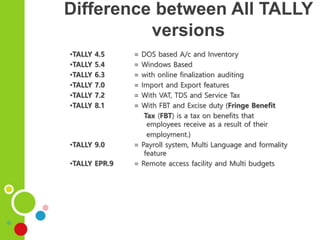
Difference between All TALLY
versions
•TALLY 4.5 = DOS based A/c and Inventory
•TALLY 5.4 = Windows Based
•TALLY 6.3 = with online finalization auditing
•TALLY 7.0 = Import and Export features
•TALLY 7.2 = With VAT, TDS and Service Tax
•TALLY 8.1 = With FBT and Excise duty (Fringe Benefit
Tax (FBT) is a tax on benefits that
employees receive as a result of their
employment.)
•TALLY 9.0 = Payroll system, Multi Language and formality
feature
•TALLY EPR.9 = Remote access facility and Multi budgets
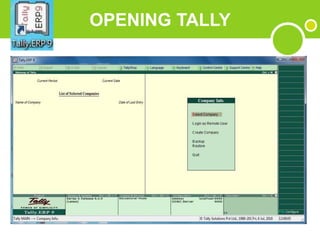
OPENING TALLY
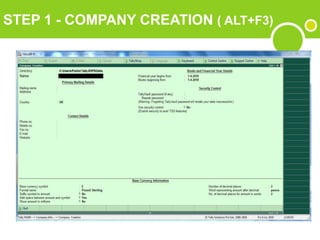
STEP 1 - COMPANY CREATION ( ALT+F3)
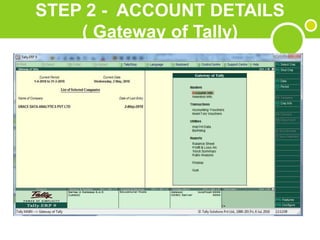
STEP 2 - ACCOUNT DETAILS
( Gateway of Tally)
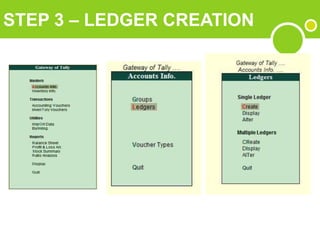
STEP 3 – LEDGER CREATION
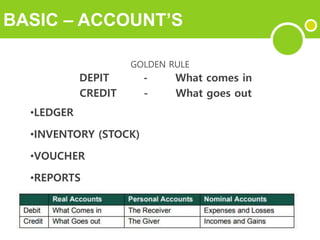
BASIC – ACCOUNT’S
GOLDEN RULE
DEPIT - What comes in
CREDIT - What goes out
•LEDGER
•INVENTORY (STOCK)
•VOUCHER
•REPORTS
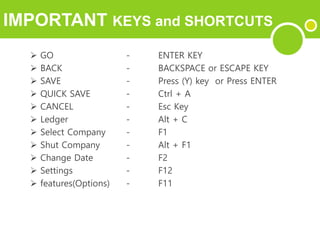
IMPORTANT KEYS and SHORTCUTS
 GO - ENTER KEY
 BACK - BACKSPACE or ESCAPE KEY
 SAVE - Press (Y) key or Press ENTER
 QUICK SAVE - Ctrl + A
 CANCEL - Esc Key
 Ledger - Alt + C
 Select Company - F1
 Shut Company - Alt + F1
 Change Date - F2
 Settings - F12
 features(Options) - F11
LEDGER CREATION
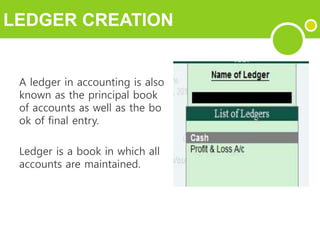
A ledger in accounting is also
known as the principal book
of accounts as well as the bo
ok of final entry.
Ledger is a book in which all
accounts are maintained.
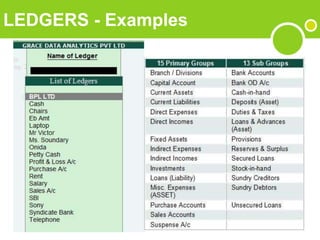
LEDGERS - Examples
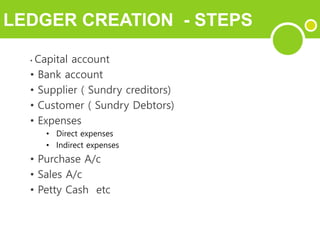
LEDGER CREATION - STEPS
• Capital account
• Bank account
• Supplier ( Sundry creditors)
• Customer ( Sundry Debtors)
• Expenses
• Direct expenses
• Indirect expenses
• Purchase A/c
• Sales A/c
• Petty Cash etc
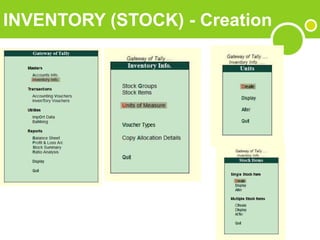
INVENTORY (STOCK) - Creation
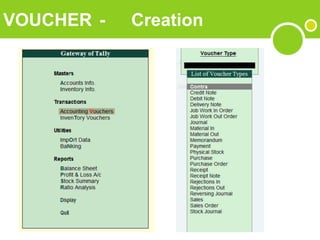
VOUCHER - Creation
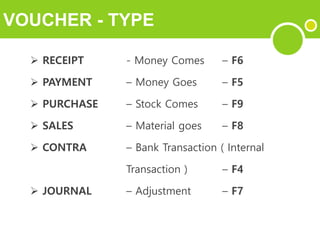
VOUCHER - TYPE
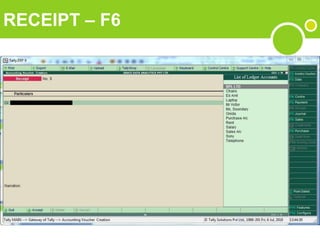
 RECEIPT - Money Comes – F6
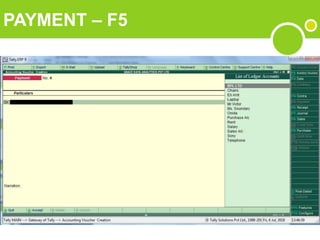
 PAYMENT – Money Goes – F5
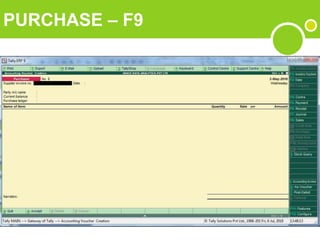
 PURCHASE – Stock Comes – F9
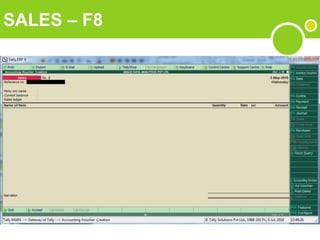
 SALES – Material goes – F8
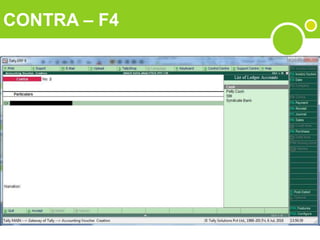
 CONTRA – Bank Transaction ( Internal
Transaction ) – F4
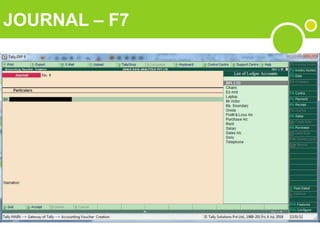
 JOURNAL – Adjustment – F7
RECEIPT – F6
PAYMENT – F5
PURCHASE – F9
SALES – F8
CONTRA – F4
JOURNAL – F7
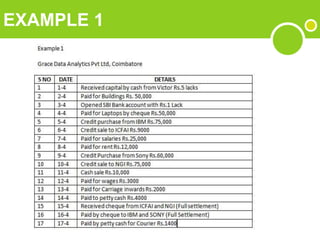
EXAMPLE 1
Introduction to TALLY ERP 9

Introduction to TALLY ERP 9

  • 1.
    Mr D Victorseelan Deptof Mathematics Nehru college of Management TALLY ERP 9
  • 2.
    Introduction Tally is designedto integrate all business operations, like •Sales •Finance •Purchasing •Inventory •Manufacturing and So on
  • 3.
    Difference between AllTALLY versions •TALLY 4.5 = DOS based A/c and Inventory •TALLY 5.4 = Windows Based •TALLY 6.3 = with online finalization auditing •TALLY 7.0 = Import and Export features •TALLY 7.2 = With VAT, TDS and Service Tax •TALLY 8.1 = With FBT and Excise duty (Fringe Benefit Tax (FBT) is a tax on benefits that employees receive as a result of their employment.) •TALLY 9.0 = Payroll system, Multi Language and formality feature •TALLY EPR.9 = Remote access facility and Multi budgets
  • 4.
  • 5.
    STEP 1 -COMPANY CREATION ( ALT+F3)
  • 6.
    STEP 2 -ACCOUNT DETAILS ( Gateway of Tally)
  • 7.
    STEP 3 –LEDGER CREATION
  • 8.
    BASIC – ACCOUNT’S GOLDENRULE DEPIT - What comes in CREDIT - What goes out •LEDGER •INVENTORY (STOCK) •VOUCHER •REPORTS
  • 9.
    IMPORTANT KEYS andSHORTCUTS  GO - ENTER KEY  BACK - BACKSPACE or ESCAPE KEY  SAVE - Press (Y) key or Press ENTER  QUICK SAVE - Ctrl + A  CANCEL - Esc Key  Ledger - Alt + C  Select Company - F1  Shut Company - Alt + F1  Change Date - F2  Settings - F12  features(Options) - F11
  • 10.
    LEDGER CREATION A ledgerin accounting is also known as the principal book of accounts as well as the bo ok of final entry. Ledger is a book in which all accounts are maintained.
  • 11.
  • 12.
    LEDGER CREATION -STEPS • Capital account • Bank account • Supplier ( Sundry creditors) • Customer ( Sundry Debtors) • Expenses • Direct expenses • Indirect expenses • Purchase A/c • Sales A/c • Petty Cash etc
  • 13.
  • 14.
  • 15.
    VOUCHER - TYPE RECEIPT - Money Comes – F6  PAYMENT – Money Goes – F5  PURCHASE – Stock Comes – F9  SALES – Material goes – F8  CONTRA – Bank Transaction ( Internal Transaction ) – F4  JOURNAL – Adjustment – F7
  • 16.
  • 17.
  • 18.
  • 19.
  • 20.
  • 21.
  • 22.