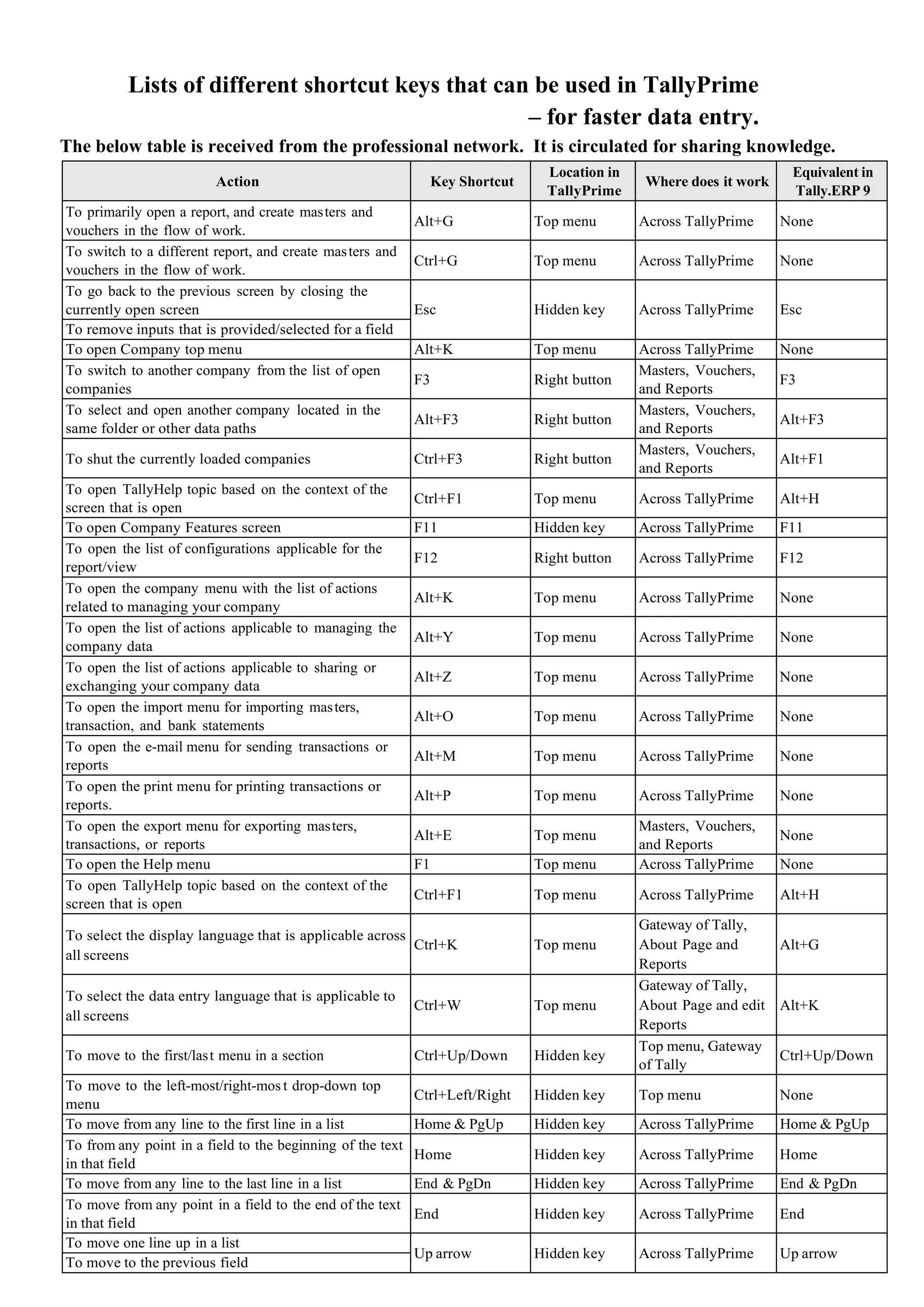
Lists of different shortcut keys that can be used in TallyPrime
– for faster data entry.
The below table is received from the professional network. It is circulated for sharing knowledge.
Action Key Shortcut
Location in
TallyPrime
Where does it work
Equivalent in
Tally.ERP 9
To primarily open a report, and create masters and
vouchers in the flow of work.
Alt+G Top menu Across TallyPrime None
To switch to a different report, and create masters and
vouchers in the flow of work.
Ctrl+G Top menu Across TallyPrime None
To go back to the previous screen by closing the
currently open screen Esc Hidden key Across TallyPrime Esc
To remove inputs that is provided/selected for a field
To open Company top menu Alt+K Top menu Across TallyPrime None
To switch to another company from the list of open
companies
F3 Right button
Masters, Vouchers,
and Reports
F3
To select and open another company located in the
same folder or other data paths
Alt+F3 Right button
Masters, Vouchers,
and Reports
Alt+F3
To shut the currently loaded companies Ctrl+F3 Right button
Masters, Vouchers,
and Reports
Alt+F1
To open TallyHelp topic based on the context of the
screen that is open
Ctrl+F1 Top menu Across TallyPrime Alt+H
To open Company Features screen F11 Hidden key Across TallyPrime F11
To open the list of configurations applicable for the
report/view
F12 Right button Across TallyPrime F12
To open the company menu with the list of actions
related to managing your company
Alt+K Top menu Across TallyPrime None
To open the list of actions applicable to managing the
company data
Alt+Y Top menu Across TallyPrime None
To open the list of actions applicable to sharing or
exchanging your company data
Alt+Z Top menu Across TallyPrime None
To open the import menu for importing masters,
transaction, and bank statements
Alt+O Top menu Across TallyPrime None
To open the e-mail menu for sending transactions or
reports
Alt+M Top menu Across TallyPrime None
To open the print menu for printing transactions or
reports.
Alt+P Top menu Across TallyPrime None
To open the export menu for exporting masters,
transactions, or reports
Alt+E Top menu
Masters, Vouchers,
and Reports
None
To open the Help menu F1 Top menu Across TallyPrime None
To open TallyHelp topic based on the context of the
screen that is open
Ctrl+F1 Top menu Across TallyPrime Alt+H
To select the display language that is applicable across
all screens
Ctrl+K Top menu
Gateway of Tally,
About Page and
Reports
Alt+G
To select the data entry language that is applicable to
all screens
Ctrl+W Top menu
Gateway of Tally,
About Page and edit
Reports
Alt+K
To move to the first/last menu in a section Ctrl+Up/Down Hidden key
Top menu, Gateway
of Tally
Ctrl+Up/Down
To move to the left-most/right-mos t drop-down top
menu
Ctrl+Left/Right Hidden key Top menu None
To move from any line to the first line in a list Home & PgUp Hidden key Across TallyPrime Home & PgUp
To from any point in a field to the beginning of the text
in that field
Home Hidden key Across TallyPrime Home
To move from any line to the last line in a list End & PgDn Hidden key Across TallyPrime End & PgDn
To move from any point in a field to the end of the text
in that field
End Hidden key Across TallyPrime End
To move one line up in a list
Up arrow Hidden key Across TallyPrime Up arrow
To move to the previous field
Action Key Shortcut
Location in
TallyPrime
Where does it work
Equivalent in
Tally.ERP 9
To move one line down in a list
Down arrow Hidden key Across TallyPrime Down arrow
To move to the next field
To move:
Left arrow Hidden key Across TallyPrime Left arrow
One position left in a text field
To the previous column on the left
to the previous menu on the left
To move:
Left arrow Hidden key Across TallyPrime Left arrow
One position right in a text field
To the next column on the right
to the next menu on the right
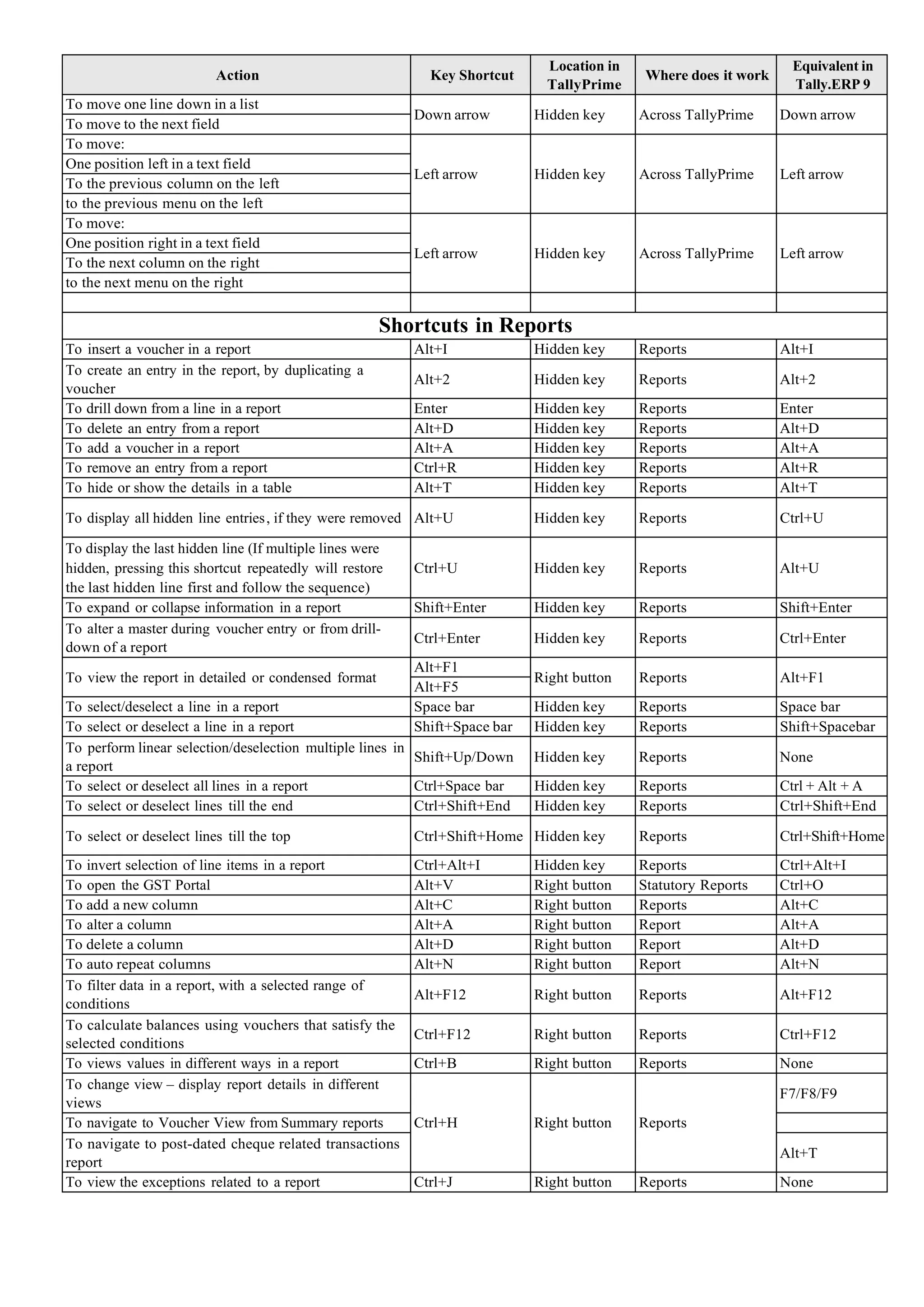
Shortcuts in Reports
To insert a voucher in a report Alt+I Hidden key Reports Alt+I
To create an entry in the report, by duplicating a
voucher
Alt+2 Hidden key Reports Alt+2
To drill down from a line in a report Enter Hidden key Reports Enter
To delete an entry from a report Alt+D Hidden key Reports Alt+D
To add a voucher in a report Alt+A Hidden key Reports Alt+A
To remove an entry from a report Ctrl+R Hidden key Reports Alt+R
To hide or show the details in a table Alt+T Hidden key Reports Alt+T
To display all hidden line entries, if they were removed Alt+U Hidden key Reports Ctrl+U
To display the last hidden line (If multiple lines were
hidden, pressing this shortcut repeatedly will restore
the last hidden line first and follow the sequence)
Ctrl+U Hidden key Reports Alt+U
To expand or collapse information in a report Shift+Enter Hidden key Reports Shift+Enter
To alter a master during voucher entry or from drill-
down of a report
Ctrl+Enter Hidden key Reports Ctrl+Enter
To view the report in detailed or condensed format
Alt+F1
Right button Reports Alt+F1
Alt+F5
To select/deselect a line in a report Space bar Hidden key Reports Space bar
To select or deselect a line in a report Shift+Space bar Hidden key Reports Shift+Spacebar
To perform linear selection/deselection multiple lines in
a report
Shift+Up/Down Hidden key Reports None
To select or deselect all lines in a report Ctrl+Space bar Hidden key Reports Ctrl + Alt + A
To select or deselect lines till the end Ctrl+Shift+End Hidden key Reports Ctrl+Shift+End
To select or deselect lines till the top Ctrl+Shift+Home Hidden key Reports Ctrl+Shift+Home
To invert selection of line items in a report Ctrl+Alt+I Hidden key Reports Ctrl+Alt+I
To open the GST Portal Alt+V Right button Statutory Reports Ctrl+O
To add a new column Alt+C Right button Reports Alt+C
To alter a column Alt+A Right button Report Alt+A
To delete a column Alt+D Right button Report Alt+D
To auto repeat columns Alt+N Right button Report Alt+N
To filter data in a report, with a selected range of
conditions
Alt+F12 Right button Reports Alt+F12
To calculate balances using vouchers that satisfy the
selected conditions
Ctrl+F12 Right button Reports Ctrl+F12
To views values in different ways in a report Ctrl+B Right button Reports None
To change view – display report details in different
views
Ctrl+H Right button Reports
F7/F8/F9
To navigate to Voucher View from Summary reports
To navigate to post-dated cheque related transactions
report
Alt+T
To view the exceptions related to a report Ctrl+J Right button Reports None
Action Key Shortcut
Location in
TallyPrime
Where does it work
Equivalent in
Tally.ERP 9
Shortcuts in Vouchers
To open Contra voucher F4
Accounting
Vouchers
Vouchers F4
To open Payment voucher F5
Accounting
Vouchers
Vouchers F5
To open Receipt voucher F6
Accounting
Vouchers
Vouchers F6
To open Journal voucher F7
Accounting
Vouchers
Vouchers F7
To open Stock Journal voucher Alt+F7
Inventory
Vouchers
Vouchers Alt+F7
To open Physical Stock Ctrl+F7
Inventory
Vouchers
Vouchers Alt+F10
To open Sales voucher F8
Accounting
Vouchers
Vouchers F8
To open Delivery Note Alt+F8
Inventory
Vouchers
Vouchers Alt+F8
To open Sales Order Ctrl+F8
Order
Vouchers
Vouchers None
To open Purchase voucher F9
Accounting
Vouchers
Vouchers F9
To open Receipt Note Alt+F9
Inventory
Vouchers
Vouchers Alt+F9
To open Purchase Order Ctrl+F9 Order Vouchers Vouchers None
To open Credit Note Alt+F6
Accounting
Vouchers
Vouchers Ctrl+F8
To open Debit Note Alt+F5
Accounting
Vouchers
Vouchers Ctrl+F9
To open Payroll voucher Ctrl+F4
Payroll
Vouchers
Vouchers None
To open Rejection In voucher Ctrl+F6
Inventory
Vouchers
Vouchers Ctrl+F6
To open Rejection Out voucher Ctrl+F5
Inventory
Vouchers
Vouchers Alt+F6
To view list of all vouchers F10 Vouchers Vouchers None
To retrieve Narration from the previous ledger Alt+R Hidden key Vouchers Alt+R
To open the calculator panel from Amount field Alt+C Hidden key Vouchers Alt+C
To mark a voucher as Post-Dated Ctrl+T Right button Vouchers Ctrl+T
To delete a voucher/transaction Alt+D Hidden key Vouchers Alt+D
To open a manufacturing journal from the Quantity
field of a journal voucher
Alt+V Hidden key Vouchers Alt+V
To remove item/ledger line in a voucher Ctrl+D Hidden key Vouchers Ctrl+D
To autofill details Ctrl+F Right button Vouchers Ctrl+A
To retrieve the Narration from the previous voucher,
for the same voucher type.
Ctrl+R Hidden key Vouchers Ctrl+R
To change mode – open vouchers in different modes Ctrl+H Right button Vouchers
Ctrl+V(As
Voucher mode)
Alt+I (As
Invoice mode)
To open the Stock Query report for the selected stock
item
Alt+S Right button Vouchers Alt+S
To mark a voucher as Optional Ctrl+L Right button Vouchers Ctrl+L
Shortcuts in Masters & Vouchers
To go to the next input field Tab Hidden key Masters & Vouchers Tab
To go to the previous input field Shift+Tab Hidden key Masters & Vouchers Shift+Tab
To remove the value typed Backspace Hidden key Masters & Vouchers Backspace
To create a master, on the fly Alt+C Hidden key Masters & Vouchers Alt+C
Action Key Shortcut
Location in
TallyPrime
Where does it work
Equivalent in
Tally.ERP 9
To open the calculator panel Alt+C Hidden key Alt+C
To add more details to a master or voucher for the
current instance
Ctrl+I Right button Masters & Vouchers None
To insert the base currency symbol in an input field.
Alt+4
Hidden key Masters & Vouchers Ctrl+4
Ctrl+4
To open the previously saved master or voucher
Page Up Hidden key Masters & Vouchers Page Up
To scroll up in reports
To open the next master or voucher
Page Down Hidden key Masters & Vouchers Page Down
To scroll down in reports
To copy text from an input field
Ctrl+C
Hidden key Masters & vouchers Ctrl+Alt+C
Ctrl+Alt+C
To paste input copied from a text field.
Ctrl+V
Hidden key Masters & vouchers Ctrl+Alt+V
Ctrl+Alt+V
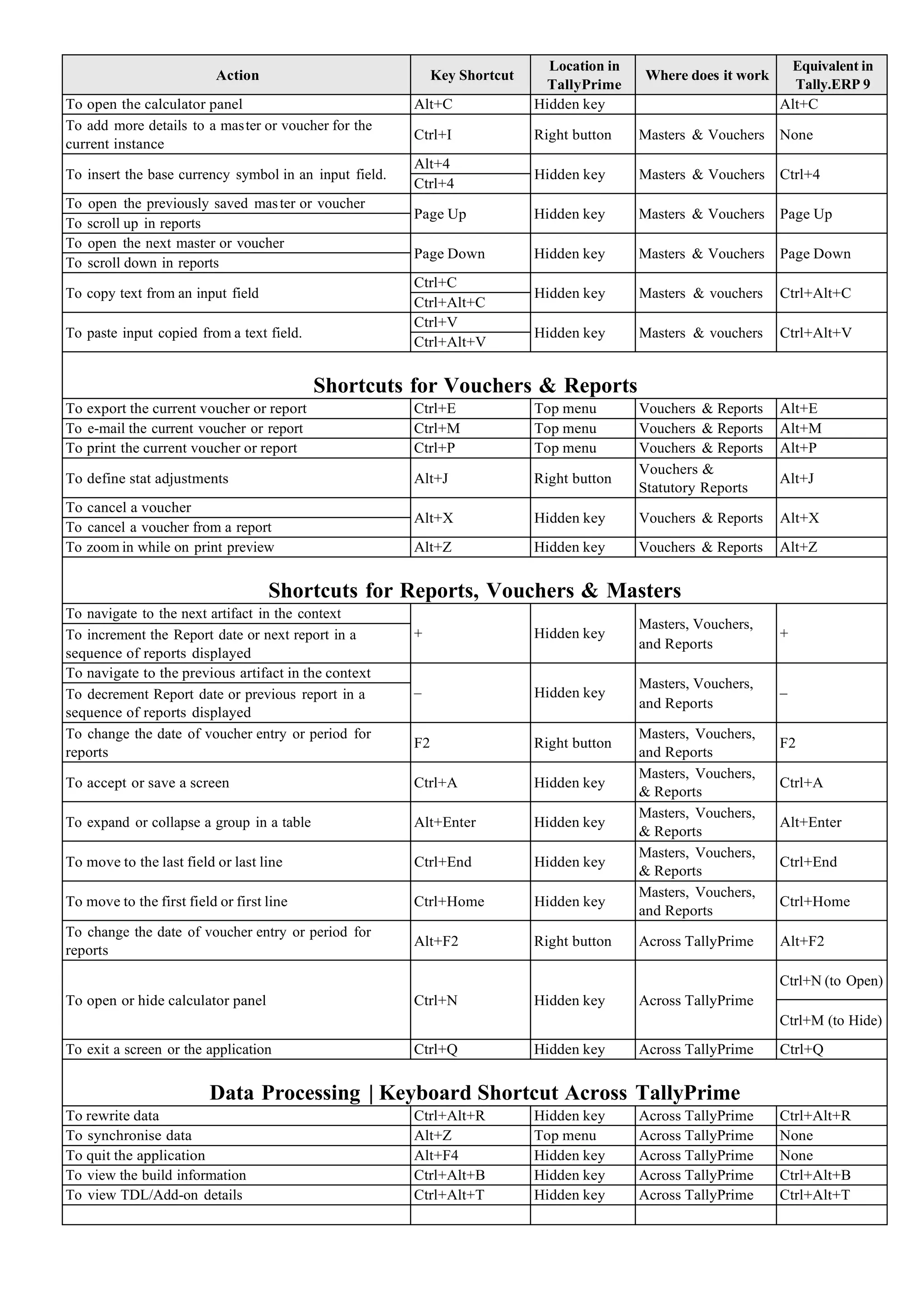
Shortcuts for Vouchers & Reports
To export the current voucher or report Ctrl+E Top menu Vouchers & Reports Alt+E
To e-mail the current voucher or report Ctrl+M Top menu Vouchers & Reports Alt+M
To print the current voucher or report Ctrl+P Top menu Vouchers & Reports Alt+P
To define stat adjustments Alt+J Right button
Vouchers &
Statutory Reports
Alt+J
To cancel a voucher
Alt+X Hidden key Vouchers & Reports Alt+X
To cancel a voucher from a report
To zoom in while on print preview Alt+Z Hidden key Vouchers & Reports Alt+Z
Shortcuts for Reports, Vouchers & Masters
To navigate to the next artifact in the context
+ Hidden key
Masters, Vouchers,
and Reports
+
To increment the Report date or next report in a
sequence of reports displayed
To navigate to the previous artifact in the context
– Hidden key
Masters, Vouchers,
and Reports
–
To decrement Report date or previous report in a
sequence of reports displayed
To change the date of voucher entry or period for
reports
F2 Right button
Masters, Vouchers,
and Reports
F2
To accept or save a screen Ctrl+A Hidden key
Masters, Vouchers,
& Reports
Ctrl+A
To expand or collapse a group in a table Alt+Enter Hidden key
Masters, Vouchers,
& Reports
Alt+Enter
To move to the last field or last line Ctrl+End Hidden key
Masters, Vouchers,
& Reports
Ctrl+End
To move to the first field or first line Ctrl+Home Hidden key
Masters, Vouchers,
and Reports
Ctrl+Home
To change the date of voucher entry or period for
reports
Alt+F2 Right button Across TallyPrime Alt+F2
To open or hide calculator panel Ctrl+N Hidden key Across TallyPrime
Ctrl+N (to Open)
Ctrl+M (to Hide)
To exit a screen or the application Ctrl+Q Hidden key Across TallyPrime Ctrl+Q
Data Processing | Keyboard Shortcut Across TallyPrime
To rewrite data Ctrl+Alt+R Hidden key Across TallyPrime Ctrl+Alt+R
To synchronise data Alt+Z Top menu Across TallyPrime None
To quit the application Alt+F4 Hidden key Across TallyPrime None
To view the build information Ctrl+Alt+B Hidden key Across TallyPrime Ctrl+Alt+B
To view TDL/Add-on details Ctrl+Alt+T Hidden key Across TallyPrime Ctrl+Alt+T

Tally Prime Keyboard Shortcuts.pdf

  • 1.
    Lists of differentshortcut keys that can be used in TallyPrime – for faster data entry. The below table is received from the professional network. It is circulated for sharing knowledge. Action Key Shortcut Location in TallyPrime Where does it work Equivalent in Tally.ERP 9 To primarily open a report, and create masters and vouchers in the flow of work. Alt+G Top menu Across TallyPrime None To switch to a different report, and create masters and vouchers in the flow of work. Ctrl+G Top menu Across TallyPrime None To go back to the previous screen by closing the currently open screen Esc Hidden key Across TallyPrime Esc To remove inputs that is provided/selected for a field To open Company top menu Alt+K Top menu Across TallyPrime None To switch to another company from the list of open companies F3 Right button Masters, Vouchers, and Reports F3 To select and open another company located in the same folder or other data paths Alt+F3 Right button Masters, Vouchers, and Reports Alt+F3 To shut the currently loaded companies Ctrl+F3 Right button Masters, Vouchers, and Reports Alt+F1 To open TallyHelp topic based on the context of the screen that is open Ctrl+F1 Top menu Across TallyPrime Alt+H To open Company Features screen F11 Hidden key Across TallyPrime F11 To open the list of configurations applicable for the report/view F12 Right button Across TallyPrime F12 To open the company menu with the list of actions related to managing your company Alt+K Top menu Across TallyPrime None To open the list of actions applicable to managing the company data Alt+Y Top menu Across TallyPrime None To open the list of actions applicable to sharing or exchanging your company data Alt+Z Top menu Across TallyPrime None To open the import menu for importing masters, transaction, and bank statements Alt+O Top menu Across TallyPrime None To open the e-mail menu for sending transactions or reports Alt+M Top menu Across TallyPrime None To open the print menu for printing transactions or reports. Alt+P Top menu Across TallyPrime None To open the export menu for exporting masters, transactions, or reports Alt+E Top menu Masters, Vouchers, and Reports None To open the Help menu F1 Top menu Across TallyPrime None To open TallyHelp topic based on the context of the screen that is open Ctrl+F1 Top menu Across TallyPrime Alt+H To select the display language that is applicable across all screens Ctrl+K Top menu Gateway of Tally, About Page and Reports Alt+G To select the data entry language that is applicable to all screens Ctrl+W Top menu Gateway of Tally, About Page and edit Reports Alt+K To move to the first/last menu in a section Ctrl+Up/Down Hidden key Top menu, Gateway of Tally Ctrl+Up/Down To move to the left-most/right-mos t drop-down top menu Ctrl+Left/Right Hidden key Top menu None To move from any line to the first line in a list Home & PgUp Hidden key Across TallyPrime Home & PgUp To from any point in a field to the beginning of the text in that field Home Hidden key Across TallyPrime Home To move from any line to the last line in a list End & PgDn Hidden key Across TallyPrime End & PgDn To move from any point in a field to the end of the text in that field End Hidden key Across TallyPrime End To move one line up in a list Up arrow Hidden key Across TallyPrime Up arrow To move to the previous field
  • 2.
    Action Key Shortcut Locationin TallyPrime Where does it work Equivalent in Tally.ERP 9 To move one line down in a list Down arrow Hidden key Across TallyPrime Down arrow To move to the next field To move: Left arrow Hidden key Across TallyPrime Left arrow One position left in a text field To the previous column on the left to the previous menu on the left To move: Left arrow Hidden key Across TallyPrime Left arrow One position right in a text field To the next column on the right to the next menu on the right Shortcuts in Reports To insert a voucher in a report Alt+I Hidden key Reports Alt+I To create an entry in the report, by duplicating a voucher Alt+2 Hidden key Reports Alt+2 To drill down from a line in a report Enter Hidden key Reports Enter To delete an entry from a report Alt+D Hidden key Reports Alt+D To add a voucher in a report Alt+A Hidden key Reports Alt+A To remove an entry from a report Ctrl+R Hidden key Reports Alt+R To hide or show the details in a table Alt+T Hidden key Reports Alt+T To display all hidden line entries, if they were removed Alt+U Hidden key Reports Ctrl+U To display the last hidden line (If multiple lines were hidden, pressing this shortcut repeatedly will restore the last hidden line first and follow the sequence) Ctrl+U Hidden key Reports Alt+U To expand or collapse information in a report Shift+Enter Hidden key Reports Shift+Enter To alter a master during voucher entry or from drill- down of a report Ctrl+Enter Hidden key Reports Ctrl+Enter To view the report in detailed or condensed format Alt+F1 Right button Reports Alt+F1 Alt+F5 To select/deselect a line in a report Space bar Hidden key Reports Space bar To select or deselect a line in a report Shift+Space bar Hidden key Reports Shift+Spacebar To perform linear selection/deselection multiple lines in a report Shift+Up/Down Hidden key Reports None To select or deselect all lines in a report Ctrl+Space bar Hidden key Reports Ctrl + Alt + A To select or deselect lines till the end Ctrl+Shift+End Hidden key Reports Ctrl+Shift+End To select or deselect lines till the top Ctrl+Shift+Home Hidden key Reports Ctrl+Shift+Home To invert selection of line items in a report Ctrl+Alt+I Hidden key Reports Ctrl+Alt+I To open the GST Portal Alt+V Right button Statutory Reports Ctrl+O To add a new column Alt+C Right button Reports Alt+C To alter a column Alt+A Right button Report Alt+A To delete a column Alt+D Right button Report Alt+D To auto repeat columns Alt+N Right button Report Alt+N To filter data in a report, with a selected range of conditions Alt+F12 Right button Reports Alt+F12 To calculate balances using vouchers that satisfy the selected conditions Ctrl+F12 Right button Reports Ctrl+F12 To views values in different ways in a report Ctrl+B Right button Reports None To change view – display report details in different views Ctrl+H Right button Reports F7/F8/F9 To navigate to Voucher View from Summary reports To navigate to post-dated cheque related transactions report Alt+T To view the exceptions related to a report Ctrl+J Right button Reports None
  • 3.
    Action Key Shortcut Locationin TallyPrime Where does it work Equivalent in Tally.ERP 9 Shortcuts in Vouchers To open Contra voucher F4 Accounting Vouchers Vouchers F4 To open Payment voucher F5 Accounting Vouchers Vouchers F5 To open Receipt voucher F6 Accounting Vouchers Vouchers F6 To open Journal voucher F7 Accounting Vouchers Vouchers F7 To open Stock Journal voucher Alt+F7 Inventory Vouchers Vouchers Alt+F7 To open Physical Stock Ctrl+F7 Inventory Vouchers Vouchers Alt+F10 To open Sales voucher F8 Accounting Vouchers Vouchers F8 To open Delivery Note Alt+F8 Inventory Vouchers Vouchers Alt+F8 To open Sales Order Ctrl+F8 Order Vouchers Vouchers None To open Purchase voucher F9 Accounting Vouchers Vouchers F9 To open Receipt Note Alt+F9 Inventory Vouchers Vouchers Alt+F9 To open Purchase Order Ctrl+F9 Order Vouchers Vouchers None To open Credit Note Alt+F6 Accounting Vouchers Vouchers Ctrl+F8 To open Debit Note Alt+F5 Accounting Vouchers Vouchers Ctrl+F9 To open Payroll voucher Ctrl+F4 Payroll Vouchers Vouchers None To open Rejection In voucher Ctrl+F6 Inventory Vouchers Vouchers Ctrl+F6 To open Rejection Out voucher Ctrl+F5 Inventory Vouchers Vouchers Alt+F6 To view list of all vouchers F10 Vouchers Vouchers None To retrieve Narration from the previous ledger Alt+R Hidden key Vouchers Alt+R To open the calculator panel from Amount field Alt+C Hidden key Vouchers Alt+C To mark a voucher as Post-Dated Ctrl+T Right button Vouchers Ctrl+T To delete a voucher/transaction Alt+D Hidden key Vouchers Alt+D To open a manufacturing journal from the Quantity field of a journal voucher Alt+V Hidden key Vouchers Alt+V To remove item/ledger line in a voucher Ctrl+D Hidden key Vouchers Ctrl+D To autofill details Ctrl+F Right button Vouchers Ctrl+A To retrieve the Narration from the previous voucher, for the same voucher type. Ctrl+R Hidden key Vouchers Ctrl+R To change mode – open vouchers in different modes Ctrl+H Right button Vouchers Ctrl+V(As Voucher mode) Alt+I (As Invoice mode) To open the Stock Query report for the selected stock item Alt+S Right button Vouchers Alt+S To mark a voucher as Optional Ctrl+L Right button Vouchers Ctrl+L Shortcuts in Masters & Vouchers To go to the next input field Tab Hidden key Masters & Vouchers Tab To go to the previous input field Shift+Tab Hidden key Masters & Vouchers Shift+Tab To remove the value typed Backspace Hidden key Masters & Vouchers Backspace To create a master, on the fly Alt+C Hidden key Masters & Vouchers Alt+C
  • 4.
    Action Key Shortcut Locationin TallyPrime Where does it work Equivalent in Tally.ERP 9 To open the calculator panel Alt+C Hidden key Alt+C To add more details to a master or voucher for the current instance Ctrl+I Right button Masters & Vouchers None To insert the base currency symbol in an input field. Alt+4 Hidden key Masters & Vouchers Ctrl+4 Ctrl+4 To open the previously saved master or voucher Page Up Hidden key Masters & Vouchers Page Up To scroll up in reports To open the next master or voucher Page Down Hidden key Masters & Vouchers Page Down To scroll down in reports To copy text from an input field Ctrl+C Hidden key Masters & vouchers Ctrl+Alt+C Ctrl+Alt+C To paste input copied from a text field. Ctrl+V Hidden key Masters & vouchers Ctrl+Alt+V Ctrl+Alt+V Shortcuts for Vouchers & Reports To export the current voucher or report Ctrl+E Top menu Vouchers & Reports Alt+E To e-mail the current voucher or report Ctrl+M Top menu Vouchers & Reports Alt+M To print the current voucher or report Ctrl+P Top menu Vouchers & Reports Alt+P To define stat adjustments Alt+J Right button Vouchers & Statutory Reports Alt+J To cancel a voucher Alt+X Hidden key Vouchers & Reports Alt+X To cancel a voucher from a report To zoom in while on print preview Alt+Z Hidden key Vouchers & Reports Alt+Z Shortcuts for Reports, Vouchers & Masters To navigate to the next artifact in the context + Hidden key Masters, Vouchers, and Reports + To increment the Report date or next report in a sequence of reports displayed To navigate to the previous artifact in the context – Hidden key Masters, Vouchers, and Reports – To decrement Report date or previous report in a sequence of reports displayed To change the date of voucher entry or period for reports F2 Right button Masters, Vouchers, and Reports F2 To accept or save a screen Ctrl+A Hidden key Masters, Vouchers, & Reports Ctrl+A To expand or collapse a group in a table Alt+Enter Hidden key Masters, Vouchers, & Reports Alt+Enter To move to the last field or last line Ctrl+End Hidden key Masters, Vouchers, & Reports Ctrl+End To move to the first field or first line Ctrl+Home Hidden key Masters, Vouchers, and Reports Ctrl+Home To change the date of voucher entry or period for reports Alt+F2 Right button Across TallyPrime Alt+F2 To open or hide calculator panel Ctrl+N Hidden key Across TallyPrime Ctrl+N (to Open) Ctrl+M (to Hide) To exit a screen or the application Ctrl+Q Hidden key Across TallyPrime Ctrl+Q Data Processing | Keyboard Shortcut Across TallyPrime To rewrite data Ctrl+Alt+R Hidden key Across TallyPrime Ctrl+Alt+R To synchronise data Alt+Z Top menu Across TallyPrime None To quit the application Alt+F4 Hidden key Across TallyPrime None To view the build information Ctrl+Alt+B Hidden key Across TallyPrime Ctrl+Alt+B To view TDL/Add-on details Ctrl+Alt+T Hidden key Across TallyPrime Ctrl+Alt+T