NAME : SOURAV
BATCH : NOIDA (238)
REGISTRATION NO : NRO0476945
(An Accounting Software)
What is accounting software?
It is a system that automatically
carries out “Mechanical
Activities” in accounting process.
Accounting being the backbone
of any business, accounting
software becomes the most
important part of office
automation activities.
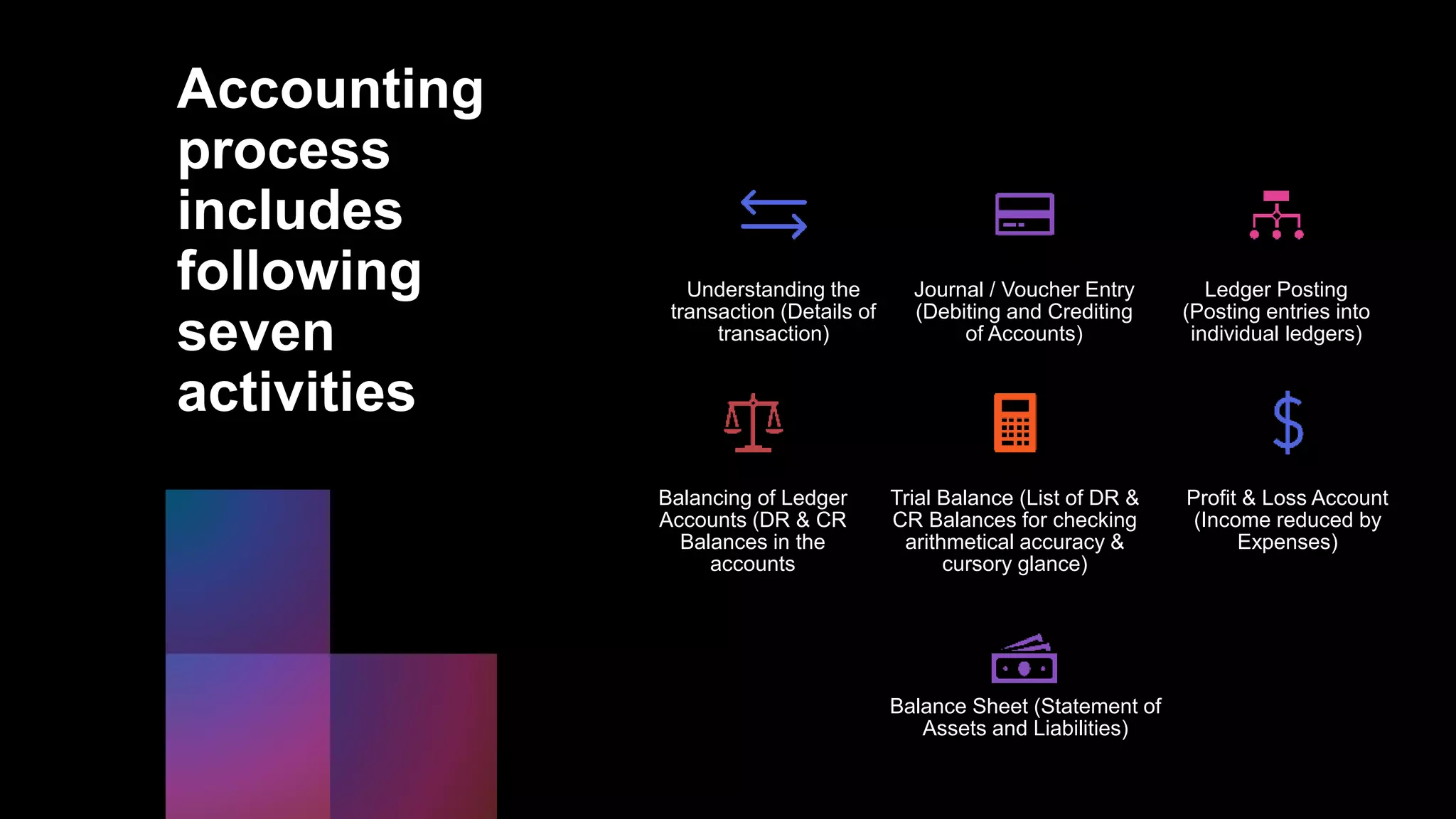
Accounting
process
includes
following
seven
activities
Understanding the
transaction (Details of
transaction)
Journal / Voucher Entry
(Debiting and Crediting
of Accounts)
Ledger Posting
(Posting entries into
individual ledgers)
Balancing of Ledger
Accounts (DR & CR
Balances in the
accounts
Trial Balance (List of DR &
CR Balances for checking
arithmetical accuracy &
cursory glance)
Profit & Loss Account
(Income reduced by
Expenses)
Balance Sheet (Statement of
Assets and Liabilities)
Why accounting software needed?
In case of manual accounting, all the seven activities are carried out by human beings, i.e.
accountants. But in case of accounting software, out of the above seven activities, following two
activities only are performed by human beings, i.e.
1. Understanding the Transactions
2. Voucher Entry
Remaining five activities, i.e.
1. Posting,
2. Balancing,
3. Trial Balance
4. Profit & Loss Account
5. Balance Sheet
are performed by software automatically. In some special cases, even Voucher Entry job can also be
assigned to software without any human intervention.
Introduction of
Tally Prime
• Tally Prime is a complete
business management
software for small and
medium business. Tally
Prime helps you manage
accounting, inventory,
banking, taxation, banking,
payroll and much more to
get rid of complexities, and
in turn, focus on business
growth.
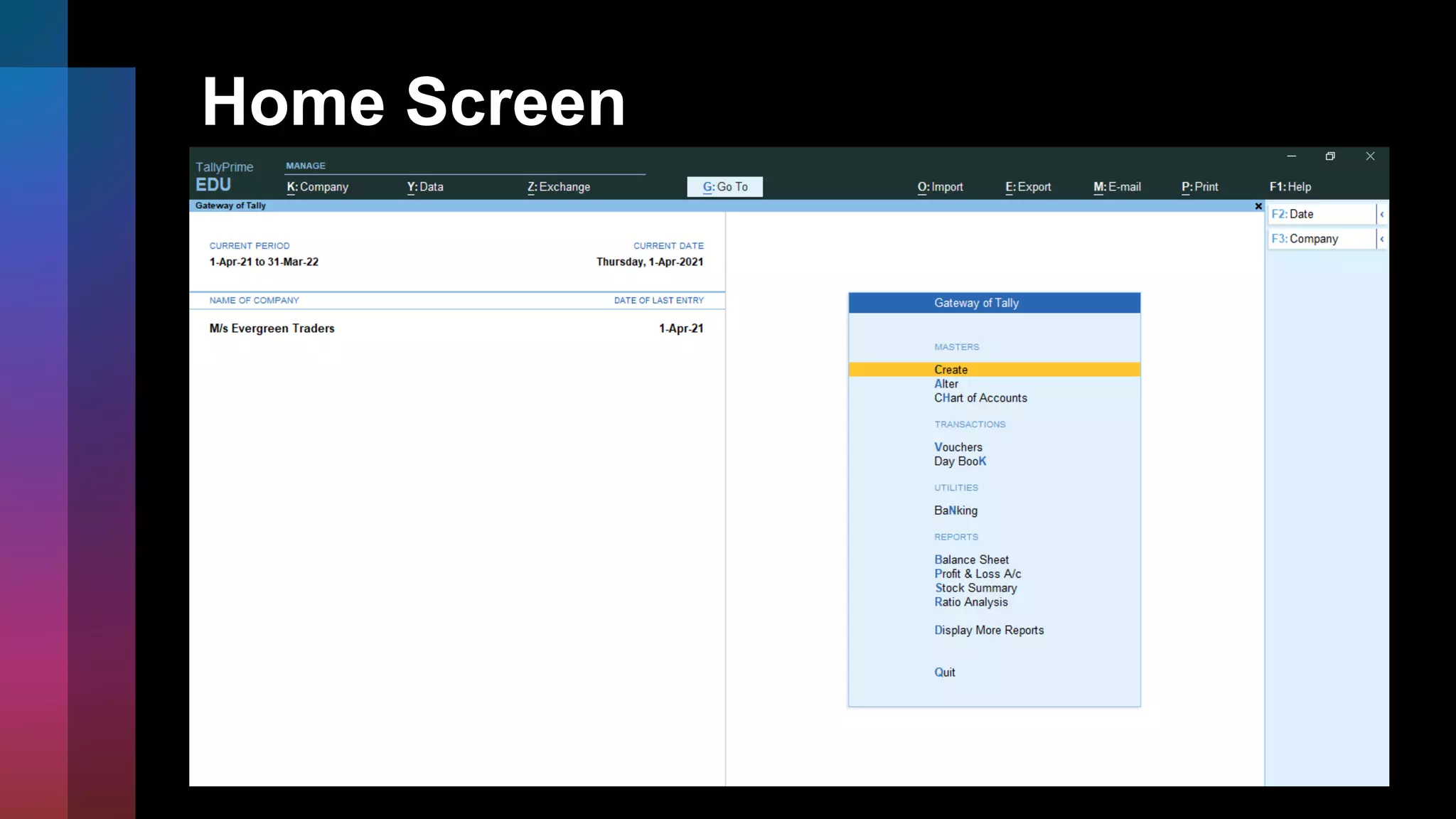
Home Screen
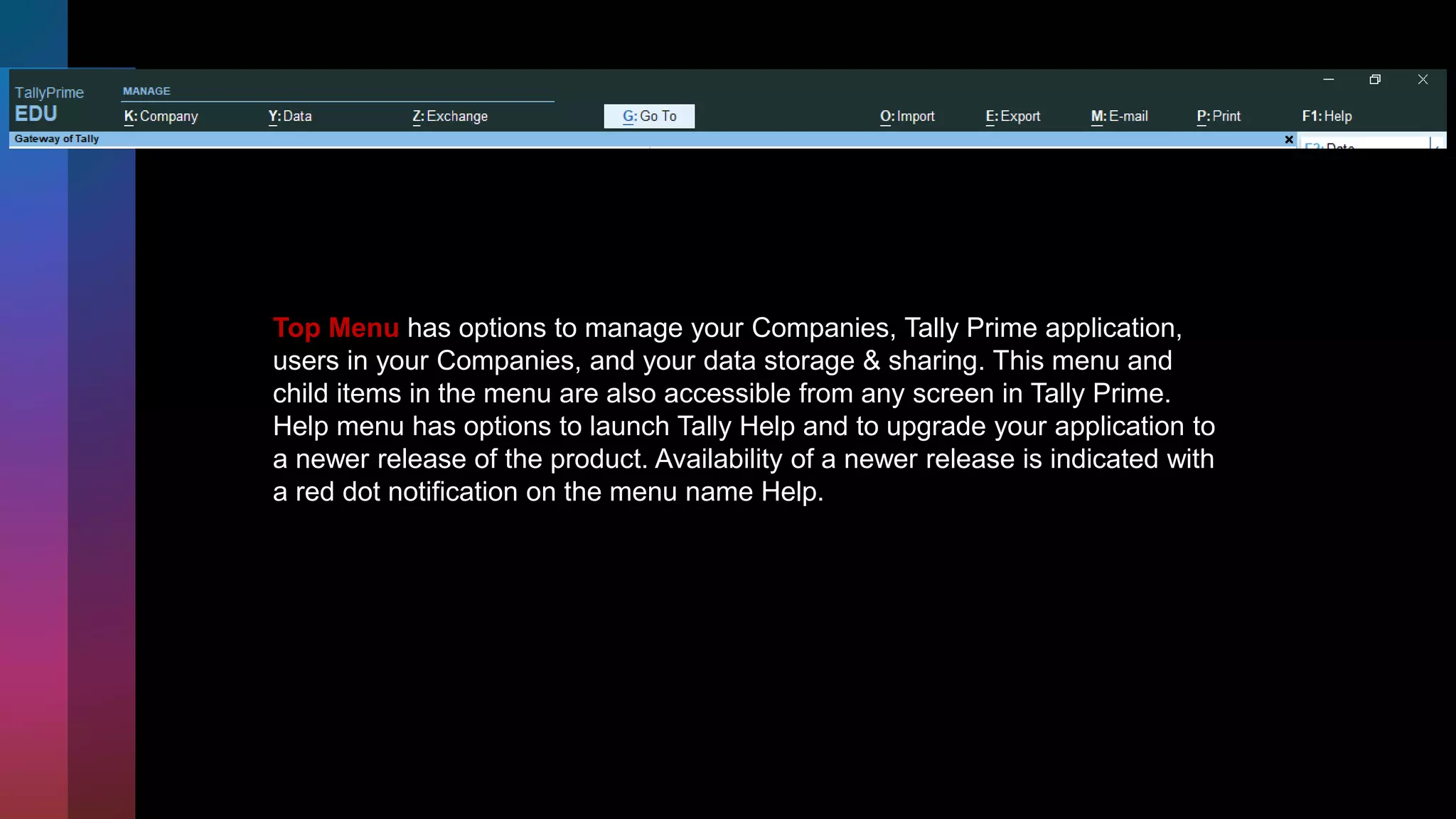
Top Menu has options to manage your Companies, Tally Prime application,
users in your Companies, and your data storage & sharing. This menu and
child items in the menu are also accessible from any screen in Tally Prime.
Help menu has options to launch Tally Help and to upgrade your application to
a newer release of the product. Availability of a newer release is indicated with
a red dot notification on the menu name Help.
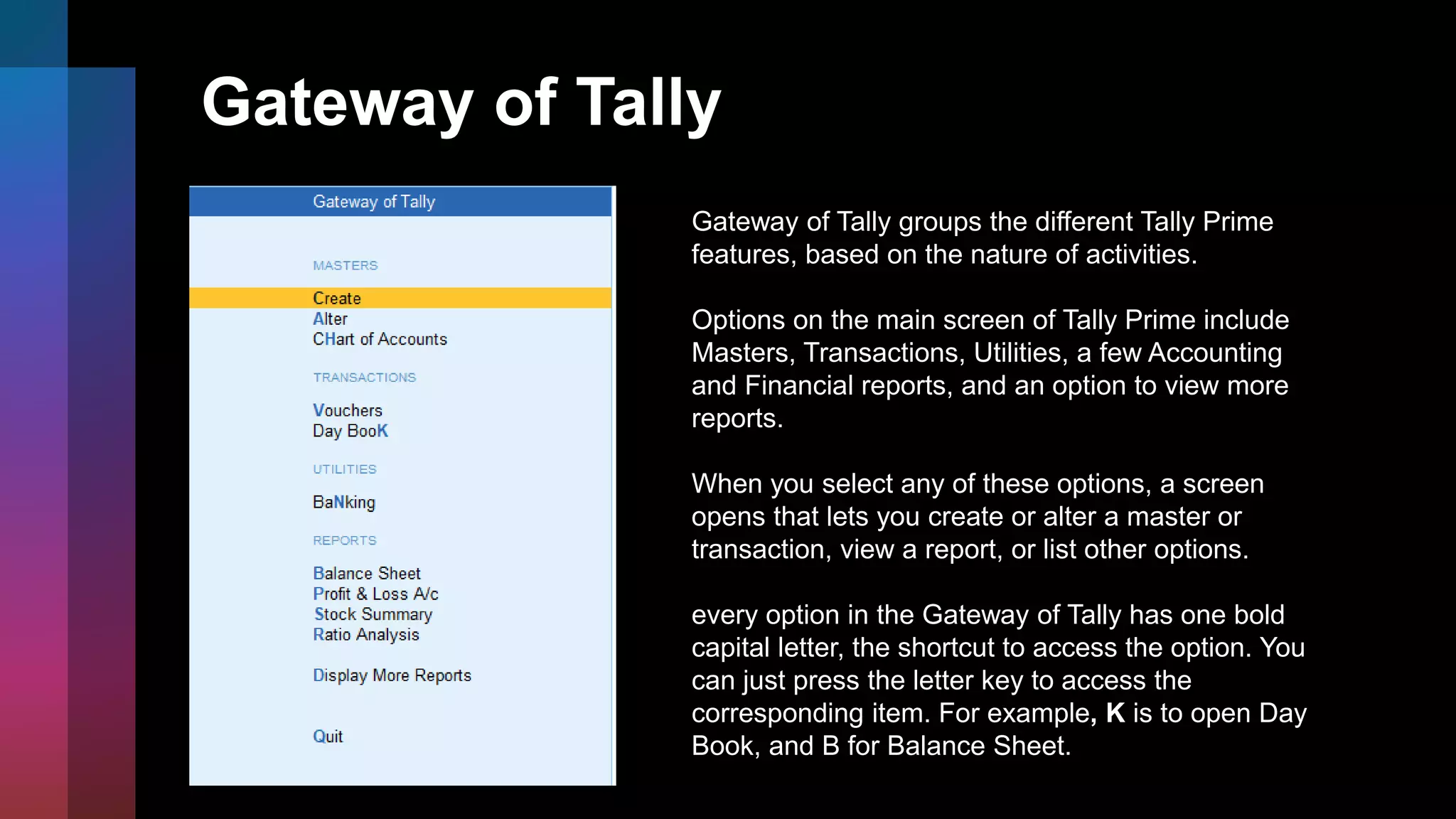
Gateway of Tally
Gateway of Tally groups the different Tally Prime
features, based on the nature of activities.
Options on the main screen of Tally Prime include
Masters, Transactions, Utilities, a few Accounting
and Financial reports, and an option to view more
reports.
When you select any of these options, a screen
opens that lets you create or alter a master or
transaction, view a report, or list other options.
every option in the Gateway of Tally has one bold
capital letter, the shortcut to access the option. You
can just press the letter key to access the
corresponding item. For example, K is to open Day
Book, and B for Balance Sheet.
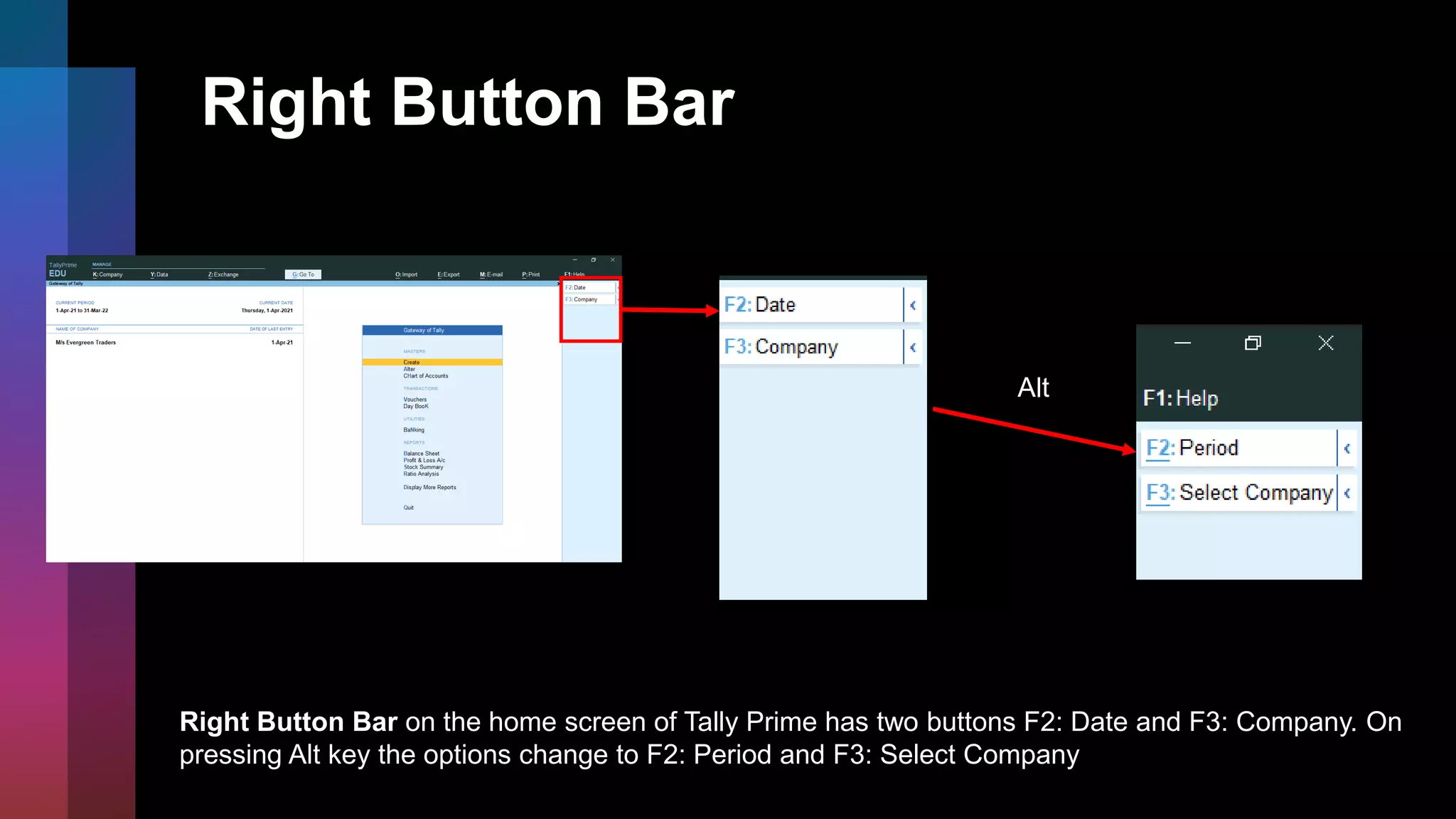
Right Button Bar
Alt
Right Button Bar on the home screen of Tally Prime has two buttons F2: Date and F3: Company. On
pressing Alt key the options change to F2: Period and F3: Select Company
More about the buttons on the
right button bar
F2, F3, F12 options – remain constant on all screens,
transactions, masters and reports.
F4 to F10 – each one has a preset but different action in
transactions, masters, and reports.
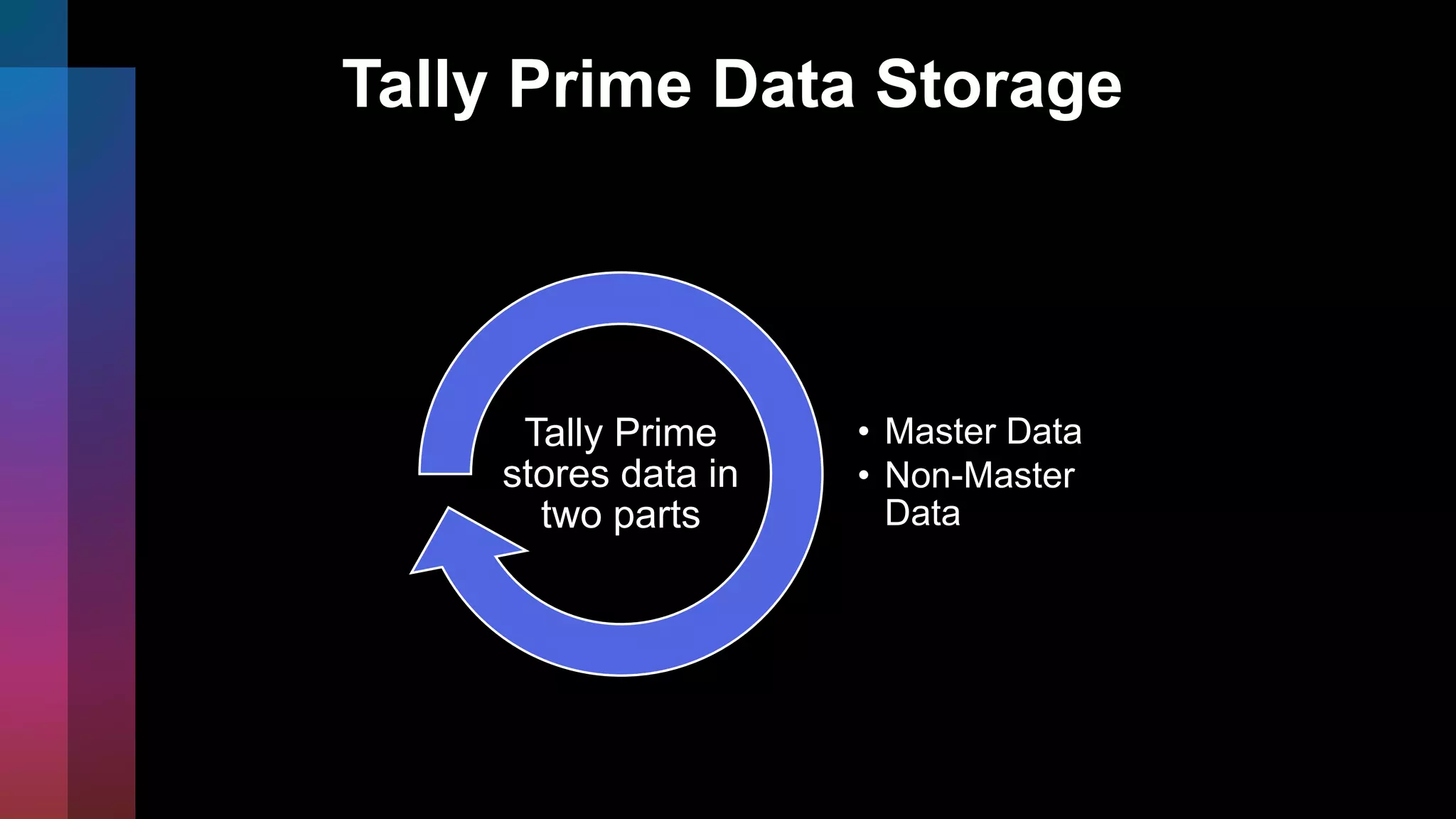
Tally Prime Data Storage
• Master Data
• Non-Master
Data
Tally Prime
stores data in
two parts
Voucher Types
Inactive voucher can be
activated by clicking it
and select Yes.
Type of Master Data
Create a Company in TallyPrime
1. Press Alt+K > Create.
2. Alternatively, at the Gateway of Tally, press F3 >
Create Company.
3. The Company Creation screen appears.
4. Enter the Company Name.
5. Notice that a few fields are auto-filled. You can change
any of these values as needed.
6. Enter the details or verify the auto-filled details.
7. You can change these values later as needed.
However, be careful about choosingthe Financial year
beginning from and Books beginning from dates.
Create Ledgers & Groups
Ledgers in TallyPrime are similar to the ledgers that you
use in the books of accounts. There are two default
ledgers – Cash and Profit & Loss A/c.
Go to Gateway of Tally > Create > Ledger or Alt+G (Go
To) > Create Master > Ledger.
Groups are available in TallyPrime by default to classify
the ledgers. There are 28 default Groups, like Bank
Accounts, Indirect Expenses, and so on.
Go to Gateway of Tally > Create > Group or Alt+G (Go
To) > Create Master > Group.
Gateway of Tally Create
Create Stock Items, Stock Groups, and
Stock Categories
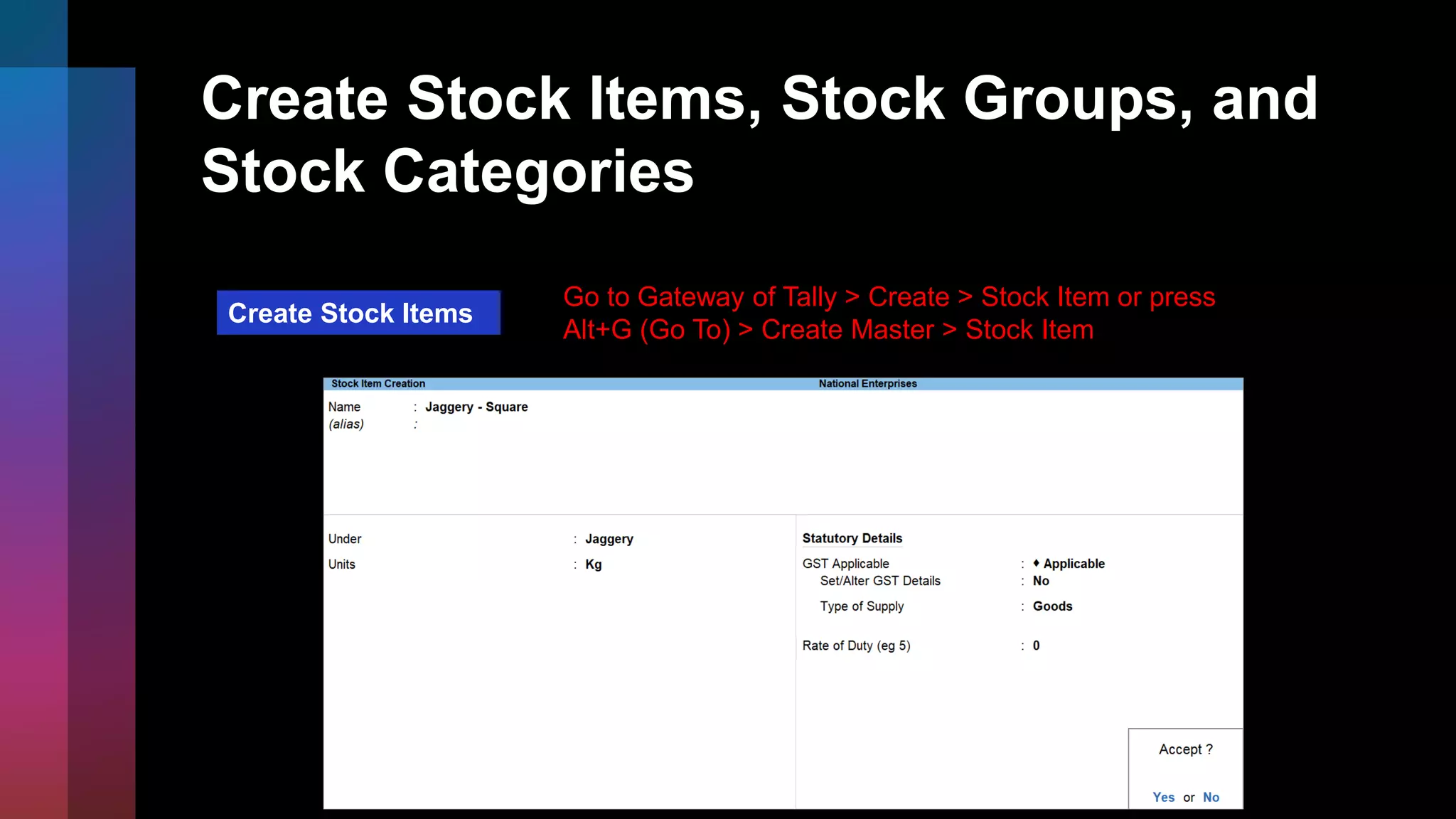
Create Stock Items
Go to Gateway of Tally > Create > Stock Item or press
Alt+G (Go To) > Create Master > Stock Item
Create Stock Items, Stock Groups, and
Stock Categories
Create Stock Groups
Go to Gateway of Tally > Create > Stock Group or
Alt+G (Go To) > Create Master > Stock Group
Create Stock Items, Stock Groups, and
Stock Categories
Create Stock Categories
Go to Gateway of Tally > Create > Stock Category or
Alt+G (Go To) > Create Master > Stock Category
Create Units
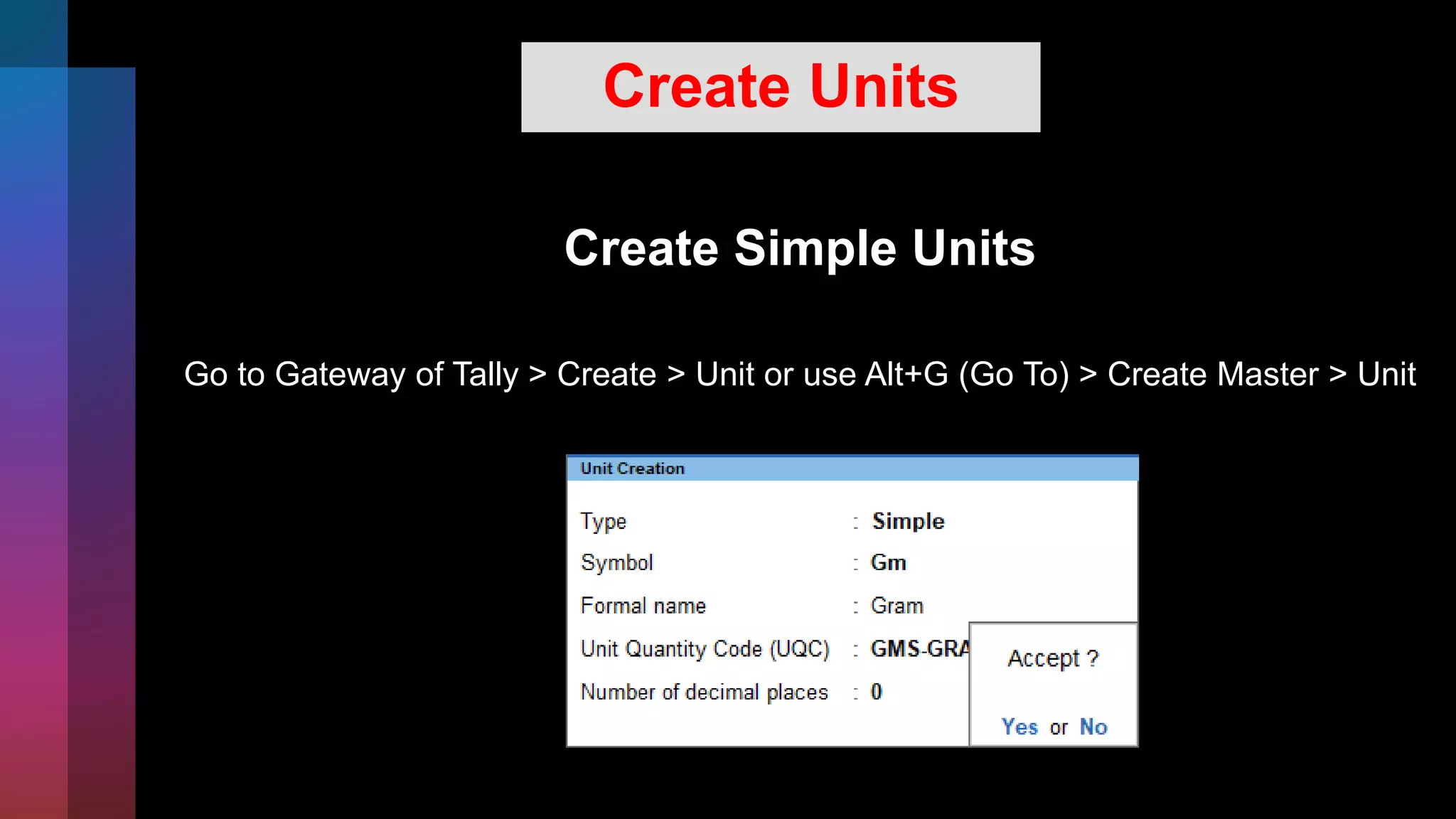
Create Simple Units
Go to Gateway of Tally > Create > Unit or use Alt+G (Go To) > Create Master > Unit
Create Units
Create Compound Units
1. Go to Gateway of Tally > Create > Unit or use Alt+G (Go To) > Create Master > Unit.
2. Press Backspace and select Compound if the Type selected is Simple.
3. Enter the Compound Unit as the First unit. For example, Kg.
4. Enter the Conversion factor. For example, 1000.
Alter or Delete Masters
Alter Masters
1. Go to Gateway of Tally > Alter or use Alt+G (Go To) > Alter Master > select the
type of master under which the required master exists > select the master you
want to alter.
2. Update the details as needed and save.
Alter or Delete Masters
Delete Masters
1. Go to Gateway of Tally > Alter or use Alt+G (Go To) > Alter Master > select the
type of master
under which the required master exists > select the master you want to delete.
2. Press Alt+D. A message appears asking confirmation to delete.
3. Press Y
Record Transactions in Different Modes | Change Mode
Double Entry/Voucher Mode
Press Press Ctrl+H (Change Mode) > select Double Entry
Ensure Ensure that the screen is in Voucher Mode.
Select You can select any type voucher using the right button
options.
Press Press Alt+G (Go To) > Create Voucher or Gateway of Tally >
Vouchers, and press F5 (Payment).
Open Open the voucher screen.
Record Transactions in Different Modes | Change Mode
Accounting Invoice /Item Invoice Mode
1. Open the voucher screen.
2. Press Alt+G (Go To) > Create Voucher or Gateway of
Tally > Vouchers, and press F8 (Sales).
3. You can select any type of voucher using the right
button options.
4. Ensure that the screen is in Accounting Invoice Mode.
5. Press Ctrl+H (Change Mode) > select Accounting
Invoice Mode/Item Invoice
Alter or Delete Transactions
Alter Transactions
1. Go to Gateway of Tally > Vouchers or use Alt+G (Go To) > Voucher Reports > select the
required report, and drill down to the voucher.
Alternatively, you can open any report that shows the required voucher, drill down to the
voucher and alter it.
2. Update the details as needed and save.
Alter or Delete Transactions
Delete Transactions
1. Go to Gateway of Tally > Vouchers or use Alt+G (Go To) >
Voucher Reports > select the required report, and drill down to
the voucher.
2. Press Alt+D. A message appears asking confirmation to delete.
3. Press Y.
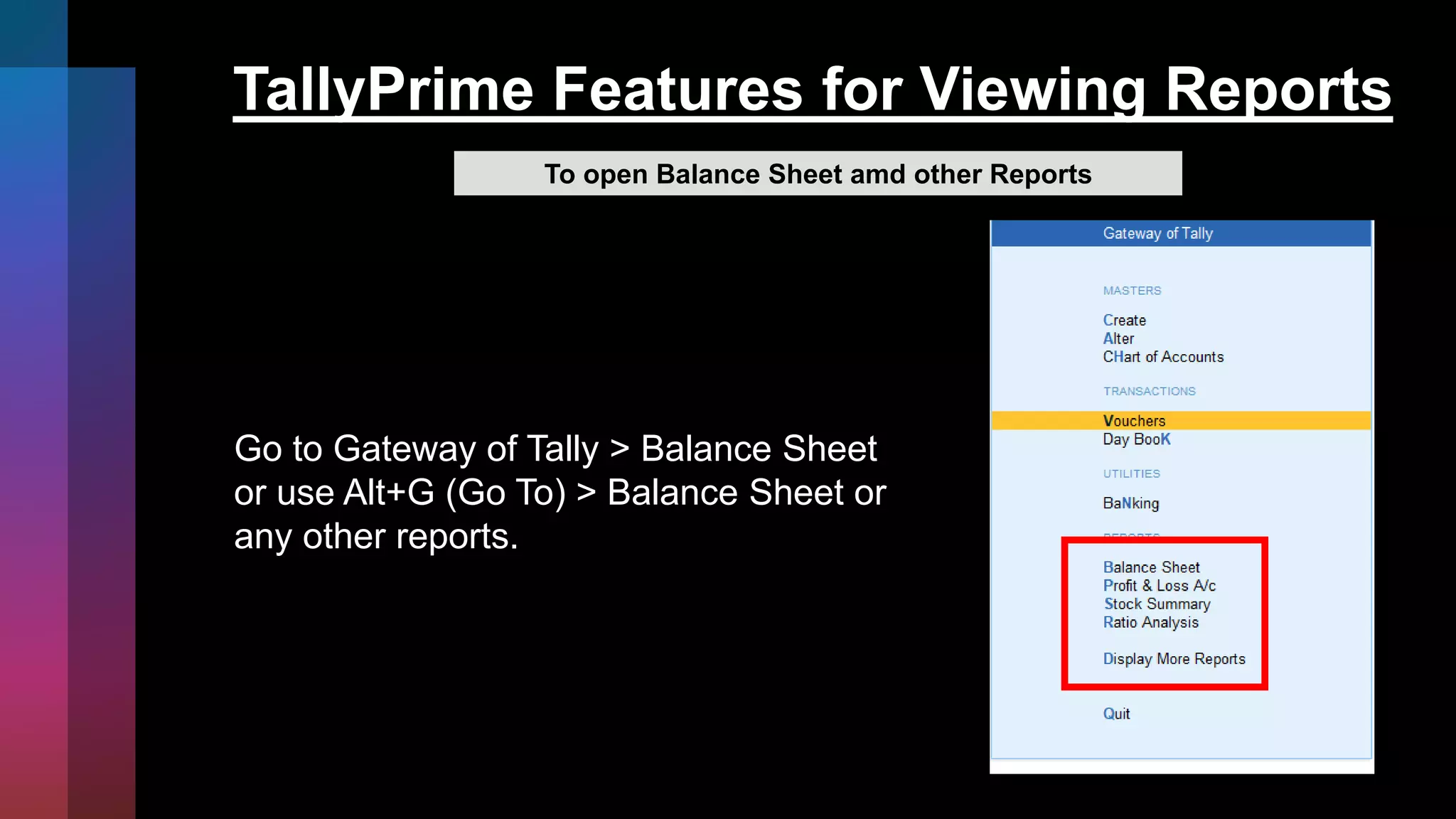
TallyPrime Features for Viewing Reports
To open Balance Sheet amd other Reports
Go to Gateway of Tally > Balance Sheet
or use Alt+G (Go To) > Balance Sheet or
any other reports.
tally ppt.pptx

tally ppt.pptx

  • 1.
    NAME : SOURAV BATCH: NOIDA (238) REGISTRATION NO : NRO0476945
  • 2.
  • 3.
    What is accountingsoftware? It is a system that automatically carries out “Mechanical Activities” in accounting process. Accounting being the backbone of any business, accounting software becomes the most important part of office automation activities.
  • 4.
    Accounting process includes following seven activities Understanding the transaction (Detailsof transaction) Journal / Voucher Entry (Debiting and Crediting of Accounts) Ledger Posting (Posting entries into individual ledgers) Balancing of Ledger Accounts (DR & CR Balances in the accounts Trial Balance (List of DR & CR Balances for checking arithmetical accuracy & cursory glance) Profit & Loss Account (Income reduced by Expenses) Balance Sheet (Statement of Assets and Liabilities)
  • 5.
    Why accounting softwareneeded? In case of manual accounting, all the seven activities are carried out by human beings, i.e. accountants. But in case of accounting software, out of the above seven activities, following two activities only are performed by human beings, i.e. 1. Understanding the Transactions 2. Voucher Entry Remaining five activities, i.e. 1. Posting, 2. Balancing, 3. Trial Balance 4. Profit & Loss Account 5. Balance Sheet are performed by software automatically. In some special cases, even Voucher Entry job can also be assigned to software without any human intervention.
  • 6.
    Introduction of Tally Prime •Tally Prime is a complete business management software for small and medium business. Tally Prime helps you manage accounting, inventory, banking, taxation, banking, payroll and much more to get rid of complexities, and in turn, focus on business growth.
  • 7.
  • 8.
    Top Menu hasoptions to manage your Companies, Tally Prime application, users in your Companies, and your data storage & sharing. This menu and child items in the menu are also accessible from any screen in Tally Prime. Help menu has options to launch Tally Help and to upgrade your application to a newer release of the product. Availability of a newer release is indicated with a red dot notification on the menu name Help.
  • 9.
    Gateway of Tally Gatewayof Tally groups the different Tally Prime features, based on the nature of activities. Options on the main screen of Tally Prime include Masters, Transactions, Utilities, a few Accounting and Financial reports, and an option to view more reports. When you select any of these options, a screen opens that lets you create or alter a master or transaction, view a report, or list other options. every option in the Gateway of Tally has one bold capital letter, the shortcut to access the option. You can just press the letter key to access the corresponding item. For example, K is to open Day Book, and B for Balance Sheet.
  • 10.
    Right Button Bar Alt RightButton Bar on the home screen of Tally Prime has two buttons F2: Date and F3: Company. On pressing Alt key the options change to F2: Period and F3: Select Company
  • 11.
    More about thebuttons on the right button bar F2, F3, F12 options – remain constant on all screens, transactions, masters and reports. F4 to F10 – each one has a preset but different action in transactions, masters, and reports.
  • 12.
    Tally Prime DataStorage • Master Data • Non-Master Data Tally Prime stores data in two parts
  • 13.
    Voucher Types Inactive vouchercan be activated by clicking it and select Yes.
  • 14.
  • 15.
    Create a Companyin TallyPrime 1. Press Alt+K > Create. 2. Alternatively, at the Gateway of Tally, press F3 > Create Company. 3. The Company Creation screen appears. 4. Enter the Company Name. 5. Notice that a few fields are auto-filled. You can change any of these values as needed. 6. Enter the details or verify the auto-filled details. 7. You can change these values later as needed. However, be careful about choosingthe Financial year beginning from and Books beginning from dates.
  • 16.
    Create Ledgers &Groups Ledgers in TallyPrime are similar to the ledgers that you use in the books of accounts. There are two default ledgers – Cash and Profit & Loss A/c. Go to Gateway of Tally > Create > Ledger or Alt+G (Go To) > Create Master > Ledger. Groups are available in TallyPrime by default to classify the ledgers. There are 28 default Groups, like Bank Accounts, Indirect Expenses, and so on. Go to Gateway of Tally > Create > Group or Alt+G (Go To) > Create Master > Group. Gateway of Tally Create
  • 17.
    Create Stock Items,Stock Groups, and Stock Categories Create Stock Items Go to Gateway of Tally > Create > Stock Item or press Alt+G (Go To) > Create Master > Stock Item
  • 18.
    Create Stock Items,Stock Groups, and Stock Categories Create Stock Groups Go to Gateway of Tally > Create > Stock Group or Alt+G (Go To) > Create Master > Stock Group
  • 19.
    Create Stock Items,Stock Groups, and Stock Categories Create Stock Categories Go to Gateway of Tally > Create > Stock Category or Alt+G (Go To) > Create Master > Stock Category
  • 20.
    Create Units Create SimpleUnits Go to Gateway of Tally > Create > Unit or use Alt+G (Go To) > Create Master > Unit
  • 21.
    Create Units Create CompoundUnits 1. Go to Gateway of Tally > Create > Unit or use Alt+G (Go To) > Create Master > Unit. 2. Press Backspace and select Compound if the Type selected is Simple. 3. Enter the Compound Unit as the First unit. For example, Kg. 4. Enter the Conversion factor. For example, 1000.
  • 22.
    Alter or DeleteMasters Alter Masters 1. Go to Gateway of Tally > Alter or use Alt+G (Go To) > Alter Master > select the type of master under which the required master exists > select the master you want to alter. 2. Update the details as needed and save.
  • 23.
    Alter or DeleteMasters Delete Masters 1. Go to Gateway of Tally > Alter or use Alt+G (Go To) > Alter Master > select the type of master under which the required master exists > select the master you want to delete. 2. Press Alt+D. A message appears asking confirmation to delete. 3. Press Y
  • 24.
    Record Transactions inDifferent Modes | Change Mode Double Entry/Voucher Mode Press Press Ctrl+H (Change Mode) > select Double Entry Ensure Ensure that the screen is in Voucher Mode. Select You can select any type voucher using the right button options. Press Press Alt+G (Go To) > Create Voucher or Gateway of Tally > Vouchers, and press F5 (Payment). Open Open the voucher screen.
  • 25.
    Record Transactions inDifferent Modes | Change Mode Accounting Invoice /Item Invoice Mode 1. Open the voucher screen. 2. Press Alt+G (Go To) > Create Voucher or Gateway of Tally > Vouchers, and press F8 (Sales). 3. You can select any type of voucher using the right button options. 4. Ensure that the screen is in Accounting Invoice Mode. 5. Press Ctrl+H (Change Mode) > select Accounting Invoice Mode/Item Invoice
  • 26.
    Alter or DeleteTransactions Alter Transactions 1. Go to Gateway of Tally > Vouchers or use Alt+G (Go To) > Voucher Reports > select the required report, and drill down to the voucher. Alternatively, you can open any report that shows the required voucher, drill down to the voucher and alter it. 2. Update the details as needed and save.
  • 27.
    Alter or DeleteTransactions Delete Transactions 1. Go to Gateway of Tally > Vouchers or use Alt+G (Go To) > Voucher Reports > select the required report, and drill down to the voucher. 2. Press Alt+D. A message appears asking confirmation to delete. 3. Press Y.
  • 28.
    TallyPrime Features forViewing Reports To open Balance Sheet amd other Reports Go to Gateway of Tally > Balance Sheet or use Alt+G (Go To) > Balance Sheet or any other reports.