






Take Control of
 Technology
Get Ready
Here we go…
Stop hitting your head
      against the wall !


You don’t have to know everything –
   just use what works for you!
Discover at least one new
Learning Goal   site/tool that can help me
                personally or professionally
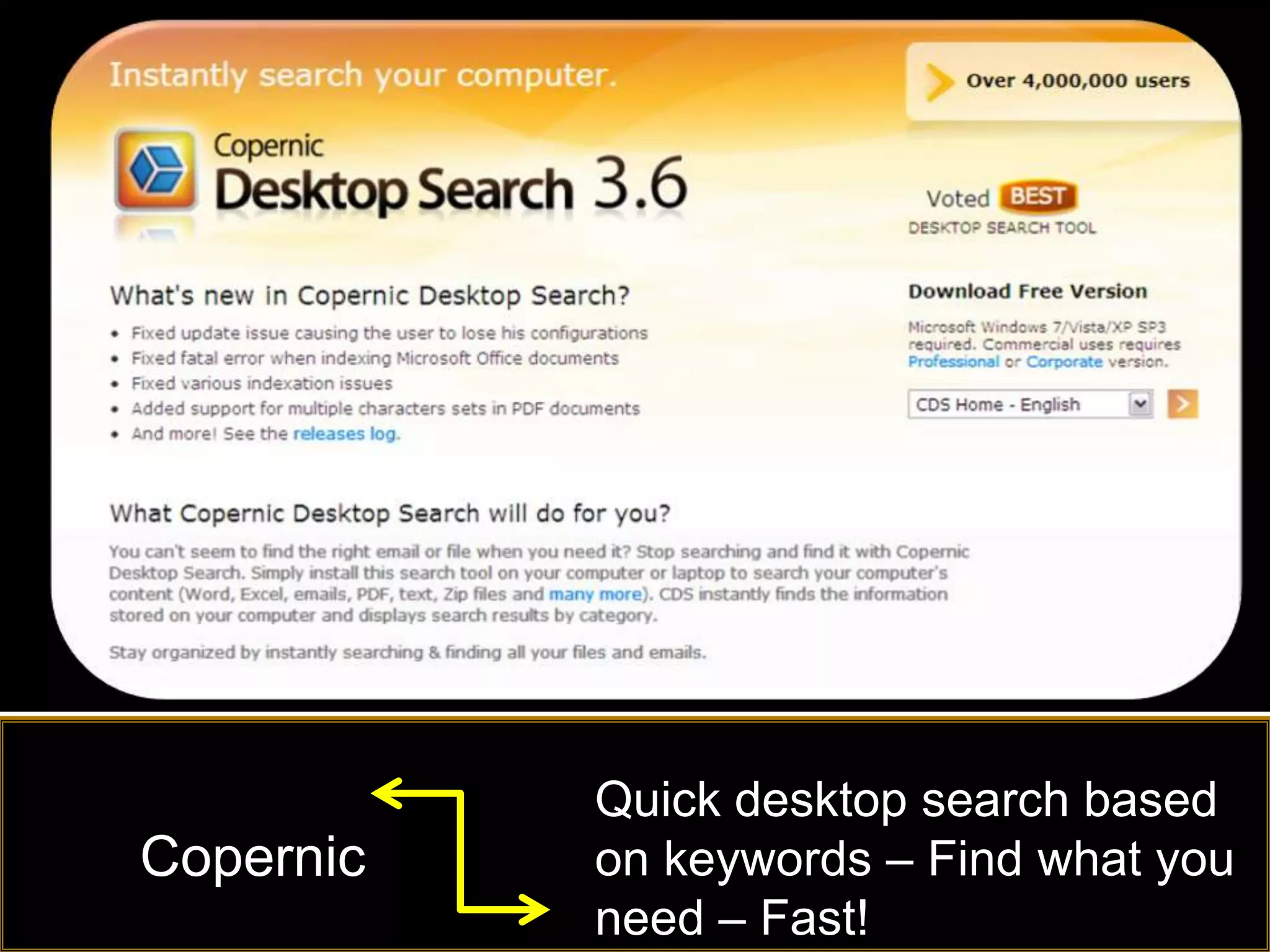
Quick desktop search based
Copernic   on keywords – Find what you
           need – Fast!
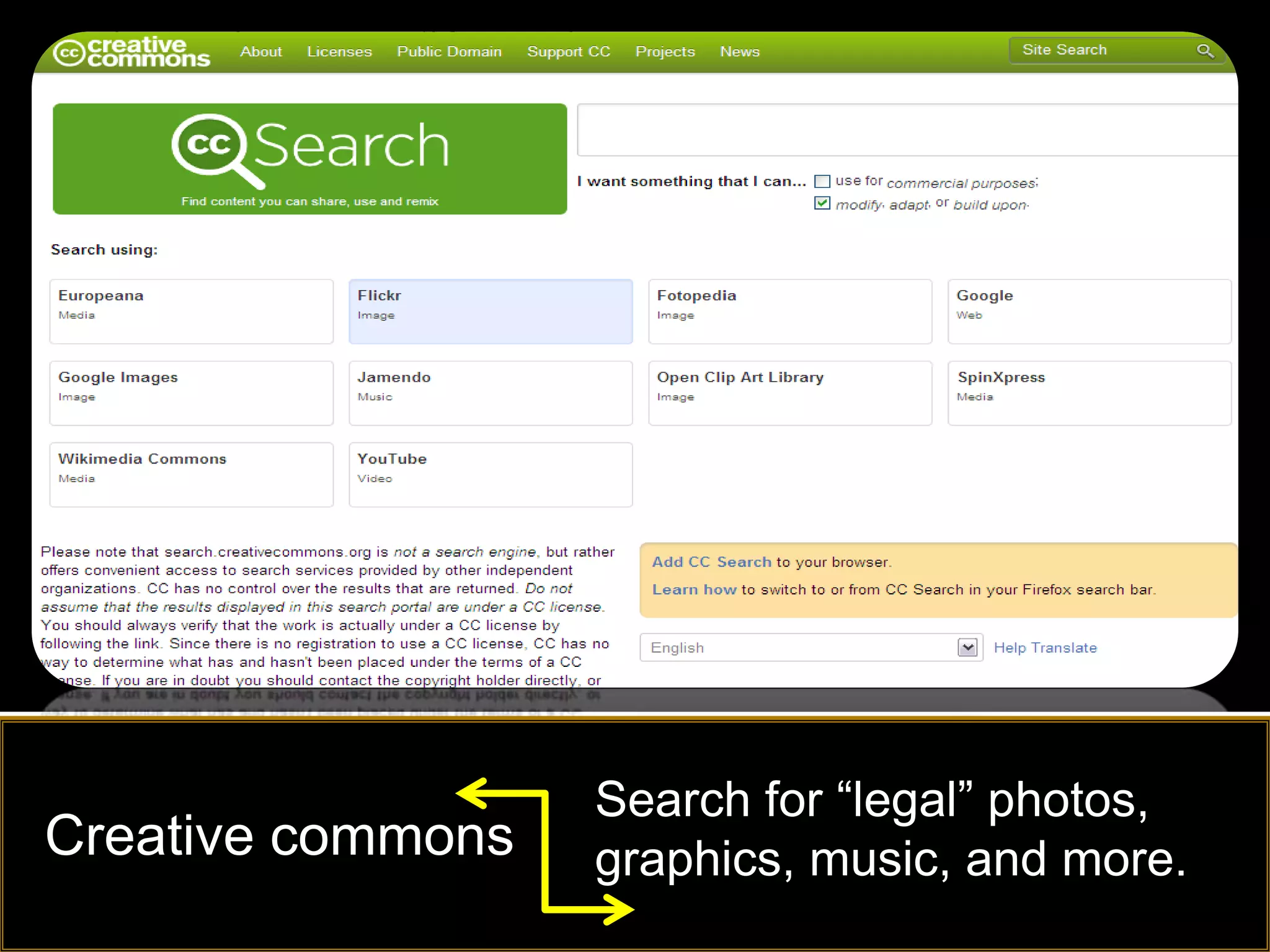
Search for “legal” photos,
Creative commons   graphics, music, and more.
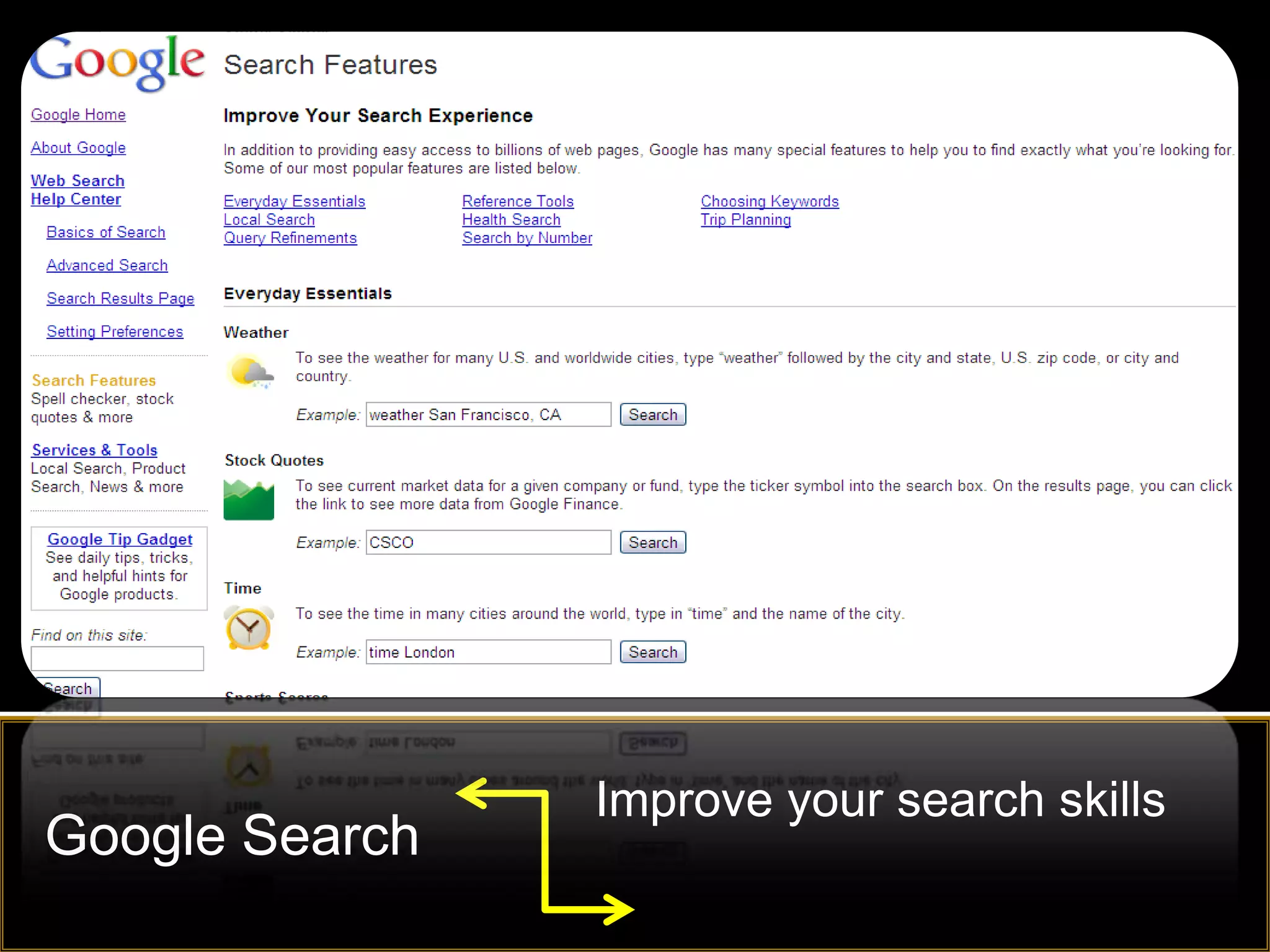
Improve your search skills
Google Search
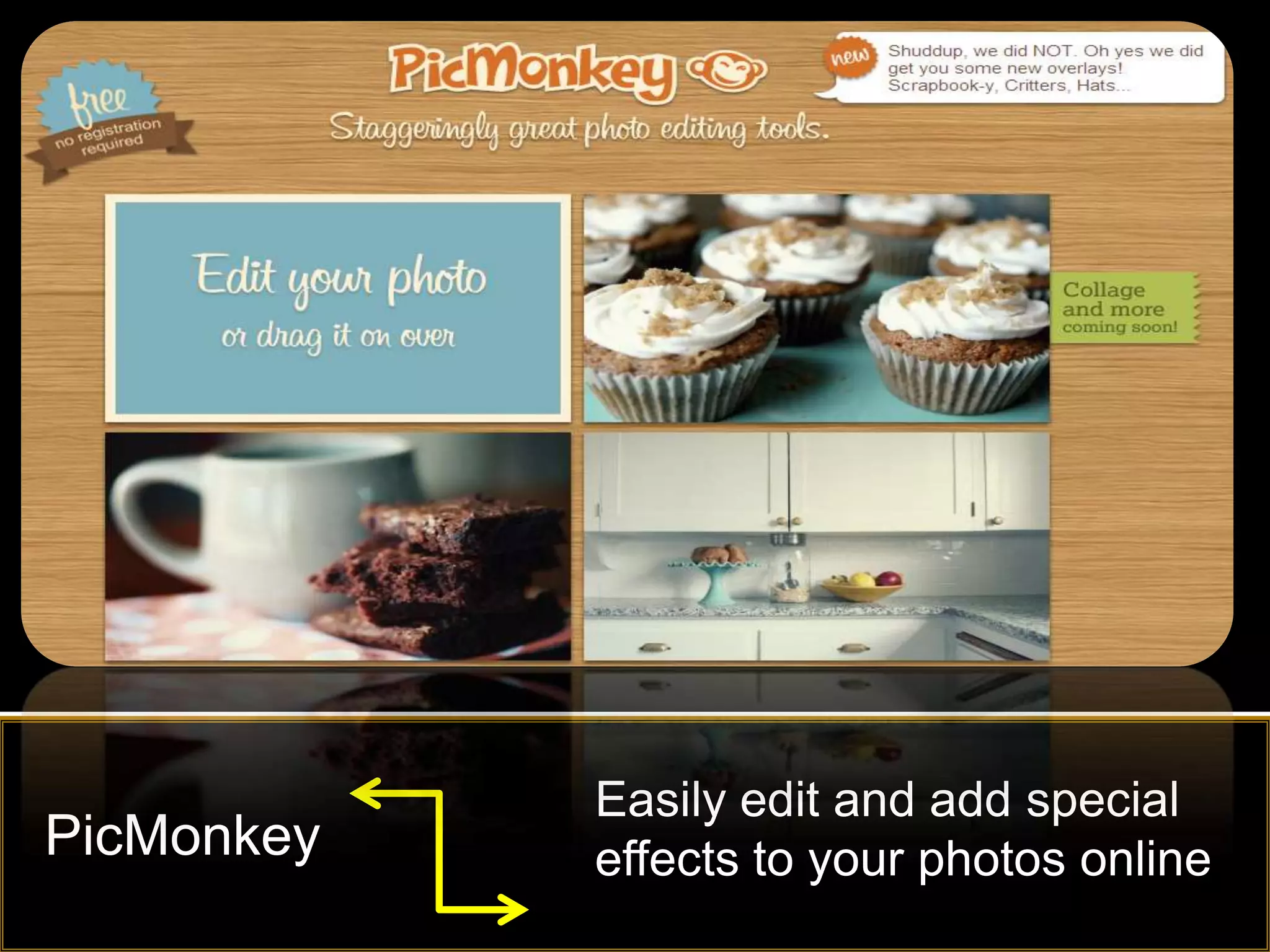
Easily edit and add special
PicMonkey   effects to your photos online
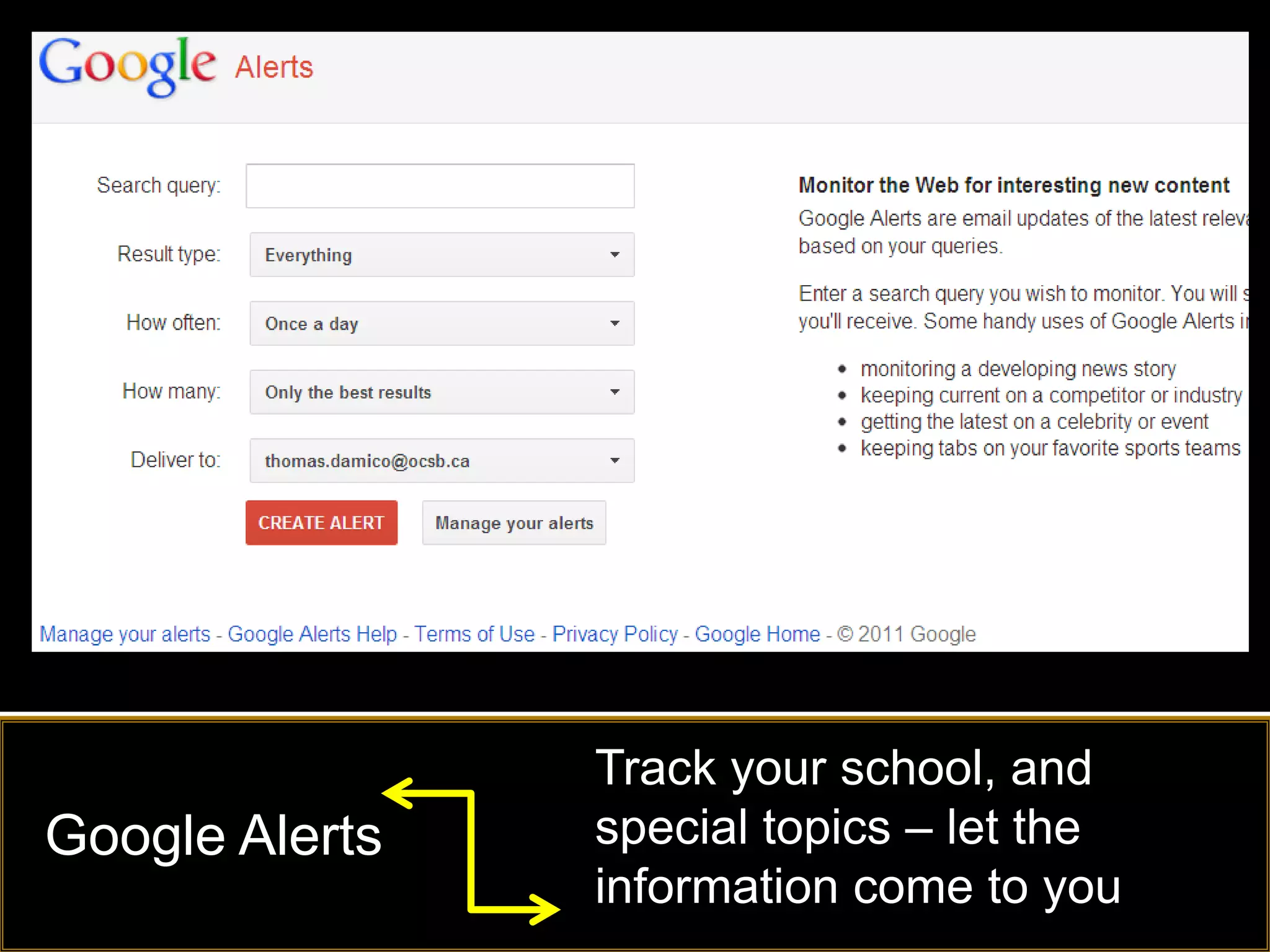
Track your school, and
Google Alerts   special topics – let the
                information come to you
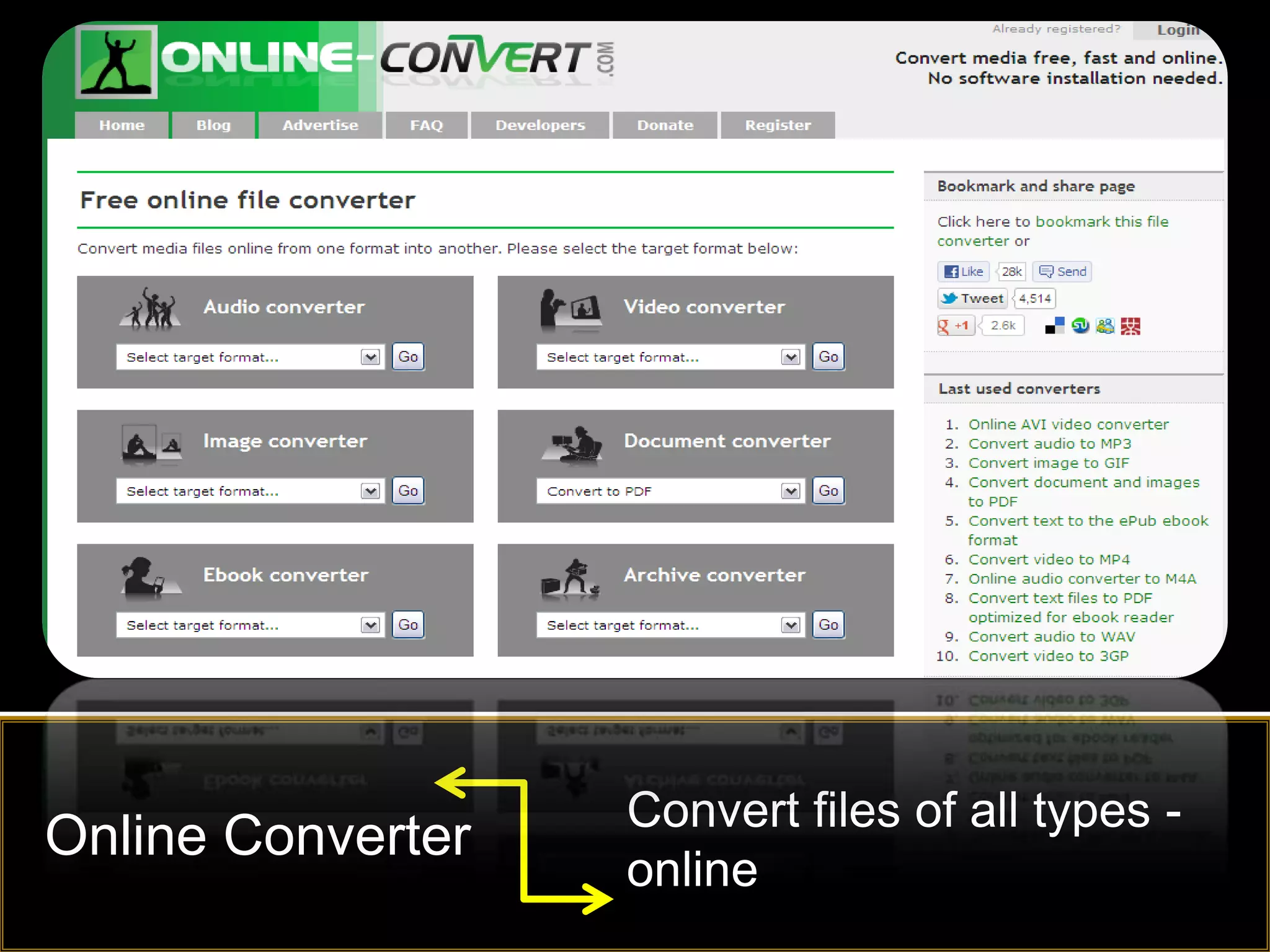
Convert files of all types -
Online Converter
                   online
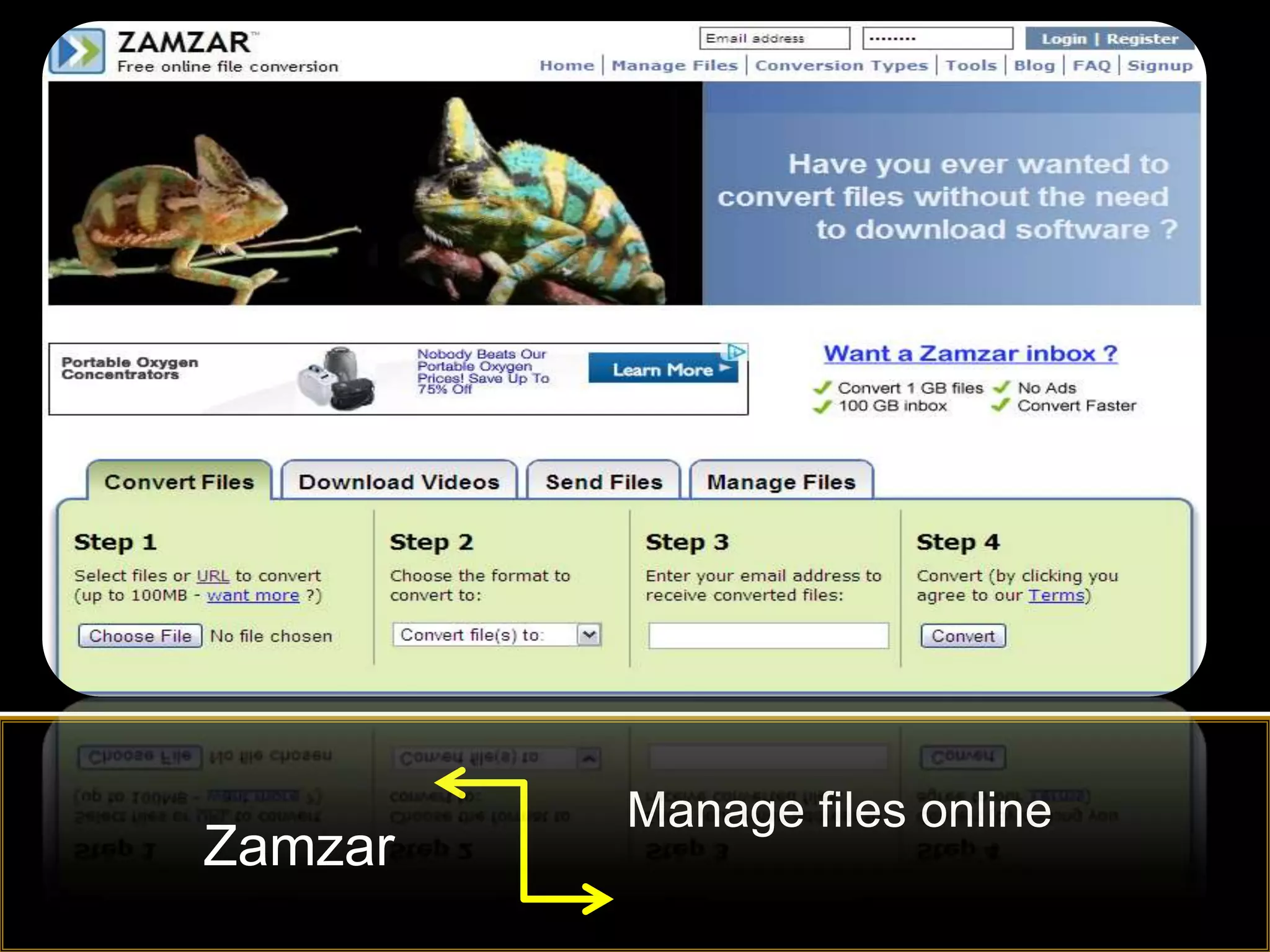
Manage files online
Zamzar
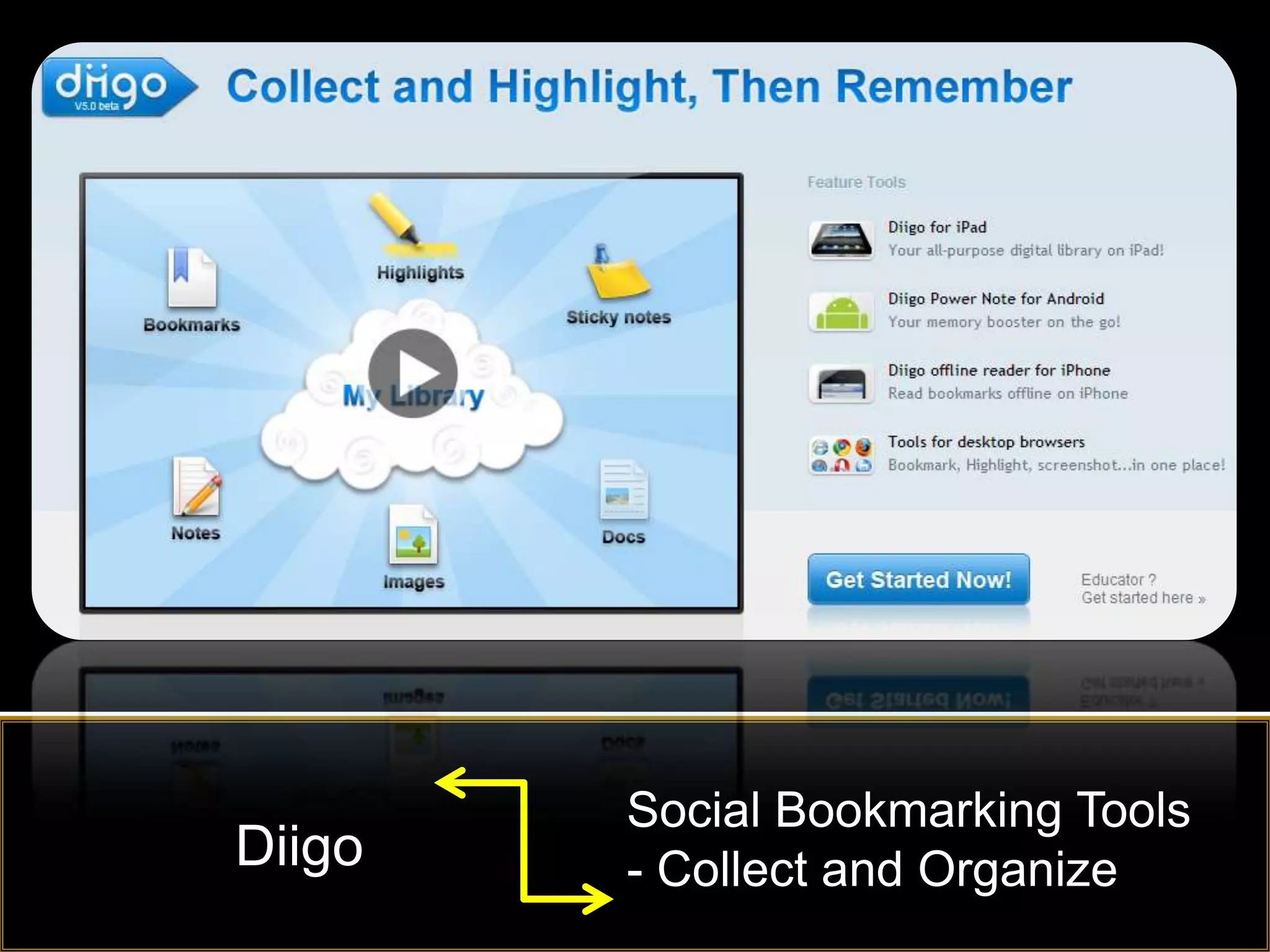
Social Bookmarking Tools
Diigo   - Collect and Organize
Click here for video


Does Email make
us more or less
efficient?
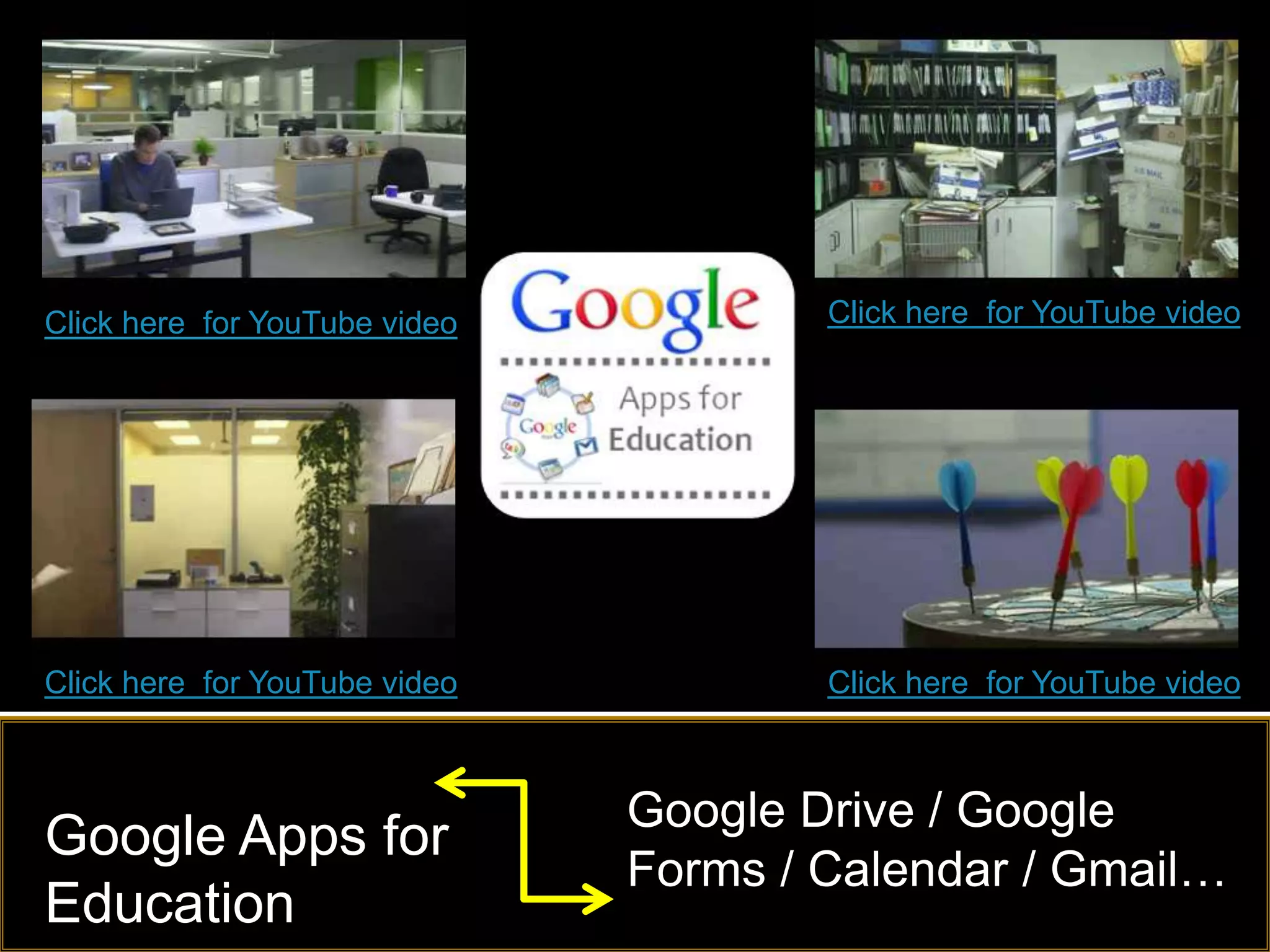
Click here for YouTube video           Click here for YouTube video


Click here for YouTube video           Click here for YouTube video


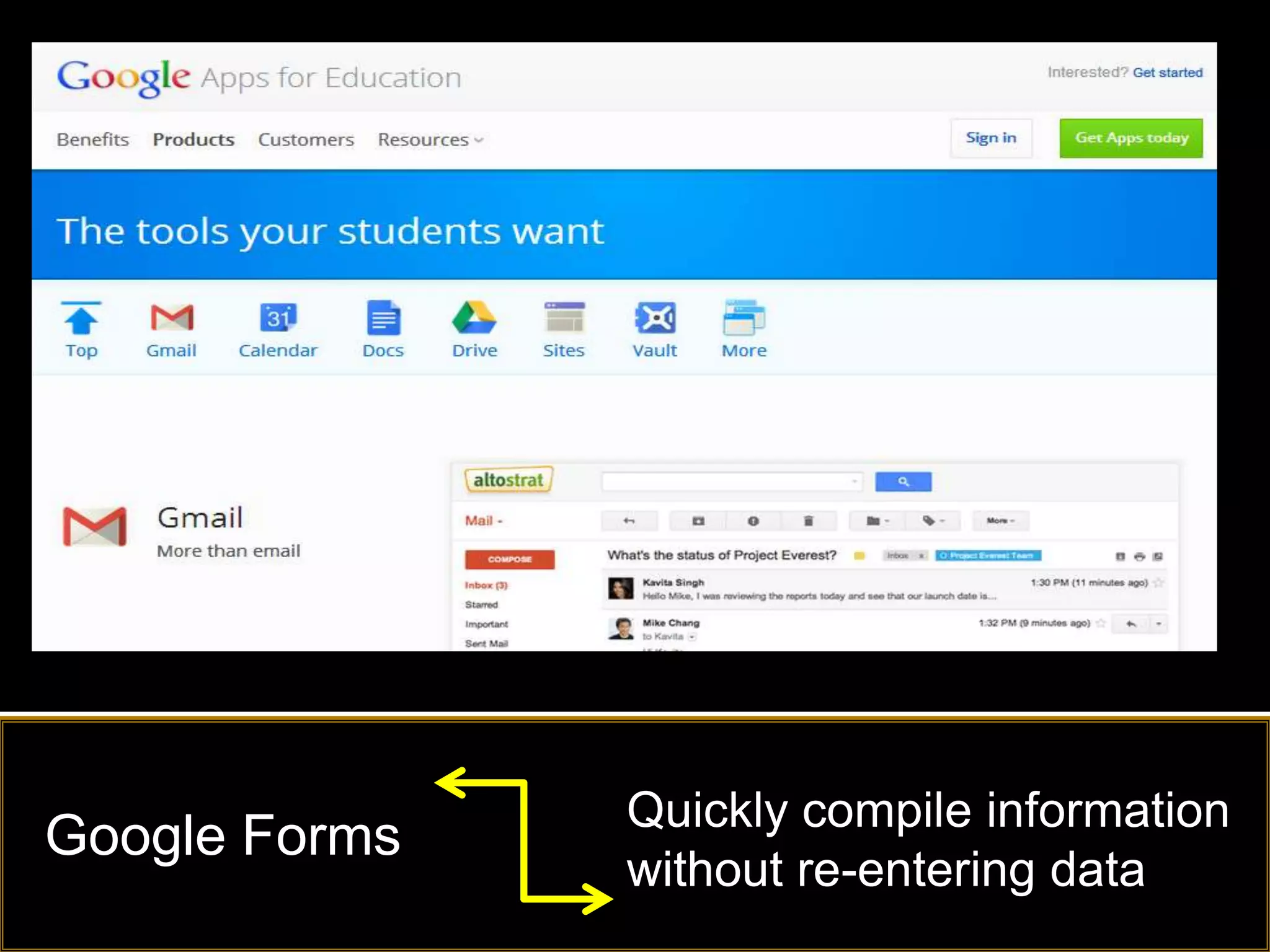
                               Google Drive / Google
Google Apps for
                               Forms / Calendar / Gmail…
Education
Store and Share files
Dropbox
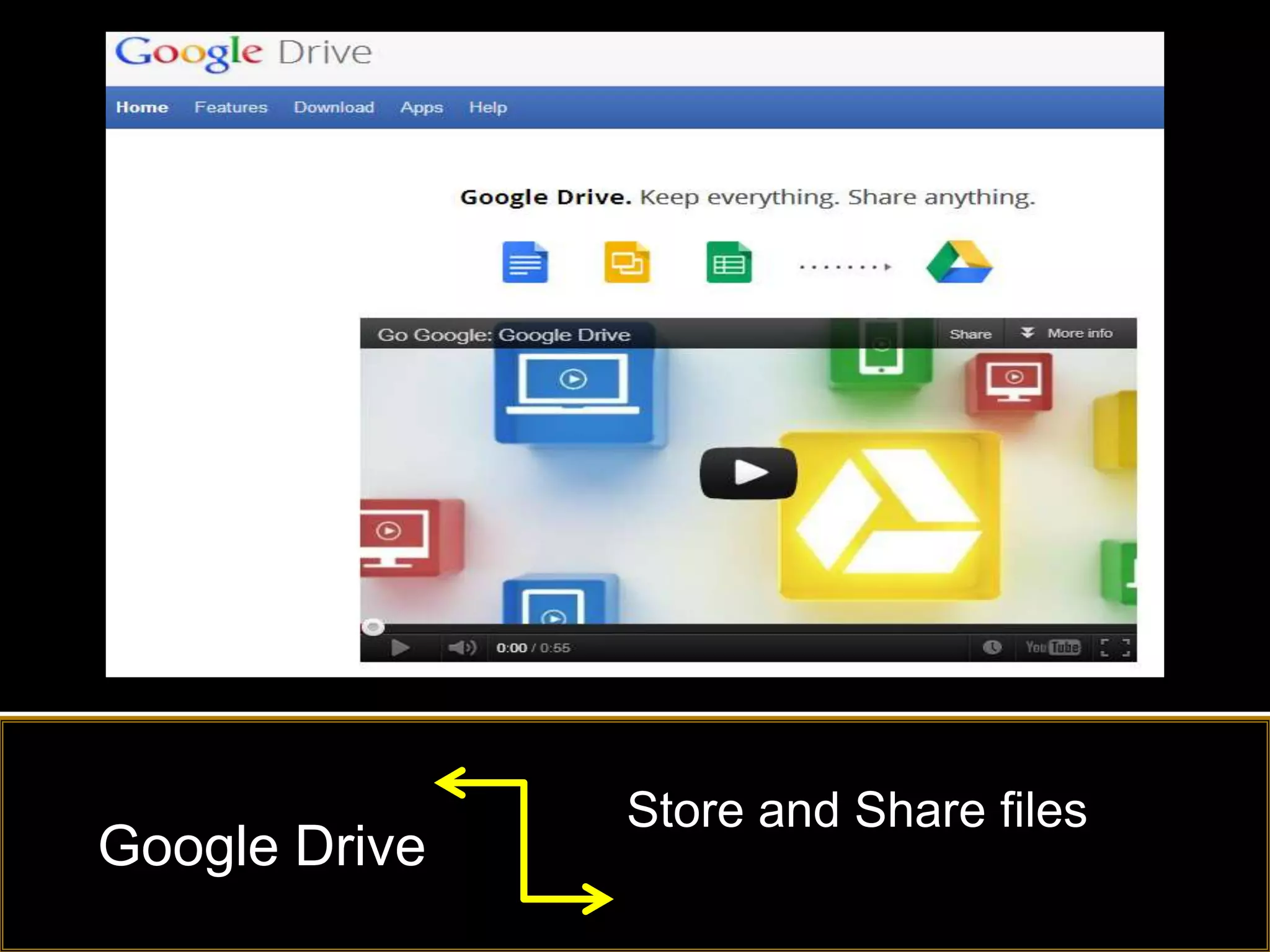
Store and Share files
Google Drive
Quickly compile information
Google Forms
               without re-entering data
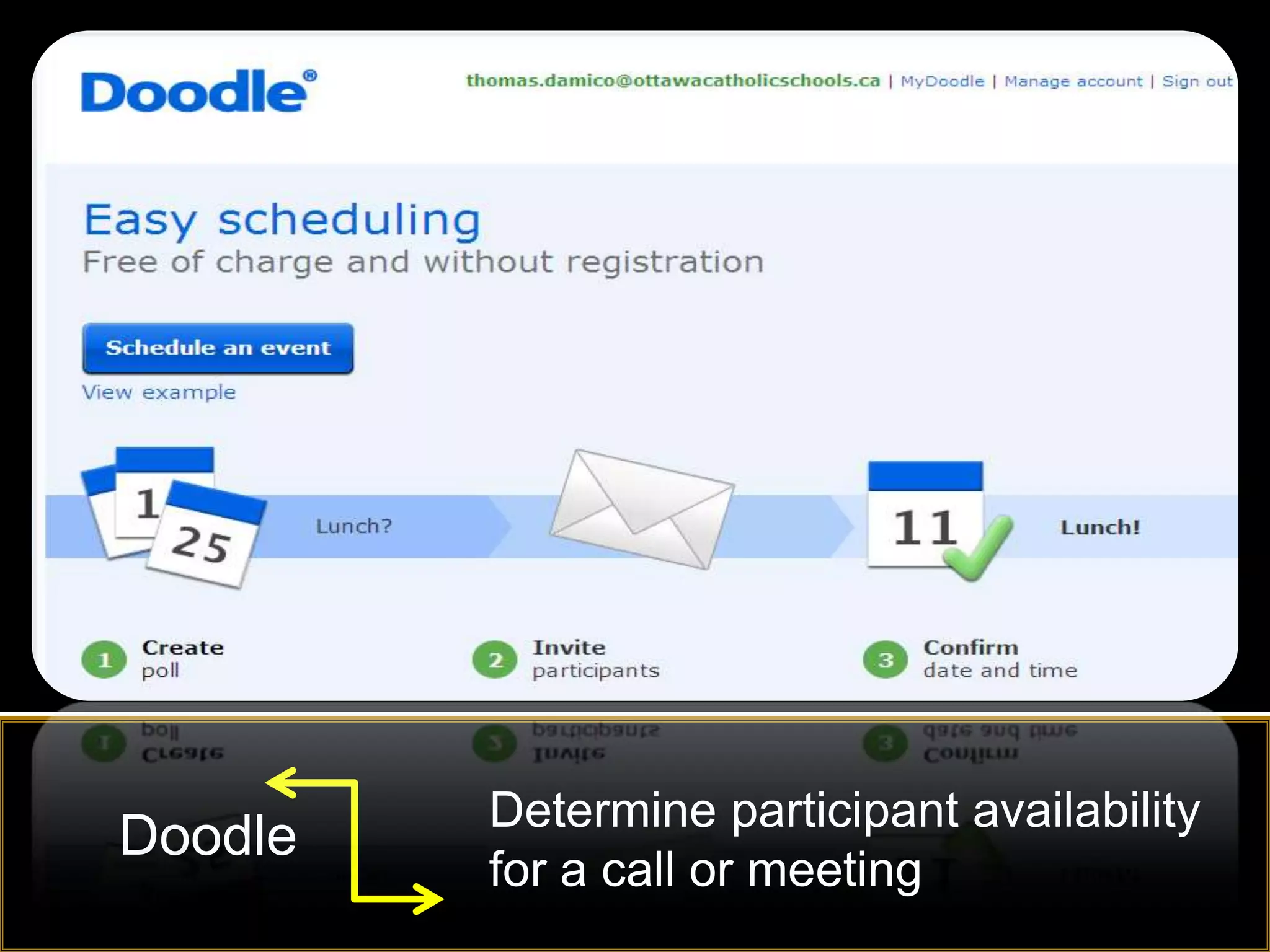
Do you send emails back and forth to
   try and find a time to meet?


Click here for YouTube video
Determine participant availability
Doodle
         for a call or meeting
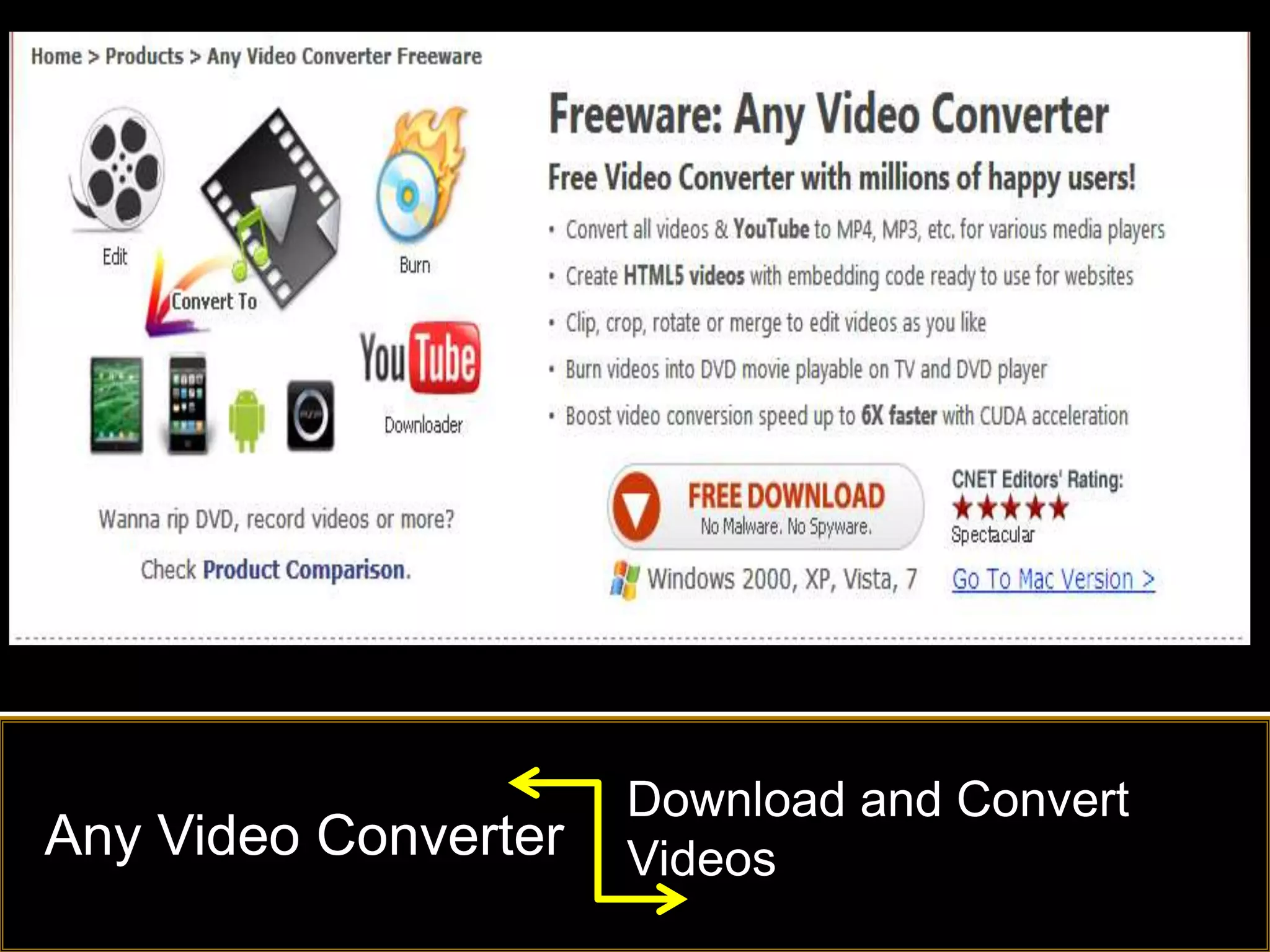
Download and Convert
Any Video Converter   Videos
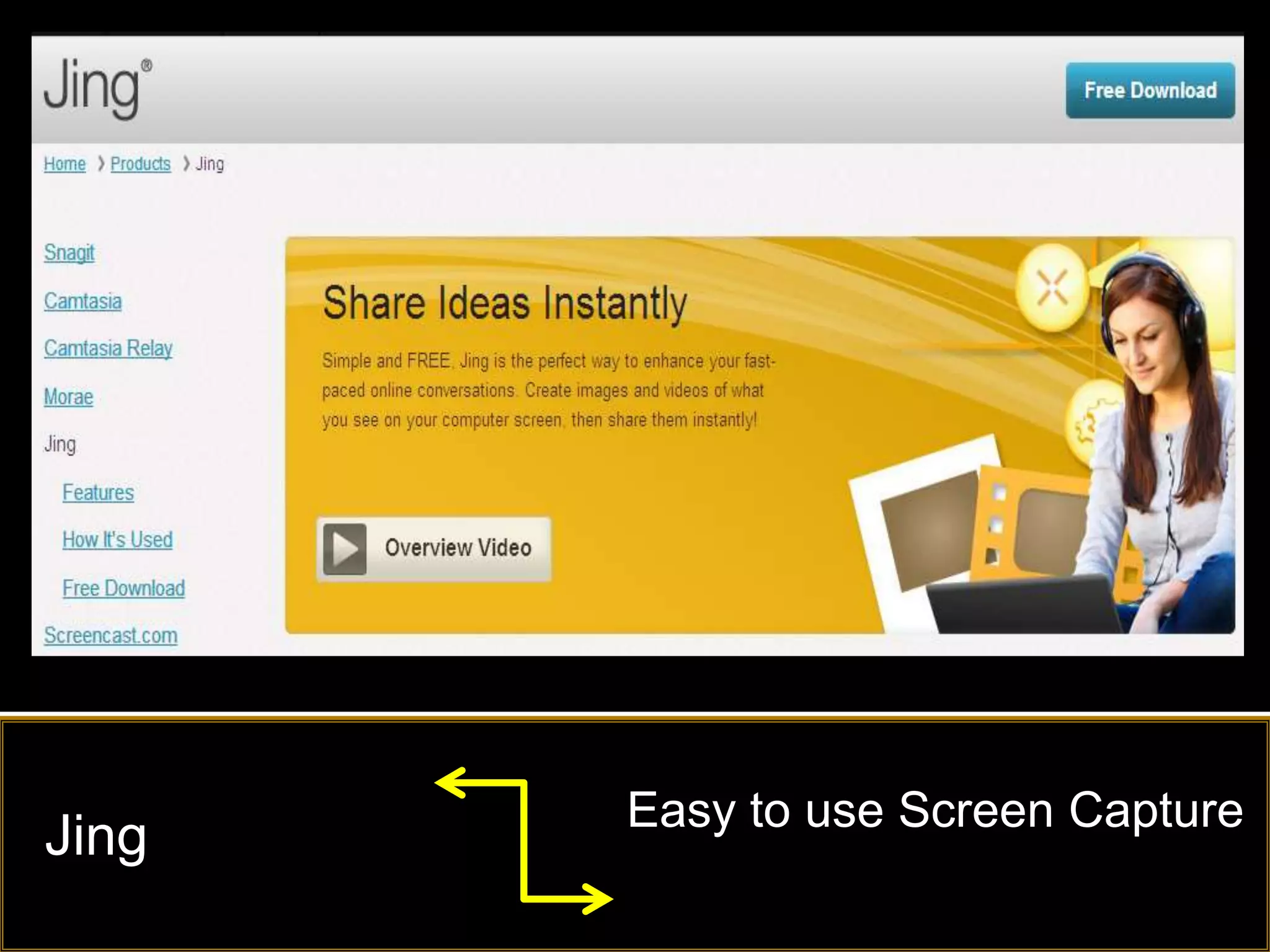
Easy to use Screen Capture
Jing
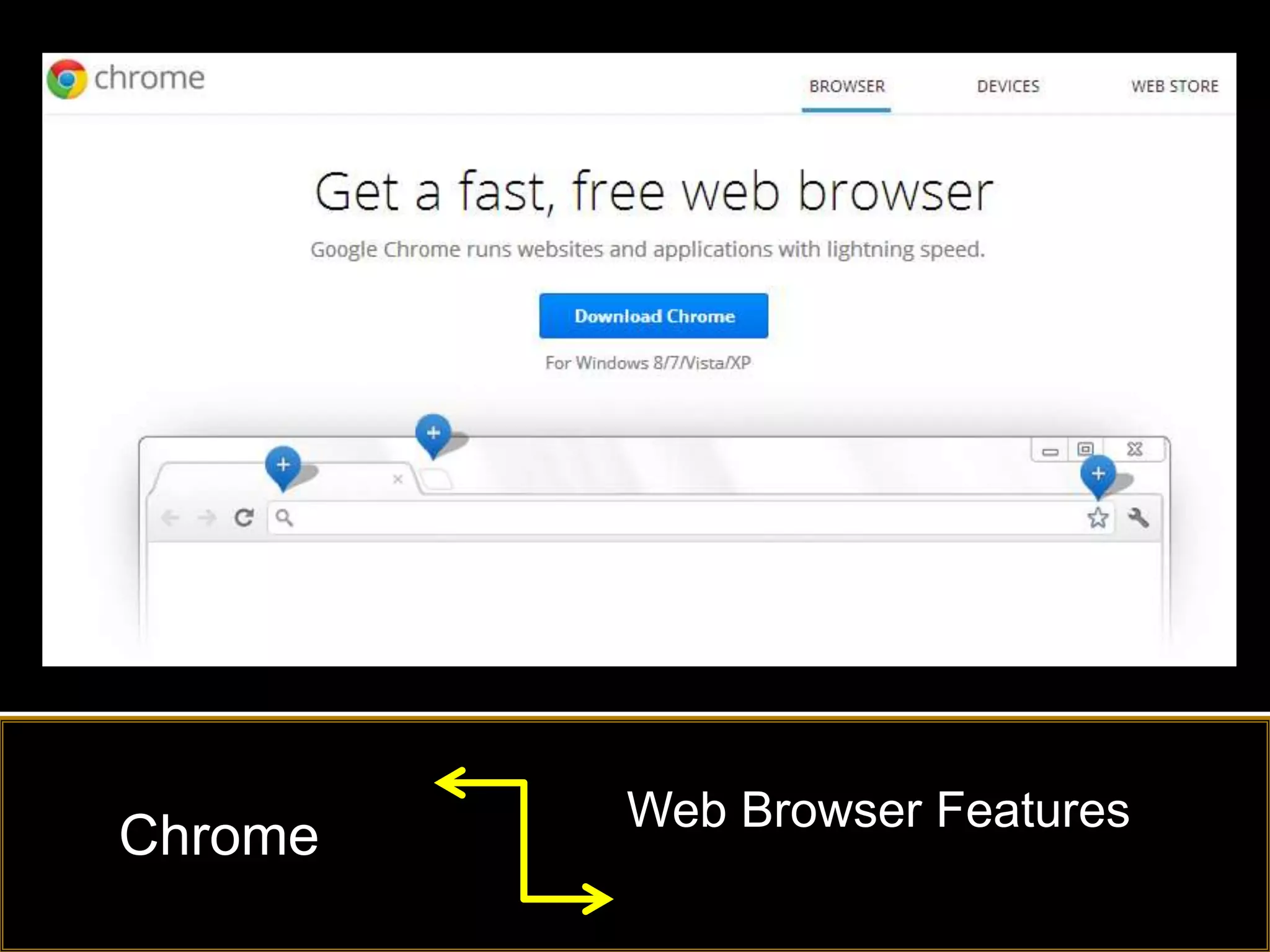
Web Browser Features
Chrome
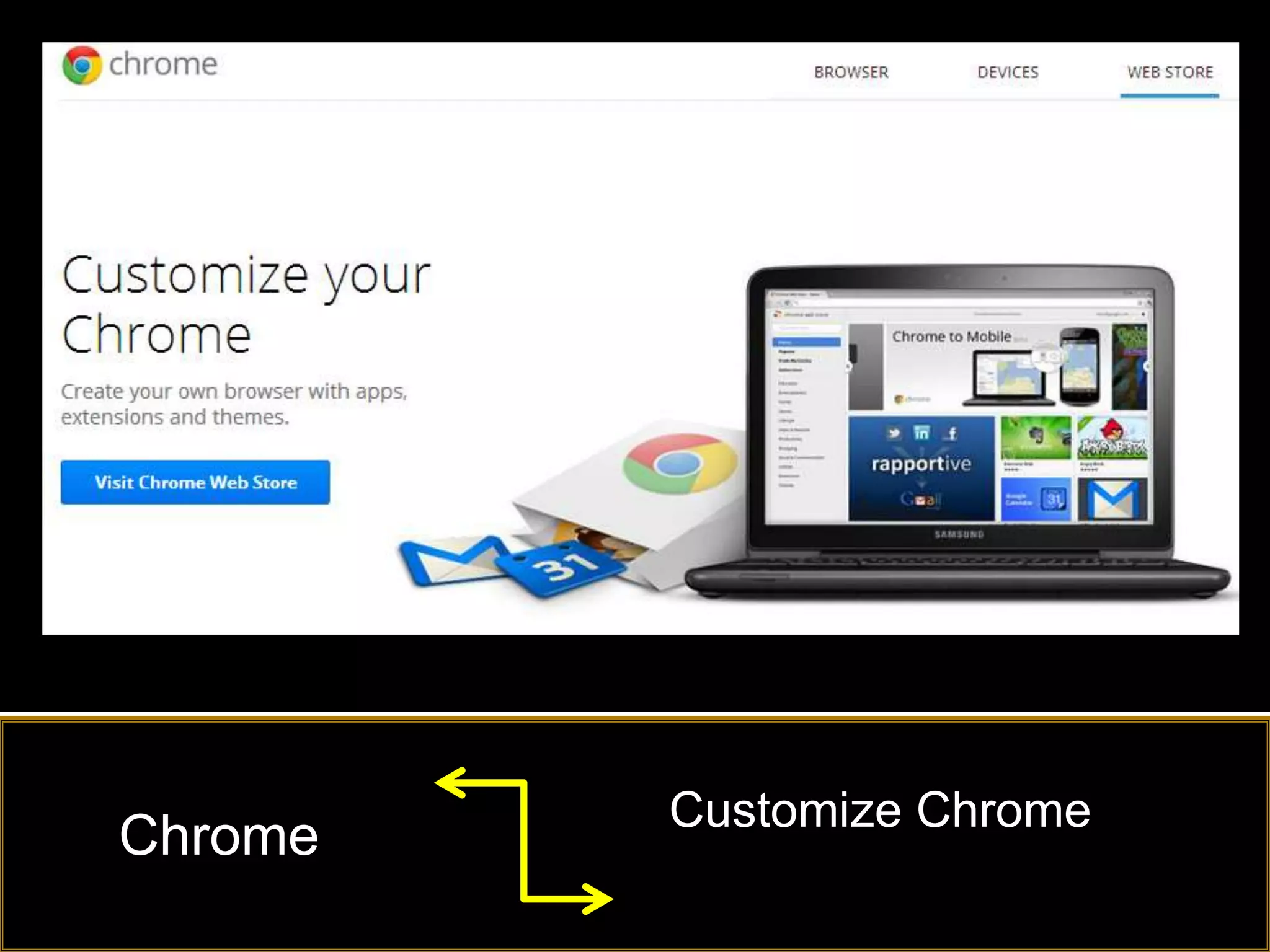
Customize Chrome
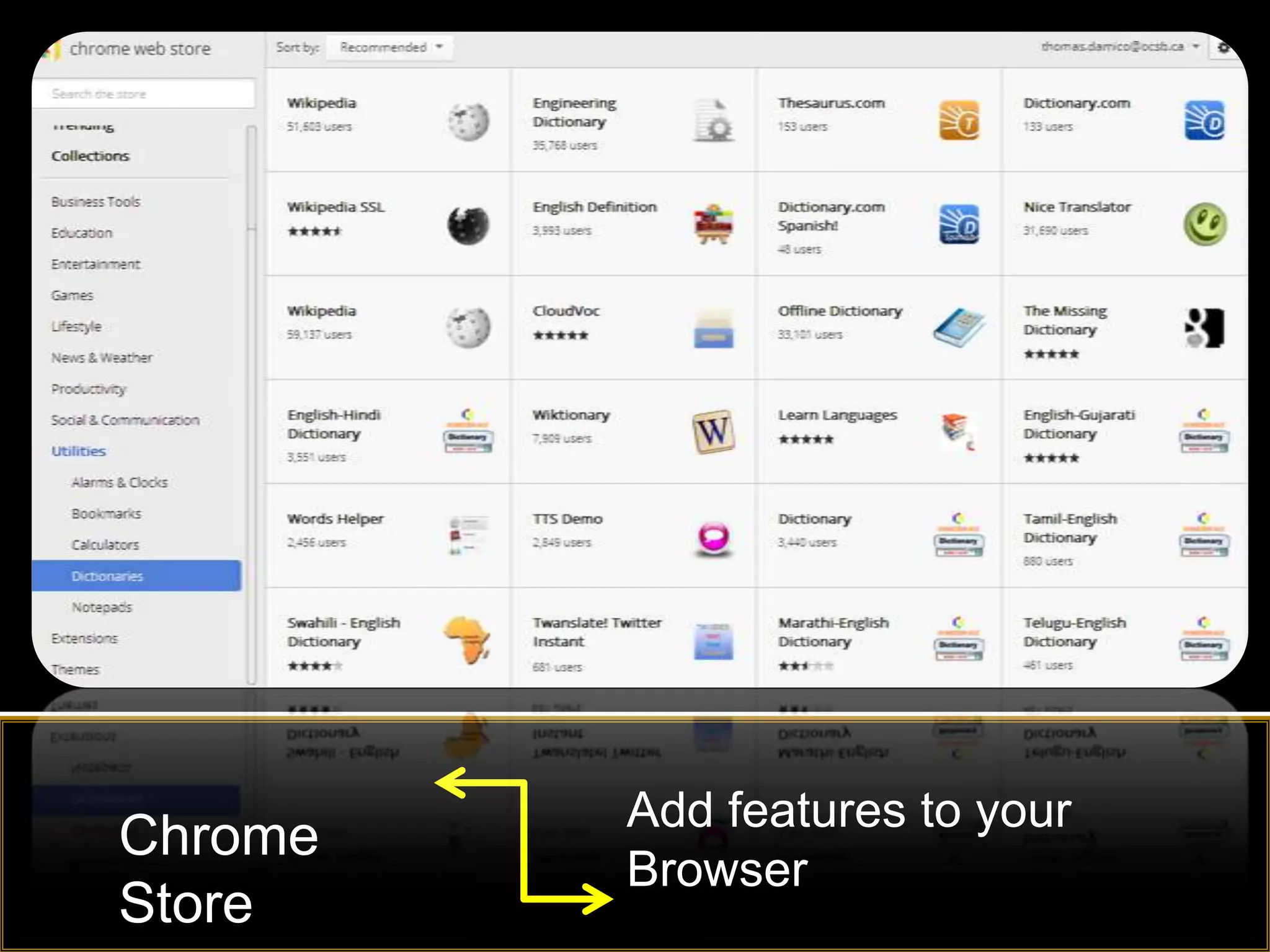
Chrome
Add features to your
Chrome
         Browser
Store
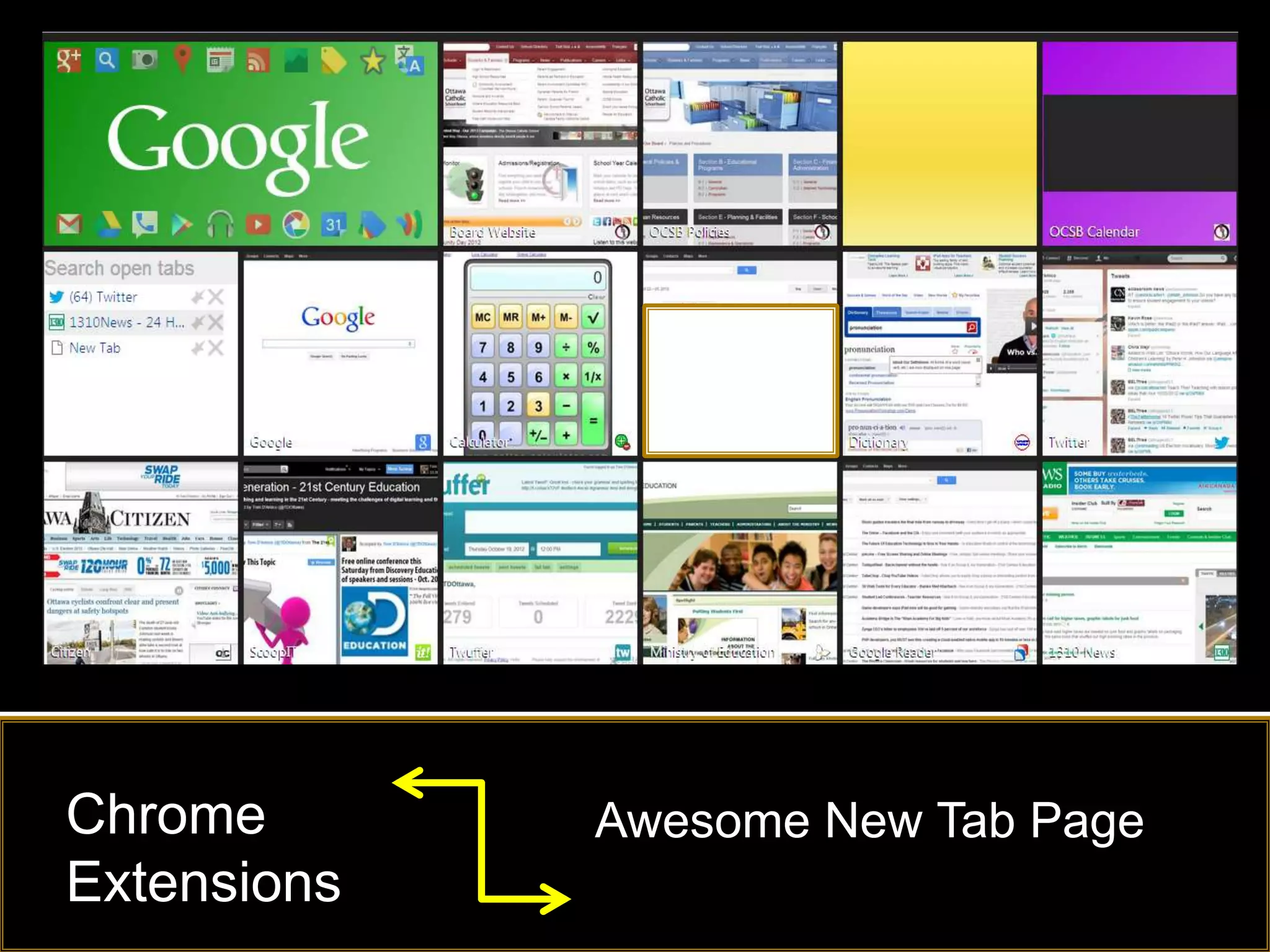
Chrome       Awesome New Tab Page
Extensions
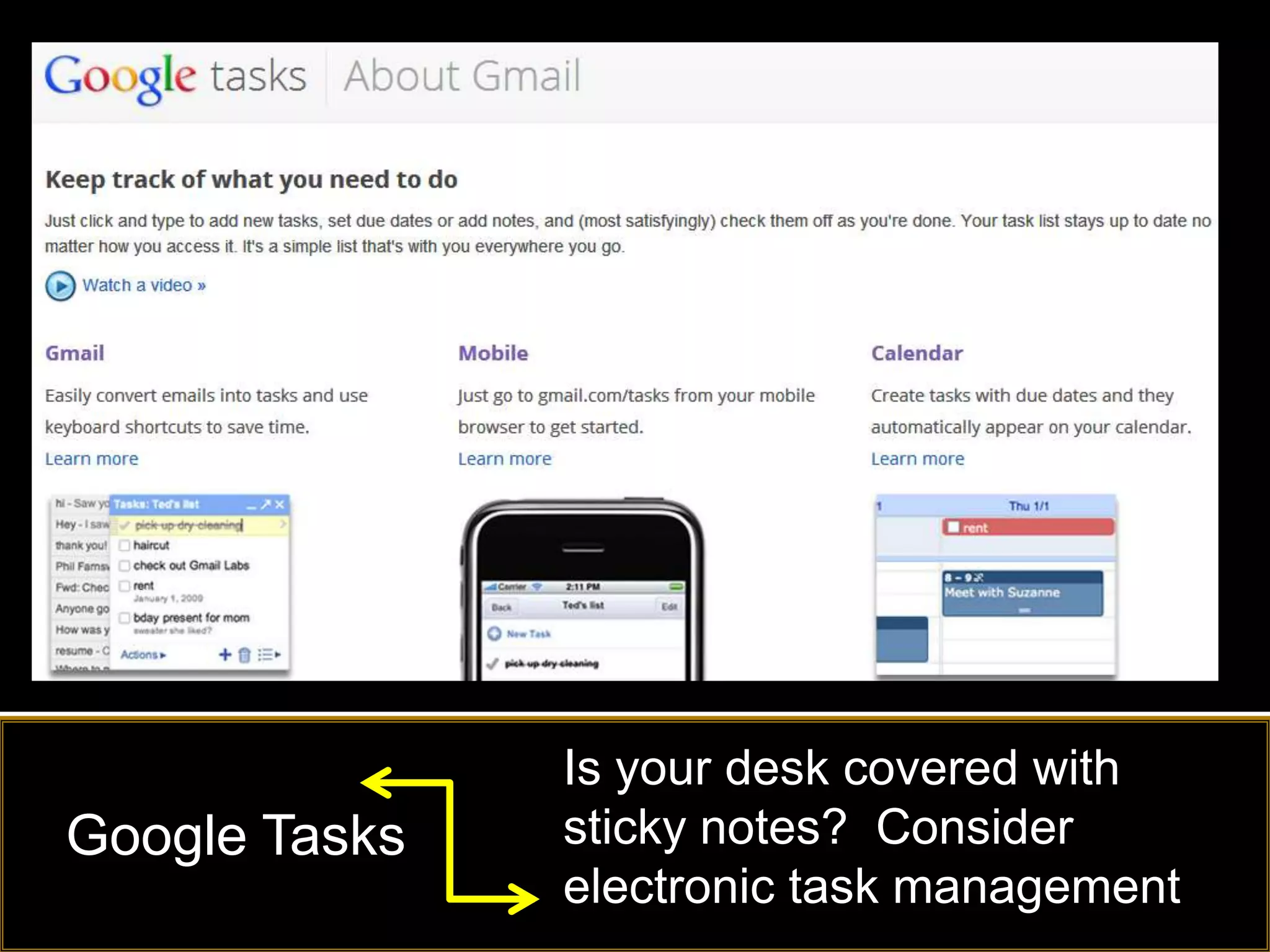
Is your desk covered with
Google Tasks   sticky notes? Consider
               electronic task management
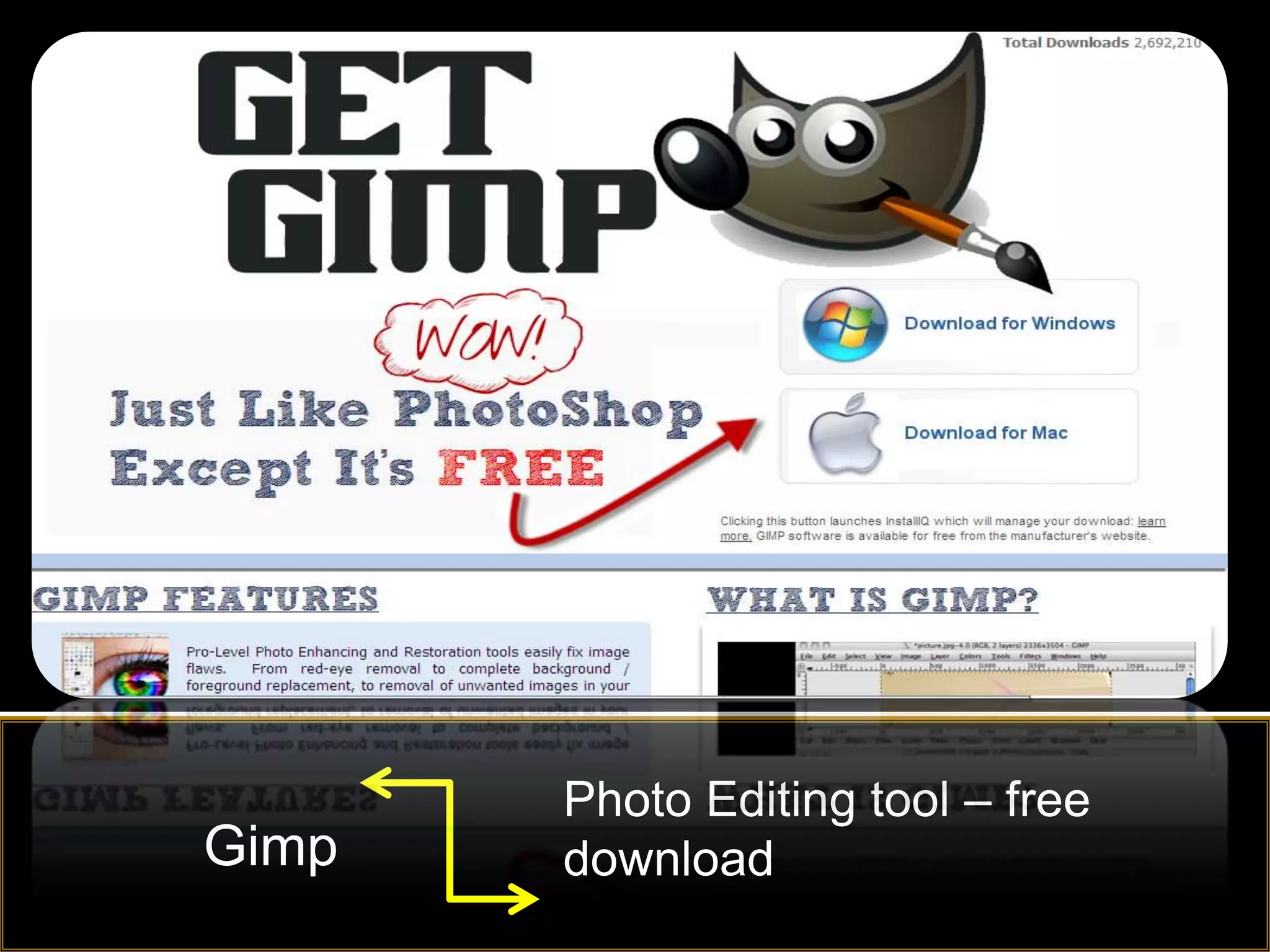
Photo Editing tool – free
Gimp   download
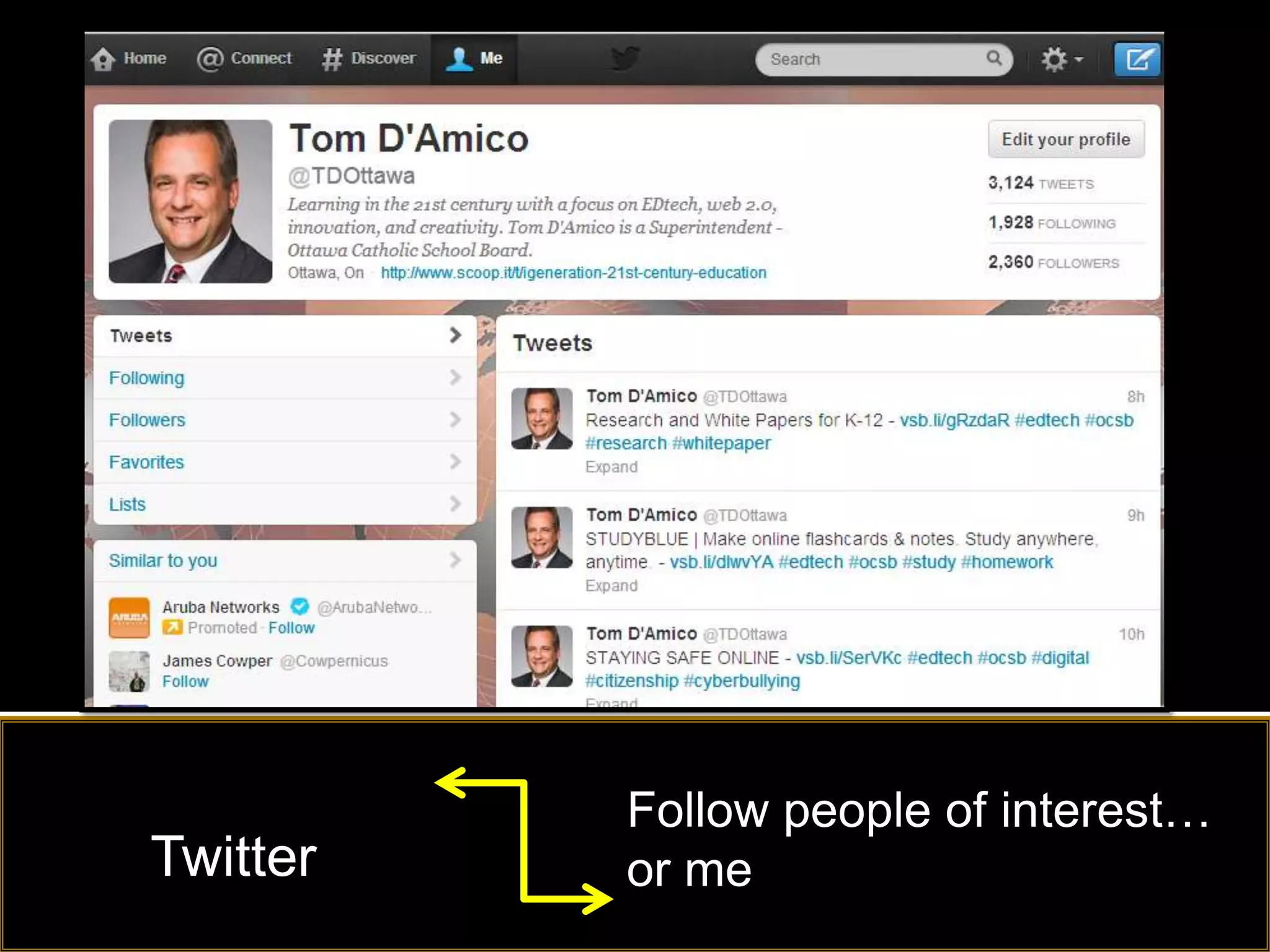
Follow people of interest…
Twitter   or me
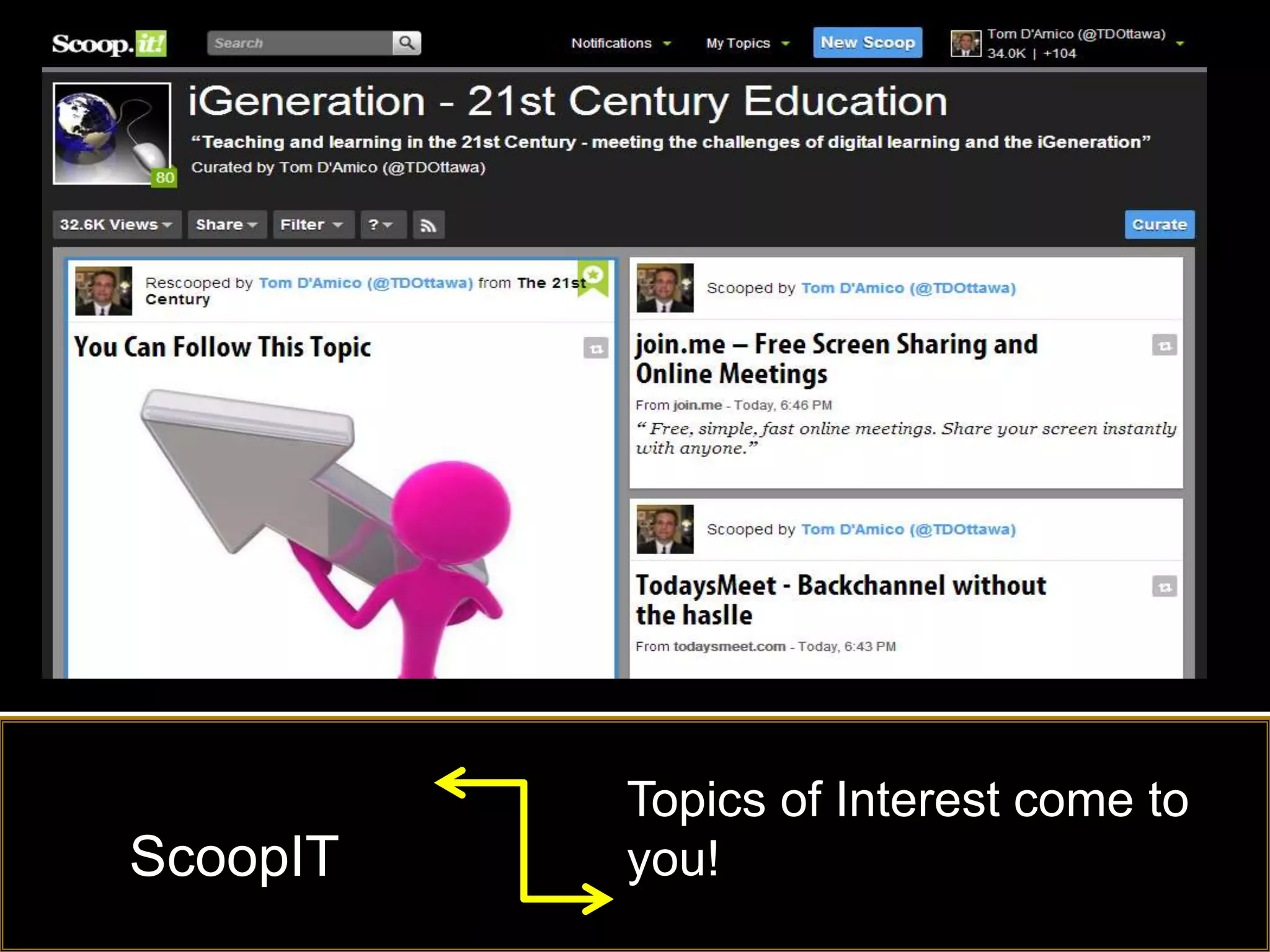
Topics of Interest come to
ScoopIT   you!
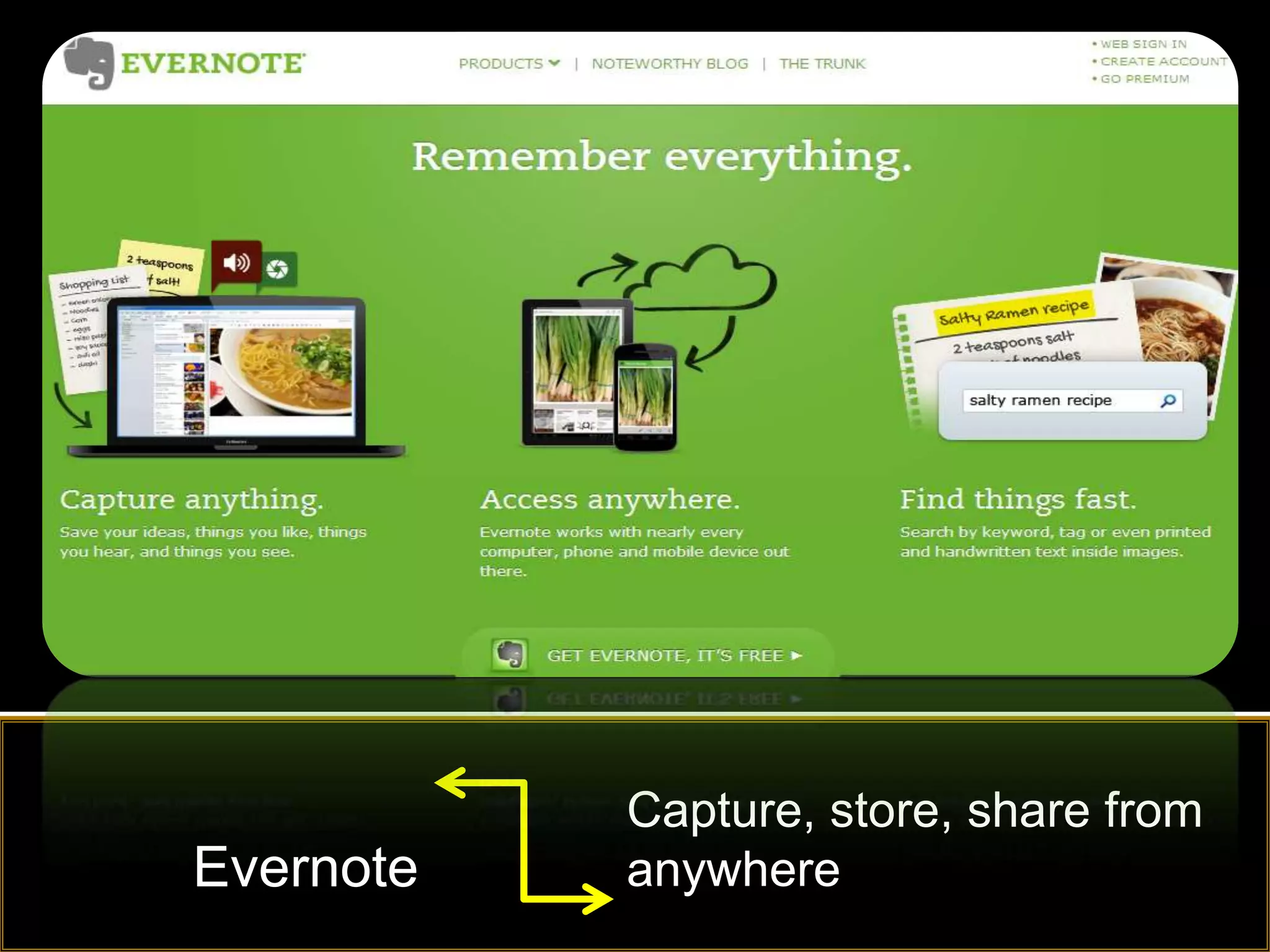
Capture, store, share from
Evernote   anywhere
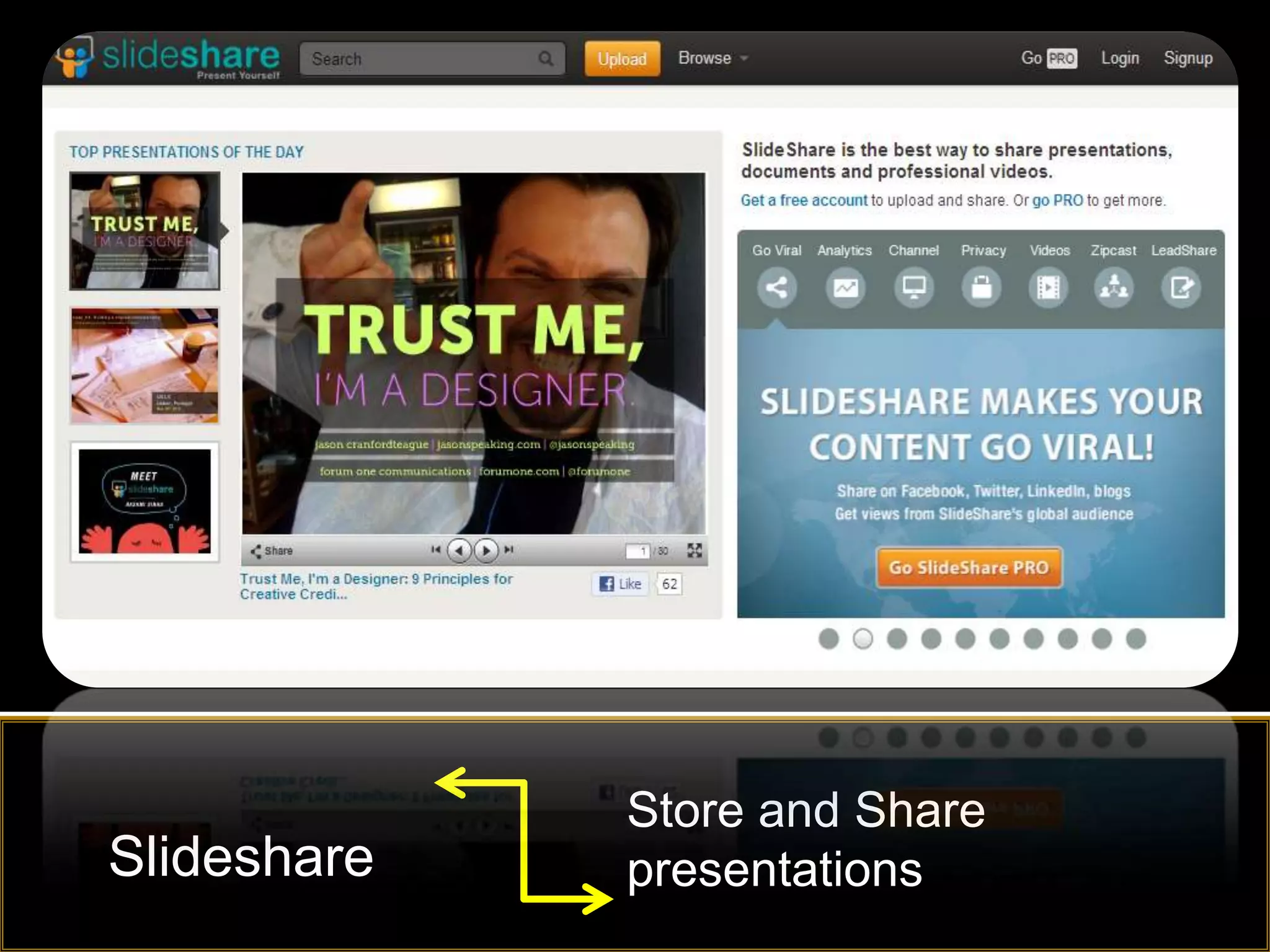
Store and Share
Slideshare   presentations
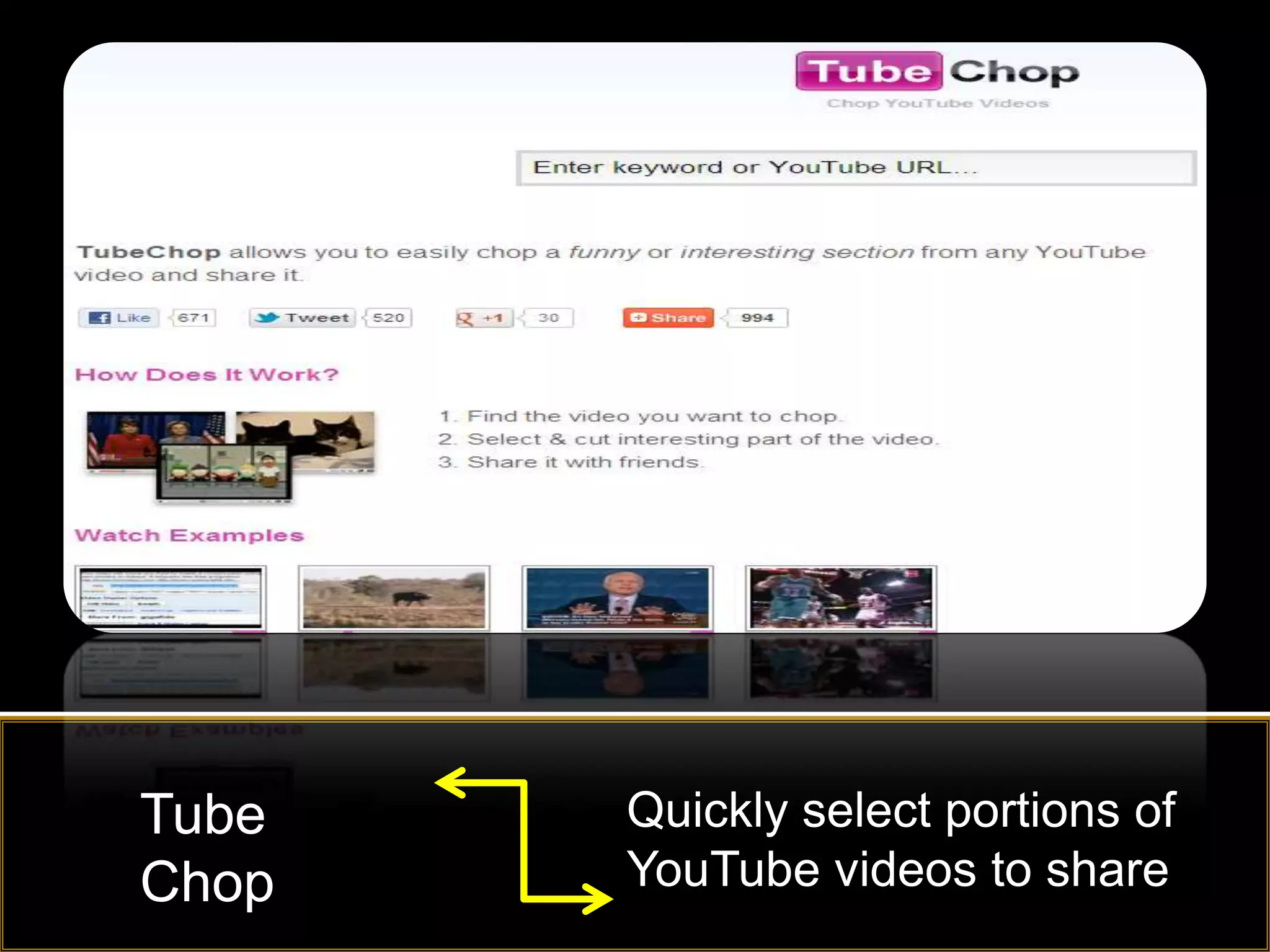
Tube   Quickly select portions of
Chop   YouTube videos to share
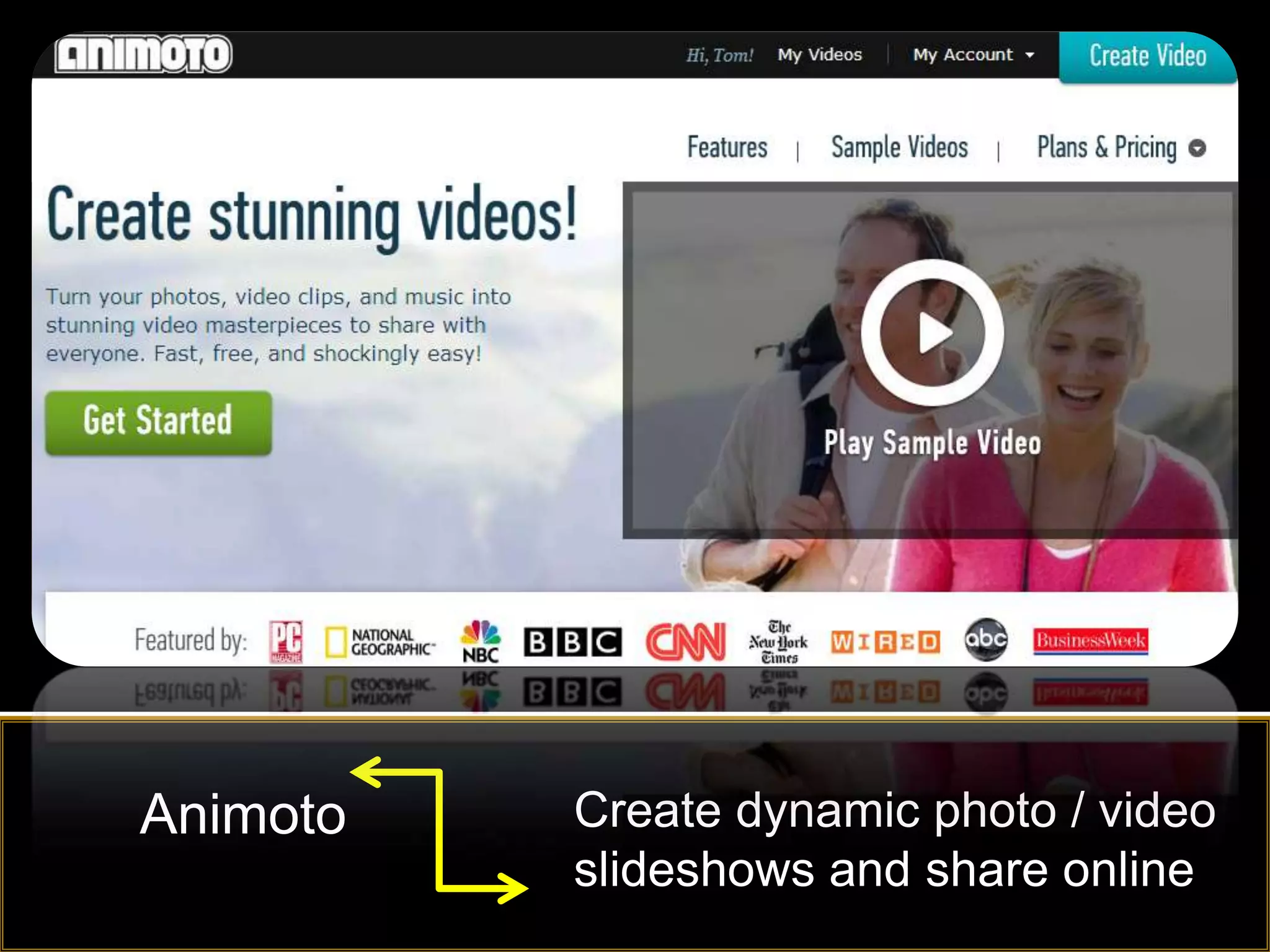
Animoto   Create dynamic photo / video
          slideshows and share online
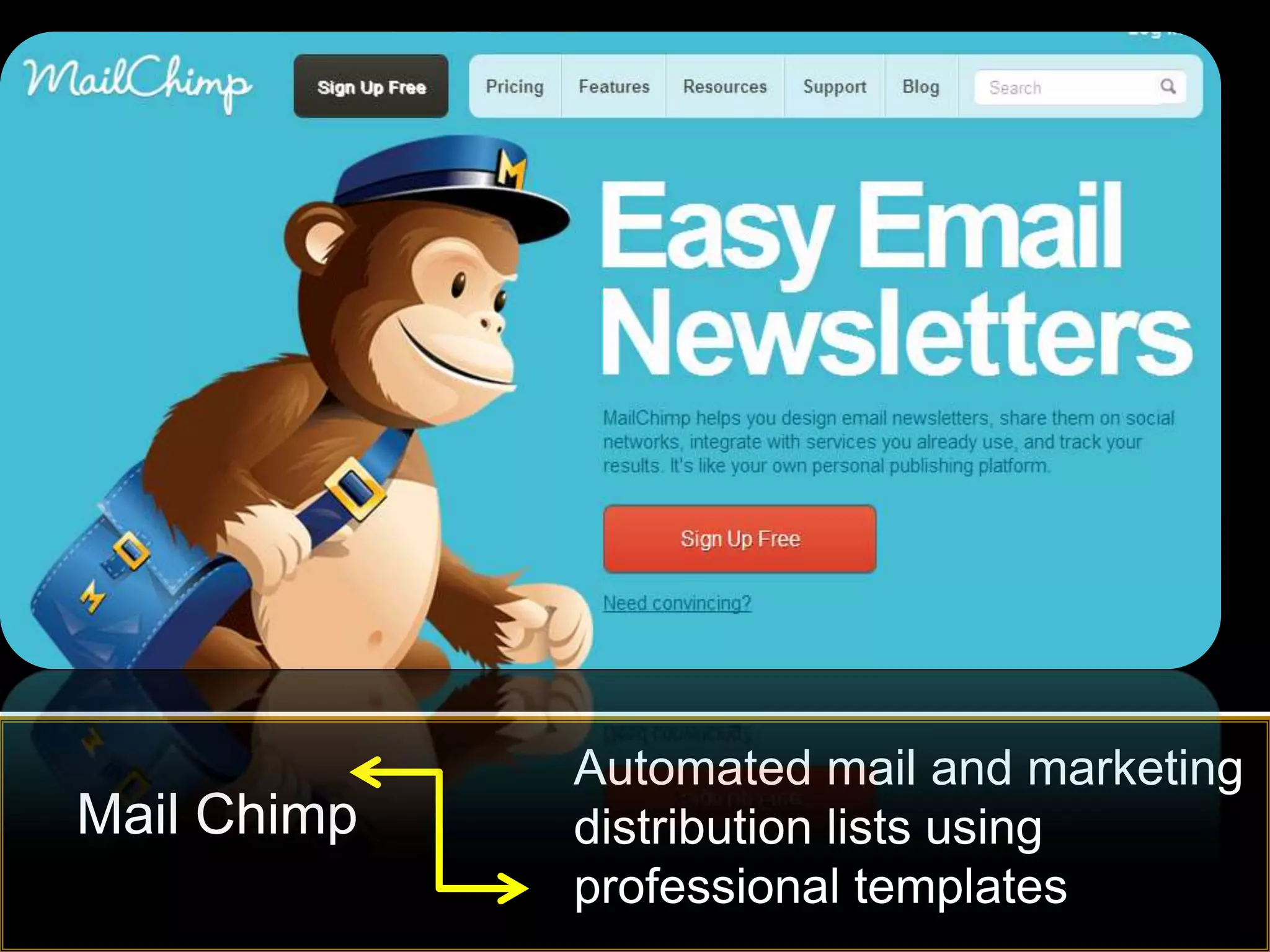
Automated mail and marketing
Mail Chimp   distribution lists using
             professional templates
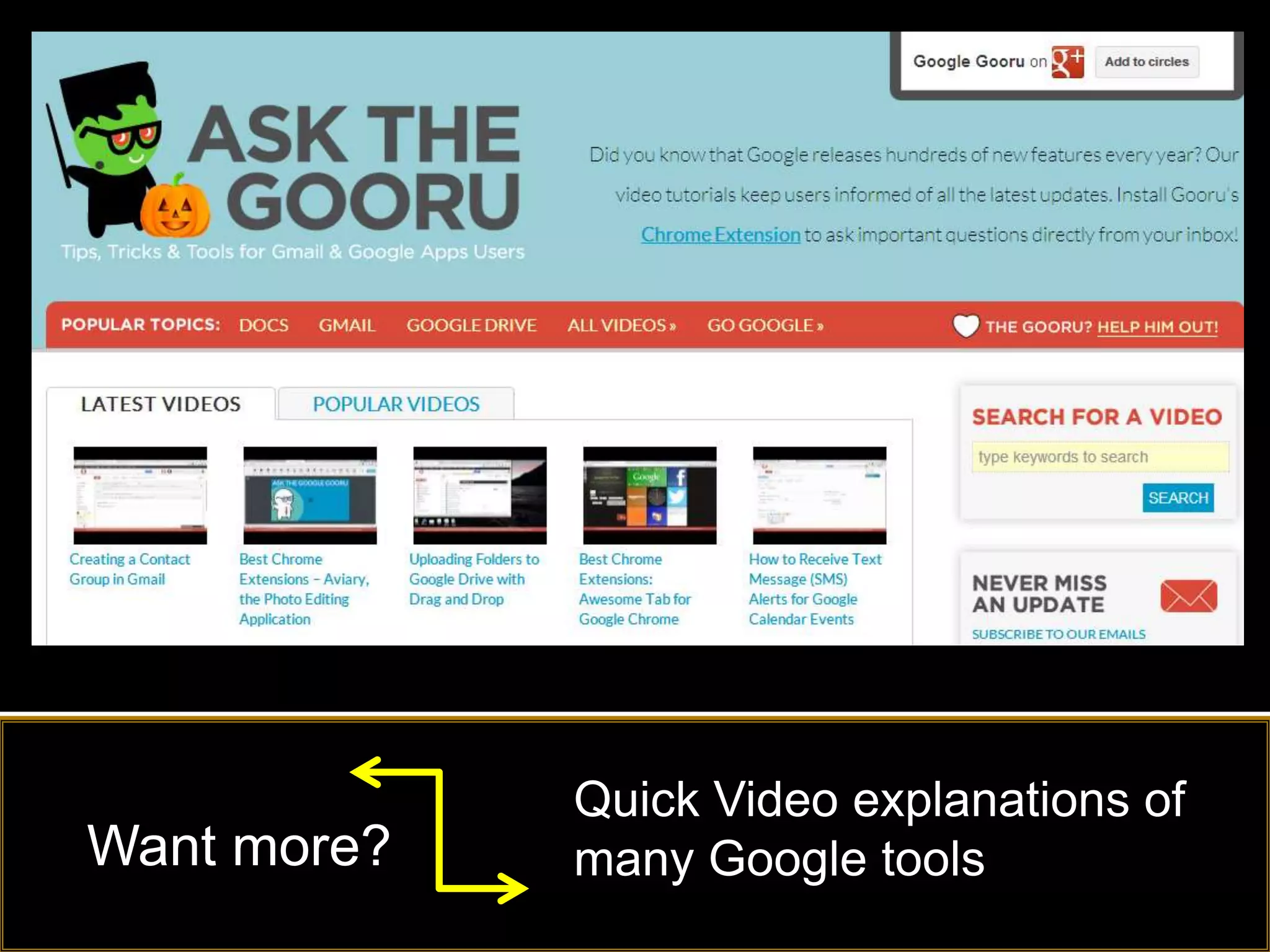
Quick Video explanations of
Want more?   many Google tools
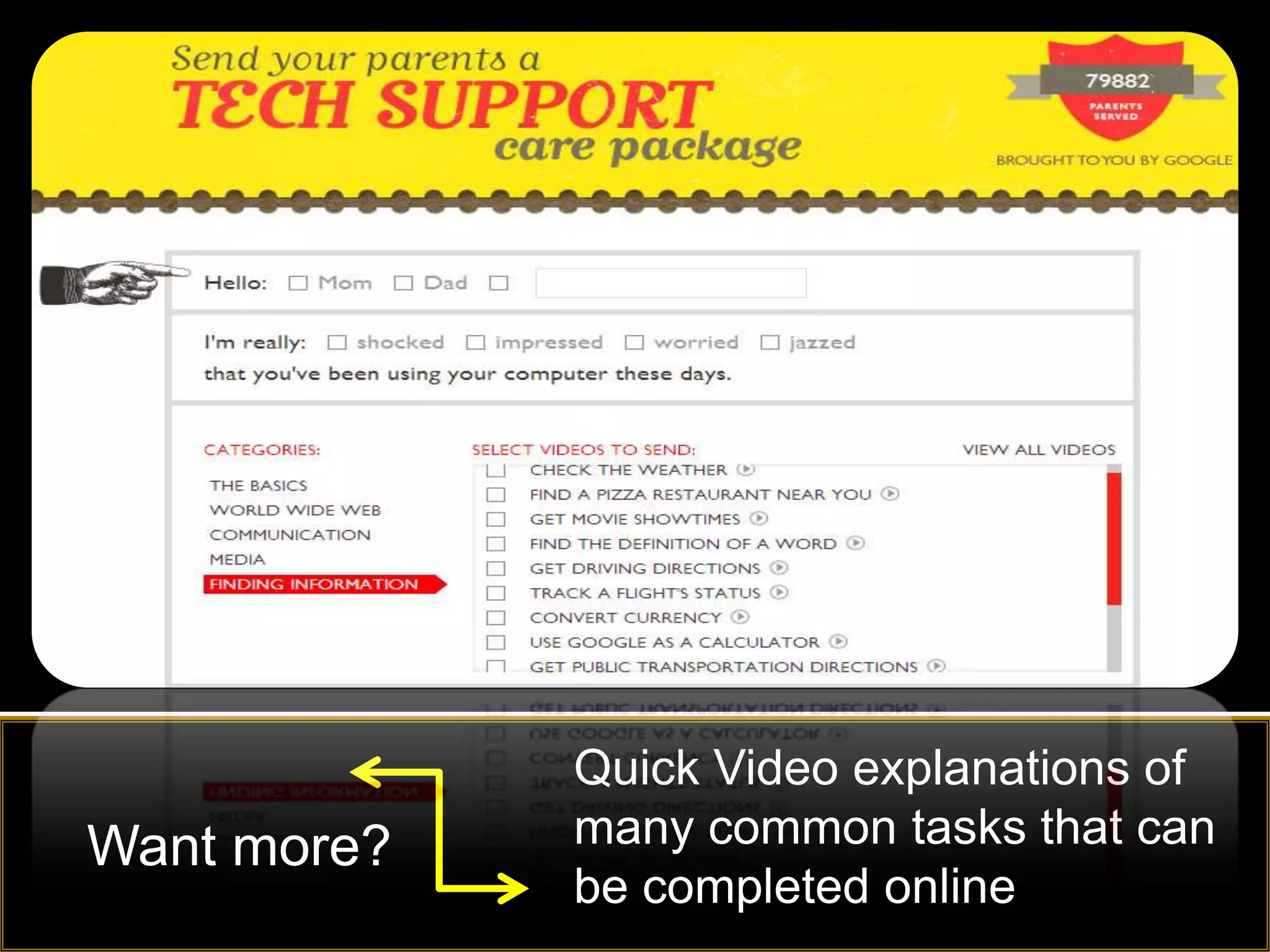
Quick Video explanations of
Want more?   many common tasks that can
             be completed online
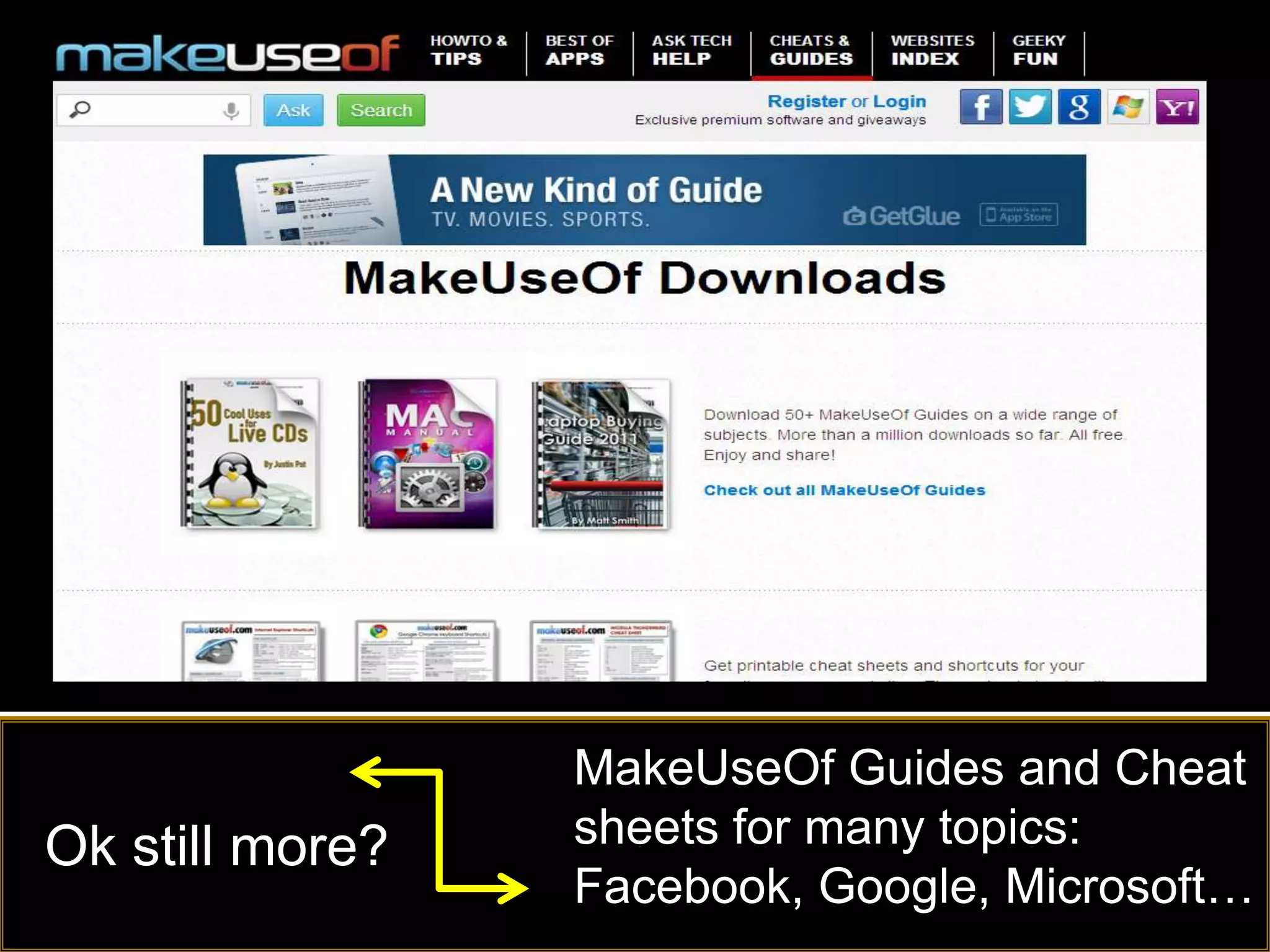
MakeUseOf Guides and Cheat
Ok still more?   sheets for many topics:
                 Facebook, Google, Microsoft…
What is your recommended site/tool?
Thank You
                   Questions?


Thomas.DAmico@ocsb.ca           @TDOttawa

Take control of technology

Editor's Notes

  • #2 Take Control of Technology – A presentation to the Leadership Journey, Oct. 24, 2012 in the Ottawa Catholic School Board. The Board has transitioned to Google Apps for Education and several tools related to Google will be outlined during the one hour presentation.
  • #3 Technology is changing at rapid pace and this is not likely to change for some time
  • #4 Set realistic expectations and don’t try to do it all or learn everything. Remember that you are in control and if some tasks are more efficient for you to use pencil and paper then keep doing it that way but be open to considering other options that just might save you some time.
  • #5 In the next one hour your only task is to find one website or tool that you feel will help make you more efficient or will save you time
  • #6 This is a desktop search engine that will help you find information that is buried somewhere on your computer but that you may otherwise not be able to find in a timely manner. The home version is free and the professional version is a one time cost of less than $50.Find information stored on your hard drive – quickly and efficiently
  • #7 Demo – search for creative commons photos – books- A nice site to quickly find objects that you can use with permission without violating copyright
  • #8 Click on link and go through some quick Google Search tips using the list provided People use Google every day but they haven’t taken the time to learn how to use it efficiently to save themselves time
  • #9 Show demo of PicMonkey onlineA rich feature online tool to manipulate imagesGreat for manipulating images to use in flyers and special events
  • #10 Create a Google alert of something you are interested in – such as your school, or a passion such as a team or player or artist that you may follow
  • #11 Convert any file – A nice online tool to convert almost anything, including converting PDF files to Word so that you can modify pdf files
  • #12 Another online conversion program that will email you a link to download the converted file
  • #13 A nice tool for sharing online bookmarks and much more – watch the video on their site
  • #14 Ask the question if email makes us more or less efficient?Show Video clip- Mention we need to find ways to make use of tools that save us time and automate functions
  • #15 Short clips to demonstrate some of the constraints to traditional tasks as compared to Google Apps options
  • #16 Dropbox is free a popular cloud storageClick the link and watch the video to understand their service
  • #17 Google Drive provides free storage and sharing functions along with the ability to collaborate online with others
  • #18 Do a quick demo of Google forms – sample staff pizza order- Click on the link for a brief demo of how to make a Google Form
  • #19 Click on link to see a sample video of how to use Google Calendar to schedule meetings
  • #20 Click on the link to view a sample of how to use Doodle to allow participants to indicate which days they may be available to meet
  • #21 Click this site to download a free version of Any video ConverterAdd URLs from YouTube to the program and then download to keep a copy on your hard drive so that you don’t have to
  • #22 Download free copy of Jing an easy to use screen capture or video capture tool
  • #23 If you are not using Chrome as your Browser, consider downloading Chrome and giving it a try
  • #24 Chrome can be easily customized to meet your working habits
  • #25 The Chrome store has apps that you can run from the browser
  • #26 A great extension to save you time is the Awesome New Tab Page- Click on the picture to see a video of how to setup a new tab page with your most frequently used sites
  • #27 Start using Google Tasks with your email and calendarClick on the link to see a video of how to automatically link email messages to your tasks
  • #28 An online photo tool similar to photoshop
  • #29 Consider following people on twitter – link to twitter page
  • #30 Link to my ScoopIt page where I curate web2.0 tools
  • #31 Consider evernote for synching notes and more – click on link to see the video explaining Evernote
  • #32 Visit Slide Share to find premade presentations on many topics
  • #33 Click on the link to see how to cut out a section of a YouTube video
  • #34 VisitAnimoto to create simple video and photo animations
  • #35 Consider Mail Chimp for a free email newsletter management program
  • #36 A great site with short video clips to teach everything about Google Apps
  • #37 A fun way to share tech support with people, or for yourself, give it a try
  • #38 Free Guides and Cheat Sheets for many technology tools