TABLES IN HTML
Ms. Savita A. Lothe, Dept of Computer Science
Vasantrao Naik Mahavidyalaya, Aurangabad.
Tables in HTML
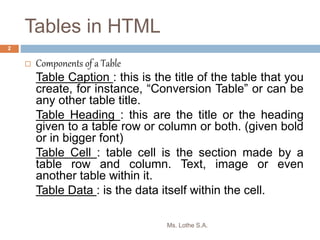
 Components of a Table
Table Caption : this is the title of the table that you
create, for instance, “Conversion Table” or can be
any other table title.
Table Heading : this are the title or the heading
given to a table row or column or both. (given bold
or in bigger font)
Table Cell : table cell is the section made by a
table row and column. Text, image or even
another table within it.
Table Data : is the data itself within the cell.
Ms. Lothe S.A.
2
Creating a Table
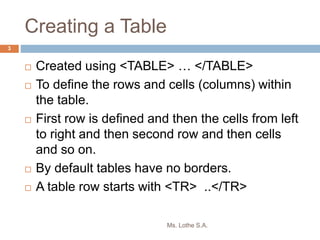
 Created using <TABLE> … </TABLE>
 To define the rows and cells (columns) within
the table.
 First row is defined and then the cells from left
to right and then second row and then cells
and so on.
 By default tables have no borders.
 A table row starts with <TR> ..</TR>
Ms. Lothe S.A.
3
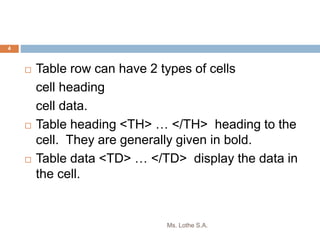
 Table row can have 2 types of cells
cell heading
cell data.
 Table heading <TH> … </TH> heading to the
cell. They are generally given in bold.
 Table data <TD> … </TD> display the data in
the cell.
Ms. Lothe S.A.
4
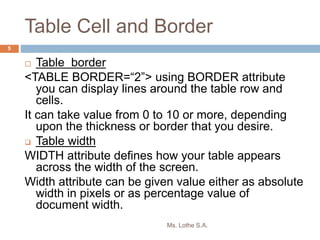
Table Cell and Border
 Table border
<TABLE BORDER=“2”> using BORDER attribute
you can display lines around the table row and
cells.
It can take value from 0 to 10 or more, depending
upon the thickness or border that you desire.
 Table width
WIDTH attribute defines how your table appears
across the width of the screen.
Width attribute can be given value either as absolute
width in pixels or as percentage value of
document width.
Ms. Lothe S.A.
5
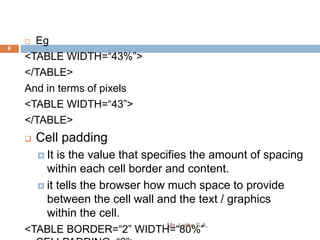
 Eg
<TABLE WIDTH=“43%”>
</TABLE>
And in terms of pixels
<TABLE WIDTH=“43”>
</TABLE>
 Cell padding
 It is the value that specifies the amount of spacing
within each cell border and content.
 it tells the browser how much space to provide
between the cell wall and the text / graphics
within the cell.
<TABLE BORDER=“2” WIDTH=“80%”
Ms. Lothe S.A.
6
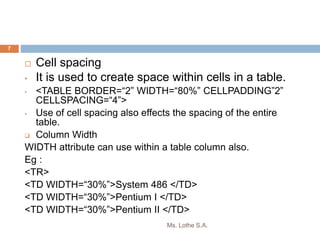
 Cell spacing
• It is used to create space within cells in a table.
• <TABLE BORDER=“2” WIDTH=“80%” CELLPADDING”2”
CELLSPACING=“4”>
• Use of cell spacing also effects the spacing of the entire
table.
 Column Width
WIDTH attribute can use within a table column also.
Eg :
<TR>
<TD WIDTH=“30%”>System 486 </TD>
<TD WIDTH=“30%”>Pentium I </TD>
<TD WIDTH=“30%”>Pentium II </TD>
Ms. Lothe S.A.
7
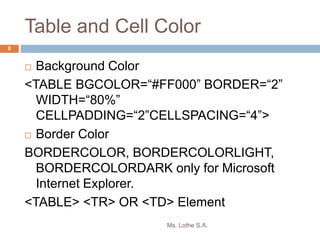
Table and Cell Color
 Background Color
<TABLE BGCOLOR=“#FF000” BORDER=“2”
WIDTH=“80%”
CELLPADDING=“2”CELLSPACING=“4”>
 Border Color
BORDERCOLOR, BORDERCOLORLIGHT,
BORDERCOLORDARK only for Microsoft
Internet Explorer.
<TABLE> <TR> OR <TD> Element
Ms. Lothe S.A.
8
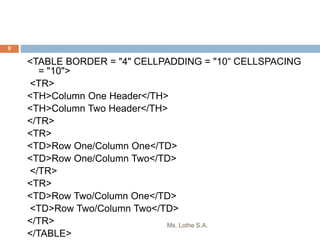
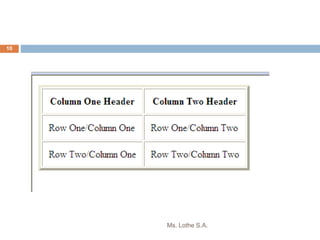
<TABLE BORDER = "4" CELLPADDING = "10“ CELLSPACING
= "10">
<TR>
<TH>Column One Header</TH>
<TH>Column Two Header</TH>
</TR>
<TR>
<TD>Row One/Column One</TD>
<TD>Row One/Column Two</TD>
</TR>
<TR>
<TD>Row Two/Column One</TD>
<TD>Row Two/Column Two</TD>
</TR>
</TABLE>
Ms. Lothe S.A.
9
Ms. Lothe S.A.
10
Advanced features of Table
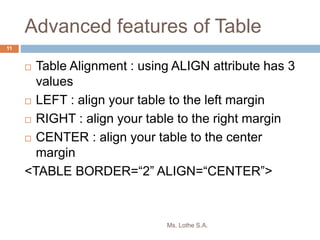
 Table Alignment : using ALIGN attribute has 3
values
 LEFT : align your table to the left margin
 RIGHT : align your table to the right margin
 CENTER : align your table to the center
margin
<TABLE BORDER=“2” ALIGN=“CENTER”>
Ms. Lothe S.A.
11
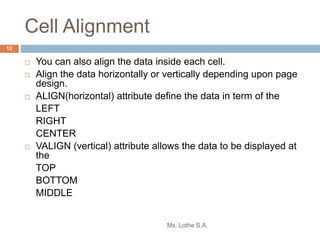
Cell Alignment
 You can also align the data inside each cell.
 Align the data horizontally or vertically depending upon page
design.
 ALIGN(horizontal) attribute define the data in term of the
LEFT
RIGHT
CENTER
 VALIGN (vertical) attribute allows the data to be displayed at
the
TOP
BOTTOM
MIDDLE
Ms. Lothe S.A.
12
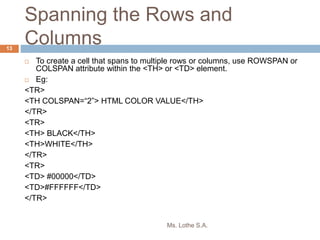
Spanning the Rows and
Columns
 To create a cell that spans to multiple rows or columns, use ROWSPAN or
COLSPAN attribute within the <TH> or <TD> element.
 Eg:
<TR>
<TH COLSPAN=“2”> HTML COLOR VALUE</TH>
</TR>
<TR>
<TH> BLACK</TH>
<TH>WHITE</TH>
</TR>
<TR>
<TD> #00000</TD>
<TD>#FFFFFF</TD>
</TR>
Ms. Lothe S.A.
13
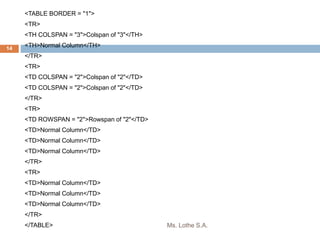
<TABLE BORDER = "1">
<TR>
<TH COLSPAN = "3">Colspan of "3"</TH>
<TH>Normal Column</TH>
</TR>
<TR>
<TD COLSPAN = "2">Colspan of "2"</TD>
</TR>
<TR>
<TD ROWSPAN = "2">Rowspan of "2"</TD>
<TD>Normal Column</TD>
</TR>
<TR>
<TD>Normal Column</TD>
</TR>
</TABLE> Ms. Lothe S.A.
14
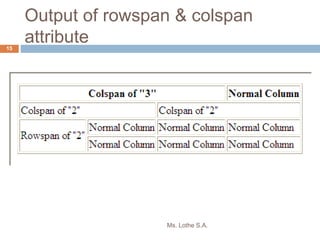
Output of rowspan & colspan
attribute
Ms. Lothe S.A.
15
?
Ms. Lothe S.A.
16

Tables

  • 1.
    TABLES IN HTML Ms.Savita A. Lothe, Dept of Computer Science Vasantrao Naik Mahavidyalaya, Aurangabad.
  • 2.
    Tables in HTML Components of a Table Table Caption : this is the title of the table that you create, for instance, “Conversion Table” or can be any other table title. Table Heading : this are the title or the heading given to a table row or column or both. (given bold or in bigger font) Table Cell : table cell is the section made by a table row and column. Text, image or even another table within it. Table Data : is the data itself within the cell. Ms. Lothe S.A. 2
  • 3.
    Creating a Table Created using <TABLE> … </TABLE>  To define the rows and cells (columns) within the table.  First row is defined and then the cells from left to right and then second row and then cells and so on.  By default tables have no borders.  A table row starts with <TR> ..</TR> Ms. Lothe S.A. 3
  • 4.
     Table rowcan have 2 types of cells cell heading cell data.  Table heading <TH> … </TH> heading to the cell. They are generally given in bold.  Table data <TD> … </TD> display the data in the cell. Ms. Lothe S.A. 4
  • 5.
    Table Cell andBorder  Table border <TABLE BORDER=“2”> using BORDER attribute you can display lines around the table row and cells. It can take value from 0 to 10 or more, depending upon the thickness or border that you desire.  Table width WIDTH attribute defines how your table appears across the width of the screen. Width attribute can be given value either as absolute width in pixels or as percentage value of document width. Ms. Lothe S.A. 5
  • 6.
     Eg <TABLE WIDTH=“43%”> </TABLE> Andin terms of pixels <TABLE WIDTH=“43”> </TABLE>  Cell padding  It is the value that specifies the amount of spacing within each cell border and content.  it tells the browser how much space to provide between the cell wall and the text / graphics within the cell. <TABLE BORDER=“2” WIDTH=“80%” Ms. Lothe S.A. 6
  • 7.
     Cell spacing •It is used to create space within cells in a table. • <TABLE BORDER=“2” WIDTH=“80%” CELLPADDING”2” CELLSPACING=“4”> • Use of cell spacing also effects the spacing of the entire table.  Column Width WIDTH attribute can use within a table column also. Eg : <TR> <TD WIDTH=“30%”>System 486 </TD> <TD WIDTH=“30%”>Pentium I </TD> <TD WIDTH=“30%”>Pentium II </TD> Ms. Lothe S.A. 7
  • 8.
    Table and CellColor  Background Color <TABLE BGCOLOR=“#FF000” BORDER=“2” WIDTH=“80%” CELLPADDING=“2”CELLSPACING=“4”>  Border Color BORDERCOLOR, BORDERCOLORLIGHT, BORDERCOLORDARK only for Microsoft Internet Explorer. <TABLE> <TR> OR <TD> Element Ms. Lothe S.A. 8
  • 9.
    <TABLE BORDER ="4" CELLPADDING = "10“ CELLSPACING = "10"> <TR> <TH>Column One Header</TH> <TH>Column Two Header</TH> </TR> <TR> <TD>Row One/Column One</TD> <TD>Row One/Column Two</TD> </TR> <TR> <TD>Row Two/Column One</TD> <TD>Row Two/Column Two</TD> </TR> </TABLE> Ms. Lothe S.A. 9
  • 10.
  • 11.
    Advanced features ofTable  Table Alignment : using ALIGN attribute has 3 values  LEFT : align your table to the left margin  RIGHT : align your table to the right margin  CENTER : align your table to the center margin <TABLE BORDER=“2” ALIGN=“CENTER”> Ms. Lothe S.A. 11
  • 12.
    Cell Alignment  Youcan also align the data inside each cell.  Align the data horizontally or vertically depending upon page design.  ALIGN(horizontal) attribute define the data in term of the LEFT RIGHT CENTER  VALIGN (vertical) attribute allows the data to be displayed at the TOP BOTTOM MIDDLE Ms. Lothe S.A. 12
  • 13.
    Spanning the Rowsand Columns  To create a cell that spans to multiple rows or columns, use ROWSPAN or COLSPAN attribute within the <TH> or <TD> element.  Eg: <TR> <TH COLSPAN=“2”> HTML COLOR VALUE</TH> </TR> <TR> <TH> BLACK</TH> <TH>WHITE</TH> </TR> <TR> <TD> #00000</TD> <TD>#FFFFFF</TD> </TR> Ms. Lothe S.A. 13
  • 14.
    <TABLE BORDER ="1"> <TR> <TH COLSPAN = "3">Colspan of "3"</TH> <TH>Normal Column</TH> </TR> <TR> <TD COLSPAN = "2">Colspan of "2"</TD> <TD COLSPAN = "2">Colspan of "2"</TD> </TR> <TR> <TD ROWSPAN = "2">Rowspan of "2"</TD> <TD>Normal Column</TD> <TD>Normal Column</TD> <TD>Normal Column</TD> </TR> <TR> <TD>Normal Column</TD> <TD>Normal Column</TD> <TD>Normal Column</TD> </TR> </TABLE> Ms. Lothe S.A. 14
  • 15.
    Output of rowspan& colspan attribute Ms. Lothe S.A. 15
  • 16.