T22016 – How to answer with
UBS 9.0 Accounting
Section A
Question 1
1- Create Account
1. Click add
2. Enter Company name (CAPS LOCK or Follow according to )
3. Enter Directory
4. Click Save
5. Click Cancel
6. Select Company name : ABCD Enterprise
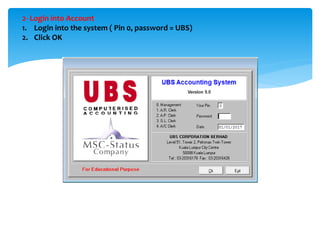
2- Login into Account
1. Login into the system ( Pin 0, password = UBS)
2. Click OK
2- Editing Account information
1. Go to Housekeeping > Run Setup > General Setup > Page 1
2. Edit the form according to Sample Data
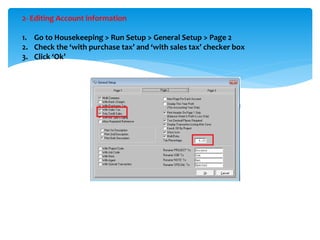
2- Editing Account information
1. Go to Housekeeping > Run Setup > General Setup > Page 2
2. Check the ‘with purchase tax’ and ‘with sales tax’ checker box
3. Click ‘Ok’
Section B
Question 2
*Question 1
answer is
similar to
Question 1 in
section A
1- 2 Creating Chart of account
1. Go to General > Select General Ledger A/C Maintenance
2. Edit the form according to Sample Data
3. Create all account in the table.
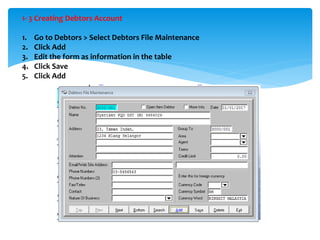
1- 3 Creating Debtors Account
1. Go to Debtors > Select Debtors File Maintenance
2. Click Add
3. Edit the form as information in the table
4. Click Save
5. Click Add
1-4 Creating Creditor Account
1. Go to Creditor > Select Creditor File Maintenance
2. Click Add
3. Edit the form as information in the table
4. Click Save
5. Click Add
6. Repeat till finished
1- 5 Organise batches
1. Go to Transaction > Organise batches
2. Click Add
3. Edit the form as information in the table
4. Click Add
5. Repeat till finished
6. Click Exit
1- 6 Adding Sales GST
transaction
1. Go to Transaction >
Transaction file
maintenance
2. Click Quick
3. Master Account select
according to detail in the
table
4. Since it is sales with GST
Tax select GST account
5000/001
5. Click ok
6. Fill in transaction file
maintenance as info in
table > click save
7. Repeat until the end of
the table
1- 6 Adding sales non transaction
1. Go to Transaction > Transaction file maintenance
2. Click Quick
3. Master Account select according to detail in the
table
4. Since it is sales non GST select sales non gst
5000/002
5. Click ok
6. Fill in Transaction File maintenance as info in
table > click save
7. Repeat until the end of the table
Basically do all transaction until
1-10
Don’t forget to print the file
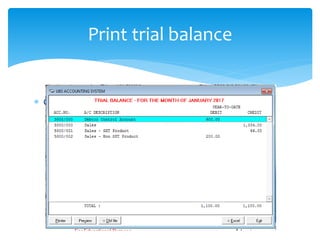
 Go to report > Trial Balance > Printer and print
Print trial balance
Report

T22016 – how to answer with ubs 9

  • 1.
    T22016 – Howto answer with UBS 9.0 Accounting
  • 2.
  • 3.
  • 4.
    1- Create Account 1.Click add 2. Enter Company name (CAPS LOCK or Follow according to ) 3. Enter Directory 4. Click Save 5. Click Cancel 6. Select Company name : ABCD Enterprise
  • 5.
    2- Login intoAccount 1. Login into the system ( Pin 0, password = UBS) 2. Click OK
  • 6.
    2- Editing Accountinformation 1. Go to Housekeeping > Run Setup > General Setup > Page 1 2. Edit the form according to Sample Data
  • 7.
    2- Editing Accountinformation 1. Go to Housekeeping > Run Setup > General Setup > Page 2 2. Check the ‘with purchase tax’ and ‘with sales tax’ checker box 3. Click ‘Ok’
  • 8.
  • 9.
    Question 2 *Question 1 answeris similar to Question 1 in section A
  • 10.
    1- 2 CreatingChart of account 1. Go to General > Select General Ledger A/C Maintenance 2. Edit the form according to Sample Data 3. Create all account in the table.
  • 11.
    1- 3 CreatingDebtors Account 1. Go to Debtors > Select Debtors File Maintenance 2. Click Add 3. Edit the form as information in the table 4. Click Save 5. Click Add
  • 12.
    1-4 Creating CreditorAccount 1. Go to Creditor > Select Creditor File Maintenance 2. Click Add 3. Edit the form as information in the table 4. Click Save 5. Click Add 6. Repeat till finished
  • 13.
    1- 5 Organisebatches 1. Go to Transaction > Organise batches 2. Click Add 3. Edit the form as information in the table 4. Click Add 5. Repeat till finished 6. Click Exit
  • 14.
    1- 6 AddingSales GST transaction 1. Go to Transaction > Transaction file maintenance 2. Click Quick 3. Master Account select according to detail in the table 4. Since it is sales with GST Tax select GST account 5000/001 5. Click ok 6. Fill in transaction file maintenance as info in table > click save 7. Repeat until the end of the table
  • 15.
    1- 6 Addingsales non transaction 1. Go to Transaction > Transaction file maintenance 2. Click Quick 3. Master Account select according to detail in the table 4. Since it is sales non GST select sales non gst 5000/002 5. Click ok 6. Fill in Transaction File maintenance as info in table > click save 7. Repeat until the end of the table
  • 16.
    Basically do alltransaction until 1-10 Don’t forget to print the file
  • 17.
     Go toreport > Trial Balance > Printer and print Print trial balance
  • 18.