Statistics - How to draw a Simple Random Sample
using Excel
SC Chopra
sccpharma@gmail.com
To draw a Simple Random
Sample, we have to generate
RANDOM NUMBERS.
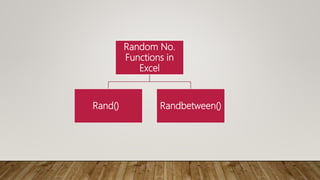
Random No.
Functions in
Excel
Rand() Randbetween()
Rand() Function
Creates decimal Random Numbers
From 0.000…001 to 0.999…999
Conversion into whole numbers/integers may be required
RandBetween (Lowest, Highest) Function
Creates random integers in specified range
Duplicates can occur
Remove duplicates by Remove Duplicates function
Random Numbers are VOLATILE
They change whenever an entry is made or file is opened
Freeze them by Copy => Paste Special => Values function
Pre-defined Populations: Examples
School students applying for a trip
Households in a Colony selected for survey
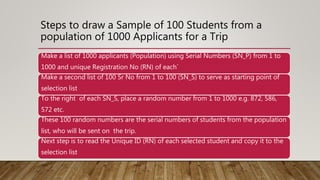
Steps to draw a Sample of 100 Students from a
population of 1000 Applicants for a Trip
Make a list of 1000 applicants (Population) using Serial Numbers (SN_P) from 1 to
1000 and unique Registration No (RN) of each`
Make a second list of 100 Sr No from 1 to 100 (SN_S) to serve as starting point of
selection list
To the right of each SN_S, place a random number from 1 to 1000 e.g. 872, 586,
572 etc.
These 100 random numbers are the serial numbers of students from the population
list, who will be sent on the trip.
Next step is to read the Unique ID (RN) of each selected student and copy it to the
selection list
Let us Practically Select a Sample of 100
Students out of 1000 who applied for a trip
Open a new Excel Worksheet
Type the headings as in next slide
• SN_P = Serial Number (Population)
• SN_S = Serial Number (Selected Sample)
• Random No = SN_P of selected students
• RN = Registration No. of relevant
students
Job Description
Area for
Population Data
Entry
Area for Sample
Data Computation
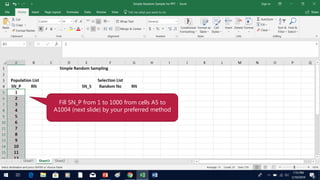
Fill SN_P from 1 to 1000 from cells A5 to
A1004 (next slide) by your preferred method
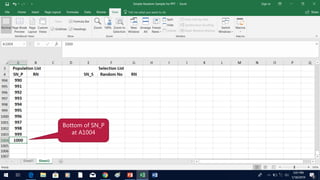
Bottom of SN_P
at A1004
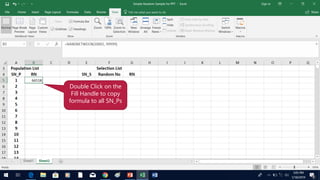
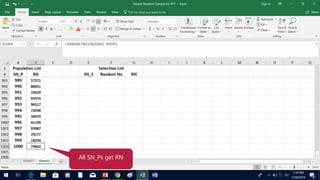
To avoid unnecessary labour,
generate a Random No. here by
entering the formula shown in
Formula Box. In practice, RN
would be real & NOT Random
No.
Formula in
Formula Box
Double Click on the
Fill Handle to copy
formula to all SN_Ps
All SN_Ps get RN
Insert SN_S from 1 to 100 in cells
E5 to E104 by your preferred
method (for 100 selected students)
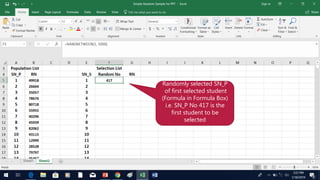
Randomly selected SN_P
of first selected student
(Formula in Formula Box)
i.e. SN_P No 417 is the
first student to be
selected
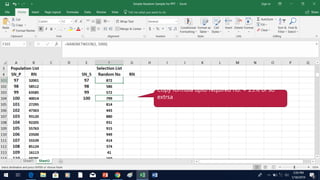
Copy formula upto required no. + 25% or so
extrsa
Select all data or only Random Numbers => Copy =>
Paste Special => Paste Values to freezw data i.e. to
prevent recalculation of Random Numbers.
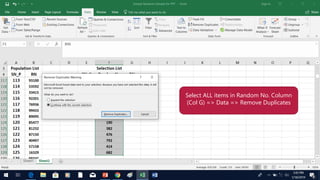
Select ALL items in Random No. Column
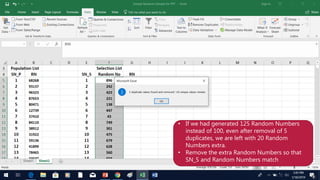
(Col G) => Data => Remove Duplicates
• If we had generated 125 Random Numbers
instead of 100, even after removal of 5
duplicates, we are left with 20 Random
Numbers extra.
• Remove the extra Random Numbers so that
SN_S and Random Numbers match
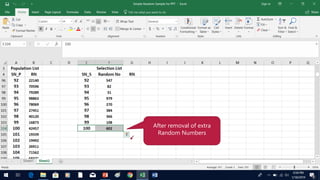
After removal of extra
Random Numbers
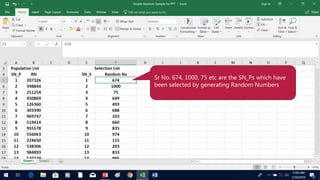
Sr No. 674, 1000, 75 etc are the SN_Ps which have
been selected by generating Random Numbers
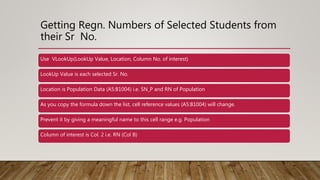
Getting Regn. Numbers of Selected Students from
their Sr No.
Use VLookUp(LookUp Value, Location, Column No. of interest)
LookUp Value is each selected Sr. No.
Location is Population Data (A5:B1004) i.e. SN_P and RN of Population
As you copy the formula down the list, cell reference values (A5:B1004) will change.
Prevent it by giving a meaningful name to this cell range e.g. Population
Column of interest is Col. 2 i.e. RN (Col B)
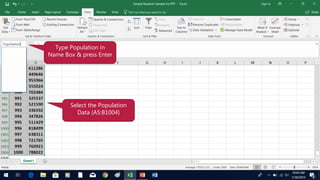
Select the Population
Data (A5:B1004)
Type Population in
Name Box & press Enter
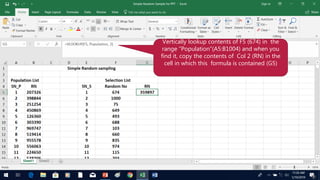
Vertically lookup contents of F5 (674) in the
range “Population”(A5:B1004) and when you
find it, copy the contents of Col 2 (RN) in the
cell in which this formula is contained (G5)
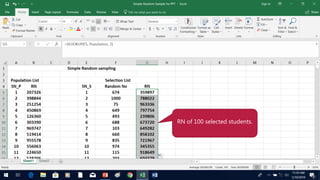
Double Click on the
Fill-handle to copy the
formula down to all
the cells which
contain data on their
left
RN of 100 selected students.
Job Completed! Beautification is your choice!
Sorting the list as per Regn. No (RN)
Darker shade to Population area and lighter shade of same colour to Sample area
Combination of the two suggestions
Statistics   how to draw a simple random sample using excel sk1

Statistics how to draw a simple random sample using excel sk1

  • 1.
    Statistics - Howto draw a Simple Random Sample using Excel SC Chopra sccpharma@gmail.com
  • 2.
    To draw aSimple Random Sample, we have to generate RANDOM NUMBERS.
  • 3.
  • 4.
    Rand() Function Creates decimalRandom Numbers From 0.000…001 to 0.999…999 Conversion into whole numbers/integers may be required
  • 5.
    RandBetween (Lowest, Highest)Function Creates random integers in specified range Duplicates can occur Remove duplicates by Remove Duplicates function
  • 6.
    Random Numbers areVOLATILE They change whenever an entry is made or file is opened Freeze them by Copy => Paste Special => Values function
  • 7.
    Pre-defined Populations: Examples Schoolstudents applying for a trip Households in a Colony selected for survey
  • 8.
    Steps to drawa Sample of 100 Students from a population of 1000 Applicants for a Trip Make a list of 1000 applicants (Population) using Serial Numbers (SN_P) from 1 to 1000 and unique Registration No (RN) of each` Make a second list of 100 Sr No from 1 to 100 (SN_S) to serve as starting point of selection list To the right of each SN_S, place a random number from 1 to 1000 e.g. 872, 586, 572 etc. These 100 random numbers are the serial numbers of students from the population list, who will be sent on the trip. Next step is to read the Unique ID (RN) of each selected student and copy it to the selection list
  • 9.
    Let us PracticallySelect a Sample of 100 Students out of 1000 who applied for a trip Open a new Excel Worksheet Type the headings as in next slide
  • 10.
    • SN_P =Serial Number (Population) • SN_S = Serial Number (Selected Sample) • Random No = SN_P of selected students • RN = Registration No. of relevant students Job Description Area for Population Data Entry Area for Sample Data Computation
  • 11.
    Fill SN_P from1 to 1000 from cells A5 to A1004 (next slide) by your preferred method
  • 12.
  • 13.
    To avoid unnecessarylabour, generate a Random No. here by entering the formula shown in Formula Box. In practice, RN would be real & NOT Random No. Formula in Formula Box
  • 14.
    Double Click onthe Fill Handle to copy formula to all SN_Ps
  • 15.
  • 16.
    Insert SN_S from1 to 100 in cells E5 to E104 by your preferred method (for 100 selected students)
  • 17.
    Randomly selected SN_P offirst selected student (Formula in Formula Box) i.e. SN_P No 417 is the first student to be selected
  • 18.
    Copy formula uptorequired no. + 25% or so extrsa
  • 19.
    Select all dataor only Random Numbers => Copy => Paste Special => Paste Values to freezw data i.e. to prevent recalculation of Random Numbers.
  • 20.
    Select ALL itemsin Random No. Column (Col G) => Data => Remove Duplicates
  • 21.
    • If wehad generated 125 Random Numbers instead of 100, even after removal of 5 duplicates, we are left with 20 Random Numbers extra. • Remove the extra Random Numbers so that SN_S and Random Numbers match
  • 22.
    After removal ofextra Random Numbers
  • 23.
    Sr No. 674,1000, 75 etc are the SN_Ps which have been selected by generating Random Numbers
  • 24.
    Getting Regn. Numbersof Selected Students from their Sr No. Use VLookUp(LookUp Value, Location, Column No. of interest) LookUp Value is each selected Sr. No. Location is Population Data (A5:B1004) i.e. SN_P and RN of Population As you copy the formula down the list, cell reference values (A5:B1004) will change. Prevent it by giving a meaningful name to this cell range e.g. Population Column of interest is Col. 2 i.e. RN (Col B)
  • 25.
    Select the Population Data(A5:B1004) Type Population in Name Box & press Enter
  • 26.
    Vertically lookup contentsof F5 (674) in the range “Population”(A5:B1004) and when you find it, copy the contents of Col 2 (RN) in the cell in which this formula is contained (G5)
  • 27.
    Double Click onthe Fill-handle to copy the formula down to all the cells which contain data on their left
  • 28.
    RN of 100selected students.
  • 29.
    Job Completed! Beautificationis your choice! Sorting the list as per Regn. No (RN) Darker shade to Population area and lighter shade of same colour to Sample area Combination of the two suggestions