Smartphone and Tablet
Basics
Cochise County Library District
Introductions
 Introductions
 These classes
 Karen
 You
 The lab computers are set to erase when
they restart.
Agenda
 Overview of different devices and OSs
 Wireless options
 Top apps
 Installing and removing apps
 Settings
 Getting photos off your phone/tablet
 Hands on with your device
 What do you want to learn today?
 ASK QUESTIONS!
Device Overview
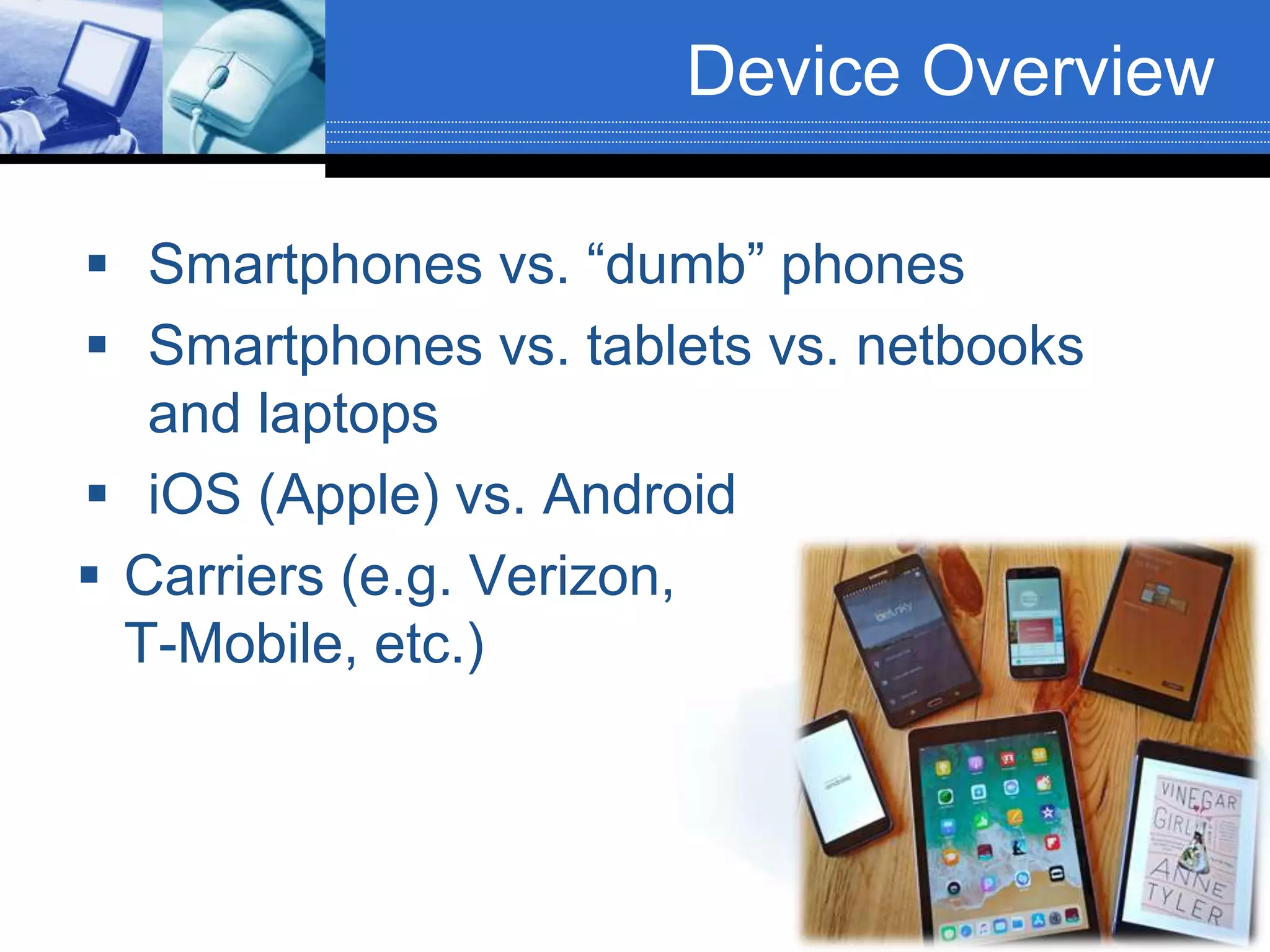
 Smartphones vs. “dumb” phones
 Smartphones vs. tablets vs. netbooks
and laptops
 iOS (Apple) vs. Android
 Carriers (e.g. Verizon,
T-Mobile, etc.)
Purchase Considerations
• PERSONAL PREFERENCE
• Cost
• Battery life
• Memory
• Wireless plans
• Generation
• etc.
Ways to Connect
 Cell service
 WiFi
 “Hot spots”
 Pros and cons of which to use
 Tethering
Top Apps
 Web browsing
 Social media
 Photos
 Mapping
 Calendar
 Contacts
 Lists and notes
 Games
 News
 Video
 Chat
 Email
 Word processing
 Podcasts
 Ebooks and audio
books
 Voice recording
 …and more!
Downloading apps
 Apple
 App Store
 Android
 Play Store
 Evaluating apps
Removing apps
 Apple
 Touch and hold any app until they all jiggle
 X to remove
 Android
 Settings → Apps & notif → Tap app →
Uninstall
or
 Touch and hold any app →Drag up to
Uninstall
Organizing apps
 Most used apps
 Dock
 Home screen
 Folders
 Get rid of apps you don’t use
 Uninstall vs. Remove
Settings
 Device settings
 Settings app
 Wireless, Notifications, Display, Sound
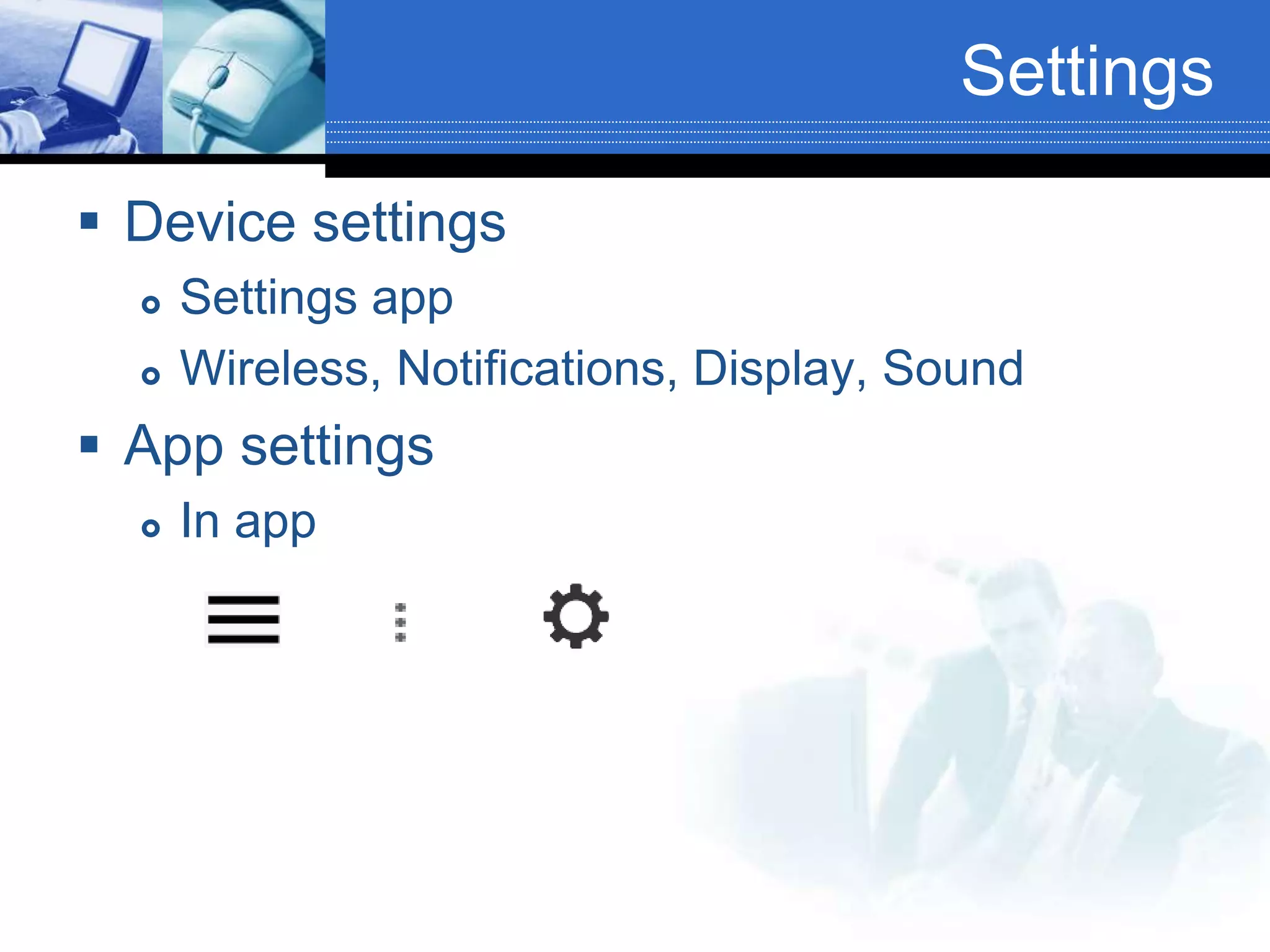
 App settings
 In app
Transferring photos from
your device
 One at a time
 iPhone
 Android
for sync to Google Photos
 Automatically sync all
 Note: In general, deleting in one place will
delete everywhere.
 iPhone – iCloud
 To turn on, go to Settings > [your name] > iCloud >
Photos, then turn on iCloud Photos
 To access, go to icloud.com and go to Photos
 Android – Google Photos
 To turn on, go to Google Photos app → menus
→ Settings → Back up & sync → On
 To access, go to photos.google.com
 In Settings, you have an option to remove photos
from your device that are already backed up.)
Passwords
 A word about passwords…
Find a way to track that works for you.
Hands On
Questions about your device?
Questions?
Other topics?
Next Classes
 Thurs., Mar. 26 – Digital Photo Editing
 Thurs., Apr. 23 – Making Great Flyers
 We offer individual tech help after each
class from 2:00-4:00. Bring your questions
and devices!

Smartphone and tablet basics

  • 1.
    Smartphone and Tablet Basics CochiseCounty Library District
  • 2.
    Introductions  Introductions  Theseclasses  Karen  You  The lab computers are set to erase when they restart.
  • 3.
    Agenda  Overview ofdifferent devices and OSs  Wireless options  Top apps  Installing and removing apps  Settings  Getting photos off your phone/tablet  Hands on with your device  What do you want to learn today?  ASK QUESTIONS!
  • 4.
    Device Overview  Smartphonesvs. “dumb” phones  Smartphones vs. tablets vs. netbooks and laptops  iOS (Apple) vs. Android  Carriers (e.g. Verizon, T-Mobile, etc.)
  • 5.
    Purchase Considerations • PERSONALPREFERENCE • Cost • Battery life • Memory • Wireless plans • Generation • etc.
  • 6.
    Ways to Connect Cell service  WiFi  “Hot spots”  Pros and cons of which to use  Tethering
  • 7.
    Top Apps  Webbrowsing  Social media  Photos  Mapping  Calendar  Contacts  Lists and notes  Games  News  Video  Chat  Email  Word processing  Podcasts  Ebooks and audio books  Voice recording  …and more!
  • 8.
    Downloading apps  Apple App Store  Android  Play Store  Evaluating apps
  • 9.
    Removing apps  Apple Touch and hold any app until they all jiggle  X to remove  Android  Settings → Apps & notif → Tap app → Uninstall or  Touch and hold any app →Drag up to Uninstall
  • 10.
    Organizing apps  Mostused apps  Dock  Home screen  Folders  Get rid of apps you don’t use  Uninstall vs. Remove
  • 11.
    Settings  Device settings Settings app  Wireless, Notifications, Display, Sound  App settings  In app
  • 12.
    Transferring photos from yourdevice  One at a time  iPhone  Android for sync to Google Photos  Automatically sync all  Note: In general, deleting in one place will delete everywhere.  iPhone – iCloud  To turn on, go to Settings > [your name] > iCloud > Photos, then turn on iCloud Photos  To access, go to icloud.com and go to Photos
  • 13.
     Android –Google Photos  To turn on, go to Google Photos app → menus → Settings → Back up & sync → On  To access, go to photos.google.com  In Settings, you have an option to remove photos from your device that are already backed up.)
  • 14.
    Passwords  A wordabout passwords… Find a way to track that works for you.
  • 15.
  • 16.
  • 17.
    Next Classes  Thurs.,Mar. 26 – Digital Photo Editing  Thurs., Apr. 23 – Making Great Flyers  We offer individual tech help after each class from 2:00-4:00. Bring your questions and devices!