Logical Technology
 Using Logic to Figure Out Technology


                             By Mr. T
                             6/30/12
Logical Technology
You want to get better at using technology,
mainly computers, but sometimes it seems
              overwhelming.

  This presentation will give you tips and
tricks to make you a 21st century learner.
Table of Contents
  i.   Theory
 ii.   TV's and Cameras
iii.   Tablets (iPads) & Phones
iv.    Computers
 v.    Quick Integration
vi.    Now You're a Pro
Theory of Technology
Technology is basically robotics. You press a
           "go" button and it goes.
        What you press is what you get.
It is cause and effect (or input and output).


So, when you're working with technology, you
need to think about the input and output in a
                logical order.
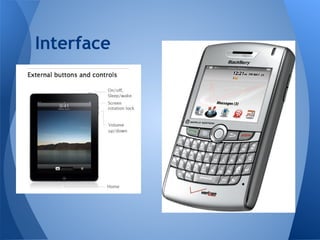
Interface
Interface is what you can use to interact
with technology. It is a remote controller, a
keyboard and a mouse, a touch screen, etc.
If there's a button, assume it does
something... assume it does many things. E.
g. a watch has 2-4 buttons, but it has 10+
features. One of the buttons is a menu
button, which leads to the other features.
Interface
Tip: Know What You Have
Terminology. Two major aspects of technology
are nomenclature and guts. What is the name of
the tech? What components does it have?

New technology has the latest stuff and usually
in tiers. The $100 model has A. The $200 model
has B. The $300 model has C. With each price
bump, you get a faster & more capable device. It
only matters if you actually need more.
Tip Cont'd
     Know What You Have!
     Know What It Can Do!

    Camera? Newest model?
  Price? Brand? Accessories?

Print. Copy. Save. Email. Video.
Your Goal
Your goal is to figure out what you want
to do and which buttons you need to
press to do it.

How do I get from point A to point B?

Is there an instruction manual?
   - Usually, but not for computers
Troubleshooting Tip - Hardware
When I think "logical," I think "connected."

When dealing with a smart cart, or other tech
devices, make sure:
 ● Everything is plugged in (power to device)

 ● Follow the wires, label with colors if need be

 ● Tech is maintained and cleaned


    There are different ports for each device:
Power, Audio, Visual, Microphone, Headphones
        *usually what fits is meant to fit *
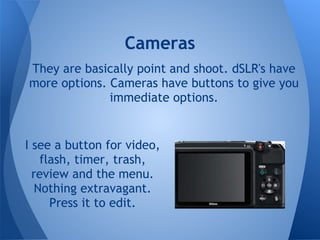
Cameras
They are basically point and shoot. dSLR's have
more options. Cameras have buttons to give you
              immediate options.


I see a button for video,
    flash, timer, trash,
  review and the menu.
   Nothing extravagant.
      Press it to edit.
Transferring To a Computer
A cord connects the camera to the computer.
1. Connect the cord.
2. Turn on the camera.

Computers should auto-detect the camera, but check
"My Computer" (PC) or "Finder" or "iPhoto" (Mac) if it
doesn't.

     Copy the files, or cut them to clear the card.

  They probably need to be edited, especially if they
                are over 1 MB in size.
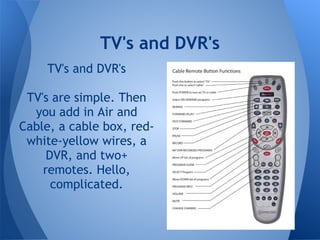
TV's and DVR's
     TV's and DVR's

 TV's are simple. Then
  you add in Air and
Cable, a cable box, red-
 white-yellow wires, a
     DVR, and two+
    remotes. Hello,
      complicated.
The Difference
While cameras and TV's are both relatively
simple devices to use, TV's have more
options. You can do more with them, so
there are more buttons to learn.
Troubleshooting Tip: Software
        Think of which devices are involved.
 Just like kids. Two kids involved, who started it?
Think of reasons why either one could have be the
                     "problem."

                  Sound Isn't On
         Devices: Computer and Speakers
 Logically: Plugged in? Connected to each other?
   Speaker volume up? Computer volume on?

       Check the settings on the computer.
 Try the computer's sound with another speaker.
 Try the speaker's sound with another computer.
Tablets and Phones
Both are the wave of the future. People need
phones more than tablets, but they are more
limited. Tablets can't fit into your pocket, just like
how computers can't either. Tablets are the middle
ground between phones and desktop computers.
Tablets vs. Phones
An Apple tablet (iPad) and an iPhone are almost
identical, so I'm talking about other companies.

The major differences between tablets and phones
are the buttons and menus.
Tablets
Touch Technology
is the current step.
It is easy to pick up.
iPads have an app
called "Settings,"
where you can adjust
any option on your
iPad.
[ Wifi, background,
Email address, etc.]
Tablet Help
The future is easier.   ● iPad WiFi or 3G
Tablets are easier to   ● iTunes/Apple ID
use than computers.
                             Complicated
THOUGH, when you        ● Computer to sync
get more creative, it     and manage the iPad
gets more
complicated. You
                        ● Transfer photos &
need a few things to      movies to the
make it tick.             computer
                        ● Use multiple iPads
Troubleshooting an iPad
I'm focusing only on an iPad tablet, because Apple,
not Android, has the most apps and educational
apps.

Websites / Tutorials:
● MakeUseOf.Com Guide
● Easy iPad Tutorial
● iPad Academy
● About.Com Tutorial
● Learning in Hand
Logical Computers
You double-clicked on a program.
10 seconds has passed and it has not opened.
Logically, the computer is either slowly opening a
large program OR it only read one click.
Solution: Try again, or wait for the large program to
open.

The mouse is frozen.
Solution: Unplug and plug in again, even try a
different slot.
The Restart
● Restarting tends to solve most computer problems
   Why? Maybe the computer is old OR has been on for
awhile and it needs to recalibrate, clear its RAM, and
get on the right track.

● New is king. Old computers have more problems,
  especially with updates and new software.
  Restarting might not help old computers. You can
  push it as far as it can go, but that might not be far
  enough for you. If it's 5 years old, then it might be
  half of a new computer... or even less (power,
  capability, and ability).
Right-Click Happiness
Right-clicking adds another level
● More options, like cut, paste, save
   ○ Faster important options (cut, paste, save)
      Some functions can found in 3+ places
● Save photos on the Internet
● Desktop: See display and background options
● Open websites in a new window or new tab
● Faster computing - saves time with easy options
LOCATION
                Where is my file?
If you aren't comfortable with computers, save
things on the desktop in folders. Right-click
and make a folder, even nest folders (folders
in folders). That way, you can click "Desktop"
when saving and searching.

PC: Use Documents/Photos/Music albums to
store files, using labeled folders

Mac: Use Finder to find files and even
applications (Applications folder)
Microsoft Office
            *.docx *.xlsx *.pptx
 The 'x' at the end is an advanced version,
                 Office 2007+
If you have an older version, download the
       compatibility pack to open it.
                  Or use an
               Online converter
Go to the Options to save as an Office 97-2003
                non-x version.

The newer versions have small advancements
        that aren't too noticeable.
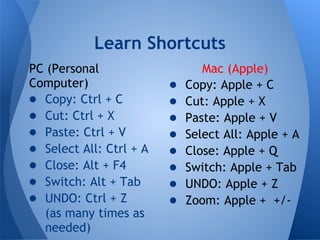
Learn Shortcuts
PC (Personal                    Mac (Apple)
Computer)                ●   Copy: Apple + C
● Copy: Ctrl + C         ●   Cut: Apple + X
● Cut: Ctrl + X          ●   Paste: Apple + V
● Paste: Ctrl + V        ●   Select All: Apple + A
● Select All: Ctrl + A   ●   Close: Apple + Q
● Close: Alt + F4        ●   Switch: Apple + Tab
● Switch: Alt + Tab      ●   UNDO: Apple + Z
● UNDO: Ctrl + Z         ●   Zoom: Apple + +/-
  (as many times as
  needed)
Quick Integration
● Think logically     Once you find the
● Know what you       volume on one device,
  want to do          odds are you will have a
● Connect the steps   better chance on
  on how to do it     finding it for a new
                      device. You will build
● Play around         up your knowledge and
  (search)            learn how to spot the
● Repeat to           buttons & features on
  memorize            any device.
Persistence
The new generation usually knows more and that's
especially true right now. They are more exposed at a
more impressionable age when their brains are
learning.

I learned 99% of what I know about technology by
myself, exploring and testing out. If it didn't work, I
tried again. If that didn't work, I tried something else
similar. Sometimes, it was like guessing: 8, 9, 12, 11,
10!

   You might not have extra time to play around, but
just remember, persistence is a virtue. Challenges
aren't easy and when you conquer, you win!
When You Need Help
Where can you turn   I want to stress one option:
for help?                    Online Help
● manual
                     The Internet is dangerous,
● family, friends    because you can find
● students, kids     almost everything on it and
● online help        you don't need to know
● local tech wiz     about everything.
● tech support            <see next slide>
Online Help: How?
Type your summarized question into a search
(google, yahoo, etc.)

How do I lock my iPad screen, so it doesn't rotate?
= lock iPad screen

Why won't the video play? It's gray and says plug-in
 = video plug-in
[No good results? Investigate again -> "Flash"
 = video plug-in Flash

Read: Google Search Tips
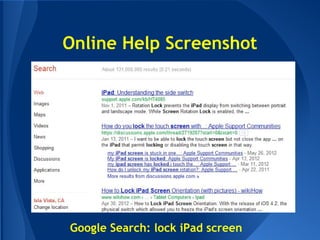
Online Help Screenshot


Google Search: lock iPad screen
Online Help: Sorting Through
Depending on the search, you'll get a direct
answer, nothing, or a message board post that
you have to sift through... and maybe even a
blog post!
- Direct: Good!
- Nothing: Change your search words, or
           Go to the company's help site, or
             (e.g. Apple's Support)
           use another resource
- Message Board: <see next slide>
- Blog Help: An "article" on your topic
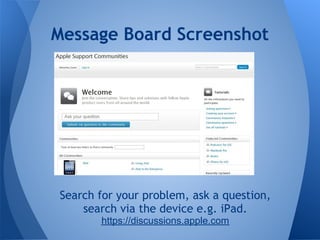
Message Boards / Forum
Company's Support Site: A vital resource
 e.g. Apple Support: http://www.apple.com/support/
   It has manuals and tutorials.

Company's Forum: Consumers and Technicians
asking and answering questions
 e.g. Apple's Forums: https://discussions.apple.com

Online Forums: People make forums to discuss
problems and help each other troubleshoot

  All are valuable in that, they usually have the
                      answers!
Message Board Screenshot


Search for your problem, ask a question,
    search via the device e.g. iPad.
       https://discussions.apple.com
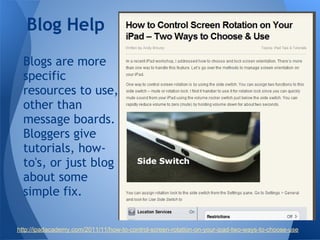
Blog Help
  Blogs are more
  specific
  resources to use,
  other than
  message boards.
  Bloggers give
  tutorials, how-
  to's, or just blog
  about some
  simple fix.

http://ipadacademy.com/2011/11/how-to-control-screen-rotation-on-your-ipad-two-ways-to-choose-use
Online Help is Free!
Online help is definitely free!
From there, you can ask your friendly
technology expert.

If they can't fix it, you can try face-to-
face professional help, e.g. Geek Squad
or on-call IT people, who charge by the
hour.
         http://www.geeksquad.com/
Now You're a Pro
● Think logically
● Check the devices
● Know your goal and the steps to complete it
● Don't get discouraged about new problems
● Be persistent. Odds are, kids are much more
  persistent than you are, and that's when they
  learn and get better than you
● Use your tools: ask others, online help
● Work smarter, not harder
● Pick your battles, my weakness is TV & its
  components. I skate by with the basics.
Last Logical Tips
           PROTECT what you have!
●   If you break things, get the insurance
●   If you drop things, get the durable case
●   Get the screen protector
●   Store it in a safe place, not your pocket
●   Don't eat or drink by technology
●   Accessories, Shop around: Amazon.com
    ○ What you see for $50 is usually sold for
      $20
● Charge it, but don't let it sit charging
  when it's full (battery strain).
             Enjoy the future!
LOGIC

Logical technology

  • 1.
    Logical Technology UsingLogic to Figure Out Technology By Mr. T 6/30/12
  • 2.
    Logical Technology You wantto get better at using technology, mainly computers, but sometimes it seems overwhelming. This presentation will give you tips and tricks to make you a 21st century learner.
  • 3.
    Table of Contents i. Theory ii. TV's and Cameras iii. Tablets (iPads) & Phones iv. Computers v. Quick Integration vi. Now You're a Pro
  • 4.
    Theory of Technology Technologyis basically robotics. You press a "go" button and it goes. What you press is what you get. It is cause and effect (or input and output). So, when you're working with technology, you need to think about the input and output in a logical order.
  • 5.
    Interface Interface is whatyou can use to interact with technology. It is a remote controller, a keyboard and a mouse, a touch screen, etc. If there's a button, assume it does something... assume it does many things. E. g. a watch has 2-4 buttons, but it has 10+ features. One of the buttons is a menu button, which leads to the other features.
  • 6.
  • 7.
    Tip: Know WhatYou Have Terminology. Two major aspects of technology are nomenclature and guts. What is the name of the tech? What components does it have? New technology has the latest stuff and usually in tiers. The $100 model has A. The $200 model has B. The $300 model has C. With each price bump, you get a faster & more capable device. It only matters if you actually need more.
  • 8.
    Tip Cont'd Know What You Have! Know What It Can Do! Camera? Newest model? Price? Brand? Accessories? Print. Copy. Save. Email. Video.
  • 9.
    Your Goal Your goalis to figure out what you want to do and which buttons you need to press to do it. How do I get from point A to point B? Is there an instruction manual? - Usually, but not for computers
  • 10.
    Troubleshooting Tip -Hardware When I think "logical," I think "connected." When dealing with a smart cart, or other tech devices, make sure: ● Everything is plugged in (power to device) ● Follow the wires, label with colors if need be ● Tech is maintained and cleaned There are different ports for each device: Power, Audio, Visual, Microphone, Headphones *usually what fits is meant to fit *
  • 11.
    Cameras They are basicallypoint and shoot. dSLR's have more options. Cameras have buttons to give you immediate options. I see a button for video, flash, timer, trash, review and the menu. Nothing extravagant. Press it to edit.
  • 12.
    Transferring To aComputer A cord connects the camera to the computer. 1. Connect the cord. 2. Turn on the camera. Computers should auto-detect the camera, but check "My Computer" (PC) or "Finder" or "iPhoto" (Mac) if it doesn't. Copy the files, or cut them to clear the card. They probably need to be edited, especially if they are over 1 MB in size.
  • 13.
    TV's and DVR's TV's and DVR's TV's are simple. Then you add in Air and Cable, a cable box, red- white-yellow wires, a DVR, and two+ remotes. Hello, complicated.
  • 14.
    The Difference While camerasand TV's are both relatively simple devices to use, TV's have more options. You can do more with them, so there are more buttons to learn.
  • 15.
    Troubleshooting Tip: Software Think of which devices are involved. Just like kids. Two kids involved, who started it? Think of reasons why either one could have be the "problem." Sound Isn't On Devices: Computer and Speakers Logically: Plugged in? Connected to each other? Speaker volume up? Computer volume on? Check the settings on the computer. Try the computer's sound with another speaker. Try the speaker's sound with another computer.
  • 16.
    Tablets and Phones Bothare the wave of the future. People need phones more than tablets, but they are more limited. Tablets can't fit into your pocket, just like how computers can't either. Tablets are the middle ground between phones and desktop computers.
  • 17.
    Tablets vs. Phones AnApple tablet (iPad) and an iPhone are almost identical, so I'm talking about other companies. The major differences between tablets and phones are the buttons and menus.
  • 18.
    Tablets Touch Technology is thecurrent step. It is easy to pick up. iPads have an app called "Settings," where you can adjust any option on your iPad. [ Wifi, background, Email address, etc.]
  • 19.
    Tablet Help The futureis easier. ● iPad WiFi or 3G Tablets are easier to ● iTunes/Apple ID use than computers. Complicated THOUGH, when you ● Computer to sync get more creative, it and manage the iPad gets more complicated. You ● Transfer photos & need a few things to movies to the make it tick. computer ● Use multiple iPads
  • 20.
    Troubleshooting an iPad I'mfocusing only on an iPad tablet, because Apple, not Android, has the most apps and educational apps. Websites / Tutorials: ● MakeUseOf.Com Guide ● Easy iPad Tutorial ● iPad Academy ● About.Com Tutorial ● Learning in Hand
  • 21.
    Logical Computers You double-clickedon a program. 10 seconds has passed and it has not opened. Logically, the computer is either slowly opening a large program OR it only read one click. Solution: Try again, or wait for the large program to open. The mouse is frozen. Solution: Unplug and plug in again, even try a different slot.
  • 22.
    The Restart ● Restartingtends to solve most computer problems Why? Maybe the computer is old OR has been on for awhile and it needs to recalibrate, clear its RAM, and get on the right track. ● New is king. Old computers have more problems, especially with updates and new software. Restarting might not help old computers. You can push it as far as it can go, but that might not be far enough for you. If it's 5 years old, then it might be half of a new computer... or even less (power, capability, and ability).
  • 23.
    Right-Click Happiness Right-clicking addsanother level ● More options, like cut, paste, save ○ Faster important options (cut, paste, save) Some functions can found in 3+ places ● Save photos on the Internet ● Desktop: See display and background options ● Open websites in a new window or new tab ● Faster computing - saves time with easy options
  • 24.
    LOCATION Where is my file? If you aren't comfortable with computers, save things on the desktop in folders. Right-click and make a folder, even nest folders (folders in folders). That way, you can click "Desktop" when saving and searching. PC: Use Documents/Photos/Music albums to store files, using labeled folders Mac: Use Finder to find files and even applications (Applications folder)
  • 25.
    Microsoft Office *.docx *.xlsx *.pptx The 'x' at the end is an advanced version, Office 2007+ If you have an older version, download the compatibility pack to open it. Or use an Online converter Go to the Options to save as an Office 97-2003 non-x version. The newer versions have small advancements that aren't too noticeable.
  • 26.
    Learn Shortcuts PC (Personal Mac (Apple) Computer) ● Copy: Apple + C ● Copy: Ctrl + C ● Cut: Apple + X ● Cut: Ctrl + X ● Paste: Apple + V ● Paste: Ctrl + V ● Select All: Apple + A ● Select All: Ctrl + A ● Close: Apple + Q ● Close: Alt + F4 ● Switch: Apple + Tab ● Switch: Alt + Tab ● UNDO: Apple + Z ● UNDO: Ctrl + Z ● Zoom: Apple + +/- (as many times as needed)
  • 27.
    Quick Integration ● Thinklogically Once you find the ● Know what you volume on one device, want to do odds are you will have a ● Connect the steps better chance on on how to do it finding it for a new device. You will build ● Play around up your knowledge and (search) learn how to spot the ● Repeat to buttons & features on memorize any device.
  • 28.
    Persistence The new generationusually knows more and that's especially true right now. They are more exposed at a more impressionable age when their brains are learning. I learned 99% of what I know about technology by myself, exploring and testing out. If it didn't work, I tried again. If that didn't work, I tried something else similar. Sometimes, it was like guessing: 8, 9, 12, 11, 10! You might not have extra time to play around, but just remember, persistence is a virtue. Challenges aren't easy and when you conquer, you win!
  • 29.
    When You NeedHelp Where can you turn I want to stress one option: for help? Online Help ● manual The Internet is dangerous, ● family, friends because you can find ● students, kids almost everything on it and ● online help you don't need to know ● local tech wiz about everything. ● tech support <see next slide>
  • 30.
    Online Help: How? Typeyour summarized question into a search (google, yahoo, etc.) How do I lock my iPad screen, so it doesn't rotate? = lock iPad screen Why won't the video play? It's gray and says plug-in = video plug-in [No good results? Investigate again -> "Flash" = video plug-in Flash Read: Google Search Tips
  • 31.
    Online Help Screenshot GoogleSearch: lock iPad screen
  • 32.
    Online Help: SortingThrough Depending on the search, you'll get a direct answer, nothing, or a message board post that you have to sift through... and maybe even a blog post! - Direct: Good! - Nothing: Change your search words, or Go to the company's help site, or (e.g. Apple's Support) use another resource - Message Board: <see next slide> - Blog Help: An "article" on your topic
  • 33.
    Message Boards /Forum Company's Support Site: A vital resource e.g. Apple Support: http://www.apple.com/support/ It has manuals and tutorials. Company's Forum: Consumers and Technicians asking and answering questions e.g. Apple's Forums: https://discussions.apple.com Online Forums: People make forums to discuss problems and help each other troubleshoot All are valuable in that, they usually have the answers!
  • 34.
    Message Board Screenshot Searchfor your problem, ask a question, search via the device e.g. iPad. https://discussions.apple.com
  • 35.
    Blog Help Blogs are more specific resources to use, other than message boards. Bloggers give tutorials, how- to's, or just blog about some simple fix. http://ipadacademy.com/2011/11/how-to-control-screen-rotation-on-your-ipad-two-ways-to-choose-use
  • 36.
    Online Help isFree! Online help is definitely free! From there, you can ask your friendly technology expert. If they can't fix it, you can try face-to- face professional help, e.g. Geek Squad or on-call IT people, who charge by the hour. http://www.geeksquad.com/
  • 37.
    Now You're aPro ● Think logically ● Check the devices ● Know your goal and the steps to complete it ● Don't get discouraged about new problems ● Be persistent. Odds are, kids are much more persistent than you are, and that's when they learn and get better than you ● Use your tools: ask others, online help ● Work smarter, not harder ● Pick your battles, my weakness is TV & its components. I skate by with the basics.
  • 38.
    Last Logical Tips PROTECT what you have! ● If you break things, get the insurance ● If you drop things, get the durable case ● Get the screen protector ● Store it in a safe place, not your pocket ● Don't eat or drink by technology ● Accessories, Shop around: Amazon.com ○ What you see for $50 is usually sold for $20 ● Charge it, but don't let it sit charging when it's full (battery strain). Enjoy the future!
  • 39.