Cochise County Library District
Digital Photo Editing
Introductions
ď‚§ Introductions
ď‚› These classes
ď‚› Karen
ď‚› You
ď‚§ The lab computers are set to erase when
they restart.
Agenda
ď‚§ Overview
ď‚§ Desktop and mobile apps
ď‚§ Save vs. Save As
ď‚§ Mobile editing
ď‚§ BeFunky
ď‚§ Saving and organizing
ď‚§ What do you want to learn today?
ď‚§ ASK QUESTIONS!
Many software options
Mobile
ď‚§ Built-in
ď‚§ In-app (Twitter,
Instagram, etc.)
ď‚§ Adobe Lightroom
ď‚§ PicsArt
ď‚§ Snapseed
ď‚§ VSCO
ď‚§ Pixlr
ď‚§ BeFunky
Desktop
ď‚§ Adobe Photoshop
ď‚§ Adobe Lightroom
ď‚§ Photos (Apple)
ď‚§ GIMP
ď‚§ Pixlr
ď‚§ BeFunky
ď‚§ Google Photos
Why Save vs. Save As*
Matters…
* Save copy on mobile
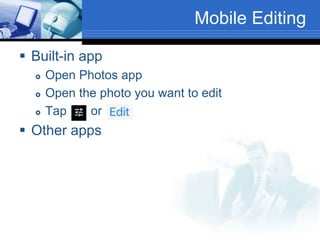
Mobile Editing
ď‚§ Built-in app
ď‚› Open Photos app
ď‚› Open the photo you want to edit
ď‚› Tap or
ď‚§ Other apps
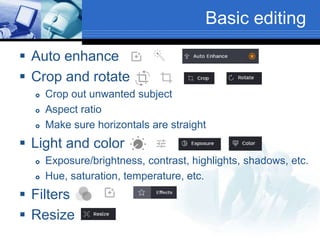
Basic editing
ď‚§ Auto enhance
ď‚§ Crop and rotate
ď‚› Crop out unwanted subject
ď‚› Aspect ratio
ď‚› Make sure horizontals are straight
ď‚§ Light and color
ď‚› Exposure/brightness, contrast, highlights, shadows, etc.
ď‚› Hue, saturation, temperature, etc.
ď‚§ Filters
ď‚§ Resize
Hands On
Open a photo on your mobile phone
or tablet.
Auto enhance, crop, adjust lighting
BONUS: Try lightening shadows or
darkening highlights
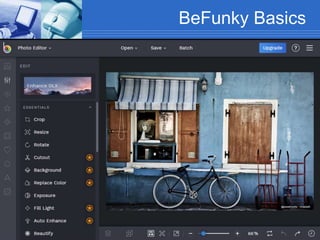
BeFunky Basics
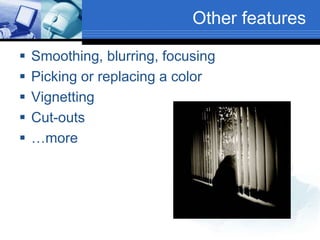
Other features
ď‚§ Smoothing, blurring, focusing
ď‚§ Picking or replacing a color
ď‚§ Vignetting
ď‚§ Cut-outs
 …more
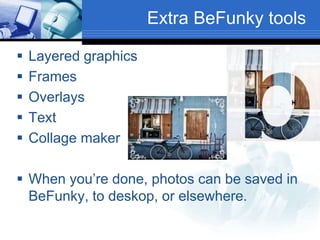
Extra BeFunky tools
ď‚§ Layered graphics
ď‚§ Frames
ď‚§ Overlays
ď‚§ Text
ď‚§ Collage maker
 When you’re done, photos can be saved in
BeFunky, to deskop, or elsewhere.
Hands On
Go to BeFunky.com.
Click Get Started. (You don’t need an
account.)
Open a sample photo (or one of your own).
Crop, adjust lighting (Exposure), add a
frame.
BONUS: Make a collage of photos.
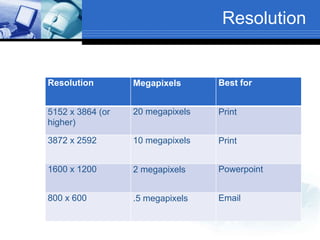
Resolution
Resolution Megapixels Best for
5152 x 3864 (or
higher)
20 megapixels Print
3872 x 2592 10 megapixels Print
1600 x 1200 2 megapixels Powerpoint
800 x 600 .5 megapixels Email
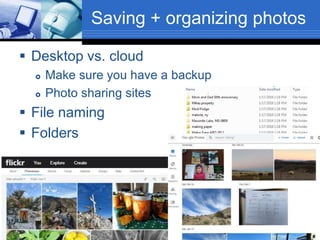
Saving + organizing photos
ď‚§ Desktop vs. cloud
ď‚› Make sure you have a backup
ď‚› Photo sharing sites
ď‚§ File naming
ď‚§ Folders
Questions?
Other topics?
Next Classes
 Thurs., Mar. 30 – Smartphone and Tablet
Basics (repeat)
 Thurs., Apr.13 – Using the Online Library
Catalog and Databases
ď‚§ We offer individual tech help after each
class from 2:00-4:00. Bring your questions
and devices!

Photo editing

  • 1.
    Cochise County LibraryDistrict Digital Photo Editing
  • 2.
    Introductions ď‚§ Introductions ď‚› Theseclasses ď‚› Karen ď‚› You ď‚§ The lab computers are set to erase when they restart.
  • 3.
    Agenda ď‚§ Overview ď‚§ Desktopand mobile apps ď‚§ Save vs. Save As ď‚§ Mobile editing ď‚§ BeFunky ď‚§ Saving and organizing ď‚§ What do you want to learn today? ď‚§ ASK QUESTIONS!
  • 4.
    Many software options Mobile ď‚§Built-in ď‚§ In-app (Twitter, Instagram, etc.) ď‚§ Adobe Lightroom ď‚§ PicsArt ď‚§ Snapseed ď‚§ VSCO ď‚§ Pixlr ď‚§ BeFunky Desktop ď‚§ Adobe Photoshop ď‚§ Adobe Lightroom ď‚§ Photos (Apple) ď‚§ GIMP ď‚§ Pixlr ď‚§ BeFunky ď‚§ Google Photos
  • 5.
    Why Save vs.Save As* Matters… * Save copy on mobile
  • 6.
    Mobile Editing ď‚§ Built-inapp ď‚› Open Photos app ď‚› Open the photo you want to edit ď‚› Tap or ď‚§ Other apps
  • 7.
    Basic editing ď‚§ Autoenhance ď‚§ Crop and rotate ď‚› Crop out unwanted subject ď‚› Aspect ratio ď‚› Make sure horizontals are straight ď‚§ Light and color ď‚› Exposure/brightness, contrast, highlights, shadows, etc. ď‚› Hue, saturation, temperature, etc. ď‚§ Filters ď‚§ Resize
  • 8.
    Hands On Open aphoto on your mobile phone or tablet. Auto enhance, crop, adjust lighting BONUS: Try lightening shadows or darkening highlights
  • 9.
  • 10.
    Other features  Smoothing,blurring, focusing  Picking or replacing a color  Vignetting  Cut-outs  …more
  • 11.
    Extra BeFunky tools Layered graphics  Frames  Overlays  Text  Collage maker  When you’re done, photos can be saved in BeFunky, to deskop, or elsewhere.
  • 12.
    Hands On Go toBeFunky.com. Click Get Started. (You don’t need an account.) Open a sample photo (or one of your own). Crop, adjust lighting (Exposure), add a frame. BONUS: Make a collage of photos.
  • 13.
    Resolution Resolution Megapixels Bestfor 5152 x 3864 (or higher) 20 megapixels Print 3872 x 2592 10 megapixels Print 1600 x 1200 2 megapixels Powerpoint 800 x 600 .5 megapixels Email
  • 14.
    Saving + organizingphotos ď‚§ Desktop vs. cloud ď‚› Make sure you have a backup ď‚› Photo sharing sites ď‚§ File naming ď‚§ Folders
  • 15.
  • 16.
    Next Classes  Thurs.,Mar. 30 – Smartphone and Tablet Basics (repeat)  Thurs., Apr.13 – Using the Online Library Catalog and Databases  We offer individual tech help after each class from 2:00-4:00. Bring your questions and devices!