Tablet computing – iPads &
androids & other aliens
1

Mary Schooneveldt
January 2014
Why?
•
•
•
•
•
•
•
•
•
•
•
•

Surf from the couch
eReader
Recipe book
Facebook/ social media
iView/SBS
Camera/video
GPS – maps
Music/radio
Shopping
Phone
Mobile gaming
Sync!!!

2
OHS???
http://www.education.vic.gov.au/hr/ohs/hazards/laptophazardguide.htm
Operating systems – face off
•
•
•
•
•
•
•
•

iOS (5,6 or 7) or Jelly Bean, Ice cream sandwich
Browser – safari or google chrome?
Sync – iCloud or Google+
Notifications?
Multi tasking - limited but getting better
Voice recognition?
Panoramic shots?
Apps

4
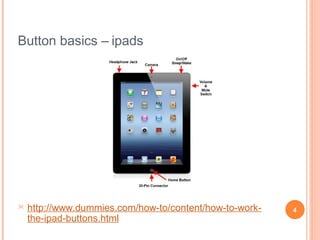
Button basics – ipads



http://www.dummies.com/how-to/content/how-to-workthe-ipad-buttons.html

5
Button basics - Android


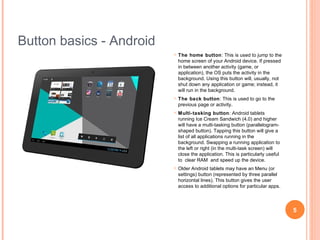
The home button: This is used to jump to the
home screen of your Android device. If pressed
in between another activity (game, or
application), the OS puts the activity in the
background. Using this button will, usually, not
shut down any application or game; instead, it
will run in the background.



The back button: This is used to go to the
previous page or activity.



Multi-tasking button: Android tablets
running Ice Cream Sandwich (4.0) and higher
will have a multi-tasking button (parallelogramshaped button). Tapping this button will give a
list of all applications running in the
background. Swapping a running application to
the left or right (in the multi-task screen) will
close the application. This is particularly useful
to clear RAM and speed up the device.



Older Android tablets may have an Menu (or
settings) button (represented by three parallel
horizontal lines). This button gives the user
access to additional options for particular apps.

6
Connect to wifi iPad
•

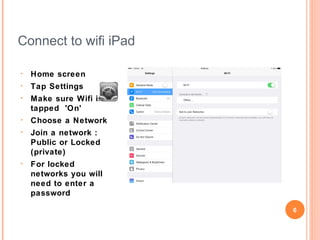
Home screen

•

Tap Settings

•

Make sure Wifi is
tapped 'On'

•

Choose a Network

•

Join a network :
Public or Locked
(private)

•

For locked networks
you will need to
enter a password

Wonthaggi U3A
•

BBFS

•

Wonthaggi576

7
Connect to wifi - Android
•

•

•
•

•
•

•

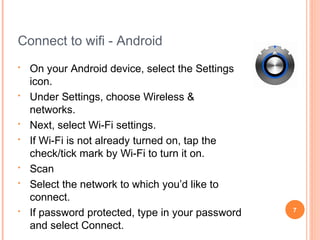
On your Android device, select the Settings
icon.
Under Settings, choose Wireless &
networks.
Next, select Wi-Fi settings.
If Wi-Fi is not already turned on, tap the
check/tick mark by Wi-Fi to turn it on.
Scan
Select the network to which you’d like to
connect.
If password protected, type in your password
and select Connect.

8
Quick start
•

iPad – connect to iTunes – create account?
•

•
•
•
•

http://gigaom.com/apple/walkthrough-initial-ipad-setup/

Setup your accounts: mail, Facebook, google
Ringtone & notifications
Face recognition
Get to know your apps

9
Apps
•

What are your favourites?

•

Mary
•

•
•
•
•

•

The Age online, Quick Office Pro, Good Reader, ABC
iView, Domain.com.au, Trip Advisor, BeFunky,
Facebook, Gardenate, Ancestry
Ereaders/library: Kindle, Overdrive, BookMyne
iPad inbuilt – Mail, YouTube, Photos, Maps
Dropbox – file & document management
Apps that come & go

iPad Appstore or Google Play Store or internet

10
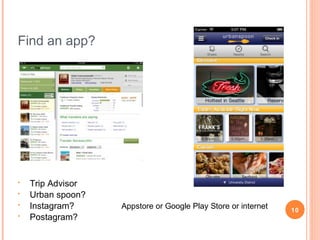
Find an app?

•
•
•
•

Trip Advisor
Urban spoon?
Instagram?
Postagram?

Appstore or Google Play Store or internet

11
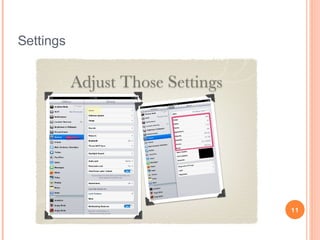
Settings

12
How to Change the Email Signature on an
iPad
•
•

•
•

•

Go into the Settings of the iPad
Select "M ail" > "Contacts" > "Calendar"
from the sidebar.
Tap on the option for signature.
Clear the default message . Either leave it
blank or add your own message.
Hit the home button, launch your email, and
any new composed email will have your
new signature
13
Androids: How to set your e-mail signature
Email app
 Open the inbox of the account you want to work with, and
tap menu, Account settings.
 Tap the entry that says Signature.
 Enter the text for your signature, and tap the OK button.
Gmail app
 While in the app, tap the menu button, then More, then
Settings.
 Tap the entry for the email address you'd like to attach (or
edit) the signature of
 Tap the entry that says Signature, and type in what you
would like others to see, and hit the OK button.
14
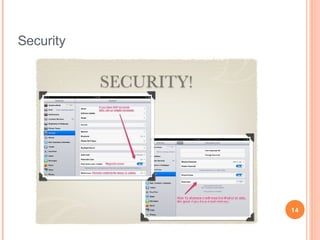
Security

15
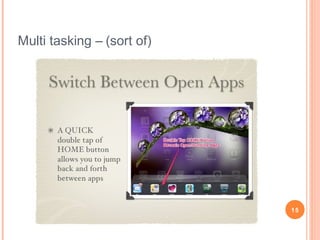
Multi tasking – (sort of)

16
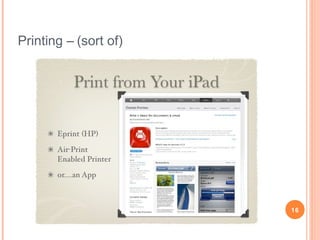
Printing – (sort of)

17
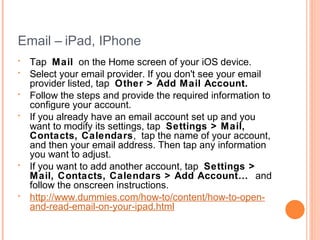
Email – iPad, IPhone
•
•
•
•

•

•

Tap Mail on the Home screen of your iOS device.
Select your email provider. If you don't see your email
provider listed, tap Other > Add Mail Account.
Follow the steps and provide the required information to
configure your account.
If you already have an email account set up and you
want to modify its settings, tap Settings > Mail,
Contacts, Calendars, tap the name of your account,
and then your email address. Then tap any information
you want to adjust.
If you want to add another account, tap Settings >
Mail, Contacts, Calendars > Add Account… and
follow the onscreen instructions.
http://www.dummies.com/how-to/content/how-to-openand-read-email-on-your-ipad.html
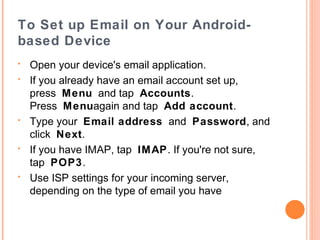
To Set up Email on Your Androidbased Device
•
•

•

•

•

Open your device's email application.
If you already have an email account set up,
press M enu and tap Accounts.
Press M enuagain and tap Add account.
Type your Email address and Password, and
click Next.
If you have IMAP, tap IMAP. If you're not sure,
tap POP3.
Use ISP settings for your incoming server,
depending on the type of email you have
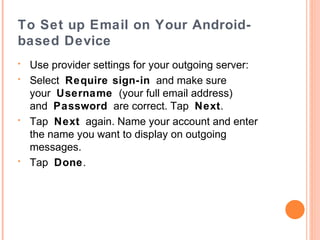
To Set up Email on Your Androidbased Device
•
•

•

•

Use provider settings for your outgoing server:
Select Require sign-in and make sure
your Username (your full email address)
and Password are correct. Tap Next.
Tap Next again. Name your account and enter
the name you want to display on outgoing
messages.
Tap Done.
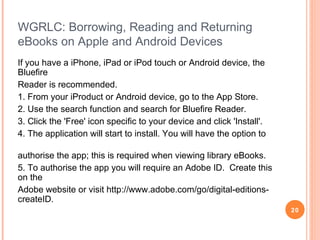
WGRLC: Borrowing, Reading and Returning
eBooks on Apple and Android Devices
If you have a iPhone, iPad or iPod touch or Android device, the
Bluefire
Reader is recommended.
1. From your iProduct or Android device, go to the App Store.
2. Use the search function and search for Bluefire Reader.
3. Click the 'Free' icon specific to your device and click 'Install'.
4. The application will start to install. You will have the option to
authorise the app; this is required when viewing library eBooks.
5. To authorise the app you will require an Adobe ID. Create this
on the
Adobe website or visit http://www.adobe.com/go/digital-editionscreateID.
21
Borrow an eBook
6. Browse Wheelers via the WGRLC website or go to
http://wgrlc.wheelers.co/ for your eBooks.
7. Select a title , click ‘login to borrow this title’.
8. Insert your library membership card details and PIN
in the spaces available. Click ’Sign in’. Then click
’Borrow now’.
9. You are then told your loan is successful, you can
now click ‘Download now’.
10. You are given an option to ‘Open in…’; or ‘Open in
Bluefire Reader’, select ‘Open in Bluefire Reader’.
The title will download to your reader and you can
choose to read the title now or later.

22
How to Create Photo Albums on an iPad Source:
http://www.wikihow.com/Create-Photo-Albums-on-an-iPad

•

•

•
•

•

Tap the Photos icon on your iPad’s Home
screen to launch the Photos app.
Tap the Albums tab at the top of the
interface. Now tap the Edit button.
Tap the “New Album” button
Type a name for the album into the field
that appears. Tap the Save button
Tap either the Photos or Photo Stream tab
at the top of the interface to view your
photo collections. Now tap all of the photos you
want to add to your album in turn so that a blue
circle with a white check mark appears on each.
Tap the Done button

23
Androids – get an app? e.g.File Manager HD or use pre-installed file
manager

Samsung Galaxy - create and manage folders with My
Files
• My Files is an application that comes pre-installed on the
Galaxy Tab, allowing you to create and manage your
folders.

•

•

This application also allows you to sort files created in
various applications installed on your tablet. To create a
folder: On the Home screen, click on "Applications> My
Stuff"
A tree directory shall appear, press the "Menu" and select
"New Folder" to create a folder in the root, or select an
existing one to create a subfolder
Enter a name for the folder, for example, ThinkFreeOffice
to save files created with the office suite, then click
"Done"

24
Dropbox
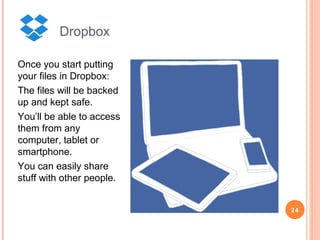
Once you start putting
your files in Dropbox:
The files will be backed
up and kept safe.
You’ll be able to access
them from any
computer, tablet or
smartphone.
You can easily share
stuff with other people.

25
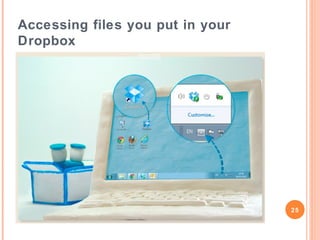
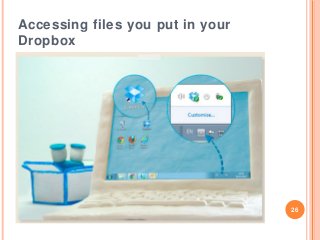
Accessing files you put in your
Dropbox

26

Tablet computing – i pads, androids & other

  • 1.
    Tablet computing –iPads & androids & other aliens 1 Mary Schooneveldt January 2014
  • 2.
    Why? • • • • • • • • • • • • Surf from thecouch eReader Recipe book Facebook/ social media iView/SBS Camera/video GPS – maps Music/radio Shopping Phone Mobile gaming Sync!!! 2
  • 3.
  • 4.
    Operating systems –face off • • • • • • • • iOS (5,6 or 7) or Jelly Bean, Ice cream sandwich Browser – safari or google chrome? Sync – iCloud or Google+ Notifications? Multi tasking - limited but getting better Voice recognition? Panoramic shots? Apps 4
  • 5.
    Button basics –ipads  http://www.dummies.com/how-to/content/how-to-workthe-ipad-buttons.html 5
  • 6.
    Button basics -Android  The home button: This is used to jump to the home screen of your Android device. If pressed in between another activity (game, or application), the OS puts the activity in the background. Using this button will, usually, not shut down any application or game; instead, it will run in the background.  The back button: This is used to go to the previous page or activity.  Multi-tasking button: Android tablets running Ice Cream Sandwich (4.0) and higher will have a multi-tasking button (parallelogramshaped button). Tapping this button will give a list of all applications running in the background. Swapping a running application to the left or right (in the multi-task screen) will close the application. This is particularly useful to clear RAM and speed up the device.  Older Android tablets may have an Menu (or settings) button (represented by three parallel horizontal lines). This button gives the user access to additional options for particular apps. 6
  • 7.
    Connect to wifiiPad • Home screen • Tap Settings • Make sure Wifi is tapped 'On' • Choose a Network • Join a network : Public or Locked (private) • For locked networks you will need to enter a password Wonthaggi U3A • BBFS • Wonthaggi576 7
  • 8.
    Connect to wifi- Android • • • • • • • On your Android device, select the Settings icon. Under Settings, choose Wireless & networks. Next, select Wi-Fi settings. If Wi-Fi is not already turned on, tap the check/tick mark by Wi-Fi to turn it on. Scan Select the network to which you’d like to connect. If password protected, type in your password and select Connect. 8
  • 9.
    Quick start • iPad –connect to iTunes – create account? • • • • • http://gigaom.com/apple/walkthrough-initial-ipad-setup/ Setup your accounts: mail, Facebook, google Ringtone & notifications Face recognition Get to know your apps 9
  • 10.
    Apps • What are yourfavourites? • Mary • • • • • • The Age online, Quick Office Pro, Good Reader, ABC iView, Domain.com.au, Trip Advisor, BeFunky, Facebook, Gardenate, Ancestry Ereaders/library: Kindle, Overdrive, BookMyne iPad inbuilt – Mail, YouTube, Photos, Maps Dropbox – file & document management Apps that come & go iPad Appstore or Google Play Store or internet 10
  • 11.
    Find an app? • • • • TripAdvisor Urban spoon? Instagram? Postagram? Appstore or Google Play Store or internet 11
  • 12.
  • 13.
    How to Changethe Email Signature on an iPad • • • • • Go into the Settings of the iPad Select "M ail" > "Contacts" > "Calendar" from the sidebar. Tap on the option for signature. Clear the default message . Either leave it blank or add your own message. Hit the home button, launch your email, and any new composed email will have your new signature 13
  • 14.
    Androids: How toset your e-mail signature Email app  Open the inbox of the account you want to work with, and tap menu, Account settings.  Tap the entry that says Signature.  Enter the text for your signature, and tap the OK button. Gmail app  While in the app, tap the menu button, then More, then Settings.  Tap the entry for the email address you'd like to attach (or edit) the signature of  Tap the entry that says Signature, and type in what you would like others to see, and hit the OK button. 14
  • 15.
  • 16.
    Multi tasking –(sort of) 16
  • 17.
  • 18.
    Email – iPad,IPhone • • • • • • Tap Mail on the Home screen of your iOS device. Select your email provider. If you don't see your email provider listed, tap Other > Add Mail Account. Follow the steps and provide the required information to configure your account. If you already have an email account set up and you want to modify its settings, tap Settings > Mail, Contacts, Calendars, tap the name of your account, and then your email address. Then tap any information you want to adjust. If you want to add another account, tap Settings > Mail, Contacts, Calendars > Add Account… and follow the onscreen instructions. http://www.dummies.com/how-to/content/how-to-openand-read-email-on-your-ipad.html
  • 19.
    To Set upEmail on Your Androidbased Device • • • • • Open your device's email application. If you already have an email account set up, press M enu and tap Accounts. Press M enuagain and tap Add account. Type your Email address and Password, and click Next. If you have IMAP, tap IMAP. If you're not sure, tap POP3. Use ISP settings for your incoming server, depending on the type of email you have
  • 20.
    To Set upEmail on Your Androidbased Device • • • • Use provider settings for your outgoing server: Select Require sign-in and make sure your Username (your full email address) and Password are correct. Tap Next. Tap Next again. Name your account and enter the name you want to display on outgoing messages. Tap Done.
  • 21.
    WGRLC: Borrowing, Readingand Returning eBooks on Apple and Android Devices If you have a iPhone, iPad or iPod touch or Android device, the Bluefire Reader is recommended. 1. From your iProduct or Android device, go to the App Store. 2. Use the search function and search for Bluefire Reader. 3. Click the 'Free' icon specific to your device and click 'Install'. 4. The application will start to install. You will have the option to authorise the app; this is required when viewing library eBooks. 5. To authorise the app you will require an Adobe ID. Create this on the Adobe website or visit http://www.adobe.com/go/digital-editionscreateID. 21
  • 22.
    Borrow an eBook 6.Browse Wheelers via the WGRLC website or go to http://wgrlc.wheelers.co/ for your eBooks. 7. Select a title , click ‘login to borrow this title’. 8. Insert your library membership card details and PIN in the spaces available. Click ’Sign in’. Then click ’Borrow now’. 9. You are then told your loan is successful, you can now click ‘Download now’. 10. You are given an option to ‘Open in…’; or ‘Open in Bluefire Reader’, select ‘Open in Bluefire Reader’. The title will download to your reader and you can choose to read the title now or later. 22
  • 23.
    How to CreatePhoto Albums on an iPad Source: http://www.wikihow.com/Create-Photo-Albums-on-an-iPad • • • • • Tap the Photos icon on your iPad’s Home screen to launch the Photos app. Tap the Albums tab at the top of the interface. Now tap the Edit button. Tap the “New Album” button Type a name for the album into the field that appears. Tap the Save button Tap either the Photos or Photo Stream tab at the top of the interface to view your photo collections. Now tap all of the photos you want to add to your album in turn so that a blue circle with a white check mark appears on each. Tap the Done button 23
  • 24.
    Androids – getan app? e.g.File Manager HD or use pre-installed file manager Samsung Galaxy - create and manage folders with My Files • My Files is an application that comes pre-installed on the Galaxy Tab, allowing you to create and manage your folders. • • This application also allows you to sort files created in various applications installed on your tablet. To create a folder: On the Home screen, click on "Applications> My Stuff" A tree directory shall appear, press the "Menu" and select "New Folder" to create a folder in the root, or select an existing one to create a subfolder Enter a name for the folder, for example, ThinkFreeOffice to save files created with the office suite, then click "Done" 24
  • 25.
    Dropbox Once you startputting your files in Dropbox: The files will be backed up and kept safe. You’ll be able to access them from any computer, tablet or smartphone. You can easily share stuff with other people. 25
  • 26.
    Accessing files youput in your Dropbox 26

Editor's Notes

  • #3 Understanding the iPad, Apps, and iTunesGetting to know your iPadMastering iPad settingsUsing email & messagesWriting notes & remindersUsing the calendarUsing the internetPlaying music & videosUsing the cameraViewing & editing photosUsing mapsUsing newstandBuying and installing apps from the app storeRecommended apps