www.bispsolutions.com www.bisptrainings.com 1
Oracle Hyperion Smart View 11.1.2.3
For Hyperion Planning Part I
Description:
BISP is committed to provide BEST learning material to the beginners and
advance learners. In the same series, we have prepared a list of beginner’s
guide and FAQs for Oracle Hyperion Product Suite. Download many such
learning documents, student guide, Lab Guide and Hands-on practice
materials. This document describes an introduction to Oracle Hyperion Smart
View 11.1.2.3 for Hyperion Planning. Join our professional training to
learn from Experts.
History:
Version Description Change Author Publish Date
0.1 Review#1 Amit Sharma 2th
May 2013
www.bispsolutions.com www.bisptrainings.com 2
Contents
An Introduction to Hyperion Smart View ...............................................................................................................................3
Installing Hyperion Smart View...............................................................................................................................................3
Verify the installation..........................................................................................................................................................6
Setting up Connection.........................................................................................................................................................7
Opening a DataForm.............................................................................................................................................................10
Create AdHoc Analysis and SaveAs DataForm......................................................................................................................10
www.bispsolutions.com www.bisptrainings.com 3
An Introduction to Hyperion Smart View
Hyperion Smartview is one of the most exciting features for Hyperion Products Suite
users. It is designed primarily to simplify business users, end users and functional day to
day job. Without getting into technical complexity, one can connect to Hyperion products
and do day to day job easily. The beautify of of Hyperion Smartview is
 No coding required.
 No worry about the technical complexity.
 No formulas to get data.
 Just drag and drop
 Automatic drill-down and drill-up through double-clicking
 Fully integrates with MS Office to leverage formatting, calculations, etc
Oracle Hyperion Smart View for Office (Smart View) is a Microsoft Office Add-in that
provides a common interface designed specifically for analysts to interact with the data and
business intelligence content that they have stored within their Oracle’s Enterprise
Performance Management (EPM) system.
One of the most common ways of using Smart View is users access Excel to interactively
investigate the data contained in the different sources such as Oracle Essbase, Hyperion
Planning, or Hyperion Financial Management (HFM) etc.
Installing Hyperion Smart View
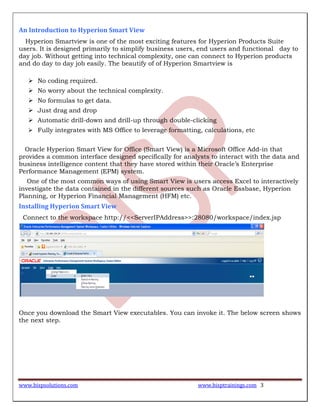
Connect to the workspace http://<<ServerIPAddress>>:28080/workspace/index.jsp
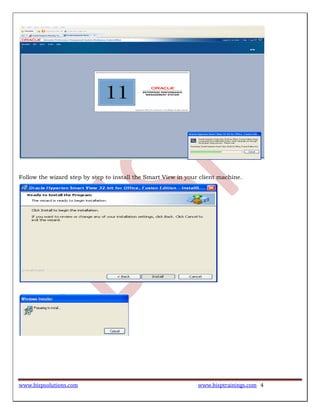
Once you download the Smart View executables. You can invoke it. The below screen shows
the next step.
www.bispsolutions.com www.bisptrainings.com 4
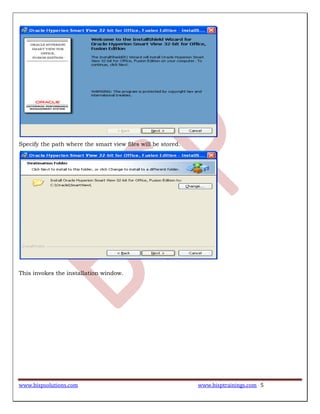
Follow the wizard step by step to install the Smart View in your client machine.
www.bispsolutions.com www.bisptrainings.com 5
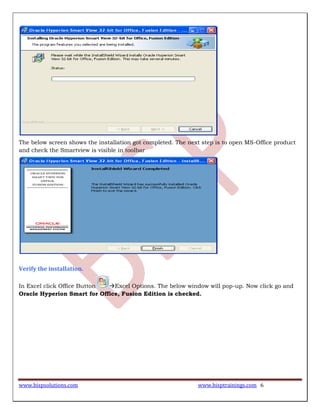
Specify the path where the smart view files will be stored.
This invokes the installation window.
www.bispsolutions.com www.bisptrainings.com 6
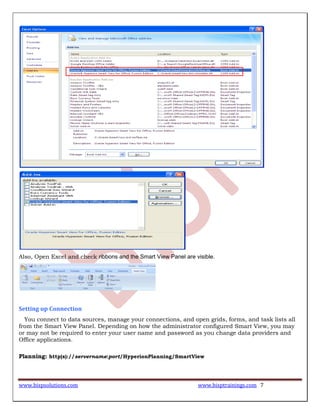
The below screen shows the installation got completed. The next step is to open MS-Office product
and check the Smartview is visible in toolbar
Verify the installation.
In Excel click Office Button Excel Options. The below window will pop-up. Now click go and
Oracle Hyperion Smart for Office, Fusion Edition is checked.
www.bispsolutions.com www.bisptrainings.com 7
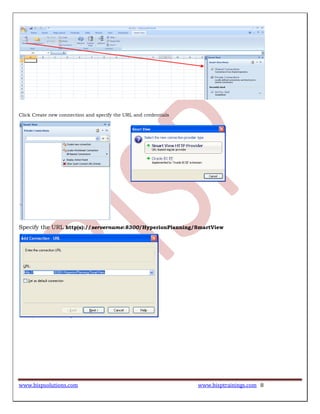
Also, Open Excel and check ribbons and the Smart View Panel are visible.
Setting up Connection
You connect to data sources, manage your connections, and open grids, forms, and task lists all
from the Smart View Panel. Depending on how the administrator configured Smart View, you may
or may not be required to enter your user name and password as you change data providers and
Office applications.
Planning: http(s)://servername:port/HyperionPlanning/SmartView
www.bispsolutions.com www.bisptrainings.com 8
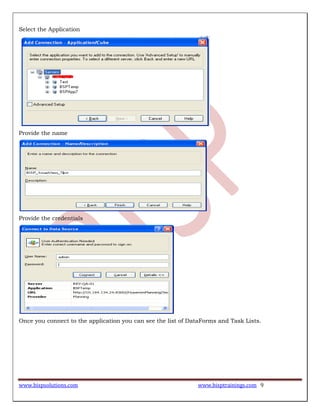
Click Create new connection and specify the URL and credentials
Specify the URL http(s)://servername:8300/HyperionPlanning/SmartView
www.bispsolutions.com www.bisptrainings.com 9
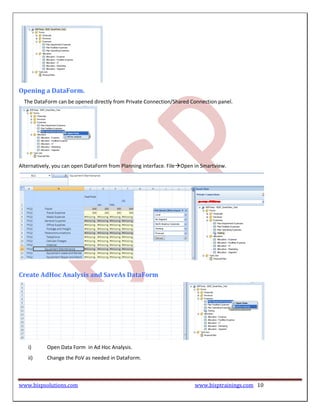
Select the Application
Provide the name
Provide the credentials
Once you connect to the application you can see the list of DataForms and Task Lists.
www.bispsolutions.com www.bisptrainings.com 10
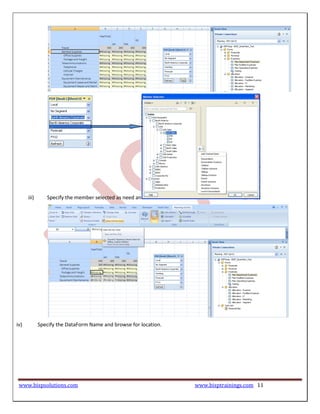
Opening a DataForm.
The DataForm can be opened directly from Private Connection/Shared Connection panel.
Alternatively, you can open DataForm from Planning interface. FileOpen in Smartview.
Create AdHoc Analysis and SaveAs DataForm
i) Open Data Form in Ad Hoc Analysis.
ii) Change the PoV as needed in DataForm.
www.bispsolutions.com www.bisptrainings.com 11
iii) Specify the member selected as need and Save Ad Hoc Grid to DataForm.
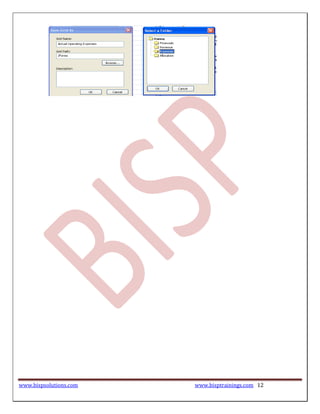
iv) Specify the DataForm Name and browse for location.
www.bispsolutions.com www.bisptrainings.com 12

Smart view for-planning

  • 1.
    www.bispsolutions.com www.bisptrainings.com 1 OracleHyperion Smart View 11.1.2.3 For Hyperion Planning Part I Description: BISP is committed to provide BEST learning material to the beginners and advance learners. In the same series, we have prepared a list of beginner’s guide and FAQs for Oracle Hyperion Product Suite. Download many such learning documents, student guide, Lab Guide and Hands-on practice materials. This document describes an introduction to Oracle Hyperion Smart View 11.1.2.3 for Hyperion Planning. Join our professional training to learn from Experts. History: Version Description Change Author Publish Date 0.1 Review#1 Amit Sharma 2th May 2013
  • 2.
    www.bispsolutions.com www.bisptrainings.com 2 Contents AnIntroduction to Hyperion Smart View ...............................................................................................................................3 Installing Hyperion Smart View...............................................................................................................................................3 Verify the installation..........................................................................................................................................................6 Setting up Connection.........................................................................................................................................................7 Opening a DataForm.............................................................................................................................................................10 Create AdHoc Analysis and SaveAs DataForm......................................................................................................................10
  • 3.
    www.bispsolutions.com www.bisptrainings.com 3 AnIntroduction to Hyperion Smart View Hyperion Smartview is one of the most exciting features for Hyperion Products Suite users. It is designed primarily to simplify business users, end users and functional day to day job. Without getting into technical complexity, one can connect to Hyperion products and do day to day job easily. The beautify of of Hyperion Smartview is  No coding required.  No worry about the technical complexity.  No formulas to get data.  Just drag and drop  Automatic drill-down and drill-up through double-clicking  Fully integrates with MS Office to leverage formatting, calculations, etc Oracle Hyperion Smart View for Office (Smart View) is a Microsoft Office Add-in that provides a common interface designed specifically for analysts to interact with the data and business intelligence content that they have stored within their Oracle’s Enterprise Performance Management (EPM) system. One of the most common ways of using Smart View is users access Excel to interactively investigate the data contained in the different sources such as Oracle Essbase, Hyperion Planning, or Hyperion Financial Management (HFM) etc. Installing Hyperion Smart View Connect to the workspace http://<<ServerIPAddress>>:28080/workspace/index.jsp Once you download the Smart View executables. You can invoke it. The below screen shows the next step.
  • 4.
    www.bispsolutions.com www.bisptrainings.com 4 Followthe wizard step by step to install the Smart View in your client machine.
  • 5.
    www.bispsolutions.com www.bisptrainings.com 5 Specifythe path where the smart view files will be stored. This invokes the installation window.
  • 6.
    www.bispsolutions.com www.bisptrainings.com 6 Thebelow screen shows the installation got completed. The next step is to open MS-Office product and check the Smartview is visible in toolbar Verify the installation. In Excel click Office Button Excel Options. The below window will pop-up. Now click go and Oracle Hyperion Smart for Office, Fusion Edition is checked.
  • 7.
    www.bispsolutions.com www.bisptrainings.com 7 Also,Open Excel and check ribbons and the Smart View Panel are visible. Setting up Connection You connect to data sources, manage your connections, and open grids, forms, and task lists all from the Smart View Panel. Depending on how the administrator configured Smart View, you may or may not be required to enter your user name and password as you change data providers and Office applications. Planning: http(s)://servername:port/HyperionPlanning/SmartView
  • 8.
    www.bispsolutions.com www.bisptrainings.com 8 ClickCreate new connection and specify the URL and credentials Specify the URL http(s)://servername:8300/HyperionPlanning/SmartView
  • 9.
    www.bispsolutions.com www.bisptrainings.com 9 Selectthe Application Provide the name Provide the credentials Once you connect to the application you can see the list of DataForms and Task Lists.
  • 10.
    www.bispsolutions.com www.bisptrainings.com 10 Openinga DataForm. The DataForm can be opened directly from Private Connection/Shared Connection panel. Alternatively, you can open DataForm from Planning interface. FileOpen in Smartview. Create AdHoc Analysis and SaveAs DataForm i) Open Data Form in Ad Hoc Analysis. ii) Change the PoV as needed in DataForm.
  • 11.
    www.bispsolutions.com www.bisptrainings.com 11 iii)Specify the member selected as need and Save Ad Hoc Grid to DataForm. iv) Specify the DataForm Name and browse for location.
  • 12.