Introduction to Oracle BI
Oracle BI Enterprise Edition is a powerful tool for analyzing and presenting data.
Oracle BI Enterprise Edition (sometimes referred to as Oracle Business Intelligence)
provides a full range of business intelligence capabilities that allow you to:
 Collect up-to-date data from your organization
 Present the data in easy-to-understand formats (such as tables and graphs)
 Deliver data in a timely fashion to the employees in your organization
These capabilities enable your organization to make better decisions, take informed
actions, and implement more-efficient business processes.
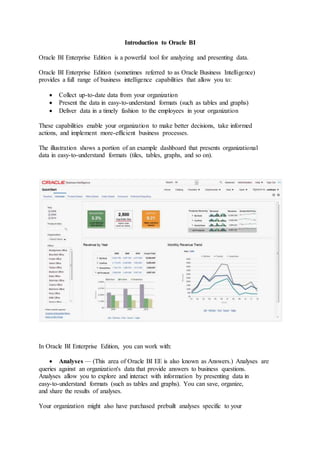
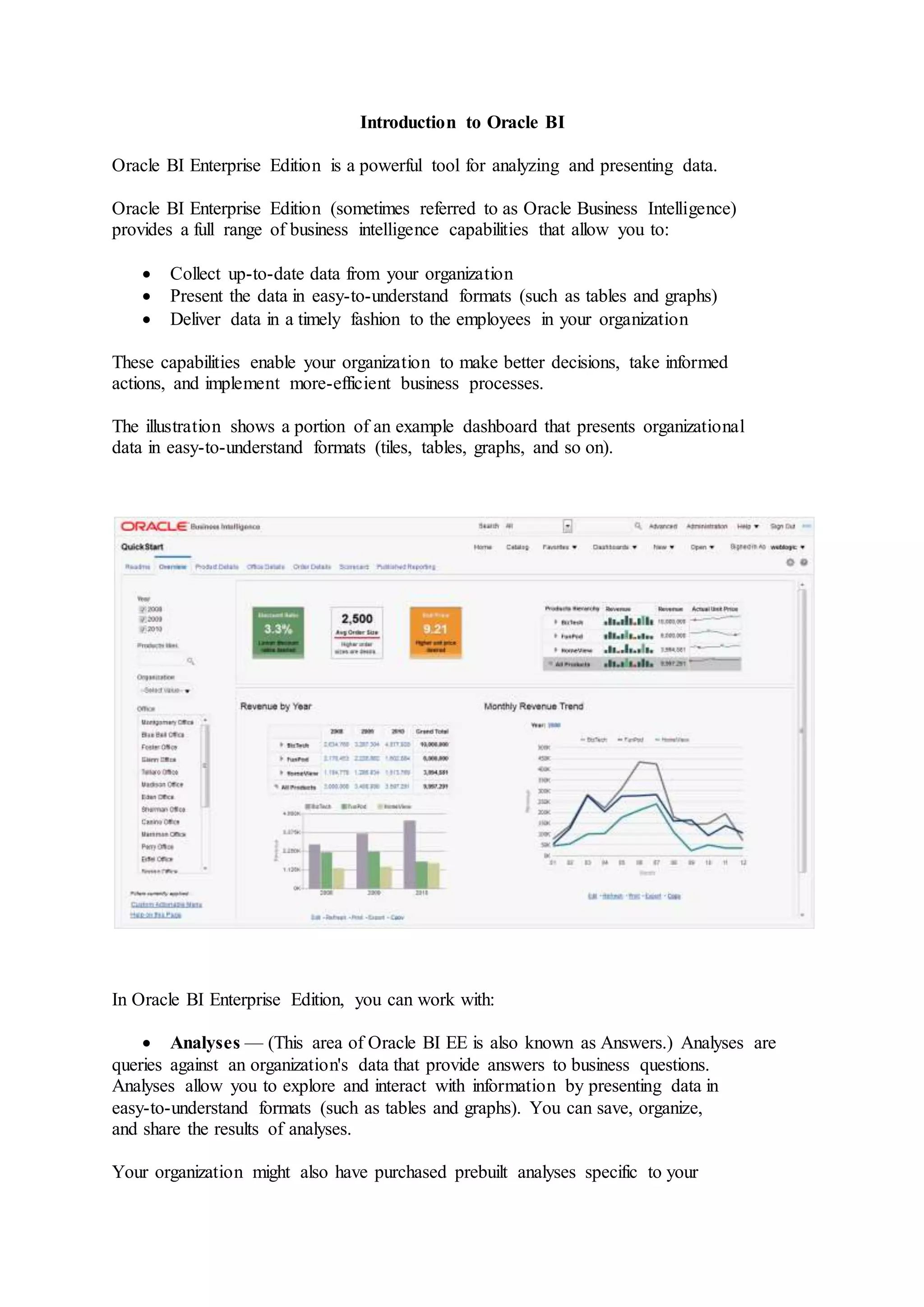
The illustration shows a portion of an example dashboard that presents organizational
data in easy-to-understand formats (tiles, tables, graphs, and so on).
In Oracle BI Enterprise Edition, you can work with:
 Analyses — (This area of Oracle BI EE is also known as Answers.) Analyses are
queries against an organization's data that provide answers to business questions.
Analyses allow you to explore and interact with information by presenting data in
easy-to-understand formats (such as tables and graphs). You can save, organize,
and share the results of analyses.
Your organization might also have purchased prebuilt analyses specific to your
industry. Prebuilt analyses can be used as purchased or modified to suit your
business's information needs.
 Dashboards — (This area of Oracle BI EE is also known as Interactive Dashboards.)
Dashboards provide personalized views of corporate and external information. A
dashboard consists of one or more pages that contain content, such as analyses,
links to web sites, Oracle BI Publisher reports, and so on. Dashboards allow you to
provide end users with access to analytics information.
Your organization might also have purchased preconfigured dashboards that
contain prebuilt analyses specific to your industry.
 Filters, Selection Steps, and Prompts — Filters, selection steps, and prompts allow
you to limit or specify the data that is displayed in dashboards and analyses.
 Agents — (This area of Oracle BI EE is also known as Delivers.) Agents enable you
to automate your business processes. You can use agents to provide event-driven
alerting, scheduled content publishing, and conditional event-driven action
execution. Agents can be scheduled or can be triggered by a specific condition,
which enables you to deliver timely information to users.
 Conditions — Conditions are objects that return a single Boolean value that is
based on the evaluation of an analysis or of a Key Performance Indicator (KPI). You
use conditions to determine whether something is to be done, for example whether
an agent is to deliver its content.
 Actions — Actions provide functionality to navigate to related content or to invoke
operations, functions, or processes in external systems. You can include actions in
various objects, such as analyses and dashboard pages. Actions allow users to take
the proper action based on the business insight that they gained from the data that
they received.
 Scorecards — (This area of Oracle BI EE is known as Oracle Scorecard and Strategy
Management). Scorecards allow you to model the objectives and initiatives that
comprise your corporate strategy, evaluate their performance by assigning KPIs,
and determine and display overall performance.
 Other Products — Oracle BI EE interacts in various ways with other products. For
example, with Oracle Hyperion Smart View for Office, you can access and run
analyses from Oracle BI EE within your Microsoft Office applications (that is, Excel,
Word, and PowerPoint).
Where Do I Store and Manage Oracle BI EE Objects?
You use the Oracle BI Presentation Catalog to store the objects, such as analyses,
dashboards, and KPIs, that you and other users create using Oracle BI EE.
Users have their own personal folder (My Folders), where they can store the objects
that they create. The objects in a personal folder can be accessed only by the user who
created and saved the content into that folder. Users can add sub-folders to their
personal folders to organize their content in the way that is the most logical to them.
You can also store objects in shared folders where other users or groups can access the
objects. A combination of business logic security, catalog object security, and data level
security determines who can view data and objects, edit objects, and delete objects
from the catalog. Your administrator creates and maintains the catalog's shared folder
structure.
Signing In to Oracle BI Enterprise Edition
You need a few pieces of information to sign in to the application.
To access Oracle BI EE, you use a URL, a user ID, and a password that have been
provided by your organization.
To sign in to Oracle BI Enterprise Edition:
 In the address field of a browser, enter the URL that was provided by your
organization. The Sign In page is displayed.
 Select the language in which you want to work.
You can change the default entry for this box by selecting another language in the
User Interface Language field in the My Account dialog: Preferences tab
 Enter your user ID and password.
 Select the Accessibility Mode box if you want content for Oracle BI EE to be
rendered in a browser in a way that facilitates the use of a screen reader.
If you select this box, then the BI Composer wizard in accessibility mode is used
as the analysis editor (rather than the Analysis editor). For more information on BI
Composer,
 Click Sign In. One of the following pages (depending on what has been
configured for you) is displayed:
o Your personal dashboard, named My Dashboard.
o The Home page. For information on the Home page,
o A dashboard that is specific to your job function (for example, Call Center
representative).
Signing Out of Oracle BI Enterprise Edition
You must sign out properly to completely exit the application.
Note:
Do not close the browser window to sign out of Oracle BI EE.
To sign out of Oracle BI EE:
1. In the global header, click Sign Out.
Navigating Oracle BI
The interface provides simple access to the various areas of the application.
After signing in to Oracle BI you are presented with one of the following pages, depending
on what has been configured for you:
 Your personal dashboard, named My Dashboard
 The Home page
 A dashboard that is specific to your job function (for example, Call Center
representative)
This page is your starting point for working in Oracle BI EE. As you work, you can use
the global header and the Home page as the primary ways to navigate Oracle BI EE:
Signing Out of Oracle BI Enterprise Edition
 The global header — The global header is displayed at the top of the Oracle BI EE
interface and is always available as you work. It enables you to access the
functionality that Oracle BI EE provides. For example, you can access the Home
page, access dashboards, open objects (such as analyses and dashboard prompts),
create new objects, and so on. Privileges determine which functionality is available
to you in the global header. Your administrator can modify the global header by
changing the order of the links, or by adding links specific to your company or
industry. For example, your administrator could add a link to the Oracle
Technology Network (OTN).
 The Home page — From the Home page, you can learn how to get started with
Oracle BI EE, create and modify objects, and browse and manage objects.
After you have accessed the starting point of a task, the interface then presents you
with the page, dialog, or editor that you use to perform the task.

Introduction to oracle bi 12c

  • 1.
    Introduction to OracleBI Oracle BI Enterprise Edition is a powerful tool for analyzing and presenting data. Oracle BI Enterprise Edition (sometimes referred to as Oracle Business Intelligence) provides a full range of business intelligence capabilities that allow you to:  Collect up-to-date data from your organization  Present the data in easy-to-understand formats (such as tables and graphs)  Deliver data in a timely fashion to the employees in your organization These capabilities enable your organization to make better decisions, take informed actions, and implement more-efficient business processes. The illustration shows a portion of an example dashboard that presents organizational data in easy-to-understand formats (tiles, tables, graphs, and so on). In Oracle BI Enterprise Edition, you can work with:  Analyses — (This area of Oracle BI EE is also known as Answers.) Analyses are queries against an organization's data that provide answers to business questions. Analyses allow you to explore and interact with information by presenting data in easy-to-understand formats (such as tables and graphs). You can save, organize, and share the results of analyses. Your organization might also have purchased prebuilt analyses specific to your
  • 2.
    industry. Prebuilt analysescan be used as purchased or modified to suit your business's information needs.  Dashboards — (This area of Oracle BI EE is also known as Interactive Dashboards.) Dashboards provide personalized views of corporate and external information. A dashboard consists of one or more pages that contain content, such as analyses, links to web sites, Oracle BI Publisher reports, and so on. Dashboards allow you to provide end users with access to analytics information. Your organization might also have purchased preconfigured dashboards that contain prebuilt analyses specific to your industry.  Filters, Selection Steps, and Prompts — Filters, selection steps, and prompts allow you to limit or specify the data that is displayed in dashboards and analyses.  Agents — (This area of Oracle BI EE is also known as Delivers.) Agents enable you to automate your business processes. You can use agents to provide event-driven alerting, scheduled content publishing, and conditional event-driven action execution. Agents can be scheduled or can be triggered by a specific condition, which enables you to deliver timely information to users.  Conditions — Conditions are objects that return a single Boolean value that is based on the evaluation of an analysis or of a Key Performance Indicator (KPI). You use conditions to determine whether something is to be done, for example whether an agent is to deliver its content.  Actions — Actions provide functionality to navigate to related content or to invoke operations, functions, or processes in external systems. You can include actions in various objects, such as analyses and dashboard pages. Actions allow users to take the proper action based on the business insight that they gained from the data that they received.  Scorecards — (This area of Oracle BI EE is known as Oracle Scorecard and Strategy Management). Scorecards allow you to model the objectives and initiatives that comprise your corporate strategy, evaluate their performance by assigning KPIs, and determine and display overall performance.  Other Products — Oracle BI EE interacts in various ways with other products. For example, with Oracle Hyperion Smart View for Office, you can access and run analyses from Oracle BI EE within your Microsoft Office applications (that is, Excel, Word, and PowerPoint). Where Do I Store and Manage Oracle BI EE Objects? You use the Oracle BI Presentation Catalog to store the objects, such as analyses, dashboards, and KPIs, that you and other users create using Oracle BI EE. Users have their own personal folder (My Folders), where they can store the objects
  • 3.
    that they create.The objects in a personal folder can be accessed only by the user who created and saved the content into that folder. Users can add sub-folders to their personal folders to organize their content in the way that is the most logical to them. You can also store objects in shared folders where other users or groups can access the objects. A combination of business logic security, catalog object security, and data level security determines who can view data and objects, edit objects, and delete objects from the catalog. Your administrator creates and maintains the catalog's shared folder structure. Signing In to Oracle BI Enterprise Edition You need a few pieces of information to sign in to the application. To access Oracle BI EE, you use a URL, a user ID, and a password that have been provided by your organization. To sign in to Oracle BI Enterprise Edition:  In the address field of a browser, enter the URL that was provided by your organization. The Sign In page is displayed.  Select the language in which you want to work. You can change the default entry for this box by selecting another language in the User Interface Language field in the My Account dialog: Preferences tab  Enter your user ID and password.  Select the Accessibility Mode box if you want content for Oracle BI EE to be rendered in a browser in a way that facilitates the use of a screen reader. If you select this box, then the BI Composer wizard in accessibility mode is used as the analysis editor (rather than the Analysis editor). For more information on BI Composer,  Click Sign In. One of the following pages (depending on what has been configured for you) is displayed: o Your personal dashboard, named My Dashboard. o The Home page. For information on the Home page, o A dashboard that is specific to your job function (for example, Call Center representative).
  • 4.
    Signing Out ofOracle BI Enterprise Edition You must sign out properly to completely exit the application. Note: Do not close the browser window to sign out of Oracle BI EE. To sign out of Oracle BI EE: 1. In the global header, click Sign Out. Navigating Oracle BI The interface provides simple access to the various areas of the application. After signing in to Oracle BI you are presented with one of the following pages, depending on what has been configured for you:  Your personal dashboard, named My Dashboard  The Home page  A dashboard that is specific to your job function (for example, Call Center representative) This page is your starting point for working in Oracle BI EE. As you work, you can use the global header and the Home page as the primary ways to navigate Oracle BI EE: Signing Out of Oracle BI Enterprise Edition  The global header — The global header is displayed at the top of the Oracle BI EE interface and is always available as you work. It enables you to access the functionality that Oracle BI EE provides. For example, you can access the Home page, access dashboards, open objects (such as analyses and dashboard prompts), create new objects, and so on. Privileges determine which functionality is available to you in the global header. Your administrator can modify the global header by changing the order of the links, or by adding links specific to your company or industry. For example, your administrator could add a link to the Oracle Technology Network (OTN).  The Home page — From the Home page, you can learn how to get started with Oracle BI EE, create and modify objects, and browse and manage objects. After you have accessed the starting point of a task, the interface then presents you with the page, dialog, or editor that you use to perform the task.