USE MS OUTLOOK
EFFICIENTLY
Saad Abdul Wahab
Joint Manager HSE, OD & Audits
SMART OFFICE MANAGEMENT SERIES - SESSION 1
What you should
not expect from
this session?
Outlook Myths
Learn by doing
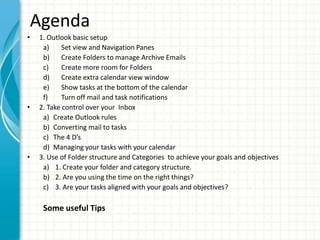
Agenda
• 1. Outlook basic setup
a) Set view and Navigation Panes
b) Create Folders to manage Archive Emails
c) Create more room for Folders
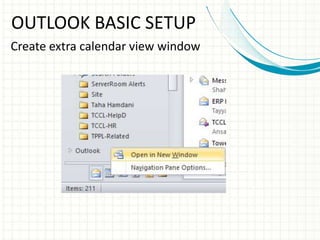
d) Create extra calendar view window
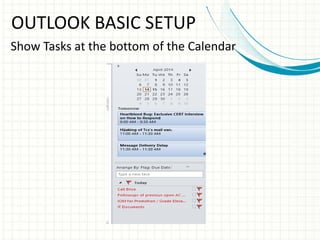
e) Show tasks at the bottom of the calendar
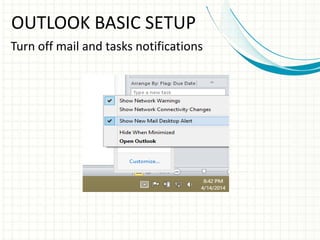
f) Turn off mail and task notifications
• 2. Take control over your Inbox
a) Create Outlook rules
b) Converting mail to tasks
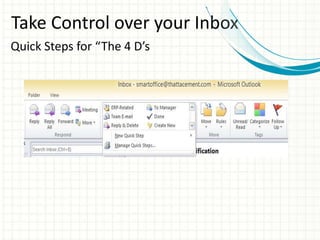
c) The 4 D’s
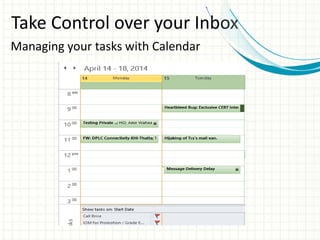
d) Managing your tasks with your calendar
• 3. Use of Folder structure and Categories to achieve your goals and objectives
a) 1. Create your folder and category structure.
b) 2. Are you using the time on the right things?
c) 3. Are your tasks aligned with your goals and objectives?
Some useful Tips
OUTLOOK BASIC SETUP
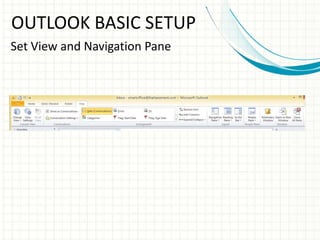
Set View and Navigation Pane
OUTLOOK BASIC SETUP
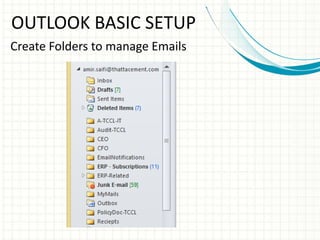
Create Folders to manage Emails
OUTLOOK BASIC SETUP
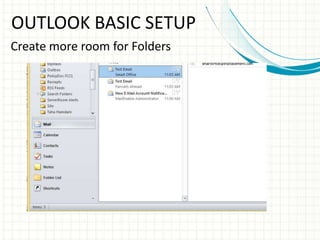
Create more room for Folders
OUTLOOK BASIC SETUP
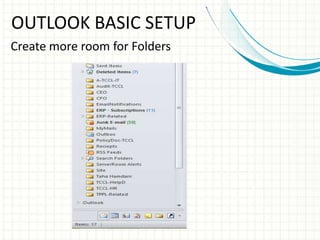
Create more room for Folders
OUTLOOK BASIC SETUP
Create extra calendar view window
OUTLOOK BASIC SETUP
Show Tasks at the bottom of the Calendar
OUTLOOK BASIC SETUP
Turn off mail and tasks notifications
Take Control over your Inbox
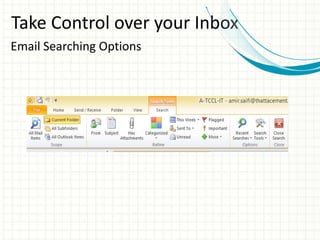
Email Searching Options
Take Control over your Inbox
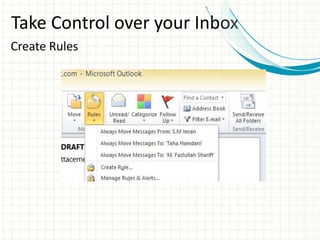
Create Rules
Take Control over your Inbox
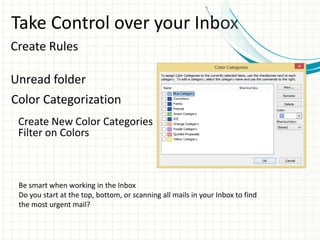
Create Rules
Unread folder
Color Categorization
Create New Color Categories
Filter on Colors
Be smart when working in the Inbox
Do you start at the top, bottom, or scanning all mails in your Inbox to find
the most urgent mail?
Take Control over your Inbox
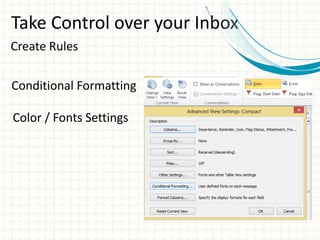
Create Rules
Conditional Formatting
Color / Fonts Settings
Take Control over your Inbox
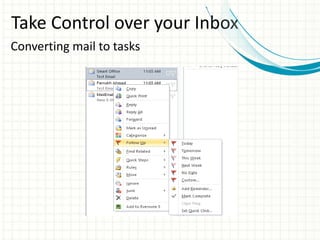
Converting mail to tasks
Take Control over your Inbox
The 4 D's
Do now
This will normally mean you answer the mail, talk to someone,
deliver something etc. When you are done, you can either archive it
in the right folder, or you can delete it.
Take Control over your Inbox
The 4 D's
Delegate
The simplest would be just to forward the mail. After you have done
so, delete the mail, or archive it in the right folder. If you want to
follow up on the task, you can flag the mail with a date in the future
you want to follow up on it. It will then turn up on that day in your
task list.
Take Control over your Inbox
The 4 D's
Delete
Self explanatory :-)
Take Control over your Inbox
The 4 D's
Do later
Decide when to do it, and flag it. Right click in the Flag field, and
chose one of the pre- defined flags. Next Week will create a task with
start date on Monday, and end date on Friday.
Take Control over your Inbox
Quick Steps for “The 4 D’s
Take Control over your Inbox
Managing your tasks with Calendar
Use of Folder Structure
And Categories to achieve track
Your Goals.
Create your folders and category structure
Are you using the time on the right things?
Are your tasks aligned with your goals?
User of Folder Structure
And Categories to achieve track
Your Goals.
User of Folder Structure
And Categories to achieve track
Your Goals.
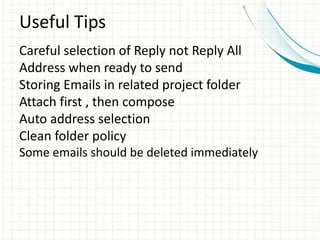
Useful Tips
Careful selection of Reply not Reply All
Address when ready to send
Storing Emails in related project folder
Attach first , then compose
Auto address selection
Clean folder policy
Some emails should be deleted immediately

Smart office outlook

  • 1.
    USE MS OUTLOOK EFFICIENTLY SaadAbdul Wahab Joint Manager HSE, OD & Audits SMART OFFICE MANAGEMENT SERIES - SESSION 1
  • 2.
    What you should notexpect from this session?
  • 3.
  • 4.
    Agenda • 1. Outlookbasic setup a) Set view and Navigation Panes b) Create Folders to manage Archive Emails c) Create more room for Folders d) Create extra calendar view window e) Show tasks at the bottom of the calendar f) Turn off mail and task notifications • 2. Take control over your Inbox a) Create Outlook rules b) Converting mail to tasks c) The 4 D’s d) Managing your tasks with your calendar • 3. Use of Folder structure and Categories to achieve your goals and objectives a) 1. Create your folder and category structure. b) 2. Are you using the time on the right things? c) 3. Are your tasks aligned with your goals and objectives? Some useful Tips
  • 5.
    OUTLOOK BASIC SETUP SetView and Navigation Pane
  • 6.
    OUTLOOK BASIC SETUP CreateFolders to manage Emails
  • 7.
    OUTLOOK BASIC SETUP Createmore room for Folders
  • 8.
    OUTLOOK BASIC SETUP Createmore room for Folders
  • 9.
    OUTLOOK BASIC SETUP Createextra calendar view window
  • 10.
    OUTLOOK BASIC SETUP ShowTasks at the bottom of the Calendar
  • 11.
    OUTLOOK BASIC SETUP Turnoff mail and tasks notifications
  • 12.
    Take Control overyour Inbox Email Searching Options
  • 13.
    Take Control overyour Inbox Create Rules
  • 14.
    Take Control overyour Inbox Create Rules Unread folder Color Categorization Create New Color Categories Filter on Colors Be smart when working in the Inbox Do you start at the top, bottom, or scanning all mails in your Inbox to find the most urgent mail?
  • 15.
    Take Control overyour Inbox Create Rules Conditional Formatting Color / Fonts Settings
  • 16.
    Take Control overyour Inbox Converting mail to tasks
  • 17.
    Take Control overyour Inbox The 4 D's Do now This will normally mean you answer the mail, talk to someone, deliver something etc. When you are done, you can either archive it in the right folder, or you can delete it.
  • 18.
    Take Control overyour Inbox The 4 D's Delegate The simplest would be just to forward the mail. After you have done so, delete the mail, or archive it in the right folder. If you want to follow up on the task, you can flag the mail with a date in the future you want to follow up on it. It will then turn up on that day in your task list.
  • 19.
    Take Control overyour Inbox The 4 D's Delete Self explanatory :-)
  • 20.
    Take Control overyour Inbox The 4 D's Do later Decide when to do it, and flag it. Right click in the Flag field, and chose one of the pre- defined flags. Next Week will create a task with start date on Monday, and end date on Friday.
  • 21.
    Take Control overyour Inbox Quick Steps for “The 4 D’s
  • 22.
    Take Control overyour Inbox Managing your tasks with Calendar
  • 23.
    Use of FolderStructure And Categories to achieve track Your Goals. Create your folders and category structure Are you using the time on the right things? Are your tasks aligned with your goals?
  • 24.
    User of FolderStructure And Categories to achieve track Your Goals.
  • 25.
    User of FolderStructure And Categories to achieve track Your Goals.
  • 26.
    Useful Tips Careful selectionof Reply not Reply All Address when ready to send Storing Emails in related project folder Attach first , then compose Auto address selection Clean folder policy Some emails should be deleted immediately