Using
Microsoft Outlook:
Part II
Objectives
• Build on existing Outlook
knowledge and skills
• Calendar
• Tasks
• Journal
• Notes
Next
Advantages of
the Calendar Feature
• Birthdays – set as recurring events –
appear on the date every year.
• Tasks or bills due on the same day each
month? Make one appointment and
receive reminders.
• View multiple calendars, side by side
• More…
Next
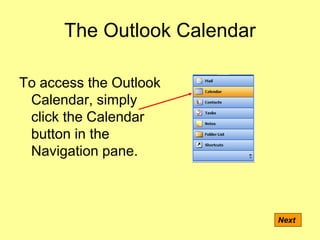
The Outlook Calendar
To access the Outlook
Calendar, simply
click the Calendar
button in the
Navigation pane.
Next
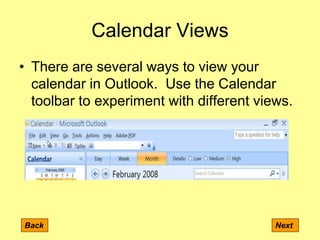
Calendar Views
• There are several ways to view your
calendar in Outlook. Use the Calendar
toolbar to experiment with different views.
Back Next
Create an Appointment
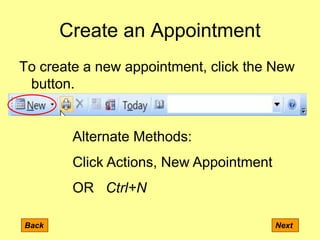
To create a new appointment, click the New
button.
Back Next
Alternate Methods:
Click Actions, New Appointment
OR Ctrl+N
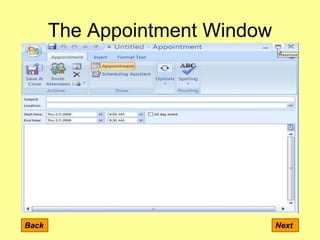
The Appointment Window
Back Next
Practice
1. Create a new appointment.
2. Make sure you assign it to a
category.
3. Navigate between the calendar
views to see how the
appointment is displayed.
NextBack
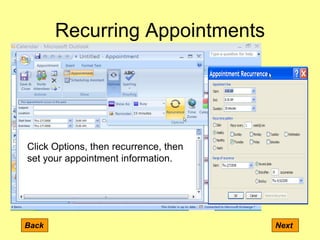
Recurring Appointments
Back Next
Click Options, then recurrence, then
set your appointment information.
Let’s Try It!
Back Next
1. Create recurring appointment
using your birthday,
anniversary, or other significant
event.
2. Be sure to assign it to a
category.
3. Track it through the various
Calendar views.
Viewing/Sorting Appointments
Back Next
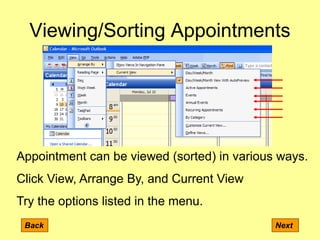
Appointment can be viewed (sorted) in various ways.
Click View, Arrange By, and Current View
Try the options listed in the menu.
Creating a Meeting
Back Next
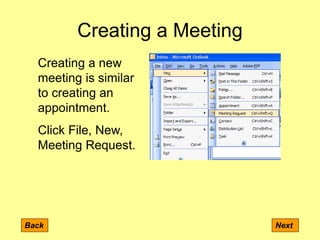
Creating a new
meeting is similar
to creating an
appointment.
Click File, New,
Meeting Request.
The Meeting Request Form
Back Next
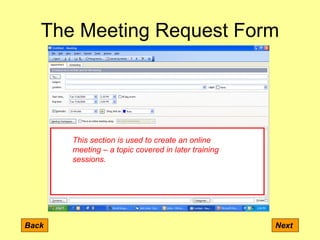
This section is used to create an online
meeting – a topic covered in later training
sessions.
Picking a Meeting Time
Back Next
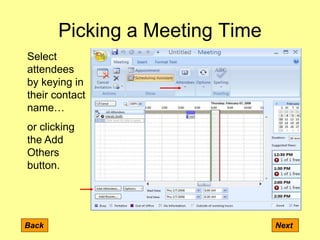
Select
attendees
by keying in
their contact
name…
or clicking
the Add
Others
button.
Checking Availability
Back Next
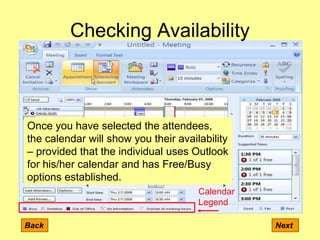
Once you have selected the attendees,
the calendar will show you their availability
– provided that the individual uses Outlook
for his/her calendar and has Free/Busy
options established.
Calendar
Legend
Send!
Back Next
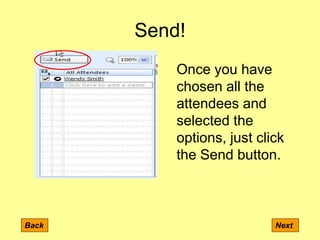
Once you have
chosen all the
attendees and
selected the
options, just click
the Send button.
Tasks
Back Next
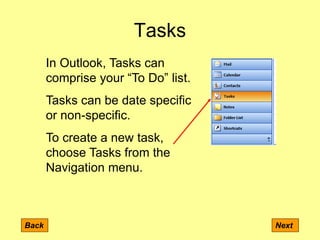
In Outlook, Tasks can
comprise your “To Do” list.
Tasks can be date specific
or non-specific.
To create a new task,
choose Tasks from the
Navigation menu.
Creating a Task
Back Next
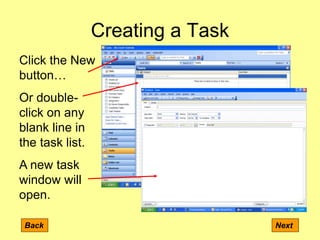
Click the New
button…
Or double-
click on any
blank line in
the task list.
A new task
window will
open.
New Task
Back Next
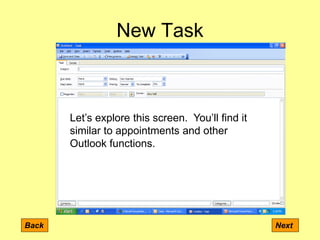
Let’s explore this screen. You’ll find it
similar to appointments and other
Outlook functions.
Now You Try It!
Back Next
Your mission… should you choose to accept it…
is:
1. Create three new tasks. Make sure that each
task has an assigned category.
2. Assign one of the tasks to someone else in this
training session.
3. Modify the status of the task you RECEIVE.
4. View the status of all the tasks in your mailbox.
Viewing Tasks
Back Next
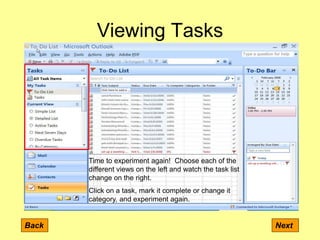
Time to experiment again! Choose each of the
different views on the left and watch the task list
change on the right.
Click on a task, mark it complete or change it
category, and experiment again.
The Outlook Journal
Back Next
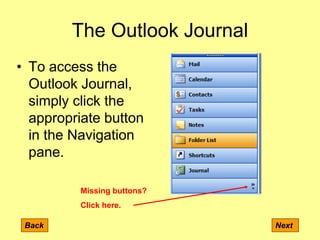
• To access the
Outlook Journal,
simply click the
appropriate button
in the Navigation
pane.
Missing buttons?
Click here.
Journal Views
Back Next
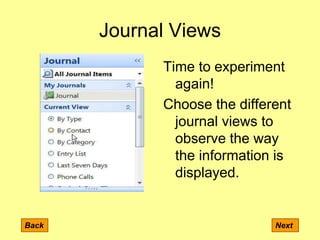
Time to experiment
again!
Choose the different
journal views to
observe the way
the information is
displayed.
Limiting Journal Data
Back Next
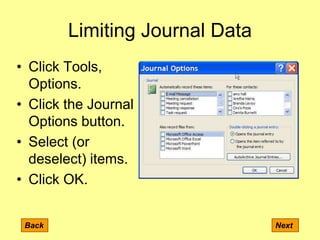
• Click Tools,
Options.
• Click the Journal
Options button.
• Select (or
deselect) items.
• Click OK.
Manual Journal Entries
Back Next
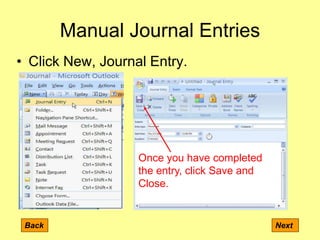
• Click New, Journal Entry.
Once you have completed
the entry, click Save and
Close.
Using the Notes Features
Back Next
Click the Notes
button in the
Navigation pane.
Click the New
button.
Use the “sticky” to
create a note.
Click the close
button [X] or click
anywhere outside
the note.
Having “Sticky” Fun
Back Next
Now you try it!
1. Create three notes.
2. Experiment with the different views.
3. Delete a note.
4. Assign one note a category.
5. Assign one note to a contact.
Bonus Topic – Time Permitting
Questions?
Contact the Help Desk at x4400
or nr4help@nr.edu.
Or call your trainer!

Intermediate outlook

  • 1.
  • 2.
    Objectives • Build onexisting Outlook knowledge and skills • Calendar • Tasks • Journal • Notes Next
  • 3.
    Advantages of the CalendarFeature • Birthdays – set as recurring events – appear on the date every year. • Tasks or bills due on the same day each month? Make one appointment and receive reminders. • View multiple calendars, side by side • More… Next
  • 4.
    The Outlook Calendar Toaccess the Outlook Calendar, simply click the Calendar button in the Navigation pane. Next
  • 5.
    Calendar Views • Thereare several ways to view your calendar in Outlook. Use the Calendar toolbar to experiment with different views. Back Next
  • 6.
    Create an Appointment Tocreate a new appointment, click the New button. Back Next Alternate Methods: Click Actions, New Appointment OR Ctrl+N
  • 7.
  • 8.
    Practice 1. Create anew appointment. 2. Make sure you assign it to a category. 3. Navigate between the calendar views to see how the appointment is displayed. NextBack
  • 9.
    Recurring Appointments Back Next ClickOptions, then recurrence, then set your appointment information.
  • 10.
    Let’s Try It! BackNext 1. Create recurring appointment using your birthday, anniversary, or other significant event. 2. Be sure to assign it to a category. 3. Track it through the various Calendar views.
  • 11.
    Viewing/Sorting Appointments Back Next Appointmentcan be viewed (sorted) in various ways. Click View, Arrange By, and Current View Try the options listed in the menu.
  • 12.
    Creating a Meeting BackNext Creating a new meeting is similar to creating an appointment. Click File, New, Meeting Request.
  • 13.
    The Meeting RequestForm Back Next This section is used to create an online meeting – a topic covered in later training sessions.
  • 14.
    Picking a MeetingTime Back Next Select attendees by keying in their contact name… or clicking the Add Others button.
  • 15.
    Checking Availability Back Next Onceyou have selected the attendees, the calendar will show you their availability – provided that the individual uses Outlook for his/her calendar and has Free/Busy options established. Calendar Legend
  • 16.
    Send! Back Next Once youhave chosen all the attendees and selected the options, just click the Send button.
  • 17.
    Tasks Back Next In Outlook,Tasks can comprise your “To Do” list. Tasks can be date specific or non-specific. To create a new task, choose Tasks from the Navigation menu.
  • 18.
    Creating a Task BackNext Click the New button… Or double- click on any blank line in the task list. A new task window will open.
  • 19.
    New Task Back Next Let’sexplore this screen. You’ll find it similar to appointments and other Outlook functions.
  • 20.
    Now You TryIt! Back Next Your mission… should you choose to accept it… is: 1. Create three new tasks. Make sure that each task has an assigned category. 2. Assign one of the tasks to someone else in this training session. 3. Modify the status of the task you RECEIVE. 4. View the status of all the tasks in your mailbox.
  • 21.
    Viewing Tasks Back Next Timeto experiment again! Choose each of the different views on the left and watch the task list change on the right. Click on a task, mark it complete or change it category, and experiment again.
  • 22.
    The Outlook Journal BackNext • To access the Outlook Journal, simply click the appropriate button in the Navigation pane. Missing buttons? Click here.
  • 23.
    Journal Views Back Next Timeto experiment again! Choose the different journal views to observe the way the information is displayed.
  • 24.
    Limiting Journal Data BackNext • Click Tools, Options. • Click the Journal Options button. • Select (or deselect) items. • Click OK.
  • 25.
    Manual Journal Entries BackNext • Click New, Journal Entry. Once you have completed the entry, click Save and Close.
  • 26.
    Using the NotesFeatures Back Next Click the Notes button in the Navigation pane. Click the New button. Use the “sticky” to create a note. Click the close button [X] or click anywhere outside the note.
  • 27.
    Having “Sticky” Fun BackNext Now you try it! 1. Create three notes. 2. Experiment with the different views. 3. Delete a note. 4. Assign one note a category. 5. Assign one note to a contact. Bonus Topic – Time Permitting
  • 28.
    Questions? Contact the HelpDesk at x4400 or nr4help@nr.edu. Or call your trainer!