FastCourse Series
Lesson 2: Working with Email
2
Learning Objectives
 After studying this lesson, you will be able to:
 Set email options
 Send messages
 Handle incoming messages
 Organize messages
Getting Started with Outlook Email
 Sources for email accounts
 Internet service provider (ISP)
 Company/corporate email servers
 Webmail: Outlook.com, Gmail, Yahoo!
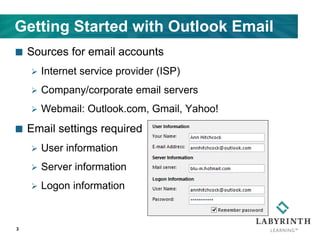
 Email settings required
 User information
 Server information
 Logon information
3
4
Getting Started with Outlook Email
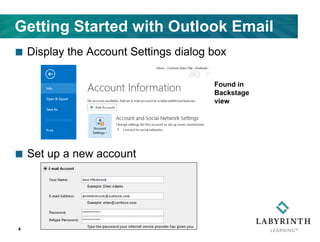
 Display the Account Settings dialog box
 Set up a new account
Found in
Backstage
view
Sending Messages
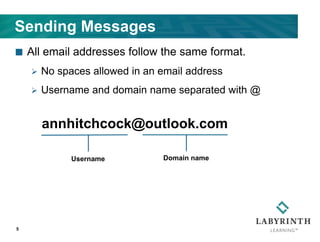
 All email addresses follow the same format.
 No spaces allowed in an email address
 Username and domain name separated with @
5
Username Domain name
annhitchcock@outlook.com
Sending Messages
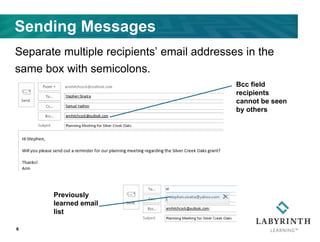
Separate multiple recipients’ email addresses in the
same box with semicolons.
6
Cc: Sends a carbon
copy to recipients
Bcc: Sends a blind
copy to recipients
Bcc field
recipients
cannot be seen
by others
Previously
learned email
list
7
Sending Messages
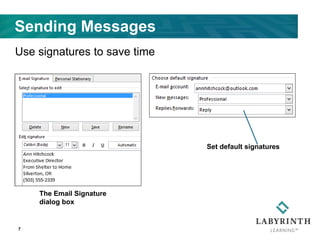
The Email Signature
dialog box
Use signatures to save time
Set default signatures
8
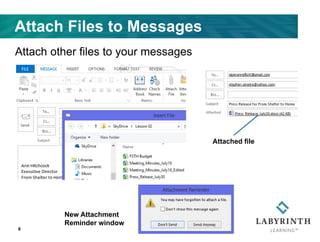
Attach Files to Messages
New Attachment
Reminder window
Attach other files to your messages
Attached file
9
Sending Messages
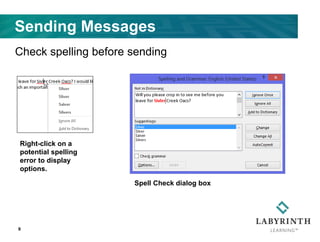
Check spelling before sending
Right-click on a
potential spelling
error to display
options.
Spell Check dialog box
Handling Incoming Messages
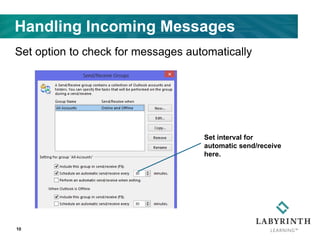
Set option to check for messages automatically
10
Set interval for
automatic send/receive
here.
Handling Incoming Messages
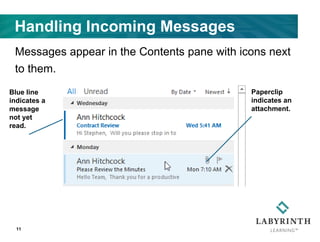
Messages appear in the Contents pane with icons next
to them.
11
Paperclip
indicates an
attachment.
Blue line
indicates a
message
not yet
read.
Handling Incoming Messages
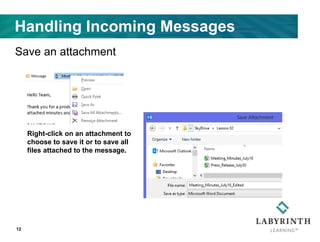
Save an attachment
12
Right-click on an attachment to
choose to save it or to save all
files attached to the message.
Handling Incoming Messages
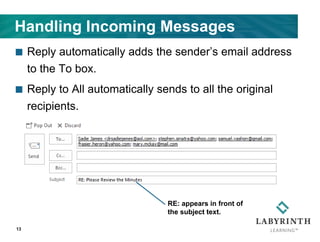
 Reply automatically adds the sender’s email address
to the To box.
 Reply to All automatically sends to all the original
recipients.
13
RE: appears in front of
the subject text.
Handling Incoming Messages
 Forwarding a message sends a copy of it to the
addressees.
 Attachments are forwarded with the message.
14
FW: appears in front of
the subject text.
Handling Incoming Messages
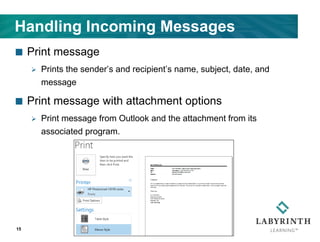
 Print message
 Prints the sender’s and recipient’s name, subject, date, and
message
 Print message with attachment options
 Print message from Outlook and the attachment from its
associated program.
15
Organizing Your Messages
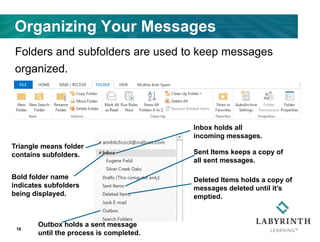
Folders and subfolders are used to keep messages
organized.
16
Inbox holds all
incoming messages.
Outbox holds a sent message
until the process is completed.
Sent Items keeps a copy of
all sent messages.
Deleted Items holds a copy of
messages deleted until it’s
emptied.
Triangle means folder
contains subfolders.
Bold folder name
indicates subfolders
being displayed.
Organizing Your Messages
 Move a message to a folder
 Two methods:
Drag the messages over the desired folder.
Choose Home > Move > Move.
 Select multiple messages to move
 Hold down the [Ctrl] key and click on individual
messages.
 Hold down the [Shift] key, click on the first message,
and then click on the last message to select the entire
group.
17
Organizing Your Messages
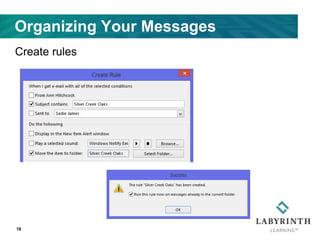
Create rules
18
Organizing Your Messages
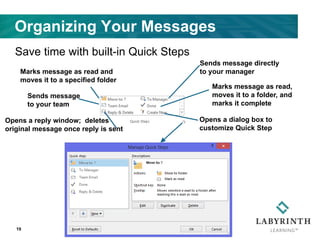
Save time with built-in Quick Steps
19
Opens a dialog box to
customize Quick Step
Marks message as read,
moves it to a folder, and
marks it complete
Sends message directly
to your manager
Opens a reply window; deletes
original message once reply is sent
Sends message
to your team
Marks message as read and
moves it to a specified folder
Organizing Your Messages
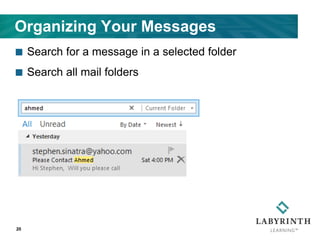
 Search for a message in a selected folder
 Search all mail folders
20
Organizing Your Messages
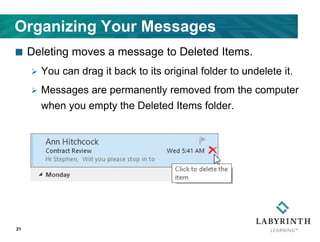
 Deleting moves a message to Deleted Items.
 You can drag it back to its original folder to undelete it.
 Messages are permanently removed from the computer
when you empty the Deleted Items folder.
21
Organizing Your Messages
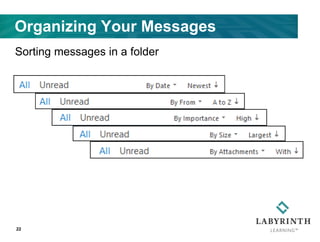
Sorting messages in a folder
22
FastCourse Series
Lesson 2: Working with Email

Outlook 2013 lesson 2 Overview presentation

  • 1.
    FastCourse Series Lesson 2:Working with Email
  • 2.
    2 Learning Objectives  Afterstudying this lesson, you will be able to:  Set email options  Send messages  Handle incoming messages  Organize messages
  • 3.
    Getting Started withOutlook Email  Sources for email accounts  Internet service provider (ISP)  Company/corporate email servers  Webmail: Outlook.com, Gmail, Yahoo!  Email settings required  User information  Server information  Logon information 3
  • 4.
    4 Getting Started withOutlook Email  Display the Account Settings dialog box  Set up a new account Found in Backstage view
  • 5.
    Sending Messages  Allemail addresses follow the same format.  No spaces allowed in an email address  Username and domain name separated with @ 5 Username Domain name annhitchcock@outlook.com
  • 6.
    Sending Messages Separate multiplerecipients’ email addresses in the same box with semicolons. 6 Cc: Sends a carbon copy to recipients Bcc: Sends a blind copy to recipients Bcc field recipients cannot be seen by others Previously learned email list
  • 7.
    7 Sending Messages The EmailSignature dialog box Use signatures to save time Set default signatures
  • 8.
    8 Attach Files toMessages New Attachment Reminder window Attach other files to your messages Attached file
  • 9.
    9 Sending Messages Check spellingbefore sending Right-click on a potential spelling error to display options. Spell Check dialog box
  • 10.
    Handling Incoming Messages Setoption to check for messages automatically 10 Set interval for automatic send/receive here.
  • 11.
    Handling Incoming Messages Messagesappear in the Contents pane with icons next to them. 11 Paperclip indicates an attachment. Blue line indicates a message not yet read.
  • 12.
    Handling Incoming Messages Savean attachment 12 Right-click on an attachment to choose to save it or to save all files attached to the message.
  • 13.
    Handling Incoming Messages Reply automatically adds the sender’s email address to the To box.  Reply to All automatically sends to all the original recipients. 13 RE: appears in front of the subject text.
  • 14.
    Handling Incoming Messages Forwarding a message sends a copy of it to the addressees.  Attachments are forwarded with the message. 14 FW: appears in front of the subject text.
  • 15.
    Handling Incoming Messages Print message  Prints the sender’s and recipient’s name, subject, date, and message  Print message with attachment options  Print message from Outlook and the attachment from its associated program. 15
  • 16.
    Organizing Your Messages Foldersand subfolders are used to keep messages organized. 16 Inbox holds all incoming messages. Outbox holds a sent message until the process is completed. Sent Items keeps a copy of all sent messages. Deleted Items holds a copy of messages deleted until it’s emptied. Triangle means folder contains subfolders. Bold folder name indicates subfolders being displayed.
  • 17.
    Organizing Your Messages Move a message to a folder  Two methods: Drag the messages over the desired folder. Choose Home > Move > Move.  Select multiple messages to move  Hold down the [Ctrl] key and click on individual messages.  Hold down the [Shift] key, click on the first message, and then click on the last message to select the entire group. 17
  • 18.
  • 19.
    Organizing Your Messages Savetime with built-in Quick Steps 19 Opens a dialog box to customize Quick Step Marks message as read, moves it to a folder, and marks it complete Sends message directly to your manager Opens a reply window; deletes original message once reply is sent Sends message to your team Marks message as read and moves it to a specified folder
  • 20.
    Organizing Your Messages Search for a message in a selected folder  Search all mail folders 20
  • 21.
    Organizing Your Messages Deleting moves a message to Deleted Items.  You can drag it back to its original folder to undelete it.  Messages are permanently removed from the computer when you empty the Deleted Items folder. 21
  • 22.
    Organizing Your Messages Sortingmessages in a folder 22
  • 23.
    FastCourse Series Lesson 2:Working with Email