Time Management Tips
Lesson #1 – Email Management Basics
By: Bryan Timsah
Control Your Email
Is email controlling you instead of
you controlling it?
 Do you have a lot of advertisement, or subscribed email
that you never or seldom read? We often sign-up at
websites just because it’s an interest at the time, or for
research, etc. Then, a year later we have wasted hours of
time checking waste of time emails that we just delete or
mark as unread and move on. It’s a BIG time waster!
 If you take 30 minutes one day to unsubscribe from those
emails (most emails will have a link at the bottom allowing
you to easily unsubscribe); how much time would that
save in a year? Often, you can do this from your smart
phone while in the restroom (just make sure to wash your
hands!).
Email Folders
You should be using Microsoft Outlook (unless
your one of the unlucky few)
 Utilize the folders and create rules to auto-sort
specific email types. Some examples that I
use:
◦ HR News/Updates – I have Outlook automatically
send communications from HR Societies (SHRM,
etc.), HR Law updates, and other similar emails.
These are typically not urgent issues, but will need to
be reviewed at some point.
◦ Faxes – If your not using an E-fax type product,
consider this. You can make a folder for those, have
an exclusive fax without paper, ink, toners, etc. No
more lost faxes either, and you just print the ones you
 Training – This folder is for personal training
and development. I place specialized seminars
(HR), courses, webinars, etc. Some can be
auto-sorted with the rules in Outlook. Just right-
click on any email and select “create rule.” It
should be rather easy from there.
 Find what email types would work best for you,
then start creating rules to sort for you.
 Next, you will want scheduled time(s) to review
these email folders. It could be once per week
or more depending on your volume and
schedule. Imagine selecting 1 hour per week to
review such folders. How much time in random
distractions would you save over a month, a
quarter, or a year?
Outlook Layout
Consider adjusting your Outlook layout to save
additional time.
• Did you know that we read much faster and more
naturally when reading in columns? Yep, so I
advise trying to condense your email boxes into
this format.
• Consider removing the Reading Pane, if your
using it. One issue is that when clicked on once, it
often defaults to show as read. You can easily
miss emails like this. Also, its easy to let random
emails distract you from other priorities. One
glance at the reading pane, and there goes a
good 30 minutes of replies, or phone calls, etc.
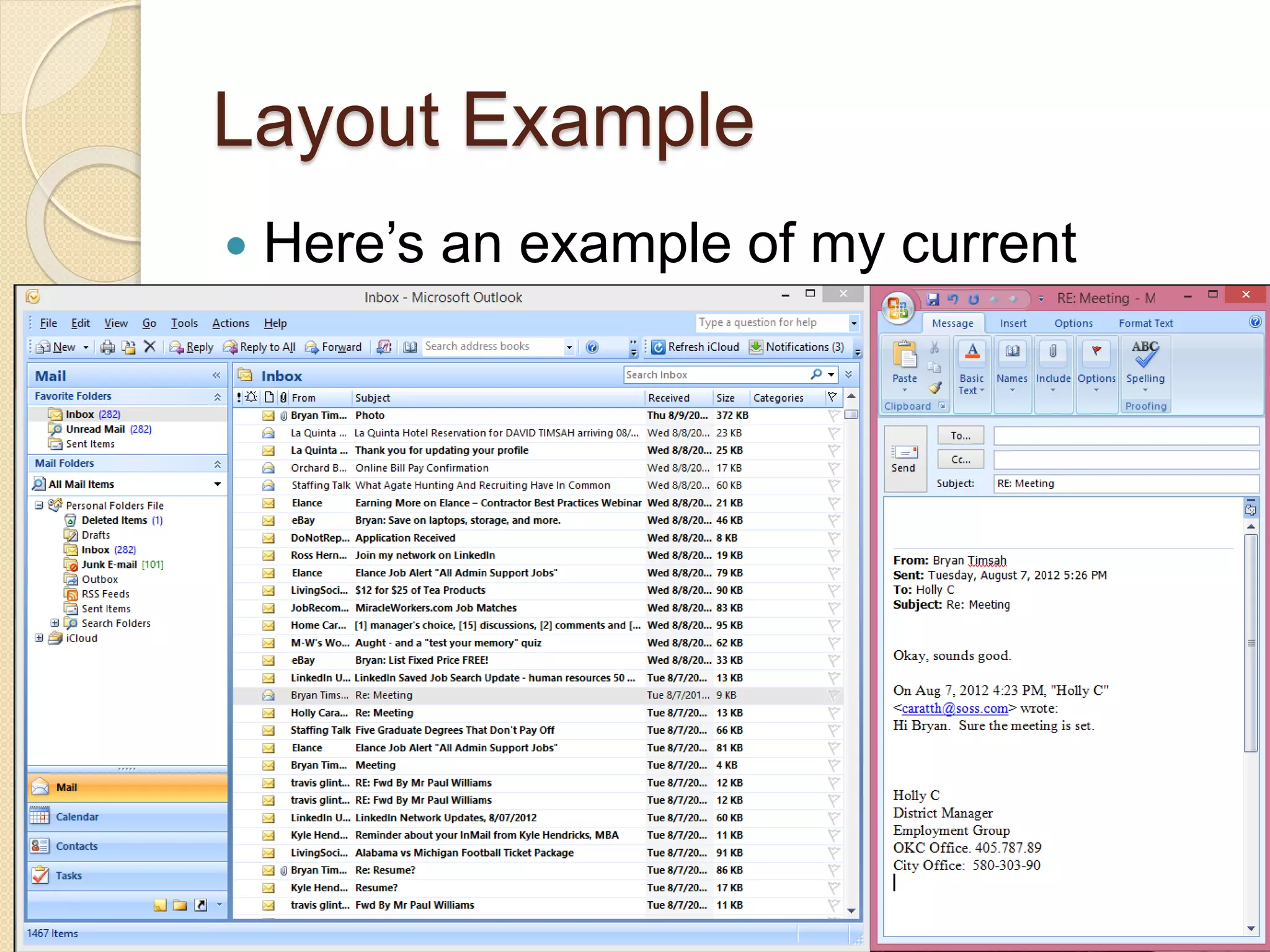
Layout Example
 Here’s an example of my current
layout.
 This layout leaves emails bolded until
double-clicked.
 As I open them, they nicely stack on
top of each other, rather than randomly
opening all over my screen.
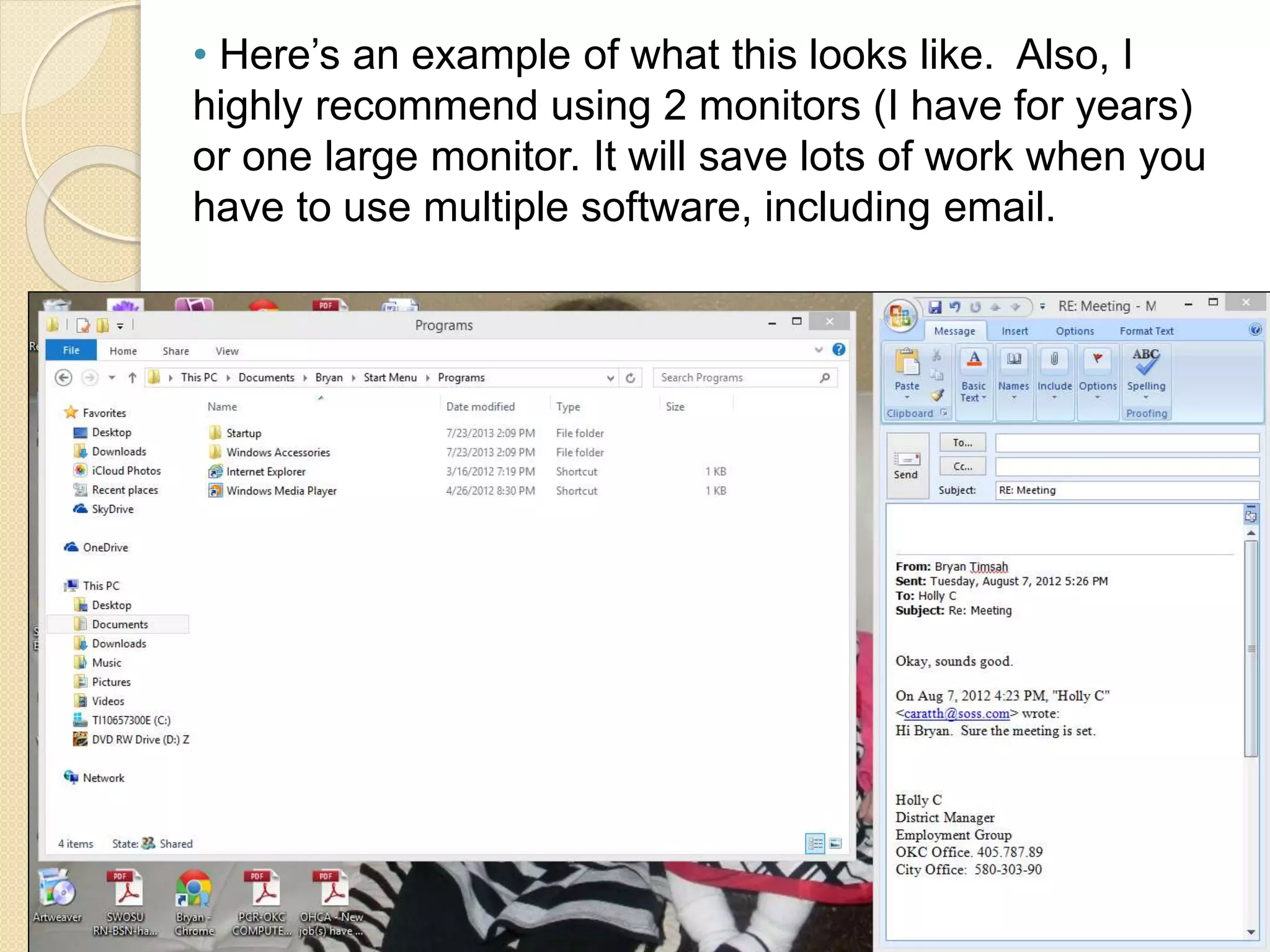
 By minimizing my Inbox; I can also
easily view email beside spreadsheets,
download folders, Word documents,
etc. This allows me to drag-and-drop
emailed documents into folders very
quickly.
• Here’s an example of what this looks like. Also, I
highly recommend using 2 monitors (I have for years)
or one large monitor. It will save lots of work when you
have to use multiple software, including email.
Bio:
Bryan Timsah is currently the Human Resources Manager at
Home Creations in Moore, OK. He holds a Bachelor’s degree in
Business Management: HR Management from the University of
Central Oklahoma. He has been a long standing active member
in the Society of Human Resource Management (SHRM) and
the local Oklahoma City HR Society (OCHRS). Bryan has
accumulated 9+ years experience in Human Resources
including; recruitment/talent management, payroll, ATS, HR
systems administration, workers compensation, training &
development, records management, generalist duties, HR policy
development and compliance, auditing, contract management,
HRIS, public speaking, presenting, and much more.
LinkedIn Profile: www.linkedin.com/in/bryantimsah/

Time management tips - Email Management Basics

  • 1.
    Time Management Tips Lesson#1 – Email Management Basics By: Bryan Timsah
  • 2.
    Control Your Email Isemail controlling you instead of you controlling it?  Do you have a lot of advertisement, or subscribed email that you never or seldom read? We often sign-up at websites just because it’s an interest at the time, or for research, etc. Then, a year later we have wasted hours of time checking waste of time emails that we just delete or mark as unread and move on. It’s a BIG time waster!  If you take 30 minutes one day to unsubscribe from those emails (most emails will have a link at the bottom allowing you to easily unsubscribe); how much time would that save in a year? Often, you can do this from your smart phone while in the restroom (just make sure to wash your hands!).
  • 3.
    Email Folders You shouldbe using Microsoft Outlook (unless your one of the unlucky few)  Utilize the folders and create rules to auto-sort specific email types. Some examples that I use: ◦ HR News/Updates – I have Outlook automatically send communications from HR Societies (SHRM, etc.), HR Law updates, and other similar emails. These are typically not urgent issues, but will need to be reviewed at some point. ◦ Faxes – If your not using an E-fax type product, consider this. You can make a folder for those, have an exclusive fax without paper, ink, toners, etc. No more lost faxes either, and you just print the ones you
  • 4.
     Training –This folder is for personal training and development. I place specialized seminars (HR), courses, webinars, etc. Some can be auto-sorted with the rules in Outlook. Just right- click on any email and select “create rule.” It should be rather easy from there.  Find what email types would work best for you, then start creating rules to sort for you.  Next, you will want scheduled time(s) to review these email folders. It could be once per week or more depending on your volume and schedule. Imagine selecting 1 hour per week to review such folders. How much time in random distractions would you save over a month, a quarter, or a year?
  • 5.
    Outlook Layout Consider adjustingyour Outlook layout to save additional time. • Did you know that we read much faster and more naturally when reading in columns? Yep, so I advise trying to condense your email boxes into this format. • Consider removing the Reading Pane, if your using it. One issue is that when clicked on once, it often defaults to show as read. You can easily miss emails like this. Also, its easy to let random emails distract you from other priorities. One glance at the reading pane, and there goes a good 30 minutes of replies, or phone calls, etc.
  • 6.
    Layout Example  Here’san example of my current layout.
  • 7.
     This layoutleaves emails bolded until double-clicked.  As I open them, they nicely stack on top of each other, rather than randomly opening all over my screen.  By minimizing my Inbox; I can also easily view email beside spreadsheets, download folders, Word documents, etc. This allows me to drag-and-drop emailed documents into folders very quickly.
  • 8.
    • Here’s anexample of what this looks like. Also, I highly recommend using 2 monitors (I have for years) or one large monitor. It will save lots of work when you have to use multiple software, including email.
  • 9.
    Bio: Bryan Timsah iscurrently the Human Resources Manager at Home Creations in Moore, OK. He holds a Bachelor’s degree in Business Management: HR Management from the University of Central Oklahoma. He has been a long standing active member in the Society of Human Resource Management (SHRM) and the local Oklahoma City HR Society (OCHRS). Bryan has accumulated 9+ years experience in Human Resources including; recruitment/talent management, payroll, ATS, HR systems administration, workers compensation, training & development, records management, generalist duties, HR policy development and compliance, auditing, contract management, HRIS, public speaking, presenting, and much more. LinkedIn Profile: www.linkedin.com/in/bryantimsah/