





Computer Basics Karen Brooks  Cynthia Farrell `Justine Morgiewitz 5/11/11
What are the Basic Parts of a Desktop Computer All of the basic parts of a desktop computer are considered hardware.  The  computer case ,  monitor ,  keyboard ,  mouse , and  power cord   are considered the basic parts. Basic hardware components  let you and the computer interact.
What are the Two Main Types of Monitors? The  two main types   of monitors are cathode ray tube (CRT) and liquid crystal display (LCD) monitors. The  CRT  monitor is  big , like a tube television, and takes up a lot of desk space.  The  LCD  monitor is  thin  and saves energy, but costs more. Over the years, LCD monitors have become the standard.
Keyboard The  Escape key , labeled  Esc , allows you to stop a function or action. For example, if your computer suddenly freezes up, you may be able to resume by pressing Esc. The  Control (Ctrl) ,  Alternate (Alt) ,  and  Shift keys   are designed to work with other keys. For example, if you press Ctrl + S at the same time, you can save a file.
The  Insert key   switches between the insert mode and overtype mode. The insert mode is the normal mode for word processing. The  Home key   moves the cursor to the  left  or beginning of the current line. End  moves the cursor to the  right  end of the current line. Page Up  and   Page down   take you to the top or bottom of the screen.
To Switch the Mouse Buttons for a Left-Handed User: Click  Start .  Choose  SettingsControl Panel .  Double-click  the Mouse icon in the Control Panel window.  Click  Left-handed .  Click  OK .
Reminders Be sure to place your computer case in an area that is  well ventilated  and that has good air flow. It is important that the computer stay cool, as overheating is a concern, especially if you plan on leaving your computer turned on for long periods of time.
FUNCTION KEYS
F1 As a throwback to DOS days, you will find that the F1 key will often bring up a help menu. If you press F1 while working in a program, help for that program will usually appear. If you press F1 while at the Windows desktop or when the Windows Explorer is open, a Windows help screen will pop up
F2 You can use the F2 key to rename an item when working in Windows. Highlight any folder or file, and press F2. You will then be able to type a new name for the object. After you type the new name, just click outside the name box or press the enter key to make the name change. This works just like right-clicking a file or folder and selecting  Rename .
F3 When you are working in Windows, the F3 key will open the  Find Files  window.
F4 You can press F4 to open the Address bar when working in Internet Explorer. This will allow you to type the address of a Web page for quick access. You can also press the Alt key and the F4 key at the same time to close the open Window that you are currently working on.
F5 The F5 key is the refresh key. You can press F5 when viewing a Web page to make sure that you have the most current version of that Web page. You can also use F5 when in Windows to refresh the screen. This can be a handy shortcut. If perhaps you are viewing the contents of a CD and you remove that CD and insert another  CD, your screen will still show the contents of the CD. Just press F5 to refresh the screen and see the contents of the CD you just inserted.
F6 This key is often used to move the cursor around the structure of the program. Pressing it will often cycle you from window to window. In Internet Explorer and Firefox, pressing F6 moves the cursor to the address bar.
F7 The F7 key does not have any functionality in Windows. It may, however be used in some individual programs. To find out if it is available in the program you are using, bring up the program’s help screen and type in the words  function key .
F8 The F8 key can be used to access Safe Mode if pressed during the computer’s boot up process. This is a trouble-shooting mode which will start the computer with minimal drivers.
F9 The F9 key does not have any functionality in Windows. It may, however be used in some individual programs. To find out if it is available in the program you are using, bring up the program’s help screen and type in the words  function key .
F10 F10 is the key that is used to activate the menu bar in many programs. You can use F10 to highlight the first menu choice, and then use the arrow keys to move around the menus. Pressing the Shift key while pressing F10 will bring up the shortcut menu. This is similar to right-clicking on an object.
F11 Press F11 when you are working in Internet Explorer and many other programs, and the window will open to full screen mode. This will make all the  toolbars  disappear and can be useful to see more information on the screen.  Press F11 when you are in full screen mode will toggle you back to your normal  view.
F12 The F12 key does not have any functionality in Windows. It may, however be used in some individual programs. To find out if it is available in the program you are using, bring up the program’s help screen and type in the words  function key . As you can see, the Function keys can be extremely useful. Remember that since the functionality can differ from program to program, it is often good to look in the help menu of the program that you are using to find a list of the function keys and their uses.
1 0 FREE PROGRAMS EVERYONE SHOULD HAVE http://www.computerhope.com/tips/tip80.htm
Top 10 keyboard shortcuts everyone should know http://www.computerhope.com/tips/tip79.htm
10 TIPS EVERY PARENT OF A TEENAGE SHOULD KNOW http://www.computerhope.com/tips/tip81.htm
Storage Computer data storage , often called  storage  or  memory , refers to  computer  components and  recording media  that retain digital  data  used for computing for some interval of time.
Text, numbers, pictures, audio, and nearly any other form of information can be converted into a string of bits, or binary digits, each of which has a value of 1 or 0. The most common unit of storage is the byte, equal to 8 bits. A piece of information can be handled by any computer whose storage space is large enough to accommodate the binary representation of the piece of information, or simply data. For example, using eight million bits, or about one megabyte, a typical computer could store a short novel.
How Many CD’s Fit onto a DVD A CD is usually 700 MB. A  DVD  is 4.7 GB (=4,700 MB), so six CDs will fit, or nearly seven.
How Many Photo’s Can you Fit in a CD? It depends on the size of the photos and the size of the CD... but generally around 700, assuming each photo is around 1MB each and the CD is 700MB.
How Many Songs Fit on a CD? Let us consider a mp3 song, each 4MB of space. A CD has 700MB of free space out of which it is optimal to store upto 698MB. So 698/4=174.5  songs .  Better to go with 170 songs, but a song doesn't need to be exactly 4MB, it would better to go with 150 songs.
A  kilobyte  equals 1024 (or 2 10 ) bytes.  Likewise, a  megabyte  (MB) equals 1024 KB or 2 20  bytes and  a  gigabyte  (GB) equals 1024 MB or 2 30  bytes.
To avoid some of this confusion, networkers typically measure data rates in bits per second (bps) rather than bytes per second (Bps) and use the terms kilobyte, megabyte, and gigabyte only when referring to disk space.


Computer Basics from the Techs Always have some kind of Antivirus on your computer (McAfee, Trend Micro, AVG, Kaspersky) Would you rather pay the small cost of Antivirus, or would you rather pay for a new computer?  Plus you lose your files. Always keep your Antivirus up-to-date and set it up to run weekly scans of your computer
Always use a surge protector when plugging in/charging any electronics.  It’s amazing the electrical damage a thunder and lightning storm will do.  Even brown-outs can severely damage or ruin electronics.
Always back up your files.  CDs/DVDs remain the most secure form of backup.  Just be sure they remain dust/dirt/and scratch free.  A portable Hard Drive is another great option.  But just remember, after several years, just like any hard drive, they do stop working.  So there should not be one form of backing up that you rely on.
When in doubt    REBOOT.  Rebooting or restarting your computer fixes 98% of all computer issues. Wait one minute before restarting the computer.
If you are not sure what a menu or button does, just scroll over it with your mouse and usually the function or name of that menu or button appears in a little pop tag.
The Control Panel is Where Everything Hangs out. If you want to change anything from your sound, to your clock, to uninstall a program, the Control Panel is the place to go.
Pop-Ups Just Read and make an educated decision when it comes to any menu or pop-up.  If you are not sure, don’t say Yes.
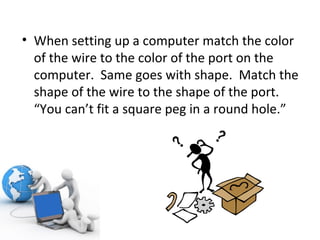
When setting up a computer match the color of the wire to the color of the port on the computer.  Same goes with shape.  Match the shape of the wire to the shape of the port.  “You can’t fit a square peg in a round hole.”
When in doubt, Right-Click the mouse.  That will give you the options that are available to you in any program at that exact point.  It’s a great shortcut to the menus that you can use at that particular moment.
Google it! If you need to know something about anything, go to  www.google.com  and type what you are looking for in the search field. Don’t be too detailed in typing what you want to find but try to be just specific enough.  Example.  If you want a picture of a sunflower, type sunflower and above Google search you will see the links, click on images. That will do an image search.
NEVER turn off any computer by using the button or just unplugging.  This damages the hard drive of the computer every time this is done, and it will need to be replaced a lot sooner by doing this.
Ctrl key  Alt key  Delete key  By pressing these all at once, it can get you to the Task Manager, where you can end a program that may be frozen.  You can even restart or shut down your computer at that screen if the computer is frozen/hanging up.
Always password protect things.  Choose a password that is not your birth date or contains your name. Type a sentence if you must.  A number or symbol is always good practice too!
Never share your password with others.
Keep your computer up-to-date on all updates (Windows updates, Java, Flash, Shockwave, Adobe Reader)
If you have a major problem, try System Restore.  It restores your computer back to the state when it was last working fine.  It does not affect your files, so try to go back as far as you can when you know it was working good.  So if you installed a program ant then your computer just wasn’t the same, try to pick an available date before you did the install.  That also fixes 90% of all program related issues.
Don’t be afraid to play with applications and settings. The only way we learn is by trying and testing. Change your screensaver Change your desktop picture to something personal or to one of your choice
Some free (just Google them) Applications that are a must an any computer are: Adobe Flash Player Adobe Shockwave Player Java Quicktime iTunes Adobe Reader RealPlayer
When in doubt, call for help (a friend, a neighbor, a family member, or even the manufacturer of your computer.  Even the techs get a second opinion!
Most importantly HAVE FUN and EXPLORE!  You can’t break it. They only really wear out from use.
Resources http://www.gcflearnfree.org/ computers http://www.computerhope.com/tips/top10.htm http://www.computerhope.com /tips/

Computer basics

  • 1.
    Computer Basics KarenBrooks Cynthia Farrell `Justine Morgiewitz 5/11/11
  • 2.
    What are theBasic Parts of a Desktop Computer All of the basic parts of a desktop computer are considered hardware. The computer case , monitor , keyboard , mouse , and power cord are considered the basic parts. Basic hardware components let you and the computer interact.
  • 3.
    What are theTwo Main Types of Monitors? The two main types of monitors are cathode ray tube (CRT) and liquid crystal display (LCD) monitors. The CRT monitor is big , like a tube television, and takes up a lot of desk space. The LCD monitor is thin and saves energy, but costs more. Over the years, LCD monitors have become the standard.
  • 4.
    Keyboard The Escape key , labeled Esc , allows you to stop a function or action. For example, if your computer suddenly freezes up, you may be able to resume by pressing Esc. The Control (Ctrl) , Alternate (Alt) , and Shift keys are designed to work with other keys. For example, if you press Ctrl + S at the same time, you can save a file.
  • 5.
    The Insertkey switches between the insert mode and overtype mode. The insert mode is the normal mode for word processing. The Home key moves the cursor to the left or beginning of the current line. End moves the cursor to the right end of the current line. Page Up and Page down take you to the top or bottom of the screen.
  • 6.
    To Switch theMouse Buttons for a Left-Handed User: Click Start . Choose SettingsControl Panel . Double-click the Mouse icon in the Control Panel window. Click Left-handed . Click OK .
  • 7.
    Reminders Be sureto place your computer case in an area that is well ventilated and that has good air flow. It is important that the computer stay cool, as overheating is a concern, especially if you plan on leaving your computer turned on for long periods of time.
  • 8.
  • 9.
    F1 As athrowback to DOS days, you will find that the F1 key will often bring up a help menu. If you press F1 while working in a program, help for that program will usually appear. If you press F1 while at the Windows desktop or when the Windows Explorer is open, a Windows help screen will pop up
  • 10.
    F2 You canuse the F2 key to rename an item when working in Windows. Highlight any folder or file, and press F2. You will then be able to type a new name for the object. After you type the new name, just click outside the name box or press the enter key to make the name change. This works just like right-clicking a file or folder and selecting Rename .
  • 11.
    F3 When youare working in Windows, the F3 key will open the Find Files window.
  • 12.
    F4 You canpress F4 to open the Address bar when working in Internet Explorer. This will allow you to type the address of a Web page for quick access. You can also press the Alt key and the F4 key at the same time to close the open Window that you are currently working on.
  • 13.
    F5 The F5key is the refresh key. You can press F5 when viewing a Web page to make sure that you have the most current version of that Web page. You can also use F5 when in Windows to refresh the screen. This can be a handy shortcut. If perhaps you are viewing the contents of a CD and you remove that CD and insert another  CD, your screen will still show the contents of the CD. Just press F5 to refresh the screen and see the contents of the CD you just inserted.
  • 14.
    F6 This keyis often used to move the cursor around the structure of the program. Pressing it will often cycle you from window to window. In Internet Explorer and Firefox, pressing F6 moves the cursor to the address bar.
  • 15.
    F7 The F7key does not have any functionality in Windows. It may, however be used in some individual programs. To find out if it is available in the program you are using, bring up the program’s help screen and type in the words function key .
  • 16.
    F8 The F8key can be used to access Safe Mode if pressed during the computer’s boot up process. This is a trouble-shooting mode which will start the computer with minimal drivers.
  • 17.
    F9 The F9key does not have any functionality in Windows. It may, however be used in some individual programs. To find out if it is available in the program you are using, bring up the program’s help screen and type in the words function key .
  • 18.
    F10 F10 isthe key that is used to activate the menu bar in many programs. You can use F10 to highlight the first menu choice, and then use the arrow keys to move around the menus. Pressing the Shift key while pressing F10 will bring up the shortcut menu. This is similar to right-clicking on an object.
  • 19.
    F11 Press F11when you are working in Internet Explorer and many other programs, and the window will open to full screen mode. This will make all the toolbars disappear and can be useful to see more information on the screen.  Press F11 when you are in full screen mode will toggle you back to your normal view.
  • 20.
    F12 The F12key does not have any functionality in Windows. It may, however be used in some individual programs. To find out if it is available in the program you are using, bring up the program’s help screen and type in the words function key . As you can see, the Function keys can be extremely useful. Remember that since the functionality can differ from program to program, it is often good to look in the help menu of the program that you are using to find a list of the function keys and their uses.
  • 21.
    1 0 FREEPROGRAMS EVERYONE SHOULD HAVE http://www.computerhope.com/tips/tip80.htm
  • 22.
    Top 10 keyboardshortcuts everyone should know http://www.computerhope.com/tips/tip79.htm
  • 23.
    10 TIPS EVERYPARENT OF A TEENAGE SHOULD KNOW http://www.computerhope.com/tips/tip81.htm
  • 24.
    Storage Computer datastorage , often called storage or memory , refers to computer components and recording media that retain digital data used for computing for some interval of time.
  • 25.
    Text, numbers, pictures,audio, and nearly any other form of information can be converted into a string of bits, or binary digits, each of which has a value of 1 or 0. The most common unit of storage is the byte, equal to 8 bits. A piece of information can be handled by any computer whose storage space is large enough to accommodate the binary representation of the piece of information, or simply data. For example, using eight million bits, or about one megabyte, a typical computer could store a short novel.
  • 26.
    How Many CD’sFit onto a DVD A CD is usually 700 MB. A DVD is 4.7 GB (=4,700 MB), so six CDs will fit, or nearly seven.
  • 27.
    How Many Photo’sCan you Fit in a CD? It depends on the size of the photos and the size of the CD... but generally around 700, assuming each photo is around 1MB each and the CD is 700MB.
  • 28.
    How Many SongsFit on a CD? Let us consider a mp3 song, each 4MB of space. A CD has 700MB of free space out of which it is optimal to store upto 698MB. So 698/4=174.5 songs . Better to go with 170 songs, but a song doesn't need to be exactly 4MB, it would better to go with 150 songs.
  • 29.
    A kilobyte equals 1024 (or 2 10 ) bytes. Likewise, a megabyte (MB) equals 1024 KB or 2 20 bytes and a gigabyte (GB) equals 1024 MB or 2 30 bytes.
  • 30.
    To avoid someof this confusion, networkers typically measure data rates in bits per second (bps) rather than bytes per second (Bps) and use the terms kilobyte, megabyte, and gigabyte only when referring to disk space.
  • 31.
  • 32.
  • 33.
  • 34.
    Computer Basics fromthe Techs Always have some kind of Antivirus on your computer (McAfee, Trend Micro, AVG, Kaspersky) Would you rather pay the small cost of Antivirus, or would you rather pay for a new computer? Plus you lose your files. Always keep your Antivirus up-to-date and set it up to run weekly scans of your computer
  • 35.
    Always use asurge protector when plugging in/charging any electronics. It’s amazing the electrical damage a thunder and lightning storm will do. Even brown-outs can severely damage or ruin electronics.
  • 36.
    Always back upyour files. CDs/DVDs remain the most secure form of backup. Just be sure they remain dust/dirt/and scratch free. A portable Hard Drive is another great option. But just remember, after several years, just like any hard drive, they do stop working. So there should not be one form of backing up that you rely on.
  • 37.
    When in doubt  REBOOT. Rebooting or restarting your computer fixes 98% of all computer issues. Wait one minute before restarting the computer.
  • 38.
    If you arenot sure what a menu or button does, just scroll over it with your mouse and usually the function or name of that menu or button appears in a little pop tag.
  • 39.
    The Control Panelis Where Everything Hangs out. If you want to change anything from your sound, to your clock, to uninstall a program, the Control Panel is the place to go.
  • 40.
    Pop-Ups Just Readand make an educated decision when it comes to any menu or pop-up. If you are not sure, don’t say Yes.
  • 41.
    When setting upa computer match the color of the wire to the color of the port on the computer. Same goes with shape. Match the shape of the wire to the shape of the port. “You can’t fit a square peg in a round hole.”
  • 42.
    When in doubt,Right-Click the mouse. That will give you the options that are available to you in any program at that exact point. It’s a great shortcut to the menus that you can use at that particular moment.
  • 43.
    Google it! Ifyou need to know something about anything, go to www.google.com and type what you are looking for in the search field. Don’t be too detailed in typing what you want to find but try to be just specific enough. Example. If you want a picture of a sunflower, type sunflower and above Google search you will see the links, click on images. That will do an image search.
  • 44.
    NEVER turn offany computer by using the button or just unplugging. This damages the hard drive of the computer every time this is done, and it will need to be replaced a lot sooner by doing this.
  • 45.
    Ctrl key Alt key Delete key By pressing these all at once, it can get you to the Task Manager, where you can end a program that may be frozen. You can even restart or shut down your computer at that screen if the computer is frozen/hanging up.
  • 46.
    Always password protectthings. Choose a password that is not your birth date or contains your name. Type a sentence if you must. A number or symbol is always good practice too!
  • 47.
    Never share yourpassword with others.
  • 48.
    Keep your computerup-to-date on all updates (Windows updates, Java, Flash, Shockwave, Adobe Reader)
  • 49.
    If you havea major problem, try System Restore. It restores your computer back to the state when it was last working fine. It does not affect your files, so try to go back as far as you can when you know it was working good. So if you installed a program ant then your computer just wasn’t the same, try to pick an available date before you did the install. That also fixes 90% of all program related issues.
  • 50.
    Don’t be afraidto play with applications and settings. The only way we learn is by trying and testing. Change your screensaver Change your desktop picture to something personal or to one of your choice
  • 51.
    Some free (justGoogle them) Applications that are a must an any computer are: Adobe Flash Player Adobe Shockwave Player Java Quicktime iTunes Adobe Reader RealPlayer
  • 52.
    When in doubt,call for help (a friend, a neighbor, a family member, or even the manufacturer of your computer. Even the techs get a second opinion!
  • 53.
    Most importantly HAVEFUN and EXPLORE! You can’t break it. They only really wear out from use.
  • 54.
    Resources http://www.gcflearnfree.org/ computershttp://www.computerhope.com/tips/top10.htm http://www.computerhope.com /tips/