SharePoint 101
Best Practices for Beginners
Theresa Eller | Senior Engineer | Planet Technologies
@SharePointMadam | sharepointmadam.blogspot.com
About Me
• Microsoft Office Specialist
certified in SharePoint 2013
• Frequent speaker and blogger
in the international SharePoint
and SQL communities
• Senior SharePoint Engineer at
Planet Technologies
Proud dog mom to
Shay & Cookie
Community Involvement
• SharePoint Saturday is a FREE
one-day event featuring sessions
from SharePoint MVPs and
professionals around the world
Find me at these locations
SharePoint Saturday Sacramento
sharepointmadam.blogspot.com
Video featured on Webucator’s
YouTube channel
aOS.community
(Azure, Office 365 & SharePoint Community)
@SharePointMadam
SharePoint Saturday Paris 2015
• SharePoint hierarchy
• Anatomy of a site
• Libraries
• Lists
• Views
• MySite
• Troubleshooting tips
Agenda
SharePoint Hierarchy
Site/Subsite | Site Collection | Web Application
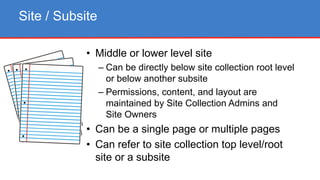
Site / Subsite
• Middle or lower level site
– Can be directly below site collection root level
or below another subsite
– Permissions, content, and layout are
maintained by Site Collection Admins and
Site Owners
• Can be a single page or multiple pages
• Can refer to site collection top level/root
site or a subsite
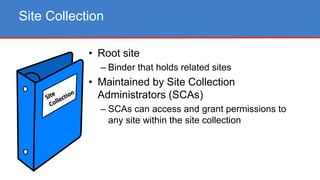
Site Collection
• Root site
– Binder that holds related sites
• Maintained by Site Collection
Administrators (SCAs)
– SCAs can access and grant permissions to
any site within the site collection
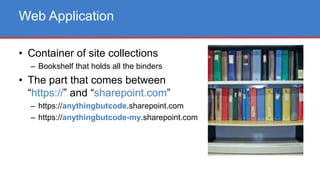
Web Application
• Container of site collections
– Bookshelf that holds all the binders
• The part that comes between
“https://” and “sharepoint.com”
– https://anythingbutcode.sharepoint.com
– https://anythingbutcode-my.sharepoint.com
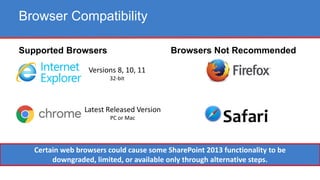
Browser Compatibility
Supported Browsers Browsers Not Recommended
Certain web browsers could cause some SharePoint 2013 functionality to be
downgraded, limited, or available only through alternative steps.
Versions 8, 10, 11
32-bit
Latest Released Version
PC or Mac
Anatomy of a SharePoint Site
Site Collection Home Page | Site Design | Web Parts | Site Contents
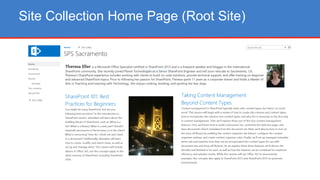
Site Collection Home Page (Root Site)
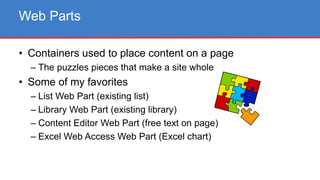
• Containers used to place content on a page
– The puzzles pieces that make a site whole
• Some of my favorites
– List Web Part (existing list)
– Library Web Part (existing library)
– Content Editor Web Part (free text on page)
– Excel Web Access Web Part (Excel chart)
Web Parts
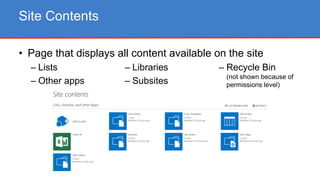
• Page that displays all content available on the site
Site Contents
– Lists
– Other apps
– Libraries
– Subsites
– Recycle Bin
(not shown because of
permissions level)
Document Library
Popular Libraries | Storage Uses | File Names | View Documents | Ribbon | Download
• Container on a site where you can upload, create,
update, and collaborate on files with team members
• Displays key information about the files
– Title
– Created (date)
– Created by
– Modified (date)
– Modified by
Document Library
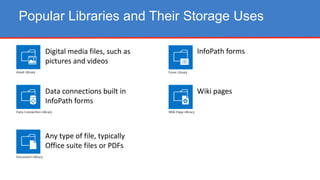
Popular Libraries and Their Storage Uses
Digital media files, such as
pictures and videos
Data connections built in
InfoPath forms
Any type of file, typically
Office suite files or PDFs
InfoPath forms
Wiki pages
• Limited to 255 characters
• Special characters should be avoided
– e.g., Space = %20
– 3 characters instead of 1
– Doubled (to 6 characters) when opening or editing a document
• Folders = %2F
• Period = %2E
File Names
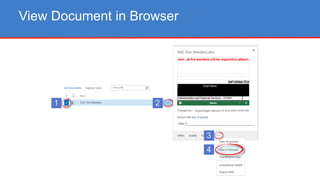
View Document in Browser
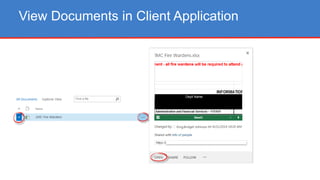
View Documents in Client Application
• Toolbar that appears across the top of each page
• Displays many of the most commonly-used tools,
controls, and commands
• Ribbon contents vary according to type of app or page
Document Library Ribbon (1 of 2)
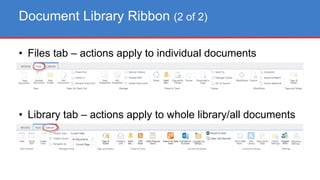
• Files tab – actions apply to individual documents
• Library tab – actions apply to whole library/all documents
Document Library Ribbon (2 of 2)
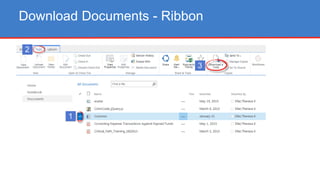
Download Documents - Ribbon
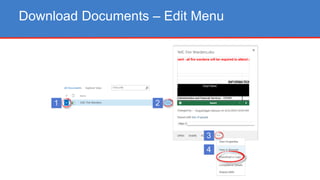
Download Documents – Edit Menu
List
Popular Lists | List Ribbon | Calendars | Announcements | Tasks
• Collection of data that you can share with team members
and other site users
• Rich and flexible and have many built-in features that
provide a robust way to store, share, and work with data
• Similar to a spreadsheet (e.g., an Excel worksheet)
• Displays key information about the list entries
List
– Title
– Created (date)
– Created by
– Modified (date)
– Modified by
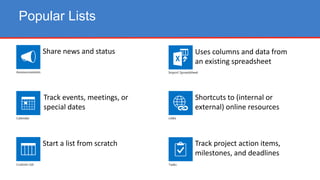
Popular Lists
Share news and status
Track events, meetings, or
special dates
Start a list from scratch
Uses columns and data from
an existing spreadsheet
Shortcuts to (internal or
external) online resources
Track project action items,
milestones, and deadlines
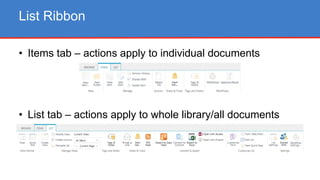
• Items tab – actions apply to individual documents
• List tab – actions apply to whole library/all documents
List Ribbon
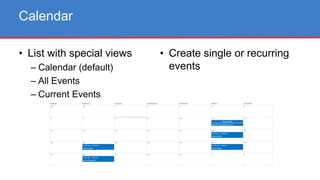
• List with special views
– Calendar (default)
– All Events
– Current Events
• Create single or recurring
events
Calendar
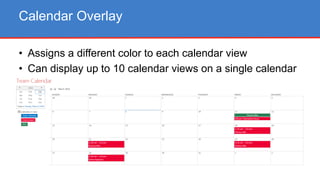
• Assigns a different color to each calendar view
• Can display up to 10 calendar views on a single calendar
Calendar Overlay
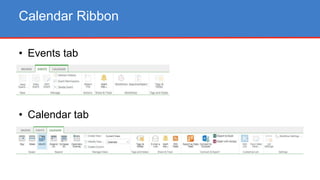
• Events tab
• Calendar tab
Calendar Ribbon
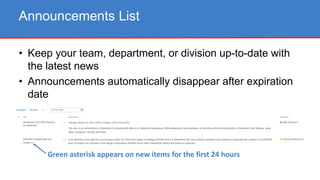
• Keep your team, department, or division up-to-date with
the latest news
• Announcements automatically disappear after expiration
date
Announcements List
Green asterisk appears on new items for the first 24 hours
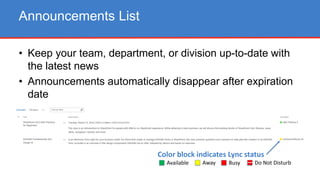
• Keep your team, department, or division up-to-date with
the latest news
• Announcements automatically disappear after expiration
date
Announcements List
Color block indicates Lync status
Available Away Busy Do Not Disturb
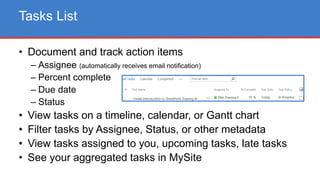
• Document and track action items
– Assignee (automatically receives email notification)
– Percent complete
– Due date
– Status
• View tasks on a timeline, calendar, or Gantt chart
• Filter tasks by Assignee, Status, or other metadata
• View tasks assigned to you, upcoming tasks, late tasks
• See your aggregated tasks in MySite
Tasks List
Views
Multiple Views | Default View
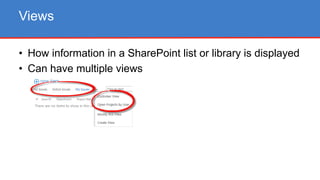
• How information in a SharePoint list or library is displayed
• Can have multiple views
Views
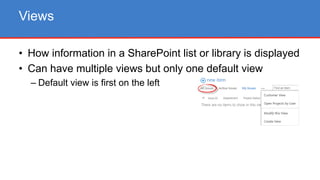
• How information in a SharePoint list or library is displayed
• Can have multiple views but only one default view
– Default view is first on the left
Views
My Site
Create Your Profile | Upload Your Photo | Edit Your Bio | Edit & View Your Information
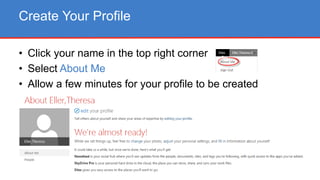
• Click your name in the top right corner
• Select About Me
• Allow a few minutes for your profile to be created
Create Your Profile
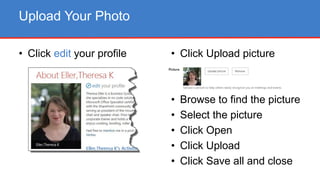
• Click edit your profile
Upload Your Photo
• Click Upload picture
• Browse to find the picture
• Select the picture
• Click Open
• Click Upload
• Click Save all and close
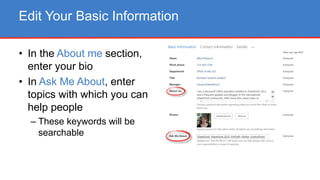
• In the About me section,
enter your bio
• In Ask Me About, enter
topics with which you can
help people
– These keywords will be
searchable
Edit Your Basic Information
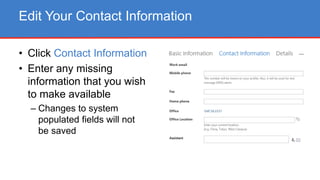
• Click Contact Information
• Enter any missing
information that you wish
to make available
– Changes to system
populated fields will not
be saved
Edit Your Contact Information
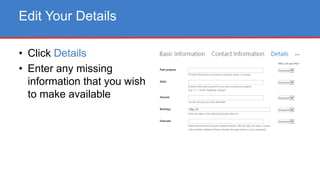
• Click Details
• Enter any missing
information that you wish
to make available
Edit Your Details
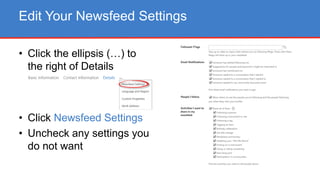
• Click the ellipsis (…) to
the right of Details
• Click Newsfeed Settings
• Uncheck any settings you
do not want
Edit Your Newsfeed Settings
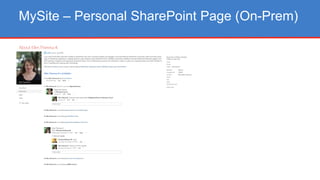
MySite – Personal SharePoint Page (On-Prem)
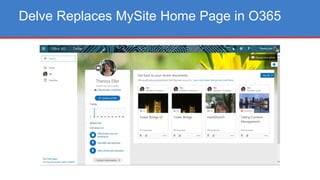
Delve Replaces MySite Home Page in O365
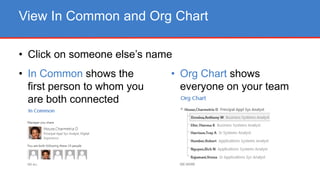
• In Common shows the
first person to whom you
are both connected
View In Common and Org Chart
• Org Chart shows
everyone on your team
• Click on someone else’s name
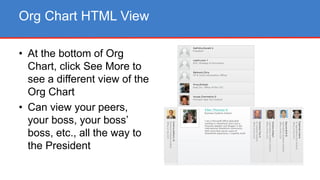
• At the bottom of Org
Chart, click See More to
see a different view of the
Org Chart
• Can view your peers,
your boss, your boss’
boss, etc., all the way to
the President
Org Chart HTML View
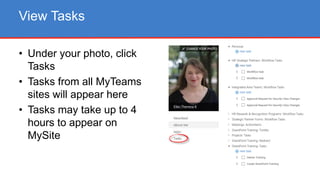
• Under your photo, click
Tasks
• Tasks from all MyTeams
sites will appear here
• Tasks may take up to 4
hours to appear on
MySite
View Tasks
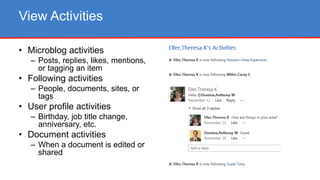
• Microblog activities
– Posts, replies, likes, mentions,
or tagging an item
• Following activities
– People, documents, sites, or
tags
• User profile activities
– Birthday, job title change,
anniversary, etc.
• Document activities
– When a document is edited or
shared
View Activities
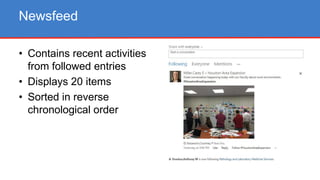
• Contains recent activities
from followed entries
• Displays 20 items
• Sorted in reverse
chronological order
Newsfeed
Search
Search This Site | Enterprise Search | Operators
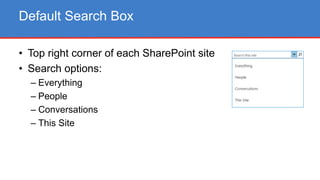
• Top right corner of each SharePoint site
• Search options:
– Everything
– People
– Conversations
– This Site
Default Search Box
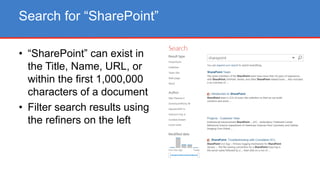
• “SharePoint” can exist in
the Title, Name, URL, or
within the first 1,000,000
characters of a document
• Filter search results using
the refiners on the left
Search for “SharePoint”
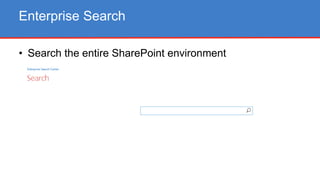
• Search the entire SharePoint environment
Enterprise Search
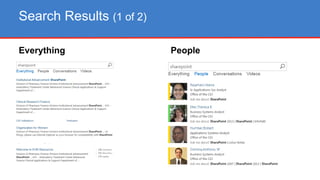
Search Results (1 of 2)
Everything People
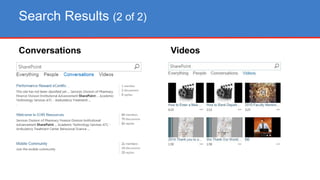
Search Results (2 of 2)
Conversations Videos
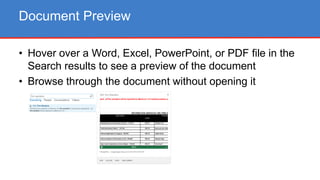
• Hover over a Word, Excel, PowerPoint, or PDF file in the
Search results to see a preview of the document
• Browse through the document without opening it
Document Preview
Tips for a Better SharePoint Experience
• Use Internet Explorer (PC) or Chrome (Mac)
• Use Office 2013
• Bookmark the sites you use frequently
• Know the URL (address) for your main SharePoint site
• Go to training
Tips for a Better SharePoint Experience
Questions?
Theresa Eller | sharepointmadam@gmail.com | @SharePointMadam
sharepointmadam.blogspot.com | www.slideshare.net/sharepointmadam

SPSSAC - SharePoint 101

  • 1.
    SharePoint 101 Best Practicesfor Beginners Theresa Eller | Senior Engineer | Planet Technologies @SharePointMadam | sharepointmadam.blogspot.com
  • 2.
    About Me • MicrosoftOffice Specialist certified in SharePoint 2013 • Frequent speaker and blogger in the international SharePoint and SQL communities • Senior SharePoint Engineer at Planet Technologies Proud dog mom to Shay & Cookie
  • 3.
    Community Involvement • SharePointSaturday is a FREE one-day event featuring sessions from SharePoint MVPs and professionals around the world Find me at these locations SharePoint Saturday Sacramento sharepointmadam.blogspot.com Video featured on Webucator’s YouTube channel aOS.community (Azure, Office 365 & SharePoint Community) @SharePointMadam SharePoint Saturday Paris 2015
  • 4.
    • SharePoint hierarchy •Anatomy of a site • Libraries • Lists • Views • MySite • Troubleshooting tips Agenda
  • 5.
    SharePoint Hierarchy Site/Subsite |Site Collection | Web Application
  • 6.
    Site / Subsite •Middle or lower level site – Can be directly below site collection root level or below another subsite – Permissions, content, and layout are maintained by Site Collection Admins and Site Owners • Can be a single page or multiple pages • Can refer to site collection top level/root site or a subsite
  • 7.
    Site Collection • Rootsite – Binder that holds related sites • Maintained by Site Collection Administrators (SCAs) – SCAs can access and grant permissions to any site within the site collection
  • 8.
    Web Application • Containerof site collections – Bookshelf that holds all the binders • The part that comes between “https://” and “sharepoint.com” – https://anythingbutcode.sharepoint.com – https://anythingbutcode-my.sharepoint.com
  • 9.
    Browser Compatibility Supported BrowsersBrowsers Not Recommended Certain web browsers could cause some SharePoint 2013 functionality to be downgraded, limited, or available only through alternative steps. Versions 8, 10, 11 32-bit Latest Released Version PC or Mac
  • 10.
    Anatomy of aSharePoint Site Site Collection Home Page | Site Design | Web Parts | Site Contents
  • 11.
    Site Collection HomePage (Root Site)
  • 12.
    • Containers usedto place content on a page – The puzzles pieces that make a site whole • Some of my favorites – List Web Part (existing list) – Library Web Part (existing library) – Content Editor Web Part (free text on page) – Excel Web Access Web Part (Excel chart) Web Parts
  • 13.
    • Page thatdisplays all content available on the site Site Contents – Lists – Other apps – Libraries – Subsites – Recycle Bin (not shown because of permissions level)
  • 14.
    Document Library Popular Libraries| Storage Uses | File Names | View Documents | Ribbon | Download
  • 15.
    • Container ona site where you can upload, create, update, and collaborate on files with team members • Displays key information about the files – Title – Created (date) – Created by – Modified (date) – Modified by Document Library
  • 16.
    Popular Libraries andTheir Storage Uses Digital media files, such as pictures and videos Data connections built in InfoPath forms Any type of file, typically Office suite files or PDFs InfoPath forms Wiki pages
  • 17.
    • Limited to255 characters • Special characters should be avoided – e.g., Space = %20 – 3 characters instead of 1 – Doubled (to 6 characters) when opening or editing a document • Folders = %2F • Period = %2E File Names
  • 18.
  • 19.
    View Documents inClient Application
  • 20.
    • Toolbar thatappears across the top of each page • Displays many of the most commonly-used tools, controls, and commands • Ribbon contents vary according to type of app or page Document Library Ribbon (1 of 2)
  • 21.
    • Files tab– actions apply to individual documents • Library tab – actions apply to whole library/all documents Document Library Ribbon (2 of 2)
  • 22.
  • 23.
  • 24.
    List Popular Lists |List Ribbon | Calendars | Announcements | Tasks
  • 25.
    • Collection ofdata that you can share with team members and other site users • Rich and flexible and have many built-in features that provide a robust way to store, share, and work with data • Similar to a spreadsheet (e.g., an Excel worksheet) • Displays key information about the list entries List – Title – Created (date) – Created by – Modified (date) – Modified by
  • 26.
    Popular Lists Share newsand status Track events, meetings, or special dates Start a list from scratch Uses columns and data from an existing spreadsheet Shortcuts to (internal or external) online resources Track project action items, milestones, and deadlines
  • 27.
    • Items tab– actions apply to individual documents • List tab – actions apply to whole library/all documents List Ribbon
  • 28.
    • List withspecial views – Calendar (default) – All Events – Current Events • Create single or recurring events Calendar
  • 29.
    • Assigns adifferent color to each calendar view • Can display up to 10 calendar views on a single calendar Calendar Overlay
  • 30.
    • Events tab •Calendar tab Calendar Ribbon
  • 31.
    • Keep yourteam, department, or division up-to-date with the latest news • Announcements automatically disappear after expiration date Announcements List Green asterisk appears on new items for the first 24 hours
  • 32.
    • Keep yourteam, department, or division up-to-date with the latest news • Announcements automatically disappear after expiration date Announcements List Color block indicates Lync status Available Away Busy Do Not Disturb
  • 33.
    • Document andtrack action items – Assignee (automatically receives email notification) – Percent complete – Due date – Status • View tasks on a timeline, calendar, or Gantt chart • Filter tasks by Assignee, Status, or other metadata • View tasks assigned to you, upcoming tasks, late tasks • See your aggregated tasks in MySite Tasks List
  • 34.
  • 35.
    • How informationin a SharePoint list or library is displayed • Can have multiple views Views
  • 36.
    • How informationin a SharePoint list or library is displayed • Can have multiple views but only one default view – Default view is first on the left Views
  • 37.
    My Site Create YourProfile | Upload Your Photo | Edit Your Bio | Edit & View Your Information
  • 38.
    • Click yourname in the top right corner • Select About Me • Allow a few minutes for your profile to be created Create Your Profile
  • 39.
    • Click edityour profile Upload Your Photo • Click Upload picture • Browse to find the picture • Select the picture • Click Open • Click Upload • Click Save all and close
  • 40.
    • In theAbout me section, enter your bio • In Ask Me About, enter topics with which you can help people – These keywords will be searchable Edit Your Basic Information
  • 41.
    • Click ContactInformation • Enter any missing information that you wish to make available – Changes to system populated fields will not be saved Edit Your Contact Information
  • 42.
    • Click Details •Enter any missing information that you wish to make available Edit Your Details
  • 43.
    • Click theellipsis (…) to the right of Details • Click Newsfeed Settings • Uncheck any settings you do not want Edit Your Newsfeed Settings
  • 44.
    MySite – PersonalSharePoint Page (On-Prem)
  • 45.
    Delve Replaces MySiteHome Page in O365
  • 46.
    • In Commonshows the first person to whom you are both connected View In Common and Org Chart • Org Chart shows everyone on your team • Click on someone else’s name
  • 47.
    • At thebottom of Org Chart, click See More to see a different view of the Org Chart • Can view your peers, your boss, your boss’ boss, etc., all the way to the President Org Chart HTML View
  • 48.
    • Under yourphoto, click Tasks • Tasks from all MyTeams sites will appear here • Tasks may take up to 4 hours to appear on MySite View Tasks
  • 49.
    • Microblog activities –Posts, replies, likes, mentions, or tagging an item • Following activities – People, documents, sites, or tags • User profile activities – Birthday, job title change, anniversary, etc. • Document activities – When a document is edited or shared View Activities
  • 50.
    • Contains recentactivities from followed entries • Displays 20 items • Sorted in reverse chronological order Newsfeed
  • 51.
    Search Search This Site| Enterprise Search | Operators
  • 52.
    • Top rightcorner of each SharePoint site • Search options: – Everything – People – Conversations – This Site Default Search Box
  • 53.
    • “SharePoint” canexist in the Title, Name, URL, or within the first 1,000,000 characters of a document • Filter search results using the refiners on the left Search for “SharePoint”
  • 54.
    • Search theentire SharePoint environment Enterprise Search
  • 55.
    Search Results (1of 2) Everything People
  • 56.
    Search Results (2of 2) Conversations Videos
  • 57.
    • Hover overa Word, Excel, PowerPoint, or PDF file in the Search results to see a preview of the document • Browse through the document without opening it Document Preview
  • 58.
    Tips for aBetter SharePoint Experience
  • 59.
    • Use InternetExplorer (PC) or Chrome (Mac) • Use Office 2013 • Bookmark the sites you use frequently • Know the URL (address) for your main SharePoint site • Go to training Tips for a Better SharePoint Experience
  • 60.
    Questions? Theresa Eller |sharepointmadam@gmail.com | @SharePointMadam sharepointmadam.blogspot.com | www.slideshare.net/sharepointmadam