SharePoint
Consultant
&
Developer
-Content Types let us wrap up
What are         Documents in formal metadata
Document Sets?
                 -Content Types are important to
                 SharePoint, and go even deeper
                 with Document Sets

                 -Document Sets came on the
                 scene with SharePoint 2010

                 -Help when you are working
                 multiple documents at the same
                 time
Software Product Development
Scenario 1   Documents


             - Functional Specifications
             - Project Plans
             - UI Mockups
Business Plan Documents
Scenario 2
             - Presentations
             - Projections
             - Non-disclosure Agreements
New Office Location Documents
Scenario 3
             -   Contracts
             -   Maps
             -   Rental Agreements
             -   Blueprints
What are
Document Sets?   Organizations that want to
                 manage multi-document
                 consistently can configure a new
                 Document Set content type for
                 each work product they typically
                 create.

                 Policies, tagging, and templates
                 can be applied to any document
                 set that is created.
- By default, Document Sets inherit
  permissions from the library in which
  they are located.

- You can opt to specify unique
  permissions for a Document Set if you
  need to restrict or change who has
  access to the documents in an individual
  Document Set.

- Users interact with document sets in
  much the same way that they interact
  with regular SharePoint folders.
-All documents in a Document Set share
the metadata and the entire set can also be
versioned.

-Any kind of document that your
SharePoint farm is configured to support,
can be included in a Document Set
-Anytime you want to enable users to
group multiple documents, that support a
single project or task, together into a
single entity.

-When you can see a business value in
assigning metadata to a folder-style
structure

- When you need to organize unmanaged
documents and enable collaboration on
documents that have all been invested with
similar metadata.
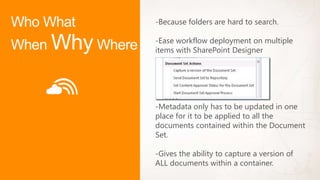
-Because folders are hard to search.

-Ease workflow deployment on multiple
items with SharePoint Designer


-Metadata only has to be updated in one
place for it to be applied to all the
documents contained within the Document
Set.

-Gives the ability to capture a version of
ALL documents within a container.
- Lives as a Site Collection Feature that
  must be specifically enabled

- SharePoint 2010 & SharePoint 2013

- Standard & Enterprise Editions only:
  Foundation does NOT include
  Document Sets

- In Office 365 we can find Document Sets
  feature under the Enterprise plans.
1.   Login to SharePoint 2010 site -> Site settings -> Site

Working with                  Administration -> Site Collection Features -> Document
                              Sets -> Activate.

Document Sets            2.   Go to your document library settings.

                         3.   Select “Advanced Settings” option from the General
(SharePoint 2013 demo)        Settings section and select “Yes” for “Allow management
                              of Content Types”. Select “OK” to apply the changes.

                         4.   Back on the Library Settings page, we will need to add the
                              document set content type. Select “Add from existing site
                              content types” in the “Content Types” section

                         5.   The “Add Content Type” form will be displayed. Set
                              “Document Set Content Types” from “Select site content
                              types from” dropdown and select “Add”. Select “OK” to
                              add the content type.

                         6.   Now that the document set content type has been added,
                              we can go back to our document library. From the ribbon,
                              select “Files –> New Document –> Document Set”.
                              In the “New Document Set” form, specify the required
                              information and select “Save”.
                              Once the new document set is created, you will be
                              redirected to the document set welcome page.
7. Under Galleries, click Site content types.

Working with             8. On the Site Content Types page, click the name of the
                         Document Set content type you want to configure.
Document Sets            Under Settings, click Document Set settings.

                         9. In the Welcome Page section, click Customize the Welcome
(SharePoint 2013 demo)   Page. In the window that opens, click the Site Actions menu,
                         and then click Edit Page. The Document Set Welcome page is a
                         Web Part page that can be edited just as you would edit any
                         Web Part page.

                         10. When you have finished updating the Welcome Page, return
                         to the Document Set Settings page. In the Welcome Page
                         section, specify whether you want to update the Welcome Page
                         for any content types that inherit from this content type.
                         In the Update List and Site Content Types section, specify
                         where you want to update all content types inheriting from this
                         content type.
1. Document Sets and Folders
Top 3 Best Practices   present a similar interface to
                       users, however the functionality
                       in Document Sets are
                       specifically targeted to support
                       business processes and the
                       management of content as a
                       single unit.

                       Organizations using Folders
                       would be well served to start
                       using Document Sets as they
                       offer significant new capabilities.
2. Leverage the functionality in
Top 3 Best Practices   the Document Set Welcome
                       Pages.

                       The Welcome Page provides
                       users with far more information
                       than a folder name ever could.
                       Users can simply navigate to a
                       set and quickly ascertain not
                       only the content stored within,
                       but the context with which the
                       content is associated with.
3.
Top 3 Best Practices   Use Folders:
                       - If you need a hierarchy inside
                       - If you don’t need the extra
                          capabilities of Document Sets

                       Use Document Sets:
                       - If you don’t need a hierarchy
                       inside
                       - If you can benefit by
                       leveraging metadata to organize
                       your content
Top 3 Best Practices   Further Reading:
                       Document Sets planning
                       (SharePoint Server 2010)

                       Plan document sets in
                       SharePoint Server 2013
Keith Tuomi
Email: ktuomi@itgroove.net
Blog: http://yalla.itgroove.net
Twitter: @itgroove_keith

SharePoint Document Sets

  • 2.
  • 4.
    -Content Types letus wrap up What are Documents in formal metadata Document Sets? -Content Types are important to SharePoint, and go even deeper with Document Sets -Document Sets came on the scene with SharePoint 2010 -Help when you are working multiple documents at the same time
  • 5.
    Software Product Development Scenario1 Documents - Functional Specifications - Project Plans - UI Mockups
  • 6.
    Business Plan Documents Scenario2 - Presentations - Projections - Non-disclosure Agreements
  • 7.
    New Office LocationDocuments Scenario 3 - Contracts - Maps - Rental Agreements - Blueprints
  • 8.
    What are Document Sets? Organizations that want to manage multi-document consistently can configure a new Document Set content type for each work product they typically create. Policies, tagging, and templates can be applied to any document set that is created.
  • 9.
    - By default,Document Sets inherit permissions from the library in which they are located. - You can opt to specify unique permissions for a Document Set if you need to restrict or change who has access to the documents in an individual Document Set. - Users interact with document sets in much the same way that they interact with regular SharePoint folders.
  • 10.
    -All documents ina Document Set share the metadata and the entire set can also be versioned. -Any kind of document that your SharePoint farm is configured to support, can be included in a Document Set
  • 11.
    -Anytime you wantto enable users to group multiple documents, that support a single project or task, together into a single entity. -When you can see a business value in assigning metadata to a folder-style structure - When you need to organize unmanaged documents and enable collaboration on documents that have all been invested with similar metadata.
  • 12.
    -Because folders arehard to search. -Ease workflow deployment on multiple items with SharePoint Designer -Metadata only has to be updated in one place for it to be applied to all the documents contained within the Document Set. -Gives the ability to capture a version of ALL documents within a container.
  • 13.
    - Lives asa Site Collection Feature that must be specifically enabled - SharePoint 2010 & SharePoint 2013 - Standard & Enterprise Editions only: Foundation does NOT include Document Sets - In Office 365 we can find Document Sets feature under the Enterprise plans.
  • 14.
    1. Login to SharePoint 2010 site -> Site settings -> Site Working with Administration -> Site Collection Features -> Document Sets -> Activate. Document Sets 2. Go to your document library settings. 3. Select “Advanced Settings” option from the General (SharePoint 2013 demo) Settings section and select “Yes” for “Allow management of Content Types”. Select “OK” to apply the changes. 4. Back on the Library Settings page, we will need to add the document set content type. Select “Add from existing site content types” in the “Content Types” section 5. The “Add Content Type” form will be displayed. Set “Document Set Content Types” from “Select site content types from” dropdown and select “Add”. Select “OK” to add the content type. 6. Now that the document set content type has been added, we can go back to our document library. From the ribbon, select “Files –> New Document –> Document Set”. In the “New Document Set” form, specify the required information and select “Save”. Once the new document set is created, you will be redirected to the document set welcome page.
  • 15.
    7. Under Galleries,click Site content types. Working with 8. On the Site Content Types page, click the name of the Document Set content type you want to configure. Document Sets Under Settings, click Document Set settings. 9. In the Welcome Page section, click Customize the Welcome (SharePoint 2013 demo) Page. In the window that opens, click the Site Actions menu, and then click Edit Page. The Document Set Welcome page is a Web Part page that can be edited just as you would edit any Web Part page. 10. When you have finished updating the Welcome Page, return to the Document Set Settings page. In the Welcome Page section, specify whether you want to update the Welcome Page for any content types that inherit from this content type. In the Update List and Site Content Types section, specify where you want to update all content types inheriting from this content type.
  • 16.
    1. Document Setsand Folders Top 3 Best Practices present a similar interface to users, however the functionality in Document Sets are specifically targeted to support business processes and the management of content as a single unit. Organizations using Folders would be well served to start using Document Sets as they offer significant new capabilities.
  • 17.
    2. Leverage thefunctionality in Top 3 Best Practices the Document Set Welcome Pages. The Welcome Page provides users with far more information than a folder name ever could. Users can simply navigate to a set and quickly ascertain not only the content stored within, but the context with which the content is associated with.
  • 18.
    3. Top 3 BestPractices Use Folders: - If you need a hierarchy inside - If you don’t need the extra capabilities of Document Sets Use Document Sets: - If you don’t need a hierarchy inside - If you can benefit by leveraging metadata to organize your content
  • 19.
    Top 3 BestPractices Further Reading: Document Sets planning (SharePoint Server 2010) Plan document sets in SharePoint Server 2013
  • 20.
    Keith Tuomi Email: ktuomi@itgroove.net Blog:http://yalla.itgroove.net Twitter: @itgroove_keith