Financial Modelling

HANDBOOK

SETTING UP
EXCEL
for financial modelling

financialmodellinghandbook.com
THERE IS NO
GREATNESS WHERE
THERE IS NOT
SIMPLICITY
LEO TOLSTOY
ABOUT THE FINANCIAL
MODELLING HANDBOOK
Financial modelling should be collaborative. Collaboration
reduces error, speeds up development time and lowers
cost. The Financial Modelling Handbook is a collaborative,
crowd-sourced guide to building better financial models
using the FAST Standard.

www.financialmodellinghandbook.com/contribute
Financial Modelling

HANDBOOK

ANDREW
Andrew Berkley is Managing
Director and Lead Modelling
Instructor at F1F9. Andrew is a
Chartered Accountant with a
background in financial advisory
and business education.

financialmodellinghandbook.com
Financial Modelling

HANDBOOK

SETTING UP
EXCEL
for financial modelling

The default settings in excel aren’t necessarily
the most useful for financial modelling.
In this guide we recommend a few simple
changes that will increase the efficiency of your
excel modelling.

DOWNLOAD THIS GUIDE
Financial Modelling

financialmodellinghandbook.com

HANDBOOK

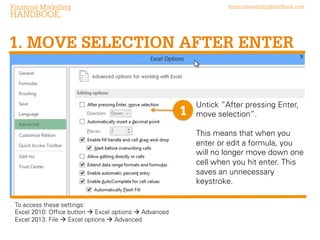
1. MOVE SELECTION AFTER ENTER

1

Untick “After pressing Enter,
move selection”.
This means that when you
enter or edit a formula, you
will no longer move down one
cell when you hit enter. This
saves an unnecessary
keystroke.

To access these settings:
Excel 2010: Office button  Excel options  Advanced
Excel 2013: File  Excel options  Advanced
Financial Modelling

financialmodellinghandbook.com

HANDBOOK

2. EDIT DIRECTLY IN CELL

2

Untick “Allow editing directly
in cells”. This means that
formula editing is always done
in the formula bar.
Financial Modelling

financialmodellinghandbook.com

HANDBOOK

3. HIDE THE RIBBON
3

4

3

The ribbon in Excel 2010 and 2013
takes up valuable screen space.
Right click on a blank area of the
ribbon to access the ribbon menu.

4

Tick “Collapse” the ribbon.
From now on the ribbon will only
appear when you need it.
Hit ‘Alt’ to access the menu and
then choose the command you
need, using the highlighted keys.
Financial Modelling

financialmodellinghandbook.com

HANDBOOK

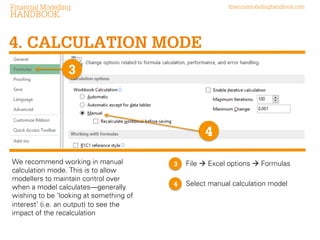
4. CALCULATION MODE
3

4
We recommend working in manual
calculation mode. This is to allow
modellers to maintain control over
when a model calculates - generally
wishing to be ‘looking at something of
interest’ (i.e. an output) to see the
impact of the recalculation.

3

File  Excel options  Formulas

4

Select ‘Manual’ calculation model
Financial Modelling

HANDBOOK

4. CALCULATION MODE

Calculation mode settings affect the entire
environment, not just individual workbooks.
The setting is stored with each individual workbook
you save. The setting Excel then chooses for its initial
position during any instance of an Excel environment,
is the setting defined in the first workbook loaded by
that instance.

financialmodellinghandbook.com
Financial Modelling

financialmodellinghandbook.com

HANDBOOK.

5. SHOW DEVELOPER TAB

5
5
VBA / Macro options and tools are
‘hidden’ by default. Enabling the
‘Developer tab’ un-hides these
options.

5

File  Excel options  Formulas

6

Tick “Developer”

Setting up excel for financial modelling

  • 1.
    Financial Modelling HANDBOOK SETTING UP EXCEL forfinancial modelling financialmodellinghandbook.com
  • 2.
    THERE IS NO GREATNESSWHERE THERE IS NOT SIMPLICITY LEO TOLSTOY
  • 3.
    ABOUT THE FINANCIAL MODELLINGHANDBOOK Financial modelling should be collaborative. Collaboration reduces error, speeds up development time and lowers cost. The Financial Modelling Handbook is a collaborative, crowd-sourced guide to building better financial models using the FAST Standard. www.financialmodellinghandbook.com/contribute
  • 4.
    Financial Modelling HANDBOOK ANDREW Andrew Berkleyis Managing Director and Lead Modelling Instructor at F1F9. Andrew is a Chartered Accountant with a background in financial advisory and business education. financialmodellinghandbook.com
  • 5.
    Financial Modelling HANDBOOK SETTING UP EXCEL forfinancial modelling The default settings in excel aren’t necessarily the most useful for financial modelling. In this guide we recommend a few simple changes that will increase the efficiency of your excel modelling. DOWNLOAD THIS GUIDE
  • 6.
    Financial Modelling financialmodellinghandbook.com HANDBOOK 1. MOVESELECTION AFTER ENTER 1 Untick “After pressing Enter, move selection”. This means that when you enter or edit a formula, you will no longer move down one cell when you hit enter. This saves an unnecessary keystroke. To access these settings: Excel 2010: Office button  Excel options  Advanced Excel 2013: File  Excel options  Advanced
  • 7.
    Financial Modelling financialmodellinghandbook.com HANDBOOK 2. EDITDIRECTLY IN CELL 2 Untick “Allow editing directly in cells”. This means that formula editing is always done in the formula bar.
  • 8.
    Financial Modelling financialmodellinghandbook.com HANDBOOK 3. HIDETHE RIBBON 3 4 3 The ribbon in Excel 2010 and 2013 takes up valuable screen space. Right click on a blank area of the ribbon to access the ribbon menu. 4 Tick “Collapse” the ribbon. From now on the ribbon will only appear when you need it. Hit ‘Alt’ to access the menu and then choose the command you need, using the highlighted keys.
  • 9.
    Financial Modelling financialmodellinghandbook.com HANDBOOK 4. CALCULATIONMODE 3 4 We recommend working in manual calculation mode. This is to allow modellers to maintain control over when a model calculates - generally wishing to be ‘looking at something of interest’ (i.e. an output) to see the impact of the recalculation. 3 File  Excel options  Formulas 4 Select ‘Manual’ calculation model
  • 10.
    Financial Modelling HANDBOOK 4. CALCULATIONMODE Calculation mode settings affect the entire environment, not just individual workbooks. The setting is stored with each individual workbook you save. The setting Excel then chooses for its initial position during any instance of an Excel environment, is the setting defined in the first workbook loaded by that instance. financialmodellinghandbook.com
  • 11.
    Financial Modelling financialmodellinghandbook.com HANDBOOK. 5. SHOWDEVELOPER TAB 5 5 VBA / Macro options and tools are ‘hidden’ by default. Enabling the ‘Developer tab’ un-hides these options. 5 File  Excel options  Formulas 6 Tick “Developer”