Service Taxes (India)

           &

SAP Configuration


          By

Muhammad I Shokat

Haas Automation Inc


       Page 1 of 13
TABLE OF CONTENTS
Scenario: (Purchasing /Input) ..........................................................................................3
  Example: .....................................................................................................................3
     Important:................................................................................................................3
SAP Configuration Changes for TAXINN Procedure ......................................................4
  1. Create new condition types (JSRT, JEC3 and JES3).............................................4
      JSRT (A/P Service Tax)...................................................................................4
      JEC3 (A/P ECS for ST) ~ 2% ..........................................................................5
      JES3 (A/P SECess for ST) ~ 1% ......................................................................6
  2. Create two new Account Keys and Use VS7 as existing one: ...............................7
      VS7 (IN: A/P Service Tax) ..............................................................................7
      VS8 (IN: A/P ECS for ST) ...............................................................................7
      VSE (IN: A/P SECess ST) ...............................................................................8
  3. Maintain Tax Procedure (TAXINN) to accommodate these changes. ...................8
  4. Assign G/L Accounts to Tax Code (ST and S1). ..................................................9
      VS7  11406400 ............................................................................................9
      VS8 11406500 .............................................................................................9
      VSE 11406600........................................................................................... 10
  5. Maintain Tax rates in FV11 ...............................................................................10
      <FV11> JSRT (12%) .................................................................................10
      <FV11> JEC3 (2%) ...................................................................................11
      <FV11> JES3 (1%)....................................................................................11
Posting Service Invoice .................................................................................................12
Assigning New Tax Code “S1” to be able to see in FB60 tax code drop down screen. ...13


                                                       Page 2 of 13
Service Taxes India

        Scenario: (Purchasing /Input)
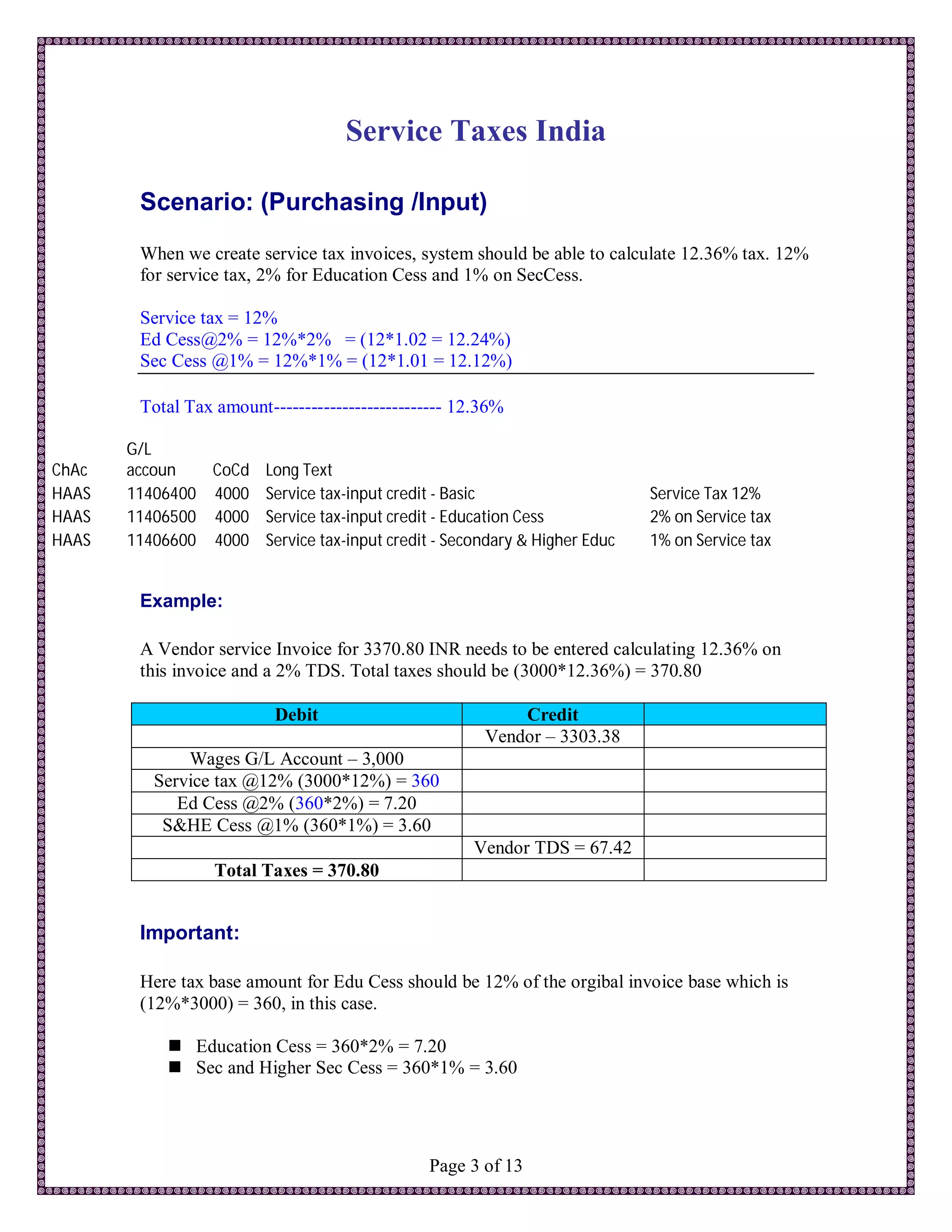
        When we create service tax invoices, system should be able to calculate 12.36% tax. 12%
        for service tax, 2% for Education Cess and 1% on SecCess.

        Service tax = 12%
        Ed Cess@2% = 12%*2% = (12*1.02 = 12.24%)
        Sec Cess @1% = 12%*1% = (12*1.01 = 12.12%)

        Total Tax amount--------------------------- 12.36%

       G/L
ChAc   accoun   CoCd Long Text
HAAS   11406400 4000 Service tax-input credit - Basic                     Service Tax 12%
HAAS   11406500 4000 Service tax-input credit - Education Cess            2% on Service tax
HAAS   11406600 4000 Service tax-input credit - Secondary & Higher Educ   1% on Service tax


        Example:

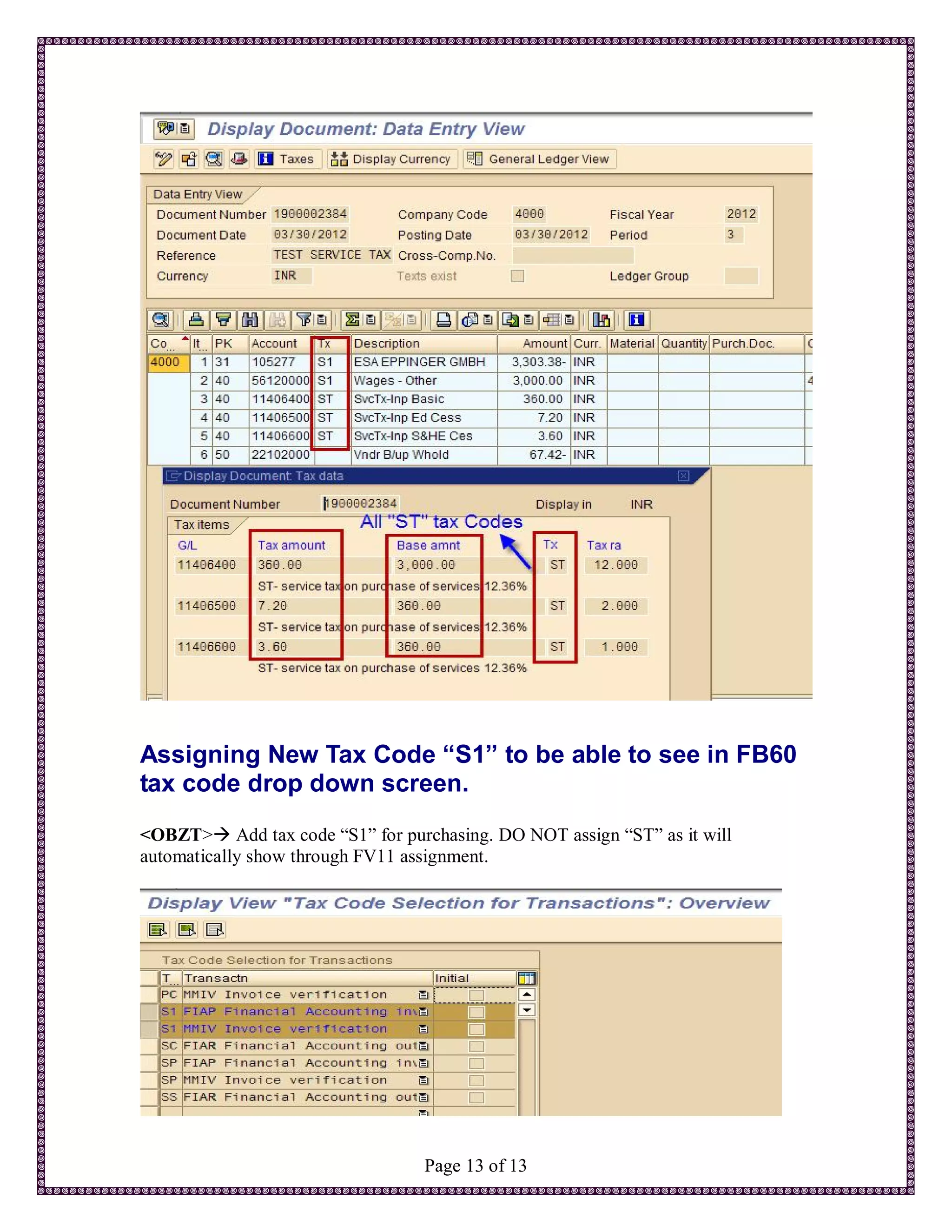
        A Vendor service Invoice for 3370.80 INR needs to be entered calculating 12.36% on
        this invoice and a 2% TDS. Total taxes should be (3000*12.36%) = 370.80

                          Debit                            Credit
                                                       Vendor – 3303.38
              Wages G/L Account – 3,000
          Service tax @12% (3000*12%) = 360
             Ed Cess @2% (360*2%) = 7.20
           S&HE Cess @1% (360*1%) = 3.60
                                                     Vendor TDS = 67.42
                  Total Taxes = 370.80


        Important:

        Here tax base amount for Edu Cess should be 12% of the orgibal invoice base which is
        (12%*3000) = 360, in this case.

             Education Cess = 360*2% = 7.20
             Sec and Higher Sec Cess = 360*1% = 3.60


                                               Page 3 of 13
SAP Configuration Changes for TAXINN Procedure
We have to do following to accommodate these changes in the system.

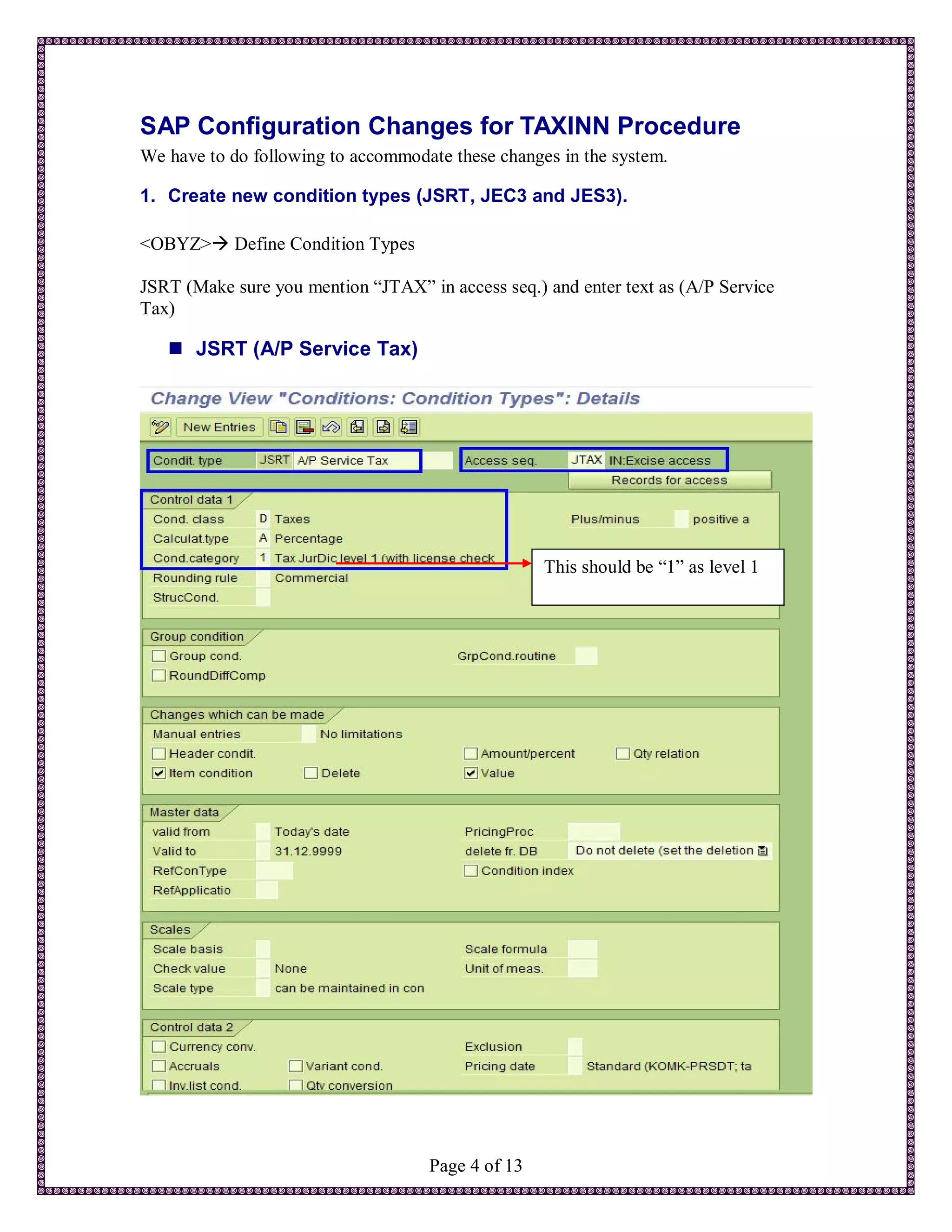
1. Create new condition types (JSRT, JEC3 and JES3).

<OBYZ> Define Condition Types

JSRT (Make sure you mention “JTAX” in access seq.) and enter text as (A/P Service
Tax)

    JSRT (A/P Service Tax)


                                                   This should be “1” as level 1


                                    Page 4 of 13
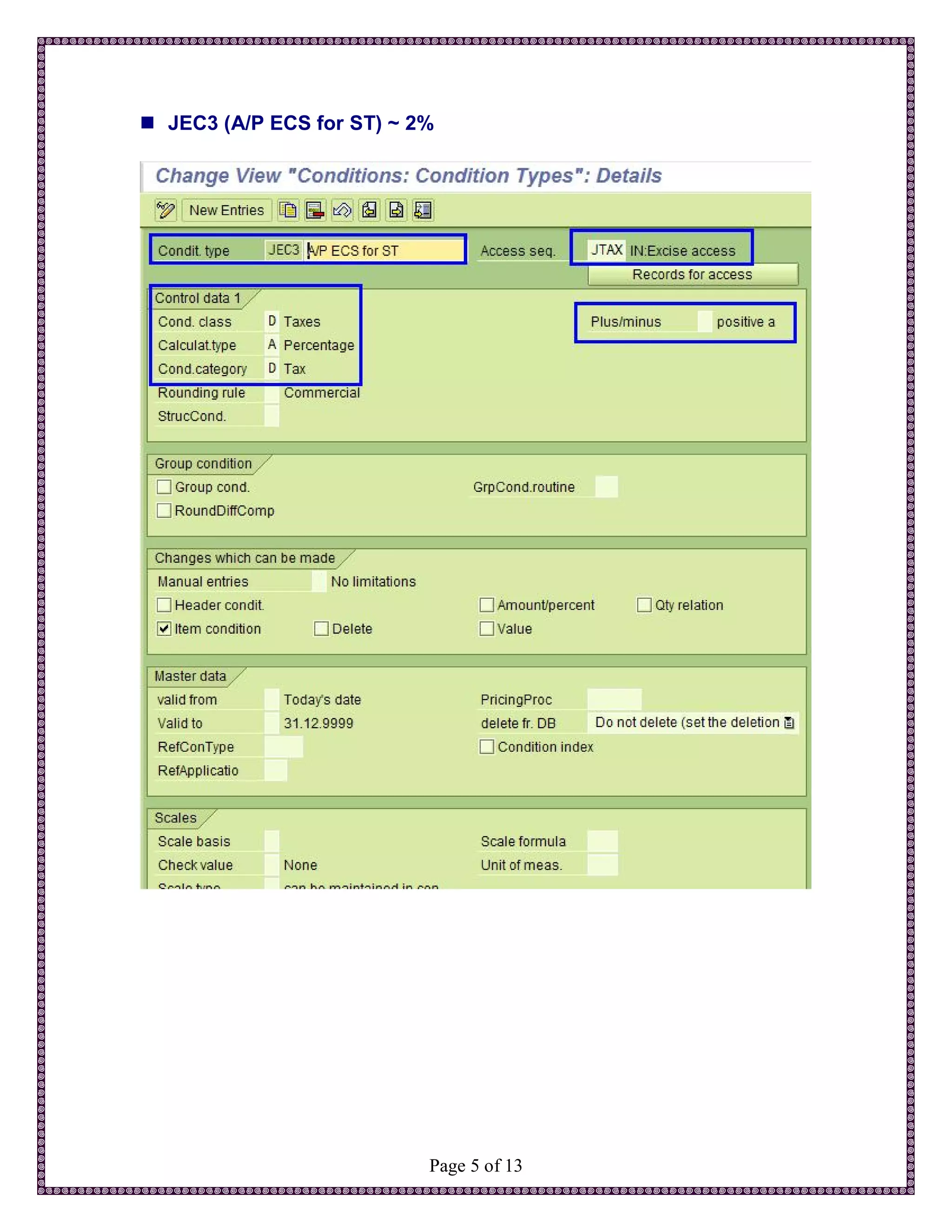
 JEC3 (A/P ECS for ST) ~ 2%


                           Page 5 of 13
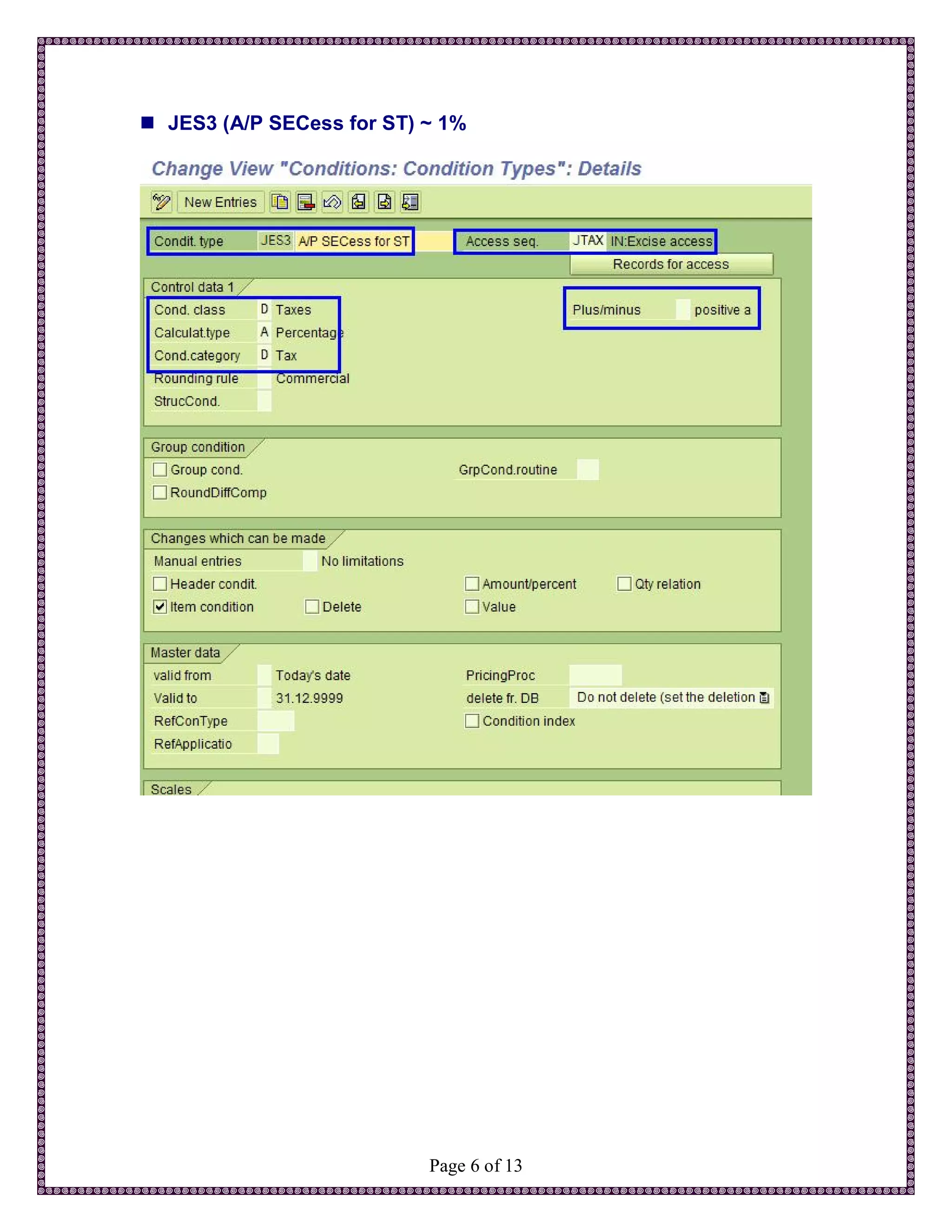
 JES3 (A/P SECess for ST) ~ 1%


                           Page 6 of 13
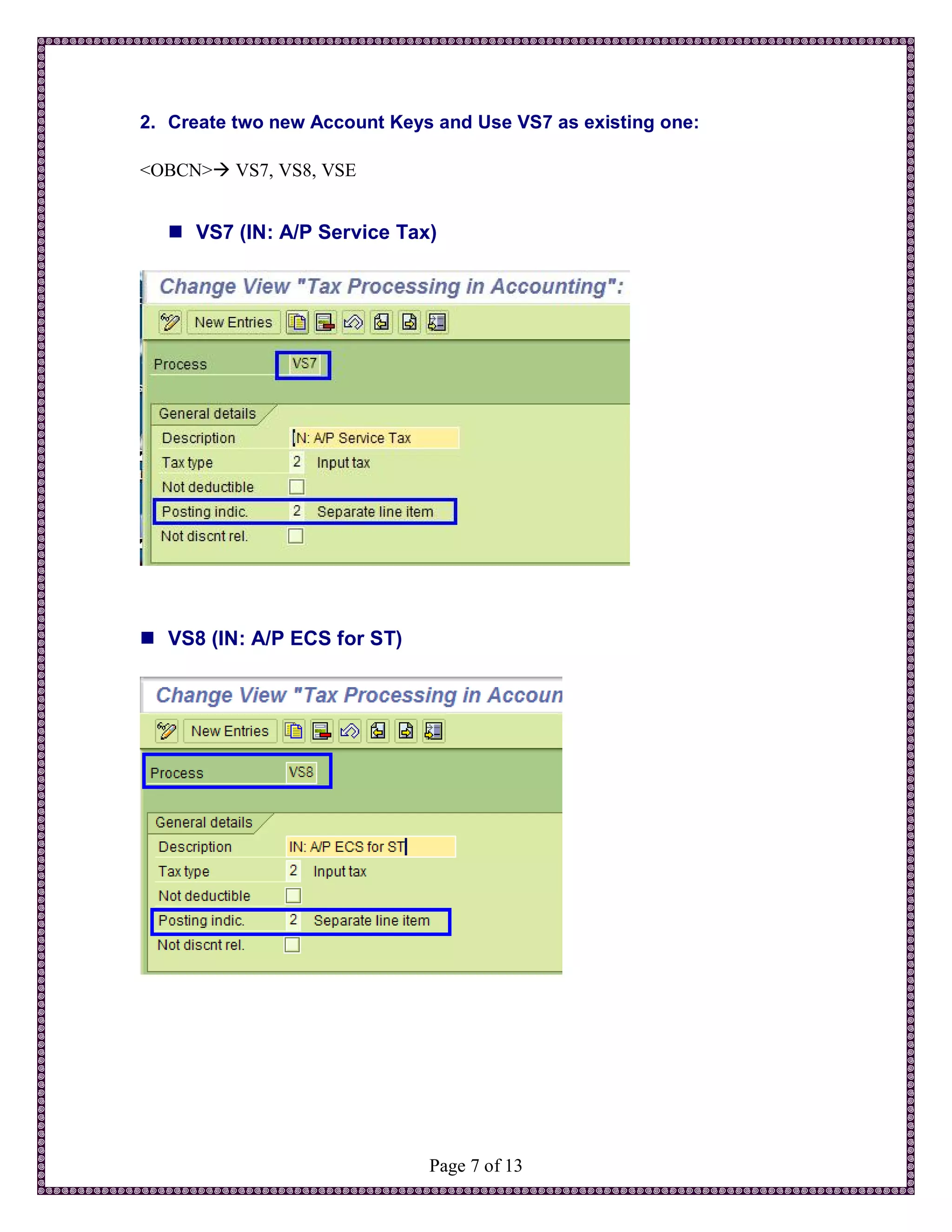
2. Create two new Account Keys and Use VS7 as existing one:

<OBCN> VS7, VS8, VSE


   VS7 (IN: A/P Service Tax)


 VS8 (IN: A/P ECS for ST)


                              Page 7 of 13
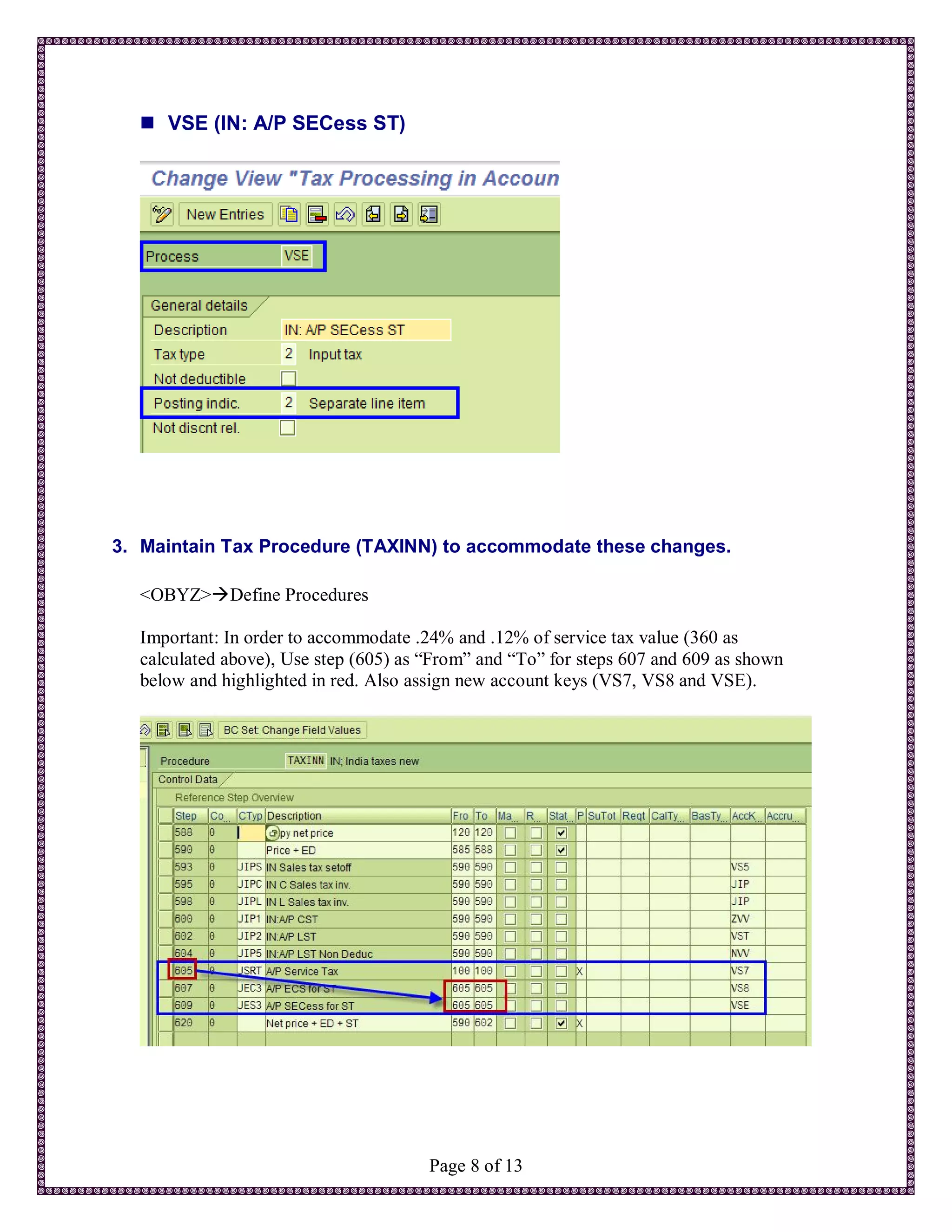
 VSE (IN: A/P SECess ST)


3. Maintain Tax Procedure (TAXINN) to accommodate these changes.

  <OBYZ>Define Procedures

  Important: In order to accommodate .24% and .12% of service tax value (360 as
  calculated above), Use step (605) as “From” and “To” for steps 607 and 609 as shown
  below and highlighted in red. Also assign new account keys (VS7, VS8 and VSE).


                                       Page 8 of 13
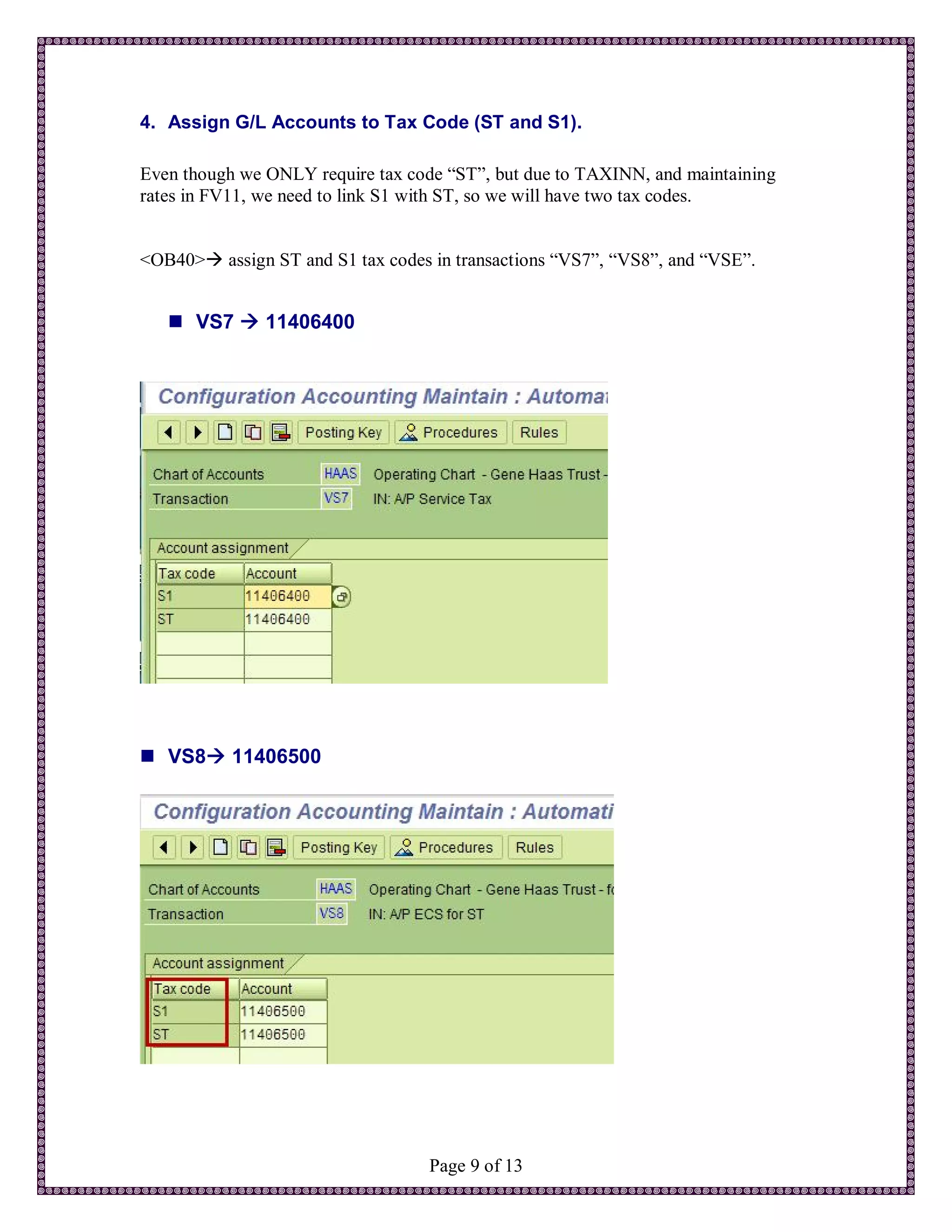
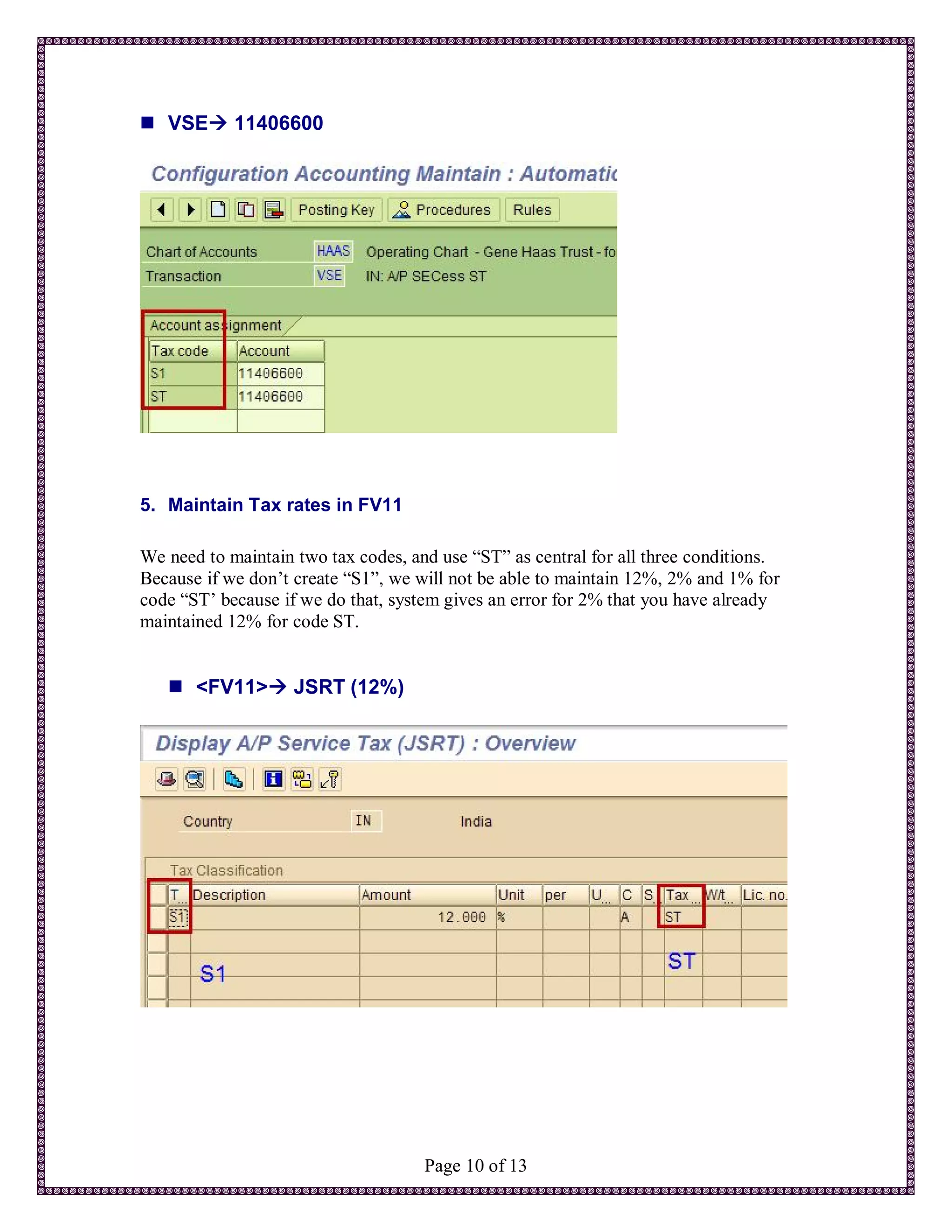
4. Assign G/L Accounts to Tax Code (ST and S1).

Even though we ONLY require tax code “ST”, but due to TAXINN, and maintaining
rates in FV11, we need to link S1 with ST, so we will have two tax codes.


<OB40> assign ST and S1 tax codes in transactions “VS7”, “VS8”, and “VSE”.


    VS7  11406400


 VS8 11406500


                                   Page 9 of 13
 VSE 11406600


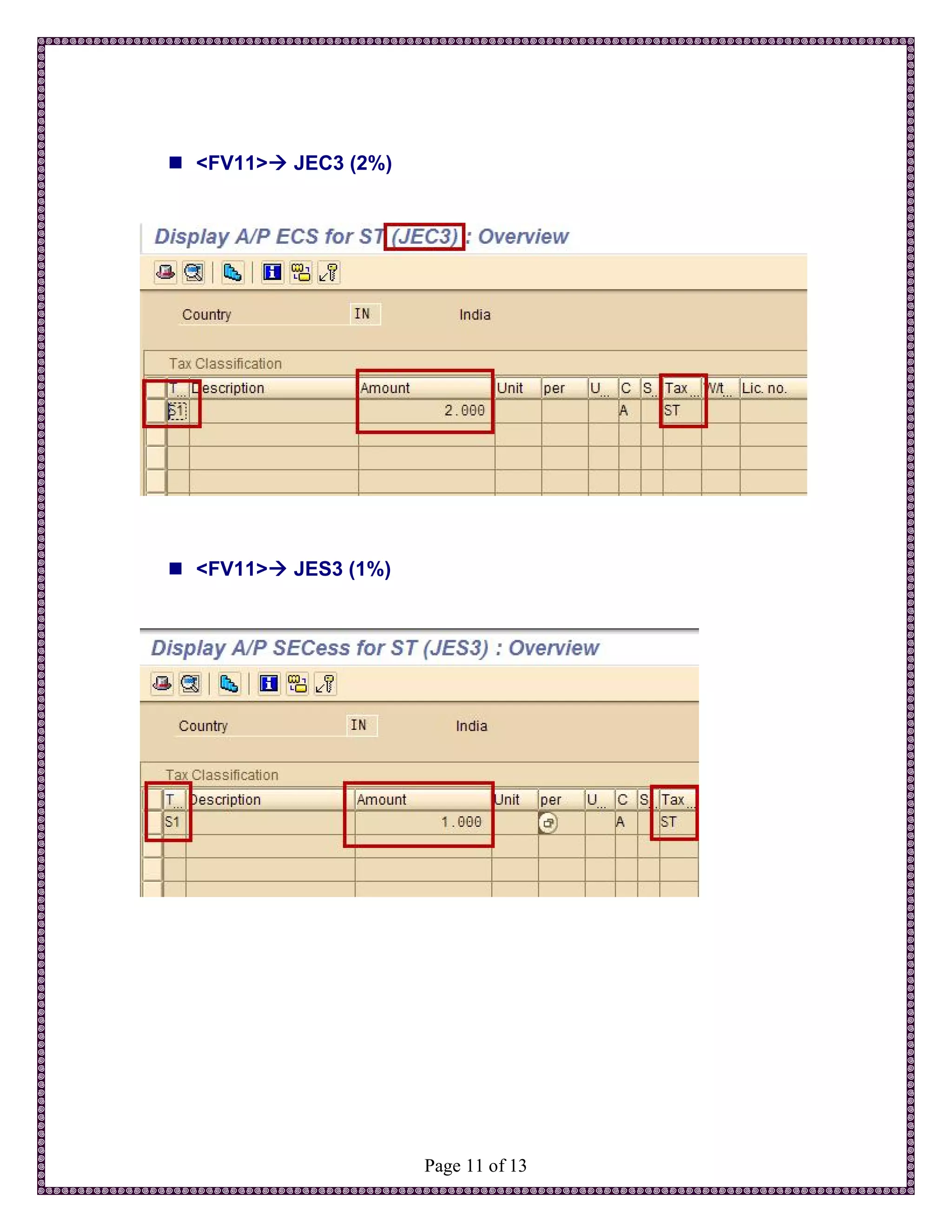
5. Maintain Tax rates in FV11

We need to maintain two tax codes, and use “ST” as central for all three conditions.
Because if we don’t create “S1”, we will not be able to maintain 12%, 2% and 1% for
code “ST’ because if we do that, system gives an error for 2% that you have already
maintained 12% for code ST.


    <FV11> JSRT (12%)


                                     Page 10 of 13
 <FV11> JEC3 (2%)


 <FV11> JES3 (1%)


                      Page 11 of 13
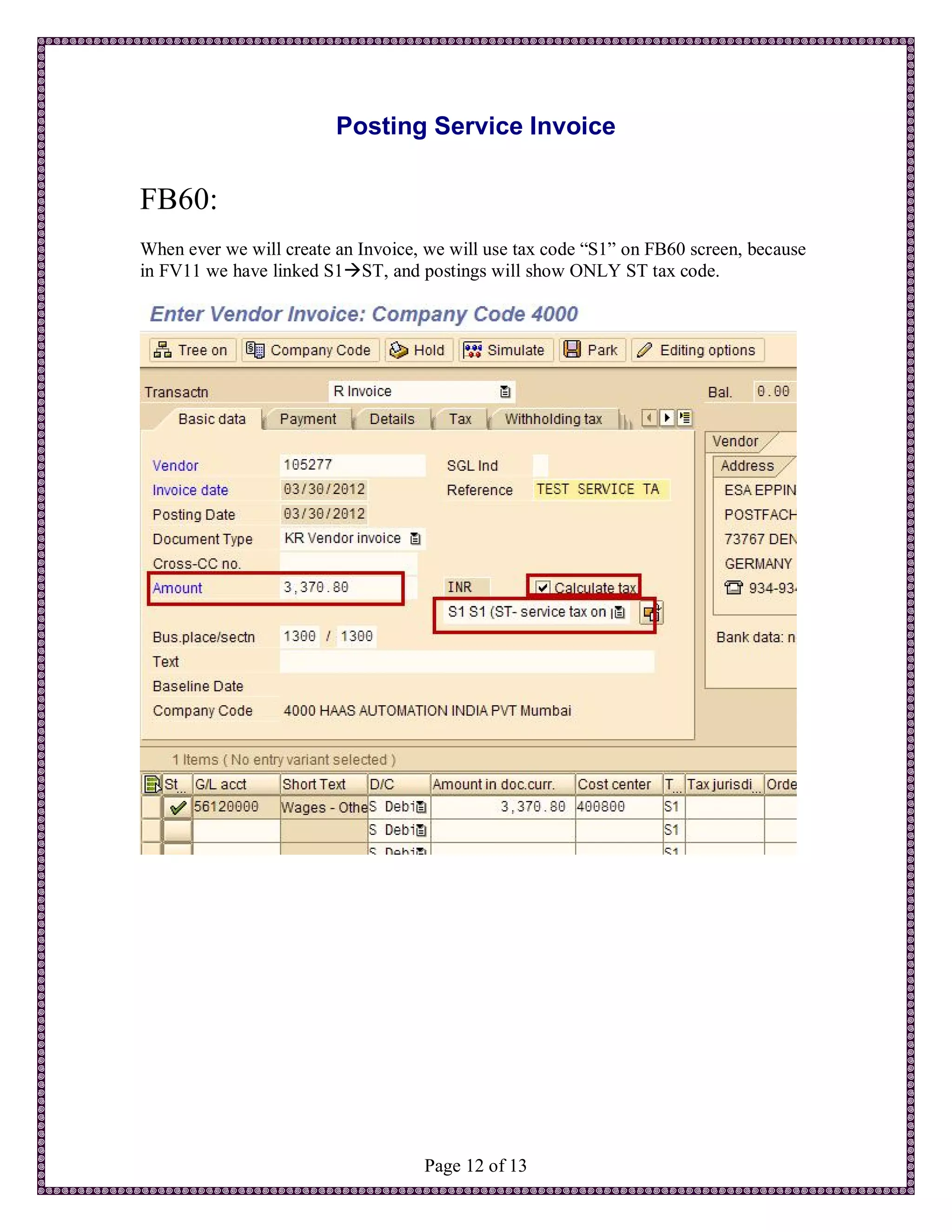
Posting Service Invoice

FB60:
When ever we will create an Invoice, we will use tax code “S1” on FB60 screen, because
in FV11 we have linked S1ST, and postings will show ONLY ST tax code.


                                    Page 12 of 13
Assigning New Tax Code “S1” to be able to see in FB60
tax code drop down screen.
<OBZT> Add tax code “S1” for purchasing. DO NOT assign “ST” as it will
automatically show through FV11 assignment.


                                  Page 13 of 13

Service taxes india and SAP Configuration (TAXINN)

  • 1.
    Service Taxes (India) & SAP Configuration By Muhammad I Shokat Haas Automation Inc Page 1 of 13
  • 2.
    TABLE OF CONTENTS Scenario:(Purchasing /Input) ..........................................................................................3 Example: .....................................................................................................................3 Important:................................................................................................................3 SAP Configuration Changes for TAXINN Procedure ......................................................4 1. Create new condition types (JSRT, JEC3 and JES3).............................................4  JSRT (A/P Service Tax)...................................................................................4  JEC3 (A/P ECS for ST) ~ 2% ..........................................................................5  JES3 (A/P SECess for ST) ~ 1% ......................................................................6 2. Create two new Account Keys and Use VS7 as existing one: ...............................7  VS7 (IN: A/P Service Tax) ..............................................................................7  VS8 (IN: A/P ECS for ST) ...............................................................................7  VSE (IN: A/P SECess ST) ...............................................................................8 3. Maintain Tax Procedure (TAXINN) to accommodate these changes. ...................8 4. Assign G/L Accounts to Tax Code (ST and S1). ..................................................9  VS7  11406400 ............................................................................................9  VS8 11406500 .............................................................................................9  VSE 11406600........................................................................................... 10 5. Maintain Tax rates in FV11 ...............................................................................10  <FV11> JSRT (12%) .................................................................................10  <FV11> JEC3 (2%) ...................................................................................11  <FV11> JES3 (1%)....................................................................................11 Posting Service Invoice .................................................................................................12 Assigning New Tax Code “S1” to be able to see in FB60 tax code drop down screen. ...13 Page 2 of 13
  • 3.
    Service Taxes India Scenario: (Purchasing /Input) When we create service tax invoices, system should be able to calculate 12.36% tax. 12% for service tax, 2% for Education Cess and 1% on SecCess. Service tax = 12% Ed Cess@2% = 12%*2% = (12*1.02 = 12.24%) Sec Cess @1% = 12%*1% = (12*1.01 = 12.12%) Total Tax amount--------------------------- 12.36% G/L ChAc accoun CoCd Long Text HAAS 11406400 4000 Service tax-input credit - Basic Service Tax 12% HAAS 11406500 4000 Service tax-input credit - Education Cess 2% on Service tax HAAS 11406600 4000 Service tax-input credit - Secondary & Higher Educ 1% on Service tax Example: A Vendor service Invoice for 3370.80 INR needs to be entered calculating 12.36% on this invoice and a 2% TDS. Total taxes should be (3000*12.36%) = 370.80 Debit Credit Vendor – 3303.38 Wages G/L Account – 3,000 Service tax @12% (3000*12%) = 360 Ed Cess @2% (360*2%) = 7.20 S&HE Cess @1% (360*1%) = 3.60 Vendor TDS = 67.42 Total Taxes = 370.80 Important: Here tax base amount for Edu Cess should be 12% of the orgibal invoice base which is (12%*3000) = 360, in this case.  Education Cess = 360*2% = 7.20  Sec and Higher Sec Cess = 360*1% = 3.60 Page 3 of 13
  • 4.
    SAP Configuration Changesfor TAXINN Procedure We have to do following to accommodate these changes in the system. 1. Create new condition types (JSRT, JEC3 and JES3). <OBYZ> Define Condition Types JSRT (Make sure you mention “JTAX” in access seq.) and enter text as (A/P Service Tax)  JSRT (A/P Service Tax) This should be “1” as level 1 Page 4 of 13
  • 5.
     JEC3 (A/PECS for ST) ~ 2% Page 5 of 13
  • 6.
     JES3 (A/PSECess for ST) ~ 1% Page 6 of 13
  • 7.
    2. Create twonew Account Keys and Use VS7 as existing one: <OBCN> VS7, VS8, VSE  VS7 (IN: A/P Service Tax)  VS8 (IN: A/P ECS for ST) Page 7 of 13
  • 8.
     VSE (IN:A/P SECess ST) 3. Maintain Tax Procedure (TAXINN) to accommodate these changes. <OBYZ>Define Procedures Important: In order to accommodate .24% and .12% of service tax value (360 as calculated above), Use step (605) as “From” and “To” for steps 607 and 609 as shown below and highlighted in red. Also assign new account keys (VS7, VS8 and VSE). Page 8 of 13
  • 9.
    4. Assign G/LAccounts to Tax Code (ST and S1). Even though we ONLY require tax code “ST”, but due to TAXINN, and maintaining rates in FV11, we need to link S1 with ST, so we will have two tax codes. <OB40> assign ST and S1 tax codes in transactions “VS7”, “VS8”, and “VSE”.  VS7  11406400  VS8 11406500 Page 9 of 13
  • 10.
     VSE 11406600 5.Maintain Tax rates in FV11 We need to maintain two tax codes, and use “ST” as central for all three conditions. Because if we don’t create “S1”, we will not be able to maintain 12%, 2% and 1% for code “ST’ because if we do that, system gives an error for 2% that you have already maintained 12% for code ST.  <FV11> JSRT (12%) Page 10 of 13
  • 11.
     <FV11> JEC3(2%)  <FV11> JES3 (1%) Page 11 of 13
  • 12.
    Posting Service Invoice FB60: Whenever we will create an Invoice, we will use tax code “S1” on FB60 screen, because in FV11 we have linked S1ST, and postings will show ONLY ST tax code. Page 12 of 13
  • 13.
    Assigning New TaxCode “S1” to be able to see in FB60 tax code drop down screen. <OBZT> Add tax code “S1” for purchasing. DO NOT assign “ST” as it will automatically show through FV11 assignment. Page 13 of 13