© 2008 Wellesley Information Services. All rights reserved.
How to Achieve Balanced
Financial Reporting with
Automated Document
Splitting in the New
SAP G/L
Mitresh Kundalia
Quality Systems & Software
2
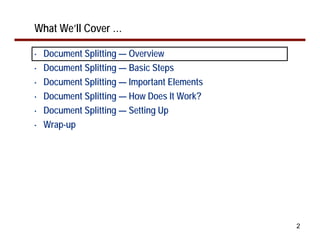
What We’ll Cover …
• Document Splitting — Overview
• Document Splitting — Basic Steps
• Document Splitting — Important Elements
• Document Splitting — How Does It Work?
• Document Splitting — Setting Up
• Wrap-up
3
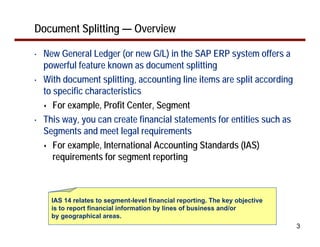
Document Splitting — Overview
• New General Ledger (or new G/L) in the SAP ERP system offers a
powerful feature known as document splitting
• With document splitting, accounting line items are split according
to specific characteristics
For example, Profit Center, Segment
• This way, you can create financial statements for entities such as
Segments and meet legal requirements
For example, International Accounting Standards (IAS)
requirements for segment reporting
IAS 14 relates to segment-level financial reporting. The key objective
is to report financial information by lines of business and/or
by geographical areas.
4
Document Splitting — Overview (cont.)
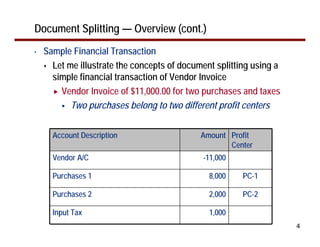
• Sample Financial Transaction
Let me illustrate the concepts of document splitting using a
simple financial transaction of Vendor Invoice
Vendor Invoice of $11,000.00 for two purchases and taxes
Two purchases belong to two different profit centers
Account Description Amount Profit
Center
Vendor A/C -11,000
Purchases 1 8,000 PC-1
Purchases 2 2,000 PC-2
Input Tax 1,000
5
Document Splitting — Overview (cont.)
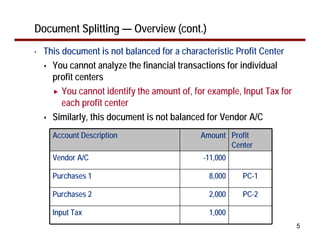
• This document is not balanced for a characteristic Profit Center
You cannot analyze the financial transactions for individual
profit centers
You cannot identify the amount of, for example, Input Tax for
each profit center
Similarly, this document is not balanced for Vendor A/C
Account Description Amount Profit
Center
Vendor A/C -11,000
Purchases 1 8,000 PC-1
Purchases 2 2,000 PC-2
Input Tax 1,000
6
Document Splitting — Overview (cont.)
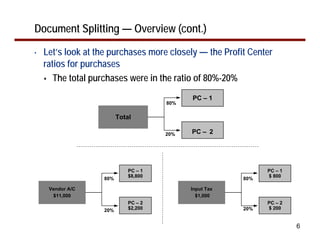
• Let’s look at the purchases more closely — the Profit Center
ratios for purchases
The total purchases were in the ratio of 80%-20%
Vendor A/C
$11,000
PC – 1
$8,800
PC – 2
$2,200
80%
20%
Input Tax
$1,000
PC – 1
$ 800
PC – 2
$ 200
80%
20%
Total
PC – 1
PC – 2
80%
20%
7
Document Splitting — Overview (cont.)
• Vendor Invoice Document — Alternative
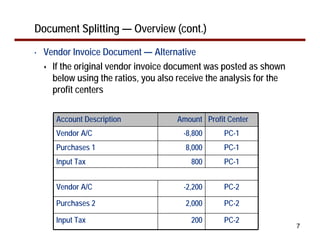
If the original vendor invoice document was posted as shown
below using the ratios, you also receive the analysis for the
profit centers
Account Description Amount Profit Center
Vendor A/C -8,800 PC-1
Purchases 1 8,000 PC-1
Input Tax 800 PC-1
Vendor A/C -2,200 PC-2
Purchases 2 2,000 PC-2
Input Tax 200 PC-2
8
Document Splitting — Overview (cont.)
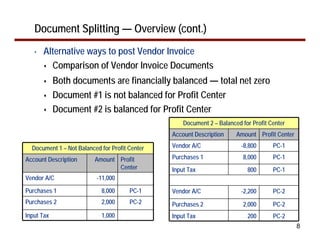
• Alternative ways to post Vendor Invoice
Comparison of Vendor Invoice Documents
Both documents are financially balanced — total net zero
Document #1 is not balanced for Profit Center
Document #2 is balanced for Profit Center
Document 2 – Balanced for Profit Center
Account Description Amount Profit Center
Vendor A/C -8,800 PC-1
Purchases 1 8,000 PC-1
Input Tax 800 PC-1
Vendor A/C -2,200 PC-2
Purchases 2 2,000 PC-2
Input Tax 200 PC-2
Document 1 – Not Balanced for Profit Center
Account Description Amount Profit
Center
Vendor A/C -11,000
Purchases 1 8,000 PC-1
Purchases 2 2,000 PC-2
Input Tax 1,000
9
Document Splitting — Overview (cont.)
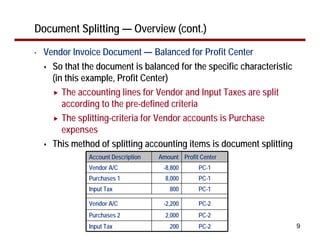
• Vendor Invoice Document — Balanced for Profit Center
So that the document is balanced for the specific characteristic
(in this example, Profit Center)
The accounting lines for Vendor and Input Taxes are split
according to the pre-defined criteria
The splitting-criteria for Vendor accounts is Purchase
expenses
This method of splitting accounting items is document splitting
Account Description Amount Profit Center
Vendor A/C -8,800 PC-1
Purchases 1 8,000 PC-1
Input Tax 800 PC-1
Vendor A/C -2,200 PC-2
Purchases 2 2,000 PC-2
Input Tax 200 PC-2
10
Document Splitting — Overview (cont.)
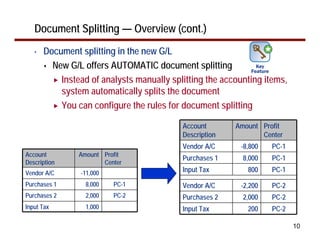
• Document splitting in the new G/L
New G/L offers AUTOMATIC document splitting
Instead of analysts manually splitting the accounting items,
system automatically splits the document
You can configure the rules for document splitting
Account
Description
Amount Profit
Center
Vendor A/C -8,800 PC-1
Purchases 1 8,000 PC-1
Input Tax 800 PC-1
Vendor A/C -2,200 PC-2
Purchases 2 2,000 PC-2
Input Tax 200 PC-2
Account
Description
Amount Profit
Center
Vendor A/C -11,000
Purchases 1 8,000 PC-1
Purchases 2 2,000 PC-2
Input Tax 1,000
11
What We’ll Cover …
• Document Splitting — Overview
• Document Splitting — Basic Steps
• Document Splitting — Important Elements
• Document Splitting — How Does It Work?
• Document Splitting — Setting Up
• Wrap-up
12
Document Splitting — Basic Steps
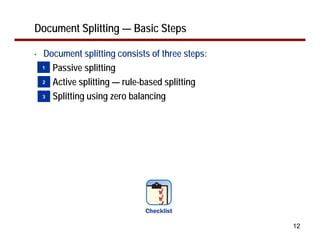
• Document splitting consists of three steps:
Passive splitting
Active splitting — rule-based splitting
Splitting using zero balancing
1
2
3
13
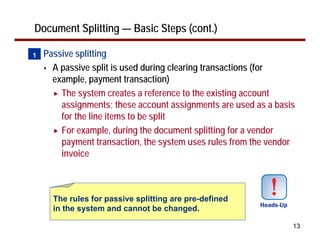
The rules for passive splitting are pre-defined
in the system and cannot be changed.
Document Splitting — Basic Steps (cont.)
• Passive splitting
A passive split is used during clearing transactions (for
example, payment transaction)
The system creates a reference to the existing account
assignments; these account assignments are used as a basis
for the line items to be split
For example, during the document splitting for a vendor
payment transaction, the system uses rules from the vendor
invoice
1
14
Document Splitting — Basic Steps (cont.)
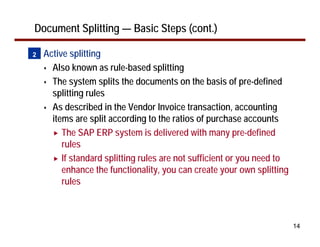
• Active splitting
Also known as rule-based splitting
The system splits the documents on the basis of pre-defined
splitting rules
As described in the Vendor Invoice transaction, accounting
items are split according to the ratios of purchase accounts
The SAP ERP system is delivered with many pre-defined
rules
If standard splitting rules are not sufficient or you need to
enhance the functionality, you can create your own splitting
rules
2
15
Document Splitting — Basic Steps (cont.)
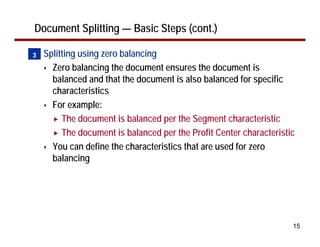
• Splitting using zero balancing
Zero balancing the document ensures the document is
balanced and that the document is also balanced for specific
characteristics
For example:
The document is balanced per the Segment characteristic
The document is balanced per the Profit Center characteristic
You can define the characteristics that are used for zero
balancing
3
16
Document Splitting — Basic Steps (cont.)
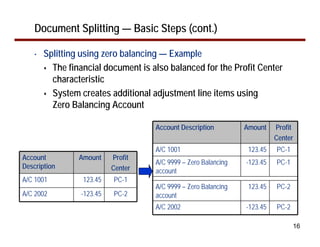
• Splitting using zero balancing — Example
The financial document is also balanced for the Profit Center
characteristic
System creates additional adjustment line items using
Zero Balancing Account
Account
Description
Amount Profit
Center
A/C 1001 123.45 PC-1
A/C 2002 -123.45 PC-2
Account Description Amount Profit
Center
A/C 1001 123.45 PC-1
A/C 9999 – Zero Balancing
account
-123.45 PC-1
A/C 9999 – Zero Balancing
account
123.45 PC-2
A/C 2002 -123.45 PC-2
17
What We’ll Cover …
• Document Splitting — Overview
• Document Splitting — Basic Steps
• Document Splitting — Important Elements
• Document Splitting — How Does It Work?
• Document Splitting — Setting Up
• Wrap-up
18
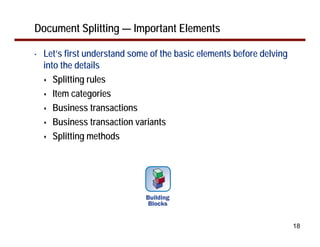
Document Splitting — Important Elements
• Let’s first understand some of the basic elements before delving
into the details
Splitting rules
Item categories
Business transactions
Business transaction variants
Splitting methods
19
Document Splitting — Important Elements (cont.)
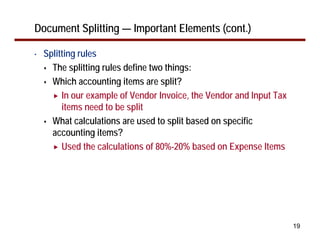
• Splitting rules
The splitting rules define two things:
Which accounting items are split?
In our example of Vendor Invoice, the Vendor and Input Tax
items need to be split
What calculations are used to split based on specific
accounting items?
Used the calculations of 80%-20% based on Expense Items
20
Document Splitting — Important Elements (cont.)
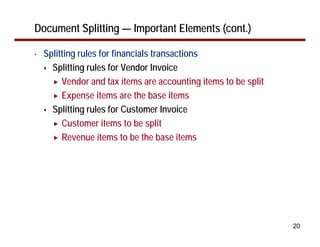
• Splitting rules for financials transactions
Splitting rules for Vendor Invoice
Vendor and tax items are accounting items to be split
Expense items are the base items
Splitting rules for Customer Invoice
Customer items to be split
Revenue items to be the base items
21
Document Splitting — Important Elements (cont.)
• Item categories
Item category is the grouping of new G/L Accounts
Instead of defining the splitting rules for all expense accounts
individually, the item category groups all expense accounts (for
example, 20000) together
You could have one rule for all expenses
Note: Item categories are pre-defined in the system
22
Document Splitting — Important Elements (cont.)
• Item categories (cont.)
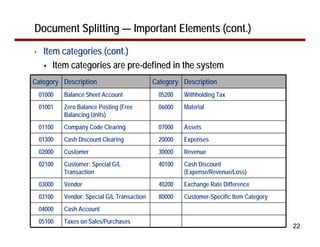
Item categories are pre-defined in the system
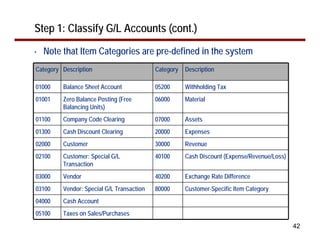
Category Description Category Description
01000 Balance Sheet Account 05200 Withholding Tax
01001 Zero Balance Posting (Free
Balancing Units)
06000 Material
01100 Company Code Clearing 07000 Assets
01300 Cash Discount Clearing 20000 Expenses
02000 Customer 30000 Revenue
02100 Customer: Special G/L
Transaction
40100 Cash Discount
(Expense/Revenue/Loss)
03000 Vendor 40200 Exchange Rate Difference
03100 Vendor: Special G/L Transaction 80000 Customer-Specific Item Category
04000 Cash Account
05100 Taxes on Sales/Purchases
23
Document Splitting — Important Elements (cont.)
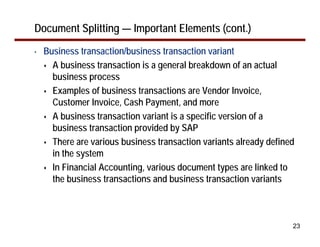
• Business transaction/business transaction variant
A business transaction is a general breakdown of an actual
business process
Examples of business transactions are Vendor Invoice,
Customer Invoice, Cash Payment, and more
A business transaction variant is a specific version of a
business transaction provided by SAP
There are various business transaction variants already defined
in the system
In Financial Accounting, various document types are linked to
the business transactions and business transaction variants
24
Document Splitting — Important Elements (cont.)
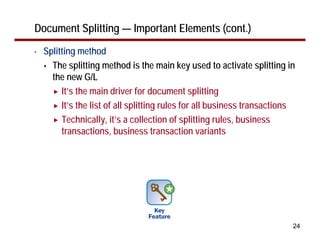
• Splitting method
The splitting method is the main key used to activate splitting in
the new G/L
It’s the main driver for document splitting
It’s the list of all splitting rules for all business transactions
Technically, it’s a collection of splitting rules, business
transactions, business transaction variants
25
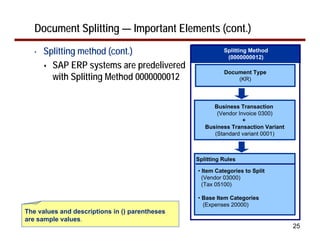
Document Splitting — Important Elements (cont.)
• Splitting method (cont.)
SAP ERP systems are predelivered
with Splitting Method 0000000012
Document Type
(KR)
Splitting Method
(0000000012)
Business Transaction
(Vendor Invoice 0300)
+
Business Transaction Variant
(Standard variant 0001)
• Item Categories to Split
(Vendor 03000)
(Tax 05100)
• Base Item Categories
(Expenses 20000)
Splitting Rules
The values and descriptions in () parentheses
are sample values.
26
What We’ll Cover …
• Document Splitting — Overview
• Document Splitting — Basic Steps
• Document Splitting — Important Elements
• Document Splitting — How Does It Work?
• Document Splitting — Setting Up
• Wrap-up
27
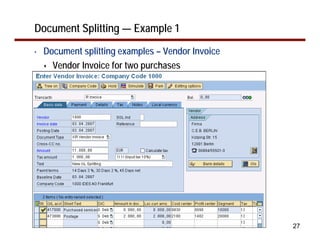
Document Splitting — Example 1
• Document splitting examples – Vendor Invoice
Vendor Invoice for two purchases
28
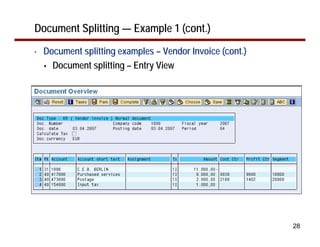
Document Splitting — Example 1 (cont.)
• Document splitting examples – Vendor Invoice (cont.)
Document splitting – Entry View
29
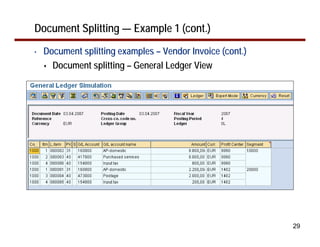
Document Splitting — Example 1 (cont.)
• Document splitting examples – Vendor Invoice (cont.)
Document splitting – General Ledger View
30
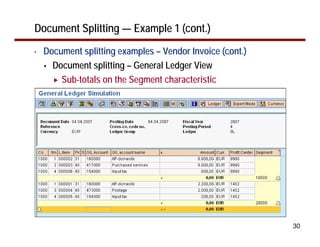
Document Splitting — Example 1 (cont.)
• Document splitting examples – Vendor Invoice (cont.)
Document splitting – General Ledger View
Sub-totals on the Segment characteristic
31
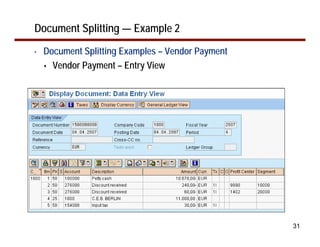
Document Splitting — Example 2
• Document Splitting Examples – Vendor Payment
Vendor Payment – Entry View
32
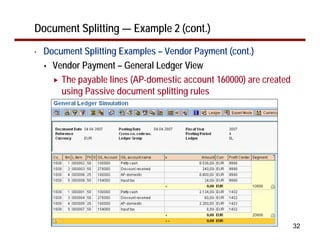
Document Splitting — Example 2 (cont.)
• Document Splitting Examples – Vendor Payment (cont.)
Vendor Payment – General Ledger View
The payable lines (AP-domestic account 160000) are created
using Passive document splitting rules
33
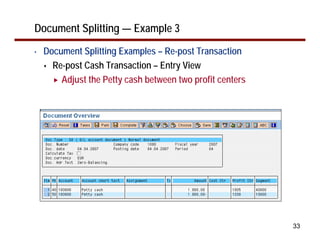
Document Splitting — Example 3
• Document Splitting Examples – Re-post Transaction
Re-post Cash Transaction – Entry View
Adjust the Petty cash between two profit centers
34
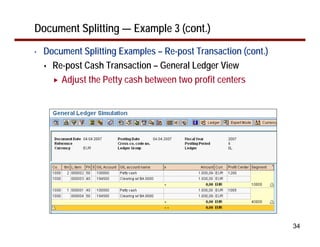
Document Splitting — Example 3 (cont.)
• Document Splitting Examples – Re-post Transaction (cont.)
Re-post Cash Transaction – General Ledger View
Adjust the Petty cash between two profit centers
35
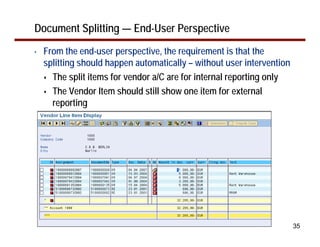
Document Splitting — End-User Perspective
• From the end-user perspective, the requirement is that the
splitting should happen automatically – without user intervention
The split items for vendor a/C are for internal reporting only
The Vendor Item should still show one item for external
reporting
36
Document Splitting — End-User Perspective (cont.)
• Document splitting – End-user Perspective
• The great feature of the document splitting in the new G/L is that it
does not change the operative procedures from the user
perspective
There is practically no change to the entry procedures, but, at
the same time, provides the break-down of accounting items to
meet the specific reporting requirements
• You can view the document two ways:
Entry View, as seen during data entry
General Ledger View, as seen with document splitting
37
What We’ll Cover …
• Document Splitting — Overview
• Document Splitting — Basic Steps
• Document Splitting — Important Elements
• Document Splitting — How Does It Work?
• Document Splitting — Setting Up
• Wrap-up
38
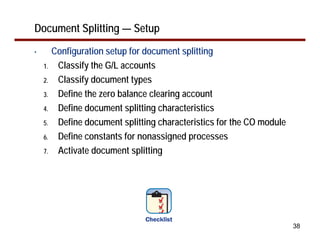
Document Splitting — Setup
• Configuration setup for document splitting
1. Classify the G/L accounts
2. Classify document types
3. Define the zero balance clearing account
4. Define document splitting characteristics
5. Define document splitting characteristics for the CO module
6. Define constants for nonassigned processes
7. Activate document splitting
39
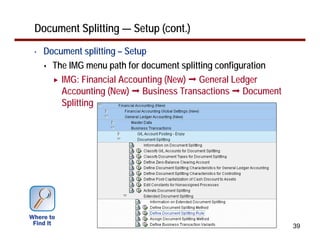
Document Splitting — Setup (cont.)
• Document splitting – Setup
The IMG menu path for document splitting configuration
IMG: Financial Accounting (New) General Ledger
Accounting (New) Business Transactions Document
Splitting
40
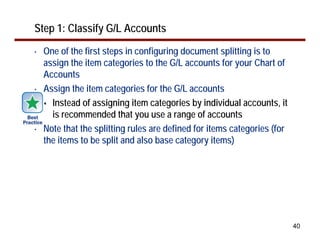
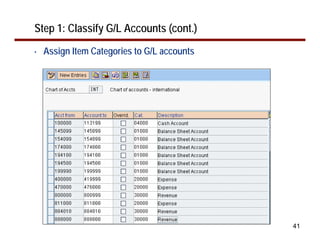
Step 1: Classify G/L Accounts
• One of the first steps in configuring document splitting is to
assign the item categories to the G/L accounts for your Chart of
Accounts
• Assign the item categories for the G/L accounts
Instead of assigning item categories by individual accounts, it
is recommended that you use a range of accounts
• Note that the splitting rules are defined for items categories (for
the items to be split and also base category items)
41
Step 1: Classify G/L Accounts (cont.)
• Assign Item Categories to G/L accounts
42
Step 1: Classify G/L Accounts (cont.)
• Note that Item Categories are pre-defined in the system
Category Description Category Description
01000 Balance Sheet Account 05200 Withholding Tax
01001 Zero Balance Posting (Free
Balancing Units)
06000 Material
01100 Company Code Clearing 07000 Assets
01300 Cash Discount Clearing 20000 Expenses
02000 Customer 30000 Revenue
02100 Customer: Special G/L
Transaction
40100 Cash Discount (Expense/Revenue/Loss)
03000 Vendor 40200 Exchange Rate Difference
03100 Vendor: Special G/L Transaction 80000 Customer-Specific Item Category
04000 Cash Account
05100 Taxes on Sales/Purchases
43
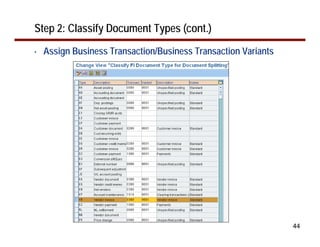
Step 2: Classify Document Types
• To ensure that every relevant financial transaction is considered
for document splitting, categorize the document types according
to specific business transaction variants
• Assign business transaction and business transaction variants
for the document types
• Notes:
Standard SAP document types are already defined with
appropriate values
Make sure that you classify the custom Z document types
44
Step 2: Classify Document Types (cont.)
• Assign Business Transaction/Business Transaction Variants
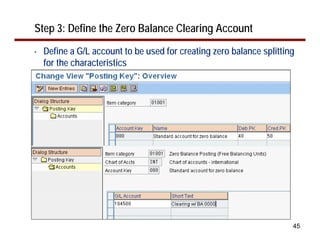
Step 3: Define the Zero Balance Clearing Account
• Define a G/L account to be used for creating zero balance splitting
for the characteristics
45
46
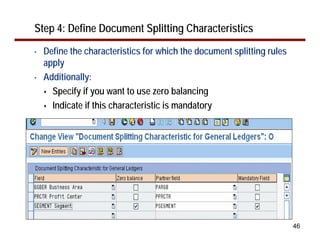
Step 4: Define Document Splitting Characteristics
• Define the characteristics for which the document splitting rules
apply
• Additionally:
Specify if you want to use zero balancing
Indicate if this characteristic is mandatory
47
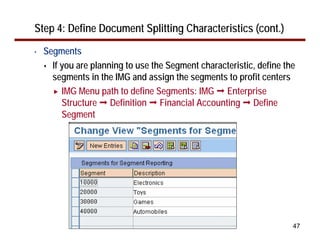
Step 4: Define Document Splitting Characteristics (cont.)
• Segments
If you are planning to use the Segment characteristic, define the
segments in the IMG and assign the segments to profit centers
IMG Menu path to define Segments: IMG Enterprise
Structure Definition Financial Accounting Define
Segment
48
Step 5: Define Document Splitting Characteristics for CO
• Define the splitting characteristics for Controlling (CO) processes
The additional characteristics are for processes such as:
Cash Discounts
Exchange Rate Differences
• Define the post-capitalization of Cash Discounts to Assets
You may need to capitalize the cash discounts for the
purchases related to fixed assets
Define post-capitalization of Cash Discounts for assets
purchases
49
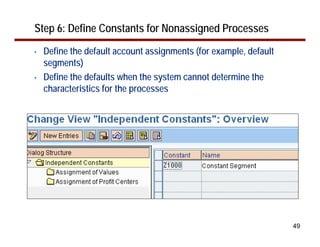
Step 6: Define Constants for Nonassigned Processes
• Define the default account assignments (for example, default
segments)
• Define the defaults when the system cannot determine the
characteristics for the processes
50
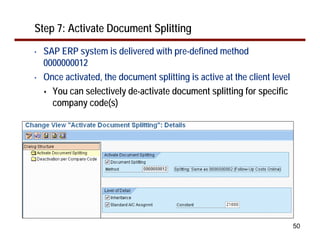
Step 7: Activate Document Splitting
• SAP ERP system is delivered with pre-defined method
0000000012
• Once activated, the document splitting is active at the client level
You can selectively de-activate document splitting for specific
company code(s)
51
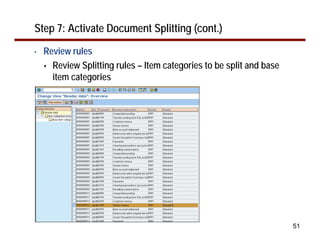
Step 7: Activate Document Splitting (cont.)
• Review rules
Review Splitting rules – Item categories to be split and base
item categories
52
What We’ll Cover …
• Document Splitting — Overview
• Document Splitting — Basic Steps
• Document Splitting — Important Elements
• Document Splitting — How Does It Work?
• Document Splitting — Setting Up
• Wrap-up
53
• New G/L Papers published by Mitresh Kundalia
“Achieve Balanced Reporting by Automating Document
Splitting in the New G/L” (SAP Financials Expert, June 2007).
“Unearth the Hidden Secrets of Zero-Balancing in the New G/L”
(SAP Financials Expert, July/August 2007).
“Use Document Simulation in the New G/L to See How the
System Posts G/L Documents” (SAP Financials Expert, May
2007).
“Quick Tip: De-activate Document Splitting for a Company
Code” (SAP Financials Expert, November/December 2007).
“Quick Tip: Review and Analyze Document Splitting Rules in
One Place” (SAP Financials Expert, January 2008).
Resources
54
7 Key Points to Take Home
• Use document splitting feature in the new G/L to attain balanced
reporting
• Document splitting does not change end-user entry methods
• Document splitting basically consists of three options – passive,
rule-based active, and splitting using zero balancing
• Passive splitting assigns splitting rules from the original
document
Usually for subsequent transactions (Vendor Payment,
Customer Payment, Clearing Transactions)
55
7 Key Points to Take Home (cont.)
• Active splitting uses the rules by which the items are to be split
based on specific items
For example, in a vendor invoice transaction, the rule is to split
the Tax Items based on the ratios of Expenses Items
• Splitting using zero balancing assures that the document is
balanced for the specific characteristic
• Splitting method is the collection of splitting rules, business
transactions, and business transaction variants
56
Your Turn!
How to contact me:
Mitresh Kundalia
Mitresh@QSandS.com
57
Disclaimer
SAP, R/3, mySAP, mySAP.com, xApps, xApp, SAP NetWeaver®
, Duet™
, PartnerEdge, and other SAP products and services mentioned herein as
well as their respective logos are trademarks or registered trademarks of SAP AG in Germany and in several other countries all over the world. All
other product and service names mentioned are the trademarks of their respective companies. Wellesley Information Services is neither owned nor
controlled by SAP.

Document splitting-in-new-general-ledger

  • 2.
    © 2008 WellesleyInformation Services. All rights reserved. How to Achieve Balanced Financial Reporting with Automated Document Splitting in the New SAP G/L Mitresh Kundalia Quality Systems & Software
  • 3.
    2 What We’ll Cover… • Document Splitting — Overview • Document Splitting — Basic Steps • Document Splitting — Important Elements • Document Splitting — How Does It Work? • Document Splitting — Setting Up • Wrap-up
  • 4.
    3 Document Splitting —Overview • New General Ledger (or new G/L) in the SAP ERP system offers a powerful feature known as document splitting • With document splitting, accounting line items are split according to specific characteristics For example, Profit Center, Segment • This way, you can create financial statements for entities such as Segments and meet legal requirements For example, International Accounting Standards (IAS) requirements for segment reporting IAS 14 relates to segment-level financial reporting. The key objective is to report financial information by lines of business and/or by geographical areas.
  • 5.
    4 Document Splitting —Overview (cont.) • Sample Financial Transaction Let me illustrate the concepts of document splitting using a simple financial transaction of Vendor Invoice Vendor Invoice of $11,000.00 for two purchases and taxes Two purchases belong to two different profit centers Account Description Amount Profit Center Vendor A/C -11,000 Purchases 1 8,000 PC-1 Purchases 2 2,000 PC-2 Input Tax 1,000
  • 6.
    5 Document Splitting —Overview (cont.) • This document is not balanced for a characteristic Profit Center You cannot analyze the financial transactions for individual profit centers You cannot identify the amount of, for example, Input Tax for each profit center Similarly, this document is not balanced for Vendor A/C Account Description Amount Profit Center Vendor A/C -11,000 Purchases 1 8,000 PC-1 Purchases 2 2,000 PC-2 Input Tax 1,000
  • 7.
    6 Document Splitting —Overview (cont.) • Let’s look at the purchases more closely — the Profit Center ratios for purchases The total purchases were in the ratio of 80%-20% Vendor A/C $11,000 PC – 1 $8,800 PC – 2 $2,200 80% 20% Input Tax $1,000 PC – 1 $ 800 PC – 2 $ 200 80% 20% Total PC – 1 PC – 2 80% 20%
  • 8.
    7 Document Splitting —Overview (cont.) • Vendor Invoice Document — Alternative If the original vendor invoice document was posted as shown below using the ratios, you also receive the analysis for the profit centers Account Description Amount Profit Center Vendor A/C -8,800 PC-1 Purchases 1 8,000 PC-1 Input Tax 800 PC-1 Vendor A/C -2,200 PC-2 Purchases 2 2,000 PC-2 Input Tax 200 PC-2
  • 9.
    8 Document Splitting —Overview (cont.) • Alternative ways to post Vendor Invoice Comparison of Vendor Invoice Documents Both documents are financially balanced — total net zero Document #1 is not balanced for Profit Center Document #2 is balanced for Profit Center Document 2 – Balanced for Profit Center Account Description Amount Profit Center Vendor A/C -8,800 PC-1 Purchases 1 8,000 PC-1 Input Tax 800 PC-1 Vendor A/C -2,200 PC-2 Purchases 2 2,000 PC-2 Input Tax 200 PC-2 Document 1 – Not Balanced for Profit Center Account Description Amount Profit Center Vendor A/C -11,000 Purchases 1 8,000 PC-1 Purchases 2 2,000 PC-2 Input Tax 1,000
  • 10.
    9 Document Splitting —Overview (cont.) • Vendor Invoice Document — Balanced for Profit Center So that the document is balanced for the specific characteristic (in this example, Profit Center) The accounting lines for Vendor and Input Taxes are split according to the pre-defined criteria The splitting-criteria for Vendor accounts is Purchase expenses This method of splitting accounting items is document splitting Account Description Amount Profit Center Vendor A/C -8,800 PC-1 Purchases 1 8,000 PC-1 Input Tax 800 PC-1 Vendor A/C -2,200 PC-2 Purchases 2 2,000 PC-2 Input Tax 200 PC-2
  • 11.
    10 Document Splitting —Overview (cont.) • Document splitting in the new G/L New G/L offers AUTOMATIC document splitting Instead of analysts manually splitting the accounting items, system automatically splits the document You can configure the rules for document splitting Account Description Amount Profit Center Vendor A/C -8,800 PC-1 Purchases 1 8,000 PC-1 Input Tax 800 PC-1 Vendor A/C -2,200 PC-2 Purchases 2 2,000 PC-2 Input Tax 200 PC-2 Account Description Amount Profit Center Vendor A/C -11,000 Purchases 1 8,000 PC-1 Purchases 2 2,000 PC-2 Input Tax 1,000
  • 12.
    11 What We’ll Cover… • Document Splitting — Overview • Document Splitting — Basic Steps • Document Splitting — Important Elements • Document Splitting — How Does It Work? • Document Splitting — Setting Up • Wrap-up
  • 13.
    12 Document Splitting —Basic Steps • Document splitting consists of three steps: Passive splitting Active splitting — rule-based splitting Splitting using zero balancing 1 2 3
  • 14.
    13 The rules forpassive splitting are pre-defined in the system and cannot be changed. Document Splitting — Basic Steps (cont.) • Passive splitting A passive split is used during clearing transactions (for example, payment transaction) The system creates a reference to the existing account assignments; these account assignments are used as a basis for the line items to be split For example, during the document splitting for a vendor payment transaction, the system uses rules from the vendor invoice 1
  • 15.
    14 Document Splitting —Basic Steps (cont.) • Active splitting Also known as rule-based splitting The system splits the documents on the basis of pre-defined splitting rules As described in the Vendor Invoice transaction, accounting items are split according to the ratios of purchase accounts The SAP ERP system is delivered with many pre-defined rules If standard splitting rules are not sufficient or you need to enhance the functionality, you can create your own splitting rules 2
  • 16.
    15 Document Splitting —Basic Steps (cont.) • Splitting using zero balancing Zero balancing the document ensures the document is balanced and that the document is also balanced for specific characteristics For example: The document is balanced per the Segment characteristic The document is balanced per the Profit Center characteristic You can define the characteristics that are used for zero balancing 3
  • 17.
    16 Document Splitting —Basic Steps (cont.) • Splitting using zero balancing — Example The financial document is also balanced for the Profit Center characteristic System creates additional adjustment line items using Zero Balancing Account Account Description Amount Profit Center A/C 1001 123.45 PC-1 A/C 2002 -123.45 PC-2 Account Description Amount Profit Center A/C 1001 123.45 PC-1 A/C 9999 – Zero Balancing account -123.45 PC-1 A/C 9999 – Zero Balancing account 123.45 PC-2 A/C 2002 -123.45 PC-2
  • 18.
    17 What We’ll Cover… • Document Splitting — Overview • Document Splitting — Basic Steps • Document Splitting — Important Elements • Document Splitting — How Does It Work? • Document Splitting — Setting Up • Wrap-up
  • 19.
    18 Document Splitting —Important Elements • Let’s first understand some of the basic elements before delving into the details Splitting rules Item categories Business transactions Business transaction variants Splitting methods
  • 20.
    19 Document Splitting —Important Elements (cont.) • Splitting rules The splitting rules define two things: Which accounting items are split? In our example of Vendor Invoice, the Vendor and Input Tax items need to be split What calculations are used to split based on specific accounting items? Used the calculations of 80%-20% based on Expense Items
  • 21.
    20 Document Splitting —Important Elements (cont.) • Splitting rules for financials transactions Splitting rules for Vendor Invoice Vendor and tax items are accounting items to be split Expense items are the base items Splitting rules for Customer Invoice Customer items to be split Revenue items to be the base items
  • 22.
    21 Document Splitting —Important Elements (cont.) • Item categories Item category is the grouping of new G/L Accounts Instead of defining the splitting rules for all expense accounts individually, the item category groups all expense accounts (for example, 20000) together You could have one rule for all expenses Note: Item categories are pre-defined in the system
  • 23.
    22 Document Splitting —Important Elements (cont.) • Item categories (cont.) Item categories are pre-defined in the system Category Description Category Description 01000 Balance Sheet Account 05200 Withholding Tax 01001 Zero Balance Posting (Free Balancing Units) 06000 Material 01100 Company Code Clearing 07000 Assets 01300 Cash Discount Clearing 20000 Expenses 02000 Customer 30000 Revenue 02100 Customer: Special G/L Transaction 40100 Cash Discount (Expense/Revenue/Loss) 03000 Vendor 40200 Exchange Rate Difference 03100 Vendor: Special G/L Transaction 80000 Customer-Specific Item Category 04000 Cash Account 05100 Taxes on Sales/Purchases
  • 24.
    23 Document Splitting —Important Elements (cont.) • Business transaction/business transaction variant A business transaction is a general breakdown of an actual business process Examples of business transactions are Vendor Invoice, Customer Invoice, Cash Payment, and more A business transaction variant is a specific version of a business transaction provided by SAP There are various business transaction variants already defined in the system In Financial Accounting, various document types are linked to the business transactions and business transaction variants
  • 25.
    24 Document Splitting —Important Elements (cont.) • Splitting method The splitting method is the main key used to activate splitting in the new G/L It’s the main driver for document splitting It’s the list of all splitting rules for all business transactions Technically, it’s a collection of splitting rules, business transactions, business transaction variants
  • 26.
    25 Document Splitting —Important Elements (cont.) • Splitting method (cont.) SAP ERP systems are predelivered with Splitting Method 0000000012 Document Type (KR) Splitting Method (0000000012) Business Transaction (Vendor Invoice 0300) + Business Transaction Variant (Standard variant 0001) • Item Categories to Split (Vendor 03000) (Tax 05100) • Base Item Categories (Expenses 20000) Splitting Rules The values and descriptions in () parentheses are sample values.
  • 27.
    26 What We’ll Cover… • Document Splitting — Overview • Document Splitting — Basic Steps • Document Splitting — Important Elements • Document Splitting — How Does It Work? • Document Splitting — Setting Up • Wrap-up
  • 28.
    27 Document Splitting —Example 1 • Document splitting examples – Vendor Invoice Vendor Invoice for two purchases
  • 29.
    28 Document Splitting —Example 1 (cont.) • Document splitting examples – Vendor Invoice (cont.) Document splitting – Entry View
  • 30.
    29 Document Splitting —Example 1 (cont.) • Document splitting examples – Vendor Invoice (cont.) Document splitting – General Ledger View
  • 31.
    30 Document Splitting —Example 1 (cont.) • Document splitting examples – Vendor Invoice (cont.) Document splitting – General Ledger View Sub-totals on the Segment characteristic
  • 32.
    31 Document Splitting —Example 2 • Document Splitting Examples – Vendor Payment Vendor Payment – Entry View
  • 33.
    32 Document Splitting —Example 2 (cont.) • Document Splitting Examples – Vendor Payment (cont.) Vendor Payment – General Ledger View The payable lines (AP-domestic account 160000) are created using Passive document splitting rules
  • 34.
    33 Document Splitting —Example 3 • Document Splitting Examples – Re-post Transaction Re-post Cash Transaction – Entry View Adjust the Petty cash between two profit centers
  • 35.
    34 Document Splitting —Example 3 (cont.) • Document Splitting Examples – Re-post Transaction (cont.) Re-post Cash Transaction – General Ledger View Adjust the Petty cash between two profit centers
  • 36.
    35 Document Splitting —End-User Perspective • From the end-user perspective, the requirement is that the splitting should happen automatically – without user intervention The split items for vendor a/C are for internal reporting only The Vendor Item should still show one item for external reporting
  • 37.
    36 Document Splitting —End-User Perspective (cont.) • Document splitting – End-user Perspective • The great feature of the document splitting in the new G/L is that it does not change the operative procedures from the user perspective There is practically no change to the entry procedures, but, at the same time, provides the break-down of accounting items to meet the specific reporting requirements • You can view the document two ways: Entry View, as seen during data entry General Ledger View, as seen with document splitting
  • 38.
    37 What We’ll Cover… • Document Splitting — Overview • Document Splitting — Basic Steps • Document Splitting — Important Elements • Document Splitting — How Does It Work? • Document Splitting — Setting Up • Wrap-up
  • 39.
    38 Document Splitting —Setup • Configuration setup for document splitting 1. Classify the G/L accounts 2. Classify document types 3. Define the zero balance clearing account 4. Define document splitting characteristics 5. Define document splitting characteristics for the CO module 6. Define constants for nonassigned processes 7. Activate document splitting
  • 40.
    39 Document Splitting —Setup (cont.) • Document splitting – Setup The IMG menu path for document splitting configuration IMG: Financial Accounting (New) General Ledger Accounting (New) Business Transactions Document Splitting
  • 41.
    40 Step 1: ClassifyG/L Accounts • One of the first steps in configuring document splitting is to assign the item categories to the G/L accounts for your Chart of Accounts • Assign the item categories for the G/L accounts Instead of assigning item categories by individual accounts, it is recommended that you use a range of accounts • Note that the splitting rules are defined for items categories (for the items to be split and also base category items)
  • 42.
    41 Step 1: ClassifyG/L Accounts (cont.) • Assign Item Categories to G/L accounts
  • 43.
    42 Step 1: ClassifyG/L Accounts (cont.) • Note that Item Categories are pre-defined in the system Category Description Category Description 01000 Balance Sheet Account 05200 Withholding Tax 01001 Zero Balance Posting (Free Balancing Units) 06000 Material 01100 Company Code Clearing 07000 Assets 01300 Cash Discount Clearing 20000 Expenses 02000 Customer 30000 Revenue 02100 Customer: Special G/L Transaction 40100 Cash Discount (Expense/Revenue/Loss) 03000 Vendor 40200 Exchange Rate Difference 03100 Vendor: Special G/L Transaction 80000 Customer-Specific Item Category 04000 Cash Account 05100 Taxes on Sales/Purchases
  • 44.
    43 Step 2: ClassifyDocument Types • To ensure that every relevant financial transaction is considered for document splitting, categorize the document types according to specific business transaction variants • Assign business transaction and business transaction variants for the document types • Notes: Standard SAP document types are already defined with appropriate values Make sure that you classify the custom Z document types
  • 45.
    44 Step 2: ClassifyDocument Types (cont.) • Assign Business Transaction/Business Transaction Variants
  • 46.
    Step 3: Definethe Zero Balance Clearing Account • Define a G/L account to be used for creating zero balance splitting for the characteristics 45
  • 47.
    46 Step 4: DefineDocument Splitting Characteristics • Define the characteristics for which the document splitting rules apply • Additionally: Specify if you want to use zero balancing Indicate if this characteristic is mandatory
  • 48.
    47 Step 4: DefineDocument Splitting Characteristics (cont.) • Segments If you are planning to use the Segment characteristic, define the segments in the IMG and assign the segments to profit centers IMG Menu path to define Segments: IMG Enterprise Structure Definition Financial Accounting Define Segment
  • 49.
    48 Step 5: DefineDocument Splitting Characteristics for CO • Define the splitting characteristics for Controlling (CO) processes The additional characteristics are for processes such as: Cash Discounts Exchange Rate Differences • Define the post-capitalization of Cash Discounts to Assets You may need to capitalize the cash discounts for the purchases related to fixed assets Define post-capitalization of Cash Discounts for assets purchases
  • 50.
    49 Step 6: DefineConstants for Nonassigned Processes • Define the default account assignments (for example, default segments) • Define the defaults when the system cannot determine the characteristics for the processes
  • 51.
    50 Step 7: ActivateDocument Splitting • SAP ERP system is delivered with pre-defined method 0000000012 • Once activated, the document splitting is active at the client level You can selectively de-activate document splitting for specific company code(s)
  • 52.
    51 Step 7: ActivateDocument Splitting (cont.) • Review rules Review Splitting rules – Item categories to be split and base item categories
  • 53.
    52 What We’ll Cover… • Document Splitting — Overview • Document Splitting — Basic Steps • Document Splitting — Important Elements • Document Splitting — How Does It Work? • Document Splitting — Setting Up • Wrap-up
  • 54.
    53 • New G/LPapers published by Mitresh Kundalia “Achieve Balanced Reporting by Automating Document Splitting in the New G/L” (SAP Financials Expert, June 2007). “Unearth the Hidden Secrets of Zero-Balancing in the New G/L” (SAP Financials Expert, July/August 2007). “Use Document Simulation in the New G/L to See How the System Posts G/L Documents” (SAP Financials Expert, May 2007). “Quick Tip: De-activate Document Splitting for a Company Code” (SAP Financials Expert, November/December 2007). “Quick Tip: Review and Analyze Document Splitting Rules in One Place” (SAP Financials Expert, January 2008). Resources
  • 55.
    54 7 Key Pointsto Take Home • Use document splitting feature in the new G/L to attain balanced reporting • Document splitting does not change end-user entry methods • Document splitting basically consists of three options – passive, rule-based active, and splitting using zero balancing • Passive splitting assigns splitting rules from the original document Usually for subsequent transactions (Vendor Payment, Customer Payment, Clearing Transactions)
  • 56.
    55 7 Key Pointsto Take Home (cont.) • Active splitting uses the rules by which the items are to be split based on specific items For example, in a vendor invoice transaction, the rule is to split the Tax Items based on the ratios of Expenses Items • Splitting using zero balancing assures that the document is balanced for the specific characteristic • Splitting method is the collection of splitting rules, business transactions, and business transaction variants
  • 57.
    56 Your Turn! How tocontact me: Mitresh Kundalia Mitresh@QSandS.com
  • 58.
    57 Disclaimer SAP, R/3, mySAP,mySAP.com, xApps, xApp, SAP NetWeaver® , Duet™ , PartnerEdge, and other SAP products and services mentioned herein as well as their respective logos are trademarks or registered trademarks of SAP AG in Germany and in several other countries all over the world. All other product and service names mentioned are the trademarks of their respective companies. Wellesley Information Services is neither owned nor controlled by SAP.