TAX IN SAP
TAX ON SALES AND PURCHASE
PREPARED BY-
SHAILY DUBEY
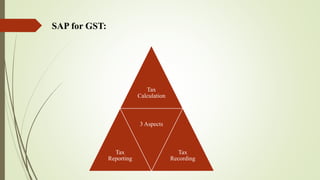
SAP for GST:
Tax
Calculation
Tax
Reporting
3 Aspects
Tax
Recording
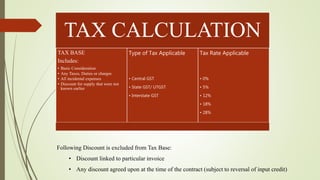
Following Discount is excluded from Tax Base:
• Discount linked to particular invoice
• Any discount agreed upon at the time of the contract (subject to reversal of input credit)
TAX CALCULATION
TAX BASE
Includes:
• Basic Consideration
• Any Taxes, Duties or charges
• All incidental expenses
• Discount for supply that were not
known earlier
Type of Tax Applicable
• Central GST
• State GST/ UTGST
• Interstate GST
Tax Rate Applicable
• 0%
• 5%
• 12%
• 18%
• 28%
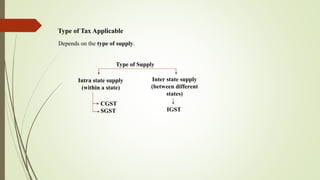
Type of Tax Applicable
Depends on the type of supply.
Type of Supply
Intra state supply
(within a state)
Inter state supply
(between different
states)
CGST
SGST IGST
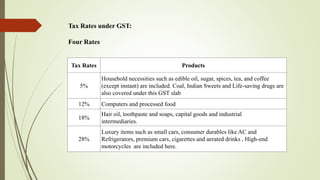
Tax Rates Products
5%
Household necessities such as edible oil, sugar, spices, tea, and coffee
(except instant) are included. Coal, Indian Sweets and Life-saving drugs are
also covered under this GST slab
12% Computers and processed food
18%
Hair oil, toothpaste and soaps, capital goods and industrial
intermediaries.
28%
Luxury items such as small cars, consumer durables like AC and
Refrigerators, premium cars, cigarettes and aerated drinks , High-end
motorcycles are included here.
Tax Rates under GST:
Four Rates
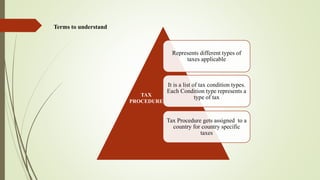
Represents different types of
taxes applicable
It is a list of tax condition types.
Each Condition type represents a
type of tax
Tax Procedure gets assigned to a
country for country specific
taxes
TAX
PROCEDURE
Terms to understand
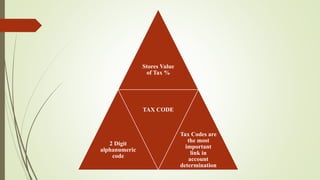
Stores Value
of Tax %
2 Digit
alphanumeric
code
TAX CODE
Tax Codes are
the most
important
link in
account
determination
 Tax Jurisdiction-
• In certain cases, applicable tax percentage may depend upon which tax authority the
business transaction belongs to. [Different rate in different jurisdiction]
• In sap, each tax authority is created as tax jurisdiction code.
• Tax Jurisdiction code is defined for each Tax Procedure.
• In case of GST, Tax rate is determined centrally. Therefore we don’t need to define
Tax Jurisdiction*
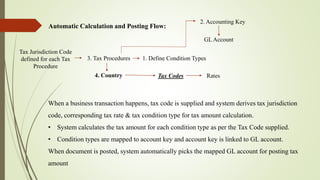
Automatic Calculation and Posting Flow:
4. Country
3. Tax Procedures 1. Define Condition Types
Tax Codes Rates
Tax Jurisdiction Code
defined for each Tax
Procedure
When a business transaction happens, tax code is supplied and system derives tax jurisdiction
code, corresponding tax rate & tax condition type for tax amount calculation.
• System calculates the tax amount for each condition type as per the Tax Code supplied.
• Condition types are mapped to account key and account key is linked to GL account.
When document is posted, system automatically picks the mapped GL account for posting tax
amount
2. Accounting Key
GL Account
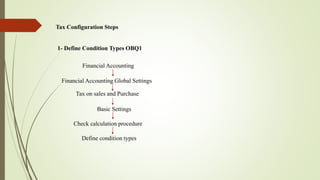
Tax Configuration Steps
1- Define Condition Types OBQ1
Financial Accounting
Financial Accounting Global Settings
Tax on sales and Purchase
Basic Settings
Check calculation procedure
Define condition types
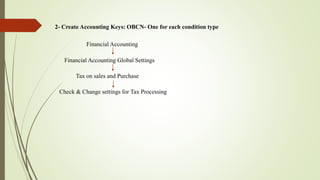
2- Create Accounting Keys: OBCN- One for each condition type
Financial Accounting
Financial Accounting Global Settings
Tax on sales and Purchase
Check & Change settings for Tax Processing
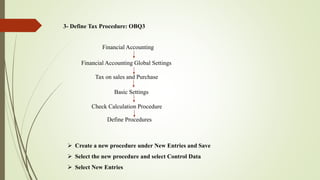
3- Define Tax Procedure: OBQ3
Financial Accounting
Financial Accounting Global Settings
Tax on sales and Purchase
Basic Settings
Check Calculation Procedure
Define Procedures
 Create a new procedure under New Entries and Save
 Select the new procedure and select Control Data
 Select New Entries
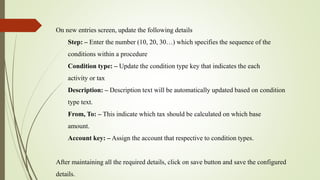
On new entries screen, update the following details
Step: – Enter the number (10, 20, 30…) which specifies the sequence of the
conditions within a procedure
Condition type: – Update the condition type key that indicates the each
activity or tax
Description: – Description text will be automatically updated based on condition
type text.
From, To: – This indicate which tax should be calculated on which base
amount.
Account key: – Assign the account that respective to condition types.
After maintaining all the required details, click on save button and save the configured
details.
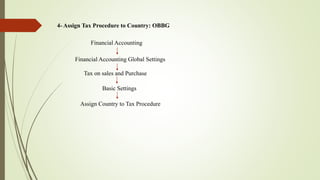
4- Assign Tax Procedure to Country: OBBG
Financial Accounting
Tax on sales and Purchase
Basic Settings
Financial Accounting Global Settings
Assign Country to Tax Procedure
5. Define Tax Code
Financial Accounting
Tax on sales and Purchase
Calculation
Financial Accounting Global Settings
Define Tax Codes for Sales and Purchase
Steps:
1. Enter Country [ which has already been assigned a tax procedure]
2. Enter a distinct 2 digit alphanumeric code
3. Define Properties in the next screen. Eg Tax type, Target tax code, status- active/inactive.
4. Next Screen- Maintain Tax code screen- Enter Tax Rates
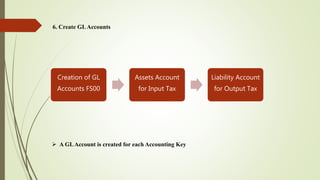
6. Create GLAccounts
Creation of GL
Accounts FS00
Assets Account
for Input Tax
Liability Account
for Output Tax
 A GLAccount is created for each Accounting Key
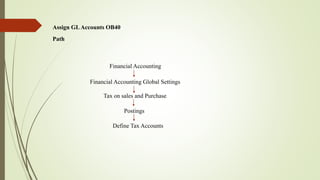
Assign GLAccounts OB40
Financial Accounting
Financial Accounting Global Settings
Tax on sales and Purchase
Postings
Define Tax Accounts
Path
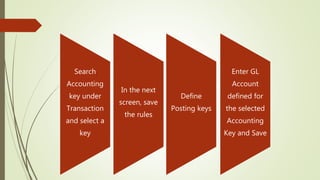
Search
Accounting
key under
Transaction
and select a
key
Define
Posting keys
Enter GL
Account
defined for
the selected
Accounting
Key and Save
In the next
screen, save
the rules
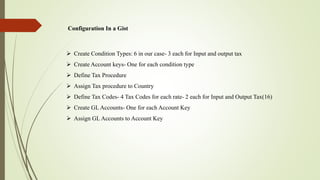
Configuration In a Gist
 Create Condition Types: 6 in our case- 3 each for Input and output tax
 Create Account keys- One for each condition type
 Define Tax Procedure
 Assign Tax procedure to Country
 Define Tax Codes- 4 Tax Codes for each rate- 2 each for Input and Output Tax(16)
 Create GL Accounts- One for each Account Key
 Assign GL Accounts to Account Key
Tax in sap

Tax in sap

  • 1.
    TAX IN SAP TAXON SALES AND PURCHASE PREPARED BY- SHAILY DUBEY
  • 2.
  • 3.
    Following Discount isexcluded from Tax Base: • Discount linked to particular invoice • Any discount agreed upon at the time of the contract (subject to reversal of input credit) TAX CALCULATION TAX BASE Includes: • Basic Consideration • Any Taxes, Duties or charges • All incidental expenses • Discount for supply that were not known earlier Type of Tax Applicable • Central GST • State GST/ UTGST • Interstate GST Tax Rate Applicable • 0% • 5% • 12% • 18% • 28%
  • 4.
    Type of TaxApplicable Depends on the type of supply. Type of Supply Intra state supply (within a state) Inter state supply (between different states) CGST SGST IGST
  • 5.
    Tax Rates Products 5% Householdnecessities such as edible oil, sugar, spices, tea, and coffee (except instant) are included. Coal, Indian Sweets and Life-saving drugs are also covered under this GST slab 12% Computers and processed food 18% Hair oil, toothpaste and soaps, capital goods and industrial intermediaries. 28% Luxury items such as small cars, consumer durables like AC and Refrigerators, premium cars, cigarettes and aerated drinks , High-end motorcycles are included here. Tax Rates under GST: Four Rates
  • 6.
    Represents different typesof taxes applicable It is a list of tax condition types. Each Condition type represents a type of tax Tax Procedure gets assigned to a country for country specific taxes TAX PROCEDURE Terms to understand
  • 7.
    Stores Value of Tax% 2 Digit alphanumeric code TAX CODE Tax Codes are the most important link in account determination
  • 8.
     Tax Jurisdiction- •In certain cases, applicable tax percentage may depend upon which tax authority the business transaction belongs to. [Different rate in different jurisdiction] • In sap, each tax authority is created as tax jurisdiction code. • Tax Jurisdiction code is defined for each Tax Procedure. • In case of GST, Tax rate is determined centrally. Therefore we don’t need to define Tax Jurisdiction*
  • 9.
    Automatic Calculation andPosting Flow: 4. Country 3. Tax Procedures 1. Define Condition Types Tax Codes Rates Tax Jurisdiction Code defined for each Tax Procedure When a business transaction happens, tax code is supplied and system derives tax jurisdiction code, corresponding tax rate & tax condition type for tax amount calculation. • System calculates the tax amount for each condition type as per the Tax Code supplied. • Condition types are mapped to account key and account key is linked to GL account. When document is posted, system automatically picks the mapped GL account for posting tax amount 2. Accounting Key GL Account
  • 10.
    Tax Configuration Steps 1-Define Condition Types OBQ1 Financial Accounting Financial Accounting Global Settings Tax on sales and Purchase Basic Settings Check calculation procedure Define condition types
  • 11.
    2- Create AccountingKeys: OBCN- One for each condition type Financial Accounting Financial Accounting Global Settings Tax on sales and Purchase Check & Change settings for Tax Processing
  • 12.
    3- Define TaxProcedure: OBQ3 Financial Accounting Financial Accounting Global Settings Tax on sales and Purchase Basic Settings Check Calculation Procedure Define Procedures  Create a new procedure under New Entries and Save  Select the new procedure and select Control Data  Select New Entries
  • 13.
    On new entriesscreen, update the following details Step: – Enter the number (10, 20, 30…) which specifies the sequence of the conditions within a procedure Condition type: – Update the condition type key that indicates the each activity or tax Description: – Description text will be automatically updated based on condition type text. From, To: – This indicate which tax should be calculated on which base amount. Account key: – Assign the account that respective to condition types. After maintaining all the required details, click on save button and save the configured details.
  • 14.
    4- Assign TaxProcedure to Country: OBBG Financial Accounting Tax on sales and Purchase Basic Settings Financial Accounting Global Settings Assign Country to Tax Procedure
  • 15.
    5. Define TaxCode Financial Accounting Tax on sales and Purchase Calculation Financial Accounting Global Settings Define Tax Codes for Sales and Purchase Steps: 1. Enter Country [ which has already been assigned a tax procedure] 2. Enter a distinct 2 digit alphanumeric code 3. Define Properties in the next screen. Eg Tax type, Target tax code, status- active/inactive. 4. Next Screen- Maintain Tax code screen- Enter Tax Rates
  • 16.
    6. Create GLAccounts Creationof GL Accounts FS00 Assets Account for Input Tax Liability Account for Output Tax  A GLAccount is created for each Accounting Key
  • 17.
    Assign GLAccounts OB40 FinancialAccounting Financial Accounting Global Settings Tax on sales and Purchase Postings Define Tax Accounts Path
  • 18.
    Search Accounting key under Transaction and selecta key Define Posting keys Enter GL Account defined for the selected Accounting Key and Save In the next screen, save the rules
  • 19.
    Configuration In aGist  Create Condition Types: 6 in our case- 3 each for Input and output tax  Create Account keys- One for each condition type  Define Tax Procedure  Assign Tax procedure to Country  Define Tax Codes- 4 Tax Codes for each rate- 2 each for Input and Output Tax(16)  Create GL Accounts- One for each Account Key  Assign GL Accounts to Account Key