2009 AAMGA
Automation Conference


   Kenny Morris, MCSE

   Manager of Network Services
   CRC Insurance Services, Inc.
   kmorris@crcins.com
•170 servers – 70% in Central Datacenter

    Server       •25% of server farm are Virtual servers
                 •40 virtual servers running on 8 VM Hosts
Infrastructure   •Reduced physical servers by 20 in 1 year
                 •99 % Windows servers


 Backup and      •D2D2D Backup on all systems
                 •Disaster recovery plan includes restoring Physical servers to
  Recovery        Virtual servers in a total disaster scenario
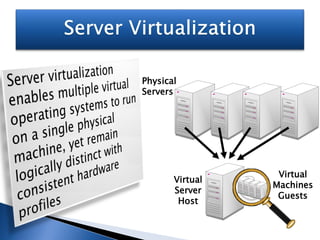
Physical
Servers


                  Virtual
       Virtual
                 Machines
       Server
                  Guests
        Host
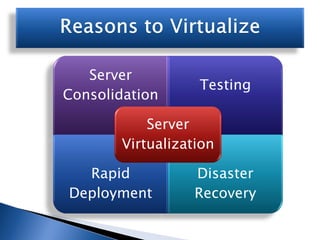
Server
                   Testing
Consolidation

            Server
        Virtualization

  Rapid            Disaster
Deployment         Recovery
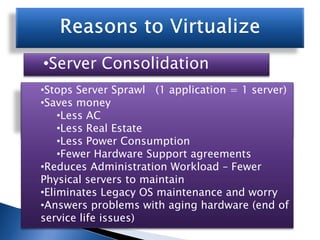
•Server Consolidation
•Stops Server Sprawl (1 application = 1 server)
•Decreases costfull creating reliable fail-over
•Lower cost for of Lab deployment
•Saves money
systems to set up Lab environment
•Less time
•Testing of the time involved to restore servers
    •Less AC
•Decreases Patches and application upgrades
in a Disaster Crisis
    •Less Real Estate
    •Less Power Consumption
    •Fewer Hardware Support agreements
•Reduces Administration Workload – Fewer
Physical servers to maintain
•Eliminates Legacy OS maintenance and worry
•Answers problems with aging hardware (end of
service life issues)
•Rapid Consolidation
•Server Deployment
•Testing
•Speeds deployment of production machines
•Lower cost for full Lab deployment
   •Physical – 2-6 weeks
•Less time to set up Lab environment
•Testing of – a few hoursapplication upgrades
   •Virtual Patches and
•Server Consolidation
•Testing
•Lower cost for full Lab deployment
•Less time to set up Lab environment
•Testing of Patches and application upgrades
•Rapid Consolidation
•Testing Recovery
•Server Deployment
•Disaster
•Decreases costfull creating reliable fail-over
•Lower cost for of Lab deployment
systems to set up Lab environment
•Less time
•Testing of the time involved to restore servers
•Decreases Patches and application upgrades
in a Disaster Crisis
3 Types of Virtualization
Choices for Free Virtualization of Windows

 VMWare ESXi (Pros):

 • Industry leader with 9 years of maturation and sophistication
 • It’s free (well, not really) – admin tools must be purchased to manage it
 • Available as embedded component on new servers, simplifying deployment
 • Sophisticated add-ons to ease administration (extra cost)
 • Fast and very stable product
 • Bare Metal Installation (32MB) = Low overhead – capacity to add lots of VMs to a single Virtual
   Host
 • RAM over-commitment means total VMs RAM can exceed physical RAM of the host
 • Transparent page sharing means identical memory pages that appear across multiple virtual
   machines can be stored just once (think memory “de-duping”)
 • Free VMware vCenter Converter tool allows easy P2V and V2V conversions
 • Supports lots of OS – Solaris 10, Windows, Ubuntu, etc…
 • Online backup of full VMs provided via agents by most major Backup Software vendors
 • Excellent support (additional cost)


 VMWare ESX (Cons):

 • Upfront cost (TCO may be about same as other “free” virtualization systems)
 • Limited amount of approved hardware
 • Complexity and resources required to set it up initially (requires a virtual management server)
 • Limited to 128 VMs on a Host
Choices for Free Virtualization of Windows

 Microsoft Hyper V Server (Pros):


 •Free with either Windows Server 2008 (Hyper-V) or as bare-metal install (2008 Hyper-V Server)
 •Free OS installations with MS Windows 2008 Host OS
  •Windows 2008 Standard = 1 Free Virtual Machine OS
  •Windows 2008 Enterprise = 4 Free Virtual Machine OS
  •Windows 2008 DataCenter = Unlimited Free Virtual Machine OS
 •Para-Virtualization may lead to substantial performance gains
 •Supports up to 4 multiple processors on the VM
 •Memory allocations for VMs up to 64GB
 •Installed on servers with Intel-VT or AMD-V processors
 •Supports clustering multiple Virtual hosts so VMs can fail-over to another host
 •Supports up to 64 CPU sockets and 2TB of memory on Host
 •Supports Unlimited VMs on a host (192 on Hyper-V server)
 •Supports VSS online backups of VMs


 Microsoft Hyper V Server (Cons):

 •Must be installed on 64 Bit architecture
 •VM Converter must be purchased (SCVMM)
 •Does not allow RAM over-allocation or Memory de-duping
 •1st Generation product
Why Every Company Should be using
       Server Virtualization
• Typical performance tests show existing servers are only utilizing 10-15%
  of their available CPU processing power
• Most companies has experienced server sprawl with the typical “1
  application = 1 server philosophy”
• Reaching upper limits of server room capacity can mean costly
  infrastructure upgrades (space, AC, UPS, Generator, security, fire
  supression systems, etc..)
• Most companies over 5 years old, have approx. 30-50% of their server
  population nearing end of live (EOL)
• Simplifies and speeds up the deployment of servers
• Low cost and simple lab deployment for testing of software and patches on
  exact duplicates of production machines
• Desire to have a viable Disaster recovery plan leads companies to consider
  the use of virtual servers as an alternative to expensive physical machines
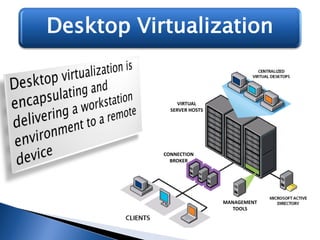
Desktop Virtualization


                VIRTUAL
             SERVER HOSTS


           CONNECTION
             BROKER


                            MANAGEMENT
                               TOOLS
Types of Desktop Virtualization


• Client-hosted Virtualization
   •   Virtual PC runs on user’s desktop
   •   Can be loaded from removable media
   •   Centrally managed virtual machines
       can be loaded from file shares
   •   Good way to have visitor transform
       their PC to your approved template
   •   Uses Management server to monitor
       packages and enforce corporate
       policies from central location
   •   Example: VMWare ACE, Microsoft
       Enterprise Desktop Virtualization
       (MEDV)
   •   CON: Doesn’t work with multiple
       monitors
Types of Desktop Virtualization


• Streaming Desktop
   •   Desktop streaming uses existing PC
       hardware
   •   Delivers a centrally stored image to a
       bare-metal PC on the LAN at startup
   •   Similar to a network boot using PXE
   •   Virtual machine runs on the existing
       PC, but is streamed from a central
       location
   •   Desktop is customized based on the
       user’s profile
   •   Example: XenDesktop 3
   •   CON: Slow boot up
Types of Desktop Virtualization
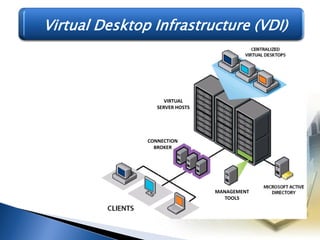
 Virtual Desktop Infrastructure (VDI)


                      VIRTUAL
                   SERVER HOSTS


                CONNECTION
                  BROKER


                                  MANAGEMENT
                                     TOOLS
Types of Desktop Virtualization
         Virtual Desktop Infrastructure (VDI)
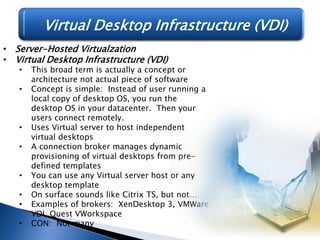
• Server-Hosted Virtualzation
• Virtual Desktop Infrastructure (VDI)
   •   This broad term is actually a concept or
       architecture not actual piece of software
   •   Concept is simple: Instead of user running a
       local copy of desktop OS, you run the
       desktop OS in your datacenter. Then your
       users connect remotely.
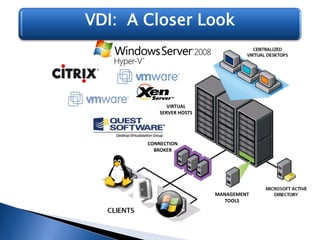
   •   Uses Virtual server to host independent
       virtual desktops
   •   A connection broker manages dynamic
       provisioning of virtual desktops from pre-
       defined templates
   •   You can use any Virtual server host or any
       desktop template
   •   On surface sounds like Citrix TS, but not…
   •   Examples of brokers: XenDesktop 3, VMWare
       VDI, Quest VWorkspace
   •   CON: Not many
VDI: A Closer Look


              VIRTUAL
           SERVER HOSTS


       CONNECTION
         BROKER


                          MANAGEMENT
                             TOOLS
VDI: Benefits

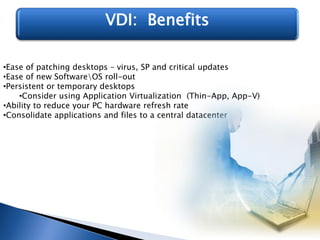
•Ease of patching desktops – virus, SP and critical updates
•Ease of new SoftwareOS roll-out
•Persistent or temporary desktops
    •Consider using Application Virtualization (Thin-App, App-V)
•Ability to reduce your PC hardware refresh rate
•Consolidate applications and files to a central datacenter
VDI: Important Points

•Speed of storage is very important
•Redundancy of Virtual hosts is important
•Network connection speed back to the thin client is very important
•Use a connection broker that has an advanced RDP
•If you’re going to use temporary desktops, you may want to explore
using a virtual apps component as well
Server Virtualization Best Practices
•Memory allocation – Be careful if you intend to use memory over-
 allocation with ESX – you don’t want your production servers paging
 memory to file
• Install Integration Services(Microsoft) or VMWare Tools on your VM – this
 optimizes video drivers and gives you fluid mouse control between host
 and guest systems
•Use SCSI drivers for your virtual hard disks – on ESX they are optimized for
 better I/O performance than IDE. On Hyper-V MS has upgraded the IDE
 drivers so they provide similar performance to SCSI, so you can use either.
•Don’t forget to backup your VM - install backup agents for normal
 backup or use a backup agent with your favorite software to backup the
 entire VM while online.
•Use Fixed disks – provides better performance than dynamic disks for a
 production VM. Use dynamic for testing only
•Install multiple NICs on your host machine – this can help prevent
 networking bottlenecks on the host
•Beware VM server sprawl – ease of setup makes it tempting to throw up a
 server in a few minutes for a new app. Make sure you need all new VMs in
 your environment, or you will waste important VM Host resources with VM
 sprawl
Sources
•http://www.microsoft.com/windowsserver2008/en/us/hyperv-faq.aspx
•http://www.vmware.com/products/esxi/features.html
•http://support.microsoft.com/kb/897615
•http://www.computerworld.com/softwaretopics/os/story/0,10801,89232,00.html
•http://www.brianmadden.com/blogs/brianmadden/archive/2007/03/14/when-
 to-use-vdi-when-to-use-server-based-computing-and-how-the-citrix-ardence-
 dynamic-desktop-fits-into-all-this.aspx
•http://blogs.technet.com/askcore/archive/2008/08/20/how-to-enable-
 windows-server-backup-support-for-the-hyper-v-vss-writer.aspx
•“Microsoft – Desktop Virtualization Strategy” Abstract

Server Virtualization

  • 2.
    2009 AAMGA Automation Conference Kenny Morris, MCSE Manager of Network Services CRC Insurance Services, Inc. kmorris@crcins.com
  • 4.
    •170 servers –70% in Central Datacenter Server •25% of server farm are Virtual servers •40 virtual servers running on 8 VM Hosts Infrastructure •Reduced physical servers by 20 in 1 year •99 % Windows servers Backup and •D2D2D Backup on all systems •Disaster recovery plan includes restoring Physical servers to Recovery Virtual servers in a total disaster scenario
  • 5.
    Physical Servers Virtual Virtual Machines Server Guests Host
  • 6.
    Server Testing Consolidation Server Virtualization Rapid Disaster Deployment Recovery
  • 7.
    •Server Consolidation •Stops ServerSprawl (1 application = 1 server) •Decreases costfull creating reliable fail-over •Lower cost for of Lab deployment •Saves money systems to set up Lab environment •Less time •Testing of the time involved to restore servers •Less AC •Decreases Patches and application upgrades in a Disaster Crisis •Less Real Estate •Less Power Consumption •Fewer Hardware Support agreements •Reduces Administration Workload – Fewer Physical servers to maintain •Eliminates Legacy OS maintenance and worry •Answers problems with aging hardware (end of service life issues)
  • 8.
    •Rapid Consolidation •Server Deployment •Testing •Speedsdeployment of production machines •Lower cost for full Lab deployment •Physical – 2-6 weeks •Less time to set up Lab environment •Testing of – a few hoursapplication upgrades •Virtual Patches and
  • 9.
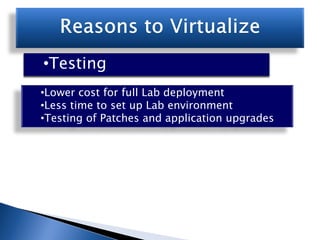
    •Server Consolidation •Testing •Lower costfor full Lab deployment •Less time to set up Lab environment •Testing of Patches and application upgrades
  • 10.
    •Rapid Consolidation •Testing Recovery •ServerDeployment •Disaster •Decreases costfull creating reliable fail-over •Lower cost for of Lab deployment systems to set up Lab environment •Less time •Testing of the time involved to restore servers •Decreases Patches and application upgrades in a Disaster Crisis
  • 11.
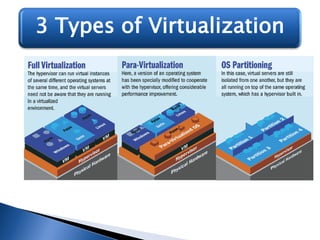
    3 Types ofVirtualization
  • 12.
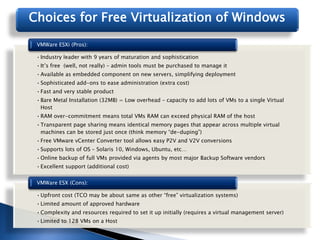
    Choices for FreeVirtualization of Windows VMWare ESXi (Pros): • Industry leader with 9 years of maturation and sophistication • It’s free (well, not really) – admin tools must be purchased to manage it • Available as embedded component on new servers, simplifying deployment • Sophisticated add-ons to ease administration (extra cost) • Fast and very stable product • Bare Metal Installation (32MB) = Low overhead – capacity to add lots of VMs to a single Virtual Host • RAM over-commitment means total VMs RAM can exceed physical RAM of the host • Transparent page sharing means identical memory pages that appear across multiple virtual machines can be stored just once (think memory “de-duping”) • Free VMware vCenter Converter tool allows easy P2V and V2V conversions • Supports lots of OS – Solaris 10, Windows, Ubuntu, etc… • Online backup of full VMs provided via agents by most major Backup Software vendors • Excellent support (additional cost) VMWare ESX (Cons): • Upfront cost (TCO may be about same as other “free” virtualization systems) • Limited amount of approved hardware • Complexity and resources required to set it up initially (requires a virtual management server) • Limited to 128 VMs on a Host
  • 13.
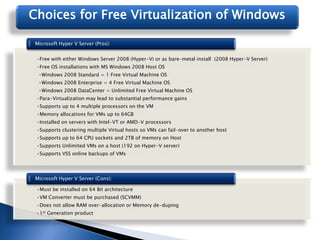
    Choices for FreeVirtualization of Windows Microsoft Hyper V Server (Pros): •Free with either Windows Server 2008 (Hyper-V) or as bare-metal install (2008 Hyper-V Server) •Free OS installations with MS Windows 2008 Host OS •Windows 2008 Standard = 1 Free Virtual Machine OS •Windows 2008 Enterprise = 4 Free Virtual Machine OS •Windows 2008 DataCenter = Unlimited Free Virtual Machine OS •Para-Virtualization may lead to substantial performance gains •Supports up to 4 multiple processors on the VM •Memory allocations for VMs up to 64GB •Installed on servers with Intel-VT or AMD-V processors •Supports clustering multiple Virtual hosts so VMs can fail-over to another host •Supports up to 64 CPU sockets and 2TB of memory on Host •Supports Unlimited VMs on a host (192 on Hyper-V server) •Supports VSS online backups of VMs Microsoft Hyper V Server (Cons): •Must be installed on 64 Bit architecture •VM Converter must be purchased (SCVMM) •Does not allow RAM over-allocation or Memory de-duping •1st Generation product
  • 15.
    Why Every CompanyShould be using Server Virtualization • Typical performance tests show existing servers are only utilizing 10-15% of their available CPU processing power • Most companies has experienced server sprawl with the typical “1 application = 1 server philosophy” • Reaching upper limits of server room capacity can mean costly infrastructure upgrades (space, AC, UPS, Generator, security, fire supression systems, etc..) • Most companies over 5 years old, have approx. 30-50% of their server population nearing end of live (EOL) • Simplifies and speeds up the deployment of servers • Low cost and simple lab deployment for testing of software and patches on exact duplicates of production machines • Desire to have a viable Disaster recovery plan leads companies to consider the use of virtual servers as an alternative to expensive physical machines
  • 16.
    Desktop Virtualization VIRTUAL SERVER HOSTS CONNECTION BROKER MANAGEMENT TOOLS
  • 17.
    Types of DesktopVirtualization • Client-hosted Virtualization • Virtual PC runs on user’s desktop • Can be loaded from removable media • Centrally managed virtual machines can be loaded from file shares • Good way to have visitor transform their PC to your approved template • Uses Management server to monitor packages and enforce corporate policies from central location • Example: VMWare ACE, Microsoft Enterprise Desktop Virtualization (MEDV) • CON: Doesn’t work with multiple monitors
  • 18.
    Types of DesktopVirtualization • Streaming Desktop • Desktop streaming uses existing PC hardware • Delivers a centrally stored image to a bare-metal PC on the LAN at startup • Similar to a network boot using PXE • Virtual machine runs on the existing PC, but is streamed from a central location • Desktop is customized based on the user’s profile • Example: XenDesktop 3 • CON: Slow boot up
  • 19.
    Types of DesktopVirtualization Virtual Desktop Infrastructure (VDI) VIRTUAL SERVER HOSTS CONNECTION BROKER MANAGEMENT TOOLS
  • 20.
    Types of DesktopVirtualization Virtual Desktop Infrastructure (VDI) • Server-Hosted Virtualzation • Virtual Desktop Infrastructure (VDI) • This broad term is actually a concept or architecture not actual piece of software • Concept is simple: Instead of user running a local copy of desktop OS, you run the desktop OS in your datacenter. Then your users connect remotely. • Uses Virtual server to host independent virtual desktops • A connection broker manages dynamic provisioning of virtual desktops from pre- defined templates • You can use any Virtual server host or any desktop template • On surface sounds like Citrix TS, but not… • Examples of brokers: XenDesktop 3, VMWare VDI, Quest VWorkspace • CON: Not many
  • 21.
    VDI: A CloserLook VIRTUAL SERVER HOSTS CONNECTION BROKER MANAGEMENT TOOLS
  • 22.
    VDI: Benefits •Ease ofpatching desktops – virus, SP and critical updates •Ease of new SoftwareOS roll-out •Persistent or temporary desktops •Consider using Application Virtualization (Thin-App, App-V) •Ability to reduce your PC hardware refresh rate •Consolidate applications and files to a central datacenter
  • 23.
    VDI: Important Points •Speedof storage is very important •Redundancy of Virtual hosts is important •Network connection speed back to the thin client is very important •Use a connection broker that has an advanced RDP •If you’re going to use temporary desktops, you may want to explore using a virtual apps component as well
  • 24.
    Server Virtualization BestPractices •Memory allocation – Be careful if you intend to use memory over- allocation with ESX – you don’t want your production servers paging memory to file • Install Integration Services(Microsoft) or VMWare Tools on your VM – this optimizes video drivers and gives you fluid mouse control between host and guest systems •Use SCSI drivers for your virtual hard disks – on ESX they are optimized for better I/O performance than IDE. On Hyper-V MS has upgraded the IDE drivers so they provide similar performance to SCSI, so you can use either. •Don’t forget to backup your VM - install backup agents for normal backup or use a backup agent with your favorite software to backup the entire VM while online. •Use Fixed disks – provides better performance than dynamic disks for a production VM. Use dynamic for testing only •Install multiple NICs on your host machine – this can help prevent networking bottlenecks on the host •Beware VM server sprawl – ease of setup makes it tempting to throw up a server in a few minutes for a new app. Make sure you need all new VMs in your environment, or you will waste important VM Host resources with VM sprawl
  • 25.