Screencasting tutorials:
Best practices and practical tips
Kristina Oldenburg | koldenburg@vcc.ca
Mari Paz Vera | mavera@vcc.ca
 References & resources:
libguides.vcc.ca/screencasting
 Screencasting introduction
 What, why, how, and when?
 Best practices
 From the literature
 Demonstration
 Screencast-o-matic
 Hands-on
 Screencast-o-matic
Screencasts: What are they?
 Record what’s happening on computer
screen
 Can record audio, add images, zoom, or edit
 Free, cheap, or expensive software available
 Upload to YouTube or create a file
 Embed on course site
 Email to students to respond to questions
Screencasts: What are they?
 VCC librarian Bill created a screencast to
demo searching:
https://www.youtube.com/watch?v=wGHissVdZ
ms
 Searching for images of tooth decay
Why would you use screencasts?
 Increase accessibility to content by
providing multiple formats (Oud, 2011)
 Audio, visual demo, text
How do students use screencasts?
 Point of need
 Demo of a library research database
 Watched when finding articles for an
assignment
(Senior nursing students - Baker, 2014)
 How to use specific software
 Review Excel procedures taught in lecture
(Tekinarslan, 2013)
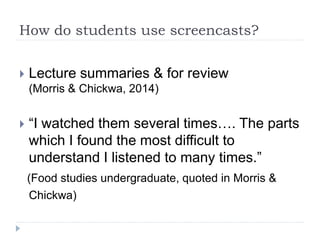
How do students use screencasts?
 Lecture summaries & for review
(Morris & Chickwa, 2014)
 “I watched them several times…. The parts
which I found the most difficult to
understand I listened to many times.”
(Food studies undergraduate, quoted in Morris &
Chickwa)
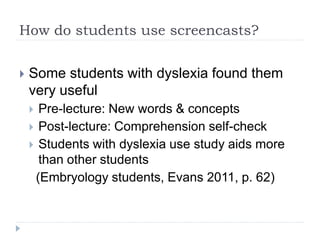
How do students use screencasts?
 Some students with dyslexia found them
very useful
 Pre-lecture: New words & concepts
 Post-lecture: Comprehension self-check
 Students with dyslexia use study aids more
than other students
(Embryology students, Evans 2011, p. 62)
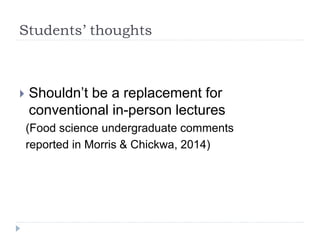
Students’ thoughts
 Shouldn’t be a replacement for
conventional in-person lectures
(Food science undergraduate comments
reported in Morris & Chickwa, 2014)
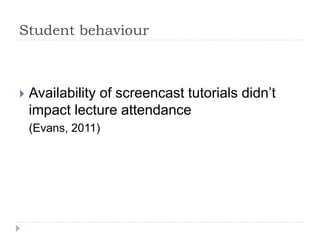
Student behaviour
 Availability of screencast tutorials didn’t
impact lecture attendance
(Evans, 2011)
Students’ thoughts
 More students preferred online to in-
person library instruction
 Required session scheduled outside of class
time
 28.8% prefer classroom
 63.5% prefer web tutorial
(Silver & Nickel, 2007)
 Flexibly-timed, at-home learning may be
easier for students,
especially if difficulties with:
 Mobility
 Concentration
 Scheduling
(Case & Davidson, 2011)
Screencasts: When & why to use?
 Is it faster to record or explain?
 Is it the best instructional tool for that
situation, and how your students learn?
Think & discuss for a minute:
 Is there a situation where you could use
screencasts?
Screencasting best practices
 Accessible design is good lesson planning
(Oud 2011)
Web Content Accessibility Guidelines (Oud)
 Provide more than one way to access
content
 Eg Create captions or a script for audio
content
 Or provide the script as a separate text
document (not PDF)
Web Content Accessibility Guidelines (Oud)
 Make videos keyboard-controllable
 Eg don’t insert quizzes that require mouse
clicks
Web Content Accessibility Guidelines (Oud)
 Allow viewers to pause & replay videos if
needed
 YouTube has this option
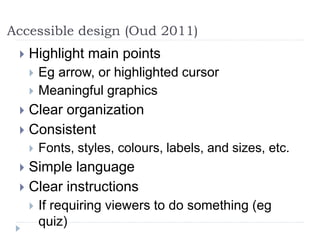
Accessible design (Oud 2011)
 Highlight main points
 Eg arrow, or highlighted cursor
 Meaningful graphics
 Clear organization
 Consistent
 Fonts, styles, colours, labels, and sizes, etc.
 Simple language
 Clear instructions
 If requiring viewers to do something (eg
quiz)
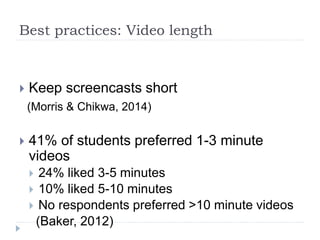
Best practices: Video length
 Keep screencasts short
(Morris & Chikwa, 2014)
 41% of students preferred 1-3 minute
videos
 24% liked 3-5 minutes
 10% liked 5-10 minutes
 No respondents preferred >10 minute videos
(Baker, 2012)
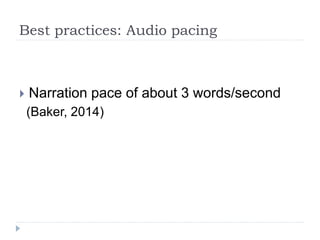
Best practices: Audio pacing
 Narration pace of about 3 words/second
(Baker, 2014)
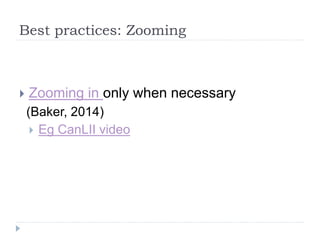
Best practices: Zooming
 Zooming in only when necessary
(Baker, 2014)
 Eg CanLII video
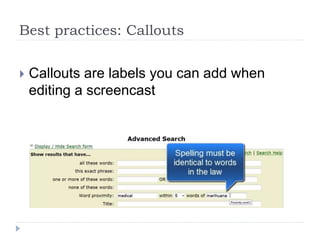
Best practices: Callouts
 Callouts are labels you can add when
editing a screencast
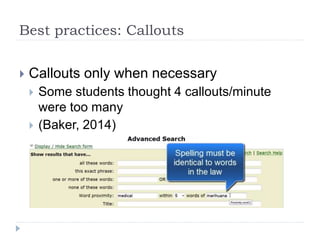
Best practices: Callouts
 Callouts only when necessary
 Some students thought 4 callouts/minute
were too many
 (Baker, 2014)
Best practices: Visuals
 Students asked for larger images & type
(Silver & Nickel, 2007)
 Easy to see = more accessible
 High contrast images & text
 Large, clear font
(Oud 2011)
Best practices: Audio
 Include meaningful voice narration for
visual content
 Closed captioned for hearing impaired
 Option to hide captions
 Reading a full transcript can be too much to
process for viewers who can also hear
Before recording:
 How much time should you spend?
Consider:
 Simple & clear, with no callouts, might be
effective
 Is the content likely to change soon?
 Does your video have a marketing purpose?
 Plot out your screencast in a logical order
 Is it worth preparing a script?
Before recording:
 Consider the recording size for your needs
 Are you recording for HD, or for an iPhone?
 If recording audio, get a quality
microphone.
 They needn’t be expensive, but poor audio can
be extremely distracting.
 Does your video even need audio?
While recording:
 When you record, you can do double or
triple takes of a sentence
 Easier to cut the takes you don't like
 Pause occasionally.
 Makes editing, re-recording, or inserting
something new easier
 The pause means you won’t cut into other
content
While recording:
 A well-branded title slide for the opening of
the video can add a professional quality
 Especially true if you’re making a series.
 References & resources:
libguides.vcc.ca/screencasting
 Questions?
 Now you try!
[will provide link to Screencast-o-matic test
account]
Selected references
Baker, A. (2014). Students’ preferences regarding four characteristics of
information literacy screencasts. Journal of Library & Information Services in
Distance Learning, 8(1/2), 67-80. doi:10.1080/1533290X.2014.916247
Case, D. E., & Davidson, R. C. (2011). Accessible online learning. New
Directions for Student Services, 134, 47-58.
Evans, D. J. (2011). Using embryology screencasts: A useful addition to the
student learning experience? Anatomical Sciences Education, 4(2), 57-63.
Morris, C., & Chikwa, G. (2014). Screencasts: How effective are they and how
do students engage with them? Active Learning in Higher Education, 15(1), 25-
37.
Oud, J. (2011). Improving screencast accessibility for people with disabilities:
Guidelines and techniques. Internet Reference Services Quarterly, 16(3), 129-
144.
Silver, S. L., & Nickel, L. T. (2005). Are online tutorials effective? A comparison
of online and classroom library instruction methods. Research Strategies,
20(4), 389-396.
Tekinarslan, E. (2013). Effects of screencasting on the Turkish undergraduate
students’ achievement and knowledge acquisitions in spreadsheet applications.

Screencasting Tutorial DRN

  • 1.
    Screencasting tutorials: Best practicesand practical tips Kristina Oldenburg | koldenburg@vcc.ca Mari Paz Vera | mavera@vcc.ca
  • 2.
     References &resources: libguides.vcc.ca/screencasting
  • 3.
     Screencasting introduction What, why, how, and when?  Best practices  From the literature  Demonstration  Screencast-o-matic  Hands-on  Screencast-o-matic
  • 4.
    Screencasts: What arethey?  Record what’s happening on computer screen  Can record audio, add images, zoom, or edit  Free, cheap, or expensive software available  Upload to YouTube or create a file  Embed on course site  Email to students to respond to questions
  • 5.
    Screencasts: What arethey?  VCC librarian Bill created a screencast to demo searching: https://www.youtube.com/watch?v=wGHissVdZ ms  Searching for images of tooth decay
  • 6.
    Why would youuse screencasts?  Increase accessibility to content by providing multiple formats (Oud, 2011)  Audio, visual demo, text
  • 7.
    How do studentsuse screencasts?  Point of need  Demo of a library research database  Watched when finding articles for an assignment (Senior nursing students - Baker, 2014)  How to use specific software  Review Excel procedures taught in lecture (Tekinarslan, 2013)
  • 8.
    How do studentsuse screencasts?  Lecture summaries & for review (Morris & Chickwa, 2014)  “I watched them several times…. The parts which I found the most difficult to understand I listened to many times.” (Food studies undergraduate, quoted in Morris & Chickwa)
  • 9.
    How do studentsuse screencasts?  Some students with dyslexia found them very useful  Pre-lecture: New words & concepts  Post-lecture: Comprehension self-check  Students with dyslexia use study aids more than other students (Embryology students, Evans 2011, p. 62)
  • 10.
    Students’ thoughts  Shouldn’tbe a replacement for conventional in-person lectures (Food science undergraduate comments reported in Morris & Chickwa, 2014)
  • 11.
    Student behaviour  Availabilityof screencast tutorials didn’t impact lecture attendance (Evans, 2011)
  • 12.
    Students’ thoughts  Morestudents preferred online to in- person library instruction  Required session scheduled outside of class time  28.8% prefer classroom  63.5% prefer web tutorial (Silver & Nickel, 2007)
  • 13.
     Flexibly-timed, at-homelearning may be easier for students, especially if difficulties with:  Mobility  Concentration  Scheduling (Case & Davidson, 2011)
  • 14.
    Screencasts: When &why to use?  Is it faster to record or explain?  Is it the best instructional tool for that situation, and how your students learn?
  • 15.
    Think & discussfor a minute:  Is there a situation where you could use screencasts?
  • 16.
    Screencasting best practices Accessible design is good lesson planning (Oud 2011)
  • 17.
    Web Content AccessibilityGuidelines (Oud)  Provide more than one way to access content  Eg Create captions or a script for audio content  Or provide the script as a separate text document (not PDF)
  • 18.
    Web Content AccessibilityGuidelines (Oud)  Make videos keyboard-controllable  Eg don’t insert quizzes that require mouse clicks
  • 19.
    Web Content AccessibilityGuidelines (Oud)  Allow viewers to pause & replay videos if needed  YouTube has this option
  • 20.
    Accessible design (Oud2011)  Highlight main points  Eg arrow, or highlighted cursor  Meaningful graphics  Clear organization  Consistent  Fonts, styles, colours, labels, and sizes, etc.  Simple language  Clear instructions  If requiring viewers to do something (eg quiz)
  • 21.
    Best practices: Videolength  Keep screencasts short (Morris & Chikwa, 2014)  41% of students preferred 1-3 minute videos  24% liked 3-5 minutes  10% liked 5-10 minutes  No respondents preferred >10 minute videos (Baker, 2012)
  • 22.
    Best practices: Audiopacing  Narration pace of about 3 words/second (Baker, 2014)
  • 23.
    Best practices: Zooming Zooming in only when necessary (Baker, 2014)  Eg CanLII video
  • 24.
    Best practices: Callouts Callouts are labels you can add when editing a screencast
  • 25.
    Best practices: Callouts Callouts only when necessary  Some students thought 4 callouts/minute were too many  (Baker, 2014)
  • 26.
    Best practices: Visuals Students asked for larger images & type (Silver & Nickel, 2007)  Easy to see = more accessible  High contrast images & text  Large, clear font (Oud 2011)
  • 27.
    Best practices: Audio Include meaningful voice narration for visual content  Closed captioned for hearing impaired  Option to hide captions  Reading a full transcript can be too much to process for viewers who can also hear
  • 28.
    Before recording:  Howmuch time should you spend? Consider:  Simple & clear, with no callouts, might be effective  Is the content likely to change soon?  Does your video have a marketing purpose?  Plot out your screencast in a logical order  Is it worth preparing a script?
  • 29.
    Before recording:  Considerthe recording size for your needs  Are you recording for HD, or for an iPhone?  If recording audio, get a quality microphone.  They needn’t be expensive, but poor audio can be extremely distracting.  Does your video even need audio?
  • 30.
    While recording:  Whenyou record, you can do double or triple takes of a sentence  Easier to cut the takes you don't like  Pause occasionally.  Makes editing, re-recording, or inserting something new easier  The pause means you won’t cut into other content
  • 31.
    While recording:  Awell-branded title slide for the opening of the video can add a professional quality  Especially true if you’re making a series.
  • 32.
     References &resources: libguides.vcc.ca/screencasting
  • 33.
     Questions?  Nowyou try! [will provide link to Screencast-o-matic test account]
  • 34.
    Selected references Baker, A.(2014). Students’ preferences regarding four characteristics of information literacy screencasts. Journal of Library & Information Services in Distance Learning, 8(1/2), 67-80. doi:10.1080/1533290X.2014.916247 Case, D. E., & Davidson, R. C. (2011). Accessible online learning. New Directions for Student Services, 134, 47-58. Evans, D. J. (2011). Using embryology screencasts: A useful addition to the student learning experience? Anatomical Sciences Education, 4(2), 57-63. Morris, C., & Chikwa, G. (2014). Screencasts: How effective are they and how do students engage with them? Active Learning in Higher Education, 15(1), 25- 37. Oud, J. (2011). Improving screencast accessibility for people with disabilities: Guidelines and techniques. Internet Reference Services Quarterly, 16(3), 129- 144. Silver, S. L., & Nickel, L. T. (2005). Are online tutorials effective? A comparison of online and classroom library instruction methods. Research Strategies, 20(4), 389-396. Tekinarslan, E. (2013). Effects of screencasting on the Turkish undergraduate students’ achievement and knowledge acquisitions in spreadsheet applications.

Editor's Notes

  • #6 Watch first 28 seconds to get an idea
  • #7 While researching screemcasting best practices, I found that accessible content principles overlapped a lot with what all students identified as their preferences in screencast tutorials.
  • #11 Students liked: they could be watched several times for review (Morris & Chickwa, 2014)
  • #13 Library sessions were required, but outside of reg. class hours (library instruction, 2nd & 3rd-year psych students; Silver & Nickel).
  • #17 I researched best practices for screencasting. Most didn’t deal specifically with best practices for creating material for students with disabilities. But so much of what students identified as preferences in screencasts, is also what online accessibility guidelines identify as best practices.
  • #18 Hearing impairment Require closed captions or transcripts of audio Cognitive or learning disability Reading & interpreting text may be difficult Screen reading software May require oral or visual explanations Cluttered sites can make info difficult to absorb
  • #19 Physical impairment or blind Navigate with keyboard Mouse-only features cause difficulty
  • #20 Cognitive or learning disability
  • #22 Cognitive or learning disability Attention, memory aided by shorter videos
  • #23 Senior nursing students; Baker didn’t specify if English was their first language; some students would’ve liked narration faster or slower
  • #24 http://www.courthouselibrary.ca/training/videos/FindingCasesOnPoint.aspx CanLII
  • #25 identify key concepts
  • #26 identify key concepts
  • #27 Identify key concepts.
  • #28 People with disabilities may use software to: Low vision May use software or browser extensions to enlarge images/text Colour blindness Information is hidden if wrong colours used Blindness Usually use software (eg JAWS) to read what’s on screen Image-only information is inaccessible if not described