SAVE TIME

WITH INDESIGN

A WORKSHOP FOR

PHOTOSHOP AND
ILLUSTRATOR USERS
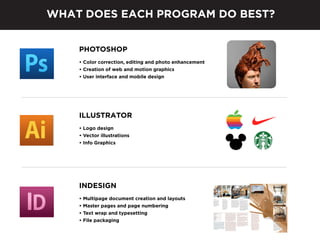
WHAT DOES EACH PROGRAM DO BEST?
PHOTOSHOP
• Color correction, editing and photo enhancement
• Creation of web and motion graphics
• User interface and mobile design

ILLUSTRATOR
• Logo design
• Vector illustrations
• Info Graphics

INDESIGN
•
•
•
•

Multipage document creation and layouts
Master pages and page numbering
Text wrap and typesetting
File packaging
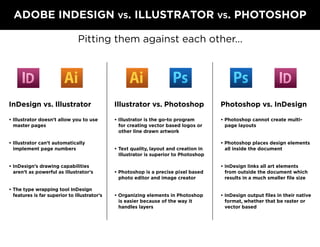
ADOBE INDESIGN vs. ILLUSTRATOR vs. PHOTOSHOP
Pitting them against each other...

InDesign vs. Illustrator

Illustrator vs. Photoshop

Photoshop vs. InDesign

• Illustrator doesn’t allow you to use
master pages

• Illustrator is the go-to program
for creating vector based logos or
other line drawn artwork

• Photoshop cannot create multipage layouts

• Illustrator can’t automatically
implement page numbers
• InDesign’s drawing capabilities
aren’t as powerful as Illustrator’s
• The type wrapping tool InDesign
features is far superior to Illustrator’s

• Text quality, layout and creation in
Illustrator is superior to Photoshop

• Photoshop places design elements
all inside the document

• Photoshop is a precise pixel based
photo editor and image creator

• InDesign links all art elements
from outside the document which
results in a much smaller file size

• Organizing elements in Photoshop
is easier because of the way it
handles layers

• InDesign output files in their native
format, whether that be raster or
vector based
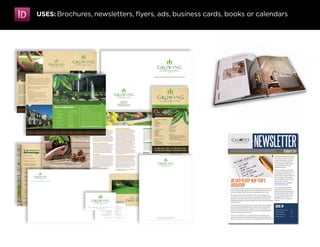
USES: Brochures, newsletters, flyers, ads, business cards, books or calendars
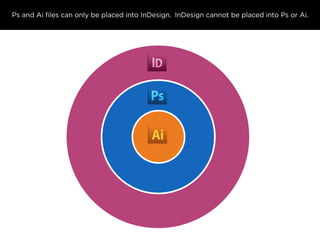
Ps and Ai files can only be placed into InDesign. InDesign cannot be placed into Ps or Ai.
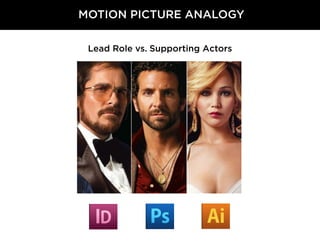
MOTION PICTURE ANALOGY
Lead Role vs. Supporting Actors
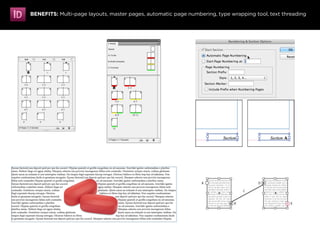
BENEFITS: Multi-page layouts, master pages, automatic page numbering, type wrapping tool, text threading
WHEN TO USE

WHEN TO USE

WHEN TO USE

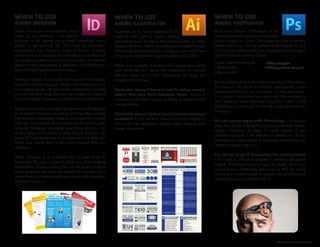
There should be no confusion about
when to use InDesign – its specific
purpose is for laying out printed materials; that’s
what it is designed to do. This could be brochures,
newsletters, ads, business cards or books. Virtually
anything that is made up of a combination of blocks of
text, photos or other artwork. Its purpose is to take the
elements that you create in Illustrator and Photoshop
and put them together in one place.

Illustrator, as its name suggests, is for
creating and editing vector based
illustrations such as logos and brand marks or other
design elements. Vector graphics are scalable images
that can be sized as small or as large as you need them
to be, and still maintain their resolution and clarity.

Plain and simple, Photoshop is for
creating and editing photos and raster
(pixel) based art work. The program was originally
developed as a tool to enhance photographs, but
over time its functionality has developed to the point
where it can be used to create:

ADOBE INDESIGN

InDesign excels at projects that require multi-page
layouts or master layouts where one theme reoccurs
on multiple pages. Its text wrap functionality (where
you can literally wrap text around images or objects)
is much simpler and easier to use than it is in Illustrator.
People can, and do, put together layouts with Photoshop
or Illustrator. However, in doing so, they often create
files that are needlessly huge or put together in ways
that are not optimal for commercial printers to use.
InDesign, however, packages everything for you – all
of your fonts and images. It does this so that you can
hand off these materials to your printer and they can
make your layout work in the exact manner that you
intended.
While InDesign is a powerful tool, it does have its
limitations. For one, it doesn’t have any photo editing
capabilities. InDesign does give you the ability to draw
vector graphics, like those you might find in a logo, but it
doesn’t hold a candle to what you can do with Illustrator.
Which brings us to…

ADOBE ILLUSTRATOR

While it is possible to create multi-page documents
with Illustrator for items like brochures or annual
reports, there are a few drawbacks to using the
program in this way:
Illustrator doesn’t have a way to setup master
pages the way that InDesign does. This is a
necessary tool when you’re building documents that
use templates.
Illustrator doesn’t allow you to automate page
numbers. This is another feature InDesign supports,
which can be especially useful when dealing with
larger documents.

ADOBE PHOTOSHOP

• User interface designs
• Web pages
• Banner ads

• Video graphics
• Editing pictures for print

Because there is so much information about Photoshop
out there in the form of tutorials and guides, some
people feel that it’s all you need – a one stop shop.
This couldn’t be further from the truth. The problem is
that there are instances when you don’t need to use
Photoshop, and should in fact be using Illustrator or
InDesign.
Do not create logos with Photoshop – It’s a bad
idea that will do nothing but cost you time and money.
Again, Photoshop is pixel, or raster based. If you
create a logo with it, the files that it creates can not be
enlarged or manipulated in the same manner that an
Illustrator-based logo can.
Do not set type in Photoshop for print projects
– For type to print at its clearest, it needs to be vector
based; Photoshop exports type as pixels. Now, you
can save your Photoshop files in as an .EPS file which
allows you to export type as vectors, but still this is not
a best practice, so just don’t do it.

Article from: www.printwand.com
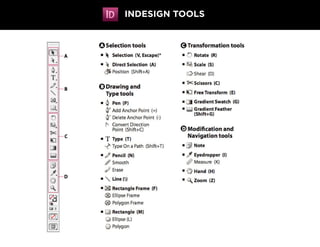
INDESIGN TOOLS
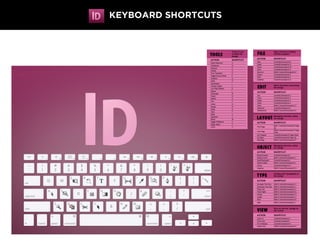
KEYBOARD SHORTCUTS

Save time with indesign

  • 1.
    SAVE TIME WITH INDESIGN AWORKSHOP FOR PHOTOSHOP AND ILLUSTRATOR USERS
  • 2.
    WHAT DOES EACHPROGRAM DO BEST? PHOTOSHOP • Color correction, editing and photo enhancement • Creation of web and motion graphics • User interface and mobile design ILLUSTRATOR • Logo design • Vector illustrations • Info Graphics INDESIGN • • • • Multipage document creation and layouts Master pages and page numbering Text wrap and typesetting File packaging
  • 3.
    ADOBE INDESIGN vs.ILLUSTRATOR vs. PHOTOSHOP Pitting them against each other... InDesign vs. Illustrator Illustrator vs. Photoshop Photoshop vs. InDesign • Illustrator doesn’t allow you to use master pages • Illustrator is the go-to program for creating vector based logos or other line drawn artwork • Photoshop cannot create multipage layouts • Illustrator can’t automatically implement page numbers • InDesign’s drawing capabilities aren’t as powerful as Illustrator’s • The type wrapping tool InDesign features is far superior to Illustrator’s • Text quality, layout and creation in Illustrator is superior to Photoshop • Photoshop places design elements all inside the document • Photoshop is a precise pixel based photo editor and image creator • InDesign links all art elements from outside the document which results in a much smaller file size • Organizing elements in Photoshop is easier because of the way it handles layers • InDesign output files in their native format, whether that be raster or vector based
  • 4.
    USES: Brochures, newsletters,flyers, ads, business cards, books or calendars
  • 5.
    Ps and Aifiles can only be placed into InDesign. InDesign cannot be placed into Ps or Ai.
  • 6.
    MOTION PICTURE ANALOGY LeadRole vs. Supporting Actors
  • 7.
    BENEFITS: Multi-page layouts,master pages, automatic page numbering, type wrapping tool, text threading
  • 8.
    WHEN TO USE WHENTO USE WHEN TO USE There should be no confusion about when to use InDesign – its specific purpose is for laying out printed materials; that’s what it is designed to do. This could be brochures, newsletters, ads, business cards or books. Virtually anything that is made up of a combination of blocks of text, photos or other artwork. Its purpose is to take the elements that you create in Illustrator and Photoshop and put them together in one place. Illustrator, as its name suggests, is for creating and editing vector based illustrations such as logos and brand marks or other design elements. Vector graphics are scalable images that can be sized as small or as large as you need them to be, and still maintain their resolution and clarity. Plain and simple, Photoshop is for creating and editing photos and raster (pixel) based art work. The program was originally developed as a tool to enhance photographs, but over time its functionality has developed to the point where it can be used to create: ADOBE INDESIGN InDesign excels at projects that require multi-page layouts or master layouts where one theme reoccurs on multiple pages. Its text wrap functionality (where you can literally wrap text around images or objects) is much simpler and easier to use than it is in Illustrator. People can, and do, put together layouts with Photoshop or Illustrator. However, in doing so, they often create files that are needlessly huge or put together in ways that are not optimal for commercial printers to use. InDesign, however, packages everything for you – all of your fonts and images. It does this so that you can hand off these materials to your printer and they can make your layout work in the exact manner that you intended. While InDesign is a powerful tool, it does have its limitations. For one, it doesn’t have any photo editing capabilities. InDesign does give you the ability to draw vector graphics, like those you might find in a logo, but it doesn’t hold a candle to what you can do with Illustrator. Which brings us to… ADOBE ILLUSTRATOR While it is possible to create multi-page documents with Illustrator for items like brochures or annual reports, there are a few drawbacks to using the program in this way: Illustrator doesn’t have a way to setup master pages the way that InDesign does. This is a necessary tool when you’re building documents that use templates. Illustrator doesn’t allow you to automate page numbers. This is another feature InDesign supports, which can be especially useful when dealing with larger documents. ADOBE PHOTOSHOP • User interface designs • Web pages • Banner ads • Video graphics • Editing pictures for print Because there is so much information about Photoshop out there in the form of tutorials and guides, some people feel that it’s all you need – a one stop shop. This couldn’t be further from the truth. The problem is that there are instances when you don’t need to use Photoshop, and should in fact be using Illustrator or InDesign. Do not create logos with Photoshop – It’s a bad idea that will do nothing but cost you time and money. Again, Photoshop is pixel, or raster based. If you create a logo with it, the files that it creates can not be enlarged or manipulated in the same manner that an Illustrator-based logo can. Do not set type in Photoshop for print projects – For type to print at its clearest, it needs to be vector based; Photoshop exports type as pixels. Now, you can save your Photoshop files in as an .EPS file which allows you to export type as vectors, but still this is not a best practice, so just don’t do it. Article from: www.printwand.com
  • 9.
  • 10.