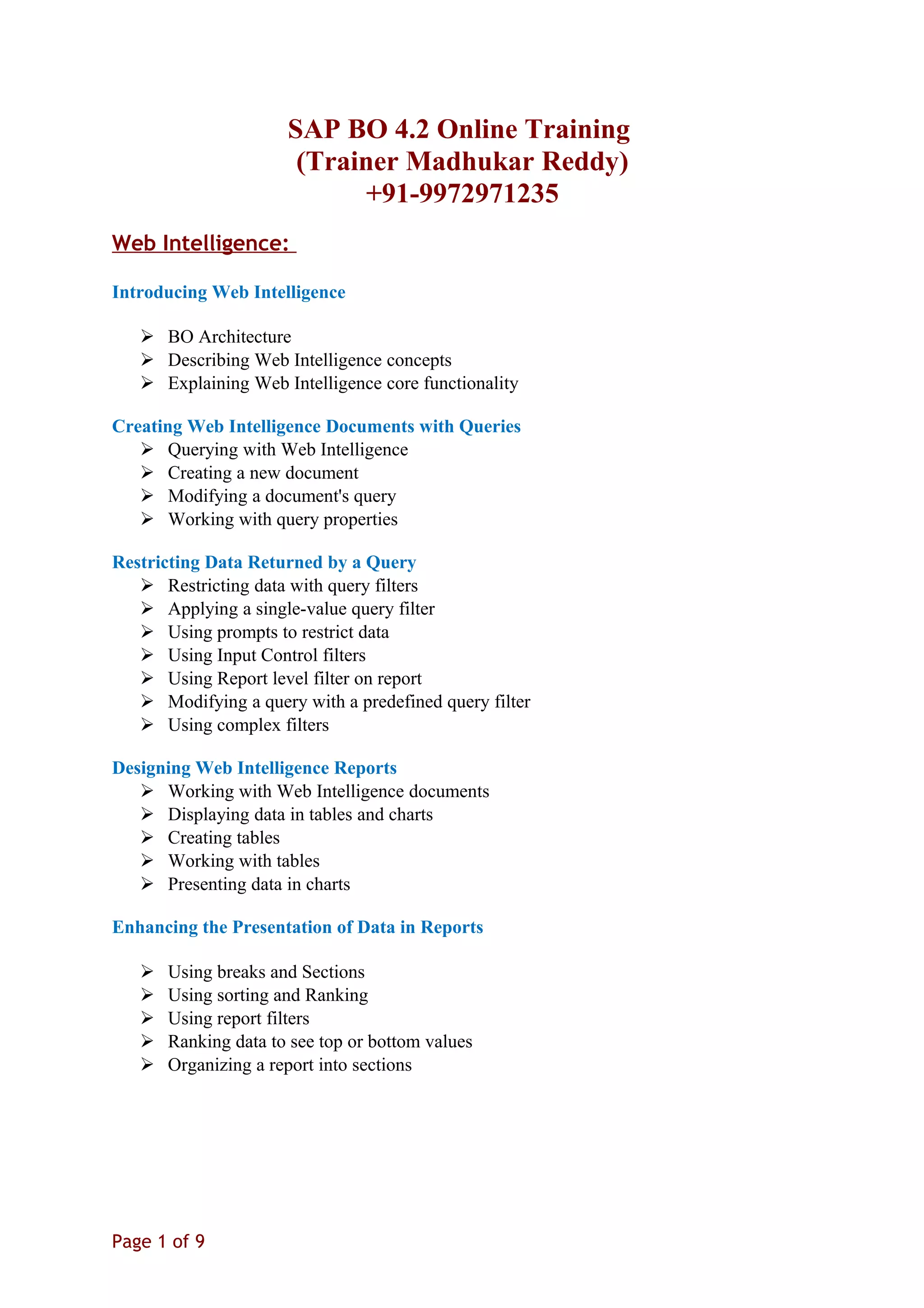
SAP BO 4.2 Online Training
(Trainer Madhukar Reddy)
+91-9972971235
Web Intelligence:
Introducing Web Intelligence
 BO Architecture
 Describing Web Intelligence concepts
 Explaining Web Intelligence core functionality
Creating Web Intelligence Documents with Queries
 Querying with Web Intelligence
 Creating a new document
 Modifying a document's query
 Working with query properties
Restricting Data Returned by a Query
 Restricting data with query filters
 Applying a single-value query filter
 Using prompts to restrict data
 Using Input Control filters
 Using Report level filter on report
 Modifying a query with a predefined query filter
 Using complex filters
Designing Web Intelligence Reports
 Working with Web Intelligence documents
 Displaying data in tables and charts
 Creating tables
 Working with tables
 Presenting data in charts
Enhancing the Presentation of Data in Reports
 Using breaks and Sections
 Using sorting and Ranking
 Using report filters
 Ranking data to see top or bottom values
 Organizing a report into sections
Page 1 of 9
Formatting Reports
 Formatting documents
 Formatting charts
Calculating Data with Formulas and Variables
 Explaining formulas and variables
 Using formulas and variables
 Creating Formulas with Character and Date String Functions
 Using character string functions
 Hide a column based on value select in a prompt
 Concatenating different data types
 Using date functions
Using Multiple Data Sources
 Creating multiple queries in a document
 Synchronizing data with merged dimensions
Analyzing Data
 Drilling in Web Intelligence documents
 Applying Scope of Analysis on reports
 Custom Hierarchies
 Setting Web Intelligence drill options
Working with Advanced Query Techniques
 Using combined queries
 Dynamic visibility of block
 Creating a query based on another query
Creating Hyperlinks
 Working with hyperlinks in Web Intelligence documents
 Creating hyperlinks in the Interactive panel
 Linking one report to another report.
Page 2 of 9
Universe Design Tool (UDT):
Understanding Business Objects Universes
 Understanding how universes allow users to query databases using their
everyday business terms
Creating the Universe
 Creating a universe with single source system
Building the Universe Structure
 Populating the universe structure
 Defining joins in a universe
Creating Dimension Objects
 Understanding classes and objects
 Creating classes and objects
Creating Measure Objects
 Understanding measure objects
 Creating measure objects
Resolving SQL Traps
 Resolving Loops in a Universe
 Resolving loops using aliases
 Resolving loops using shortcut joins
 Resolving loops using contexts
 Resolving chasm traps
 Resolving fan traps
Using Lists of Values
 Working with LOVs in Designer
 Creating a cascading LOV
 Working with Predefined filters
Applying Restrictions on Objects
Page 3 of 9
 Restricting the data returned by objects
Using Functions with Objects
 Using @ Functions
Using Hierarchies
 Working with hierarchies
Aggregate Awareness
 Applying aggregate awareness to objects
 Applying index awareness
 Using derived tables
Securing Universes
 Setting access restrictions on a universe
Information Design Tool :
Key Concepts:
 Introduction to the Information Design Tool
 What's new in SAP Business Objects Information Design Tool 4.1
 Concept: Navigate the interface
 Concept: Create a universe
 Concept: Create a multisource-enabled universe
 Concept: Create joins
 Concept: Compare the information design tool to the universe design tool
 Creating the Data Foundation
 Creating a Business Layer
 Resolving Loops in a Universe
 Applying Restrictions
 Using List of Values and Parameters
Getting Started:
 Create a project
 Create a connection to a relational database
 Create a data foundation based on a single source relational database
 Create a business layer based on a single relational data source
 Publish a new universe file based on a single data source
 Retrieve a universe from a repository location
 Publish a universe to a local folder
Page 4 of 9
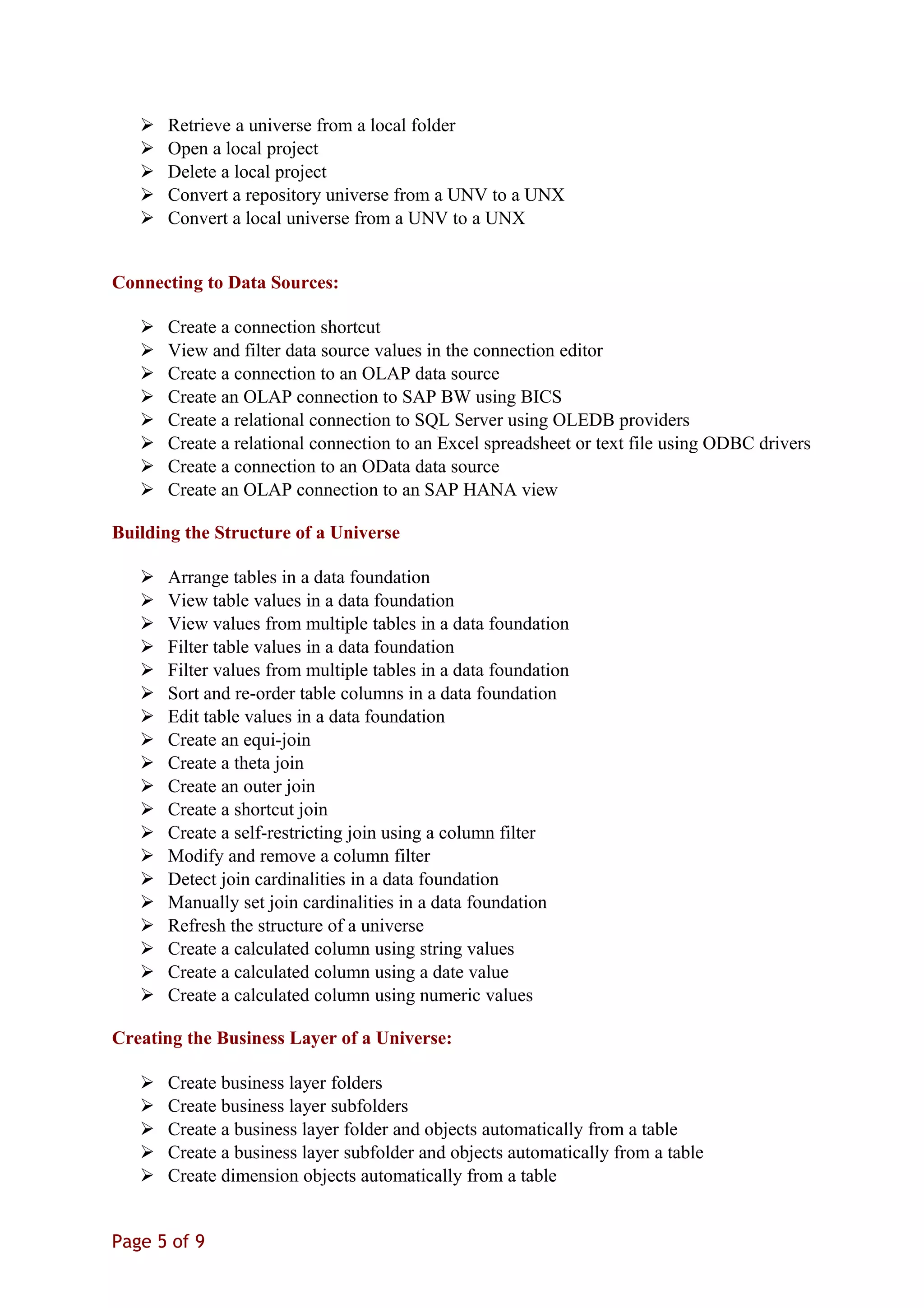
 Retrieve a universe from a local folder
 Open a local project
 Delete a local project
 Convert a repository universe from a UNV to a UNX
 Convert a local universe from a UNV to a UNX
Connecting to Data Sources:
 Create a connection shortcut
 View and filter data source values in the connection editor
 Create a connection to an OLAP data source
 Create an OLAP connection to SAP BW using BICS
 Create a relational connection to SQL Server using OLEDB providers
 Create a relational connection to an Excel spreadsheet or text file using ODBC drivers
 Create a connection to an OData data source
 Create an OLAP connection to an SAP HANA view
Building the Structure of a Universe
 Arrange tables in a data foundation
 View table values in a data foundation
 View values from multiple tables in a data foundation
 Filter table values in a data foundation
 Filter values from multiple tables in a data foundation
 Sort and re-order table columns in a data foundation
 Edit table values in a data foundation
 Create an equi-join
 Create a theta join
 Create an outer join
 Create a shortcut join
 Create a self-restricting join using a column filter
 Modify and remove a column filter
 Detect join cardinalities in a data foundation
 Manually set join cardinalities in a data foundation
 Refresh the structure of a universe
 Create a calculated column using string values
 Create a calculated column using a date value
 Create a calculated column using numeric values
Creating the Business Layer of a Universe:
 Create business layer folders
 Create business layer subfolders
 Create a business layer folder and objects automatically from a table
 Create a business layer subfolder and objects automatically from a table
 Create dimension objects automatically from a table
Page 5 of 9
 Create a dimension
 Create an attribute
 Create a measure
 Hide folders and objects in a business layer
 Organize folders and subfolders in a business layer
 View table and object dependencies
 Create a dimensional business layer from an OLAP data source
 Copy and paste folders and objects in a business layer
Filtering Data in Objects:
 Create a pre-defined native filter
 Create a pre-defined business filter
 Create a pre-defined native filter using multiple objects
 Create a pre-defined business filter using multiple objects
Working with Derived Tables:
 Create a derived table based on an existing table in a data foundation
 Create a derived table using the SQL Builder
 Merge tables in a data foundation
Visualizing Data in a Universe:
 Run a business layer query
 Edit a business layer query
 Run a business layer query with pre-defined filters
 Profile column values in a chart
Building a Multi-Source Universe:
 Add a connection to an existing multisource-enabled data foundation
 View values from multiple tables in a multisource data foundation
 Run a query using objects from a multisource business layer
Resolving Loops in a Universe:
 Resolve a loop by automatically inserting an alias table in a data foundation
 Resolve a loop by manually inserting an alias table in a data foundation
 Resolve a loop by automatically inserting contexts in a data foundation
 Resolve a loop by manually inserting contexts in a data foundation
Setting up Aggregate Awareness
Page 6 of 9
 Insert aggregate tables into a data foundation
 Define aggregate aware objects in a business layer
 Set aggregation navigation in a business layer
Securing Universes:
 Create a data security profile for connection and query options
 Create a data security profile that restricts access to specific rows
 Create a business security profile for query data
 Create a business security profile for filtered data
 Assign security profiles to users
 Assign security profiles to a group
SAP BOBJ Server Admin
Understanding Business Objects Enterprise
 Working in Central Management Console
 Promotional Management tool
 Upgrade Management tool
 Report Conversion Tool
 Central Configuration Manager
 Using Central Management Server
 Access levels
Creating and Securing Folders, Users and Groups
 Creating folders, new users and groups
 Applying security
Scheduling:
 Scheduling objects
 Scheduling on events
 Scheduling with business calendars
Application Security
 Security applications
 Lesson summary
Business Object Dashboards
Getting to know Dashboard/ Xcelsius:
 Define the purpose of the buttons in the Xcelsius toolbar a of the Components, Object
Browser, and Properties windows
Page 7 of 9
 Make changes to the canvas and access help sources
Query as a Web Service:
 Live Dash boards using Query as a Web Service and Live Office
Live Office:
 Created through the use of Live Office
Importing Excel files
 Describe the best ways to plan your models and set up your source files
 Differentiate between the file types involved in the process
 Import a source file
 Define ways to update your models when your data source changes
Using charts:
 Identify the chart components available in dashboards
 Describe how to link to sources
 Define when to use data ranges and series
 Define category axis labels for a chart
 Use the ignore end blanks option work
Publishing models:
 Define the different formats available to publish your models
 Export to all formats
Setting up dynamic visibility:
 Define how to make components visible based on conditions
 Describe the process for setting up dynamic visibility
 Identify the options available for dynamic visibility
Crystal Reports
Getting Started:
Page 8 of 9
 Defining database concepts
 Planning and developing a report prototype
 Creating a report
 Adding tables
 The design environment
 Inserting objects on a report
 Previewing a report
 Saving a report
 Conditional formatting
 Positioning and sizing objects
 Formatting objects
 Creating sub reports and Hyperlinking
SAP Design Studio
 Overview of Design Studio
 Log on to the Business Object Design Studio
 Navigate the interface
 Create an application
 Add a data source to an application
 Connect to HANA and BW sources
 Created dashboards using universe
 Set up a basic component as a filter
SAP Lumira
 Overview of Lumira
 Creating reports using Excel Sheets
 Creating reports using HANA views
 Creating reports by Universe
 Manage connections and associated documents
 Build visualizations
 Sort, rank, calculate, and filter values in a visualization
Page 9 of 9
 Defining database concepts
 Planning and developing a report prototype
 Creating a report
 Adding tables
 The design environment
 Inserting objects on a report
 Previewing a report
 Saving a report
 Conditional formatting
 Positioning and sizing objects
 Formatting objects
 Creating sub reports and Hyperlinking
SAP Design Studio
 Overview of Design Studio
 Log on to the Business Object Design Studio
 Navigate the interface
 Create an application
 Add a data source to an application
 Connect to HANA and BW sources
 Created dashboards using universe
 Set up a basic component as a filter
SAP Lumira
 Overview of Lumira
 Creating reports using Excel Sheets
 Creating reports using HANA views
 Creating reports by Universe
 Manage connections and associated documents
 Build visualizations
 Sort, rank, calculate, and filter values in a visualization
Page 9 of 9

Sap bo 4.2 course content (1)

  • 1.
    SAP BO 4.2Online Training (Trainer Madhukar Reddy) +91-9972971235 Web Intelligence: Introducing Web Intelligence  BO Architecture  Describing Web Intelligence concepts  Explaining Web Intelligence core functionality Creating Web Intelligence Documents with Queries  Querying with Web Intelligence  Creating a new document  Modifying a document's query  Working with query properties Restricting Data Returned by a Query  Restricting data with query filters  Applying a single-value query filter  Using prompts to restrict data  Using Input Control filters  Using Report level filter on report  Modifying a query with a predefined query filter  Using complex filters Designing Web Intelligence Reports  Working with Web Intelligence documents  Displaying data in tables and charts  Creating tables  Working with tables  Presenting data in charts Enhancing the Presentation of Data in Reports  Using breaks and Sections  Using sorting and Ranking  Using report filters  Ranking data to see top or bottom values  Organizing a report into sections Page 1 of 9
  • 2.
    Formatting Reports  Formattingdocuments  Formatting charts Calculating Data with Formulas and Variables  Explaining formulas and variables  Using formulas and variables  Creating Formulas with Character and Date String Functions  Using character string functions  Hide a column based on value select in a prompt  Concatenating different data types  Using date functions Using Multiple Data Sources  Creating multiple queries in a document  Synchronizing data with merged dimensions Analyzing Data  Drilling in Web Intelligence documents  Applying Scope of Analysis on reports  Custom Hierarchies  Setting Web Intelligence drill options Working with Advanced Query Techniques  Using combined queries  Dynamic visibility of block  Creating a query based on another query Creating Hyperlinks  Working with hyperlinks in Web Intelligence documents  Creating hyperlinks in the Interactive panel  Linking one report to another report. Page 2 of 9
  • 3.
    Universe Design Tool(UDT): Understanding Business Objects Universes  Understanding how universes allow users to query databases using their everyday business terms Creating the Universe  Creating a universe with single source system Building the Universe Structure  Populating the universe structure  Defining joins in a universe Creating Dimension Objects  Understanding classes and objects  Creating classes and objects Creating Measure Objects  Understanding measure objects  Creating measure objects Resolving SQL Traps  Resolving Loops in a Universe  Resolving loops using aliases  Resolving loops using shortcut joins  Resolving loops using contexts  Resolving chasm traps  Resolving fan traps Using Lists of Values  Working with LOVs in Designer  Creating a cascading LOV  Working with Predefined filters Applying Restrictions on Objects Page 3 of 9
  • 4.
     Restricting thedata returned by objects Using Functions with Objects  Using @ Functions Using Hierarchies  Working with hierarchies Aggregate Awareness  Applying aggregate awareness to objects  Applying index awareness  Using derived tables Securing Universes  Setting access restrictions on a universe Information Design Tool : Key Concepts:  Introduction to the Information Design Tool  What's new in SAP Business Objects Information Design Tool 4.1  Concept: Navigate the interface  Concept: Create a universe  Concept: Create a multisource-enabled universe  Concept: Create joins  Concept: Compare the information design tool to the universe design tool  Creating the Data Foundation  Creating a Business Layer  Resolving Loops in a Universe  Applying Restrictions  Using List of Values and Parameters Getting Started:  Create a project  Create a connection to a relational database  Create a data foundation based on a single source relational database  Create a business layer based on a single relational data source  Publish a new universe file based on a single data source  Retrieve a universe from a repository location  Publish a universe to a local folder Page 4 of 9
  • 5.
     Retrieve auniverse from a local folder  Open a local project  Delete a local project  Convert a repository universe from a UNV to a UNX  Convert a local universe from a UNV to a UNX Connecting to Data Sources:  Create a connection shortcut  View and filter data source values in the connection editor  Create a connection to an OLAP data source  Create an OLAP connection to SAP BW using BICS  Create a relational connection to SQL Server using OLEDB providers  Create a relational connection to an Excel spreadsheet or text file using ODBC drivers  Create a connection to an OData data source  Create an OLAP connection to an SAP HANA view Building the Structure of a Universe  Arrange tables in a data foundation  View table values in a data foundation  View values from multiple tables in a data foundation  Filter table values in a data foundation  Filter values from multiple tables in a data foundation  Sort and re-order table columns in a data foundation  Edit table values in a data foundation  Create an equi-join  Create a theta join  Create an outer join  Create a shortcut join  Create a self-restricting join using a column filter  Modify and remove a column filter  Detect join cardinalities in a data foundation  Manually set join cardinalities in a data foundation  Refresh the structure of a universe  Create a calculated column using string values  Create a calculated column using a date value  Create a calculated column using numeric values Creating the Business Layer of a Universe:  Create business layer folders  Create business layer subfolders  Create a business layer folder and objects automatically from a table  Create a business layer subfolder and objects automatically from a table  Create dimension objects automatically from a table Page 5 of 9
  • 6.
     Create adimension  Create an attribute  Create a measure  Hide folders and objects in a business layer  Organize folders and subfolders in a business layer  View table and object dependencies  Create a dimensional business layer from an OLAP data source  Copy and paste folders and objects in a business layer Filtering Data in Objects:  Create a pre-defined native filter  Create a pre-defined business filter  Create a pre-defined native filter using multiple objects  Create a pre-defined business filter using multiple objects Working with Derived Tables:  Create a derived table based on an existing table in a data foundation  Create a derived table using the SQL Builder  Merge tables in a data foundation Visualizing Data in a Universe:  Run a business layer query  Edit a business layer query  Run a business layer query with pre-defined filters  Profile column values in a chart Building a Multi-Source Universe:  Add a connection to an existing multisource-enabled data foundation  View values from multiple tables in a multisource data foundation  Run a query using objects from a multisource business layer Resolving Loops in a Universe:  Resolve a loop by automatically inserting an alias table in a data foundation  Resolve a loop by manually inserting an alias table in a data foundation  Resolve a loop by automatically inserting contexts in a data foundation  Resolve a loop by manually inserting contexts in a data foundation Setting up Aggregate Awareness Page 6 of 9
  • 7.
     Insert aggregatetables into a data foundation  Define aggregate aware objects in a business layer  Set aggregation navigation in a business layer Securing Universes:  Create a data security profile for connection and query options  Create a data security profile that restricts access to specific rows  Create a business security profile for query data  Create a business security profile for filtered data  Assign security profiles to users  Assign security profiles to a group SAP BOBJ Server Admin Understanding Business Objects Enterprise  Working in Central Management Console  Promotional Management tool  Upgrade Management tool  Report Conversion Tool  Central Configuration Manager  Using Central Management Server  Access levels Creating and Securing Folders, Users and Groups  Creating folders, new users and groups  Applying security Scheduling:  Scheduling objects  Scheduling on events  Scheduling with business calendars Application Security  Security applications  Lesson summary Business Object Dashboards Getting to know Dashboard/ Xcelsius:  Define the purpose of the buttons in the Xcelsius toolbar a of the Components, Object Browser, and Properties windows Page 7 of 9
  • 8.
     Make changesto the canvas and access help sources Query as a Web Service:  Live Dash boards using Query as a Web Service and Live Office Live Office:  Created through the use of Live Office Importing Excel files  Describe the best ways to plan your models and set up your source files  Differentiate between the file types involved in the process  Import a source file  Define ways to update your models when your data source changes Using charts:  Identify the chart components available in dashboards  Describe how to link to sources  Define when to use data ranges and series  Define category axis labels for a chart  Use the ignore end blanks option work Publishing models:  Define the different formats available to publish your models  Export to all formats Setting up dynamic visibility:  Define how to make components visible based on conditions  Describe the process for setting up dynamic visibility  Identify the options available for dynamic visibility Crystal Reports Getting Started: Page 8 of 9
  • 9.
     Defining databaseconcepts  Planning and developing a report prototype  Creating a report  Adding tables  The design environment  Inserting objects on a report  Previewing a report  Saving a report  Conditional formatting  Positioning and sizing objects  Formatting objects  Creating sub reports and Hyperlinking SAP Design Studio  Overview of Design Studio  Log on to the Business Object Design Studio  Navigate the interface  Create an application  Add a data source to an application  Connect to HANA and BW sources  Created dashboards using universe  Set up a basic component as a filter SAP Lumira  Overview of Lumira  Creating reports using Excel Sheets  Creating reports using HANA views  Creating reports by Universe  Manage connections and associated documents  Build visualizations  Sort, rank, calculate, and filter values in a visualization Page 9 of 9
  • 10.
     Defining databaseconcepts  Planning and developing a report prototype  Creating a report  Adding tables  The design environment  Inserting objects on a report  Previewing a report  Saving a report  Conditional formatting  Positioning and sizing objects  Formatting objects  Creating sub reports and Hyperlinking SAP Design Studio  Overview of Design Studio  Log on to the Business Object Design Studio  Navigate the interface  Create an application  Add a data source to an application  Connect to HANA and BW sources  Created dashboards using universe  Set up a basic component as a filter SAP Lumira  Overview of Lumira  Creating reports using Excel Sheets  Creating reports using HANA views  Creating reports by Universe  Manage connections and associated documents  Build visualizations  Sort, rank, calculate, and filter values in a visualization Page 9 of 9