Introduction to
ETL Tool Informatica
ETL Overview
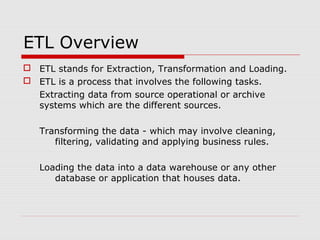
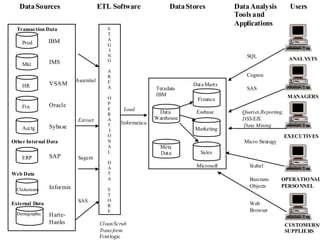
 ETL stands for Extraction, Transformation and Loading.
 ETL is a process that involves the following tasks.
Extracting data from source operational or archive
systems which are the different sources.
Transforming the data - which may involve cleaning,
filtering, validating and applying business rules.
Loading the data into a data warehouse or any other
database or application that houses data.
Prod
Mkt
HR
Fin
Acctg
DataSources
Transaction Data
IBM
IMS
VSAM
Oracle
Sybase
ETL Software DataStores DataAnalysis
Tools and
Applications
Users
Other Internal Data
ERP SAP
Clickstream Informix
Web Data
External Data
Demographic Harte-
Hanks
S
T
A
G
I
N
G
A
R
E
A
O
P
E
R
A
T
I
O
N
A
L
D
A
T
A
S
T
O
R
E
Ascential
Extract
Sagent
SAS
Clean/Scrub
Transform
Firstlogic
Load
Informatica
Data Marts
Teradata
IBM
Data
Warehouse
Meta
Data
Finance
Marketing
Sales
Essbase
Microsoft
ANALYSTS
MANAGERS
EXECUTIVES
OPERATIONAL
PERSONNEL
CUSTOMERS/
SUPPLIERS
SQL
Cognos
SAS
Queries,Reporting,
DSS/EIS,
Data Mining
Micro Strategy
Siebel
Business
Objects
Web
Browser
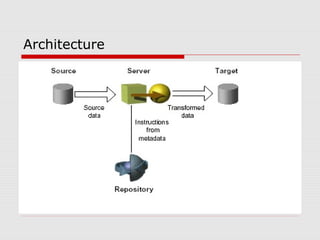
Architecture
Informatica provides the following integrated
components:
• Informatica repository. The Informatica repository is at
the center of the Informatica suite. Here we have set of
metadata tables within the repository database that the
Informatica applications and tools access. The Informatica
Client and Server access the repository to save and
retrieve metadata.
• Informatica Client. Use the Informatica Client to manage
users, define sources and targets, build mappings and
mapplets with the transformation logic, and create sessions
to run the mapping logic. The Informatica Client has three
client applications: Designer, and Workflow Manager.
• Informatica Server. The Informatica Server extracts the
source data, performs the data transformation, and loads
the transformed data into the targets.
Process Flow
 Informatica Server moves the data from source to target
based on the workflow and metadata stored in the
repository.
 A workflow is a set of instructions how and when to run
the task related to ETL.
 Informatica server runs workflow according to the
conditional links connecting tasks.
 Session is type of workflow task which describes how to
move the data between source and target using a
mapping.
 Mapping is a set of source and target definitions linked
by transformation objects that define the rules for data
transformation.
Informatica Components
 Repository Manager
 Power Center Designer
 Workflow Manager
Repository Manager
Repository
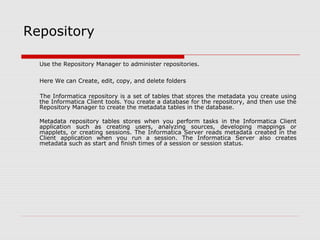
Use the Repository Manager to administer repositories.
Here We can Create, edit, copy, and delete folders
The Informatica repository is a set of tables that stores the metadata you create using
the Informatica Client tools. You create a database for the repository, and then use the
Repository Manager to create the metadata tables in the database.
Metadata repository tables stores when you perform tasks in the Informatica Client
application such as creating users, analyzing sources, developing mappings or
mapplets, or creating sessions. The Informatica Server reads metadata created in the
Client application when you run a session. The Informatica Server also creates
metadata such as start and finish times of a session or session status.
Designer
Sources
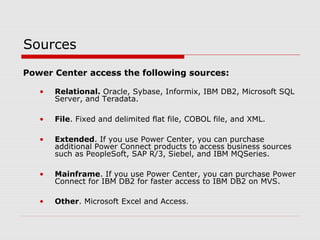
Power Center access the following sources:
• Relational. Oracle, Sybase, Informix, IBM DB2, Microsoft SQL
Server, and Teradata.
• File. Fixed and delimited flat file, COBOL file, and XML.
• Extended. If you use Power Center, you can purchase
additional Power Connect products to access business sources
such as PeopleSoft, SAP R/3, Siebel, and IBM MQSeries.
• Mainframe. If you use Power Center, you can purchase Power
Connect for IBM DB2 for faster access to IBM DB2 on MVS.
• Other. Microsoft Excel and Access.
Targets
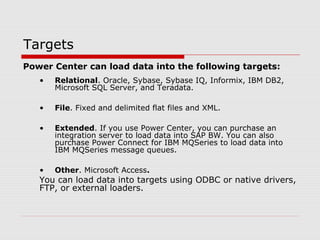
Power Center can load data into the following targets:
• Relational. Oracle, Sybase, Sybase IQ, Informix, IBM DB2,
Microsoft SQL Server, and Teradata.
• File. Fixed and delimited flat files and XML.
• Extended. If you use Power Center, you can purchase an
integration server to load data into SAP BW. You can also
purchase Power Connect for IBM MQSeries to load data into
IBM MQSeries message queues.
• Other. Microsoft Access.
You can load data into targets using ODBC or native drivers,
FTP, or external loaders.
Working with Designer
 Connecting to the repository using User id
and password.
 Opening the folder
 Importing the source and target tables
required for mapping.
 Creation of mapping
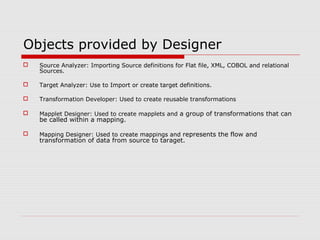
Objects provided by Designer
 Source Analyzer: Importing Source definitions for Flat file, XML, COBOL and relational
Sources.
 Target Analyzer: Use to Import or create target definitions.
 Transformation Developer: Used to create reusable transformations
 Mapplet Designer: Used to create mapplets and a group of transformations that can
be called within a mapping.
 Mapping Designer: Used to create mappings and represents the flow and
transformation of data from source to taraget.
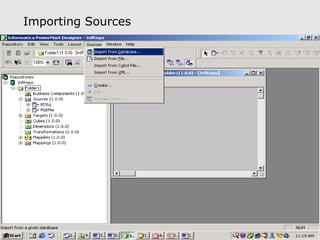
Importing Sources
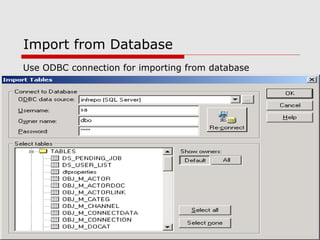
Import from Database
Use ODBC connection for importing from database
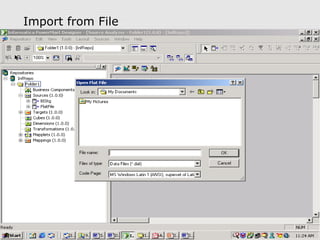
Import from File
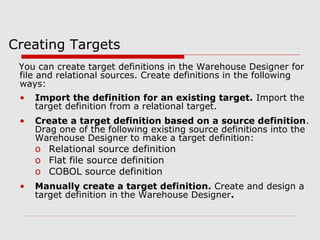
Creating Targets
You can create target definitions in the Warehouse Designer for
file and relational sources. Create definitions in the following
ways:
• Import the definition for an existing target. Import the
target definition from a relational target.
• Create a target definition based on a source definition.
Drag one of the following existing source definitions into the
Warehouse Designer to make a target definition:
o Relational source definition
o Flat file source definition
o COBOL source definition
• Manually create a target definition. Create and design a
target definition in the Warehouse Designer.
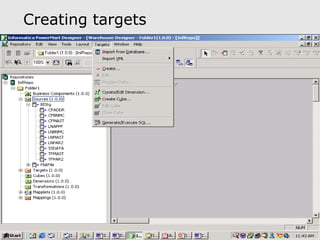
Creating targets
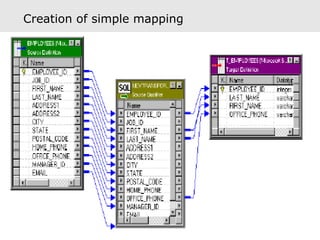
Creation of simple mapping
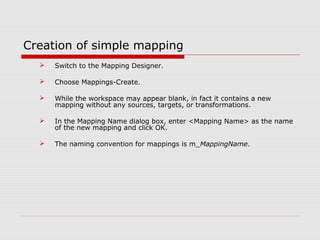
 Switch to the Mapping Designer.
 Choose Mappings-Create.
 While the workspace may appear blank, in fact it contains a new
mapping without any sources, targets, or transformations.
 In the Mapping Name dialog box, enter <Mapping Name> as the name
of the new mapping and click OK.
 The naming convention for mappings is m_MappingName.
Mapping creation Contd..
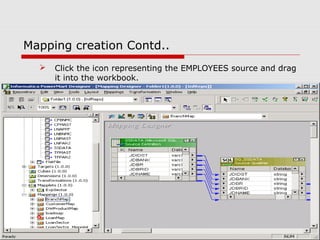
 Click the icon representing the EMPLOYEES source and drag
it into the workbook.
Mapping creation Contd..
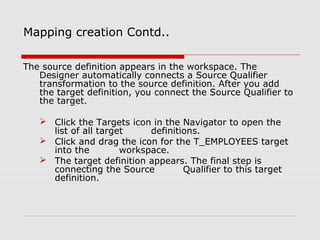
The source definition appears in the workspace. The
Designer automatically connects a Source Qualifier
transformation to the source definition. After you add
the target definition, you connect the Source Qualifier to
the target.
 Click the Targets icon in the Navigator to open the
list of all target definitions.
 Click and drag the icon for the T_EMPLOYEES target
into the workspace.
 The target definition appears. The final step is
connecting the Source Qualifier to this target
definition.
Mapping creation Contd..
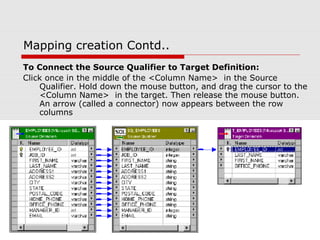
To Connect the Source Qualifier to Target Definition:
Click once in the middle of the <Column Name> in the Source
Qualifier. Hold down the mouse button, and drag the cursor to the
<Column Name> in the target. Then release the mouse button.
An arrow (called a connector) now appears between the row
columns
Transformations
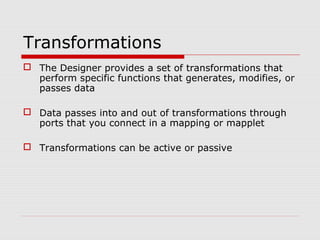
 The Designer provides a set of transformations that
perform specific functions that generates, modifies, or
passes data
 Data passes into and out of transformations through
ports that you connect in a mapping or mapplet
 Transformations can be active or passive
Transformations Contd..
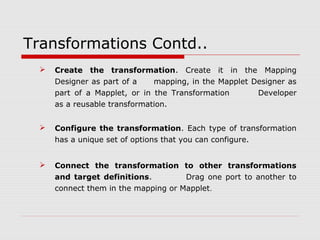
 Create the transformation. Create it in the Mapping
Designer as part of a mapping, in the Mapplet Designer as
part of a Mapplet, or in the Transformation Developer
as a reusable transformation.
 Configure the transformation. Each type of transformation
has a unique set of options that you can configure.
 Connect the transformation to other transformations
and target definitions. Drag one port to another to
connect them in the mapping or Mapplet.
Transformations
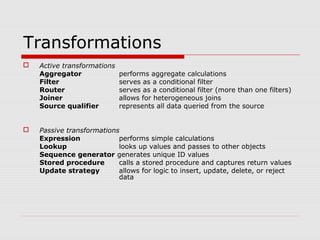
 Active transformations
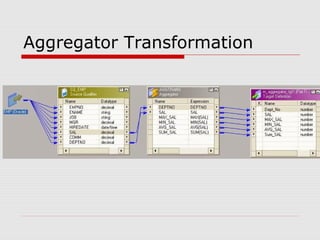
Aggregator performs aggregate calculations
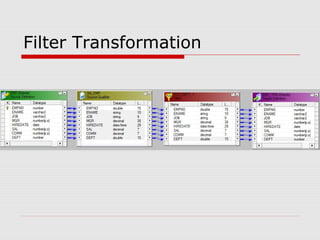
Filter serves as a conditional filter
Router serves as a conditional filter (more than one filters)
Joiner allows for heterogeneous joins
Source qualifier represents all data queried from the source
 Passive transformations
Expression performs simple calculations
Lookup looks up values and passes to other objects
Sequence generator generates unique ID values
Stored procedure calls a stored procedure and captures return values
Update strategy allows for logic to insert, update, delete, or reject
data
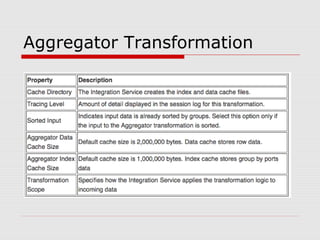
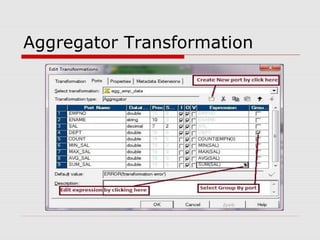
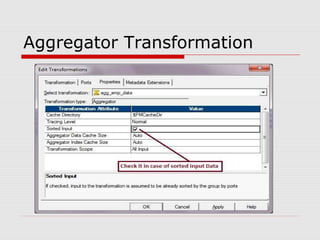
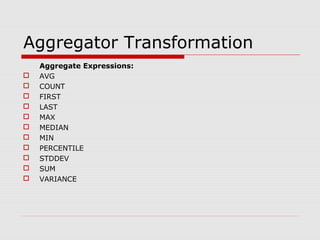
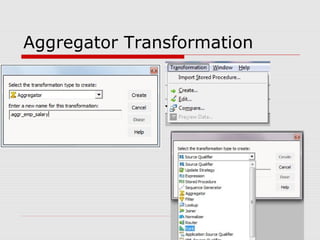
Aggregator Transformation
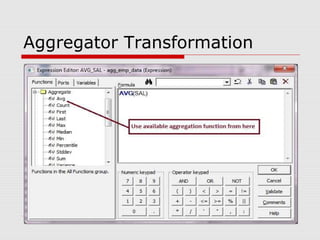
Aggregate Expressions:
 AVG
 COUNT
 FIRST
 LAST
 MAX
 MEDIAN
 MIN
 PERCENTILE
 STDDEV
 SUM
 VARIANCE
Aggregator Transformation
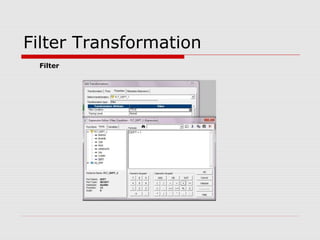
Filter Transformation
Filter
Filter Transformation
Router Transformation
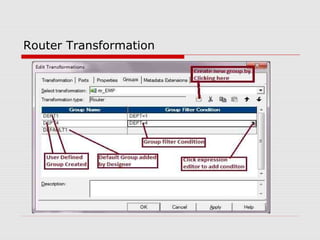
 We can defined multiple condition in Router unlike Filter
Transformation
 We can do work of multiple filter in single Router
Transformation. Hence Integration Service need to process
only 1 Router instead of multiple filter , hence improving the
performance of mapping.
 With Default group , we have controlled over failed record as
well.
Router Transformation
Joiner Transformation
While a Source Qualifier transformation can join data originating from a common source database,
the Joiner transformation joins two related
heterogeneous sources residing in different locations or file systems. The combination of sources
can be varied. You can use the following sources:
• Two relational tables existing in separate databases
• Two flat files in potentially different file systems
• Two different ODBC sources
• Two instances of the same XML source
• A relational table and a flat file source
• A relational table and an XML source
If two relational sources contain keys, then a Source Qualifier transformation can easily join the
sources on those keys. Joiner transformations typically combine information from two
different sources that do not have matching keys, such as flat file sources.
Joiner Transformation
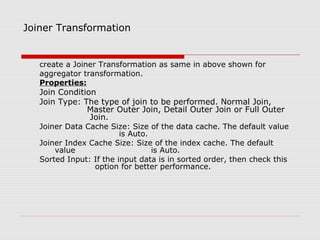
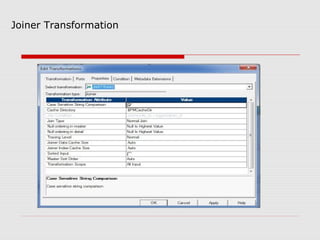
create a Joiner Transformation as same in above shown for
aggregator transformation.
Properties:
Join Condition
Join Type: The type of join to be performed. Normal Join,
Master Outer Join, Detail Outer Join or Full Outer
Join.
Joiner Data Cache Size: Size of the data cache. The default value
is Auto.
Joiner Index Cache Size: Size of the index cache. The default
value is Auto.
Sorted Input: If the input data is in sorted order, then check this
option for better performance.
Joiner Transformation
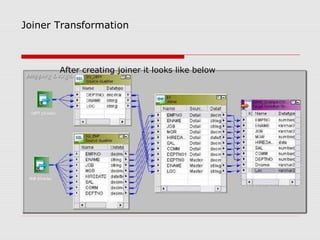
After creating joiner it looks like below
Source Qualifier Transformation
Every mapping includes a Source Qualifier transformation, representing all the
columns of information read from a source and temporarily stored by the
Informatica Server. In addition, you can add transformations such as a
calculating sum, looking up a value, or generating a unique ID that modify
information before it reaches the target.
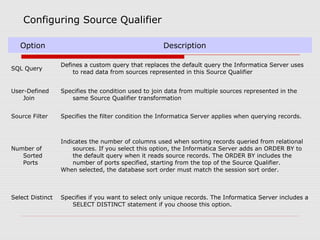
Configuring Source Qualifier
Option Description
SQL Query
Defines a custom query that replaces the default query the Informatica Server uses
to read data from sources represented in this Source Qualifier
User-Defined
Join
Specifies the condition used to join data from multiple sources represented in the
same Source Qualifier transformation
Source Filter Specifies the filter condition the Informatica Server applies when querying records.
Number of
Sorted
Ports
Indicates the number of columns used when sorting records queried from relational
sources. If you select this option, the Informatica Server adds an ORDER BY to
the default query when it reads source records. The ORDER BY includes the
number of ports specified, starting from the top of the Source Qualifier.
When selected, the database sort order must match the session sort order.
Select Distinct Specifies if you want to select only unique records. The Informatica Server includes a
SELECT DISTINCT statement if you choose this option.
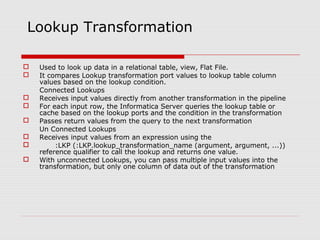
 Used to look up data in a relational table, view, Flat File.
 It compares Lookup transformation port values to lookup table column
values based on the lookup condition.
Connected Lookups
 Receives input values directly from another transformation in the pipeline
 For each input row, the Informatica Server queries the lookup table or
cache based on the lookup ports and the condition in the transformation
 Passes return values from the query to the next transformation
Un Connected Lookups
 Receives input values from an expression using the
 :LKP (:LKP.lookup_transformation_name (argument, argument, ...))
reference qualifier to call the lookup and returns one value.
 With unconnected Lookups, you can pass multiple input values into the
transformation, but only one column of data out of the transformation
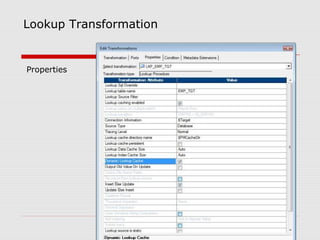
Lookup Transformation
Properties
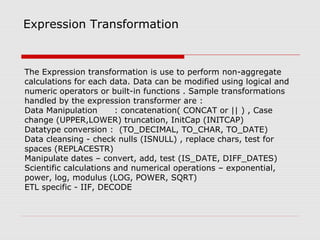
Expression Transformation
The Expression transformation is use to perform non-aggregate
calculations for each data. Data can be modified using logical and
numeric operators or built-in functions . Sample transformations
handled by the expression transformer are :
Data Manipulation : concatenation( CONCAT or || ) , Case
change (UPPER,LOWER) truncation, InitCap (INITCAP)
Datatype conversion : (TO_DECIMAL, TO_CHAR, TO_DATE)
Data cleansing - check nulls (ISNULL) , replace chars, test for
spaces (REPLACESTR)
Manipulate dates – convert, add, test (IS_DATE, DIFF_DATES)
Scientific calculations and numerical operations – exponential,
power, log, modulus (LOG, POWER, SQRT)
ETL specific - IIF, DECODE
Expression Transformation
Properties:
Expression Transformation is a Passive transformation as it only
modifies the incoming port data , but it don’t effect the number of
rows processed.
Expression Transformation is a connected Transformation
Types of ports in Expression Transformation:
Input :
Output :
Variable: Used to store any temporary calculation
Update Strategy Transformation
When you design your data warehouse, you need to decide what type of
information to store in targets. As part of your target table design, you
need to determine whether to maintain all the historic data or just the
most recent changes.
For example, you might have a target table, T_CUSTOMERS, that contains customer
data. When a customer address changes, you may want to save the original
address in the table, instead of updating that portion of the customer record. In
this case, you would create a new record containing the updated address, and
preserve the original record with the old customer address. This illustrates how you
might store historical information in a target table. However, if you want the
T_CUSTOMERS table to be a snapshot of current customer data, you would update
the existing customer record and lose the original address.
The model you choose constitutes your update strategy, how to handle changes to
existing records. In Power Center, you set your update strategy at two different
levels:
• Within a session. When you configure a session, you can instruct the
Informatica Server to either treat all records in the same way (for
example, treat all records as inserts), or use instructions coded into the
session mapping to flag records for different database operations.
• Within a mapping. Within a mapping, you use the Update Strategy
transformation to flag records for insert, delete, update, or reject.
Setting up Update Strategy at Session Level
During session configuration, you can select a single database operation
for all records. For the Treat Rows As setting, you have the following
options:
Setting Description
Insert
Treat all records as inserts. If inserting the record violates a primary or
foreign key constraint in the database, the Informatica Server rejects the
record.
Delete
Treat all records as deletes. For each record, if the Informatica Server finds a
corresponding record in the target table (based on the primary key value),
the Informatica Server deletes it. Note that the primary key constraint must
exist in the target definition in the repository.
Update
Treat all records as updates. For each record, the Informatica Server looks for
a matching primary key value in the target table. If it exists, the Informatica
Server updates the record. Again, the primary key constraint must exist in
the target definition.
Data
Driven
The Informatica Server follows instructions coded into Update Strategy
transformations within the session mapping to determine how to flag records
for insert, delete, update, or reject.
If the mapping for the session contains an Update Strategy transformation,
this field is marked Data Driven by default.
If you do not choose Data Driven setting, the Informatica Server ignores all
Update Strategy transformations in the mapping.
Update Strategy Settings
setting you choose depends on your update strategy and the status of data in target tables:
Setting Use To
Insert
Populate the target tables for the first time, or maintaining a historical data
warehouse. In the latter case, you must set this strategy for the entire data
warehouse, not just a select group of target tables.
Delete Clear target tables.
Update
Update target tables. You might choose this setting whether your data
warehouse contains historical data or a snapshot. Later, when you configure
how to update individual target tables, you can determine whether to insert
updated records as new records or use the updated information to modify
existing records in the target.
Data
Driven
Exert finer control over how you flag records for insert, delete, update, or reject.
Choose this setting if records destined for the same table need to be flagged on
occasion for one operation (for example, update), or for a different operation
(for example, reject). In addition, this setting provides the only way you can
flag records for reject.
Workflow Manager
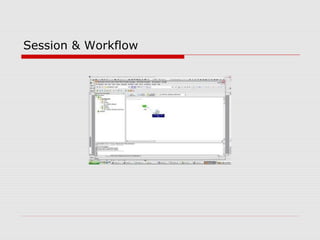
Session & Workflow
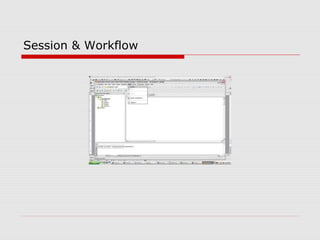
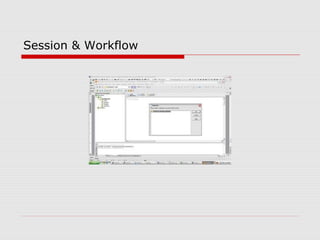
 Session: A session is a set of instructions that tells the Informatica Server how and
when to move data from sources to targets.
 A session associated with a mapping to define the connections and other
configurations for that mapping.
 Mapplet: Mapplet is the set of transformation which we can make for reusability.It is a
whole logic.
 Workflow: A workflow is a set of instruction sthat tell the Informatica server how
to execute the tasks. .
Session & Workflow
Session & Workflow
Session & Workflow
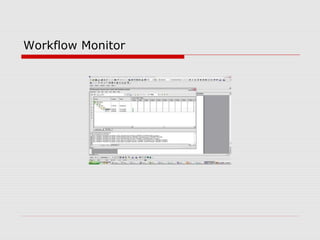
Workflow Monitor
Informatica
Thank You

Informatica session

  • 1.
  • 2.
    ETL Overview  ETLstands for Extraction, Transformation and Loading.  ETL is a process that involves the following tasks. Extracting data from source operational or archive systems which are the different sources. Transforming the data - which may involve cleaning, filtering, validating and applying business rules. Loading the data into a data warehouse or any other database or application that houses data.
  • 3.
    Prod Mkt HR Fin Acctg DataSources Transaction Data IBM IMS VSAM Oracle Sybase ETL SoftwareDataStores DataAnalysis Tools and Applications Users Other Internal Data ERP SAP Clickstream Informix Web Data External Data Demographic Harte- Hanks S T A G I N G A R E A O P E R A T I O N A L D A T A S T O R E Ascential Extract Sagent SAS Clean/Scrub Transform Firstlogic Load Informatica Data Marts Teradata IBM Data Warehouse Meta Data Finance Marketing Sales Essbase Microsoft ANALYSTS MANAGERS EXECUTIVES OPERATIONAL PERSONNEL CUSTOMERS/ SUPPLIERS SQL Cognos SAS Queries,Reporting, DSS/EIS, Data Mining Micro Strategy Siebel Business Objects Web Browser
  • 4.
  • 5.
    Informatica provides thefollowing integrated components: • Informatica repository. The Informatica repository is at the center of the Informatica suite. Here we have set of metadata tables within the repository database that the Informatica applications and tools access. The Informatica Client and Server access the repository to save and retrieve metadata. • Informatica Client. Use the Informatica Client to manage users, define sources and targets, build mappings and mapplets with the transformation logic, and create sessions to run the mapping logic. The Informatica Client has three client applications: Designer, and Workflow Manager. • Informatica Server. The Informatica Server extracts the source data, performs the data transformation, and loads the transformed data into the targets.
  • 6.
    Process Flow  InformaticaServer moves the data from source to target based on the workflow and metadata stored in the repository.  A workflow is a set of instructions how and when to run the task related to ETL.  Informatica server runs workflow according to the conditional links connecting tasks.  Session is type of workflow task which describes how to move the data between source and target using a mapping.  Mapping is a set of source and target definitions linked by transformation objects that define the rules for data transformation.
  • 7.
    Informatica Components  RepositoryManager  Power Center Designer  Workflow Manager
  • 8.
  • 9.
    Repository Use the RepositoryManager to administer repositories. Here We can Create, edit, copy, and delete folders The Informatica repository is a set of tables that stores the metadata you create using the Informatica Client tools. You create a database for the repository, and then use the Repository Manager to create the metadata tables in the database. Metadata repository tables stores when you perform tasks in the Informatica Client application such as creating users, analyzing sources, developing mappings or mapplets, or creating sessions. The Informatica Server reads metadata created in the Client application when you run a session. The Informatica Server also creates metadata such as start and finish times of a session or session status.
  • 10.
  • 11.
    Sources Power Center accessthe following sources: • Relational. Oracle, Sybase, Informix, IBM DB2, Microsoft SQL Server, and Teradata. • File. Fixed and delimited flat file, COBOL file, and XML. • Extended. If you use Power Center, you can purchase additional Power Connect products to access business sources such as PeopleSoft, SAP R/3, Siebel, and IBM MQSeries. • Mainframe. If you use Power Center, you can purchase Power Connect for IBM DB2 for faster access to IBM DB2 on MVS. • Other. Microsoft Excel and Access.
  • 12.
    Targets Power Center canload data into the following targets: • Relational. Oracle, Sybase, Sybase IQ, Informix, IBM DB2, Microsoft SQL Server, and Teradata. • File. Fixed and delimited flat files and XML. • Extended. If you use Power Center, you can purchase an integration server to load data into SAP BW. You can also purchase Power Connect for IBM MQSeries to load data into IBM MQSeries message queues. • Other. Microsoft Access. You can load data into targets using ODBC or native drivers, FTP, or external loaders.
  • 13.
    Working with Designer Connecting to the repository using User id and password.  Opening the folder  Importing the source and target tables required for mapping.  Creation of mapping
  • 14.
    Objects provided byDesigner  Source Analyzer: Importing Source definitions for Flat file, XML, COBOL and relational Sources.  Target Analyzer: Use to Import or create target definitions.  Transformation Developer: Used to create reusable transformations  Mapplet Designer: Used to create mapplets and a group of transformations that can be called within a mapping.  Mapping Designer: Used to create mappings and represents the flow and transformation of data from source to taraget.
  • 15.
  • 16.
    Import from Database UseODBC connection for importing from database
  • 17.
  • 18.
    Creating Targets You cancreate target definitions in the Warehouse Designer for file and relational sources. Create definitions in the following ways: • Import the definition for an existing target. Import the target definition from a relational target. • Create a target definition based on a source definition. Drag one of the following existing source definitions into the Warehouse Designer to make a target definition: o Relational source definition o Flat file source definition o COBOL source definition • Manually create a target definition. Create and design a target definition in the Warehouse Designer.
  • 19.
  • 20.
  • 21.
    Creation of simplemapping  Switch to the Mapping Designer.  Choose Mappings-Create.  While the workspace may appear blank, in fact it contains a new mapping without any sources, targets, or transformations.  In the Mapping Name dialog box, enter <Mapping Name> as the name of the new mapping and click OK.  The naming convention for mappings is m_MappingName.
  • 22.
    Mapping creation Contd.. Click the icon representing the EMPLOYEES source and drag it into the workbook.
  • 23.
    Mapping creation Contd.. Thesource definition appears in the workspace. The Designer automatically connects a Source Qualifier transformation to the source definition. After you add the target definition, you connect the Source Qualifier to the target.  Click the Targets icon in the Navigator to open the list of all target definitions.  Click and drag the icon for the T_EMPLOYEES target into the workspace.  The target definition appears. The final step is connecting the Source Qualifier to this target definition.
  • 24.
    Mapping creation Contd.. ToConnect the Source Qualifier to Target Definition: Click once in the middle of the <Column Name> in the Source Qualifier. Hold down the mouse button, and drag the cursor to the <Column Name> in the target. Then release the mouse button. An arrow (called a connector) now appears between the row columns
  • 25.
    Transformations  The Designerprovides a set of transformations that perform specific functions that generates, modifies, or passes data  Data passes into and out of transformations through ports that you connect in a mapping or mapplet  Transformations can be active or passive
  • 26.
    Transformations Contd..  Createthe transformation. Create it in the Mapping Designer as part of a mapping, in the Mapplet Designer as part of a Mapplet, or in the Transformation Developer as a reusable transformation.  Configure the transformation. Each type of transformation has a unique set of options that you can configure.  Connect the transformation to other transformations and target definitions. Drag one port to another to connect them in the mapping or Mapplet.
  • 27.
    Transformations  Active transformations Aggregatorperforms aggregate calculations Filter serves as a conditional filter Router serves as a conditional filter (more than one filters) Joiner allows for heterogeneous joins Source qualifier represents all data queried from the source  Passive transformations Expression performs simple calculations Lookup looks up values and passes to other objects Sequence generator generates unique ID values Stored procedure calls a stored procedure and captures return values Update strategy allows for logic to insert, update, delete, or reject data
  • 28.
  • 29.
  • 30.
    Aggregator Transformation Aggregate Expressions: AVG  COUNT  FIRST  LAST  MAX  MEDIAN  MIN  PERCENTILE  STDDEV  SUM  VARIANCE
  • 31.
  • 32.
  • 33.
  • 34.
  • 35.
  • 36.
  • 37.
    Router Transformation  Wecan defined multiple condition in Router unlike Filter Transformation  We can do work of multiple filter in single Router Transformation. Hence Integration Service need to process only 1 Router instead of multiple filter , hence improving the performance of mapping.  With Default group , we have controlled over failed record as well.
  • 38.
  • 39.
    Joiner Transformation While aSource Qualifier transformation can join data originating from a common source database, the Joiner transformation joins two related heterogeneous sources residing in different locations or file systems. The combination of sources can be varied. You can use the following sources: • Two relational tables existing in separate databases • Two flat files in potentially different file systems • Two different ODBC sources • Two instances of the same XML source • A relational table and a flat file source • A relational table and an XML source If two relational sources contain keys, then a Source Qualifier transformation can easily join the sources on those keys. Joiner transformations typically combine information from two different sources that do not have matching keys, such as flat file sources.
  • 40.
    Joiner Transformation create aJoiner Transformation as same in above shown for aggregator transformation. Properties: Join Condition Join Type: The type of join to be performed. Normal Join, Master Outer Join, Detail Outer Join or Full Outer Join. Joiner Data Cache Size: Size of the data cache. The default value is Auto. Joiner Index Cache Size: Size of the index cache. The default value is Auto. Sorted Input: If the input data is in sorted order, then check this option for better performance.
  • 41.
  • 42.
    Joiner Transformation After creatingjoiner it looks like below
  • 43.
    Source Qualifier Transformation Everymapping includes a Source Qualifier transformation, representing all the columns of information read from a source and temporarily stored by the Informatica Server. In addition, you can add transformations such as a calculating sum, looking up a value, or generating a unique ID that modify information before it reaches the target.
  • 44.
    Configuring Source Qualifier OptionDescription SQL Query Defines a custom query that replaces the default query the Informatica Server uses to read data from sources represented in this Source Qualifier User-Defined Join Specifies the condition used to join data from multiple sources represented in the same Source Qualifier transformation Source Filter Specifies the filter condition the Informatica Server applies when querying records. Number of Sorted Ports Indicates the number of columns used when sorting records queried from relational sources. If you select this option, the Informatica Server adds an ORDER BY to the default query when it reads source records. The ORDER BY includes the number of ports specified, starting from the top of the Source Qualifier. When selected, the database sort order must match the session sort order. Select Distinct Specifies if you want to select only unique records. The Informatica Server includes a SELECT DISTINCT statement if you choose this option.
  • 45.
     Used tolook up data in a relational table, view, Flat File.  It compares Lookup transformation port values to lookup table column values based on the lookup condition. Connected Lookups  Receives input values directly from another transformation in the pipeline  For each input row, the Informatica Server queries the lookup table or cache based on the lookup ports and the condition in the transformation  Passes return values from the query to the next transformation Un Connected Lookups  Receives input values from an expression using the  :LKP (:LKP.lookup_transformation_name (argument, argument, ...)) reference qualifier to call the lookup and returns one value.  With unconnected Lookups, you can pass multiple input values into the transformation, but only one column of data out of the transformation Lookup Transformation
  • 46.
  • 47.
    Expression Transformation The Expressiontransformation is use to perform non-aggregate calculations for each data. Data can be modified using logical and numeric operators or built-in functions . Sample transformations handled by the expression transformer are : Data Manipulation : concatenation( CONCAT or || ) , Case change (UPPER,LOWER) truncation, InitCap (INITCAP) Datatype conversion : (TO_DECIMAL, TO_CHAR, TO_DATE) Data cleansing - check nulls (ISNULL) , replace chars, test for spaces (REPLACESTR) Manipulate dates – convert, add, test (IS_DATE, DIFF_DATES) Scientific calculations and numerical operations – exponential, power, log, modulus (LOG, POWER, SQRT) ETL specific - IIF, DECODE
  • 48.
    Expression Transformation Properties: Expression Transformationis a Passive transformation as it only modifies the incoming port data , but it don’t effect the number of rows processed. Expression Transformation is a connected Transformation Types of ports in Expression Transformation: Input : Output : Variable: Used to store any temporary calculation
  • 49.
    Update Strategy Transformation Whenyou design your data warehouse, you need to decide what type of information to store in targets. As part of your target table design, you need to determine whether to maintain all the historic data or just the most recent changes. For example, you might have a target table, T_CUSTOMERS, that contains customer data. When a customer address changes, you may want to save the original address in the table, instead of updating that portion of the customer record. In this case, you would create a new record containing the updated address, and preserve the original record with the old customer address. This illustrates how you might store historical information in a target table. However, if you want the T_CUSTOMERS table to be a snapshot of current customer data, you would update the existing customer record and lose the original address. The model you choose constitutes your update strategy, how to handle changes to existing records. In Power Center, you set your update strategy at two different levels: • Within a session. When you configure a session, you can instruct the Informatica Server to either treat all records in the same way (for example, treat all records as inserts), or use instructions coded into the session mapping to flag records for different database operations. • Within a mapping. Within a mapping, you use the Update Strategy transformation to flag records for insert, delete, update, or reject.
  • 50.
    Setting up UpdateStrategy at Session Level During session configuration, you can select a single database operation for all records. For the Treat Rows As setting, you have the following options: Setting Description Insert Treat all records as inserts. If inserting the record violates a primary or foreign key constraint in the database, the Informatica Server rejects the record. Delete Treat all records as deletes. For each record, if the Informatica Server finds a corresponding record in the target table (based on the primary key value), the Informatica Server deletes it. Note that the primary key constraint must exist in the target definition in the repository. Update Treat all records as updates. For each record, the Informatica Server looks for a matching primary key value in the target table. If it exists, the Informatica Server updates the record. Again, the primary key constraint must exist in the target definition. Data Driven The Informatica Server follows instructions coded into Update Strategy transformations within the session mapping to determine how to flag records for insert, delete, update, or reject. If the mapping for the session contains an Update Strategy transformation, this field is marked Data Driven by default. If you do not choose Data Driven setting, the Informatica Server ignores all Update Strategy transformations in the mapping.
  • 51.
    Update Strategy Settings settingyou choose depends on your update strategy and the status of data in target tables: Setting Use To Insert Populate the target tables for the first time, or maintaining a historical data warehouse. In the latter case, you must set this strategy for the entire data warehouse, not just a select group of target tables. Delete Clear target tables. Update Update target tables. You might choose this setting whether your data warehouse contains historical data or a snapshot. Later, when you configure how to update individual target tables, you can determine whether to insert updated records as new records or use the updated information to modify existing records in the target. Data Driven Exert finer control over how you flag records for insert, delete, update, or reject. Choose this setting if records destined for the same table need to be flagged on occasion for one operation (for example, update), or for a different operation (for example, reject). In addition, this setting provides the only way you can flag records for reject.
  • 52.
  • 53.
    Session & Workflow Session: A session is a set of instructions that tells the Informatica Server how and when to move data from sources to targets.  A session associated with a mapping to define the connections and other configurations for that mapping.  Mapplet: Mapplet is the set of transformation which we can make for reusability.It is a whole logic.  Workflow: A workflow is a set of instruction sthat tell the Informatica server how to execute the tasks. .
  • 54.
  • 55.
  • 56.
  • 57.
  • 58.