Vim or not to Vim
by
github.com/anatoliliotych
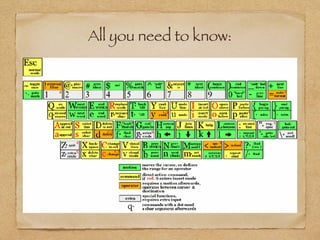
All you need to know:
Note: you still don't need pedals to type
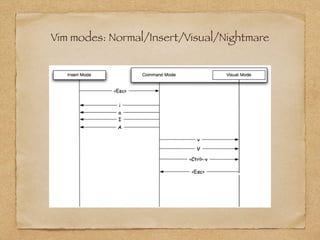
Vim modes: Normal/Insert/Visual/Nightmare
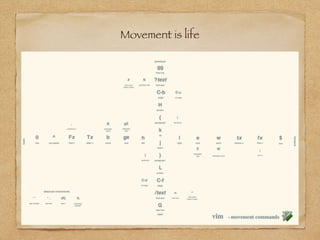
Movement is life
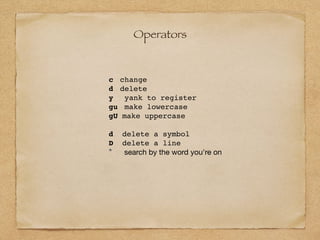
Operators
c change
d delete
y yank to register
gu make lowercase
gU make uppercase
d delete a symbol
D delete a line
* search by the word you're on
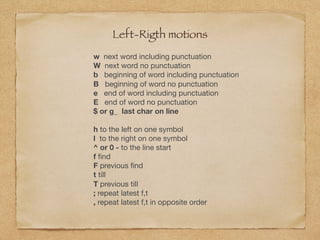
Left-Rigth motions
w next word including punctuation

W next word no punctuation

b beginning of word including punctuation

B beginning of word no punctuation

e end of word including punctuation

E end of word no punctuation

$ or g_ last char on line
h to the left on one symbol

l to the right on one symbol

^ or 0 - to the line start

f find

F previous find

t till

T previous till

; repeat latest f,t

, repeat latest f,t in opposite order
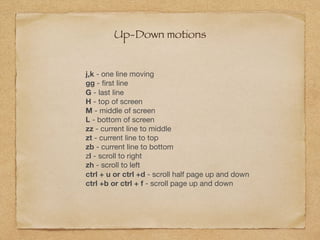
Up-Down motions
j,k - one line moving

gg - first line

G - last line

H - top of screen

M - middle of screen

L - bottom of screen

zz - current line to middle

zt - current line to top

zb - current line to bottom

zl - scroll to right

zh - scroll to left

ctrl + u or ctrl +d - scroll half page up and down

ctrl +b or ctrl + f - scroll page up and down
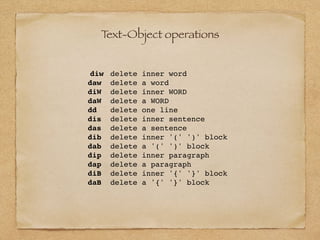
diw delete inner word
daw delete a word
diW delete inner WORD
daW delete a WORD
dd delete one line
dis delete inner sentence
das delete a sentence
dib delete inner '(' ')' block
dab delete a '(' ')' block
dip delete inner paragraph
dap delete a paragraph
diB delete inner '{' '}' block
daB delete a '{' '}' block
Text-Object operations
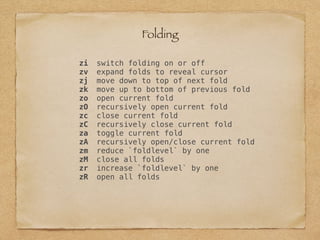
zi switch folding on or off
zv expand folds to reveal cursor
zj move down to top of next fold
zk move up to bottom of previous fold
zo open current fold
zO recursively open current fold
zc close current fold
zC recursively close current fold
za toggle current fold
zA recursively open/close current fold
zm reduce `foldlevel` by one
zM close all folds
zr increase `foldlevel` by one
zR open all folds
Folding
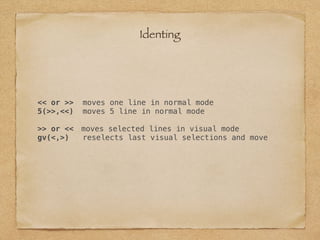
<< or >> moves one line in normal mode
5(>>,<<) moves 5 line in normal mode
>> or << moves selected lines in visual mode
gv(<,>) reselects last visual selections and move
Identing
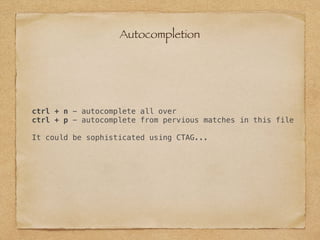
ctrl + n - autocomplete all over
ctrl + p - autocomplete from pervious matches in this file
It could be sophisticated using CTAG...
Autocompletion
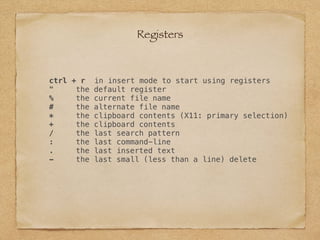
ctrl + r in insert mode to start using registers
" the default register
% the current file name
# the alternate file name
* the clipboard contents (X11: primary selection)
+ the clipboard contents
/ the last search pattern
: the last command-line
. the last inserted text
- the last small (less than a line) delete
Registers
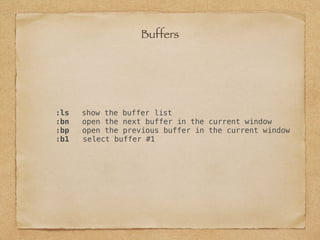
:ls show the buffer list
:bn open the next buffer in the current window
:bp open the previous buffer in the current window
:b1 select buffer #1
Buffers
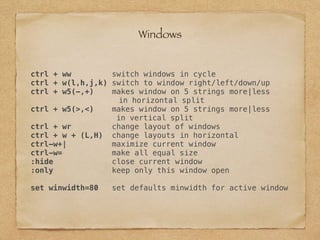
ctrl + ww switch windows in cycle
ctrl + w(l,h,j,k) switch to window right/left/down/up
ctrl + w5(-,+) makes window on 5 strings more|less
in horizontal split
ctrl + w5(>,<) makes window on 5 strings more|less
in vertical split
ctrl + wr change layout of windows
ctrl + w + (L,H) change layouts in horizontal
ctrl-w+| maximize current window
ctrl-w= make all equal size
:hide close current window
:only keep only this window open
set winwidth=80 set defaults minwidth for active window
Windows
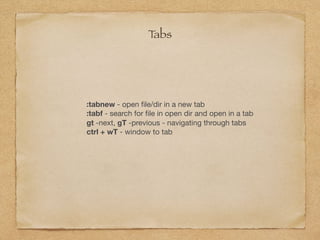
:tabnew - open file/dir in a new tab

:tabf - search for file in open dir and open in a tab

gt -next, gT -previous - navigating through tabs

ctrl + wT - window to tab
Tabs
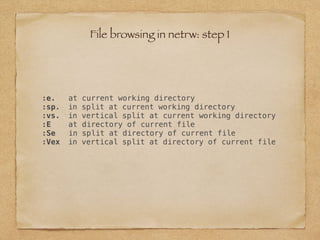
:e. at current working directory
:sp. in split at current working directory
:vs. in vertical split at current working directory
:E at directory of current file
:Se in split at directory of current file
:Vex in vertical split at directory of current file
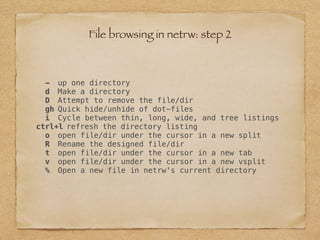
File browsing in netrw: step 1
- up one directory
d Make a directory
D Attempt to remove the file/dir
gh Quick hide/unhide of dot-files
i Cycle between thin, long, wide, and tree listings
ctrl+l refresh the directory listing
o open file/dir under the cursor in a new split
R Rename the designed file/dir
t open file/dir under the cursor in a new tab
v open file/dir under the cursor in a new vsplit
% Open a new file in netrw's current directory
File browsing in netrw: step 2
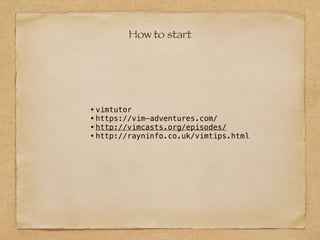
How to start
•vimtutor
•https://vim-adventures.com/
•http://vimcasts.org/episodes/
•http://rayninfo.co.uk/vimtips.html
Try to use vim in real life...
set :questions

Rubizza #1 | Special Lecture. Vim

  • 1.
    Vim or notto Vim by github.com/anatoliliotych
  • 2.
    All you needto know:
  • 3.
    Note: you stilldon't need pedals to type
  • 4.
  • 5.
  • 6.
    Operators c change d delete yyank to register gu make lowercase gU make uppercase d delete a symbol D delete a line * search by the word you're on
  • 7.
    Left-Rigth motions w nextword including punctuation W next word no punctuation b beginning of word including punctuation B beginning of word no punctuation e end of word including punctuation E end of word no punctuation $ or g_ last char on line h to the left on one symbol l to the right on one symbol ^ or 0 - to the line start f find F previous find t till T previous till ; repeat latest f,t , repeat latest f,t in opposite order
  • 8.
    Up-Down motions j,k -one line moving gg - first line G - last line H - top of screen M - middle of screen L - bottom of screen zz - current line to middle zt - current line to top zb - current line to bottom zl - scroll to right zh - scroll to left ctrl + u or ctrl +d - scroll half page up and down ctrl +b or ctrl + f - scroll page up and down
  • 9.
    diw delete innerword daw delete a word diW delete inner WORD daW delete a WORD dd delete one line dis delete inner sentence das delete a sentence dib delete inner '(' ')' block dab delete a '(' ')' block dip delete inner paragraph dap delete a paragraph diB delete inner '{' '}' block daB delete a '{' '}' block Text-Object operations
  • 10.
    zi switch foldingon or off zv expand folds to reveal cursor zj move down to top of next fold zk move up to bottom of previous fold zo open current fold zO recursively open current fold zc close current fold zC recursively close current fold za toggle current fold zA recursively open/close current fold zm reduce `foldlevel` by one zM close all folds zr increase `foldlevel` by one zR open all folds Folding
  • 11.
    << or >>moves one line in normal mode 5(>>,<<) moves 5 line in normal mode >> or << moves selected lines in visual mode gv(<,>) reselects last visual selections and move Identing
  • 12.
    ctrl + n- autocomplete all over ctrl + p - autocomplete from pervious matches in this file It could be sophisticated using CTAG... Autocompletion
  • 13.
    ctrl + rin insert mode to start using registers " the default register % the current file name # the alternate file name * the clipboard contents (X11: primary selection) + the clipboard contents / the last search pattern : the last command-line . the last inserted text - the last small (less than a line) delete Registers
  • 14.
    :ls show thebuffer list :bn open the next buffer in the current window :bp open the previous buffer in the current window :b1 select buffer #1 Buffers
  • 15.
    ctrl + wwswitch windows in cycle ctrl + w(l,h,j,k) switch to window right/left/down/up ctrl + w5(-,+) makes window on 5 strings more|less in horizontal split ctrl + w5(>,<) makes window on 5 strings more|less in vertical split ctrl + wr change layout of windows ctrl + w + (L,H) change layouts in horizontal ctrl-w+| maximize current window ctrl-w= make all equal size :hide close current window :only keep only this window open set winwidth=80 set defaults minwidth for active window Windows
  • 16.
    :tabnew - openfile/dir in a new tab :tabf - search for file in open dir and open in a tab gt -next, gT -previous - navigating through tabs ctrl + wT - window to tab Tabs
  • 17.
    :e. at currentworking directory :sp. in split at current working directory :vs. in vertical split at current working directory :E at directory of current file :Se in split at directory of current file :Vex in vertical split at directory of current file File browsing in netrw: step 1
  • 18.
    - up onedirectory d Make a directory D Attempt to remove the file/dir gh Quick hide/unhide of dot-files i Cycle between thin, long, wide, and tree listings ctrl+l refresh the directory listing o open file/dir under the cursor in a new split R Rename the designed file/dir t open file/dir under the cursor in a new tab v open file/dir under the cursor in a new vsplit % Open a new file in netrw's current directory File browsing in netrw: step 2
  • 19.
  • 20.
    Try to usevim in real life... set :questions