Mission Vim-Possible
     by Sam Gottfried
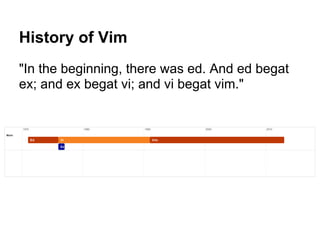
History of Vim
"In the beginning, there was ed. And ed begat
ex; and ex begat vi; and vi begat vim."
What is Vim?
● Vim is a highly customizable, highly efficient
  text editor


● Vim has several modes
   ○   Normal
   ○   Insert
   ○   Visual
   ○   Ex mode
Starting Up Vim
$ vim -> starts Vim
$ vim file.txt -> Starts Vim and opens file.txt
$ vim . -> Starts vim and opens to the current
            directory
$ mvim . -> Starts Macvim in the current
              directory
Normal Mode
Normal Mode is the default mode in Vim.

You should spend most of your time in normal
mode.
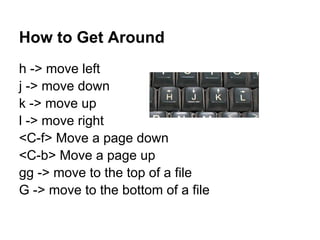
How to Get Around
h -> move left
j -> move down
k -> move up
l -> move right
<C-f> Move a page down
<C-b> Move a page up
gg -> move to the top of a file
G -> move to the bottom of a file
Motions
words vs WORDS
def foo(a,b)

word: [def][foo][(][a][,][b][)]
WORD: [def][foo(a,b)]

w -> next word                    e -> end of word
W -> next WORD                    E -> end of WORD

b-> beginning of current word
B -> beginning of current WORD
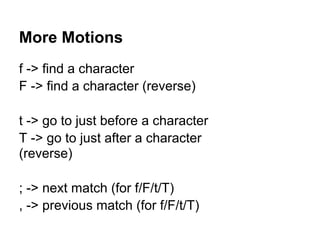
More Motions
f -> find a character
F -> find a character (reverse)

t -> go to just before a character
T -> go to just after a character
(reverse)

; -> next match (for f/F/t/T)
, -> previous match (for f/F/t/T)
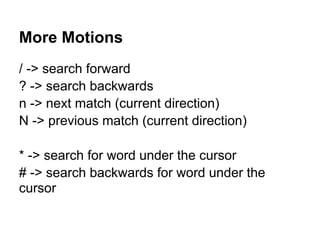
More Motions
/ -> search forward
? -> search backwards
n -> next match (current direction)
N -> previous match (current direction)

* -> search for word under the cursor
# -> search backwards for word under the
cursor
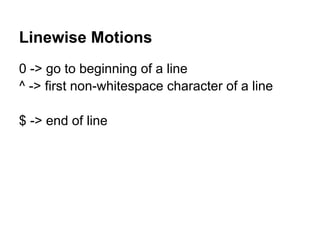
Linewise Motions
0 -> go to beginning of a line
^ -> first non-whitespace character of a line

$ -> end of line
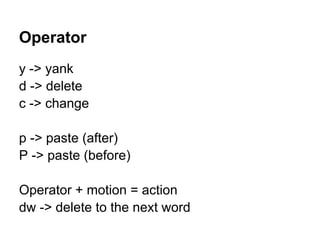
Operator
y -> yank
d -> delete
c -> change

p -> paste (after)
P -> paste (before)

Operator + motion = action
dw -> delete to the next word
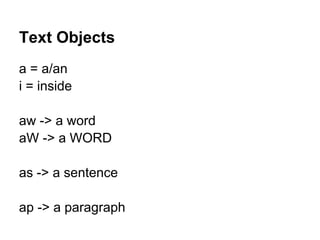
Text Objects
a = a/an
i = inside

aw -> a word
aW -> a WORD

as -> a sentence

ap -> a paragraph
More Text Objects
a( -> a pair of parenthesis

a{ -> a pair of {braces}

a[ -> a pair of [brackets]

a< -> a pair of <angle brackets>

at -> a pair of XML tags
More Text Objects
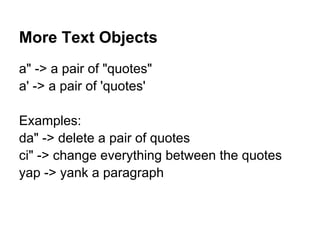
a" -> a pair of "quotes"
a' -> a pair of 'quotes'

Examples:
da" -> delete a pair of quotes
ci" -> change everything between the quotes
yap -> yank a paragraph
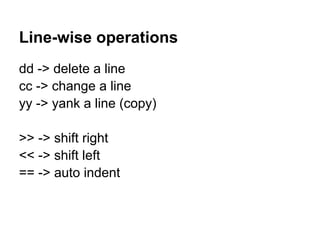
Line-wise operations
dd -> delete a line
cc -> change a line
yy -> yank a line (copy)

>> -> shift right
<< -> shift left
== -> auto indent
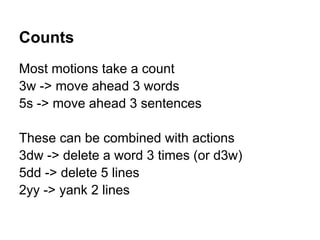
Counts
Most motions take a count
3w -> move ahead 3 words
5s -> move ahead 3 sentences

These can be combined with actions
3dw -> delete a word 3 times (or d3w)
5dd -> delete 5 lines
2yy -> yank 2 lines
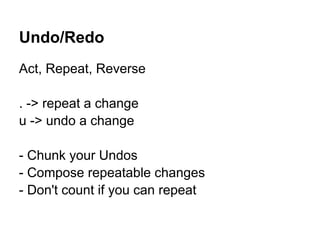
Undo/Redo
Act, Repeat, Reverse

. -> repeat a change
u -> undo a change

- Chunk your Undos
- Compose repeatable changes
- Don't count if you can repeat
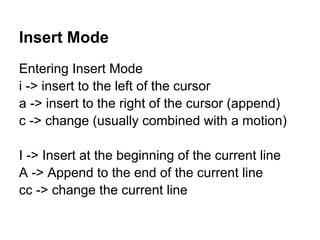
Insert Mode
Entering Insert Mode
i -> insert to the left of the cursor
a -> insert to the right of the cursor (append)
c -> change (usually combined with a motion)

I -> Insert at the beginning of the current line
A -> Append to the end of the current line
cc -> change the current line
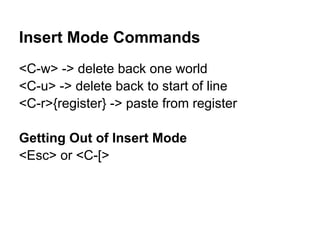
Insert Mode Commands
<C-w> -> delete back one world
<C-u> -> delete back to start of line
<C-r>{register} -> paste from register

Getting Out of Insert Mode
<Esc> or <C-[>
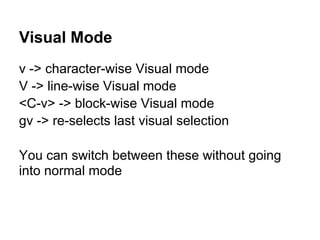
Visual Mode
v -> character-wise Visual mode
V -> line-wise Visual mode
<C-v> -> block-wise Visual mode
gv -> re-selects last visual selection

You can switch between these without going
into normal mode
Ex mode
: -> enter Ex command
Q -> enter Ex mode (:visual to get out)

:[range]d[elete] [x] ->
     deletes specified lines into register x
:[range]y[ank] [x] ->
     yanks specified lines into register x
:[line]put [x] ->
     puts the text from register x after [line]
More Ex mode commands
:[range]copy [address] ->
    Copy the lines in [range] to below the line given by
[address]

:[range]m[ove] [address] ->
    Move the lines in [range] to below the line given by
[address]

:[range]join -> Join the specified lines
:[range]normal {commands} -> run normal mode
    {commands} on each line in [range]
More Ex mode commands
:[range] substitute/{pattern}/{string}
   -> replace occurences of {pattern} with {string}
      on each specified line

:[range] g[lobal]/{pattern}/[command]    i.e :g/re/p
   -> run [command] on every line that matches {pattern}

:[range]v[global]/{pattern}/[command]
   -> run [command] on every line that does NOT match
{pattern}
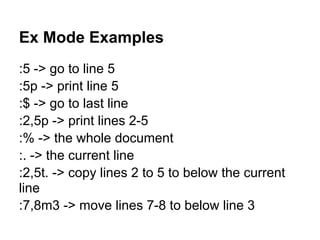
Ex Mode Examples
:5 -> go to line 5
:5p -> print line 5
:$ -> go to last line
:2,5p -> print lines 2-5
:% -> the whole document
:. -> the current line
:2,5t. -> copy lines 2 to 5 to below the current
line
:7,8m3 -> move lines 7-8 to below line 3
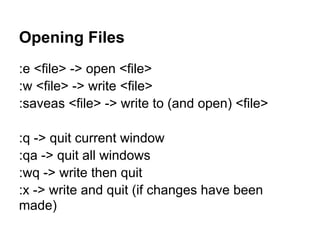
Opening Files
:e <file> -> open <file>
:w <file> -> write <file>
:saveas <file> -> write to (and open) <file>

:q -> quit current window
:qa -> quit all windows
:wq -> write then quit
:x -> write and quit (if changes have been
made)
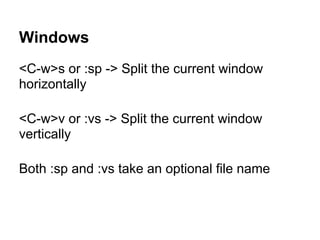
Windows
<C-w>s or :sp -> Split the current window
horizontally

<C-w>v or :vs -> Split the current window
vertically

Both :sp and :vs take an optional file name
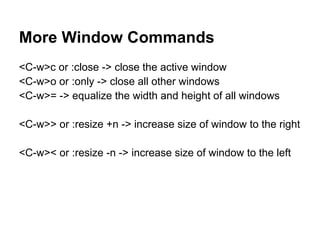
More Window Commands
<C-w>c or :close -> close the active window
<C-w>o or :only -> close all other windows
<C-w>= -> equalize the width and height of all windows

<C-w>> or :resize +n -> increase size of window to the right

<C-w>< or :resize -n -> increase size of window to the left
Registers
Use registers with yanks and deletes
Increase your clipboard size to 27!

"[register][count]action text object

example:
"ayiw => Yank current word into register a
"ap => Paste from register a
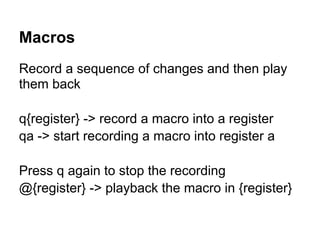
Macros
Record a sequence of changes and then play
them back

q{register} -> record a macro into a register
qa -> start recording a macro into register a

Press q again to stop the recording
@{register} -> playback the macro in {register}
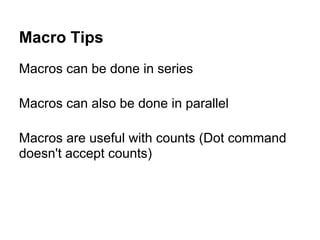
Macro Tips
Macros can be done in series

Macros can also be done in parallel

Macros are useful with counts (Dot command
doesn't accept counts)
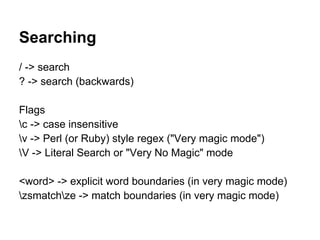
Searching
/ -> search
? -> search (backwards)

Flags
c -> case insensitive
v -> Perl (or Ruby) style regex ("Very magic mode")
V -> Literal Search or "Very No Magic" mode

<word> -> explicit word boundaries (in very magic mode)
zsmatchze -> match boundaries (in very magic mode)
Searching
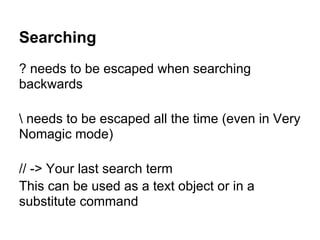
? needs to be escaped when searching
backwards

 needs to be escaped all the time (even in Very
Nomagic mode)

// -> Your last search term
This can be used as a text object or in a
substitute command
Substitution
:[range]s[ubstitute]/{pattern}/{string}/{flags}

examples

:%s/hello/hi/g -> replaces all occurrences of the
word "hello" with the word "hi"

:%s/hello/hi/gc -> does the same thing but
prompts at each map
Plugins
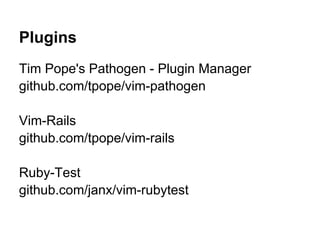
Tim Pope's Pathogen - Plugin Manager
github.com/tpope/vim-pathogen

Vim-Rails
github.com/tpope/vim-rails

Ruby-Test
github.com/janx/vim-rubytest
More Plugins
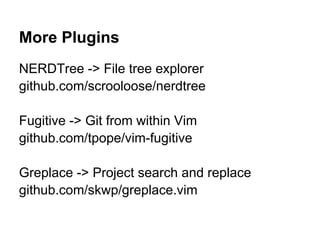
NERDTree -> File tree explorer
github.com/scrooloose/nerdtree

Fugitive -> Git from within Vim
github.com/tpope/vim-fugitive

Greplace -> Project search and replace
github.com/skwp/greplace.vim
More Plugins
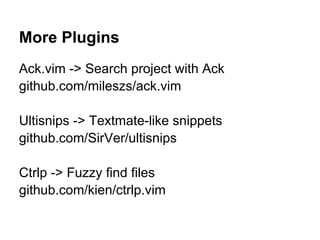
Ack.vim -> Search project with Ack
github.com/mileszs/ack.vim

Ultisnips -> Textmate-like snippets
github.com/SirVer/ultisnips

Ctrlp -> Fuzzy find files
github.com/kien/ctrlp.vim
More Plugins
Supertab -> Easier autocomplete
github.com/ervandew/supertab
Vimrc
Configuration for Vim
Resources
:vimtutor

:help <topic>

Practical Vim (from pragmatic bookshelf)

Vimcasts (http://vimcasts.org)

Mission vim possible-full

  • 1.
    Mission Vim-Possible by Sam Gottfried
  • 2.
    History of Vim "Inthe beginning, there was ed. And ed begat ex; and ex begat vi; and vi begat vim."
  • 3.
    What is Vim? ●Vim is a highly customizable, highly efficient text editor ● Vim has several modes ○ Normal ○ Insert ○ Visual ○ Ex mode
  • 4.
    Starting Up Vim $vim -> starts Vim $ vim file.txt -> Starts Vim and opens file.txt $ vim . -> Starts vim and opens to the current directory $ mvim . -> Starts Macvim in the current directory
  • 5.
    Normal Mode Normal Modeis the default mode in Vim. You should spend most of your time in normal mode.
  • 6.
    How to GetAround h -> move left j -> move down k -> move up l -> move right <C-f> Move a page down <C-b> Move a page up gg -> move to the top of a file G -> move to the bottom of a file
  • 7.
    Motions words vs WORDS deffoo(a,b) word: [def][foo][(][a][,][b][)] WORD: [def][foo(a,b)] w -> next word e -> end of word W -> next WORD E -> end of WORD b-> beginning of current word B -> beginning of current WORD
  • 8.
    More Motions f ->find a character F -> find a character (reverse) t -> go to just before a character T -> go to just after a character (reverse) ; -> next match (for f/F/t/T) , -> previous match (for f/F/t/T)
  • 9.
    More Motions / ->search forward ? -> search backwards n -> next match (current direction) N -> previous match (current direction) * -> search for word under the cursor # -> search backwards for word under the cursor
  • 10.
    Linewise Motions 0 ->go to beginning of a line ^ -> first non-whitespace character of a line $ -> end of line
  • 11.
    Operator y -> yank d-> delete c -> change p -> paste (after) P -> paste (before) Operator + motion = action dw -> delete to the next word
  • 12.
    Text Objects a =a/an i = inside aw -> a word aW -> a WORD as -> a sentence ap -> a paragraph
  • 13.
    More Text Objects a(-> a pair of parenthesis a{ -> a pair of {braces} a[ -> a pair of [brackets] a< -> a pair of <angle brackets> at -> a pair of XML tags
  • 14.
    More Text Objects a"-> a pair of "quotes" a' -> a pair of 'quotes' Examples: da" -> delete a pair of quotes ci" -> change everything between the quotes yap -> yank a paragraph
  • 15.
    Line-wise operations dd ->delete a line cc -> change a line yy -> yank a line (copy) >> -> shift right << -> shift left == -> auto indent
  • 16.
    Counts Most motions takea count 3w -> move ahead 3 words 5s -> move ahead 3 sentences These can be combined with actions 3dw -> delete a word 3 times (or d3w) 5dd -> delete 5 lines 2yy -> yank 2 lines
  • 17.
    Undo/Redo Act, Repeat, Reverse .-> repeat a change u -> undo a change - Chunk your Undos - Compose repeatable changes - Don't count if you can repeat
  • 18.
    Insert Mode Entering InsertMode i -> insert to the left of the cursor a -> insert to the right of the cursor (append) c -> change (usually combined with a motion) I -> Insert at the beginning of the current line A -> Append to the end of the current line cc -> change the current line
  • 19.
    Insert Mode Commands <C-w>-> delete back one world <C-u> -> delete back to start of line <C-r>{register} -> paste from register Getting Out of Insert Mode <Esc> or <C-[>
  • 20.
    Visual Mode v ->character-wise Visual mode V -> line-wise Visual mode <C-v> -> block-wise Visual mode gv -> re-selects last visual selection You can switch between these without going into normal mode
  • 21.
    Ex mode : ->enter Ex command Q -> enter Ex mode (:visual to get out) :[range]d[elete] [x] -> deletes specified lines into register x :[range]y[ank] [x] -> yanks specified lines into register x :[line]put [x] -> puts the text from register x after [line]
  • 22.
    More Ex modecommands :[range]copy [address] -> Copy the lines in [range] to below the line given by [address] :[range]m[ove] [address] -> Move the lines in [range] to below the line given by [address] :[range]join -> Join the specified lines :[range]normal {commands} -> run normal mode {commands} on each line in [range]
  • 23.
    More Ex modecommands :[range] substitute/{pattern}/{string} -> replace occurences of {pattern} with {string} on each specified line :[range] g[lobal]/{pattern}/[command] i.e :g/re/p -> run [command] on every line that matches {pattern} :[range]v[global]/{pattern}/[command] -> run [command] on every line that does NOT match {pattern}
  • 24.
    Ex Mode Examples :5-> go to line 5 :5p -> print line 5 :$ -> go to last line :2,5p -> print lines 2-5 :% -> the whole document :. -> the current line :2,5t. -> copy lines 2 to 5 to below the current line :7,8m3 -> move lines 7-8 to below line 3
  • 25.
    Opening Files :e <file>-> open <file> :w <file> -> write <file> :saveas <file> -> write to (and open) <file> :q -> quit current window :qa -> quit all windows :wq -> write then quit :x -> write and quit (if changes have been made)
  • 26.
    Windows <C-w>s or :sp-> Split the current window horizontally <C-w>v or :vs -> Split the current window vertically Both :sp and :vs take an optional file name
  • 27.
    More Window Commands <C-w>cor :close -> close the active window <C-w>o or :only -> close all other windows <C-w>= -> equalize the width and height of all windows <C-w>> or :resize +n -> increase size of window to the right <C-w>< or :resize -n -> increase size of window to the left
  • 28.
    Registers Use registers withyanks and deletes Increase your clipboard size to 27! "[register][count]action text object example: "ayiw => Yank current word into register a "ap => Paste from register a
  • 29.
    Macros Record a sequenceof changes and then play them back q{register} -> record a macro into a register qa -> start recording a macro into register a Press q again to stop the recording @{register} -> playback the macro in {register}
  • 30.
    Macro Tips Macros canbe done in series Macros can also be done in parallel Macros are useful with counts (Dot command doesn't accept counts)
  • 31.
    Searching / -> search ?-> search (backwards) Flags c -> case insensitive v -> Perl (or Ruby) style regex ("Very magic mode") V -> Literal Search or "Very No Magic" mode <word> -> explicit word boundaries (in very magic mode) zsmatchze -> match boundaries (in very magic mode)
  • 32.
    Searching ? needs tobe escaped when searching backwards needs to be escaped all the time (even in Very Nomagic mode) // -> Your last search term This can be used as a text object or in a substitute command
  • 33.
    Substitution :[range]s[ubstitute]/{pattern}/{string}/{flags} examples :%s/hello/hi/g -> replacesall occurrences of the word "hello" with the word "hi" :%s/hello/hi/gc -> does the same thing but prompts at each map
  • 34.
    Plugins Tim Pope's Pathogen- Plugin Manager github.com/tpope/vim-pathogen Vim-Rails github.com/tpope/vim-rails Ruby-Test github.com/janx/vim-rubytest
  • 35.
    More Plugins NERDTree ->File tree explorer github.com/scrooloose/nerdtree Fugitive -> Git from within Vim github.com/tpope/vim-fugitive Greplace -> Project search and replace github.com/skwp/greplace.vim
  • 36.
    More Plugins Ack.vim ->Search project with Ack github.com/mileszs/ack.vim Ultisnips -> Textmate-like snippets github.com/SirVer/ultisnips Ctrlp -> Fuzzy find files github.com/kien/ctrlp.vim
  • 37.
    More Plugins Supertab ->Easier autocomplete github.com/ervandew/supertab
  • 38.
  • 39.
    Resources :vimtutor :help <topic> Practical Vim(from pragmatic bookshelf) Vimcasts (http://vimcasts.org)