dh Delete the letter the cursor is currently on and move left.
dl Delete the letter the cursor is currently on and move right.
diw Delete the current word.
dd Delete the current line.
D Delete to the end of the current line.
dip Delete the current paragraph.
dtq Delete to the next occurrence of the letter q.
Note: When you delete something in Vim it is like cut in other editors. What you delete is then available in the buffer to be pasted. The buffer and your clipboard are not the same entity. To paste from the clipboard use  ⌘v on OS X or on other systems use “+p or “*p
yip “Yank” or copy the current paragraph to Vim’s buffer.
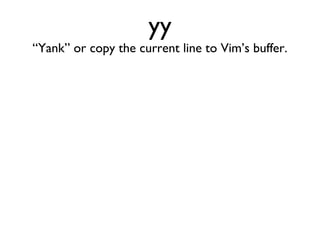
yy “Yank” or copy the current line to Vim’s buffer.
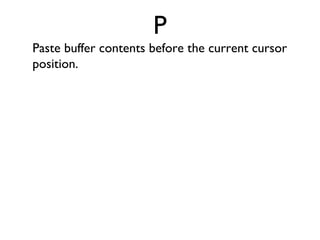
P Paste buffer contents before the current cursor position.
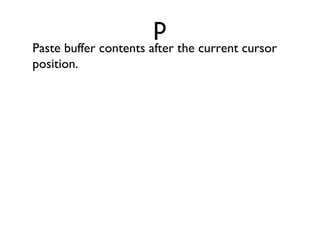
p Paste buffer contents after the current cursor position.
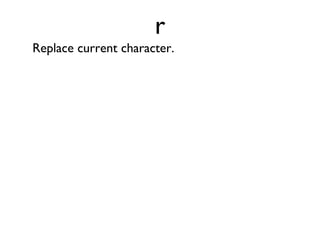
r Replace current character.
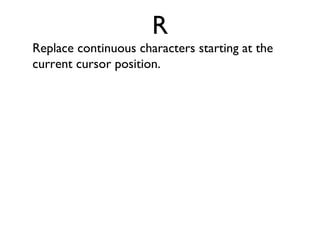
R Replace continuous characters starting at the current cursor position.
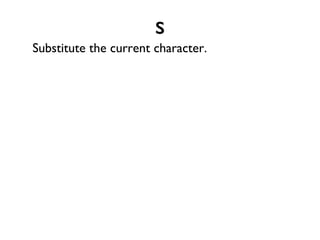
s Substitute the current character.
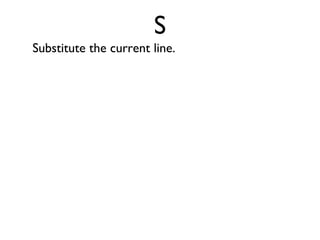
S Substitute the current line.
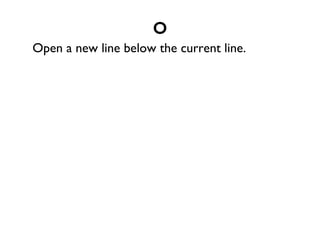
o Open a new line below the current line.
O Open a new line above the current line.
a Append text after the current position.
A Append text at the end of the current line.
i Insert text before the current position.
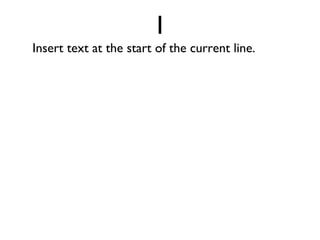
I Insert text at the start of the current line.
u Undo.
ctrl+r redo.
ctrl+p see autocomplete list.
shift+4 Move to end of current line.
shift+6 Move to start of current line.
ctrl+f Move Forward one screen.  Think Page Down.
ctrl+b Move Backward one screen.  Think Page Up.
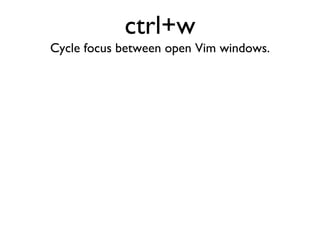
ctrl+w Cycle focus between open Vim windows.
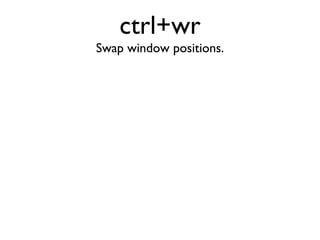
ctrl+wr Swap window positions.
ctrl+w= Equalize window widths.
gf Open the file that the cursor is currently on. Think Go to File.
ctrl+wgf Open file at current cursor position in new tab.
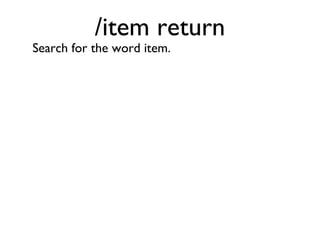
/item return Search for the word item.
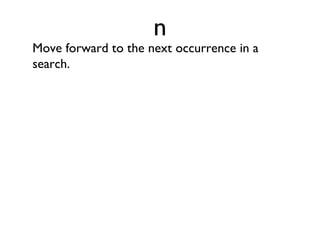
n Move forward to the next occurrence in a search.
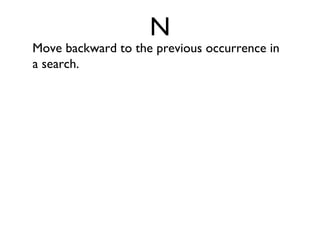
N Move backward to the previous occurrence in a search.
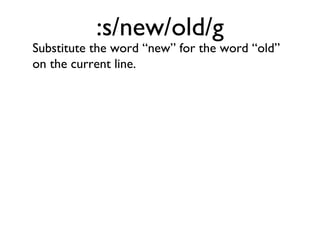
:s/new/old/g Substitute the word “new” for the word “old” on the current line.
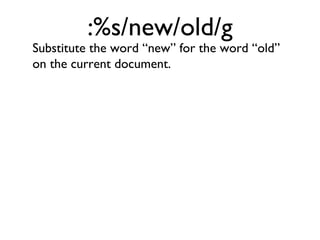
:%s/new/old/g Substitute the word “new” for the word “old” on the current document.
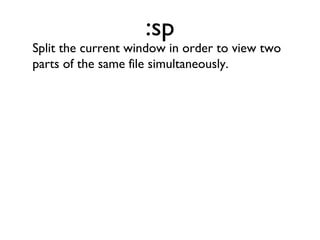
:sp Split the current window in order to view two parts of the same file simultaneously.
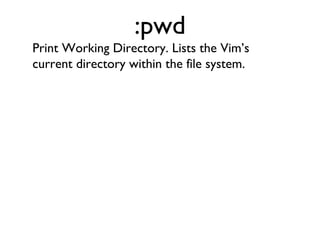
:pwd Print Working Directory. Lists the Vim’s current directory within the file system.
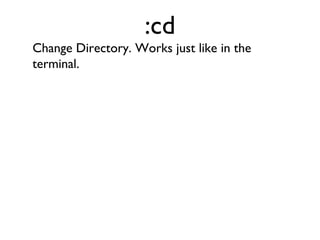
:cd Change Directory. Works just like in the terminal.
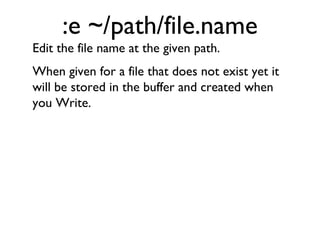
:e ~/path/file.name Edit the file name at the given path.  When given for a file that does not exist yet it will be stored in the buffer and created when you Write.
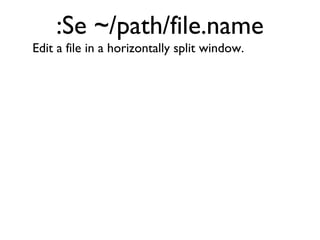
:Se ~/path/file.name Edit a file in a horizontally split window.
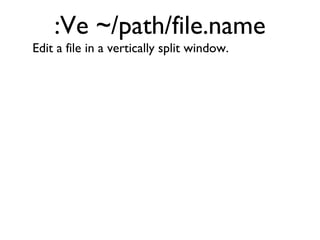
:Ve ~/path/file.name Edit a file in a vertically split window.
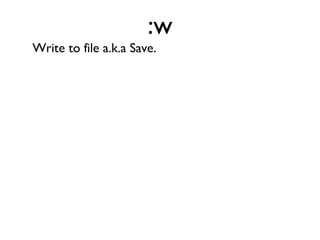
:w Write to file a.k.a Save.
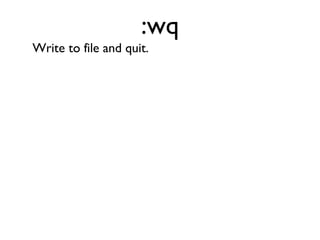
:wq Write to file and quit.

Vim Cards - Powerpoint Format