Review Booster
User Manual for Magento
Aitoc
Aitoc
Table of Content
1. Enabling the extension in Magento.
2. The extension’s general settings.
3. Configuring review reminders.
4. Editing a review reminder template.
5. Assigning different templates to different Store Views.
6. Automatic creation of review reminders.
7. Manual creation and sending of review reminders.
8. The “Pending Reminders” page.
9. The “History” page.
10. Configuring the "Recent Reviews" block.
11. Tweaking the "Recent Reviews" block.
Aitoc1. Enabling the extension in Magento
In System > Manage Aitoc Modules, check
Review Booster and click "Save modules
settings" on the top right.
Aitoc2. The extension’s general settings
The extension consists of 2 major
functionality parts: Review Reminders and
Reviews Sidebar. You have got a separate
group of settings for each.
System > Configuration > Catalog
Aitoc3. Configuring review reminders
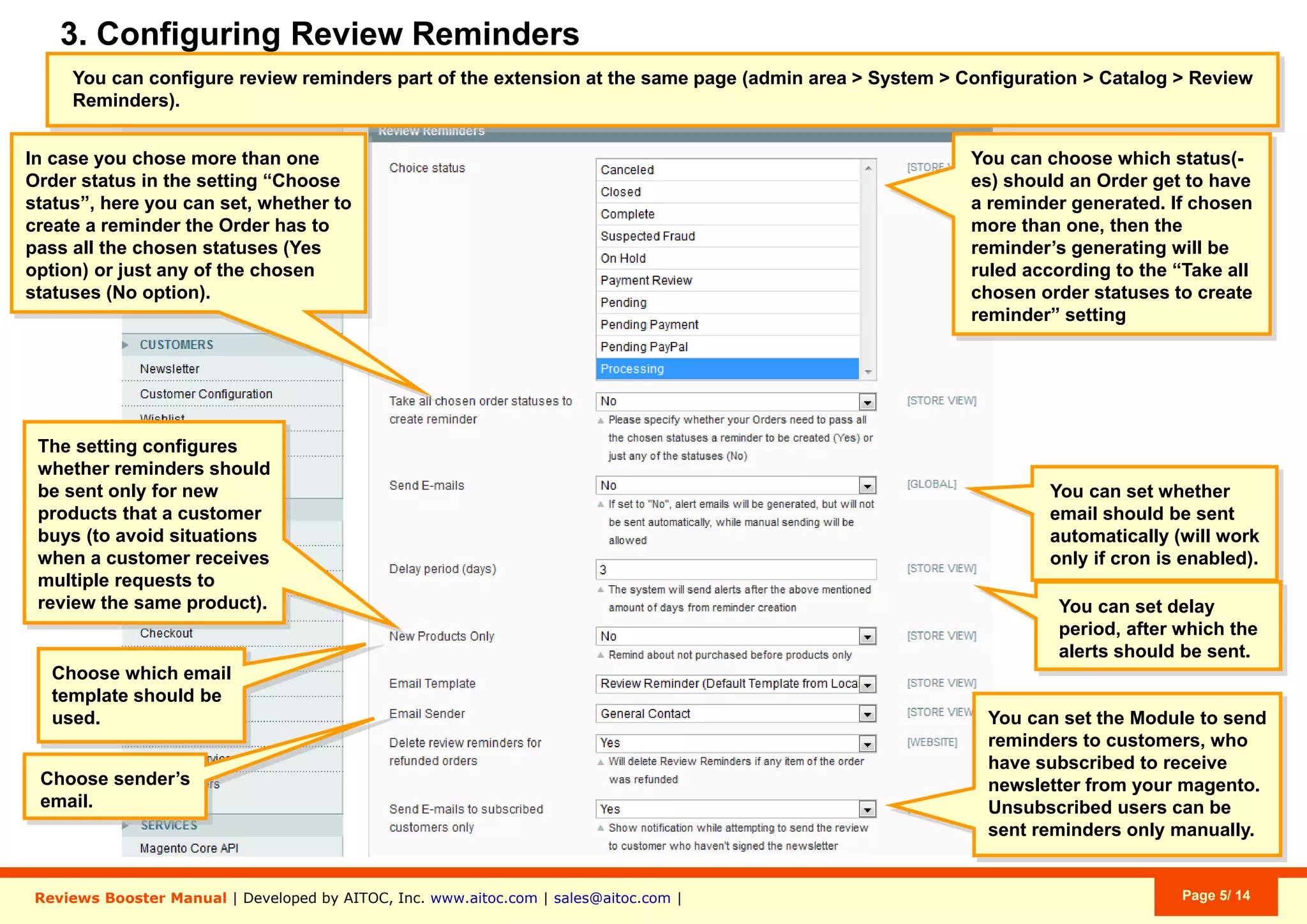
Specify whether the Order is required to pass all
selected statuses for the reminder to be created, or
not (put “No” if this is not required).
2.
Specify whether review reminders should be sent
automatically (requires Cron).
3.
Set a delay period (in days) after which the reminder
should be sent.
4.
Specify if you want to request a review only if the
customer purchased a given item for the first time.
5.
Choose the email template and the email sender.6.
Send review requests only to customers who are
subscribed to your Newsletter. If you set this to
“Yes”, you will be able to send requests to
Unsubscribed users ony manually.
7.
Specify which Order status(es) should trigger the
creation of a review reminder.
If you select more than one, reminders will be
generated according to the rule set in “Take all
chosen order statuses to create
reminder” (below).
1.
2
3
4
5
6
7
1
System > Configuration > Catalog > Review Reminders
Aitoc4. Editing a review reminder template
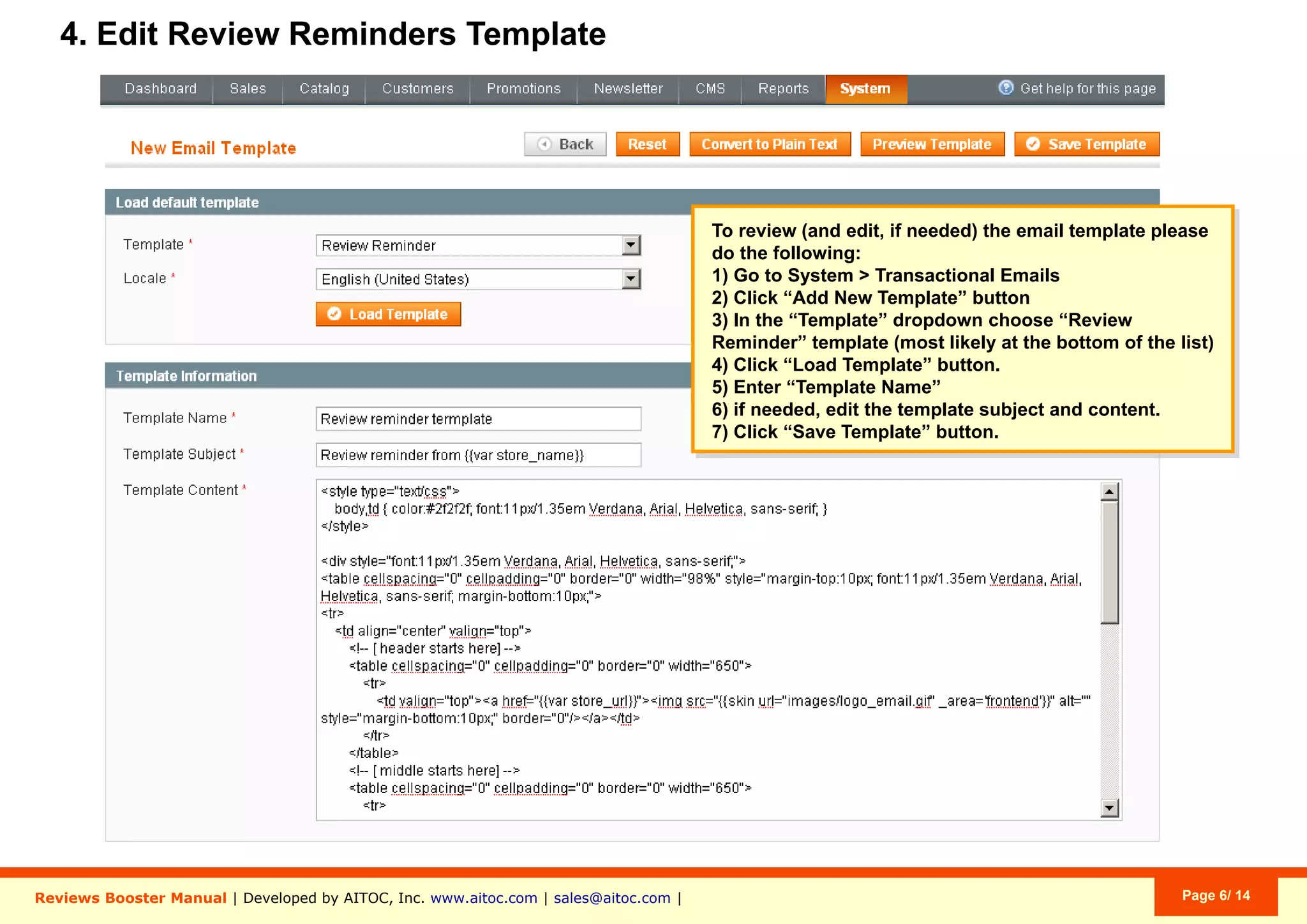
To create your own Review Reminder
template based on the default one, click
“Add New Template”, choose “Review
Reminder” from the dropdown menu, and
click “Load Template”.
Create your own Name, Subject and email
HTML/Text, and click Save Template.
System > Transactional Emails > Transactional Emails > Add New Template
Aitoc5. Assigning different templates to different Store Views
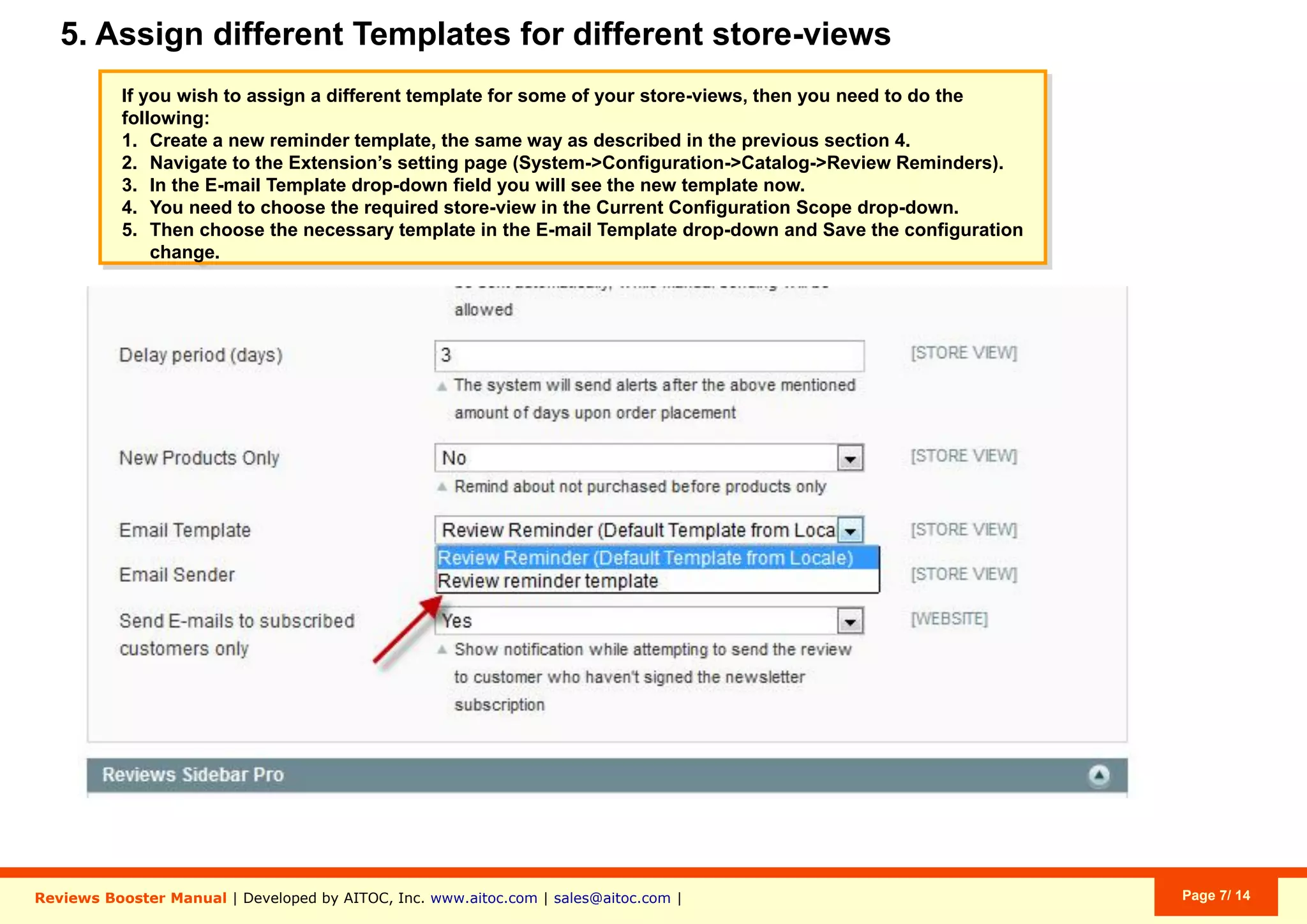
To assign different templates to different
Store Views, go to a respective
Configuration Scope and choose a
template that should be used for this Store
View (in Email Template).
System > Configuration (choose configuration scope) > Catalog > Review Reminders
Aitoc6. Automatic creation of review reminders
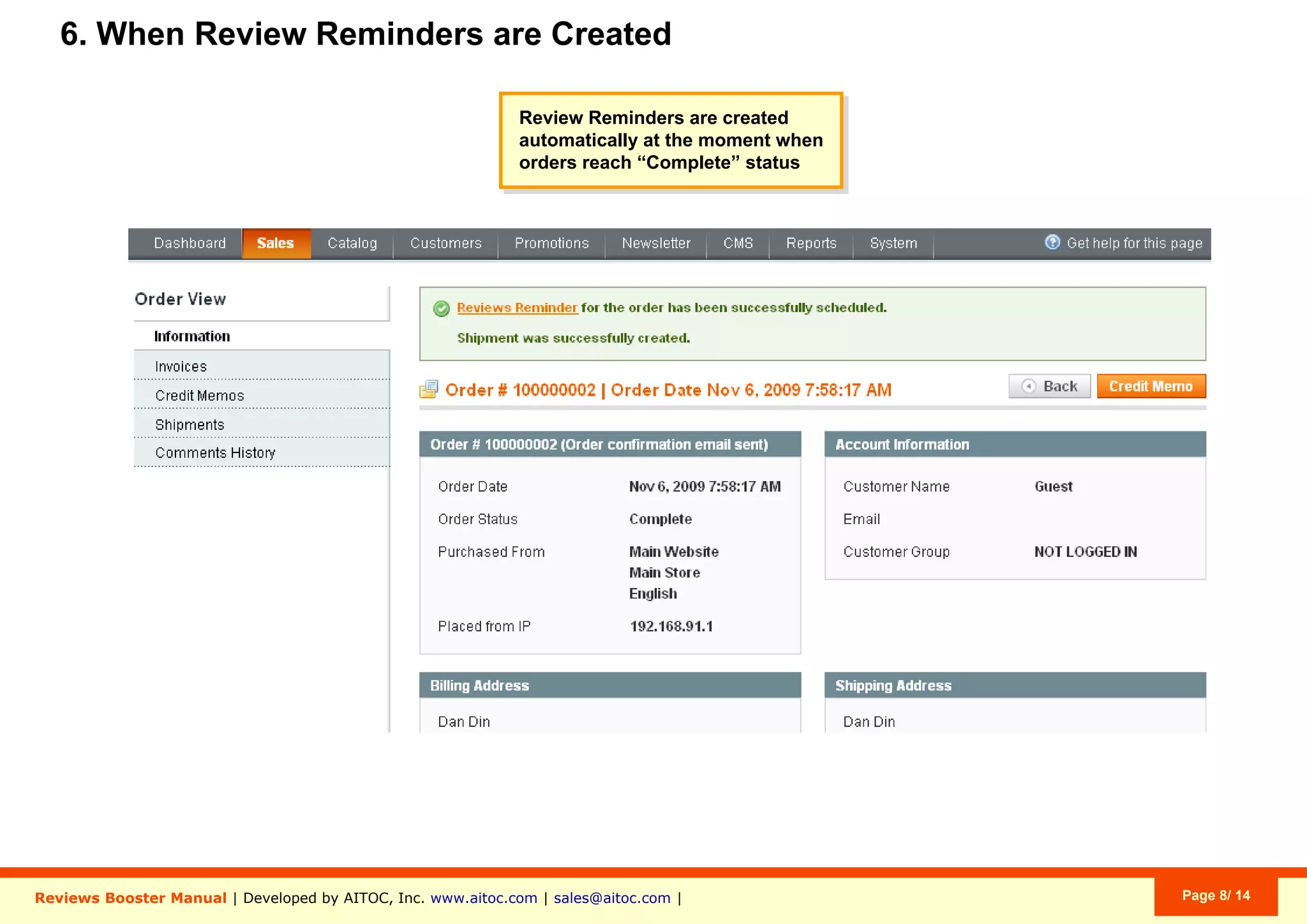
A reminder is created automatically the
moment the Order reaches the right status
(which is Complete in this case).
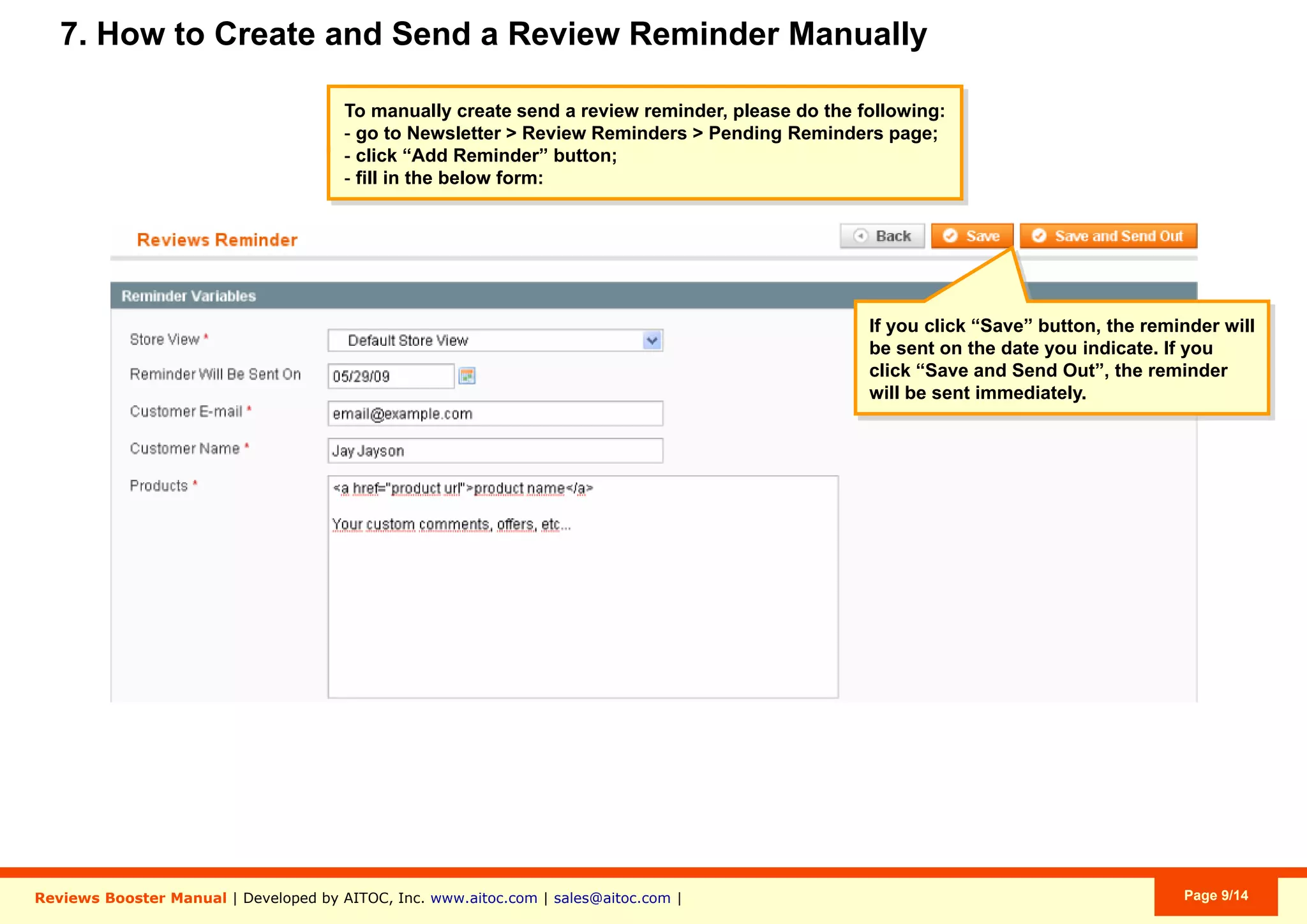
Aitoc7. Manual creation and sending of review reminders
Click “Save” to send the reminder on the
scheduled Date/Time. Click “Save and
Send Out” to dispatch it immediately.
This is the Reminder editing mode where
you can get by clicking View on an existing
reminder, or clicking Add (new) Reminder.
Newsletter > Review Reminders > Pending Reminders > Add / View Reminder
Aitoc8. The “Pending Reminders” page
Click “Generate Reminders” to generate
review requests for Orders that existed
prior to the module installation.
Newsletter > Review Reminders > Pending Reminders
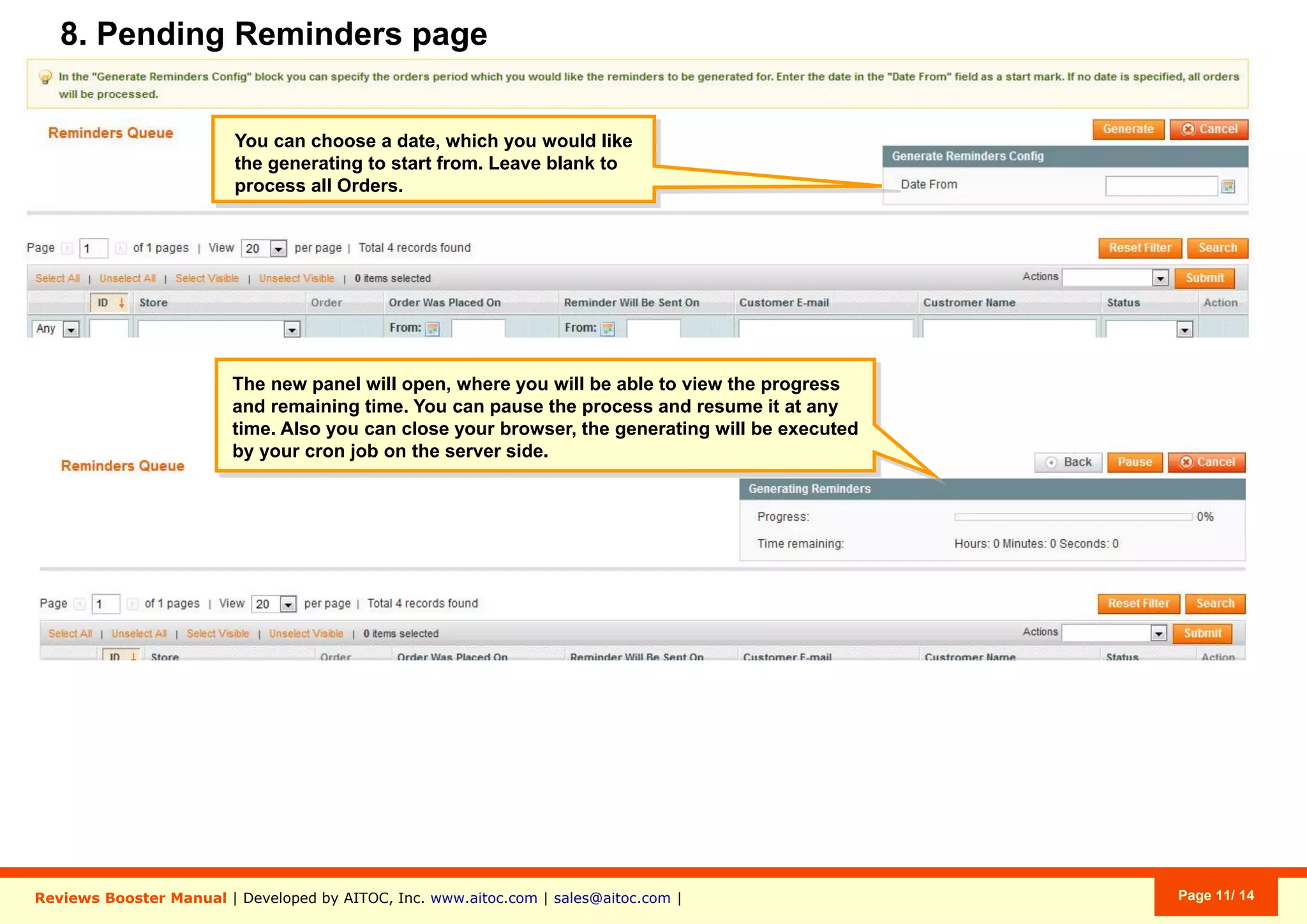
Aitoc8. The “Pending Reminders” page
After you click “Generate Reminders”,
you’ll be able to choose the date to start
with. Leave it blank to consider all Orders.
Newsletter > Review Reminders > Pending Reminders
Aitoc8. The “Pending Reminders” page
After you click “Generate”, you’ll be able
to Pause, Resume or Cancel reminder
generation.
If you close the browser, it’ll be executed
by your Cron job on the server side.
Newsletter > Review Reminders > Pending Reminders
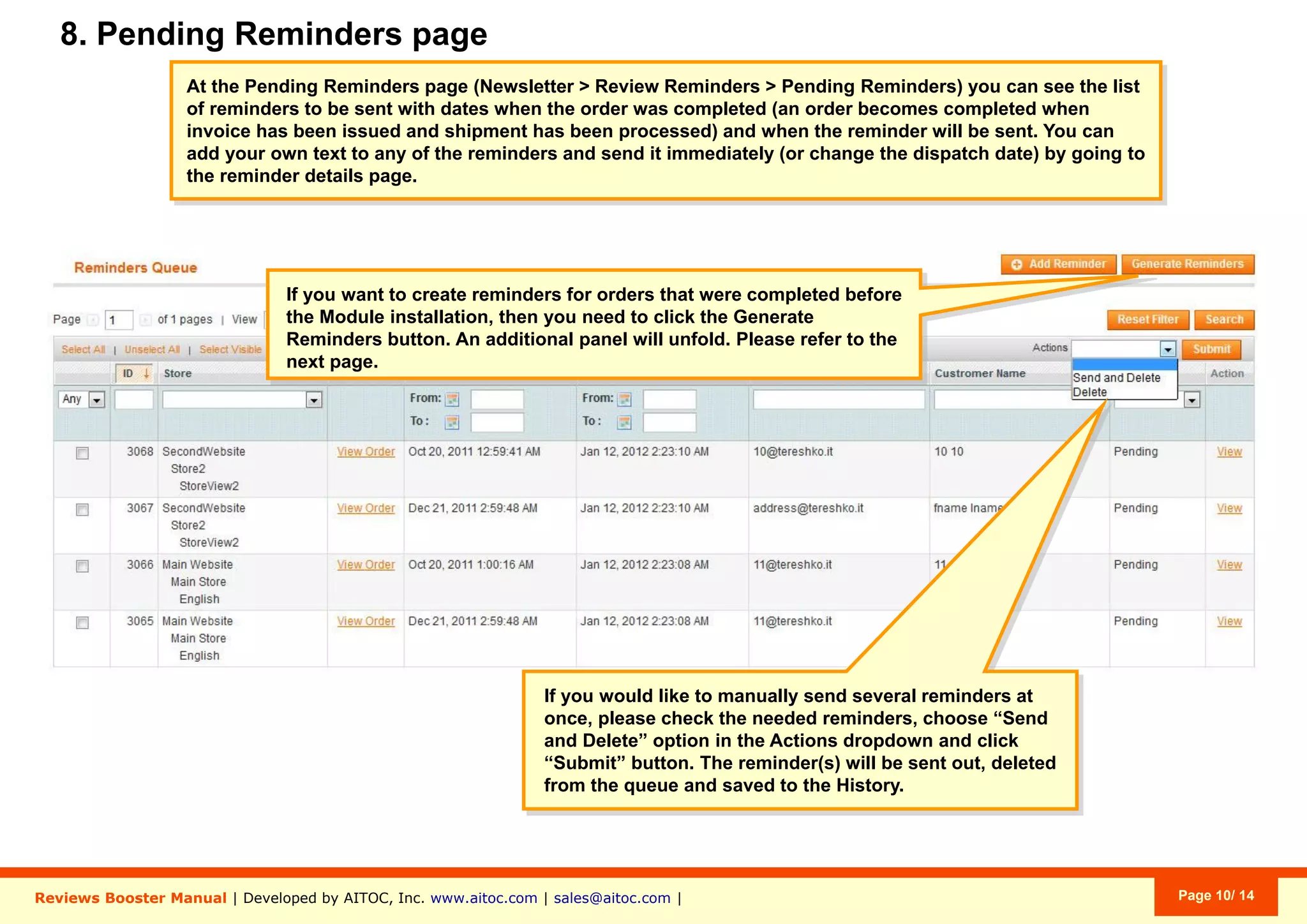
Aitoc8. The “Pending Reminders” page
To manually Send and/or Delete review
requests in bulk, check them & hit Submit.
You can manually edit (or send) any
review request by clicking View.
Click to create & send a reminder by hand.
Newsletter > Review Reminders > Pending Reminders
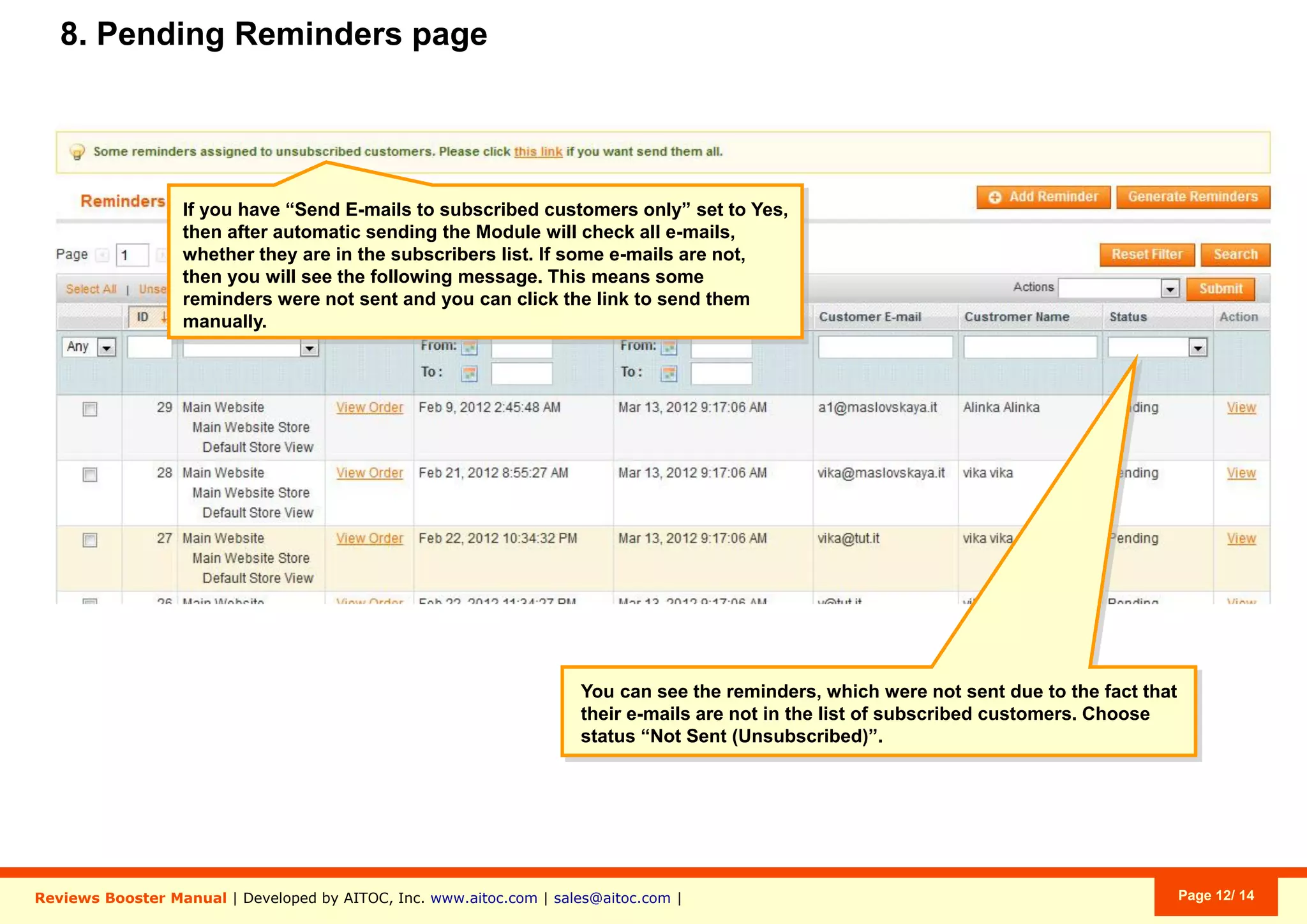
Aitoc8. The “Pending Reminders” page
If the module is set to send reminders to
active subscribers only, you should see a
link here, which you can follow to send
reminders to Unsubscribed users by hand.
Newsletter > Review Reminders > Pending Reminders
Aitoc8. The “Pending Reminders” page
Such review requests will have the Not
Sent (Unsubscribed) status.
Newsletter > Review Reminders > Pending Reminders
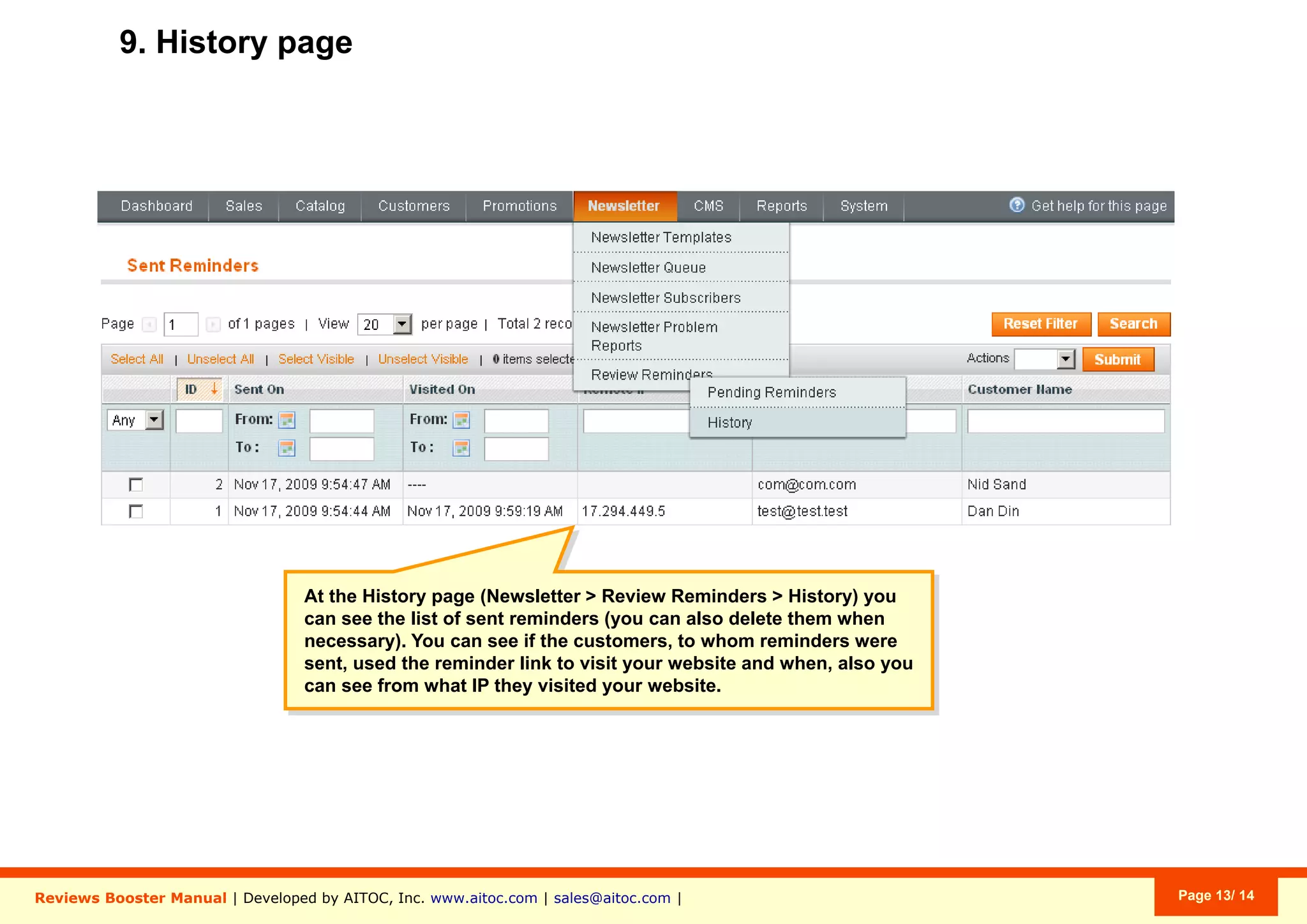
Aitoc9. The “History” page
You can see which review request links
were clicked, when they were clicked and
from which IP addresses.
Newsletter > Review Reminders > History
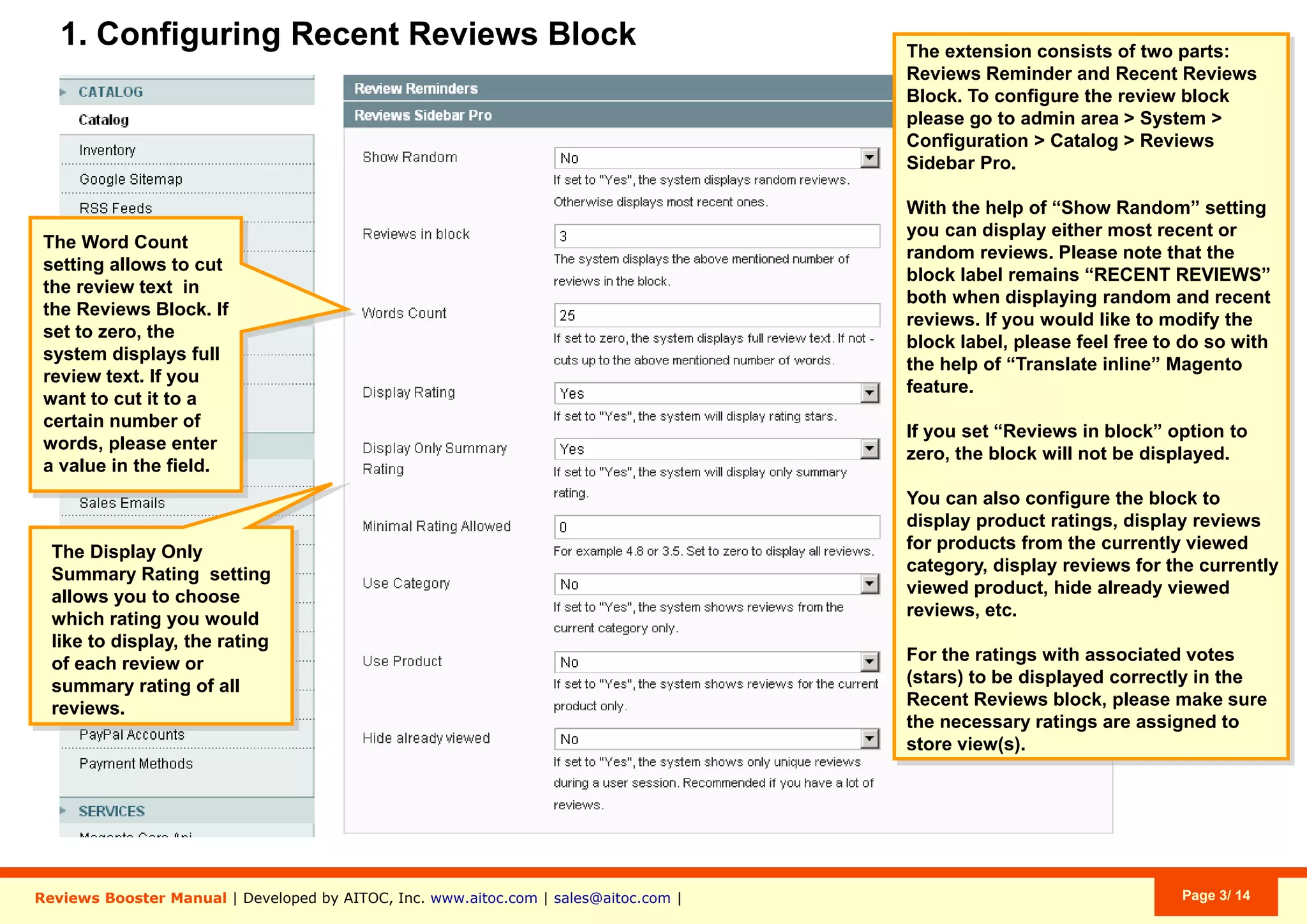
Aitoc10. Configuring the "Recent Reviews" block
If you set “Reviews in block” to 0 (zero), the block
will NOT be diplayed at all.
2.
The “Word Count” setting sets a limit to the number
of review words displayed (the review will get cut
off at the point the limit is reached).
When this is set to 0 (zero), reviews will be displayed
in full.
3.
For rating stars to be displayed correctly, please
make sure respective ratings are assigned to
applicable Store Views.
4.
The "Display Only Summary Rating" setting allows
you to choose whether to display the rating of each
review or a summary rating of all reviews.
5.
You can choose to show top-rated or highly-rated
reviews only.
6.
You can choose to show reviews for the current
product / category of products only.
7.
Choose whether you wish to display the most recent
reviews or random reviews in the block.
Please note that the name of the block won’t
change - it will still be Recent Reviews either way.
To change the name of the block, feel free to use
the “translate inline” feature in Magento.
1.
1
2
3
4
5
6
7
System > Configuration > Catalog > Reviews Sidebar Pro
Aitoc11. Tweaking the "Recent Reviews" block
By default Recent Reviews are displayed in the right navigation column and include
product images, but you can change this.
To add the block to any static page, use this code:
{{block type="adjreminder/review" template="adjreminder/review.phtml"}}
To disable product images in the reviews block:
Open the appdesignfrontenddefaultdefaultlayoutadjreminder.xml file
2. Find the following line in it (line #9):
template=“adjreminder/review.phtml">
3. And replace it with the following:
template=“adjreminder/review_no_images.phtml">
4. Refresh magento cache (in System > Cache Management). Done!
Aitoc
Brought to you by
You can purchase Review Booster at
www.aitoc.com/en/magentomods_reviews_booster.html
For questions please email at sales@aitoc.com

Review Booster User Manual by Aitoc

  • 1.
    Review Booster User Manualfor Magento Aitoc
  • 2.
    Aitoc Table of Content 1.Enabling the extension in Magento. 2. The extension’s general settings. 3. Configuring review reminders. 4. Editing a review reminder template. 5. Assigning different templates to different Store Views. 6. Automatic creation of review reminders. 7. Manual creation and sending of review reminders. 8. The “Pending Reminders” page. 9. The “History” page. 10. Configuring the "Recent Reviews" block. 11. Tweaking the "Recent Reviews" block.
  • 3.
    Aitoc1. Enabling theextension in Magento In System > Manage Aitoc Modules, check Review Booster and click "Save modules settings" on the top right.
  • 4.
    Aitoc2. The extension’sgeneral settings The extension consists of 2 major functionality parts: Review Reminders and Reviews Sidebar. You have got a separate group of settings for each. System > Configuration > Catalog
  • 5.
    Aitoc3. Configuring reviewreminders Specify whether the Order is required to pass all selected statuses for the reminder to be created, or not (put “No” if this is not required). 2. Specify whether review reminders should be sent automatically (requires Cron). 3. Set a delay period (in days) after which the reminder should be sent. 4. Specify if you want to request a review only if the customer purchased a given item for the first time. 5. Choose the email template and the email sender.6. Send review requests only to customers who are subscribed to your Newsletter. If you set this to “Yes”, you will be able to send requests to Unsubscribed users ony manually. 7. Specify which Order status(es) should trigger the creation of a review reminder. If you select more than one, reminders will be generated according to the rule set in “Take all chosen order statuses to create reminder” (below). 1. 2 3 4 5 6 7 1 System > Configuration > Catalog > Review Reminders
  • 6.
    Aitoc4. Editing areview reminder template To create your own Review Reminder template based on the default one, click “Add New Template”, choose “Review Reminder” from the dropdown menu, and click “Load Template”. Create your own Name, Subject and email HTML/Text, and click Save Template. System > Transactional Emails > Transactional Emails > Add New Template
  • 7.
    Aitoc5. Assigning differenttemplates to different Store Views To assign different templates to different Store Views, go to a respective Configuration Scope and choose a template that should be used for this Store View (in Email Template). System > Configuration (choose configuration scope) > Catalog > Review Reminders
  • 8.
    Aitoc6. Automatic creationof review reminders A reminder is created automatically the moment the Order reaches the right status (which is Complete in this case).
  • 9.
    Aitoc7. Manual creationand sending of review reminders Click “Save” to send the reminder on the scheduled Date/Time. Click “Save and Send Out” to dispatch it immediately. This is the Reminder editing mode where you can get by clicking View on an existing reminder, or clicking Add (new) Reminder. Newsletter > Review Reminders > Pending Reminders > Add / View Reminder
  • 10.
    Aitoc8. The “PendingReminders” page Click “Generate Reminders” to generate review requests for Orders that existed prior to the module installation. Newsletter > Review Reminders > Pending Reminders
  • 11.
    Aitoc8. The “PendingReminders” page After you click “Generate Reminders”, you’ll be able to choose the date to start with. Leave it blank to consider all Orders. Newsletter > Review Reminders > Pending Reminders
  • 12.
    Aitoc8. The “PendingReminders” page After you click “Generate”, you’ll be able to Pause, Resume or Cancel reminder generation. If you close the browser, it’ll be executed by your Cron job on the server side. Newsletter > Review Reminders > Pending Reminders
  • 13.
    Aitoc8. The “PendingReminders” page To manually Send and/or Delete review requests in bulk, check them & hit Submit. You can manually edit (or send) any review request by clicking View. Click to create & send a reminder by hand. Newsletter > Review Reminders > Pending Reminders
  • 14.
    Aitoc8. The “PendingReminders” page If the module is set to send reminders to active subscribers only, you should see a link here, which you can follow to send reminders to Unsubscribed users by hand. Newsletter > Review Reminders > Pending Reminders
  • 15.
    Aitoc8. The “PendingReminders” page Such review requests will have the Not Sent (Unsubscribed) status. Newsletter > Review Reminders > Pending Reminders
  • 16.
    Aitoc9. The “History”page You can see which review request links were clicked, when they were clicked and from which IP addresses. Newsletter > Review Reminders > History
  • 17.
    Aitoc10. Configuring the"Recent Reviews" block If you set “Reviews in block” to 0 (zero), the block will NOT be diplayed at all. 2. The “Word Count” setting sets a limit to the number of review words displayed (the review will get cut off at the point the limit is reached). When this is set to 0 (zero), reviews will be displayed in full. 3. For rating stars to be displayed correctly, please make sure respective ratings are assigned to applicable Store Views. 4. The "Display Only Summary Rating" setting allows you to choose whether to display the rating of each review or a summary rating of all reviews. 5. You can choose to show top-rated or highly-rated reviews only. 6. You can choose to show reviews for the current product / category of products only. 7. Choose whether you wish to display the most recent reviews or random reviews in the block. Please note that the name of the block won’t change - it will still be Recent Reviews either way. To change the name of the block, feel free to use the “translate inline” feature in Magento. 1. 1 2 3 4 5 6 7 System > Configuration > Catalog > Reviews Sidebar Pro
  • 18.
    Aitoc11. Tweaking the"Recent Reviews" block By default Recent Reviews are displayed in the right navigation column and include product images, but you can change this. To add the block to any static page, use this code: {{block type="adjreminder/review" template="adjreminder/review.phtml"}} To disable product images in the reviews block: Open the appdesignfrontenddefaultdefaultlayoutadjreminder.xml file 2. Find the following line in it (line #9): template=“adjreminder/review.phtml"> 3. And replace it with the following: template=“adjreminder/review_no_images.phtml"> 4. Refresh magento cache (in System > Cache Management). Done!
  • 19.
    Aitoc Brought to youby You can purchase Review Booster at www.aitoc.com/en/magentomods_reviews_booster.html For questions please email at sales@aitoc.com