User Guide: Order Memos and Attachments
Page 1
Order Memos and Attachments
Support: http://amasty.com/support.html
Magento Extension
User Guide
Official extension page: Order Memos and Attachments
Table of contents:
1. Extension settings …………………………………………………………………………….. 3
2. How to create fields ………………………………………………………………………….. 4
3. Select order statuses for fields display ……………………………………………….. 8
4. Fill in fields on order page ………..……………..……………………………………….. 9
5. Fields on order grid ………………………..……………..…………………………………. 10
6. Fields in customer’s account ……………………………………………………………… 11
7. How to add the extension data to email templates ………………………………. 12
Page 2
Support: http://amasty.com/support.html
User Guide: Order Memos and Attachments
Page 3
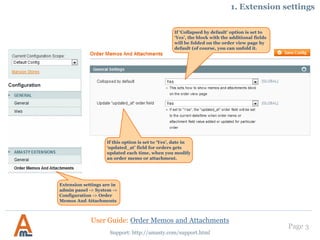
Extension settings are in
admin panel -> System ->
Configuration -> Order
Memos And Attachments
If ‘Collapsed by default’ option is set to
‘Yes’, the block with the additional fields
will be folded on the order view page by
default (of course, you can unfold it.
Support: http://amasty.com/support.html
1. Extension settings
If this option is set to ‘Yes’, date in
‘updated_at’ field for orders gets
updated each time, when you modify
an order memo or attachment.
User Guide: Order Memos and Attachments
Page 4
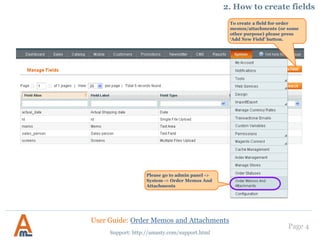
Please go to admin panel ->
System -> Order Memos And
Attachments
To create a field for order
memos/attachments (or some
other purpose) please press
‘Add New Field’ button.
Support: http://amasty.com/support.html
2. How to create fields
User Guide: Order Memos and Attachments
Page 5
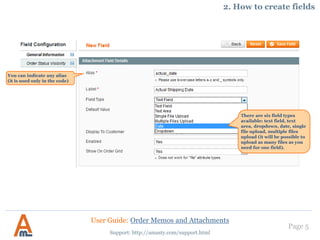
There are six field types
available: text field, text
area, dropdown, date, single
file upload, multiple files
upload (it will be possible to
upload as many files as you
need for one field).
You can indicate any alias
(it is used only in the code)
Support: http://amasty.com/support.html
2. How to create fields
User Guide: Order Memos and Attachments
Page 6
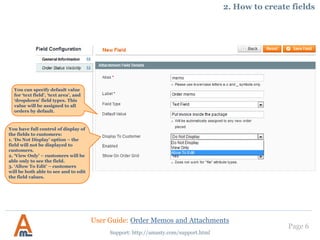
You have full control of display of
the fields to customers:
1. ‘Do Not Display’ option – the
field will not be displayed to
customers.
2. ‘View Only’ – customers will be
able only to see the field.
3. ‘Allow To Edit’ – customers
will be both able to see and to edit
the field values.
Support: http://amasty.com/support.html
You can specify default value
for ‘text field’, ‘text area’, and
‘dropdown’ field types. This
value will be assigned to all
orders by default.
2. How to create fields
User Guide: Order Memos and Attachments
Page 7
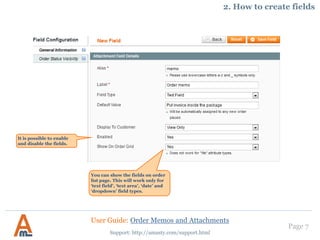
You can show the fields on order
list page. This will work only for
‘text field’, ‘text area’, ‘date’ and
‘dropdown’ field types.
It is possible to enable
and disable the fields.
Support: http://amasty.com/support.html
2. How to create fields
User Guide: Order Memos and Attachments
Page 8
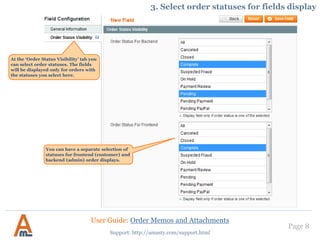
You can have a separate selection of
statuses for frontend (customer) and
backend (admin) order displays.
At the ‘Order Status Visibility’ tab you
can select order statuses. The fields
will be displayed only for orders with
the statuses you select here.
Support: http://amasty.com/support.html
3. Select order statuses for fields display
User Guide: Order Memos and Attachments
Page 9
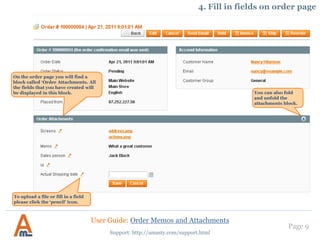
On the order page you will find a
block called ‘Order Attachments. All
the fields that you have created will
be displayed in this block.
To upload a file or fill in a field
please click the ‘pencil’ icon.
Support: http://amasty.com/support.html
4. Fill in fields on order page
You can also fold
and unfold the
attachments block.
User Guide: Order Memos and Attachments
Page 10
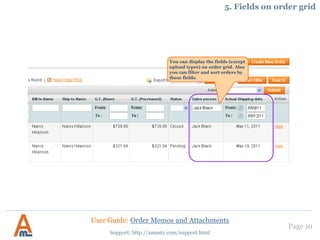
You can display the fields (except
upload types) on order grid. Also
you can filter and sort orders by
these fields.
Support: http://amasty.com/support.html
5. Fields on order grid
User Guide: Order Memos and Attachments
Page 11
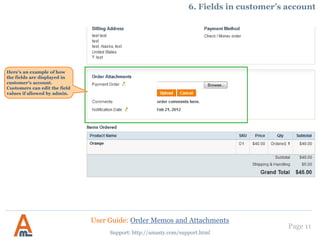
Here’s an example of how
the fields are displayed in
customer’s account.
Customers can edit the field
values if allowed by admin.
Support: http://amasty.com/support.html
6. Fields in customer’s account
User Guide: Order Memos and Attachments
Page 12
You can also include the extension data in email templates. For this please add
variables of the kind to the templates:
{{var order.memo('some_field')}}
Replace some_field with the alias of the field which you will use in emails.
Support: http://amasty.com/support.html
7. Add the extension data to email templates
User Guide: Order Memos and Attachments
Thank you!
Your feedback is absolutely welcome!
Page 13
Should you have any questions or feature suggestions, please contact us at:
http://amasty.com/support.html
Support: http://amasty.com/support.html
User Guide: Order Memos and Attachments

Order Memos and Attachments: Magento Extension by Amasty. User Guide

  • 1.
    User Guide: OrderMemos and Attachments Page 1 Order Memos and Attachments Support: http://amasty.com/support.html Magento Extension User Guide Official extension page: Order Memos and Attachments
  • 2.
    Table of contents: 1.Extension settings …………………………………………………………………………….. 3 2. How to create fields ………………………………………………………………………….. 4 3. Select order statuses for fields display ……………………………………………….. 8 4. Fill in fields on order page ………..……………..……………………………………….. 9 5. Fields on order grid ………………………..……………..…………………………………. 10 6. Fields in customer’s account ……………………………………………………………… 11 7. How to add the extension data to email templates ………………………………. 12 Page 2 Support: http://amasty.com/support.html User Guide: Order Memos and Attachments
  • 3.
    Page 3 Extension settingsare in admin panel -> System -> Configuration -> Order Memos And Attachments If ‘Collapsed by default’ option is set to ‘Yes’, the block with the additional fields will be folded on the order view page by default (of course, you can unfold it. Support: http://amasty.com/support.html 1. Extension settings If this option is set to ‘Yes’, date in ‘updated_at’ field for orders gets updated each time, when you modify an order memo or attachment. User Guide: Order Memos and Attachments
  • 4.
    Page 4 Please goto admin panel -> System -> Order Memos And Attachments To create a field for order memos/attachments (or some other purpose) please press ‘Add New Field’ button. Support: http://amasty.com/support.html 2. How to create fields User Guide: Order Memos and Attachments
  • 5.
    Page 5 There aresix field types available: text field, text area, dropdown, date, single file upload, multiple files upload (it will be possible to upload as many files as you need for one field). You can indicate any alias (it is used only in the code) Support: http://amasty.com/support.html 2. How to create fields User Guide: Order Memos and Attachments
  • 6.
    Page 6 You havefull control of display of the fields to customers: 1. ‘Do Not Display’ option – the field will not be displayed to customers. 2. ‘View Only’ – customers will be able only to see the field. 3. ‘Allow To Edit’ – customers will be both able to see and to edit the field values. Support: http://amasty.com/support.html You can specify default value for ‘text field’, ‘text area’, and ‘dropdown’ field types. This value will be assigned to all orders by default. 2. How to create fields User Guide: Order Memos and Attachments
  • 7.
    Page 7 You canshow the fields on order list page. This will work only for ‘text field’, ‘text area’, ‘date’ and ‘dropdown’ field types. It is possible to enable and disable the fields. Support: http://amasty.com/support.html 2. How to create fields User Guide: Order Memos and Attachments
  • 8.
    Page 8 You canhave a separate selection of statuses for frontend (customer) and backend (admin) order displays. At the ‘Order Status Visibility’ tab you can select order statuses. The fields will be displayed only for orders with the statuses you select here. Support: http://amasty.com/support.html 3. Select order statuses for fields display User Guide: Order Memos and Attachments
  • 9.
    Page 9 On theorder page you will find a block called ‘Order Attachments. All the fields that you have created will be displayed in this block. To upload a file or fill in a field please click the ‘pencil’ icon. Support: http://amasty.com/support.html 4. Fill in fields on order page You can also fold and unfold the attachments block. User Guide: Order Memos and Attachments
  • 10.
    Page 10 You candisplay the fields (except upload types) on order grid. Also you can filter and sort orders by these fields. Support: http://amasty.com/support.html 5. Fields on order grid User Guide: Order Memos and Attachments
  • 11.
    Page 11 Here’s anexample of how the fields are displayed in customer’s account. Customers can edit the field values if allowed by admin. Support: http://amasty.com/support.html 6. Fields in customer’s account User Guide: Order Memos and Attachments
  • 12.
    Page 12 You canalso include the extension data in email templates. For this please add variables of the kind to the templates: {{var order.memo('some_field')}} Replace some_field with the alias of the field which you will use in emails. Support: http://amasty.com/support.html 7. Add the extension data to email templates User Guide: Order Memos and Attachments
  • 13.
    Thank you! Your feedbackis absolutely welcome! Page 13 Should you have any questions or feature suggestions, please contact us at: http://amasty.com/support.html Support: http://amasty.com/support.html User Guide: Order Memos and Attachments