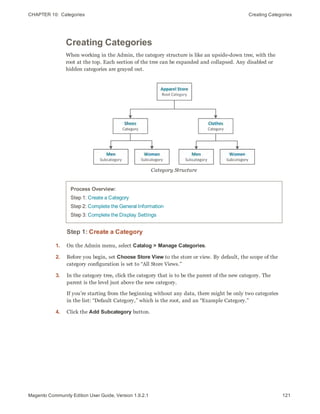
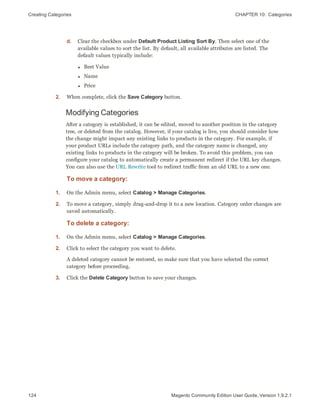
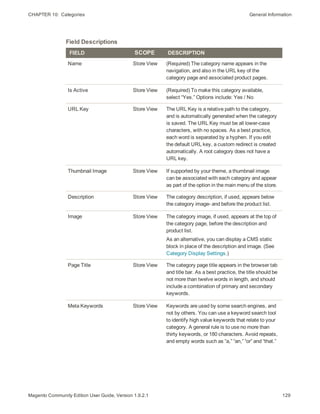
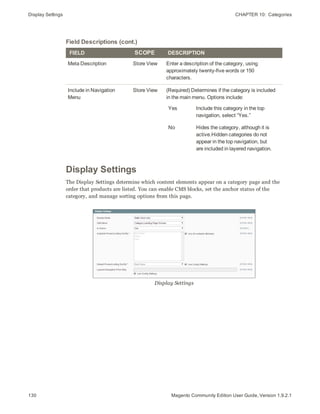
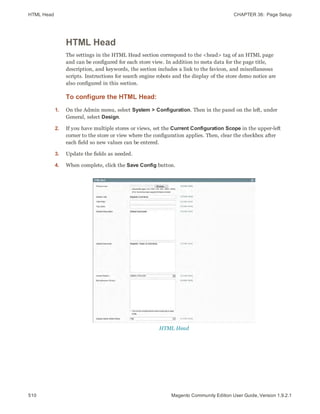
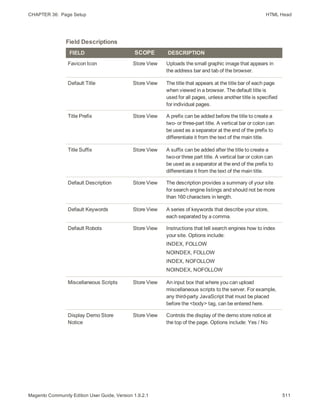
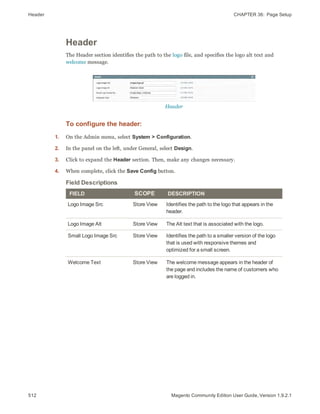
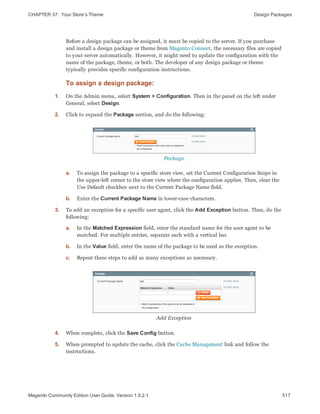
Magento
Community Edition
User Guide
Version 1.9.2.1
Contents
Getting Started 1
CHAPTER 1: Welcome to Magento! 3
Resources 4
Join the Conversation! 7
CHAPTER 2: About This Release 9
System Requirements 10
Compatibility Check 11
Installing Magento 11
Part I: Magento Installation 12
Part II: Magento Installation 20
Reinstalling Magento 25
Using a Staging Environment 25
Prelaunch Checklist 26
CHAPTER 3: Your Magento Account 29
Sharing Your Account 32
CHAPTER 4: Quick Tour 35
Customer Journey 36
Attract New Customers 38
Engage Your Customers 39
Increase Average Order Value (AOV) 40
Moment of Purchase 42
Customer Retention 43
Updated: 8/1/2015 Copyright © 2015 Magento, Inc. All rights reserved.
Loyalty & Advocacy 44
Success! 45
Basic Configuration 47
CHAPTER 5: Store Admin 49
Admin Login 50
My Account 52
Message InBox 53
Notification Setup 57
Admin Menu 58
Admin Tools 61
Global Record Search 62
List Controls 63
Actions Control 65
CHAPTER 6: Store Details 69
Store Information 70
Locale Options 71
States Options 72
Countries Options 73
Currency 74
Basic Shipping Settings 75
Store Email Addresses 76
Contact Us 78
CHAPTER 7: Websites, Stores & Views 81
Setting Up Store Hierarchy 82
Configuration Scope 84
Adding a Language 86
Store URLs 89
Secure and Unsecure Base URLs 90
Using a Custom Admin URL 92
CHAPTER 8: Industry Compliance 95
PCI Compliance Guidelines 96
iiiMagento Community Edition User Guide, Version 1.9.2.1
Privacy Policy 97
Cookie Law Compliance 98
Cookie Restriction Mode 98
Cookie Reference 102
Product Catalog 103
CHAPTER 9: Navigation 105
Top Navigation 106
Breadcrumb Trail 107
Product List Configuration 108
Pagination Controls 110
Layered Navigation 112
Filterable Attributes 114
Price Navigation 116
CHAPTER 10: Categories 119
Category Levels 120
Creating Categories 121
Modifying Categories 124
Root Categories 125
Hidden Categories 127
General Information 128
Display Settings 130
Custom Design 132
Category Products 134
CHAPTER 11: Attributes 135
Attribute Input Types 136
Date & Time Custom Options 137
Creating Attributes 138
Deleting Attributes 141
Creating an Attribute Set 142
Attribute Quick Reference 144
Attribute Properties 146
Magento Community Edition User Guide, Version 1.9.2.1iv
Attribute Frontend Properties 149
CHAPTER 12: Flat Catalog 151
Setting Up a Flat Catalog 152
CHAPTER 13: Creating Products 155
Product Types 156
Simple Product 158
Grouped Product 163
Configurable Product 167
Virtual Product 174
Bundle Product 177
Downloadable Product 183
Downloadable Product Options 188
CHAPTER 14: Swatches 191
Swatch Workflow 192
Text-Based Swatches 192
Swatches in Layered Navigation 193
Swatch Configuration 193
Adding Swatch Attribute Values 196
Preparing Swatch Images 197
Uploading Swatch Images 198
Setting Up Dynamic Images 202
Swatch Localization 207
English as Primary Language 207
Other Primary Languages 207
Clearing the Swatch Cache 210
CHAPTER 15: Product Images 211
Thumbnail Gallery 212
Light Boxes and Sliders 212
Image Zoom 212
Image Size and Type 213
Adding Product Images 215
Placeholders 217
vMagento Community Edition User Guide, Version 1.9.2.1
Watermarks 218
Shopping Cart Thumbnails 220
CHAPTER 16: Product Pricing 221
Prices 222
Special Price 224
Tier Price 225
Quantity Increments Packaging 227
Minimum Advertised Price 228
MAP Logic 229
MAP Configuration 230
Product Group Price 232
Product Group Price Setup 232
Group Price Attribute 234
CHAPTER 17: Inventory 235
Inventory Configuration 236
Managing Stock 237
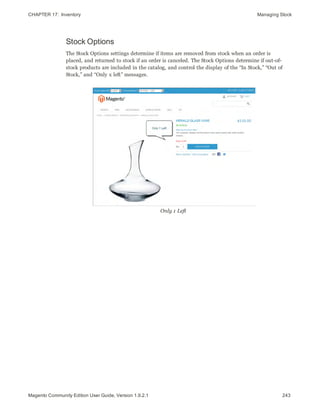
Stock Options 243
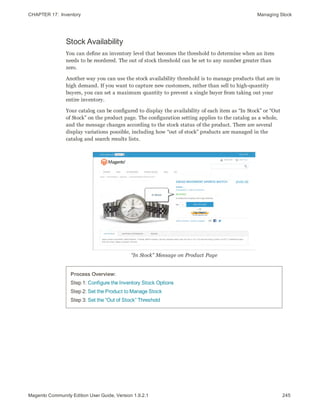
Stock Availability 245
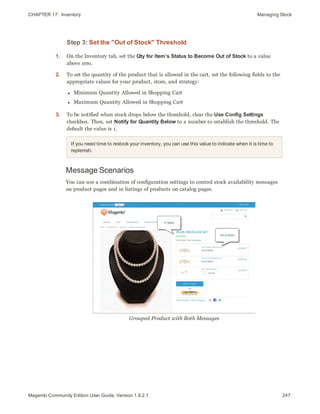
Message Scenarios 247
Product Page 248
Catalog Page 250
Out of Stock Threshold 251
Product Alerts 252
Scheduling Product Alerts 255
Managing Stock for Configurable Products 256
CHAPTER 18: Product Information 257
General 258
Product Meta Data 261
Recurring Profile 262
Design 268
Gift Options 270
Websites 271
Categories 272
Magento Community Edition User Guide, Version 1.9.2.1vi
Related Products 273
Up-sells 274
Cross-sells 275
Custom Options 276
Translating Products 278
Search & SEO 281
CHAPTER 19: Storefront Search Tools 283
Quick Search 284
Advanced Search 285
Search Results 287
Popular Search Terms 288
Catalog Search Configuration 290
CHAPTER 20: Managing Search Terms 291
Adding Search Terms 292
CHAPTER 21: SEO Best Practices 295
Meta Information 296
Sitemap 297
Catalog URLs 299
Dynamic URL 299
Static URL 299
URL Key 299
Store Code 299
HTML Suffix 300
Category Path 300
URL Options 301
Dynamic Media URLs 304
Canonical Meta Tag 306
CHAPTER 22: Managing URL Rewrites 309
Automatic Product Redirects 310
Creating URL Rewrites 311
Configuring URL Rewrites 313
viiMagento Community Edition User Guide, Version 1.9.2.1
Product Rewrite 314
Category Rewrite 318
Custom Rewrite 321
Marketing & Promotions 325
CHAPTER 23: Promotions 327
Product Relationships 328
Catalog Price Rules 329
Price Rule with Multiple SKUs 334
Shopping Cart Price Rules 336
Coupon Codes 348
Auto-Generated Coupon Codes 350
Coupon Report 353
Free Shipping Promotion 354
Buy X Get Y Free 357
Discount with Minimum Purchase 359
CHAPTER 24: Shopping Tools 363
Customer Engagement 364
Wishlists 366
Wishlist Workflow 366
Updating Wishlists 367
Wishlist Reports 368
Compare Products 369
Recently Viewed/Compared Products 371
Product Reviews 373
Custom Ratings 375
Tags 376
Products Tagged by Administrators 378
Moderating Tags 379
Polls 380
Email a Friend 383
Gift Options 385
Magento Community Edition User Guide, Version 1.9.2.1viii
CHAPTER 25: Newsletters 387
Newsletter Configuration 388
Newsletter Templates 389
Newsletter Queue 390
CHAPTER 26: Sales Channels 391
Google Shopping 392
Social Media 399
Adding Facebook Plugins 400
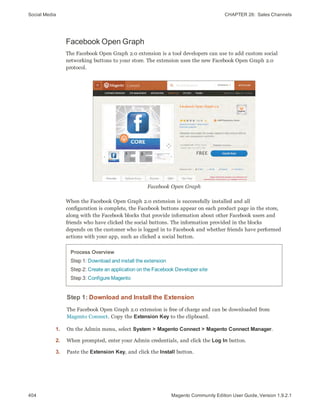
Facebook Open Graph 404
Setting Up RSS Feeds 407
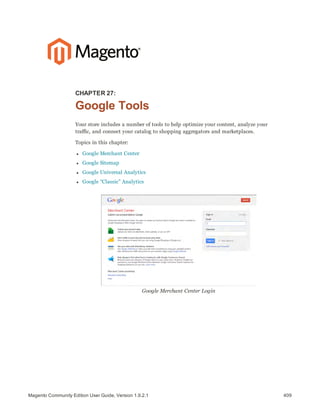
CHAPTER 27: Google Tools 409
Google Merchant Center 410
Google Sitemap 415
Google Sitemap Configuration 419
Google Universal Analytics 421
Google “Classic” Analytics 423
Content Elements 427
CHAPTER 28: Magento CMS 429
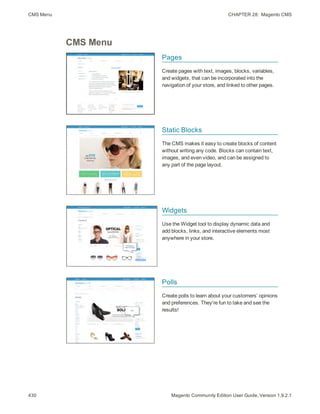
CMS Menu 430
CHAPTER 29: Content Pages 431
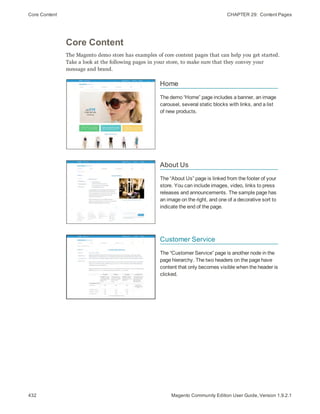
Core Content 432
Default Pages 434
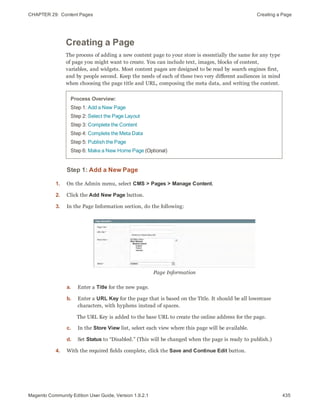
Creating a Page 435
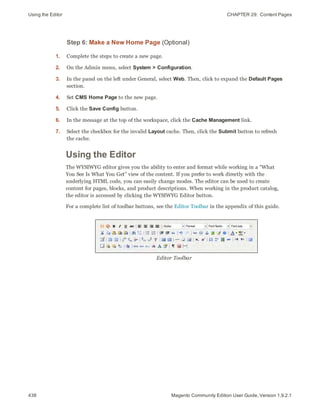
Using the Editor 438
Inserting a Link 439
Inserting Images 440
Adding a Widget 442
Media Storage 445
Translating Pages 446
ixMagento Community Edition User Guide, Version 1.9.2.1
CHAPTER 30: Blocks 449
Creating a Static Block 450
Positioning Blocks 452
CHAPTER 31: Widgets 455
Widget Types 456
Creating a Widget 457
CMS Static Block Widget 460
New Products List 461
Mini Shopping Cart Widget 466
CHAPTER 32: Variables 469
Predefined Variables 470
Custom Variables 472
CHAPTER 33: Markup Tags 473
Markup Tag Syntax 474
Store URL 474
Media URL 474
Block ID 474
Template Tag 474
Non-Inline CSS Tag 475
Widget Code 475
Using Markup Tags in Links 476
Category Listing on Home Page 478
Design & Theme 481
CHAPTER 34: Your Store Design 483
Uploading Your Logo 484
Uploading a Favicon 485
Changing the Welcome Message 487
Store Demo Notice 488
Copyright Notice 489
Magento Community Edition User Guide, Version 1.9.2.1x
CHAPTER 35: Page Layout 491
Standard Layouts 492
Storefront Examples 494
1 Column Layout 494
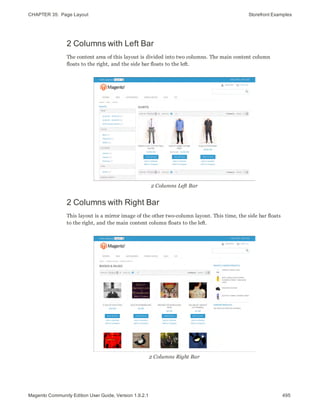
2 Columns with Left Bar 495
2 Columns with Right Bar 495
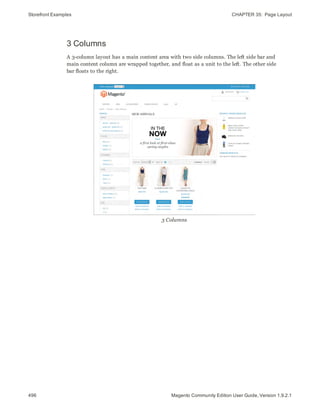
3 Columns 496
Layout Updates 497
Placing a Block with a Layout Update 498
Controlling Block Order 499
Standard Block Layout 500
Layout Update Syntax 502
<block> 503
<reference> 504
<action> 504
<remove> 504
<extend> 504
Layout Update Examples 505
page/template_links 506
cms/block 506
core/text 507
page/html_welcome 507
XML Load Sequence 508
CHAPTER 36: Page Setup 509
HTML Head 510
Header 512
Footer 513
CHAPTER 37: Your Store’s Theme 515
Design Packages 516
Theme Assets 518
CSS Settings 519
JavaScript Settings 519
Responsive Web Design 520
xiMagento Community Edition User Guide, Version 1.9.2.1
Using the Default Theme 521
Installing a New Theme 522
Changing UI Text 525
Customers 529
CHAPTER 38: Customer Accounts 531
Account Configuration 532
Customer Account Scope 533
Login Landing Page 534
New Account Options 535
Name and Address Options 536
Password Options 538
Customer Account Login 539
Account Dashboard 540
CHAPTER 39: Customer Groups 543
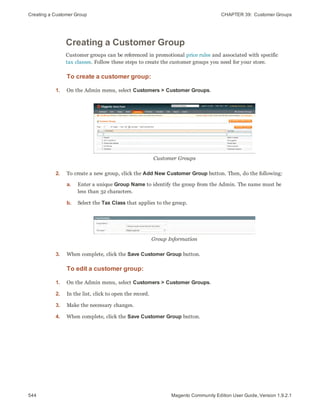
Creating a Customer Group 544
Sales & Orders 545
CHAPTER 40: Managing Orders 547
Order Process Overview 548
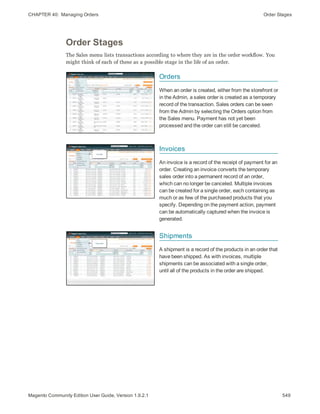
Order Stages 549
Guest Checkout 551
Minimum Order Amount 552
Terms and Conditions 554
Setting Up Sales Email 557
CHAPTER 41: Assisted Shopping 559
Online Customers 560
Update a Shopping Cart 562
Create an Order 564
Update an Order 569
Create a Customer Account 572
Magento Community Edition User Guide, Version 1.9.2.1xii
Update a Customer Account 575
Persistent Shopping Cart 576
Types of Cookies 576
Persistent Cart Workflow 577
Remember Me 578
Continue Persistence After Logout (No) 578
Clear Persistence on Logout (Yes) 578
Persistent Shopping Cart Configuration 579
CHAPTER 42: Order Fulfillment 583
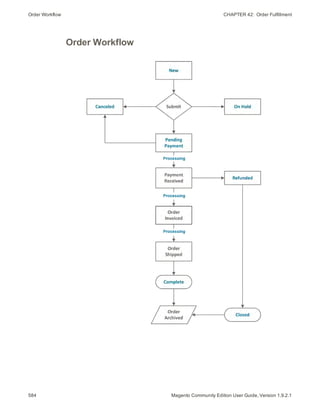
Order Workflow 584
Order Status 585
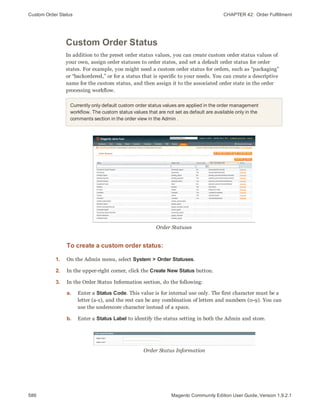
Custom Order Status 586
Invoice an Order 588
Print Invoices 591
Ship an Order 591
Print Packing Slips 594
Review Transactions 596
CHAPTER 43: Store Credit and Refunds 597
Product Return Workflow 598
Create a Credit Memo 599
Print a Credit Memo 603
CHAPTER 44: Sales Document Setup 605
PDF Logo Requirements 606
Add Reference IDs to Header 608
PDF Invoice with Logo 610
Customer Address Templates 611
Payments 613
CHAPTER 45: Basic Payment Methods 615
Merchant Location 616
Bank Transfer Payment 617
Cash On Delivery 619
xiiiMagento Community Edition User Guide, Version 1.9.2.1
Check / Money Order 620
Purchase Order 622
Zero Subtotal Checkout 623
Saved Credit Cards 625
CHAPTER 46: PayPal Payment Solutions 627
Overview 627
PayPal Express Checkout 627
PayPal Credit 627
All-In-One Solutions 628
Payment Gateways 628
PayPal Access 629
PayPal Business Account 629
PayPal Payments Advanced 630
Checkout Workflow 630
Order Processing Workflow 630
Merchant Requirements 631
Setting Up PayPal Payments Advanced 631
PayPal Payments Pro 632
Checkout Workflow 632
Order Processing Workflow 632
Requirements 633
Setting Up PayPal Payments Pro 633
PayPal Payments Standard 634
Checkout Workflow 634
Merchant Requirements 634
Setting Up PayPal Payments Standard 635
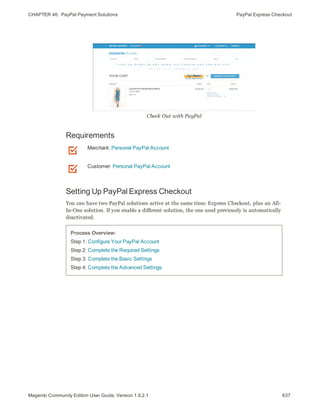
PayPal Express Checkout 636
Checkout Workflow 636
Requirements 637
Setting Up PayPal Express Checkout 637
Save Customer Billing Address 648
Billing Address Workflow 648
Managing Order Transactions 649
Payment Action Set to “Order” 650
Magento Community Edition User Guide, Version 1.9.2.1xiv
PayPal Credit 651
Billing Agreements 654
Customer Account Workflow 654
Sales Order Workflow 655
Settlement Reports 657
PayPal Payflow Pro 660
Customer Workflow 660
Order Processing Workflow 660
PayPal Payflow Link 661
Customer Workflow 661
Order Workflow 661
PayPal Fraud Management Filters 662
PayPal Solutions by Country 663
CHAPTER 47: Payment Solutions & Gateways 665
Payment Solutions by Region 666
Worldwide 666
Europe 667
Oceania 667
Testing Credentials 668
Authorize.Net 669
Capture Workflow 669
Authorize.Net Configuration 671
Partial Authorization with Authorize.Net 672
Customer Workflow 672
Admin Workflow 674
Refund Workflow 675
Direct Post 676
Admin Workflow 676
Customer Workflow 676
CHAPTER 48: Payment Services 679
3D Secure Credit Card Validation 680
Customer Workflow 680
Admin Workflow 681
xvMagento Community Edition User Guide, Version 1.9.2.1
Shipping 683
CHAPTER 49: Basic Shipping Methods 685
Shipping Settings 686
Flat Rate 688
Free Shipping 690
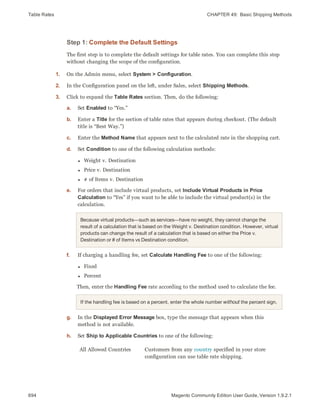
Table Rates 692
Setting Up Table Rates 693
Online Rates 697
Dimensional Weight 698
CHAPTER 50: Shipping Carriers 699
UPS 700
USPS 704
FedEx 707
DHL 712
Package Type by Carrier 716
CHAPTER 51: Shipping Labels 721
Shipping Label Workflow 722
Shipment Workflow 722
Tracking Number Workflow 722
Shipping Label Setup 723
Create Shipping Labels 726
Create Packages 733
Taxes 737
CHAPTER 52: Managing Taxes 739
General Tax Settings 740
Tax Classes 744
Product Tax Classes 744
Shipping Tax Class 745
Customer Tax Classes 746
Magento Community Edition User Guide, Version 1.9.2.1xvi
Tax Zones & Rates 747
Import / Export Tax Rates 749
Cross-Border Price Consistency 753
EU Place of Supply 754
Tax Rules 755
Fixed Product Tax 758
Fixed Product Tax Setup 759
Compound Taxes 763
CHAPTER 53: Value Added Tax (VAT) 765
VAT ID Validation 768
Customer Registration Workflow 768
Checkout Workflow 768
Setting Up VAT ID Validation 770
Managing VAT ID Validation 774
Customer Address Workflow 774
Order Creation Workflow 774
Automatic Customer Group Changes 775
CHAPTER 54: Tax Quick Reference 777
Configuration Options 777
Tax Calculation Methods 777
Catalog Prices With or Without Tax 778
Shipping Prices With or Without Tax 778
Tax Amounts as Line Items 778
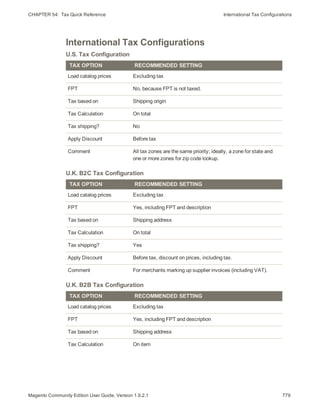
International Tax Configurations 779
U.S. Tax Configuration Recommendations 780
Tax Classes 781
Calculation Settings 781
Default Tax Destination Calculation 781
Price Display Settings 781
Shopping Cart Display Settings 782
Orders, Invoices, Credit Memos, Display Settings 782
Fixed Product Taxes 782
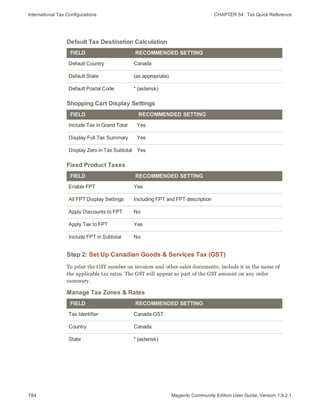
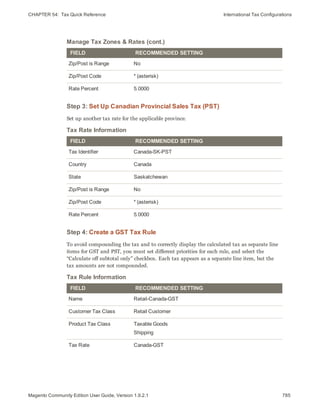
Canada: Example Tax Configuration 782
xviiMagento Community Edition User Guide, Version 1.9.2.1
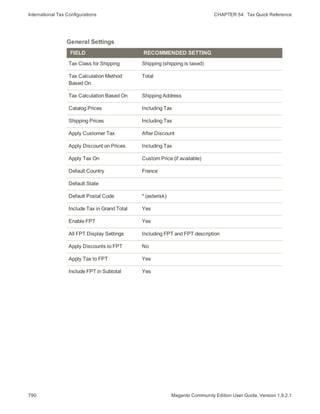
E.U. Example Tax Configuration 786
Warning Messages 792
Calculation Settings 793
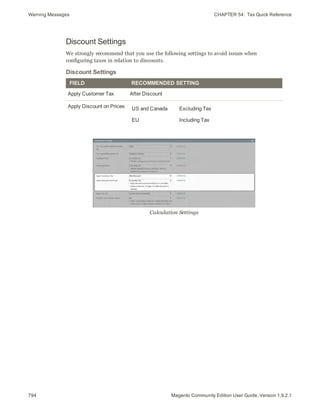
Discount Settings 794
Store Operations 795
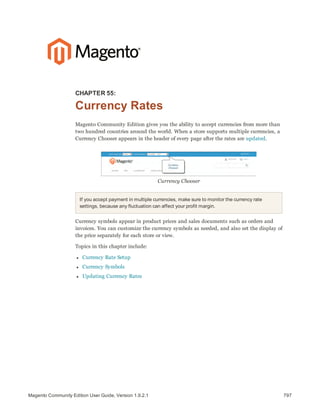
CHAPTER 55: Currency Rates 797
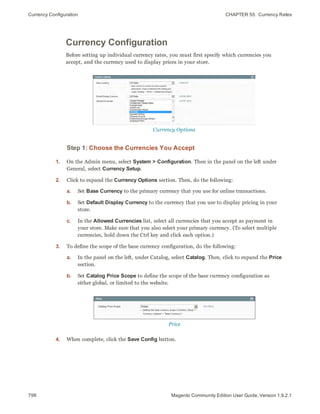
Currency Configuration 798
Currency Symbols 800
Updating Currency Rates 800
CHAPTER 56: Managing Email Templates 803
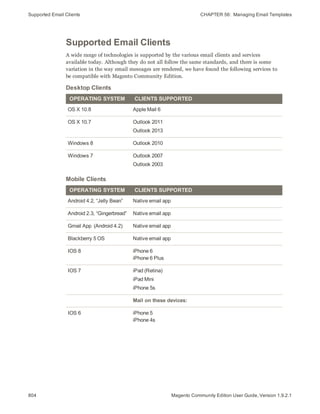
Supported Email Clients 804
Email Template Layout and Styles 806
Inline and Non-Inline Styles 806
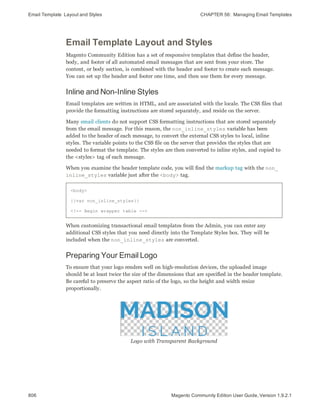
Preparing Your Email Logo 806
Supported File Formats 807
Image Size 807
Magento Upgrades 807
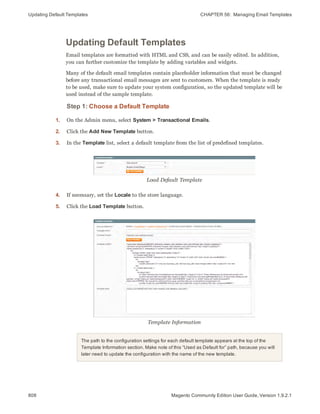
Updating Default Templates 808
Custom Email Templates 812
Email Header 812
Email Footer 817
Email Body 820
Email Template Configuration 824
System Configuration Update 827
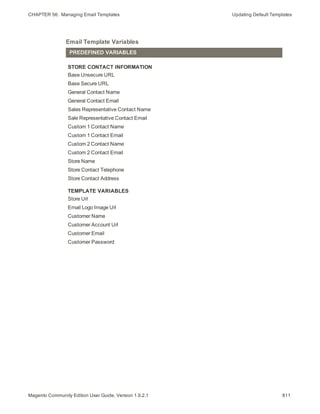
Email Template Reference 829
CHAPTER 57: Managing Data Transfer 831
Working with CSV Files 832
Product CSV Structure 832
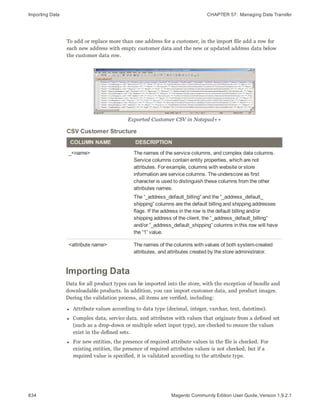
Customer CSV Structure 833
Importing Data 834
Importing Product Images 836
Magento Community Edition User Guide, Version 1.9.2.1xviii
Import Guidelines 837
New Entities 837
Existing Entities 838
Complex Data 838
Invalid Files 838
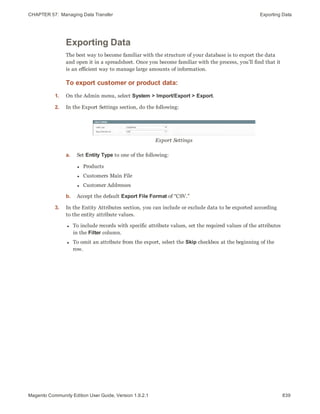
Exporting Data 839
Dataflow 841
CHAPTER 58: Reports 849
Dashboard 850
Snapshot Reports 851
Dashboard Setup 852
Running Reports 853
Refreshing Report Statistics 857
Available Reports 858
CHAPTER 59: Admin Permissions 861
Creating New Users 862
Creating Custom Roles 864
CHAPTER 60: Security 867
SOLUTION SERIES: Magento Security Best Practices 868
Start Right 868
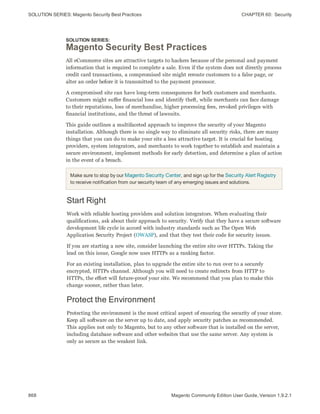
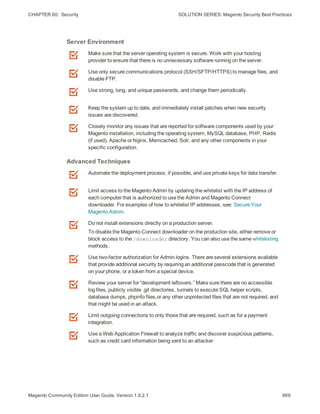
Protect the Environment 868
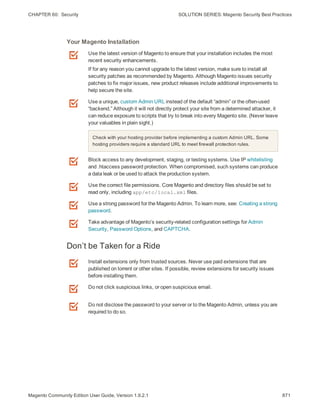
Protect Magento 870
Don’t be Taken for a Ride 871
Be Prepared! 872
Monitor for Signs of Attack 872
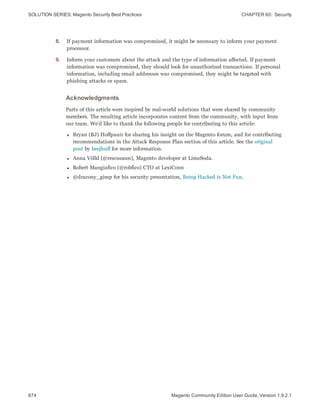
Follow Your Disaster Recovery Plan 873
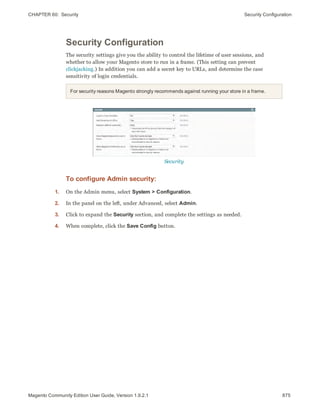
Security Configuration 875
CAPTCHA 876
Admin CAPTCHA 877
Customer CAPTCHA 878
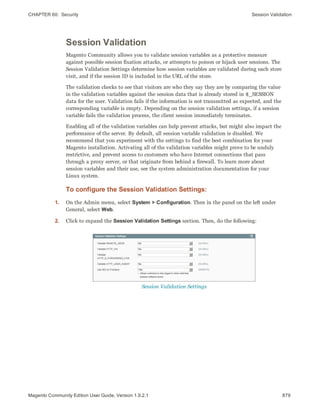
Session Validation 879
Browser Capabilities Detection 881
xixMagento Community Edition User Guide, Version 1.9.2.1
System Operations 883
CHAPTER 61: Index Management 885
Manual Reindexing 887
Automatic Indexing 888
Indexing by Multiple Users 888
Index Modes 888
CHAPTER 62: Cache Storage 893
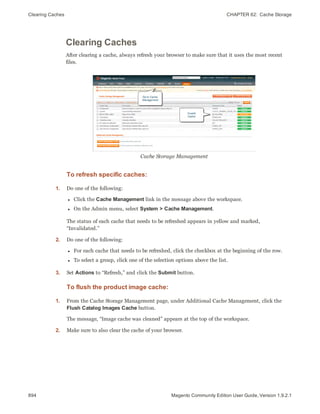
Clearing Caches 894
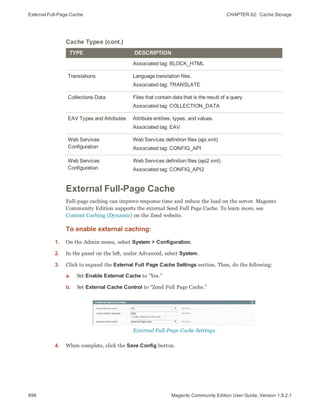
External Full-Page Cache 896
CHAPTER 63: Alternate Media Storage 897
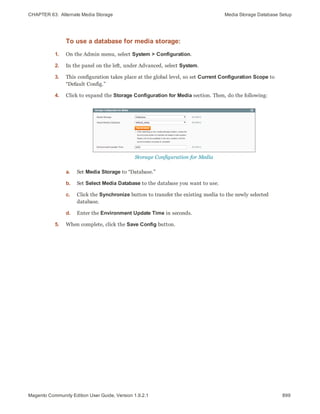
Media Storage Database Setup 898
Database Workflow 898
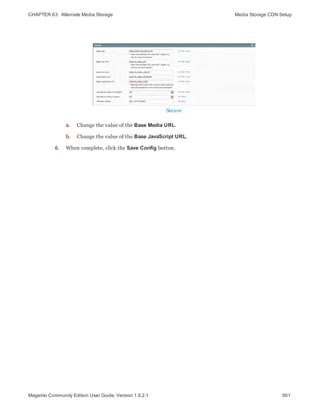
Media Storage CDN Setup 900
CDN Workflow 900
CHAPTER 64: Magento Connect 903
Upgrading Magento 904
Installing Extensions 905
CHAPTER 65: Web Services 907
Magento Core API Settings 908
Activating Web Services 909
REST Roles 910
CHAPTER 66: System Tools 911
Server Backups & Rollback 912
Best Practices 912
Creating a Backup 913
Rolling Back Changes 915
SOLUTION SERIES: Installing Magento Patches 916
Installing Patches with SSH 920
Compilation 935
Magento Community Edition User Guide, Version 1.9.2.1xx
System Log 936
System Log Cleaning 936
Cron (Scheduled Tasks) 938
Magento Test Framework 939
Requirements 940
Installation 941
Configuration 942
Non-Firefox Browsers 942
Magento URLs 942
Configuration Reference 943
Running MTF 945
Frequently Asked Questions 945
Database Repair Tool 947
Appendices 951
APPENDIX A: Release Notes 953
APPENDIX B: Glossary 957
APPENDIX C: Editor Toolbar 967
APPENDIX D: Configuration Reference 975
Index 977
xxiMagento Community Edition User Guide, Version 1.9.2.1
xxii Magento Community Edition User Guide, Version 1.9.2.1
Notes
Getting Started
In this section…
Welcome to Magento!
About This Release
Your Magento Account
Quick Tour
3Magento Community Edition User Guide, Version 1.9.2.1
CHAPTER 1:
Welcome to Magento!
Magento Community Edition is a feature-rich eCommerce platform, built on open-
source technology that provides online merchants with unparalleled flexibility and
control over the look, content, and functionality of their eCommerce store. Magento’s
intuitive Admin features powerful marketing, search engine optimization, and catalog
management tools to give merchants the power to create sites that are tailored to their
unique business needs. Designed to be completely scalable, Magento CE offers
companies a stable, secure, customizable eCommerce solution.
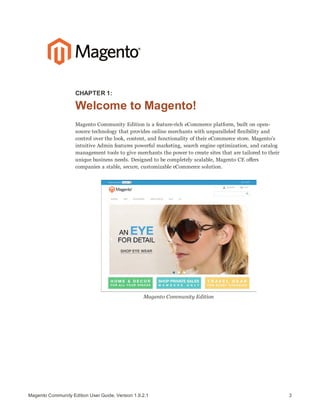
Magento Community Edition
Resources CHAPTER 1:  Welcome to Magento!
4 Magento Community Edition User Guide, Version 1.9.2.1
Resources
Magento provides a wealth of business and technical resources, self-help tools, and services
to help you succeed.
Product Documentation
Whether you’re a merchant, designer, developer, or
all of the above, this is where you’ll gain a deeper
insight into how you can leverage the power of
Magento to grow your business.
Commerce Resources
Gain access to expert insight and online business
resources to help develop and improve your store.
Ebooks, Magento white papers,and webinars.
Security Center
Join Magento‘s Security Alert Registry to receive the
latest information about potential vulnerabilities and
solutions. See also: Security Best Practices.
CHAPTER 1:  Welcome to Magento! Resources
Forums
The Magento forums provide access to a network of
dedicated Magento enthusiasts who share tips,
tricks and support.
Blog
Check out the Magento blog for the latest information
about new features, trends, best practices, upcoming
events, and more!
Webinars
Expand your horizons! Register to attend the
upcoming Magento webinar, or catch up on previous,
archived webinars.
Training & Certification
Learn to unleash the power and flexibility of Magento.
We provide training for every role in your business,
including marketers, designers, developers, and
more. Experienced Magento professionals can
validate their real-world skills by earning Magento
certification.
5Magento Community Edition User Guide, Version 1.9.2.1
Resources CHAPTER 1:  Welcome to Magento!
6 Magento Community Edition User Guide, Version 1.9.2.1
Partners
Need help to set up or fine-tune your store?
Magento’s certified developers and consultants are
experts in store setup, design, integration and
marketing. Find a certified expert and jumpstart your
business today!
Expert Consulting Services
Magento’s Expert Consulting Group (ECG) helps
Magento merchants and Solution Partners maximize
their success. Our experts offer comprehensive
analysis and best practice recommendations, from
architecture planning through post-deployment.
CHAPTER 1:  Welcome to Magento! Join the Conversation!
Join the Conversation!
Keep up with the latest news from the ecosystem, and connect with other merchants and
developers on social media networks.
Facebook
Find out what’s happening and join the discussion on
our Facebook page!
Twitter
Follow us on Twitter!
LinkedIn
Join a Magento group on LinkedIn.
7Magento Community Edition User Guide, Version 1.9.2.1
Join the Conversation! CHAPTER 1:  Welcome to Magento!
8 Magento Community Edition User Guide, Version 1.9.2.1
Google+
Add us to your circle on Google+.
YouTube
Learn while you watch videos
on our YouTube channel!
Meetup
Find a Magento Meetup near you!
9Magento Community Edition User Guide, Version 1.9.2.1
CHAPTER 2:
About This Release
We are pleased to bring to you Magento Community Edition version 1.9.2.1; a release
that includes several significant security enhancements. To learn more, see the Release
Notes in the Appendix of this guide.
Important! Use Magento Community 1.9.0 or later for all new installations and upgrades
to ensure that you get the latest fixes, features, and security updates.
Magento Community Edition
System Requirements CHAPTER 2:  About This Release
10 Magento Community Edition User Guide, Version 1.9.2.1
System Requirements
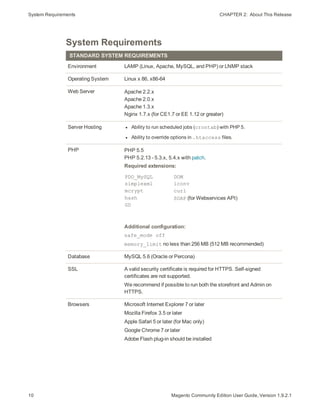
STANDARD SYSTEM REQUIREMENTS
Environment LAMP (Linux, Apache, MySQL, and PHP) or LNMP stack
Operating System Linux x 86, x86-64
Web Server Apache 2.2.x
Apache 2.0.x
Apache 1.3.x
Nginx 1.7.x (for CE1.7 or EE 1.12 or greater)
Server Hosting l Ability to run scheduled jobs (crontab) with PHP 5.
l Ability to override options in .htaccess files.
PHP PHP 5.5
PHP 5.2.13 - 5.3.x, 5.4.x with patch.
Required extensions:
PDO_MySQL
simplexml
mcrypt
hash
GD
DOM
iconv
curl
SOAP (for Webservices API)
Additional configuration:
safe_mode off
memory_limit no less than 256 MB (512 MB recommended)
Database MySQL 5.6 (Oracle or Percona)
SSL A valid security certificate is required for HTTPS. Self-signed
certificates are not supported.
We recommend if possible to run both the storefront and Admin on
HTTPS.
Browsers Microsoft Internet Explorer 7 or later
Mozilla Firefox 3.5 or later
Apple Safari 5 or later (for Mac only)
Google Chrome 7 or later
Adobe Flash plug-in should be installed
CHAPTER 2:  About This Release Installing Magento
STANDARD SYSTEM REQUIREMENTS
Supported Technologies
Redis Redis can be used for session or cache storage.
redis-server version 2.6.9 or later
phpredis version 2.2.2 or later
Memcached Memcached can be used for session or cache storage.
Compatibility Check
The magento-check script tests your server against the system requirements, and
generates a report. You can download the script from our website.
To check the compatibility of your server:
1. Download the magento-check file to your computer.
2. Extract the archive anywhere on your computer. Then, upload the extracted file, magento-
check.php, to the Magento directory on your server.
3. Use your browser to navigate to the following page in your Magento directory:
magento/magento-check.php
Installing Magento
Magento Community Edition is open source software and can be downloaded for free.
Developers can modify the core code and add features and functionality by installing
extensions from the Magento Connect marketplace.
Because Magento does not provide technical support for this software, you can benefit from
the knowledge of experts in the community for help with the installation and configuration.
Answers to many technical questions can be found on our user forum.
After you verify that your hosting environment meets the system requirements, you can
download Magento Community Edition free of charge from the Magento community site.
Although optional, we recommend that you register on our site so you have access to the
forums, wiki, groups, screencasts, and other resources the community has to offer.
Magento Community Edition is licensed under the Open Software License (OSL) v3.0, an
open source certified license. To learn more, see the License / Trademark FAQ on our site.
11Magento Community Edition User Guide, Version 1.9.2.1
Installing Magento CHAPTER 2:  About This Release
12 Magento Community Edition User Guide, Version 1.9.2.1
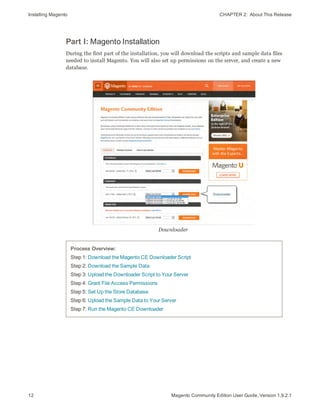
Part I: Magento Installation
During the first part of the installation, you will download the scripts and sample data files
needed to install Magento. You will also set up permissions on the server, and create a new
database.
Downloader
Process Overview:
Step 1: Download the Magento CE Downloader Script
Step 2: Download the Sample Data
Step 3: Upload the Downloader Script to Your Server
Step 4: Grant File Access Permissions
Step 5: Set Up the Store Database
Step 6: Upload the Sample Data to Your Server
Step 7: Run the Magento CE Downloader
CHAPTER 2:  About This Release Installing Magento
Step 1: Download the Magento CE Downloader Script
1. Go to the Magento Community Edition download page.
2. In the Downloader section, select one of the following formats for the archived downloader.
The archive file name is: magento-downloader-x.x.x.zip (or .tar.gz, or .tar.bz2). The size of
the archive is approximately 46K.
l .zip
l .tar.gz
l .tar.bz2
3. Click the Download button. While the file is downloading, take a moment to look over the
resources on the Magento Community page.
4. Extract the archive to a directory of your choice on your local computer. The name of the
extracted file is: downloader.php
Step 2: Download the Sample Data
Magento provides sample data with examples of products and basic content pages to help
you get started. When you are ready to build your own catalog, you can reinstall Magento
without the sample data. This step is recommended, but is not required.
1. In the Sample Data section, Select your format for the archived sample data.
2. Click the Download button, and Save the file anywhere on your local computer. The file
name is: magento-sample-data-x.x.x.zip (or .tar.gz, or .tar.bz2). The size of the archive is
approximately 10MB.
Magento provides sample data with examples of products and basic content pages to help
you get started. When you are ready to build your own catalog, you can reinstall Magento
without the sample data. This step is recommended, but is not required.
3. In the Sample Data section, Select your format for the archived sample data.
4. Click the Download button, and Save the file anywhere on your local computer. The file
name is: magento-sample-data-x.x.x.zip (or .tar.gz, or .tar.bz2). The size of the archive is
approximately 10MB.
Sample Data Download
13Magento Community Edition User Guide, Version 1.9.2.1
Installing Magento CHAPTER 2:  About This Release
14 Magento Community Edition User Guide, Version 1.9.2.1
Step 3: Upload the Downloader Script to Your Server
Use an FTP or SFTP tool to copy the extracted downloader script to the root www directory
of the server. (The root www directory is usually named public_html.) As an alternative,
you can copy the file to another subdirectory, such as /store.
Step 4: Grant File Access Permissions
For the Magento Installer to work correctly, the top-level Magento directory on the server,
and all directories beneath it must have correct permissions. To learn more, see the
Knowledge Base article: Recommended File System Ownership and Privileges.
Step 5: Set Up the Store Database
1. Create a new, empty database using one of the following methods:
l Use phpMyAdmin or a similar tool provided by your hosting company. For instructions,
see the documentation for the specific tool.
l MySQL command line
2. Create a new user with full permissions to the database. Then, write down the following
information:
dbname The database name.
dbuser The name of the database user.
dbpassword The password for the database user.
Step 6: Upload the Sample Data to Your Server
If you want to use the sample data, it must be installed now. If you are ready to add your
own products, skip this step. You can use either of the following methods to install the
sample data:
Method 1: FTP or SFTP
1. Extract the sample data archive that you downloaded in Step 2, to a directory of your
choice on your local computer. The file name is similar to: magento_sample_data_
for_x.x.x.sql.
The archive contains an SQL script with a dump of the sample data, and a
media/catalog folder with category and product images.
CHAPTER 2:  About This Release Installing Magento
Sample Data Archive
2. Use an FTP or SFTP tool to copy the media folder and its subdirectories from your
local computer to the magento installation directory on the server. Depending on your
server, the path will look something like this:
/var/www.magento/media
/var/www/html/magento/media
3. Use an FTP or SFTP tool to copy the magento sample data script to the server. A good
place to put it is in the media/catalog folder.
/var/www/magento/media/catalog
/var/www/html/magento/media/catalog
4. Do one of the following:
l Use phpMyAdmin, or a similar tool to run the sample data script and import the
data into the new database.
l On the command line, enter the following:
mysql -u <root user> -p <magento-db-name> < <path-and-filename of db-
script>
Method 2: Command Line
If you prefer to install the sample data from the command line, see this Knowledge Base
article, under the heading: Installing Optional Sample Data.
You’re ready to install Magento!
15Magento Community Edition User Guide, Version 1.9.2.1
Installing Magento CHAPTER 2:  About This Release
16 Magento Community Edition User Guide, Version 1.9.2.1
Step 7: Run the Magento CE Downloader
1. From your browser, navigate to the location of the Magento downloader on your server. The
Magento Downloader welcome page appears.
Welcome
2. To validate your server environment, click the Continue button. If error warnings appear,
correct the errors and click the Check Again button.
Validation
3. When you pass the validation test, do the following:
a. Enter the following Database Connection information:
l Host
l User Name
l User Password
CHAPTER 2:  About This Release Installing Magento
Database Connection
b. Click the Check InnoDB button to confirm the connection.
c. When you receive confirmation that the credentials are valid, click the Continue
button.
4. On the Magento Connect Manager Deployment page, do the following:
Magento Connect Manager Deployment
a. In the Loader Protocol section, set Magento Connect Channel Protocol to one of the
following:
HTTP (Recommended) HTTP is faster than FTP.
FTP Choose FTP if outgoing connections are not allowed in your hosting
environment.
17Magento Community Edition User Guide, Version 1.9.2.1
Installing Magento CHAPTER 2:  About This Release
18 Magento Community Edition User Guide, Version 1.9.2.1
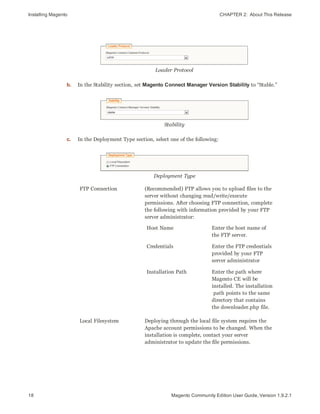
Loader Protocol
b. In the Stability section, set Magento Connect Manager Version Stability to “Stable.”
Stability
c. In the Deployment Type section, select one of the following:
Deployment Type
FTP Connection (Recommended) FTP allows you to upload files to the
server without changing read/write/execute
permissions. After choosing FTP connection, complete
the following with information provided by your FTP
server administrator:
Host Name Enter the host name of
the FTP server.
Credentials Enter the FTP credentials
provided by your FTP
server administrator
Installation Path Enter the path where
Magento CE will be
installed. The installation
path points to the same
directory that contains
the downloader.php file.
Local Filesystem Deploying through the local file system requires the
Apache account permissions to be changed. When the
installation is complete, contact your server
administrator to update the file permissions.
CHAPTER 2:  About This Release Installing Magento
If the web server user can't write to the magento directory,
do not proceed. It’s most likely an ownership issue, rather
than a permissions issue.
d. To verify the connection, click the Check FTP button. You will not be able to continue
if any of the deployment parameters are invalid. After the FTP connection is verified,
click the Continue button.
5. When the Magento Installation Wizard appears, do the following:
Magento Installation Wizard
a. Set Magento Connect Channel Protocol to the same protocol you selected in the
previous step. (Options include: HTTP/FTP)
b. Custom permissions determine how read, write, and execute permissions are applied
to the downloaded folders and files. Set Use Custom Permissions to one of the
following:
Yes The Magento CE administrator can execute, write, and read files in the
downloaded folders. In the Folders and Files fields that appear, specify
values in the octal number system to denote the permissions that the
Magento administrator has for folders and files on the server.
No Custom permissions are not specified for downloaded folders and files.
In this case the system default values are used:
0777 Folder permissions to read, write, and execute.
0666 File permissions to read and write.
c. Set Deployment Type to the type specified in the previous step. (Options include:
Local Filesystem/FTP)
19Magento Community Edition User Guide, Version 1.9.2.1
Installing Magento CHAPTER 2:  About This Release
20 Magento Community Edition User Guide, Version 1.9.2.1
d. When you are ready to start the download, click the Start the Download Process
button to begin.
Starting to Download
e. When the "Download completed" message appears, click the Continue to Magento
Installation button.
If you were unable to complete the download process due to a connection error, try to
upload the Full Magento Package from the Community download page.
6. Complete Part II of the installation.
Part II: Magento Installation
During the second part of the Magento installation, you will complete the initial
configuration, and create an admin account.
Process Overview:
Step 1: Run Setup
Step 2: License Agreement
Step 3: Localization
Step 4: Configuration
Step 5: Create an Admin Account
CHAPTER 2:  About This Release Installing Magento
Step 1: Run Setup
From your browser, enter the path to your Magento installation. Depending on the
installation location, it is similar to one of the following:
http://[your_domain]/magento
http://www.[your_domain]/magento
http://www.[your_domain]/[directory]/magento
Step 2: License Agreement
Read the terms of the Magento Community Edition End User License Agreement. If you
agree to the terms, click the Continue button.
License
Step 3: Localization
Select the default localization settings for your Magento CE installation. The values can be
changed later for specific stores, store views, and websites.
l Locale
l Time Zone
l Default Currency
21Magento Community Edition User Guide, Version 1.9.2.1
Installing Magento CHAPTER 2:  About This Release
22 Magento Community Edition User Guide, Version 1.9.2.1
Locale Settings
Step 4: Configuration
1. In the Database Connection section, do the following:
a. Set Database Type to “MySQL.”
b. In the Host field, enter the server's fully qualified host name or IP address. If your
database server is on the same host as your web server, enter “localhost.”
c. Refer to the database credentials from Part 1: Step 5, and enter the following:
l Database Name
l User Name
l User Password
d. (Optional) The Table prefix is used when there are multiple instances of Magento that
share a single database.
Database Connection
2. In the Web Access Options section, do the following:
a. Enter the Base URL for the Magento store.
b. In the Admin Path filed, enter the base URL for the store’s Admin Panel. (The default
value is “admin.”)
c. To display charts in the Dashboard, select the Enable Charts checkbox.
CHAPTER 2:  About This Release Installing Magento
d. If you are installing Magento to a development or test environment, and the Web
server is not verifiable, select the Skip Base URL Validation Before the Next Step
checkbox. Otherwise, leave the checkbox unselected.
e. (Recommended) To enable the Apache mod_rewrite module, select the Use Web
Server (Apache) Rewrites checkbox. To learn more, see the Knowledge Base article:
Installing and Configuring Required Prerequisite Software.
f. (Recommended) If your server has a valid security certificate, select the Use Secure
URLs (SSL) checkbox. Then, complete the following:
Secure Base URL Enter the complete base URL for the SSL connection.
Run the Admin Interface
with SSL
Select the checkbox to run the store admin on the secure
channel.
These initial SSL settings can be modified later.
Web Access Options
3. In the Session Storage Options section, set Save Session Data In to one of the following:
Session Storage Options
File System Stores user session data on the file system in the magento-
install-dir/var/session directory. File-based session storage is
the most common configuration.
Database Stores user session data in the database. Choose database
storage for a clustered database, or if system access is slow.
23Magento Community Edition User Guide, Version 1.9.2.1
Installing Magento CHAPTER 2:  About This Release
24 Magento Community Edition User Guide, Version 1.9.2.1
4. When the Configuration settings are complete, click the Continue button.
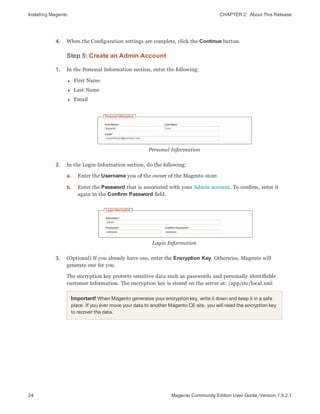
Step 5: Create an Admin Account
1. In the Personal Information section, enter the following:
l First Name
l Last Name
l Email
Personal Information
2. In the Login Information section, do the following:
a. Enter the Username you of the owner of the Magento store.
b. Enter the Password that is associated with your Admin account. To confirm, enter it
again in the Confirm Password field.
Login Information
3. (Optional) If you already have one, enter the Encryption Key. Otherwise, Magento will
generate one for you.
The encryption key protects sensitive data such as passwords and personally identifiable
customer information. The encryption key is stored on the server at: /app/etc/local.xml
Important! When Magento generates your encryption key, write it down and keep it in a safe
place. If you ever move your data to another Magento CE site, you will need the encryption key
to recover the data.
CHAPTER 2:  About This Release Installing Magento
Encryption Key
4. Click the Continue button, and you’re all set!
l To explore your new store, click the Go to Frontend button.
l To explore your store’s admin, click the Go to Backend button.
Reinstalling Magento
If you want to repeat the installation of Magento Community Edition on the same server, it
is not necessary to download the files again.
To reinstall Magento:
1. On the server, delete the file: app/etc/local.xml
2. Delete any files and directories found in: var/
3. With your browser, navigate to your Magento directory. For example:
http://www.yourDomain.com/magento-directory
The Magento Installation Wizard launches automatically.
Using a Staging Environment
If you plan to develop your store over a period of time, we recommend that you set up a
staging environment where you can test changes before applying them to the live store.
A staging environment is just like any other Magento installation, but is not accessible to
the public. You can use a version control tool to keep files synchronized between the staging
environment and the live store. We highly recommend that you use a staging environment
to test extensions and before updating your live store to a new version of Magento
Community Edition.
25Magento Community Edition User Guide, Version 1.9.2.1
Prelaunch Checklist CHAPTER 2:  About This Release
26 Magento Community Edition User Guide, Version 1.9.2.1
Prelaunch Checklist
After you complete the design, development, and testing of your store, check the following
configuration settings to make sure everything is correct before the store “goes live.” For a
comprehensive description of every configuration setting, see the Configuration Reference.
General Settings
Unsecure URL
Verify that the Base URL for the storefront is correct for the live environment.
Secure URL
Before launching your store, install a 100% Signed and Trusted Security Certificate
for the server that is using a Secure Base URL.
Store Email Addresses
Complete all the email addresses that are used to send and receive email
notifications, such as new orders, invoices, shipments, credit memos, product price
alerts, newsletters, and so on. Make sure that each field contains a valid business
email address.
Sales Settings
Sales Document Setup
Make sure that your invoices and packing slips include the correct business
information and reflect your brand.
Taxes
Make sure that taxes are properly configured according to your business tax rules
and local requirements.
Shipping Methods
Enable all carriers and shipping methods to be used by the company.
CHAPTER 2:  About This Release Prelaunch Checklist
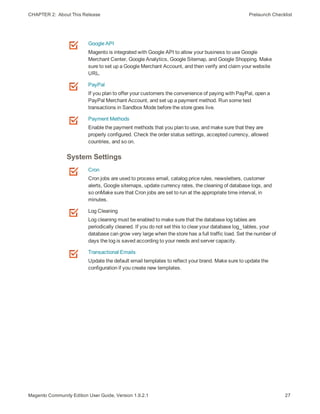
Google API
Magento is integrated with Google API to allow your business to use Google
Merchant Center, Google Analytics, Google Sitemap, and Google Shopping. Make
sure to set up a Google Merchant Account, and then verify and claim your website
URL.
PayPal
If you plan to offer your customers the convenience of paying with PayPal, open a
PayPal Merchant Account, and set up a payment method. Run some test
transactions in Sandbox Mode before the store goes live.
Payment Methods
Enable the payment methods that you plan to use, and make sure that they are
properly configured. Check the order status settings, accepted currency, allowed
countries, and so on.
System Settings
Cron
Cron jobs are used to process email, catalog price rules, newsletters, customer
alerts, Google sitemaps, update currency rates, the cleaning of database logs, and
so onMake sure that Cron jobs are set to run at the appropriate time interval, in
minutes.
Log Cleaning
Log cleaning must be enabled to make sure that the database log tables are
periodically cleaned. If you do not set this to clear your database log_ tables, your
database can grow very large when the store has a full traffic load. Set the number of
days the log is saved according to your needs and server capacity.
Transactional Emails
Update the default email templates to reflect your brand. Make sure to update the
configuration if you create new templates.
27Magento Community Edition User Guide, Version 1.9.2.1
Prelaunch Checklist CHAPTER 2:  About This Release
Notes
28 Magento Community Edition User Guide, Version 1.9.2.1
29Magento Community Edition User Guide, Version 1.9.2.1
CHAPTER 3:
Your Magento Account
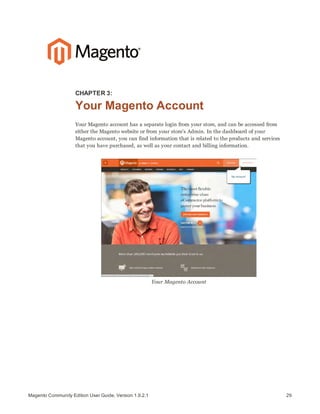
Your Magento account has a separate login from your store, and can be accessed from
either the Magento website or from your store’s Admin. In the dashboard of your
Magento account, you can find information that is related to the products and services
that you have purchased, as well as your contact and billing information.
Your Magento Account
CHAPTER 3:  Your Magento Account
To create a Magento account:
1. Visit the Magento site: http://www.magento.com
2. In the upper-right corner, click My Account.
3. Under New Customers, click Resister. Then, do the following:
Log In to Your Account
a. Enter your First Name, Last Name, andEmail Address.
b. Set My Company Primarily to the best description of what your company does. Then,
set My Role to the best description of what you do for the company.
c. Enter a Screen Name to identify you in the Magento forums.
Your screen name can be from four to fifteen characters long, can include numbers and
the underscore, but must start with a letter.
d. Enter a Password for your account. Then, enter it again to confirm.
Your password can be from eight to sixteen characters long, and must include at least
one capital letter, one number, and one special character or one lowercase letter.
e. When complete, click Submit. Your account dashboard appears.
30 Magento Community Edition User Guide, Version 1.9.2.1
CHAPTER 3:  Your Magento Account
To log in to your Magento account:
1. Navigate to the Magento site: http://www.magento.com
2. In the upper-right corner, click My Account.
3. Enter the Email address that is associated with your account. Then, enter your Password.
4. When complete, click the Login button.
To receive a new password:
1. If you forget your password, click Forgot Your Password? Then, enter the Email Address
that is associated with your account.
2. Click the Submit button.
You will receive an email from Magento with a temporary password that you can use to log
into your account. Then, reset your password from the dashboard of your account.
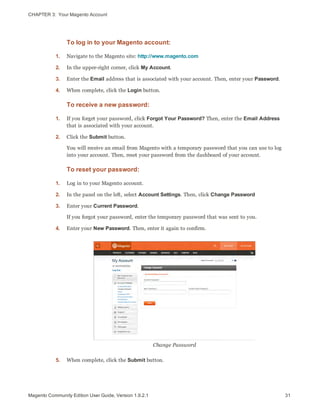
To reset your password:
1. Log in to your Magento account.
2. In the panel on the left, select Account Settings. Then, click Change Password
3. Enter your Current Password.
If you forgot your password, enter the temporary password that was sent to you.
4. Enter your New Password. Then, enter it again to confirm.
Change Password
5. When complete, click the Submit button.
31Magento Community Edition User Guide, Version 1.9.2.1
Sharing Your Account CHAPTER 3:  Your Magento Account
32 Magento Community Edition User Guide, Version 1.9.2.1
Sharing Your Account
Your Magento account contains information that can be useful to trusted employees and
service providers who help to manage your site. As the primary account holder, you have
authority to grant limited access to your account to other Magento account holders. When
your account is shared, all sensitive information—such as your billing history or credit card
information—remains protected. It is not shared at any time with other users.
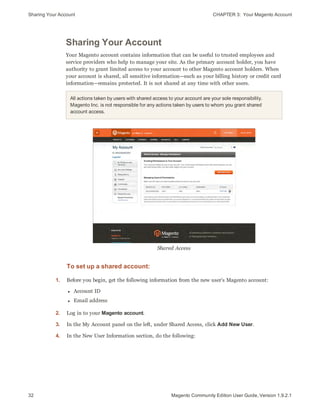
All actions taken by users with shared access to your account are your sole responsibility.
Magento Inc. is not responsible for any actions taken by users to whom you grant shared
account access.
Shared Access
To set up a shared account:
1. Before you begin, get the following information from the new user’s Magento account:
l Account ID
l Email address
2. Log in to your Magento account.
3. In the My Account panel on the left, under Shared Access, click Add New User.
4. In the New User Information section, do the following:
CHAPTER 3:  Your Magento Account Sharing Your Account
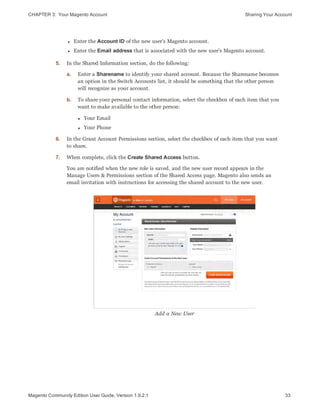
l Enter the Account ID of the new user’s Magento account.
l Enter the Email address that is associated with the new user’s Magento account.
5. In the Shared Information section, do the following:
a. Enter a Sharename to identify your shared account. Because the Sharename becomes
an option in the Switch Accounts list, it should be something that the other person
will recognize as your account.
b. To share your personal contact information, select the checkbox of each item that you
want to make available to the other person:
l Your Email
l Your Phone
6. In the Grant Account Permissions section, select the checkbox of each item that you want
to share.
7. When complete, click the Create Shared Access button.
You are notified when the new role is saved, and the new user record appears in the
Manage Users & Permissions section of the Shared Access page. Magento also sends an
email invitation with instructions for accessing the shared account to the new user.
Add a New User
33Magento Community Edition User Guide, Version 1.9.2.1
Sharing Your Account CHAPTER 3:  Your Magento Account
34 Magento Community Edition User Guide, Version 1.9.2.1
To access a shared account:
1. When you receive the invitation to a shared account, the first thing you must do is to log
in to your own Magento account.
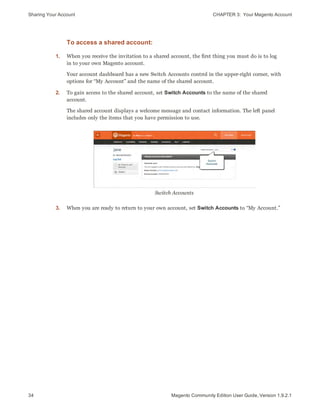
Your account dashboard has a new Switch Accounts control in the upper-right corner, with
options for “My Account” and the name of the shared account.
2. To gain access to the shared account, set Switch Accounts to the name of the shared
account.
The shared account displays a welcome message and contact information. The left panel
includes only the items that you have permission to use.
Switch Accounts
3. When you are ready to return to your own account, set Switch Accounts to “My Account.”
35Magento Community Edition User Guide, Version 1.9.2.1
CHAPTER 4:
Quick Tour
This quick tour follows the customer-decision journey that leads to a purchase on an
eCommerce site powered by Magento Community Edition. Each item is linked to a
topic in this guide, where you can learn more about the subject. You can also follow
along on your computer with the sample data. The journey begins with your storefront.
To access your storefront:
Use your browser to navigate to your store. Your URL might look like one of the
following:
http://www.yourdomain.com
http://yourdomain.com
Home Page
Customer Journey CHAPTER 4:  Quick Tour
36 Magento Community Edition User Guide, Version 1.9.2.1
Customer Journey
Attract New Customers
Magento Community Edition includes SEO
functionality out of the box. Improve your search
ranking and attract the most visitors to your site.
Engage Your Customers
Design your site with pre-designed templates, or
create a custom design with features that invite
people to interact with your store.
Increase AOV
Increase average order value with promotions and
content that encourage your customers to shop
more.
CHAPTER 4:  Quick Tour Customer Journey
Moment of Purchase
Give your customers a faster and easier way to
check out. Calculate shipping and taxes
automatically, and integrate multiple payment
methods on a single page.
Customer Retention
Create and manage newsletters and promotions to
keep your customers coming back for more.
Loyalty & Advocacy
Encourage customers to write product reviews,
create wishlists, and send email about products to
their friends. This will strengthen your relationship
with your customers, who in return, will speak
positively of your business to friends and family.
37Magento Community Edition User Guide, Version 1.9.2.1
Customer Journey CHAPTER 4:  Quick Tour
38 Magento Community Edition User Guide, Version 1.9.2.1
Attract New Customers
Magento Community Edition is packed with features that make it easy to create a “search
engine friendly” websites and increase the likelihood of bringing the right customers to your
site.
Search Engine Optimization
Magento offers powerful, native capabilities to streamline Search Engine Optimization
(SEO) practices for content and site exposure that are integrated with the Admin, and tied
directly into the user experience.
Custom URLs
Custom URLs are short, clean, and easy to remember. You can also autogenerate search-
friendly URLs to streamline your purchase path.
Meta Data
Improve your search engine rankings by choosing specific criteria that helps search engines
to find and index your products more easily. Meta data can be entered for product,
category, and content pages.
Sitemap
Link to a sitemap from the footer of your store to give customers an overview of the catalog
structure, with links to all categories and products in the store. You can also easily
integrate your store with Google Sitemap.
Analytics
In addition to monitoring your site from the Admin dashboard, you can integrate third-
party analytics tools such as Google Analytics, for detailed statistics on traffic and sales.
CHAPTER 4:  Quick Tour Customer Journey
Engage Your Customers
Magento Community Edition makes it easy to create a customized, engaging site
experience. Encourage your customers to spend more time exploring your site, and give
them the tools to make it easy to find what they want faster.
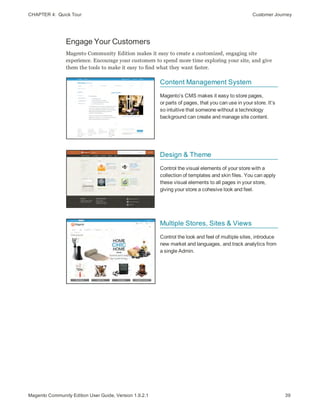
Content Management System
Magento’s CMS makes it easy to store pages,
or parts of pages, that you can use in your store. It’s
so intuitive that someone without a technology
background can create and manage site content.
Design & Theme
Control the visual elements of your store with a
collection of templates and skin files. You can apply
these visual elements to all pages in your store,
giving your store a cohesive look and feel.
Multiple Stores, Sites & Views
Control the look and feel of multiple sites, introduce
new market and languages, and track analytics from
a single Admin.
39Magento Community Edition User Guide, Version 1.9.2.1
Customer Journey CHAPTER 4:  Quick Tour
40 Magento Community Edition User Guide, Version 1.9.2.1
Multiple Devices
Magento’s powerful features make it easy to create
storefronts optimized for iPhone, Android, and
Mobile Opera browsers to help you engage
consumers with mobile eCommerce now and into
the future.
Shopping Tools
Your store includes a set of shopping tools that
create opportunities for your customers to interact
with your store, connect on social media, and share
with friends.
Sophisticated Search
Filter product by price, manufacturer, or any other
criteria to reduce the time to purchase.
Increase Average Order Value (AOV)
Magento Community Edition provides a range of tools to help you tailor the shopping
experience, and encourage your customers to put more items in their shopping carts and
spend more money.
CHAPTER 4:  Quick Tour Customer Journey
Promotions
Magento's catalog and shopping cart price rules let
you create promotions that kick into gear when a set
of conditions is met.
Coupons
Create limited-time offers and coupons that
customers can scan with their phone and apply to a
purchase.
Product Suggestions
Another way to increase AOV is to offer suggestions
for related products and opportunities to up-sell and
cross-sell at strategic points along the path to
conversion.
User Permissions & Roles
Restrict access to data in the Admin on a “need to
know” basis. Create multiple admin roles for read-
only or and editing privileges. Track and review all
activity at a granular level to specific stores and
websites.
41Magento Community Edition User Guide, Version 1.9.2.1
Customer Journey CHAPTER 4:  Quick Tour
42 Magento Community Edition User Guide, Version 1.9.2.1
Moment of Purchase
Now that you’ve given your customer an engaging shopping experience, make it easy for
them to complete their purchases. Magento is designed to help you streamline your
checkout process experience while boosting conversion rates.
Order Processing
Magento supports a complete order processing workflow. It's easy to customize order
statuses and track communications between sales reps and customers.
Shipping Labels
Merchants have complete control over package characteristics such as weight and size.
Shipping labels, rate, and barcode information originates directly from the carrier. Labels
can be generated for single or multiple orders.
Multiple Shipping Options
Magento supports a variety of shipping methods so you can give your customers a choice
at checkout. Customers can see a real-time estimate of shipping charges right from the
shopping cart.
Multiple Payment Options
Magento Community Edition supports the payment methods and currencies needed for
global commerce. You can choose the ones you want to offer, and at checkout, your
customers can choose the ones they prefer.
PayPal Merchant Solutions
It's easy to integrate a PayPal Payments account to provide your customers faster, more
secure checkout options.
Assisted Shopping
Assisted shopping makes it easy for customer service reps to create orders for customers.
Customer service reps have access to shopping cart contents, and can move items from a
wishlist to a shopping cart, apply coupon codes, and more.
Security
Whether an order is fulfilled online or over the phone, Magento provides sophisticated
security, including CAPTCHA and SSL encryption, with best-in-breed encryption and
hashing algorithms to protect the security of the system.
CHAPTER 4:  Quick Tour Customer Journey
Customer Retention
Magento makes it easy for you to get repeat business and build brand loyalty. Magento
gives you total control and flexibility over creating and revising goodies like rewards
programs, custom coupons and automated emails to keep your customers coming back
again and again.
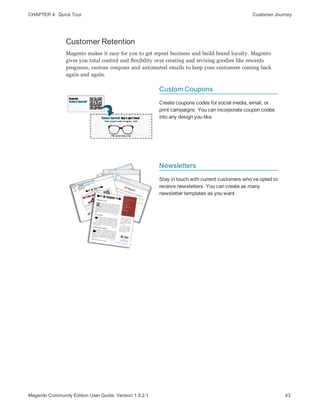
Custom Coupons
Create coupons codes for social media, email, or
print campaigns. You can incorporate coupon codes
into any design you like.
Newsletters
Stay in touch with current customers who’ve opted to
receive newsletters. You can create as many
newsletter templates as you want.
43Magento Community Edition User Guide, Version 1.9.2.1
Customer Journey CHAPTER 4:  Quick Tour
44 Magento Community Edition User Guide, Version 1.9.2.1
Loyalty & Advocacy
Give customers a direct connection to your brand by allowing them to create customer
accounts where they can see their purchase history, wishlist, and newsletter subscriptions.
Use product ratings and reviews to give new customers objective product opinions and
promote a sense of community. These features turn customer satisfaction into one of the
most powerful and cost-efficient marketing tools at your disposal.
Dashboard Snapshots
Knowing what’s of interest on your site is crucial to maximize your marketing budget. Use
this information to determine what you should cross- and up-sell to loyal customers, or
which products to put on sale.
Customer Accounts
Opening as account provides customers with a personalized shopping experience that they
can share with their friends. Customers can save their shopping preferences, and manage
their own store billing and shipping information.
Advocacy Tools
Customers who share their wishlists with family and friends make a powerful endorsement
of your brand. Customers create these personalized lists from products they choose. When
shared by email or RSS feed, these simple lists become powerful advocacy tools.
Reviews & Ratings
Product reviews give your customers a way to engage with your brand while fostering a
sense of community. You can curate your reviews with tools to help you edit and approve
comments for inappropriate content before they go live.
CHAPTER 4:  Quick Tour Customer Journey
Success!
Opening your Magento store for business requires the following areas of consideration.
While there are virtually any number of customizations you can make to the storefront and
Admin, you can use each link in this is list as a place to start.
Implementation
If you need help setting up your store, you can
choose from our vast network of Magento Solutions
Partners.
Design
You can design your own home page or work with an
experienced Magento designer or Solutions Partner
to customize your site.
Product Catalog
Configure products, create categories, import
existing product catalogs, and leverage APIs or third-
party data management solutions.
45Magento Community Edition User Guide, Version 1.9.2.1
Customer Journey CHAPTER 4:  Quick Tour
46 Magento Community Edition User Guide, Version 1.9.2.1
Payment Methods
Magento supports a wide variety of payment
methods, services, and gateways that you can offer
for your customers’ convenience.
Shipping Methods
Magento shipping methods are easy to set up and
give you the ability to connect with carriers who can
ship your products all over the world.
Taxes
Manage your taxes with our native tools, or add third-
party extensions from Magento Connect.
Thanks for your order!
Magento can help you build relationships with your
customers, to bring them back to your store, again
and again.
Basic Configuration
In this section…
Store Admin
Store Details
Websites, Stores & Views
Industry Compliance
49Magento Community Edition User Guide, Version 1.9.2.1
CHAPTER 5:
Store Admin
Your store Admin is the password-protected back office where you can set up products,
promotions, manage orders, and perform other administrative tasks. This chapter
provides a high-level overview of management tasks and tools that you might use on a
daily basis, including:
l Admin Login
l Message Inbox
l Admin Menu
l Admin Tools
Store Admin
Admin Login CHAPTER 5:  Store Admin
50 Magento Community Edition User Guide, Version 1.9.2.1
Admin Login
All of the basic configuration tasks are performed from the Magento Admin Panel, which is
referred to in this guide as your store Admin. The initial Admin login credentials were set
up during the Magento installation. For additional security, the Admin login can also be
configured to require a CAPTCHA.
If you forget your user name or password, a temporary password can be sent to the email
address that is associated with the account.
Admin Login
To log in to the Admin:
1. In the address bar of your browser, enter the URL that was specified during the Magento
installation, followed by the base URL of your store’s Admin. The default Admin URL looks
like this:
http://www.mystore.com/admin
You can bookmark the Admin Login page for easy access.
2. Enter the User Name and Password for the Admin account.
3. Click the Login button.
CHAPTER 5:  Store Admin Admin Login
To receive new login credentials:
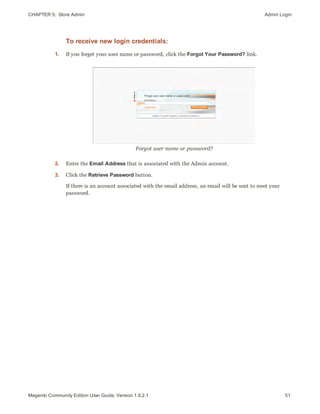
1. If you forget your user name or password, click the Forgot Your Password? link.
Forgot user name or password?
2. Enter the Email Address that is associated with the Admin account.
3. Click the Retrieve Password button.
If there is an account associated with the email address, an email will be sent to reset your
password.
51Magento Community Edition User Guide, Version 1.9.2.1
Admin Login CHAPTER 5:  Store Admin
52 Magento Community Edition User Guide, Version 1.9.2.1
My Account
Your account information contains your login credentials and personal information that
was initially entered during the Magento Setup. You can edit the account information, and
also create additional Admin user accounts with various permission levels.
As a best practice, it’s good to have more than one Admin account with full permissions, so if
you ever forget your password, you won’t be locked out of the Admin.
To edit your account information:
1. On the Admin menu, select System > My Account.
2. Make any changes necessary to the following:
l User Name
l First Name
l Last Name
l Email
3. To change your Admin password, do the following:
a. Enter your Current Admin Password.
b. Enter your New Password. To confirm, enter it again in the Password Confirmation
field.
4. When complete, click the Save Account button.
5. Make sure to update your records so you don’t forget the new password. You will need it
the next time you log in to the Admin.
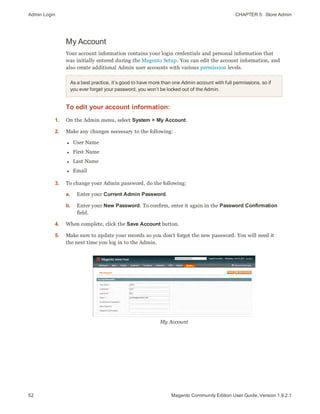
My Account
CHAPTER 5:  Store Admin Message InBox
FIELD DESCRIPTION
User Name The user name that is entered to log in to the Admin.
First Name The first name of the Admin user.
Last Name The last name of the Admin user.
Email The email address that is associated with the Admin user
account. Each Admin account must have a different email
address.
Current Admin Password Your current Admin password.
New Password Your new Admin password.
Password Confirmation Your new Admin password for confirmation.
Field Descriptions
Message InBox
Your store has an inbox for the messages received from Magento. The messages are rated by
importance, and might refer to updates, patches, new releases, scheduled maintenance,
upcoming events, and more. Any message that is considered to be of major importance
appears in a pop-up window when you log into your store. You can manage your message
inbox much as you would manage your email. Check it often to stay up-to-date on the
latest information from Magento!
Incoming Message
53Magento Community Edition User Guide, Version 1.9.2.1
Message InBox CHAPTER 5:  Store Admin
54 Magento Community Edition User Guide, Version 1.9.2.1
To manage incoming messages:
1. When the Incoming Messages box appears, do one of the following:
l Click the Read Details link for more information.
l Click the Close box to remove the popup and continue.
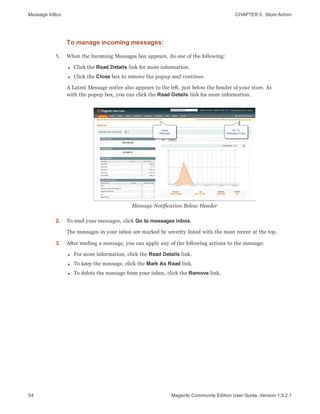
A Latest Message notice also appears to the left, just below the header of your store. As
with the popup box, you can click the Read Details link for more information.
Message Notification Below Header
2. To read your messages, click Go to messages inbox.
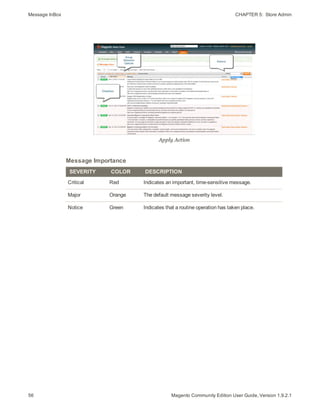
The messages in your inbox are marked by severity listed with the most recent at the top.
3. After reading a message, you can apply any of the following actions to the message:
l For more information, click the Read Details link.
l To keep the message, click the Mark As Read link.
l To delete the message from your inbox, click the Remove link.
CHAPTER 5:  Store Admin Message InBox
Messages Inbox
To apply an action to multiple messages:
1. On the Admin menu, select System > Notifications.
2. In your message inbox, do one of the following:
l Select the checkbox at the beginning of each message you want to manage.
l Click one of the group selection options above the list to select multiple messages.
3. When the messages that you want to manage are selected, set Actions to one of the
following:
l Mark as Read
l Remove
4. Click the Submit button to complete the process.
55Magento Community Edition User Guide, Version 1.9.2.1
Message InBox CHAPTER 5:  Store Admin
56 Magento Community Edition User Guide, Version 1.9.2.1
Apply Action
Message Importance
SEVERITY COLOR DESCRIPTION
Critical Red Indicates an important, time-sensitive message.
Major Orange The default message severity level.
Notice Green Indicates that a routine operation has taken place.
CHAPTER 5:  Store Admin Message InBox
Notification Setup
You can specify how often your Message Inbox is updated, from one to twenty-four hours.
If your store Admin has a secure URL, you must set the notifications to be delivered over
HTTPS.
To configure Admin notifications:
1. On the Admin menu, select System > Configuration.
2. In the panel on the left, under Advanced, select System.
3. Click to expand the Notifications section, and do the following:
a. If your store Admin is running over a secure URL, set Use HTTPS to Get Feed to
“Yes.”
b. Set Update Frequency to one of the following:
l 1 Hour
l 2 Hours
l 6 Hours
l 12 Hours
l 24 Hours
Notifications
4. When complete, click the Save Config button.
57Magento Community Edition User Guide, Version 1.9.2.1
Admin Menu CHAPTER 5:  Store Admin
58 Magento Community Edition User Guide, Version 1.9.2.1
Admin Menu
All of the tools you need to manage the operation and maintenance of your store are
available in the Admin menu.
Dashboard
The Dashboard gives you a quick overview of the
sales and customer activity in your store. It is usually
the first page that appears when you log in to the
Admin.
Sales
The Sales menu is where you can find everything
related to processing an order, including current and
past orders, invoices, shipments, credit memos,
terms and conditions, and taxes.
Catalog
The Catalog menu controls everything related to your
product catalog, including products, categories,
attributes, URL rewrites, search terms and indexing,
product reviews, tags, and Google Sitemap.
CHAPTER 5:  Store Admin Admin Menu
Mobile
The Mobile menu is where you can configure the
templates, content, and apps for various mobile
devices and store views.
Customers
The Customers menu is where you can manage
customer accounts, and customer groups. You can
even see which customers are online at the moment.
Promotions
The Promotions menu is where you set up catalog
and shopping cart price rules and coupons. Price
rules trigger actions when a set of specific conditions
is met.
Newsletter
The Newsletter menu contains the tools you need to
publish newsletters and manage your list of
subscribers.
59Magento Community Edition User Guide, Version 1.9.2.1
Admin Menu CHAPTER 5:  Store Admin
60 Magento Community Edition User Guide, Version 1.9.2.1
CMS
The CMS menu is where you create and manage
content for your store. In addition to content pages,
you can create static blocks, “widgets,” and polls.
Reports
The Reports menu provides a broad selection of
reports that give you insight into every aspect of your
store, including sales, shopping cart, products,
customers, tags, reviews, and search terms.
System
The System menu includes tools to configure and
maintain every aspect of your store. In addition, you
can install extensions and manage Web Services for
integration with other applications.
CHAPTER 5:  Store Admin Admin Tools
Admin Tools
The Admin includes many lists of data for products, orders, customers, search terms,
pages, blocks, and so on. Each list has the same set of tools for finding records, pagination,
sorting, filtering, selecting, and applying actions to records.
Global Search
The Global Search box can be used to find any value in the database, including product,
customer, and order records.
Sorting
The header of each column can be used to sort the list in ascending or descending order.
Filters
The filters in the header of each column can be used to limit the list to specific values.
Some filters have additional options that can be selected from a list box, and for others, you
can simply type the value you want to find.
Pagination
The pagination controls are used to view the additional pages of results.
Selection
The Selection controls above the column headers have links to Select All, Unselect All,
Select Visible, and Unselect Visible
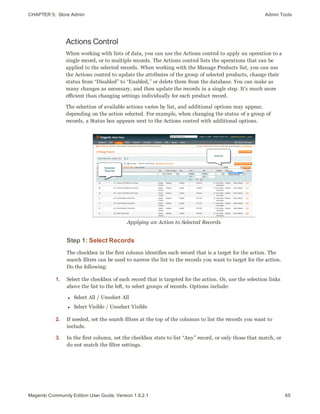
Actions
The Action control applies an operation to any record with a checkmark in the first column.
61Magento Community Edition User Guide, Version 1.9.2.1
Admin Tools CHAPTER 5:  Store Admin
62 Magento Community Edition User Guide, Version 1.9.2.1
Global Record Search
The global search box is located in the Admin header, and can be used to find any record in
the database. The results can include customers, products, orders, or any related attribute.
Global Record Search
To do a global search:
1. Type the first few letters of what you are looking for into the global search box.
2. In the list of closely matching items, click the one that you want to find.
CHAPTER 5:  Store Admin Admin Tools
List Controls
Many pages in the Admin include a list of records displayed in a grid, with controls at the
top of each column. The controls can be used to sort the list in ascending, or descending
order based on the values in the column. In addition, you can filter the list based on a
value in each column.
Sort Controls
To sort the list:
1. In the upper-left corner, set Choose the Store View to the define the scope of the data to
be retrieved.
2. Click the column name of any header. The arrow indicates the current order as either
ascending or descending.
3. Use the pagination controls to view additional pages in the collection.
To set the pagination controls:
1. Set View to the number of records that you want to view per page.
2. In the Page box, enter the page number you want to view, or click the arrow button to
advance to the next or previous, page.
63Magento Community Edition User Guide, Version 1.9.2.1
Admin Tools CHAPTER 5:  Store Admin
64 Magento Community Edition User Guide, Version 1.9.2.1
Pagination Controls
To filter the list:
1. In the box below the column header, either enter or select the value you want to find.
2. Click the Search button.
Filter Controls
CHAPTER 5:  Store Admin Admin Tools
Actions Control
When working with lists of data, you can use the Actions control to apply an operation to a
single record, or to multiple records. The Actions control lists the operations that can be
applied to the selected records. When working with the Manage Products list, you can use
the Actions control to update the attributes of the group of selected products, change their
status from “Disabled” to “Enabled,” or delete them from the database. You can make as
many changes as necessary, and then update the records in a single step. It’s much more
efficient than changing settings individually for each product record.
The selection of available actions varies by list, and additional options may appear,
depending on the action selected. For example, when changing the status of a group of
records, a Status box appears next to the Actions control with additional options.
Applying an Action to Selected Records
Step 1: Select Records
The checkbox in the first column identifies each record that is a target for the action. The
search filters can be used to narrow the list to the records you want to target for the action.
Do the following:
1. Select the checkbox of each record that is targeted for the action. Or, use the selection links
above the list to the left, to select groups of records. Options include:
l Select All / Unselect All
l Select Visible / Unselect Visible
2. If needed, set the search filters at the top of the columns to list the records you want to
include.
3. In the first column, set the checkbox state to list “Any” record, or only those that match, or
do not match the filter settings.
65Magento Community Edition User Guide, Version 1.9.2.1
Admin Tools CHAPTER 5:  Store Admin
66 Magento Community Edition User Guide, Version 1.9.2.1
Step 2: Apply an Action to Selected Records
1. Set the Actions control to the operation you want to apply.
Example: Update Attributes
1. In the list, select the checkbox of each record to be updated.
2. Set the Actions control to “Update Attributes,” and click the Submit button.
The Update Attributes page lists all the available attributes, organized by group in the
panel on the left.
Update Attributes
3. Select the Change checkbox next to each attribute, and make the necessary changes.
4. Click the Save button to update the attributes for the group of selected records.
2. Click the Submit button.
STATE DESCRIPTION
Any Lists all records, regardless of checkbox status.
Yes Lists only records with the checkbox selected.
No Lists only records without the checkbox selected.
Checkbox States
CHAPTER 5:  Store Admin Admin Tools
MENU LIST ACTIONS
SALES
Orders Cancel
Hold
Unhold
Print Invoices
Print Packingslips
Print Credit Memos
Print All
Print Shipping Labels
Invoices PDF Invoices
Shipments PDF Packing Slips
Print Shipping Labels
Credit Memos PDF Credit Memos
Search Terms Delete
CATALOG
Manage Products Delete
Change Status
Update Attributes
Search Terms Delete
Manage Tags Delete
Change Status
Reviews (All / Pending) Delete
Update Status
Tags (All / Pending) Delete
Change Status
Actions by List
67Magento Community Edition User Guide, Version 1.9.2.1
Admin Tools CHAPTER 5:  Store Admin
68 Magento Community Edition User Guide, Version 1.9.2.1
MENU LIST ACTIONS
CUSTOMERS
Manage Customers Delete
Subscribe to Newsletter
Unsubscribe from Newsletter
Assign a Customer Group
NEWSLETTER
Newsletter Subscribers Unsubscribe
Delete
Actions by List (cont.)
69Magento Community Edition User Guide, Version 1.9.2.1
CHAPTER 6:
Store Details
The basic information for your store includes the store name and address, telephone
number and email address, that appear on email messages, invoices, and other
communications sent to your customers.
Topics in this chapter:
l Store Information
l Locale Options
l States Options
l Countries Options
l Currency
l Basic Shipping Settings
l Store Email Addresses
l Contact Us
Store Information CHAPTER 6:  Store Details
70 Magento Community Edition User Guide, Version 1.9.2.1
Store Information
The Store Information section provides the basic information that appears on sales
documents and in other communications.
To enter the store information:
1. On the Admin menu, select System > Configuration.
2. In the panel on the left, under General, select Store Information. Then, do the following:
a. Enter the Store Name as you want it to appear in all communications.
b. Enter the Store Contact Telephone number, formatted as you want it to appear in all
communications.
c. Select the Country where your business is located.
d. If applicable, enter the Value Added Tax number of your store. To verify the number,
click the Validate VAT Number button.
e. In the text box, enter your Store Contact Address as you want it to appear on sales
documents.
3. When complete, click the Save Config button.
Store Information
CHAPTER 6:  Store Details Locale Options
Locale Options
The locale determines the language, country, tax rate, and other settings used throughout a
store. The Locale Options configure the time zone and language of each store, and identify
the days of your work week in the area.
Locale Options
To set the store locale:
1. On the Admin menu, select System > Configuration.
2. Click to expand the Locale Options section.
3. Select your Timezone from the list. Then, do the following:
a. Set Locale to the store language.
b. Set First Day of the Week to the day that is considered to be the first day of the week
in your area.
c. In the Weekend Days list, select the days which fall on a weekend in your area. (To
select multiple options, hold down the Ctrl (PC) or Command (Mac) key.)
4. When complete, click the Save Config button.
71Magento Community Edition User Guide, Version 1.9.2.1
States Options CHAPTER 6:  Store Details
72 Magento Community Edition User Guide, Version 1.9.2.1
States Options
In many countries, the state, province, or region is a required part of a postal address. The
information is used for shipping and billing information, to calculate tax rates, and so on.
For countries where it is not required, the field can be omitted entirely from the address, or
included as an optional field.
Because standard address formats vary from one country to another, you can also edit the
address template that determines how the information appears on invoices, packing slips,
and shipping labels.
States Options
To set up the state options:
1. On the Admin menu, select System > Configuration.
2. Click to expand the States Options section, and do the following:
3. In the State is required for list, select each country where you want State / Province to be a
required entry.
To select multiple options, hold down the Ctrl key (PC) or Command key (Mac), and click
each option.
4. Set Display not required State to one of the following:
Yes In countries where the state field is not required, the field is included in the
form as an optional entry.
No In countries where the state field is not required, the field is omitted from the
form.
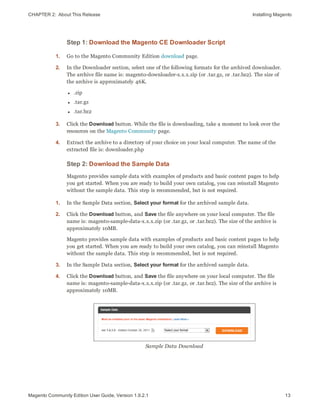
5. When complete, click the Save Config button.
CHAPTER 6:  Store Details Countries Options
Countries Options
The Countries Options establish the country where your business is located, and the
countries from which you accept payment.
Countries Options
To set the country options for your store:
1. From the Admin menu, select System > Configuration.
2. Click to expand the Countries Options section. Then, do the following:
a. Set Default Country to the country where your business is located.
b. In the Allow Countries list, select each country from which you accept orders. By
default, all countries in the list are selected. To select multiple countries, hold down
the Ctrl (PC) or Command (Mac) key.
c. In the Postal Code is Optional list, select each country where you conduct business
that does not require a ZIP or postal code to be included as part of the street address.
d. In the European Union Countries list, select each country in the EU where you
conduct business. By default, all EU countries are selected.
3. When complete, click the Save Config button.
73Magento Community Edition User Guide, Version 1.9.2.1
Currency CHAPTER 6:  Store Details
74 Magento Community Edition User Guide, Version 1.9.2.1
Currency
Magento Community Edition gives you the ability to accept currencies from more than two
hundred countries around the world.
Setting Up Currency Rates
The Currency Rate configuration defines the base
currency of your store, and the currencies that you
accept as payment.
Currency Symbols
Currency symbols appear in product prices and sales
documents such as orders and invoices.
Updating Currency Rates
Currency rates can be updated manually or imported
into your store as needed, or according to a
predefined schedule.
CHAPTER 6:  Store Details Basic Shipping Settings
Basic Shipping Settings
Shipping Settings
The Shipping Settings establish the point of origin for
all shipments made from your store or warehouse,
and also your preference for managing orders that
are shipped to multiple addresses.
Shipping Methods
Magento supports a wide range of built-in shipping
methods, including Flat Rate, Free Shipping, Table
Rates, and real-time online rates.
Shipping Carriers
If you have a commercial account with a supported
carrier, you can offer your customers the
convenience of real-time shipping rates, package
tracking, and labels.
Shipping Labels
You can easily create shipping labels for new and
existing orders from the Admin of your store. Labels
can be produced at the time a shipment is created, or
at a later time. Shipping labels are stored in PDF
format and are downloaded to your computer.
75Magento Community Edition User Guide, Version 1.9.2.1
Store Email Addresses CHAPTER 6:  Store Details
76 Magento Community Edition User Guide, Version 1.9.2.1
Store Email Addresses
You can have up to five different email addresses to represent distinct functions or
departments for each store or view. In addition to the following predefined email identities,
there are two custom identities that you can set up according to your needs.
l General Contact
l Sales Representative
l Customer Support
Each identity and its associated email address can be associated with specific automated
email messages and appear as the sender of email messages that are sent from your store.
Store Email Addresses
Step 1: Set Up the Email Addresses for Your Domain
Before you can configure email addresses for the store, each must be set up as a valid email
address for your domain. Follow the instructions from your server administrator or email
hosting provider to create the email address you need.
Step 2: Configure the Email Addresses for Your Store
1. On the Admin menu, select System > Configuration.
2. In the Configuration panel on the left, under General, select Store Email Addresses. Then,
do the following:
a. Click to expand the General Contact section.
b. If you have multiple stores or views, set the Current Configuration Scope in the
upper-left corner to identify the store or view where the configuration applies. Then,
clear the checkbox after each field so new values can be entered.
CHAPTER 6:  Store Details Store Email Addresses
General Contact
c. In the Sender Name field, type the name of the person that you to appear as the
sender of all email messages that are associated with the General Contact.
d. In the Sender Email field, type the associated email address.
3. Repeat this process for any other email addresses that you plan to use.
4. When complete, click the Save Config button.
Step 3: Update the Sales Email Configuration as Needed
If you use custom email addresses, make sure to update the configuration of any related
email messages, so the correct identity appears as the sender.
1. In the panel on the left, under Sales, select Sales Email.
2. Click to expand each section, and make sure that the correct store email is selected as the
sender of the message.
3. When complete, click the Save Config button.
77Magento Community Edition User Guide, Version 1.9.2.1
Contact Us CHAPTER 6:  Store Details
78 Magento Community Edition User Guide, Version 1.9.2.1
Contact Us
The Contact Us link in the footer of each page is an easy way for customers to keep in touch
with you. The form is enabled by default, and can be configured to send inquiries to a
specific email address and replies from a specific store identity.
Contact Us
CHAPTER 6:  Store Details Contact Us
To configure the Contact Us form:
1. On the Admin menu, select System > Configuration.
2. In the panel on the left, under General, click Contacts.
3. Click to expand the Contact Us section, and set Enable Contact Us to “Yes.”
Contact Us
4. Click to expand the Email Options section. Then, do the following:
Email Options
a. In the Send Emails To field, enter the email address of the recipient.
b. Set Email Sender to the store identity you want to use for the replies sent.
c. Select the Email Template used to format the data sent from the form.
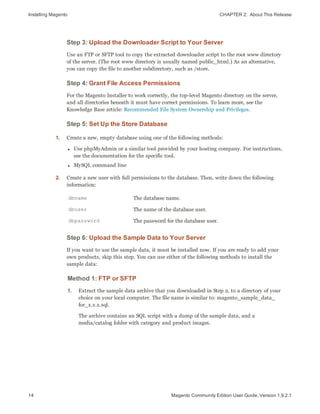
5. When complete, click the Save Config button.
79Magento Community Edition User Guide, Version 1.9.2.1
Contact Us CHAPTER 6:  Store Details
Notes
80 Magento Community Edition User Guide, Version 1.9.2.1
81Magento Community Edition User Guide, Version 1.9.2.1
CHAPTER 7:
Websites, Stores & Views
When Magento is installed, a main website, default store, and store view are created.
You can create as many additional websites, stores, and store views as you need.
Within each website, you can have multiple stores, and within each store, separate
views. The term hierarchy refers to the organization of websites, stores, and views in a
Magento installation.
Websites
You can set up as many websites as you need,
and each can have a different domain.
Stores
A single website can have multiple stores—all
are managed from the same Admin. Each store
can have a different main menu, product
selection, and appearance.
Store Views
Store views are usually used to present the
store in different languages, although they can
be used for other purposes, as well. Customers
use the language chooser in the header to
change the store view.
Setting Up Store Hierarchy CHAPTER 7:  Websites, Stores & Views
82 Magento Community Edition User Guide, Version 1.9.2.1
Setting Up Store Hierarchy
Before you begin, carefully plan your store hierarchy in advance because it is referred to
throughout the configuration. Each store can have a separate root category, which makes it
possible to have an entirely different set of navigation for each store.
Also consider the prices and product attributes that are needed for each store view.
Magento allows for only one standard price with a tiered pricing structure, per SKU. If you
want to use a different pricing structure for a specific customer group in a store view, you
must create a unique SKU for each view.
Manage Stores
To set up a new website:
1. On the Admin menu, select System > Manage Stores.
2. From Manage Stores, click the Create Website button. Then, do the following:
Website Information
a. Enter the Name of the website. The name is for internal reference, and can refer to the
domain of the site or anything else distinguish it from other sites in the hierarchy.
b. Enter a Code that will be used on the server to point to the domain. The code must
begin with a lowercase character, and can include any other combination of letters,
numbers, and underscore (_) character.
c. (Optional) Enter a Sort Order number to determine the sequence in which this site is
listed with other sites. Enter a zero to make this site appear at the top of the list.
3. When complete, click the Save Website button.
To set up a new store:
1. Before you begin, set up the root category that will be used for this store.
2. On the Admin menu, select System > Manage Stores.
CHAPTER 7:  Websites, Stores & Views Setting Up Store Hierarchy
3. From Manage Stores, click the Create Store button. Then, do the following:
New Store
a. Set Website to the site that is the parent of this store.
b. Enter a Name for the store. The name is for internal reference to distinguish it from
other stores in the hierarchy. For example: Private Sales Store.
c. Set Root Category to the root category that will be used for the main navigation of the
store. The root category can be the same as used for other stores, or unique to this
store. For example: Private Sales Root.
4. When complete, click Save Store.
To set up a new store view:
1. On the Admin menu, select System > Manage Stores.
2. From Manage Stores, click the Create Store View button. Then, do the following:
Store View Information
a. Set Store to the parent store of this view.
b. Enter a Name for this store view. The name appears in the “language chooser” in the
header of the store. For example: French.
c. Enter a Code in lowercase characters to identify the view. For example: french.
d. To activate the view, set Status to “Enabled.”
e. (Optional) Enter a Sort Order number to determine the sequence in which this view is
listed with other views.
3. When complete, click the Save Store View button.
83Magento Community Edition User Guide, Version 1.9.2.1
Configuration Scope CHAPTER 7:  Websites, Stores & Views
84 Magento Community Edition User Guide, Version 1.9.2.1
Configuration Scope
If your Magento installation has multiple websites, stores, or views, you can set the scope
of a configuration parameter to apply to a specific part of your installation. The Current
Configuration Scope box in the upper-left corner of the Admin workspace determines the
scope of the current settings. By default, the configuration scope is set to “Default Config.”
For Admin users with restricted access, the list includes only the areas where the user is
granted permission to access.
The configuration scope applies to products categories, attributes, customer management
setting, and so on. The scope of each item appears in brackets after the field to indicate the
range of the setting.
Current Configuration Scope
If your installation includes multiple websites, stores or views, you should always set the
scope to identify where you want the settings to apply. The possible settings are: [STORE],
[WEBSITE], and [GLOBAL].
Any item with the scope of [STORE] can be set differently for each view. For example,
because the scope of a product name and description is [STORE], the fields can have a
different value for each language. However, some configuration settings—such as postal
code—are [GLOBAL] because the same setting applies throughout the system. The
[WEBSITE] scope also applies to the entire site, including all views.
CHAPTER 7:  Websites, Stores & Views Configuration Scope
To set the configuration scope:
Before making a configuration setting that applies only to a specific website, store, or view,
do the following:
1. On the Admin menu, select System > Configuration.
2. In the panel on the left, select the page with the configuration settings you want to change.
If necessary, click to expand the section to be configured. Then, do the following:
a. In the upper-left corner of a configuration page, set Current Configuration Scope to
the website, store, or view where the configuration applies.
A checkbox appears after each field, and sometimes additional fields become available.
b. Clear the Use Default checkbox that is after the field that you want to edit. Then, enter
the new value.
c. Repeat this process for every field that needs to be updated on the page.
3. When complete, click the Save Config button.
Scope Settings
SCOPE DESCRIPTION
Store The setting is limited to the store view, which is often used to
display a store in multiple languages.
Website The setting is limited to the website.
Global The setting applies to the entire installation.
85Magento Community Edition User Guide, Version 1.9.2.1
Adding a Language CHAPTER 7:  Websites, Stores & Views
86 Magento Community Edition User Guide, Version 1.9.2.1
Adding a Language
Most of the text that appears to be hard-coded on pages throughout your store can be
instantly changed to a different language by changing the locale of the view. Changing the
locale doesn’t actually translate the text word-for-word, but simply references a different
translation table that provides the interface text that is used throughout the store. The text
that can be changed includes navigational titles, labels, buttons, and links such as “My
Cart” and “My Account.”
There is a wide selection of language packs available on Magento Connect. You can also use
the Inline Translation tool to touch up any remaining interface text that was not translated
for the locale, or to fine-tune the translated text.
After changing the language of the locale, the remaining content that you have created,
including product names and descriptions, categories, CMS pages, blocks, and polls must
be translated separately for each store view.
Language Packs on Magento Connect
Step 1: Install a Language Pack
1. Log in to your Magento account.
2. Go to Magento Connect, and find the language pack that you want to download. Read the
terms of the license, and click the checkbox to proceed.
3. Click the Install Now button. Then, do the following:
a. Click the Get the Extension Key button.
b. Click the Select button. Then, copy the license key.
CHAPTER 7:  Websites, Stores & Views Adding a Language
4. Return to the Admin of your store. Then on the Admin menu, select System > Magento
Connect > Magento Connect Manager.
5. When prompted, log in to Magento Connect Manager. Then, do the following:
a. In the Install New Extensions section, paste your extension key.
b. Click the Install button. The language pack you have chosen appears below.
Install Language Pack
c. When ready to begin, click the Proceed button.
You can follow the progress in the output frame. During the installation, the language
pack is uploaded to the following folder on your server:
[magento]/app/locale
Output Frame
6. To return to your store, click the Return to Admin link at the top of the page.
87Magento Community Edition User Guide, Version 1.9.2.1
Adding a Language CHAPTER 7:  Websites, Stores & Views
88 Magento Community Edition User Guide, Version 1.9.2.1
Step 2: Create a Store View for the Language
1. On the Admin menu, select System > Manage Stores.
2. From Manage Stores, click the Create Store View button. Then, do the following:
New Store View
a. Select the Store that is the parent of the view.
b. Enter a Name for the store view. For example: Spanish.
This is the name that appears in the “language chooser” in the header.
c. Enter a Code in lowercase characters to identify the view. For example: spanish.
d. To activate the view, set Status to “Enabled.”
e. (Optional) Enter a Sort Order number to determine the sequence in which this view is
listed with other views.
3. When complete, click the Save Store View button.
Step 3: Change the Locale of the Store View
1. On the Admin menu, select System > Configuration.
1. In the upper-left corner, set Current Configuration Scope to the store view.
2. Click to expand the Locale Options section. Then, do the following:
a. To the right of the Locale field, clear the Use Website checkbox.
b. Set Locale to the language that you want to assign to the view.
If there are several variations of the language available, make sure to select the one
that matches the language pack that you installed. For example, the Spanish language
pack downloaded in this example works only when the locale is set to “Spanish
(Spain).” You will need a different language pack to support a specific regional
variation. You will need a different language pack to support the regional variations of
other countries.
CHAPTER 7:  Websites, Stores & Views Store URLs
Change the Locale
3. When complete, click the Save Config button.
Store URLs
The URLs that are associated with your store were configured during the initial installation
of Magento. The Web access options that were entered at that time specify both unsecure
and secure URLs, and whether or not a security certificate is available.
Magento uses variables to define internal links in relation to the base URL, which makes it
possible to move an entire store from one URL to another without having to update the
internal links.
Web Access Options
89Magento Community Edition User Guide, Version 1.9.2.1
Store URLs CHAPTER 7:  Websites, Stores & Views
90 Magento Community Edition User Guide, Version 1.9.2.1
Secure and Unsecure Base URLs
Each website in a Magento installation has a base URL that is assigned to the storefront
and to the Admin. If you have a security certificate for your domain, you can configure
either, or both base URLs to operate over a securely encrypted SSL channel. Unsecure base
URLs begin with “http,” and secure base URLs begin with “https.”
Unsecure Base URL http://www.yourdomain.com/magento/
Secure Base URL https://www.yourdomain.com/magento/
URL with IP address http://10.9.220.154/magento/
If Magento was installed before you registered a domain, the base URL might include the IP
address of the server. If you don’t yet have security certificate, the store will not be able to
switch to secure URLs (https) for transactions that normally take place over the secure
socket layer (SSL). These configuration settings can be updated later to reflect the values
you need before the store “goes live.”
Important! Do not change the Admin URL from the default in the Base URL configuration. To
change the Admin URL or path, see: Using a Custom Admin URL.
To configure the unsecure base URL:
1. On the Admin menu, select System > Configuration.
2. In the panel on the left, under General, select Web.
3. Click to expand the Unsecure section. Then, do the following:
4. Enter the unsecure (http) Base URL for your store. Make sure to end the URL with a
forward slash.
Unsecure
For a typical installation, you do not need to update the paths for the skin, media, and
JavaScript files. Be careful not to change the markup tags in the other fields in the section.
5. If you do not plan to use a secure base URL for the Admin, do the following:
CHAPTER 7:  Websites, Stores & Views Store URLs
a. Click to expand the Secure section.
b. Enter your unsecure (http) Base URL. The URL should be the same in both the Secure
and Unsecure sections.
6. When complete, click the Save Config button.
To configure the secure base URL:
If your domain has a valid security certificate, you can configure the URLs for either the
storefront and Admin—or both—to run over a secure (https) channel.
1. Click to expand the Unsecure section. Then, do the following:
a. To use a secure (https) for the storefront, enter the Base URL, followed by a forward
slash.
Typically, you will not need to update the paths for the skin, media, and JavaScript
files. Be careful not to change the markup tags in the other fields in the section.
b. If you want to run the entire storefront over a secure (https) channel, set Use Secure
URLs in Frontend to “Yes.”
c. If you want to run the entire Admin over a secure (https) channel, set Use Secure
URLs in Admin to “Yes.”
Secure
2. When complete, click the Save Config button.
91Magento Community Edition User Guide, Version 1.9.2.1
Store URLs CHAPTER 7:  Websites, Stores & Views
92 Magento Community Edition User Guide, Version 1.9.2.1
Using a Custom Admin URL
In a typical Magento installation, the Admin URL and path is immediately below the
Magento base URL. The path to the store Admin is one directory below the root.
http://yourdomain.com/magento/
Default Base URL
http://yourdomain.com/magento/admin
Default Admin URL and Path
Although it is possible to change the Admin URL and path to another location, any
mistake removes access to the Admin, and must be corrected from the server.
As a precaution, do not try to change the Admin URL by yourself unless you know how to edit
configuration files on the server.
Method 1: Change from the Magento Admin:
1. On the Admin menu, select System > Configure.
2. In the panel on the left, under Advanced, select Admin.
3. Click to expand the Admin Base URL section, and do the following:
a. Set Use Custom Admin URL to “Yes.” Then, enter the Custom Admin URL in the
following format:
http://yourdomain.com/magento/
Important! The Admin URL must be in the same Magento installation, and have the same
document root as the storefront.
b. Set Custom Admin Path to “Yes.” Then, enter the name of the Custom Admin Path in
the following format:
backend
CHAPTER 7:  Websites, Stores & Views Store URLs
Admin Base URL
4. When complete, click the Save Config button.
After the changes are saved, you must log in to the Admin using the new Admin URL and
path.
Method 2: Change from the Server Command Line
1. Open the app/etc/local.xml file in a text editor, and change the name of the [admin]
path. Make sure to use only lowercase characters. Then, save the file.
On the server, the admin path is located in the app/etc/local.xml file. Look for the
<adminhtml> argument in the <admin> section:
# <frontName><![CDATA[admin]]></frontName>
Default Admin Path
# <frontName><![CDATA[backend]]></frontName>
New Admin Path
2. Do one of the following methods to clear the Magento cache:
l On the Admin menu, select System > Cache Management. Then, click the Flush
Magento Cache button.
l On the server, navigate to the var/cache folder, and delete the contents of the cache
folder.
93Magento Community Edition User Guide, Version 1.9.2.1
Store URLs CHAPTER 7:  Websites, Stores & Views
Notes
94 Magento Community Edition User Guide, Version 1.9.2.1
95Magento Community Edition User Guide, Version 1.9.2.1
CHAPTER 8:
Industry Compliance
Magento Community Edition offers a range of security and privacy capabilities that
meet legal requirements and industry guidelines for online merchants. Some are
mandated by the payment card industry, and others are required by law, depending on
your location.
Topics in this chapter:
l PCI Compliance
l Privacy Policy
l Cookie Law
You will learn about PCI compliance, and the importance of establishing procedures to
protect payment information. You will also learn how to bring your store into
compliance with the Cookie Law, which is a requirement in some countries, and
considered a “best practice” in others. In addition, you will learn how to customize and
maintain a privacy policy for your store.
PCI Compliance Guidelines CHAPTER 8:  Industry Compliance
96 Magento Community Edition User Guide, Version 1.9.2.1
PCI Compliance Guidelines
The Payment Card Industry (PCI) has established a set of requirements for businesses that
accept payment by credit card over the Internet. In addition to the need to maintain a
secure hosting environment, there are additional requirements that merchants must meet
to ensure the privacy of cardholder data. Every merchant who handles customer credit card
information is required by the Payment Card Industry to conduct business within the
following guidelines:
Install and maintain a firewall configuration to protect cardholder data.
Do not use vendor-supplied defaults for system passwords and other security
parameters.
Protect stored cardholder data.
Encrypt transmission of cardholder data across open, public networks.
Use and regularly update antivirus software.
Develop and maintain secure systems and applications.
Restrict access to cardholder data by business need to know.
Assign a unique ID to each person with computer access.
Restrict physical access to cardholder data.
Track and monitor all access to network resources and cardholder data.
Regularly test security systems and processes.
Maintain a policy that addresses information security.
PCI Requirements
As your business grows, you may be required to file a compliance report on an annual
basis. PCI reporting requirements increase in proportion to merchant level, but are waived
for businesses that process fewer than 20,000 credit card transactions per year. To learn
more, visit the PCI Security Standards Council website.
CHAPTER 8:  Industry Compliance Privacy Policy
Privacy Policy
Your store includes a sample privacy policy that must be updated with your own
information. Your privacy policy should describe the type of information that your
company collects, and how it is used. It should also list the filenames of cookies that are
placed on the computers of people who visit your store. Any additional cookies that are
associated with third-party extensions and add-ons should be included in the list. For a
complete list of the cookies used by Magento, see Cookie Restriction Mode.
If you change the URL key of the privacy policy, you must also create a custom URL rewrite
to redirect traffic to the new URL key.
Privacy Policy
To edit your privacy policy:
1. On the Admin menu, select CMS > Pages > Manage Content.
2. Find the privacy policy in the list, and click to open the page.
3. In the panel on the left, click Content.
4. To work in WYSIWYG mode, click the Show/Hide Editor button.
5. Make the necessary changes to the content.
6. When complete, click the Save Page button.
97Magento Community Edition User Guide, Version 1.9.2.1
Cookie Law Compliance CHAPTER 8:  Industry Compliance
98 Magento Community Edition User Guide, Version 1.9.2.1
Cookie Law Compliance
Cookies are small files that are saved to the computer of each visitor to your site, and used
as temporary holding places for information. Information that is saved in cookies is used to
personalize the shopping experience, link visitors to their shopping carts, measure traffic
patterns, and improve the effectiveness of promotions. To keep pace with legislation in
many countries regarding the use of cookies, Magento offers merchants a choice of methods
for obtaining customer consent:
Implied Consent
Implied consent means that visitors to your store have a clear understanding that cookies
are a necessary part of operations, and by using your site, have indirectly granted
permission to use them. The key to gaining implied consent is to provide enough
information for a visitor to make an informed decision. Many stores display a message at
the top of all standard pages that provides a brief overview of how cookies are used, with a
link to the store’s privacy policy. The privacy policy should describe the type of information
that your store collects, and how it is used.
Expressed Consent
Operating your store in “cookie restriction mode” requires visitors to express their consent
before any cookies can be saved to their computers. Unless consent is granted, many
features of your store will be unavailable. For example, if Google Analytics is available for
your store, it can be invoked only after the visitor has granted permission to use cookies.
Cookie Restriction Mode
When Cookie Restriction Mode is enabled, visitors to your store are notified that cookies are
required for full-featured operations. Depending on your theme, the message might appear
above the header, below the footer, or somewhere else on the page. The message links to
your privacy policy for more information, and encourages visitors to click the Allow button
to grant consent. After consent is granted, the message disappears. The Cookie Restriction
Mode message resides in a CMS static block, and can be edited to suit your voice and style.
Your privacy policy should include the name of your store and contact information, and
explain the purpose of each cookie that is used by your store. See the end of this topic for a
complete list of the cookies used. See the end of this topic for a complete list of the cookies
used.
If you change the URL key of the privacy policy, you must also create a custom URL rewrite
to redirect traffic to the new URL key. Otherwise, the link in the Cookie Restriction Mode
message will return “404 Page Not Found.”
CHAPTER 8:  Industry Compliance Cookie Law Compliance
Cookie Restriction Notice In Footer
Step 1: Enable Cookie Restriction Mode
1. On the Admin menu, select System > Configuration. Then in the panel on the left, under
General, click Web.
2. Click to expand the Session Cookie Management section, and do the following:
Cookie Session Management
a. Enter the Cookie Lifetime in seconds.
b. If you want to make cookies available to other folders, enter the Cookie Path. To make
the cookies available anywhere in the site, enter a forward slash.
c. To make the cookies available to a subdomain, enter the subdomain name in the
Cookie Domain field. (subdomain.yourdomain.com) To make cookies available to all
subdomains, enter the domain name preceded by a period. (.yourdomain.com)
d. To prevent scripting languages such as JavaScript from gaining access to cookies, set
Use HTTP Only to “Yes.”
e. Set Cookie Restriction Mode to “Yes.”
99Magento Community Edition User Guide, Version 1.9.2.1
Cookie Law Compliance CHAPTER 8:  Industry Compliance
100 Magento Community Edition User Guide, Version 1.9.2.1
Step 2: Edit the Cookie Restriction Message
1. On the Admin menu, select CMS > Static Blocks.
2. Find the Cookie Restriction Notice, and click to open the block. Then, do the following:
Editing the Cookie Restriction Notice
a. Select each Store View where the notice should appear.
b. Set Status to “Enabled.”
c. In the Content box, edit the message as needed.
3. When complete, click the Save Block button.
Step 3: Update Your Privacy Policy
1. On the Admin menu, select CMS > Pages > Manage Content.
2. Find your Privacy Policy in the list, and click to open the page.
3. In the panel on the left, click Content. If necessary, click the Show/Hide Editor button to
work in WYSIWYG mode.
CHAPTER 8:  Industry Compliance Cookie Law Compliance
Privacy Policy
4. Update your privacy policy to describe the information that your company collects, and
how it is used. You can include the information from the tables at the end of this topic.
5. When complete, click the Save Page button.
101Magento Community Edition User Guide, Version 1.9.2.1
Cookie Law Compliance CHAPTER 8:  Industry Compliance
102 Magento Community Edition User Guide, Version 1.9.2.1
Cookie Reference
Magento Standard Cookies
COOKIE NAME COOKIE DESCRIPTION
USER_ALLOWED_SAVE_
COOKIE
Indicates if a customer is allowed to use cookies.
external_no_cache A flag that indicates if caching is disabled.
persistent_shopping_
cart
The session key.
Stf If product links were sent to friends, stores the timestamps
in the format: $timeStamp1, $timestamp2, ...,
$timestampN.
pollN A poll ID that indicates if a vote has occurred.
frontend Session ID
guest-view Allows guests to edit their orders.
Google Analytics Cookies
COOKIE DESCRIPTION
_utma Distinguishes users and sessions.
_utmb Determines new sessions/visits.
_utmc Determines if the user was in a new session/visit.
_utmz Stores the traffic source or campaign that explains how the
user reached your site.
Product Catalog
In this section…
Navigation
Categories
Attributes
Using a Flat Catalog
Creating Products
Images
Swatches
Pricing
Inventory
Product Information
105Magento Community Edition User Guide, Version 1.9.2.1
CHAPTER 9:
Navigation
The term, navigation refers to the methods shoppers use to move from page to page
throughout your store. The main menu, or top navigation of your store is actually a list
of category links. The category structure of your catalog is the main way people find
products in your catalog. You will also find categories in the breadcrumb trail that runs
across the top of most pages, and in the “layered navigation” that appears on the left
side of some two- or three-column pages. These are all examples of how categories can
be used to navigate throughout your store.
For a product to be visible in your store, it must be assigned to at least one category.
Each category can have a dedicated landing page with an image, static block, a
description, and list of products. You can also create special designs for category pages
that become active for a specific period of time such as for a holiday season or
promotion.
Categories in Main Menu
Top Navigation CHAPTER 9:  Navigation
Top Navigation
The main menu of your store displays the selection of categories that are available in your
catalog. You can think of the top navigation as different departments in your store. A top-
level category serves as landing page for all the subcategories below. The position and
presentation of the top navigation might vary by theme, but the way it works is the same.
Top Navigation
The first level of categories below the root typically appear as options in the main menu.
Below that, you can have as many additional subcategories as needed. The category
structure of your catalog can influence how well your site is indexed by search engines. The
deeper a category, the less likely it is to be thoroughly indexed. As a general rule, anywhere
between one and three levels is considered to be the best. You can set the maximum
number of levels that are available in your top navigation in the system configuration.
106 Magento Community Edition User Guide, Version 1.9.2.1
CHAPTER 9:  Navigation Breadcrumb Trail
Breadcrumb Trail
A breadcrumb trail is a set of links that shows where you are in relation to other pages in
the store. You can click any link in the breadcrumb trail to return to a previous page. Here’s
an example of a breadcrumb trail from the Magento Demo Store:
HOME/ACCESSORIES/JEWELRY/PEARL STUD EARRINGS
The breadcrumb trail can be configured to appear on CMS content pages, as well as catalog
pages. The format and position of the breadcrumb trail varies by theme, but it is usually
located in the upper-left, just below the header.
Breadcrumb Trail
To add breadcrumbs to CMS pages:
1. On the Admin menu, select System > Configuration.
2. In the panel on the left, under General, select Web. Then, do the following:
a. Click to expand the Default Pages section.
b. Set Show Breadcrumbs for CMS Pages to “Yes.”
3. When complete, click the Save Config button.
Default Pages
107Magento Community Edition User Guide, Version 1.9.2.1
Product List Configuration CHAPTER 9:  Navigation
108 Magento Community Edition User Guide, Version 1.9.2.1
Product List Configuration
Product listings can be configured to appear by default as either a list or grid. You can also
determine how many products appear per page, and which attribute is used to sort the list.
Each product list has a set of page controls that can be used to sort the products, change
the format of the list, sort by attribute, and advance from one page to the next.
View As Displays the list in either a Grid or List format.
Sort By Changes the sort order of the list.
Products Displayed as a Grid
To configure product listings:
1. On the Admin menu, select System > Configuration. Then in the panel on the left, under
Catalog, select Catalog.
2. Click to expand the Frontend section.
3. Set the default List Mode to one of the following:
l Grid Only
l List Only
l Grid (default) / List
l List (default / Grid
CHAPTER 9:  Navigation Product List Configuration
Frontend
Then, do the following:
a. In the Products per Page on Grid Allowed Values field, enter the number of products
that you want to appear per page when shown in grid format. To enter a selection of
values, separate each number by a comma.
b. In the Products per Page on Grid Default Value field, enter the default number of
products to appear in the grid per page.
c. In the Products per Page on List Allowed Values field, enter the number of products
that you want to appear per page when shown in list format. To enter a selection of
values, separate each number by a comma.
d. In the Products per page on List Default Value field, enter the default number of
products that appear in the list, per page.
4. To give customers the option to list all products, set Allow All Products on Page to “Yes.”
5. Set Product Listing Sorted by to the default attribute that is initially used to sort the list.
6. If using a flat catalog, do the following:
a. To display a flat category listing of products, set Use Flat Catalog Category to “Yes.”
b. To display a flat product listing, set Use Flat Catalog Product to “Yes.”
7. If you want to allow dynamic references to media assets in category and product URLs, set
Allow Dynamic Media URLs in Products and Categories to “Yes.”
8. When complete, click the Save Config button.
109Magento Community Edition User Guide, Version 1.9.2.1
Product List Configuration CHAPTER 9:  Navigation
110 Magento Community Edition User Guide, Version 1.9.2.1
Pagination Controls
The Pagination settings control the format of the pagination links in product listings. You
can set the number of links that appear in the control, and configure the Next and Previous
links. For the pagination links to appear, there must be more products in the list than are
allowed per page in the product list configuration.
Show per Page Determines how many products appear per page.
Pagination Links Navigation links to other pages.
Pagination Control
CHAPTER 9:  Navigation Product List Configuration
To configure the pagination control:
1. On the Admin menu, select System > Configuration. Then in the panel on the left under
General, select Design.
2. Click to expand the Pagination section. Then, do the following:
Pagination
a. In the Pagination Frame field, enter the number of links that you want to appear in
the control.
b. In the Pagination Frame Skip field, enter the number of links to skip ahead to display
the next set of links in the control.
For example, if the pagination frame has five links, and you want to jump to the next
five links, how many links do you want to skip ahead? If you set this to four, then the
last link from the previous set will be the first link in the next set.
c. In the Anchor Text for Previous field, enter the text that you want to appear for the
Previous link. Leave blank to use the default arrow.
d. In the Anchor Text for Next field, enter the text that you want to appear for the Next
link. Leave blank to use the default arrow.
3. When complete, click the Save Config button.
111Magento Community Edition User Guide, Version 1.9.2.1
Layered Navigation CHAPTER 9:  Navigation
112 Magento Community Edition User Guide, Version 1.9.2.1
Layered Navigation
Layered navigation makes it easy to find products based on category, price range, or any
other available attribute. Layered navigation usually appears in the left column of search
results and category pages and sometimes on the home page. The standard navigation
includes a “Shop By” list of categories and price range. You can configure the display of
layered navigation, including product count and price range.
The following instructions show how to set up basic layered navigation. For advanced
layered navigation with price steps, see Price Navigation.
Layered Navigation by Category and Price
CHAPTER 9:  Navigation Layered Navigation
Step 1: Configure Attributes and Anchor Categories
Make sure that the attribute properties and the anchor categories that are required for
layered navigation are configured correctly.
Step 2: Set Up Basic Layered Navigation
1. On the Admin menu, select System Configuration. Then in the panel on the left, under
Catalog, select Catalog.
2. Click to expand the Layered Navigation section. Then, do the following:
Layered Navigation
a. To display the number of products found for each attribute, set Display Product
Count to “Yes.”
b. Set Price Navigation Step Calculation to “Automatic (equalize price ranges).”
3. When complete, click the Save Config button.
113Magento Community Edition User Guide, Version 1.9.2.1
Layered Navigation CHAPTER 9:  Navigation
114 Magento Community Edition User Guide, Version 1.9.2.1
Filterable Attributes
Layered navigation can be used to search for products by category or by attribute. For
example, when a shopper chooses the Apparel/Shoes category from the top navigation, the
initial results include all products in the shoes category. The list can be filtered further by
choosing a specific color or size, or by specifying values for both color and size. For an
attribute to be included in layered navigation, its property settings must be set to make it
filterable.
Anchor categories can be set to appear in an additional section that filters the list by
attribute value. The attribute section appears only if a category is set to “Is Anchor.” Each
attribute can be configured to display the number of matching records found.
The attribute properties, combined with the product properties, determine which attributes
can be used as filters for layered navigation. Only those with the catalog input type of
Dropdown, Multiple Select or Price can be used as filterable attributes.
Filterable Attributes In Layered Navigation
CHAPTER 9:  Navigation Layered Navigation
Step 1: Set the Attribute Properties
1. On the Admin menu, select Catalog > Attributes > Manage Attributes.
2. Click to open the attribute in edit mode, and do the following:
a. Scroll down to the Frontend Properties section, and set Use In Layered Navigation to
one of the following:
l Filterable (with results)
l Filterable (no results)
b. Set Use In Search Results Layered Navigation to “Yes.”
Step 2: Make the Category an Anchor
1. On the Admin menu, select Catalog > Manage Categories.
2. In the Categories panel on the left, click to open the category.
3. On the Display Settings tab, set Is Anchor to “Yes.”
4. Click the Save Category button.
5. To test the setting, go to your store and select the category in the top navigation. The
selection of filterable attributes for the products in the category appears in the layered
navigation.
115Magento Community Edition User Guide, Version 1.9.2.1
Layered Navigation CHAPTER 9:  Navigation
116 Magento Community Edition User Guide, Version 1.9.2.1
Price Navigation
Price navigation can be used to distribute products by price range in layered navigation.
You can also split each range in intervals. There are ways to calculate price navigation:
l Automatic (Equalize Price Ranges)
l Automatic (Equalize Product Counts)
l Manual
With the first two methods, the navigation steps are calculated automatically. The manual
method lets you specify a division limit for price intervals. The following example shows
the difference between price navigation steps of 10 and 100.
Iterative splitting provides the best distribution of products among price ranges. With
iterative splitting, after a customer chooses to view the $0.00-$99 range, the customer can
drill-down through several sub-ranges of prices. Price-range splitting stops when the
number of products reaches the threshold set by the Interval Division Limit.
Example: Price Navigation Steps
PRICE STEP BY 10 PRICE STEP BY 100
$20.00 - $29.99 (1)
$30.00 - $39.99 (2)
$70.00 - $79.99 (1)
$100.00 - $109.99 (1)
$120.00 - $129.99 (2)
$150.00 - $159.99 (1)
$180.00 - $189.99 (1)
$420.00 - $429.99 (1)
$440.00 - $449.99 (1)
$710.00 and above (1)
$0.00 - $99.99 (4)
$100 - $199.99 (5)
$400.00 - $499.99 (2)
$700.00 and above (1)
CHAPTER 9:  Navigation Layered Navigation
To configure price layered navigation:
1. On the Admin menu, select System > Configuration. Then in the panel on the left, under
Catalog, select Catalog.
2. In the upper-left corner, set Current Configuration Scope to the store view to be
configured.
3. Click to expand the Layered Navigation section.
Layered Navigation
4. If you want to display the number of products in parentheses after each filtered item, set
Display Product Count to “Yes.”
5. Set Price Navigation Steps Calculation to one of the following methods:
Method 1: Automatic (equalize price ranges)
Set Price Navigation Steps Calculation to “Automatic (equalize price ranges.)” This setting
uses the existing price layered navigation algorithm, and is similar to the Automatic
option in earlier versions of Magento.
Layered Navigation
117Magento Community Edition User Guide, Version 1.9.2.1
Layered Navigation CHAPTER 9:  Navigation
118 Magento Community Edition User Guide, Version 1.9.2.1
Method 2: Automatic (equalize product counts)
1. Set Price Navigation Steps Calculation to “Automatic (equalize product counts).”
2. Set Display Price Interval as One Price to “Yes” if you want to display a single price
when multiple products with the same price.
3. In the Interval Division Limit field, enter the threshold for a number of products
within a price range. The range cannot be further split beyond this limit., The default
value is 9.
Automatic (equalize product counts)
Method 3: Manual
1. Set Price Navigation Steps Calculation to “Manual.”
2. Enter a value to determine the Default Price Navigation Step.
3. Enter the Maximum Number of Price Intervals allowed, up to 100.
Manual
6. When complete, click the Save Config button.
119Magento Community Edition User Guide, Version 1.9.2.1
CHAPTER 10:
Categories
Before you add products to your catalog, you must first establish the basic category
structure of your catalog. Every product in your catalog must be assigned to at least
one category.
Topics in this chapter:
l Creating Categories
l Modifying Categories
l Root Categories
l Hidden Categories
l General Information
l Display Settings
l Custom Design
l Category Products
Categories in Main Menu
Category Levels CHAPTER 10:  Categories
120 Magento Community Edition User Guide, Version 1.9.2.1
Category Levels
The number of subcategory levels that you can have in the top navigation is set in the
system configuration.By default, there is no limit to the number of levels of subcategories
you can set up. In the following image, the Home & Decor category has a depth of two
levels.
Subcategory Levels
To set the depth of the top navigation:
1. On the Admin menu, select System > Configuration. Then in the panel on the left, under
Catalog, select Catalog.
2. Click to expand the Category Top Navigation section.
Category Top Navigation
3. To place a limit on the number of subcategories that can be used in the top navigation,
enter the number in the Maximal Depth field.
The default Maximal Depth value is 0, which does not limit the number of subcategory
levels you can have.
4. When complete, click the Save Config button.
CHAPTER 10:  Categories Creating Categories
Creating Categories
When working in the Admin, the category structure is like an upside-down tree, with the
root at the top. Each section of the tree can be expanded and collapsed. Any disabled or
hidden categories are grayed out.
Category Structure
Process Overview:
Step 1: Create a Category
Step 2: Complete the General Information
Step 3: Complete the Display Settings
Step 1: Create a Category
1. On the Admin menu, select Catalog > Manage Categories.
2. Before you begin, set Choose Store View to the store or view. By default, the scope of the
category configuration is set to “All Store Views.”
3. In the category tree, click the category that is to be the parent of the new category. The
parent is the level just above the new category.
If you’re starting from the beginning without any data, there might be only two categories
in the list: “Default Category,” which is the root, and an “Example Category.”
4. Click the Add Subcategory button.
121Magento Community Edition User Guide, Version 1.9.2.1
Creating Categories CHAPTER 10:  Categories
122 Magento Community Edition User Guide, Version 1.9.2.1
Category Tree
Step 2: Complete the General Information
1. In the General Information section, do the following:
a. (Required) Type the Name of the category.
b. (Required) To enable the category, set Is Active to “Yes.”
c. You can enter a URL Key for the category, or let the system automatically create one
that is based on the category name.
2. If supported by your theme, you can display a Thumbnail image in the main menu for
each category. Click the Choose File button and select the image to upload.
3. In the Description box, enter a paragraph or two of descriptive text for the category
landing page.
4. To display an Image at the top of the category landing page, click the Choose File button
and select the image to upload.
5. Complete the category meta data:
l Page Title
l Meta Keywords
l Meta Description
6. (Required) To include the category in the main menu, set Include in Navigation Menu to
“Yes.”
7. Click the Save Category button. Then, take note of the following:
CHAPTER 10:  Categories Creating Categories
l The new category now appears in the tree. If it’s not in the correct position, you can
drag it to another location in the tree.
l In addition to the category name, it has an ID number shown in parentheses, just after
the name at the top of the page.
l A URL Key that is based on the category name can be automatically generated for the
category.
Category URL Key
Step 3: Complete the Display Settings
You can configure the category landing page to display both a static block and product list,
or one or the other. A static block can provide additional information, including text,
images, and even embedded video.
Display Settings
1. On the Display Settings tab, do the following:
a. Set Display Mode to one of the following:
l Products Only
l Static Block Only
l Static Block and Products
b. If applicable, set CMS Block to the static block that you want to appear on the
category page.
c. If you want this category page to display the “Filter by Attribute” section of layered
navigation, set Is Anchor to “Yes.”
123Magento Community Edition User Guide, Version 1.9.2.1
Creating Categories CHAPTER 10:  Categories
124 Magento Community Edition User Guide, Version 1.9.2.1
d. Clear the checkbox under Default Product Listing Sort By. Then select one of the
available values to sort the list. By default, all available attributes are listed. The
default values typically include:
l Best Value
l Name
l Price
2. When complete, click the Save Category button.
Modifying Categories
After a category is established, it can be edited, moved to another position in the category
tree, or deleted from the catalog. However, if your catalog is live, you should consider how
the change might impact any existing links to products in the category. For example, if
your product URLs include the category path, and the category name is changed, any
existing links to products in the category will be broken. To avoid this problem, you can
configure your catalog to automatically create a permanent redirect if the URL key changes.
You can also use the URL Rewrite tool to redirect traffic from an old URL to a new one.
To move a category:
1. On the Admin menu, select Catalog > Manage Categories.
2. To move a category, simply drag-and-drop it to a new location. Category order changes are
saved automatically.
To delete a category:
1. On the Admin menu, select Catalog > Manage Categories.
2. Click to select the category you want to delete.
A deleted category cannot be restored, so make sure that you have selected the correct
category before proceeding.
3. Click the Delete Category button to save your changes.
CHAPTER 10:  Categories Creating Categories
Root Categories
The category structure is like an upside-down tree, with the root on top. All categories in
your catalog are nested below the root. Because the root category is the highest level of the
catalog, your store can have only one root category active at a time. You can, however,
create additional root categories for alternate catalog structures, different stores, and views.
The root category is not visible to customers in the store, and does not have a URL key.
Root Categories
Step 1: Create a New Root Category
1. On the Admin menu, select Catalog > Manage Categories.
2. In the upper-left of the Manage Categories page, click the Add Root Category button.
Then, complete the following required fields:
a. Enter a Name for the root category.
b. Set Is Active to “Yes.”
c. If you want this root category to be in the main menu, set Include in Navigation
Menu to “Yes.”
3. Complete the remaining optional fields as needed:
a. Click the Choose File to upload a Thumbnail Image for the root category.
b. Enter a Description of the root category.
c. Click the Choose File button to upload an Image to the root category.
d. Complete the following meta data:
125Magento Community Edition User Guide, Version 1.9.2.1
Creating Categories CHAPTER 10:  Categories
126 Magento Community Edition User Guide, Version 1.9.2.1
l Page Title
l Meta Keywords
l Meta Description
4. Click the Display Settings tab. Then, set Is Anchor to “Yes.”
5. When complete, click the Save Category button.
Step 2: Add Subcategories to the New Root
1. On the Categories page, click the General tab.
2. In the category tree on the left, click to select the new root category you created in the last
step.
3. Click the Add Subcategory button.
4. Give the subcategory a Name, and set Is Active to “Yes.”
5. Click the Save Category button.
6. Repeat this process to create as many subcategories as you need.
Step 3: Apply the New Root Category to Your Store
1. On the Admin menu, select System > Manage Stores.
2. On the Manage Stores page, under Store Name, click the Main Store link.
3. Change Root Category to the new root category.
4. Click the Save Store button.
CHAPTER 10:  Categories Creating Categories
Hidden Categories
There are many ways to use hidden categories. You might want to create additional
category levels for your own internal purposes, but show only the higher-level categories to
your customers. Or, you might want to link to a category that is not included in the
navigation menu.
To create hidden categories:
1. On the Admin menu, select Catalog > Manage Categories.
2. In the category tree, select the category you want to hide.
3. On the General Information tab, do the following:
a. Set Is Active to “No.”
b. Set Include in Navigation Menu to “No.”
4. On the Display Settings tab, set Is Anchor to “No.”
5. Although the category is hidden, you can still create additional subcategories beneath it,
and make them active. Complete the following settings for each hidden subcategory:
a. On the General Information tab, set Is Active to “Yes.”
b. On the Display Settings tab, set Is Anchor to “Yes.”
As active categories, you can now link to them from other places in your store, but they will
not appear in the navigation menu.
6. When complete, click the Save Category button.
127Magento Community Edition User Guide, Version 1.9.2.1
General Information CHAPTER 10:  Categories
128 Magento Community Edition User Guide, Version 1.9.2.1
General Information
On the General Information tab, complete the basic information about the category you are
creating or editing. You can enter keywords to improve the way the category is indexed by
search engines, create a URL key for the category, and activate or deactivate the category.
General Information
CHAPTER 10:  Categories General Information
FIELD SCOPE DESCRIPTION
Name Store View (Required) The category name appears in the
navigation, and also in the URL key of the
category page and associated product pages.
Is Active Store View (Required) To make this category available,
select “Yes.” Options include: Yes / No
URL Key Store View The URL Key is a relative path to the category,
and is automatically generated when the category
is saved. The URL Key must be all lower-case
characters, with no spaces. As a best practice,
each word is separated by a hyphen. If you edit
the default URL key, a custom redirect is created
automatically. A root category does not have a
URL key.
Thumbnail Image Store View If supported by your theme, a thumbnail image
can be associated with each category and appear
as part of the option in the main menu of the store.
Description Store View The category description, if used, appears below
the category image- and before the product list.
Image Store View The category image, if used, appears at the top of
the category page, before the description and
product list.
As an alternative, you can display a CMS static
block in place of the description and image. (See
Category Display Settings.)
Page Title Store View The category page title appears in the browser tab
and title bar. As a best practice, the title should be
not more than twelve words in length, and should
include a combination of primary and secondary
keywords.
Meta Keywords Store View Keywords are used by some search engines, and
not by others. You can use a keyword search tool
to identify high value keywords that relate to your
category. A general rule is to use no more than
thirty keywords, or 180 characters. Avoid repeats,
and empty words such as “a,” “an,” “or” and “that.”
Field Descriptions
129Magento Community Edition User Guide, Version 1.9.2.1
Display Settings CHAPTER 10:  Categories
130 Magento Community Edition User Guide, Version 1.9.2.1
FIELD SCOPE DESCRIPTION
Meta Description Store View Enter a description of the category, using
approximately twenty-five words or 150
characters.
Include in Navigation
Menu
Store View (Required) Determines if the category is included
in the main menu. Options include:
Yes Include this category in the top
navigation, select “Yes.”
No Hides the category, although it is
active.Hidden categories do not
appear in the top navigation, but
are included in layered navigation.
Field Descriptions (cont.)
Display Settings
The Display Settings determine which content elements appear on a category page and the
order that products are listed. You can enable CMS blocks, set the anchor status of the
category, and manage sorting options from this page.
Display Settings
CHAPTER 10:  Categories Display Settings
FIELD SCOPE DESCRIPTION
Display Mode Store View Determines the content elements displayed on
the category page. Options include:
Products Only
Static Block Only
Static Block and Products
CMS Block Store View To display a CMS static block at the top of the
category page, select the name of the block from
the list.
Is Anchor Global When set to “Yes,” includes the “filter by attribute”
section in the layered navigation. Options
include: Yes / No
Available Product Listing
Sort By
Store View (Required) The default values are Value, Name,
and Price. To customize the sorting option, clear
the Use All Available Attributes checkbox and
select the attributes you want to use. You can
define and add attributes as needed.
Default Product Listing
Sort By
Store View (Required) To define the default “Sort By” option,
clear the “Use Config Settings” checkbox and
select an attribute.
Layered Navigation Price
Step
Store View By default, Magento displays the price range in
increments of 10, 100, and 1000, depending on
the products in the list. To change the Price Step
range, clear the “Use Config Settings” checkbox.
Field Descriptions
131Magento Community Edition User Guide, Version 1.9.2.1
Custom Design CHAPTER 10:  Categories
132 Magento Community Edition User Guide, Version 1.9.2.1
Custom Design
The Custom Design tab gives you control over the look and feel of a category and all
assigned product pages, including the content blocks and page layout. You can customize a
category page its assigned products for a promotion or to differentiate the category from
others and increase sales. For example, you might develop distinctive design for a brand or
special line of products.
Custom Design
To create a custom category design:
1. If the parent category of the selected category has already been customized and you want to
use same settings, set Use Parent Category Settings to “Yes.”
2. To apply the custom design to all the products assigned to the category, set Apply to
Products to “Yes.” Otherwise, the customization applies to only the category page.
3. To apply a different theme to the category, select the theme you want to use from the
Custom Theme list.
4. To apply the category design to a specific range of time, click the calendar to select both
the Active From and Active To dates. Otherwise, the design will take effect when you save
the changes to the category.
5. Click the Save Category button to save your changes.
CHAPTER 10:  Categories Custom Design
FIELD SCOPE DESCRIPTION
Use Parent Category
Settings
Store View Allows the current category to inherit the design
settings from the parent category. Options
include: Yes / No
Apply to Products Store View Applies the custom settings to all products in the
category. Options include: Yes / No
Custom Theme Store View Applies a custom theme to the category.
Active From Store View The beginning of a date range that specifies the
first day the theme is to be used in the store. The
date can be entered or selected from the calendar.
Active To Store View The end of a date range that specifies the last day
the theme is to be used in the store. The date can
be entered or selected from the calendar
Page Layout Store View Applies a different layout to the category page.
Options include:
No layout updates Pre-selected by default,
and does not apply layout
changes to the category
page.
Empty Use to define your own
page layout.(Requires an
understanding of XML.)
1 column Applies a one-column
layout to the category
page.
2 columns with left
bar
Applies a two-column
layout with a left sidebar
to the category page.
2 columns with
right bar
Applies a two-column
layout with a right sidebar
to the category page.
3 columns Applies a three-column
layout to the category
page.
Custom Layout Update Store View Updates the theme layout with custom XML code.
Field Descriptions
133Magento Community Edition User Guide, Version 1.9.2.1
Category Products CHAPTER 10:  Categories
134 Magento Community Edition User Guide, Version 1.9.2.1
Category Products
The Category Products tab lists the products that are currently assigned to the category.
From the list, you can easily add and remove products from the category.
Category Products
To assign products to a category:
1. From the category record, click the Category Products tab. Then, do the following:
a. Use the filters and checkbox control to find the products you want to assign:
l To display all products currently assigned to the category, set the checkbox control
to “Yes.”
l To display all products that are not assigned to the category, set the checkbox
control to “No.”
l To display all products, set the checkbox control to “Any.”
b. Press the Search button.
c. To list all products again, click the Reset Filter button.
2. Select the checkbox of each product you want to assign to the category.
3. When complete, click the Save Category button.
135Magento Community Edition User Guide, Version 1.9.2.1
CHAPTER 11:
Attributes
Attributes are the building blocks of your product catalog, and describe specific
characteristics of a product. Here are a few ways you can use attributes to enhance the
shopping experience:
l Input controls for product options
l Provide additional information on product pages
l Search parameters
l In product comparison reports
l As layered navigation “Shop By” parameters
l In catalog and shopping cart price rules
Each attribute contains a value that describes a characteristic of a product, such as
“color” or “fabric.” The “color” attribute with the “dropdown” input type might contain
many values, although only a few apply to any given product. Because a single
attribute can be used with multiple products, your store needs to have only one
attribute for color. You can create as many attributes as you need, and assign the most
common value as the default, to make it easy for your customers to select the option.
The attributes that make up a product are combined into an attribute set, which is
used as template to create new products. The attribute set determines which fields are
included in a product, and how they are grouped in the Product Information panel.
Magento has a default attribute set with a standard selection of product attributes such
as Name, Price, Description, and so on. If you want to keep it simple, you can use the
default attribute set for your entire catalog.
Attribute Input Types CHAPTER 11:  Attributes
136 Magento Community Edition User Guide, Version 1.9.2.1
Attribute Input Types
When viewed from the Admin, attributes are the fields that you complete when you create a
product. The input type that is assigned to an attribute determines the type of data that
can be entered and the format of the field or input control. From the standpoint of the
customer, attributes provide information about the product, and are the options and data
entry fields that must be completed to purchase a product.
PROPERTY DESCRIPTION
Text Field A single line input field for text.
Text Area A multiple-line input field for entering paragraphs of text such as a
product description. You can use the WYSIWYG Editor to format
the text with HTML tags, or type the tags directly into the text.
Date Date values can be entered by making a selection from a drop-
down list, or from a popup calendar. Depending on your system
configuration, dates can be typed directly into a field, or selected
from the calendar or list. To format date and time values, see:
Date & Time Custom Options.
Yes/No Displays a drop-down list with pre-defined options of “Yes” and
“No.”
Dropdown Displays a drop-down list of values. Only one item can be
selected at a time. The Dropdown input type is a key component
of configurable products.
Multiple Select Displays a drop-down list of values. To select more than one
option, hold the Ctrl key down and click each item.
Price This input type is used to create price fields that are in addition to
the predefined attributes, Price, Special Price, Tier Price and
Cost. The currency used is determined by your system
configuration.
Media Image Associates an additional image with a product, such as a product
logo, care instructions, or ingredients from a food label. When
you add a media image attribute to the attribute set of a product,
it becomes an additional image type, along with Base, Small, and
Thumbnail. The media image attribute can be excluded from the
thumbnail gallery, but can still be used.
Fixed Product Tax Lets you define FPT rates based on the requirements of your
locale. To learn more, see: General Tax Settings.
CHAPTER 11:  Attributes Attribute Input Types
Date & Time Custom Options
You can customize the format of date and time fields, and select the input control used for
dates. Dates values can be selected from a drop-down list, or from a popup JavaScript
calendar. The following page has an example of each type of date input control.
Date Input Controls
To format date/time fields:
1. On the Admin menu, select System > Configuration. Then in the panel on the left under
Catalog, select Catalog.
2. Click to expand the Date & Time Custom Options section. Then, do the following:
Date & Time Custom Options
137Magento Community Edition User Guide, Version 1.9.2.1
Creating Attributes CHAPTER 11:  Attributes
138 Magento Community Edition User Guide, Version 1.9.2.1
a. To display the JavaScript calendar as an input control for date fields, set Use
JavaScript Calendar to “Yes.”
b. To establish the Date Fields Order, set each to one of the following:
l Month
l Day
l Year
c. Set your preferred Time Format to one of the following:
l 12h AM/PM
l 24h
d. To set the Year Range for the drop-down year values, enter the year in YYYY format to
establish the beginning and ending from and to dates.
If left blank, the field defaults to the current year.
3. When complete, click the Save Config button.
Creating Attributes
The properties of an attribute determine how it can be used in your catalog and how it
appears throughout your store. In addition to the basic properties, there are additional
properties for drop-down and multiple-select input types, their values, and associated
labels. The title, or label, identifies the attribute in the Admin and your storefront. If your
store is available in multiple languages, you can enter a different translated label for each
language. Attributes can be created with the Manage Attributes tool, and also from inside a
product record.
Manage Attributes
CHAPTER 11:  Attributes Creating Attributes
Process Overview:
Step 1: Assign the Attribute Properties
Step 2: Define the Label and Values
Step 1: Assign the Attribute Properties
1. On the Admin menu, select Catalog > Attributes > Manage Attributes. Then, click the Add
New Attribute button.
2. In the Attribute Properties section, complete the following required (*) properties:
a. Enter a unique Attribute Code to identify the attribute internally. The code should be
all lowercase characters without spaces.
b. In the Apply To list, choose each product type that is associated with the attribute.
Attribute Properties
3. Complete the remaining Attribute Properties as needed.
a. Set Scope to the indicate where the attribute can be used.
b. Set Catalog Input Type for Store Owner to the type of input control used by the store
administrator during data entry.
c. If you want to prevent duplicate values from being entered in this field, set Unique
Value to “Yes.”
d. To require that a value must be entered in the field before the record can be saved, set
Values Required to “Yes.”
e. To run a validity test of data entered into the field, set Input Validation for Store
Owner to the type of data the attribute should contain.
4. In the Frontend Properties section, complete as many of the settings as needed.
139Magento Community Edition User Guide, Version 1.9.2.1
Creating Attributes CHAPTER 11:  Attributes
140 Magento Community Edition User Guide, Version 1.9.2.1
Frontend Properties
Step 2: Define the Label and Values
1. In the Attribute Information panel on the left, select Manage Label / Options. Then, do the
following:
a. In the Manage Titles section, under Admin, enter a descriptive label to identify the
field during data entry.
b. The next column determines how the label appears in your storefront. You can leave
the box blank to use the Admin label as the default.
c. If your store is available in multiple languages, enter a translated label into each box,
as needed.
2. For drop-down or multiple-select input types, do the following:
a. In the Manage Options section, click the Add Option button.
b. In the new row, under Admin, type the value you want to use in your store's Admin.
c. Enter the value you want your customers to see. (Leave blank to use the Admin value
as the default.)
d. If applicable, enter a translated value for each language supported.
e. Enter a number to determine the Position of this value in relation to other options in
the list.
f. Select Is Default to automatically select this value.
g. Repeat these steps for each value you want to add to the list.
CHAPTER 11:  Attributes Creating Attributes
Manage Label / Options for Dropdown Input Type
3. When complete, click the Save Attribute button.
The attribute appears in the Manage Attributes list, sorted in alphabetical order by
Attribute Code. Use the Page controls to view each page of the list.
Deleting Attributes
If you used sample data while setting up your store, you might have attributes that aren’t
needed for your catalog. When an attribute is deleted, it is removed from any related
products and attribute sets. System attributes are part of the core functionality of your
store and cannot be deleted.
To delete an attribute:
1. On the Admin menu, select Catalog > Attributes > Manage Attributes.
2. In the list, find the attribute and click to open the record.
3. Click the Delete Attribute button.
4. When prompted to confirm, click OK.
141Magento Community Edition User Guide, Version 1.9.2.1
Creating an Attribute Set CHAPTER 11:  Attributes
142 Magento Community Edition User Guide, Version 1.9.2.1
Creating an Attribute Set
One of the first steps when creating a product is to choose the attribute set that is used as a
template for the product record. The attribute set determines the fields that are available
during data entry, and the values that appear to the customer.
Manage Attribute Sets
Your store comes with an initial attribute set called “default” which contains a set of
commonly-used attributes. If you would like to add only a small number of attributes, you
can add them to the default attribute set. However, if you sell products that require specific
types of information, such as cameras, it might be better to create a dedicated attribute set
that includes the special attributes (fields) needed to describe the product.
A single attribute can be used by as many different attribute sets as is necessary. For
example, the attribute “color” can be included in an attribute set for clothing, paint, or for
any number of different products.
To create an attribute set:
1. On the Admin menu, select Catalog > Attributes> Manage Attribute Sets.
2. Click the Add New Set button. Then, do the following:
Edit Set Name
a. Enter a Name for the attribute set.
b. In the Based On field, select another attribute set from which this attribute set is to
inherit attributes. This option enables you to reuse the attributes already defined in a
set to build other attribute sets. The simple option is to leave the Default option that
appears in this field.
CHAPTER 11:  Attributes Creating an Attribute Set
3. Click the Save Attribute Set button. The next page displays the following:
l The top left of the page shows the name of the attribute set defined earlier. You have the
option to edit the name because this value is for internal use.
l The center of the page shows a hierarchical tree representing Groups for attributes.
l The right side of the page shows a list of defined attributes that are not assigned to this
attribute set.
4. Select the attribute to be assigned to this Group by dragging them from the Unassigned
Attributes area on the right into the relevant Group in the middle of the page.
5. When the attribute set is complete, click the Save Attribute Set button.
Edit Attribute Set
System Attributes are marked with a dot and cannot be removed from the Groups list.
However, you can drag them to another Group in the attribute set.
To create a new attribute group:
1. In the Groups section of the attribute set, click the Add New button.
2. Enter a Name for the new group, and click OK.
3. Do either of the following:
l Drag Unassigned Attributes to the new group.
l Drag attributes from any other group to the new group.
The new group becomes a section in the Product Information panel for any product that is
based on this attribute set.
143Magento Community Edition User Guide, Version 1.9.2.1
Attribute Quick Reference CHAPTER 11:  Attributes
144 Magento Community Edition User Guide, Version 1.9.2.1
Attribute Quick Reference
Product Type Properties
PROPERTY DESCRIPTION
Apply To Identifies the product types that can use the attribute. Visibility
must be set to include the catalog.
Use to Create
Configurable Product
Identifies an attribute that is used to create a drop-down list of
options for a configurable product.
Data Entry Properties
PROPERTY DESCRIPTION
Default Value Displays a common entry as a starting value.
Unique Value Prevents duplicate values from being entered.
Values Required Requires a value to be entered before the record can be saved.
Input Validation Performs a validation check of the data, based on data type, or
format.
Search and Navigation Properties
PROPERTY DESCRIPTION
Use in Quick Search Lets customers use the Search box to find items based on the
value of the attribute.
Use in Advanced Search Includes the attribute as a field on the Advanced Search form.
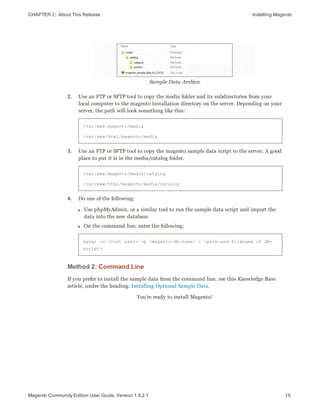
Use in Layered Navigation Includes the attribute in the layered navigation that is displayed
for category lists.
Use in Search Results
Layered Navigation
Includes the attribute in the layered navigation that is displayed
for search results lists.
Position Determines the position of the attribute when listed with others in
the layered navigation list.
Use in Product Listing (Depending on theme) Includes the attribute in the product
listing.
Use for Sorting in Product
Listing
(Depending on theme) Includes this attribute as an option in the
Sort By list, which can be used to sort a product list.
CHAPTER 11:  Attributes Attribute Quick Reference
Rules and Comparison Properties
PROPERTY DESCRIPTION
Comparable on Front-end Includes the attribute in the Compare Products report.
Use for Promo Rule
Conditions
Allows the attribute to be used as the basis of a condition that
triggers a promotional Price Rule or Shopping Cart rule.
Presentation Properties
PROPERTY DESCRIPTION
Visible on Product View
Page
Includes the attribute on the Additional Information tab of the
product view page.
Allow HTML Tags on
Frontend
Permits text fields and areas to be manually tagged with HTML.
Enable WYSIWYG Editor Makes the WYSIWYG Editor available for tagging a text field or
text area with HTML.
145Magento Community Edition User Guide, Version 1.9.2.1
Attribute Properties CHAPTER 11:  Attributes
146 Magento Community Edition User Guide, Version 1.9.2.1
Attribute Properties
The Attribute Properties define the individual characteristics that determine how an
attribute can be used in the product catalog.
Attribute Properties
PROPERTY DESCRIPTION
Attribute Code (Required) A unique identifier for internal use. The Attribute Code
must begin with a letter, but can include a combination of
lowercase letters (a-z) and numbers (0-9).The code must be less
than thirty characters in length and cannot include any special
characters or spaces, although an underscore (_) can be used to
indicate a space.
Scope Limits the use of an attribute to a specific store view or website.
Options include:
Store View
Website
Global
Catalog Input Type for
Store Owner
Determines the data type and input control that is used to
manage the product from the store Admin. Options include:
Text Field A single line input field for text.
Text Area A multiple-line input field that can
display paragraphs of text
formatted with HTML.
Property Descriptions
CHAPTER 11:  Attributes Attribute Properties
PROPERTY DESCRIPTION
Date An input field for date values.
The date can be typed directly
into the field, or selected from a
list or calendar.
Yes/No A drop-down list with pre-defined
options of “Yes” and “No.”
Dropdown A drop-down list of configurable
options, from which only one can
be selected.
Multiple Select Displays a drop-down list of
configurable options. To select
more than one option, hold down
the Ctrl key and click each item.
Price An input type that can be used to
create price fields in addition to
the predefined attributes: Price,
Special Price, Tier Price and
Cost.
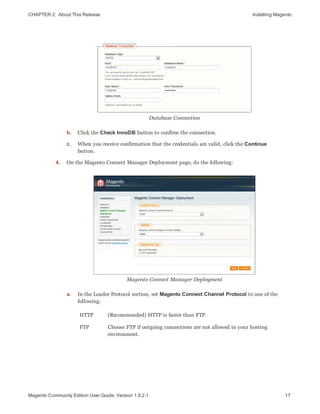
Media Image An additional image that can be
included in the attribute set of a
product.
Fixed Product Tax An input type that gives you the
ability to define FPT rates based
on the requirements of your
locale.
Default Value Assigns a starting value to the attribute to help during data entry.
To assign a default value for Multiple Select or Dropdown input
types, see: Creating Attributes.
A default value cannot be set for Multiple Select, Dropdown, or
Fixed Product Tax input types.
Unique Value To prevent duplicate values in a data entry field, set Unique
Value to “Yes.” Options include: Yes / No
Property Descriptions (cont.)
147Magento Community Edition User Guide, Version 1.9.2.1
Attribute Properties CHAPTER 11:  Attributes
148 Magento Community Edition User Guide, Version 1.9.2.1
PROPERTY DESCRIPTION
Values Required To require that a value to be entered in this field before the record
can be saved, set Values Required to “Yes.” Options
include: Yes / No
Input Validation for Store
Owner
Performs a validation check of the data entered in the field,
based on the following options:
None
Decimal Number
Integer Number
Email
URL
Letters
Letters (a-z, A-Z) or Numbers (0-9)
Apply To (Required) Identifies the product types to which this attribute
applies. Options include:
All Product Types
Selected Product Types
Simple Product
Grouped Product
Configurable Product
Virtual Product
Bundle Product
Use to Create
Configurable Product
(Dropdown input type only) Select “Yes” if this attribute will be
used to create a drop-down list for a configurable product.
Options include: Yes / No
Property Descriptions (cont.)
CHAPTER 11:  Attributes Attribute Frontend Properties
Attribute Frontend Properties
The Frontend Properties determine how an attribute can be used in your store. You can
specify how attributes are used in search, layered navigation, product comparisons, price
rules, and sorting. For text attributes, you can enable the WYSIWYG editor and specify if
HTML tags can be used to format the value.
Frontend Properties
PROPERTY DESCRIPTION
Use in Quick Search Select “Yes” if you want people to be able to search the catalog
based on the value of this attribute. Options include: Yes / No
Use in Advanced Search Gives shoppers the ability to enter their search criteria through a
form. Options include: Yes / No
Using too many attributes can slow down search.
Comparable on Front-end Select “Yes” to include this attribute as a row in the Compare
Products report. Options include: Yes / No
Use In Layered Navigation (Dropdown, Multiple Select and Price input types only) Includes
the attribute as a filter in the “Shop By” section of layered
navigation. Options include:
No The attribute is not used in
layered navigation.
Property Descriptions
149Magento Community Edition User Guide, Version 1.9.2.1
Attribute Frontend Properties CHAPTER 11:  Attributes
150 Magento Community Edition User Guide, Version 1.9.2.1
PROPERTY DESCRIPTION
Filterable (with results) Lists only products that match
the filter value.
Filterable (no results) Lists all attribute values, even
those that do not apply to any
product in the list. Layered
navigation appears on a category
page only if there are filterable
attributes available.
Use In Search Results
Layered Navigation
To include the attribute in the layered navigation for search
results, select “Yes.” Options include: Yes / No
Use for Promo Rule
Conditions
To make the attribute available for use in price rules, select
“Yes.” Options include: Yes / No
Position Determines the position of the attribute in layered navigation in
relation to other filterable attributes.
Enable WYSIWYG (Text Area input type only) To display the editor when entering or
editing the attribute value, select “Yes.” The editor can be used to
format field descriptions with HTML tags. Options include: Yes /
No
Allow HTML Tags on
Frontend
(Text Field and Text Area input types only) To be able to format
the attribute value with HTML tags, select “Yes.” Options
include: Yes / No
Visible on Product View
Page on Front-end
(Simple and virtual products only) To include the attribute on the
Additional Information tab of the product page, select “Yes.”
Options include: Yes / No
Used in Product Listing Depends on the theme. To include the attribute in product
summaries that appear in catalog listings, select “Yes.”
Used for Sorting in Product
Listing
(Depends on theme)
To include this attribute as a “Sort By” option for catalog listings,
select “Yes.“ 
Property Descriptions (cont.)
151Magento Community Edition User Guide, Version 1.9.2.1
CHAPTER 12:
Flat Catalog
Magento typically stores catalog data in multiple tables, based on the Entity-Attribute-
Value (EAV) model. Because attributes are stored in many tables, SQL queries are
sometimes long and complex.
In contrast, a flat catalog creates new tables on the fly, where each row contains all the
necessary data about a product or category. The flat catalog is updated automatically—
either every minute, or according to your cron job. Flat catalog indexing also applies to
catalog and shopping cart price rules. A catalog with as many as 500,000 SKUs can be
indexed quickly as a flat catalog. To learn more, see: Setting Up a Flat Catalog.
Frontend
Setting Up a Flat Catalog CHAPTER 12:  Flat Catalog
152 Magento Community Edition User Guide, Version 1.9.2.1
Setting Up a Flat Catalog
Before you enable a flat catalog for a live store, make sure to test the configuration in a
development environment.
Process Overview:
Step 1: Enable the Flat Catalog
Step 2: Verify the Results
Step 1: Enable the Flat Catalog
1. On the Admin menu, select System > Configuration. Then in the panel on the left under
Catalog, select Catalog.
2. Click to expand the Frontend section. Then, do the following:
Frontend
a. Set Use Flat Catalog Category to “Yes.”
b. Set Use Flat Catalog Product to “Yes.”
3. When complete, click the Save Config button.
4. When prompted to refresh the indexes, click the Index Management link in the message at
the top of the workspace and follow the instructions to reindex the data.
CHAPTER 12:  Flat Catalog Setting Up a Flat Catalog
Reindex Required
Step 2: Verify the Results
Method 1: Verify the Results for a Single Product
1. On the Admin menu, select Catalog > Manage Products. Then, do the following:
a. Choose a product to modify. Then, open the product in edit mode.
b. In the Name field, add the text “_DEMO” to the product name.
2. Click the Save button.
3. On a new browser tab, navigate to the home page of your store.
4. Search for the product you edited, and browse to its assigned category.
If necessary, refresh the page to verify the results. The change will appear within the
minute or according to your cron job schedule.
Method 2: Verify the Results for Multiple Products
1. On the Admin menu, select Catalog > Categories > Manage Categories.
2. In the upper-left corner, set Current Configuration Scope to one of the following:
l All Store Views
l A specific store view
3. In the panel on the left, select an existing category. Click the Add Subcategory button,
and do the following:
a. In the Name field, enter “Test Category.”
b. Set Is Active to “Yes.”
c. Click the Save Category button.
153Magento Community Edition User Guide, Version 1.9.2.1
Setting Up a Flat Catalog CHAPTER 12:  Flat Catalog
154 Magento Community Edition User Guide, Version 1.9.2.1
New Subcategory
d. Click the Category Products tab. Then, click the Reset Filter button to display all
products.
e. Select the checkbox of several products to add them to the new category. Then, click
the Save Category button.
Category Products
4. On a new browser tab, navigate to the home page of your store. then, Find the category
you created.
If necessary, refresh the page to verify the results. The change will appear within the
minute or according to your cron job schedule.
155Magento Community Edition User Guide, Version 1.9.2.1
CHAPTER 13:
Creating Products
Choosing a product type is one of the first things you must do to create a new product.
In this chapter, you will learn how to create a product of each type. To learn more
about all the available options, see Product Information.
If you are just starting out, you can create a few sample products and experiment with
each type. Before building your catalog, make sure to read Navigation by Category and
Catalog URL Options. This material will give you a good understanding of the
relationship between your store’s navigation, the categories in your catalog.
Products in Catalog
Product Types CHAPTER 13:  Creating Products
156 Magento Community Edition User Guide, Version 1.9.2.1
Product Types
Simple Product
A simple product is a physical item with a single
SKU. Simple products have a variety of pricing and
of input controls which makes it possible to sell
variations of the product. Simple products can be
used in association with grouped, bundle, and
configurable products.
Grouped Product
A grouped product presents multiple, standalone
products as a group. You can offer variations of a
single product, or group them for a promotion. The
products can be purchased separately, or as a group.
Configurable Product
A configurable product appears to be a single product
with lists of options for each variation. However,
each option represents a separate, simple product
with a distinct SKU, which makes it possible to track
inventory for each variation.
Virtual Product
Virtual products do not have a physical presence,
and are typically used for such things as services,
warranties, and subscriptions. Virtual products can
be used in association with grouped and bundle
products.
CHAPTER 13:  Creating Products Product Types
Bundle Product
A bundle product let customers “build their own” from
an assortment of options. The bundle could be a gift
basket, computer, or anything else that can be
customized. Each item in the bundle is a separate,
standalone product.
Downloadable
A digitally downloadable product that consists of one
or more files that are downloaded. The files can
reside on your server or be provided as URLs to any
other server.
157Magento Community Edition User Guide, Version 1.9.2.1
Simple Product CHAPTER 13:  Creating Products
158 Magento Community Edition User Guide, Version 1.9.2.1
Simple Product
One of the keys to harnessing the power of product types is learning how and when to use a
simple, standalone product. Simple products can be sold individually, or as part of a
grouped, configurable, or bundle product. A simple product with custom options is
sometimes referred to as a composite product.
Simple Product
The following instructions take you through the process of creating a simple product with
the basic fields. Each required field is marked in the Admin with a red asterisk (*). After
you complete the required settings and save the product, you can add images and complete
the remaining product information as needed.
Process Overview:
Step 1: Choose the Attribute Set
Step 2: Complete the Basic Information
Step 3: Complete the Remaining Product Information
CHAPTER 13:  Creating Products Simple Product
Step 1: Choose the Attribute Set
The first step is to choose the attribute set, which is used as a template for the product
record. The product in this example is based on the Default attribute set, which includes a
standard of set of fields that can be used for most products.
1. On the Admin menu, go to Catalog > Manage Products.
2. In the upper-right corner of the Manage Products page, click the Add Product button.
3. In the Create Product Settings section, do the following:
a. Accept the “default” Attribute Set, or select another.
b. Set Product Type to “Simple,” and click the Continue button.
Create Product Settings
Step 2: Complete the Basic Information
The basic set of required fields must be completed before the product record can be saved.
The Product Information panel groups related fields by topic and the required fields are
marked with a red asterisk (*).
1. In the Product Information panel, select General. Then, complete the required fields as
follows:
a. Enter the product Name as you want it to appear in all catalog listings.
b. In the Description box, enter the main description that will appear on the Product
Detail page.
c. Enter a Short Description of the product.
d. Assign a unique SKU for the product.
e. Enter the Weight of the product, which is used to calculate shipping.
f. Set Status to “Enabled.”
g. Set Visibility to “Catalog, Search.”
159Magento Community Edition User Guide, Version 1.9.2.1
Simple Product CHAPTER 13:  Creating Products
160 Magento Community Edition User Guide, Version 1.9.2.1
General
2. In the Product Information panel, select Prices. Then, complete the required fields as
follows:
a. Enter the Price that you will charge for the product.
b. Set Tax Class to the appropriate tax classification for the product.
Prices
3. In the Product Information panel, select Inventory. Then, do the following:
CHAPTER 13:  Creating Products Simple Product
a. If you do not need to keep track of inventory for the product, set Manage Stock to
“No.”
Depending on the configuration, you might need to clear the Use Config Settings
checkbox.
Inventory with No Stock Management
b. If you want to keep track of inventory, set Manage Stock to “Yes.” Then, do the
following:
l In the Qty field, type the quantity of the item that is currently in stock.
l Set Stock Availability to “In Stock.”
Inventory with Stock Management
4. To be visible in your catalog, the product must be assigned to a category. To assign the
product to a category, do the following:
a. In the Product Information panel, select Categories.
b. In the category tree, click to expand the section where the item belongs.
c. Select the checkbox of each category where you want the product to appear.
5. If your Magento installation has multiple websites, the product must be assigned to each
one where the product is available for sale. (This option appears only if multiple websites
exist in the store hierarchy.) To configure the scope of the product, do the following:
161Magento Community Edition User Guide, Version 1.9.2.1
Simple Product CHAPTER 13:  Creating Products
162 Magento Community Edition User Guide, Version 1.9.2.1
a. In the Product Information panel, select Websites.
b. On the Websites tab, select the checkbox of each website where the product is available
for sale.
6. After completing these steps, click the Save and Continue button.
At this point, the product should be visible on the assigned category page of your catalog.
Until the product image is uploaded, a placeholder appears in its place.
Step 3: Complete the Product Information
Although not required, there is still more product information to complete. At the very
least, you will want to upload product images and complete the meta data. In addition,
you can create additional custom options.
THINGS TO REMEMBER
A simple product can have custom options with a variety of input controls, which
makes it possible to sell many product variations from a single SKU.
Custom options are not tracked as separate inventory items.
A simple product that is included in a configurable, or bundle product type cannot
have custom options.
CHAPTER 13:  Creating Products Grouped Product
Grouped Product
A grouped product is made up of multiple, standalone products that are presented as a
group. You can offer variations of a single product, or group them by season or theme to
create a coordinated set. Each product can be purchased separately, or as part of the group.
Grouped Product
The following instructions take you through the process of creating a grouped product with
the basic fields. Each required field is marked in the Admin with a red asterisk (*). After
you complete the required settings and save the product, you can add images and complete
the remaining product information, as needed.
Process Overview:
Step 1: Create the Grouped Product
Step 2: Add the Associated Products
Step 3: Configure the Shopping Cart Thumbnails
163Magento Community Edition User Guide, Version 1.9.2.1
Grouped Product CHAPTER 13:  Creating Products
164 Magento Community Edition User Guide, Version 1.9.2.1
Step 1: Create the Grouped Product
The first step is to choose the attribute set, which is used as a template for the product
record. The product in this example is based on the Default attribute set, which includes a
standard of set of fields that can be used for most products.
1. On the Admin menu, select Catalog > Manage Products. Then, click the Add Product
button.
2. In the Create Product Settings section, do the following:
a. Select the Attribute Set you want to use as a template for the product.
b. Set Product Type to “Grouped Product,” and click the Continue button.
Create Product Settings
3. Complete the main configuration settings as you would for a simple product, with the
following exceptions:
l A grouped product does not have price options because the price of each item in the
group originates from the associated product.
l On the Inventory tab, you can set quantity increments and stock availability for the
group as a whole, but the inventory of individual items is managed by the individual
associated products.
4. Click the Save and Continue button.
CHAPTER 13:  Creating Products Grouped Product
Step 2: Add the Associated Products
1. In the Product Information panel on the left, select Associated Products. Then, do the
following:
Associated Products
a. To display the complete unfiltered list, click the Reset Filter button.
b. If you need help finding the products you want, use the filter controls at the top of a
column.
c. Select the checkbox of each product that you want to include.
d. To list only the products you have selected, set the filter control at the top of the
checkbox column to “Yes.” Then, click the Search button.
2. Click the Save button to save your changes.
Step 3: Configure the Shopping Cart Thumbnails
1. On the Admin menu, select System > Configuration.
2. In the Configuration panel on the left, under Sales, select Checkout.
3. Click to expand the Shopping Cart section. Then, set Grouped Product Image to one of
the following:
l Product Thumbnail Itself
l Parent Product Thumbnail
165Magento Community Edition User Guide, Version 1.9.2.1
Grouped Product CHAPTER 13:  Creating Products
166 Magento Community Edition User Guide, Version 1.9.2.1
Shopping Cart
4. Click the Save Config button to save the setting.
THINGS TO REMEMBER
A grouped product is essentially a collection of simple associated products.
Simple and virtual products associated with a grouped product cannot have custom
options.
Each item purchased appears individually in the shopping cart, rather than as part of
the group.
The thumbnail image in the shopping cart can be set to display the image from the
grouped product record, or from the associated product.
CHAPTER 13:  Creating Products Configurable Product
Configurable Product
A configurable product looks like a single product with drop-down lists of options for each
variation. Each option is actually a separate simple product with a unique SKU, which
makes it possible to track inventory for each product variation. You could achieve a similar
effect by using a simple product with custom options, but without the ability to track
inventory for each variation. Products with multiple options are sometimes referred to as
composite product.
Although a configurable product uses more SKUs, and may initially take a little longer to
set up, it can save you time in the long run. If you plan to grow your business, the
configurable product type might be a better choice for a product with multiple options.
Configurable Product
The following instructions take you through the process of creating a configurable product
with the basic fields. Each required field is marked in the Admin with a red asterisk (*).
After you complete the required settings and save the product, you can add images and
complete the remaining product information, as needed.
167Magento Community Edition User Guide, Version 1.9.2.1
Configurable Product CHAPTER 13:  Creating Products
168 Magento Community Edition User Guide, Version 1.9.2.1
Process Overview:
Step 1: Create Attributes for Drop-down Options
Step 2: Create the Attribute Set
Step 3: Create the Configurable Product
Step 4: Add the Associated Products
Step 5: Make Any Necessary Price Adjustments
Step 6: Configure the Shopping Cart Thumbnails
Step 1: Create Attributes for Drop-Down Options
Create an attribute for each drop-down list of options that you want to include in the
configurable product. If the attribute already exists and has the correct properties, you can
add it to the attribute set in the next step. To learn more, see: Creating Attributes.
Required Attribute Properties
PROPERTY SETTING
Scope Global
Catalog Input Type for Store Owner Dropdown
Apply to Configurable Product or All Product Types
Use to Create Configurable Product Yes
Step 2: Create the Attribute Set
1. On the Admin menu, select Catalog > Attributes > Manage Attribute Sets. Then, click the
Add New Set button.
2. Assign a Name to the attribute set.
3. In the Based On list, select an existing attribute set, such as “Default,” to use as a
template. Then, click the Save Attribute Set button.
4. Starting from the list of Unassigned Attributes, drag and drop each attribute you want to
include in the product to the center column. You can arrange them in any order.
5. To group the attributes in their own section of the Product Information panel, do the
following:
a. In the Groups section, click the Add New button.
If prompted by your browser, select “Temporarily Allow Scripted Windows” to continue.
Then, click the Add New button again.
CHAPTER 13:  Creating Products Configurable Product
b. When prompted, enter a Name for the new group. Then, click the OK button.
The new group appears at the bottom of the Groups column.
c. Drag and drop each attribute that you created for the drop-down options to group
where you want them to appear.
Attribute Set
6. Click the Save Attribute Set button.
7. When prompted to update your cache, click the link in the message and refresh the invalid
cache.
Step 3: Create the Configurable Product
1. On the Admin menu, select Catalog > Manage Products. Then, click the Add Product
button.
2. In the Create Product Settings section, do the following:
a. Select the Attribute Set that you created for the product.
b. Set Product Type to “Configurable Product,” and click the Continue button.
Create Product Settings
3. In the Select Configurable Attributes section, select the checkbox of each attribute that you
want to include in the product. Then, click the Continue button.
169Magento Community Edition User Guide, Version 1.9.2.1
Configurable Product CHAPTER 13:  Creating Products
170 Magento Community Edition User Guide, Version 1.9.2.1
Select Attributes
4. Complete the Product Information as you would for a simple product, with the exception
of the following fields:
l On the Prices tab, the Price is a required field, but is used as a default price. The price
of each individual associated product can be adjusted accordingly.
l On the Inventory tab, Manage Stock is set to “No” by default, because inventory is
managed by each associated product.
5. When complete, click the Save and Continue Edit button.
Step 4: Add the Associated Products
Process Overview:
Method 1: Quick Simple Product Creation
Method 2: Create Empty
Method 3: Copy from Configurable
1. In the panel on the left, select the last option, Associated Products.
2. Then, use one of the following methods to add the associated products.
Method 1: Quick Simple Product Creation
This method automatically creates the associated products and optionally, assigns a Name
and SKU to each one.
1. In the Quick Simple Product Creation section, the Name and SKU are set to
Autogenerate, which makes it easy to see which products belong to the configurable
product,. However, if you want to change the default value, you can clear the
checkbox and enter a different value.
2. For each associated product that you want to create, do the following:
a. Enter the Weight.
b. Set Status to “Enabled.”
c. To prevent the associated products from being listed individually in the catalog,
set Visibility to “Not Visible Individually.”
CHAPTER 13:  Creating Products Configurable Product
3. To complete the fields for the drop-down lists, do the following:
a. For each of the configurable attributes that you set up, select the values that
apply to the first product.
b. Enter the Qty, and set Stock Availability to “In Stock.”
c. Click the Quick Create button to create the associated product record.
Quick Simple Product Creation
4. To create additional associated products, do the following:
a. Select the value for each configurable attribute.
b. If there is an extra charge for the selection, enter the adjustment in the Price
field.
c. Click the Quick Create button.
Repeat this step to create as many associated product as you need. As each associated
products is created, it appears in the list at the bottom of the page.
List of Associated Products
171Magento Community Edition User Guide, Version 1.9.2.1
Configurable Product CHAPTER 13:  Creating Products
172 Magento Community Edition User Guide, Version 1.9.2.1
Method 2: Create Simple Associated Product
This method opens a blank Product Information form, which you can complete for each
associated product.
1. In the Create Simple Associated Product section, click the Create Empty button. A
pop-up window with a blank Product Information form appears.
2. Complete the required fields as you would for any simple product.
3. Click the Save button to add the associated product.
Method 3: Copy from Configurable
This method opens a Product Information form that contains the values already entered
for the configurable product. The only fields that need to be completed are the Name, SKU,
and values for each drop-down attribute.
1. In the Create Simple Associated Product section, click the Copy From Configurable
button. A pop-up window with the basic Product Information from the configurable
product appears.
2. Complete the following required fields:
l SKU
l Weight
3. Complete the fields with values for each drop-down list.
4. Click the Save button to add the associated product to the configurable product
record.
Step 5: Make Any Necessary Price Adjustments
Use the Super Products Attributes Configuration section to make price adjustments to a
specific associated product. The adjustment can be entered as a fixed value or percentage,
and is made in relation to the price of the configurable product.
Super Products Attributes Configuration
CHAPTER 13:  Creating Products Configurable Product
Step 6: Configure the Shopping Cart Thumbnails
1. On the Admin menu, select System > Configuration. Then in the panel on the left, under
Sales, select Checkout.
2. Click to expand the Shopping Cart section. Then, set Configurable Product Image to one
of the following:
l Product Thumbnail Itself
l Parent Product Thumbnail
Shopping Cart
3. Click the Save Config button to save the setting.
THINGS TO REMEMBER
A configurable product allows the shopper to select options from drop-down lists.
Each option is actually a separate, simple product.
The drop-down list values are based on attributes that must be set up in advance with
required settings. The attribute Scope must be set to “Global,” and Use to Create
Configurable Product must be “True.” The drop-down attributes must be included in an
attribute set, which is then used as a template for the configurable product.
The simple products associated with a configurable product cannot include custom
variants or options, and must be based on the same attribute set that is used to create
the configurable product. The associated products can be generated automatically
from inside with configurable product record.
The thumbnail image in the shopping cart can be set to display the image from the
configurable product record, or from the associated product.
173Magento Community Edition User Guide, Version 1.9.2.1
Virtual Product CHAPTER 13:  Creating Products
174 Magento Community Edition User Guide, Version 1.9.2.1
Virtual Product
Although virtual products are not physical in nature, they do represent something that can
be sold, such as a membership, service, warranty, or subscription. Virtual products can be
sold individually, or included as part of the following product types:
l Grouped Product
l Bundle Product
The process of creating a virtual product and a simple product is nearly the same.
However, because a virtual product is not shipped, there is no Weight field or option to
include a gift card.
Virtual Product
The following instructions take you through the process of creating a virtual product with
the basic fields. Each required field is marked in the Admin panel with a red asterisk (*).
After you complete the required settings and save the product, you can complete the
remaining product information as needed.
CHAPTER 13:  Creating Products Virtual Product
Process Overview:
Step 1: Choose the Attribute Set
Step 2: Complete the Required Fields
Step 3: Complete the Remaining Product Information
Step 1: Choose the Attribute Set
1. On the Admin menu, select Catalog > Manage Products.
2. In the upper-right corner of the Manage Products page, click the Add Product button.
3. In the Create Product Settings section, do the following:
a. Accept the “default” Attribute Set, or select another.
b. Set Product Type to “Virtual Product,” and click the Continue button.
Create Product Settings
Step 2: Complete the Required Fields
Complete the required fields as you would for a simple product. The only difference is that
a virtual product has no weight. All required fields are marked with a red asterisk (*).
1. On the General tab, complete the required fields as follows:
a. Type the product Name as you want it to appear in all catalog listings.
b. In the Description box, enter the main description that will appear on the product
view page.
c. Enter a Short Description of the product.
d. Assign a unique SKU to the product.
e. Set Status to “Enabled.”
f. Set Tax Class to the appropriate setting for your area.
g. Set Visibility to “Catalog, Search.”
2. On the Prices tab, enter the Price you intend to charge for the product or service.
3. If you’re not going to manage your inventory, you can skip this section. Otherwise,
complete the required fields on the Inventory tab as follows:
175Magento Community Edition User Guide, Version 1.9.2.1
Virtual Product CHAPTER 13:  Creating Products
176 Magento Community Edition User Guide, Version 1.9.2.1
a. Under Manage Stock, clear the Use Config Settings checkbox. Then, set Manage
Stock to “Yes.”
b. In the Qty field, enter the quantity of the item currently in stock.
c. Set Stock Availability to “In Stock.”
4. If applicable, on the Website tab, select the checkbox for the website where the product or
service will be available for sale.
5. On the Categories tab, assign the product to the appropriate categories, as follows:
a. In the Product Category tree, click to expand the section where the item belongs.
b. Select the checkbox to assign the product to each category where you want the product
to be listed in the catalog.
6. When the required fields are complete, click the Save and Continue button.
Step 3: Complete the Product Information
You have now completed the required fields. The next step is to complete the rest of the
product information as needed for this product. The meta information and product images
are a good place to start.
THINGS TO REMEMBER
Virtual products can be used for anything that is not physical in nature, such as
services, subscriptions, and warranties.
Virtual products are much like simple products, but without the Weight and Allow Gift
Message fields.
Shipping Options appear during checkout only if there is also a physical product in the
cart.
CHAPTER 13:  Creating Products Bundle Product
Bundle Product
A bundle is a “build your own,” customizable product. Each item in a bundle can be based
on one of the following product types:
l Simple Product
l Virtual Product
Bundle Product
The following instructions take you through the process of creating a bundle product with
the basic fields. Each required field is marked with a red asterisk (*). After you complete the
required settings and save the product, you can complete the remaining Product
Information as needed.
177Magento Community Edition User Guide, Version 1.9.2.1
Bundle Product CHAPTER 13:  Creating Products
178 Magento Community Edition User Guide, Version 1.9.2.1
Process Overview:
Step 1: Create the Bundle Product
Step 2: Complete the Product Information
Step 3: Add Bundle Items
Step 1: Create the Bundle Product
1. On the Admin menu, select Catalog > Manage Products. Then, click the Add Product
button.
2. In the Create Product Settings section, select the Attribute Set for the product.
3. In the Create Product Settings section, do the following:
a. Accept the “default” Attribute Set, or select another.
b. Set Product Type to “Bundle Product.” Then, click the Continue button.
Create Product Settings
Step 2: Complete the Product Information
1. Complete the product information as you would for a simple product, with the exception of
the following:
a. On the General tab, set both the SKU and Weight fields to one of the following:
l Dynamic
l Fixed
If using a fixed SKU or Weight, enter the actual value in the field to the right.
Dynamic SKU and Weight
b. On the Prices tab, set Price to one of the following:
l Dynamic
l Fixed
If using a fixed price, enter the actual value in the field to the right.
CHAPTER 13:  Creating Products Bundle Product
Minimum Advertised Price (MAP) is not available for Bundle products with dynamic
pricing.
Dynamic Price
c. Then, set Price View to one of the following:
l As Low as
l Price Range
2. Click the Save and Continue Edit button.
Step 3: Add Bundle Items
1. In the Product Information panel on the left, select the last option, Bundle Items.
2. Then in the Shipment section, set Ship Bundle Items to one of the following:
l Together
l Separately
Shipment
3. In the Bundle Items section, click the Add New Option button.
4. In the Default Title box, enter a label for the bundle item, as you want it to appear on the
Customize Product page. Then, do the following:
179Magento Community Edition User Guide, Version 1.9.2.1
Bundle Product CHAPTER 13:  Creating Products
180 Magento Community Edition User Guide, Version 1.9.2.1
Bundle Items
a. Set Input Type to one of the following:
l Drop-down
l Radio Buttons
l Checkbox
l Multiple Select
b. Set Is Required as needed.
c. In the Position field, enter the order that you want this item listed in relation to other
items included in the bundle.
5. Click the Add Selection button. Then, do the following:
Select Products
a. Click the Reset Filter button to display the unfiltered list of products.
b. Select the checkbox of each product that you want to include in this item.
c. In the Qty to Add column, enter the quantity of each item to be included.
6. Click the Add Selected Product(s) to Option button. When the items appear in the Bundle
Items list, do the following:
a. Set User Defined Qty to one of the following:
Yes Displays an input box so the customer can change the quantity.
No Prevents the customer from changing the default quantity.
b. Enter a number in the Position column of each item to determine its place in relation
to other items.
CHAPTER 13:  Creating Products Bundle Product
c. To make an item the default selection, select the Default option of the item to be pre-
selected in the form.
Bundle Items
7. Repeat steps 3-7 for each bundle item you want to include.
8. When complete, click the Save button to save the bundle product.
Field Descriptions
FIELD DESCRIPTION
SKU Determines if each item is assigned a variable, dynamic SKU, or
if a fixed SKU is used for the bundle. Options include:
Fixed / Dynamic.
Weight Specifies the weight is calculated based on the items selected,
or is a fixed weight for the entire bundle. Options include:
Fixed / Dynamic.
Price View Determines if the product price is shown as a range, from the
least expensive to the most expensive (Price Range), or with the
least expensive shown (As Low As). Options include: Price
Range / As Low As.
Ship Bundle Items Specifies if individual items can be shipped separately.
181Magento Community Edition User Guide, Version 1.9.2.1
Bundle Product CHAPTER 13:  Creating Products
182 Magento Community Edition User Guide, Version 1.9.2.1
THINGS TO REMEMBER
A bundle is a “build your own” product.
Bundle items can be simple or virtual products without custom options.
The Price View can be set to a price range or “As Low As.”
SKU and Weight can be either “Fixed” or “Dynamic.”
The Quantity can be set to a pre-set or user-defined value.
Items can be shipped together or separately.
CHAPTER 13:  Creating Products Downloadable Product
Downloadable Product
A downloadable product can be anything that you can deliver as a file, such as an eBook,
music, video, software application, or an update. You can offer an album for sale, and sell
each song individually. You can also use a downloadable product to deliver an electronic
version of your product catalog.
Because the actual download doesn’t become available until after the purchase, you can
provide samples, such as an excerpt from a book or a clip from an audio file, that the
customer can try from the product page.
Download with Sample
Downloadable products can be configured to require that the customer log in to an account
to receive the link, or can be sent by email and shared with others. The status of the order
before the download becomes available, default values, and other delivery options are set in
the configuration.
The files for download can be either uploaded to your server, or linked to on a different
server on the Internet.
Downloadable product file names can include letters and numbers. You can to use either a dash
or underscore character to represent a space between words. Any invalid characters in the file
name are replaced with an underscore.
183Magento Community Edition User Guide, Version 1.9.2.1
Downloadable Product CHAPTER 13:  Creating Products
184 Magento Community Edition User Guide, Version 1.9.2.1
The following instructions take you through the process of creating a downloadable product
with the basic fields. Each required field is marked in the Admin with a red asterisk (*).
After you complete the required settings and save the product, you can add images and
complete the remaining product information as needed.
Process Overview:
Step 1: Choose the Attribute Set
Step 2: Complete the Basic Product Information
Step 3: Complete the Download Information
Step 4: Complete the Samples Information
Step 5: Complete the Remaining Product Information
Step 1: Choose the Attribute Set
The first step is to choose the attribute set, which is used as a template for the product
record. The product in this example is based on the Default attribute set, which includes a
standard of set of fields that can be used for most products.
1. On the Admin menu, go to Catalog > Manage Products.
2. In the upper-right corner of the Manage Products page, click the Add Product button.
3. In the Create Product Settings section, do the following:
a. Attribute Set is currently set to “Default.” You can leave it as it is, or select another.
b. Set Product Type to “Downloadable Product,” and click the Continue button.
Create Product Settings
Step 2: Complete the Basic Product Information
The basic set of required fields must be completed before the product record can be saved.
The Product Information panel groups related fields by topic and the required fields are
marked with a red asterisk (*).
1. In the Product Information panel, select General. Then, complete the required fields as
follows:
a. Enter the product Name as you want it to appear in all catalog listings.
b. In the Description box, enter the main description that will appear on the Product
Detail page.
CHAPTER 13:  Creating Products Downloadable Product
c. Enter a Short Description of the product.
d. Assign a unique SKU for the product.
e. Set Status to “Enabled.”
f. Set Visibility to “Catalog, Search.”
2. In the Product Information panel, select Prices. Then, complete the required fields as
follows:
a. Enter the Price that you will charge for the product.
The price entered here becomes the base price of the download and is listed in the
catalog before the customers selects items for download. Any additional price that is
associated with an individual download is added to the base price.
b. Set Tax Class to the appropriate tax classification for the product.
3. In the Product Information panel, select Inventory. Then, do the following:
a. If you do not need to keep track of inventory for the product, set Manage Stock to
“No.”
b. If you do need to keep track of inventory, set Manage Stock to “Yes.” Then, do the
following:
l Set Manage Stock to “Yes.”
l In the Qty field, type the quantity of the item that is currently in stock.
l Set Stock Availability to “In Stock.”
4. In the Product Information panel, select Categories. Then, do the following:
a. In the category tree, click to expand the section where the item belongs.
b. Select the checkbox of each additional category where you want the product to appear.
5. To make the product available on multiple websites, it must be assigned to each one. (This
option appears only if you have multiple websites.) To configure the scope of the product,
do the following:
a. In the Product Information panel, select Websites.
b. Select the checkbox of each website where the product will be available for sale.
6. After completing these steps, click the Save and Continue Edit button.
185Magento Community Edition User Guide, Version 1.9.2.1
Downloadable Product CHAPTER 13:  Creating Products
186 Magento Community Edition User Guide, Version 1.9.2.1
Step 3: Complete the Download Information
1. In the Product Information panel, select Downloadable Information.
2. In the Links section, do the following:
a. Enter a Title for the list of downloadable products.
b. Set Links can be purchased separately to one of the following:
l If you want to offer multiple download links, such as to sell individual songs on an
album, select “Yes.”
l To offer a single download of this item, select “No.”
3. Click the Add New Row button, and do the following:
a. Enter the Title and Price of the download.
b. To limit the number of downloads a customer can make, enter the number in the Max
number of downloads field. To allow unlimited downloads, select the Unlimited
checkbox.
c. Set Sharable to your preference.
l To require that customers log in to their accounts to access the download link,
select “No.”
l To send the link by email, which the customer can then share with others, select
“Yes.”
4. Under Sample, use one of the following methods to deliver a sample of the downloadable
product.
l Select the File option. Then, click the Browse button, and select the sample file to
upload to the server.
l Select the URL option. Then, paste the full URL of the sample file.
5. Under File, use one of the following methods to deliver the actual downloadable product.
l Select the File option. Then, click the Browse button, and select the file to upload.
l Select the URL option. Then, paste the full URL of the file that is available for
download.
6. In the Sort Order field, enter a number to indicate the sequence that this download will be
listed with other downloads on the product page.
7. To add another download, click the Add New Row button, and repeat the process.
CHAPTER 13:  Creating Products Downloadable Product
Links
8. When complete, if uploading files to the server, click the Upload Files button.
9. Click the Save and Continue Edit button.
Step 4: Complete the Samples Information
1. Click to expand the Samples section.
2. Enter a Title for the section of samples on the product page.
3. Click the Add New Row button. Then, do one of the following:
l Select the File option. Then, click the Browse button, and select the sample file to
upload.
l Select the URL option. Then, paste the full URL of the sample file.
Add New Sample
4. To add a new row, click the Add New Row button, and repeat the process.
5. When complete, click the Save button.
6. When prompted to refresh the index and cache, click the links in the message at the top of
the workspace, and follow the instructions.
At this point, the product should be visible on the assigned category page of your catalog.
Until a product image is uploaded, a placeholder appears in its place.
187Magento Community Edition User Guide, Version 1.9.2.1
Downloadable Product CHAPTER 13:  Creating Products
188 Magento Community Edition User Guide, Version 1.9.2.1
Step 5: Complete the Product Information
Although not required, there is other product information to complete. At the very least,
you will want to upload product images and complete the meta data.
THINGS TO REMEMBER
Downloadable products can be uploaded to the server, or linked to from another
server on the Internet.
You can determine the number of times a customer can download a product.
Customers purchasing downloadable products can be required to log in before going
through checkout.
The delivery of a downloadable product can be made when the order is in either a
“Pending” or “Invoiced” state.
Downloadable Product Options
The configuration settings determine guest checkout, default values, and delivery options
for downloadable products.
To configure downloadable options:
1. On the Admin menu, select System > Configure. Then in the panel on the left, under
Catalog, select Catalog.
2. Click to expand the Downloadable Product Options section. Then do the following:
Downloadable Product Options
a. To determine the status an order must have to access available downloads, set Order
Item Status to Enable Downloads to one of the following:
l Pending
l Invoiced
CHAPTER 13:  Creating Products Downloadable Product
b. Enter the Default Maximum Number of Downloads that a customer can purchase in a
single order.
c. To determine if customers must log in to their accounts to access the download link,
set Shareable to one of the following:
Yes Allows the link to be sent by email, which can then be shared with
others.
No Prevents gues purchases by requiring customers to log in to their
accounts to access the download link.
d. Enter a Default Sample Title to be used for all downloadable files.
e. Enter a Default Link Title to be used for all download links.
f. If you want download links to open in a new window, set Open Links in New Window
to “Yes.”
g. To specify how the download link is to be delivered, set Use Content Disposition to
one of the following:
Attachment Delivers the download link as an email attachment.
Inline Delivers the download link as an inline link on a web page.
h. To require that guests who purchase downloadable products create an account to
complete the checkout process, set Disable Guest Checkout if Cart Contains
Downloaded Items to “Yes.”
3. When complete, click the Save Config button.
189Magento Community Edition User Guide, Version 1.9.2.1
Downloadable Product CHAPTER 13:  Creating Products
Notes
190 Magento Community Edition User Guide, Version 1.9.2.1
191Magento Community Edition User Guide, Version 1.9.2.1
CHAPTER 14:
Swatches
Swatches provide an alternate way to display the selection of options for configurable
products. Rather than choosing an option from a drop-down list, customers can make
their selection by clicking a swatch. Configurable swatches can be used on the product
page, product list, and in layered navigation.
In this chapter , you will learn how to use swatches to make the presentation of
configurable products more appealing and informative. Topics include:
l How Swatches are Used
l Swatch Configuration
l Adding New Attribute Values
l Preparing Swatch Images
l Uploading Swatch Images
l Swatch Images Cache
Color and Size Swatches on Product Page
Swatch Workflow CHAPTER 14:  Swatches
192 Magento Community Edition User Guide, Version 1.9.2.1
Swatch Workflow
On the product page, swatches can be used to indicate the combinations of color and size
that are currently available. Any option that is not available is crossed out. In the following
example. the pistachio loafer is available only is size 8, so the rest of the sizes are crossed
out. You can click each color swatch to see the available sizes, and click each size swatch to
see the available colors. When a swatch is selected, the value appears in the input field,
and the selected swatch is outlined as the current selection.
Unavailable Size Swatches Crossed Out
Swatches can be set up to display the corresponding product image when the swatch is
clicked. For example, from the product list or product page, you can click the swatch to
change the color of the main image.
Text-Based Swatches
If there isn’t an image available for a swatch, the attribute value appears as text. A text-
based swatch is like a button with a text label, and behaves in the same way as a swatch
with an image. In the following example, the color swatches are identified with a text label
for the color name, just as the shoe size swatches have a text label for the size. If the size
attribute values were “Small,” “Medium,” and “Large,” rather than numbers, then that text
would appear in the swatches instead.
Text-Based Color and Size Swatches
CHAPTER 14:  Swatches Swatch Configuration
Swatches in Layered Navigation
Swatches can also be used in layered navigation, if the Use in Layered Navigation property
of the corresponding attribute is set to “Yes.” The following example shows both text-based
and color image swatches in layered navigation.
Color Swatches in Layered Navigation and Product List
Swatch Configuration
This discussion begins with the understanding that you already have configurable products
in your catalog. If you do not have working configurable products, you will need to set
them up to continue.
Process Overview:
Step 1: Complete the Configuration
Step 2: Test the Swatches In Your Store
Step 1: Complete the Configuration
1. On the Admin menu, select System > Configuration. Then in the panel on the left under
Catalog, select Configurable Swatches.
2. Click to expand the General Settings section. Then, do the following:
193Magento Community Edition User Guide, Version 1.9.2.1
Swatch Configuration CHAPTER 14:  Swatches
194 Magento Community Edition User Guide, Version 1.9.2.1
General Settings
a. Set Enabled to “Yes.”
b. In the list of Products Attributes to Show as Swatches in Product Detail, select each
attribute whose values you want to appear as a swatch.
The list includes only the attributes that can be used to create configurable products.
The attribute must be the Dropdown type, and Use to Create Configurable Product
must be set to “Yes.”
c. Select the Product Attribute to Use for Swatches in Product Listing.
Because of the limited space in the product listing, only one attribute can chosen to
appear as a swatch in the product list.
3. To set the size of the swatches used on the product detail page, do the following:
a. Click to expand the Swatch Dimensions on Product Detail Page section.
b. Enter the Width and Height in pixels.
Just for reference, the swatches in the product page examples in this guide are 35
pixels square.
Swatch Dimensions on Product Detail Page
4. To set the size of the swatches used in the product listing, do the following:
a. Click to expand the Swatch Dimensions in Product Listing section.
b. Enter the Width and Height in pixels.
CHAPTER 14:  Swatches Swatch Configuration
Swatch Dimensions in Product Listing
5. To set the size of the swatches used in layered navigation, do the following:
a. Click to expand the Swatch Dimensions in Layered Navigation section.
b. Enter the Width and Height in pixels.
Swatch Dimensions in Layered Navigation
6. When complete, click the Save Config button.
7. If prompted that the cache needs to be refreshed, click the Cache Management link in the
message at the top of the workspace. Select the checkbox of each invalid cache. Then, with
the Actions control set to “Refresh,” click the Submit button.
While you’re in Cache Management, notice the Flush Swatch Images Cache button in the
Additional Cache Management section at the bottom of the page. If you ever need to
update or replace existing swatches, this is how you can clear all cached swatches.
Step 2: Test the Swatches In Your Store
1. Verify that the swatches work correctly from your storefront. Even without any swatch
images, the text-based swatches should appear in the store, and work correctly.
2. If any drop-down options from the configurable product are missing from layered
navigation, do the following:
l Verify that the attribute frontend property, Use in Layered Navigation is set to “Yes.”
l Return to Cache Management and click the Flush Magento Cache button.
195Magento Community Edition User Guide, Version 1.9.2.1
Swatch Configuration CHAPTER 14:  Swatches
196 Magento Community Edition User Guide, Version 1.9.2.1
Adding Swatch Attribute Values
As you add products to your catalog, you will need to update the attribute values that
correspond to each swatch. For example, if you sell clothing, you will need to add new
colors to the color attribute to match the products. You can add as many values as you
need to any attribute that is represented by a swatch. We use color as an example, but the
process is the same for any attribute you might use.
Add New Color Value
To add new colors:
1. On the Admin menu, select Catalog > Attributes > Manage Attributes.
2. In the list, open the color attribute in edit mode.
3. In the panel on the left, click Manage Label / Options. Then, do the following:
a. In the list under Manage Options, click the Add Option button.
b. Under Admin, enter the names of the color as you want it to appear when working
from the Admin. Then, enter the name of the color for each language supported, as you
want it to appear in the storefront.
c. To determine the order in which the colors appear, enter a number in the position
column.
d. Repeat this process for as many colors as you need.
4. Click the Save Attribute button.
5. When prompted to refresh the cache, click the Cache Management link. Then, refresh any
cache that is invalid.
CHAPTER 14:  Swatches Preparing Swatch Images
Preparing Swatch Images
A swatch image can provide an accurate representation of color, and also illustrate a
pattern or texture. There are two different methods you can use to create swatches for your
products. You can use either method, or a combination of both.
l The default method is to create global swatches that represent a plain color, and upload
them to Media Storage.
l You can also create custom swatches that illustrate a fabric or texture, and upload them
to a specific product.
The size of the swatch that is set in the configuration, and the size of the uploaded image
determine the level of detail that can be seen in the swatch. To show a pattern clearly,
make sure that the image is large enough to capture the essence of the design. To show a
fabric weave, texture, or grain of leather, capture the image at as high a resolution as
possible, and crop the image as close to the display size of the swatch as possible. Any
reduction in size makes the detail harder to see.
Capture Swatch from Product Image
To capture a swatch, you can open the main product image in a photo editor, and crop a
section from the image. You can also use the eyedropper tool to pick up the exact color you
need, and fill the swatch with the selected color. If you have the product available, you can
take a photograph of the fabric with your camera. The swatches below were captured from
the side of a shoe in the main product image.
Swatch Samples
197Magento Community Edition User Guide, Version 1.9.2.1
Preparing Swatch Images CHAPTER 14:  Swatches
198 Magento Community Edition User Guide, Version 1.9.2.1
Uploading Swatch Images
The swatches folder in Media Storage is the most common place where uploaded swatch
images are stored. Swatch images that are uploaded to Media Storage are globally available
and can be used by any product. The name of each uploaded image file must exactly match
the attribute value that it represents. In this example, each file name is a color.
Swatches in Media Storage
Swatches can also be associated with a specific product, and uploaded directly to the
product’s thumbnail gallery. Swatches that are uploaded directly to a product do not
appear in the gallery or in layered navigation. However, in some cases, there are
advantages to using this method. It is also the recommended method for languages with a
non-Latin character set, such as Arabic, Chinese, Cyrillic, or Japanese.
The system uses a “fall back” method to locate swatches. It looks first to see if there are any
swatches associated with the product image. If it doesn’t find a swatch, it then looks in
Media Storage.
If you use a language other than English for attribute values, it is recommended that you
upload swatch images to each configurable product, rather than to Media Storage. Files
uploaded to Media Storage can only include the characters a-z and 0-9. Characters from
non-Latin alphabets, such as Arabic, Chinese, Cyrillic, and Japanese are not recognized by
the system. To learn more, see the developer documentation.
CHAPTER 14:  Swatches Preparing Swatch Images
Method 1: Upload Swatches to Media Storage
Before uploading swatch images, make sure that the file names exactly match the
corresponding attribute values. For example, if you upload a file named “gray.png,” it will
match the attribute value “Gray,” but not “Grey.”
All file names are converted to lowercase. In addition, any characters other than a-z and 0-
9 are replaced with a hyphen. Therefore, the swatch name “Royal Blue” becomes “royal-
blue.”
If you have access to the server, swatch files can be uploaded to the following location:
[Magento install directory]/media/wysiwyg/swatches
1. On the Admin menu, select CMS > Pages > Manage Content.
2. In the list, click to open any page in edit mode.
The purpose of this step is to launch the editor. Media Storage can be accessed from any
place the editor is used.
3. In the panel on the left, select Content.
4. From the editor, click the Insert Image button. In the directory tree on the left, click the
swatches folder, and do the following:
a. Click the Browse button, and locate the swatch image files that you want to upload.
You can upload individual images, or multiple images at the same time.
b. Click the Upload Files button to copy the file to Media Storage.
Newly uploaded images appear at the bottom of the list.
199Magento Community Edition User Guide, Version 1.9.2.1
Preparing Swatch Images CHAPTER 14:  Swatches
200 Magento Community Edition User Guide, Version 1.9.2.1
Uploading Multiple Swatches
5. When you are done, click the Close button in the upper-left corner of the Media Storage
window. Then, click the Back button to exit the editor.
6. If prompted to refresh the cache, click the Cache Management link in the message at the
top of the workspace, and refresh any cache that is invalid.
7. Go to your storefront to verify that the swatches work correctly. The text-based swatches
should now be replaced with the swatch images that you uploaded.
8. If any drop-down options from the configurable product are missing from layered
navigation, return to Cache Management and click the Flush Magento Cache button.
Method 2: Upload Swatches as Product Images
Use this method to associate swatch images with a specific product. Swatches uploaded
with this method take precedence over those uploaded to Media Storage.
1. On the Admin menu, select Catalog > Manage Products.
2. Find the product the configurable product in the list, and open the record in edit mode.
3. If the image is intended for a specific store view, set Choose Store View to the store view
where the images will be used.
4. In the panel on the left, click Images. Then, do the following:
a. Click the Browse Files button, and select the images files to upload to your store.
b. Click the Upload Files button to upload the selected images to your store.
CHAPTER 14:  Swatches Preparing Swatch Images
Product Swatch with Label
c. Enter a Label for each swatch image uploaded, in the following format: color name,
followed by a hyphen, and the word “swatch.” This label identifies the image as a
swatch that is associated with this specific variation of the product.
color-swatch
Do not select any of the remaining options. It is not necessary to select the Exclude
checkbox, because by default, Swatch images do not appear in the thumbnail gallery.
5. When complete, click the Save button.
6. When prompted to clear the cache, click the Cache Management link in the message at the
top of the workspace, and refresh any cache that is invalid.
201Magento Community Edition User Guide, Version 1.9.2.1
Setting Up Dynamic Images CHAPTER 14:  Swatches
202 Magento Community Edition User Guide, Version 1.9.2.1
Setting Up Dynamic Images
Dynamic images change when the corresponding swatch is clicked, and can be used on the
product and product listing pages. The easiest way to understand this is to see how the
products are set up.
Swatches
With this technique, each associated product must have an image that depicts the
variation, even if the products are different sizes of the same color. These are the images
that appear dynamically when the swatch is clicked. As with all swatch images, the
dynamic image does not appear in the thumbnail gallery.
Method 1: Upload Images to Configurable Product
When you view this product in the store and click a swatch, the corresponding product
appears as the main product image. You can click any swatch to change the image. Also,
notice in the example below that the fourth swatch is a miniature version of the Royal Blue
product image. Because there isn’t a Royal Blue swatch available, the fall-back method
used the product image with the “Royal Blue” label.
Dynamic Product Image
CHAPTER 14:  Swatches Setting Up Dynamic Images
1. Each associated simple product has a single product image that depicts the variation.
Because these images are not swatches, they do not need the “-swatch” suffix. The product
variations used in this example are labeled “Royal Blue,” “Pink,” and “Red.”
Image Uploaded to Associated Simple Product
2. The Color attribute for each variation is set to the correct color.
Set Value of Color Attribute
3. In addition to the standard product images, images for each product variation are also
uploaded to the configurable product, and given labels that exactly match the
corresponding color attribute values. No options are selected for the product variations.
Although these images are not swatches, they will be used if no other swatch is available.
203Magento Community Edition User Guide, Version 1.9.2.1
Setting Up Dynamic Images CHAPTER 14:  Swatches
204 Magento Community Edition User Guide, Version 1.9.2.1
Images Uploaded to Configurable Product
Method 2: Upload Swatches to Configurable Product
This method features custom swatches that are uploaded to the configurable product. Each
associated product has a product image that depicts the variation. When you click each
swatch, the corresponding product image appears.
Dynamic Image
CHAPTER 14:  Swatches Setting Up Dynamic Images
1. An image is uploaded to each associated product that shows the product variation.
Image Uploaded to Associated Simple Product
2. The Color attribute of the product variation is set to the correct color.
Set Value of Color Attribute
3. In addition to the standard product images, a complete set of the swatch images is
uploaded to the configurable product, and labeled as a swatch for each variation. In this
example, the swatches are named:
l Royal Blue-swatch
l Charcoal-swatch
l Red-swatch
l Khaki-swatch
205Magento Community Edition User Guide, Version 1.9.2.1
Setting Up Dynamic Images CHAPTER 14:  Swatches
206 Magento Community Edition User Guide, Version 1.9.2.1
Images Uploaded to Configurable Product
CHAPTER 14:  Swatches Swatch Localization
Swatch Localization
If you use a language other than English for attribute values, it is recommended that you
upload swatch images to each configurable product record, rather than upload the images
to Media Storage. Swatch image file names that are uploaded to Media Storage are also
used as CSS classes, and can only include the characters a-z, A-Z, and 0-9. Characters from
non-Latin alphabets, such as Arabic, Chinese, Cyrillic, and Japanese are not recognized by
the system.
English as Primary Language
By default, the same swatch image can be used for all languages. The easiest way to
localize a swatch is to simply translate the attribute label that appears in the store.
However, if the translated labels include accented characters, see the next section.
The system uses a simple fallback strategy to locate a suitable swatch. The system looks
first for a swatch image that is based on the current language. If no image is found, the
system looks next for an attribute label that is associated with the configurable product
option.
Using Manage Attribute / Labels, you can enter a translated label for each language
supported. For example, the label for the color value “Red” would be entered as “Rot” for
German. The following table shows the relationship between the attribute label, the product
image label, and the image file name:
ATTRIBUTE LABEL IMAGE LABEL IMAGE FILE NAME
Red Red-swatch media/wysiwyg/swatches/red.png
Rot Rot-swatch media/wysiwyg/swatches/rot.png
Label Translation
Other Primary Languages
If possible, we recommend that you upload swatch images from the Magento Admin, which
allows you to use any character in the image file name. However, if either of the following is
true, you must upload swatches directly to the server:
l If you use a language other than English and the translated labels have Latin characters
with diacritics (that is, accented characters)
l Your localized images have names that do not transliterate from UTF-8 to ASCII using
PHP.
Swatch images are located on the server in the following directory:
media/wysiwyg/swatches/. If you choose to upload images directly to the server, you
must understand how attribute labels are converted to image names.
207Magento Community Edition User Guide, Version 1.9.2.1
Swatch Localization CHAPTER 14:  Swatches
208 Magento Community Edition User Guide, Version 1.9.2.1
1. The label is transliterated from UTF-8 to ASCII.
a. If the label contains Latin characters with diacritics, many of the characters are
transliterated to ASCII. For example, Ô is converted to ^O.
b. If the label cannot be transliterated into ASCII, no swatch images can be uploaded
from media/wysiwyg/swatches/. Languages with characters that cannot be
transliterated include Cyrillic, Chinese, Japanese, and Arabic.
c. If the language contains characters that cannot be transliterated to ASCII, do one of
the following:
l Upload all swatch images to each configurable product
l In the Admin, change the attribute values to English as the primary language, and
set up the swatch files in English.
2. The label is converted to lowercase.
3. Any characters other than 0-9 and a-z are replaced with the dash character (-).
LABEL CONVERTS TO
Königsblau media/wysiwyg/swatches/k-onigsblau.png
Weiß media/wysiwyg/swatches/weiss.png
красный (No transliteration is possible, and no image is uploaded.)
Conversion Examples
CHARACTER TRANSLITERATION REPLACEMENT
French
À `A -a
 ^A -a
Æ AE ae
Ä "A -a
Ç C c
É 'E -e
È `E -e
Ê ^E -e
Common Transliteration Values
CHAPTER 14:  Swatches Swatch Localization
CHARACTER TRANSLITERATION REPLACEMENT
Ë "E -e
Î ^I -i
Ï "I -i
Ô ^O -o
Œ OE oe
Ö "O -o
Ù `U -u
Û ^U -u
Ü "U -u
Ÿ "Y -y
German
Ä "A -a
Ö "O -o
Ü "U -u
ß ss ss
Spanish
Ñ ~N -n
Á 'A -a
É 'E -e
Í 'I -i
Ó 'O -o
Ú 'U -u
Common Transliteration Values (cont.)
209Magento Community Edition User Guide, Version 1.9.2.1
Clearing the Swatch Cache CHAPTER 14:  Swatches
210 Magento Community Edition User Guide, Version 1.9.2.1
Clearing the Swatch Cache
Swatch images are resized and cached before they are used. Swatch images are stored on
the server in the Magento installation directory, at the following location:
[Magento install directory]/media/catalog/swatches/
Whenever changes are made to existing swatch images, the swatch cache must be flushed
before the changes can be seen in the store.
To flush the swatch cache:
1. On the Admin menu, select System > Cache Management.
2. In the Additional Cache Management Section, click the Flush Swatch Images Cache
button.
Flush Swatch Images Cache
211Magento Community Edition User Guide, Version 1.9.2.1
CHAPTER 15:
Product Images
Using images of consistent quality, size, and proportion gives your product catalog a
professional look with commercial appeal. If you have a large catalog with several
images per product, you can easily have hundreds, if not thousands of product images
to manage. Before you get started, it’s a good idea to establish a naming convention for
your image files, and organize them so you can find the originals if you ever need them.
The Images tab in the Product Information panel is used to upload and manage
individual images for the current product. You can upload multiple images for each
product, with different images for each website or store view. However, if you have a
large quantity of images to manage, it is more efficient to import, rather than upload
each one individually. To learn more, see: Importing Product Images.
Product Images
Thumbnail Gallery CHAPTER 15:  Product Images
212 Magento Community Edition User Guide, Version 1.9.2.1
Thumbnail Gallery
The thumbnail gallery on the product page can be used to display multiple images of the
product. Although the position of the gallery varies by theme, it is usually just below the
main image on the product page. Click each image to browse through the thumbnail
gallery.
Image Zoom
Light Boxes and Sliders
Some stores use third-party light boxes or sliders to replace the default product image
display. You will find a variety of light box and slider extensions available in Magento
Connect.
Image Zoom
Magento displays a magnified portion of the image on mouseover, provided that you have
uploaded a larger image that can be used to zoom in for a closer look. When zoom is
activated, you can click the main image and move the cursor around to magnify different
parts of the image. The magnified selection appears to the right of the image.
CHAPTER 15:  Product Images Image Size and Type
Image Size and Type
As a best practice, you should standardize the size of your images so they appear at the
highest possible resolution. A single product image can be displayed in several different
sizes throughout your catalog. In addition to the main image on the product page, there
are smaller images and thumbnails.
Image types are used in different places in your catalog. If you have only one product
image, you can use the same image for each type. If you do not assign an image to each
type, a placeholder image is used to mark its place in the catalog.
To configure product images:
1. On the Admin menu, select System > Configuration. Then in the panel on the left under
Catalog, select Catalog.
2. Click to expand the Product Image section, and do the following:
Product Image
a. In the Base Image Width field, enter the maximum width that the base image is to be
rendered.
b. In the Small Image Width field, enter the maximum width that the small image is to
be rendered.
3. When complete, click the Save Config button.
213Magento Community Edition User Guide, Version 1.9.2.1
Image Size and Type CHAPTER 15:  Product Images
214 Magento Community Edition User Guide, Version 1.9.2.1
IMAGE TYPE DESCRIPTION
Thumbnail Thumbnail images appear in the thumbnail gallery, shopping cart,
and in some blocks such as Related Items. Example size:
50 x 50 pixels
Small Image The small image is used for the product images in listings on
category and search results pages, and to display the product
images needed for sections such as for Up-sells, Cross-sells,
and the New Products List. Example size:
470 x 470 pixels
Base Image The base image is the main image on the product detail page.
Image zoom is activated if you upload an image that is larger
image than the image container. Example sizes:
470 x 470 pixels (without Zoom)
1100 x 1100 pixels (with Zoom)
Media Image (Optional) A media image you the ability to associate additional
images with a product, that are other than a product image. For
example, you might include the product logo, care instructions, or
an image of the ingredients from a food label.
If you add a media image attribute to the attribute set of a
product, it is listed as an additional image type, along with Base,
Small, and Thumbnail. You can set it to "Exclude" so it doesn't
appear in the gallery.
Image Types
CHAPTER 15:  Product Images Adding Product Images
Adding Product Images
The Images tab is used to upload and manage images for a single product. You can upload
multiple images for the product, and maintain different images for each website or store
view. However, if you have many images to manage, you might prefer to import them,
rather than upload product images individually.
Adding Product Images
To add product images:
1. If the images are to be used for only a specific store view, set Choose Store View in the
upper-left corner to identify the view where the images will be used.
2. In the panel on the left, click Images.
3. Click the Browse Files button, and select the product images files you want to upload to
your store.
4. Click the Upload Files button to upload the selected images to your store. Then, for each
image, do the following:
a. Enter a descriptive Label for the image. This text appears on mouseover and can
improve indexing by search engines.
b. If using multiple images, enter a numeric value in the Sort Order field to determine
the sequence in which they appear in the thumbnail gallery.
c. To prevent an image from being included in the thumbnail gallery, click the Exclude
checkbox. For example, if the product has only one image, there’s no reason to include
it in the gallery.
d. To delete any image, select the Remove checkbox.
5. When complete, click the Save and Continue Edit button.
215Magento Community Edition User Guide, Version 1.9.2.1
Adding Product Images CHAPTER 15:  Product Images
216 Magento Community Edition User Guide, Version 1.9.2.1
To add images to the gallery:
Follow the same process to add a new product image. For best results, gallery image files
should be the same size and proportion as the main product image.
Field Descriptions
FIELD SCOPE DESCRIPTION
Image On mouseover, a thumbnail of each uploaded
image appears.
Label The label is the descriptive “Alt” text that appears
on mouseover. Including a label for each image
improves indexing by search engines, and
accessibility for people who use screen readers.
Sort Order Determines the order in which images are
displayed in the gallery.
Thumbnail Store View The Thumbnail image is used in the shopping cart
and in some blocks, such as Related Items.
Small Image Store View The Small Image is used in product listings on the
category and search results pages, and to display
product images in additional sections such as Up-
sells, Cross-sells, and the New Products List.
Base Image Store View The Base Image is the main image on the product
page, and is also used to produce the magnified
area displayed during image zoom.
Media Image Store View (Optional) The Media Image appears only if an
attribute of the Media Image type is included in the
attribute set.
Exclude Select the Exclude checkbox to prevent the
image from being listed in the thumbnail gallery.
Remove Select the Remove checkbox to delete the image.
Selected images are deleted when the product
record is saved.
CHAPTER 15:  Product Images Placeholders
Placeholders
Magento uses a temporary image as a placeholder until permanent product images are
available. The initial placeholder image is the Magento logo, which you can replace with
placeholder images of your own design.
Placeholder
To upload placeholder images:
1. On the Admin menu, select System > Configuration. Then in the Configuration panel on
the left under Catalog, select Catalog.
2. Click to expand the Product Image Placeholders section. Then, do the following:
Product Image Placeholders
a. For each image type, click the Choose File button to navigate to, and upload the
placeholder image you want to use for the Base Image, Small Image, and Thumbnail
images. You can use the same image, or upload a different image for each type.
b. When complete, click the Save Config button.
217Magento Community Edition User Guide, Version 1.9.2.1
Watermarks CHAPTER 15:  Product Images
218 Magento Community Edition User Guide, Version 1.9.2.1
Watermarks
If you go to the expense of creating your own original product images, there is not much
you can do to prevent unscrupulous competitors from stealing them with the click of a
mouse. However, you can place a watermark on each image to identify it as your property
and make it a less attractive target. A watermark file can be either a .jpg (jpeg), .gif, or .png
image.
Example: Watermark Positions
The watermark used in these examples is a .png file 470 x 470 pixels square, with a black
logo and transparent background. The size and opacity were later adjusted to 100 x 100
pixels at 10% using the watermark configuration settings in the Admin panel. You can
experiment with different watermark settings until you find the look you want.
None Tile Top Left Top Right
Bottom Left Bottom Right Center Stretch
CHAPTER 15:  Product Images Watermarks
To place watermarks on product images:
1. On the Admin menu, select System > Configuration. Then in the Configuration panel on
the left under General, select Design.
2. Click to expand the Product Image Watermarks section.
Product Image Watermarks
3. Complete the following steps for the Base, Small, and Thumbnail images:
a. Enter the Watermark Default Size, in pixels. For example: 200 x 300
b. Enter the Watermark Opacity, as a percentage. For example: .40
c. Click the Browse button and select the Watermark image file to upload.
d. Set Watermark Position to your preference.
4. When complete, click the Save Config button.
219Magento Community Edition User Guide, Version 1.9.2.1
Shopping Cart Thumbnails CHAPTER 15:  Product Images
220 Magento Community Edition User Guide, Version 1.9.2.1
Shopping Cart Thumbnails
The thumbnail images in the shopping cart give customers a quick overview of the items
they are about to purchase. However, for products with multiple options, the standard
product image may not match the actual item being purchased. If the customer purchased
a pair of red shoes, ideally, the thumbnail in the shopping cart should show the product in
the same color.
The thumbnail image for both grouped and configurable products can be set to display the
image from either the “parent” product record or associated product. The setting applies to
all grouped or configurable products in the current store view.
To configure shopping cart thumbnails:
1. On the Admin menu, select System > Configuration. Then in the Configuration panel on
the left under Sales, select Checkout.
2. Click to expand the Shopping Cart section, do the following:
Shopping Cart
a. Set Grouped Product Image to one of the following:
l Product Thumbnail Itself
l Parent Product Thumbnail
b. Set Configurable Product Image to one of the following:
l Product Thumbnail Itself
l Parent Product Thumbnail
3. When complete, click the Save Config button.
221Magento Community Edition User Guide, Version 1.9.2.1
CHAPTER 16:
Product Pricing
Magento Community Edition supports a number of pricing options that you can use
for promotions, and to meet minimum advertised price requirements.
Topics in this chapter:
l Prices
l Special Price
l Tier Price
l Package Price
l Minimum Advertised Price
l Product Group Price
Prices CHAPTER 16:  Product Pricing
222 Magento Community Edition User Guide, Version 1.9.2.1
Prices
The Prices tab is used to establish the pricing structure of the product. Options include
special and tier pricing, and manufacturer’s suggested retail price.
Prices
FIELD SCOPE DESCRIPTION
Price Global The retail price of the product.
Group Price Global Sets up promotional prices for specific customer
groups within the selected website.
Special Price Website To offer a Special Price, enter a discounted price
and complete the date range fields to establish
when the promotion goes into effect.
When available, the retail price is crossed out and
the special price appears below in a large, bold
font.
Special Price From Date Website Sets the beginning date for the range of time the
Special Price is offered.
Special Price To Date Website Sets the ending date for the range of time the
Special Price is offered.
Tier Price Website Tier pricing is used to offer a quantity discount.
The discount can be applied to specific customer
groups within the selected website.
Field Descriptions
CHAPTER 16:  Product Pricing Prices
FIELD SCOPE DESCRIPTION
Apply MAP Website When applied, hides the actual product price from
the customer. Options include: Yes / No / Use
Config
Display Actual Price Website Determines when the customer can see the
actual product price. Options include:
In Cart Displays the actual
product price in the
shopping cart.
Before Order
Confirmation
Displays the actual
product price only at the
end of the checkout
process, just before the
order is confirmed.
On Gesture Displays the actual
product price
Use Config Displays the actual price
according to the
configuration setting.
Manufacturer’s Suggested
Retail Price
Global The retail price as suggested by the manufacturer
(MSRP).
Tax Class The tax class associated with the product.
Field Descriptions (cont.)
223Magento Community Edition User Guide, Version 1.9.2.1
Special Price CHAPTER 16:  Product Pricing
224 Magento Community Edition User Guide, Version 1.9.2.1
Special Price
To offer a Special Price, enter a discounted price and complete the date range fields to
establish when the promotion goes into effect. On both the catalog list and product pages,
the regular price is crossed out, and the Special Price appears in bold red.
Special Pricing
To display a special price:
1. In the Product Information panel on the left, select Prices.
2. Enter the amount of the Special Price.
3. Complete the Special Price From Date and Special Price To Date to define the period of
time that the special price is in effect. You can pick the dates from the Calendar to the
right of each field.
4. Click the Save button to save your changes.
5. When prompted to update the cache and indexes, follow the instructions at the top of the
page.
CHAPTER 16:  Product Pricing Tier Price
Tier Price
Tier pricing lets you offer a quantity discount from the catalog list and product detail
pages. The discount can be applied to a specific store view or customer group.
Tier Price “As Low as”
l On the catalog page, the product price includes the words, “As Low As,” followed by the
lowest tier price.
l On the product page, the calculated quantity discount has the message:
Buy 2 for $__._ each and save _%
The prices in the storefront take precedence from the highest to the lowest quantity.
Therefore, if you have a tier for the quantity 5 and one for the quantity 10 and a customer
adds 5, 6, 7, 8 or 9 items to the shopping cart, then the customer gets the discounted price
that you specified for the quantity 5 tier. As soon as the customer adds the 10th item, the
discounted price specified for the quantity 10 tier supersedes the quantity 5 tier and that
discounted price (of 10) applies instead.
225Magento Community Edition User Guide, Version 1.9.2.1
Tier Price CHAPTER 16:  Product Pricing
226 Magento Community Edition User Guide, Version 1.9.2.1
Tier Price on Product Page
To display a tier price:
1. In the Product Information panel on the left, select Prices.
2. In the Tier Price section, click the Add Tier button. Then, do the following:
Tier Pricing
a. Select the Website to which the tier pricing applies.
b. Select the Customer Group for whom the tier pricing is available.
CHAPTER 16:  Product Pricing Quantity Increments Packaging
To apply a tier to multiple groups, but not all groups, create multiple tiers, each with
the same Qty and Price information and select a different customer group for each.
c. In the Qty field, enter the quantity that must be ordered to receive the discount.
d. In the Price field, enter the adjusted price of the item.
3. When complete, click the Save button.
4. When you are prompted to update the cache and indexes, follow the instructions in the
message at the top of the workspace.
Quantity Increments Packaging
Unlike a unit price, a package price refers to multiple items of the same product that are
packaged together and sold as a single unit. A six-pack of soft drinks is an example of
package pricing.
How to sell multiple products as a package:
1. On the Admin menu, select Catalog > Manage Products.
2. In the list, click to select the product you want to sell as a package.
3. In the Product Information panel on the left, select Inventory. Then, do the following:
a. Set Qty for Item’s Status to Become Out of Stock to the lowest inventory threshold for
this item. (If necessary, clear the Use Config Settings checkbox.)
The number should be a multiple of the number of items in the package. For example,
for a six-pack, the threshold might be 6, 12, 18, and so on.
b. Set Enable Qty Increments to “Yes.”
c. Set Qty Increments to the number of units included in the package. For example, 6.
4. When complete, click the Save Config button.
227Magento Community Edition User Guide, Version 1.9.2.1
Minimum Advertised Price CHAPTER 16:  Product Pricing
228 Magento Community Edition User Guide, Version 1.9.2.1
Minimum Advertised Price
Merchants are sometimes prohibited from displaying a price that is lower than the
manufacturer’s suggested retail price (MSRP). Magento’s Minimum Advertised Price (MAP)
gives you the ability to remain in compliance with the manufacturer’s requirements while
offering your customers a better price. Because requirements differ from one manufacturer
to another, you can configure your store to prevent the display of your actual price on
pages where it is not allowed to appear according to the terms of the manufacturer.
“Click for Price” Gesture with Popup
CHAPTER 16:  Product Pricing Minimum Advertised Price
MAP Logic
For products that allow configuration from the storefront, with prices that depend on a
selected option, (such as custom options, or simple products with their own SKUs and
stock management), the following logic is implemented:
l MAP is applied to the main price. The prices of options, bundle items, and associated
products (which add or subtract from the main price) appear normally.
l If a product does not have a main price, and its price is derived from the associated
product prices (such as in a grouped product), the MAP settings of the associated
products are applied.
l If a product in the cart has the Manufacturer’s Suggested Retail Price (MSRP) specified,
the price is not crossed-out.
For other price settings, the following MAP logic is used:
l If tier pricing is set, the tier price appears according to the Display Actual Price setting.
l If a special price is set, it is considered to be the actual price for MAP.
In the order management and customer management tools, as well as in the reports
sections of the Admin, only the actual price appears.
Using MAP with Product Types
PRODUCT TYPE DESCRIPTION
Simple, Virtual The actual price does not automatically appear on catalog list
and product pages, but is included only according to the Display
Actual Price setting. Custom option prices appear normally.
Grouped The prices of associated simple products do not automatically
appear on catalog list and product pages, but are included only
according to the Display Actual Price setting.
Configurable The actual price does not automatically appear on catalog list
and product pages, but is included only according to the Display
Actual Price setting. Option prices appear normally.
Bundle with fixed price The actual price does not automatically appear on catalog
pages, but is included only according to the Display Actual Price
setting. The prices of bundle items appear normally.
MAP is not available for bundle products with dynamic pricing.
Downloadable The actual price does not automatically appear on catalog list
and product pages, but is included only according to the Display
Actual Price setting. The price associated with each download
link appears normally.
229Magento Community Edition User Guide, Version 1.9.2.1
Minimum Advertised Price CHAPTER 16:  Product Pricing
230 Magento Community Edition User Guide, Version 1.9.2.1
Using MAP with Price Settings
PRICE SETTING DESCRIPTION
Tier Price If tier pricing is set, the tier pricing message is not displayed in
the catalog. On the product page a notification is displayed that
indicates that the price can be lower when ordering more than a
certain quantity, but the discount is displayed in percentages
only. For associated products of a grouped product, the
discounts are not displayed on the product page.
The tier price is shown according to the Display Actual Price
setting.
Special Price If the Special price is specified, the special price is displayed
according to the Display Actual Price setting.
MAP Configuration
MAP can be configured at both the global and product levels. There are a variety of
configuration options that you can use to remain in compliance with the terms of your
agreement with the manufacturer, while still offering your customers a better price. Your
store’s MAP settings can be applied to all products in your catalog or configured for only
specific products.
On the global level, you can enable or disable MAP, apply it to all products, define how the
actual price is displayed, and edit the text of the related messages and information tips
that appear in the store. When MAP is enabled globally, product-level MAP settings become
available. For a product you can choose to apply MAP, specify the MSRP, and define how
the actual price is displayed. Product-level MAP settings override the global MAP settings.
Minimum Advertised Price
CHAPTER 16:  Product Pricing Minimum Advertised Price
To configure MAP globally:
1. On the Admin menu, select System > Configuration.
2. If applicable, in the upper-right corner, set Current Configuration Scope to the website
where the configuration applies.
3. In the panel on the left, under Sales, select Sales. Then, click to expand the Minimum
Advertised Price section.
4. To activate MAP, set Enable MAP to “Yes.”
a. Set Apply MAP (Default Value) to one of the following:
l To apply MAP to certain products, select “No.”
l To apply MAP by default to all products and hide all prices throughout the site,
select “Yes.”
b. To determine when and where you want your actual price to be visible to the
customer, set Display Actual Price to one of the following:
l In Cart
l Before Order Confirmation
l On Gesture (on click)
5. When complete, click the Save Config button.
To configure MAP for a specific product:
1. On the Admin menu, select System > Configuration.
2. In the Configuration panel on the left, under Sales, click to expand the Minimum
Advertised Price section. Then, do the following:
Minimum Advertised Price Configuration
231Magento Community Edition User Guide, Version 1.9.2.1
Product Group Price CHAPTER 16:  Product Pricing
232 Magento Community Edition User Guide, Version 1.9.2.1
a. Set Enable MAP to “Yes.”
b. Set Apply MAP (Default Value) to “No.”
c. Complete the remaining settings as needed. Then, click the Save Config button.
3. Select Catalog > Manage Products, and open the product record.
4. In the Product Information panel on the left, selectPrices. Then, do the following:
a. Enter your Price that is lower than the manufacturer’s minimum advertised price.
b. Set Apply MAP to “Yes.”
c. Set Display Actual Price according to your preference.
d. Enter the Manufacturer’s Suggested Retail Price.
5. When complete, click the Save button.
Product Group Price
Product Group Price enables you to set promotional prices for different customer groups at
the product level. Group price can be used with the following product types:
l Simple
l Configurable
l Virtual
l Bundle
l Downloadable
For Bundle products, the group price is specified as a discount percentage. If bundle items
have their own group prices set for the same customer group, then the discount specified
for the entire Bundle applies to the group prices.
For Grouped products, the Group Price is not applied, even if the product type is selected
in the Apply To field of the group_price attribute. In this case, the Group Price field does
not appear in the Prices section of Product Information.
Product Group Price Setup
The display of group prices in the store follows the general logic used for Magento pricing.
If, in addition to the regular price, a product has promotional price(s), the lowest price
appears in the storefront. If a product custom option has price set as a percentage, then the
lowest promotional price is used as base for the calculation. The same logic applies when
the associated products (the options) of a configurable product have prices set as a
percentage.
Examples: Promotional Prices in Storefront
The following table illustrates how the minimum promotional price logic is implemented.
CHAPTER 16:  Product Pricing Product Group Price
The table provides several examples, but it is not an exhaustive list of possible
combinations.
ADMIN PRICE STOREFRONT PRICE
Price = $4
Special Price = $5
Tier Price = $3
For customers from the tier price group(s): $ 4
As low as: $3
For customers from other groups: $4
Price = $5
Special Price = $3
Tier Price = $4
For all customers:
Regular Price: $5
Special Price: $3
Price = $5
Special Price = $3
Tier Price = $4
Price after a catalog price
rule applied = $2
For customers from the catalog price rule group:
Regular Price: $5
Special Price: $2
For customers from other groups:
Regular Price: $5
Special Price: $3
Price = $5
Special Price = $4
Group Price = $3
For customers from the price group:
Regular Price: $5
Special Price: $3
For customers from other groups:
Regular Price: $5
Special Price: $4
Promotional Pricing
Important! When a group price is set for a product, the catalog price rules for the corresponding
customer groups are applied to the group price, not to the regular price.
To set up a group price for a product:
1. On the Admin menu, select Catalog > Manage Products. Then in the list, click to open the
product in edit mode.
2. In the panel on the left, click Prices. Then, do the following:
a. In the Group Price field, click the Add Group Price button.
b. Select the target Customer Group and enter the product Price for the group. The
Website column defines the scope of the Group Price field.
3. When complete, click the Save button.
233Magento Community Edition User Guide, Version 1.9.2.1
Product Group Price CHAPTER 16:  Product Pricing
234 Magento Community Edition User Guide, Version 1.9.2.1
Group Price Attribute
The group_price attribute gives you the ability to offer a different price to members of a
customer group for any product type that is specified in the attribute’s Apply To property.
Attribute Properties
To set up a group price:
1. On the Admin menu, select Catalog > Manage Products. Then, open the product in edit
mode.
2. In the panel on the left, select Prices. Then, do the following:
Group Price
a. Under Group Price, click the Add Group Price button.
b. Select the Website to determine the scope of the setting.
c. Choose the Customer Group that is eligible for the group price.
d. Enter the Price of the product for members of the selected group.
3. When complete, click the Save button.
235Magento Community Edition User Guide, Version 1.9.2.1
CHAPTER 17:
Inventory
Managing stock creates opportunities for customer engagement by displaying stock
availability messages in your store, and giving your customers the opportunity to
receive product alerts. Even if your store doesn’t have a large inventory of products,
your customers can benefit from the way you manage your inventory.
Inventory settings can be made for the catalog as a whole, and fine tuned for each
individual product. In addition to controlling stock levels, the inventory settings
determine how backorders and returned items are managed. If your needs are simple,
you might choose not to manage inventory at all. However, inventory management is
more than just keeping track of how many products you have on hand.
Topics in this chapter:
l Inventory Configuration
l Managing Stock
l Stock Availability Messages
l Out of Stock Threshold
l Product Alerts
Inventory Configuration CHAPTER 17:  Inventory
236 Magento Community Edition User Guide, Version 1.9.2.1
Inventory Configuration
The Product Stock Items configuration determines the default product inventory settings.
The configuration applies to individual products, rather than to the contents of the cart as
a whole.
To configure the default inventory settings:
1. On the Admin menu, select System > Configuration. Then in the panel on the left, under
Catalog, select Inventory.
2. Click to expand the Product Stock Options section, and do the following:
Product Stock Options
a. Set Manage Stock to one of the following:
Yes Activates full inventory control to keep track of the number of items
currently in stock.
No Does not keep track of the number of items currently in stock.
b. Set Backorders to one of the following:
No Backorders Does not accept backorders when product is out of stock.
Allow Qty Below 0 Accepts backorders when the quantity falls below zero.
Allow Qty Below 0 and
Notify Customer
Accepts backorders when the quantity falls below zero,
but notifies customers that orders can still be placed.
c. In the Maximum Qty Allowed in Shopping Cart field, enter the default maximum
quantity of any product that a customer can place into the shopping cart.
d. In the Qty for Item’s Status to Become Out of Stock field, enter the stock level that
indicates a product to be out of stock.
CHAPTER 17:  Inventory Managing Stock
3. At the Minimum Qty Allowed in Shopping Cart field, click the Add Minimum Qty button.
Then, do the following:
a. Select the Customer Group.
b. Enter the default Minimum Quantity for members of the group.
Repeat these steps as needed.
4. In the Notify for Quantity Below field, enter the stock level that triggers a notification to be
sent that a product has fallen below the threshold.
5. If you want to sell product packaged as multiples—such as a six-pack—set Enable Qty
Increments to “Yes.” Then, enter the number of Qty Increments to be sold together as a
package.
6. If you want to return any item that appears on a credit memo back to inventory, set
Automatically Return Credit Memo Item to Stock to “Yes.”
7. When complete, click the Save Config button.
Managing Stock
Each product in your catalog has both a short and long version of the Inventory options,
depending on whether you need to manage inventory for the product. To take full
advantage of Magento’s advanced inventory management capabilities, Manage Stock must
be enabled. .
To set up a simple catalog without stock management, complete the Inventory short form.
For full inventory management, complete the long form. The initial values reflect the
default Product Stock Options set in the configuration.
Inventory (Short Form)
237Magento Community Edition User Guide, Version 1.9.2.1
Managing Stock CHAPTER 17:  Inventory
238 Magento Community Edition User Guide, Version 1.9.2.1
To set up a product without stock management:
1. On the Admin menu, select Catalog > Manage Products. Then, open the product in edit
mode.
2. In the panel on the left, under Catalog, select Inventory. Click to expand the Product
Stock Options section.
3. To change the default setting of any field, first clear the Use Config Settings checkbox.
Then, do the following:
a. Set Manage Stock to “No.”
b. In the Minimum Qty Allowed in Shopping Cart field, enter the minimum quantity of
the product that a customer can place into the shopping cart.
c. In the Maximum Qty Allowed in Shopping Cart field, enter the maximum quantity of
the product that a customer can place into the shopping cart.
d. If you want to sell this product packaged in multiples, such as a six-pack, set Enable
Qty Increments to “Yes.”
4. When complete, click the Save Config button.
To set up a product with full inventory control:
1. On the Admin menu, select Catalog > Manage Products. Then, open the product in edit
mode.
2. In the panel on the left, under Catalog, select Inventory. Click to expand the Product
Stock Options section.
3. If necessary, clear the checkbox below the Manage Stock field. Then, set Manage Stock to
“Yes.”
CHAPTER 17:  Inventory Managing Stock
Inventory (Long Form)
4. To change the default setting of any field, first clear the Use Config Settings checkbox.
Then, do the following:
a. In the Qty field, type the number of units you currently have in stock.
b. In the Qty For Item’s Status to become Out of Stock field, enter the stock level that
indicates the item is considered to be out of stock.
c. In the Minimum Qty Allowed in Shopping Cart field, enter the default maximum
quantity of any product that a customer can place into the shopping cart.
d. In the Maximum Qty Allowed in Shopping Cart field, enter the default maximum
quantity of any product that a customer can place into the shopping cart.
e. If the quantify of the product is indicated with decimal precision, set Qty Uses
Decimals to “Yes.”
l If the product can be shipped in separate boxes, set Can be divided into Multiple
Boxes for Shipping to “Yes.”
f. Set Backorders to one of the following:
No Backorders Does not accept backorders when product is out of
stock.
Allow Qty Below 0 Accepts backorders when the quantity falls below zero.
Allow Qty Below 0 and
Notify Customer
Accepts backorders when the quantity falls below zero,
but notifies customers that orders can still be placed.
g. In the Notify for Quantity Below field, enter the stock level that triggers a notification
to be sent that a product has fallen below the threshold.
239Magento Community Edition User Guide, Version 1.9.2.1
Managing Stock CHAPTER 17:  Inventory
240 Magento Community Edition User Guide, Version 1.9.2.1
h. If you want to sell product packaged as multiples—such as a six-pack—set Enable Qty
Increments to “Yes.” Then in the Qty Increments field, enter the number of products
that are packaged together.
i. Set Stock Availability to one of the following:
In Stock Makes the product available for purchase.
Out of Stock Unless Backorders are activated, prevents the product
from being available for purchase and removes the
listing from the catalog.
5. When complete, click the Save button.
FIELD SCOPE DESCRIPTION
Manage Stock Global Determines if you use full inventory control to
manage the items in your catalog. Options
include:
Yes Activates full inventory control to
keep track of the number of items
currently in stock. (To change the
setting, clear the Use Config
Settings checkbox and select
“Yes.”)
No Does not keep track of the number
of items currently in stock. (This is
the default setting.)
Qty Global (Required) The quantity of the item in stock.
Qty For Item’s Status to
become Out of Stock
Global Determines the stock level at which a product is
considered to be out of stock.
Minimum Qty Allowed in
Shopping Cart
Global Determines the minimum amount of this item that
is available for purchase. By default, the minimum
quantity is set to 1.
Maximum Qty Allowed in
Shopping Cart
Global Determines the maximum number of this item that
can be purchased in a single order. By default, the
maximum quantity is set to 10,000.
Field Descriptions
CHAPTER 17:  Inventory Managing Stock
FIELD SCOPE DESCRIPTION
Qty Uses Decimals Global Determines if customers can use a decimal value
rather than a whole number when entering the
quantity ordered. Options include:
Yes Permits values to be entered as
decimals, rather than whole
numbers, which is suitable for
products sold by weight, volume or
length.
No Quantity values must be entered
as whole numbers.
Can be divided into
Multiple Boxes for
Shipping
Global Determines if parts of the product can shipped
separately. Options include: Yes / No
Backorders Global Determines how your store manages backorders.
A backorder does not change the processing
status of the order. Funds are still authorized or
captured immediately when the order is placed,
regardless of whether the product is in stock.
When the product becomes available, it will be
shipped. Options include:
No Backorders Does not accept
backorders when
product is out of
stock
Allow Qty Below 0 Accepts
backorders when
the quantity falls
below zero.
Allow Qty Below 0 and
Notify Customer
Accepts
backorders when
the quantity falls
below zero, but
notifies
customers that
orders can still be
placed.
Field Descriptions (cont.)
241Magento Community Edition User Guide, Version 1.9.2.1
Managing Stock CHAPTER 17:  Inventory
242 Magento Community Edition User Guide, Version 1.9.2.1
FIELD SCOPE DESCRIPTION
Notify for Quantity Below Global Determines the stock level at which notification is
sent that the inventory has fallen below the
threshold.
Enable Qty Increments Global Determines if the product can be sold in quantity
increments. Options include: Yes / No
Qty Increments Global Establishes the number of products that make up
a quantity increment.
Stock Availability Global Determines the current availability of the product.
Options include:
In Stock Makes the
product available
for purchase.
Out of Stock Unless
Backorders are
activated,
prevents the
product from
being available for
purchase and
removes the
listing from the
catalog.
Field Descriptions (cont.)
CHAPTER 17:  Inventory Managing Stock
Stock Options
The Stock Options settings determine if items are removed from stock when an order is
placed, and returned to stock if an order is canceled. The Stock Options determine if out-of-
stock products are included in the catalog, and control the display of the “In Stock,” “Out of
Stock,” and “Only x left” messages.
Only 1 Left
243Magento Community Edition User Guide, Version 1.9.2.1
Managing Stock CHAPTER 17:  Inventory
244 Magento Community Edition User Guide, Version 1.9.2.1
To configure stock options:
1. On the Admin menu, select System > Configuration. Then in the panel on the left, under
Catalog, select Inventory.
2. Click to expand the Stock Options section. Then, do the following:
Stock Options
a. To return items to stock if an order is cancelled, Set Items Status to be in Stock When
Order in Cancelled to “Yes.”
b. To adjust the quantity on hand when an order is placed, set Decrease Stock When
Order is Placed to “Yes.”
c. Set Display Out of Stock Products to “Yes” to continue to display products in the
catalog that are no longer in stock.
If price alerts are enabled, customers can sign up to be notified when the product is
back in stock.
d. To display the message, “Only x left,” enter the number in the Display X left
Threshold field.
The message begins to appear when the quantity in stock reaches the threshold. For
example, if set to 3, the message “Only 3 left” appears when the quantity in stock
reaches 3. The message adjusts to reflect the quantity in stock, until the quantity
reaches zero.
e. To display an “In Stock” or “Out of Stock” message on the product page, set Display
products availability in stock in the frontend to “Yes.”
3. When complete, click the Save Config button.
CHAPTER 17:  Inventory Managing Stock
Stock Availability
You can define an inventory level that becomes the threshold to determine when an item
needs to be reordered. The out of stock threshold can be set to any number greater than
zero.
Another way you can use the stock availability threshold is to manage products that are in
high demand. If you want to capture new customers, rather than sell to high-quantity
buyers, you can set a maximum quantity to prevent a single buyer from taking out your
entire inventory.
Your catalog can be configured to display the availability of each item as “In Stock” or “Out
of Stock” on the product page. The configuration setting applies to the catalog as a whole,
and the message changes according to the stock status of the product. There are several
display variations possible, including how “out of stock” products are managed in the
catalog and search results lists.
“In Stock” Message on Product Page
Process Overview:
Step 1: Configure the Inventory Stock Options
Step 2: Set the Product to Manage Stock
Step 3: Set the “Out of Stock” Threshold
245Magento Community Edition User Guide, Version 1.9.2.1
Managing Stock CHAPTER 17:  Inventory
246 Magento Community Edition User Guide, Version 1.9.2.1
Step 1: Configure the Inventory Stock Options
1. On the Admin menu, select System > Configuration. Then in the Configuration panel on
the left, under Catalog, select Inventory.
2. Click to expand the Stock Options section. Then, do the following:
Stock Options
a. To configure how “out of stock” products are handled in the category and search
results lists, set Display Out of Stock Products to one of the following:
Yes Includes “out of stock” products on catalog pages.
No Omits “out of stock” products from catalog pages.
b. To configure the stock availability message on the product page, set Display products
availability in stock in the frontend to one of the following:
Yes Displays an availability message indicating the product stock
status.
No Does not display an availability message.
3. Click the Save Config button to save the setting.
Step 2: Set the Product to Manage Stock
1. On the Admin menu, select Catalog > Manage Products.
2. In the list, click to open the product. Then in the Product Information panel on the left,
select Inventory.
3. If necessary, clear the Use Config Settings checkbox, and set Manage Stock to “Yes.”
Then, complete the inventory settings as needed.
4. Make sure that Stock Availability is set to “In Stock.”
5. Click the Save button to save the product settings.
CHAPTER 17:  Inventory Managing Stock
Step 3: Set the "Out of Stock" Threshold
1. On the Inventory tab, set the Qty for Item’s Status to Become Out of Stock to a value
above zero.
2. To set the quantity of the product that is allowed in the cart, set the following fields to the
appropriate values for your product, store, and strategy:
l Minimum Quantity Allowed in Shopping Cart
l Maximum Quantity Allowed in Shopping Cart
3. To be notified when stock drops below the threshold, clear the Use Config Settings
checkbox. Then, set Notify for Quantity Below to a number to establish the threshold. The
default the value is 1.
If you need time to restock your inventory, you can use this value to indicate when it is time to
replenish.
Message Scenarios
You can use a combination of configuration settings to control stock availability messages
on product pages and in listings of products on catalog pages.
Grouped Product with Both Messages
247Magento Community Edition User Guide, Version 1.9.2.1
Managing Stock CHAPTER 17:  Inventory
248 Magento Community Edition User Guide, Version 1.9.2.1
Product Page
There are several variations of messaging available for the product page, depending on the
combination of Manage Stock and Stock Availability settings.
“Out of Stock” Message
Example 1: Show Availability Message
Scenario 1: This combination of settings causes the availability message to appear on the
product page, according to the stock availability of each product.
STOCK OPTIONS MESSAGE
Display product availability in stock in the frontend: Yes
Product Inventory
Manage Stock Yes
Stock Availability In Stock
Out of Stock
“Availability: In
Stock”
“Availability: Out
of Stock”
Scenario 2: When stock is not managed for a product, this combination of settings can be
used to display the availability message on the product page.
STOCK OPTIONS MESSAGE
Display product availability in stock in the frontend: Yes
Product Inventory
Manage Stock No “Availability: In
Stock”
CHAPTER 17:  Inventory Managing Stock
Example 2: Hide Availability Message
Scenario 1: This combination of configuration and product settings prevents the
availability message from appearing on the product page.
STOCK OPTIONS MESSAGE
Display product availability in stock in the frontend: No
Product Inventory
Manage Stock Yes
Stock Availability In Stock
Out of Stock
None
None
Scenario 2: When stock is not managed for a product, this combination of configuration
and product settings prevents the availability message from appearing on the product
page.
STOCK OPTIONS MESSAGE
Display product availability in stock in the frontend: No
Product Inventory
Manage Stock No None
249Magento Community Edition User Guide, Version 1.9.2.1
Managing Stock CHAPTER 17:  Inventory
250 Magento Community Edition User Guide, Version 1.9.2.1
Catalog Page
The following display options are possible for the category and search results lists,
depending on the product availability and configuration settings.
“Out of Stock” Message on Category Page
Example 1: Show Product with “Out of Stock Message”
This combination of configuration settings includes out of stock products in the category
and search results lists, and displays an “out of stock” message.
STOCK OPTIONS MESSAGE
Display Out of Stock Products
Display product availability in stock in the frontend
Yes
Yes “Out of stock”
Display Out of Stock Products Yes
Display product availability in stock in the frontend No None
Example 2: Show Product without “Out of Stock Message”
This combination of configuration settings includes out of stock products in the category
and search results lists, but does not display a message.
STOCK OPTIONS MESSAGE
Display Out of Stock Products
Display product availability in stock in the frontend
Yes
No
None
CHAPTER 17:  Inventory Managing Stock
Example 3: Hide Product Until Back in Stock
This configuration setting omits out of stock products entirely from the category and
search results lists, until they are back in stock.
STOCK OPTIONS MESSAGE
Display Out of Stock Products No None
Out of Stock Threshold
You can define an inventory level that becomes the threshold to determine when an item
needs to be reordered. The out of stock threshold is set to a number above zero.
To set the out of stock threshold:
1. In the Product Information panel, select Inventory.
2. Set the Qty for Item’s Status to Become Out of Stock to a value above zero.
To change the quantity allowed in cart:
This option is helpful for products in high demand. If you want to capture a larger number
of new customers rather than selling high volumes to high-quantity buyers, you can set a
maximum quantity to prevent a high-quantity buyer from taking out your entire inventory.
1. In the Product Information panel, select Inventory.
2. Change the Minimum and Maximum Quantity Allowed in Shopping Cart fields to
appropriate values for your product, store, and strategy.
To be notified when stock drops below threshold:
1. In the Product Information panel, select Inventory.
2. Clear the Use Config Settings checkbox, and set Notify for Quantity Below to indicate the
level when you want to be notified. By default, the value is set to 1.
251Magento Community Edition User Guide, Version 1.9.2.1
Product Alerts CHAPTER 17:  Inventory
252 Magento Community Edition User Guide, Version 1.9.2.1
Product Alerts
You can enable your customers to subscribe to two types of customer alerts by email: price
change alerts and in-stock alerts. For each alert type, choose whether to enable users to
subscribe to it, and select the email template to use. Also, select a sender display name,
which applies to both alert types.
Sign Up for Price Alert
When price change alerts are enabled, a “Sign up for price alert” link appears on every
product page. Customers can click the link to subscribe to alerts related to the product.
Guests are prompted to open an account with your store. Whenever the price changes, or
the product goes on special, everyone who has signed up to be notified receives an email
alert.
The in-stock alert creates a link called “Sign up to get notified when this product is back in
stock” for every product that is out of stock. Customers can click the link to subscribe to the
alert. When the product is back in stock, customers receive email notification that the
product is available. Products with alerts have a Product Alerts tab in the Product
Information panel that lists the customers who have subscribed to an alert.
CHAPTER 17:  Inventory Product Alerts
List of Price Alert Subscriptions
To set up product alerts:
1. On the Admin menu, select System > Configuration. Then in the panel on the left, under
Catalog, select Catalog.
2. Click to expand the Product Alerts section, and do the following:
Product Alerts
a. To offer price change alerts to your customers, set Allow Alert When Product Price
Changes to “Yes.”
b. Set Price Alert Email Template to the template that you want to use for the price alert
notifications.
c. To offer alerts when out-of-stock products become available again, set Allow Alert
When Product Comes Back in Stock to “Yes.”
The “Sign up to get notified when this product is back in stock” message appears only when
Inventory Stock Options - Display Out of Stock Products is set to “Yes.”
d. Set Stock Alert Email Template to the template that you want to use for product stock
alerts.
253Magento Community Edition User Guide, Version 1.9.2.1
Product Alerts CHAPTER 17:  Inventory
254 Magento Community Edition User Guide, Version 1.9.2.1
e. Set Alert Email Sender to the store contact that you want to appear as the sender of
the email alert.
3. When complete, click the Save Config button.
FIELD SCOPE DESCRIPTION
Allow Alerts When Product
Price Changes
Store View Determines if email alerts are available for product
price changes. Options include: Yes / No
Price Alert Email Template Store View Identifies the template that is used for product
price change email alerts.Default template:
Product price alert
Allow Alert When Product
Comes Back in Stock
Website Determines if customers can choose to receive
an alert when the product comes back in stock.
Options include: Yes / No
Stock Alert Email
Template
Store View Identifies the template that is used for stock alert
email notifications. Default template: Product
stock alert
Alert Email Sender Store View Determines the store contact that appears as the
sender of the product alert email message.
Field Descriptions
CHAPTER 17:  Inventory Product Alerts
Scheduling Product Alerts
These settings enable you to select how often Magento checks for changes that require alerts
to be sent. Additionally, you can select the recipient, sender, and template for emails that
are sent if the sending of alerts fails.
To set up product alerts:
1. On the Admin menu, select System > Configuration. Then in the panel on the left under
Catalog, select Catalog.
2. Click to expand the Product Alerts Run Settings section. Then, do the following:
Product Alert Run Settings
a. To determine how often product alerts are sent, set Frequency to one of the following:
l Day
l Week
l Month
b. To determine the time of day product alerts are sent, set Start Time to the hour,
minute, and second.
c. In the Error Email Recipient field, enter the email of the person to be contacted if an
error occurs.
d. In the Error Email Sender field, select the store identity that appears as the sender of
the error notification.
e. Set Error Email Template to the transactional email template to be used for the error
notification.
3. When complete, click the Save Config button.
255Magento Community Edition User Guide, Version 1.9.2.1
Product Alerts CHAPTER 17:  Inventory
256 Magento Community Edition User Guide, Version 1.9.2.1
Managing Stock for Configurable Products
By default, Manage Stock is turned off for a configurable product, because the inventory is
managed through each associated product. However, at times it may be necessary to apply
inventory settings to a configurable product as a whole, such as to set quantity increments
and change the stock availability.
To enable quantity increments:
1. On the Inventory tab of the configurable product, clear the Use Config Settings checkbox,
and set Manage Stock to “Yes.” The Enable Qty Increments field appears.
2. To sell the product in quantity increments, do the following:
a. Below the Enable Qty Increments field, clear the Use Config Settings checkbox. Then,
set Enable Qty Increments to “Yes.”
b. In the Qty Increments field, enter the number of products that you want to sell
together as a single batch.
To set product as “Out of Stock:”
1. On the Inventory tab of the configurable product, clear the Use Config Settings checkbox,
and set Manage Stock to “Yes.” The Stock Availability field appears.
2. To temporarily remove the product from sale, set Stock Availability to “Out of Stock.”
3. When you are ready to offer the product for sale, set Stock Availability to “In Stock.”
257Magento Community Edition User Guide, Version 1.9.2.1
CHAPTER 18:
Product Information
The Product Information panel provides access to the full range of settings that make
up a product record. The information in this section can be used for reference when
creating a product of any type.
The selection of Product Information tabs, and the organization of the fields on each
page is determined by the attribute set that was used to create the product.
Product Information
General CHAPTER 18:  Product Information
258 Magento Community Edition User Guide, Version 1.9.2.1
General
Use the General tab to enter information about the product. In addition to providing basic
information about the product, this section determines the product's visibility in the
catalog and search.
The selection, order, and grouping of the fields is determined by the attribute set that was used
to create the product. As a result, the product attributes might differ from what is shown in the
example.
General Information
FIELD DESCRIPTION
Create New Attribute Gives you the ability to create a new attribute while working in
product edit mode. Although you can save the new attribute, it is
not automatically included in the attribute set that is associated
with the current product.
WYSIWYG Editor Opens the editor so you can format the description fields with
HTML. The frontend properties of the description attributes must
set to allow HTML.
Button Descriptions
CHAPTER 18:  Product Information General
FIELD SCOPE DESCRIPTION
Name Store View (Required) The name of the product you want to
appear in catalog. The name is also used to auto-
generate the URL Key.
Description Store View (Required) The main product description that
appears on the product page.
The text should be plain ASCII text. HTML tags
can be used to format the description if permitted
by the attribute properties.
Do not paste text directly from a word processor,
because the text might include print control codes
that will not render correctly. To strip out any
control codes, save the file as a .txt file before
copying and pasting the text into the product
description.
Short Description Store View (Required) Depending on the theme, the Short
Description might appear on catalog pages.
Because of its length, it is often used for RSS
feeds.
SKU Global (Required) The Stock Keeping Unit is a unique
identifier for each individual product or service
provided.
Weight Global (Required) The weight of the product is a decimal
value used for shipping calculations, and refers to
the standard measurement system used by
shipping carriers in your locale. In the United
States, weight is measured in pounds and
ounces, whereas countries on the metric system
measure weight in grams and kilograms.
Set Product as New from
Date
Website Sets the beginning date for the range of time the
product is featured in the “New Product” block on
the Home page. The date can be typed directly
into the box, or selected from the calendar.
Set Product as New to
Date
Website Sets the ending date for the range of time the
product is featured in the “New Product” block on
the Home page.
Field Descriptions
259Magento Community Edition User Guide, Version 1.9.2.1
General CHAPTER 18:  Product Information
260 Magento Community Edition User Guide, Version 1.9.2.1
FIELD SCOPE DESCRIPTION
Status Website (Required) The Status indicates when the product
is ready to be offered for sale in your store.
Options include: Enabled / Disabled.
URL Key Store View Determines the online address of the product. It is
added to the base URL of the store, and appears
in the address bar of a browser.
The URL Key should be all lowercase characters,
with hyphens instead of spaces. Magento initially
creates a default, “search engine friendly” URL,
based on the product name.
Do not type the suffix .html in the URL Key,
because use of the suffix is controlled by your
store configuration. To learn more, see , SEO
URL Options.
Visibility Store View (Required) Determines the level of visibility the
product has throughout the store. Options include:
Not Visible
Individually
The product may be
associated with a one-to-
many product, but is not
listed in the catalog.
Catalog The product appears in
the catalog listing, but is
not included in Search
results.
Search The product appears in
search results, but is not
listed in the catalog.
Catalog, Search The product is listed in
the catalog and search
results.
Country of Manufacture Website Select the manufacturer of the product. To add
new options to the list, see Manage
Label / Options.
Field Descriptions (cont.)
CHAPTER 18:  Product Information Product Meta Data
Product Meta Data
Meta data is your first level of contact with potential customers who are searching for a
product. Your title and description are selling tools that will either help to motivate a
visitor to click your link or not. It is wise to use a descriptive title and a description that
includes relevant words that a potential customer might search.
The information is read by search engines that index your site. Although Google no longer
places a value on meta keywords, other search engines continue to use the information. It’s
a good practice to incorporate high-value keywords in your product titles and related
content.
Meta Information
Field Descriptions
FIELD SCOPE DESCRIPTION
Meta Title Store View The title appears in the title bar and tab of your
browser, and is also used as the title on a search
engine results page (SERP).
Meta Keywords Store View Relevant keywords for the product. Consider
using keywords that customers might use to find
the product.
Meta Description Store View A few sentences that describe the product.
Although not visible to the customer, some search
engines include the meta description on the
search results page.
261Magento Community Edition User Guide, Version 1.9.2.1
Recurring Profile CHAPTER 18:  Product Information
262 Magento Community Edition User Guide, Version 1.9.2.1
Recurring Profile
Recurring Profiles are most often used for subscriptions or products with installment
payment plans. When such a product is purchased from your store, the customer is
redirected to a third-party payment system. The customer enters into a recurring payment
agreement to authorize the payment system to charge the customer account according to
the recurring profile settings.
When a customer purchases a product with recurring payments, the profile parameters
specified from Magento are transferred to the payment system. Magento supports recurring
profiles for items paid with PayPal Express Checkout.
For example, to set up a product with monthly subscription payments, the following
parameters are specified in the recurring profile of the product. The customer is charged by
the payment system once a month, for a year.
Billing Period Unit: Month
Billing Frequency: 1
Maximum Billing Cycles: 12
You can also set up a trial period where the customer pays a special, introductory price for
a period of time. Wen the trial ends, the customer is charged the regular amount.
Creating a recurring profile for a product does not create additional sales orders.
In the third-party payment system, a recurring profile is an accounting record that
captures payments on a regular basis and according to the payment schedule defined in the
recurring profile. A recurring profile submits the information about the frequency of a
payment being initiated to the payment system.
The Recurring Profile tab appears by default for simple and virtual products. However you
can configure it to become available for other product types by changing the Apply To
property of the recurring_profile attribute. To learn more about recurring profiles, see:
Working with Recurring Profiles in the knowledge base.
CHAPTER 18:  Product Information Recurring Profile
To set up a recurring profile:
1. On the Admin menu, select Catalog > Manage Products. Find the product in the list, and
click to open it in edit mode.
2. In the panel on the left, select Recurring Profile.
3. Set Enable Recurring Profile to “Yes.” The section expands to include additional options.
Recurring Profile
4. In the Schedule section, do the following:
Schedule
a. To let the customer determine the starting date for the payments, set Customer Can
Define Start Date to “Yes.”
b. In the Schedule Description field, enter a brief description of the recurring payment.
The description is used as the name of the recurring payment on the Review
Information page.
c. In the Maximum Payment Failures filed, enter the number of times payment can fail
before the recurring profile is suspended.
d. To automatically initiate a payment transaction at the end of the next billing cycle, set
Auto Bill on Next Cycle to “Yes.”
5. In the Billing section, do the following:
263Magento Community Edition User Guide, Version 1.9.2.1
Recurring Profile CHAPTER 18:  Product Information
264 Magento Community Edition User Guide, Version 1.9.2.1
Billing
a. Set Billing Period Unit to the period of time that defines the billing cycle.
b. Set Billing Frequency to how often a payment transaction is initiated during the
billing cycle.
c. In the Maximum Billing Cycles field, enter the maximum number of payments
allowed for the recurring profile. If left blank, the customer will continue to be charged
until the recurring profile is canceled.
6. In the Trial Period section, do the following:
Trial Period
a. Set Trial Billing Period Unit to the period of time that defines the billing cycle during
the trial period.
b. Set Trial Billing Period Frequency to how often a payment transaction is initiated
during the trial billing cycle.
c. In the Trial Billing Period Cycles field, enter the maximum number of payments
allowed during the trial period.
d. In the Trial Billing Amount field, enter the product price during the trial period.
The trial billing period parameters are optional, but if specified, make sure that all fields are
complete. Otherwise, the payment system will not authorize the payment.
7. In the Initial Fees section, do the following:
CHAPTER 18:  Product Information Recurring Profile
Initial Fees
a. In the Initial Fees field, enter the amount that the customer is charged at the time of
purchase. The initial fee is paid only once during the life of a subscription.
b. If you want to cancel the recurring if the initial payment fails, set Allow Initial Fee
Failure to “Yes.” If set to “No,” the initial fee is added to the customer’s outstanding
amount and is charged by the payment system as soon as the customer account has a
sufficient amount.
8. When complete, click the Save button.
FIELD SCOPE DESCRIPTION
SCHEDULE
Customer Can Define
Start Date
Global Determines if the customer can set the starting
date for the payments. Options include:
Yes Displays the Recurring Profile
Start Date as an option on the
product page.
No The customer cannot set the start
date.
Schedule Description Global A brief description of the recurring payment. The
description appears as the name of the recurring
payment on the review information page of the
payment system. If left empty, the name of the
selected product appears as the name of the
recurring profile.
Maximum Payment
Failures
Global Determines the number of failed scheduled
payments before the recurring profile is
automatically be suspended.
Field Descriptions
265Magento Community Edition User Guide, Version 1.9.2.1
Recurring Profile CHAPTER 18:  Product Information
266 Magento Community Edition User Guide, Version 1.9.2.1
FIELD SCOPE DESCRIPTION
Auto Bill on Next Cycle Global Determines if the payment system automatically
initiates a payment transaction after the regular
billing cycle.
In the event of a number of payment failures and
the customer has an outstanding amount, the
customer is charged in the next billing cycle.
Options: Yes / No
BILLING
Billing Period Unit Global Determines the period of time included in a
subscription billing cycle, and how frequently a
payment transaction is initiated. Options include:
Day
Week
Two Weeks
Month
Year
Billing Frequency Global Determines how often within the billing period a
payment transaction is initiated for the recurring
profile.
Maximum Billing Cycles Global Limits the number of payments that can be made
during a billing cycle. If you do not specify the
maximum of billing cycles, the recurring profile
remains permanently active and the customer is
charged by the payment system until the recurring
profile is suspended or canceled.
TRIAL PERIOD
Trial Billing Period Unit Global Determines the period of time included in a trial
subscription billing cycle, and how frequently a
payment transaction is initiated. Options include:
Day
Week
Two Weeks
Month
Year
Field Descriptions (cont.)
CHAPTER 18:  Product Information Recurring Profile
FIELD SCOPE DESCRIPTION
Trial Billing Frequency Global Determines how often during the billing period a
payment transaction is initiated for the recurring
profile.
Maximum Trial Billing
Cycles
Global Limits the number of recurring payments that can
be made during a trial billing cycle.
Trial Billing Amount Global The price of the product during the trial period.
Initial Fees Global
Initial Fee Global The amount the customer is charged at the time of
purchase. The initial fee is paid only once during
the life of a subscription.
Allow Initial Fee Failure Global Determines if the payment profile is suspended if
the initial fee payment fails. In case the field is set
to No, Options include:
Yes The payment profile is suspended
if the initial fee fails.
No The initial fee is added to the
customer’s outstanding amount
and is charged by the payment
system as soon as the customer
account has the sufficient amount.
Field Descriptions (cont.)
267Magento Community Edition User Guide, Version 1.9.2.1
Design CHAPTER 18:  Product Information
268 Magento Community Edition User Guide, Version 1.9.2.1
Design
The Design page gives you the ability to apply a different theme to the product page, and
make updates to the XML code that controls the page layout.
Product Design
FIELD SCOPE DESCRIPTION
Custom Design Store View To apply a custom theme, select the one you
want from the list of available themes.
Active From Store View If applying a custom theme for a period of time,
enter the beginning date, or select the date from
the Calendar.
Active To Store View If applying a custom theme for a period of time,
enter the ending date, or select the date from the
Calendar.
Custom Layout Update Store View You can further customize the theme with XML
coding.
Page Layout Store View To apply a different layout to the product page,
select one of the following:
No layout updates This option is preselected
by default and does not
apply layout changes.
Field Descriptions
CHAPTER 18:  Product Information Design
FIELD SCOPE DESCRIPTION
Empty This option lets you
define your own layout,
such as a 4-column page.
Requires an
understanding of XML.
1 column Applies the 1-column
layout.
2 columns with left
bar
Applies the 2 column
layout.
2 columns with
right bar
Applies the 2-columns
with right bar layout.
3 columns Applies the 3 column
layout.
Display product options in Store View Options include: Product Info Column / Block
after Info Column
Field Descriptions (cont.)
269Magento Community Edition User Guide, Version 1.9.2.1
Gift Options CHAPTER 18:  Product Information
270 Magento Community Edition User Guide, Version 1.9.2.1
Gift Options
Gift Options determine if customers have the option to add a gift message and to gift wrap
the product during checkout. To configure gift options for the store, see: Gift Options
Configuration.
To set up gift options for a product:
1. On the Admin menu, select Catalog > Manage Products. Then, click to open the product
in edit mode.
2. In the panel on the left, select Gift Options. Then, do the following:
Gift Options
a. The Allow Gift Message reflects the default configuration. To override the setting, clear
the Use Config Settings checkbox. Then, change the value as needed.
b. To charge for gift wrapping, enter the amount in the Price for Gift Wrapping field, as a
decimal, without the currency symbol.
3. When complete, click the Save button.
CHAPTER 18:  Product Information Websites
Websites
If your Magento installation has multiple websites, stores, or views, you can set the scope
of a configuration setting, product, category, or attribute to apply to a specific website,
store, or store view. To learn more, see: Websites, Stores & Views.
Product Information: Websites
To assign a product to a store view:
1. In the Product Information panel on the left, select Websites.
2. Select the checkbox for each store view where the product is offered for sale.
3. When complete, click the Save button.
271Magento Community Edition User Guide, Version 1.9.2.1
Categories CHAPTER 18:  Product Information
272 Magento Community Edition User Guide, Version 1.9.2.1
Categories
Every product in your catalog must be assigned to at least one category. Before you can
add products to your catalog, you must first establish its basic category structure. A
product cannot be saved until after it has been assigned to at least one category.
Product Categories
To set up the product categories:
1. In the Product Information panel on the left, select Categories.
2. In the category tree, select the checkbox of each category to which you want to associate the
product. Click the plus [+] icon to show any available subcategories.
A single product can be assigned to more than one category.
3. When complete, click the Save button.
CHAPTER 18:  Product Information Related Products
Related Products
Related products are meant to be purchased in addition to the item the customer is
viewing. Simply click the checkbox of a product to place it in the shopping cart. The
placement of the Related Products block varies according to theme and page layout. In the
example below, it appears at the bottom of the Product View page. With a 2 column layout,
the Related Product block often appears in the right column.
Related Products
To set up related products:
1. In the Product Information panel on the left, click Related Products.
2. Click the Reset Filter button in the upper-right to list all the available products, or use the
search filters at the top of each column to find specific products.
3. In the list, select the checkbox in the first column of any product you want to feature as a
related product.
Select Related Products
4. When complete, click the Save button.
273Magento Community Edition User Guide, Version 1.9.2.1
Up-sells CHAPTER 18:  Product Information
274 Magento Community Edition User Guide, Version 1.9.2.1
Up-sells
Up-sell products are items that your customer might prefer instead of the product currently
viewed. An item offered as an up-sell might be of a higher quality, more popular, or have
better profit margin. Up-sell products appear on the product page, under a heading such
as, “You may also be interested in the following product(s).”
Up-Sell on Product Page
To select up-sell products:
1. In the Product Information panel, select Up-sells.
2. Click the Reset Filter button in the upper-right to list all the available products, or use the
search filters at the top of each column to find specific products.
3. In the list, select the checkbox in the first column of any product you want to feature as an
up-sell.
4. When complete, click the Save button.
CHAPTER 18:  Product Information Cross-sells
Cross-sells
Cross-sells are similar to impulse purchases in the checkout line of a grocery store. Cross-
sell products appear on the shopping cart page, just before the customer begins checkout.
Cross-sell Offered During Checkout
To set up cross-sell products:
1. In the Product Information panel on the left, click Cross-sells.
2. Click the Reset Filter button to list all the available products, or use the filters at the top of
each column to find specific products.
3. Select the checkbox in the first column of any product you want to feature as a cross-sell.
Cross-Sell Product
4. When complete, click the Save button.
275Magento Community Edition User Guide, Version 1.9.2.1
Custom Options CHAPTER 18:  Product Information
276 Magento Community Edition User Guide, Version 1.9.2.1
Custom Options
Custom options are an easy way to offer a selection of product variations that do not rely
on attributes. The limitations are that you cannot track inventory based on any variation,
and that a product with custom options cannot be used with a configurable, grouped, or
bundle product. Custom options are a good solution if your inventory needs are simple.
Custom Options on Product Page
To create custom options:
1. On the Admin menu, select Catalog > Manage Products.
2. In the list, open the product record in edit mode.
3. In the panel on the left, select Custom Options.
4. In the upper-right corner, click the Add New Option button. Then, do the following:
a. In the Title field, enter a name for the property.
b. Set the Input Type you want to use for data entry.
c. Set Is Required to “Yes” if the option must be selected before the product can be
purchased.
d. In the Sort Order field, enter a number to indicate the order of this item in the list of
options. Enter the number 1 to display this option first.
CHAPTER 18:  Product Information Custom Options
Custom Options
5. Click the Add New Row button. Then, complete the following:
Add New Row
a. In the Title field, enter a name for this option.
b. In the Price field, enter any markup or markdown from the base product price that
applies to this option.
c. Set Price Type to one of the following:
Fixed The price of the variation differs from the price of the base product
by a fixed monetary amount, such as $1.
Percentage The price of the variation differs from the price of the base product
by a percentage, such as 10%.
d. Enter a SKU for the option. The option SKU is a suffix to the product SKU.
e. In the Sort Order field, enter a number to indicate the order of this item in the list of
options. Enter the number 1 to display this option first.
6. When complete, click the Save button.
277Magento Community Edition User Guide, Version 1.9.2.1
Translating Products CHAPTER 18:  Product Information
278 Magento Community Edition User Guide, Version 1.9.2.1
Translating Products
If your store has multiple views in different languages, the same products are available in
each store view. You can use the same basic product information, such as SKU, price, and
inventory level, regardless of language. Then, translate only the product name, description
fields, and meta data as needed for each language.
Change the Product Scope to Store View
Step 1: Translate Product Fields
1. On the Admin menu, select Catalog > Manage Products.
2. In the list, find the product and click Edit to open.
3. In the upper-left corner set Choose Store View to the view where the changes you make
will be visible. When prompted to confirm, click OK.
Only fields with a scope of [STORE VIEW] can be edited separately for each view or
language.
4. For each field to be edited, do the following:
a. Clear the Use Default Value checkbox to the right of the field.
b. Either paste or type the translated text into the field.
5. When complete, click the Save button.
CHAPTER 18:  Product Information Translating Products
Step 2: Translate Field Labels
1. On the Admin menu, select Catalog > Attributes.
2. In the list, find the attribute and click to open in edit mode.
3. In the panel on the left, select Manage Label / Options.
4. In the Manage Titles section, enter the translated label text for each store view.
Enter Translated Labels
5. When complete, click the Save Attribute button.
279Magento Community Edition User Guide, Version 1.9.2.1
Translating Products CHAPTER 18:  Product Information
Notes
280 Magento Community Edition User Guide, Version 1.9.2.1
Search & SEO
In this section…
Storefront Search Tools
Managing Search Terms
SEO Best Practices
Managing URL Rewrites
283Magento Community Edition User Guide, Version 1.9.2.1
CHAPTER 19:
Storefront Search Tools
Research shows that people who use search are more likely to make a purchase than
those who rely on navigation alone. In fact, according to some studies, people who use
search are nearly twice as likely to make a purchase.
Magento Community Edition has a powerful search engine that you can use as is, or
enhance to make even more effective. In this chapter, we will examine the search tools
that are available to your customers while shopping in your store, including:
l Quick Search
l Advanced Search
l Search Results
In addition, Magento’s layered navigation gives your customers the ability to filter
product options by price, manufacturer, or any other criteria to reduce the time it takes
to make a purchase.
Quick Search CHAPTER 19:  Storefront Search Tools
284 Magento Community Edition User Guide, Version 1.9.2.1
Quick Search
The Quick Search box in the upper-right corner helps visitors find products in your catalog.
The search text can be the full or partial product name, or any other word or phrase that
describes the product.
To do a quick search:
1. Type the first few letters of what you are looking for into the search box.
2. Press either the Enter key or the button to the right of the search box to retrieve a list of
matching products from the catalog.
Quick Search
CHAPTER 19:  Storefront Search Tools Advanced Search
Advanced Search
Advanced Search lets shoppers search through your catalog by entering values into a form.
Because the form contains multiple fields, a single search can include several parameters.
The result of the search is a list of the products that match the search criteria. A link to
Advanced Search is in the footer of your store.
Advanced Search
Each field in the form corresponds to an attribute from your product catalog. You can
determine which fields to include by setting the attribute frontend properties to “Include in
Advanced Search.” As a best practice, you should include only the fields that your
customers are most likely to use to find a product, because too many can slow down the
search.
To use advanced search:
1. In the footer of the store, click the Advanced Search link.
2. In the Search Settings form, enter any value you want to match in as many fields as
necessary. You can find records based on a full or partial match.
3. Click the Search button at the bottom to display the results.
285Magento Community Edition User Guide, Version 1.9.2.1
Advanced Search CHAPTER 19:  Storefront Search Tools
286 Magento Community Edition User Guide, Version 1.9.2.1
Search Settings
4. If you don’t see what you are looking for in the search results, click Modify your search and
try another combination of values.
Search Results
CHAPTER 19:  Storefront Search Tools Search Results
Search Results
The Search Results list includes all products that match the search parameters entered
through the Quick Search box or the Advanced Search form. Any page in the catalog that
lists products has essentially the same controls. The only difference is that one is the result
of a search query, and the other is the result of navigation.
Search Results with Pagination Controls
The results can be formatted as either a grid or list, and the records can be sorted by a
selection of attributes. Controls can be used to sort the list and change the format from a
list to a grid. Page links appear when there are more products than can fit on the page, and
allow you to move from one page to the next. Depending on the layout, the left column of
the page might also include layered navigation under the “Shop By” heading, with products
listed by category and attribute.
287Magento Community Edition User Guide, Version 1.9.2.1
Popular Search Terms CHAPTER 19:  Storefront Search Tools
288 Magento Community Edition User Guide, Version 1.9.2.1
Popular Search Terms
The Search Terms link in the footer of your store displays the search terms that have been
used by visitors to your store, and ranks them by popularity. Search terms appear in a “tag
cloud” format, where the size of the text indicates the popularity of the term.
By default, Popular Search Terms is enabled as a search engine optimization tool, but has
no direct connection to the catalog search process. Because the Search Terms page is
indexed by search engines, any terms included on the page will help improve your search
engine ranking and the visibility of your store.
Popular Search Terms
CHAPTER 19:  Storefront Search Tools Popular Search Terms
To configure Popular Search Terms:
1. On the Admin menu, select System > Configuration. Then in the Configuration panel on
the left under Catalog, select Catalog.
2. Click to expand the Search Engine Optimizations section.
Search Engine Optimizations
3. Set Popular Search Terms to “Enable.”
4. When complete, click the Save Config button.
289Magento Community Edition User Guide, Version 1.9.2.1
Catalog Search Configuration CHAPTER 19:  Storefront Search Tools
290 Magento Community Edition User Guide, Version 1.9.2.1
Catalog Search Configuration
By adjusting the Catalog Search configuration, you can control the behavior of the search
operations and determine the size of valid query text, and the display of search
recommendations.
To configure catalog search:
1. On the Admin menu, select System > Configuration.
2. In the Configuration panel on the left, under Catalog, select Catalog. Then, click to expand
the Catalog Search section.
Catalog Search
3. To limit the length and word count of search query text, do the following:
a. Set Minimal Query Length to the minimum number of characters that can be
submitted in a query.
b. Set Maximum Query Length to the maximum number of characters that can be
submitted in a query.
c. Set Maximum Query Words Count to the maximum number of words that can be
submitted in a query.
4. Set Search Type to one of the following:
Like Performs a search based on individual keywords.
Fulltext Performs a search based on the full text of each attribute and
ranks each by relevance.
Combine (Like and
Fulltext)
This combination of Like and Fulltext matches by keyword,
but takes into consideration its relevance.
5. To limit the number of records that can be used with layered navigation, enter the
maximum number allowed in the Apply Layered Navigation if Search Results are Less
Than field. To allow any number of records, enter zer0 (0).
6. When complete, click the Save Config button.
291Magento Community Edition User Guide, Version 1.9.2.1
CHAPTER 20:
Managing Search Terms
You can learn what your customers are looking for by examining the search terms they
use to find products in your store. If enough people are looking for a product that you
don’t carry, perhaps it’s time to add it to your catalog. Meanwhile, rather than have
them leave them empty handed, why not redirect them to another product in your
catalog? Here are a few ways you can leverage customer search terms:
Landing Page
The landing page for a search term can be a content page, a category page, a product
detail page, or even a page on a different site.
Synonyms
One way to improve the effectiveness of catalog search is to include different terms that
people may use to describe the same item. You don’t want to lose a sale just because
someone is looking for a “sofa,” and your product is listed as a “couch.” You can
capture a broader range of search terms by entering the words, “sofa” “davenport,” and
“loveseat” as synonyms for “couch,” and direct them to the same landing page.
Misspelled Words
Use search terms to capture common misspellings and redirect them to the appropriate
page. For example, if you sell wrought iron patio furniture, you know that many people
misspell the term as “rod iron,” or even “rot iron.” You can enter each misspelled word
as a search term, and make them synonyms for “wrought iron.” Even though the word
is misspelled, the search will be directed to the page for “wrought iron.”
Adding Search Terms CHAPTER 20:  Managing Search Terms
292 Magento Community Edition User Guide, Version 1.9.2.1
Adding Search Terms
As you learn new words that people use to search for products in your catalog, you can add
them to your search terms list to direct people to the closely matching products in your
catalog.
Search Terms
To add a new search term:
1. On the Admin menu, select Catalog > Search Terms.
2. Click the Add New Search Term button. Then, do the following:
a. In the General Information section, in the Search Query box, type the word or phrase
that you want to add as a new search term.
General Information
b. Select the Store where the search term will be used. If your store is available in
multiple languages, select the applicable store view.
CHAPTER 20:  Managing Search Terms Adding Search Terms
c. If this term is a synonym for another search term, enter the other term in the
Synonym For field. Any search for the synonym will be automatically redirected to the
page for the other term.
d. To redirect the search results to another page in your store, or to another website, type
the full URL of the target page in the Redirect URL field.
e. If you want this term to be available for use as a suggestion whenever a search returns
no results, set Display in Suggested Terms to “Yes.”
3. When complete, click the Save Search button.
To edit a search term:
1. On the Admin menu, select Catalog > Search Terms.
2. Click the row of any record to open the search term in edit mode.
3. Make the necessary changes.
4. When complete, click the Save Search button.
To delete a search term:
1. In the list, select the checkbox of the term to be deleted.
2. In the upper-right corner of the list, set the Actions control to “Delete.”
3. When complete, click the Submit button.
293Magento Community Edition User Guide, Version 1.9.2.1
Adding Search Terms CHAPTER 20:  Managing Search Terms
Notes
294 Magento Community Edition User Guide, Version 1.9.2.1
295Magento Community Edition User Guide, Version 1.9.2.1
CHAPTER 21:
SEO Best Practices
Search engine optimization is the practice of fine-tuning the content and presentation
of a site to improve the way the pages are indexed by search engines. Magento
Community Edition includes a number of features that support your ongoing effort to
improve the indexing of your site, such as:
l Meta Information
l Sitemap
l Catalog URL Options
l Dynamic Media URLs
l Canonical Meta Tag
l URL Rewrites
Commerce Resources
See the latest Magento eBooks to gain access to expert insight and online business
resources to help develop and improve your store.
Meta Information CHAPTER 21:  SEO Best Practices
296 Magento Community Edition User Guide, Version 1.9.2.1
Meta Information
Your store is loaded with places where you can enter keyword-rich meta data to improve
the way search engines index your site. While setting up your store, you might enter
preliminary meta data, with the intention of finishing it later. Over time, you can fine-tune
the meta data to target the buying patterns and preferences of your customers.
Meta Title
The meta title appears in the title bar and tab of your
browser, and search results listings. The meta title
should be unique to the page, and less than 70
characters in length.
Meta Keywords
Although some search engines ignore meta
keywords, others continue to use them. The current
best practice is to incorporate high-value keywords in
the meta title and meta description.
Meta Description
Meta descriptions provide a brief overview of the
page for search results listings. Ideally, a meta
description should be between 150-160 characters in
length, although the field will accept up to 255
characters.
CHAPTER 21:  SEO Best Practices Sitemap
Sitemap
The default Magento sitemap has links to every product and category in your store, and
can help improve the way your products are indexed by some search engines. Like a table of
contents, the sitemap also gives visitors a quick overview of the organization of your
catalog. To switch between the category and product lists, click the link on the right. By
default, the footer of your store includes a link to the sitemap.
Sitemap
The sitemap can be formatted as a nested, tree-like structure, or as a simple list. The
number of lines included per page, and the use of indentation is set in your system
configuration.
Because the Magento sitemap does not include CMS pages, it is not a complete index to the
content on your site. In addition to the default sitemap, it is recommended that you also
generate a Google sitemap that can be used for reference when your site is indexed by
Google.
297Magento Community Edition User Guide, Version 1.9.2.1
Sitemap CHAPTER 21:  SEO Best Practices
298 Magento Community Edition User Guide, Version 1.9.2.1
To set up the sitemap:
1. On the Admin menu, select System > Configuration. Then in the panel on the left under
Catalog, select Catalog.
2. Click to expand the Sitemap section. Then, set the following options according to your
preference:
l Use Tree Like Category Sitemap
l Minimum Lines per Page
Sitemap
3. Scroll down the page and click to expand the Search Engine Optimizations section. Then,
set Autogenerated Site Map to “Enable.”
4. When complete, click the Save Config button.
CHAPTER 21:  SEO Best Practices Catalog URLs
Catalog URLs
The URLs you assign to products and categories play a major role in determining how well
your site is indexed by search engines. Before you start building your catalog is an ideal
time to consider the available options.
Dynamic URL
A dynamic URL is created “on the fly,” and might include a query string with variables for
the product ID, sort order, and the page where the request was made. When a customer
searches for a product in your store, the resulting URL might look something like this:
http://mystore.com/catalogsearch/result/?q=tee+shirt
Static URL
A static URL is a fixed address for a specific page. A static URL can be displayed in a
search-engine friendly format, or one that references products and categories by ID. Search-
engine friendly URLs include words that people might use to look for a product, and are
created by enabling Web Server Rewrites.
http://mystore.com/accessories/eyewear.html
http://mystore.com/catalog/product/view/id/409/s/chelsea-tee-
409/category/16/
URL Key
The URL key is the part of a static URL that describes the product or category. When you
create a product or category, an initial URL key is automatically generated based on the
name. The URL key should consist of lowercase characters with hyphens to separate words.
A well-designed, “search engine friendly” URL key might include the product name and key
words to improve the way it is indexed by search engines. The URL key can be configured
to create an automatic redirect if the URL key is changed.
Store Code
The store code can be included in the URL. However, it might cause problems if third-party
services, such as PayPal, are configured to work with a URL that does not include the code.
By default, the store code is not included in URLs.
299Magento Community Edition User Guide, Version 1.9.2.1
Catalog URLs CHAPTER 21:  SEO Best Practices
300 Magento Community Edition User Guide, Version 1.9.2.1
URL Options
HTML Suffix
Your catalog can be configured to either include or exclude the .html suffix as part of
category and product URLs. There are various reasons why people might choose to use or
to omit the suffix. Some believe that the suffix no longer serves any useful purpose, and
that pages without a suffix are indexed more effectively by search engines. However, your
company might have a standardized format for URLs, that requires a suffix.
The most important thing to understand is that the suffix is controlled by your system
configuration. Never type the suffix directly into the URL key of a category or product.
(Doing so will result in a double suffix at the end of the URL.) Whether you decide to use
the suffix or not, be consistent and use the same setting for all your product and category
pages. Here are examples of a category URL with, and without, the suffix.
http://mystore.com/accessories/eyewear.html
http://mystore.com/accessories/eyewear/retro-chic-eyeglasses
Category Path
You can configure the URL to either include or exclude the category path. By default, the
category path is included in all category and product pages. The following examples show
the same product URL with, and without, the category path.
http://mystore.com/accessories/eyewear/retro-chic-eyeglasses
http://mystore.com/retro-chic-eyeglasses
To prevent search engines from indexing multiple URLs that lead to the same content, you
can exclude the category path from the URL. Another method is to use a canonical meta
tag to let search engines know which URLs to index and which to ignore.
CHAPTER 21:  SEO Best Practices Catalog URLs
URL Options
Catalog URLs play a major role in how well your store is indexed by search engines. All of
the following options use web server rewrites to change the format of the URL.
URL Suffix Determines if a suffix, such as “html” or “htm,” is used for category
URLs. Do not enter a period before the suffix, because it is applied
automatically.
Store Code Inserts the Store Code of the current view in the URL immediately
after the magento root.
Category Path Determines if category paths are included in product URLs.
However, doing so can impact SEO by creating multiple URLs that
give the appearance of duplicate content.
To configure the URL suffix:
1. On the Admin menu, select System > Configuration. Then in the panel on the left under
Catalog, select Catalog.
2. Click to expand the Search Engine Optimizations section. Then, do the following:
Search Engine Optimizations
a. Set Product URL Suffix to “html” or “htm.” Do not include a period before the suffix.
b. Set Category URL Suffix to “html” or “htm.” Do not include a period before the suffix.
c. Set the category path to your preference. To omit the category path from product
URLs, set Use Categories Path for Product URLs to “No.”
3. When complete, click the Save Config button.
4. After the setting is saved, you will be prompted to refresh the cache. Click the Cache
Management link in the message at the top of the workspace. Then, follow the instructions
to refresh the cache.
301Magento Community Edition User Guide, Version 1.9.2.1
Catalog URLs CHAPTER 21:  SEO Best Practices
302 Magento Community Edition User Guide, Version 1.9.2.1
To include the store code in URLs:
1. On the Admin menu, select System > Configuration. Then in the panel on the left under
General, select Web.
2. Click to expand the URL Options section.
URL Options
3. Set Add Store Code to your preference.
http://www.yourdomain.com/magento/store-view/index.php/url-identifier
URL with Store Code
http://www.yourdomain.com/magento/index.php/url-identifier
URL without Store Code
4. When complete, click the Save Config button.
5. After the setting is saved, you will be prompted to refresh the cache. Click the Cache
Management link in the message at the top of the workspace. Then, follow the instructions
to refresh the cache.
To include the category path in URLs:
1. On the Admin menu, select System > Configuration. Then in the panel on the left under
Catalog, select Catalog.
2. Click to expand the Search Engine Optimizations section.
CHAPTER 21:  SEO Best Practices Catalog URLs
Search Engine Optimizations
3. Set Use Categories Path for Product URLs to “Yes.”
http://mystore.com/furniture/living-room/microfiber-sofa-sleeper
URL with Category Path
4. When complete, click the Save Config button.
5. After the setting is saved, you will be prompted to refresh the cache. Click the Cache
Management link in the message at the top of the workspace. Then, follow the instructions
to refresh the cache.
303Magento Community Edition User Guide, Version 1.9.2.1
Catalog URLs CHAPTER 21:  SEO Best Practices
304 Magento Community Edition User Guide, Version 1.9.2.1
Dynamic Media URLs
A dynamic media URL is a relative reference to an image or other media asset. When
enabled, dynamic media URLs can be used to link directly to assets on your server, or even
on a CDN. As with all markup tags, the code is enclosed in double curly braces. The format
of a dynamic media URL looks like this:
{{media url="path/to/image.jpg"}}
If you prefer to use a static URL, you can change the configuration setting. If dynamic
media URLs are included in your catalog, but later the setting is disabled, each reference in
your catalog will appear as a broken link. However, the links can be restored by again
enabling dynamic media URLs. Using dynamic media URLs can enhance your catalog, but
can also impact the performance of catalog search.
To configure dynamic media URLs:
1. On the Admin menu, select System > Configuration. Then in the Configuration panel on
the left under Catalog, select Catalog.
2. Click to expand the Frontend section.
Frontend
3. Then, set Allow Dynamic Media URLs in Products and Categories to either “Yes” or “No.”
4. Click the Save Config button to save the setting.
CHAPTER 21:  SEO Best Practices Catalog URLs
To use static URLs by default for media files:
By default, images inserted into the catalog from media storage have relative, dynamic
URLs. If you prefer to use a static URL, you can change the configuration setting.
1. On the Admin menu, select System > Configuration. Then in the Configuration panel on
the left under General, select Content Management.
2. Click to expand the WYSIWYG Options section.
WYSIWYG Options
3. Set Use Static URLs for Media Content in WYSIWYG for Catalog to “Yes.”
4. When complete, click the Save Config button.
305Magento Community Edition User Guide, Version 1.9.2.1
Canonical Meta Tag CHAPTER 21:  SEO Best Practices
306 Magento Community Edition User Guide, Version 1.9.2.1
Canonical Meta Tag
Some search engines penalize websites that have multiple URLs that point to the same
content. The canonical meta tag tells search engines which page to index when multiple
URLs have identical or very similar content. Using the canonical meta tag can improve
your site ranking and aggregate pageviews. The canonical meta tag is placed in the <head>
block of a product or category page. It provides a link to your preferred URL, so search
engines will give it greater weight.
Example 1: Category Path Creates Duplicate URLs
For example, if your catalog is configured to include the category path in product URLs,
your store will generate multiple URLs that point to the same product page.
http://mystore.com/furniture/living-room/microfiber-sofa-sleeper
http://mystore.com/microfiber-sofa-sleeper
Example 2: Category Page Full URL
When canonical meta tags for categories are enabled, the category page of your store
includes a canonical URL to the full category URL:
http://mystore.com/furniture/living-room/microfiber-sofa-sleeper
Example 3: Product Page Full URL
When canonical meta tags for products are enabled, the product page includes a canonical
URL to the domain-name/product-url-key because product URL keys are globally unique.
http://mystore.com/microfiber-sofa-sleeper
If you also include the category path in product URLs, the canonical URL remains domain-
name/product-url-key. However, the product can also be accessed using its full URL,
which includes the category. For example, if the product URL key is microfiber-sofa-sleeper
and is assigned to the Furniture > Living-Room category, the product can be accessed
using either URL.
You can avoid being penalized by search engines by omitting the category from the URL, or
by using the canonical meta tag to direct search engines to index either by product or
category. As a best practice, it is recommended that you enable canonical meta tags for
both categories and products.
CHAPTER 21:  SEO Best Practices Canonical Meta Tag
To enable the canonical meta tag:
1. On the Admin menu, select System > Configuration. Then in the panel on the left under
Catalog, select Catalog.
2. Click to expand the Search Engine Optimizations section.
Search Engine Optimizations
3. If want search engines to index only pages that have a full category path, do the following:
a. Set Use Canonical Link Meta Tag for Categories to “Yes.”
b. Set Use Canonical Link Meta Tag for Products to “No.”
4. If you want search engines to index only product pages, do the following:
a. Set Use Canonical Link Meta Tag for Products to “Yes.”
b. Set Use Canonical Link Meta Tag for Categories to “No.”
5. When complete, click the Save Config button.
307Magento Community Edition User Guide, Version 1.9.2.1
Canonical Meta Tag CHAPTER 21:  SEO Best Practices
Notes
308 Magento Community Edition User Guide, Version 1.9.2.1
309Magento Community Edition User Guide, Version 1.9.2.1
CHAPTER 22:
Managing URL Rewrites
The URL Rewrite tool lets you change any URL that is associated with a product,
category, or CMS page. When the rewrite goes into effect, any links that point to the
previous URL are redirected to the new address.
The terms rewrite and redirect are often used interchangeably, but refer to slightly
different processes. A URL rewrite changes the way a URL appears in the browser. A
URL redirect, on the other hand, updates the URL that is stored on the server. A URL
redirect can be either temporary or permanent. Your store uses URL rewrites and
redirects to make it easy for you to create search engine friendly URLs and to preserve
existing links.
Create Permanent Redirect for Old URL
Automatic Product Redirects CHAPTER 22:  Managing URL Rewrites
310 Magento Community Edition User Guide, Version 1.9.2.1
Automatic Product Redirects
Your store can be configured to automatically generate a permanent redirect whenever the
URL key of a product changes. In the product record, the checkbox below the URL key
indicates if permanent redirects are enabled for your catalog. If your store is already
configured to automatically redirect catalog URLs, making a redirect is as easy as updating
the URL key.
To set up automatic redirects:
1. On the Admin menu, select System > Configuration. Then in the panel on the left under
Catalog, select Catalog.
2. Click to expand the Search Engine Optimizations section.
Search Engine Optimizations
3. Set Create Permanent Redirect for URLs if URL Key Changed to “Yes.”
4. When complete, click the Save Config button.
To automatically redirect catalog URLs:
1. On the Admin menu, select Catalog > Manage Products.
2. Find the product in the list, and click to open the record.
3. In the URL Key field, do the following:
a. Make sure that the Create Permanent Redirect for old URL checkbox is selected. If
not, complete the instructions to enable automatic redirects.
b. Update the URL Key as needed, using all lowercase characters and hyphens instead of
spaces.
4. When complete, click the Save button.
CHAPTER 22:  Managing URL Rewrites Creating URL Rewrites
5. When prompted to refresh the cache and index, click the links in the messages that appear
at the top of the workspace. Follow the instructions.
The permanent redirect is now in effect for the product and any associated category URLs.
6. To view the redirect records, select Catalog > URL Rewrite Management. The most recent
permanent redirects are at the top of the list.
Creating URL Rewrites
The URL Rewrite tool can be used to create product and category rewrites, and custom
rewrites for any page in your store. When the rewrite goes into effect, any existing links that
point to the previous URL are seamlessly redirected to the new address. The following
instructions show how to use the URL Rewrite tool to create three different kinds of
rewrites:
l Product Rewrite
l Category Rewrite
l Custom Rewrite
All rewrites reference a “Target Path” and “Request Path,” as shown in the following
examples. The “Request Path” is the old URL, and the “Target Path” is where you want the
URL to go from now on.
Example: Permanent 301
Target Path: category-1.html
Request Path: catalog/category/id/6
Redirect Type: Permanent 301
Example: Temporary 302
Target Path: catalog/category/id/6
Request Path: product.html
http://magentocommerce.com
Redirect Type: Temporary 302
311Magento Community Edition User Guide, Version 1.9.2.1
Creating URL Rewrites CHAPTER 22:  Managing URL Rewrites
312 Magento Community Edition User Guide, Version 1.9.2.1
You can use rewrites to create additional URLs for items, as a temporary seasonal change,
or as a permanent change. Rewrites can be created for any valid path, including CMS
content pages. Internally, the system references products and category by ID. No matter
how often the URL changes, the ID remains the same. Here are some ways you can use
URL rewrites:
http://www.example.com/peripherals/ergonomic-keyboard.html
Original URL
http://www.example.com/best-keyboard.html
Additional Product URL
http://www.example.com/all-on-sale.html
http://www.example.com/save-now/spring-sale
Additional Category URL
URL Rewrite Management
CHAPTER 22:  Managing URL Rewrites Creating URL Rewrites
Configuring URL Rewrites
URL rewrites make it possible to make “search engine friendly” URLs by adjusting the
format and content. Initially, all Magento URLs include a file called “index.php” that
resides in the root folder. By default, the file name appears in the URL just after the name
of the root folder. When Web Server Rewrites are enabled, the system rewrites the URL to
omit “index.php.” The rewrite has no impact on performance or site rank, and is more of a
usability issue than anything else.
http://www.yourdomain.com/magento/index.php/storeview/url-identifier
URL without Web Server Rewrite
http://www.yourdomain.com/magento/storeview/url-identifier
URL with Web Server Rewrite
To enable URL rewrites:
1. On the Admin menu, select System > Configuration. Then in the panel on the left under
General, select Web.
2. Click to expand the Search Engine Optimization section.
Search Engine Optimization
3. Set Use Web Server Rewrites to “Yes.”
4. When complete, click the Save Config button.
313Magento Community Edition User Guide, Version 1.9.2.1
Creating URL Rewrites CHAPTER 22:  Managing URL Rewrites
314 Magento Community Edition User Guide, Version 1.9.2.1
Product Rewrite
Before you begin, you should know exactly what you want the redirect to accomplish. Just
remember— the “Request Path” is the old URL, and the “Target Path” is where you want the
URL to go from now on. To manage multiple paths that lead to the same product, see:
Canonical Meta Tag.
New Product Rewrite
Process Overview:
Step 1: Get the Product ID of the Target URL
Step 2: Create the Product Rewrite
Step 3: Refresh the Index
Step 4: Test the Rewrite
Step 1: Get the Product ID of the Target URL
1. On the Admin menu, select Catalog > Manage Products.
2. Find the product in the list that is the destination of the rewrite and take note of its
product ID.
Step 2: Create the Product Rewrite
1. On the Admin menu, select Catalog > URL Rewrite Management.
2. In the upper-right corner, click the Add URL Rewrite button.
3. Set Create URL Rewrite to “For product.”
CHAPTER 22:  Managing URL Rewrites Creating URL Rewrites
Create URL Rewrite for Product
4. In the list, find the product that you want to redirect, and click the record.
5. Scroll down to the bottom of the Select Category tree, and click the Skip Category
Selection button.
6. In the URL Rewrite Information section, do the following:
URL Rewrite Information
a. If you have multiple stores, set Store to the specific view where the rewrite applies.
b. In the Request Path field, enter the URL key of the page to be redirected.
c. Set Redirect to one of the following:
l Temporary (302)
l Permanent (301)
d. For your own reference, enter a brief description of the rewrite.
7. When complete, click the Save button.
Your new product rewrite now appears at the top of the list.
Step 3: Refresh the Index
1. On the Admin menu, select System > Index Management.
2. Select the Catalog URL Rewrites checkbox.
3. Set the Actions control to “Reindex Data,” and click the Submit button.
315Magento Community Edition User Guide, Version 1.9.2.1
Creating URL Rewrites CHAPTER 22:  Managing URL Rewrites
316 Magento Community Edition User Guide, Version 1.9.2.1
Refresh Catalog URL Rewrite Index
Step 4: Test the Rewrite
Test the rewrite from your store, to make sure that it works correctly.
FIELD DESCRIPTION
Create URL Rewrite Indicates the type of rewrite to be made. The type cannot be
changed after the rewrite is created. Options include:
For Category
For Product
Custom
ID Path The ID of the target page. The ID Path and Target Path refer to
the same page.
Request Path The URL of the page that is to be redirected. Depending on your
configuration, the Request Path might include the .html suffix
and category. For example:
brandname
brand/brandname
catalog/category/view/id/56
private-sale-shoes/prima-pump.html
brand/brandname.html
A Request Path must be unique, and must not have been used
previously. If you have made several attempts to redirect the
same page, delete any unsuccessful redirects and refresh the
cache.
Target Path The URL that points to the destination page. The Target Path can
be a different CMS page, or the result of a search.
To avoid getting a 404 "Page Not Found" error, the path must
exactly match what the system expects to find. The following
examples are valid target paths:
Field Descriptions
CHAPTER 22:  Managing URL Rewrites Creating URL Rewrites
FIELD DESCRIPTION
brandname
brand/brandname
catalog/category/view/id/52
catalogsearch/advanced/result/?brand=brandname
http://magentocommerce.com
Redirect Indicates whether the rewrite is temporary or permanent. Options
include:
No No redirect is specified.
Temporary (302) Indicates to search engines that
the rewrite is for a limited
duration. Search engines do not
preserve page rank information
for temporary rewrites.
In the URL Rewrite Management
list, temporary redirects have the
letter “R” in the Options column.
Permanent (301) Indicates to search engines that
the rewrite is permanent. Search
engines generally preserve page
rank information for permanent
rewrites.
In the URL Rewrite Management
list, permanent redirects have
the letters “RP” in the Options
column.
Description Describes the purpose of the rewrite. This field is for reference
and is not visible to customers.
Field Descriptions (cont.)
317Magento Community Edition User Guide, Version 1.9.2.1
Creating URL Rewrites CHAPTER 22:  Managing URL Rewrites
318 Magento Community Edition User Guide, Version 1.9.2.1
Category Rewrite
If a category changes, or no longer exists, you can use a category rewrite to redirect links
that point to the previous category to another URL. It is possible to have multiple URLs
that point to the same product, if your store is configured to include categories in the URL
key. To manage multiple paths that lead to the same product, see: Canonical Meta Tag.
Select Category
Process Overview:
Step 1: Get the Category ID of the Target URL
Step 2: Create the Category Rewrite
Step 3: Refresh the Index
Step 4: Test the Rewrite
Step 1: Get the Category ID of the Target URL
1. On the Admin menu, select Catalog > Categories > Manage Categories.
2. In the category in the tree, find the target category and click to open the record.
3. Take note of its category ID at the top of the page.
Step 2: Create the Category Rewrite
1. On the Admin menu, select Catalog > URL Rewrite Management.
2. In the upper-right corner, click the Add URL Rewrite button.
CHAPTER 22:  Managing URL Rewrites Creating URL Rewrites
3. By default, Create URL Rewrite is set to “For category.” In the category tree, click to select
the category to be redirected.
4. In the URL Rewrite section, do the following:
a. If you have multiple stores, select the Store where the rewrite applies.
b. In the Request Path field, enter the URL key of the category to be redirected.
c. Set Redirectto one of the following:
l Temporary (302)
l Permanent (301)
d. For your own reference, enter a brief description of the rewrite.
5. When complete, click the Save button.
Category URL Rewrite Information
Your new category rewrite now appears at the top of the list of rewrites.
New Category Rewrite
319Magento Community Edition User Guide, Version 1.9.2.1
Creating URL Rewrites CHAPTER 22:  Managing URL Rewrites
320 Magento Community Edition User Guide, Version 1.9.2.1
6. Test the rewrite from your store, to make sure that it works correctly.
Step 3: Refresh the Index
1. On the Admin menu, select System > Index Management.
2. Select the Catalog URL Rewrites checkbox.
3. Set the Actions control to “Reindex Data,” and click the Submit button.
Refresh Catalog URL Rewrite Index
Step 4: Test the Rewrite
Test the redirect from your store, to make sure that it works correctly. Make sure that the
URL you test goes directly to the category, rather than to a subcategory. For example:
http://yourstore.com/catalog/category/view/id/56
http://yourstore.com/catalog/category/view/s/my-category/id/56/
CHAPTER 22:  Managing URL Rewrites Creating URL Rewrites
Custom Rewrite
You can use a custom rewrite to redirect CMS pages, or any other type of page. For
example, if you change the URL key of the privacy policy from privacy-policy-
cookie-restriction-mode to privacy-policy, the link in the cookie restriction mode
will return “404 - Page Not Found.” To redirect traffic to the new URL key, create a custom
rewrite with the following settings:
ID Path: privacy-policy
Request Path: privacy-policy-cookie-restriction-mode
Target Path: privacy-policy
Redirect: Permanent (301)
Before you begin, figure out the URL keys that you need for the ID Path, Request Path, and
Target Path. Just remember— the “Request Path” is the old URL, and the “ID Path” and
“Target Path” are the new URL.
New Custom Rewrite
Process Overview:
Step 1: Establish the Request and Target Paths
Step 2: Create the Custom Rewrite
Step 3: Refresh the Index
Step 4: Test the Rewrite
321Magento Community Edition User Guide, Version 1.9.2.1
Creating URL Rewrites CHAPTER 22:  Managing URL Rewrites
322 Magento Community Edition User Guide, Version 1.9.2.1
Step 1: Establish the Request and Target Paths
Before you begin, write down the URL key of the page to be redirected (Request Path), and
the target page where it will be redirected (Target Path).
Step 2: Create the Custom Rewrite
1. On the Admin menu, select Catalog > URL Rewrite Management.
2. In the upper-right corner, click the Add URL Rewrite button.
3. Set Create URL Rewrite to “Custom.”
Custom URL Rewrite
4. In the URL Rewrite Information section, do the following:
a. If you have multiple stores, select the Store where the rewrite applies.
b. In the ID Path field, enter the relative path of the destination page.
l To redirect to another CMS page in your store, enter the relative path to the page,
without a leading forward slash.
l To redirect to a page on a different site, enter the fully qualified URL of the new
destination.
new-page URL key of target page.
somewhere/new-page Relative path to target page, without leading forward
slash.
http://magento.com Fully qualified URL of target page on external
website.
c. In the Request Path field, enter the relative path of the page to be redirected.
d. In the Target Path field, enter the valid URL of an existing page that will be the new
destination. This refers to the same page as the ID Path.
e. Set Redirect to one of the following:
l Temporary (302)
l Permanent (301)
f. For your own reference, enter a brief Description of the rewrite.
CHAPTER 22:  Managing URL Rewrites Creating URL Rewrites
In the following illustration, the CMS page “about-magento-demo-store” is temporarily
redirected to the target, “my-page.”
Custom URL Rewrite Information
5. When complete, click the Save button.
Your new rewrite now appears at the top of the list.
Step 3: Refresh the Index
1. On the Admin menu, select System > Index Management.
2. Select the Catalog URL Rewrites checkbox.
3. Set the Actions control to “Reindex Data,” and click the Submit button.
Refresh Catalog URL Rewrite Index
Step 4: Test the Rewrite
Test the rewrite from your store, to make sure that it works correctly.
323Magento Community Edition User Guide, Version 1.9.2.1
Creating URL Rewrites CHAPTER 22:  Managing URL Rewrites
Notes
324 Magento Community Edition User Guide, Version 1.9.2.1
Marketing & Promotions
In this section…
Promotions
Shopping Tools
Newsletters
Sales Channels
Google Tools
327Magento Community Edition User Guide, Version 1.9.2.1
CHAPTER 23:
Promotions
In this chapter, you will learn how to set up product relationships, and use price rules
to trigger discounts based on a variety of conditions. Here are a few ways you can use
price rules to offer incentives to your customers:
l Send your best customers a coupon for a discount on a specific product
l Offer free shipping for purchases over a certain amount
l Schedule a promotion for a period of time
With price rules, you can set up your promotions in advance, so they spring into action
whenever the required conditions are met.
Product Relationships CHAPTER 23:  Promotions
328 Magento Community Edition User Guide, Version 1.9.2.1
Product Relationships
An easy way to promote products throughout your catalog is to establish relationships
between products. The options available are: Up-sell products, Related products, and
Cross-sell products.
Related Products
Related products are meant to be purchased in
addition to the item the customer is viewing. They
compliment, enhance, or add optional features to the
product.
Up-sells
Up-sell products are items that are similar, but are
perhaps of a higher-quality, more popular, or have a
better profit margin than the item the customer is
considering.
Cross-sells
Cross-sell products are offered on the shopping cart
page as last-minute purchases before the checkout
process begins.
CHAPTER 23:  Promotions Catalog Price Rules
Catalog Price Rules
Catalog price rules can be used to selectively put products on sale under certain conditions.
Catalog price rules do not use coupon codes, because they are triggered before a product is
placed into the shopping cart.
Catalog Rules
Process Overview:
Step 1: Add a New Rule
Step 2: Define the Conditions
Step 3: Define the Actions
Step 4: Apply the Rule
Step 1: Add a New Rule
1. On the Admin menu, select Promotions > Catalog Price Rules.
2. In the upper-right corner, click the Add New Rule button.
The options in the panel on the left include Rule Information, Conditions, and Actions.
329Magento Community Edition User Guide, Version 1.9.2.1
Catalog Price Rules CHAPTER 23:  Promotions
330 Magento Community Edition User Guide, Version 1.9.2.1
Rule Information
3. On the Rule Information page, do the following:
a. Complete the Rule Name and Description fields. These fields are for your internal
reference only.
b. Set Status to “Active.”
c. Select the Websites where the rule will be available.
d. Select the Customer Groups to which this rule applies.
To select multiple options, hold down the Ctrl key (PC) or Command key (Mac), and
click each option.
e. Set From Date and To Date to define the range of dates when the rule will be in effect.
If you leave the dates blank, the rule is enabled as soon as the price rule is saved.
f. Enter a number to establish the Priority of this rule in relation to other rules.
Step 2: Define the Conditions
Most of the available conditions are based upon existing attribute values. If you want to
apply the rule to all products, leave the conditions blank.
1. In the panel on the left, select Conditions. The first rule begins:
Condition - Line 1
CHAPTER 23:  Promotions Catalog Price Rules
The statement has two underlined links, which when clicked, display the options for that
part of the statement. If you save the condition without making additional selections, the
rule will apply to all products.
l Click the ALL link, and select “ALL” or “ANY.”
l Click the TRUE link and select “TRUE” or “FALSE.”
l Leave the condition unchanged to apply the rule to all products.
You can create different conditions by changing the combination of these values.
If ALL of these conditions are TRUE:
2. Click the Add button at the beginning of the next line.
a. In the list under Product Attribute, select the attribute that you want to use as the
basis of the condition. For this example, the selected condition is “Attribute Set.”
Condition Line 2, Part 1
For an attribute to appear in the list, it must be configured to be used in promo rule
conditions. To learn more, see: Attribute Frontend Properties.
The selected condition appears in the statement, followed by two more underlined
links. The statement now says:
If ALL of these conditions are TRUE:
Attribute Set is …
b. Click the is link, and select the comparison operator that is needed to describe the
condition to be met. In this example, the options are “IS” or “IS NOT.”
c. Then, click the ... “more” link, and choose the attribute set upon which the condition
is based.
331Magento Community Edition User Guide, Version 1.9.2.1
Catalog Price Rules CHAPTER 23:  Promotions
332 Magento Community Edition User Guide, Version 1.9.2.1
Condition Line 2, Part 3
The selected item appears in the statement to complete the condition.
If ALL of these conditions are TRUE:
Attribute Set is Eyewear
3. To add another line to the statement, click the Add button, and choose one of the
following:
l Conditions Combination
l Product Attribute
Then, repeat the process until the condition is complete.
If at any time you want to delete part of the statement, click the Delete button at the
end of the line.
Step 3: Define the Actions
1. In the panel on the left, select Actions.
Actions
2. In the Update Prices Using the Following Conditions section, set Apply to one of the
following options:
By Percentage of the
Original Price
Discounts item by subtracting a percentage from the original
price. For example:
CHAPTER 23:  Promotions Catalog Price Rules
Enter 10 in Discount Amount for an updated price that is
10% less than the original price.
By Fixed Amount Discounts item by subtracting a fixed amount from original
price. For example:
Enter 10 in Discount Amount for an updated price that is
$10 less than the original price.
To Percentage of the
Original Price
Discounts item by defining the final price based on
percentage. For example:
Enter 10 in Discount Amount for an updated price that is
10% of the original price.
To Fixed Amount Sets the price to a fixed amount.
3. Do one of the following:
l Enter the Discount Amount.
l To apply the discount amount to associated products, set Enable Discount to
Subproducts to “Yes.” Then, enter the Discount Amount to apply.
4. If you want to stop the processing of other rules after this rule has been applied, set Stop
Further Rules Processing to “Yes.” This safeguard prevents customers from receiving
multiple discounts for the same product.
5. Click the Save and Continue Edit button to save your changes.
Step 4: Apply the Rule
As new rules are added, the prices and the priorities are recalculated accordingly.
1. To apply a new rule immediately, do one of the following:
l Click the Save and Apply button.
l From the Catalog Price Rules list, click the Apply Rules button.
2. When you create a new price rule, it might take an hour or so for it to become available.
Allow enough time for it to get into the system. Then, test the rule to make sure that it
works correctly. Unless otherwise specified, price rules are automatically processed with
other system rules each night.
333Magento Community Edition User Guide, Version 1.9.2.1
Catalog Price Rules CHAPTER 23:  Promotions
334 Magento Community Edition User Guide, Version 1.9.2.1
Price Rule with Multiple SKUs
A single price rule can be applied to multiple SKUs, which makes it possible to create a
variety of promotions based on a product, brand, or category. In the following illustration,
multiple products are selected for a catalog price rule.
Selecting Multiple SKUs for a Price Rule Condition
To apply a price rule to multiple SKUs:
1. On the Admin menu, select Promotions > Catalog Price Rules.
2. Do one of the following:
l Follow the instructions to create a catalog price rule.
l In the list, click to open the catalog price rule that you want to change.
3. In the panel on the left, select Conditions. Then, do the following:
a. In the first line, set the first parameter to “ANY.”
If ANY of these conditions are TRUE
b. If the price rule doesn't have a line for SKU, Click the Add button at the beginning
of the next line. Then, in the list under Product Attribute, select SKU.
CHAPTER 23:  Promotions Catalog Price Rules
Choose the Condition
c. Click the … “more” link to display more options. Then, click the Chooser button to
display the list of available products.
SKU IS
d. In the list, select the checkbox of each product that you want to include. Then, click
the Select button to add the SKUs to the condition.
Multiple SKUs Added to Condition
4. Complete the rule, including any Actions to be taken when the conditions are met.
5. To apply the rule, click the Save Rule button.
6. When you create a new price rule, it might take an hour or so for it to become available.
Allow enough time for it to get into the system. Then, test the rule to make sure that it
works correctly. Unless otherwise specified, price rules are automatically processed with
other system rules each night.
335Magento Community Edition User Guide, Version 1.9.2.1
Shopping Cart Price Rules CHAPTER 23:  Promotions
336 Magento Community Edition User Guide, Version 1.9.2.1
Shopping Cart Price Rules
Shopping cart price rules create discounts for orders at the checkout level, based on a set of
conditions. The discount can be applied automatically when the conditions are met, or be
applied when the customer enters a valid coupon code. When applied, the discount
appears on the shopping cart page under the subtotal.
Once established, the price rule can be used as needed for a season or promotion by
changing its status and date range.
Apply Coupon in Shopping Cart
Process Overview:
Step 1: Add a New Rule
Step 2: Define the Conditions
Step 3: Define the Actions
Step 4: Complete the Labels
Step 6: Apply the Rule
CHAPTER 23:  Promotions Shopping Cart Price Rules
Step 1: Add a New Rule
1. On the Admin menu, select Promotions > Shopping Cart Price Rules. Then, click the
Add New Rule button.
Shopping Cart Price Rules
The options in the panel on the left include Rule Information, Conditions, Actions, and
Labels.
Shopping Cart Price Rule General Information
2. Under General Information, complete the Rule Name and Description. These fields are for
internal reference only.
3. If you want the rule to go into effect immediately, set Status to “Active.”
4. To establish the scope of the rule, do the following:
337Magento Community Edition User Guide, Version 1.9.2.1
Shopping Cart Price Rules CHAPTER 23:  Promotions
338 Magento Community Edition User Guide, Version 1.9.2.1
a. Select the Websites where the promotion is to be available.
b. Select the Customer Groups to which the promotion applies.
l To make the promotion available only to registered customers, do not select the
“NOT LOGGED IN” option.
l To select multiple options, hold down the Ctrl key (PC) or Command key (Mac),
and click each option.
5. To associate a coupon with the price rule, set Coupon to “Specific Coupon.” Then, do the
following:
a. Enter a numeric Coupon Code that the customer must enter to receive the discount.
b. To set a limit on the number of times the coupon can be used, complete the following:
Uses per Coupon Determines how many times the coupon code can be
used. If there is no limit, leave the field blank.
Uses per Customer Determines how many times the coupon code can be
used by the same registered customer who belongs to
any of the selected customer groups. The setting does
not apply to guest shoppers who are members of the
NOT LOGGED IN customer group, or to customers who
shop without logging in to their accounts. If there is no
limit, leave the field blank.
6. To define the “good through” date range for the promotion, do the following:
a. Click the Calendar button next to the From Date field, and choose the first date.
The promotion will start at the beginning of that day.
b. Click the Calendar button next to the To Date field, and choose the last date. The
promotion will stop at the end of that day.
7. Enter a number to determine the Priority of this price rule in relation to the Action settings
of other price rules that might be active at the same time. (Number 1 has the highest
priority.)
8. To apply the rule to published listings in RSS feeds, set Public In RSS Feed to “Yes.”
CHAPTER 23:  Promotions Shopping Cart Price Rules
Step 2: Define the Conditions
In this step, the conditions are described that must be met for an order to qualify for the
promotion. The rule goes into action whenever the set of conditions is met.
1. In the panel on the left, select Conditions. The first rule appears by default, and states:
If ALL of these conditions are TRUE:
The statement has two underlined links which when clicked, display the selection of
options for that part of the statement. You can create different conditions by changing the
combination of these values. Do any of the following:
l Click the ALL link, and select “ALL” or “ANY.”
l Click the TRUE link and select “TRUE” or “FALSE.”
l Leave the condition unchanged to apply the rule to all products.
Condition - Line 1
2. Click the Add button at the beginning of the next line. Then, choose one of the following
options from the list to describe the condition that you want to set for the rule.
l Product attribute combination
l Products subselection
l Conditions combination
l Cart Attribute
Condition - Line 2, Part 1
339Magento Community Edition User Guide, Version 1.9.2.1
Shopping Cart Price Rules CHAPTER 23:  Promotions
340 Magento Community Edition User Guide, Version 1.9.2.1
Example 1: Regional Price Rule
To create a regional price rule, select one of the following cart attributes:
l Shipping Postcode
l Shipping Region
l Shipping State/Province
l Shipping Country
Example 2: Shopping Cart Totals
To base the condition on shopping cart totals, select one of the following cart attributes:
l Subtotal
l Total Items Quantity
l Total Weight
When you make a selection, the basic structure of the statement appears in the box with
additional links to mark where you can select information. Each underlined word is a
building block that describes a different aspect of the condition.
3. In the list under Product Attribute, select the attribute upon which the condition is based.
For this example, the selected condition is “Attribute Set.”
Condition - Line 2, Part 1
For an attribute to appear in the list, its Use for Promo Rules Conditions property must be set
to “Yes.”
The condition appears in the statement, followed by two more underlined links. The
statement now says:
CHAPTER 23:  Promotions Shopping Cart Price Rules
Condition - Line 2, Part 2
If ALL of these conditions are TRUE:
If an item is FOUND in the cart with ALL of these conditions true
Attribute Set is …
4. Click the is link, and select the comparison operator that is needed to describe the
condition to be met. In this example, the options are “IS” and “IS NOT.”
5. Click the ... “more” link, and choose the attribute set upon which the condition is based.
The selected item appears in the statement to complete the condition.
Completed Condition
If ALL of these conditions are TRUE:
Attribute Set is Electronics
6. To add more conditions, click the Add button and again, choose one of the following:
l Conditions Combination
l Product Attribute
Then, repeat the process until the condition is complete.
If at any time you want to delete part of the statement, click the Delete button at the
end of the line.
341Magento Community Edition User Guide, Version 1.9.2.1
Shopping Cart Price Rules CHAPTER 23:  Promotions
342 Magento Community Edition User Guide, Version 1.9.2.1
Step 3: Define the Actions
The shopping cart price rule actions describe how prices are updated when the conditions
of the rule are met.
Shopping Cart Price Rule Actions
1. In the panel on the left, select Actions.
2. Set Apply to one of the following discount options:
Percent of product price
discount
Discounts item by subtracting a percentage from the original
price. The discount applies to each qualifying item in the
cart. For example:
Enter 10 in Discount Amount for an updated price that is
10% less than the original price.
Fixed amount discount Discounts item by subtracting a fixed amount from original
price. The discount applies to each qualifying item in the
cart. For example:
Enter 10 in Discount Amount for an updated price that is
$10 less than the original price.
Fixed amount discount
for whole cart
Discounts the entire cart by subtracting a percentage from
the cart total. For example:
Enter 10 in Discount Amount to subtract 10% from the cart
total.
Buy X get Y free Defines a quantity that the customer must purchase to
receive a quantity for free. (The Discount Amount is Y.)
3. Enter the Discount Amount as a number, without symbols. For example, depending on
the discount option selected, the number 10 might indicate a percentage, a fixed amount,
or a quantity of items.
CHAPTER 23:  Promotions Shopping Cart Price Rules
4. In the Maximum Qty Discount is Applied To field, enter the largest number of the same
product that can qualify for the discount.
5. To determine how free shipping is applied, set Free Shipping to one of the following:
No Free shipping is not available for the promotion.
For matching items only Free shipping is available only for specific items in the cart
that match the rule.
For shipment with
matching items
Free shipping is available for the entire cart when a coupon
that is based on the rule is used.
6. Set Stop Further Rules Processing to “Yes” to stop processing other rules as soon as this
one is applied. This safeguard prevents customers from receiving multiple discounts for the
same purchase.
7. To define an additional action that applies to specific items in the cart, only when a
specific set of conditions is met, click the Add button. Then, choose an item from the
following sections in the list:
l Cart item attribute
l Price in cart
l Quantity in cart
l Row total in cart
l Product attribute (from all available in your catalog)
Add as many levels as you need to describe the conditions to be met.
8. When complete, click the Save Rule button.
Step 4: Complete the Labels
The label appears on the order below the subtotal to identify the discount. You can enter a
default label for all store views, or enter a different label for each view.
1. In the panel on the left, select Labels.
2. In the Default Label section, enter the text for the Default Rule Label for All Store Views.
Default Label
343Magento Community Edition User Guide, Version 1.9.2.1
Shopping Cart Price Rules CHAPTER 23:  Promotions
344 Magento Community Edition User Guide, Version 1.9.2.1
3. In the Store View Specific Labels section, enter the label text for each store view. For
example, if each store view is in a different language, enter the label translation for each
view.
Store View Specific Labels
Step 5: Apply the Rule
1. When complete, click the Save Rule button.
2. When you create a new price rule, it might take an hour or so for it to become available.
Allow enough time for it to get into the system. Then, test the rule to make sure that it
works correctly. Unless otherwise specified, price rules are automatically processed with
other system rules each night. As new rules are added, Magento recalculates the prices and
the priorities accordingly.
CHAPTER 23:  Promotions Shopping Cart Price Rules
FIELD DESCRIPTION
RULE INFORMATION
Rule Name (Required) The name of the rule is for internal reference.
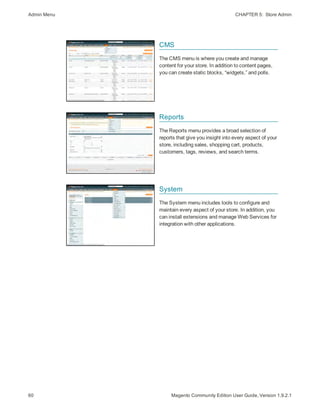
Description A description of the rule should include the purpose of the rule,
and explain how it is used.
Status (Required) Determines if the rule is currently active in the store.
Options: Active / Inactive
Websites (Required) Identifies the websites where the rule can be used.
Customer Groups (Required) Identifies the customer groups to which the rule
applies.
Coupon (Required) Indicates if a coupon is associated with the rule.
Options:
No Coupon No coupon is associated with the rule.
Specific Coupon A specific coupon is associated with the
rule.
Coupon Code When prompted,
enter the Coupon
Code that the
customer must enter
to take advantage of
the promotion.
Use Auto
Generation
Select the checkbox
to automatically
generate multiple
coupon codes which
can be used with the
promotion.
Uses per Coupon The number of times the coupon code can be used.
Field Descriptions
345Magento Community Edition User Guide, Version 1.9.2.1
Shopping Cart Price Rules CHAPTER 23:  Promotions
346 Magento Community Edition User Guide, Version 1.9.2.1
FIELD DESCRIPTION
Uses per Customer Determines how many times the coupon code can be used by
the same registered customer who belongs to any selected
customer group. Does not apply to guest shoppers who are
members of the NOT LOGGED IN customer group, or to
customers who shop without logging in to their accounts. For no
limit, leave blank.
From Date The first date the coupon can be used.
To Date The last date the coupon can be used.
Priority A number that indicates the priority of this rule in relation to
others. The highest priority is number 1.
Public in RSS Feed Determines if the promotion is included in your store’s public
RSS feed. Options: Yes / No.
ACTIONS
Apply Determines the type of calculation that is applied to the
purchase. Options:
Percent of product
price discount
Discounts item by subtracting a
percentage from the original price.
For example: Enter 10 in Discount
Amount for an updated price that is 10%
less than the original price.
Fixed amount
discount
Discounts item by subtracting a fixed
amount from original price.
For example: Enter 10 in Discount
Amount for an updated price that is $10
less than the original price.
Fixed amount
discount for whole
cart
Discounts the entire cart by subtracting
a percentage from the cart total.
For example: Enter 10 in Discount
Amount to subtract 10% from the cart
total.
Buy X Get Y Free
(discount amount is
Y)
Defines a quantity that the customer
must purchase to receive a quantity for
free. (The Discount Amount is Y.)
Field Descriptions (cont.)
CHAPTER 23:  Promotions Shopping Cart Price Rules
FIELD DESCRIPTION
Discount Amount (Required) The amount of discount that is offered.
Maximum Qty Discount is
Applied To
Sets the maximum number of products that the discount can be
applied to in the same purchase.
Discount Qty Step (Buy X) Sets the number of products represented by “X” in a “Buy X Get Y
Free” promotion.
Apply to Shipping Amount Determines if the discount can be applied to the cost of shipping.
Options: Yes / No.
Free Shipping Determines if free shipping is included in the promotion, and if so,
for which items. Options:
No Free shipping is not available when a
coupon that is based on the rule is used.
For matching items
only
Free shipping is available only for
specific items in the cart that match the
rule.
For shipment with
matching items
Free shipping is available for the entire
cart when a coupon that is based on the
rule is used.
Stop Further Rules
Processing
Determines if additional rules can be applied to this purchase. To
prevent multiple discounts from being applied to the same
purchase, select “Yes.” Options: Yes / No
DEFAULT LABEL
Default Rule Label for All
Store Views
A default label that identifies the discount and can be used for all
store views.
Store View Specific Labels If applicable, a different label that identifies the discount for each
store view.
Field Descriptions (cont.)
347Magento Community Edition User Guide, Version 1.9.2.1
Shopping Cart Price Rules CHAPTER 23:  Promotions
348 Magento Community Edition User Guide, Version 1.9.2.1
Coupon Codes
Coupons codes can be associated with shopping cart price rules to apply a discount when a
set of conditions is met. For example, a coupon code can be created for a specific customer
group, or for anyone who makes a purchase over a certain amount. To apply the coupon to
a purchase, the customer can enter the coupon code from the shopping cart page, or
possibly at the cash register of your “brick and mortar” store.
In-store Coupon for Mobile Users
Here are a few ways that you can use coupons in your store:
l Email coupons to customers
l Produce printed coupons
l Create in-store coupons for mobile users
Coupon codes can be sent by email, or included in newsletters, catalogs, and
advertisements. You can even create in-store coupons with a quick response code that
shoppers can scan with their smart phones. The QR code links to a page on your site with
more information about the promotion.
CHAPTER 23:  Promotions Shopping Cart Price Rules
Enter Coupon Code in Shopping Cart
To set up a coupon code:
1. Follow the instructions to create a shopping cart price rule.
2. On the General Information page, do the following:
a. Set Coupon to “Specific Coupon.”
b. Do one of the following:
l Enter a numeric Coupon Code to be used with the promotion.
l Select the Use Auto Generation checkbox.
c. To limit the number of times the coupon can be used, complete the following:
l Uses per Coupon
l Uses per Customer
For unlimited use, leave these fields blank.
d. To make the coupon valid for a limited period of time, complete the From Date and To
Date fields. To select the date, click the Calendar button next to each field. If you
leave the date range empty, the rule will never expire.
349Magento Community Edition User Guide, Version 1.9.2.1
Shopping Cart Price Rules CHAPTER 23:  Promotions
350 Magento Community Edition User Guide, Version 1.9.2.1
Price Rule Coupon Code Settings
3. Follow the standard instructions to complete the shopping cart price rule.
Auto-Generated Coupon Codes
Batches of discount coupon codes can be formatted and generated automatically. Coupon
codes can also be exported, and incorporated into other applications. For example, you
might use a series of auto-generated coupon codes to produce printed coupons with unique
codes.
Generated Coupon Codes
CHAPTER 23:  Promotions Shopping Cart Price Rules
To configure auto-generated codes:
1. On the Admin menu, select System > Configuration. Then in the panel on the left under
Customers, select Promotions.
2. Click to expand the Auto Generated Specific Coupon Codes section.
Auto Generated Specific Coupon Codes
3. To create a specific format for your codes, enter the following:
l Code Length
l Code Format
l Code Prefix
l Code Suffix
l Dash Every X Characters
4. When complete, click the Save Config button.
These settings can be overridden from the Shopping Cart Price Rule page.
To generate a batch of coupon codes:
1. On the Admin menu, select Promotions > Shopping Cart Price Rules.
2. Select an existing rule, or create a new one.
3. Set Coupon to “Specific Coupon.” Then, do the following:
a. Select the Use Auto Generation checkbox.
b. Complete the other rule settings as needed.
4. Click the Save and Continue Editing button.
5. In the panel on the left, select Manage Coupon Codes. Then, do the following:
a. In the Coupon Qty field, enter the number of codes to be generated.
b. Adjust the code format settings, as needed.
c. Click the Generate button.
351Magento Community Edition User Guide, Version 1.9.2.1
Shopping Cart Price Rules CHAPTER 23:  Promotions
352 Magento Community Edition User Guide, Version 1.9.2.1
The generated coupon codes appear below. The list shows how many times each coupon
code has been used.
To delete coupon codes:
1. In the list, select the checkbox of each code that you want to delete.
2. Set the Actions control to “Delete.”
3. Click the Submit button. When prompted, click OK to confirm.
To export coupon codes:
1. In the list of generated codes, use the filter controls at the top of each column to display
the codes that you want to export.
2. Set Export to to the file format that you want to use for the data file.
3. Click the Export button.
FIELD SCOPE DESCRIPTION
Code Length Global Defines the length of the coupon code, excluding
the prefix, suffix and separators.
Code Format Global Defines the coupon code format. Options:
Alphanumeric Any combination of
letters and numbers.
Alphabetical Letters only.
Numeric Numbers only.
Code Prefix Global A value appended to the beginning of all coupon
codes. Leave blank to omit the prefix.
Code Suffix Global A value appended to the end of all codes. Leave
blank to omit the suffix.
Dash Every X Characters Global An interval where a dash (-) can be inserted into
all coupon codes. If you do not want to use a
dash, leave the field blank.
Coupon codes that differ by only a dash are
considered to be different codes.
Field Descriptions
CHAPTER 23:  Promotions Shopping Cart Price Rules
Coupon Report
To learn how your coupons are used, you can run a detailed coupon usage report for each
website, store, or view.
To generate a coupon report:
1. On the Admin menu, select Reports > Sales > Coupons.
2. In the upper-right corner, set Show Report For to define the scope of the report.
3. Set the filters as needed. Then, do one of the following:
l To include coupon codes from all price rules in the report, set Shopping Cart Price Rule
to “Any.”
l To include coupon codes related to specific rules, set Shopping Cart Price Rule to
“Specified.” Then, select the rules that you want to include in the report.
4. When complete, click the Show Report button.
Coupon Usage Report
353Magento Community Edition User Guide, Version 1.9.2.1
Shopping Cart Price Rules CHAPTER 23:  Promotions
354 Magento Community Edition User Guide, Version 1.9.2.1
Free Shipping Promotion
Free shipping can be offered as a promotion, either with, or without a coupon. A free
shipping coupon, or voucher, can also be applied to customer pick-up orders, so the order
can be invoiced and “shipped” to complete the workflow.
Some shipping carrier configurations give you the ability of offer free shipping based on a
minimum order. To expand upon this basic capability, you can use shopping cart price
rules to create complex conditions based on multiple product attributes, cart contents, and
customer groups.
Process Overview:
Step 1: Enable Free Shipping
Step 2: Create the Shopping Cart Price Rule
Step 3: Test the Rule
Step 1: Enable Free Shipping
1. Enable the Free Shipping method in the configuration of your store.
2. Complete the free shipping settings for any carrier service that you want to use for free
shipping.
Step 2: Create the Shopping Cart Price Rule
1. On the Admin menu, select Promotions > Shopping Cart Price Rules.
2. Follow the steps below to set up the type of free shipping promotion that you want to offer.
3. When complete, click the Save Rule button.
When you create a new price rule, it might take an hour or so for it to become available.
Allow enough time for it to get into the system. Then, test the rule to make sure that it
works correctly. Unless otherwise specified, price rules are automatically processed with
other system rules each night.
Example 1: Free Shipping for Any Order
1. Complete the General Information settings as follows:
a. Enter a Rule Name for internal reference.
b. Set Status to “Active.”
c. Set Website to “Main Website.” (Click to make sure the entry is selected.)
d. Select the Customer Groups to which the rule applies.
CHAPTER 23:  Promotions Shopping Cart Price Rules
e. Do one of the following:
l To offer a free shipping promotion without a coupon, accept the default, “No
Coupon” setting.
l To use a coupon with the price rule, set Coupon to “Specific Coupon.” If
necessary, complete the instructions to set up a coupon.
2. In the panel on the left, select Actions. Then, do the following:
a. Set Apply to “Percent of product price discount.”
b. Set Apply to Shipping Amount to “Yes.”
c. Set Free Shipping to “For shipment with matching items.”
Price Rule Action
3. In the panel on the left, select Labels. Then, do one of the following:
l Enter a Default Rule Label for All Store Views. This label is visible to the
customer.
l If your store is available in multiple stores, enter a label for each view, as needed.
4. When complete, click the Save Rule button.
Example 2: Free Shipping for Orders Over $Amount
1. Complete the General Information settings as follows:
a. Enter a Rule Name for internal reference.
b. Set Status to “Active.”
c. Set Website to “Main Website.” (Click to make sure the entry is selected.)
d. Select the Customer Groups to which the rule applies.
e. Do one of the following:
355Magento Community Edition User Guide, Version 1.9.2.1
Shopping Cart Price Rules CHAPTER 23:  Promotions
356 Magento Community Edition User Guide, Version 1.9.2.1
l To offer a free shipping promotion without a coupon, accept the default, “No
Coupon” setting.
l To use a coupon with the price rule, set Coupon to “Specific Coupon.” If
necessary, follow the instructions to set up a coupon.
2. In the panel on the left, select Conditions.
3. Click the Add button to insert a condition. Then, do the following:
a. In the list under Cart Attribute, click Subtotal.
b. Click the underlined is link, and select “equals or greater than.”
c. Click the … “more” link, and enter a threshold value for the Subtotal, such as
100, to complete the condition.
4. In the panel on the left, select Actions. Then, do the following:
a. Set Apply to “Percent of product price discount.”
b. Set Apply to Shipping Amount to “Yes.”
c. Set Free Shipping to “For shipment with matching items.”
5. In the panel on the left, select Labels. Then, do one of the following:
l Enter a Default Rule Label for All Store Views. The label is visible to the customer
during checkout.
l If your store is available in multiple views, enter a label for each view, as needed.
6. When complete, click the Save Rule button.
Step 3: Test the Rule
When you create a new price rule, it might take an hour or so for it to become available.
Allow enough time for it to get into the system. Then, test the rule to make sure that it
works correctly. Unless otherwise specified, price rules are automatically processed with
other system rules each night.
CHAPTER 23:  Promotions Shopping Cart Price Rules
Buy X Get Y Free
This example shows how to set up a shopping cart price rule for a “Buy X, Get Y Free”
promotion. The format of the discount is as follows:
Buy X quantity of product, get Y quantity for free.
Process Overview:
Step 1: Create a Shopping Cart Price Rule
Step 2: Define the Conditions
Step 3: Define the Actions
Step 4: Complete the Label
Step 5: Apply the Rule
Step 1: Create a Shopping Cart Price Rule
Complete Step 1 of the shopping cart price rule instructions to create a shopping cart rule
with the general information.
Step 2: Define the Conditions
Complete Step 2 of the shopping cart instructions to define the conditions for the price
rule. The conditions can be triggered by purchasing a specific product, making a purchase
of a certain amount, or any other scenario.
Step 3: Define the Actions
1. In the panel on the left, select Actions. Then, do the following:
a. Set Apply to “Buy X get Y free (discount amount is Y).”
b. Set Discount Amount to 1. This is the quantity the customer will receive for free.
c. To limit the number of discounts that can be applied when the condition is met, enter
the number in the Maximum Qty Discount is Applied To field. For example, enter “1”
to discount only one item.
d. In the Discount Qty Step (Buy X) field, enter the quantity that the customer must
purchase to qualify for the discount.
357Magento Community Edition User Guide, Version 1.9.2.1
Shopping Cart Price Rules CHAPTER 23:  Promotions
358 Magento Community Edition User Guide, Version 1.9.2.1
Buy X Get Y Free
2. Click the Save and Continue Edit button. Then, complete the rest of the rule as needed.
Step 4: Complete the Label
Complete Step 4 of the shopping cart price rule instructions to enter the label that appears
during checkout.
Step 5: Apply the Rule
1. When complete, click the Save Rule button.
2. When you create a new price rule, it might take an hour or so for it to become available.
Allow enough time for it to get into the system. Then, test the rule to make sure that it
works correctly. Unless otherwise specified, price rules are automatically processed with
other system rules each night.
CHAPTER 23:  Promotions Shopping Cart Price Rules
Discount with Minimum Purchase
Shopping cart price rules can be used to offer a percentage discount based on a minimum
purchase. In the following example, a 25% discount is applied to all purchases over
$200.00 in a specific category. The format of the discount is as follows:
X% off all Y (category) over $Z dollars
Process Overview:
Step 1: Create a Shopping Cart Rule
Step 2: Define the Conditions
Step 3: Define the Actions
Step 1: Create a Shopping Cart Rule
Follow the basic instructions to create a shopping cart rule.
Step 2: Define the Conditions
1. In the panel on the left, select Conditions.
2. Click the Add button at the beginning of the next line, and select Product Attribute
Combination.
Product Attribute Combination
3. Click the Add button at the beginning of the next line.
If an Item is FOUND
359Magento Community Edition User Guide, Version 1.9.2.1
Shopping Cart Price Rules CHAPTER 23:  Promotions
360 Magento Community Edition User Guide, Version 1.9.2.1
4. In the list under Product Attribute, click Category.
Choose Condition to Add
a. Click the … “more” link to display additional options.
Category IS
b. Click the Chooser button to display the available categories. Then in the category
tree, select the checkbox of each category that you want to include.
Category Tree
c. Click the Select button at the end of the line to add the categories to the condition.
CHAPTER 23:  Promotions Shopping Cart Price Rules
Category Condition
5. Click the Add button at the beginning of the next line, and do the following:
a. In the list under Product Attribute, select Price.
a. Click the first underlined parameter, IS. Then in the list, select “equals or greater
than.”
Price Equals or Greater Than
b. Click the ... “more” link to display the price field. Then, enter the amount that the
price must be to meet the condition. For example, enter 200.00.
Enter the Price to Complete the Condition
6. Click the Save and Continue Edit button.
361Magento Community Edition User Guide, Version 1.9.2.1
Shopping Cart Price Rules CHAPTER 23:  Promotions
362 Magento Community Edition User Guide, Version 1.9.2.1
Step 3: Define the Actions
1. In the panel on the left, select Actions. Then, do the following:
Actions
a. Set Apply to “Percent of product price discount.”
b. Enter the Discount Amount. For example, enter 25 for a twenty-five percent discount.
c. If you want to prevent the purchase from qualifying for additional promotions, set
Stop Further Rules Processing to “Yes.”
2. Click the Save and Continue Edit button. Then, complete the rule as needed.
363Magento Community Edition User Guide, Version 1.9.2.1
CHAPTER 24:
Shopping Tools
Your store includes a set of shopping tools that create opportunities for your customers
to interact with your store, and to share the experience with friends.
Topics in this chapter :
l Wishlists
l Compare Products
l Recently Viewed / Compared Products
l Product Reviews
l Tags
l Polls
l Email a Friend
l Gift Options
Commerce Resources
See the latest Magento eBooks to gain access to expert insight and online business
resources to help develop and improve your store.
Customer Engagement CHAPTER 24:  Shopping Tools
364 Magento Community Edition User Guide, Version 1.9.2.1
Customer Engagement
Wishlist
The Wishlist block displays the items from the
customer’s wishlist.
Compare Products
The Compare Products block lets your customers
quickly compare the features of one product with
another.
Product Reviews
Product reviews help build a sense of community,
and are considered to be more credible than any
advertising money can buy.
Tags
Tags help customers organize and remember the
products that they have seen, offer quick navigation,
and help search engines index your store.
CHAPTER 24:  Shopping Tools Customer Engagement
Polls
The Poll block displays a series of polls or surveys
that you can use to learn more about your customers.
Email a Friend
The Email a Friend link makes it easy for your
customers to share links to products with their
friends.
365Magento Community Edition User Guide, Version 1.9.2.1
Wishlists CHAPTER 24:  Shopping Tools
366 Magento Community Edition User Guide, Version 1.9.2.1
Wishlists
A wishlist is a list of products that registered customers can share with friends or transfer
to their shopping carts at a later date. When wishlists are enabled, the Add to Wishlist link
appears on the category and product pages of your store. Depending on the theme, it might
be a text link or a graphic image.
Add to Wishlist Links on Category Page
Wishlist Workflow
Shared wishlists are sent from a store email address, but the body of the message contains
a personalized note from the customer. You can customize the email template that is used
for the notification message when wishlists are shared, and choose the store contact that
appears as the sender.
Each wishlist can be maintained in the customer’s account dashboard, where it can be
updated, and used to add products to the shopping cart. Wishlists can be set to public or
private, and shared with friends. Items can be transferred between the wishlist and
shopping cart by the customer or from the Admin. When a product with multiple options
is added to a wishlist, any options that have been selected by the customer are included in
the wishlist item description. For example, if the customer adds the same pair of shoes,
but in three different colors, each pair appears as a separate wishlist item. On the other
hand, if the customer adds the same product to the wishlist multiple times, the product
CHAPTER 24:  Shopping Tools Wishlists
appears in the wishlist only once, but with an updated quantity that reflects the number of
times the product was added. Customers can update their wishlists from their account
dashboard. Merchants can also update a customer’s wishlist from the Admin.
Updating Wishlists
Customers can manage their wishlist from the customer account dashboard. Store
administrators can manage customer wishlists from the Admin.
To update the wishlist from “My Account:”
1. From the customer account dashboard, in the panel on the left, click Wishlists.
2. To view the current options for an item, point to View Details.
3. To update the selection of product options, click Edit.
4. On the product page, update the quantity and selected options as needed.
5. When complete, click Update Wishlist.
If the options don’t appear in the wishlist, return to the product page to make sure that
they are selected.
Customer Dashboard with Wishlist
367Magento Community Edition User Guide, Version 1.9.2.1
Wishlists CHAPTER 24:  Shopping Tools
368 Magento Community Edition User Guide, Version 1.9.2.1
To update wishlist items from the Admin:
1. On the Admin menu, select Customers > Manage Customers.
2. Find the customer in the list, and click to open the record.
3. In the Customer Information panel on the left, click Wishlist.
4. Find the item to be edited in the list. Any options selected for the product appear below the
product name. To edit the product options, do one of the following:
l Select the checkbox for the item. Then, set the Action control to "Configure" and click
Submit.
l Click the Configure link.
5. On the product page, update the Quantity and selected options as needed.
6. When complete, click Update Wishlist.
Wishlist Reports
A customer Wishlist report includes the following information for each wishlist the
customer has created:
l The date when a product was added
l The customer name
l The wishlist name and status (public or private)
l The product name and SKU
l Customer comments
l Quantity of the product in the Wishlist, quantity currently available in the store, and
the difference between these two values.
You can choose to see a report for the entire website or for an individual store view. The
scope is selected in the Show Report For field. The report can be exported to .csv or Excel
.xml format.
To generate a wishlist report:
On the Admin menu, select Reports > Customers > Customers Wishlist.
CHAPTER 24:  Shopping Tools Compare Products
Compare Products
The Compare Products block usually appears in the far right column, or sidebar of the
category page, and can be used to generate a detailed, side-by-side comparison of two or
more products. You can customize the report to include additional attributes or remove
ones that you don’t want to include. Depending on the theme, the Add to Compare link
can be represented by an icon or a link.
Compare Products
To compare products:
1. From your storefront, find the products that you want to compare, and click the Add to
Compare link for each.
2. In the Compare Products block in the right sidebar, click the Compare button. The
Compare Products report opens in a new window.
3. To print the report, click Print This Page.
4. To clear the Compare Products list, click the Clear All link.
369Magento Community Edition User Guide, Version 1.9.2.1
Compare Products CHAPTER 24:  Shopping Tools
370 Magento Community Edition User Guide, Version 1.9.2.1
Compare Products Report
CHAPTER 24:  Shopping Tools Recently Viewed/Compared Products
Recently Viewed/Compared Products
The Recently Viewed and Recently Compared blocks usually appear in the right sidebar of a
catalog page. The number of products listed in each block can be configured for each
website, store, or store view.
Recently Viewed
371Magento Community Edition User Guide, Version 1.9.2.1
Recently Viewed/Compared Products CHAPTER 24:  Shopping Tools
372 Magento Community Edition User Guide, Version 1.9.2.1
To configure Recently Viewed/Compared Products:
1. On the Admin menu, select System > Configuration. Then in the panel on the left under
Catalog, select Catalog.
2. Click to expand the Recently Viewed/Compared Products section. Then, do the following:
Recently Viewed/Compared Products
a. Set Show for Current to the website, store, or store view where the configuration
applies.
b. In the Default Recently Viewed Products Count field, enter the number of recently
viewed products to appear in the list.
c. In the Default Recently Compared Products Count, enter the number of recently
compared products to appear in the list.
3. When complete, click the Save Config button.
CHAPTER 24:  Shopping Tools Product Reviews
Product Reviews
Product reviews help to build a sense of community, and are considered more credible than
any advertising money can buy. In fact, some search engines give sites with product
reviews a higher ranking than those without. For those who find your site by searching for
a specific product, a product review is essentially the landing page of your store. Product
reviews help people find your store, keep them engaged, and often lead to sales.
The configuration determines whether customers must open an account with your store to
be write a product review, or can submit a review as a guest. Requiring reviewers to open an
account with your store can improve the quality of reviews by preventing anonymous
submissions.
Add Your Review
Customers can write reviews for any product in your catalog. Reviews can be written from
the product page by clicking the “Add Your Review” link. For products that haven't been
reviewed, the link says, “Be the first to review this product.”
The number of stars indicates the satisfaction rating. Visitors can click the link to read the
reviews and write their own. As an incentive, customers can receive reward points for
submitting a review.
When a review is submitted, it is sent to the Admin for moderation. When approved, the
review is published in your store.
373Magento Community Edition User Guide, Version 1.9.2.1
Product Reviews CHAPTER 24:  Shopping Tools
374 Magento Community Edition User Guide, Version 1.9.2.1
To configure product reviews:
1. On the Admin menu, select System > Configuration. T hen in the panel on the left, under
Catalog, select Catalog.
2. Click to expand the Product Reviews section.
Product Reviews
3. Set Allow Guests to Write Reviews according to your preference.
4. When complete, click the Save Config button.
Write a Product Review
CHAPTER 24:  Shopping Tools Product Reviews
To moderate reviews:
1. On the Admin menu, select Catalog > Reviews and Ratings > Customer Reviews >
Pending Reviews.
Pending Reviews
2. In the list, click a pending review to view the details, and edit if necessary.
3. To approve a pending review, change the Status from “Pending” to “Approved.” To reject a
review, select “Not Approved.”
4. When complete, click the Save Review button.
Custom Ratings
By default, customer can rate the quality, price, and value of a product. In addition, you
can add your own custom ratings that relate to your products and customers. The average
rating for each product appears in catalog lists and on the product page.
Manage Ratings
375Magento Community Edition User Guide, Version 1.9.2.1
Tags CHAPTER 24:  Shopping Tools
376 Magento Community Edition User Guide, Version 1.9.2.1
To create your own ratings:
1. On the Admin menu, select Catalog > Reviews and Ratings > Manage Ratings.
2. In the upper-right corner, click the Add New Rating button.
3. In the Rating Title section, enter the Default Value for the new rating. Then, enter the
translation for each language supported by your store.
Rating Title
4. In the Rating Visibility section, set Visibility In to the store view where the rating will be
used. (Hold down the Ctrl key to select multiple options.)
5. In the Sort Order field, enter a number to determine the sequence that this rating appears
in the list of ratings.
Rating Visibility
6. When complete, click the Save Rating button.
Tags
Tags are one-word descriptors that are used as keywords for your catalog. Tags can be
assigned to products by registered customers who are logged in, and also by guests. Tags
help customers organize and remember the products that they have seen, offer quick
navigation, and help search engines index your store. The tags that customers assign to a
product appear on the Customers Tagged Product tab of the product record. The detail
includes the tag, the customer name, and email address.
A tag cloud typically appears in the Popular tags block in the right sidebar of catalog
pages. The size of the text indicates the popularity of the tag. Each product page has an
“Tag this Product” section at the bottom of the page, where shoppers can enter their own
tags. As an incentive, customers can earn reward points for tagging a product.
CHAPTER 24:  Shopping Tools Tags
Popular Tags
To add a tag from the store:
1. From any product page, scroll down to the Tag this Product section.
Tag this Product
2. In the Add a Tag text box, type the tag you want to associate with the product.
l To enter multiple tags, separate each with a blank space.
l To enter a phrase, enclose the text in single quotes.
3. Click the Add Tags button.
The tag will be submitted for review and published on the site when approved.
377Magento Community Edition User Guide, Version 1.9.2.1
Tags CHAPTER 24:  Shopping Tools
378 Magento Community Edition User Guide, Version 1.9.2.1
Products Tagged by Administrators
There’s no reason to wait for customers to tag products. The store administrator can apply
new tags to products, and reuse existing tags.
Products Tagged by Administrators
To add a new tag:
1. On the Admin menu, select Catalog >Tags > All Tags.
2. In the upper-right corner, click the Add New Tag button. Then, do the following:
a. Enter the Tag Name.
b. Set Status to “Approved.”
c. In the Base Popularity field, enter a numeric value to assign a weight to the tag. The
number assigns a base value to the tag and increases its size in the tag cloud.
3. When complete, click the Save Tag button.
To apply an existing tag to specific products:
1. In the Manage Tags list, click to open the tag.
2. Click to expand the Products Tagged by Administrators section. Then, do the following:
a. Click the Reset Filter button to display all product records.
b. Select the checkbox of each product that you want to tag.
3. When complete, click the Save Tag button.
The products now appear in the list of Products Tagged by Administrators.
CHAPTER 24:  Shopping Tools Tags
Moderating Tags
After a customer submits a product tag, an administrator must approve the tag before it
becomes visible in the store. After a tag has been approved, it can be used for other
products without further approval.
Changing the Status of Pending Tags
The remaining sections give you a snapshot of the tag activity, including which customers
have used the tag, and products tagged by the store administrator and customers.
Customers Submitted this Tag
You can jump to a specific customer or product by clicking its row in the list.
Products Tagged by Customers
To approve multiple tags:
1. On the Admin menu, select Catalog > Tags > Pending Tags. Then in the list, click to open
a pending tag.
2. In the list, select the checkbox of each tag that you want to approve.
3. Set the Actions control to “Change Status.” Then, set the Status control to “Approved.”
4. When complete, click the Submit button.
379Magento Community Edition User Guide, Version 1.9.2.1
Polls CHAPTER 24:  Shopping Tools
380 Magento Community Edition User Guide, Version 1.9.2.1
To manage a single tag:
1. On the Admin menu, select Catalog >Tags > Pending Tags. Then in the list, click to open
a pending tag.
Editing a Tag
2. If necessary, you can edit the text as needed. Then, do one of the following:
l To approve and publish the pending tag, set Status to “Approved.”
l To reject the tag, set Status to “Disapproved.”
3. When complete, click the Save Tag button.
Polls
Polls make it easy to learn about your customers’ opinions and preferences. The poll
occupies a small amount of space and is usually placed in the right sidebar of a catalog
page. Poll results appear immediately after a response is submitted. If you create multiple
polls, a new poll appears each time the page is refreshed.
Original Poll and Results
CHAPTER 24:  Shopping Tools Polls
To create a poll:
1. On the Admin menu, select CMS > Polls.
2. In the upper-right corner of the Poll Manager, click the Add New Poll button.
3. In the Poll Information section, do the following:
Poll Information
a. Enter the Poll Question.
b. By default, Status is set to “Open.” If you later want to remove the poll from your
store, set Status to “Closed.”
c. Set Visible In to the store view where you want the poll to appear.
4. In the panel on the left, select Poll Answers. Then, for each answer, do the following:
a. Click the Add New Answer button. Then, do the following:
Assigned Answers
a. In the Answer Title field, enter the answer as you want it to appear in the poll.
b. To weight an answer, enter a number in the Votes Count field. The number will
increment each time a customer chooses the answer.
5. Click the Save Poll button to save your poll.
381Magento Community Edition User Guide, Version 1.9.2.1
Polls CHAPTER 24:  Shopping Tools
382 Magento Community Edition User Guide, Version 1.9.2.1
To prevent multiple voting:
You can protect the poll results by preventing people from voting multiple times from the
same computer.
1. On the Admin menu, select System > Configuration. Then in the panel on the left under
General, select Web.
2. Click to expand the Polls section.
Polls
3. Set Disallow Voting in a Poll Multiple Times from Same IP Address to “Yes.”
4. When complete, click the Save Config button.
To edit a poll:
1. From the Poll Manager list, click to open the poll in edit mode. Then, make the necessary
changes.
l To close the poll so that it no longer appears in the store, set Status to “Closed.”
l To see the vote count for each answer, click Poll Answers in the panel on the left.
2. When complete, click the Save Poll button.
Poll Answer Count
CHAPTER 24:  Shopping Tools Email a Friend
Email a Friend
The Email a Friend link makes it easy for your customers to share links to products with
their friends. In the Magento demo store, the Email a Friend link appears as an envelope
icon. The automated message that is sent from your store is referred to as transactional
email. The message template can be customized for your voice and brand. To prevent
spamming, you can limit the number of recipients for each email, and the number of
products that can be shared over a one-hour period.
Email a Friend
To configure email to a friend:
1. On the Admin menu, select System > Configuration. Then in the panel on the left under
Catalog, select Email to a Friend.
2. Click to expand the Email Templates section. Then, do the following:
Email Templates
383Magento Community Edition User Guide, Version 1.9.2.1
Email a Friend CHAPTER 24:  Shopping Tools
384 Magento Community Edition User Guide, Version 1.9.2.1
a. Set Enabled to “Yes.”
b. Set Select Email Template to the template you want to use as the basis of the
messages.
c. If you want to require that only registered customers can send email to friends, set
Allow for Guests to “No.”
d. In the Max Recipients field, enter the maximum number of friends who can be on the
distribution list for a single message.
e. In the Max Products Sent in One Hour field, enter the maximum number of products
that can be shared by a single user with friends over a one-hour time period.
f. Set Limit Sending By to one of the following methods to identify the sender of emails:
IP Address (Recommended) Identifies the sender by the IP address
of the computer that is used to send the emails.
Cookie (unsafe) Identifies the sender by browser cookie. This method is
less effective because the sender can delete the cookie to
bypass the limit.
3. When complete, click the Save Config button.
To send email to a friend:
1. On a catalog page, click the Email a Friend link. When prompted, either log into your
customer account or register to open an account.
2. Complete the Message and enter the recipient Name and Email Address.
To send the message to more than one person, click the Add Another Recipient link and
complete the information for each person.
3. When ready to send the message, click the Send Email button.
CHAPTER 24:  Shopping Tools Gift Options
Email to a Friend Form
Gift Options
At checkout, customers are presented with the available gift options during the Shipping
Method step of the process. If the customer chooses to add gift options, two groups of
checkboxes appear: Gift Options for Entire Order and Gift Options for Individual Items.
The Gift Options configuration determines if customers have the option to add a gift
message for the complete order, and for individual items. The gift options must be
configured first for the website, and can then be overridden at the product level.
Gift Options During Checkout
385Magento Community Edition User Guide, Version 1.9.2.1
Gift Options CHAPTER 24:  Shopping Tools
386 Magento Community Edition User Guide, Version 1.9.2.1
To enable gift options:
1. On the Admin menu, select System > Configuration. Then in the panel on the left, under
Sales, select Sales.
2. Click to expand the Gift Options section.
Gift Options
3. Set the following options according to your preference:
l Allow Gift Messages on Order Level
l Allow Gift Messages for Order Items
4. When complete, click the Save Config button.
387Magento Community Edition User Guide, Version 1.9.2.1
CHAPTER 25:
Newsletters
Publishing a regular newsletter is considered to be one of the most powerful and
affordable marketing tools available. Magento Community Edition gives store
administrators the ability to publish and distribute newsletters to customers who have
registered to receive them, plus all the tools necessary to Promote your newsletter, build
and manage your list of subscribers, develop content, maintain an archive of back
issues, and drive traffic to your store.
Topics in this chapter:
l Newsletter Setup
l Newsletter Templates
l Newsletter Queue
Newsletter Configuration CHAPTER 25:  Newsletters
388 Magento Community Edition User Guide, Version 1.9.2.1
Newsletter Configuration
The first step in creating newsletters is to configure the newsletter settings for your site.
You can require customers to confirm the registration by clicking a confirmation link sent
by email. This technique is called double opt-in, because customers must confirm twice
that they want to receive a newsletter. This method reduces the number of customers that
might otherwise consider your newsletter as spam.
To configure subscription options:
1. On the Admin menu, select System > Configuration. Then in the panel on the left under
Customers, select Newsletter.
2. Click to expand the Subscription Options section. Then, do the following:
Subscription Options
a. Confirm the email templates and senders of the following email messages sent to
subscribers:
l Success email
l Confirmation email
l Unsubscription email
b. To require people to double-opt in to confirm their subscription, set Need to Confirm
to “Yes.”
c. To allow people who do not have an account with your store to subscribe to the
newsletter, set Allow Guest Subscriptions to “Yes.”
d. When complete, click the Save Config button.
CHAPTER 25:  Newsletters Newsletter Templates
Newsletter Templates
Before sending a newsletter, create a newsletter template. You can create and save as many
of these as required for any situation, from an annual holiday newsletter to a weekly
product update.
Newsletter Template
To create a newsletter template:
1. On the Admin menu, select Newsletter > Newsletter Templates. The page lists the
available newsletter templates. You can edit an existing template or create a new one.
2. To add a new template, click the Add New Template button. Then, do the following:
a. In the Template Name field, specify a unique and indicative name for this template.
This value is not visible for customers.
b. In the Template Subject field, specify the subject of the email to be sent to your
customers.
c. In the Sender Name and Sender Email fields, specify the name and email of the
sender of the email to be sent to your customers.
d. In the Template Content field, use the WYSIWYG editor to compose the body of the
email. Note that this field is pre-filled with tags showing an unsubscribe link in the
email. We recommend that you do not remove this link so that all emails that are sent
enable your customers to unsubscribe from the newsletter.
e. Click Preview Template, to display the content with the formatting as it will be viewed
by your subscribers.
3. When complete, click the Save Template button.
After you have saved a template, a Save As button appears when you edit this template.
You can use the Save As button, so you can make changes and save it as a new template,
without affecting the original. This can save you time because you will not need to re-enter
389Magento Community Edition User Guide, Version 1.9.2.1
Newsletter Queue CHAPTER 25:  Newsletters
390 Magento Community Edition User Guide, Version 1.9.2.1
all the template information in order to create a new template. If you already have an
existing template that is similar to the new template, simply edit the fields that you
require, and then use the Save As button to create a new template.
Newsletter Queue
A newsletter that has many recipients must be sent in stages. The process of sending the
newsletter is managed by a queue. After you start the queue, Magento sends the emails in
packs. To ensure delivery of your newsletters, it is recommended that you integrate your
Magento installation with a third-party newsletter provider. These services are “white
listed” by email service providers. Look for newsletter providers in Magento Connect.
To send your newsletter using a queue:
1. On the Admin menu, select Newsletter > Newsletter Templates.
2. Set the Actions control to the relevant template. Then, select Queue Newsletter.
3. In the Queue Date Start field, specify when the newsletter will start being sent.
4. In the Subscribers From field, select one or more store views whose customers this
newsletter will be sent to.
5. Review the template and parameters and then click the Save Newsletter button to schedule
sending the newsletter.
391Magento Community Edition User Guide, Version 1.9.2.1
CHAPTER 26:
Sales Channels
Publishing your catalog through multiple channels is an effective way to widen your
distribution without much effort. You can start by syndicating your content with RSS
feeds, and then expand by sending your catalog data to shopping aggregators and
marketplaces.
Topics in this chapter:
l Google Shopping
l RSS Feeds
l Social Marketing
Google Shopping CHAPTER 26:  Sales Channels
392 Magento Community Edition User Guide, Version 1.9.2.1
Google Shopping
Google Shopping is a Google AdWords service that publishes product feeds from merchant
catalogs. Any Simple product from your catalog can be uploaded to Google Shopping.
Each product attribute is mapped to Google and used as search parameters by customers
who are searching for products. After mapping the product attributes to synchronize with
Google Content attributes, you can publish products from your store on Google Shopping.
To use Google Shopping, you need both a Google Merchant account and a Google AdWords
account. To learn more, visit the Google Ads Shopping page on their site.
The following instructions show how to set Google Content for your store. You can also find
extensions on Magento Connect that might streamline the process.
Google Shopping
Process Overview
Step 1: Set Up Your Google Accounts
Step 2: Configure Your Store for Google Shopping
Step 3: Map Your Product Attributes
Step 4: Add Your Google Content Items
Step 5: Manage Your Content
CHAPTER 26:  Sales Channels Google Shopping
Step 1: Set Up Your Google Accounts
1. Visit Google Merchant Center, and sign up for an account. Complete the following steps in
the Beginner’s Guide:
l Open your Merchant account
l Set up your account
l Verify and claim your website URL
Google Merchant Center Help
2. Write down the following information from your Google account:
l Account ID
l Account Login
l Account Password
l Account Type
l Target Country
Step 2: Configure Your Store for Google Shopping
1. Log in to the Admin of your store. Then on the Admin menu, select System >
Configuration.
2. In the panel on the left under Sales, select Google API.
3. Click to expand the Google Shopping section, and do the following:
393Magento Community Edition User Guide, Version 1.9.2.1
Google Shopping CHAPTER 26:  Sales Channels
394 Magento Community Edition User Guide, Version 1.9.2.1
a. Enter the following information from your Google merchant account:
l Account ID
l Account Login
l Account Password
l Account Type
l Target Country
b. Set Update Google Shopping Item When Product Is Updated to “Yes.”
c. Set Debug to “No.” You can change this setting later, if necessary.
d. Under Destinations, select each place where you want your products to be listed. Each
destination can be set to Default, Required, or Excluded.
l Google Product Search
l Product Ads
l Commerce Search
Default Your updates are submitted using the Google default
settings.
Required The update must be submitted to the required destination. If
the update does not pass Google’s validation rules, you
receive notification of validation errors, and the update is not
submitted to any destination.
Excluded The update is not submitted to this destination, but it can
still be submitted to other destinations, depending on the
settings.
Google Shopping
4. When complete, click the Save Config button.
CHAPTER 26:  Sales Channels Google Shopping
Step 3: Map Your Product Attributes
In this step, you will map your attribute sets to match Google item types and attributes, so
Google can retrieve your product information. During the process, you will add the
attributes you want to upload from your catalog to Google Content.
In addition to the two required attributes, Product Type and Product Condition, it is
recommended that you include the Title, Description and Price in the attribute section. In
addition to these, you should include any other attributes that will help people find the
product. To learn more about mapping different product types, see Google’s Summary of
Attribute Requirements.
REQUIRED RECOMMENDED
Product Type
Condition
Title
Description
Price
Product Attributes
Because Condition is a required field, why not create a drop-down attribute called
“condition” with the values “New” and “Used” before you begin? Then, add it to the
attribute set that you are mapping.
1. On the Admin menu, select Catalog > Google Content > Manage Attributes.
2. Click the Add Attribute Mapping button. Then do the following:
a. Select the Target Country where your business is located.
b. In the Attribute Set list, select the first attribute set you want to map. For example:
Clothing.
Add Attribute Mapping
3. To begin mapping attributes, click the Add New Attribute button. Then do the following:
a. Set Target Country to where the products are available for sale.
b. Choose the first Attribute Set from your catalog that you want to map.
c. Set the Google Product Category to the best match for your catalog’s attribute set.
For example, the closest match for “Clothing” is “Apparel & Accessories.”
395Magento Community Edition User Guide, Version 1.9.2.1
Google Shopping CHAPTER 26:  Sales Channels
396 Magento Community Edition User Guide, Version 1.9.2.1
New Attribute Set Mapping
4. When that attribute set is mapped, click the Add New Attribute button to map the
individual attributes. Then, do the following:
a. Select an Attribute from your store. Then, find the Google Content Attribute that is
the best match.
b. Click Add New Attribute to map the next attribute that you want to use.
c. Repeat these steps until you have mapped all the attributes that you need.
Attribute Mapping
5. When complete, click the Save Mapping button.
CHAPTER 26:  Sales Channels Google Shopping
Mapping Complete
Step 4: Add Your Google Content Items
After you finish mapping, the next step is to select the products that you want to publish
to Google Content. From this page, you can publish, delete, and synchronize your products
to Google Content. After the products are synchronized, you can view the status and
expiration date of each product, the number of clicks and impressions it has received. 
1. On the Admin menu, select Catalog > Google Content > Manage Items.
2. Use the list and filter controls to find the products that you want. Then, select the
checkbox of each product you want to add to Google Content.
3. When you finish selecting products, set the Actions control to “Add to Google Content.”
Then click the Submit button.
397Magento Community Edition User Guide, Version 1.9.2.1
Google Shopping CHAPTER 26:  Sales Channels
398 Magento Community Edition User Guide, Version 1.9.2.1
Add Your Products
Step 5: Manage Your Content
It can take up to twenty-four hours for a product to be published in Google Content, and
products do not immediately appear in the Manage Items list. Changes also can take up to
a day to process. After you make changes, you can synchronize your content Google
Shopping.
After completing the configuration, return to your Google merchant account to make sure
that your products appear. If they don’t appear, make sure that the Country setting in the
upper-right corner is correct.
When your product feed is live, you can view the number of impressions and clicks from
the Manage Items page.
CHAPTER 26:  Sales Channels Social Media
Social Media
There are many social marketing extensions that can be added to your store. To learn more,
see: Magento Connect.
Social Marketing Extensions
399Magento Community Edition User Guide, Version 1.9.2.1
Social Media CHAPTER 26:  Sales Channels
400 Magento Community Edition User Guide, Version 1.9.2.1
Adding Facebook Plugins
Facebook has a number of social plugins that can easily be added to your store. The
following example shows how to add a Like Button to your store.
Facebook Plugins
Step 1: Get the Button Code
1. On the Facebook site, go to the button setup page.
2. In the URL to Like field, enter the URL of the page in your store that you want people to
Like. For example, enter the URL of your store’s home page. Then, do the following:
a. Choose the Layout for the button.
b. Enter the Width in pixels that is available on your site for the button and any
associated text message.
c. Set Action Type to one of the following:
l Like
l Recommend
3. Click the Get Code button to copy the generated code to the clipboard.
CHAPTER 26:  Sales Channels Social Media
Like Button Setup
Step 2: Create a Static Block
1. Return to your store. On the Admin menu, select CMS > Static Blocks.
2. In the upper-right corner, click the Add New Block button. Then, do the following:
a. Enter a descriptive Block Title. For example: Facebook Like Button.
b. Assign a unique Identifier to the block, using all lowercase characters, with
underscores instead of spaces. For example: facebook_like_button.
c. Select the Store View(s) where you want the block to appear.
d. Set Status to “Enabled.”
e. Paste the snippet of code that you copied from Facebook into the Content box.
3. When complete, click the Save Block button.
Step 3: Place the Block
1. On the Admin menu, select CMS > Widgets.
2. In the upper-right corner, click the Add New Widget Instance button.
3. In the Settings box, do the following:
Widget Settings
401Magento Community Edition User Guide, Version 1.9.2.1
Social Media CHAPTER 26:  Sales Channels
402 Magento Community Edition User Guide, Version 1.9.2.1
a. Set Type to “CMS Static Block.”
b. Set Design Package/Theme to your current theme.
c. Click the Continue button.
4. In the Frontend Properties box, do the following:
a. Enter the Widget Instance Title to appear in the list of widgets that are available in
your store. For example: Facebook Like Button.
b. If you want the button to appear in all views of your store, set Assign to Store Views
to “All Store Views.”
c. You can leave Sort Order blank for now.
Frontend Properties
5. In the Layout Updates section, click the Add Layout Update button. Then, do the
following:
Layout Updates
a. Set Display On to “All Pages.”
b. Set Block Reference to the place on the page where you want the button to appear.
For a diagram of block references, see: Standard Block Layout.
In general, either the header or footer are good places for a Like button because it will
appear in the same place on every page of the store. Depending on your store, you
CHAPTER 26:  Sales Channels Social Media
might need to update the Sort Order field to position the button in relation to other
content that is assigned to the same place on the page. You can try several settings to
see what works best.
c. Click Save and Continue Edit.
6. In the panel on the left, select Widget Options. Then, do the following:
a. Click the Select Block button.
Select Block
b. In the list, find the block that you created for the Facebook Like button, and select the
block.
c. When complete, click Save.
7. When prompted, follow the instructions in the message at the top of the workspace to
update the index and page cache.
Step 4: Verify the Location in Your Store
Return to your storefront to make sure that the Facebook Like button is in the right
location. If you want to try a different place, reopen the widget and change the block
reference.
403Magento Community Edition User Guide, Version 1.9.2.1
Social Media CHAPTER 26:  Sales Channels
404 Magento Community Edition User Guide, Version 1.9.2.1
Facebook Open Graph
The Facebook Open Graph 2.0 extension is a tool developers can use to add custom social
networking buttons to your store. The extension uses the new Facebook Open Graph 2.0
protocol.
Facebook Open Graph
When the Facebook Open Graph 2.0 extension is successfully installed and all
configuration is complete, the Facebook buttons appear on each product page in the store,
along with the Facebook blocks that provide information about other Facebook users and
friends who have clicked the social buttons. The information provided in the blocks
depends on the customer who is logged in to Facebook and whether friends have performed
actions with your app, such as clicked a social button.
Process Overview
Step 1: Download and install the extension
Step 2: Create an application on the Facebook Developer site
Step 3: Configure Magento
Step 1: Download and Install the Extension
The Facebook Open Graph 2.0 extension is free of charge and can be downloaded from
Magento Connect. Copy the Extension Key to the clipboard.
1. On the Admin menu, select System > Magento Connect > Magento Connect Manager.
2. When prompted, enter your Admin credentials, and click the Log In button.
3. Paste the Extension Key, and click the Install button.
CHAPTER 26:  Sales Channels Social Media
Step 2: Create Application on Facebook Developer Site
The current implementation of the Facebook Open Graph 2.0 extension requires an
application to be created manually on the Facebook Developers site.
1. Navigate to: https://developers.facebook.com/
2. In the main menu, click Apps.
3. Click Create New Application and perform all of the steps of the app creation wizard.
The App Namespace value that you entered will be used in the Magento configuration.
4. In the left column, select Settings > Basic. Under the “Select how your app integrates with
Facebook” heading, select Website. Then in the Site URL field, enter your store address.
Important! Your website and store should have one domain name.
a. For Action Types in the Advanced settings in the Graph API URL field enter own,
want or other action you want to be associated with a social networking button on
your product pages. This title is for internal use.
The “dislike” action is not supported by Facebook Open Graph 2.0.
b. The Object Type you create should have the following Object Properties:
l URL (page URL)
l Title (product title)
l Image (image URL)
l Description (product description)
l Price
By default, a new Object Type has only the first four properties. To add the Price property,
use the Add Another Property button on the Object Type page.
Step 3: Configure Magento
1. On the Admin menu, select System > Configuration.
2. In the panel on the left, under Social, select Facebook.
If the extension is installed, the Social tab appears in the Configuration panel.
3. Set Current Configuration Scope to your website.
4. In the Facebook Config section, do the following:
405Magento Community Edition User Guide, Version 1.9.2.1
Social Media CHAPTER 26:  Sales Channels
406 Magento Community Edition User Guide, Version 1.9.2.1
a. To display Facebook buttons in the store, set Enable Facebook on Frontend to “Yes.”
b. Enter the App Namespace value of your application. You can find it in the Basic
Settings section of your app on the Facebook Developers site.
c. Specify the App ID and App Secret values of your application. You can find them in
the Basic Settings section of your app on the Facebook Developers site.
d. Enter the Open Graph Type value of your Object Type. To find it on the Facebook
Developers site, open the settings of your application, navigate to Open Graph >
Dashboard, click your object type, and expand the Advanced settings.
On the page header, the system will display the Apps > %Your Facebook Application
Name% > Open Graph > Object Type: %Object name%.
e. To add and configure a social networking button, click Add Action Button and
complete the setup for each button. The action settings can be different for each store
view.
Action In the Action column, specify the internal button action
title, for example, own or want. This value should
correspond to the value you have specified in the Graph
API URL field on the Facebook Developers site. The
Graph API URL field is available in the Advanced
section of the Action Type settings.
Button Title In the Button Title column, specify the name of the
social networking button as you want it to appear in the
frontend.
Enable Friend Box In the Enable Friend Box column decide if you want to
display in the frontend the related Facebook block,
which contains the count and the pictures of friends.
Count Friend Box In the Count in Friend Box column, set the maximum
number of friends that can be displayed in the related
Facebook block. By default, it is set to 3. If you set zero
value (0) or leave the field empty, then the default value
is applied.
5. When complete, click Save Config button.
The social network buttons you have created and the corresponding Facebook blocks now
appear on the product pages of your store.
CHAPTER 26:  Sales Channels Setting Up RSS Feeds
Setting Up RSS Feeds
RSS (Really Simple Syndication) is an XML-based data format that is used to distribute
information online. Your customers can subscribe to your RSS feeds and be notified of new
products and promotions. RSS Feeds can also be used to publish your product information
to shopping aggregation sites, and can also be included in newsletters.
When RSS feeds are enabled, any additions to products, specials, categories, and coupons
in your store are automatically sent to the subscribers of each feed. A link to all the RSS
feeds that you publish is in the footer of your store.
The software that is used to read an RSS feed is called a feed reader, and allows people to
subscribe to headlines, blogs, podcasts, and much more. Google Reader is one of the many
feed readers which are available online for free.
To set up RSS feeds for your store:
1. From the Admin menu, select System > Configuration.
2. In the upper-right corner, set Current Configuration Scope to the store view where you
want the feeds to be available.
3. In the panel on the left, under Catalog, select RSS Feeds.
RSS Feeds
4. In the Rss Config section, set Enable RSS to “Enable.” Then, in each section below, set the
feeds that you want to activate to “Enable.”
a. In the Wishlist section, set Enable RSS to “Enable.”
b. In the Catalog section, set any, or all, of the following feeds to “Enable.”
407Magento Community Edition User Guide, Version 1.9.2.1
Setting Up RSS Feeds CHAPTER 26:  Sales Channels
408 Magento Community Edition User Guide, Version 1.9.2.1
l New Products
l Special Products
l Coupons/Discounts
l Tags Products
l Top Level Category
Catalog
c. In the Order section, set Customer Order Status Notification to “Enable.”
5. When complete, click the Save Config button.
RSS FEED DESCRIPTION
Wishlist When enabled, an RSS feed link appears at the top of customer
wishlist pages. Additionally, the wishlist sharing page includes a
checkbox that lets you include a link to the feed from shared
wishlists.
New Products Publishes notification of new products added to the catalog.
Special Products Publishes notification of any products with special pricing.
Coupons / Discounts Publishes notification of any special coupons or discounts that
are available in the store.
Tags Products Publishes notification of new product tags.
Top Level Category Publishes notification of any change to the top-level category
structure of your catalog, which is reflected in the main menu.
Customer Order Status Gives customers the ability to track their order status by RSS
feed. When enabled, an RSS feed link appears on the order.
Types of RSS Feeds
409Magento Community Edition User Guide, Version 1.9.2.1
CHAPTER 27:
Google Tools
Your store includes a number of tools to help optimize your content, analyze your
traffic, and connect your catalog to shopping aggregators and marketplaces.
Topics in this chapter:
l Google Merchant Center
l Google Sitemap
l Google Universal Analytics
l Google “Classic” Analytics
Google Merchant Center Login
Google Merchant Center CHAPTER 27:  Google Tools
410 Magento Community Edition User Guide, Version 1.9.2.1
Google Merchant Center
Google Merchant Center helps you manage Google’s shopping tools and services from a
single dashboard. In addition to the following services, you can also link Google Analytics
to your Merchant Center account.
Google Shopping
Google Shopping is a commercial service that helps shoppers find products on Google,
compare products, and connect with merchants.
Product Listing Ads
Your product listings can include rich information, such as product image, price, and
merchant name. Whenever a user enters a search query on Google.com that is relevant to
an item you are trying to sell, Google will automatically show the most relevant products
along with the associated image, price, and product name.
Process Overview:
Step 1: Open a Google Merchant Account
Step 2: Verify Your Website URL
Step 3: Claim Your Website URL
Step 1: Open a Google Merchant Account
1. Visit the Google Merchant Center, and do one of the following:
l If you have a Google account, enter your Email address and password, and click the
Sign In button.
l Click the Sign Up button, and follow the instructions to create an account.
CHAPTER 27:  Google Tools Google Merchant Center
Google Merchant Center Dashboard
2. In the panel on the left, click to expand Settings, and select General.
3. Enter your Store name and Description.
4. Enter the full Website URL for your store. Depending on your domain, the URL might be
formatted as one of the following:
http://mystore.com
http://www.mystore.com
At this time, your Website URL is unclaimed and unverified.
Website URL Unverified - Unclaimed
5. Complete the remaining General settings information, and Save Changes.
411Magento Community Edition User Guide, Version 1.9.2.1
Google Merchant Center CHAPTER 27:  Google Tools
412 Magento Community Edition User Guide, Version 1.9.2.1
Step 2: Verify Your Website URL
In this step, you will use Google Webmaster Tools to verify that you have the right to
upload product listings from your store.
1. On a new browser tab, go to Google Webmaster Tools. Then, do the following:
a. Click the Add a Site button. When prompted, enter the URL of your store, and click
Continue.
b. When prompted to verify that you are the owner of the site, click the Alternate
methods tab.
c. Select the HTML tag method, and press Ctrl + C to copy the meta tag code to the
clipboard.
HTML Meta Tag Code
1. Return to your store's Admin, and select System > Configuration. Then in the panel on
the left under General, select Design.
2. Click to expand the HTML Head section. Then, do the following:
CHAPTER 27:  Google Tools Google Merchant Center
a. Scroll down to the Miscellaneous Scripts box and press Ctrl + V to paste the
verification code from the clipboard.
HTML Head
b. When complete, click the Save Config button.
3. Return to Google Webmaster Tools, and click the Verify button. When prompted, click
Continue. Your site is now verified.
Google Webmaster Tools - Site Verified
413Magento Community Edition User Guide, Version 1.9.2.1
Google Merchant Center CHAPTER 27:  Google Tools
414 Magento Community Edition User Guide, Version 1.9.2.1
Step 3: Claim Your Website URL
In this final step, you will establish the connection between your site and your Google
Merchant account.
1. Return to the Google Merchant Center. The General Settings now show that your site is
verified, but not claimed.
Google Merchant Center- Claim this URL
2. Click the Claim this URL link. Your Website URL is now both verified and claimed.
Website URL Verified and Claimed
Now that your site is verified, you can submit a sitemap to Google. You can also set up a
Google Analytics account, and link it to your Merchant Center Dashboard.
CHAPTER 27:  Google Tools Google Sitemap
Google Sitemap
Google Sitemap improves the way your store is indexed by their search engine, and is
specifically designed to find pages which might otherwise be overlooked. As with the
standard Magento sitemap, Google Sitemap is an index of all the pages on your site.
However, unlike the Magento sitemap, the Google Sitemap is not visible to customers.
Process Overview:
Step 1: Remove any “robots.txt” Restrictions
Step 2: Generate the Sitemap
Step 3: Submit Your Sitemap to Google
Step 4: Restore Previous “robots.txt” Restrictions
Step 1: Remove any "robots.txt" Restrictions
When first setting up your Google Sitemap, you must provide full access for Google to
index your site. If you have a robots.txt file, make sure that it includes the following
instruction:
User-agent:*
Disallow:
After your sitemap has been successfully submitted to Google, you can restore any
instructions to exclude certain locations of your site. If you have not yet set up a robots.txt
file, you can do so after you finish the sitemap.
Step 2: Generate the Sitemap
1. On the Admin menu, select Catalog > Google Sitemap.
2. In the upper-right corner, click the Add Sitemap button. Then, do the following:
a. In the Filename field, enter: “sitemap.xml”
b. Enter the path to a writable location on your server for the sitemap.
l To put the sitemap in a folder, enter the path to the folder:
/sitemaps
l To put the sitemap at the base path of your store, enter a forward slash: /
c. Set Store View to the view where the sitemap will be used.
415Magento Community Edition User Guide, Version 1.9.2.1
Google Sitemap CHAPTER 27:  Google Tools
416 Magento Community Edition User Guide, Version 1.9.2.1
Configure Google Sitemap
3. Click the Save & Generate button to create the sitemap.
The sitemap appears in the list, with a link to sitemap.xml file. From here, you can do the
following:
l To view the sitemap, click the hyperlink in the Link for Google column. This is the link
that you will later submit to Google.
l To update the sitemap, click the Generate link.
Step 3: Submit Your Sitemap to Google
1. Go to Google Webmaster Tools and do one of the following:
l Log in to your existing account.
l Create a new account, and log in.
2. Click the Add a Site button.
Add a Site
3. When prompted to enter your store address, enter the full URL of your store, such as:
http://www.mystore.com
Then, click the Continue button.
CHAPTER 27:  Google Tools Google Sitemap
4. To verify that you are the owner of the site, click the Alternate Methods tab. Then, choose
one of the following methods:
l Add a DNS record to your domain’s configuration
l Add a meta tag to your site’s home page
To verify your site with a meta tag, do the following:
a. Open two tabs on your browser; one for Google Webmaster Central, and the other that
is logged in to the Admin of your store.
b. Follow the instructions on Webmaster Central to copy the full text of the Google site
verification meta tag.
c. On the Admin menu, select System > Configuration. In the Configuration panel on
the left, under General, click Design.
d. In the HTML Head section, scroll down to Miscellaneous Scripts and paste the site
verification meta tag. Then, click the Save Config button.
e. Return to Google Webmaster Central, and click Verify.
Google Site Verification
5. After your site is verified and appears in your Google dashboard, do the following:
a. Click the name of your store. Then, click the Sitemaps button.
b. In the upper-right corner, click the Add/Test Sitemap button.
6. Return to your store Admin, and copy the path to your Google sitemap. If necessary, log
back in and do the following:
417Magento Community Edition User Guide, Version 1.9.2.1
Google Sitemap CHAPTER 27:  Google Tools
418 Magento Community Edition User Guide, Version 1.9.2.1
a. Go to Catalog > Google Sitemap.
b. In the Link for Google column, right-click the link to your sitemap. Then on the
context menu, click Copy Shortcut.
c. Open a text editor and paste the link. Then, copy the part of the link that comes after
the “dot com.” It looks like this:
/media/s4d71280645299/sitemaps/sitemap.xml
7. Return to Google Webmaster Tools and paste the text into the box to complete the
address of your sitemap. Then, click the Submit Sitemap button.
Submit Google Sitemap
8. Make sure that the link to your sitemap is working correctly, and that your Google
dashboard shows the number of pages indexed.
Step 4: Restore Previous "robots.txt" Restrictions
If you changed your robots.txt file to make it fully accessible, you can now restore the
previous instructions to disallow access to certain areas of your site.
CHAPTER 27:  Google Tools Google Sitemap
Google Sitemap Configuration
Your Google sitemap should be updated as frequently as the content on your site changes,
which could be daily, weekly, or monthly. The configuration lets you set the frequency and
priority for each type of content separately.
Step 1: Complete the Generation Settings
1. On the Admin menu, select System > Configuration. Then in the panel on the left under
Catalog, select Google Sitemap.
2. Click to expand the Generation Settings section.
Generation Settings
3. To activate Google Sitemap, set Enabled to “Yes.” Then, do the following:
a. Set Start Time to the hour, minute and second that you want the sitemap to be
updated.
b. Set Frequency to one of the following:
l Daily
l Weekly
l Monthly
c. In the Error Email Recipient field, enter the email address of the person who is to
receive notification if an error occurs during a sitemap update.
d. Set Error Email Sender to the store contact who appears as the sender of the error
notification.
e. Set Error Email Template to the template used for the error notification.
419Magento Community Edition User Guide, Version 1.9.2.1
Google Sitemap CHAPTER 27:  Google Tools
420 Magento Community Edition User Guide, Version 1.9.2.1
Step 2: Set the Frequency and Priority of Content Updates
1. Click to expand the Categories Options section. Then, do the following:
a. Set Frequency to one of the following:
l Always
l Hourly
l Daily
l Weekly
l Monthly
l Yearly
l Never
b. In the Priority field, enter a value between 0.0 and 1.0. Zero has the lowest priority.
Categories Options
2. Click to expand the Products Options section. Then, complete the Frequency and Priority
settings as needed.
Products Options
3. Click to expand the CMS Pages Options section. Then, complete the Frequency and
Priority settings as needed.
CMS Pages Options
4. When complete, click the Save Config button.
CHAPTER 27:  Google Tools Google Universal Analytics
Google Universal Analytics
Google Universal Analytics gives you the ability to define additional custom dimensions
and metrics for tracking. Universal Analytics supports offline and mobile app interactions,
and includes access to ongoing updates.
The Google Analytics section of the configuration supports two different account types:
l Google Universal Analytics
l Google Analytics
Because Google will soon retire their “classic” tracking codes, we encourage you to upgrade
your existing Google Analytics account to Universal Analytics.
Process Overview:
Step 1: Sign Up or Upgrade to Google Universal Analytics
Step 2: Complete the Magento Configuration
Step 1: Sign Up or Upgrade to Google Universal Analytics
Do one of the following:
l Sign up for a new Google Universal Analytics account.
l Upgrade your classic Google Analytics account to Universal Analytics.
During the first part of the upgrade process, your existing account properties and
tracking code are converted to the Universal Analytics format, but your data and
settings are preserved. In the second part of the process, your tracking code is converted
to the Universal Analytics format.
Before beginning the upgrade, visit the Universal Analytics Upgrade Center, and read
the Upgrade Guide. Take note of the Important Considerations section at the bottom of
the page.
421Magento Community Edition User Guide, Version 1.9.2.1
Google Universal Analytics CHAPTER 27:  Google Tools
422 Magento Community Edition User Guide, Version 1.9.2.1
Step 2: Complete the Magento Configuration
1. Return to your store, and log in to the Admin. Then on the Admin menu, select System >
Configuration.
2. In the panel on the left, under Sales, select Google API.
3. Click to expand the Google Analytics section, and do the following:
a. Set Enable to “Yes.”
b. Set Account type to “Universal Analytics.” Then, enter your Universal Analytics
Account Number.
c. To anonymize part of your visitor’s IP address before it is sent to Google, set Enable IP
Anonymization to “Yes.”
According to Google, anonymizing IP addresses can reduce the accuracy of geographic
data in the Analytics report.
Google Analytics
4. When complete, click the Save Config button.
CHAPTER 27:  Google Tools Google Universal Analytics
Google “Classic” Analytics
The following instructions walk you through the process of setting up a basic Google
Analytics account. Because this version of Google Analytics is being discontinued, we
strongly recommend that you install a Google Universal Analytics account instead.
Process Overview:
Step 1: Set Up a Google Merchant Account
Step 2: Turn On Ecommerce Tracking
Step 3: Complete the Magento Configuration
Step 1: Set Up a Google Merchant Account
1. The first step is to establish a Google merchant account, and then verify and claim your
website URL. For detailed instructions, see: Google Merchant Center.
2. When you sign up for an account, a report appears that shows your new Google Analytics
account number in the following format: UA-XXXXXXX-1. Write this number down,
because it is required to complete the configuration for your store.
Step 2: Turn On Ecommerce Tracking
1. Sign in to your Google Analytics account.
2. On the main menu, select Admin.
The options in the Administration section are organized into three columns under Account,
Property, and View. If you have multiple accounts or stores, make sure that the Account
button is set to the correct account, and that the Property button is set to the correct store.
423Magento Community Edition User Guide, Version 1.9.2.1
Google Universal Analytics CHAPTER 27:  Google Tools
424 Magento Community Edition User Guide, Version 1.9.2.1
Google Analytics Admin
3. In the View column, select the View Settings option.
4. In the panel on the left, select Ecommerce Settings. Then, do the following:
a. Click the Status switch to turn on Ecommerce Tracking. Then, click the Next step
button.
b. Click the Submit button to save the setting. When the Success message appears at the
top of the page, you are done.
CHAPTER 27:  Google Tools Google Universal Analytics
Ecommerce Tracking On
Step 3: Complete the Magento Configuration
1. On the Admin menu, select System > Configuration. Then in the panel on the left under
Sales, select Google API.
2. Click to expand the Google Analytics section, and do the following:
Google Analytics
3. Set Enable to “Yes.”
4. Set the Type of Google Analytics service to one of the following:
Universal
Analytics
Google’s advanced service that is paid by subscription.
Google Analytics Google’s basic free service.
5. In the Account Number field, enter the Google Analytics account number, or tracking code
that you wrote down when you signed up for the service.
425Magento Community Edition User Guide, Version 1.9.2.1
Google Universal Analytics CHAPTER 27:  Google Tools
426 Magento Community Edition User Guide, Version 1.9.2.1
6. To render as anonymous part of your visitors’ IP addresses before the data is sent to
Google, set Enable IP Anonymization to “Yes.”
According to Google, anonymizing IP addresses can reduce the accuracy of geographic data in
the Analytics report.
7. When complete, click the Save Config button.
Content Elements
In this section…
Magento CMS
Content Pages
Blocks
Widgets
Variables
Markup Tags
429Magento Community Edition User Guide, Version 1.9.2.1
CHAPTER 28:
Magento CMS
The old adage, “content is king” is more true now than ever before. The term, content
marketing refers to the art of promoting your products or services by providing valuable
information to your customers at no charge. The quality of your content helps
distinguish your store from others, increases your visibility to search engines, and
provides support to your customers. This soft-sell approach is often more effective than
advertising, builds credibility and trust, and can turn your store into a destination.
Your content should reflect the branding of your store, and be delivered with your
distinctive visual presentation and voice to convey your message. Use pictures to tell a
story. Educate, inspire, and entertain. With quality content, sometimes less is more.
Magento Community Edition includes a powerful content management system (CMS)
that you can use to create rich content for your store. In this chapter, you will learn
how to create new content, and incorporate existing content to create a compelling
experience that will bring your customers back to your store for more.
Commerce Resources
See the latest Magento eBooks to gain access to expert insight and online business
resources to help develop and improve your store.
CMS Menu CHAPTER 28:  Magento CMS
430 Magento Community Edition User Guide, Version 1.9.2.1
CMS Menu
Pages
Create pages with text, images, blocks, variables,
and widgets, that can be incorporated into the
navigation of your store, and linked to other pages.
Static Blocks
The CMS makes it easy to create blocks of content
without writing any code. Blocks can contain text,
images, and even video, and can be assigned to
any part of the page layout.
Widgets
Use the Widget tool to display dynamic data and
add blocks, links, and interactive elements most
anywhere in your store.
Polls
Create polls to learn about your customers’ opinions
and preferences. They're fun to take and see the
results!
431Magento Community Edition User Guide, Version 1.9.2.1
CHAPTER 29:
Content Pages
All content can be viewed in terms of its shelf life, just as any product in a store. Did
you know that the shelf life of social media content is less than twenty-four hours? The
potential shelf life of the content you create can help you decide where to invest your
resources.
Content with a long shelf life is sometimes referred to as evergreen content. Examples
of evergreen content include customer success stories, "how to" instructions, and
Frequently Asked Questions (FAQ.) Other content is perishable by nature, such as
events, industry news, and press releases.
Topics in this chapter:
l Core Content
l Creating a Page
l Using the Editor
l Media Storage
l Translating Pages
Core Content CHAPTER 29:  Content Pages
432 Magento Community Edition User Guide, Version 1.9.2.1
Core Content
The Magento demo store has examples of core content pages that can help you get started.
Take a look at the following pages in your store, to make sure that they convey your
message and brand.
Home
The demo “Home” page includes a banner, an image
carousel, several static blocks with links, and a list
of new products.
About Us
The “About Us” page is linked from the footer of your
store. You can include images, video, links to press
releases and announcements. The sample page has
an image on the right, and one of a decorative sort to
indicate the end of the page.
Customer Service
The “Customer Service” page is another node in the
page hierarchy. The two headers on the page have
content that only becomes visible when the header is
clicked.
CHAPTER 29:  Content Pages Core Content
Privacy Policy
Your store’s “Privacy Policy” page should be updated
with your own information. As a best practice, your
privacy policy should explain to your customers the
type of information that your company collects and
how it is used.
Page Not Found
The “404 Page Not Found” page is named for the
response code that is returned when a page cannot
be found. URL redirects reduce the number of times
that this page appears. However, for those times
when it is necessary, you might as well take
advantage of the opportunity to offer some links to
products that the customer might find interesting.
Enable Cookies
The “Enable Cookies” page appears when visitors to
your site do not have cookies enabled in their
browsers. The page provides step-by-step,
illustrated instructions to enable cookies for the most
popular browsers.
Service Unavailable
The “503 Service Unavailable" page is named for the
response code that is returned when the server is
unavailable.
433Magento Community Edition User Guide, Version 1.9.2.1
Core Content CHAPTER 29:  Content Pages
434 Magento Community Edition User Guide, Version 1.9.2.1
Default Pages
The Default Pages configuration determines the landing page that is associated with the
base URL, and the corresponding CMS home page. It also determines which CMS page
appears when a “404 Page Not Found” error occurs, and if a breadcrumb trail appears at
the top of CMS pages.
To configure the default pages:
1. On the Admin menu, select System > Configuration.
2. If necessary, set Current Configuration Scope in the upper-left corner to the store view
where the setting applies.
3. In the panel on the left under General, select Web.
4. Click to expand the Default Pages section. Then, do the following:
Default Pages
a. In the Default Web URL field, enter the relative path to the folder in the Magento
installation that contains the landing page. The default value is “cms.”
For a specific store view, clear the Use Default checkbox next to the Default Web URL
field, and any other default fields to be changed.
b. Set CMS  Home Page to the CMS page to be used as the home page.
c. In the Default No-route URL field, enter the relative path to the folder in the Magento
installation where the page is redirected when a “404 Page Not Found” error occurs.
The default value is “cms/index/noRoute.”
d. Set CMS No Route Page to the CMS page that appears when a “404 Page Not Found”
error occurs.
e. Set CMS No Cookies Page to the CMS page that appears when cookies are disabled in
the browser.
f. If you want a breadcrumb trail to appear at the top of all CMS pages, set Show
Breadcrumbs for CMS Pages to “Yes.”
5. When complete, click the Save Config button.
CHAPTER 29:  Content Pages Creating a Page
Creating a Page
The process of adding a new content page to your store is essentially the same for any type
of page you might want to create. You can include text, images, blocks of content,
variables, and widgets. Most content pages are designed to be read by search engines first,
and by people second. Keep the needs of each of these two very different audiences in mind
when choosing the page title and URL, composing the meta data, and writing the content.
Process Overview:
Step 1: Add a New Page
Step 2: Select the Page Layout
Step 3: Complete the Content
Step 4: Complete the Meta Data
Step 5: Publish the Page
Step 6: Make a New Home Page (Optional)
Step 1: Add a New Page
1. On the Admin menu, select CMS > Pages > Manage Content.
2. Click the Add New Page button.
3. In the Page Information section, do the following:
Page Information
a. Enter a Title for the new page.
b. Enter a URL Key for the page that is based on the Title. It should be all lowercase
characters, with hyphens instead of spaces.
The URL Key is added to the base URL to create the online address for the page.
c. In the Store View list, select each view where this page will be available.
d. Set Status to “Disabled.” (This will be changed when the page is ready to publish.)
4. With the required fields complete, click the Save and Continue Edit button.
435Magento Community Edition User Guide, Version 1.9.2.1
Creating a Page CHAPTER 29:  Content Pages
436 Magento Community Edition User Guide, Version 1.9.2.1
Step 2: Select the Page Layout
1. In the Page Information panel on the left, select Design.
2. In the Page Layout section, set Layout to one of the following:
l 1 column
l 2 columns with left bar
l 2 columns with right bar
l 3 columns
Page Layout
Step 3: Complete the Content
1. In the Page Information panel on the left, select Content.
2. In the Content Heading box, type the text you want to appear as the main heading at the
top of the page.
Complete the remaining content, as you want it to appear in the main content column,
according to the page layout selected. The content can include text, images, variables, and
widgets with dynamic data.
3. Click the Show / Hide Editor button to display the WYSIWYG editor. You can format the
text with the toolbar buttons.
CHAPTER 29:  Content Pages Creating a Page
WYSIWYG Editor
4. Click the Show / Hide Editor button again to return to the HTML mode. You can work in
either mode that you prefer.
HTML Mode
5. Click the Save and Continue Edit button.
Step 4: Complete the Meta Data
1. In the panel on the left, select Meta Data.
2. Complete the Keywords and Description for the page. This information is used by search
engines to index the page.
Step 5: Publish the Page
1. In the panel on the left, select Page Information.
2. Set Status to “Published.”
3. Click the Save Page button.
When the page is complete, it can be added to the navigation of your store, linked to other
pages, or added as a link in the footer.
437Magento Community Edition User Guide, Version 1.9.2.1
Using the Editor CHAPTER 29:  Content Pages
438 Magento Community Edition User Guide, Version 1.9.2.1
Step 6: Make a New Home Page (Optional)
1. Complete the steps to create a new page.
2. On the Admin menu, select System > Configuration.
3. In the panel on the left under General, select Web. Then, click to expand the Default Pages
section.
4. Set CMS Home Page to the new page.
5. Click the Save Config button.
6. In the message at the top of the workspace, click the Cache Management link.
7. Select the checkbox for the invalid Layout cache. Then, click the Submit button to refresh
the cache.
Using the Editor
The WYSIWYG editor gives you the ability to enter and format while working in a “What
You See Is What You Get” view of the content. If you prefer to work directly with the
underlying HTML code, you can easily change modes. The editor can be used to create
content for pages, blocks, and product descriptions. When working in the product catalog,
the editor is accessed by clicking the WYSIWYG Editor button.
For a complete list of toolbar buttons, see the Editor Toolbar in the appendix of this guide.
Editor Toolbar
CHAPTER 29:  Content Pages Using the Editor
Inserting a Link
The easiest way to insert a link is to use the Link button in the editor toolbar. It doesn’t
require any knowledge of HTML and the result is the same.
Link Button
To insert a link:
1. Highlight the text where you want to create the link. Then, in the editor toolbar, click the
Link button.
2. In the Link URL field, enter one of the following:
l The URL Key of a page in your store.
l The full URL of an external page to be linked.
3. Set Target to one of the following:
l Open link in the same window
l Open in a new window
4. In the Title field, enter the tooltip text that appears when someone hovers over the link.
5. Click the Insert button to create the link.
439Magento Community Edition User Guide, Version 1.9.2.1
Using the Editor CHAPTER 29:  Content Pages
440 Magento Community Edition User Guide, Version 1.9.2.1
Inserting Images
From the editor, you can insert an online image that resides on another server, or display
an image that has been uploaded to Media Storage.
Media Storage
Method 1: Insert an Image from Media Storage
1. If necessary, click the Show / Hide Editor button to display the code.
2. Position the cursor where you want the code to be inserted. Then, click the Insert Image
button.
3. Select the image that you want to use, and click the Insert File button.
4. To view the image in WYSIWYG mode, click the Show / Hide Editor button.
CHAPTER 29:  Content Pages Using the Editor
Method 2: Insert an Image from Another Server
Use this method to insert an image that is available online, but resides on another server.
You must have the full URL of the image to complete the process.
1. Click the Show / Hide Editor button to work in WYSIWYG mode.
2. Position your cursor where you want the image to appear.
3. On the Editor toolbar, click the Insert Image button. Then, do the following:
Insert Image Button
a. In the Image URL field, paste the full Web address to the image.
b. In the Image Description field, write a brief description of the image.
c. In the Title field, write a relevant title for the image.
4. Click the Insert button to complete the process.
441Magento Community Edition User Guide, Version 1.9.2.1
Using the Editor CHAPTER 29:  Content Pages
442 Magento Community Edition User Guide, Version 1.9.2.1
Adding a Widget
The Widget tool can be used to add a variety of content elements to the page, including
links to any content page or node, product, or category. Links can be positioned on the
page by block reference or incorporated directly into CMS content and email templates. You
can create links to the following types of content:
l CMS Pages
l Catalog Categories
l Catalog Products
Links can be displayed as a block, or used inline and incorporated into existing text. By
default, a link inherits its style from the location (block reference) according to the style
sheet (styles.css) of the theme.
To add a widget to a page:
1. Open the CMS page to be edited.
2. In the panel on the left, select Content. Then, use either of the following methods:
Method 1: WYSIWYG Mode
1. Click the Show / Hide Editor button to display the page in WYSIWYG mode.
2. Position the cursor in the text where you want the widget to appear.
3. On the editor toolbar, click the Insert Widget button.
Method 2: HTML Mode
From the HTML editor, click the Insert Widget button.
CHAPTER 29:  Content Pages Using the Editor
3. Do the following:
a. When prompted, select the Widget Type. In this example, we insert a link to a
product.
b. You can leave the Anchor Custom Text field empty to use the product name.
c. Enter a Anchor Custom Title for best SEO practice. (The title isn't visible on the
page.)
d. Set Template to one of the following:
l To incorporate the link into text, select “Product Link Inline Template.”
l To place the link on a separate line, select “Product Link Block Template.”
4. Click the Select Product button, and do the following:
a. In the tree, navigate to the category you want.
b. In the list, click the product that you want to include in the link.
Select the Product
c. Click the Insert Widget button to place the link on the page. The link markup tag is
enclosed in double curly braces.
443Magento Community Edition User Guide, Version 1.9.2.1
Using the Editor CHAPTER 29:  Content Pages
444 Magento Community Edition User Guide, Version 1.9.2.1
d. If needed, use Cut (Ctrl + x) and Paste (Ctrl + v) to position the markup tag in the
code where you want the link to appear.
Widget Link Code
5. Click the Show / Hide Editor button to see the link in WYSIWYG mode.
Now you can continue editing the page, and incorporate the links into the rest of the
content.
Widget Links on CMS Page
CHAPTER 29:  Content Pages Media Storage
Media Storage
Media storage is a tool you can use to organize and access miscellaneous media files on the
server. The path to the physical location of the files is determined by the Base URL
configuration. Files in media storage can be accessed from the editor while working on
pages and static blocks. Media storage is usually located in the file system on the same
server as the Magento program files. Alternatively, the files can be managed in a database,
or located on a separate server or content delivery network.
Media Storage
To upload an image to media storage:
1. From the editor, do the following:
a. Click the Browse Files button. Find the file on your computer, and click to select it.
Then, click the Open button to copy the file to Media Storage.
b. Click the Upload File button to add the image to Media Storage.
2. To link the image to a file, click to select the image. Then, click the Insert File button.
3. To complete the Alt tag, place the cursor between the double-quotes, and enter the alt text.
4. To see the image in WYSIWYG mode, click the Show / Hide Editor button.
445Magento Community Edition User Guide, Version 1.9.2.1
Translating Pages CHAPTER 29:  Content Pages
446 Magento Community Edition User Guide, Version 1.9.2.1
Translating Pages
If your store has multiple views in different languages, and you have set the locale for each
view to a different language, the result is a partially translated site.
The next step is to create a translated version of each page that is available only from the
specific store view. The Store View column of the Manage Pages list shows each view that
has a translated version of the page. In the following example, the About Us page is
available in for the English, French, and German store views, but not Spanish.
To translate a CMS page, you must create a new page that has the same URL Key as the
original, but is assigned to the specific store view. Then, update the page with the
translated text. The following example shows how to create a translated version of the
About Us page for the Spanish store view.
Original “About Us” and Translated Page
CHAPTER 29:  Content Pages Translating Pages
To create a translated page for a view:
1. On the Admin menu, select CMS > Pages.
2. From the Manage Pages list, open the page to be translated and copy the URL Key to the
clipboard. Then, press the Back button to return to the Magage Pages list.
3. Click the Add New Page button. Then, do the following:
a. Enter the translated Page Title.
b. Paste the URL Key that you copied from the original page.
c. In the Store View box, select the store view where the page will be available, which in
this case is “Spanish.”
Translated Page Information
d. In the panel on the left, select Contents. Then, complete the translated text for the
page.
e. On the Design tab, set the column Layout for the page.
f. On the Meta Data tab, enter the translated text for the Keywords and Description.
4. When complete, click the Save Page button.
447Magento Community Edition User Guide, Version 1.9.2.1
Translating Pages CHAPTER 29:  Content Pages
448 Magento Community Edition User Guide, Version 1.9.2.1
5. If prompted to refresh the cache, click the link at the top of the page. Then, refresh any
invalid caches.
6. Return to the storefront and select the view from the language chooser.
Notice that there are still some elements on the page that need to be translated, including
the company footer links block, which on this page, appears in the left sidebar, the welcome
message, and product information.
Translated Page
449Magento Community Edition User Guide, Version 1.9.2.1
CHAPTER 30:
Blocks
A block is a modular unit of content that can be positioned most anywhere on the page.
Blocks can be used to display static information such as text, images, and embedded
video, as well as dynamic information.
You can use Magento Community Edition’s content management system to create
custom blocks of content without writing any code. Blocks can contain text, images,
and even video, and can be assigned to any part of the page layout.
In addition, your store includes a selection of built-in blocks that make it easy to add
features and functionality to your store. Some built-in blocks are required components
of your store, while others are shopping tools that can be enabled or disabled according
to your preference. Many of the built-in blocks can be added to your store with the
Widget tool. Blocks can also be defined and positioned by entering XML code in the
Layout Update box on the target page..
Topics in this chapter:
l Creating a Static Block
l Positioning Blocks by Reference
Creating a Static Block CHAPTER 30:  Blocks
450 Magento Community Edition User Guide, Version 1.9.2.1
Creating a Static Block
Custom, static blocks of content can be added to any page, group of pages, or even to
another block. The carousel image slider on the home page of the demo store is generated
by code that is placed in a static block. The three smaller blocks below are also static blocks
that link to other pages. Although they look like graphic images, they are actually defined
using HTML and CSS.
Static Blocks on Home Page
CHAPTER 30:  Blocks Creating a Static Block
To create a block:
1. On the Admin menu, select CMS > Static Blocks.
2. In the upper-right corner, click the Add New Block button. Then, do the following:
a. Assign a descriptive Block Title.
b. Assign a unique Identifier to the block. Use all lowercase characters, with underscores
instead of spaces. The identifier is used for internal reference.
c. Select the Store View(s) where this content block will be visible.
d. Set Status to “Enabled” to make the block visible in the store.
e. Complete the Content for the block. You can use the Editor to format text, create links
and tables, add images, video, and audio.
3. When complete, click the Save Block button.
General Information
451Magento Community Edition User Guide, Version 1.9.2.1
Positioning Blocks CHAPTER 30:  Blocks
452 Magento Community Edition User Guide, Version 1.9.2.1
Positioning Blocks
The code that controls the page layout and placement of blocks is written in XML. You may
have noticed references to XML Page Layout Updates throughout the Admin of your store.
Every product, category, and piece of content—whether it’s a page, block, or widget—has a
section where you can update the XML code that controls the positioning of the item. The
selection of available block references that is available varies by page type, and whether the
customer is logged in, or is visiting the as a guest.
Widgets make it easy to position a block at a specific place on the page, and even for a
specific product or category. You can select each option from a list, rather than trying to
remember all of the possible combinations.
Category and CMS Pages
BLOCK REFERENCE POSITION
Breadcrumbs The navigation aid at the top of many pages that shows your
current location as a link. Any additional content placed in the
Breadcrumbs reference floats to the right of the breadcrumbs, if
displayed.
Left Column Content is added to the left column.
Main Content Area Content is added to the main content area.
My Cart Extra Actions Content appears below the Cart Subtotal in the My Cart popup
located within the top link.
Navigation Bar Content appears below the main navigation bar.
Page Bottom Content appears at the bottom of the page.
Page Footer Content appears above the footer of the page.
Page Header Content appears below the header of the page.
Page Top Content appears at the top of the page.
Right Column Content appears in the right column.
Store Language Content appears in the upper-left corner of the header.
CHAPTER 30:  Blocks Positioning Blocks
Product Page
BLOCK REFERENCE POSITION
Alert URLs Content appears below the title of the product on the product
detail page.
Bottom Block Options
Wrapper
If custom options are added, content appears below the Add to
Cart button.
Breadcrumbs Content appears to the right of breadcrumbs—the navigation aid
that provides links as a path—that’s showcased below the
navigation bar.
Info Column Options
Wrapper
If a custom options are added, content appears to the right. The
same location applies to configurable options.
Left Column Content appears below the left column blocks.
Main Content Area Content appears below the main content area.
My Cart Extra Actions Content appears below the Cart Subtotal in the My Cart popup
located within the top link.
Navigation Bar Content appears below the main navigation bar.
Page Bottom Content appears at the bottom of the page.
Page Footer Content appears above the footer of the page.
Page Header Content appears below the header of the page.
Page Top Content appears at the top of the page.
PayPal Express Checkout
(Payflow Edition) Shortcut
Wrapper
If the PayPal payment method is enabled, content appears
below the PayPal buy button.
PayPal Express Checkout
Shortcut Wrapper
If the PayPal payment method is enabled, content appears
below the PayPal buy button.
Product Tags List Content appears below the products tag bar.
Product View Extra Hint Content appears below the main top price of the product.
Right Column Content appears below the right column blocks.
Store Language Content appears to the right of the language chooser.
Tags List Before Content appears above the Add Your Tags field.
453Magento Community Edition User Guide, Version 1.9.2.1
Positioning Blocks CHAPTER 30:  Blocks
Notes
454 Magento Community Edition User Guide, Version 1.9.2.1
455Magento Community Edition User Guide, Version 1.9.2.1
CHAPTER 31:
Widgets
A widget is a snippet of code that makes it possible to display a wide range of content
and place it at specific block references in your store. Many widgets display real-time,
dynamic data and create opportunities for your customers to interact with your store.
The Widget tool makes it easy to place existing content such as static blocks with
images and text, and interactive elements most anywhere in your store.
You can use widgets to create landing pages for marketing campaigns, display
promotional content at specific locations throughout the store. Widgets can also be
used to add interactive elements and action blocks for external review systems, video
chats, voting, and subscription forms, or to provide navigation elements for tag clouds
and image sliders.
Topics in this chapter:
l Widget Types
l Creating a Widget
l Static Block Widget
l New Products List
l Mini Shopping Cart
Widget Types CHAPTER 31:  Widgets
456 Magento Community Edition User Guide, Version 1.9.2.1
Widget Types
CMS Page Link
Displays a link to a selected page. Allows you to specify custom text and title. When the
link is complete, it can be used in content pages and blocks.
CMS Static Block
Displays a block of content at a specific location on a page.
Catalog Category Link
Displays either an inline or block-style link to a selected catalog category. When the link is
complete, it can be used in content pages and blocks.
Catalog New Products List
Displays a block of products which have been designated as new, for the duration of time
specified in the product record.
Catalog Product Link
Displays either an inline or block-style link to a selected catalog product. When the link is
complete, it can be used in content pages and blocks.
Orders and Returns
The Orders and Returns widget gives customers the ability to submit their own requests for
return merchandise authorization.
Recently Compared Products
Displays the built-in block of recently compared products. You can specify the number of
products included, and format them as a list or product grid.
Recently Viewed Products
Displays the built-in block of recently viewed products. You can specify the number of
products included, and format them as a list or product grid.
Mini Shopping Cart
If the store has a responsive theme, the Mini Shopping Cart widget can be used to display
additional information, such as a banner or contact information, in the mini shopping cart.
CHAPTER 31:  Widgets Creating a Widget
Creating a Widget
The process of creating a widget is nearly the same for each type. You can follow the first
part of the instructions, which is the same for all types, and then complete the last part
that is specific to the type of widget you want to create.
Process Overview:
Step 1: Choose the Widget Type
Step 2: Specify Where It Goes
Step 3: Complete the Widget Options
Step 4: Check It Out!
Step 1: Choose the Widget Type
1. On the Admin menu, select CMS > Widgets.
2. Click the Add New Widget Instance button. Then, do the following;
a. In the Settings section, select the Type of widget you want to create.
b. Select the Design Package/Theme that will be used with the widget.
3. Click the Continue button.
Widget Settings
4. In the Frontend Properties section, do the following:
Frontend Properties
457Magento Community Edition User Guide, Version 1.9.2.1
Creating a Widget CHAPTER 31:  Widgets
458 Magento Community Edition User Guide, Version 1.9.2.1
a. In the Widget Instance Title field, enter a descriptive title for the widget. This title is
for internal use only, and won’t be visible to your customers.
b. Set Assign to Store Views to “All Store Views,” or to the view where the widget to be
available. To select more than one, hold the Ctrl key down, and select each option.
c. Enter a number in the Sort Order field to determine the order of the block when listed
with others in the column. The top position is zero.
Step 2: Specify Where It Goes
1. In the Layout Updates section, click the Add Layout Update button.
2. Set Display On to the type of category or product page where you want the widget to
appear.
3. In the Block Reference list, select the block or section of your page layout where you want
the widget to appear.
Layout Updates
4. If the widget is a link, set Template to one of the following:
Block Template Formats the content so it can be placed as standalone unit
on the page.
Inline Template Formats the content so it can be placed inside other content.
For example, a link that goes inside a paragraph of text.
5. Click Save and Continue Edit to save your changes and continue editing.
CHAPTER 31:  Widgets Creating a Widget
Step 3: Complete the Widget Options
The options for each type vary slightly, but the process is essentially the same. The
following instructions show how to place a CMS Static Block.
1. In the panel on the left, select Widget Options.
2. Click the Select Block button.
3. In the list, click to select the block you want to place.
Select Block
4. When complete, click the Save button.
The widget appears in the Manage Widget Instances list.
5. When prompted, follow the instructions at the top of the workspace to update the cache,
as needed.
Step 4: Check It Out!
Return to your storefront to verify that the block is in the correct location. To move the
block to a different location, you can reopen the widget and try a different page or block
reference.
459Magento Community Edition User Guide, Version 1.9.2.1
Creating a Widget CHAPTER 31:  Widgets
460 Magento Community Edition User Guide, Version 1.9.2.1
CMS Static Block Widget
The CMS Static Block widget gives you the ability to place an existing CMS block most
anywhere in your store.
Process Overview:
Step 1: Choose the Widget Type
Step 2: Complete the Layout Updates
Step 3: Place the Block
Step 1: Choose the Widget Type
1. On the Admin menu, select CMS > Widgets.
2. Click the Add New Widget Instance button.
3. In the Settings section, set Type to “CMS Static Block.” Then, click the Continue button.
4. In the Frontend Properties section, do the following:
a. In the Widget Instance Title field, enter a descriptive title for the widget. This title is
for internal use only, and is not visible to your customers.
b. Enter a number in the Sort Order field to determine the order of the block when listed
with others in the column. The top position is zero.
c. Set Assign to Store Views to “All Store Views,” or to the view where the app will be
available. To select more than one, hold the Ctrl key down, and select each option.
Step 2: Complete the Layout Updates
1. In the Layout Updates section,set Display On to the category, product, or page where you
want the block to appear.
2. To complete the Layout Updates, do the following:
a. Select the Page where you want the block to appear.
b. Select the Block Reference to identify the place on the page where the block will
appear
c. Accept the default setting for Template, which is set to "CMS Static Block Default
Template."
d. Click Save and Continue Edit.
CHAPTER 31:  Widgets Creating a Widget
Step 3: Place the Block
1. In the panel on the left, select Widget Options.
2. Click the Select Block button.
Then in the list, click to select the block you want to place.
3. When complete, click the Save button.
The app appears in the Manage Widget Instances list.
4. When prompted, follow the instructions at the top of the workspace to update the index
and page cache.
5. Return to your storefront to verify that the block is in the correct location. To move the
block, you can reopen the widget and try a different page or block reference.
New Products List
The list of new products is an example of dynamic content, and consists of live data that is
pulled from your product catalog. By default, the “New Products” list includes the first
eight of the most recently added products. However, it can also be configured to include
only products within a specified date range.
New Products List on Home Page
Process Overview:
Step 1: Set the Date Range for Each Product
Step 2: Create a Working Copy of the Widget
Step 3: Select the Location for the List
Step 4: Configure the List
Step 5: Preview Your Work
461Magento Community Edition User Guide, Version 1.9.2.1
Creating a Widget CHAPTER 31:  Widgets
462 Magento Community Edition User Guide, Version 1.9.2.1
Step 1: Set the Date Range for Each Product
To make a product appear in the list by date range, the dates must be specified in the
product record. The product then appears in the New Products list during the date range
specified.
1. On the Admin menu, select Catalog > Manage Products.
2. Find the product you want to feature, and open the record. Then, do the following:
a. In the Set Product as New From Date field, click the calendar button and select the
first date that you want the product to be featured.
b. In the Set Product as New To Date field, click the calendar button and select the last
date that you want the product to be featured.
"Set Product As New " Date Range
3. When complete, click the Save button.
4. When you are prompted to reindex and refresh the page cache, click the links at the top of
the workspace, and follow the instructions.
The product will now appear in the New Products list during this date range. Repeat this
step for each product that you want to feature.
CHAPTER 31:  Widgets Creating a Widget
Step 2: Create a Working Copy of the Widget
The code that determines the content of the list and its placement in your store is
generated by the Widget tool. To create your own working copy of the New Products list,
simply save a copy of the existing widget. Your working copy is a new “instance” of the
widget, and any changes you make will not affect the original.
1. On the Admin menu, select CMS > Widgets.
2. In the upper-right corner, click the Add New Widget Instance button.
3. In the Settings section, do the following:
a. Set Type to “Catalog New Products List.”
b. Select the Design Package/Theme that is used by the store.
4. Then, click the Continue button.
Widget Type
5. In the Frontend Properties section, complete the following fields:
Widget Instance Title Enter a descriptive title for your widget. This title is visible
only from the Admin.
Assign to Store Views Select the store views where the widget will be visible. You
can select a specific store view, or "All Store Views."
Sort Order (Optional) Enter a number to determine the order this items
appears with others in the same part of the page. (0 = first, 1
= second, 3= third, and so on.)
Widget Frontend Properties
463Magento Community Edition User Guide, Version 1.9.2.1
Creating a Widget CHAPTER 31:  Widgets
464 Magento Community Edition User Guide, Version 1.9.2.1
Step 3: Select the Location for the List
1. In the Layout Updates section, click the Add Layout Update button. Then, do the
following:
a. Set Display On to “Specified Page.”
b. Set Page to “CMS Home Page.”
c. Set Block Reference to “Main Content Area.”
d. Set Template to one of the following:
l New Product Lists Templates
l New Products Grid Template
Layout Updates
2. Click the Save and Continue Edit button to save your changes.
Step 4: Configure the List
1. In the panel on the left, select Widget Options. Then, do the following:
2. Set Display Products to one of the following:
All Products Lists products in sequence, starting with those most recently
added.
New Products Lists only the products which are identified as “New.” A
product is considered to be new during the date range
specified in the “Set Product As New From” date and “Set
Product As New To” date. fields of the product. The list will
be blank if the date range expires and no additional products
have been set as "New."
3. Complete the remaining information as follows:
CHAPTER 31:  Widgets Creating a Widget
a. To provide navigation control for lists with multiple pages, set Display Page Control
to “Yes.” Then, in the Number of Products per Page field, enter the number of
products you want to appear on each page.
b. Set Number of Products to Display to the number of new products you want to
include in the list. The default setting is 10.
c. In the Cache Lifetime (Seconds) field, select how often you want to refresh the list of
new products. By default, the cache is set to 86400 seconds, or 24 hours.
Widget Options
4. When complete, click the Save button.
5. When prompted to refresh the cache, click the link in the message at the top of the
workspace, and follow the instructions.
Step 5: Preview Your Work
1. On the Admin menu, select CMS > Pages > Manage Content.
2. Find the published page in the list, where you placed the New Products list. Then, in the
Action column, click the Preview link.
465Magento Community Edition User Guide, Version 1.9.2.1
Creating a Widget CHAPTER 31:  Widgets
466 Magento Community Edition User Guide, Version 1.9.2.1
Mini Shopping Cart Widget
You can use a widget to show relevant information to your customers when the mini
shopping cart is displayed in your store. For example, you might want to display a
promotional message, or you could provide a phone number or other contact information.
The mini shopping cart widget can be used only with responsive web design themes.
Widget in Mini Shopping Cart
Process Overview:
Step 1: Choose the Widget Type
Step 2: Complete the Layout Updates
Step 3: Place the Block
Step 1: Choose the Widget Type
1. On the Admin menu, select CMS > Widgets.
2. Click the Add New Widget Instance button.
3. In the Settings section, do the following:
a. Set Type to “CMS Static Block.”
b. Set Design Package/Theme to any responsive web design (RWD) theme. You must
select a responsive package/theme to use the mini cart widget.
c. Click the Continue button.
CHAPTER 31:  Widgets Creating a Widget
Widget Settings
4. In the Frontend Properties section, do the following:
a. In the Widget Instance Title field, enter a descriptive title for the widget. This title is
for internal use only, and is not visible to your customers.
b. Enter a number in the Sort Order field to determine the order of the block when listed
with others in the column. The top position is zero.
c. Set Assign to Store Views to “All Store Views,” or to the view where the block will be
available. To select more than one, hold the Ctrl key down and select each option.
Frontend Properties
Step 2: Complete the Layout Updates
1. In the Layout Updates section, set Display On to the category, product, or page where you
want the block to appear.
2. To complete the Layout Updates, do the following:
a. Select the Page where you want the block to appear.
b. Set Block Reference to “Mini-cart promotion block.”
c. Accept the default Template setting, “CMS Static Block Default Template.”
d. Click Save and Continue Edit.
467Magento Community Edition User Guide, Version 1.9.2.1
Creating a Widget CHAPTER 31:  Widgets
468 Magento Community Edition User Guide, Version 1.9.2.1
Step 3: Place the Block
1. In the panel on the left, select Widget Options.
2. Click the Select Block button. Then in the list, click to select the block you want to place.
3. When complete, click the Save button.
The block appears in the Manage Widget Instances list.
4. When prompted, follow the instructions at the top of the workspace to update the index
and page cache.
5. Return to your storefront to verify that the block is in the correct location.
469Magento Community Edition User Guide, Version 1.9.2.1
CHAPTER 32:
Variables
Variables are reusable pieces of information that can be created once and used in
multiple places, such as email templates, blocks, and content pages. Your Magento
store includes a large number of predefined attributes, and also gives you the ability to
create your own custom variables.
Topics in this chapter:
l Predefined Variables
l Custom Variables
Predefined Variables CHAPTER 32:  Variables
470 Magento Community Edition User Guide, Version 1.9.2.1
Predefined Variables
Predefined variables are easy to add to content pages, blocks, and email templates.
To add a variable to a page:
1. On the Admin menu, select CMS > Pages > Manage Content. Then, click to open the
page.
2. In the Page Information panel on the left, select Content. Then from the editor, do one of
the following:
l Click the Insert Variable button.
l If you prefer to work with the code, click the Show / Hide Editor button.
3. Position the insertion point in the text where you want the variable to appear. Then, click
the Insert Variable button.
4. In the list of available store contact variables, click the one you want to use.
Insert Variable
5. When complete, click the Save button.
To add a variable to a block:
1. On the Admin menu, select CMS > Static Block. Then, click to and open the block.
2. From the editor, do one of the following:
l Click the Insert Variable button.
l If you prefer to work with the code, click the Show / Hide Editor button.
CHAPTER 32:  Variables Predefined Variables
3. Position the insertion point in the text where you want the variable to appear. Then, click
the Insert Variable button.
4. In the list of available variables,click to select the one you want to use.
5. When complete, click the Save Block button.
To add a variable to an email template:
1. On the Admin menu, select System > Transactional Emails.
2. Do one of the following:
l Click to edit a predefined template.
l Click the Add New Template button to create a new one.
3. In the Template Content box, position the insertion point where you want the variable to
appear. Then, click the Insert Variable button.
4. In the list of available variables, click to select the one you want to use.
5. When complete, click the Save Template button.
Predefined Variables
STORE CONTACT VARIABLES
Store Contact Information
Base Unsecure URL
Base Secure URL
General Contact Name
General Contact Email
Sales Representative Contact Name
Sale Representative Contact Email
Custom 1 Contact Name
Custom 1 Contact Email
Custom 2 Contact Name
Custom 2 Contact Email
Store Name
Store Contact Telephone
Store Contact Address
471Magento Community Edition User Guide, Version 1.9.2.1
Custom Variables CHAPTER 32:  Variables
472 Magento Community Edition User Guide, Version 1.9.2.1
Custom Variables
If you know a little basic HTML, you can create custom variables and incorporate them into
pages, blocks, banners, and email templates. When a variable is inserted into HTML, it is
formatted as a markup tag, and enclosed in double curly braces.
{{CustomVar code= "store_hours"}}
To create a custom variable:
1. On the Admin menu, select System > Custom Variable.
2. Click the Add New Variable button.
3. Enter an identifier in the Variable Code field. Use all lowercase characters, without spaces.
4. Enter a Variable Name, which is used for internal reference. Then, do one of the following:
l In the Variable HTML Value text field, enter any content you want to include, using
basic HTML tags. This option allows you to format the value.
l In the Variable Plain Value field, enter the variable value as plain text.
New Custom Variable
5. When complete, click the Save button.
473Magento Community Edition User Guide, Version 1.9.2.1
CHAPTER 33:
Markup Tags
A markup tag is a snippet of code that contains a relative reference to an object in your
store, such as a page, block, or image. Markup tags can be incorporated into the HTML
content of CMS pages, blocks, images, and email templates.
Topics in this chapter:
l Markup Tag Syntax
l Using Markup Tags in Links
Markup Tag Syntax CHAPTER 33:  Markup Tags
474 Magento Community Edition User Guide, Version 1.9.2.1
Markup Tag Syntax
Markup tags are enclosed in double, curly braces, and can be generated by the Widget tool,
or typed directly into HTML content. For example, rather than hard-coding the full path to
a page, you can use a markup tag to represent the store URL. The markup tags featured in
the following examples include:
Store URL
The Store URL markup tag represents the base URL of your website, and is used as a
substitute for the first part of a full URL, including the domain name. There are two
versions of this markup tag: One that goes directly to your store, and the other with a
forward slash at the end that is used when a path is added.
{{store url='apparel/shoes/womens'}}
Media URL
The dynamic media URL markup tag represents the location and file name of an image
that is stored on a content delivery network (CDN). The tag can be used to place an image
on a page, block, banner, or email template.
{{media url='shoe-sale.jpg'}}
Block ID
The Block ID markup tag is one of the easiest to use, and can be used to place a block
directly on a CMS page, or even nested inside another block. You can use this technique to
modify a block for different promotions or languages. The Block ID markup tag references a
block by its identifier.
{{block id='block-id'}}
Template Tag
A template tag references a PHTML template file, and can be used to display the block on a
CMS page or static block. The code in the following example can be added to a page or
block to display the Contact Us form.
{{block type="core/template" name="contactForm"
template="contacts/form.phtml"}}
“Contact Us” Template Tag
CHAPTER 33:  Markup Tags Markup Tag Syntax
The code in the next example can be added to a page or block to display the a list of
products in a specific category, by category ID.
{{block type="catalog/product_list" category_id="22"
template="catalog/product/list.phtml"}}
“Category Product List” Template Tag
Non-Inline CSS Tag
Because many email clients do not support CSS, this markup tag provides a way to convert
the CSS styles that are used in email and newsletter templates to inline styles. The tag
references the non_inline_styles variable to point to a CSS file on the server for the styles
to be converted. The styles that are non-inline are copied to the <styles> tag of each
message or newsletter that is sent. This tag can be used only with templates for
transactional email and newsletters. To learn more, see the developer documentation.
{{var non_inline_styles.css}}
Widget Code
The Widget tool can be used to display lists of products, or to insert complex links, such as
one that goes to a specific product page, based on product ID. The code that is generated
includes the block reference, location of the code module, and corresponding PHTML
template. After the code is generated, you can copy and paste it from one place to another.
The code in the following example can be added to a page or block to display the list of
new products.
{{widget type="catalog/product_widget_new"
display_type="new_products" products_count="10"
template="catalog/product/widget/new/content/new_grid.phtml"}}
“New Products Grid” Code
The code in the next example can be added to a page or block to display a link to a specific
product, by product ID.
{{widget type="catalog/product_widget_link" anchor_text="My Product Link"
title="My Product Link"template="catalog/product/widget/link/link_
block.phtml" id_path="product/31"}}
“Link to Product” Code
475Magento Community Edition User Guide, Version 1.9.2.1
Using Markup Tags in Links CHAPTER 33:  Markup Tags
476 Magento Community Edition User Guide, Version 1.9.2.1
Using Markup Tags in Links
You can use markup tags with HTML anchor tags, and link directly to any page in your
store. The link can be incorporated into CMS content, such as a page, static block, banner,
or email template. You can also use this technique to link an image to a specific page.
Process Overview:
Step 1: Identify the Destination URL
Step 2: Add the Markup to the URL
Step 3: Complete the Anchor Tag
Step 1: Identify the Destination URL
If possible, navigate to the page that you want to link to, and copy the full URL from the
address bar of your browser. The part of the URL that you need comes after the “dot com
forward slash.” Otherwise, copy the URL Key from the CMS page that you want to use as
the link destination.
http://mystore.com/apparel/shoes/womens
http://mystore.com/apparel/shoes/womens.html
Full URL to Category Page
http://mystore.com/apparel/shoes/womens/nine-west-pump
http://mystore.com/apparel/shoes/womens/nine-west-pump.html
Full URL to Product Page
http://mystore.com/about-us
Full URL to CMS Page
Step 2: Add the Markup to the URL
The Store URL tag represents the base URL of your website, and is used as a substitute for
the “http address” part of the store URL, including the domain name and “dot com.” There
are two versions of the tag, which you can use, depending on the results you want to
achieve.
store direct_url Links directly to a page.
store url Places a forward slash at the end, so additional references can
be appended as a path.
CHAPTER 33:  Markup Tags Using Markup Tags in Links
In the following examples, the URL Key is enclosed in single quotes, and the entire markup
tag is enclosed in double curly braces. When used with an anchor tag, the markup tag is
placed inside the double quotes of the anchor. To avoid confusion, you can alternate using
single-and double quotes for each nested set of quotes.
1. If you are starting with a full URL, delete the “http address” part of the URL, up through
and including the “dot.com forward slash.” In its place, type the Store URL markup tag, up
through the opening single quote.
http://mystore.com/apparel/shoes/womens
{{store url='apparel/shoes/womens'}}
Store URL Markup Tag
Otherwise, type the first part of the Store URL markup tag, and paste the URL key or path
that you copied earlier.
{{store url='
{{store url='apparel/shoes/womens'}}
Store URL Markup Tag with URL Key
2. To complete the markup tag, type the closing double quotes and double braces.
Step 3: Complete the Anchor Tag
1. Wrap the completed markup tag inside an anchor tag, using the markup tag instead of the
target URL. Then, add the link text, and closing anchor tag.
<a href="{{markup tag goes here}}">Link Text</a>
Markup in Anchor Tag
2. Paste the completed anchor tag into the code of any CMS page, block, banner, or email
template, where you want the link to appear.
<a href="{{store url='apparel/shoes'}}">Shoe Sale</a>
Complete Link with Markup
477Magento Community Edition User Guide, Version 1.9.2.1
Category Listing on Home Page CHAPTER 33:  Markup Tags
478 Magento Community Edition User Guide, Version 1.9.2.1
Category Listing on Home Page
By default, Magento uses a CMS page for the home page. You can add a markup tag to the
content of your home page to display a product list from a specific category.
Home Page with Category Listing
To list a category on the home page:
1. On the Admin menu, select Catalog > Manage Categories.
2. In the category tree, select the category that you want to use. Take note of the category ID
that appears in parentheses after the category title. For example: (ID:4)
3. On the Admin menu, select CMS > Pages. Then, open your home page and do the
following:
a. In the panel on the left, select Content.
b. In the editor, “comment out” the current code by enclosing it in beginning and ending
comment tags.
<!--
(your current home page code)
-->
CHAPTER 33:  Markup Tags Category Listing on Home Page
c. Paste the following markup tag into the editor, substituting the ID of the category that
you want to appear:
{{block type="catalog/product_list" name="home.catalog.product.list"
alias="products_homepage" category_id="4"
template="catalog/product/list.phtml"}}
<!--
(your current home page code)
-->
If you ever want to restore your previous home page, simply remove the comment tags
from the original code, and comment out the markup tag. If you don’t plan to ever use
the original code, it can be deleted from the page.
Home Page Content
4. Click the Save Page button.
5. In the message at the top of the workspace, click the Cache Management link.
6. Select the checkbox for the invalid Layout cache. Then, click the Submit button to refresh
the cache.
479Magento Community Edition User Guide, Version 1.9.2.1
Category Listing on Home Page CHAPTER 33:  Markup Tags
Notes
480 Magento Community Edition User Guide, Version 1.9.2.1
Design & Theme
In this section…
Your Store Design
Page Layout
Layout Updates
Page Setup
Your Store's Theme
483Magento Community Edition User Guide, Version 1.9.2.1
CHAPTER 34:
Your Store Design
Magento provides a variety of easy-to-use design options that you can use to apply
your own customized look-and-feel to your store. To learn more advanced techniques,
such as how to use themes, skins, layouts, and blocks, see the Magento Design Guide.
Magento is an object-oriented environment with pages that are assembled from
separate components. For some, this approach requires a slightly different way of
thinking, because there isn’t a single HTML page that corresponds to any given page.
After you understand the basics, you’ll appreciate working in such a flexible and fluid
environment!
Topics in this chapter:
l Uploading Your Logo
l Uploading a Favicon
l Welcome Message
l Store Demo Notice
Uploading Your Logo CHAPTER 34:  Your Store Design
484 Magento Community Edition User Guide, Version 1.9.2.1
Uploading Your Logo
The size of the logo in the header is determined by your theme. If your theme has a sample
logo, right-click and download the logo to make sure the new logo is the same size.
Logo In Header
The logo image path points to its location on the server. What is actually a long path is
entered as a short path that is relative to the theme. For example:
Actual path: skin/frontend/base/default/images/logo.gif
Relative path: images/logo.gif
The header image filename is hard-coded into some theme files. If you change the name of
the logo file, you will have to make updates to some source files. For non-programmers, the
easiest approach is to use the default filename, “logo.gif,” and write over the existing file.
To change the logo:
1. On the server, copy your new logo file to the images folder of your theme. For example:
skin/frontend/base/default/images/logo.gif
2. On the Admin menu, select System > Configuration. Then in the panel on the left under
General, select Design.
3. If you have multiple stores or views, set the Current Configuration Scope in the upper-left
corner to the store or view where the configuration applies. Then, clear the checkbox after
each field so new values can be entered.
4. Click to expand the Header section. Then, do the following:
Header
CHAPTER 34:  Your Store Design Uploading a Favicon
a. If the path or filename has changed, enter it in the Logo Image Src field.
b. In the Logo Image Alt field, enter the alt text for the image. If the configuration is for
a different language view, enter the alt text in the appropriate language.
c. If your store uses a responsive theme, in the Small Logo Image Src field, enter the
path to a version of the logo that is optimized for small devices.
5. When complete, click the Save Config button.
Uploading a Favicon
Favicon is short for “favorite icon,” and refers to the little icon on the tab of each browser
page. Depending on the browser, the favicon also appears in address bar, just before the
URL.
Favicons are generally 16 x 16 pixels or 32 x 32 pixels in size. Although Magento accepts
.ico, .png, .jpg, .jpeg, .apng, and .svg file types, not all browsers support these formats. The
most widely-supported file format to use for a favicon is .ico. There are many free tools
available online that you can use to generate an .ico image or convert an exiting image to
the .ico format.
Favicon in Address Bar
Process Overview:
Step 1: Create a Favicon
Step 2: Upload the Favicon to Your Store
Step 3: Refresh the Cache
Step 1: Create a Favicon
1. Create a 16x16 or 32x32 graphic image of your logo, using the image editor of your choice.
2. (Optional) Use one of the available online tools to convert the file to the .ico format. Then,
save the file to your computer.
485Magento Community Edition User Guide, Version 1.9.2.1
Uploading a Favicon CHAPTER 34:  Your Store Design
486 Magento Community Edition User Guide, Version 1.9.2.1
Step 2: Upload the Favicon to Your Store
1. On the Admin menu, select System > Configuration. Then in the panel on the left under
General, select Design.
2. Click to expand the HTML Head section. Then, do the following:
HTML Head
a. Click the Choose File button. Then, select the favicon file that you prepared.
b. If you want to delete the current favicon, select the Delete Image checkbox.
3. When complete, click the Save Config button.
Step 3: Refresh the Cache
1. As soon as the favicon is uploaded, you are prompted to refresh the cache. Click the Cache
Management link in the message at the top of the workspace.
2. In the list, select the Page Cache checkbox that is marked “Invalidated.”
3. In the upper-right corner, set Actions to “Refresh” and click the Submit button.
4. To view the new favicon, return to your storefront and press F5 to refresh the browser.
CHAPTER 34:  Your Store Design Changing the Welcome Message
Changing the Welcome Message
The "Welcome" message in the upper-left corner expands to include the name of customers
who are logged in. You can change the text for each store or store view.
Welcome Message
To change the welcome message:
1. On the Admin menu, select System > Configuration. Then in the panel on the left, under
General, select Design.
2. If you have multiple stores or views, set the Current Configuration Scope in the upper-left
corner to the store or view where the configuration applies. Then, clear the checkbox after
each field so new values can be entered.
3. Click to expand the Header section.
Header
4. In the Welcome text box, enter the text that you want to appear in the header,
5. When complete, click the Save Config button.
6. When prompted to update the Page Cache, click the Cache Management link at the top of
the workspace. Then, follow the instructions to refresh the cache.
487Magento Community Edition User Guide, Version 1.9.2.1
Store Demo Notice CHAPTER 34:  Your Store Design
488 Magento Community Edition User Guide, Version 1.9.2.1
Store Demo Notice
If you are using a store as a demo, or if it is online but still “under construction,” you can
display a store demo notice at the top of the page. When you are ready to “go live” with the
store, simply remove the message.
Store Demo Notice
To set the store demo notice:
1. On the Admin menu, select System > Configuration. Then in the panel on the left, under
General, select Design.
2. Click to expand the HTML Head section.
HTML Head
3. Scroll down to the bottom, and set the Display Store Demo Notice to your preference.
4. When complete, click the Save Config button.
CHAPTER 34:  Your Store Design Copyright Notice
Copyright Notice
Your Magento store has a copyright notice in the footer of each page in the storefront, as
well as the Admin. As a best practice, the copyright notice should include the current year,
and identify your company as the legal owner of the site. The &Copy; character code is
used to to insert the copyright symbol, as shown in the following examples:
Copyright &Copy; 2015 Magento, Inc. All rights reserved.
Long Format Example
&Copy; 2015 Magento, Inc. All rights reserved.
Short Format Example
To change the copyright notice:
1. On the Admin menu, select System > Configuration. Then in the panel on the left under
General, select Design.
2. Click to expand the Footer section.
Footer
3. In the Copyright box, enter the copyright notice that you want to appear in the footer of
each page. Use the &Copy; character code to insert a copyright symbol.
4. When complete, click the Save Config button.
489Magento Community Edition User Guide, Version 1.9.2.1
Copyright Notice CHAPTER 34:  Your Store Design
Notes
490 Magento Community Edition User Guide, Version 1.9.2.1
491Magento Community Edition User Guide, Version 1.9.2.1
CHAPTER 35:
Page Layout
The layout of each page in your store consists of distinct sections, or containers, that
define the header, footer, and content areas of the page. Depending on the layout, each
page might have one, two, three columns, or more. You can think of the layout as the
“floor plan” of the page.
Content blocks float to fill the available space, according to the section of the page
layout where they are assigned to appear. You will discover that if you change the
layout from a three-column to a two-column layout, the content of the main area
expands to fill the available space, and any blocks that are associated with the unused
side bar seem to disappear. However, if you restore the three-column layout, the blocks
reappear. This fluid approach, or liquid layout, makes it possible to change the page
layout without having to rework the content. If you are used to working with individual
HTML pages, you will discover that this modular, “building block” approach requires a
different way of thinking.
Topics in this chapter:
l Standard Layouts
l Storefront Examples
l Layout Updates
Standard Layouts CHAPTER 35:  Page Layout
492 Magento Community Edition User Guide, Version 1.9.2.1
Standard Layouts
1 Column
The “1 Column” layout can be used to create a
dramatic home page with a large image or focal point.
It’s also a good choice for a landing page, or any
other page that has a combination of text, images,
and video.
2 Columns with Left Bar
The “2 Columns with Left Bar” layout is often used for
pages with navigation on the left, such as a catalog
or search results pages with layered navigation. It is
also an excellent choice for home pages that need
additional navigation or blocks of supporting content
on the left.
CHAPTER 35:  Page Layout Standard Layouts
2 Columns with Right Bar
With a “2 Columns with Right Bar” layout, the main
content area is large enough for an eye-catching
image or banner. This layout is also often used for
Product pages that have blocks of supporting content
on the right.
3 Columns
The “3 Column” layout has a center column that is
wide enough for the main text of the page, with room
on each side for additional navigation and blocks of
supporting content.
Empty
The “Empty” layout can be used to define custom
page layouts. To learn more, see the Magento
Design Guide.
493Magento Community Edition User Guide, Version 1.9.2.1
Storefront Examples CHAPTER 35:  Page Layout
494 Magento Community Edition User Guide, Version 1.9.2.1
Storefront Examples
The column dimensions are determined by style sheet of the theme. Some themes apply a
fixed pixel width to the page layout, while others use percentages to make the page respond
to the width of the window or device.
Most desktop themes have a fixed width for the main column, and all activity takes place
within this enclosed area. Depending on your screen resolution, there is empty space on
each side of the main column.
1 Column Layout
The content area of a “1 Column” layout spans the full-width of the main column. This
layout is often used for a home page with a large banner or slider, or pages that require no
navigation, such as a login page, splash page, video, or full-page advertisement.
1 Column Layout
CHAPTER 35:  Page Layout Storefront Examples
2 Columns with Left Bar
The content area of this layout is divided into two columns. The main content column
floats to the right, and the side bar floats to the left.
2 Columns Left Bar
2 Columns with Right Bar
This layout is a mirror image of the other two-column layout. This time, the side bar floats
to the right, and the main content column floats to the left.
2 Columns Right Bar
495Magento Community Edition User Guide, Version 1.9.2.1
Storefront Examples CHAPTER 35:  Page Layout
496 Magento Community Edition User Guide, Version 1.9.2.1
3 Columns
A 3-column layout has a main content area with two side columns. The left side bar and
main content column are wrapped together, and float as a unit to the left. The other side
bar floats to the right.
3 Columns
CHAPTER 35:  Page Layout Layout Updates
Layout Updates
Before you begin working with custom layout updates, it is important to understand how
the pages of your store are constructed, and the difference between the terms layout and
layout update. The term layout refers to the visual and structural composition of the page.
However, the term layout update refers to a specific set of XML instructions that
determines how the page is constructed.
The XML layout of your Magento Community Edition store is a hierarchical tree of blocks.
Some elements appear on every page, and others appear only on specific pages. You can see
how these structural blocks are referenced by examining the layout update code for your
home page. To do so, simply open your CMS home page in edit mode, and select the
Design tab to view the Page Layout section. Depending on the theme, it might contain
instructions to remove blocks, unset blocks, and add blocks by referencing specific areas of
the page layout.
In many cases, the same result can be achieved with a widget. To place a CMS static block
of content with a widget, you must identify the page, and location on the page, where you
want the block to appear. You can use the Widget tool to place a block on any generic page
of your store, including the home page and all CMS pages. However, to place a block in the
sidebar of a specific CMS page, you must make a layout update.
497Magento Community Edition User Guide, Version 1.9.2.1
Layout Updates CHAPTER 35:  Page Layout
498 Magento Community Edition User Guide, Version 1.9.2.1
Placing a Block with a Layout Update
Blocks can be placed in the left or right column of a specific page by making a layout
update to the XML code. With a few simple changes to the code, you can position the block
in either column, and control its position in relation to other blocks.
As you work with the underlying code, you will encounter slightly different terminology.
For example, the term callout is sometimes used to refer to a block that is defined as a
layout update with XML code. The term sidebar refers to the left or right columns of the
page layout. For our general discussion, we use the terms block and column. However,
when entering layout update code, make sure to follow the syntax exactly as shown in the
example.
To place a block in a side column:
1. On the Admin menu, select CMS > Pages > Manage Content.
2. Click to open the CMS page. Then, in the panel on the left, select Design.
3. In the Layout Update XML box, enter the code for the right or left sidebar, as shown in
example. Then, do the following:
a. Change the reference name to identify either the “right” or “left” column.
b. Change the block_id to the identifier of the block to be placed.
<reference name="right">
<block type="cms/block" name="right.permanent.callout">
<action method="setBlockId"><block_id>your-block-id</block_id></action>
</block>
</reference>
Code for CMS Block in Side Column
4. When complete, click the Save Page button.
CHAPTER 35:  Page Layout Layout Updates
Controlling Block Order
To control the order of blocks in an XML layout update, include a “before” or “after”
positioning property in the code. To place a block—either before, or after a specific block—
replace the hyphen with the block identifier, as shown in the following examples:
before="-" Places the block at the top of the sidebar, before other blocks.
after="-" Places the block at the bottom of the sidebar, after other blocks.
<block type="cms/block" before="-" name="left.permanent.callout">
<block type="cms/block" before="some-other-block"
name="left.permanent.callout">
<block type="cms/block" after="-" name="left.permanent.callout">
<block type="cms/block" after="some-other-block"
name="left.permanent.callout">
Code to Position CMS Blocks
499Magento Community Edition User Guide, Version 1.9.2.1
Layout Updates CHAPTER 35:  Page Layout
500 Magento Community Edition User Guide, Version 1.9.2.1
Standard Block Layout
In the following diagram, the block names that can be used to refer to a block in the layout
are black, and the block types, or block class paths, are blue.
Standard Block Layout
CHAPTER 35:  Page Layout Layout Updates
BLOCK TYPE DESCRIPTION
page/html There can be only one block of this type per page. The block
name is "root," and, it is one of the few root blocks in the
layout.You can also create your own block and name it "root,"
which is the standard name for blocks of this type.
page/html_head There can be only one block of this type per page. The block
name is "head," and it is a child of the root block. This block must
not be removed from layout.
page/html_notices There can be only one block of this type per page. The block
name is "global_notices," and it is a child of the root block. If this
block is removed from the layout, the global notices will not
appear on the page.
page/html_header There can be only one block of that type per page. The block
name is "header," and it is a child of the root block. This block
corresponds to the visual header at the top of the page, and
contains several standard blocks. This block must not be
removed.
page/html_wrapper Although included in the default layout, this block is deprecated,
and only is included to ensure backward compatibility. Do not
use blocks of this type.
page/html_breadcrumbs There can be only one block of this type per page. The name of
this block is "breadcrumbs," and it is a child of the header block.
This block displays breadcrumbs for the current page.
page/html_footer There can be only one block of this type per page. The block
name is "footer," and it is a child of the root block. The footer
block corresponds to the visual footer at the bottom of the page,
and contains several standard blocks. This block must not be
removed.
page/template_links There are two blocks of this type in the standard layout. The
"top.links" block is a child of the header block, and corresponds
to the top navigation menu. The "footer_links" block is a child of
the footer block, and corresponds to the bottom navigation menu.
It is possible to manipulate the template links, as shown in the
examples.
Block Descriptions
501Magento Community Edition User Guide, Version 1.9.2.1
Layout Updates CHAPTER 35:  Page Layout
502 Magento Community Edition User Guide, Version 1.9.2.1
BLOCK TYPE DESCRIPTION
page/switch There are two blocks of this type in a standard layout. The
"store_language" block is a child of the header block, and
corresponds to the top language switcher. The "store_switcher"
block is a child of the footer block, and corresponds to the bottom
store switcher.
core/messages There are two blocks of this type in a standard layout. The
"global_messages" block displays global messages. The
"messages" block is used to display all other messages. If you
remove these blocks, the customer won't be able to see any
messages.
core/text_list This type of block is widely used throughout Magento, and is
used as a placeholder for rendering children blocks.
core/profiler There is only one instance of this type of block per page. It is
used for the internal Magento profiler, and should not be used for
other purposes.
Block Descriptions (cont.)
Layout Update Syntax
Custom layout updates can be applied to product category pages, product pages, and CMS
page to achieve a variety of results, such as:
<block> Create new block.
<reference> Update existing content.
<action> Assign actions to blocks.
<remove> Remove blocks.
Any change made to the layout is applied when the associated entity—which can be either
a product, category, or CMS page—becomes active in the frontend of the store.
Custom layout update instructions consist of well-formed XML tags, without the <?xml
...> declaration and root tag. As with normal XML, every tag must either be empty or
properly closed, as shown in the following examples:
<tag attribute="value" />
<tag attribute="value"> ... </tag>
CHAPTER 35:  Page Layout Layout Updates
<block>
Creates a new block within the current context. Layout block nesting defines the ordering of
block initialization location of the blocks on the page.
NAME VALUE
type * block class path
An identifier of the block class path that corresponds to the class of
the block. See the list of the available block types below.
name * block name identifier
A name that can be used to address the block in which this attribute
is assigned. If you create a new block with the name that is the
same as one of the existing blocks, your newly created block
substitutes the previously existing block. See the list of names of
existing blocks below.
before block name | '-'
Is used to position the block before a block with the name specified
in the value. If "-" value used the block is positioned before all other
sibling blocks.
after block name | '-'
Is used to position the block after a block with the name specified in
the value. If "-" value used the block is positioned after all other
sibling blocks.
template template filename
A template filename used for the specific block type. As you have
no way to see the list of template files, use whatever template
value is demanded for every block type listed below.
as block alias
An alias name by which a template calls the block in which this
attribute is assigned. Sometimes it's necessary to specify the alias
for a specific block type.
Syntax
503Magento Community Edition User Guide, Version 1.9.2.1
Layout Updates CHAPTER 35:  Page Layout
504 Magento Community Edition User Guide, Version 1.9.2.1
<reference>
Changes the context for all included instructions to a previously defined block. An empty
<reference> tag if of no use, because it affects only the instructions which are children.
NAME VALUE
name * block name
A name of a block to reference.
Syntax
<action>
Used to access block API, in other words, call block's public methods. It is used to set up
the execution of a certain method of the block during the block generation. Action child
tags are translated into block method arguments. The list of all available methods depends
on the block implementation (e.g. public method of the block class).
NAME VALUE
method * block method name
A name of the public method of the block class this instruction is
located in that is called during the block generation.
Syntax
<remove>
Removes an existing block from the layout.
NAME VALUE
name * block name
The name of the block to be removed.
Syntax
<extend>
This instruction performs final modifications to blocks which are already part of the layout.
Every attribute in the <block> instruction—except for the block name—is subject for
change. In addition,the special attribute parent can be used to change the parent of the
block. Simply put the name of the new parent block into the <extend> instruction, and the
parent of the block that is referenced will be changed in the layout.
CHAPTER 35:  Page Layout Layout Updates
NAME VALUE
name * block name
The name of any block to be extended.
* any other
Any other attribute specific for the <block> instruction.
parent block name
The name of the block that should become a new parent for the
referenced block.
* Indicates a required value
Syntax
Layout Update Examples
The following blocks types can be manipulated with custom layout instructions. Each
action must be specified using the full syntax of the instruction. In the following examples,
a simplified notation is used to refer to each action, which corresponds to the full syntax of
the instruction.
?
<!-- Action can be specified inside either a <block>
or <reference> instruction. -->
<action method="someActionName">
<arg1>Value 1</arg1>
<arg2>Value 2</arg2>
<!-- -->
<argN>Value N</argN>
</action>
<!-- -->
Full Syntax
?
someActionName($arg1, $arg2, ..., $argN)
 Simplified Syntax
505Magento Community Edition User Guide, Version 1.9.2.1
Layout Updates CHAPTER 35:  Page Layout
506 Magento Community Edition User Guide, Version 1.9.2.1
page/template_links
ACTION DESCRIPTION
addLink($label, $url, $title, $prepare
Adds another link to the end of the list of existing links. Just
specify the $label (link caption), $url (link URL) and
$title (link tooltip), and you'll see a new link in the
corresponding place. The $prepare parameter must be
"true" if you want the URL to be prepared, or converted to
the full URL from the shortened URL. For example, the new
page becomes BASE_URL/newpage if prepared.
removeLinkByUrl($url) Removes a link from the block by its URL. Note that the
URL must be properly specified and exactly match
corresponding URL of the link you want to remove.
Syntax
cms/block
ACTION DESCRIPTION
setBlockId($blockId) Specifies the ID of a CMS block, so its content can be
fetched and displayed when the page is rendered.
Syntax
?
<!--...-->
<reference name="content">
<block type="cms/block" name="additional.info" as="additionalInfo">
<action method="setBlockId"><id>additional_info</id></action>
</block>
</reference>
<!-- -->
CHAPTER 35:  Page Layout Layout Updates
core/text
A core/text block can be used to enter free form text directly into the template.
ACTION DESCRIPTION
addText($textContent) Specifies text to be rendered as the block's content. After
the text is specified, the layout update instructions must
continue to be a valid XML statement. If you use HTML
tags as part of the text, it is recommended to use:
<![CDATA[...]]>
Syntax
?
<!--...-->
<reference name="content">
<block type="core/text" name="test.block">
<action method="addText">
<txt><![CDATA[<h2>ATTENTION!</h2><p>Check your options
carefully before you submit.</p>]]></txt>
</action>
</block>
</reference>
<!-- -->
page/html_welcome
This block can be used to duplicate the “Welcome, <USERNAME>!” message that appears in
the header block. When the user is not logged in, the welcome message specified in the
configuration appears.
507Magento Community Edition User Guide, Version 1.9.2.1
Layout Updates CHAPTER 35:  Page Layout
508 Magento Community Edition User Guide, Version 1.9.2.1
XML Load Sequence
For developers, it is important to understand that blocks and layout updates must be
loaded in the correct order, in keeping with the rules of precedence and load sequence
which determine how the page is rendered. Magento supports the following page layout
scenarios:
Default Layout
The default layout consists of the visual elements that are visible from every page of the
store. Whether it is a menu item, or a shopping cart block, each item has a handle in the
default section of the layout definition.
Changes to Specific Pages
The second case allows you to create a different layout for a specific page. The XML layout
for specific pages is constructed in the same sequence that Magento loads modules, and is
determined by the system configuration.
In addition to the instructions in the layout update files which are specific to each module,
you can make a custom layout update that applies to a special case in the backend, and is
merged each time the special case occurs.
509Magento Community Edition User Guide, Version 1.9.2.1
CHAPTER 36:
Page Setup
The main sections of the page are controlled, in part, by a set of standard HTML tags.
Some of these tags control the selection of fonts, color, size, and background colors and
images that appear in each section of the page. Other settings control page elements
such as the logo that appears in the header, and the copyright notice in the footer. The
basic page properties can be set for the following sections of an HTML page from the
Admin:
l HTML Head
l Header
l Footer
HTML Head CHAPTER 36:  Page Setup
510 Magento Community Edition User Guide, Version 1.9.2.1
HTML Head
The settings in the HTML Head section correspond to the <head> tag of an HTML page
and can be configured for each store view. In addition to meta data for the page title,
description, and keywords, the section includes a link to the favicon, and miscellaneous
scripts. Instructions for search engine robots and the display of the store demo notice are
also configured in this section.
To configure the HTML Head:
1. On the Admin menu, select System > Configuration. Then in the panel on the left, under
General, select Design.
2. If you have multiple stores or views, set the Current Configuration Scope in the upper-left
corner to the store or view where the configuration applies. Then, clear the checkbox after
each field so new values can be entered.
3. Update the fields as needed.
4. When complete, click the Save Config button.
HTML Head
CHAPTER 36:  Page Setup HTML Head
FIELD SCOPE DESCRIPTION
Favicon Icon Store View Uploads the small graphic image that appears in
the address bar and tab of the browser.
Default Title Store View The title that appears at the title bar of each page
when viewed in a browser. The default title is
used for all pages, unless another title is specified
for individual pages.
Title Prefix Store View A prefix can be added before the title to create a
two- or three-part title. A vertical bar or colon can
be used as a separator at the end of the prefix to
differentiate it from the text of the main title.
Title Suffix Store View A suffix can be added after the title to create a
two-or three part title. A vertical bar or colon can
be used as a separator at the end of the prefix to
differentiate it from the text of the main title.
Default Description Store View The description provides a summary of your site
for search engine listings and should not be more
than 160 characters in length.
Default Keywords Store View A series of keywords that describe your store,
each separated by a comma.
Default Robots Store View Instructions that tell search engines how to index
your site. Options include:
INDEX, FOLLOW
NOINDEX, FOLLOW
INDEX, NOFOLLOW
NOINDEX, NOFOLLOW
Miscellaneous Scripts Store View An input box that where you can upload
miscellaneous scripts to the server. For example,
any third-party JavaScript that must be placed
before the <body> tag, can be entered here.
Display Demo Store
Notice
Store View Controls the display of the demo store notice at
the top of the page. Options include: Yes / No
Field Descriptions
511Magento Community Edition User Guide, Version 1.9.2.1
Header CHAPTER 36:  Page Setup
512 Magento Community Edition User Guide, Version 1.9.2.1
Header
The Header section identifies the path to the logo file, and specifies the logo alt text and
welcome message.
Header
To configure the header:
1. On the Admin menu, select System > Configuration.
2. In the panel on the left, under General, select Design.
3. Click to expand the Header section. Then, make any changes necessary.
4. When complete, click the Save Config button.
FIELD SCOPE DESCRIPTION
Logo Image Src Store View Identifies the path to the logo that appears in the
header.
Logo Image Alt Store View The Alt text that is associated with the logo.
Small Logo Image Src Store View Identifies the path to a smaller version of the logo
that is used with responsive themes and
optimized for a small screen.
Welcome Text Store View The welcome message appears in the header of
the page and includes the name of customers who
are logged in.
Field Descriptions
CHAPTER 36:  Page Setup Footer
Footer
The Footer configuration section is where you can update the copyright statement that
appears at the bottom of the page, and enter miscellaneous scripts.
Footer
FIELD SCOPE DESCRIPTION
Copyright Store View The copyright statement that appears at the
bottom of each page. To include the copyright
symbol, use the HTML character entity: &copy;
Miscellaneous HTML Store View An input box where you can upload miscellaneous
scripts to the server. For example, third-party
JavaScript— such as an analytics tracking
code—that must be placed after the <body> tag,
can be entered here.
Field Descriptions
513Magento Community Edition User Guide, Version 1.9.2.1
Footer CHAPTER 36:  Page Setup
Notes
514 Magento Community Edition User Guide, Version 1.9.2.1
515Magento Community Edition User Guide, Version 1.9.2.1
CHAPTER 37:
Your Store’s Theme
A theme is a collection of files that determines the visual presentation of your store.
You might think of a theme as the “window dressing” of your store. When you first
install Magento Community Edition, the design elements of the store are based on the
“Default” Theme. In addition to the initial default theme that comes with your Magento
installation, there is a wide variety of themes that are available “off the shelf” on
Magento Connect.
Magento themes include layout files, template files, translation files, and skins. A skin
is a collection of supporting CSS, images, and JavaScript files that together, create the
visual presentation and interactions that your customers experience when they visit
your store. Themes and skins can be modified and customized by a developer or
designer who has knowledge of Magento theme design and access to your server. To
learn more, see the Designer’s Guide to Magento.
Topics in this chapter:
l Responsive Web Design
l Using the Default Theme
l Installing a New Theme
Design Packages CHAPTER 37:  Your Store’s Theme
516 Magento Community Edition User Guide, Version 1.9.2.1
Design Packages
A design package is simply a collection of related themes. There can be any number of
design packages installed, but there must always be one that serves as the base package for
the installation. The base package is named “default.”
Each package contains a default theme. In addition, the package might contain any
number of variations of the default theme. Themes contain the files that determine the
visual presentation of each page, and how the elements on the page interact with the user.
Magento themes contain templating information (layout files, template files, theme-specific
translation files) and skinning information (CSS files, images, and theme-specific
JavaScript files). Each theme can belong to only one design package.
Packaging Variations
You can also set up exceptions to dynamically change the package when a specific user
agent, such as a mobile device, tablet, or desktop browser, is detected. Exceptions can also
be applied at the theme level. The names that are used to identify user agents are
constantly evolving, along with the technology. You can search on the Internet for a list of
user agent strings.
For an installation with multiple stores, each store in the hierarchy can have a separate
theme, share the same theme, or a combination of both. The design package and theme can
be assigned at either the website and/or store view level. If you assign a package at the
website level, all stores in the website inherit the package. To override the default package,
you can assign a different package at the store, or store view level. If no additional
packages are available, the system falls back to the default package.
CHAPTER 37:  Your Store’s Theme Design Packages
Before a design package can be assigned, it must be copied to the server. If you purchase
and install a design package or theme from Magento Connect, the necessary files are copied
to your server automatically. However, it might need to update the configuration with the
name of the package, theme, or both. The developer of any design package or theme
typically provides specific configuration instructions.
To assign a design package:
1. On the Admin menu, select System > Configuration. Then in the panel on the left under
General, select Design.
2. Click to expand the Package section, and do the following:
Package
a. To assign the package to a specific store view, set the Current Configuration Scope in
the upper-left corner to the store view where the configuration applies. Then, clear the
Use Default checkbox next to the Current Package Name field.
b. Enter the Current Package Name in lower-case characters.
3. To add an exception for a specific user agent, click the Add Exception button. Then, do the
following:
a. In the Matched Expression field, enter the standard name for the user agent to be
matched. For multiple entries, separate each with a vertical bar.
b. In the Value field, enter the name of the package to be used as the exception.
c. Repeat these steps to add as many exceptions as necessary.
Add Exception
4. When complete, click the Save Config button.
5. When prompted to update the cache, click the Cache Management link and follow the
instructions.
517Magento Community Edition User Guide, Version 1.9.2.1
Theme Assets CHAPTER 37:  Your Store’s Theme
518 Magento Community Edition User Guide, Version 1.9.2.1
Theme Assets
The assets associated with a theme are organized in the skin folder. JavaScript libraries
which are shared across themes, are placed in the js/ directory at the Magento root.
FILE TYPE DESCRIPTION
CSS Directory that contains the CSS files that control the visual styling that is
associated with the skin. Location on server:
[magento]/skin/frontend/[designPackage]/[theme]/css
Images Directory that contains all images used by the theme, including buttons,
background textures, and so on. Location on server:
[magento]/skin/frontend/[designPackage]/[theme]/images
JS Directory that contains theme-specific JavaScript routines and callable
functions. Location on server:
[magento]/skin/frontend/[designPackage]/[theme]/ja
CHAPTER 37:  Your Store’s Theme Theme Assets
CSS Settings
As part of an effort to optimize your site and reduce page load time, you can reduce the
number of separate CSS files by merging them into a single condensed file. If you open a
merged CSS file, you’ll find one continuous stream of text, with line breaks removed.
Because you can’t edit the merged file, it’s best to wait until you are out of the development
mode, and no longer making frequent changes to the CSS.
To merge CSS files:
1. On the Admin menu, select System > Configuration. Then in the panel on the left under
Advanced, select Developer.
2. Click to expand the CSS Settings section.
CSS Settings
3. Set Merge CSS Files to “Yes.”
4. When complete, click the Save Config button.
JavaScript Settings
Multiple JavaScript files can be merged into a single, condensed file to reduce page load
time. If you open a merged JavaScript file, you’ll find one continuous stream of text, with
line breaks removed. If you are finished with the development process, and the code
contains no errors, you might consider merging the files.
To merge JavaScript files:
1. On the Admin menu, select System > Configuration. Then in the panel on the left under
Advanced, select Developer.
2. Click to expand the JavaScript Settings section.
JavaScript Settings
3. Set Merge JavaScript Files to “Yes.”
4. When complete, click the Save Config button.
519Magento Community Edition User Guide, Version 1.9.2.1
Responsive Web Design CHAPTER 37:  Your Store’s Theme
520 Magento Community Edition User Guide, Version 1.9.2.1
Responsive Web Design
Responsive design is an approach to web page creation that flows the page layout to fit the
visitor’s screen size and orientation, and changes the layout accordingly. The Magento
default responsive theme features style sheets that support flexibility for layouts and
images, and helps provide a pleasing experience for site visitors using mobile devices. By
comparison, non-responsive sites or sites not optimized for smaller screens or mobile
devices are often slow or difficult to read, and offer a clunky mobile eCommerce experience.
Responsive Theme on Tablet and Smartphone
Benefits of using the Magento default responsive theme include:
l You can get a tablet and smart phone friendly responsive site in about half the time as
before, speeding time to market and freeing up resources for other projects.
l Your responsive site makes you better able to participate in the fast growing mobile
commerce space, and gives you the ability to create a website that is more easily
adapted to new opportunities and less expensive to maintain. A responsive site also
offers potential search engine optimization (SEO) benefits from using Google’s preferred
approach to mobile-optimizing sites.
l You no longer need to develop separate content per device. The default theme is easy to
customize for simple sites, and provides a powerful starting point for developing themes
for more complex sites.
To learn more about creating custom responsive themes, see the Responsive Theme
Developer's Guide.
CHAPTER 37:  Your Store’s Theme Responsive Web Design
Using the Default Theme
The default Magento Community Edition theme is based on a responsive design that
renders the display of your storefront for different devices. The theme incorporates best
practices for mobile sites and experiences.
Technologies used in Magento’s default responsive theme include Sass/Compass and
jQuery in noConflict() mode. Additional JavaScript libraries are discussed in more
detail in the Responsive Theme Developer’s Guide. The responsive theme code is located on
the server in the following directories, relative to your Magento installation:
app/design/frontend/rwd
skin/frontend/rwd
Code Location
To view the default theme:
1. On the Admin menu, select System > Configuration. Then in the panel on the left under
General, select Design.
2. Click to expand the Package section. The new responsive theme is enabled by default, and
the default package name is “rwd.”
Package
3. Click to expand the Themes section. The Default theme name is “default” (although the
field appears blank).
Themes
4. When complete, click the Save Config button.
521Magento Community Edition User Guide, Version 1.9.2.1
Installing a New Theme CHAPTER 37:  Your Store’s Theme
522 Magento Community Edition User Guide, Version 1.9.2.1
Installing a New Theme
When you first install Magento, the design elements of the store are based on the “Default”
Theme. You can modify the theme, add themes created by others, or create new ones. To
learn more, see the Designer’s Guide to Magento.
Magento Connect contains hundreds of extensions, which are add-ons to Magento that can
extend the functionality or enhance the appearance of your store. The following example
shows how to add a mobile theme from Magento Connect.
Magento Connect
To install a new theme:
1. Go to Magento Connect.
2. In the upper-right corner, click to extend the All Platforms list, and choose Enterprise
3. You can browse through the available themes based on price or popularity, or do a keyword
search. For more information, click the thumbnail of any theme.
4. To get the registration key, you must be a registered Magento Community Edition owner
and be logged into your account. Then, click the Install Now button to get the license key.
CHAPTER 37:  Your Store’s Theme Installing a New Theme
Install Now
5. To complete the process, follow the instructions to install an extension from Magento
Connect.
To activate the theme for your store:
1. On the Admin menu, select System > Configuration. In the panel on the left under
General, select Design.
2. Click to expand the Themes section. Then, do the following:
Themes
3. In the Default field, enter the name of the theme. The name of the Magento demo store
theme is “mds.”
523Magento Community Edition User Guide, Version 1.9.2.1
Installing a New Theme CHAPTER 37:  Your Store’s Theme
524 Magento Community Edition User Guide, Version 1.9.2.1
4. If you want to use an alternate them for different browsers or devices, do the following:
a. Click the Add Exception button.
The Add Exception button is used to use a different theme for specific browsers. For
example, a theme that is optimized for mobile can be used whenever a mobile device is
detected.
Add Exception
b. In the Matched Expression field, enter the name of the browser or device that triggers
the use of the alternate theme. If there are multiple browsers, separate the name of
each with a vertical bar. For example, because the mobile theme can be used with
multiple devices, you can enter them all in the Match Expression field, as follows:
Android|Blackberry|Googlebot-Mobile|iPhone|iPod|mobi|Palm|Opera
Mini|Windows Mobile
c. In the Value field, enter the name of the theme. In this example, the value is “Mobile.”
5. Click the Save Config button on the top right of the page.
6. Test the new theme from your store. If you installed an exception for different browsers,
view the store with each browser or device.
If the new theme uses a different page layout than your current home page, you might
need to change its page layout setting to match the theme.
CHAPTER 37:  Your Store’s Theme Changing UI Text
Changing UI Text
You can use the Translate Inline tool to touch up the text in the interface to reflect your
voice and brand. When the Translate Inline mode is activated, all text on the page that can
be edited is outlined in red. It’s easy to edit field labels, messages, and other text that
appears throughout the storefront and Admin. For example, many themes use terminology
such as “My Account,” “My Wishlist,” and “My Dashboard,” to help customers find their
way around. However, you might prefer to simply use the words “Account,” “Wishlist,” and
“Dashboard.”
If your store is available in multiple languages, you can make fine adjustments to the
translated text for the locale. On the server, interface text is maintained in a separate CSV
file for each output block, and is organized by locale. As an alternate approach, rather than
use the Translate Inline tool, you can also edit the CSV files directly on the server.
To use the Translate Inline tool, your browser must allow pop-ups.
Step 1: Add Your IP Address to the Developer Mode Whitelist
To use the Inline Translator without disrupting the shopping experience of customers in
the store, add your IP address to the Developer Client Restrictions whitelist. If you don’t
know your IP address, you can search for it online.
1. On the Admin menu, select System > Configuration. Then in the panel on the left under
Advanced, select Developer.
2. Click to expand the Developer Client Restrictions section.
Developer Client Restrictions
3. In the Allow IPs field, enter your IP address. If access is needed from multiple IP
addresses, separate each with a comma.
4. When complete, click the Save Config button.
Step 2: Disable Output Caches
1. On the Admin menu, select System > Cache Management.
2. Select the following checkboxes:
l Blocks HTML output
l Translations
525Magento Community Edition User Guide, Version 1.9.2.1
Changing UI Text CHAPTER 37:  Your Store’s Theme
526 Magento Community Edition User Guide, Version 1.9.2.1
3. Set the Actions control to “Disable.” Then, click the Submit button.
Disable Output Caches
Step 3: Activate the Translate Inline Tool
1. On the Admin menu, select System > Configuration.
2. To work with a specific store view, set Current Configuration Scope to the store view to be
updated.
3. In the panel on the left under Advanced, select Developer.
4. Click to expand the Translate Inline section. Then, do the following:
Translate Inline
a. Set Enabled for Frontend to “Yes.”
For a specific store view, you must first clear the Use Website checkbox. The Enabled
for Admin option is not available when editing a store view.
5. When complete, click the Save Config button.
Step 4: Update the Text
1. Open your storefront in a browser, and go to the page that you want to edit. If necessary,
select the store view from the language switcher in the upper-left corner.
Each string of text that can be translated is outlined in red. When you hover over any text
box, a book icon appears.
CHAPTER 37:  Your Store’s Theme Changing UI Text
Translatable Text
2. Click the book icon to open the Translation window. Then, do the following:
a. If the change is for a specific store view, select the Store View Specific checkbox.
b. Enter the Custom text.
c. Click the Submit button.
Enter Custom Text
3. To see your changes in the store, press the F5 key to refresh the browser.
4. Repeat this process for any elements in the store to be changed.
527Magento Community Edition User Guide, Version 1.9.2.1
Changing UI Text CHAPTER 37:  Your Store’s Theme
528 Magento Community Edition User Guide, Version 1.9.2.1
Step 5: Restore Original Settings
1. On the Admin menu, select System > Developer.
a. In the panel on the left under Advanced, select Developer.
b. Click to expand the Translate Inline section.
Translate Inline
a. Set Enabled for Frontend to “No.”
b. Click the Save Config button.
2. On the Admin menu, select System > Cache Management. Then, do the following:
a. Select the following checkboxes:
l Blocks HTML output
l Translation
b. Set the Actions control to “Enable.” Then, click the Submit button.
Enable Output Caches
Customers
In this section…
Customer Accounts
Customer Groups
531Magento Community Edition User Guide, Version 1.9.2.1
CHAPTER 38:
Customer Accounts
The header of every page in your store extends an invitation for shoppers to “Log in or
register” for an account with your store. Customers who open an account with your
store enjoy a range of benefits, including:
Faster Checkout
Registered customers move through checkout faster because much of the information is
already in their accounts.
Ability to Self-Serve
Registered customers can update their information, check the status of orders, and even
reorder from their account dashboard.
Account Configuration CHAPTER 38:  Customer Accounts
532 Magento Community Edition User Guide, Version 1.9.2.1
Account Configuration
The customer account settings determine the information that you collect during customer
registration, and the experience customers have during the process. Topics in this section
include:
l Account Scope
l Login Landing Page
l Basic Account Options
l Name and Address Options
l Password Options
CHAPTER 38:  Customer Accounts Customer Account Scope
Customer Account Scope
The scope of customer accounts can be limited to the website where the account was
created, or shared with all websites and stores in the store hierarchy.
To set the scope of customer accounts:
1. On the Admin menu, select System > Configuration.
2. In the panel on the left, under Customers, select Customer Configuration.
3. Click to expand the Account Sharing Options section.
Account Sharing Options
4. Set Share Customer Accounts to one of the following:
Global To share customer account information with every website and store in
the Magento installation.
Per Website To limit customer account information to the website where the account
was created.
5. When complete, click the Save Config button.
533Magento Community Edition User Guide, Version 1.9.2.1
Customer Account Scope CHAPTER 38:  Customer Accounts
534 Magento Community Edition User Guide, Version 1.9.2.1
Login Landing Page
Depending on the configuration, customers can be redirected to their account dashboard, or
continue shopping after they log in to their accounts.
Login Options
To set the login landing page:
1. On the Admin menu, select System > Configuration.
2. In the panel on the left, under Customers, select Customer Configuration.
3. Click to expand the Login Options section.
4. Set Redirect Customer to Account Dashboard after Logging in to one of the following:
Yes The account dashboard appears when customers log in to their accounts.
No Customers can continue shopping after logging in to their accounts.
5. When complete, click the Save Config button.
CHAPTER 38:  Customer Accounts Customer Account Scope
New Account Options
In the customer configuration, the basic account options are combined with advanced
options related to VAT ID Validation. The following instructions show how to complete
only the basic customer account options, which are highlighted in the following screenshot.
To learn about the advanced options, see: VAT ID Validation.
Create New Account Options
To set up the basic customer account options:
1. On the Admin menu, select System > Configuration.
2. In the panel on the left, under Customers, select Customer Configuration.
3. Click to expand the Create New Account Options section. Then, do the following:
a. Set Default Group to the customer group that is assigned to new customers when an
account is created.
b. Enter the Default Email Domain for the store. For example: mystore.com
c. Set Default Welcome Email to the template that is used for the Welcome email sent to
new customers.
d. Set Email Sender to the store contact that appears as the sender of the Welcome
email.
e. To require that customers must confirm their request to open an account with your
store, set Require Emails Confirmation to “Yes.” Then, set Confirmation Link Email
to the template that is used for the confirmation email.
f. Set Welcome Email to the template that is used for the Welcome message that is sent
after the account is confirmed.
4. When complete, click the Save Config button.
535Magento Community Edition User Guide, Version 1.9.2.1
Customer Account Scope CHAPTER 38:  Customer Accounts
536 Magento Community Edition User Guide, Version 1.9.2.1
Name and Address Options
The fields that are included in the customer registration form, and the format of the street
address are set in the Customer Configuration. When all fields are used, the registration
form includes the full name, including the middle initial, with drop-down lists for the
prefix and suffix. The registration form can also include the date of birth, gender, and Tax
ID or VAT number.
To configure the customer name and address:
1. On the Admin menu, select System > Configuration.
2. In the panel on the left, under Customer, select Customer Configuration.
3. Click to expand the Name and Address Options section.
Name and Address Options
CHAPTER 38:  Customer Accounts Customer Account Scope
4. Enter the Number of Lines in a Street Address. If left blank, the street address defaults to
2.
5. To include a prefix before the name, do the following:
a. Set Show Prefix to one of the following:
ll Optional
l Required
b. In the Prefix Dropdown Options field, enter each prefix that you want to appear in the
list, separated by a semicolon. Place a semicolon before the first value to display an
empty value at the top of the list.
6. To include a suffix after the name, do the following:
a. Set Show Suffix to one of the following:
ll Optional
l Required
b. In the Suffix Dropdown Options field, enter each prefix that you want to appear in the
list, separated by a semicolon. Place a semicolon before the first value to display an
empty value at the top of the list.
7. To include additional fields, do the following:
a. Set Show Date of Birth to “Yes.”
b. Set Show Tax/VAT Number to “Yes.”
c. Set Show Gender to “Yes.”
8. When complete, click the Save Config button.
537Magento Community Edition User Guide, Version 1.9.2.1
Customer Account Scope CHAPTER 38:  Customer Accounts
538 Magento Community Edition User Guide, Version 1.9.2.1
Password Options
The customer password options determine the email templates that are used when
customers forget their passwords, and the lifetime of the password recovery link. You can
allow customers to change their own passwords, or require that only store administrators
can do so.
To configure customer password options:
1. On the Admin menu, select System > Configuration.
2. In the panel on the left under Customers, select Customer Configuration.
3. Click to expand the Password Options section. Then, do the following.
Password Options
a. Set Forgot Email Template to the template that is used for the email sent to
customers who have forgotten their passwords.
b. Set Remind Email Template to the template that is used when a password hint is sent
to customers.
c. Set Forgot and Remind Email Sender to the store contact that appears as the sender
of the Forgot Email and Remind Email notifications.
d. In the Recovery Link Expiration Period field, enter the number of days before the
password recovery link expires.
e. To require that only the store administrator can change customer passwords, set
Require admin user to change user password to “Yes.”
4. When complete, click the Save Config button.
CHAPTER 38:  Customer Accounts Customer Account Login
Customer Account Login
Customer have easy access to their accounts from every page in your store. Depending on
the configuration, customers can be redirected to their account dashboard, or continue
shopping after they log in to their accounts. When customers forget their passwords, a reset
link is sent to the email address that is associated with the account.
Account Login
To log in to your customer account:
1. From the header of your store, click the Log in link.
2. When prompted, enter the Email Address that is associated with your account, and your
Password. Then, click the Log In button.
To reset your password:
1. From the Login page, click the Forgot Your Password? link.
2. When prompted, enter the Email Address that is associated with your account, and click
the Submit button.
If the email address you entered matches the one that is associated with the account, you
will receive a "Password Reset Confirmation" email with a link to reset your password.
3. Click the link in the email, and when prompted, enter your New Password. Enter it again
to confirm, and click the Reset a Password button.
Your new password must be six or more characters in length, without spaces.
After you are notified that the password has been updated, you can use the new password
to log in to your account.
539Magento Community Edition User Guide, Version 1.9.2.1
Account Dashboard CHAPTER 38:  Customer Accounts
540 Magento Community Edition User Guide, Version 1.9.2.1
Account Dashboard
Customers can access their account dashboard by clicking the “My Account” link in the
header of the store. They can use their account dashboard to view and modify their
information, including past and current addresses, billing and shipping preferences,
newsletter subscriptions, wishlist, and more.
Account Dashboard
Account Information
Customers can update their account information and change their password, as needed.
Address Book
The customer address book includes the default billing and shipping address, and
additional address entries.
My Orders
Displays a list of all customer orders, with a link to each. If enabled in the configuration,
any order can be reordered by simply clicking the Reorder link.
Billing Agreements
Displays a list of any customer billing agreements.
Recurring Profiles
Displays a list of any products that are purchased on a recurring basis, as a subscription.
CHAPTER 38:  Customer Accounts Account Dashboard
My Product Reviews
Displays a list of all product reviews submitted by the customer, with a link to each.
My Wishlist
Displays the customer's wishlist. Products from the wishlist can be added to the cart.
My Applications
This section is a placeholder for API applications that link the customer account to other
applications or extensions.
Newsletter Subscriptions
Lists all available newsletters,. Those to which the customer is currently subscribed have a
checkmark.
My Downloadable Products
Lists all downloadable products the customer has purchased, with a link to each.
541Magento Community Edition User Guide, Version 1.9.2.1
Account Dashboard CHAPTER 38:  Customer Accounts
Notes
542 Magento Community Edition User Guide, Version 1.9.2.1
543Magento Community Edition User Guide, Version 1.9.2.1
CHAPTER 39:
Customer Groups
The customer group determines which discounts are given to a customer, as defined by
price rules, and the tax class that is associated with the group. The default customer
groups are General, Not Logged In, and Wholesale.
In this chapter:
l Creating a Customer Group
Creating a Customer Group CHAPTER 39:  Customer Groups
544 Magento Community Edition User Guide, Version 1.9.2.1
Creating a Customer Group
Customer groups can be referenced in promotional price rules and associated with specific
tax classes. Follow these steps to create the customer groups you need for your store.
To create a customer group:
1. On the Admin menu, select Customers > Customer Groups.
Customer Groups
2. To create a new group, click the Add New Customer Group button. Then, do the following:
a. Enter a unique Group Name to identify the group from the Admin. The name must be
less than 32 characters.
b. Select the Tax Class that applies to the group.
Group Information
3. When complete, click the Save Customer Group button.
To edit a customer group:
1. On the Admin menu, select Customers > Customer Groups.
2. In the list, click to open the record.
3. Make the necessary changes.
4. When complete, click the Save Customer Group button.
Sales & Orders
In this section…
Managing Orders
Assisted Shopping
Order Fulfillment
Store Credit & Refunds
Sales Document Setup
547Magento Community Edition User Guide, Version 1.9.2.1
CHAPTER 40:
Managing Orders
In this chapter , we explore what happens after a customer places an order, and the
time the order is delivered. You will learn how to offer shopping cart assistance, fulfill
orders, print invoices, collect payment, process credit memos, manage returns, and
more.
Topics in this chapter:
l Order Process Overview
l Order Stages
l Guest Checkout
l Minimum Order Amount
l Terms and Conditions
Commerce Resources
See the latest Magento eBooks to gain access to expert insight and online business
resources to help develop and improve your store.
Order Process Overview CHAPTER 40:  Managing Orders
548 Magento Community Edition User Guide, Version 1.9.2.1
Order Process Overview
Order Submitted
During checkout, the customer reviews the order, agrees to the Terms and Conditions, and
clicks the Place Order button. Customers receive a confirmation of their orders, with a link
to their customer account.
Order “Pending"
Before payment is processed the status of a sales order is “Pending.” At this point, the order
can still be canceled.
Payment Received
Depending on the payment method, you, may be notified when the transaction is
authorized and in some cases, processed. The status of the invoice is now “Processing.”
Order Invoiced
Sometimes an order is invoiced before payment is received. In this example, the invoice is
generated and submitted after the credit card payment has been authorized and processed.
After the invoice is generated and submitted, a copy is sent by email to the customer.
Order “Processing”
When the customer logs into his account to check on the order, the status is still
"Processing."
Order Shipped
The shipment is submitted, and packing slips printed. You ship the package, and the
customer is notified by email. Congratulations! You’re in business.
CHAPTER 40:  Managing Orders Order Stages
Order Stages
The Sales menu lists transactions according to where they are in the order workflow. You
might think of each of these as a possible stage in the life of an order.
Orders
When an order is created, either from the storefront or
in the Admin, a sales order is created as a temporary
record of the transaction. Sales orders can be seen
from the Admin by selecting the Orders option from
the Sales menu. Payment has not yet been
processed and the order can still be canceled.
Invoices
An invoice is a record of the receipt of payment for an
order. Creating an invoice converts the temporary
sales order into a permanent record of an order,
which can no longer be canceled. Multiple invoices
can be created for a single order, each containing as
much or as few of the purchased products that you
specify. Depending on the payment action, payment
can be automatically captured when the invoice is
generated.
Shipments
A shipment is a record of the products in an order that
have been shipped. As with invoices, multiple
shipments can be associated with a single order,
until all of the products in the order are shipped.
549Magento Community Edition User Guide, Version 1.9.2.1
Order Stages CHAPTER 40:  Managing Orders
550 Magento Community Edition User Guide, Version 1.9.2.1
Credit Memos
A credit memo is a record of a refund. A product
cannot be refunded until it has been paid (which
means that it has been invoiced). This means that
you are not able to create a credit memo before an
invoice has been created. The credit memo serves
as a record of a refund, but it is not a record of the
actual return of funds to the customer.
Transactions
The Transactions page lists all payment activity that
has taken place between your store and a payment
system, and provides access to more detailed
information.
CHAPTER 40:  Managing Orders Guest Checkout
Guest Checkout
Your store can be configured to require that customers open an account before making a
purchase, or to allow unregistered guests to go through checkout.
To allow guest checkout:
1. On the Admin menu, select System > Configuration.
2. In the panel on the left under Sales, select Checkout.
3. Click to expand the Checkout Options section.
4. Set Allow Guest Checkout to “Yes.”
Checkout Options
5. Click the Save Config button.
551Magento Community Edition User Guide, Version 1.9.2.1
Minimum Order Amount CHAPTER 40:  Managing Orders
552 Magento Community Edition User Guide, Version 1.9.2.1
Minimum Order Amount
Order subtotals can be required to meet a minimum amount, after any discounts have been
applied. Orders shipped to multiple address can be required to meet the minimum order
amount per address. The Proceed to Checkout button becomes available only when the
minimum order amount is reached.
Default Minimum Order Message in Shopping Cart
To configure the minimum order amount:
1. On the Admin menu, select System > Configuration.
2. In the panel on the left, under Sales, select Sales.
3. Click to expand the Minimum Order Amount section. Then, do the following:
a. To require a minimum order amount, set Enable to “Yes.”
b. Enter the Minimum Amount required for the subtotal, after discounts are applied.
c. To display a message at the top of the shopping cart that differs from the default,
enter the text in the Description Message box. Leave blank to use the default message.
d. To display an error message that differs from the default, enter the text in the Error to
Show in Shopping Cart box.
e. To require that each address in a multi-address order meet the minimum order
amount, set Validate Each Address Separately in Multi-address Checkout to “Yes.”
f. To display a message at the top of the shopping cart that differs from the default for
orders shipped to multiple addresses that do not meet the minimum order
requirement, enter the test in the Multi-address Description Message box.
CHAPTER 40:  Managing Orders Minimum Order Amount
g. To display an error message that differs from the default for orders shipped to multiple
addresses that do not meet the minimum order amount, enter the text in the Multi-
address Error to Show in Shopping Cart box.
4. When complete, click the Save Config button.
Minimum Order Amount
553Magento Community Edition User Guide, Version 1.9.2.1
Terms and Conditions CHAPTER 40:  Managing Orders
554 Magento Community Edition User Guide, Version 1.9.2.1
Terms and Conditions
When Terms and Conditions are enabled, customers must select a checkbox to verify that
they agree to the terms and conditions of the sale. The Terms and Conditions message and
checkbox appear during Order Review between the Totals section and the Place Order
button. The transaction cannot be finalized until the customer selects the checkbox to agree
to the terms and conditions of the sale.
Terms and Conditions at Checkout
Process Overview:
Step 1: Enable Terms and Conditions
Step 2: Describe Your Terms and Conditions
Step 3: Format the Content
CHAPTER 40:  Managing Orders Terms and Conditions
Step 1: Enable Terms and Conditions
1. On the Admin menu, select System > Configuration.
2. In the panel on the left, under Sales, select Checkout. Then, click to expand the Checkout
Options section.
Checkout Options
3. Make sure that Enable Onepage Checkout is set to “Yes.” Otherwise, the Terms and
Conditions checkbox will not appear during checkout.
4. To display the terms and conditions checkbox during checkout, set Enable Terms and
Conditions to “Yes.”
5. When complete, click the Save Config button.
Step 2: Describe Your Terms and Conditions
1. On the Admin menu, select Sales > Terms and conditions.
2. In the upper-right corner, click the Add New Condition button.
3. In the Terms and Conditions Information section, complete the following:
a. Enter the Condition Name. The name is for internal reference only.
b. Set Status to “Enabled.”
555Magento Community Edition User Guide, Version 1.9.2.1
Terms and Conditions CHAPTER 40:  Managing Orders
556 Magento Community Edition User Guide, Version 1.9.2.1
Terms and Conditions Information
Step 3: Format the Content
1. Set Show Content as to one of the following:
Text Displays the terms and conditions content as unformatted text.
HTML Displays the terms and conditions content as HTML, which can be
tagged and formatted.
2. Identify the Store View where the Terms and Conditions will appear.
3. Enter the Checkbox Text that you want to appear as a label with the checkbox. For
example, you could use “I understand and accept these terms and conditions of the sale.”
4. In the Content field, either type or paste enter the full text of the terms and conditions of
the sale.
5. (Optional) Enter the Content Height (css), in pixels, to determine the height of the text
box in which the terms and conditions statement appears during checkout. For example, if
you want the text box to be one inch high, enter 96, which is the equivalent value in pixels.
6. When complete, click the Save Condition button.
CHAPTER 40:  Managing Orders Setting Up Sales Email
Setting Up Sales Email
A number of transactional email messages are triggered by events related to an order, and
the configuration is similar for each. You must identify the store contact that appears as
the sender of the message, the email template to be used, and who else is to receive a copy
of the message.
Sales Emails
Step 1: Update the Email Templates
Make sure that you have updated each email template configuration with your store logo,
and have made any other changes necessary to the content of each template to reflect your
store and brand. For a complete list of templates, see: Email Template Reference.
Step 2: Configure the Sales Emails
1. On the Admin menu, select System > Configuration.
2. In the panel on the left under Sales, select Sales Emails. Then, do the following:
3. Click to expand the Order section. Then, do the following:
Order
557Magento Community Edition User Guide, Version 1.9.2.1
Setting Up Sales Email CHAPTER 40:  Managing Orders
558 Magento Community Edition User Guide, Version 1.9.2.1
a. Verify that Enabled is set to “Yes.”
b. Set New Order Confirmation Email to the store contact that appears as the sender of
the message.
c. Set New Order Confirmation Template to the template that is used for the email that
is sent to registered customers.
d. Set New Order Confirmation Template for Guest to the template that is used for the
email that is sent to guests who do not have an account with your store.
e. In the Send Order Email Copy To field, enter the email address of anyone who is to
receive a copy of the new order email. If sending a copy to multiple recipients,
separate each address with a comma.
f. Set Send Order Email Copy Method to one of the following:
Bcc Sends a “blind courtesy copy” by including the recipient in the
header of the same email that is sent to the customer. The BCC
recipient is not visible to the customer.
Separate Email Sends the copy as a separate email.
4. Click to expand the Order Comments section, and repeat these steps.
Order Comments
5. Complete the configuration in a similar manner for the remaining sales emails:
l Invoice
l Shipment
l Credit Memo
6. When complete, click the Save Config button.
559Magento Community Edition User Guide, Version 1.9.2.1
CHAPTER 41:
Assisted Shopping
Customers sometimes need assistance to complete a purchase. Some customers like to
shop online, but would rather the order by phone. While you’re on the phone, the
customer might decides to take advantage of a coupon. To complete the sale, you must
know how to edit the contents of the shopping cart, apply the discount from the
coupon, and complete the order from the Admin—all while the customer is on the
phone. No problem!
You can offer immediate shopping cart assistance to any customer who has registered
for an account with your store. The Manage Shopping Cart tool gives you the ability to
edit the contents of the customer’s shopping cart in real time, from the Admin of your
store.
Topics in this chapter:
l Update a Cart
l Create a New Order
l Create a Customer Account
l Update an Order
l Persistent Shopping Cart
Customer Service reps can see the contents of a customer’s shopping cart while the
customer is on the phone, and the changes can be seen by the customer immediately
after the page is refreshed.
Online Customers CHAPTER 41:  Assisted Shopping
560 Magento Community Edition User Guide, Version 1.9.2.1
Online Customers
You can see who’s online in your store at any given time, and examine the contents of the
customer’s shopping cart, past purchases, and recent activity.
The length of the online session is set in the configuration, and determines how long the
customer is visible from the Admin. By default, the online session is set to fifteen minutes.
Online Customers
To configure the session length:
1. On the Admin menu, select System > Configuration.
2. In the panel on the left, under Customers, select Customer Configuration.
3. Click to expand the Online Customers Options section.
4. In the Online Minutes Interval field, enter the number of minutes before the online session
expires. You can leave the field empty to accept the default of fifteen minutes.
Online Customers Options
5. When complete, click the Save Config button.
CHAPTER 41:  Assisted Shopping Online Customers
To see customers online:
1. On the Admin menu, select Customers > Online Customers.
2. In the list, click the customer record to view the customer information.
3. To see the contents of the customer's shopping cart, click to expand the Shopping Cart
section.
Customer's Shopping Cart
561Magento Community Edition User Guide, Version 1.9.2.1
Update a Shopping Cart CHAPTER 41:  Assisted Shopping
562 Magento Community Edition User Guide, Version 1.9.2.1
Update a Shopping Cart
To begin an assisted shopping session, the customer must be logged into the account
dashboard, so that the information is available. If the customer doesn’t have an account,
you can create one. What service!
Apply Coupon and Update Qty
To offer assisted shopping:
1. On the Admin menu, select Customers > Online Customers.
2. In the list, click to open the customer record in edit mode.
When the customer record opens, the first thing you’ll notice is that the Last Logged In
value is “(Online).”
3. In the panel on the left, select Shopping Cart. Then, click the Manage Shopping Cart
button to enter assisted shopping mode.
To apply a coupon code:
1. In the Apply Coupon Code section, enter the Code.
2. Click the Apply button.
CHAPTER 41:  Assisted Shopping Update a Shopping Cart
To adjust the quantity ordered:
1. In the Qty column of the product to be adjusted, enter the correct amount.
2. Click the Update Items and Qty's button.
To add products to the shopping cart:
1. Click to expand the Products section. In the Qty to Add column, enter the quantity of the
product the customer wants to order.
2. If the product is configurable, click the Configure link. Then, select the options the
customer wants, and click the OK button.
Configure Product Options
To transfer products from a wishlist:
1. Click to expand the Wishlist section.
2. By default, it is set to transfer all items in the wishlist. If there are multiple items, select
the checkbox of the items that you do not want to transfer, and set Qty to Add to 0.
Add to Cart from Wishlist
Customer service reps can remove items from a cart by setting the quantity to 0 and updating
the cart. However, only the customer can move items from the cart to the wishlist or to the
product compare list.
563Magento Community Edition User Guide, Version 1.9.2.1
Create an Order CHAPTER 41:  Assisted Shopping
564 Magento Community Edition User Guide, Version 1.9.2.1
3. Follow the same procedure to add items from the remaining sections:
l Products in Comparison List
l Recently Compared Products
l Recently Viewed Products
l Last ordered items
4. When complete, click the Add Selected Products to the Shopping Cart button.
5. Ask the customer to press F5 to refresh the page, so the products appear in the cart.
At this point, the customer can continue shopping and checkout unassisted, or have the
customer service representative create the order.
6. To create an order, click the Create Order button, and follow the normal process to
complete the order for the customer.
Create an Order
For registered customers who need assistance, you can create an entire order directly from
the Admin. The Create New Order form includes all the information that is needed to
complete the normal checkout process, with activity summaries from the customer’s
account dashboard.
For existing customers, new orders can be created both from the Manage Customer page
and from the Sales Order page.The Sales Order page can also be used to open accounts for
new customers.
Create Order
Process Overview:
Step 1: Initiate the Order
Step 2: Add Products to the Order
CHAPTER 41:  Assisted Shopping Create an Order
Step 1: Initiate the Order
Method 1: Create New Order from Existing Account
1. On the Admin menu, select Customers > Manage Customers.
2. Find the customer in the list and click to open the record.
3. Click the Create Order button.
New Order Detail
4. To complete the order, do the following:
a. To add products from the Current Activities section, find the product in the list and
select the Add to Order checkbox. Then, click the Update Changes button.
New Order Detail
b. To add products from the catalog, click the Add Products link. Then, select the
checkbox of each product to be added to the cart, and the Qty to be purchased.
565Magento Community Edition User Guide, Version 1.9.2.1
Create an Order CHAPTER 41:  Assisted Shopping
566 Magento Community Edition User Guide, Version 1.9.2.1
Add Products
c. If the product has multiple options, click the Configure button. Complete the options
as needed, and click the OK button. Then, click the Add Selected Product(s) to Order
link to update the cart.
Configure
d. To override the price of an item, select the Custom Price checkbox. Then, enter the
new price in the box below. Click the Update Items and Qty’s button to update the
cart totals.
Custom Price
e. Complete the following sections, as needed for the order:
l Apply Coupon Codes
l Payment Method
l Shipping Method
f. In the Order Comments section, enter any comments that you want to accompany the
order. To include the comments in the email notification that is sent to the customer,
click the Order Comments button.
CHAPTER 41:  Assisted Shopping Create an Order
Order Comments and Email Confirmation
g. The Email Order Confirmation checkbox is selected by default. If you don’t want to
send an email confirmation to the customer, clear the checkbox.
5. When complete, click the Submit Order button.
Method 2: Create New Order from Sales
1. On the Admin menu, select Sales > Orders.
2. Click the Create New Order button.
Create New Order
3. Do one of the following:
l For registered customers, find the customer in the list and click to open the record.
l For unregistered customers, click the Create New Customer button.
4. Complete the order information as you would if going through the checkout process .For a
new customer account, complete the following sections:
l Account Information
l Billing Address
l Shipping Address
567Magento Community Edition User Guide, Version 1.9.2.1
Create an Order CHAPTER 41:  Assisted Shopping
568 Magento Community Edition User Guide, Version 1.9.2.1
Step 2: Add Products to the Order
Products can be added to the order by selecting each item from the catalog, or by
transferring the information from a previous order, the customer’s wishlist, recently viewed
products, or other activities.
1. To add products to the order, do the following:
a. Click to the Add Products button.
b. Click the Reset Filter button to list all products. Then, use the filter controls as
needed to find the products to be added. Then, click the Search button.
c. Select the checkbox of each product to be added to the cart and if applicable, enter the
Qty to be purchased.
If the product has multiple options, click the Configure link. Complete the options as
needed and click the OK button.
2. Click the Add Selected Product(s) to Shopping Cart button to update the cart. The
current content of the cart appear in the Items Ordered section.
3. To override the price of an item, select the Custom Price checkbox. Then, enter the new
price in the box below. Click the Update Items and Qty’s button to update the cart totals.
4. Complete the following sections, as applicable to the order:
l Apply Coupon Codes
l Payment Method
l Shipping Method
5. When complete, click the Submit Order button.
CHAPTER 41:  Assisted Shopping Update an Order
Update an Order
After a customer has placed an order, it is sometimes necessary to edit the order, place it
on hold, or cancel the order entirely. When you make changes to an order, the original
order is canceled and a new order is generated. You can, however, make changes to the
billing or shipping address without generating a new order.
To edit an order:
1. On the Admin menu, select Sales > Orders.
2. Select the pending order that you want to edit.
3. Click the Edit button at the top of the screen. When prompted to confirm, click OK to
continue.
Edit Order
4. Make the necessary changes to the order.
5. When complete, do one of the following:
l Click Save to save changes made to the billing or shipping address.
l Click Submit Order to save changes made to line items, and reprocess the order.
569Magento Community Edition User Guide, Version 1.9.2.1
Update an Order CHAPTER 41:  Assisted Shopping
570 Magento Community Edition User Guide, Version 1.9.2.1
To place an order on hold:
If the customer’s preferred method of payment is not available, or if the item is temporarily
out of stock, you can put the order on hold.
1. On the Admin menu, select Sales > Orders.
2. In the list, find the pending order that you want to place on hold. Then, click to open the
order.
3. Click Hold to place the order on hold.
Hold Order
4. When you are ready to return the order to an active state, repeat the process and click
Unhold.
To cancel an order:
Canceling an order removes it from the list of pending orders.
1. On the Admin menu, select Sales > Orders.
2. Find the pending order that you want to cancel, and click to open the order.
3. In the upper-right corner, click the Cancel button to remove this order.
CHAPTER 41:  Assisted Shopping Update an Order
Cancel Order
4. The status of the order is now “Canceled.”
Canceled Order
571Magento Community Edition User Guide, Version 1.9.2.1
Create a Customer Account CHAPTER 41:  Assisted Shopping
572 Magento Community Edition User Guide, Version 1.9.2.1
Create a Customer Account
Customers usually create their own accounts from your store. However, you can also create
customer accounts directly from the Admin, which is useful when customers order by
phone.
Add New Customer
To create a new customer account:
1. On the Admin menu, select Customers > Manage Customers.
2. Click the Add New button.
3. In the Associate to Website list, select one of the following:
l Admin
l Main Website
You can associate a customer with the Admin website to require that orders are placed only
from the store Admin. Customers associated with the Admin website cannot log in to their
accounts from the store.
4. Assign the customer to a Customer Group.
5. Complete the remaining customer information.
CHAPTER 41:  Assisted Shopping Create a Customer Account
Customer Information
6. In the Password Management section, do one of the following
l Manually assign a password.
l Select the Send auto-generated password checkbox. The new password is generated
after the customer information is saved.
7. When complete, click the Save Customer button.
To add a new address to a customer account:
1. On the Admin menu, select Customers > Manage Customers. Then, click to open the
customer record.
2. In the panel on the left, select Addresses. Then, do the following:
a. To add a new address, click the Add New Address and complete the information.
b. To assign a Default Address check either the Default Billing Address or Default
Shipping Address as needed.
573Magento Community Edition User Guide, Version 1.9.2.1
Create a Customer Account CHAPTER 41:  Assisted Shopping
574 Magento Community Edition User Guide, Version 1.9.2.1
Customer Addresses
3. When complete, click the Save Customer button.
FIELD DESCRIPTION
Associate to Website Identifies the website associated with the customer account.
Group Identifies the customer group to which the customer belongs.
Select the checkbox to disable automatic group change based on
VAT.
Prefix If used, the prefix that is associated with the customers name.
For example: Mr, Mrs. or Dr.
First Name The customer's first name.
Middle Name / Initial The customer's middle name or middle initial.
Last Name The customer's last name.
Suffix If used, the suffix that is associated with the customer's name.
For example: Jr.,Sr., or III.
Email The customer's email address.
Date of Birth The customer's date of birth.
Tax / VAT Number The customer's Tax or Value Added Tax number, if applicable.
Gender Identifies the customer's gender as Male or Female.
Field Descriptions
CHAPTER 41:  Assisted Shopping Create a Customer Account
FIELD DESCRIPTION
Send Welcome Email Select the checkbox if you want the system to send the
customer a welcome email message.
Send From If you have multiple stores, select the store from which the
welcome message will be sent.
Field Descriptions (cont.)
Update a Customer Account
The panel on the left of the Customer Information page includes information about
customer activity, such as when the customer last logged in and out, addresses, order
statistics, recent orders, shopping cart contents, product reviews, newsletter subscriptions,
and so on.
Customer Account
To view customer information:
1. On the Admin menu, select Customers > Manage Customers.
The Manage Customers page lists all customers who have opened an account with your
store or were added by the administrator .
2. Click to open a customer record.
3. In the panel on the left, select the type of information you need to edit. Then, make the
necessary changes.
4. When complete, click the Save Customer button.
575Magento Community Edition User Guide, Version 1.9.2.1
Persistent Shopping Cart CHAPTER 41:  Assisted Shopping
576 Magento Community Edition User Guide, Version 1.9.2.1
Persistent Shopping Cart
A persistent shopping cart keeps track of unpurchased items which are left in the cart, and
saves the information for the customer’s next visit. Customers who are “remembered” can
have the contents of their shopping carts restored the next time they visit your store.
Using a persistent shopping cart can help reduce the number of abandoned shopping carts
and increase sales. It is important to understand that the persistent shopping cart does not
expose sensitive account information at any time. While the persistent shopping cart is
use, both registered customers and guest shoppers are required to either log in to an
existing account, or create a new account before going through checkout. For guest
shoppers, a persistent shopping cart is the only way to retrieve information from a previous
session.
Types of Cookies
To use the persistent shopping cart, the customer’s browser must be set to allow cookies.
During operation, the following cookies are used:
Session Cookie
A short-term session cookie exists for the duration of a single visit to your site,
and expires when the customer leaves, or after a set period of time.
Persistent Cookie
A long-term persistent cookie continues in existence after the end of the
session, and saves a record of the customers’ shopping contents for future
reference.
CHAPTER 41:  Assisted Shopping Persistent Shopping Cart
Persistent Cart Workflow
When Persistent Shopping Cart is enabled, the workflow depends on the values of the
“Enable Remember Me” and “Clear Persistence on Log Out” settings, the customer’s
decision to select or clear the “Remember Me” checkbox, and when the persistent cookie is
cleared.
When a persistent cookie is applied, a Not %Jane Smith%? link appears in the page header,
to give the customer the ability to terminate the persistent session and start working as a
guest, or log in as a different customer. The system retains a record of the shopping cart
contents, even if the customer later uses different devices to shop in your store. For
example, a customer can add an item to the shopping cart from a laptop, edit the cart
contents from a desktop computer, add more items from a mobile device, and complete the
checkout process from a tablet.
There is a separate independent persistent cookie for each browser. If the customer uses
multiple browsers while visiting your store during a single, persistent session, any changes
made in one browser will be reflected in any other browser when the page is refreshed.
While the persistent shopping cart is enabled, your store creates and maintains a separate
persistent cookie for each browser that is used by a customer to log in or create an account.
An Open Session on a Shared Computer
Jane is finishing up her holiday shopping with a persistent session, and adds a present for
John to her cart, as well as something for her mother. Then she goes to the kitchen for
some milk and cookies.
John sits down at the computer to do some quick shopping while Jane’s in the kitchen.
Without noticing the “Not %Jane%” link at the top of the page, he finds a nice present for
Jane and adds it to the cart. When he goes to checkout and logs in as himself, both the
items in Jane’s cart are added to his cart. John’s in such a hurry that he doesn’t notice the
additional item during Order Review, and submits the order. Jane’s cart is now empty, and
John bought presents for both Jane and her mother.
Jane brings John some milk and cookies, and asks, “What’s up?” He says, “Oh, nothing.”
577Magento Community Edition User Guide, Version 1.9.2.1
Persistent Shopping Cart CHAPTER 41:  Assisted Shopping
578 Magento Community Edition User Guide, Version 1.9.2.1
Remember Me
Customers can click the “Remember Me” checkbox on the Login page to save the contents
of the their shopping carts.
Yes A persistent cookie is created, and the contents of the
shopping cart is saved for the customer’s next logged-in
session.
No If “Remember Me” is not selected or is cleared, a persistent
cookie is not created, and the cart information is not saved for
the customer’s next logged-in session.
Continue Persistence After Logout (No)
No When the customer logs in, the persistent cookie is invoked,
in addition to the session cookie which is already in use.
No When the customer logs out, the session cookie is deleted,
but the persistent cookie remains in effect. The next time the
customer logs in, the cart items are restored, or added to any
new items that have been placed in the cart.
No If the customer does not log out, but the session cookie
expires, the persistent cookie remains in effect.
Clear Persistence on Logout (Yes)
Yes When the customer logs in, the persistent cookie is invoked,
in addition to the session cookie which is already in use.
Yes When the customer logs out, both cookies are deleted.
Yes If the customer does not log out, but the session cookie
expires, the persistent cookie remains in effect.
CHAPTER 41:  Assisted Shopping Persistent Shopping Cart
Persistent Cart Settings and Effects
SETTINGS EFFECT
Enable Remember Me = “No”
Clear Persistence on Log Out = any value
The Remember Me checkbox is not available
on the login and registration page. The
persistent cookie is not used.
Enable Remember Me = “Yes”
Clear Persistence on Log Out = any value
Remember Me (not selected)
The session cookie is applied as usual; the
persistent cookie is not used.
Enable Remember Me = “Yes”
Clear Persistence on Log Out = “Yes”
Remember Me = “Yes”
When a customer logs in, both cookies are
applied. When a customer logs out, both
cookies are deleted. If a customer does not log
in, but the session cookie expires, the
persistent cookie is still used. Apart from
logging out, the persistent cookie is deleted
when its lifetime runs out or when the
customer clicks the Not %Jane Smith% link.
Enable Remember Me = “Yes”
Clear Persistence on Log Out = “No”
Remember Me = “Yes”
When a customer logs in, both cookies are
applied. When a customer logs out, the
session cookie is deleted, the persistent
session continues. The persistent cookie is
deleted when its lifetime runs out or when the
customer clicks the Not %Jane Smith% link.
Persistent Shopping Cart Configuration
During the setup of a persistent shopping cart, you can specify the lifetime of the cookies,
and which options you want to make available for various customer activities.
If the session cookie expires while the customer is logged in, the persistent cookie remains
active.
To set up a persistent shopping cart:
1. On the Admin menu, select System > Configuration. Then in the panel on the left, under
Customers, select Persistent Shopping Cart.
2. Click to expand the General Options section.
579Magento Community Edition User Guide, Version 1.9.2.1
Persistent Shopping Cart CHAPTER 41:  Assisted Shopping
580 Magento Community Edition User Guide, Version 1.9.2.1
General Options
3. To enable the persistent shopping cart and to display additional configuration options, set
Enable Persistence to “Yes.”
4. Do the following:
a. Set Persistence Lifetime (seconds) to the length of time that you want the persistent
cookie to last. The default value 31,536,000 seconds is equal to one year, and is the
maximum time allowed.
b. Set Enable “Remember Me” to one of the following:
Yes Displays the “Remember Me” checkbox on the Login page of your store,
so customers can choose to save their shopping cart information.
No Persistence can still be enabled, but customers are not given the option
to choose if they want to save their information.
c. To preselect the “Remember Me” checkbox, set Remember Me Default Value to “Yes.”
d. Set Clear Persistence on Log Out to one of the following:
Yes The shopping cart is cleared when a registered customer logs out.
No The shopping cart is saved when a registered customer logs out.
If the session cookie expires while the customer is still logged in, the persistent cookie
remains in use.
e. Set Persist Shopping Cart to one of the following:
Yes If the session cookie expires, the persistent cookie is preserved. If a guest
shopper later logs in or creates a new account, the shopping cart is
restored.
No The shopping cart is not preserved for guests after the session cookie
expires.
5. When complete, click the Save Config button.
CHAPTER 41:  Assisted Shopping Persistent Shopping Cart
FIELD SCOPE DESCRIPTION
Enable Persistence Website Determines if the persistence is enabled.
Persistence Lifetime
(seconds)
Website Defines the lifetime of the persistent cookie in
seconds. Maximum allowed value is 3153600000
seconds (100 years).
Enable “Remember Me” Website Defines whether the “Remember Me” checkbox
appears on the login and registration pages of the
store. Options include:
Yes Displays the “Remember Me”
checkbox.
No Does not display the “Remember
Me” checkbox, and the persistent
cookie is used only for customers
who already have it.
“Remember Me” Default
Value
Website Defines the default state for the “Remember Me”
checkbox.
Clear Persistence on Log
Out
Website Defines whether the persistent cookie is deleted
when a store customer logs out.
No matter how Clear Persistence on Log Out is
configured, if a customer does not log out, but the
session cookie expires, the persistent cookie is
still used.
Persist Shopping Cart Website Defines whether using the persistent cookie gives
access to the shopping cart data of the
correspondent account. Options include:
Yes The shopping cart contents are
saved after the session ends.
No The shopping cart contents are not
saved after the session ends.
Field Descriptions
581Magento Community Edition User Guide, Version 1.9.2.1
Persistent Shopping Cart CHAPTER 41:  Assisted Shopping
Notes
582 Magento Community Edition User Guide, Version 1.9.2.1
583Magento Community Edition User Guide, Version 1.9.2.1
CHAPTER 42:
Order Fulfillment
When the order is placed, a sales order is created as a temporary record of the
transaction. In the Orders list, sales orders are shown with a status of "Pending," and
can be canceled at any time until the payment is processed. After payment confirmed,
the order can be invoiced and shipped. Topics in this chapter:
l Order Workflow
l Order Status
l Invoice an Order
l Ship an Order
l Transactions
Place Order
Order Workflow CHAPTER 42:  Order Fulfillment
584 Magento Community Edition User Guide, Version 1.9.2.1
Order Workflow
CHAPTER 42:  Order Fulfillment Order Status
Order Status
All orders have an order status that is associated with a stage in the order processing
workflow. You can see the status of an order by clicking the control at the top of the Status
column.
Order Status
Your store has a set of predefined order status and order state settings. The state describes
the position of an order in the workflow.
ORDER STATUS ORDER STATE
Canceled
Canceled Ogone
Closed
Complete
Declined Ogone
Suspected Fraud
On Hold
Payment Review
PayPal Canceled Reversal
PayPal Reversed
Pending
Pending Ogone
Pending Payment
Pending PayPal
Processed Ogone Payment
Processing
Processing Ogone Payment
Waiting Authorization
New
Pending Payment
Processing
Complete
Closed
Canceled
On Hold
Payment Review
Order Status and State
585Magento Community Edition User Guide, Version 1.9.2.1
Custom Order Status CHAPTER 42:  Order Fulfillment
586 Magento Community Edition User Guide, Version 1.9.2.1
Custom Order Status
In addition to the preset order status values, you can create custom order status values of
your own, assign order statuses to order states, and set a default order status for order
states. For example, you might need a custom order status for orders, such as “packaging”
or “backordered,” or for a status that is specific to your needs. You can create a descriptive
name for the custom status, and then assign it to the associated order state in the order
processing workflow.
Currently only default custom order status values are applied in the order management
workflow. The custom status values that are not set as default are available only in the
comments section in the order view in the Admin .
Order Statuses
To create a custom order status:
1. On the Admin menu, select System > Order Statuses.
2. In the upper-right corner, click the Create New Status button.
3. In the Order Status Information section, do the following:
a. Enter a Status Code. This value is for internal use only. The first character must be a
letter (a-z), and the rest can be any combination of letters and numbers (0-9). You can
use the underscore character instead of a space.
b. Enter a Status Label to identify the status setting in both the Admin and store.
Order Status Information
CHAPTER 42:  Order Fulfillment Custom Order Status
4. In the Store View Specific Labels section, enter any labels that you need for different store
views and languages.
5. When complete, click the Save Status button.
The new order status now appears in the Order Statuses list.
To assign an order status to a state:
1. Front the Order Statuses list, click the Assign Status to State button.
2. In the Assignment Information section, do the following:
a. Select the Order Status that you want to assign. They are listed by status label.
b. Select the Order State that represents where the order status belongs in the workflow.
c. To make this status the default for the order state, select the Use Order Status as
Default checkbox.
Assign Status to State
3. When complete, click the Save Status Assignment button.
To edit an existing order status:
1. On the Order Statuses page, click to open the status record in edit mode.
2. Update the status labels as needed.
3. When complete, click the Save Status button.
To remove an order status from an assigned state:
1. On the Order Statuses page, find the order status record that you want to unassign.
2. In the Action column on the far right of the row, click the Unassign link.
A message appears at the top of the workspace that the order status has been unassigned.
Although the order status label still appears in the list, it is no longer assigned to a state.
Order statuses cannot be deleted.
587Magento Community Edition User Guide, Version 1.9.2.1
Invoice an Order CHAPTER 42:  Order Fulfillment
588 Magento Community Edition User Guide, Version 1.9.2.1
Invoice an Order
An invoice is a record of the receipt of payment for an order. Creating an invoice for an
order converts the temporary sales order into a permanent record of the order, which
cannot be canceled. A new invoice page looks similar to a completed order page, with some
additional fields that can be edited. Every activity that is related to an order is noted in the
Comments section of the invoice.
Invoice Order
Multiple invoices can be created for a single order, and each can include as many or as few
of the purchased products that you specify. Invoices can be generated for a single order, or
for a batch of orders. The payment method determines which invoicing options can be used
for the order. For payment methods with Payment Action set to “Authorize and Capture,”
the Invoice button does not appear.
Before an invoice can be printed, the invoice must first be generated for the order. To view
or print the PDF, you must have a PDF reader. You can download Adobe Reader at no
charge.
CHAPTER 42:  Order Fulfillment Invoice an Order
Invoice
To invoice an order:
1. On the Admin menu, select Sales > Orders.
2. In the list, find the “Pending” order, and click to open the record.
3. If the items are ready to ship, you can create a packing slip for the shipment with the
invoice. To create a packing slip, do the following:
a. In the Shipping Information section, select the Create Shipment checkbox.
b. To include a tracking number, click the Add Tracking Number button and enter the
Carrier, Title, and Number.
Shipping Information
589Magento Community Edition User Guide, Version 1.9.2.1
Invoice an Order CHAPTER 42:  Order Fulfillment
590 Magento Community Edition User Guide, Version 1.9.2.1
4. To make a partial invoice scroll down to the Items to Invoice section, and enter the Qty to
Invoice for each item.
5. Under the Invoice History menu, in the Invoice Comments section, complete the
comments as needed. Then, in the Invoice Totals section, select the Append Comments
checkbox to add the comments to the invoice.
6. Select the Email Copy of Invoice checkbox to send a copy of the invoice to your customer.
7. Do one of the following:
l Click the Submit Invoice button to process the invoice and capture the sale.
l If your store requires that you ship before invoicing, click the Ship button, complete the
shipping information and submit the shipment. When that is complete, you can finish
the invoicing steps.
PAYMENT ACTION DESCRIPTION
Capture Online When the invoice is submitted, the system captures the payment
from the third-party payment gateway. You have the ability to
create a credit memo and void the invoice.
Capture Offline When the invoice is submitted, the system does not capture the
payment. It is assumed that the payment is captured directly
through the gateway, and you no longer have the option to
capture this payment through Magento. You have the ability to
create a credit memo, but you do not have the option to void the
invoice. (Even though the order used an online payment, the
invoice is essentially an offline invoice.)
Not Capture When the invoice is submitted, the system does not capture the
payment. It is assumed that you will capture the payment
through Magento at a later date. There is a Capture button in the
completed invoice. Before capturing, you are able to cancel the
invoice. After capturing you are able to create a credit memo and
void the invoice.
Do not select Not Capture unless you are certain that you are
going to capture the payment through Magento at a later date.
You will not be able to create a credit memo until the payment
has been captured using the Capture button.
Payment Actions
CHAPTER 42:  Order Fulfillment Print Invoices
Print Invoices
You can print an invoice for a single order, or for multiple invoices as a batch, or group.
However, before an invoice can be printed, the invoice must first be generated for the order.
To view or print the PDF, you must have a PDF reader. You can download Adobe Reader at no
charge.
To print invoices:
1. On the Admin menu, select Sales > Invoices.
2. In the Invoices list, select the checkbox of each invoice that you want to print.
3. Set the Actions control to “Print Invoices.”
Print Invoices
4. Click the Submit button to generate the PDF and display the document in a new window.
5. After the file has been downloaded and saved to your computer, you can open and print the
document with Adobe Reader.
Ship an Order
An order that has been paid, but is awaiting shipment has the “Processing” status. The
shipment record contains a detailed history of the fulfillment process associated with the
order. Partial shipments can be made until the order is fulfilled.
591Magento Community Edition User Guide, Version 1.9.2.1
Ship an Order CHAPTER 42:  Order Fulfillment
592 Magento Community Edition User Guide, Version 1.9.2.1
Ship an Order
To ship an order:
1. On the Admin menu, select Sales > Orders.
2. In the Orders list, click to open the order to be shipped.
3. In the upper-right corner, click the Ship button.
4. If you need to update the billing or shipping address, click the Edit link in the upper-right
corner of the section. Make the necessary changes, and click the Save Order Address
button.
5. To have the carrier generate a shipping label, select the Create Shipping Label checkbox.
Then, do the following:
a. To add a tracking number, scroll down to the Shipping Information section, and click
the Add Tracking Number button.
b. Do one of the following:
l Select the Carrier, and enter the tracking Number.
l Set Carrier to “Custom Value.” Enter a Title for the custom carrier, and enter the
tracking Number.
Shipping Information
6. To make a partial shipment, scroll down to the Items to Ship section, and enter the Qty to
Ship for each item.
7. To notify customers by email of the shipment, do the following:
CHAPTER 42:  Order Fulfillment Ship an Order
a. Enter any comments you would like to include in the Shipment Comments box.
b. To include the comments in the notification email that is sent to the customer, select
the Append Comments checkbox.
c. To send a copy of the shipment email to yourself, select the Email Copy of Shipment
checkbox. The status of an invoice email appears next to the invoice number of the
completed invoice as either sent or not sent.
8. When complete, click the Submit Shipment button. The status of the order changes from
“Processing” to “Complete.”
To view the shipment detail:
1. On the Admin menu, select Sales > Shipments.
2. Find the shipment in the list, and click to open the record.
3. If you want to add a comment to the order, scroll down to the Comments History section,
and enter the comment in the box.
l To send the comment to the customer by email, select the Notify Customer by Email
checkbox.
l To post the comment in the customer’s account, select the Visible on Frontend
checkbox.
4. Click the Submit Comment button.
593Magento Community Edition User Guide, Version 1.9.2.1
Print Packing Slips CHAPTER 42:  Order Fulfillment
594 Magento Community Edition User Guide, Version 1.9.2.1
Print Packing Slips
A packing slip is a sales document that accompanies shipments sent from your store, and
lists each item included in the package. You can print a packing slip for a single order, or
print multiple packing slips as a batch, or group. However, before a packing slip can be
printed, it must first be created for the order.
To view or print the PDF, you must have a PDF reader. You can download Adobe Reader at no
charge.
To print packing slips:
1. On the Admin menu, select Sales > Shipments.
Method 1: Print Single Packing Slip from Shipment
1. In the Shipments list, open the record that needs a packing slip.
2. In the upper-right corner of the shipment page, click the Print button. Look for the
download indicator in the lower-left corner of your browser window.
Packing Slip
CHAPTER 42:  Order Fulfillment Print Packing Slips
Method 2: Print Multiple Packing Slips
1. In the Shipments list, select the checkbox of each shipment record that needs a
packing slip.
2. In the upper-right corner, set the Actions control to “PDFpackingslips” and click the
Submit button.
Printing Multiple Packing Slips
2. Do one of the following:
l To save the document, click the Save button. Then, follow the prompts to save the file
to your computer.When the download is complete, open the PDF in Adobe Reader, and
print the document.
l To view the document in Adobe Reader, click the Open button. From here, you can
either print the packing slip or save it to your computer.
595Magento Community Edition User Guide, Version 1.9.2.1
Review Transactions CHAPTER 42:  Order Fulfillment
596 Magento Community Edition User Guide, Version 1.9.2.1
Review Transactions
The Transactions page lists all payment activity that has taken place between your store
and external payment systems, and provides access to detailed information about each
transaction.
To view transactions:
On the Admin menu, select Sales > Transactions.
Transactions
597Magento Community Edition User Guide, Version 1.9.2.1
CHAPTER 43:
Store Credit and Refunds
Store credit is an amount to be restored to a customer account. Store credit can be used
by customers to pay for purchases, and by administrators as cash refunds. Gift card
balances can be credited to the customer’s account, instead of using the gift card code
for future purchases.
After an order has been paid for and invoiced, all of the order, or a portion of it, can be
refunded by issuing a credit memo. A credit memo differs from a refund because the
amount of the credit is restored to the customer’s account where it can be applied to
future purchases, rather than returned to the customer as cash. In some cases, a refund
can be given at the same time that a credit memo is issued, just as payment can be
made at the time of invoicing. The amount of store credit in a customer’s account can
be managed from Admin.
Topics in this chapter:
l Product Return Workflow
l Create Credit Memo
l Print Credit Memo
Product Return Workflow CHAPTER 43:  Store Credit and Refunds
598 Magento Community Edition User Guide, Version 1.9.2.1
Product Return Workflow
CHAPTER 43:  Store Credit and Refunds Create a Credit Memo
Create a Credit Memo
A credit memo is a document that lists the amount that is owed to the customer. The
amount can be applied toward a purchase, or refunded to the customer. You can print a
credit memo for a single order, or for multiple orders as a batch, or group. Before a credit
memo can be printed, it must first be generated for the order.
Credit Memo
To create a credit memo:
1. On the Admin menu, select Sales > Orders.
2. Find the order in the list, click to open the order.
3. In the upper right corner, click the Credit Memo button. (The button appears only if an
invoice has been generated for the order.)
The New Credit Memo page looks similar to the completed order page, with an Items to
Refund section that lists each item from the invoice.
599Magento Community Edition User Guide, Version 1.9.2.1
Create a Credit Memo CHAPTER 43:  Store Credit and Refunds
600 Magento Community Edition User Guide, Version 1.9.2.1
New Credit Memo
If an online payment method was used, you will not be able to edit these fields.
4. Do one of the following:
l If the product is to be returned to inventory, check the Return to Stock checkbox.
l If the product will not be returned to inventory, leave the checkbox blank.
The Return to Stock checkbox appears only if you have set the inventory Stock Options to
“Decrease Stock When Order Is Placed.”
Return to Stock
5. Complete the following:
a. In the Qty to Refund box, type the number of items to be returned and press the Enter
key to record the change. The Update Qty’s button appears.
b. Set the Qty to Refund of any items not to be refunded to 0.
c. Click the Update Qty’s button to recalculate the total. (The amount to be credited
cannot exceed the maximum quantity that is available for refund.)
CHAPTER 43:  Store Credit and Refunds Create a Credit Memo
Update Quantities
6. In the Refund Totals section, do the following, as applicable:
a. In the Refund Shipping field, enter the amount that is to be refunded from the
shipping fee. This field initially displays the total shipping amount from the order that
is available for refund. It is equal to the full shipping amount from the order, less any
shipping amount that has already been refunded. Like the quantity, the amount can
be reduced, but not increased.
b. In the Adjustment Refund field, enter a value to be added to the total amount
refunded as an additional refund that does not apply to any particular part of the
order (shipping, items, or tax). The amount entered cannot raise the total refund
higher than the paid amount.
c. In the Adjustment Fee field, enter a value to be subtracted from the total amount
refunded. This amount is not subtracted from a specific section of the order such as
shipping, items, or tax.
Update Quantities
d. If the purchase was made using store credit, select the Refund to Store Credit
checkbox, to credit the amount back to the customer’s account balance.
e. To add a comment, type the text in the Credit Memo Comments box.
f. To send an email notification to the customer, select the Email Copy of Credit Memo
checkbox.
g. If you want to include the comments you have entered, check the Append Comments
checkbox.
The status of a credit memo notification appears in the completed credit memo next to
the credit memo number.
601Magento Community Edition User Guide, Version 1.9.2.1
Create a Credit Memo CHAPTER 43:  Store Credit and Refunds
602 Magento Community Edition User Guide, Version 1.9.2.1
Refund Totals
7. To complete the process and generate the credit memo, select one of the following refund
option buttons, depending on the payment type:
l Refund Offline
l Refund Online
8. To add a comment to the completed credit memo, scroll down to the Comments History
section, and enter the comment in the box.
l To send the comment to the customer by email, select the Notify Customer by Email
checkbox.
l To post the comment in the customer’s account, select the Visible on Frontend
checkbox.
Below the credit memo is a complete list of all activity related to the order.
9. Click the Submit Comment button.
Credit Memo Submit Comment
CHAPTER 43:  Store Credit and Refunds Print a Credit Memo
Print a Credit Memo
To print or view the completed credit memo, you must have a PDF reader installed on your
computer. You can download Adobe Reader at no charge.
Credit Memos
To print a credit memo:
1. On the Admin menu, select Sales > Credit Memos.
Selected Credit Memo with Action
2. Use one of the following methods to print the credit memo:
Method 1: Open the Credit Memo
1. In the list, click to open the credit memo.
2. Click the Print button to print the PDF document.
Method 2: Use the Action Control
1. In the list, select the checkbox of each credit memo that you want to print.
2. Set the Actions control to “PDF Credit Memos,” and click the Submit button.
3. When prompted, do one of the following:
603Magento Community Edition User Guide, Version 1.9.2.1
Print a Credit Memo CHAPTER 43:  Store Credit and Refunds
604 Magento Community Edition User Guide, Version 1.9.2.1
l To save the document, click Save. Then, follow the prompts to save the file to your
computer.When the download is complete, open the PDF in Adobe Reader, and
print the document.
l To view the document, click Open. The printed-ready PDF credit memo opens in
Adobe Reader. From here, you can either print the credit memo or save it to your
hard disk.
PDF Credit Memo
605Magento Community Edition User Guide, Version 1.9.2.1
CHAPTER 44:
Sales Document Setup
Your store generates invoices, packing slips, and credit memos in both HTML and PDF
formats. Before your store goes live, make sure to update these documents with your
logo and store address. You can customize the address format, and also include the
Order ID for reference.
Topics in this chapter:
l PDF Logo Requirements
l Show Order ID and IP Address
l PDF Invoice with High-Resolution Logo
PDF Logo Requirements CHAPTER 44:  Sales Document Setup
606 Magento Community Edition User Guide, Version 1.9.2.1
PDF Logo Requirements
The logo that is used for PDF print-outs can be a high-resolution, 300 dpi image, but must
be a specific size. However, the size of the logo that appears in the HTML print view version
of sales documents is determined by your theme.
One way to resize your logo to fit the required size is to create a new, blank image with the
correct dimensions.Then, paste your logo image and resize it to fit the height. With most
image editing programs, you can preserve the aspect ratio by holding down the shift key as
you resize the image. The following image is a 200px by 50px .png file with a transparent
background, (which is represented by the checkerboard pattern). The same image is used
for the high-resolution image on the PDF invoice, but saved as a 300 dpi jpg.
To set up your sales documents:
1. On the Admin menu, select System > Configuration. Then in the panel on the left, under
Sales, select Sales.
2. Click to expand the Invoice and Packing Slip Design section, and do the following:
Invoice and Packing Slip Design
CHAPTER 44:  Sales Document Setup PDF Logo Requirements
a. To upload the Logo for PDF Print-outs, click the Browse button. Then, select the logo
that you have prepared and click Open. The path to the file appears in the text box.
b. To upload the Logo for HTML Print View, click the Browse button. Then, select the
logo that you have prepared and click Open. The path to the file appears in the text
box.
3. Enter your address as you want it to appear on invoices and packing slips.
4. When complete, click the Save Config button.
For reference, a thumbnail of the uploaded image appears before each field. Unless the
uploaded image is square, the thumbnail appears distorted. The proportion of the logo will
be correct on the invoice.
To replace an image:
1. Click the Browse button and select the new logo.
2. Select the Delete Image checkbox for the image you want to replace.
3. Click the Save Config button.
FORMAT REQUIREMENTS
PDF
File Format jpg (jpeg), png, tif (tiff)
Image Size 200 pixels wide x 50 pixels high
Resolution 300 dpi recommended
HTML
File Format jpg (jpeg), png,gif
Image Size Determined by theme.
Resolution 72 or 96 dpi
Image Formats
607Magento Community Edition User Guide, Version 1.9.2.1
Add Reference IDs to Header CHAPTER 44:  Sales Document Setup
608 Magento Community Edition User Guide, Version 1.9.2.1
Add Reference IDs to Header
The order ID and customer IP address can be included in the header of sales documents
that accompany an order. Follow the instructions below to include either, or both of these
identifiers for reference in the header of invoices, shipment packing slips, and credit
memos.
PDF Print-outs
To show the Order ID:
1. On the Admin menu, select System > Configuration. Then in the panel on the left under
Sales, select PDF Print-outs.
2. Click to expand the Invoice section.
Invoice
3. To include the Order ID in the header, Set Display Order ID in Headerto “Yes.”
4. Repeat these steps for the Shipment and Credit Memo sections.
5. When complete, click the Save Config button.
CHAPTER 44:  Sales Document Setup Add Reference IDs to Header
To show the customer IP address:
1. On the Admin menu, select System > Configuration.
2. In the panel on the left, under Sales, select Sales.
3. Click to expand the General section.
General
4. To show the IP address of the computer that was used to place the order, set Hide
Customer IP to “No.”
5. When complete, click the Save Config button.
609Magento Community Edition User Guide, Version 1.9.2.1
Add Reference IDs to Header CHAPTER 44:  Sales Document Setup
610 Magento Community Edition User Guide, Version 1.9.2.1
PDF Invoice with Logo
This print-ready invoice has a high-resolution, 300 dpi logo that reproduces well with the
text on the page.
PDF Invoice with High-Resolution Logo
CHAPTER 44:  Sales Document Setup Customer Address Templates
Customer Address Templates
The store administrator can modify the address templates that control the format of the
customer billing and shipping addresses that appear in the following locations:
l General customer billing and shipping address format
l Shipping and billing addresses in customer’s address book (available during the
shopping cart checkout)
l Address format for PDF sales documents, such as invoices, shipments, and refunds
Example 1: Text Templates
{{depend address attribute code}} a space, a character, or UI label
{{/depend}};
{{if address attribute code}}{{var address attribute code}} a space, a
character, or UI label
{{/if}}
For Text, Text One Line, HTML and PDF Address Templates
Example 2: JavaScript Template
#{address attribute code} or User Interface label #{address attribute code}
For JavaScript Address Template
611Magento Community Edition User Guide, Version 1.9.2.1
Customer Address Templates CHAPTER 44:  Sales Document Setup
612 Magento Community Edition User Guide, Version 1.9.2.1
Address Templates
To change the order of address fields:
1. On the Admin menu, select System > Configuration. Then in the panel on the left under
Customers, select Customer Configuration.
2. Click to expand the Address Templates section. The section includes a separate set of
formatting instructions for each of the following:
l Text
l Text One Line
l HTML
l PDF
l JavaScript Template
3. Edit each template as needed, using the examples below for reference.
4. When complete, click the Save Config button.
Payments
In this section…
Basic Payment Methods
PayPal Payment Solutions
Payment Solutions & Gateways
Payment Services
615Magento Community Edition User Guide, Version 1.9.2.1
CHAPTER 45:
Basic Payment Methods
Magento Community Editionsupports a wide variety of payment methods, services,
and gateways that you can offer for your customers’ convenience. In addition to the
payment methods in this guide, other solutions can be downloaded from Magento
Connect.
Topics in this chapter:
l Merchant Location
l Bank Transfer Payment
l Cash On Delivery
l Check / Money Order
l Purchase Order
l Zero Subtotal Checkout
l Saved Credit Card
Merchant Location CHAPTER 45:  Basic Payment Methods
616 Magento Community Edition User Guide, Version 1.9.2.1
Merchant Location
Setting the merchant location is the first step to configure any payment method.
To set the merchant location country:
1. On the Admin menu, select System > Configuration. Then in the panel on the left, under
Sales, select Payment Methods.
2. In the upper-right corner, set Current Configuration Scope to either your website or leave
it set to “Default Config.”
3. If necessary, click to expand the Merchant Location section.
Merchant Location
4. Set Merchant Country to your country.
5. When complete, click the Save Config button.
CHAPTER 45:  Basic Payment Methods Bank Transfer Payment
Bank Transfer Payment
Magento Community Edition lets you accept payments transferred directly from customers’
bank accounts to your merchant bank account.
Bank Transfer Payment
To set up bank transfer payments:
1. On the Admin menu, select System > Configuration. Then in the panel on the left, under
Sales, select Payment Methods.
2. Click to expand the Bank Transfer Payment section. Then, do the following:
a. To activate Bank Transfer Payment, set Enabled to “Yes.”
b. Enter a Title to identify Bank Transfer Payment during checkout.
c. Set New Order Status to “Pending” until payment is authorized.
d. Set Payment from Applicable Countries to one of the following:
All Allowed Countries Customers from all countries specified in your store
configuration can use this payment method.
Specific Countries After choosing this option, the Payment from Specific
Countries list appears. Select each country in the list
where customers can make purchases from your store.
617Magento Community Edition User Guide, Version 1.9.2.1
Bank Transfer Payment CHAPTER 45:  Basic Payment Methods
618 Magento Community Edition User Guide, Version 1.9.2.1
e. Enter the Instructions your customers must follow to set up a bank transfer.
Depending on the country where your bank is located and your bank’s requirements,
you might need to include the following information:
l Bank account name
l Bank account number
l Bank routing code
l Bank name
l Bank address
f. Set Minimum Order Total and Maximum Order Total to the amounts required to
qualify to use this payment method.
An order qualifies if the total falls between, or exactly matches, the minimum or maximum
total values.
3. Enter a Sort Order number to determine the position of Bank Transfer Payment in the list
of payment methods during checkout. (0 = first, 1 = second, 2 = third, and so on.)
4. When complete, click the Save Config button.
CHAPTER 45:  Basic Payment Methods Cash On Delivery
Cash On Delivery
Magento Community Edition allows you to accept COD payments from your customers.
With a cash on delivery payment, the customer pays at the time of delivery. The customer
pays the order amount to the shipping carrier, who sends a check to you. Shipping carriers
typically charge an extra fee for COD service. You can account for this fee in your shipping
and handling charges.
Cash On Delivery Payments
To set up cash on delivery payments:
1. On the Admin menu, select System > Configuration. Then in the panel on the left under
Sales, select Payment Methods.
2. Click to expand the Cash on Delivery Payments section. Then, do the following:
a. To activate Cash on Delivery Payments, set Enabled to “Yes.”
b. Enter a Title to identify the COD method during checkout.
c. Set New Order Status to “Pending” until receipt of payment is confirmed.
d. Set Payment from Applicable Countries to one of the following:
All Allowed Countries Customers from all countries specified in your store
configuration can use this payment method.
619Magento Community Edition User Guide, Version 1.9.2.1
Check / Money Order CHAPTER 45:  Basic Payment Methods
620 Magento Community Edition User Guide, Version 1.9.2.1
Specific Countries Select each country in the list where customers can make
purchases from your store.
e. Enter Instructions for making a COD payment.
f. Set Minimum Order Total and Maximum Order Total to the order amounts which are
required to qualify for COD payment.
An order qualifies if the total is between, or matches, the minimum or maximum order total.
g. Enter a Sort Order number to determine the sequence in which COD is listed with
other payment methods during checkout. (0 = first, 1 = second, 2 = third, and so on.)
3. When complete, click the Save Config button.
Check / Money Order
Magento Community Edition allows you to accept payments by either check or money
order. The Check / Money Order payment method is enabled for your store by default.
Check / Money Order
CHAPTER 45:  Basic Payment Methods Check / Money Order
To set up payment by check or money order:
1. On the Admin menu, select System > Configuration. Then in the panel on the left under
Sales, select Payment Methods.
2. Click to expand Check / Money Order, and do the following:
a. To activate the Check / Money Order payment method, set Enabled to “Yes.”
b. Enter a Title to identify Check / Money Order during checkout.
c. Set New Order Status to "Pending” until receipt of payment is confirmed.
d. Set Payment from Applicable Countries to one of the following:
All Allowed Countries Customers from all countries specified in your store
configuration can use this payment method.
Specific Countries After choosing this option, the Payment from Specific
Countries list appears. Select each country in the list
where customers can make purchases from your store.
e. In the Make Check Payable To field, enter the name of the party to whom the check
must be payable.
f. In the Send Check To field, enter the street address or PO Box where the checks are
mailed.
g. Set Minimum Order Total and Maximum Order Total to the order amounts required to
qualify for this payment method.
An order qualifies if the total falls between, or exactly matches, the minimum or maximum
total values.
h. Enter a Sort Order number to determine the position of Check / Money Order in the
list of payment methods that appears during checkout. (0 = first, 1 = second, 2 =
third, and so on.)
3. When complete, click the Save Config button.
621Magento Community Edition User Guide, Version 1.9.2.1
Purchase Order CHAPTER 45:  Basic Payment Methods
622 Magento Community Edition User Guide, Version 1.9.2.1
Purchase Order
A purchase order (PO) allows commercial customers to pay for purchases with prior
authorization by referencing the PO number. During checkout, the customer is prompted to
enter the purchase order number as the method of payment.
Always establish the credit worthiness of a customer before accepting payment by purchase
order.
For example, your customer represents the company that sells computers and needs to buy
some monitors from your store. In their accounting system, the customer creates a
purchase order that is assigned a unique PO number. The customer places an order in your
store using the Purchase Order payment method and references the PO number from their
accounting system. All order-related documents, including the order confirmation email,
invoice, shipment, and credit memo, will have the PO number on them. The company’s
accounting department can reference the PO number on the Magento sales order to track
the order. When the customer receives your invoice, the payment is processed in their
accounts payable system.
Purchase Order
To set up payment by purchase order:
1. On the Admin menu, select System > Configuration. Then in the panel on the left under
Sales, select Payment Methods.
2. Click to expand the Purchase Order section. Then, do the following:
a. To activate the Purchase Order payment method, set Enabled to “Yes.”
b. Enter a Title to identify Purchase Order during checkout.
c. Set New Order Status to “Pending” until payment is authorized.
d. Set Payment from Applicable Countries to one of the following:
CHAPTER 45:  Basic Payment Methods Zero Subtotal Checkout
All Allowed Countries Customers from all countries specified in your store
configuration can use this payment method.
Specific Countries After choosing this option, the Payment from Specific
Countries list appears. Select each country in the list
where customers can make purchases from your store.
e. Set Minimum Order Total and Maximum Order Total to the amounts required to
qualify for this payment method.
An order qualifies if the total falls between, or exactly matches, the minimum or maximum
total values.
f. Enter a Sort Order number to determine the position of Purchase Order in the list of
payment methods during checkout. (0 = first, 1 = second, 2 = third, and so on.)
3. When complete, click the Save Config button.
Zero Subtotal Checkout
Zero Subtotal Checkout is available only for orders created from the Admin. It can be used
for orders with a subtotal of zero that are taxed after any discount has been applied. This
situation might occur when a discount covers the entire price of the purchase, and there is
no additional charge for shipping. To save time, these orders can be set to invoice
automatically.
Unlike other payment methods for which you can set order amount filters, this method
contains an intrinsic order amount filter, so that the method appears only when the
subtotal equals zero. Zero Subtotal Checkout can be used when:
l The product that the customer adds to the shopping cart is of the Downloadable or the
Virtual product type and the price equals zero.
l The price of a Simple product is zero and the Free Shipping method is available.
l A coupon code that covers the full price of products and shipping is applied in the
shopping cart.
To set up Zero Subtotal Checkout:
1. On the Admin menu, select System > Configuration. Then in the panel on the left under
Sales, select Payment Methods.
2. Click to expand the Zero Subtotal Checkout section. Then, do the following:
623Magento Community Edition User Guide, Version 1.9.2.1
Zero Subtotal Checkout CHAPTER 45:  Basic Payment Methods
624 Magento Community Edition User Guide, Version 1.9.2.1
Zero Subtotal Checkout
a. Enter a Title to identify the Zero Subtotal Checkout payment method during checkout
from the Admin.
b. Set Enabled to “Yes” to activate Zero Subtotal Checkout.
c. Set New Order Status to “Pending” until payment is authorized.
Pending The order is waiting for authorization.
Processing Payment has been authorized, and the transaction is
being processed.
d. Set Automatically Invoice All Items to “Yes” if you want to automatically invoice all
items with a zero balance.
e. Set Payment from Applicable Countries to one of the following:
All Allowed Countries Customers from all countries specified in your store
configuration can use this payment method
Specific Countries After choosing this option, the Payment from Specific
Countries list appears. Select each country in the list
where customers can make purchases from your store.
f. Enter a Sort Order number to determine the position of Zero Subtotal Checkout in the
list of payment methods during checkout from the Admin. (0 = first, 1 = second, 2 =
third, and so on.)
3. When complete, click the Save Config button.
CHAPTER 45:  Basic Payment Methods Saved Credit Cards
Saved Credit Cards
This option gives you the ability store credit card numbers to process offline. This method
is useful when you have a card terminal in a “brick and mortar” store, or have access to a
virtual terminal. As with all online payment methods, it is highly recommended that you
configure an SSL certificate for your store.
Important! Saving customer card data is discouraged unless absolutely necessary. Even
though the data is encrypted, being in possession of the data increases your security risk. If you
save customer credit card numbers online, your store will be out of compliance with Payment
Card Industry (PCI) requirements.
Saved CC
625Magento Community Edition User Guide, Version 1.9.2.1
Saved Credit Cards CHAPTER 45:  Basic Payment Methods
626 Magento Community Edition User Guide, Version 1.9.2.1
To set up the Saved Credit Cards:
1. On the Admin menu, select System > Configuration. Then in the panel on the left under
Sales, select Payment Methods.
2. Click to expand the Saved CC section. Then, do the following:
a. To activate the Saved CC payment method, set Enabled to “Yes.”
b. Enter a Title to identify Saved CC as a payment method during checkout.
c. Select the New Order Status to be assigned to all purchases made with Saved CC. The
default value is “Pending.”
d. In the Credit Card Types list, select each credit card that you accept for payment by
Saved CC.
e. Request Card Security Code
f. 3D Secure Card Validation
g. Severe 3D Secure Card Validation
h. Centinel API URL
i. Payment from Applicable Countries
j. Payment from Specific Countries
k. Minimum Order Total
l. Maximum Order Total
m. Sort Order
3. Complete each field in this section, using the following field descriptions for reference.
4. When complete, click the Save Config button.
627Magento Community Edition User Guide, Version 1.9.2.1
CHAPTER 46:
PayPal Payment Solutions
PayPal is a global leader in online payments and a fast and secure way for your
customers to pay online. With PayPal and Magento Community Edition, you can
accept payments from all major debit and credit cards, and PayPal account holders.
Since customers don’t even need a PayPal account to pay with PayPal, both you and
your customers can get extra convenience without extra effort.
The PayPal payment methods that are available in Magento, and the method names,
are different depending on merchant location. For country-specific PayPal methods, see
the list at the end of this chapter. The two PayPal payment methods that can be used
all over the world are Express Checkout and PayPal Payments Standard.
PayPal payment methods are mutually exclusive, with the exception of PayPal Express
Checkout. You cannot have more than one method enabled at a time. PayPal Express
Checkout can be used with other PayPal payment methods except PayPal Payments
Standard. PayPal Payments Standard cannot be enabled simultaneously with any other
method, including Express Checkout.
Overview
PayPal Express Checkout
With PayPal Express Checkout enabled, customers can click the “Checkout with
PayPal” button to make a secure payment from the PayPal site. You can use Express
Checkout as a standalone solution, or in combination with one of the other solutions.
PayPal Credit
For US merchants, PayPal Credit is now a payment option during checkout. PayPal
Credit, (formerly Bill Me Later) offers your customers access to financing, so they can
buy now and pay later, at no additional cost to you. You are not charged when
customers choose PayPal Credit, and only pay your normal PayPal transaction fee. You
can also use free, ready-made banner ads and a prominent PayPal Credit button in
checkout, to tell your customers while they shop that financing is available.
Overview CHAPTER 46:  PayPal Payment Solutions
All-In-One Solutions
PayPal offers a variety of PCI-compliant solutions to meet the needs of your growing
business.
PayPal Payments Advanced
(Includes Express Checkout) PayPal Payments Advanced offers your customers a secure
checkout experience without leaving your site. Flexible templates and a low monthly fee
make this an ideal choice for merchants who want to create a more customized checkout
experience.
PayPal Payments Pro
PayPal Payments Pro brings you all the benefits of a merchant account and payment
gateway in one, plus the ability to create your own, fully customized checkout experience.
l PayPal Payments Pro Hosted Solution (Includes Express Checkout)
l PayPal Payments Pro Payflow Edition (Includes Express Checkout) (UK only)
PayPal Payments Standard
PayPal Payments Standard is the easiest way to accept payments online. You can offer
your customers the convenience of payment by credit card and PayPal by simply adding a
checkout button to your site. During checkout, customers are redirected to PayPal to
complete the payment part of the checkout process. There are no lengthy applications to
complete, or monthly charges to set up in advance. When you make your first sale, PayPal
will guide you through the process of setting up your account.
Payment Gateways
PayPal offers a choice of two payment gateway solutions for your business. You can let
PayPal host your checkout on its secure payment site, or you can take control of the entire
payment experience with a completely customizable solution.
PayPal Payflow Pro
PayPal Payflow Pro is a fully customizable payment gateway that can be used with any
Internet merchant account to process credit card transactions online. Payflow Pro can also
be used to process PayPal Express Checkout transactions.
PayPal Payflow Link
PayPal Payflow Link is a hosted payment gateway with an embedded checkout that keeps
customers on your site. It’s the fast and easy way to add transaction processing to your
site.
628 Magento Community Edition User Guide, Version 1.9.2.1
CHAPTER 46:  PayPal Payment Solutions PayPal Business Account
PayPal Access
The PayPal Access Card is like a debit card that can be used to spend or withdraw money
from the PayPal balance of the cardholder. It can be used to make purchases online, or
anywhere else that MasterCard is accepted. It’s like having your PayPal account in your
wallet.
PayPal Access streamlines the process of opening an account with your store.When
customers with PayPal Access register with your store, their address and contact
information is read directly from their PayPal account.
PayPal Business Account
PayPal payment methods that are integrated with Magento require the merchant to have a
PayPal business account and/or a PayPal Payflow account. The type of PayPal account that
is required is specified in the description of each method.
Customers who make purchases using Express Checkout and the Express Checkout for
Payflow Pro must have buyer accounts with PayPal to pay for their purchases. PayPal
Payments Standard (and Website Payments Standard) can work either directly or through a
buyer account, if the PayPal Account Optional parameter is enabled in the Premier or
Business account of the merchant. By default, this parameter is enabled and customers can
choose to enter their credit card information and the billing and shipping addresses and
pay the order amount, or to create a buyer account with PayPal and then pay the order
amount. When the parameter is disabled, the customer must create a buyer account with
PayPal before paying for the order.
Website Payments Pro, Website Payments Pro Payflow Edition, Payflow Pro Gateway, and
Payflow Link require the customer to enter credit card information during checkout.
Fraud filters can be managed from your PayPal merchant account.
629Magento Community Edition User Guide, Version 1.9.2.1
PayPal Payments Advanced CHAPTER 46:  PayPal Payment Solutions
630 Magento Community Edition User Guide, Version 1.9.2.1
PayPal Payments Advanced
PayPal Payments Advanced is a PCI-compliant solution that lets your customers pay by
debit or credit card without leaving your site. It includes an embedded checkout page that
can be customized to create a seamless and secure checkout experience.
Even customers without a PayPal account can make purchases through PayPal’s secure
payment gateway. Accepted cards include Visa, MasterCard, Switch/Maestro, and Solo
credit cards in the United States and United Kingdom. For additional convenience, PayPal
Express Checkout is included with PayPal Payments Advanced.
You can have two PayPal solutions active at the same time: Express Checkout, plus any
All-In-One or Payment Gateway solution. If you change payment solutions, the one used
previously is disabled.
Checkout Workflow
With PayPal Payments Advanced, your customer stays on your site during the checkout
process. The customer selects the PayPal Payments Advanced payment method on the
Payment Information checkout step and clicks Continue.
The Order Review step appears, with the Pay Now button, instead of the Place Order
button. After the customer clicks the Pay Now button, a PayPal-hosted form opens in the
customer’s browser. The customer specifies the card information and clicks Verify Card. If
the transaction is successful, the customer is redirected to the order confirmation page. The
form also includes the Pay with PayPal button, which redirects the customer to the PayPal
site, where payment can be made with PayPal Express Checkout.
If the transaction fails for any reason, an error message appears on the checkout page and
the customer is directed to repeat the checkout process. These issue are managed by
PayPal.
Order Processing Workflow
Processing orders with PayPal Payments Advanced is the same as processing any regular
order with PayPal. An invoice, shipment, and credit memo (online/offline refund) can be
created. Multiple online refunds are not available for the PayPal Payments Advanced
payment method.
With PayPal Payments Advanced, an order is created in the Admin when a customer clicks
the Place Order button. The order status can be any of the following, depending on the
response from PayPal.
Processing The transaction was successful.
Pending Payment The system did not receive any response from PayPal.
CHAPTER 46:  PayPal Payment Solutions PayPal Payments Advanced
Canceled The transaction was not successful for some reason.
Suspected Fraud The transaction did not pass some of the PayPal fraud
filters; the system receives the response from PayPal that the
transaction is under review by Fraud Service.
PayPal Payments Advanced cannot be used for orders created from the Admin of your store.
Merchant Requirements
PayPal Business Account
If you manage multiple Magento websites, you must have a separate PayPal
merchant account for each.
Setting Up PayPal Payments Advanced
For step-by-step configuration instructions, see PayPal Payments Advanced in the Magento
Community Editiononline user guide.
Setting Up PayPal Payments Advanced
631Magento Community Edition User Guide, Version 1.9.2.1
PayPal Payments Pro CHAPTER 46:  PayPal Payment Solutions
632 Magento Community Edition User Guide, Version 1.9.2.1
PayPal Payments Pro
PayPal Payments Pro brings you all the benefits of a merchant account and payment
gateway in one, plus the ability to create your own, fully customized checkout experience.
PayPal Express Checkout is automatically enabled with PayPal Payments Pro, so you can
tap into more than 110 million active PayPal users.
For merchants outside the US, this method is called “PayPal Website Payments Pro.”
You can have two PayPal solutions active at the same time: PayPal Express Checkout, plus
any one of the All-In-One solutions. If you change payment solutions, the one used
previously is automatically disabled.
Checkout Workflow
After customers add products to their shopping carts, they can go to checkout by clicking
the Proceed to Checkout button. In the Payment Information checkout section, they select
the PayPal Direct Payment option, and enter the credit card information.
l PayPal Payments Pro lets your customer stay on your site during the checkout process.
l PayPal Express Checkout redirects your customer to the PayPal site to complete the
transaction
Order Processing Workflow
If Payment Action is set to “Authorize,” Magento creates a sales order with the “Processing”
status. In this case, the amount of money to be authorized is pending approval. With
PayPal Payments Pro, you can process the payment online from either the Admin of your
store, or from your PayPal merchant account. If Payment Action is set to “Sale,” Magento
creates both a sales order and invoice.
When checking out products from the shopping cart to multiple addresses simultaneously,
customers can choose to pay with PayPal Payments Pro. At the customer’s request, the
store administrator can also create an order from the Admin, and process the transaction
with PayPal Payments Pro.
An order can be voided online at any time until the order amount is fully invoiced. If
required, the order can be online partially invoiced for a specified quantity of products. For
each partial invoice submitted through the PayPal payment system, a separate transaction
record with a unique ID and of the Capture transaction type will become available on the
Transaction tab, and a separate invoice document will be created on the Invoices tab. The
payment transaction of the type “Authorization” is closed only after the full order amount
is captured.
CHAPTER 46:  PayPal Payment Solutions PayPal Payments Pro
When capturing the payment transaction, PayPal transfers the order amount from the
buyer’s balance, bank account or credit card to the merchant’s account. If for any reason
the customer returns the purchased products and claims a refund, as with order amount
capturing and invoice creation, you can create an online refund either from the Admin or
from your PayPal merchant account.
Make sure that instant payment notifications are enabled in your PayPal merchant account. An
invoice is created in Magento only after an instant payment notification message is delivered to
Magento from PayPal. Based on these notifications, you can receive detailed payment
information on each transaction from PayPal after you click the Fetch button on the Transaction
page of an order.
Requirements
PayPal Business Account (with Direct Payments Activated)
Setting Up PayPal Payments Pro
For step-by-step configuration instructions, see PayPal Payments Pro in the Magento
Community Edition online user guide.
Setting Up PayPal Payment Pro
633Magento Community Edition User Guide, Version 1.9.2.1
PayPal Payments Standard CHAPTER 46:  PayPal Payment Solutions
634 Magento Community Edition User Guide, Version 1.9.2.1
PayPal Payments Standard
PayPal Payments Standard is the easiest way to accept payments online. You can offer your
customers the convenience of payment both by credit card and PayPal by simply adding a
checkout button to your store.
For merchants outside the US, this method is called “PayPal Website Payments Standard.”
With PayPal Payments Standard, you can swipe credit cards on mobile devices. There is no
monthly fee, and you can get paid on eBay. Supported credit cards include Visa,
MasterCard, Discover, and American Express. In addition, customers can pay directly from
their personal PayPal accounts. PayPal Payments Standard is available in all countries on
the PayPal worldwide reference list.
Checkout Workflow
During checkout, the customer is redirected to the PayPal site to complete the transaction.
PayPal Payments Standard is a one-step process for customers whose credit card
information is up-to-date in their personal PayPal accounts. All the customer needs to do
is click the “Pay Now” button to complete the purchase.
Merchant Requirements
PayPal Business Account
CHAPTER 46:  PayPal Payment Solutions PayPal Payments Standard
Setting Up PayPal Payments Standard
PayPal Payments Standard cannot be enabled simultaneously with any other PayPal method,
including Express Checkout. If you change payment solutions, the one you used previously is
disabled.
For step-by-step configuration instructions, see PayPal Payments Standard in the online
user guide.
Setting Up PayPal Payments Standard
635Magento Community Edition User Guide, Version 1.9.2.1
PayPal Express Checkout CHAPTER 46:  PayPal Payment Solutions
636 Magento Community Edition User Guide, Version 1.9.2.1
PayPal Express Checkout
PayPal Express Checkout helps boost sales by giving your customers the ability to pay by
credit card or from the security of their personal PayPal accounts. During checkout, the
customer is redirected to the secure PayPal site to complete the payment information. The
customer is then returned to your store to complete the remainder of the checkout process.
Choosing Express Checkout adds the familiar PayPal button to your store, which has been
reported to increase sales.*
Customers with current PayPal accounts can make a purchase in a single step, by clicking
the “Check out with PayPal” button. Express Checkout can be added as a standalone, or
added to an existing PayPal solution. If you already accept credit cards online, you can
offer Express Checkout as an additional option to attract new customers who prefer to pay
with PayPal. PayPal Express Checkout can be used as a standalone, or in combination with
one of PayPal’s All-In-One solutions.
Checkout Workflow
With Express Checkout, the customer is redirected to the PayPal site to complete the
transaction. Unlike other payment methods, PayPal Express Checkout allows the customer
to check out at the beginning of the usual checkout flow. With the PayPal Express
Checkout enabled, the “Check out with PayPal” button is available on the product page, in
the shopping cart, and mini shopping cart. Clicking the button redirects the customer to
the PayPal website to review the purchase information. Customers must log in to their
PayPal accounts to complete the transaction. The payment system uses the customer’s
billing and shipping information from the customer’s PayPal account. The customer is then
redirected back to the Magento Review Order page. After the customer places the order in
Magento, the payment information is submitted to PayPal and the payment transaction is
settled.
If the customer uses the one-page checkout and selects the Express Checkout payment
method, the customer is redirected to PayPal during the Payment Review process, just
before the sales order is submitted.
Express Checkout method of payment is unavailable if the customer chooses to check out
the products from the shopping cart to multiple addresses. The store administrator cannot
place an order using the Express Checkout method of payment, because it is also
unavailable from the Admin.
CHAPTER 46:  PayPal Payment Solutions PayPal Express Checkout
Check Out with PayPal
Requirements
Merchant: Personal PayPal Account
Customer: Personal PayPal Account
Setting Up PayPal Express Checkout
You can have two PayPal solutions active at the same time: Express Checkout, plus an All-
In-One solution. If you enable a different solution, the one used previously is automatically
deactivated.
Process Overview:
Step 1: Configure Your PayPal Account
Step 2: Complete the Required Settings
Step 3: Complete the Basic Settings
Step 4: Complete the Advanced Settings
637Magento Community Edition User Guide, Version 1.9.2.1
PayPal Express Checkout CHAPTER 46:  PayPal Payment Solutions
638 Magento Community Edition User Guide, Version 1.9.2.1
Step 1: Configure Your PayPal Account
1. Before you begin, you must configure your PayPal merchant account on the PayPal website.
a. Log in to your PayPal Advanced account at manager.paypal.com.
b. Go to Service Settings > Hosted Checkout Pages > Set Up, and make the following
settings:
AVS No
CSC No
Enable Secure Token Yes
c. Save the settings.
2. PayPal recommends that you set up an additional user on your account. To set up an
additional user, do the following:
a. Go to manager.paypal.com and log in to your account.
b. Follow the instructions to set up an additional user.
c. Save the changes.
Step 2: Complete the Required Settings
1. On the Admin menu, select System > Configuration.
2. In the Configuration panel on the left, under Sales, select Payment Methods.
3. If your Magento installation has multiple websites, stores or views, set the Current
Configuration Scope box in the upper-left corner to the target configuration.
4. In the Merchant Location section, select the Merchant Country where your business is
located.
Merchant Location
5. If necessary, click to expand the PayPal Express Checkout section. Then, click the
Configure button.
CHAPTER 46:  PayPal Payment Solutions PayPal Express Checkout
PayPal Express Checkout
6. Under Required PayPal Settings, in the Express Checkout section, complete the following:
a. Enter the Email Address that is associated with your PayPal merchant account.
Important! Email addresses are case sensitive. To receive payment, the email address
you enter must match the email address specified in your PayPal merchant account.
b. Set API Authentication Methods to one of the following:
l API Signature
l API Certificate
c. If necessary, click the Get Credentials from PayPal button. Then, complete the
following:
l API Username
l API Password
l API Signature
d. If you are using credentials from your sandbox account, set Sandbox Mode to “Yes.”
If necessary, click the Sandbox Credentials button and follow the instructions to set
up your testing environment.
e. If your system uses a proxy server to establish the connection between Magento and
the PayPal payment system, set API Uses Proxy to “Yes.” Then,, complete the
following:
l Proxy Host
l Proxy Port
7. When these sections are complete, set Enable this Solution to “Yes.”
8. To offer financing through PayPal to your customers, see PayPal Credit to learn more.
You have now completed the Required PayPal Settings. At this point, you can either
continue with the Basic and Advanced Settings, or click the Save Config button. You can
return later fine-tune the configuration.
639Magento Community Edition User Guide, Version 1.9.2.1
PayPal Express Checkout CHAPTER 46:  PayPal Payment Solutions
640 Magento Community Edition User Guide, Version 1.9.2.1
PayPal Express Checkout Required Settings
Step 3: Complete the Basic Settings
1. If your store has multiple views, make sure to set the Current Configuration Scope box in
the upper-left corner to the view where these settings apply.
2. In the Basic Settings - PayPal Express Checkout section, complete the following:
a. Enter a Title to identify this payment method during checkout. It is recommended to
set the title to “PayPal” for each store view.
b. If you offer multiple payment methods, enter a number in the Sort Order field to
determine the sequence in which PayPal Payments Standard is listed with the other
methods. Payment methods appear in ascending order based on the Sort Order value.
c. Set Payment Action to one of the following:
Authorization Approves the purchase, but puts a hold on the funds.
The amount is not withdrawn until it is “captured” by
the merchant.
Sale The amount of the purchase is authorized and
immediately withdrawn from the customer’s account.
CHAPTER 46:  PayPal Payment Solutions PayPal Express Checkout
Order The amount of the order is neither captured nor authorized in
the customer’s balance, bank account, or credit card at
PayPal. The Order payment action represents an
agreement between the PayPal payment system and the
merchant, which enables the merchant to capture one or
more amounts up to the “ordered” total from the customer’s
buyer account, over a maximum of 29 days. After the funds
are “ordered,” the merchant can capture them at any time
during the following 29 days. Capturing of the order amount
can be done only from the Magento backend, by creating
one or more invoices.
d. If Payment Action is set to “Order,” complete the following fields:
Authorization Honor Period
(days)
Defines how long the primary authorization stays valid. The
value should be equal to the corresponding value in your
PayPal merchant account. The default value in your PayPal
merchant account is 3. To increase this number you need to
contact PayPal. The authorization becomes invalid at 11:49
p.m., U.S. Pacific Time, of the last day.
Order Valid Period (days) Defines how long the order remains valid. When the order
becomes invalid, you can no longer create invoices for it.
Specify the value equal to the Order Valid Period value in
your PayPal merchant account. The default value in your
PayPal merchant account is 29. To change this number,
you need to contact PayPal.
Number of Child
Authorizations
Defines the maximum number of authorizations for one
order; that is, the maximum number of the online partial
invoices you can create for one order. The number in this
field should be equal to the corresponding setting in your
PayPal merchant account. The default number of child
authorizations in your PayPal account is 1. To increase this
number, you need to contact PayPal.
e. To display the “Check out with PayPal” button on the product page, set Display on
Product Details Page to “Yes.”
641Magento Community Edition User Guide, Version 1.9.2.1
PayPal Express Checkout CHAPTER 46:  PayPal Payment Solutions
642 Magento Community Edition User Guide, Version 1.9.2.1
Basic Settings - PayPal Express Checkout
Step 4: Complete the Advanced Settings
1. At the bottom of the Basic Settings section, click to expand Advanced Settings. Then,
complete the following:
a. Set Payment Applicable From to one of the following:
All Allowed Countries Accepts payment from the countries already specified in
your configuration.
Specific Countries Accepts payments from only the countries you specify.
Hold the Ctrl key down and in the Payment Applicable From
list, click each country where you accept payment.
b. Set Debug Mode to “Yes” to write communications with the payment system into the
log file. The log file for PayPal Payments Advanced is payments_payflow_
advanced.log.
In accordance with PCI Data Security Standards, credit card information is not recorded in
the log file.
c. To enable host authenticity verification, set Enable SSL Verification to “Yes.”
d. To display a full summary of the customer’s order by line item from the PayPal site,
set Transfer Cart Line Items to “Yes.”
To include up to ten shipping options in the summary, set Transfer Shipping Options
to “Yes.” (This option appears only if line items are set to transfer.)
e. To determine the type of image used for the PayPal acceptance button, set Shortcut
Button Flavor to one of the following:
Dynamic (Recommended) Displays an image that can be
dynamically changed from the PayPal server.
Static Displays a specific image that cannot be dynamically
changed.
CHAPTER 46:  PayPal Payment Solutions PayPal Express Checkout
f. To allow customers without PayPal accounts to make a purchases with this method,
set Enable PayPal Guest Checkout to “Yes.”
g. Set Require Customer’s Billing Address to one of the following:
Yes Requires the customer’s billing address for all purchases.
No Does not require the customer’s billing address for any
purchases.
For Virtual Quotes Only Requires the customer’s billing address for virtual quotes
only.
h. To specify whether the customer can sign a billing agreement with your store in the
PayPal payment system when there are no active billing agreements available in the
customer account, set Billing Agreement Signup to one of the following:
Auto The customer can either sign a billing agreement during the
Express Checkout flow or use another method of payment.
Ask Customer The customer can decide whether to sign a billing
agreement during the Express Checkout flow.
Never The customer cannot sign a billing agreement during the
Express Checkout flow.
The store owner needs to apply to PayPal Merchant Technical Support to enable billing
agreements. The Billing Agreement Signup parameter must be enabled only after PayPal
confirms that billing agreements are enabled for your merchant account.
i. To allow the customer to complete the transaction from the PayPal site without
returning to your Magento store for Order Review, set Skip Order Review Step to
“Yes.”
643Magento Community Edition User Guide, Version 1.9.2.1
PayPal Express Checkout CHAPTER 46:  PayPal Payment Solutions
644 Magento Community Edition User Guide, Version 1.9.2.1
PayPal Express Checkout Advanced Settings
2. Complete the following sections as needed for your store:
PayPal Billing Agreement Settings
A billing agreement is a sales agreement between the merchant and customer that has been
authorized by PayPal for use with multiple orders. During the checkout process, the Billing
Agreement payment option appears only for customers who have already entered into a
billing agreement with your company. After PayPal authorizes the agreement, the payment
system issues a unique reference ID to identify each order that is associated with the
agreement. Similar to a purchase order, there is no limit to the number of billing
agreements a customer can set up with your company.
1. To make billing agreements available to your customers, click to expand the PayPal
Billing Agreement Settings section.
2. Set Enabled to “Yes.” Then, do the following:
a. Enter a Title to identify the PayPal Billing Agreement method during checkout.
b. If you offer multiple payment methods, enter a number in the Sort Order field to
determine the sequence in which Billing Agreement appears when listed with
other payment methods during checkout.
c. Set Payment Action to one of the following:
Authorization Approves the purchase, but puts a hold on the
funds. The amount is not withdrawn until it is
“captured” by the merchant.
CHAPTER 46:  PayPal Payment Solutions PayPal Express Checkout
Sale The amount of the purchase is authorized and
immediately withdrawn from the customer’s
account.
d. Set Payment Applicable From to one of the following:
All Allowed Countries Accepts payment from the countries already specified
in your configuration.
Specific Countries Accepts payments from only the countries you
specify. Hold the Ctrl key down and in the Payment
Applicable From list, click each country where you
accept payment.
e. To record communications with the payment system in the log file, set Debug
Mode to “Yes.”
The log file is stored on the server and is accessible only to developers. In accordance
with PCI Data Security Standards, credit card information is not recorded in the log file.
f. To enable SSL verification, set Enable SSL verification to “Yes.”
g. To display a summary of each line item in the customer’s order on your PayPal
payments page, set Transfer Cart Line Items to “Yes.”
h. To allow customers to initiate a billing agreement from the dashboard of their
customer account, set Allow in Billing Agreement Wizard to “Yes.”
PayPal Billing Agreement Settings
Settlement Report Settings
1. Click to expand the Settlement Report Settings section.
2. If you have signed up for PayPal’s Secure FTP Server, enter the following SFTP login
credentials:
645Magento Community Edition User Guide, Version 1.9.2.1
PayPal Express Checkout CHAPTER 46:  PayPal Payment Solutions
646 Magento Community Edition User Guide, Version 1.9.2.1
l Login
l Password
3. To run test reports before “going live” with Express Checkout on your site, set
Sandbox Mode to “Yes.”
4. Enter the Custom Endpoint Hostname or IP Address. By default, the value is:
reports.paypal.com
5. Enter the Custom Path where reports are saved. By default, the value is:
/ppreports/outgoing
6. To generate reports according to a schedule, under Scheduled Fetching, make the
following settings:
a. Set Enable Automatic Fetching to “Yes.”
b. Set Schedule to one of the following:
l Daily
l Every 3 Days
l Every 7 Days
l Every 10 Days
l Every 14 Days
l Every 30 Days
l Every 40 Days
PayPal retains each report for forty-five days.
c. Set Time of Day to the hour, minute, and second when you want the reports to
be generated.
PayPal Settlement Report Settings
CHAPTER 46:  PayPal Payment Solutions PayPal Express Checkout
Frontend Experience Settings
The frontend experience settings give you the opportunity to choose which PayPal logos
appear on your site, and to customize the appearance of your PayPal merchant pages.
1. Click to expand the Frontend Experience Settings section.
2. Select the PayPal Product Logo that you want to appear in the PayPal block in your
store. The PayPal logos are available in four styles and two sizes. Options include:
l No Logo
l We Prefer PayPal (150 x 60 or 150 x 40)
l Now Accepting PayPal (150 x 60 or 150 x 40)
l Payments by PayPal (150 x 60 or 150 x 40)
l Shop Now Using PayPal (150 x 60 or 150 x 40)
3. To customize the appearance of your PayPal merchant pages, do the following:
a. Enter the name of the Page Style that you want to apply to your PayPal
merchant pages. Options include:
paypal Uses the PayPal page style.
primary Uses the page style that you identified as the
“primary” style in your account profile.
your_custom_value Uses a custom payment page style, which is
specified in your account profile.
b. In the Header Image URL field, enter the URL of the image that you want to
appear in the upper-left corner of the payment page. The maximum file size is
750 pixels wide by 90 pixels high.
PayPal recommends that the image be located on a secure (https) server. Otherwise,
the customer’s browser may warn that “the page contains both secure and nonsecure
items.”
c. Enter the six-character hexadecimal code, without the “#” symbol, for each of the
following:
Header Background
Color
Background color for the checkout page header
Header Border Color 2-pixel border around the header.
Page Background Color Background color for the checkout page and around
the header and payment form.
647Magento Community Edition User Guide, Version 1.9.2.1
PayPal Express Checkout CHAPTER 46:  PayPal Payment Solutions
648 Magento Community Edition User Guide, Version 1.9.2.1
PayPal Frontend Experience Settings
3. When complete, click the Save Config button.
Save Customer Billing Address
The complete billing address of the customer can be saved when the customer pays with
PayPal Express Checkout. The billing address can be received from PayPal, and can be
edited by the customer. Make sure that your PayPal merchant account is configured to save
the customer billing address. Contact PayPal technical support for more information.
Billing Address Workflow
When customers choose to pay using PayPal Express Checkout, they are redirected to
PayPal. After logging in to PayPal and reviewing the payment information, they are
redirected back to the Order Review page of your store, where they can complete the
checkout process and place the order.
If you have set up your PayPal Express Checkout Advanced settings to skip the order
review step, the customer can pay for the order on the PayPal site by clicking the Pay Now
button.
If a billing address cannot be received from PayPal because of your configuration or due to any
other reasons, the billing address fields on the Order Review page are prepopulated with the
shipping address values. A customer can edit them if necessary.
If a customer leaves the billing and shipping addresses without changes, the Place Order
button is enabled when the customer selects the shipping method in the Shipping Method
field.
If the customer edits the billing or shipping address, the Place Order button is disabled.
The customer needs to click the Update Order Data button first. The system will update
the information, including the available shipping methods, and the Place Order button will
be enabled.
CHAPTER 46:  PayPal Payment Solutions PayPal Express Checkout
After the customer clicks Place Order, the order is created in Magento, and PayPal performs
the related transaction(s). The complete billing and shipping addresses are saved in the
order record in Magento.
To save the customer billing address:
1. On the Admin menu, select System > Configuration.
2. In the panel on the left, under Sales, select Payment Methods.
3. Under PayPal Express Checkout, click the Configure link, and do the following:
a. Set Require Customer’s Billing Address to “Yes.”
b. To request the customer’s billing address only for orders with downloadable and/or
virtual products, set Require Customer’s Billing Address to “For Virtual Quotes
Only.”
4. Click the Save Config button.
Managing Order Transactions
Magento includes the option to use the Order payment action for the PayPal Express
Checkout payment method. When a store customer submits an order, having paid using
the PayPal Express Checkout payment method, for which the Order payment action is set,
the funds on the customer’s card are authorized. If the authorization times out before you
capture all payment, the authorization is voided, and a new authorization and capture are
conducted when you create an invoice. Only the amount equal to the invoice total is
authorized and captured. The maximum number of these authorizations for one order, and
the periods for which the first authorization and the order in general stay valid, depend on
your PayPal merchant account settings. These parameters need to be specified in the
Magento Admin Panel as well. Capturing can be done only from the Magento Admin Panel,
by creating one or more invoices.
Situations in which using the Order transaction may be appropriate include the following:
l Back orders, in which available items are sent immediately, and the remaining part of
the order is sent when available; this may include more than two shipments
l Split orders, in which ordered items are sent in more than one shipment, perhaps to
different addresses, and you want to collect a payment for each shipment
l Drop shipments, which are shipments from other vendors for which you accept the
payment
Using the Order payment action does not influence the checkout process for store
customers.
649Magento Community Edition User Guide, Version 1.9.2.1
PayPal Express Checkout CHAPTER 46:  PayPal Payment Solutions
650 Magento Community Edition User Guide, Version 1.9.2.1
Payment Action Set to “Order”
When the store customer submits the order, having paid using the PayPal Express
Checkout payment method, for which the Order payment action is set, the order (with
Processing status) is created in the Admin. Two transactions are created for this order: one
with type Order and one with type Authorization.
The funds on the customer’s account are put on hold, and you can capture the payment
only from the Admin. To capture, you need to create an online invoice. When you choose to
create an online invoice, Magento determines whether the number of days passed from the
first authorization exceeds the Order Valid Period value. If more days have passed, you
cannot create an online invoice for this order.
If the order is valid, Magento determines whether the first authorization is valid,
comparing the number of days passed with the Authorization Honor Period value. If the
authorization is valid, the necessary sum is captured; the rest is left on hold, and the
number of captures is not limited. If the authorization is not valid anymore, it is voided. A
new authorization and capture are created, but for the invoice total (not the order total).
From this moment, each time you create an online invoice for this order, a new
authorization and capture will be conducted only for invoice totals.
Also, Magento will determine whether the number of the conducted captures is equal to the
Number of Child Authorizations value each time. If the number specified there is already
reached, creating online invoices for the order will not be possible.
CHAPTER 46:  PayPal Payment Solutions PayPal Express Checkout
PayPal Credit
For US merchants, PayPal Credit is now a payment option during checkout. PayPal Credit,
(formerly Bill Me Later) offers your customers access to financing, so they can buy now and
pay later, at no additional cost to you. You are not charged when customers choose PayPal
Credit, and only pay your normal PayPal transaction fee. You can also use free, ready-made
banner ads and a prominent PayPal Credit button in checkout, to tell your customers while
they shop that financing is available.
PayPal Credit
According to an August 2013 Forrester Consulting study commissioned by PayPal, PayPal
Credit (Bill Me Later) can increase sales up to 18%, with about one-third resulting from the
six months’ same-as-cash payment option. To learn more, visit the PayPal site.
Before you configure PayPal Credit in yourstore, make sure it is enabled in yourPayPal account .
To enable PayPal Credit:
1. On the Admin menu, select System > Configuration.
2. In the panel on the left, under Sales, select Payment Methods.
3. Under PayPal Express Checkout, or one of the All-In-One solutions that includes PayPal
Express Checkout, click the Configure link. Then, do the following:
a. Click to expand Required PayPal Settings.
b. Set Enable PayPal Credit to “Yes.”
4. Click the Save Config button.
651Magento Community Edition User Guide, Version 1.9.2.1
PayPal Express Checkout CHAPTER 46:  PayPal Payment Solutions
652 Magento Community Edition User Guide, Version 1.9.2.1
Learn More about PayPal Credit
To enable PayPal Credit banners:
1. On the Admin menu, select System > Configuration.
2. In the panel on the left, under Sales, select Payment Methods.
3. Under PayPal Express Checkout, click the Configure link.
4. Click to expand Required PayPal Settings section. Then, click to expand Advertise PayPal
Credit section.
Advertise PayPal Credit
CHAPTER 46:  PayPal Payment Solutions PayPal Express Checkout
5. Click the Get Publisher ID from PayPal button and follow the directions to get your
account information. Then, enter your Publisher ID.
6. Click to expand the Home Page section. Then, do the following:
a. To place a banner on the page, set Display to “Yes.”
b. Set Position to one of the following:
l Header (center)
l Sidebar (right)
c. Set Size to one of the following:
l 190 x 100
l 234 x 60
l 300 x 50
l 468 x 60
l 728 x 90
l 800 x 66
7. Repeat the previous step for each of the following sections:
l Catalog Category Page
l Catalog Product Page
l Checkout Cart Page
8. When complete, click the Save Config button.
These examples do not represent the actual size of the banners, but show their relative
shape and proportion.
653Magento Community Edition User Guide, Version 1.9.2.1
PayPal Express Checkout CHAPTER 46:  PayPal Payment Solutions
654 Magento Community Edition User Guide, Version 1.9.2.1
Billing Agreements
The Billing Agreement functionality enables customers to sign an agreement with the
payment system and eases the process of checkout because customers do not need to
specify payment information again and again. During the shopping cart checkout, the
customer can simply choose a billing agreement as a payment method and based on its
number; the payment system will charge the customer's account. The store administrator
can manage customer’s billing agreements from both the Customer and Sales sections of
the Admin menu.
Sales Management
The list of all billing agreements for all customers is available under Sales > Billing
Agreements. Here, the store administrator can filter the records by the customer or billing
agreement information including billing agreement reference ID, status, and creation date.
A specific record provides general information about the selected billing agreement and
about all sales orders that relate to it. The store administrator can view, cancel, or delete a
customer’s billing agreements in the Sales Management area. Billing agreements can be
canceled or deleted by clicking the corresponding buttons located in the upper right part of
the Billing Agreement page. An already canceled billing agreement can only be deleted by
the store administrator.
Customer Management
Billing agreements created by a single customer can be seen on the Billing Agreements tab
of the customer account page in the Admin (Customers > Manage Customers). From here,
the store administrator can open a required billing agreement to view its general
information and sales orders relating to it, cancel a billing agreement, or delete it.
Customer Account Workflow
Customers can create billing agreements by signing in to their customer accounts, selecting
the billing agreement payment method, and initiating the Billing Agreement process.
When a billing agreement is created, it is submitted to the PayPal payment system and
recorded in the customer account, along with reference information. There is no limit to the
number of billing agreements a customer can create. The customer can also cancel some, or
all of the billing agreements on the Billing Agreement page of the customer account. The
status of each billing agreement is shown as either “Active” or “Canceled.” When a billing
agreement is canceled, it cannot be reactivated.
When checking out products from the shopping cart, a customer who has already entered
into a billing agreement with PayPal can choose the PayPal Billing Agreement payment
method in the Payment Information section of the checkout page, and select the billing
agreement reference ID from the list. When the customer places the order, the billing
CHAPTER 46:  PayPal Payment Solutions PayPal Express Checkout
agreement reference ID and sales order payment details are transferred to the PayPal
payment system. After the payment system confirms the payment, a sales order is created
in Magento.
Sales Order Workflow
Customers who do not yet have a billing agreement with PayPal can choose PayPal Express
Checkout, and select “Sign a billing agreement” to streamline the process. They are then
redirected to the PayPal payment system where the billing agreement can be signed. After
the billing agreement is signed, the customer returns to the checkout page. where the order
is placed. A corresponding record appears in the billing agreements list.
Customers can also sign a billing agreement from the mini shopping cart or product page
by clicking the “Check out with PayPal” button. When making a purchase with PayPal
Express Checkout, the customer can choose to enter into a billing agreement PayPal. If the
customer cancels creating a billing agreement, the order is created through the normal
PayPal payment process.
Customers with one or more billing agreements can still create a new billing agreement
from their customer account, but cannot enter into a new billing agreement through PayPal
Express Checkout.
When the customer signs a billing agreement during checkout, PayPal creates a payment
transaction through ayPal Express Checkout, and a billing agreement reference ID is sent
to the customer and to the store. The current order is not related to the billing agreement
that is signed. Related billing agreement order records are created the next time the
customer chooses to use the billing agreement as a payment method to place an order.
To enable billing agreements:
1. On the Admin menu, select System > Configuration.
2. In the panel on the left, under Sales, select Payment Methods.
3. Click the Configure button for one of the following PayPal solutions:
l PayPal Express Checkout
l PayPal Payments Advanced (includes Express Checkout)
l PayPal Payments Pro (includes Express Checkout)
4. Scroll down to the PayPal Billing Agreement Settings section, and do the following:
a. Set Enabled to “Yes.”
a. Enter a Title to identify the PayPal Billing Agreement method during checkout.
b. If you offer multiple payment methods, enter a number in the Sort Order field to
determine the sequence in which Billing Agreement appears when listed with other
payment methods during checkout.
655Magento Community Edition User Guide, Version 1.9.2.1
PayPal Express Checkout CHAPTER 46:  PayPal Payment Solutions
656 Magento Community Edition User Guide, Version 1.9.2.1
c. Set Payment Action to one of the following:
Authorization Approves the purchase, but puts a hold on the funds.
The amount is not withdrawn until it is “captured” by
the merchant.
Sale The amount of the purchase is authorized and
immediately withdrawn from the customer’s account.
d. Set Payment Applicable From to one of the following:
All Allowed Countries Accepts payment from the countries already specified in
your configuration.
Specific Countries Accepts payments from only the countries you specify.
Hold the Ctrl key down and in the Payment Applicable From
list, click each country where you accept payment.
e. To record communications with the payment system in the log file, set Debug Mode to
“Yes.”
The log file is stored on the server and is accessible only to developers. In accordance with
PCI Data Security Standards, credit card information is not recorded in the log file.
f. To enable SSL verification, set Enable SSL verification to “Yes.”
g. To display a summary of each line item in the customer’s order on your PayPal
payments page, set Transfer Cart Line Items to “Yes.”
h. To allow customers to initiate a billing agreement from the dashboard of their
customer account, set Allow in Billing Agreement Wizard to “Yes.”
5. When complete, click the Save Config button.
PayPal Billing Agreement Settings
CHAPTER 46:  PayPal Payment Solutions PayPal Express Checkout
Settlement Reports
The PayPal Settlement report provides the store administrator with the information about
each transaction that affects the settlement of funds.
Before generating settlement reports, the store administrator must contact PayPal Merchant
Technical Services to create an SFTP user account, and enable settlement reports and SFTP
for the PayPal business account.
After configuring and enabling settlement reports in the PayPal merchant account, Magento
will start generating reports within twenty-four hours.
The store administrator can fetch the most recent settlement reports by clicking the Fetch
Updates button located in the upper right part of the page. After clicking it, a dialog box
appears, stating that the system will connect to the PayPal SFTP server to fetch the reports.
When all recent reports are added to the list, the Infolog message appears, stating the
number of reports fetched. The report includes the following additional information for each
transaction:
To enable settlement reports:
1. On the Admin menu, select System > Configuration. Then in the panel on the left under
Sales, select Payment Methods.
2. Click the Configure button for one of the following PayPal solutions:
l PayPal Express Checkout
l PayPal Payments Advanced (includes Express Checkout)
l PayPal Payments Pro (includes Express Checkout)
3. Scroll down to the Settlement Report Settings section, and do the following:
Settlement Report Settings
657Magento Community Edition User Guide, Version 1.9.2.1
PayPal Express Checkout CHAPTER 46:  PayPal Payment Solutions
658 Magento Community Edition User Guide, Version 1.9.2.1
a. Enter your SFTP Credentials.
b. Complete the remaining information according to your business requirements.
For detailed configuration instructions, see the knowledge base article for your PayPal
solution.
c. When complete, click the Save Config button.
To view the settlement reports:
On the Admin menu, select Reports > Sales > PayPal Settlement Reports.
FIELD DESCRIPTION
PayPal Reference ID Type One of the following reference codes:
Order ID
Transaction ID
Subscription ID
Preapproved Payment ID Options include:
Custom The text entered by the merchant
on the transaction in PayPal.
Transaction Debit or Credit The direction of money
movement of gross amount.
Fee Debit or Credit The direction of money
movement for fee.
Field Descriptions
CHAPTER 46:  PayPal Payment Solutions PayPal Express Checkout
FIELD DESCRIPTION
Report Date The date when the settlement report was generated.
Merchant Account The encrypted merchant account number generated by PayPal.
Transaction ID The identification of a transaction of the money moving event.
Transaction ID is generated by PayPal and cannot be changed
by the merchant.
Invoice ID The identification of an invoice generated within Magento. The
field can be populated with either an invoice ID sent with the
capture request or with the value of the invoice ID (if any) from
the authorizing transaction.
PayPal Reference ID The identification of a related, pre-existing transaction or event.
Event Code The code assigned to the transaction according to the event that
has initiated it. Among these can be website payments standard
payment, express or direct checkout API, pre-approved
payment, subscription payment, and so on.
Initiation Date The date and time the transaction was initiated.
Completion Date The date and time the transaction was completed.
Gross Amount The amount of the payment between the two parties and before
fees.
Fee Amount The amount of fee associated with the settlement. All transaction
fees are included in this amount. Fees are never amortized
across several transactions.
Settlement Report
659Magento Community Edition User Guide, Version 1.9.2.1
PayPal Payflow Pro CHAPTER 46:  PayPal Payment Solutions
660 Magento Community Edition User Guide, Version 1.9.2.1
PayPal Payflow Pro
PayPal Payflow Pro gateway, formerly known as Verisign, is a payment method available
for customers of the USA, Canada, Australia, and New Zealand. Similar to other PayPal
payment methods that are provided in Magento, PayPal Payflow Pro Gateway requires that
the store owner have a merchant account at PayPal. The PayPal Payflow Pro gateway links
the merchant account at PayPal and the merchant’s website, and acts both as a gateway
and a merchant account. With PayPal Payflow Pro Gateway, payments are processed
directly on the merchant websites and customers are not redirected to PayPal. Unlike other
PayPal payment methods, the pricing for using the Payflow Pro Gateway method of
payment is fixed no matter how many transactions are submitted. That is, merchants pay
a fixed monthly fee plus a fixed fee for each transaction regardless of their number.
PayPal Payflow Pro allows customers to enter their credit card information during
checkout, without leaving the store checkout page and without using PayPal hosted forms.
Additionally, payments are accepted through PayPal Payflow Pro at the time an order is
placed. PayPal Payflow Pro does not require customers to have buyer accounts at PayPal;
but depending on the merchant country, customers may use their PayPal buyer accounts
for paying through the gateway. You can view all Payflow Pro Gateway transactions in your
PayPal business account.
Customer Workflow
After customers add products to their shopping carts and proceed to the checkout, they
specify their billing and/or shipping addresses and the shipping method. Then, in the
Payment Information section of the Checkout page, they can select the Payflow Pro
payment method, enter the type of credit card, its number, expiration date, and the card
verification number. Customers are not redirected to the PayPal website when they choose
to pay with Payflow Pro Gateway. Depending on the payment action selected in the
configuration of the payment method, either a sales order or a sales order and an invoice is
created.
Order Processing Workflow
Orders paid with Payflow Pro Gateway can be processed online only from Magento. Here,
you can submit an online invoice and as a result a corresponding transaction and an
invoice will be created. Regarding order amount refunds, you can also submit them online
from the created invoice.
Partial invoices are not available when using PayPal Payflow Pro. The Qty to Invoice field is
unavailable for editing. The partial refund is unavailable as well.
CHAPTER 46:  PayPal Payment Solutions PayPal Payflow Link
PayPal Payflow Link
PayPal PayFlow Link is available for merchants in the United States and Canada only; this
method requires a Payflow merchant account. PayFlow Link cannot be used for orders
created from the Admin.
In general, order processing with PayPal PayFlow Link is the same as processing orders
with PayPal. An invoice, shipment, and credit memo (online/offline refund) can be created.
PayPal Payflow Link passes the card information directly to PayPal. It is never stored in
Magento system. The customer is not required to have a PayPal account to use this
method. Multiple online refunds are not available with PayPal PayFlow Link.
Customer Workflow
The customer selects the PayFlow Link payment method on the Payment Information
checkout step and clicks Continue. The Order Review step appears, where the Pay Now
button is available instead of the usual Place Order button. After the customer clicks Pay
Now, the PayPal-hosted form, where the credit card information can be entered, loads in
the checkout page. The customer specifies the card information and clicks Pay Now. If the
transaction is successful, the customer is redirected to the order confirmation page.
The Cancel Payment link redirects the customer to the Payment Information step of the
checkout, with the payment method selected. If the transaction fails on any reason, an
error message appears on the checkout page and the customer is directed to repeat the
checkout process. These situations are managed by PayPal.
Order Workflow
When a customer clicks the Pay Now button on the last checkout step, the order is created
with a “Pending Payment” status. After the customer enters the card information and clicks
the Pay Now button on the PayPal site, the status of the order changes, depending on the
response the system receives from PayPal. If the customer clicks the Cancel Payment link,
the order status changes to Canceled. The new order is created when a customer proceeds
with the checkout.
Processing The transaction was successful.
Pending Payment The system did not receive any response from PayPal.
Canceled The transaction was not successful for some reason.
Suspected Fraud The transaction did not pass some of the PayPal fraud
filters. The system receives the response from PayPal that the
transaction is under review by Fraud Service.
661Magento Community Edition User Guide, Version 1.9.2.1
PayPal Fraud Management Filters CHAPTER 46:  PayPal Payment Solutions
662 Magento Community Edition User Guide, Version 1.9.2.1
PayPal Fraud Management Filters
Magento Community Edition supports PayPal fraud management filters for owners of
Website Payments Pro PayPal accounts. The filers can be used for orders that are paid by
PayPal Express Checkout or PayPal Website Payments Pro. Fraud management filters are
managed through your PayPal merchant account.
PayPal fraud management filters make it easier to detect and respond to fraudulent
transactions, and can be configured to flag, hold for review, or deny riskier payments.
Magento order status values changed according to the fraud filter settings.
ACTION DESCRIPTION
Review If you set the filter action to “Review,” the suspected order receives the
status ”Payment Review” when the order is placed. You can review the
order and approve, or cancel the payment in the Admin, or on the PayPal
side. When you click the Accept Payment or the Deny Payment buttons,
no new transactions for the order are created.
If you change the status of the transaction on the PayPal site, you must
click the Get Payment Update button in the upper-right corner of the
Order page in the Admin to apply the changes. If you click Accept
Payment or Deny Payment, the changes made at the PayPal site are
applied.
Deny If you set the filter action to “Deny,” the suspected order cannot be
placed by the customer, because the corresponding transaction is
rejected by PayPal.
To deny the payment from the Admin, click the Deny Payment button in
the upper-right corner of the page. The order status changes to
“Canceled,” the transaction is reverted, and funds are released on the
customer’s account. The corresponding information is added in the
Comments History section of the order view.
Flag If you set the filter action to “Flag”, the suspected order gets the status
”Processing” when it is placed. The corresponding transaction is marked
with a “flag” in the list of the merchant account transactions.
Filter Actions
CHAPTER 46:  PayPal Payment Solutions PayPal Solutions by Country
PayPal Solutions by Country
COUNTRY PAYPAL PAYMENT SOLUTION
United States PayPal Payments Advanced (Includes Express Checkout)
PayPal Payments Pro (Includes Express Checkout)
PayPal Payments Standard+
PayPal Payflow Pro (Includes Express Checkout)
PayPal Payflow Link (Includes Express Checkout)
PayPal Express Checkout
Canada PayPal Payments Pro (Includes Express Checkout)
PayPal Payments Standard
PayPal Payflow Pro
PayPal Payflow Link (Includes Express Checkout)
PayPal Express Checkout
Australia PayPal Payments Standard
PayPal Payflow Pro
PayPal Payments Pro Hosted Solution
PayPal Express Checkout
United Kingdom PayPal Express Checkout
PayPal Payments Standard
PayPal Payments Pro Payflow Edition (Includes Express
Checkout)
PayPal Payments Pro Hosted Solution
Japan PayPal Express Checkout
PayPal Payments Standard
PayPal Website Payments Plus (PayPal Payments Pro Hosted
Solution)
France PayPal Express Checkout
PayPal Payments Standard
PayPal Integral Evolution (PayPal Payments Pro Hosted
Solution)
Italy PayPal Express Checkout
PayPal Payments Standard
PayPal Pro (PayPal Payments Pro Hosted Solution)
PayPal Solutions
663Magento Community Edition User Guide, Version 1.9.2.1
PayPal Solutions by Country CHAPTER 46:  PayPal Payment Solutions
664 Magento Community Edition User Guide, Version 1.9.2.1
COUNTRY PAYPAL PAYMENT SOLUTION
Spain PayPal Express Checkout
PayPal Payments Standard
PayPal Pasarela integral (PayPal Payments Pro Hosted
Solution)
Hong Kong PayPal Express Checkout
PayPal Payments Standard
PayPal Payments Pro Hosted Solution
New Zealand PayPal Express Checkout
PayPal Payments Standard
PayPal Payflow Pro
Others PayPal Express Checkout
PayPal Payments Standard
PayPal Solutions (cont.)
665Magento Community Edition User Guide, Version 1.9.2.1
CHAPTER 47:
Payment Solutions & Gateways
Magento Community Edition supports a wide range of payment solutions and
gateways that offer merchant services in all parts of the world. Unlike some payment
solutions that transfer control to complete the transaction on another site, a payment
gateway makes it possible for you to accept credit card payments directly from your
store.
Checkout Payment Information
Payment Solutions by Region CHAPTER 47:  Payment Solutions & Gateways
Payment Solutions by Region
Worldwide
Amazon Simple Pay
Amazon offers easy payment and checkout solutions for physical goods retailers that allow
customers to use their Amazon.com accounts as a payment method. Magento Community
Edition supports the following payment solutions from Amazon:
l Amazon Simple Pay
l Checkout by Amazon
PayPal
With PayPal’s deep integration with Magento, you can easily accept credit cards and PayPal
payments using PayPal, all while keeping customers on your site. Already have a merchant
account? Add PayPal Express checkout to increase conversion.
Authorize.Net
Authorize.Net includes free fraud tools, free customer support, a free website seal, and the
ability to accept multi-channel payments: online, mail order/telephone order, retail and mobile.
Trusted by 300,000 customers.
ChronoPay
Established in Amsterdam in 2003, ChronoPay offers payment solutions for the global market.
The company has a large presence in the Russian market. Magento Community Edition supports
the following ChronoPay payment solutions:
l ChronoPay Standard
l ChronoPay Gateway
CyberSource
CyberSource, a wholly-owned subsidiary of Visa Inc., is a payment management company.
Over 330,000 businesses worldwide use CyberSource to process online payments, streamline
fraud management, and simplify payment security.
First Data
Fast, convenient, and secure. With over forty years of industry leading experience Express
Merchant Processing Solutions (EMPS) powered by First Data helps millions of businesses like
yours bring safe, easy, cost-effective payments to their customers with affordable support,
regardless of size.
666 Magento Community Edition User Guide, Version 1.9.2.1
CHAPTER 47:  Payment Solutions & Gateways Payment Solutions by Region
Europe
CyberMut Payment
CyberMut is a secure payment service operated by the French Bank, Crédit Mutuel. To use
CyberMut, you must open a business account with the bank.
iDEAL
iDEAL is a collection of technical agreements between banks and transaction processors (a
protocol) and not a centralized electronic payment system. The iDEAL protocol provides an
immediate online transfer from the buyer’s bank account to the bank account of the online store.
Magento Community Edition support the following iDEAL payment solutions:
l iDEAL Basic
l iDEAL Advanced
Ogone
Ogone Payment Services delivers non-face-to-face businesses the payment solutions platform,
added value opportunities and technology advancements that become essential for the way
payments are performed, managed and secured today.
Paybox
Paybox Services provides merchant accounts and eCommerce payment services for merchants
in Europe. Magento Community Edition supports the following Paybox payment methods:
l Paybox Direct
l Paybox System
Protx Standard
Protx is one of the largest payment processors in the United Kingdom. In 2006, Protx was
acquired by Sage Pay.
Oceania
eWAY Direct
Focusing on high-level standards in technology, innovations and customer care, eWay has
become Australia’s award-winning payment gateway. eWAY specializes in delivering
successful eCommerce payment gateway services to thousands of merchants. Magento
Community Edition supports the following eWAY payment methods:
l eWAY Direct
l eWAY Shared
l eWAY 3D Secure
667Magento Community Edition User Guide, Version 1.9.2.1
Testing Credentials CHAPTER 47:  Payment Solutions & Gateways
Flo2Cash Payment Web Service
New Zealand-based Flo2Cash provides and approves Credit Card and Direct Debit facilities and
is a leading provider of payment processing services and solutions, which enables businesses of
all sizes to streamline their payment processes; this in turn improves cash flow and reduces
operating expense.
Testing Credentials
When testing the configuration of a payment gateway, use the following credentials for test
transactions.
Visa 4111111111111111
MasterCard: 5555555555554444
American Express: 378282246310005
Expiration Date: Any future date
CVV/CVC: 123 or 000
668 Magento Community Edition User Guide, Version 1.9.2.1
CHAPTER 47:  Payment Solutions & Gateways Authorize.Net
Authorize.Net
Authorize.Net gives merchants the ability to accept credit card and payments through the
Authorize.Net payment gateway. It processes the credit card information entered during
checkout, and creates a transaction either for the payment authorization or for the payment
authorization and a capture of the funds, depending on the configuration.
Authorize.Net can be used to pay for purchases made from the storefront or for orders
placed from the Admin. Orders that use the Authorize.Net payment method can be
processed from your store's Admin and also from the Authorize.Net merchant
account.Based on the response that Magento receives from Authorize.Net, an order is
created in Magento with an assigned Authorize.Net transaction number.
Capture Workflow
Authorize.Net does not allow partial invoices to be created from Magento. The Qty to
Invoice field cannot be edited on the New Invoice for Order page. When an invoice is
captured online, a corresponding document with status of “Paid” is created and appears in
the list of Invoices. In addition, a Capture transaction is added to the list of Transactions.
You can partially capture the order amount from the Authorize.Net merchant account.
However, Authorize.Net does not allow for the remaining amount to be captured. In the
case of a partial capture from Authorize.Net, no invoice or transaction is created in
Magento for the order.
To find an order:
1. On the Admin menu, select Sales > Orders.
2. In the list, click to open the order.
3. On the order detail page, click the Invoice button.
The Amount field of the order has the following payment actions:
669Magento Community Edition User Guide, Version 1.9.2.1
Authorize.Net CHAPTER 47:  Payment Solutions & Gateways
670 Magento Community Edition User Guide, Version 1.9.2.1
PAYMENT ACTION DESCRIPTION
Capture Online When an invoice is submitted, the system captures the payment
amount through the external payment gateway. In this case, an
invoice and a transaction of the “Capture” type are added to the
order detail page. If a payment is captured online, you can later
create an online credit memo from the invoice, if required.
A payment capture transaction can be voided only from your
Authorize.Net merchant account.
Capture Offline When an invoice is submitted using this option, the does not
capture the payment, and only an offline invoice is created in
Magento. It is assumed that the payment will be captured directly
through the payment gateway, and you do not have the option to
capture the payment online through Magento.
If the invoice is captured online, you cannot create an online
refund from Magento.
Not Capture When an invoice is submitted using this option, Magento does
not capture the payment, and no corresponding transaction is
created in the Authorize.Net merchant account. However, it is
assumed that you will capture the payment online through
Magento at a later date. Therefore, the Capture button is
available in the completed invoice, which has a status
temporarily set to “Pending.”
The order can be canceled at any time before the payment is
captured. After the payment has been captured, a credit memo
must be generated to cancel the order.
Payment Actions
CHAPTER 47:  Payment Solutions & Gateways Authorize.Net
Authorize.Net Configuration
The Authorize.Net payment gateway gives you the ability to accept credit card and
electronic check payments in USD, quickly and inexpensively.
To configure Authorize.Net:
See the step-by-step instructions in the online user guide. For field descriptions, click the
link below the screenshot.
Authorize.net
671Magento Community Edition User Guide, Version 1.9.2.1
Authorize.Net CHAPTER 47:  Payment Solutions & Gateways
672 Magento Community Edition User Guide, Version 1.9.2.1
Partial Authorization with Authorize.Net
Authorize.Net gives you the ability to accept multiple credit cards as payment for a single
order. If there isn’t enough remaining balance on a single card to cover the purchase, the
amount can be distributed across multiple cards. Up to five credit cards can be used to pay
for a single order. Partial authorization can be activated in the Authorize.Net configuration
at either the global, or website level.
Partial Authorization During Checkout
Customer Workflow
During the checkout process, the customer selects Authorize.Net, enters the card
information, and proceeds to Order Review. When the customer clicks the Place Order
button, the request is sent to Authorize.Net. If the amount available on the card is not
enough to cover the order total, the following message appears:
The amount on your credit card is insufficient to complete your purchase. The available
amount has been put on hold. To complete your purchase, click Continue and specify
additional credit card number. To cancel the purchase and release the amount on hold, click
Cancel.
CHAPTER 47:  Payment Solutions & Gateways Authorize.Net
If the customer chooses to continue, the Payment Information checkout step reappears,
and the customer is prompted to enter another credit card. The information about the
previously used credit cards appears as well.
If the customer clicks the Cancel button, all authorizations are reversed. The customer can
then choose another payment method to complete the purchase. If the customer closes the
browser window, the authorizations remain active until they expire. The term of each
authorization depends on the bank that issued the credit card. An order is created only
after the total amount of the order is captured.
If the customer reaches the limit of five cards that can be used for one order, the following
message appears during Order Review:
You have reached the maximum number of credit cards that can be used for the payment.
When the customer clicks the OK button, the Payment Information checkout step
reappears, with the following message:
You have reached the maximum number of credit cards that can be used for one payment.
The available amounts on all used cards were insufficient to complete payment. The
payment has been canceled and amounts on hold have been released.
The system sends a request to Authorize.Net to void all authorizations of this payment.
The customer can now choose another payment method, or try a different credit card.
During partial authorization, the bank might reject the transaction, For example, the daily
limit for the card might be exceeded. In this case, Authorize.Net sends the appropriate
response to Magento and the following message appears:
Your credit card has been declined. Click Continue to specify another credit card to complete
your purchase. Click Cancel to release the amount on hold and select another payment
method.
If the customer decides to reverse the payment and clicks Cancel, the payment is reversed,
and a request is sent to Authorize.Net to release the amounts on hold from the previously
entered cards. The customer can then select another payment method. If the customer
chooses to continue, the Payment Information checkout step reappears, and the customer
is prompted to enter another credit card.
Before the order is placed, the customer can click the Cancel button from the Payment
Information step to reverse all authorizations and release all amounts.
If the customer changes any order information after having started the partial
authorization process, an error will occur when the order is submitted. In such a case, all
authorizations are released, and the customer is redirected to the Payment Information
checkout step.
673Magento Community Edition User Guide, Version 1.9.2.1
Authorize.Net CHAPTER 47:  Payment Solutions & Gateways
674 Magento Community Edition User Guide, Version 1.9.2.1
Admin Workflow
Partial authorization can be applied to new orders and recorders from the Admin. After you
choose the Authorize.Net payment method, enter the card information, and click the
Submit Order button, the request is sent to Authorize.Net. If the amount on the card is not
enough to cover the order, the available funds are put on hold, and the partial
authorization is triggered. A message appears on the Create New Order page, asking if you
want to continue. If you choose to continue, the system displays the information about the
previously used credit cards, and prompts you to enter another credit card. If you click the
Cancel button, all authorizations are reversed.
If you close the browser window during the partial authorization process, the
authorizations remain active until they expire. The term of authorization depends on the
bank that issued the credit card.
If payment is not complete, you can click the Cancel button in the upper-right corner.
Magento then sends a request to Authorize.Net to void the authorization for all cards that
were entered during the process, and the amounts on hold are released. If the payment
gateway is not able to void authorization for some transactions, the order is canceled by
the system only.
Do not change any order information after the partial authorization process begins.
Otherwise, an error occur when you submit the order, and all authorizations are released
automatically.
CHAPTER 47:  Payment Solutions & Gateways Authorize.Net
Refund Workflow
When processing a refund for an order that was paid with partial authorizations, Magento
refunds the correct captured amount to each card. The process is managed by the system,
and requires no action on your part.
When initiating an online invoice or refund, and some authorizations fail, the system
proceeds with the remaining authorizations, but does not generate the invoice or refund.
After all authorizations have been processed, information about the successful
authorizations, as well as any that failed, appears in the header of the order. The same
information is added to the order comments section of the order. The administrator is then
prompted to process the failed authorizations manually, by creating an offline invoice or
offline refund in Magento.
For a partial refund, the amounts are refunded to the cards from which they originated, in
the order of authorization. The amount captured from the first card is the first to be
refunded. In this order, it is possible for the amount reversed on the last card to be less
than what was captured during the partial authorization process. In this case the
transaction for the card remains open, and can be closed in the next partial refund.
Magento stores only the last four digits of the credit card number. For a period of 120 days
after the payment, Authorize.Net allows merchant systems to submit a refund using the
last four digits of the credit card. After 120 days have passed, you cannot process an online
refund for an order that was paid with Authorize.Net.
Because American Express does not support authorization reversals, it is not possible to
create an online refund for any purchases paid for with this method. In such a case, you
can create an offline refund, and settle the situation by releasing the customer’s funds
through the appropriate merchant account, outside of the Magento system.
To enable partial authorization:
1. On the Admin menu, select System > Configuration.
2. In the panel on the left under Sales, select Payment Methods. Then, click to expand the
Authorize.Net section.
3. Set Allow Partial Authorization to “Yes.”
4. When complete, click the Save Config button.
675Magento Community Edition User Guide, Version 1.9.2.1
Direct Post CHAPTER 47:  Payment Solutions & Gateways
676 Magento Community Edition User Guide, Version 1.9.2.1
Direct Post
Magento Community Edition incorporates the Direct Post method for payments made
through Authorize.Net. When payments are made with Direct Post, Authorize.Net handles
all steps in the transaction process— such as payment data collection, data submission,
and response to the customer—while the customer remains in your store.
Checkout Using Authorize.Net Direct Post
Admin Workflow
Authorize.Net Direct Post can be used with orders created from the Admin as well as from
the store. When creating an order, you can select it in the Payment Method section. After
selecting the option, the credit card data entry fields appear. If the transaction fails, an
error message appears, and you can select another payment method or try again with
another card. The order process is similar to the standard order workflow. As with other
orders, and invoice, shipment, and credit memo can be created.
Customer Workflow
When Direct Post is enabled, the customer can select it in the Payment Information section
of the checkout process. After the customer clicks the corresponding option button and
clicks Continue, the Order Review section of the checkout appears, with fields to enter the
credit card information. The customer then specifies the card information and clicks the
Place Order button.
CHAPTER 47:  Payment Solutions & Gateways Direct Post
If the transaction is successful, the customer is redirected to the order confirmation page. If
the transaction fails on some reason, an error message is displayed in a dialog box and the
customer may then select another payment method or try Authorize.Net Direct Post with
another card.
To configure Authorize.net Direct Post:
See the step-by-step instructions in the online user guide. For field descriptions, click the
link below the screenshot.
Authorize.net Direct Post
677Magento Community Edition User Guide, Version 1.9.2.1
Direct Post CHAPTER 47:  Payment Solutions & Gateways
Notes
678 Magento Community Edition User Guide, Version 1.9.2.1
679Magento Community Edition User Guide, Version 1.9.2.1
CHAPTER 48:
Payment Services
Your Magento Community Edition includes support for the following service to provide
an additional layer of protection against fraudulent charges and chargebacks for sales.
3D Secure Credit Card Validation
3D Secure Credit Card Validation provides an additional layer of protection against
fraudulent charges and chargebacks for sales. The service is available only for eligible
payment gateways, and must be enabled in the gateway configuration.
PayPal Fraud Management Filters
Magento Community Edition includes support for PayPal fraud management filters
available for Website Payments Pro PayPal accounts, and orders that are paid with
either PayPal Express Checkout or Website Payments Pro.
3D Secure Credit Card Validation CHAPTER 48:  Payment Services
680 Magento Community Edition User Guide, Version 1.9.2.1
3D Secure Credit Card Validation
Magento Community Edition includes the option to use 3D Secure authentication for
payment transactions made with Authorize.Net. Cardinal Centinel® is the company that
provides the 3D Secure Credit Card Validation service.
During checkout, the customer is prompted to enter a secret code that is assigned to the
card, which is then used to confirm the identity of the cardholder. The bank also provides
additional data elements to confirm the cardholder’s identity. The service provider arranges
the communication between the banks and payment systems. 3D Secure authentication can
be used for orders placed from the store, or from the Admin.
Customer Workflow
During the checkout process, the customer selects the Authorize.Net payment method,
enters the credit card information, and clicks the Continue button. During Order Review,
the bank that issued the credit card displays a form to verify the customer’s identity.
Depending on the bank’s requirements, the customer might be required to enter a secret
code, log in to an account, or complete another activity.
After submitting the form, the customer is returned to Order Review. The customer clicks
the Place Order button. If the authentication succeeds, the customer proceeds to the order
confirmation page. If the authentication fails for any reason, an error message appears and
the customer can select another payment method or try again with Authorize.Net.
3D Secure Authentication with Verified by VISA
CHAPTER 48:  Payment Services 3D Secure Credit Card Validation
Admin Workflow
When creating an order from the Admin that uses 3D Secure with Authorize.Net, a form
appears with the fields to enter the credit card information, and a Start/Reset Validation
button. After you complete the credit card information, and click the Start/Reset Validation
button, the bank that issued the credit card displays a form to verify the customer's
identity. Depending on the bank’s requirements, you might be required to enter a secret
code, log in to an account, or complete another activity on behalf of the customer. If
successful, a message indicates that the transaction has been validated, and you can
proceed with the order.
3D Secure Authentication from the Admin
To configure 3D Secure Credit Card Validation:
See the step-by-step instructions in the online user guide. For field descriptions, click the
link below the screenshot.
3D Secure Credit Card Validation
681Magento Community Edition User Guide, Version 1.9.2.1
3D Secure Credit Card Validation CHAPTER 48:  Payment Services
Notes
682 Magento Community Edition User Guide, Version 1.9.2.1
Shipping
In this section…
Basic Shipping Methods
Shipping Carriers
Shipping Labels
685Magento Community Edition User Guide, Version 1.9.2.1
CHAPTER 49:
Basic Shipping Methods
Magento Community Edition supports a wide range of shipping methods and carriers.
This section shows how to configure the following basic shipping methods.
Topics in this chapter:
l Shipping Settings
l Flat Rate
l Free Shipping
l Table Rates
l Online Rates
l Dimensional Weight
Before you proceed, make sure that you have completed the Shipping Settings to
establish the point of origin for your store, and your preference for handling orders
shipped to multiple addresses.
Shipping Settings CHAPTER 49:  Basic Shipping Methods
686 Magento Community Edition User Guide, Version 1.9.2.1
Shipping Settings
The Shipping Settings establish the point of origin for all shipments made from your store
or warehouse, and determine if you support shipments to multiple addresses. The point of
origin also determines the store tax rate for products sold.
Origin
To establish the point of origin:
1. On the Admin menu, select System > Configuration. Then in the panel on the left under
Sales, click Shipping Settings.
2. Click to expand the Origin section, and complete the following:
l Country
l Region / State
l ZIP / Postal Code
l City
l Street Address (and line 2, if needed)
3. When complete, click the Save Config button.
CHAPTER 49:  Basic Shipping Methods Shipping Settings
To support shipments to multiple addresses:
1. Continuing in the Shipping Settings section, click to expand the Options section, and
complete the following:
2. Set Allow Shipping to Multiple Addresses to “Yes.”
3. To limit the number of address you accept per shipment, enter the number in the
Maximum Qty Allowed for Shipping to Multiple Addresses field.
Options
4. When complete, click the Save Config button.
687Magento Community Edition User Guide, Version 1.9.2.1
Flat Rate CHAPTER 49:  Basic Shipping Methods
688 Magento Community Edition User Guide, Version 1.9.2.1
Flat Rate
Flat rate is a fixed, predefined charge that can be applied per item, or per shipment. Flat
rate is a simple solution, especially when used with the flat-rate packaging that is available
from some carriers.
Flat Rate
To set up flat rate shipping:
1. On the Admin menu, select System > Configuration. In the panel on the left under Sales,
select Shipping Methods.
2. Click to expand the Flat Rate section. Then, do the following:
a. Set Enabled to “Yes.”
Flat Rate appears as an option in the Estimate Shipping and Tax section of the
shopping cart, and also in the Shipping section during checkout.
b. Enter a descriptive Title for this shipping method. The default is “Flat Rate.”
c. Enter a Method Name that appears next to the calculated rate in the shopping cart.
The default method name is “Fixed.” If you charge a handling fee, you can change the
Method Name to “Plus Handling” or something else that is suitable.
d. To describe how flat rate shipping can be used, set Type to one of the following:
CHAPTER 49:  Basic Shipping Methods Flat Rate
None Disables the payment type. The Flat Rate option is
listed in the cart, but with a rate of zero—which is the
same as free shipping.
Per Order Charges a single flat rate for the entire order.
Per Item Charges a single flat rate for each item. The rate is
multiplied by the number of items in the cart, regardless
of whether there are multiple quantities of the same, or
of different items.
e. Enter the Price to be charged for the flat rate fee.
f. If charging a handling fee, set Calculate Handling Fee to one of the following:
l Fixed
l Percent
Then, enter the Handling Fee rate according to the method used to calculate the fee.
For example, if the fee is calculating based on a percentage, enter 0.06 for 6 percent. If
using a fixed amount calculation, enter the fee as a decimal.
g. In the Displayed Error Message box, type the message that appears if this method
becomes unavailable.
h. Set Ship to Applicable Countries to one of the following:
All Allowed Countries Customers from all countries specified in your store
configuration can use this shipping method.
Specific Countries After choosing this option, the Ship to Specific Countries
list appears. Select each country in the list where this
shipping method can be used.
i. Enter a Sort Order number to determine the position of Flat Rate in the list of
shipping methods during checkout. (0 = first, 1 = second, 2 = third, and so on.)
3. When complete, click the Save Config button.
689Magento Community Edition User Guide, Version 1.9.2.1
Free Shipping CHAPTER 49:  Basic Shipping Methods
690 Magento Community Edition User Guide, Version 1.9.2.1
Free Shipping
Free shipping is one of the most effective promotions you can offer. It can be based on a
minimum purchase, or set up as a shopping cart price rule that applies when a set of
conditions is met. If both apply to the same order, the configuration setting will take
precedence over the shopping cart rule.
Check your shipping carrier configuration for any additional settings that may be required for
free shipping.
Free Shipping
To set up free shipping:
1. On the Admin menu, select System > Configuration. In the panel on the left, under Sales,
select Shipping Methods.
2. Click to expand the Free Shipping section. Then, do the following:
a. Set Enabled to “Yes.”
b. Enter a Title for this shipping method that will be displayed during checkout.
c. Enter a descriptive Method Name to identify the Free Shipping method.
d. Enter the Minimum Order Amount to qualify for free shipping.
CHAPTER 49:  Basic Shipping Methods Free Shipping
To use Free Shipping with Table Rates, you must enter a Minimum Order Amount so high
that it is never met. This prevents Free Shipping from going into effect, unless triggered by
a price rule.
e. In the Displayed Error Message box, type the message to appear if this method
becomes unavailable.
f. Set Ship to Applicable Countries to one of the following:
All Allowed Countries Customers from all countries specified in your store
configuration can use this shipping method.
Specific Countries After choosing this option, the Ship to Specific Countries
list appears.Select each country in the list where this
shipping method can be used.
g. Set Show Method if Not Applicable to one of the following:
Yes Always shows the Free Shipping method, even when not
applicable.
No Shows the Free Shipping method only when applicable.
h. Enter a Sort Order number to determine the position of Free Shipping in the list of
shipping methods during checkout. (0 = first, 1 = second, 2 = third, and so on.)
3. When complete, click the Save Config button.
4. Make sure that you complete any configuration that is required for each carrier that you
plan to use for free shipping. For example, assuming that your UPS configuration is
complete, make the following settings to enable and configure free shipping:
a. From the Shipping Methods configuration, click to expand the UPS section.
b. In the UPS section, set Free Method to “Ground.”
c. To require a minimum order for free shipping, set Free Shipping with Minimum Order
Amount to “Enable.”
d. Enter the required amount in the Minimum Order Amount for Free Shipping field.
5. When complete, click the Save Config button.
691Magento Community Edition User Guide, Version 1.9.2.1
Table Rates CHAPTER 49:  Basic Shipping Methods
692 Magento Community Edition User Guide, Version 1.9.2.1
Table Rates
The table rate shipping method lets you set up a table to calculate shipping rates for a
combination of conditions. The shipping rate can be based on the following:
l Weight v. Destination
l Price v. Destination
l # of Items v. Destination
If your warehouse is located in Los Angeles, it costs less to ship to San Diego than to
Vermont. You can use table rate shipping to pass the savings on to your customer.
Example 1: Price v. Destination
This example uses the Price v. Destination condition to create a set of three different shipping
rates based on the amount of the order subtotal for the continental United States, Alaska, and
Hawaii. The asterisk (*) is a wildcard that represents all values.
COUNTRY
REGION /
STATE
ZIP / POSTAL
CODE
ORDER
SUBTOTAL
(and above)
SHIPPING
PRICE
USA * * 0 15
USA * * 50 10
USA * * 100 5
USA AK * 0 20
USA AK * 50 15
USA AK * 100 10
USA HI * 0 20
USA HI * 50 15
USA HI * 100 10
Example 2: Restrict Free Shipping to the Continental United States
You can use table rates to limit free shipping to only the continental United States, while
excluding Alaska and Hawaii.
1. Create a tablerates.csv file that includes all the state destinations to which you are willing
to provide free shipping.
2. Complete the table rate configuration with the following settings:
CHAPTER 49:  Basic Shipping Methods Table Rates
SETTING VALUE
Condition Price v. Destination
Method Name Free Shipping
Ship to Applicable Countries Specific Countries
Ship to Specific Countries Select only United States
Show method if not applicable No
3. Set Current Configuration Scope to the main website. Then, click the Import button to
import the tablesrates.csv file.
Table Rate in Shopping Cart
Setting Up Table Rates
The data that is used to calculate the rate is prepared in a spreadsheet and imported into
your store. When the customer requests a quote, the results appear in the shipping
estimate section of the shopping cart.
Only one set of table rate data can be active at a time.
Process Overview:
Step 1: Complete the Default Settings
Step 2: Prepare the Table Rate Data
Step 3: Import the Table Rate Data
693Magento Community Edition User Guide, Version 1.9.2.1
Table Rates CHAPTER 49:  Basic Shipping Methods
694 Magento Community Edition User Guide, Version 1.9.2.1
Step 1: Complete the Default Settings
The first step is to complete the default settings for table rates. You can complete this step
without changing the scope of the configuration.
1. On the Admin menu, select System > Configuration.
2. In the Configuration panel on the left, under Sales, select Shipping Methods.
3. Click to expand the Table Rates section. Then, do the following:
a. Set Enabled to “Yes.”
b. Enter a Title for the section of table rates that appears during checkout. (The default
title is “Best Way.”)
c. Enter the Method Name that appears next to the calculated rate in the shopping cart.
d. Set Condition to one of the following calculation methods:
l Weight v. Destination
l Price v. Destination
l # of Items v. Destination
e. For orders that include virtual products, set Include Virtual Products in Price
Calculation to “Yes” if you want to be able to include the virtual product(s) in the
calculation.
Because virtual products—such as services—have no weight, they cannot change the
result of a calculation that is based on the Weight v. Destination condition. However, virtual
products can change the result of a calculation that is based on either the Price v.
Destination or # of Items vs Destination condition.
f. If charging a handling fee, set Calculate Handling Fee to one of the following:
l Fixed
l Percent
Then, enter the Handling Fee rate according to the method used to calculate the fee.
If the handling fee is based on a percent, enter the whole number without the percent sign.
g. In the Displayed Error Message box, type the message that appears when this
method is not available.
h. Set Ship to Applicable Countries to one of the following:
All Allowed Countries Customers from any country specified in your store
configuration can use table rate shipping.
CHAPTER 49:  Basic Shipping Methods Table Rates
Specific Countries After choosing this option, the “Ship to Specific
Countries” list appears. Select each country where
customers can use table rate shipping.
i. Enter a Sort Order number to determine where table rates appear in the list of
shipping methods during checkout. (0 = first, 1 = second, 2 = third, and so on.)
4. When complete, click the Save Config button.
Table Rates
Step 2: Prepare the Table Rate Data
1. In the upper-left corner, set Current Configuration Scope to the “Main Website,” or any
other website where you want the configuration to apply.
Export and Import options appear in the Table Rates section, with “Use Default”
checkboxes to the right of each option.
To change any of the current settings, you must first clear the “Use Default” checkbox next to
the field.
2. If you want to change the Condition, clear the Use Default checkbox. Then, select another
option.
3. Click the Export CSV button. Then, save the tablerates.csv file to your computer.
695Magento Community Edition User Guide, Version 1.9.2.1
Table Rates CHAPTER 49:  Basic Shipping Methods
696 Magento Community Edition User Guide, Version 1.9.2.1
Export CSV
4. Open the file in Excel, or any other spreadsheet program.
5. Complete the table with appropriate values for the shipping calculation condition being
used.
l You can use an asterisk (*) as a wildcard to represent all possible values in any
category.
l The Country column must contain a valid three-character code for each row.
Weight vs. Destination
6. When complete, save the tablerates.csv file.
Step 3: Import the Table Rate Data
1. Return to the Table Rates section of the Shipping Methods confiuguration.
2. In the upper-left corner, set Current Configuration Scope to the website where this
method will be used.
CHAPTER 49:  Basic Shipping Methods Online Rates
3. Next to the Import field, click the Choose File button. Select your completed
tablerates.csv file, and import the rates.
Import Table Rates
4. When complete, click the Save Config button. Then, go through the payment process with
different addresses to make sure the shipping and handling rates are correct.
Online Rates
Magento offers dynamic retrieval of rates from various shipping providers. To enable and
configure online rates, see the carrier configuration for the following carriers:
l UPS
l USPS
l FedEx
l DHL
Setting up online rates is similar to setting up Flat Rates. Because the online rate options
differ for each service, contact the carrier for more information.
Most shipping providers require that you open an account with them. Consult your shipping
provider for details on how to obtain API credentials.
697Magento Community Edition User Guide, Version 1.9.2.1
Dimensional Weight CHAPTER 49:  Basic Shipping Methods
698 Magento Community Edition User Guide, Version 1.9.2.1
Dimensional Weight
Dimensional weight, sometimes called volumetric weight, is a common industry practice
that bases the transportation price on a combination of weight and package volume. In
simple terms, dimensional weight is used to determine the shipping rate based on the
amount of space a package occupies in the cargo area of the carrier. Dimensional weight is
typically used when a package is relatively light compared to its volume.
All major carriers now apply dimensional weight to some shipments. However, the manner
in which dimensional weight pricing is applied varies from one carrier to another.
l DHL
l FedEx
l UPS
l USPS
We recommend that you become familiar with the method used by each carrier to
determine and apply dimensional weight. If your company has a high volume of
shipments, even a slight difference in shipping price can translate to thousands of dollars
over the course of a year.
Magento’s native shipping configuration does not include support for dimensional weight.
However, WebShopApps has developed a Dimensional Shipping extension that manages
rates for FedEx, UPS, and USPS. WebShopApps is a Magento Technology Partner.
699Magento Community Edition User Guide, Version 1.9.2.1
CHAPTER 50:
Shipping Carriers
If you have a commercial account with a supported carrier, you can offer your
customers the convenience of choosing that carrier during checkout. The rates are
automatically downloaded, so you do not need to look up the information.
Before you can offer your customers a selection of shipping carriers, you must first
complete the shipping settings to establish the point of origin for your store. Then,
complete the configuration for each carrier service that you want to offer. The
configuration options vary for each carrier. However, all require that you first open a
shipping account with the carrier, and enter your account number or user ID, and the
gateway URL to their system into the configuration of your store. See Magento Connect
for additional shipping services for your Magento Community Edition installation.
UPS
United Parcel Service offers domestic and international shipping services by land and
air to more than 220 countries.
USPS
The United States Postal Service is the independent postal service of United States
government. USPS offers domestic and international shipping services by land and air.
FedEx
Offers domestic and international shipping services by land and air to more than 220
countries.
DHL
Offers integrated international services and tailored, customer-focused solutions for
managing and transporting letters, goods and information.
UPS CHAPTER 50:  Shipping Carriers
700 Magento Community Edition User Guide, Version 1.9.2.1
UPS
United Parcel Service offers domestic and international shipping services by land and air to
more than 220 countries.
UPS now uses dimensional weight to determine some shipping rates.
Process Overview:
Step 1: Open a UPS Shipping Account
Step 2: Enable UPS for Your Store
Step 3: Complete the Container Description
Step 4: Set Up Handling Fees
Step 5: Specify Allowed Methods and Applicable Countries
Step 1: Open a UPS Shipping Account
To offer this shipping method to your customers, you must first open an account with
UPS.
Step 2: Enable UPS for Your Store
1. On the Admin menu, select System > Configuration.
2. In the panel on the left, under Sales, select Shipping Methods. Then, click to expand the
UPS section.
3. Set Enabled for Checkout to “Yes.”
4. For a standard UPS account, set UPS Type to “United Parcel Service.” Then in the Gateway
URL field, enter the URL that is used to calculate UPS shipping rates. This field is preset
by default, and normally does not need to be changed.
To generate shipping labels, UPS Type must be set to “United Parcel XML.”
5. For a UPS XML account, do the following:
a. Set UPS Type to “United Parcel Service XML.”
b. Enter the following UPS credentials:
l User ID
l Access License Number
l Password
CHAPTER 50:  Shipping Carriers UPS
c. Set Mode to “Live” to send data to the UPS shipping system over a secure connection.
(Development mode does not send data over a secure connection.)
d. Verify the Gateway XML URL that is required to send requests by XML file.
e. Set Order of Shipment to the region where the shipment originates.
f. If you have special rates with UPS, set Enable Negotiated Rates to “Yes.” Then, enter
the six-digit Shipper Number assigned to you by UPS.
Step 3: Complete the Container Description
1. In the Title field, type the name of this shipping option that appears during checkout. By
default, this field is set to “United Parcel Service.”
2. Set Packages Request Type to one of the following:
l Use origin weight (few requests)
l Divide to equal weight (one request)
3. In the Container field, specify the typical packaging type that is used for shipment.
4. Set Destination Type to one of the following:
Residential Most of your shipments are business to consumer (B2C).
Commercial Most of your shipments are business to business (B2B).
Define
Automatically
UPS determines the destination as either residential or commercial,
and uses the appropriate rate from the merchant’s UPS account.
5. Set Weight Unit to the system you use to measure product weight. The weight system
supported by UPS varies by country. If in doubt, ask UPS which weight system you should
use. Options include:
l LBS
l KGS
6. Set Pickup Method to one of the following:
l Regular Daily Pickup
l On Call Air
l One Time Pickup
l Letter Center
l Customer Counter
7. Enter the Maximum Package Weight allowed by the carrier.
8. Enter the Minimum Package Weight allowed by the carrier.
701Magento Community Edition User Guide, Version 1.9.2.1
UPS CHAPTER 50:  Shipping Carriers
702 Magento Community Edition User Guide, Version 1.9.2.1
Step 4: Set Up Handling Fees
1. Set Calculate Handling Fee to one of the following methods:
l Fixed
l Percent
2. To determine how the handling fee is applied, set Handling Applied to one of the
following:
l Per Order
l Per Package
3. Enter the amount of the Handling Fee to be charged. To enter a percentage, use the
decimal format. For example, enter 0.25 for 25%.
Step 5: Specify Allowed Methods and Applicable Countries
1. In the Allowed Methods list, select each UPS method offered to your customers. The
methods appear under UPS during checkout. (Hold the Ctrl key down to select multiple
options).
2. Set Free Method to the UPS service you want to use for offers of free shipping. Then, do one
of the following:
l Set Free Shipping with Minimum Order Amount to “Enable.” Then, enter the Minimum
Order Amount for Free Shipping.
l Set Free Shipping with Minimum Order Amount to “Disable.”
3. In the Displayed Error Message box, type the message customers see if UPS shipping
becomes unavailable.
4. Set Ship to Applicable Countries to one of the following:
All Allowed
Countries
Customers from all countries specified in your store configuration
can use this shipping method.
Specific Countries After choosing this option, the Ship to Specific Countries list
appears. Select each country in the list where this shipping method
can be used.
5. To create a log file with the details of UPS shipments made from your store, set Debug to
“Yes.”
CHAPTER 50:  Shipping Carriers UPS
6. Set Show Method if Not Applicable to one of the following:
Yes To list all UPS shipping methods to customers, regardless of their
availability.
No To list only the methods which are available to customers.
7. In the Sort Order field, type a numeric value to determine the order in which UPS appears
when listed with other shipping methods during checkout. The number with the highest
priority is 0, which puts it at the top of the list.
8. When complete, click the Save Config button.
UPS
703Magento Community Edition User Guide, Version 1.9.2.1
USPS CHAPTER 50:  Shipping Carriers
704 Magento Community Edition User Guide, Version 1.9.2.1
USPS
The United States Postal Service is the independent postal service of United States
government, offering domestic and international shipping services by land and air.
Process Overview:
Step 1: Open a USPS Shipping Account
Step 2: Enable USPS for Your Store
Step 3: Complete the Container Description
Step 4: Specify Allowed Methods and Applicable Countries
Step 1: Open a USPS Shipping Account
1. Open a USPS Web Tools account. After you complete the registration process, you will
receive your User ID and a URL to the USPS test server.
2. You can also open a USPS Web Tools account. After you complete the registration process,
you will receive your User ID and a URL to the USPS test server. To learn more about USPS
Web Tools, see their Technical Documentation.
Step 2: Enable USPS for Your Store
1. On the Admin menu, select System > Configuration.
2. In the Configuration panel on the left, under Sales, click Shipping Methods.
3. Click to expand the USPS section. Then, do the following:
a. Set Enabled for Checkout to "Yes."
b. The Gateway URL is needed to access USPS shipping rates. The field is preset by
default, and normally does not need to be changed.
c. Enter a Title for this shipping method that will appear during checkout.
d. Enter the User ID for your USPS account.
Step 3: Complete the Container Description
1. Set Container to the type of packaging usually used to ship products ordered for your
store. Options include:
l Variable
l Flat-Rate Box
l Flat-Rate Envelope
CHAPTER 50:  Shipping Carriers USPS
l Rectangular
l Non-Rectangular
2. Set the Size of the typical package shipped from your store. Options include:
l Regular
l Large
l Oversize
3. Set Machinable to one of the following:
Yes If your typical package can be processed by a machine.
No If your typical package must be processed manually.
Step 4: Specify Allowed Methods and Applicable Countries
1. In the Allowed Methods list, select each USPS offered to your customers. The methods will
appear under USPS during checkout. (Hold the Ctrl key down to select multiple options).
Then, do the following:
a. Set the Free Method list to the method you want to use for free shipping. You may
also select None.
b. Set the Free Shipping with Minimum Order Amount to one of the following:
Enable Provides free shipping for orders that meet the minimum
monetary amount specified. Then in the field below, enter the
Minimum Order Amount for Free Shipping.
Disable Does not provide free shipping based on minimum order
amount.
2. The Displayed Error Message text box is preset with a default message. You can either
leave this message or you can type the message you want your customers to see if USPS
shipping becomes unavailable.
3. Set Ship to Applicable Countries to one of the following:
All Allowed
Countries
Customers from all countries specified in your store configuration
can use this shipping method.
Specific Countries After choosing this option, the Ship to Specific Countries list
appears. Select each country in the list where this shipping method
can be used.
4. Set Show Method if Not Applicable to one of the following:
705Magento Community Edition User Guide, Version 1.9.2.1
USPS CHAPTER 50:  Shipping Carriers
706 Magento Community Edition User Guide, Version 1.9.2.1
Yes Lists all available USPS shipping methods during checkout, including those
that don’t apply to the shipment.
No Lists only the USPS shipping methods that are applicable to the shipment.
5. Set Debug to “Yes” to create a log file with the details of all USPS activity related to your
store.
6. In the Sort Order field, enter a numeric value to determine the order in which USPS
shipping method appears in the list with other shipping methods during checkout. The
highest value is zero, which puts it at the top of the list.
7. When complete, click the Save Config button.
USPS
CHAPTER 50:  Shipping Carriers FedEx
FedEx
FedEx is one of the world’s largest shipping service companies, providing air, freight, and
ground shipping services with several levels of priorities.
FedEx now uses dimensional weight to determine some shipping rates.
Process Overview:
Step 1: Register for FedEx Web Services Production
Step 2: Enable FedEx for Your Store
Step 3: Package Description and Handling Fee
Step 4: Allowed Methods and Applicable Countries
Step 1: Register for FedEx Web Services Production
You must create a FedEx merchant account and register for FedEx Web Services Production
Access. After creating a FedEx account, read through the production account information
page, then click the Obtain Production Key link at the bottom of the page to register and
obtain a key.
Make sure to copy or write down the authentication key. You will need it to set up FedEx in your
Magento shipping settings.
Step 2: Enable FedEx for Your Store
1. On the Admin menu, select System > Configurations. Then in the panel on the left, under
Sales, select Shipping Methods.
2. Click to expand the FedEx section, and do the following:
a. To activate the FedEx shipping method, set Enabled for Checkout to "Yes."
b. Enter an appropriate Title to identify this shipping method during checkout.
c. Enter the following information from your FedEx account:
l Account ID
l Meter Number
l Key
l Password
d. If you have set up a FedEx sandbox and want to work in the testing environment, set
Sandbox Mode to "Yes."
707Magento Community Edition User Guide, Version 1.9.2.1
FedEx CHAPTER 50:  Shipping Carriers
708 Magento Community Edition User Guide, Version 1.9.2.1
Remember to set Sandbox Mode to "No" when you are ready to offer FedEx as a shipping
method to your customers.
Step 3: Package Description and Handle Fee
1. Select the Packages Request Type to the option that best describes your preference when
splitting an order into multiple shipments:
l Divide to equal weight (one request)
l Use origin weight (few requests)
2. Select the type of Packaging typically used to ship products from your store. Options
include:
l FedEx Envelope
l FedEx Pak
l FedEx Box
l FedEx Tube
l FedEx 10kg Box
l FedEx 25kg Box
l Your Packaging
3. Set Dropoff to the pick-up method that will be used for delivery. Options include:
Regular Pickup If you have a high volume of shipments, it can be cost
effective to make arrangements with FedEx for regular
pickups.
Request Courier You must call and request a FedEx courier to pick-up
shipments.
Drop Box You must drop off shipments at your nearby FedEx drop
box.
Business Service Center You must drop off shipments at your local FedEx business
service center.
Station You must drop off shipments at your local FedEx station.
4. Set Weight Unit to the unit of measurement that is used in your locale. Options include:
l Pounds
l Kilograms
CHAPTER 50:  Shipping Carriers FedEx
5. Enter the Maximum Package Weight allowed for FedEx shipments. The default FedEx
maximum weight is 150 lbs. Please consult your shipping carrier for more information. We
recommend using the default value, unless you have made special arrangements with
FedEx. See also: Dimensional Weight.
6. An optional handling fee can be added to the amount charged by FedEx, which is not
visible during checkout. If you want to charge a handling fee, do the following:
a. Set Calculate Handling Fee to one of the following:
l Fixed Fee
l Percentage
b. In the Handling Applied list, choose one of the following methods for managing
handling fees:
l Per Order
l Per Package
c. Enter the Handling Fee as either a fixed amount or percentage, depending on the
method of calculation.
7. Set Residential Delivery to one of the following, depending on whether you sell Business-
to-Consumer (B2C) or Business-to-Business (B2B).
Yes For B2C residential deliveries.
No For B2B residential deliveries.
Step 4: Allowed Methods and Applicable Countries
1. Set Allowed Methods to each method of shipment that you want to offer. When choosing
methods, take into consideration your FedEx account, the frequency and size of your
shipments, and if you allow international shipments. You can offer as many or as few
methods as you want. Options include:
Europe First Priority
1 Day Freight
2 Day Freight
2 Day
2 Day AM
3 Day Freight
Express Saver
Ground
First Overnight
Home Delivery
International Economy
Intl Economy Freight
International First
International Ground
International Priority
Intl Priority Freight
Priority Overnight
Smart Post*
Standard Overnight
Freight
National Freight
* If offering the Smart Post method, enter the Hub ID.
2. To set up free shipping through FedEx, do the following:
709Magento Community Edition User Guide, Version 1.9.2.1
FedEx CHAPTER 50:  Shipping Carriers
710 Magento Community Edition User Guide, Version 1.9.2.1
a. Set Free Method to any shipping method that you want to offer your customers at no
charge. You may also select None. This is similar to Free Shipping, however it is listed
in the FedEx section, so customers will know exactly which method is being used for
their order.
b. The Free Shipping with Minimum Order Amount option allows you to offer free
FedEx shipping for orders that meet a minimum amount.
Enable Lets you set the minimum amount for orders to qualify
for free shipping. If an order does not meet the
minimum amount, FedEx Free Shipping will still
appear as an option,however it will be set to an amount
determined by FedEx.
Disable Does not let you set a minimum amount for orders to
qualify for free shipping.
c. If you choose "Enable," enter the minimum order amount in the Minimum Order
Amount for Free Shipping.
d. The Displayed Error Message text box is preset with a default message. You can leave
this as is or edit as needed.
e. Set Ship to Applicable Countries to one of the following:
l All Allowed Countries
l Specific Countries
If applicable, set Ship to Specific Countries to each country where your customers are
allowed to ship by UPS. (Hold the Ctrl key down to select multiple options.)
f. Set Debug to "Yes" or "No."
g. Set Show Method if Not Applicable to one of the following:
Yes To list all FedEx shipping methods to customers, regardless of their availability.
No To list only the methods which are available to customers.
h. Enter a Sort Order numeric value to determine the sequence in which UPS appears
when listed with other shipping methods during checkout. The number with the
highest priority is 0, which puts it at the top of the list.
3. When the configuration is complete, click the Save Config button.
CHAPTER 50:  Shipping Carriers FedEx
FedEx
711Magento Community Edition User Guide, Version 1.9.2.1
DHL CHAPTER 50:  Shipping Carriers
712 Magento Community Edition User Guide, Version 1.9.2.1
DHL
DHL offers integrated international services and tailored, customer-focused solutions for
managing and transporting letters, goods and information.
Process Overview:
Step 1: Enable DHL
Step 2: Enter Package Description and Handling Fee
Step 3: Specify Allowed Shipping Methods
Step 4: Specify Applicable Countries
Step 1: Enable DHL
1. On the Admin menu, select System > Configuration. Then in the panel on the left, under
Sales, select Shipping Methods.
2. Click to expand the DHL section. Then, do the following:
a. Set Enabled for Checkout to "Yes."
b. In the Title field, type a name that will be used to refer to this shipping method
during checkout.
c. In most cases, you can accept the default Gateway URL. However, if DHL has given
you an alternate URL, enter the value in this field.
d. Use the credentials provided by DHL to complete the following fields:
l Access ID
l Password
l Account Number
Step 2: Enter Package Description and Handling Fee
1. In the Content Type list, select the option that best describes the type of package you ship:
l Documents
l Non documents
2. The handling fee is optional, and appears as an additional charge that is added to the
DHL shipping cost. If you want to include a handling fee, do the following:
CHAPTER 50:  Shipping Carriers DHL
a. In the Calculate Handling Fee list, select the method you want to use to calculate
handling fees:
l Fixed
l Percentage
b. In the Handling Applied list, select how you want the handling fees applied:
l Per Order
l Per Package
c. In the Handling Fee field, enter the amount to be charged, based on the method you
have chosen to calculate the amount. For example, if the charge is based on a fixed
fee, enter the amount as a decimal, such as: 4.90. However, if the handling fee is
based on a percentage of the order, enter the amount as a percentage. For example, if
you are charging six percent of the order, enter the value as: .06.
d. You can allow the total order weight to be broken up to ensure an accurate calculation
of shipping charges. To permit this, set Divide Order Weight to "Yes."
e. Set the Weight Unit of the package to one of the following:
l Pounds
l Kilograms
f. Set the Size of the package to one of the following:
l Regular
l Specific
If you are using Specific, enter the Height, Depth, and Width of the package. Specify
these numbers in centimeters.
Step 3: Specify Allowed Shipping Methods
1. In the Allowed Methods list, select each shipment method that you support. (Hold the
Ctrl key down to select multiple options.)
To display the correct list of shipping methods, you must first specify the Country of
Origin in Shipping Settings.
2. Enter the Ready Time in hours after submission, that it takes for a package to be ready to
ship.
3. Edit the Displayed Error Message as needed. This message appears when a selected
method is unavailable.
4. In the Free Method list, select the shipping method you prefer to use for offers of free
shipping. Then, set the Free Shipping with Minimum Order Amount to one of the
following:
713Magento Community Edition User Guide, Version 1.9.2.1
DHL CHAPTER 50:  Shipping Carriers
714 Magento Community Edition User Guide, Version 1.9.2.1
Enable If offering Free Shipping with Minimum Order, enter the
Minimum Order Amount for Free Shipping.
Disable Does not apply free DHL shipping to any orders.
This is similar to the standard Free Shipping method, but appears in the DHL section so
customers know which method is used for their order.
5. Enter the Minimum Order Amount for Free Shipping that must be met for a package to
qualify.
Step 4: Specify Applicable Countries
1. Set Ship to Applicable Countries to one of the following:
l All Allowed Countries
l Specific Countries
If shipping to specific countries, select each country from the Ship to Specific Countries
list.
2. Set Show Method if Not Applicable to one of the following:
Yes Displays all options,even if not applicable to the order.
No Displays only applicable options.
3. In the Sort Order field, type a numeric value to determine the sequence in which DHL
appears when listed with other shipping methods during checkout.
4. To create a log file with the details of DHL shipments made from your store, set Debug to
“Yes.”
5. When complete, click the Save Config button to save your changes.
CHAPTER 50:  Shipping Carriers DHL
DHL
715Magento Community Edition User Guide, Version 1.9.2.1
Package Type by Carrier CHAPTER 50:  Shipping Carriers
716 Magento Community Edition User Guide, Version 1.9.2.1
Package Type by Carrier
The following tables list the shipping methods and supported package types for U.S. and
international shipments, by carrier.
l Custom packaging has been added to each shipping method of each shipping carrier.
l Shipping methods are divided into U.S. and International. Those that are marked as
“U.S.” are for US domestic shipments only. Those that are marked as "International" can
be those shipped from the U.S. to other countries, from other countries to the U.S. and
within countries other than the U.S. FedEx does not offer domestic shipments for
countries other than the U.S. at this time. USPS offers shipments from the U.S. only for
both domestic and international.
l For international shipping, available package types sometimes depend on the country of
origin (U.S. or other). If a shipment originates outside of the U.S., the available package
types are filtered according to the types that are acceptable. For shipments that
originate in countries other than the U.S., the full list of package types available for the
selected shipping carrier is provided.
FedEx (U.S.)
SHIPPING METHOD PACKAGE TYPE
FedEx First Overnight FedEx Envelope
FedEx Pak
FedEx Box
FedEx Tube
Your Packaging
FedEx Priority Overnight (same as above)
FedEx Standard Overnight (same as above)
FedEx 2Day (same as above)
FedEx Express Saver FedEx Envelope
FedEx Pak
Your Packaging
FedEx Ground
FedEx Home Delivery
FedEx SmartPost
Your Packaging
Package Types: FedEx (U.S.)
CHAPTER 50:  Shipping Carriers Package Type by Carrier
FedEx (International)
SHIPPING METHOD PACKAGE TYPE
FedEx International First FedEx Envelope
FedEx Pak
FedEx Box
FedEx Tube
Your Packaging
FedEx International Priority FedEx Envelope
FedEx Pak
FedEx Box
FedEx 10 kg Box
FedEx 25 kg Box
FedEx Tube
Your Packaging
FedEx International Ground Your Packaging
FedEx Europe First Priority FedEx Envelope
FedEx Pak
FedEx 10 kg Box
FedEx 25 kg Box
Your Packaging
Package Types: FedEx (Int'l)
UPS (U.S.)
SHIPPING METHOD PACKAGE TYPE
UPS Next Day Air Early AM Small Express Box
Medium Express Box
Large Express Box
UPS Express Tube
UPS Pak
UPS Letter
Your Packaging
UPS 2nd Day Air (same as above)
Package Types: UPS (U.S.)
717Magento Community Edition User Guide, Version 1.9.2.1
Package Type by Carrier CHAPTER 50:  Shipping Carriers
718 Magento Community Edition User Guide, Version 1.9.2.1
SHIPPING METHOD PACKAGE TYPE
UPS Next Day Air (same as above)
UPS 2nd Day Air AM (same as above)
UPS 3 Day Select Your Packaging
UPS Ground Your Packaging
Package Types: UPS (U.S.) (cont.)
UPS (International)
SHIPPING METHOD PACKAGE TYPE
UPS Worldwide Express Small Express Box
Medium Express Box
Large Express Tube
UPS Express Tube
UPS 10 kg Box
UPS 25 kg Box
UPS Pak
UPS Letter
Customer Packaging
UPS Worldwide Express Plus (same as above)
UPS Worldwide Saver (same as above)
UPS Worldwide Expedited (same as above)
UPS Worldwide Expedited Small Express Box
Medium Express Box
Large Express Tube
UPS Express Tube
UPS 10 kg Box
UPS 25 kg Box
UPS Pak
Customer Packaging
Package Types: UPS (Int'l)
CHAPTER 50:  Shipping Carriers Package Type by Carrier
USPS (International)
SHIPPING METHOD PACKAGE TYPE
Express Mail® International
Flat Rate Envelope
Express Mail International Flat Rate Envelope
Express Mail Flat Rate
Envelop Hold for Pickup
Express Mail International Flat Rate Envelope
Priority Mail International
Large Flat Rate Box
Priority Mail International Medium Flat Rate Box
Priority Mail International
Small Flat Rate Box
Priority Mail International Small Flat Rate Box
Priority Mail International
Flat Rate Envelope
Priority Mail International Flat Rate Envelope
Global Express Guaranteed
(GXG)
Large Package/Non-Rectangular (Regular and Medium)
Variable
USPS GXG Envelopes Large Package/Rectangular (Regular and Medium)
Large Package/Non-Rectangular (Regular and Medium)
Variable
Express Mail International (same as above)
Priority Mail International (same as above)
First-Class Mail
International Package
(same as above)
Package Types: USPS (Int'l)
DHL (International)
SHIPPING METHOD PACKAGE TYPE
Express Package
Express International Letter
Package Types: DHL (Int'l)
719Magento Community Edition User Guide, Version 1.9.2.1
Package Type by Carrier CHAPTER 50:  Shipping Carriers
Notes
720 Magento Community Edition User Guide, Version 1.9.2.1
721Magento Community Edition User Guide, Version 1.9.2.1
CHAPTER 51:
Shipping Labels
Magento Community Edition has a high level of integration with major shipping
carriers that gives you access to carrier shipping systems to track orders, create
shipping labels, and more.
Topics in this chapter:
l Shipping Label Setup
l Creating Shipping Labels
l Package Configuration
USPS Priority Shipping Label
Shipping Label Workflow CHAPTER 51:  Shipping Labels
722 Magento Community Edition User Guide, Version 1.9.2.1
Shipping Label Workflow
Shipping labels can be produced at the time a shipment is created, or later. Shipping labels
are stored in PDF format and downloaded to your computer. Depending on your browser
settings, you can open the file at once and print the labels. Each shipping label appears on
a separate page in the PDF file.
Shipment Workflow
When you create a shipping label, Magento prompts you for information about packaging
you want to use (type, size, etc.) and which products go with which package. When you
finish, Magento connects to the shipping carrier web-services, creates an order in its
system, and receives the shipping label for the shipment. The tracking number(s) are also
received and added in the Admin.
After the shipping label is generated, the new shipment is saved and the label can be
printed. If the shipping label cannot be created due to problems with connection or any
other reason, the shipment is not created.
Tracking Number Workflow
Magento receives the tracking numbers related to the shipment when labels are generated.
and inserts the numbers into the Shipping and Tracking Information section of the order. If
you generate the same shipping labels multiple times, the original tracking numbers are
preserved.
CHAPTER 51:  Shipping Labels Shipping Label Setup
Shipping Label Setup
Shipping label settings must be made at the product level, as well as in the configuration of
each carrier. Complete the configuration for each carrier that you intend to use to produce
shipping labels.
To configure shipping labels:
1. On the Admin menu, select Catalog > Manage Products.
2. The Country of Manufacture field is required for each product that is shipped
internationally by USPS and FedEx, Update the field for each product record, as needed.
Country of Manufacture
3. When complete, click the Save button.
If you have many products that need to be updated with the same information, do the
following:
a. In the Manage Products list, select the checkbox of each product that needs to be
updated. For example, all products that are manufactured in China.
b. Set the Actions control to “Update Attributes,” and click the Submit button.
c. In the Update Attributes form, find the Country of Manufacture field and select the
Change checkbox. Then, select the country from the list and click the Save button.
4. On the Admin menu, select System > Configuration. Then, do the following:
a. In the panel on the left, under Sales, select Shipping Settings. Click to expand the
Origin section, and verify that the following fields are complete:
Street Address The street address of the place from which shipments
are sent. For example, the location of your company or
warehouse. This field is required for shipping labels.
Street Address Line 2 Any additional address information, such as the floor,
entrance and so on. We strongly recommend that you
use this field.
723Magento Community Edition User Guide, Version 1.9.2.1
Shipping Label Setup CHAPTER 51:  Shipping Labels
724 Magento Community Edition User Guide, Version 1.9.2.1
Origin
b. In the Configuration panel under Sales, select Shipping Methods. Click to expand the
USPS section, and verify that the following fields are complete:
Secure Gateway URL This field is pre-populated by Magento.
Password The password is provided by USPS, and gives you access
to their system through Web Services.
Length, Width
Height, Girth
The default dimensions of the package. To make these
fields appear, set Size to “Large,”
c. Click to expand the FedEx section, and verify that the following fields are complete:
l Meter Number
l Key
l Password
This information is provided by the carrier, and is required to gain access to their
system through Web Services.
d. In the Configuration panel under General, select Store Information. Verify that the
fields in this section are complete. If you have multiple stores, and the contact
information differs from the default, set Current Configuration Scope to the store
view and verify that the information is complete. If any of this information is missing,
an error message will appear when you try to print shipping labels.
Store Name The name of the store or store view.
Store Contact Telephone The telephone number of the primary contact for the
store or store view.
Country The country where your store is based.
VAT Number If applicable the Value Added Tax number of your store.
(Not required for stores based in the U.S.)
Store Contact Address The street address of the primary contact for the store or
store view.
CHAPTER 51:  Shipping Labels Shipping Label Setup
Store Information
e. When complete, click the Save Config button.
CARRIER REQUIREMENTS
USPS Requires a USPS account.
UPS Requires a UPS account. Shipping labels are available only for
shipments that originate in the U.S. Specific credentials are required for
stores outside the US.
FedEx Requires a FedEx account. For stores outside of the U.S., shipping
labels are supported for international shipments only. FedEx does not
allow domestic shipments that originate outside of the U.S
DHL Requires a DHL account. Shipping labels are supported only for
shipments that originate in the U.S.
Carrier Requirements
725Magento Community Edition User Guide, Version 1.9.2.1
Create Shipping Labels CHAPTER 51:  Shipping Labels
726 Magento Community Edition User Guide, Version 1.9.2.1
Create Shipping Labels
You can easily create shipping labels for new and existing orders from the Admin of your
store. To create shipping labels, you must first set up your shipping carrier account to
support labels. Then, follow the prompts to enter a description of the package and its
contents. Magento contacts the shipping carrier, creates an order in the carrier’s system,
and receives a shipping label and tracking number for the shipment. An individual order is
created for each package shipped. A single shipment with multiple packages receives
multiple shipping labels.
Process Overview:
Step 1: Contact Your Shipping Carriers
Step 2: Update the Configuration for Each Carrier
Step 3: Create Shipping Labels
Step 4: Print Shipping Labels
Step 1: Contact Your Shipping Carriers
Before you begin, make sure that your shipping accounts are set up to process labels. Some
carriers might charge an additional fee to add shipping labels to your account.
1. Contact each carrier that you use to activate shipping labels for your store.
2. Follow the instructions provided by each carrier to add shipping label support to your
account.
FedEx Contact FedEx Web Services regarding their label evaluation
process.
USPS Contact uspstechsupport@esecurecare.net to request that API
Signature Confirmation V3 be enabled for your live USPS API
Access account.
UPS Contact UPS to confirm your account type supports shipping
labels. To generate shipping labels, you must use the UPS
XML option.
DHL Contact the DHL Resource Center to learn more about their
services or send an inquiry through their Contact Center.
CHAPTER 51:  Shipping Labels Create Shipping Labels
Step 2: Update the Configuration for Each Carrier
1. Make sure that your Store Information is complete.
2. Follow the instructions below for each carrier account that has been activated for label
printing.
UPS
United Parcel Service ships both domestically and internationally. However, shipping
labels can be generated only for shipments that originate within the United States.
1. On the Admin menu, select System > Configuration.
2. In the Configuration panel on the left, under Sales, select Shipping Methods.
3. Click to expand the UPS section. Then, verify that your UPS Shipper Number is
correct. Your Shipper Number appears only when United Parcel Service XML is
enabled.
4. When complete, click the Save Config button.
USPS
The United States Postal Service ships both domestically and internationally.
1. On the Admin menu, select System > Configuration.
2. In the Configuration panel on the left, under Sales, select Shipping Methods.
3. Click to expand the USPS section. Then, do the following:
a. Verify that the Secure Gateway URL is entered. The correct URL should be
entered automatically.
b. Enter the Password provided to you by USPS.
c. Set Size to “Large.” Then, enter the following dimensions:
l Length
l Width
l Height
l Girth
4. When complete, click the Save Config button.
FedEx
FedEx ships domestically and internationally. Stores located outside the United States can
create FedEx labels for international shipments only.
727Magento Community Edition User Guide, Version 1.9.2.1
Create Shipping Labels CHAPTER 51:  Shipping Labels
728 Magento Community Edition User Guide, Version 1.9.2.1
1. On the Admin menu, select System > Configuration.
2. In the Configuration panel on the left, under sales, select Shipping Methods.
3. Click to expand the FedEx section. Then, make sure that the following FedEx
credentials are correct:
l Meter Number
l Key
l Password
4. When complete, click the Save Config button.
DHL
DHL provides international shipping services.
1. On the Admin menu, select System > Configuration.
2. In the Configuration panel on the left, under sales, select Shipping Methods.
3. Click to expand the DHL section. Then, do the following:
a. Verify that the Gateway URL is entered. The correct URL should be entered
automatically.
b. Make sure that the following credentials are complete:
l Access ID
l Password
l Account Number
4. When complete, click the Save Config button.
CHAPTER 51:  Shipping Labels Create Shipping Labels
Step 3: Create Shipping Labels
Process Overview:
Method 1: Create Label for New Shipment
Method 2: Create Label for Existing Shipment
Method 1: Create Label for New Shipment
1. On the Admin menu, select Sales > Orders.
2. Find the order in the list, and click to open the record. The status of the order must be
either “Pending” or “Processing.”
3. In the upper-right corner, click the Ship button. Then, confirm the shipping information
according to carrier requirements.
4. In the lower-right corner, select the Create Shipping Label checkbox. Click the Submit
Shipment button, and do the following:
a. To add products from the order to the package, click the Add Products button. The
Quantity column shows the maximum number of products that are available for the
package.
b. Select the check box of each product to be added to the package and enter the
Quantity of each. Then, click the Add Selected Product(s) to Package button.
l To add a new package, click the Add Package button.
l To delete a package, click the Delete Package button.
If you use a package type other than the default, or require a signature, the cost of
shipping might differ from what you have charged the customer. Any difference is not
reflected in your store.
5. When complete, click OK.
l If you need to cancel an order, click the Cancel button. A shipping label will not be
created, and the Create Shipping Label checkbox is cleared.
6. Magento now connects to the shipping carrier system, submits the order, and receives a
shipping label and tracking number for each package.
l If the label is successfully created, the shipment is submitted, the tracking number
appears in the form, and the label is ready to print.
l If the carrier cannot create the label due to the problems with connection, or for any
other reason, the shipment is not processed.
729Magento Community Edition User Guide, Version 1.9.2.1
Create Shipping Labels CHAPTER 51:  Shipping Labels
730 Magento Community Edition User Guide, Version 1.9.2.1
Method 2: Create Label for Existing Shipment
1. On the Admin menu, select Sales > Orders.
2. Find the order in the list and click to open the Shipping form. Then, do the following:
a. In the Shipping and Tracking Information section, click the Create Shipping Label
button.
b. Distribute the ordered product(s) to the appropriate package(s), and click OK.
c. To review the package information, click the Show Packages button.
Magento connects to the shipping carrier system, submits an order, and receives a
shipping label and a tracking number.
If a shipping label for this shipment already exists in the system, it is replaced with a new
one. However, existing tracking numbers are not replaced. Any new tracking number is
added to the existing one.
Step 4: Print Shipping Labels
Shipping labels are generated in PDF format, and can be printed from the Admin panel.
Each label includes the order number and package number.
Process Overview:
Method 1: Print Label from Shipment Form
Method 2: Print Labels for Multiple Orders
Method 1: Print Label from Shipment Form
1. On the Admin menu, do one of the following:
l Select Sales > Orders. Find the order in the list, and click to open the record. In the
panel on the left, select Shipments. Then, click to open the shipment record.
l Select Sales > Shipments. Find the order in the list, and click to open the record.
2. To download the PDF file, go to the Shipping and Tracking section of the form and click
the Print Shipping Label button. Depending on your browser settings, the shipping labels
can be viewed and printed directly from the PDF file.
The Print Shipping Label button appears only after the carrier has generated labels for the
shipment. If the button is missing, click the Create Shipping Label button. The button will
appear after Magento receives the label from the carrier.
CHAPTER 51:  Shipping Labels Create Shipping Labels
Method 2: Print Labels for Multiple Orders
1. On the Admin menu, do one of the following:
l Select Sales > Orders.
l Select Sales > Shipments.
2. In the list, select the checkbox of each order that has shipping labels to be printed.
3. In the upper-right corner, set the Actions control to "Print Shipping Labels."
4. Click the Submit button.
A complete set of labels is printed for each shipment that is related to the selected orders.
FIELD DESCRIPTION
Type Package types differ by carrier and method. The default package
type for each carrier is initially selected. USPS does not require
the package type for domestic shipments.
Customs Value (International shipments only) The declared value or sales price
of the contents of an international shipment.
Total Weight The total weight of all products added to the package is
calculated automatically. The value can also be changed
manually, and entered as pounds or kilograms.
Length, Width, Height (Optional) The package dimensions are used for custom
packages only. You can specify the measurements units as
inches or centimeters.
Signature Confirmation Indicates if a signature is required to confirm receipt of the
package. Although the options vary by carrier and shipping
method. Options include:
Not Required No confirmation of delivery is sent to the
store by the shipping carrier.
No Signature A delivery confirmation without the
signature of the recipient is sent to the
store by the shipping carrier.
Required Carrier Settings
731Magento Community Edition User Guide, Version 1.9.2.1
Create Shipping Labels CHAPTER 51:  Shipping Labels
732 Magento Community Edition User Guide, Version 1.9.2.1
FIELD DESCRIPTION
Signature
Required
The shipping carrier obtains the
signature of the recipient and provides
the store with a printed copy.
Direct (FedEx Only) FedEx obtains a signature
from someone at the delivery address. If
no one is available to sign for the
package, the carrier tries to deliver the
package at another time.
Indirect (FedEx Residential Deliveries Only)
FedEx obtains the signature of
someone, possibly a neighbor or building
manager, at the delivery address. The
recipient can leave a signed FedEx door
tag to authorize the package to be left
without anyone present to sign for it.
Contents (USPS Only) Select one of the following
descriptions of the package:
Gift
Documents
Commercial Sample
Returned Goods
Merchandise
Other
Explanation (USPS Only) A detailed description of
the package contents.
Adult Required The shipping carrier obtains the
signature of an adult recipient and
provides the store with a printed copy.
Required Carrier Settings (cont.)
CHAPTER 51:  Shipping Labels Create Packages
Create Packages
The Create Packages pop-up window appears if you choose to create a shipping label. You
can start configuring the first package at once.
Create Package
To configure a package(s):
1. When the Create Packages window appears, do the following to complete the description of
Package 1:
a. Select the Type of packaging. (Not required for UPS domestic shipments.)
b. Enter the Total Weight and verify that the unit of measurement is correct..
c. Enter the Length, Width, and Height of the package, and verify that the unit of
measurement is correct.
d. Set Signature Confirmation as needed.
If you select the non-default value in the Type field or require a signature confirmation, the
price of a shipment may differ from the rate you quoted the customer.
e. To view a list of shipped products and add them to the package, click the Add
Products button.
The Qty column is pre-populated with the maximum available quantity to add (for the
Package 1 this number is equal to the total shipped quantity of the product).
f. Specify the products and quantities. To add the products to the package, click the Add
Selected Product(s) to Package button in the header of the grid. The products are
added to the package.
2. To view a list of shipped products and add them to the package, click the Add Products
button.
The Qty column is pre-populated with the maximum available quantity to add (for the
Package 1 this number is equal to the total shipped quantity of the product).
3. Specify the products and quantities. To add the products to the package, click the Add
Selected Product(s) to Package button in the header of the grid. The products are added to
the package.
733Magento Community Edition User Guide, Version 1.9.2.1
Create Packages CHAPTER 51:  Shipping Labels
734 Magento Community Edition User Guide, Version 1.9.2.1
l To add a new package, click the Add Package button in the window header. You can
add several packages, and edit them simultaneously.
l To delete a package, click the Delete Package button.
After products have been added to the package, the quantity cannot be edited directly.
To increase the quantity:
1. Click the Add Selection button.
2. Enter the additional quantity.
The number is added to the previous quantity of the product in the package.
To decrease the quantity:
1. Delete the product from the package.
2. Click the Add Selection button.
3. Enter the new, smaller value.
After you distribute all products, the total number of the packages you are going to use
equals the number of the last package in the list. The OK button is disabled until all
shipped items are distributed between packages and all necessary information is specified.
4. When complete, click the OK button to generate the labels.
If you need to stop the process, click the Cancel button. The packages are not saved, and
the shipping label creation is canceled.
CHAPTER 51:  Shipping Labels Create Packages
FIELD DESCRIPTION
Type (Non-domestic only) Identifies the type of a package. Available
package types are different for each shipping carrier, and depend
on the shipping method selected when the order is created.
When the Create Packages pop-up window opens, the default
package for the shipping carrier set in system configuration is
selected in the Type field. For shipping labels created for DHL,
FedEx, and UPS shipments, the “Type of Goods” field is set to
“Merchandise.”
If you select a package, that is not designed by a shipping
carrier, you must enter the package dimensions
Total Weight The total weight of a package. The field is pre-populated with the
total weight of products in a package, after you add them, but can
be edited manually. The measurement units can be specified
using the drop-down menu next to the field; select between
pounds and kilograms.
Length The length of a package, integer and floating point numbers. The
field is enabled if the custom package type is used. The
measurement units can be specified using the drop-down menu
next to the Height field; select between inches and centimeters.
Width The width of a package, integer and floating point numbers. The
field is enabled if the custom package type is used. The
measurement units can be specified using the drop-down menu
next to the Height field; select between inches and centimeters.
Height The height of a package, integer and floating point numbers. The
field is enabled if the custom package type is used. The
measurement units can be specified using the drop-down menu
next to the Height field; select between inches and centimeters.
Signature Confirmation Establishes how delivery is confirmation. Options include:
Not Required No delivery confirmation letter is sent.
No Signature A delivery confirmation letter without a
recipient’s signature is sent to you.
Signature
Required
The shipping carrier obtains the
recipient’s signature and provides you
with its printed copy.
Field Descriptions
735Magento Community Edition User Guide, Version 1.9.2.1
Create Packages CHAPTER 51:  Shipping Labels
736 Magento Community Edition User Guide, Version 1.9.2.1
FIELD DESCRIPTION
Adult Required The shipping carrier obtains the adult
recipient’s signature and provides you
with its printed copy.
Direct (FedEx only) FedEx obtains a signature
from someone at the delivery address
and reattempts delivery if no one is
available to sign for the package.
Indirect (FedEx only) FedEx obtains a signature
in one of three ways: (1) from someone
at the delivery address; (2) from a
neighbor, building manager or other
person at a neighboring address; or (3)
the recipient can leave a signed FedEx
Door Tag authorizing release of the
package without anyone present.
Available for residential deliveries only.
The field availability and options may
vary slightly for different shipping
methods. For the most up to date
information please refer to shipping
carrier’s resources.
Contents (USPS only) Description of the package contents. Options
include:
Gift
Documents
Commercial Sample
Returned Goods
MerchandiseOther
Explanation (USPS only) Detailed description of the package content.
Field Descriptions (cont.)
Taxes
In this section…
Managing Taxes
Value Added Tax (VAT)
Quick Reference
739Magento Community Edition User Guide, Version 1.9.2.1
CHAPTER 52:
Managing Taxes
Magento provides a variety of options to help you meet the tax requirements for your
locale. Magento also supports the calculation of Value-Added Tax (VAT) for business-
to-business transactions in the European Union. Admin permissions can be set to
restrict access to tax resources, based on the business “need to know.”
Tax classes are used to define “tax rules.” Tax rules incorporate a combination of
product class, customer class and tax zone, and rate. Each type of customer can be
assigned a customer class when you define them, and each product is assigned a tax
class. Magento analyzes the shopping cart of each customer and calculates the
appropriate tax according to the class of the customer, the class of the products in the
shopping cart, and the region (as determined by the customer’s shipping address,
billing address or shipping origin).
Important! No guarantee is made regarding any information in this guide. Please contact
an expert before making decisions about tax matters.
General Tax Settings CHAPTER 52:  Managing Taxes
740 Magento Community Edition User Guide, Version 1.9.2.1
General Tax Settings
The following instructions take you through the basic tax setup for your store. Before
setting up your taxes, make sure that you are familiar with the tax requirements of your
locale. Then, you can complete the tax configuration as needed for your store.
Admin permissions can be set to restrict access to tax resources, based on the business
“need to know.” To create an Admin role with access to tax settings, select both the
Sales/Tax and System/Tax resources. If setting up a website for a region that differs from
your default shipping point of origin, you must also allow access to the System/Shipping
resources for the role, because the shipping settings determine the store tax rate used for
catalog prices.
Process Overview:
Step 1: Set Up Tax Classes
Step 2: Complete the Calculation Settings
Step 3: Set Up the Default Tax Destination
Step 4: Complete the Display Settings
Step 1: Set Up Tax Classes
1. On the Admin menu, select System > Configuration. Then in the panel on the left under
Sales, select Tax.
2. If you have multiple websites, set Current Configuration Scope to the website where the
tax configuration applies.
3. Click to expand the Tax Classes section.
Tax Classes
4. Set Tax Class for Shipping to the appropriate class. The default classes are:
l Taxable Goods
l Shipping
l Tax Exempt
CHAPTER 52:  Managing Taxes General Tax Settings
Step 2: Complete the Calculation Settings
1. Click to expand the Calculation Settings section.
Calculation Settings
2. In the Tax Calculation Method Based On field, select whether the tax is based on the price
of each unit, or on the “row total” (that is, the total for a line item in the order, accounting
for any discounts).
3. In the Tax Calculation Based On field, select whether the tax is calculated based on the
customer’s shipping address, billing address, or your store’s shipping origin.
4. In the Catalog Prices field, specify whether the catalog prices of items include tax or
exclude tax.
5. In the Shipping Prices field, select whether the shipping amounts include tax or exclude
tax.
6. In the Apply Customer Tax field, select whether tax is applied to the original or
discounted price.
7. In the Apply Discount on Prices field, select whether any discounts applied include the
tax or exclude it.
8. In the Apply Tax On field, select whether tax is applied to custom prices or to original
prices.
9. In the Enable Cross Border Trade field, select “Yes” to use consistent pricing across
different tax rates, or select “No” to vary the price by tax rate.
741Magento Community Edition User Guide, Version 1.9.2.1
General Tax Settings CHAPTER 52:  Managing Taxes
742 Magento Community Edition User Guide, Version 1.9.2.1
Important! If cross-border trade is enabled, the profit margin changes by tax rate. Profit is
determined by the formula (Revenue - CustomerVAT - CostOfGoodsSold). To enable cross-
border trade, set prices to include tax.
Step 3: Set Up the Default Tax Destination Calculation
1. Click to expand the Default Tax Destination Calculation section.
2. Select the Default Country to be used for tax calculations.
3. Select the Default State to be used for tax calculations.
4. Select the Default Post Code to be used for tax calculations.
An asterisk can be used as a wildcard to represent all State and Post Code values.
Default Tax Calculation
Step 4: Complete the Price Display Settings
Important! Some combinations of settings related to a price display that both includes and
excludes tax can be confusing to the customer. To avoid triggering a warning message, see the
recommended settings.
1. Click to expand the Price Display Settings section. Then, do the following:
Price Display Settings
a. Set Display Product Prices in Catalog to one of the following:
l Excluding Tax
l Including Tax
l Including and Excluding Tax
CHAPTER 52:  Managing Taxes General Tax Settings
If you set the Display Product Prices field to “Including Tax,” the tax appears only if there is
a tax rule that matches the tax origin, or if Magento detects that the customer address
matches the tax rule. This can happen after a customer creates an account, logs in, or uses
the Tax and Shipping estimation tool in the cart.
b. Set Display Shipping Prices to one of the following:
l Excluding Tax
l Including Tax
l Including and Excluding Tax
2. Click to expand the Shopping Cart Display Settings section.
For each section listed, chose how you want taxes and prices to be shown for products in a
shopping cart, according to the requirements of your store and locale.
Shopping Cart Display Settings
3. Click to expand the Orders, Invoices, Credit Memos Display Settings section. Then, select
how prices and taxes are displayed in orders, invoices, and credit memos.
Orders, Invoices, Credit Memos Display Settings
4. When complete, click the Save Config button.
743Magento Community Edition User Guide, Version 1.9.2.1
Tax Classes CHAPTER 52:  Managing Taxes
744 Magento Community Edition User Guide, Version 1.9.2.1
Tax Classes
Every product and customer is assigned to a tax class. Tax classes, in turn, are used to
define tax rules. Tax rules are a combination of a customer tax class, product tax class, and
tax rates. The two basic types of tax classes are:
l Product Tax Classes
l Customer Tax Classes
Product Tax Classes
Product tax classes can be created and assigned according to the tax requirements of the
product. For example, food might not be taxed (or might be taxed at a different rate). If
your store charges an additional tax on shipping, you should designate a separate product
tax class for shipping.
Product Tax Classes
To define a product tax class:
1. On the Admin menu, select Sales > Tax > Product Tax Class.
2. In the upper-right corner, click the Add New button.
Product Tax Class Information
3. Enter a Class Name for this tax class.
The new tax class now appears as a Tax Class option for product prices.
4. When complete, click the Save Class button.
CHAPTER 52:  Managing Taxes Tax Classes
Shipping Tax Class
A separate product class can be set up for shipping. Then, you must identify it in the
configuration as the tax class used for shipping.
Step 1: Set Up a Product Tax Class for Shipping
1. On the Admin menu, select Sales > Tax > Product Tax Class.
2. In the upper-right corner, click the Add New button.
3. Enter a Class Name for the new tax class. For example, “Shipping.”
Product Tax Class for Shipping
4. When complete, click the Save Class button.
Step 2: Configure the Shipping Tax Class
1. On the Admin menu, select System > Configuration.
2. In the panel on the left, under Sales, select Tax.
3. Click to expand the Tax Classes section.
4. Set Tax Class for Shipping to the class you created for shipping.
Tax Classes
5. When complete, click the Save Config button.
745Magento Community Edition User Guide, Version 1.9.2.1
Tax Classes CHAPTER 52:  Managing Taxes
746 Magento Community Edition User Guide, Version 1.9.2.1
Customer Tax Classes
Customer tax classes are created and assigned by customer type. For example, in some
jurisdictions, wholesale transactions are not taxed, although retail transactions are.
Customer Tax Classes
To define a customer tax class:
1. On the Admin menu, select Sales > Tax > Customer Tax Classes.
2. In the upper-right corner, click the Add New button.
Customer Tax Class Information
3. Enter a Class Name for this tax class.
To link a customer tax class to a customer group, edit the customer group. You can then assign
the customer group when creating or editing a customer.
4. When complete, click the Save Class button.
CHAPTER 52:  Managing Taxes Tax Zones & Rates
Tax Zones & Rates
Tax rates generally apply to transactions that take place within a specific geographical
area. The Tax Zones and Rates tool enables you to specify the tax rate for each geographical
area for which you collect and remit taxes. Because you give each tax zone and rate
specification a unique identifier, you can have multiple tax rates for a given geographic area
(for example, for places that do not tax food or medicine but tax other products).
Store tax is calculated based on the store’s address. The actual customer tax for an order is
calculated after the customer completes the order information. Magento then calculates the
actual tax based upon the tax configuration of the store.
Manage Tax Zones & Rates
To define tax zones and rates:
1. On the Admin menu, select Sales > Tax > Manage Tax Zones & Rates.
2. In the upper-right corner, click the Add New Tax Rate button.
Tax Rate Information
3. In the Tax Rate Information section, do the following:
747Magento Community Edition User Guide, Version 1.9.2.1
Tax Zones & Rates CHAPTER 52:  Managing Taxes
748 Magento Community Edition User Guide, Version 1.9.2.1
a. In the Tax Identifier field, enter a unique name for this tax. Do not use spaces. This
identifier is not shown in the store if the Tax Titles section is completed, as described
below.
b. Select the location of the Country and State. (Starting in EE 1.13.1, you can use the
wildcard character * for State.)
c. Do one of the following:
l If you want the ZIP or postal code represented as an individual code, set Zip/Post is
Range, to “No.” Then, enter the Zip/Post Code.
l If you want the ZIP or postal code represented as a range, set Zip/Post is Range to
“Yes.” Then, enter the Range From and Range To values.
The wildcard character * can be used to represent all values. For example, 90* means all
ZIP codes from 90000 through 90999.
d. In the Rate Percent field, enter the percentage of tax.
4. In the Tax Titles section, enter a name of this tax for each store view.
Tax Titles
5. When complete, click the Save Rate button.
CHAPTER 52:  Managing Taxes Tax Zones & Rates
Import / Export Tax Rates
If you have nexuses in several states and ship a large volume of product, you might
consider downloading a tax rate by ZIP code data set. The rates can then be imported into
Magento. In the following example, we import a set of California tax rates that was
downloaded from the Avalara website. Avalara provides tax rate tables that can be
downloaded at no charge for every ZIP code in the United States. Avalara is a Magento
Technology Partner.
Import / Export Tax Rates
Process Overview:
Step 1: Export the Magento Tax Rate Data
Step 2: Prepare the Import Data
Step 3: Import the Tax Rates
Step 1: Export the Magento Tax Rate Data
1. On the Admin menu, select Sales > Tax > Import / Export Tax Rates.
2. Click the Export Tax Rates button. When prompted, click Save. Then, open the exported
file in OpenOffice Calc.
749Magento Community Edition User Guide, Version 1.9.2.1
Tax Zones & Rates CHAPTER 52:  Managing Taxes
750 Magento Community Edition User Guide, Version 1.9.2.1
Export Tax Rates
3. In a second instance of OpenOffice Calc, open the new tax rate data, so you can see both,
side by side. The basic Magento tax rate data includes the following columns:
l Code
l Country
l State
l Zip/Post Code
l Rate
Exported Tax Rate Data
4. In the new tax rate data, take note of any additional tax rate data that you might need to
set up in your store before the data is imported. For example, the tax rate data for
California also includes:
l TaxRegionName
l CombinedRate
l StateRate
l CountyRate
l CityRate
l SpecialRate
CHAPTER 52:  Managing Taxes Tax Zones & Rates
If you need to import additional tax zones and rates, you must first define them from the
Admin of your store, and update the tax rules as needed. Then, export the data, and open
the file in OpenOffice Calc, so it can be used for reference. However, to keep this example
simple, we will import only the standard tax rate columns.
Step 2: Prepare the Import Data
You now have two spreadsheets open, side by side. One with the Magento export file
structure, and the other with the new tax rate data that you want to import.
1. To create a place to work in the spreadsheet with the new data, insert as many blank
columns at the far left as needed. Then, use cut and paste to rearrange the columns so they
match the order of the Magento export data.
2. Rename the column headers to match the Magento export data.
3. Delete any columns that have no data. Otherwise, the structure of the import file should
match the original Magento export data.
4. Before saving the file, scroll down and make sure that the tax rate columns contain only
numeric data. Any text found in a tax rate column will prevent the data from being
imported.
5. Save the prepared data as a .CSV file. When prompted, verify that a comma is used a Field
delimiter, and double quotes as the Text delimiter. Then, click OK.
Magento requires all text strings to be enclosed in double quotes. Because Microsoft Excel
removes the double quotes, we recommend that you use OpenOffice Calc instead.
Step 3: Import the Tax Rates
1. On the Admin menu, select Sales > Tax > Import / Export Tax Rates.
2. Click the Browse button, and select the .CSV tax rate file that you prepared to import.
Then, click the Import Tax Rates button.
It might take several minutes to import the data. When the process is complete, the
message, "The tax rate has been imported" appears. If you receive an error message, correct
the problem in the data and try again.
751Magento Community Edition User Guide, Version 1.9.2.1
Tax Zones & Rates CHAPTER 52:  Managing Taxes
752 Magento Community Edition User Guide, Version 1.9.2.1
Import Tax Rates
3. On the Admin menu, select Sales > Tax > Manage Tax Zones & Rates. The new data
appears in the list. Use the page controls to view the new tax rates.
Imported Tax Rates
4. Run some text transactions in your store with customers from different ZIP codes to make
sure that the new tax rates work correctly.
CHAPTER 52:  Managing Taxes Tax Zones & Rates
Cross-Border Price Consistency
Cross-border trade (also referred to as price consistency) supports European Union (EU)
and other merchants who want to maintain consistent prices for customers whose tax rates
are different than the store tax rate.
Merchants operating across regions and geographies can show their customers a single
price. Pricing is clean and uncluttered regardless of tax structures and rates that vary from
country to country.
To use cross-border price consistency, your store must include tax in product prices.
To enable cross-border price consistency:
1. On the Admin menu, select System > Configuration. Then in the panel on the left, under
Sales, select Tax.
2. Click to expand the Calculation Settings section.
Calculation Settings
3. To enable cross-border price consistency, set Enable Cross Border Trade to “Yes.”
Important! If you enable cross-border trade your profit margin changes by tax rate. Profit is
determined by the formula: (Revenue - CustomerVAT - CostOfGoodsSold).
4. When complete, click the Save Config button.
753Magento Community Edition User Guide, Version 1.9.2.1
Tax Zones & Rates CHAPTER 52:  Managing Taxes
754 Magento Community Edition User Guide, Version 1.9.2.1
EU Place of Supply
European Union (EU) merchants must report their digital goods sold by quarter to each
member country. Digital goods are taxed based on the customer's billing address. The law
requires merchants to run a tax report and identify the relevant tax amounts for digital
goods, as opposed to physical goods.
Merchants must report all digital goods sold by EU member countries on a quarterly basis
to a central tax administration, along with payment due for tax collected during the period.
Merchants who have not yet reached the threshold (50k/100k Euro of annual business)
must continue to report physical goods sold to the EU states where they have registered
VAT numbers.
Merchants who are audited for taxes paid for digital goods, must provide two pieces of
supporting information to establish the customer place of residence.
l The customer’s billing address and a record of a successful payment transaction can be
used to establish the customer place of residence. (Payment is accepted only if the
billing address matches payment provider information.)
l The information can also be captured directly from the data store in the Magento
database tables.
To collect digital goods tax information:
1. Load the tax rates for all EU member countries.
2. Create a digital goods product tax class.
3. Assign all your digital goods to the digital goods product tax class.
4. Create tax rules for your physical goods, using physical product tax classes, and associate
them with the appropriate tax rates.
5. Create tax rules for your digital goods, using use the product tax class for digital goods,
and associate them with the appropriate tax rates for EU member countries.
6. Run the tax report for the appropriate period, and collect the required digital goods
information.
7. Export the tax amounts that are related to the tax rates for the digital goods product tax
class.
See also:
European Commission Taxation and Customs Union
EU 1015 Place of Supply Changes
CHAPTER 52:  Managing Taxes Tax Rules
Tax Rules
Tax rules put all the taxation elements together: product tax classes, customer tax classes,
and tax zones and rates. Each tax rule consists of a customer tax class, a product tax class,
and a tax rate.
When numerous taxes must be defined, you can simplify the process by importing them from a
spreadsheet. Select Sales > Tax > Import/Export Tax Rates.
Manage Tax Rules
To define tax rules:
1. On the Admin menu, select Sales > Tax > Manage Tax Rules.
2. In the upper-right corner, click the Add New Tax Rule button. Then, do the following:
Tax Rule Information
755Magento Community Edition User Guide, Version 1.9.2.1
Tax Rules CHAPTER 52:  Managing Taxes
756 Magento Community Edition User Guide, Version 1.9.2.1
a. Enter a Name for the rule.
b. Select a Customer Tax Class. To select multiple options, hold the Ctrl key down and
click each item.
c. Select a Product Tax Class.
d. Select the Tax Rate.
This rule applies the tax rate to customers in the selected customer tax class and to
products in the selected product tax class.
e. In the Priority field, enter a number to indicate the priority of this tax, when more
than one tax applies. If two tax rules with the same priority apply, then the taxes are
added together. If two taxes with different priority settings apply, then the taxes are
compounded.
3. In the Sort Order field, enter a number to indicate the order in which tax rules are
displayed on the Manage Tax Rules page.
4. If you want taxes to be based on the order subtotal, select the Calculate off Subtotal Only
checkbox.
5. When complete, click the Save Rule button.
CHAPTER 52:  Managing Taxes Tax Rules
FIELD DESCRIPTION
Name Enter a name for this tax rule to make it easy to identify.
Customer Tax Class Select the customer tax class associated with this rule.
Product Tax Class Select the product tax class associated with this rule.
Tax Rate Select the tax rate that applies to this rule.
Priority Enter a number to indicate the priority of this tax, when more than
one tax applies. Lower numbers have higher priority. If two tax
rules with the same priority apply then the taxes are added
together. If two taxes with a different priority apply then the taxes
are compounded. When taxes are compounded, the first priority
tax is calculated on the subtotal amount, and then the second
priority tax is calculated on the subtotal plus the first priority tax
amount.
Calculate off Subtotal Only Select this checkbox for taxes to be calculated based on the
subtotal of the order. This means that for this tax rule, tax applies
only to the subtotal of the order.
Sort Order Specify the order in which tax rules are displayed on the Manage
Tax Rules page. Lower numbers have higher sort order in the list.
Field Descriptions
757Magento Community Edition User Guide, Version 1.9.2.1
Fixed Product Tax CHAPTER 52:  Managing Taxes
758 Magento Community Edition User Guide, Version 1.9.2.1
Fixed Product Tax
Some tax jurisdictions have a fixed tax that must be added to certain types of products.
You can set up a fixed product tax (FPT) for your store's tax calculations. For example, in
some countries FPT can be used to set up a Waste Electrical and Electronic Equipment
Directive (WEEE) tax, also known as "ecological tax" or "eco tax," that is collected on
certain types of electronics to offset the cost of recycling. This tax is a fixed amount, rather
than a percentage of the product price.
Fixed product taxes apply at the item level, based on the product. In some jurisdictions
this tax is subject to an additional % tax calculation. Your tax jurisdiction might also have
rules about how the product price appears to customers, either with or without tax. Be sure
that you understand the rules, and set your FPT display options accordingly.
We recommend that you exercise caution when quoting FPT prices in email, because the
difference in price can affect customer confidence in their orders. For example, if you
display Order Review prices without showing FPT, customers who buy items with
associated FPT will see a total that includes the FPT tax amount, but without an itemized
breakdown. The difference in price might lead some customers to abandon their carts
because the total differs from the amount expected.
FPT DISPLAY SETTING AND CALCULATION
Not Taxed Excluding FPT FPT appears as a separate row in the cart, and the
value is used in appropriate tax calculations.
Including FPT FPT is added to the base price of an item but is not
included in tax- rule-based calculations.
Excluding FPT,
FPT Description,
Final Price
Item prices are shown without FPT, FPT amount,
and with FPT included. FPT is not included in tax-
rule-based calculations.
Taxed Excluding FPT FPT appears as a separate row in the cart, and the
value is used in appropriate tax calculations.
Including FPT FPT is included in the price of an item, and no
change to tax calculations is required.
Excluding FPT,
FPT Description,
Final Price
Item prices are shown without FPT, FPT amount,
and with FPT included. FPT is included in tax-rule-
based calculations.
FPT Display Prices
CHAPTER 52:  Managing Taxes Fixed Product Tax
Fixed Product Tax Setup
The following instructions show how to set up a fixed product tax for your store. An “eco
tax” is an example of how you might used FPT. After setting the scope for the tax and the
countries and states where the tax applies, and depending on the options you choose, the
input fields can change to accommodate the local requirements.
Process Overview:
Step 1: Enable the FPT Tax
Step 2: Create an FPT Attribute
Step 3: Add the FPT to an Attribute Set
Step 4: Apply the FPT to Products
Step 1: Enable the FPT Tax
1. On the Admin menu, select System > Configuration. Then in the panel on the left under
Sales, select Tax.
2. Click to expand the Fixed Product Taxes section. Then, complete the fields as needed,
using the Field Description section at the end of this section for reference.
Fixed Product Taxes
3. When complete, click the Save Config button.
Step 2: Create an FPT Attribute
1. On the Admin menu, select Catalog > Attributes > Manage Attributes.
2. In the upper-right corner, click the Add New Attribute button. Then, do the following:
759Magento Community Edition User Guide, Version 1.9.2.1
Fixed Product Tax CHAPTER 52:  Managing Taxes
760 Magento Community Edition User Guide, Version 1.9.2.1
Fixed Product Tax
a. In the Attribute Code field, specify a unique identifier for this attribute. Do not use
spaces or special characters. However, you can use hyphens or underscores. The
maximum length is 30 characters.
b. Set Scope to indicate where in your Magento installation the attribute will be
available.
c. Set Catalog Input Type for Store Owner to “Fixed Product Tax.”
d. Set Apply To to one of the following:
All Product Types Makes the FPT attribute available for all product types.
Selected Product Types If you select this option, select each product type in the
list that will use the attribute.
3. In the panel on the left, select Manage Label / Options. Then, enter a label to identify the
field. If you enter one label for the Admin, it will be used for the other views.
Manage Label / Options
4. When complete, click the Save Attribute button.
To learn more, see: Creating Attributes.
CHAPTER 52:  Managing Taxes Fixed Product Tax
Step 3: Add the FPT Attribute to an Attribute Set
1. On the Admin menu, select Catalog > Attributes > Manage Attribute Sets.
2. Open the attribute set that needs the FPT attribute.
3. Drag the FPT attribute from the list of Unassigned Attributes on the right to the Groups
list. The group folders correspond to sections in the Product Information panel. You can
place the attribute wherever you want it to appear.
Edit Attribute Set
4. When complete, click the Save Attribute Set button.
To learn more, see: Creating Attribute Sets.
Step 4: Apply the FPT to Products
1. On the Admin menu, select Catalog > Manage Products.
2. Find the product that needs the FPT and open it in edit mode.
3. In the product information, find the FPT field that you added to the attribute set. Then, do
the following:
761Magento Community Edition User Guide, Version 1.9.2.1
Fixed Product Tax CHAPTER 52:  Managing Taxes
762 Magento Community Edition User Guide, Version 1.9.2.1
Product Information with FPT Field
4. Click the Add Tax button. Then, do the following:
a. Select the Country/State where the FPT applies.
b. Enter the amount in the Tax field.
c. To add more FPT taxes, click the Add Tax button and repeat the process.
5. When complete, click the Save button.
CHAPTER 52:  Managing Taxes Compound Taxes
Compound Taxes
For compound taxes, the total cost of a product or service is taxed at one rate, and then the
total of that amount, including the first tax amount, is taxed a second time. Compound
tax is also known as stacked tax.
Compound taxes use different tax rule priorities. If two tax rules with the same priority
apply then the taxes are added together. If two taxes with a different priority apply then
the taxes are compounded. When taxes are compounded, the first priority tax is calculated
on the subtotal amount, and then the second priority tax is calculated on the subtotal plus
the first priority tax amount. Lower numbers have higher priority.
Important! In order for compound taxes to work correctly do not select the Calculate off
subtotal only check box when you set up your tax rules that apply to compound taxes. This
check box overrides the compounding calculation and cannot be used in conjunction with
compound taxes.
Example 1: Regular Two-Tax Calculation
For example, in a regular tax calculation involving two tax rules, each rule is applied
separately to the product subtotal, and the taxes are added together to calculate the total
tax, which is then added to the product subtotal to calculate the grand total:
$50.00
+   $50.00
$100.00
Product Price
Product Price
Subtotal
$5.00
+    $10.00
$15.00
Subtotal x 1st tax rate 5%
Subtotal x 2nd tax rate 20%
Total Taxes
$100.00
+   $15.00
$115.00
Subtotal
Total Taxes
Grand Total
Regular Two-Tax Calculation
763Magento Community Edition User Guide, Version 1.9.2.1
Compound Taxes CHAPTER 52:  Managing Taxes
764 Magento Community Edition User Guide, Version 1.9.2.1
Example 2: Compound Tax Calculation
With compound taxes, the first tax is added to the product subtotal, and the second tax is
applied to that total:
$50.00
+   $50.00
$100.00
Product Price
Product Price
Subtotal
$5.00
+    $10.50
$15.50
Subtotal x 1st tax rate 5%
[Subtotal + (Subtotal x 1st rate)] x 2nd tax rate: $105 x 10%
Total Taxes
$100.00
+   $15.50
$115.50
Subtotal
Total Taxes
Grand Total
Compound Tax Calculation
To set up compound taxes:
1. Set up all the tax rates that will be used in your compound tax rule. See: Tax Zones &
Rates.
2. Set up the first tax rule for compounding. For the first tax rule, be sure that you set a
higher priority than you will set for the next tax rule, which will be compounded on top of
this first tax rule. Lower numbers are used for higher priority. Use 0 for the highest priority.
See: Tax Rules.
3. Set up the second tax rule for compounding. For the second rule, be sure that you set a
lower priority (use a higher number) than you set for the first tax rule.
765Magento Community Edition User Guide, Version 1.9.2.1
CHAPTER 53:
Value Added Tax (VAT)
Some countries charge a value added tax, or VAT, on goods and services. There can be
different VAT rates depending on which stage you as a merchant are at in the
manufacture or distribution of the products, materials, or services that you sell to your
customers. In this case you may need to use more than one VAT rate in your store for
tax calculation purposes.
This section provides a sample procedure for setting up a 20% VAT in the U.K. for sales
to retail customers. For other tax rates and countries, follow the general procedure but
enter specific information that corresponds to your country, VAT rate, customer types,
and so on.
Before proceeding, find out which rules and regulations apply to VAT in your area.
In certain business-to-business transactions, VAT is not assessed. Magento can validate
a customer’s VAT ID to ensure that VAT is assessed (or not assessed) properly. To learn
more, see: VAT Validation.
CHAPTER 53:  Value Added Tax (VAT)
Process Overview:
Step 1: Set Up Customer Tax Classes
Step 2: Set Up Product Tax Classes
Step 3: Set Up Tax Zones and Rates
Step 4: Set Up Tax Rules
Step 5: Apply Tax Classes to Products
Step 1: Set Up Customer Tax Classes
1. On the Admin menu, select Sales > Tax > Customer Tax Classes.
2. Ensure that there is a customer tax class that is appropriate to use with the VAT. For this
example, ensure that there is a customer tax class named Retail Customer. If Retail
Customer does not exist, click the Add New button and add it.
Step 2: Set Up Product Tax Classes
1. On the Admin menu, select Sales > Tax > Product Tax Classes.
2. Click the Add New button and create three new classes:
l VAT Standard
l VAT Reduced
l VAT Zero
3. Click the Save Class button for each new class that you add.
Step 3: Set Up Tax Zones and Rates
1. On the Admin menu, select Sales > Tax > Manage Tax Zones & Rates.
For this example you can remove the U.S. tax rates, or leave them as they are.
2. Click the Add New Tax Rate button. Add new rates as follows:
Tax Identifier: VAT Standard
Country and State: United Kingdom
Rate Percent: 20.00
VAT Standard
Tax Identifier: VAT Reduced
VAT Reduced
766 Magento Community Edition User Guide, Version 1.9.2.1
CHAPTER 53:  Value Added Tax (VAT)
Country and State: United Kingdom
Rate Percent: 5.00
3. Click the Save Rate button for each rate.
Step 4: Set Up Tax Rules
A tax rule is a combination of a customer tax class, a product tax class, and a tax rate.
1. On the Admin menu, select Sales > Tax > Manage Tax Rules.
2. Add new tax rules as follows:
Name: VAT Standard
Customer Tax Class: Retail Customer
Product Tax Class: VAT Standard
Tax Rate: VAT Standard Rate
VAT Standard
Name: VAT Reduced
Customer Tax Class: Retail Customer
Product Tax Class: VAT Reduced
Tax Rate: VAT Reduced Rate
VAT Reduced
3. Click the Save Rule button for each rate.
Step 5: Apply Tax Classes to Products
1. On the Admin menu, select Catalog > Manage Products.
2. Open a product from your catalog in edit mode.
3. On the General page, find the Tax Class field. Then, select the VAT Class that applies to
the product.
4. When complete, click the Save button.
767Magento Community Edition User Guide, Version 1.9.2.1
VAT ID Validation CHAPTER 53:  Value Added Tax (VAT)
VAT ID Validation
VAT ID Validation automatically calculates the required tax for B2B transactions that take
place within the European Union (EU), based on the merchant and customer locale.
Magento performs VAT ID validation using the web services of the European Commission
server.
VAT-related tax rules do not influence other tax rules, and do not prevent the application of
other tax rules. Only one tax rule can be applied at a given time.
l VAT is charged if the merchant and customer are located in the same EU country.
l VAT is not charged if the merchant and customer are located in different EU countries,
and both parties are EU-registered business entities.
The store administrator creates more than one default customer group that can be
automatically assigned to the customer during account creation, address creation or
update, and checkout. The result is that different tax rules are used for intra-country
(domestic) and intra-EU sales.
Important: If you sell virtual or downloadable products, which by their nature do not require
shipping, the VAT rate of a customer’s location country should be used for both intra-union and
domestic sales. You must create additional individual tax rules for product tax classes that
correspond to the virtual products.
Customer Registration Workflow
If VAT ID Validation is enabled, after registration each customer is prompted to enter the
VAT ID number. However only those who are registered VAT customers are expected to
complete the field.
After a customer specifies the VAT number and other address fields, and chooses to save,
the system saves the address and sends the VAT ID validation request to the European
Commission server. According to the results of the validation, one of the default groups is
assigned to a customer. This group can be changed if a customer or an administrator
changes the VAT ID of the default address, or changes the entire default address. In some
cases, the group is temporarily changed during checkout by emulating a group change.
Checkout Workflow
If a customer’s VAT validation is performed during checkout, the VAT request identifier
and VAT request date are saved in the Comments History section of the order.
The system behavior of the VAT ID validation and the customer group change during the
checkout depends on how the Validate on Each Transaction and the Disable Automatic
Group Change settings are configured. If a customer uses PayPal Express Checkout, Google
768 Magento Community Edition User Guide, Version 1.9.2.1
CHAPTER 53:  Value Added Tax (VAT) VAT ID Validation
Express Checkout, or another external checkout method that uses an external payment
gateway, the Validate on Each Transaction setting cannot be applied. Thus the customer
group cannot be changed during checkout.
“One-Page” Checkout with VAT ID Validation
769Magento Community Edition User Guide, Version 1.9.2.1
VAT ID Validation CHAPTER 53:  Value Added Tax (VAT)
770 Magento Community Edition User Guide, Version 1.9.2.1
Setting Up VAT ID Validation
Use the following tax rule examples when setting up VAT ID Validation for your store.
Example: Minimal Tax Rules Required for VAT ID Validation
TAX RULE #1
Customer Tax Class Customer tax classes must include:
A class for domestic customers
A class for customers with invalid VAT ID
A class for customers, for whom VAT ID validation failed
Product Tax Class Product tax classes must include a class for products of all
types, except bundle and virtual.
Tax Rate The tax rate must include the VAT rate of the merchant’s
country.
TAX RULE #2
Customer Tax Class A class for intra-union customers.
Product Tax Class A class for products of all types, except virtual.
Tax Rate VAT rates for all EU countries, except merchant’s country.
Currently this rate is 0%.
TAX RULE #3 (REQUIRED FOR VIRTUAL AND DOWNLOADABLE PRODUCTS)
Customer Tax Class Customer tax classes must include:
A class for domestic customers
A class for customers with invalid VAT ID
A class for customers, for whom VAT ID validation failed
Product Tax Class A class for virtual products.
Tax Rate VAT rate of the merchant’s country.
TAX RULE #4 (REQUIRED FOR VIRTUAL AND DOWNLOADABLE PRODUCTS)
Customer Tax Class A class for intra-union customers.
Product Tax Class A class for virtual products.
Tax Rate VAT rates for all EU countries, except merchant’s country.
Currently this rate is 0%.
CHAPTER 53:  Value Added Tax (VAT) VAT ID Validation
Process Overview:
Step 1: Create VAT-Related Customer Groups
Step 2: Create VAT-Related Classes, Rates and Rules
Step 3: Enable and Configure VAT ID Validation
Step 4: Set your VAT ID and Location Country
Step 5: Verify the List of EU Member Countries
Step 1: Create VAT-Related Customer Groups
VAT ID Validation automatically assigns one of the four default customer groups to
customers according to VAT ID validation results:
l Domestic
l Intra-EU
l Invalid VAT ID
l Validation error
You can create new customer groups for VAT ID Validation or use existing groups, if they
comply with your business logic. When configuring VAT ID Validation, you must assign
each of the created customer groups as a default for customers with appropriate VAT ID
validation results.
Step 2: Create VAT-Related Classes, Rates, and Rules
Each tax rule is defined be three entities:
l Customer Tax Classes
l Product Tax Classes
l Tax Rates
Create the tax rules that you need to use VAT ID Validation effectively.
l Tax rules include tax rates and tax classes.
l Tax classes are assigned to customer groups.
Step 3: Enable and Configure VAT ID Validation
1. On the Admin menu, select System > Configuration. Then in the panel on the left under
Customers, select Customer Configuration.
2. Set Current Configuration Scope to “Default Config,” or the applicable store view.
3. Click to expand the Create New Account Options section.
771Magento Community Edition User Guide, Version 1.9.2.1
VAT ID Validation CHAPTER 53:  Value Added Tax (VAT)
772 Magento Community Edition User Guide, Version 1.9.2.1
Create New Account Options
4. Set Enable Automatic Assignment to Customer Group to “Yes.” Then complete the fields
as described below.
5. When complete, click the Save Config button.
Step 4: Set Your VAT ID and Location Country
1. On the Admin menu, select System > Configuration.
2. In the panel on the left, under General, select General.
3. Set Current Configuration Scope to the applicable store view.
4. Click to expand the Store Information section. Then, do the following:
Store Information
CHAPTER 53:  Value Added Tax (VAT) VAT ID Validation
a. Select your Country.
b. Enter your VAT Number. Then, click the Validate VAT Number button. The result
appears immediately.
5. When complete, click the Save Config button.
Step 5: Verify the List of EU Member Countries
1. Continuing in the General configuration section,
2. Verify that the Current Configuration Scope is set to the correct store view.
3. Click to expand the Countries Options section.
Countries Options
4. In the European Union Countries list, verify that each member country of the EU is
selected.
5. When complete, click the Save Config button.
773Magento Community Edition User Guide, Version 1.9.2.1
VAT ID Validation CHAPTER 53:  Value Added Tax (VAT)
774 Magento Community Edition User Guide, Version 1.9.2.1
Managing VAT ID Validation
The customer group that is assigned to a customer for the validation results, might differ
from the customer group that is currently assigned to the customer. The system displays
suggested groups that the administrator can confirm or reject the current order. If the
administrator confirms, the group change is emulated for the current order and the
corresponding VAT rate is applied (if the corresponding tax rule is configured in the
system). The actual customer group of a customer is not changed.
If a new customer account is added when an order is created, and an administrator
confirms the customer group that corresponds to the VAT ID validation results, after the
order is created, the customer account is saved in the system, and the customer group that
was used to create the order is assigned to the customer.
If a customer fails VAT Validation, it is recommended that you apply the merchant’s VAT
rate for customers with invalid VAT IDs, and those for whom validation fails. You can
create other tax rules that apply other tax rates according to your business logic.
Customer Address Workflow
When an administrator adds a new default address with a VAT ID to the account of a new
or existing customer or changes the VAT ID of the existing default address, the system
validates the VAT ID and assigns the appropriate customer group to the customer. The
validation is performed after the Save or Save and Continue button is clicked.
The system behavior is as described when the VAT ID Validation functionality is enabled and
configured.
If you want to disable the automatic change of a customer group, select the Disable
automatic group change check box on the Account Information tab of the Customer
Information page.
Order Creation Workflow
When an order is created from the Admin, VAT ID validation is not performed
automatically. To validate the VAT ID of the customer address, an administrator must
click the Validate VAT Number button in the Billing Address or Shipping Address section
of the Create New Order page. After the validation, the administrator receives a pop-up
notification of the validation results.
CHAPTER 53:  Value Added Tax (VAT) VAT ID Validation
Validating Customer VAT ID at Order Creation
Automatic Customer Group Changes
When VAT ID Validation is enabled, the group that a customer is assigned to must be
changed manually from the Admin. The system automatically and permanently changes a
customer group in the following situations:
l The VAT ID of the customer’s default address or the whole default address changes.
l The customer group change was emulated during the checkout for a registered customer
who had no previously saved address, or for a customer who registered during checkout.
To set the default automatic group change behavior:
The configuration setting is made on the global level, and applies to new customers and
those whose records are available in the system when VAT ID Validation is enabled for the
first time.
1. On the Admin menu, select System > Configuration.
2. In the panel on the left, under Customers, select Customer Configuration.
3. Click to expand the Create New Account Options section.
4. Set Default Value for Disable Automatic Group Changes Based on VAT ID as needed.
5. When complete, click the Save Config button.
775Magento Community Edition User Guide, Version 1.9.2.1
VAT ID Validation CHAPTER 53:  Value Added Tax (VAT)
776 Magento Community Edition User Guide, Version 1.9.2.1
To disable automatic group change for a customer:
1. On the Admin menu, select Customers > Manage Customers.
2. Open the customer record in edit mode.
3. Just below the Group field, select the Disable Automatic Group Change Based on VAT ID
checkbox.
Important! The setting does not influence the emulation of the customer group change during
checkout.
Disabling Automatic Group Change on Customer Level
777Magento Community Edition User Guide, Version 1.9.2.1
CHAPTER 54:
Tax Quick Reference
Configuration Options
Some tax settings have a choice of options that determines the way the tax is
calculated and presented to the customer. To learn more, see: International Tax
Configurations.
Tax Calculation Methods
Tax calculation method options include Unit Price, Row Total, and Total. The
following table explains how rounding (to two digits) is handled for different settings.
SETTING CALCULATION AND DISPLAY
Unit Price Magento calculates the tax for each item and displays prices
tax-inclusive. To calculate the tax total, Magento rounds the
tax for each item, and then adds them together.
Row Total Magento calculates the tax for each line. To calculate the
tax total, Magento rounds the tax for each line item and then
adds them together.
Total Magento calculates the tax for each item and adds those tax
values to calculate the total unrounded tax amount for the
order. Magento then applies the specified rounding mode to
the total tax to determine the total tax for the order.
Tax Configuration Options
Configuration Options CHAPTER 54:  Tax Quick Reference
Catalog Prices With or Without Tax
The possible display fields vary depending on the calculation method and whether the
catalog prices include or exclude taxes. Display fields have two-decimal precision in
normal computations. Some combinations of price settings display prices that both include
and exclude tax. When both appear on the same line item, it can be confusing to
customers, and triggers a warning.
SETTING CALCULATION AND DISPLAY
Excluding Tax Using this setting, the base item price is used as it is entered
and the tax calculation methods are applied.
IncludingTax Using this setting, the base item price excluding tax is
calculated first. This value is used as the base price, and the tax
calculation methods are applied.
Tax Configuration Options
Important! Changes have been made from earlier versions for EU merchants or other VAT
merchants who display prices including tax and operate in several countries with multiple store
views. If you load prices with more than two digits of precision, Magento automatically rounds all
prices to two digits to ensure that a consistent price is presented to buyers.
Shipping Prices With or Without Tax
SETTING DISPLAY CALCULATION
Excluding Tax Appears without tax. Normal calculation. Shipping is
added to cart total, typically
displayed as a separate item.
Including Tax Can be tax inclusive, or tax
can be displayed
separately.
Shipping is treated as another
item in cart with taxes, using the
same calculations.
Tax Configuration Options
Tax Amounts as Line Items
To display two different tax amounts as separate line items, such as GST and PST for Canadian
stores, you must set different priorities for the related tax rules. However, in previous tax
calculations, taxes with different priorities would automatically be compounded. To correctly
display separate tax amounts without an incorrect compounding of the tax amounts, you can set
different priorities, and also select the Calculate off subtotal only checkbox. This produces
correctly calculated tax amounts that appear as separate line items.
778 Magento Community Edition User Guide, Version 1.9.2.1
CHAPTER 54:  Tax Quick Reference International Tax Configurations
International Tax Configurations
TAX OPTION RECOMMENDED SETTING
Load catalog prices Excluding tax
FPT No, because FPT is not taxed.
Tax based on Shipping origin
Tax Calculation On total
Tax shipping? No
Apply Discount Before tax
Comment All tax zones are the same priority; ideally, a zone for state and
one or more zones for zip code lookup.
U.S. Tax Configuration
TAX OPTION RECOMMENDED SETTING
Load catalog prices Excluding tax
FPT Yes, including FPT and description
Tax based on Shipping address
Tax Calculation On total
Tax shipping? Yes
Apply Discount Before tax, discount on prices, including tax.
Comment For merchants marking up supplier invoices (including VAT).
U.K. B2C Tax Configuration
TAX OPTION RECOMMENDED SETTING
Load catalog prices Excluding tax
FPT Yes, including FPT and description
Tax based on Shipping address
Tax Calculation On item
U.K. B2B Tax Configuration
779Magento Community Edition User Guide, Version 1.9.2.1
International Tax Configurations CHAPTER 54:  Tax Quick Reference
TAX OPTION RECOMMENDED SETTING
Tax shipping? Yes
Apply Discount Before tax, discount on prices, including tax.
Comment For B2B merchants to provide simpler VAT supply chain
considerations. Tax calculation on row is also valid; however,
check with your taxing jurisdiction. Setup assumes a merchant is
in the supply chain and that goods sold are used by other vendors
for VAT rebates and so on. This makes it easy to discern tax by
item for faster rebate generation. Note that some jurisdictions
require different rounding strategies not currently supported by
Magento, and that not all jurisdictions allow item or row level tax.
U.K. B2B Tax Configuration (cont.)
TAX OPTION RECOMMENDED SETTING
Load catalog prices Excluding tax
FPT Yes, including FPT, description, and apply tax to FPT.
Tax based on Shipping origin
Tax Calculation On total
Tax shipping? Yes
Apply Discount Before tax
Comment Merchants located in a GST/PST province (Montreal) should
create one tax rule and show a combined tax amount.
Be sure to consult a qualified tax authority if you have any
questions. For information about the tax requirements of specific
provinces, see the following:
Revenu Québec
Government of Saskatchewan
Manitoba Information for Vendors
Canada Tax Configuration
U.S. Tax Configuration Recommendations
780 Magento Community Edition User Guide, Version 1.9.2.1
CHAPTER 54:  Tax Quick Reference International Tax Configurations
Tax Classes
TAX CLASS RECOMMENDED SETTING
Tax Class for Shipping None
Calculation Settings
CALCULATION RECOMMENDED SETTING
Tax Calculation Method Based
On
Total
Tax Calculation Based On Shipping Origin
Catalog Prices Excluding Tax
Shipping Prices Excluding Tax
Apply Customer Tax After Discount
Apply Discount on Prices Excluding Tax
Default Tax Destination Calculation
SETTING RECOMMENDED SETTING
Default Country United States
Default State State where business is located.
Default Post Code The postal code that is used in your tax zones.
Price Display Settings
SETTING RECOMMENDED SETTING
Display Product Prices in
Catalog
Excluding Tax
Display Shipping Prices Excluding Tax
781Magento Community Edition User Guide, Version 1.9.2.1
International Tax Configurations CHAPTER 54:  Tax Quick Reference
Shopping Cart Display Settings
SETTING RECOMMENDED SETTING
Display Prices Excluding Tax
Display Subtotal Excluding Tax
Display Shipping Amount Excluding Tax
Display Gift Wrapping Prices Excluding Tax
Display Printed Card Prices Excluding Tax
Include Tax in Grand Total Yes
Display Full Tax Summary Yes
Display Zero Tax Subtotal Yes
Orders, Invoices, Credit Memos, Display Settings
SETTING RECOMMENDED SETTING
Display Prices Excluding Tax
Display Subtotal Excluding Tax
Display Shipping Amount Excluding Tax
Include Tax in Grand Total Yes
Display Full Tax Summary Yes
Display Zero Tax Subtotal Yes
Fixed Product Taxes
SETTING RECOMMENDED SETTING
Enable FPT No, except in California.
Canada: Example Tax Configuration
The following example shows how to set up GST tax rates for Canada and PST tax rates for
Saskatchewan, with tax rules that calculate and display the two tax rates. Because this is
782 Magento Community Edition User Guide, Version 1.9.2.1
CHAPTER 54:  Tax Quick Reference International Tax Configurations
an example configuration, be sure to verify the correct tax rates and rules for your tax
jurisdictions. When setting up taxes, set the store scope to apply the configuration to all
applicable stores and websites.
l Fixed product tax is included for relevant goods as a product attribute.
l In Quebec, PST is referred to as TVQ. If you need to set up a rate for Quebec, make sure
to use TVQ as the identifier.
Process Overview:
Step 1: Complete the Tax Calculation Settings
Step 2: Set Up Canadian Goods & Services Tax (GST)
Step 3: Set Up Canadian Provincial Sales Tax (PST)
Step 4: Create a GST Tax Rule
Step 5: Create a PST Tax Rule for Saskatchewan
Step 6: Save and Test the Results
Step 1: Complete Tax Calculation Settings
1. On the Admin menu, select System > Configuration. Then in the panel on the left, under
Sales, select Tax.
2. Click to expand each section, and complete the following settings:
FIELD RECOMMENDED SETTING
Tax Calculation Method Based
On
Total
Tax Calculation Based On Shipping Address
Catalog Prices Excluding Tax
Shipping Prices Excluding Tax
Apply Customer Tax After Discount
Apply Discount on Prices Excluding Tax
Apply Tax On Custom Price (if available)
Tax Calculation Settings
FIELD RECOMMENDED SETTING
Tax Class for Shipping Shipping (shipping is taxed)
Tax Classes
783Magento Community Edition User Guide, Version 1.9.2.1
International Tax Configurations CHAPTER 54:  Tax Quick Reference
FIELD RECOMMENDED SETTING
Default Country Canada
Default State (as appropriate)
Default Postal Code * (asterisk)
Default Tax Destination Calculation
FIELD RECOMMENDED SETTING
Include Tax in Grand Total Yes
Display Full Tax Summary Yes
Display Zero in Tax Subtotal Yes
Shopping Cart Display Settings
FIELD RECOMMENDED SETTING
Enable FPT Yes
All FPT Display Settings Including FPT and FPT description
Apply Discounts to FPT No
Apply Tax to FPT Yes
Include FPT in Subtotal No
Fixed Product Taxes
Step 2: Set Up Canadian Goods & Services Tax (GST)
To print the GST number on invoices and other sales documents, include it in the name of
the applicable tax rates. The GST will appear as part of the GST amount on any order
summary.
FIELD RECOMMENDED SETTING
Tax Identifier Canada-GST
Country Canada
State * (asterisk)
Manage Tax Zones & Rates
784 Magento Community Edition User Guide, Version 1.9.2.1
CHAPTER 54:  Tax Quick Reference International Tax Configurations
FIELD RECOMMENDED SETTING
Zip/Post is Range No
Zip/Post Code * (asterisk)
Rate Percent 5.0000
Manage Tax Zones & Rates (cont.)
Step 3: Set Up Canadian Provincial Sales Tax (PST)
Set up another tax rate for the applicable province.
FIELD RECOMMENDED SETTING
Tax Identifier Canada-SK-PST
Country Canada
State Saskatchewan
Zip/Post is Range No
Zip/Post Code * (asterisk)
Rate Percent 5.0000
Tax Rate Information
Step 4: Create a GST Tax Rule
To avoid compounding the tax and to correctly display the calculated tax as separate line
items for GST and PST, you must set different priorities for each rule, and select the
“Calculate off subtotal only” checkbox. Each tax appears as a separate line item, but the
tax amounts are not compounded.
FIELD RECOMMENDED SETTING
Name Retail-Canada-GST
Customer Tax Class Retail Customer
Product Tax Class Taxable Goods
Shipping
Tax Rate Canada-GST
Tax Rule Information
785Magento Community Edition User Guide, Version 1.9.2.1
International Tax Configurations CHAPTER 54:  Tax Quick Reference
FIELD RECOMMENDED SETTING
Priority 0
Calculate off subtotal only Select this checkbox.
Sort Order 0
Tax Rule Information (cont.)
Step 5: Create a PST Tax Rule for Saskatchewan
For this tax rule, make sure to set the priority to 0 and select the "Calculate off subtotal
only" checkbox. Each tax appears as a separate line item, but the tax amounts are not
compounded.
FIELD RECOMMENDED SETTING
Name Retail-Canada-PST
Customer Tax Class Retail Customer
Product Tax Class Taxable Goods
Shipping
Tax Rate Canada-SK-PT
Priority 1
Calculate off subtotal only Select this checkbox.
Sort Order 0
Tax Rule Information
Step 6: Save and Test the Results
1. When complete, click the Save Config button.
2. Return to your storefront, and create a sample order to test the results.
E.U. Example Tax Configuration
The following example depicts a store based in France that sells > 100k Euros in France
and > 100k Euros in Germany.
l Tax calculations are managed at the website level.
l Currency conversion and tax display options are controlled individually at the store
view level, (Click the Use Website checkbox to override the default).
786 Magento Community Edition User Guide, Version 1.9.2.1
CHAPTER 54:  Tax Quick Reference International Tax Configurations
l By setting the default tax country you can dynamically show the correct tax for the
jurisdiction.
l Fixed product tax is included for relevant goods as a product attribute.
l It might be necessary to edit the catalog to ensure that it shows up in the correct
category/website/store view.
Process Overview:
Step 1: Create Three Product Tax Classes
Step 2: Create Tax Rates for France and Germany
Step 3: Set Up the Tax Rules
Step 4: Set Up a Store View for Germany
Step 5: Configure Tax Settings for France
Step 6: Configure Tax Settings for Germany
Step 1: Create Three Product Tax Classes
For this example, it is assumed that multiple VAT-Reduced product tax classes are not
needed.
1. Create a VAT-Standard product tax class.
2. Create a VAT-Reduced product tax class.
3. Create a VAT-Free product tax class.
Step 2: Create Tax Rates for France and Germany
Create the following tax rates:
TAX RATE SETTING
France-StandardVAT Country: France
State/Region: *
ZIP/Postal Code: *
Rate: 20%
France-ReducedVAT Country: France
State/Region: *
Tax Rates
787Magento Community Edition User Guide, Version 1.9.2.1
International Tax Configurations CHAPTER 54:  Tax Quick Reference
TAX RATE SETTING
ZIP/Postal Code: *
Rate: 5%
Germany-StandardVAT Country: Germany
State/Region: *
ZIP/Postal Code: *
Rate: 19%
Germany-ReducedVAT Country: Germany
State/Region: *
ZIP/Postal Code: *
Rate: 7%
Tax Rates (cont.)
Step 3: Set Up the Tax Rules
Create the following tax rules:
TAX RULE SETTING
Retail-France-
StandardVAT
Customer Class: Retail Customer
Tax Class: VAT-Standard
Tax Rate: France-StandardVAT
Priority: 0
Sort Order: 0
Retail-France-
ReducedVAT
Customer Class: Retail Customer
Tax Class: VAT Reduced
Tax Rate: France-ReducedVAT
Priority: 0
Tax Rules
788 Magento Community Edition User Guide, Version 1.9.2.1
CHAPTER 54:  Tax Quick Reference International Tax Configurations
TAX RULE SETTING
Sort Order: 0
Retail-Germany-
StandardVAT
Customer Class: Retail Customer
Tax Class: VAT-Standard
Tax Rate: Germany-StandardVAT
Priority: 0
Sort Order: 0
Retail-Germany-
ReducedVAT
Customer Class: Retail Customer
Tax Class: VAT-Reduced
Tax Rate: Germany-ReducedVAT
Priority: 0
Sort Order: 0
Tax Rules (cont.)
Step 4: Set Up a Store View for Germany
1. In the upper-left corner of the Admin, click the Manage Stores link.
2. Under the default website, create a store view for Germany. Then, do the following:
a. On the Admin menu, select System > Configuration. In the upper-left corner, set
Default Config to the French store.
b. On the General page, click to expand the Countries Options section, and set the
default country to “France.”
c. Complete the locale options as needed.
3. In the upper-left corner, set Current Configuration Scope to the German website. Then, do
the folloiwng:
a. On the General page, click to expand Countries Options, and set the default country
to “Germany.”
b. Complete the locale options as needed.
Step 5: Configure Tax Settings for France
Complete the following General tax settings:
789Magento Community Edition User Guide, Version 1.9.2.1
International Tax Configurations CHAPTER 54:  Tax Quick Reference
FIELD RECOMMENDED SETTING
Tax Class for Shipping Shipping (shipping is taxed)
Tax Calculation Method
Based On
Total
Tax Calculation Based On Shipping Address
Catalog Prices Including Tax
Shipping Prices Including Tax
Apply Customer Tax After Discount
Apply Discount on Prices Including Tax
Apply Tax On Custom Price (if available)
Default Country France
Default State
Default Postal Code * (asterisk)
Include Tax in Grand Total Yes
Enable FPT Yes
All FPT Display Settings Including FPT and FPT description
Apply Discounts to FPT No
Apply Tax to FPT Yes
Include FPT in Subtotal Yes
General Settings
790 Magento Community Edition User Guide, Version 1.9.2.1
CHAPTER 54:  Tax Quick Reference International Tax Configurations
Step 6: Configure Tax Settings for Germany
1. On the Admin menu, select System > Configuration.
2. In the panel on the left, under Sales, select Tax.
3. Click to expand the Default Tax Destination Calculation section, and do the following:
Default Tax Destination Calculation
a. In the upper-right corner, set Current Configuration Scope to the German store.
b. To the right of the Default Country field, clear the Use Website checkbox. Then, set
Default Country to “Germany.”
c. To the right of the Default State field, clear the Use Website checkbox. Then, set
Default State to “*.”
d. To the right of the Default Post Code field, select the Use Website checkbox. Then, set
Default Post Code to “*.”
4. When complete, click the Save Config button to save the settings.
791Magento Community Edition User Guide, Version 1.9.2.1
Warning Messages CHAPTER 54:  Tax Quick Reference
792 Magento Community Edition User Guide, Version 1.9.2.1
Warning Messages
Some combinations of tax-related options might cause customers to lose confidence in the
purchase, and abandon their carts. In general, these conditions occur when the tax
calculation method is set to “Row” or “Total,” and the customer is presented with prices
that both exclude and include tax, or tax on an item basis in the cart. Because the tax
calculation is rounded, the amount that appears in the cart might differ from the amount
that a customer expects to pay.
Shopping Cart Line Item that Includes and Excludes Tax
If your tax calculation is based on a problematic configuration, the following warnings
appear:
CHAPTER 54:  Tax Quick Reference Warning Messages
Calculation Settings
Some combinations of price settings display prices which both include and exclude tax.
This mixed message can be confusing to customers, and trigger a warning. Use the
following tables for reference when configuring tax calculation settings:
Tax Calculation Method: Excluding Tax
PRICE DISPLAY UNIT PRICE ROW TOTAL TOTAL
Tax Class for
Shipping
Shipping (is taxed)
Excluding tax OK OK OK
Including tax OK OK OK
Including and
Excluding tax
OK OK Warning
Catalog Prices: Including Tax
PRICE DISPLAY UNIT PRICE ROW TOTAL TOTAL
Excluding tax OK OK OK
Including tax OK OK OK
Including and
Excluding tax
OK Warning Warning
Calculation Settings
793Magento Community Edition User Guide, Version 1.9.2.1
Warning Messages CHAPTER 54:  Tax Quick Reference
794 Magento Community Edition User Guide, Version 1.9.2.1
Discount Settings
We strongly recommend that you use the following settings to avoid issues when
configuring taxes in relation to discounts.
FIELD RECOMMENDED SETTING
Apply Customer Tax After Discount
Apply Discount on Prices US and Canada Excluding Tax
EU Including Tax
Discount Settings
Calculation Settings
Store Operations
In this section…
Currency Rates
Email Templates
Data Transfer
Reports
Permissions
Security
797Magento Community Edition User Guide, Version 1.9.2.1
CHAPTER 55:
Currency Rates
Magento Community Edition gives you the ability to accept currencies from more than
two hundred countries around the world. When a store supports multiple currencies, a
Currency Chooser appears in the header of every page after the rates are updated.
Currency Chooser
If you accept payment in multiple currencies, make sure to monitor the currency rate
settings, because any fluctuation can affect your profit margin.
Currency symbols appear in product prices and sales documents such as orders and
invoices. You can customize the currency symbols as needed, and also set the display of
the price separately for each store or view.
Topics in this chapter include:
l Currency Rate Setup
l Currency Symbols
l Updating Currency Rates
Currency Configuration CHAPTER 55:  Currency Rates
798 Magento Community Edition User Guide, Version 1.9.2.1
Currency Configuration
Before setting up individual currency rates, you must first specify which currencies you
accept, and the currency used to display prices in your store.
Currency Options
Step 1: Choose the Currencies You Accept
1. On the Admin menu, select System > Configuration. Then in the panel on the left under
General, select Currency Setup.
2. Click to expand the Currency Options section. Then, do the following:
a. Set Base Currency to the primary currency that you use for online transactions.
b. Set Default Display Currency to the currency that you use to display pricing in your
store.
c. In the Allowed Currencies list, select all currencies that you accept as payment in
your store. Make sure that you also select your primary currency. (To select multiple
currencies, hold down the Ctrl key and click each option.)
3. To define the scope of the base currency configuration, do the following:
a. In the panel on the left, under Catalog, select Catalog. Then, click to expand the Price
section.
b. Set Catalog Price Scope to define the scope of the base currency configuration as
either global, or limited to the website.
Price
4. When complete, click the Save Config button.
CHAPTER 55:  Currency Rates Currency Configuration
Step 2: Configure the Import Connection
1. In the panel on the left under General, select Currency Setup.
2. Click to expand the WebserviceX section.
3. In the Connection Timeout in Seconds field, enter the number of seconds of inactivity to
allow before the connection times out.
WebserviceX
Step 3: Configure the Scheduled Import Settings
1. Continuing with Currency Setup, click to expand the Scheduled Import Settings section.
Scheduled Import Settings
2. To automatically update currency rates, set Enabled to "Yes." Then, do the following:
a. Set Service to the rate provider. The default value is “Webservicex.”
b. Set Start Time to the hour, minute, and second that the rates will be updated
according to the schedule.
c. To determine how often the rates are updated, set Frequency to one of the following:
l Daily
l Weekly
l Monthy
d. In the Error Email Recipient field, enter the email address of the person who is to
receive email notification if an error occurs during the import process. To enter
multiple email addresses, separate each with a comma.
e. Set Error Email Sender to the store contact that appears as the sender of the error
notification.
799Magento Community Edition User Guide, Version 1.9.2.1
Currency Symbols CHAPTER 55:  Currency Rates
800 Magento Community Edition User Guide, Version 1.9.2.1
f. Set Error Email Template to the email template used for the error notification.
3. When complete, click the Save Config button.
Currency Symbols
Manage Currency Symbols gives you the ability to customize the symbol associated with
each currency that is accepted as payment in your store.
Manage Currency Symbols
To customize currency symbols:
1. On the Admin menu, select System > Manage Currency > Symbols.
Each enabled currency for your store appears in the Currency list.
2. Enter a custom symbol for each currency you want to use, or select the Use Standard
checkbox to the right of each currency.
3. If you want to override the default symbol, clear the Use Standard checkbox. Then, enter
the symbol you want to use.
It is not possible to change the alignment of the currency symbol from left to right.
4. When complete, click the Save Currency Symbols button.
Updating Currency Rates
Currency rates can be set manually, or be imported into the store. To ensure that your store
has the most current rates, you can configure the currency rates to be updated
automatically on schedule.
Before importing currency rates, complete the Currency Setup to specify the currencies that
you accept, and to set up the import connection and schedule.
CHAPTER 55:  Currency Rates Updating Currency Rates
Importing Currency Rates
To manually update a currency rate:
1. On the Admin menu, select System > Manage Currency Rates.
2. Click the rate you want to change, and type the new value.
3. When complete, click the Save Currency Rates button.
To import currency rates:
1. On the Admin menu, select System > Manage Currency Rates.
2. Set Import Service to the currency rate provider. WebserviceX is the default provider.
3. Click the Import button.
The updated rates appear in the Manage Currency Rates list. If the rates have changed
since the last update, the old rate appears below for reference.
4. When complete, click the Save Currency Rates button.
A message appears when the updated rates have been saved.
To import currency rates on schedule:
1. Make sure that Cron is enabled for your store.
2. Complete the Currency Setup to specify the currencies that you accept, and to set up the
import connection and schedule.
3. To verify that the rates are imported on schedule, check the Manage Currency Rates list.
Then, wait for the duration of the frequency setting established for the schedule, and check
the rates again.
801Magento Community Edition User Guide, Version 1.9.2.1
Updating Currency Rates CHAPTER 55:  Currency Rates
Notes
802 Magento Community Edition User Guide, Version 1.9.2.1
803Magento Community Edition User Guide, Version 1.9.2.1
CHAPTER 56:
Managing Email Templates
Email templates define the layout, content, and formatting of automated messages
sent from your store. They are called transactional emails because each one is
associated with a specific type of transaction, or event.
Magento includes a set of responsive email templates that are triggered by a variety of
events that take place during the operation of your store. Each template is optimized
for any screen size, and can be viewed from the desktop, as well as on tablets and
smartphones. You will find a variety of prepared email templates related to customer
activities, sales, product alerts, admin actions, and system messages that you can
customize to reflect your brand.
Topics in this chapter:
l Supported Email Clients
l Template Layout and Styles
l Preparing Your Email Logo
l Magento Upgrades
l Transactional Email Configuration
l Email Template Setup
l Customizing Email Templates
l Email Template Reference
Supported Email Clients CHAPTER 56:  Managing Email Templates
804 Magento Community Edition User Guide, Version 1.9.2.1
Supported Email Clients
A wide range of technologies is supported by the various email clients and services
available today. Although they do not all follow the same standards, and there is some
variation in the way email messages are rendered, we have found the following services to
be compatible with Magento Community Edition.
OPERATING SYSTEM CLIENTS SUPPORTED
OS X 10.8 Apple Mail 6
OS X 10.7 Outlook 2011
Outlook 2013
Windows 8 Outlook 2010
Windows 7 Outlook 2007
Outlook 2003
Desktop Clients
OPERATING SYSTEM CLIENTS SUPPORTED
Android 4.2, “Jelly Bean” Native email app
Android 2.3, “Gingerbread” Native email app
Gmail App (Android 4.2) Native email app
Blackberry 5 OS Native email app
IOS 8 iPhone 6
iPhone 6 Plus
IOS 7 iPad (Retina)
iPad Mini
iPhone 5s
Mail on these devices:
IOS 6 iPhone 5
iPhone 4s
Mobile Clients
CHAPTER 56:  Managing Email Templates Supported Email Clients
EMAIL APPLICATION BROWSERS SUPPORTED*
AOL Mail Chrome
Internet Explorer
Firefox
Gmail Chrome
Internet Explorer
Firefox
Yahoo! Mail Chrome
Internet Explorer
Firefox
Outlook.com Chrome
Internet Explorer
* The latest version of each browser was used for testing.
Web Clients
805Magento Community Edition User Guide, Version 1.9.2.1
Email Template Layout and Styles CHAPTER 56:  Managing Email Templates
806 Magento Community Edition User Guide, Version 1.9.2.1
Email Template Layout and Styles
Magento Community Edition has a set of responsive templates that define the header,
body, and footer of all automated email messages that are sent from your store. The
content, or body section, is combined with the header and footer to create each message.
You can set up the header and footer one time, and then use them for every message.
Inline and Non-Inline Styles
Email templates are written in HTML, and are associated with the locale. The CSS files that
provide the formatting instructions are stored separately, and reside on the server.
Many email clients do not support CSS formatting instructions that are stored separately
from the email message. For this reason, the non_inline_styles variable has been
added to the header of each message, to convert the external CSS styles to local, inline
styles. The variable points to the CSS file on the server that provides the styles that are
needed to format the template. The styles are then converted to inline styles, and copied to
the <styles> tag of each message.
When you examine the header template code, you will find the markup tag with the non_
inline_styles variable just after the <body> tag.
<body>
{{var non_inline_styles}}
<!-- Begin wrapper table -->
When customizing transactional email templates from the Admin, you can enter any
additional CSS styles that you need directly into the Template Styles box. They will be
included when the non_inline_styles are converted.
Preparing Your Email Logo
To ensure that your logo renders well on high-resolution devices, the uploaded image
should be at least twice the size of the dimensions that are specified in the header template.
Be careful to preserve the aspect ratio of the logo, so the height and width resize
proportionally.
Logo with Transparent Background
CHAPTER 56:  Managing Email Templates Email Template Layout and Styles
Supported File Formats
Logos can be saved as any of the following file types. Logos with transparent backgrounds
can be saved as either .gif or .png files.
l jpg / jpeg
l gif
l png
Image Size
To make the most of the limited vertical space in the header, the logo should be cropped to
eliminate any wasted space above or below the image. As a general rule, you can make an
image smaller than the original, but not larger without losing resolution. If possible, the
original artwork should be at least as large as the uploaded file. Taking a small image and
doubling its size in a photo editor does not improve the resolution.
For example, in the default header template, the display dimensions of the logo are 168
pixels wide by 48 pixels high. To increase the resolution of the image, the image that is
uploaded must be at least twice the size.
LOGO
DIMENSIONS
1 X
(DISPLAY SIZE)
2 X
(IMAGE SIZE)
2.5 X
(IMAGE SIZE)
Width: 168 px 336 px 420 px
Height: 48 px 96 px 120 px
If the original artwork was created as a vector, rather than a bitmap, it can be scaled up or
down to the dimensions needed without losing resolution. The image can then be saved in
one of the supported bitmap image formats. If the original logo artwork is a bitmap, the
original should be at least twice the display size.
Magento Upgrades
If you have upgraded from an earlier version of Magento Community Edition, you can use
an email client to view each transactional email template that is generated by your store.
Verify that the logo, fonts, and styles render correctly. Email templates that were created
with earlier versions of Magento do not have the non_inline_styles variable, and are
not responsive. However, most can be used as they are.
To take advantage of the high-resolution display that is available on many devices, email
logos are now uploaded at twice their display size. If you intend to use the responsive email
templates, you should upload a higher resolution logo.
It is not necessary to reconfigure your email logo for use with custom templates that were
created with earlier versions of Magento.
807Magento Community Edition User Guide, Version 1.9.2.1
Updating Default Templates CHAPTER 56:  Managing Email Templates
808 Magento Community Edition User Guide, Version 1.9.2.1
Updating Default Templates
Email templates are formatted with HTML and CSS, and can be easily edited. In addition,
you can further customize the template by adding variables and widgets.
Many of the default email templates contain placeholder information that must be changed
before any transactional email messages are sent to customers. When the template is ready
to be used, make sure to update your system configuration, so the updated template will be
used instead of the sample template.
Step 1: Choose a Default Template
1. On the Admin menu, select System > Transactional Emails.
2. Click the Add New Template button.
3. In the Template list, select a default template from the list of predefined templates.
Load Default Template
4. If necessary, set the Locale to the store language.
5. Click the Load Template button.
Template Information
The path to the configuration settings for each default template appears at the top of the
Template Information section. Make note of this “Used as Default for” path, because you will
later need to update the configuration with the name of the new template.
CHAPTER 56:  Managing Email Templates Updating Default Templates
Step 2: Customize the Content
1. In the Template Information section, do the following:
a. Enter a Template Name for the new email template.
b. In the Template Subject field, type the text to appear in the Subject header of the
message.
c. Complete the Template Content as needed.
2. (Optional) To insert a variable, do the following:
a. Position the cursor in the text where you want the variable to appear.
b. Click the Insert Variable button.
c. In the list of available predefined variables, click the variable you want to insert into
the template.
Insert Variable
3. When complete, click the Save Template button.
4. Make sure to Preview the template before associating it with a transactional email message
that is sent to customers.
Step 3: Update Your Configuration
Before the template can be used, the configuration must be updated with the name of the
new template. Refer to the path that you recorded in Step 1 when updating your
configuration with the name of the new template. To learn more, see: Configuring Email
Templates.
809Magento Community Edition User Guide, Version 1.9.2.1
Updating Default Templates CHAPTER 56:  Managing Email Templates
810 Magento Community Edition User Guide, Version 1.9.2.1
1. On the Admin menu, select System > Configuration.
2. In the panel on the left, under Sales, select Sales Emails.
Sales Emails
3. Update the templates as needed.
4. When complete, click the Save Config button.
CHAPTER 56:  Managing Email Templates Updating Default Templates
PREDEFINED VARIABLES
STORE CONTACT INFORMATION
Base Unsecure URL
Base Secure URL
General Contact Name
General Contact Email
Sales Representative Contact Name
Sale Representative Contact Email
Custom 1 Contact Name
Custom 1 Contact Email
Custom 2 Contact Name
Custom 2 Contact Email
Store Name
Store Contact Telephone
Store Contact Address
TEMPLATE VARIABLES
Store Url
Email Logo Image Url
Customer Name
Customer Account Url
Customer Email
Customer Password
Email Template Variables
811Magento Community Edition User Guide, Version 1.9.2.1
Custom Email Templates CHAPTER 56:  Managing Email Templates
812 Magento Community Edition User Guide, Version 1.9.2.1
Custom Email Templates
Magento includes a default email template for the body section of each message that is
sent by the system. Each template with the body content is combined with the header and
footer templates to create the complete message. The content is formatted with HTML and
CSS, and can be easily edited, and customized by adding variables and widgets.
The default templates already include your logo and store information and can be used as
they are, without further customization. As a best practice, you should view each default
email template and verify any changes you make before sending them to customers.
When a custom template is ready to be used, make sure to update your system
configuration, so the custom template will be used instead of the default template. Email
templates can be customized for each website, store, or store view. For detailed
instructions, see the following topics:
l Header Template
l Footer Template
l Content Templates
Email Header
The default header includes your email logo that is linked to your store. You can easily
insert variables to add store contact information to the header. To make more extensive
changes requires a working knowledge of both HTML and CSS. On the server, the header
template is located at:
[Magento install dir]/app/locale/en_US/template/email/html/header.
Process Overview:
Step 1: Load the Template
Step 2: Customize the Template
Step 3: Update the Configuration
Step 1: Load the Template
1. On the Admin menu, select System > Transactional Emails.
2. Click the Add New Template button. Then, do the following:
a. Set Template to “Email - Header.”
b. Set Locale to the language of the email recipients.
3. Click the Load Template button.
CHAPTER 56:  Managing Email Templates Custom Email Templates
Choosing the Email - Header Template
Step 2: Customize the Template
When working in the template code, be careful not to overwrite anything that is enclosed in
double braces.
1. In the Template Name field, enter a name for your custom header.
2. In the Template Content box, modify the HTML as needed.
Template Information
3. To insert a variable, position the cursor in the code where you want the variable to appear,
and click the Insert Variable button. Then, do the following:
813Magento Community Edition User Guide, Version 1.9.2.1
Custom Email Templates CHAPTER 56:  Managing Email Templates
814 Magento Community Edition User Guide, Version 1.9.2.1
a. In the list of Store Contact Information variables, click the variable that you want to
insert.
You are not limited to the variables in this list, although they are the ones most often
included in the header. You can actually type the code for any system variable directly
into the template.
b. Click the Preview Template button. Then, make any adjustments to the template that
are needed.
Insert Variable
4. When complete, click the Save Template button.
Your custom header now appears in the list of Transactional Email templates.
Custom Header Template
Step 3: Update the Configuration
1. On the Admin menu, select System > Configuration. Then in the panel on the left, under
General, select Design.
2. If necessary, set the Current Configuration Scope to the website, store, or store view where
the header will be used.
3. Click to expand the Transactional Emails section, and do the following:
CHAPTER 56:  Managing Email Templates Custom Email Templates
a. If the header is for a specific view, clear the Use Website checkbox that is next to the
Email Header Template field.
b. Set Email Header Template to the name of the custom header that you just created.
Configuring a Custom Header for a Specific View
4. When complete, click the Save Config button.
Field Descriptions
FIELD DESCRIPTION
LOAD DEFAULT TEMPLATE
Template Lists the selection of available templates, and identifies the
template to be customized.
Locale Identifies the locale where the template is to be used.
TEMPLATE INFORMATION
Template Name The name of your custom template.
Template Subject (N/A) This field isn’t used for header templates.
815Magento Community Edition User Guide, Version 1.9.2.1
Custom Email Templates CHAPTER 56:  Managing Email Templates
816 Magento Community Edition User Guide, Version 1.9.2.1
FIELD DESCRIPTION
Template Content The content of the template, in HTML.
Template Styles (N/A) This field is not used for header templates.
Store Contact Information Variables
VARIABLE MARKUP TAG
Base Unsecure URL {{config path="web/unsecure/base_url"}}
Base Secure URL {{config path="web/secure/base_url"}}
General Contact Name {{config path="trans_email/ident_general/name"}}
General Contact Email {{config path="trans_email/ident_general/email"}}
Sales Representative
Contact Name
{{config path="trans_email/ident_sales/name"}}
Sales Representative
Contact Email
{{config path="trans_email/ident_sales/email"}}
Custom1 Contact Name {{config path="trans_email/ident_custom1/name"}}
Custom1 Contact Email {{config path="trans_email/ident_custom1/email"}}
Custom2 Contact Name {{config path="trans_email/ident_custom2/name"}}
Custom2 Contact Email {{config path="trans_email/ident_custom2/email"}}
Store Name {{config path="general/store_information/name"}}
Store Contact Telephone {{config path="general/store_information/phone"}}
Store Contact Address {{config path="general/store_information/address"}}
CHAPTER 56:  Managing Email Templates Custom Email Templates
Email Footer
The footer contains the closing and signature line of the email message. You can change the
closing to fit your style, and add additional information, such as the company name and
address below your name. To make more extensive changes requires a working knowledge of
both HTML and CSS. On the server, you will find the footer template in the following
location:
[Magento install dir]/app/locale/en_US/template/email/html/header.html
Process Overview:
Step 1: Load the Template
Step 2: Customize the Template
Step 3: Update the Configuration
Step 1: Load the Template
1. On the Admin menu, select System > Transactional Emails.
2. Click the Add New Template button. Then, do the following:
a. Set Template to “Email - Footer.”
b. Set Locale to the language of the email recipients.
3. Click the Load Template button.
Choosing the Email - Footer Template
817Magento Community Edition User Guide, Version 1.9.2.1
Custom Email Templates CHAPTER 56:  Managing Email Templates
818 Magento Community Edition User Guide, Version 1.9.2.1
Step 2: Customize the Template
When working in the template code, be careful not to overwrite anything that is enclosed in
double braces.
1. In the Template Name field, enter a name for your custom footer.
2. In the Template Content box, modify the HTML as needed.
Footer Template Information
3. To insert a variable, position the cursor in the code where you want the variable to appear,
and click the Insert Variable button. Then, do the following:
a. In the list of Store Contact Information variables, click the variable that you want to
insert.
b. When you’re done, click the Preview Template button to verity the code. Then, make
any adjustments to the template that are needed.
Insert Variable
4. When the template is finalized, click the Save Template button.
Your custom footer now appears in the list of Transactional Email templates.
CHAPTER 56:  Managing Email Templates Custom Email Templates
Custom Footer Template
Step 3: Update the Configuration
1. On the Admin menu, select System > Configuration. Then in the panel on the left under
General, select Design.
2. If necessary, set the Current Configuration Scope to the website, store, or store view where
the header will be used.
3. Click to expand the Transactional Emails section, and do the following:
Transactional Emails
a. If the header is for a specific view, clear the Use Website checkbox that is next to the
Email Footer Template field.
b. Set Email Footer Template to the name of the custom header that you just created.
4. When complete, click the Save Config button.
819Magento Community Edition User Guide, Version 1.9.2.1
Custom Email Templates CHAPTER 56:  Managing Email Templates
820 Magento Community Edition User Guide, Version 1.9.2.1
Email Body
The process of customizing the main body of each message is the same as the customizing
the header or footer. The only difference is that there are many templates, listed in
alphabetical order. You can use the templates as they are, or customize the most important
messages first, such as messages related to customer accounts, and customer activities. For
a complete list, see the Email Template Reference at the end of this section.
Process Overview:
Step 1: Choose a Default Template
Step 2: Customize the Content
Step 3: Update the Configuration
Step 1: Choose a Default Template
1. On the Admin menu, select System > Transactional Emails.
2. Click the Add New Template button.
3. In the Template list, select a default template from the list of predefined templates.
Load Default Template
4. If necessary, set the Locale to the store language.
5. Click the Load Template button.
The path to the configuration settings for each default template appears at the top of the
Template Information section. You can click this link later when you are ready to update
the configuration with the name of the new template.
CHAPTER 56:  Managing Email Templates Custom Email Templates
Template Information
Step 2: Customize the Content
1. In the Template Information section, do the following:
a. Enter a Template Name for the new email template.
b. In the Template Subject field, type the text that you want to appear in the Subject
line of the message.
c. For a better view of the content and variables in the message, click the Convert to
Plain Text button. When prompted to confirm, click OK.
d. To restore the HTML, click the Return HTML Version button.
e. Edit the Template Content as needed.
2. (Optional) To insert a variable, do the following:
a. Position the cursor in the text where you want the variable to appear.
b. Click the Insert Variable button.
The list includes the standard Store Contact Information variables, and an additional
list of variables that are specific to the template.
821Magento Community Edition User Guide, Version 1.9.2.1
Custom Email Templates CHAPTER 56:  Managing Email Templates
822 Magento Community Edition User Guide, Version 1.9.2.1
c. In the list of available variables, click the variable you want to insert into the
template.
When a variable is selected, the markup tag that is associated with the variable is
inserted at the cursor position in the code.
Insert Variable
3. When complete, click the Save Template button.
4. Make sure to Preview the template code, and verify that the template is customer-ready.
CHAPTER 56:  Managing Email Templates Custom Email Templates
Step 3: Update the Configuration
Before the template can be used, the configuration must be updated with the name of the
new template. Do one of the following:
l Click the link at the top of the Template Information section to jump to the
configuration settings for the template.
l On the Admin menu, select System > Configuration. Then in the panel on the left,
under Sales, select Sales Emails.
Sales Emails
5. Update the email template information as needed.
6. When complete, click the Save Config button.
823Magento Community Edition User Guide, Version 1.9.2.1
Email Template Configuration CHAPTER 56:  Managing Email Templates
824 Magento Community Edition User Guide, Version 1.9.2.1
Email Template Configuration
The configuration for transactional email templates is designed to support multiple
devices. The email logo that is uploaded is designed to render well on high-resolution
displays. The configuration specifies the header and footer templates that are used for all
transactional email messages sent within the scope of the configuration. To support the
requirements of many email clients, a variable has been added that is used to convert
external CSS styles to inline styles. The name of the external CSS file that it references is
specified in the configuration.
Transactional Emails
Process Overview:
Step 1: Upload Your Logo
Step 2: Select the Header and Footer Templates
Step 3: Choose the CSS File(s)
Step 1: Upload Your Logo
1. On the Admin menu, select System > Configuration.
2. In the panel on the left, under General, select Design.
3. If needed, set Current Configuration Scope in the upper-left corner to the website, store,
or store view where the configuration applies.
4. Click to expand the Transactional Emails section. Then, do the following:
CHAPTER 56:  Managing Email Templates Email Template Configuration
a. To upload your prepared Logo Image, click the Browse button. Find the file on your
computer, and click to copy the path to the field.
b. In the Logo Image Alt field, enter the alternate text to identify the image.
If you uploaded a logo image, enter the Logo Width and Logo Height in pixels. Enter
each value as a number, without the “px” abbreviation. These values refer to the
display dimensions of the logo in the header, and not to the actual size of the image.
Step 2: Select the Header and Footer Templates
If you have custom header and footer templates for your store, or for different stores, you
can specify which templates should be used for each, according to the scope of the
configuration.
1. Select the Email Header Template to be used for all transactional email messages.
2. Select the Email Footer Template to be used for all transactional email messages.
Step 3: Choose the CSS File(s)
In the Non-inline CSS File(s) field, enter the name of each CSS file that is needed to
format the content of your transactional email messages. Separate the names of multiple
files with a comma. On the server, the CSS files reside in the following location:
[magento install dir]/skin/frontend/[package]/[theme]/css/
FIELD SCOPE DESCRIPTION
Logo Image Store View Identifies the logo file that appears in the header of
transactional email messages. To support high-
resolution displays, upload an image that is twice
the size that is needed. For example, if the actual
display dimensions of the logo are 100 pixels high
and 200 pixels wide, you should upload an image
that is 200 pixels high and 400 pixels wide.
To delete the current image and upload another,
select the Delete Image checkbox. Then, browse
to select the new image.
Allowed file types:
.jpg / .jpeg
.gif
.png
Field Descriptions
825Magento Community Edition User Guide, Version 1.9.2.1
Email Template Configuration CHAPTER 56:  Managing Email Templates
826 Magento Community Edition User Guide, Version 1.9.2.1
FIELD SCOPE DESCRIPTION
Logo Image Alt Store View Enter alternative text that appears if the logo
image is not available.
Logo Width Store View Enter the display width of the image in pixels, as a
number. Do not include the “px” abbreviation. It is
important to specify both width and height to
preserve the aspect ratio when the image is
rendered at different sizes.
Logo Height Store View Enter the display height of the image in pixels, as
a number. Do not include the “px” abbreviation. It
is important to specify both width and height to
preserve the aspect ratio when the image is
rendered at different sizes.
Email Header Template Store View Select the template to be used for the header of all
transactional email messages.
Email Footer Template Store View Select the template to be used for the footer of all
transactional email messages.
Non-inline CSS File(s) Store View Because many mail clients do not support
separate CSS files, Magento uses the non_inline_
styles variable to convert CSS styles to inline
style declarations that reside in the <style> tag of
the template.
The markup tag is enclosed in double braces, and
includes a variable that contains the name of the
external CSS file.
{{var non_inline_styles}}
The location of the CSS file on the server is
relative to the following path:
skin/frontend/[package]/[theme]/css/
Field Descriptions (cont.)
CHAPTER 56:  Managing Email Templates Email Template Configuration
System Configuration Update
After creating a customized version of a template, remember to update your system
configuration so the correct template is used for each message. You can access the template
configuration from the System Configuration menu, or by clicking the link at the top of the
template when open in edit mode.
Sales Email Configuration
Method 1: Link to Configuration
This method is convenient to use when you finish customizing a template. With the
template open in edit mode, simply click the link at the top of the Template Information
section to jump to the configuration settings for the template.
Link to Template Configuration Settings
Method 2: Navigate to the Configuration
Use this method if you have many customized templates that need to be added to the
configuration.
827Magento Community Edition User Guide, Version 1.9.2.1
Email Template Configuration CHAPTER 56:  Managing Email Templates
828 Magento Community Edition User Guide, Version 1.9.2.1
Sales Email Templates
1. On the Admin menu, select System > Configuration.
2. In the panel on the left, under Sales, select Sales Emails. Then, select the appropriate
templates for each of the following sections:
l Order and Order Comments
l Invoice and Invoice Comments
l Shipment and Shipment Comments
l Credit Memo and Credit Memo Comments
Order Email Configuration
3. When complete, click the Save Config button.
Customer Email Templates
1. On the Admin menu, select System > Configuration.
2. In the panel on the left, under Customer, select Customer Configuration. Then, select the
appropriate templates for each of the following sections:
l Create New Account Options
l Password Options
Password Options
3. When complete, click the Save Config button.
CHAPTER 56:  Managing Email Templates Email Template Reference
Email Template Reference
Email Templates
Customer Account
l New Account
l New Account Confirmation Key
l New Account Confirmed
l Forgot Password
l Remind Password
Customer Activity
l Contact Form
l Send Product to a Friend
l Share Wishlist
Newsletters
l Newsletter Subscription Confirmation
l Newsletter Subscription Success
l Newsletter Unsubscription Success
Admin Activity
l Forgot Admin Password
l Currency Update Warnings
l Email - Footer
l Email - Header
System Notifications
l Log Cleanup Warnings
l Token Status Change
l Sitemap Generate Warnings
Product Alerts
l Product Alerts Cron Error
l Product Price Alert
l Product Stock Alert
Sales
l New Order
l New Order for Guest
l Order Update
l Order Update for Guest
l Payment Failed
l New Invoice
l New Invoice for Guest
l Invoice Update
l Invoice Update for Guest
l New Shipment
l New Shipment for Guest
l Shipment Update
l Shipment Update for Guest
l New Credit Memo
l New Credit Memo for Guest
l Credit Memo Update
l Credit Memo Update for Guest
l Moneybookers Activate Email
829Magento Community Edition User Guide, Version 1.9.2.1
Email Template Reference CHAPTER 56:  Managing Email Templates
Notes
830 Magento Community Edition User Guide, Version 1.9.2.1
831Magento Community Edition User Guide, Version 1.9.2.1
CHAPTER 57:
Managing Data Transfer
The Import/Export tool gives you the ability to manage multiple customer and product
records in a single operation. If you have a large catalog of products, you will find it
much easier to export the data, edit the data in a spreadsheet, and then import the
data back into your store.
The CSV file format separates each data element by a comma, and is used as the
standard for data exchange operations. All spreadsheet and database applications
support the CSV file format. If you are working with a Mac, you should save the data in
the CSV (Windows) format.
Topics in this chapter:
l Working with CSV Files
l Importing Data
l Exporting Data
Working with CSV Files CHAPTER 57:  Managing Data Transfer
832 Magento Community Edition User Guide, Version 1.9.2.1
Working with CSV Files
CSV files have a specific structure that must match the database. Each column heading
must exactly match the Attribute Code of the attribute that is represented by the column.
To ensure that the column headings can be read by Magento, first export the data from
your store as a CSV file. You can then edit the data and re-import it into Magento.
Important! We recommend that you use a program that supports UTF-8 encoding to edit CSV
files, such as Notepad++ or OpenOffice Calc. Microsoft Excel inserts additional characters into
the column header of the CSV file, which can prevent the data from being imported back into
Magento.
Product CSV Structure
The catalog products CSV file contains information about products and the relationships
between them. The table has the following structure:
Exported Product CSV in OpenOffice Calc
The first row of the table contains the names of the columns, there are two types of the
names, as shown in the following table. Other rows contain attributes values, service data,
and complex data. If a row contains the value in the SKU column, then this row the rows
below it describe the product. Each new SKU value begins the description of the next
product.
Each category is entered as a path, with a forward slash (/) between each level. For
example: Furniture/Living Room. Do not include the Root Category in the path.
During import, if a row that contains the SKU value is found to be invalid, then the row,
and all other rows with data for that product cannot be imported.
The minimal table that can be imported contains only the SKU column, which can be used
to delete records from the database. There is no limit to the number of the columns he table
can have. Columns without data are ignored during the import process.
CHAPTER 57:  Managing Data Transfer Working with CSV Files
Exported Product CSV in Notepad++
COLUMN NAME DESCRIPTION
_<name> The names of the service columns and complex data columns.
Service columns contain entity properties, which are not
attributes. For example, columns with website or product type
information are service columns. The underscore as first
character is used to distinguish these columns from the attribute
column names.
<attribute name> The names of the columns with values of both system-created
attributes and attributes created by the store administrator.
CSV Product Structure
Customer CSV Structure
The customers CSV file contains customer information from the database, and has the
following structure:
Exported Customer CSV in OpenOffice Calc
The first row of the table contains the names of the attribute columns (which are the same
as attribute codes). There are two types of column names, as shown in the following table.
Other rows contain attribute values, service data, and complex data. Each row with non-
empty values in the “email” and “_website” columns starts the description of the
subsequent customer. Each row can represent customer data with or without address data,
or the address data only. In case a row contains only the address data, values in the
columns, related to the customer profile, will be ignored and may be empty.
833Magento Community Edition User Guide, Version 1.9.2.1
Importing Data CHAPTER 57:  Managing Data Transfer
834 Magento Community Edition User Guide, Version 1.9.2.1
To add or replace more than one address for a customer, in the import file add a row for
each new address with empty customer data and the new or updated address data below
the customer data row.
Exported Customer CSV in Notepad++
COLUMN NAME DESCRIPTION
_<name> The names of the service columns, and complex data columns.
Service columns contain entity properties, which are not
attributes. For example, columns with website or store
information are service columns. The underscore as first
character is used to distinguish these columns from the other
attributes names.
The “_address_default_billing” and the “_address_default_
shipping” columns are the default billing and shipping addresses
flags. If the address in the row is the default billing and/or
shipping address of the client, the “_address_default_billing”
and/or “_address_default_shipping” columns in this row will have
the “1” value.
<attribute name> The names of the columns with values of both system-created
attributes, and attributes created by the store administrator.
CSV Customer Structure
Importing Data
Data for all product types can be imported into the store, with the exception of bundle and
downloadable products. In addition, you can import customer data, and product images.
During the validation process, all items are verified, including:
l Attribute values according to data type (decimal, integer, varchar, text, datetime).
l Complex data, service data. and attributes with values that originate from a defined set
(such as a drop-down or multiple select input type), are checked to ensure the values
exist in the defined sets.
l For new entities, the presence of required attribute values in the file is checked. For
existing entities, the presence of required attributes values is not checked, but if a
required value is specified, it is validated according to the attribute type.
CHAPTER 57:  Managing Data Transfer Importing Data
To import customer or product data:
1. On the Admin menu, select System > Import/Export > Import. Then, do the following:
Import Settings
a. Set Entity Type to one of the following:
l Products
l Customers
b. Set Import Behavior to the way you want complex data to be managed if imported
records already exist in the database.
l Complex data for products includes categories, websites, custom options, tier prices,
related products, up-sells, cross-sells, and associated products data.
l Complex data for customers includes addresses.
c. Choose one of the following options:
Append Complex Data The new complex data will be added to the existing
complex data for the existing entries in the database.
Replace Existing
Complex Data
The existing complex data for the existing entities will
be replaced.
Delete Entities If entities that are imported already exist in the
database, they will be deleted from the database.
d. At the Select File to Import field, click the Choose File button. Then, select the CSV
file that you have prepared for import.
2. Click the Check Data button in the upper-right corner of the page. The system validates the
file. If the file is valid, the corresponding message and the Import button appear. If some of
the rows in the imported file are not valid and cannot be imported, the corresponding
information is included to the message, but you can proceed with importing. The invalid
rows will be skipped.
3. If needed, make corrections to the CSV file.
4. Click the Import button to import the data into the database.
835Magento Community Edition User Guide, Version 1.9.2.1
Importing Data CHAPTER 57:  Managing Data Transfer
836 Magento Community Edition User Guide, Version 1.9.2.1
Importing Product Images
Multiple product images of each type can be imported into Magento, and associated with a
specific product. The path and file name of each product image is entered in the CSV file,
and the image files to be imported are uploaded to the corresponding path on the Magento
server or external server, or uploaded to Media Storage.
Magento creates its own directory structure for product images that is organized
alphabetically. When you export product data to a CSV file, you can see the alphabetized
path before the file name of each image. However, when you import images, you typically
don’t need to specify a path, because Magento manages the directory structure
automatically. All you need to do is enter a forward slash before the file name of each image
to be imported, and let Magento take care of the rest.
Review the steps in the import method that you want to use, and run through the process
with a few products. After you understand how it works, you’ll feel confident importing
large quantities of images.
Important! We recommend that you use a program that supports UTF-8 encoding to edit CSV
files, such as Notepad++ or OpenOffice Calc. Microsoft Excel inserts additional characters into
the column header of the CSV file, which can prevent the data from being imported back into
Magento.
Method 1: Import Images to Default Path
The easiest way to import product images is to use Dataflow, and let Magento manage the
directory structure. For complete instructions, see Dataflow.
Method 2: Import Images to Specific Path
1. To import image files into a specific path, you must first create the required directory
structure in the media/import folder. The import folder is located on the server in the
following location:
[magento installation folder]/media/import
2. Create the directory structure as follows:
a. Create the parent folder, named for the first character of the image file name.
b. Create a subfolder, named for the second character of the image file name. For
example, the import path for filename.jpg would be as follows:
[magento installation folder]/media/import/f/i/filename.jpg
c. Set the following permissions for all image folders and files:
CHAPTER 57:  Managing Data Transfer Importing Data
Image Folders: 0777
Image Files: 0666 (or greater)
On the server, change directories to the media/import folder, and enter the following
from the command line:
find . -type d -exec chmod 777 {} ;
find . -type f -exec chmod 666 {} ;
3. In the CSV file, the image path and file name must be entered in the image, small_
image, and media_image columns for the correct SKU, according to image type. If you
want, you can use the same image for each type.
a. In the appropriate column, enter the relative path to each image in the following
format:
/f/i/filename.jpg
Important! Use only lowercase characters in the image path and filename of any image to
be imported.
b. Make sure that the correct SKU is entered on each row that has an image file.
4. Complete the standard process to import product data.
Import Guidelines
New Entities
Entities are added with the attribute values specified in the CSV file.
If there is no value, or there is a non-valid value, for a required attribute with no default
value set, then the entity (the corresponding row or rows) cannot be imported.
If there is no value, or there is a non-valid value, for a required attribute with the
default value set, then the entity (the corresponding row or rows) is imported, and the
default value is set for the attribute.
If the complex data is not valid, then the entity (the corresponding row or rows)
cannot be imported.
837Magento Community Edition User Guide, Version 1.9.2.1
Importing Data CHAPTER 57:  Managing Data Transfer
838 Magento Community Edition User Guide, Version 1.9.2.1
Existing Entities
For attributes that are not complex data, the values from the import file, including the
empty values for the non-required attributes, replace the existing values.
If there is no value, or there is a non-valid value, for a required attribute, then the
existing value is not replaced.
If the complex data for the entity is invalid, the entity (the corresponding row or rows)
cannot be imported, except the case, when Delete Entities was selected in the
Import Behavior drop-down menu.
Complex Data
If an attribute that is specified in the import file already exists, and its value is derived
from a defined set of values, the following applies:
If the value is not already included in the defined set of values, the row can be
imported and a default value, if defined, is set for the attribute.
If the value is already included in the defined set, the corresponding row cannot be
imported.
If an attribute name is specified in the import file but is not yet defined in the system, it is
not created, and its values are not imported.
Invalid Files
A file cannot be imported if all rows are invalid.
A non-existing service data or complex data name is specified in the import file, such
as a column with a “_<non-existing name>” heading.
CHAPTER 57:  Managing Data Transfer Exporting Data
Exporting Data
The best way to become familiar with the structure of your database is to export the data
and open it in a spreadsheet. Once you become familiar with the process, you’ll find that it
is an efficient way to manage large amounts of information.
To export customer or product data:
1. On the Admin menu, select System > Import/Export > Export.
2. In the Export Settings section, do the following:
Export Settings
a. Set Entity Type to one of the following:
l Products
l Customers Main File
l Customer Addresses
b. Accept the default Export File Format of “CSV.”
3. In the Entity Attributes section, you can include or exclude data to be exported according
to the entity attribute values.
l To include records with specific attribute values, set the required values of the attributes
in the Filter column.
l To omit an attribute from the export, select the Skip checkbox at the beginning of the
row.
839Magento Community Edition User Guide, Version 1.9.2.1
Exporting Data CHAPTER 57:  Managing Data Transfer
840 Magento Community Edition User Guide, Version 1.9.2.1
Export Customers Based on Attribute Value
4. Scroll down and click the Continue button in the lower-right corner of the page. Look for
the download prompt in the lower-right corner of your browser.
The CSV file that is generated can be edited and imported back into your store. Or, it can be
used for mailing or other application.
CHAPTER 57:  Managing Data Transfer Dataflow
Dataflow
Magento Dataflow is a data exchange framework that can be used by both merchants and
developers. The basic Dataflow tool includes preconfigured profiles that make it easy to
import and export product and customer data. The profiles can be used as they are, or be
modified to meet your needs. You can create additional profiles for operations that are
performed on a regular basis. For more sophisticated applications, Advanced Profiles can be
defined in XML to perform custom data exchange operations.
The following instructions show how to use Dataflow profiles to export all product data,
and import new product images.
Dataflow Profiles
Process Overview:
Step 1: Export All Products
Step 2: Copy the Product Images to the Server
Step 3: Edit the CSV File
Step 4: Import the Products
Step 5: Update the Index
Step 1: Export All Products
1. Before you begin, make sure that all changes to the product data have been saved.
2. On the Admin menu, select System > Import/Export > Dataflow - Profiles.
3. In the list of profiles, select Export All Products.
4. In the panel on the left, click Run Profile.
841Magento Community Edition User Guide, Version 1.9.2.1
Dataflow CHAPTER 57:  Managing Data Transfer
842 Magento Community Edition User Guide, Version 1.9.2.1
Run Profile
5. To begin the process, click the Run Profile in Popup button.
Run Profile in Popup
6. Wait a few moments for the profile to begin execution. The length of time it takes to
complete the process depends on the size of the database. Do not close the window.
Profile Execution
7. When the process is complete,you can find the exported CSV file in the following location
on the server:
[magento-install-dir]/var/export/export_all_products.csv
Here’s how the exported data file looks from the command line of the server:
CHAPTER 57:  Managing Data Transfer Dataflow
Exported CSV File from Command Line
8. Use an SFTP utility to download the export_all_products.csv file from the server to your
desktop.
Downloaded File
9. Then, open the file in any editor that supports UTF-8 encoding, such as Notepad++ or
OpenOffice Calc. To open the CSV file in OpenOffice Calc, specify a comma as the
separator, and double quotes as the text delimiter.
Text Import Separator Options
The CSV data appears in the spreadsheet as rows of product records organized into
columns of attributes, with the Attribute Code in the header of each column.
843Magento Community Edition User Guide, Version 1.9.2.1
Dataflow CHAPTER 57:  Managing Data Transfer
844 Magento Community Edition User Guide, Version 1.9.2.1
Exported Product Data in OpenOffice Calc
Step 2: Copy the Product Images to the Server
The CSV file contains a path to each product image, but the actual image files must be
uploaded to the server. To make the images available to import, place them in the
media/import directory.
[magento-install-dir]/media/import
Use your SFTP utility to copy the product images that you want to import to the
media/import folder.
Copy Images to media/import Folder
Step 3: Edit the CSV File
1. Edit the data as needed.
2. Save your changes to the CSV file.
For this example, we will add three new images to SKU #hdb005. Because this is the only
product record that we’re going to update, the others can be deleted from the CSV file.
CHAPTER 57:  Managing Data Transfer Dataflow
Currently, this product has only one image that is used for the base image, small image,
and thumbnail. Because we’re going to now offer this product in three colors, we need to
upload an image for each color, and replace the image that’s currently assigned to the
product. Because this is a simple product, we can later use Custom Options to add an
option for each color.
Magento creates a directory structure of product image files that is organized
alphabetically. You can see that path before each image file name in the CSV data.
However, when you import images, you must never include that path before the file name.
The only thing you have to do is to enter a forward slash before the file name of each image
that you want to import. Magento takes care of the rest. For this example, we need to add
the three image files that were uploaded to the media/import folder.
/hdb005_HOTP_600.jpg
/hdb005_MARM
/hdb005_SALM_600.jpg
In the data, we will replace the original image file name, and add the other two image file
references on separate blank lines. just below the original row. You must also enter the SKU
on each additional line, to associate the images with the product.
Update the CSV File with the Import Data
Step 4: Import the Products
1. On the Admin menu, select System > Import/Export > Dataflow - Profiles.
2. In the list of profiles, select Import All Products.
This general-purpose profile that can be used to import or update any number or product
records.
845Magento Community Edition User Guide, Version 1.9.2.1
Dataflow CHAPTER 57:  Managing Data Transfer
846 Magento Community Edition User Guide, Version 1.9.2.1
Import All Products
3. In the panel on the left, select Upload File.
Upload File
4. Because we’re uploading only one file, click the Browse button for File 1. Then, find the file
on your computer and click to select it. The path to the file appears in the input box.
5. Click the Save and Continue Edit button.
CHAPTER 57:  Managing Data Transfer Dataflow
Browse to Select Import File
6. In the panel on the left, select Run Profile.
7. Select the CSV file that you edited. If there are several files in the list, make sure to select
the right one. Then, click the Run Profile in Popup button.
Run Profile
8. Wait a few moments for the profile to begin the import process. Do not close the window or
interrupt the process. Look for the “Finished Profile Execution” message at the bottom of
the list when the import process is complete. If you receive an error message, correct the
problem in the CSV file, and try again.
Finished Profile Execution
Step 5: Update the Index
Usually the index needs to be updated after changes are made to product data. If you
receive a message that the indexes are out of date, click the link and update the index.
847Magento Community Edition User Guide, Version 1.9.2.1
Dataflow CHAPTER 57:  Managing Data Transfer
Notes
848 Magento Community Edition User Guide, Version 1.9.2.1
849Magento Community Edition User Guide, Version 1.9.2.1
CHAPTER 58:
Reports
Magento Community Edition provides a wide selection of reports to keep you current
on everything from the contents of your customers’ shopping carts to the tags they use.
Report data can be viewed online or downloaded as a CSV or XML data file.
Your store’s selection of reports includes:
l Dashboard
l Sales
l Shopping Cart
l Products
l Customers
l Tags
l Wishlists
l Reviews
l Newsletters
l Search Terms
Dashboard CHAPTER 58:  Reports
850 Magento Community Edition User Guide, Version 1.9.2.1
Dashboard
The dashboard is usually the first page that appears when you log in to the Admin, and
gives an overview of sales and customer activity. The blocks on the left provide a snapshot
of lifetime sales, average order amount, the last five orders, and search terms. The graph
depicts the orders and amounts for the selected date range. You can use the tabs above the
graph to toggle between the two views.
Although by default, the dashboard is the startup page for the Admin, you can change the
configuration to show a different page when you log in. You can also set the starting dates
used in dashboard reports, and disable the display of the charts section.
Dashboard
CHAPTER 58:  Reports Dashboard
Snapshot Reports
The tabs at the bottom provide quick reports about your best-selling and most viewed
products, new customers and those who have purchased the most.
Bestsellers
Lists your best-selling products, showing the price and quantity ordered.
Most Viewed Products
Lists the most recently viewed products and the number of times viewed.
New Customers
Lists recently registered customers.
Customers
Lists the customers who have ordered the most during the specified range of time.
851Magento Community Edition User Guide, Version 1.9.2.1
Dashboard CHAPTER 58:  Reports
852 Magento Community Edition User Guide, Version 1.9.2.1
Dashboard Setup
By default, the dashboard is the startup page for the Admin. However, if you prefer, you
can change the configuration to display a different page when you log in. You can also set
the starting dates used in dashboard reports, and disable the display of the charts section.
To set the date range:
Set Select Range to one of the following:
l Last 24 Hours
l Last 7 Days
l Current Month
l YTD
l 2YTD
To set the starting dates:
1. On the Admin menu, select System > Configuration.
2. In the Configuration panel on the left, under General, select Reports.
3. Click to expand the Dashboard section, do the following:
a. Set Year-To-Date Starts to the month and year that the current year began.
b. Set Current Month Starts to the current month.
Dashboard
To change the Admin startup page:
1. On the Admin menu, select System > Configuration. Then in the panel on the left, under
Advanced, select Admin.
2. In the Admin UI section, set Startup Page to the page you want to first appear when you
log in to the Admin.
3. Click the Save Config button to save the setting.
CHAPTER 58:  Reports Running Reports
Startup Page
To turn off real-time data:
If you have a lot of data to process, the performance of the Dashboard can be improved by
turning off the display of real time data.
1. On the Admin menu, select System > Configuration. Then in the Configuration panel on
the left, under Sales, select Sales.
2. Click to expand the Dashboard section. Then, set Use Aggregated Data (beta) to “Yes.”
To disable charts:
1. On the Admin menu, select System > Configuration. Then in the Configuration panel on
the left, under Advanced, select Admin.
Turn Off Dashboard Charts
2. In the Dashboard section, set Enable Charts to “No.”
3. When complete, click the Save Config button.
A message on the Dashboard indicates that the chart is now disabled.
Running Reports
Magento provides a variety of reports that you can access at any time. To see the reports
that you can generate in Magento, from the Reports menu, select a type of report and then
select a specific report of that type. Some report pages have filter controls that enable you
to narrow the scope of the report. When you are finished making filter selections, click
Show Report (or Refresh, in some reports) to generate the report.
Reports Menu
853Magento Community Edition User Guide, Version 1.9.2.1
Running Reports CHAPTER 58:  Reports
854 Magento Community Edition User Guide, Version 1.9.2.1
To run the Orders report:
The Orders report includes real-time data, and can include orders of any status during a
specific period of time.
Orders Report by Month
1. On the Admin menu, select Reports > Sales > Orders. Then, do the following:
a. A message indicates the last time the report statistics were refreshed. If necessary,
click the link to refresh the statistics.
b. Set Show Report for to the website, store, or store view that you want to include in
the report.
c. Set Match Period To to one of the following:
l Order Created Date
l Order Updated Date
d. To determine how the report data is aggregated by row, set Period to one of the
following:
l Day
l Month
l Year
e. To include activity during a specific period, click the calendar icon and select the
From and To dates.
f. To choose the orders that are included in the report, do one of the following:
CHAPTER 58:  Reports Running Reports
l To include all orders, set Order Status to “Any.”
l To include only orders with a specific status, set Order Status to “Specified.” Then,
select each order status that you want to include in the report.
g. To omit any empty rows from the report, set Empty Rows to “No.”
h. To show actual, rather than projected values, set Show Actual Values to “Yes.”
2. When ready to run the report, click the Show Report button.
To export report data:
1. Set the Export to control to one of the following:
l CSV
l Excel XML
2. Click the Export button. Then, look for the download file in the lower-left corner of your
browser window.
855Magento Community Edition User Guide, Version 1.9.2.1
Running Reports CHAPTER 58:  Reports
856 Magento Community Edition User Guide, Version 1.9.2.1
Field Descriptions
FILTER CONTROL DESCRIPTION
Show Report For Determines the store view or website (or all websites) that are
included in the report.
Match Period To Determines how the records are selected to be included, based
on either the order creation date or the order modified date.
Options include:
Order Created Date
Order Updated Date
Period Determines how report data is aggregated. Options include:
Day
Month
Year
From and To Determines the start and end dates that are covered by the
report.
Order Status Determines the status of orders that are included in the report.
Options include: Any / Specified.
Empty Rows Determines if rows without data are included in the report.
Options include: Yes / No.
Show Actual Values Determines if report values reflect actual or projected values
based on an estimate. Options include: Yes / No.
CHAPTER 58:  Reports Running Reports
Refreshing Report Statistics
To reduce the performance impact of generating sales reports, Magento calculates and
stores the required statistics for each report. When you generate a report, the report uses
the stored statistics, rather than recalculating the statistics each time you generate a
report. To include the most recent data, the sales report statistics must be refreshed.
Refreshing the sales report statistics is a manual process.
Report Statistics
To refresh sales report statistics:
1. On the Admin menu, select Reports > Refresh Statistics.
2. In the list, select the checkbox of each report that needs to be refreshed.
3. Set the Actions control to one of the following:
l Refresh Lifetime Statistics
l Refresh Statistics for the Last Day
4. When complete, click the Submit button.
857Magento Community Edition User Guide, Version 1.9.2.1
Running Reports CHAPTER 58:  Reports
858 Magento Community Edition User Guide, Version 1.9.2.1
Available Reports
REPORT DESCRIPTION
Sales Reports
Total Ordered Reports > Sales > Orders
Shows orders for the specified time period.
Order Taxes Reports > Sales > Tax
Shows taxes charged for orders in the specified time period;
grouped by tax rate.
Total Invoiced vs. Paid Reports > Sales > Invoiced
Shows amounts paid and unpaid for invoiced orders in the
specified time period.
Total Shipped Reports > Sales > Shipping
Shows orders shipped in the specified time period, grouped by
carrier/method; includes shipping charge amounts.
Total Refunded Reports > Sales > Refunds
Shows refunds applied to orders in the specified time period.
Coupons Usage Reports > Sales > Coupons
Shows coupons used for orders in the specified time period,
grouped by coupon code.
PayPal Settlement Reports > Sales > PayPal Settlement Reports
Shows PayPal settlements for the specified time period. Click
Fetch Updates to retrieve data from PayPal.
Shopping Cart Reports
Products in Carts Reports > Shopping Cart > Products in carts
Shows products that are currently in shopping carts.
Abandoned Carts Reports > Shopping Cart > Abandoned Carts
Shows shopping carts that were started but then abandoned.
Enables you to contact customers to offer incentives to turn an
abandoned cart into a conversion.
Product Reports
Products Bestsellers Reports > Products > Bestsellers
Report Descriptions
CHAPTER 58:  Reports Running Reports
REPORT DESCRIPTION
Shows the products that were sold in the highest quantity in the
specified time period.
Products Ordered Reports > Products > Products Ordered
Shows all products that were ordered in the specified time period.
Most Viewed Reports > Products > Most Viewed
Shows the products that were viewed the most times in the
specified time period.
Low Stock Reports > Products > Low Stock
Shows the products whose stock levels are low.
Downloads Reports > Products > Downloads
Shows the number of purchases and downloads for each
downloadable product.
Customer Reports
New Accounts Reports > Customers > New Accounts
Shows the new accounts that were created during the specified
time period.
Customers by Orders
Total
Reports > Customers > Customers by orders total
Shows the customers listed in descending order of total order
amount.
Customers by Number of
Orders
Reports > Customers > Customers by number of orders
Shows the customers listed in descending order of number of
orders placed.
Tag Reports
Customers Tags Reports > Tags > Customers
Shows the customers listed with the number of tags each one
has created.
Products Tags Reports > Tags > Products
Shows the number of unique tags and total number of tags
created for each product.
Popular Tags Reports > Tags > Popular
Shows the number of times each tag has been applied.
Report Descriptions (cont.)
859Magento Community Edition User Guide, Version 1.9.2.1
Running Reports CHAPTER 58:  Reports
860 Magento Community Edition User Guide, Version 1.9.2.1
REPORT DESCRIPTION
Review Reports
Customers Reviews Reports > Reviews > Customers Reviews
Shows the customers listed in descending order of number of
reviews contributed.
Products Reviews Reports > Reviews > Products Reviews
Shows the products listed in descending order of number of
reviews.
Search Term Report
Search Terms Reports > Search Terms
Shows terms submitted with the search tool.If Hits are high, but
the Results are low, you should review product names and
descriptions so you can promote products related to the term.
Report Descriptions (cont.)
861Magento Community Edition User Guide, Version 1.9.2.1
CHAPTER 59:
Admin Permissions
Magento uses roles and permissions to create different levels of access to the Admin.
When your store is first set up, you receive a set of login credentials for the
Administrator role, with full permissions. However, you can restrict the level of
permissions on a “need to know” basis for other people who work on your site. For
example, a designer can be given access to only the Design tools, but not to areas with
customer and order information.
Topics in this chapter:
l New Users
l Custom Roles
Creating New Users CHAPTER 59:  Admin Permissions
862 Magento Community Edition User Guide, Version 1.9.2.1
Creating New Users
When your store is first installed, your login credentials have with full administrative
access. As a best practice, one of the first things you should do is to create another user
account with full Administrator permissions. That way, you can use one account for your
everyday Administrative activities, and reserve the other as a “Super Admin” account in
case you forget your regular credentials or they somehow become otherwise unusable.
If there are others on your team, or service providers who need access, you can create a
separate user account for each, and assign a restricted role. To limit the websites or stores
that admin users can access when they log in, you must first create a role with limited
scope and resources. Then, you can assign the role to a specific user account. Admin users
assigned to a restricted role can see and change data only for websites or stores that are
associated with the role. They cannot change any global settings or data.
Process Overview:
Step 1: Create a New User
Step 2: Assign the Role
Step 1: Create a New User
1. On the Admin menu, select System > Permissions > Users.
2. Click the Add New User button.
3. In the Account Information section, do the following:
Account Information
CHAPTER 59:  Admin Permissions Creating New Users
a. Enter the User Name for account.
The User Name should be easy to remember. It is not case-sensitive. For example, if
your user name is “John,” you can also log in as “john.”
b. Complete the following information:
l First Name
l Last Name
l Email address
This email address must be different from the one that is associated with your
original Admin account.
c. Assign a Password to the account.
The password should be seven or more characters long, and include both letters and
numbers.
d. In the Password Confirmation box, repeat the password to make sure it was entered
correctly.
4. Set This Account is to “Active.”
Step 2: Assign the Role
1. In the User Information panel on the left, click User Role. Then, in the list of Roles, select
Administrators. (Initially, it will be the only role available.)
Add New User Role
2. When complete, click the Save User button.
You now have two accounts with Administrator access.
863Magento Community Edition User Guide, Version 1.9.2.1
Creating Custom Roles CHAPTER 59:  Admin Permissions
864 Magento Community Edition User Guide, Version 1.9.2.1
Creating Custom Roles
To give someone restricted access, the first step is to create a role with the appropriate level
of permissions. After the role is created, you will add the new user, set up the login
credentials, and assign the role to the user account. After the role is established, you can
create new Administrator users at any time, and assign the restricted role to grant limited
access to the user.
For example, Admin permissions can be set to restrict access to tax resources, based on the
business “need to know.” To create an Admin role with access to tax settings, select both
the Sales/Tax and System/Tax resources. If setting up a website for a region that differs
from your default shipping point of origin, you must also allow access to the
System/Shipping resources for the role, because the shipping settings determine the store
tax rate used for catalog prices.
Role Resources
Process Overview:
Step 1: Define the Role
Step 2: Add the New User
Step 1: Define the Role
1. On the Admin menu, select System > Permissions > Roles. Then in the upper-left corner,
click the Add New Role button.
2. In the Role Information section, enter a descriptive Role Name.
CHAPTER 59:  Admin Permissions Creating Custom Roles
Role Name
3. In the panel on the left, select Role Resources.
4. In the Roles Resources section, select the checkbox of each Admin Resource that you want
to grant those with the role permission to access.
Important! Be sure to disable access to the Permissions tool if you are limiting access for a
given role. Otherwise, users with this role will be able to modify their own restrictions.
Role Resources, Collapsed View
5. (Optional) In the panel on the left, select Role Users. Then, assign additional
Administrator user accounts to the new role.
6. When complete, click the Save Role button. The role now appears in the list of available
roles
Step 2: Add the New User
1. On the Admin menu, select System > Permissions > Users.
2. Click the Add New User button.
3. In the Account Information section, do the following:
Account Information
865Magento Community Edition User Guide, Version 1.9.2.1
Creating Custom Roles CHAPTER 59:  Admin Permissions
866 Magento Community Edition User Guide, Version 1.9.2.1
a. Assign a User Name to the account.
The User Name should be easy to remember. It is not case-sensitive. For example, if
your user name is “john,” you can also log in as “John.”
b. Complete the following information:
l First Name
l Last Name
l Email address
c. Assign a Password to the account.
The password should be at least seven characters long, and include letters and
numbers.
d. In the Password Confirmation field, type the password again to make sure it was
entered correctly.
e. Set This Account is to “Active.”
4. In the User Information panel on the left, click User Role. Then, in the list of Roles, select
the option for the role you want to assign to the new user.
New User Role
5. When complete, click the Save User button.
867Magento Community Edition User Guide, Version 1.9.2.1
CHAPTER 60:
Security
In this chapter, you will learn how to manage Admin sessions and credentials,
implement CAPTCHA, and manage website restrictions.
Topics include:
l Security Best Practices
l Security Configuration
l CAPTCHA
l Session Validation
l Browser Capabilities Detection
SOLUTION SERIES: Magento Security Best Practices CHAPTER 60:  Security
868 Magento Community Edition User Guide, Version 1.9.2.1
SOLUTION SERIES:
Magento Security Best Practices
All eCommerce sites are attractive targets to hackers because of the personal and payment
information that is required to complete a sale. Even if the system does not directly process
credit card transactions, a compromised site might reroute customers to a false page, or
alter an order before it is transmitted to the payment processor.
A compromised site can have long-term consequences for both customers and merchants.
Customers might suffer financial loss and identify theft, while merchants can face damage
to their reputations, loss of merchandise, higher processing fees, revoked privileges with
financial institutions, and the threat of lawsuits.
This guide outlines a multifaceted approach to improve the security of your Magento
installation. Although there is no single way to eliminate all security risks, there are many
things that you can do to make your site a less attractive target. It is crucial for hosting
providers, system integrators, and merchants to work together to establish and maintain a
secure environment, implement methods for early detection, and determine a plan of action
in the event of a breach.
Make sure to stop by our Magento Security Center, and sign up for the Security Alert Registry
to receive notification from our security team of any emerging issues and solutions.
Start Right
Work with reliable hosting providers and solution integrators. When evaluating their
qualifications, ask about their approach to security. Verify that they have a secure software
development life cycle in accord with industry standards such as The Open Web
Application Security Project (OWASP), and that they test their code for security issues.
If you are starting a new site, consider launching the entire site over HTTPs. Taking the
lead on this issue, Google now uses HTTPs as a ranking factor.
For an existing installation, plan to upgrade the entire site to run over to a securely
encrypted, HTTPs channel. Although you will need to create redirects from HTTP to
HTTPs, the effort will future-proof your site. We recommend that you plan to make this
change sooner, rather than later.
Protect the Environment
Protecting the environment is the most critical aspect of ensuring the security of your store.
Keep all software on the server up to date, and apply security patches as recommended.
This applies not only to Magento, but to any other software that is installed on the server,
including database software and other websites that use the same server. Any system is
only as secure as the weakest link.
CHAPTER 60:  Security SOLUTION SERIES: Magento Security Best Practices
Make sure that the server operating system is secure. Work with your hosting
provider to ensure that there is no unnecessary software running on the server.
Use only secure communications protocol (SSH/SFTP/HTTPS) to manage files, and
disable FTP.
Use strong, long, and unique passwords, and change them periodically.
Keep the system up to date, and immediately install patches when new security
issues are discovered.
Closely monitor any issues that are reported for software components used by your
Magento installation, including the operating system, MySQL database, PHP, Redis
(if used), Apache or Nginx, Memcached, Solr, and any other components in your
specific configuration.
Server Environment
Automate the deployment process, if possible, and use private keys for data transfer.
Limit access to the Magento Admin by updating the whitelist with the IP address of
each computer that is authorized to use the Admin and Magento Connect
downloader. For examples of how to whitelist IP addresses, see: Secure Your
Magento Admin.
Do not install extensions directly on a production server.
To disable the Magento Connect downloader on the production site, either remove or
block access to the /downloader directory. You can also use the same whitelisting
methods.
Use two-factor authorization for Admin logins. There are several extensions available
that provide additional security by requiring an additional passcode that is generated
on your phone, or a token from a special device.
Review your server for “development leftovers.” Make sure there are no accessible
log files, publicly visible .git directories, tunnels to execute SQL helper scripts,
database dumps, phpinfo files,or any other unprotected files that are not required, and
that might be used in an attack.
Limit outgoing connections to only those that are required, such as for a payment
integration.
Use a Web Application Firewall to analyze traffic and discover suspicious patterns,
such as credit card information being sent to an attacker.
Advanced Techniques
869Magento Community Edition User Guide, Version 1.9.2.1
SOLUTION SERIES: Magento Security Best Practices CHAPTER 60:  Security
870 Magento Community Edition User Guide, Version 1.9.2.1
Make sure that all applications running on the server are secure.
Avoid running other software on the same server as Magento, especially if it is
accessible from the Internet. Vulnerabilities in blog applications such as Wordpress
can expose private information from Magento. Install such software on a separate
server or virtual machine.
Keep all software up to date, and apply patches as recommended.
Server Applications
Make sure that the computer that is used to access the Magento Admin is secure.
Keep your antivirus software up to date, and use a malware scanner. Do not install
any unknown programs, or click suspicious links.
Use a strong password to log in to the computer, and change it periodically. Use a
password manager such as LastPass, 1Password, or Dashlane to create and
manage secure, unique passwords.
Do not save FTP passwords in FTP programs, because they are often harvested by
malware and used to infect servers.
Delete user accounts for employees or contractors who no longer work with you. A
large number of intrusions can be attributed to insider knowledge.
Admin Desktop Environment
Protect Magento
Your effort to protect your Magento installation starts with the initial setup, and continues
with the security-related configuration settings, password management, and ongoing
maintenance.
CHAPTER 60:  Security SOLUTION SERIES: Magento Security Best Practices
Use the latest version of Magento to ensure that your installation includes the most
recent security enhancements.
If for any reason you cannot upgrade to the latest version, make sure to install all
security patches as recommended by Magento. Although Magento issues security
patches to fix major issues, new product releases include additional improvements to
help secure the site.
Use a unique, custom Admin URL instead of the default “admin” or the often-used
“backend,” Although it will not directly protect your site from a determined attacker, it
can reduce exposure to scripts that try to break into every Magento site. (Never leave
your valuables in plain sight.)
Check with your hosting provider before implementing a custom Admin URL. Some
hosting providers require a standard URL to meet firewall protection rules.
Block access to any development, staging, or testing systems. Use IP whitelisting
and .htaccess password protection. When compromised, such systems can produce
a data leak or be used to attack the production system.
Use the correct file permissions. Core Magento and directory files should be set to
read only, including app/etc/local.xml files.
Use a strong password for the Magento Admin. To learn more, see: Creating a strong
password.
Take advantage of Magento’s security-related configuration settings for Admin
Security, Password Options, and CAPTCHA.
Your Magento Installation
Don’t be Taken for a Ride
Install extensions only from trusted sources. Never use paid extensions that are
published on torrent or other sites. If possible, review extensions for security issues
before installing them.
Do not click suspicious links, or open suspicious email.
Do not disclose the password to your server or to the Magento Admin, unless you are
required to do so.
871Magento Community Edition User Guide, Version 1.9.2.1
SOLUTION SERIES: Magento Security Best Practices CHAPTER 60:  Security
872 Magento Community Edition User Guide, Version 1.9.2.1
Be Prepared!
Develop a disaster recovery/business continuity plan. Even a basic plan will help you
get back on track in the event of a problem.
Ensure that your server and database are automatically backed up to external
location. A typical setup requires daily incremental backups, with a full backup on a
weekly basis. Make sure to test the backup regularly to verify that it can be restored.
For a large site, simple text file dumps of the database take an unacceptable amount
of time to restore. Work with your hosting provider to deploy a professional database
backup solution.
Monitor for Signs of Attack
If your system is not immediately patched after a major security breach, there is a high
probability that your site is already compromised. Complete a security review periodically
to check for signs of attack, and also when contacted by customers with security-related
concerns.
Check periodically for unauthorized Admin users.
(Magento Enterprise only) Check the Admin Actions Log for suspicious activity.
Use automated log review tools such as Apache Scalp.
Work with your hosting provider to review server logs for suspicious activity, and to
implement an Intrusion Detection System (IDS) on your network.
Use a file and data integrity checking tool such as TripWire to receive notification of
any potential malware installation.
Monitor all system logins (FTP, SSH) for unexpected activity, uploads, or
commands.
Security Review
CHAPTER 60:  Security SOLUTION SERIES: Magento Security Best Practices
Follow Your Disaster Recovery Plan
In the event of a compromise, work with your internal IT security team if available, or
hosting provider, and system integrator to determine the scope of the attack. Taking into
consideration the type of compromise and the size of the store. Then, adjust the following
recommendations to your business needs.
1. Block access to the site, so the attacker cannot remove evidence or steal more information.
2. Backup the current site, which will include evidence of the installed malware or
compromised files.
3. Try to determine the scope of the attack. Was credit card information accessed? What
information was stolen? How much time has elapsed since the compromise? Was the
information encrypted? Typically you can expect the following types of attack:
Defacing of Site Site access is compromised, but often the payments
information is not. User accounts might be compromised.
Botnetting Your site becomes part of a botnet that sends spam email.
Although data is probably not compromised, your server is
blacklisted by spam filters which prevents email that you
send to customers from being delivered.
Direct Attack on Server Data is compromised, backdoors and malware are installed,
and the site no longer works. Payment information—
provided that it is not stored on the server— is probably safe.
Silent Card Capture In this most disastrous attack, intruders install hidden
malware or card capture software, or possibly modify the
checkout process to collect and send out credit card data.
Such attacks can go unnoticed for extended periods of time,
and result in major compromise of customer accounts and
financial information.
4. Try to find the attack vector to determine how the site was compromised, and when.
Review server log files and file changes. Note that sometimes there are multiple different
attacks on the same system.
5. If possible, wipe and reinstall everything. In case of virtual hosting, create a new instance.
Malware might be hidden in an unsuspected location, just waiting to restore itself. Remove
all unnecessary files. Then, reinstall all required files from a known, clean source such as
files from your own version control system, or the original distribution files from
magento.com.
6. Apply all the latest security patches necessary.
7. Reset all credentials, including the database, file access, payment and shipping
integrations, web services, and Admin login.
873Magento Community Edition User Guide, Version 1.9.2.1
SOLUTION SERIES: Magento Security Best Practices CHAPTER 60:  Security
874 Magento Community Edition User Guide, Version 1.9.2.1
8. If payment information was compromised, it might be necessary to inform your payment
processor.
9. Inform your customers about the attack and the type of information affected. If payment
information was compromised, they should look for unauthorized transactions. If personal
information, including email addresses was compromised, they might be targeted with
phishing attacks or spam.
Acknowledgments
Parts of this article were inspired by real-world solutions that were shared by community
members. The resulting article incorporates content from the community, with input from
our team. We’d like to thank the following people for contributing to this article:
l Bryan (BJ) Hoffpauir for sharing his insight on the Magento forum, and for contributing
recommendations in the Attack Response Plan section of this article. See the original
post by beejhuff for more information.
l Anna Völkl (@rescueann), Magento developer at LimeSoda.
l Robert Mangiafico (@robfico) CTO at LexiConn
l @dracony_gimp for his security presentation, Being Hacked is Not Fun.
CHAPTER 60:  Security Security Configuration
Security Configuration
The security settings give you the ability to control the lifetime of user sessions, and
whether to allow your Magento store to run in a frame. (This setting can prevent
clickjacking.) In addition you can add a secret key to URLs, and determine the case
sensitivity of login credentials.
For security reasons Magento strongly recommends against running your store in a frame.
Security
To configure Admin security:
1. On the Admin menu, select System > Configuration.
2. In the panel on the left, under Advanced, select Admin.
3. Click to expand the Security section, and complete the settings as needed.
4. When complete, click the Save Config button.
875Magento Community Edition User Guide, Version 1.9.2.1
CAPTCHA CHAPTER 60:  Security
876 Magento Community Edition User Guide, Version 1.9.2.1
CAPTCHA
CAPTCHA is an acronym for “Completely Automated Public Turing test to tell Computers
and Humans Apart.” A CAPTCHA is a visual device that ensures that a human being,
rather than a computer, is interacting with the site. CAPTCHA can be used for both the
Admin and customers.
Users can reload the CAPTCHA as many times as is necessary by clicking the Reload icon
in the upper right corner of the image. The Magento CAPTCHA was implemented using a
Zend Framework module, and is fully configurable.
CAPTCHA in Customer Login
CHAPTER 60:  Security CAPTCHA
Admin CAPTCHA
For an extra level of security, you can add a CAPTCHA to the Admin Login page.
Administrator users can reload the displayed CAPTCHA by clicking the Reload icon in the
upper-right corner of the image. The number of reloads is not limited.
Admin CAPTCHA
To configure CAPTCHA for the Admin:
1. On the Admin menu, select System > Configuration. Then in the panel on the left under
Advanced, select Admin.
2. In the upper-right corner, set Current Configuration Scope to “Default.”
3. Click to expand the CAPTCHA section, and complete the settings as described below.
4. When complete, click the Save Config button.
CAPTCHA
877Magento Community Edition User Guide, Version 1.9.2.1
CAPTCHA CHAPTER 60:  Security
878 Magento Community Edition User Guide, Version 1.9.2.1
Customer CAPTCHA
CAPTCHA can be required to log in to a customer account, or be configured to appear after
several unsuccessful attempts.. It can also be used for other forms in the storefront.
CAPTCHA
To configure CAPTCHA for customers:
1. On the Admin menu, select System > Configuration. Then in the panel on the left under
Customers, select Customer Configuration.
2. Set Current Configuration Scope to the website where you want the configuration to
apply.
3. Click to expand the CAPTCHA section, and complete the fields as described below.
4. When complete, click the Save Config button.
CHAPTER 60:  Security Session Validation
Session Validation
Magento Community allows you to validate session variables as a protective measure
against possible session fixation attacks, or attempts to poison or hijack user sessions. The
Session Validation Settings determine how session variables are validated during each store
visit, and if the session ID is included in the URL of the store.
The validation checks to see that visitors are who they say they are by comparing the value
in the validation variables against the session data that is already stored in $_SESSION
data for the user. Validation fails if the information is not transmitted as expected, and the
corresponding variable is empty. Depending on the session validation settings, if a session
variable fails the validation process, the client session immediately terminates.
Enabling all of the validation variables can help prevent attacks, but might also impact the
performance of the server. By default, all session variable validation is disabled. We
recommend that you experiment with the settings to find the best combination for your
Magento installation. Activating all of the validation variables might prove to be unduly
restrictive, and prevent access to customers who have Internet connections that pass
through a proxy server, or that originate from behind a firewall. To learn more about
session variables and their use, see the system administration documentation for your
Linux system.
To configure the Session Validation Settings:
1. On the Admin menu, select System > Configuration. Then in the panel on the left under
General, select Web.
2. Click to expand the Session Validation Settings section. Then, do the following:
Session Validation Settings
879Magento Community Edition User Guide, Version 1.9.2.1
Session Validation CHAPTER 60:  Security
880 Magento Community Edition User Guide, Version 1.9.2.1
a. To verify that the IP address of a request matches what is stored in the $_SESSION
variable, set Validate REMOTE_ADDR to “Yes.”
b. To verify that the proxy address of an incoming request matches what is stored in the
$_SESSION variable, set Validate HTTP_VIA to “Yes.”
c. To verify that the forwarded-for address of a request matches what is stored in the $_
SESSION variable, set Validate HTTP_X_FORWARDED_FOR to “Yes.”
d. To verify that the browser or device that is used to access the store during a session
matches what is stored in the $_SESSION variable, set Validate HTTP_USER_AGENT
to “Yes.”
e. If you want a user to stay logged in while switching between stores, set Use SID on
Frontend to “Yes.”
If including SID with analytics, you must configure your analytics software to filter the
SID from URLs, so the page visit counts are correct.
3. When complete, click the Save Config button.
CHAPTER 60:  Security Browser Capabilities Detection
Browser Capabilities Detection
As is true of most websites and applications on the Internet, Magento requires that the
visitor’s browser allow both cookies and JavaScript for full operations. However,
occasionally a user’s browser might be set to the highest privacy setting which disallows
both cookies and JavaScript. Your store can be configured to test the browser capabilities of
each visitor, and to display a notice if the settings need to be changed.
l If the browser’s privacy settings disallow cookies, you can configure the system to
automatically redirect them to the “CMS No Cookies Page, ” which explains how to make
the recommended settings with most browsers.
l If the browser’s privacy settings disallow JavaScript, you can configure the system to
display the following message above the header of every page:
JavaScript Disabled Notice
To configure browser capabilities detection:
1. On the Admin menu, select System > Configuration. Then in the panel on the left under
General, select Web.
2. Click to expand the Browser Configuration Detection section. Then, do the following:
Browser Capabilities Detection
a. If you want to display instructions that explain how to configure the browser to allow
cookies, set Redirect to CMS-page if Cookies are Disabled to “Yes.”
b. If you want to display a banner above the header when JavaScript is disabled in the
user’s browser, set Show Notice if JavaScript is Disabled to “Yes.”
3. When complete, click the Save Config button.
881Magento Community Edition User Guide, Version 1.9.2.1
Browser Capabilities Detection CHAPTER 60:  Security
Notes
882 Magento Community Edition User Guide, Version 1.9.2.1
System Operations
In this section…
Index Management
Cache Management
Alternate Media Storage
Magento Connect
Web Services
System Tools
885Magento Community Edition User Guide, Version 1.9.2.1
CHAPTER 61:
Index Management
Indexing is how Magento transforms data such as products, categories, and so on, to
improve the performance of your web store. As data changes, the transformed data
must be updated—or reindexed. Magento has very sophisticated architecture that stores
merchant data (including catalog data, prices, users, stores, and so on) in many
database tables. To optimize storefront performance, Magento accumulates data into
special tables using indexers.
For example, suppose you change the price of an item from $4.99 to $3.99. Magento
must reindex the price change to display it on your store. Without indexing, Magento
would have to calculate the price of every product on the fly—taking into account
shopping cart price rules, bundle pricing, discounts, tier pricing, and so on. Loading
the price for a product would take a long time, possibly resulting in cart abandonment.
Topics in this chapter:
l Manual Reindexing
l Indexing Modes
Index Management
CHAPTER 61:  Index Management
To access Index Management:
1. On the Admin menu, select System > Index Management.
2. Any indexer with a checkbox next to its name can be managed manually. The other
indexers update automatically according to your Magento cron job. The default mode for
each indexer is set in the system configuration.
COLUMN DESCRIPTION
Index The name of the indexer.
Description A description of the indexer.
Mode Applies only to the indicated indexers. Most of the indicated
indexers are set to Update on Save, which means a reindex is
required when a change is saved. See: Manual Reindexing.
Status Displays one of the following:
Reindex Required A change has been made
that requires reindexing. If a
checkbox and Reindex
Required link appears, can
be reindexed manually.
Ready The index is up-to-date.
Scheduled * Reindexing is required but
hasn't run yet according to
your Magento cron job.
Running * Reindexing is required and
is either running or in the
queue.
Outdated * Indicates reindexing is
required but there is an
issue preventing it from
running. If this state
persists, submit a bug
report.
* Applies to automatic indexers only.
Column Descriptions
886 Magento Community Edition User Guide, Version 1.9.2.1
CHAPTER 61:  Index Management Manual Reindexing
COLUMN DESCRIPTION
Update Required Applies only to the indicated indexers. Indicates whether or not
you must manually reindex. (The value in the Mode column
indicates whether the indexer must be manually updated.)
Updated At Displays the date and time an index was last manually updated,
or Never if the index has never been manually updated.
Action Indexers that require manual updating display a Reindex Data
link. Click the link to reindex that option only.
Column Descriptions (cont.)
Manual Reindexing
Indexers that require manual updates have a checkbox in the first column next to their
name (Product Attributes, Tag Aggregation Data, and optionally, Catalog Search Index).
The example below shows one index that requires a full reindex (Product Attributes), an
index that requires a partial reindex (Catalog Search Index), and an index that is up-to-
date (Tag Aggregation Data).
l If the Status column indicates “Reindex Required,” and the Update Required column
indicates “No,” only a partial index is produced when you index manually.
l If the Status column indicates “Reindex Required,” and the Update Required column
indicates “Yes,” a full index is produced when you index manually.
Index States
To reindex manually:
1. On the Admin menu, select System > Index Management.
2. Select the checkbox of each item to be reindexed.
3. Set Actions to “Reindex Data.”
4. Click the Submit button.
887Magento Community Edition User Guide, Version 1.9.2.1
Automatic Indexing CHAPTER 61:  Index Management
888 Magento Community Edition User Guide, Version 1.9.2.1
Automatic Indexing
Magento reindexes automatically whenever one or more items are changed (for example,
price changes, catalog or shopping cart price rules are created, new categories added, and
so on). Reindexing is performed as a background process; your store is accessible during all
reindexing processes.
Indexing by Multiple Users
To avoid problems when multiple Admin users update objects that trigger automatic
reindexing, set all indexers to run as cron jobs. Otherwise, every time an object is saved,
any affected objects with interdependencies might cause a deadlock. Symptoms of a
deadlock include high CPU usage and MySQL errors. As a best practice, schedule indexing
as a cron job to prevent deadlocks from occurring.
Index Modes
The default mode for each indexer is specified in the system configuration. By default,
indexers that require manual updating are set to “Update on Save,” which means
reindexing occurs after a change is made from the Admin. The other option is to manually
reindex every time a change is made. (For example, if you change product attributes in the
Admin, you must manually update the Product Attributes index.) If you ever need to
override the default index mode, you can use the Action control.
Examples: Index Actions and Controls
ACTION RESULT TO CONTROL
Creating a new store, new
customer group, or any
action listed in “Actions
that Cause a Full
Reindex.”
Full reindex
.
Full reindexing is performed on the schedule
determined by your Magento cron job. In a
few cases, full reindexing must be performed
manually.
Bulk loading of items in the
following ways:
l Magento import/export
l Direct SQL query
l Any other method that
directly adds, changes,
or deletes data.
Partial reindex
(only changed
items are
reindexed)
At the frequency determined by your
Magento cron job.
Index Actions
CHAPTER 61:  Index Management Automatic Indexing
ACTION RESULT TO CONTROL
Changing scope (for
example, from global to
website)
Partial reindex
(only changed
items are
reindexed)
At the frequency determined by your
Magento cron job.
Index Actions (cont.)
To change the index mode:
1. On the Admin menu, select System > Index Management.
2. Select the checkbox of each indexer you want to change.
3. Set Actions to “Change Index Mode.” Then, set Index Mode to one of the following:
l Update on Save
l Manual Update
Change Index Mode
4. Click the Submit button to apply the change to each selected indexer.
889Magento Community Edition User Guide, Version 1.9.2.1
Automatic Indexing CHAPTER 61:  Index Management
890 Magento Community Edition User Guide, Version 1.9.2.1
Events that Trigger Reindexing
INDEX TYPE REINDEXING EVENT
Product Prices Add customer group.
Change configuration settings.
Flat catalog1 product data Add store.
Add store group.
Add, edit, or delete attribute (for searching and filtering).
Flat catalog category data Add store.
Add store group.
Add, edit, or delete attribute (for searching and filtering).
Catalog category/product
index
Add, edit, or delete products (single, mass, and import).
Change product-to-category relations.
Add, edit, or delete categories.
Add or delete stores.
Delete store groups.
Delete websites.
Catalog search index Add, edit, or delete products (single, mass, and import).
Add or delete stores.
Delete store groups.
Delete websites.
Stock status index Change inventory configuration settings.
Category permissions
index
Add store, add store group, add or delete or update attribute (for
searching and filtering),
Reindex Triggers
1 The flat product and category indexers also influence how catalog and shopping cart price rules are indexed.
If you have a large number of SKUs (about 500,000 or more), you will notice a dramatic improvement in
indexing time for price rules. To take advantage of this improvement, you must enable Use Flat Catalog
Product.
CHAPTER 61:  Index Management Automatic Indexing
Events that Trigger a Full Reindex
INDEXER EVENT
Catalog Category Flat
Indexer
Create a new store.
Create a new store view.
Create, or delete an attribute that is any of the following:
l Searchable or visible in advanced search
l Filterable
l Filterable in search
l Used for sorting
Change an existing attribute to be any of the preceding.
Enable flat category frontend options.
Catalog Product Flat
Indexer
Create a new store.
Create a new store view.
Create, or delete an attribute that is any of the following:
l Searchable or visible in advanced search
l Filterable
l Filterable in search
l Used for sorting
Change an existing attribute to be any of the preceding.
Enable flat category frontend options.
Stock status indexer When the following Catalog Inventory options changes in the
system configuration:
Stock Options: Display Out of Stock Products
Product Stock Options: Manage Stock
Price Indexer Adding a new customer group.
When any of the following Catalog Inventory options changes in
the system configuration:
Stock Options: Display Out of Stock Products
Product Stock Options: Manage Stock
Price: Catalog Price Scope
Full Reindex Triggers
891Magento Community Edition User Guide, Version 1.9.2.1
Automatic Indexing CHAPTER 61:  Index Management
892 Magento Community Edition User Guide, Version 1.9.2.1
INDEXER EVENT
Category or Product
Indexer
Create or delete a store view.
Delete a store.
Delete a website.
Full Reindex Triggers (cont.)
893Magento Community Edition User Guide, Version 1.9.2.1
CHAPTER 62:
Cache Storage
Using Magento’s cache management system is an easy way to improve the performance
of your site. The Cache Storage Management page shows the status of each primary
cache and its associated tag. Whenever one of the caches needs to be refreshed, a notice
appears at the top of the workspace to guide you through the process. There are
separate buttons to flush the Magento-specific cache, and the all-inclusive cache
storage. At the bottom of the page there are additional buttons to flush the catalog
product images cache and JavaScript/CSS cache.
On the server, the default location for the primary Magento cache is var/cache. As an
alternative to using the Cache Management tool, the contents of each cache can be
manually deleted from the server.
Topics in this chapter:
l Clearing Caches
l External Full-Page Cache
Cache Storage Management
Clearing Caches CHAPTER 62:  Cache Storage
894 Magento Community Edition User Guide, Version 1.9.2.1
Clearing Caches
After clearing a cache, always refresh your browser to make sure that it uses the most recent
files.
Cache Storage Management
To refresh specific caches:
1. Do one of the following:
l Click the Cache Management link in the message above the workspace.
l On the Admin menu, select System > Cache Management.
The status of each cache that needs to be refreshed appears in yellow and marked,
“Invalidated.”
2. Do one of the following:
l For each cache that needs to be refreshed, click the checkbox at the beginning of the row.
l To select a group, click one of the selection options above the list.
3. Set Actions to “Refresh,” and click the Submit button.
To flush the product image cache:
1. From the Cache Storage Management page, under Additional Cache Management, click the
Flush Catalog Images Cache button.
The message, “Image cache was cleaned” appears at the top of the workspace.
2. Make sure to also clear the cache of your browser.
CHAPTER 62:  Cache Storage Clearing Caches
To flush the JavaScript/CSS cache:
1. From the Cache Storage Management page, under Additional Cache Management, click the
Flush JavaScript/CSS Cache button.
The message, “The JavaScript/CSS cache has been cleaned” appears at the top of the
workspace.
2. Make sure to also clear the cache of your browser.
Button Descriptions
BUTTONS DESCRIPTION
Flush Magento Cache Removes all items in the default Magento cache (var/cache),
according to their associated Magento tags.
Flush Cache Storage Removes all items from the cache, regardless of Magento tag. If
your system uses an alternate cache location, any cached files
used by other applications are removed in the process.
Flush Catalog Images
Cache
Removes all automatically resized and watermarked catalog
images that are stored at: media/catalog/product/cache.
If recently uploaded images aren't reflected in the catalog, try
flushing the catalog and refreshing your browser.
Flush JavaScript/CSS
Cache
Removes the merged copy of JavaScript and CSS files from the
cache. If recent changes to the style sheet or JavaScript aren't
reflected in the store, try flushing the JavaScript/CSS cache and
refreshing your browser.
TYPE DESCRIPTION
Configuration System and module configuration files.
Associated tag: CONFIG
System: config.xml
local.xml
Module: config.xml
Layouts Page layout building instructions.
Associated tag: LAYOUT_GENERAL_CACHE_TAG
Blocks HTML Output The HTML that is associated with page blocks.
Cache Types
895Magento Community Edition User Guide, Version 1.9.2.1
External Full-Page Cache CHAPTER 62:  Cache Storage
896 Magento Community Edition User Guide, Version 1.9.2.1
TYPE DESCRIPTION
Associated tag: BLOCK_HTML
Translations Language translation files.
Associated tag: TRANSLATE
Collections Data Files that contain data that is the result of a query.
Associated tag: COLLECTION_DATA
EAV Types and Attributes Attribute entities, types, and values.
Associated tag: EAV
Web Services
Configuration
Web Services definition files (api.xml)
Associated tag: CONFIG_API
Web Services
Configuration
Web Services definition files (api2.xml)
Associated tag: CONFIG_API2
Cache Types (cont.)
External Full-Page Cache
Full-page caching can improve response time and reduce the load on the server. Magento
Community Edition supports the external Send Full Page Cache. To learn more, see
Content Caching (Dynamic) on the Zend website.
To enable external caching:
1. On the Admin menu, select System > Configuration.
2. In the panel on the left, under Advanced, select System.
3. Click to expand the External Full Page Cache Settings section. Then, do the following:
a. Set Enable External Cache to “Yes.”
b. Set External Cache Control to “Zend Full Page Cache.”
External Full-Page Cache Settings
4. When complete, click the Save Config button.
897Magento Community Edition User Guide, Version 1.9.2.1
CHAPTER 63:
Alternate Media Storage
Magento Community Edition gives you the option to store media files in a database on
a database server, or on a Content Delivery Network (CDN), as opposed to storing them
on the file system of the web server. The advantage of using alternate storage is that it
minimizes the effort required to synchronize media when multiple instances of the
system that are deployed on different servers that need access to the same images, CSS
files, and other media files.
Using CDN as alternate media storage is implemented as a self-support option only,
and not as a full integration with a specific CDN. You must choose and configure the
CDN on your own.
Topics in this chapter:
l Using a Database for Media Storage
l Using a Content Delivery Network
Media Storage Database Setup CHAPTER 63:  Alternate Media Storage
898 Magento Community Edition User Guide, Version 1.9.2.1
Media Storage Database Setup
By default, all images, compiled CSS files, and compiled JavaScript files of the Magento
instance are stored in the file system on the web server. You can choose to store these files
in a database on a database server. One advantage of this approach is the option of
automatic synchronization and reverse synchronization between the web server file system
and the database. You can use the default database to store media or create a new one. To
be able to use a newly created database as media storage, you must add information about
it and its access credentials to the local.xml file.
Database Workflow
When the customer opens the store page, its browser requests the HTML code and the
media specified in the HTML code from the Magento system. The system searches the
requested media in the file system and passes it to the browser, if it is found. If the system
does not find the media in the file system, it requests the media from the database
specified in the settings, places the media to the file system, and sends it to the customer’s
web browser.
To get the files from the database to the file system on the web server a PHP script is used.
When the browser requests media from the web server, there are two alternatives for when a
PHP script is run:
l If web server rewrites are enabled in the Magento system and supported by the server,
the PHP script is run only when the requested media is not found in the web server file
system.
l If web server rewrites are disabled in the Magento system or not supported by the server,
the PHP script is run in any case, even when the required media exists in the file system
of the web server.
CHAPTER 63:  Alternate Media Storage Media Storage Database Setup
To use a database for media storage:
1. On the Admin menu, select System > Configuration.
2. In the panel on the left, under Advanced, select System.
3. This configuration takes place at the global level, so set Current Configuration Scope to
“Default Config.”
4. Click to expand the Storage Configuration for Media section. Then, do the following:
Storage Configuration for Media
a. Set Media Storage to “Database.”
b. Set Select Media Database to the database you want to use.
c. Click the Synchronize button to transfer the existing media to the newly selected
database.
d. Enter the Environment Update Time in seconds.
5. When complete, click the Save Config button.
899Magento Community Edition User Guide, Version 1.9.2.1
Media Storage CDN Setup CHAPTER 63:  Alternate Media Storage
900 Magento Community Edition User Guide, Version 1.9.2.1
Media Storage CDN Setup
Storing media files in a CDN is another alternative supported in Magento. There is no full
integration with a specific CDN, and you are responsible for choosing and configuring a
CDN on your own. After configuring the CDN, you must complete the configuration from
the Admin. The changes can be made at either the global or website level.
CDN Workflow
When a CDN is selected as media storage, all paths to media on the web store pages are
changed to paths to the CDN. Retrieving media that is stored in a CDN works as follows:
l When a customer opens a page in the store, the browser addresses the CDN with the
request to acquire some media files, such as images.
l If the CDN does not yet have these images in its storage, it requests them from the
server, and provides images to the customer’s browser.
l If the CDN already has the required images in storage, it simply serves the requested
images to the customer's browser.
Important! When a CDN is used as media storage, JavaScript may not function properly if the
CDN is not in your subdomain. This is a browser security feature.
To configure a content delivery network:
1. On the Admin menu, select System > Configuration.
2. In the panel on the left, under General, select Web.
3. Set the Current Configuration Scope as needed.
4. Click to expand the Unsecure section. Then, do the following:
Unsecure
a. Change the value of the Base Media URL.
b. Change the value of the Base JavaScript URL.
5. Click to expand the Secure section.
CHAPTER 63:  Alternate Media Storage Media Storage CDN Setup
Secure
a. Change the value of the Base Media URL.
b. Change the value of the Base JavaScript URL.
6. When complete, click the Save Config button.
901Magento Community Edition User Guide, Version 1.9.2.1
Media Storage CDN Setup CHAPTER 63:  Alternate Media Storage
Notes
902 Magento Community Edition User Guide, Version 1.9.2.1
903Magento Community Edition User Guide, Version 1.9.2.1
CHAPTER 64:
Magento Connect
Magento Connect is the marketplace for Magento extensions. There are hundreds of
extensions available from all over the world. Magento out-of-the-box supports a few of
the most popular ones. However, community members are developing and publishing
new extensions in order to extend Magento with various new features.
Topics in this chapter:
l Updating Magento Community Edition
l Installing Extensions
Magento Connect
Upgrading Magento CHAPTER 64:  Magento Connect
904 Magento Community Edition User Guide, Version 1.9.2.1
Upgrading Magento
Magento Community Editionis constantly evolving. New features are added and problems
resolved on an ongoing basis. From time to time you will be notified that a new Magento
CE version is available. This notice will be published in the Magento blog, and in your
Admin InBox.
Consider the following before upgrading your store:
l If the update is critical, contains mandatory updates, or resolves issues that you have
encountered, you should update your store.
l If your store has a custom theme, you will benefit from the bug fixes in the update, but
new the functionality might not be implemented in your theme.
l Upgrading between major versions, such as between version 1.1 and 1.2, might require
minor configuration changes. See the update release notes for more information.
l We strongly recommend that you test all updates in a staging environment before
upgrading a live store.
To update your store to a new version:
1. On the Admin menu, select System > Magento Connect > Magento Connect Manager.
2. Enter your Admin username and password, and click the Log In button.
3. Click the Check for Upgrades button. Any upgrades available for Magento CE modules are
marked in yellow.
4. In the Actions column, select the upgrades to be installed. Then, click the Commit
Changes button.
5. When the installation is complete, click the Return to Admin link in the header.
Congratulations! You have upgraded Magento Community Edition. Now check your site to
make sure everything works as expected.
CHAPTER 64:  Magento Connect Installing Extensions
Installing Extensions
Many extensions and themes are available on Magento Connect, and the installation
process varies for each. Some extensions require additional configuration after the
installation. For complete installation and configuration instructions, see the
documentation provided by the extension developer. The following instructions outline the
general process. Before installing any extension, always back up your store.
Log In to Magento Connect Manager
To back up your store:
1. On the Admin menu, select System > Magento Connect > Magento Connect Manager.
2. Select the Create Backup checkbox and select the backup type.
The backup is created automatically, and listed under System > Tools > Backups.
To install an extension:
1. Go to Magento Connect.
2. Use the filters to browse through the available extensions.
3. On the page of the extension you want to install, do the following:
a. If the extension is available for sale, click the Get Extension button. Then, follow the
prompts to purchase the extension.
b. Click the Get Extension Key key button.
c. Click the link to read the license agreement, and if you agree to the terms, select the
checkbox.
905Magento Community Edition User Guide, Version 1.9.2.1
Installing Extensions CHAPTER 64:  Magento Connect
906 Magento Community Edition User Guide, Version 1.9.2.1
An extension key similar to this appears: magento-core/Mage_xxxx. The key is a
special link that Magento needs to install the extension to your store.
d. Click Select to select the key, and press Ctrl + C to copy it to the clipboard.
4. Log in to your store Admin, and do the following:
a. On the Admin menu, select System > Magento Connect > Magento Connect
Manager.
b. When prompted, enter your Admin User Name and Password. Then, click the Log In
button.
c. In the Install New Extensions section, paste the Extension Key.
d. Click the Install button and wait for the installation to complete.
5. You can now return to your store Admin and use the extension.
Look for new options in the related section of the Admin. For example, payment extensions
appear in System > Configuration > Sales > Payment Methods.
907Magento Community Edition User Guide, Version 1.9.2.1
CHAPTER 65:
Web Services
Web services share information across networks using standards-based technologies.
Information from your store can be shared with other Web-based services to help create
a more integrated set of tools for your business.
Web services retrieve information from your store using an application programming
interface, the Magento Core API. The Magento Core API includes all the parameters for
data requests that other web services need to access information from your store.
Topics in this chapter:
l Magento Core API Settings
l Activating Web Services
l Rest Roles
Magento Core API Settings CHAPTER 65:  Web Services
908 Magento Community Edition User Guide, Version 1.9.2.1
Magento Core API Settings
The Magento Core API supports both SOAP and XML RPC protocols. The API is
permission-based, and allows access to the Customer, Catalog, and Order modules of your
store.
The WSDL (Web Services Description Language) definition that you create for your
Magento Community Edition API solution is WS-I compliant by default. This makes it
possible to use tools that require a WS-I complaint WSDL definition for API integration. No
additional settings are required. By default, the API default character set is UTF-8, and the
timeout for client sessions is 3600 seconds. You can change the default settings through
the system configuration of the store. Use the following endpoint URL for all WSI-I APIs,
and replace {site_url} with the store domain:
http://{site_url}/api/wsi_soap/?wsdl
WS-I Endpoint URL
To change the general settings:
1. On the Admin menu, select System > Configuration. Then in the panel on the left under
Services, select Magento Core API.
2. Cick to expand the General Settings section. Then, do the following:
General Settings
a. Enter the name of the Default Response Charset that you want to use.
b. Enter the length of the Client Session Timeout in seconds.
c. To enable WS-I Compliance, select “Yes.”
d. To enable the WSDL Cache, select “Yes.”
3. When complete, click the Save Config button.
CHAPTER 65:  Web Services Activating Web Services
Activating Web Services
Web Services give you the ability to grant permission to third-party applications to access
your store data for the purpose of integration. Magento Community Edition supports both
SOAP and REST services.
Process Overview:
Step 1: Create a Web Service Role
Step 2: Create a Web Service User
Step 3: Add Custom Scripts to Your Store
Step 1: Create a Web Service Role
1. On the Admin menu, select System > Web Services > SOAP/XML-RPC Roles.
2. Click the Add New Role button.
3. In the Role Information section, enter a Role Name such as “API.”
4. In the panel on the left, select Role Resources. Then do one of the following:
l To enable full access, set Resource Access to “All.”
l To provide limited access to data, set Resource Access to “Custom.” Then, select the
checkbox of each resource that is available to this role.
l By default, when a area is selected, full access is granted. However, you can specify the
actions that a person is allowed to take. Specific types of access are listed under many of
the resource links, so it is easy to determine exactly what a user is allowed to do with
the resource.
5. When complete, click the Save Role button.
Step 2: Create a Web Service User
1. On the Admin menu, select System > Web Services > SOAP/XML-RPC-Users.
2. Click the Add New User button.
3. Complete the following fields:
l User Name
l First Name
l Last Name
l Email
909Magento Community Edition User Guide, Version 1.9.2.1
Activating Web Services CHAPTER 65:  Web Services
910 Magento Community Edition User Guide, Version 1.9.2.1
4. In the API Key field, type in a verification key, or password. This is the access credentials
that third-party web services will use to access your Magento store.
Web Service User
5. To confirm, re-enter the key in the API Key Confirmation field.
6. In the panel on the left, select User Role. Then, select a role for the user.
7. When complete, click the Save User button.
Step 3: Add Custom Scripts to Your Store
Some third-party web services rely on snippets of JavaScript code to gather data. Some web
services require you to insert code in the HTML <head> section, while others require the
code to be in the HTML footer, below the closing </body> tag.
REST Roles
The REST API defines a set of functions that developers can use to perform requests and
receive responses. To learn more about REST permissions, see: Web Services.
911Magento Community Edition User Guide, Version 1.9.2.1
CHAPTER 66:
System Tools
The system tools give developers, system administrators, and support engineers easy
access to routine system processes and reports.
Topics in this chapter:
l Backups
l Installing Magento Patches
l Compilation
l System Log
l Cron
l Magento Test Framework
l Database Repair Tool
Server Backups & Rollback CHAPTER 66:  System Tools
912 Magento Community Edition User Guide, Version 1.9.2.1
Server Backups & Rollback
Magento Community Edition gives you the ability to back up different parts of the
system—such as the database, file system, or both—and to rollback automatically. Files are
compressed using the .gz and .tgz formats.
Backups
Best Practices
Restrict Access to Backup Tools
Access to the backup and rollback tools can be restricted by configuring user permissions
for backup and rollback resources. To restrict access, leave the corresponding checkbox
unselected. If you need to grant access to the rollback resources, you must grant access to
backup resources as well.
Backup Before Installing Extensions and Updates
Always perform a backup before installing an extension or updating Magento. Magento
Connect Manager (MCM) includes a backup option that you can use before installing an
extension or upgrading to a new release.
CHAPTER 66:  System Tools Server Backups & Rollback
Creating a Backup
Database backup files are compressed using the .gz format. The .tgz format is used for
system, database, and media backups. Backup files are stored in the var/backups directory
in your Magento file system. The files that are stored in the /var/cache, /var/log,
/var/session and /var/report folders are excluded from the backup.
Create a Backup
To create a single backup:
1. On the Admin menu, select System > Tools > Backups.
2. Click one of the following buttons, depending on the type of backup you need to create:
System Backup Creates a complete backup of the database and the file
system. In the next step you can choose whether to include
the media folder to the backup.
Database and Media
Backup
Creates a backup of the database and the media folder.
Database Backup Creates a backup of the database.
3. When prompted that the backup will take time, click OK to continue.
4. To put the store into maintenance mode during the backup, select the checkbox. After the
backup is created, maintenance mode is turned off automatically.
5. If you are creating a system backup, select the Include Media folder to System Backup
checkbox if you want to include the media folder. When prompted, confirm the action.
All backups are listed on the Backups page. Deleting a record from the list deletes the
archive file as well.
To configure regularly scheduled backups:
1. On the Admin menu, select System > Configuration.
2. In the panel on the left, under Advanced, select System.
913Magento Community Edition User Guide, Version 1.9.2.1
Server Backups & Rollback CHAPTER 66:  System Tools
914 Magento Community Edition User Guide, Version 1.9.2.1
3. Click to expand the Scheduled Backup Settings section. Then, do the following:
a. Set Backup Type to one of the following:
l Database
l Database and Media
l System
l System (excluding Media)
b. Set the Start Time of the backup to the hour, minute, and second.
c. Set the Frequency of the backup to one of the following:
l Daily
l Weekly
l Monthly
Scheduled Backup Settings
4. To take the store offline during the backup process, set Maintenance Mode to “Yes.”
To backup from Magento Connect Manager
1. On the Admin menu, select System > Magento Connect > Magento Connect Manager.
2. Select the Create Backup checkbox and select the backup type.
3. Proceed with an extension installation or Magento update. The backup is created
automatically and available at System > Tools > Backups.
CHAPTER 66:  System Tools Server Backups & Rollback
Rolling Back Changes
Important! Use Rollback with caution. Customers who are in the process of checking out when
you start the rollback may not be able to complete the process.
To roll back the whole system or the database:
1. On the Admin menu, select System > Tools > Backups.
2. On the Backups page, find the backup you want. Then in the Action column, click the
Rollback link.
All changes made since the backup was created will be lost after the rollback.
3. Confirm the rollback. When prompted, enter your Admin Password. Then, choose whether
you want to put your store into the maintenance mode during the roll back. When restoring
file system or database and media files you can choose to use the FTP connection.
After the rollback, you are redirected to the Admin login page.
4. Refresh all cache types and rebuild required indexes.
915Magento Community Edition User Guide, Version 1.9.2.1
SOLUTION SERIES: Installing Magento Patches CHAPTER 66:  System Tools
916 Magento Community Edition User Guide, Version 1.9.2.1
SOLUTION SERIES:
Installing Magento Patches
Magento recently launched several patches to correct vulnerabilities in the system. It is
recommended that you upgrade your store to the latest version of Magento, and install any
security-related patches as soon as they become available.
Make sure to stop by our Magento Security Center, and sign up for the Security Alert Registry
to receive direct notification from our security team of any emerging issues and solutions.
Because of the variation in hosting environments and access to the server, there is no “one
size fits all” way to install a patch. This article describes three methods to install a patch,
and also how to revert a patch.
l Use SSH
l Run a Script
l Upload Pre-Patched Files
l Revert an Installed Patch
If your hosting provider doesn’t provide SSH access to the server, try one of the other
methods. Although the focus of this article is on security patches, the same methods can be
used to install any Magento patch.
Step 1: Back Up Your Magento Installation
Always back up your Magento installation before installing a patch. To learn more, see: Creating
a Backup
Step 2: Download the Patch
To download the recommended patches for your version of Magento Community Edition,
visit the Magento download page.
Step 3: Disable the Compiler
If your store is compiled, make sure to disable compilation before installing a patch. After
installing a patch, test the store thoroughly. Then, run the compiler again. Your store must
be recompiled for the patch to take effect.
CHAPTER 66:  System Tools SOLUTION SERIES: Installing Magento Patches
Step 4: Install the Patch
Method 1: Use SSH
Secure Shell (SSH) is the recommended way to install a patch. If you don’t know how to
set up SSH, contact your hosting provider. For detailed instructions, see: Installing
Patches with SSH.
1. Upload the patch files to the root of your [magento] installation folder.
2. If the store is compiled, make sure the compiler is disabled.
3. In the SSH console, run the following commands according to the patch extension:
sh patch_file_name.sh
.sh extension
patch --p0<patch_file_name.patch
.patch extension
4. Use either of the following methods to verify that the patch was installed:
l Download or view the file: app/etc/applied.patches.list.
applied.patches.list
l From the command line, run the patch file with the --list argument for a report of all
patch installations.
--list argument
917Magento Community Edition User Guide, Version 1.9.2.1
SOLUTION SERIES: Installing Magento Patches CHAPTER 66:  System Tools
918 Magento Community Edition User Guide, Version 1.9.2.1
Method 2: Run a Script
The following example shows how to install the SUPEE_5344.sh patch. Make sure to
replace the patch name in the example with the name of the patch file to be installed.
1. Upload the patch files to the root of your [magento] installation folder.
2. If the store is compiled, make sure the compiler is disabled.
3. From your desktop, do the following:
a. Use a text editor to create a file named patch.php that contains the following script.
<?php
print("<PRE>");
passthru("/bin/bash PATCH_SUPEE-5344.sh");
print("</PRE>");
echo "Done";
?>
b. Upload the patch.php file to the root of your [magento] installation folder.
4. Run the script from your browser.
http://www.[yourstore.com]/patch.php
Then, look for the following message:
Checking if patch can be applied/reverted successfully...
Patch was applied/reverted successfully.
Done
5. After the patch is successfully installed, delete the patch.php file from your server.
If you receive the following error, either ask your hosting provider to install the missing
tools, or try one of the other methods.
“Error! Some required system tools, that are utilized in this sh script, are not installed; Tool
(s) “patch” is (are) missed, please install it(them).
6. Refresh your cache from the Magento Admin, Don’t forget to refresh your OPcode or APC
cache as well.
7. If your store is compiled, rerun the compiler.
CHAPTER 66:  System Tools SOLUTION SERIES: Installing Magento Patches
Method 3: Upload Pre-Patched Files
1. Download your Magento installation to your local machine.
2. Apply the patch locally.
3. Upload the updated files to your server.
Reverting an Installed Patch
Occasionally it is necessary to uninstall a patch. The command to revert a patch is
essentially the same as the command that is used to install a patch, but with the addition
of the -R flag.
1. Before you begin, make sure that you have appropriate permissions to the Magento
installation directory on the server. If the directory is owned by a web server user such as
apache or root, change to the appropriate user to ensure that you have the necessary
permissions. For example:
su - apache
Then when prompted, enter the password.
2. Change to your magento installation folder.
3. On the command line, enter the following command to revert the patch:
sh patch_file_name.sh -R
Acknowledgment
We’d like to thank Shivbhadra Gohil and the MageComp team for sharing solutions on the
Magento Forums, and for contributing practical, real-world solutions for this article. See
the original forum post for additional insight and links.
919Magento Community Edition User Guide, Version 1.9.2.1
Installing Patches with SSH CHAPTER 66:  System Tools
920 Magento Community Edition User Guide, Version 1.9.2.1
Installing Patches with SSH
Whenever a patch is released to fix an issue in the code, a notice is sent directly to your
Admin InboxInbox. If the update is security related, the incoming message is color-coded
red, and marked as a “Critical Update.”
Make sure to stop by our Magento Security Center, and sign up for the Security Alert Registry
to receive direct notification from our security team of any emerging issues and solutions.
The following instructions explain how to download and install a patch, starting with a
notice that appears in your Admin Inbox. The example takes place on a Windows system,
and uses the WinSCP utility to upload patch files to the server, and Putty to access the
server from the command line. You can download both utilities at no charge. If you are a
Mac user, you can access the command line with Terminal.
If this is the first time you have installed a patch, we recommend that you complete the
optional steps to create a backup copy of your store and install a patch as a test run. If you
have experience installing patches, you can take the fast track and skip the optional steps.
For advanced instructions, see the following articles in the Magento developer
documentation: 
How to Apply and Revert Magento Patches
Recommended File System Ownership and Privileges
Before you begin...
To install a patch, you must have a user name and password to access the server. In
addition to your own login credentials, you might also need the apache password. If you
don’t have these credentials, contact the person who set up your server.
Incoming Message of Critical Importance
CHAPTER 66:  System Tools Installing Patches with SSH
Process Overview:
Step 1:   Download the Patch
Step 2:   Set the Necessary Permissions
Step 3:   Create a Backup of the Magento Folder (Optional)
Step 4:   Upload the Patch
Step 5:   Install the Patch on the Backup (Optional)
Step 6:   Install the Patch to Your Store
Step 7:   A Little Housekeeping (Optional)
Step 8:   Look for Signs of Unauthorized Access (For security-related issues)
Step 9:   Clear the Magento Cache
Step 10: Recompile the Store (Only if compiled)
Step 11: Restart the Server
Step 1: Download the Patch
1. When you receive the message in your Inbox, click the Read details link to open the
Magento Community Edition Download page. (The link in the Inbox is for convenience,
and you can access the Download page at any time.)
Download Tab
2. Scroll down to the Download tab, under the Magento Community Edition Patches section.
Then, find the patches that need to be installed. For this example, we’ll download the
following patches:
SUPEE-5344 Addresses a potential remote code execution exploit
(Added Feb 9, 2015)
SUPEE-1533 Addresses two potential remote code execution exploits
(Added Oct 3, 2014)
921Magento Community Edition User Guide, Version 1.9.2.1
Installing Patches with SSH CHAPTER 66:  System Tools
922 Magento Community Edition User Guide, Version 1.9.2.1
Magento Community Edition Patches
3. For each patch to be downloaded, do the following:
a. In the Select your format box, select the version of Magento Community Edition that
is installed on your server. If you don’t know the version number, you can find it in
the footer of the Admin.
Magento Version in Footer
b. Click the Download button. Look for the downloaded file in the lower-left corner of
your browser.
If prompted, log in to your account. If you don’t have an account, click the Create an
Account Now! button, and follow the instructions. Then, return to the Download page
and continue.
Show Downloads Folder
CHAPTER 66:  System Tools Installing Patches with SSH
c. Click the down arrow next to the download file name to display the menu. Then,
select Show in folder. The patches are in the Download folder of your desktop
computer.
Downloaded Patch Files
Step 2: Set the Necessary Permissions
For a live store, permissions are locked down to prevent unauthorized access. However, you
must change the permissions of the contents of the Magento installation folder before you
can install the patch. In the following instructions, Putty is used to access the command
line and change the permissions.
1. Click the Start button in the lower-left corner of your desktop, and launch Putty. When
prompted, enter the Host Name or IP Address of your store, and click the Open button.
2. Servers have different directory structures, and the path to your Magento installation folder
is most likely different from the one shown in the examples. Depending on your server, the
path to your Magento installation folder might be one of the following:
SERVER PATH
Ubuntu /var/www/magento
CentOS /var/www/html/magento
From the command line, use the Change Directory command to navigate to your Magento
installation folder. In this example, Magento is installed on a CentOS server, and the
Magento installation folder is located three levels below the html folder.
cd /var/www/html/stores/ce/magento
923Magento Community Edition User Guide, Version 1.9.2.1
Installing Patches with SSH CHAPTER 66:  System Tools
924 Magento Community Edition User Guide, Version 1.9.2.1
3. List the directory to check the permission status of the magento folder. To install a patch,
you must temporarily change the folder permissions. After the patch is installed, you can
restore the appropriate permissions to your live store.
ls -l
If you get a “Permission denied” message, add sudo to the beginning of the List Directory
command.
sudo ls -l
The second column shows the current permission settings for the contents of the magento
folder. It includes a combination of read only, read/write, and execute permissions,
depending on the type of folder or file. Take note of the owner and group in the next two
columns. You probably won’t need this information, but it’s good to know. In this example,
each folder and file is owned by the apache user and belongs to the root group.
Recommended Permissions for a Live Store
4. To install a patch, you must change the permissions to allow the necessary files to be
copied and overwritten, and to make it possible for the script to execute. Enter the
following commands to change the permissions of the directories and files in the folder.
Then, list the directory.
To save time, copy each command from the example, and press the mouse button to paste it
into the command line.
CHAPTER 66:  System Tools Installing Patches with SSH
find . -type d -exec chmod 700 {} ;
find . -type f -exec chmod 600 {} ;
ls -l
Open Up Permissions
If your Magento installation is on a shared virtual server, you might need to begin each
command as a sudo super administrator:
sudo find . -type d -exec chmod 700 {} ;
sudo find . -type f -exec chmod 600 {} ;
sudo ls -l
The first column in the directory shows the updated permission settings. After the patch is
installed, you will restore the recommended permissions to your store.
Updated Permissions
925Magento Community Edition User Guide, Version 1.9.2.1
Installing Patches with SSH CHAPTER 66:  System Tools
926 Magento Community Edition User Guide, Version 1.9.2.1
Step 3: Create a Backup of the Magento Folder (Optional)
1. Use the Change Directory command, followed by two dot to move one level up in the
directory tree. Then, list the directory so you can see the magento folder.
cd ..
ls -l
2. Enter the following command to create a new folder, called backup.
mkdir backup
ls -l
a. If you get a “Permission denied” message, add sudo to the beginning of the Make
Directory command. Then, list the directory to see the folder that you created.
sudo mkdir backup
sudo ls -l
b. The backup folder must have the same owner and group as the magento folder. If
not, enter the following command to change the ownership of the backup folder and
its contents.
In this command, the backup folder is assigned to the apache user and root group,
and followed by a single dot. (Don’t forget to use sudo if you need super administrator
access.)
chown -hR apache:root backup .
ls -l
c. Enter the “who am I” command to see if you are logged in as the correct owner.
whoami
d. If you are not logged in as the web server or apache user, enter the following
command. When prompted, enter the password for the web server or apache user
account.
su - apache
CHAPTER 66:  System Tools Installing Patches with SSH
Notice that the prompt has changed. You are now in the bash folder of the apache
user. While you’re logged in as the apache user, you won’t need to use sudo for super
administrator access.
3. Use the Change Directory command to return to the location of your magento and backup
folders. List the directory to see where you are. Then, check to see who you are.
cd /var/www/html/stores/ce
ls -l
whoami
Backup Folder with Correct Owner and Group
4. Copy the contents of the magento folder to the backup folder.
cp -r magento/* backup
5. Wait for the process to complete and for the system prompt to return. Then, take a look at
the contents of the backup folder to make sure the files were copied.
cd backup
ls -l
cd ..
6. Because you’ll be working with the backup folder for awhile, it’s a good idea to restore the
original permissions to your magento folder before continuing.
Enter the following commands to restore the recommended permissions to the magento
folder. Then, list the directory to verify that the permissions are restored.
To save time, copy each command from the example, and press the mouse button to paste it
into the command line.
927Magento Community Edition User Guide, Version 1.9.2.1
Installing Patches with SSH CHAPTER 66:  System Tools
928 Magento Community Edition User Guide, Version 1.9.2.1
ls -l
cd magento
find . -type d -exec chmod 500 {} ;
find . -type f -exec chmod 400 {} ;
find var/ -type f -exec chmod 600 {} ;
find media/ -type f -exec chmod 600 {} ;
find var/ -type d -exec chmod 700 {} ;
find media/ -type d -exec chmod 700 {} ;
ls -l
Lock Down Permissions
Locked Down Permissions
CHAPTER 66:  System Tools Installing Patches with SSH
Step 4: Upload the Patch
1. To avoid permission problems when you upload the patch from your desktop, create a
folder for the patch without any restrictive permissions. From Putty, navigate back to the
level of the magento and backup folders. Then, make a new folder called patch, and
change the permissions of the folder to 777.
cd ..
ls -l
mkdir patch
chmod 777 patch
ls -l
You now have three folders with different permissions. The patch folder is wide open with
read, write and execute permissions. For this limited purpose, it’s OK.
Folders with Different Permissions
2. Return to your desktop, and launch WinSCP, or a similar tool. Then, log in to the server.
3. In the right pane, navigate on the server to the location of the patch folder.
4. In the left pane, go to your Downloads folder, and find the patch files that you
downloaded. Drag the files over to the right pane, and drop them on the patch folder.
Upload the Patch Files
929Magento Community Edition User Guide, Version 1.9.2.1
Installing Patches with SSH CHAPTER 66:  System Tools
930 Magento Community Edition User Guide, Version 1.9.2.1
Step 5: Install the Patch to the Backup (Optional)
1. Return to Putty in the directory where the patch, backup, and magento folders are
located. Change directories to the patch folder, and list a directory to verify that the patch
files are there. Then, copy each patch file up one level. (Just remember—two dots up, one
dot down.)
cd patch
ls -l
cp PATCH_SUPEE-1533_EE_1.13.x_v1-2015-02-10-08-18-32.sh ..
cp PATCH_SUPEE-5344_CE_1.8.0.0_v1-2015-02-10-08-10-38.sh ..
cd ..
ls -l
Now the patch files are at the same level as the backup and magento folders, where they
can be easily accessed.
Patch Files Uploaded and Ready to Go
2. Because the temporary patch folder has served its purpose, enter the following command
to remove it from the server:
rm -rf patch
ls -l
3. Copy each patch file to the backup folder. Then, change directories to the backup folder,
and list the directory. You should see the patch files in the directory.
cp PATCH_SUPEE-1533_EE_1.13.x_v1-2015-02-10-08-18-32.sh backup
cp PATCH_SUPEE-5344_CE_1.8.0.0_v1-2015-02-10-08-10-38.sh backup
cd backup
ls -l
CHAPTER 66:  System Tools Installing Patches with SSH
4. To install the patch, use the appropriate syntax for the type of patch, and substitute the
file name of the patch to be installed. There are two command formats, depending on the
patch file name extension. To avoid typos, copy the patch file name from Putty, and paste
it into Notepad. Then, add the required command syntax, paste it into the command line,
and press Enter.
EXTENSION COMMAND SYNTAX
.sh sh [patch_filename.sh]
.patch patch –p0 < [patch_filename.patch]
sh PATCH_SUPEE-1533_EE_1.13.x_v1-2015-02-10-08-18-32.sh
sh PATCH_SUPEE-5344_CE_1.8.0.0_v1-2015-02-10-08-10-38.sh
The following message appears if the installation succeeds:
Patch was applied/reverted successfully.
If the patch is already installed on your computer, an error message appears. You don’t
need to install it again.
So that’s really all there is to it. It might seem rather anticlimactic after so much
preparation, but it’s important to understand the process before you apply the patch to
your store.
5. The next step is to change directories to the magento folder, and reset the permissions so
the patch can be copied and installed to your live store. Then, you will copy the patch file
to the magento folder.
cd ..
ls -l
cd magento
find . -type d -exec chmod 700 {} ;
find . -type f -exec chmod 600 {} ;
cd ..
cp PATCH_SUPEE-1533_EE_1.13.x_v1-2015-02-10-08-18-32.sh magento
cp PATCH_SUPEE-5344_CE_1.8.0.0_v1-2015-02-10-08-10-38.sh magento
cd magento
ls -l
931Magento Community Edition User Guide, Version 1.9.2.1
Installing Patches with SSH CHAPTER 66:  System Tools
932 Magento Community Edition User Guide, Version 1.9.2.1
Step 6: Install the Patch to Your Store
1. From your magento folder, enter the appropriate command to install the patch, and press
Enter.
EXTENSION COMMAND SYNTAX
.sh sh [patch_filename.sh]
.patch patch –p0 < [patch_filename.patch]
To avoid typos, copy the name of the patch file from your Downloads folder and paste it into
Notepad. Complete the required command syntax, and copy it to the clipboard. Then, press the
mouse button to paste it into the command line.
sh PATCH_SUPEE-1533_EE_1.13.x_v1-2015-02-10-08-18-32.sh
sh PATCH_SUPEE-5344_CE_1.8.0.0_v1-2015-02-10-08-10-38.sh
2. When the process is complete, remove the patch files from the magento folder.
rm PATCH_SUPEE-1533_EE_1.13.x_v1-2015-02-10-08-18-32.sh
rm PATCH_SUPEE-5344_CE_1.8.0.0_v1-2015-02-10-08-10-38.sh
3. Enter the following commands to lock down permissions to the magento folder.
find . -type d -exec chmod 500 {} ;
find . -type f -exec chmod 400 {} ;
find var/ -type f -exec chmod 600 {} ;
find media/ -type f -exec chmod 600 {} ;
find var/ -type d -exec chmod 700 {} ;
find media/ -type d -exec chmod 700 {} ;
ls -l
Lock Down Permissions
CHAPTER 66:  System Tools Installing Patches with SSH
Step 7: A Little Housekeeping (Optional)
To remove the backup folder and patch files from your server, enter the following
commands:
cd ..
ls -l
rm -rf backup
rm PATCH_SUPEE-1533_EE_1.13.x_v1-2015-02-10-08-18-32.sh
rm PATCH_SUPEE-5344_CE_1.8.0.0_v1-2015-02-10-08-10-38.sh
ls -l
Step 8: Look for Signs of Unauthorized Access (For security-related
issues)
1. Log in to the Admin of your store.
2. On the Admin menu, select System > Users. Then, do the following:
a. Verify that there are no unauthorized user accounts in the list.
b. If you find an unknown user account in the list, click to open the account. Then, click
the Delete User button.
To learn more about detecting signs of unauthorized access, see: Critical Security Advisory.
If you suspect that your site is compromised, contact the security department of your
hosting company and request an audit.
933Magento Community Edition User Guide, Version 1.9.2.1
Installing Patches with SSH CHAPTER 66:  System Tools
934 Magento Community Edition User Guide, Version 1.9.2.1
Step 9: Clear the Magento Cache
1. On the Admin menu, select System > Cache Management.
2. Click the Flush Cache Storage button.
Step 10: Recompile the Store (Only if compiled)
If your store is compiled, you must recompile to incorporate the patch. If your store isn’t
compiled, you can skip this step.
1. On the Admin menu, select System > Tools > Compilation.
2. Click the Run Compilation Process button.
Step 11: Gracefully Restart the Server
The final step is to restart the server to flush any remaining caches, such as the APC
and/or Zend OpCache. The following steps show how to gracefully restart the server
without disrupting pages from being served, or causing loss of data.
1. If your server has a control panel such as c Panel, look for the option to gracefully reboot
the server. On cPanel, select Home > System Reboot > Graceful Server Reboot.
2. To gracefully restart from the command line, do the following:
a. The syntax to restart the server from the command line varies by operating system. To
find the version that is running on your server, enter the following:
cat /etc/issue
b. Use the appropriate command to gracefully restart the server. If necessary, begin the
command with sudo.
apachectl -k graceful
CentOS / Fedora / Redhat
apache2ctl graceful
Debian / Ubuntu
3. To end the session, close both the Putty and WinSCP windows.
If you have more than one server, make sure to install the patch on all Magento servers.
CHAPTER 66:  System Tools Compilation
Compilation
The compiler is disabled by default. The first time you run the compiler, the status changes
to “Enabled.” A summary of the compilation state appears at the top, and includes the
status of the compiler and state of the compilation, the number of files compiled, and the
number of compiled scopes.
To run the compiler:
1. On the Admin menu, select System > Tools > Compilation.
2. Click the Run Compilation Process button.
To disable the compiler:
Click the Disable button.
Compilation Complete
935Magento Community Edition User Guide, Version 1.9.2.1
System Log CHAPTER 66:  System Tools
936 Magento Community Edition User Guide, Version 1.9.2.1
System Log
The System Log activate system logs, and determine the name of the system and exception
log files.
To configure system logs:
1. On the Admin menu, select System > Configuration. Then in the panel on the left under
Advanced, select Developer.
2. Click to expand the Log Settings section. Then, do the following:
Log Settings
a. Set Enabled to “Yes.”
b. In the System Log File Name field, enter the name you want to use for the system log
file, in lowercase characters. The default file name is: system.log
c. In the Exceptions Log File Name field, enter the name you want to use for the
exceptions log file, in lowercase characters. The default file name is: exceptions.log
3. When complete, click the Save Config button.
System Log Cleaning
System logs can be scheduled to be cleaned automatically as a Cron job. The configuration
determines the number of days that system logs are kept on the server, how frequently the
logs are cleaned, and who is notified if an error occurs.
To scheule system log cleaning:
1. On the Admin menu, select System > Configuration. Then in the panel on the left under
Advanced, select System.
2. Click to expand the Log Cleaning section. Then, do the following:
CHAPTER 66:  System Tools System Log
Log Cleaning
3. Set Save Log Days to the number of days that system log files are kept on the server.
4. To automatically clean the system log on schedule, set Enable Log Cleaning to “Yes.”
Then, do the following:
a. Set Start Time to the hour, minute, and second that the system log is to be cleaned.
b. To determine how often the system log is cleaned, set Frequency to one of the
following:
l Daily
l Weekly
l Monthly
c. In the Enter Email Recipient field, enter the email address of the person to receive
notificaition if an error occurs during log cleaning. Separate multiple addresses with a
comma.
d. In the Error Email Sender field, select the store contact that appears as the sender of
the error notification.
e. Select the Error Email Template to be used for the notification
5. When complete, click the Save Config button.
937Magento Community Edition User Guide, Version 1.9.2.1
Cron (Scheduled Tasks) CHAPTER 66:  System Tools
938 Magento Community Edition User Guide, Version 1.9.2.1
Cron (Scheduled Tasks)
Magento performs some operations on schedule by periodically running a script. You can
control the execution and scheduling of Magento cron jobs from the Admin of your store.
Store operations that run according to a cron schedule include:
l Email (Transactional and any other email sent from the store.)
l Catalog Price Rules
l Newsletters
l Google Sitemap Generation
l Customer Alerts and Notifications
l Currency Rate Updates
l Log Cleanup
Make sure that the secure and unsecure base URLs for the store are set correctly, so the
generated URLs are correct. To learn more, see: Setting Up Cron Jobs.
To configure cron:
1. On the Admin menu, select System > Configuration. T hen in the panel on the left under
Advanced, select System.
2. Click to expand the Cron section.
Cron (Scheduled Tasks)
3. Enter the number of minutes for each of the following:
l Generate Schedules Every
l Schedule Ahead for
l Missed if not Run Within
l History Cleanup Every
l Success History Lifetime
l Failure History Lifetime
4. When complete, click the Save Config button.
CHAPTER 66:  System Tools Magento Test Framework
Magento Test Framework
The Magento Test Framework (MTF) is a tool that can run nearly 170 automated functional
tests, which are included in Magento and designed to improve the quality of
implementations and to make it easier to perform basic acceptance testing when adding
extensions, making customizations, or upgrading Magento.
Topics in this section include:
l Requirements
l Installation
l Configuration
l Running MTF
l FAQ
939Magento Community Edition User Guide, Version 1.9.2.1
Magento Test Framework CHAPTER 66:  System Tools
940 Magento Community Edition User Guide, Version 1.9.2.1
Requirements
SYSTEM REQUIREMENTS
Operating System Windows, Mac OS, Ubuntu, or CentOs
PHP The opensslextension must be enabled for downloading files with
HTTPS.
Java, version 1.6
or later
To determine your current version of Java, enter the following at the
command line:
java -version
If Java isn’t recognized, make sure the java and jar executables
are in your system PATH. To learn more, see:
Installing Java
Using Java
Magento Magento URLs must not include a secret URL key. To verify the
configuration, do the following:
1. Log in to the Magento Admin with administrator privileges.
2. On the Admin menu, select System > Configuration.
3. In the panel on the left under Advanced, select Admin. Then,
click to expand the Security section.
4. Set Add Secret Key to URLs to “No.”
5. Click Save Config.
Git Git must be installed.
(Windows Only) Add Git to your system PATH variable, or run
Composer from the Git bash shell.
Browser If using a browser other than Firefox, download drivers that are
compatible with Selenium.To learn more, see the Selenium
Documentation.
The browser must also be declared in the config.xmlfile. For an
example, see: Non-Firefox Browsers.
CHAPTER 66:  System Tools Magento Test Framework
Installation
1. Download Composer for UNIX or Windows. Then, follow the instructions to install
Composer.
2. Run Composer from the [Magento install]/dev/tests/functional directory as
follows:
composer install
If you cannot run composer from the command line, do the following:
a. Copy composer.phar to the same directory where composer.json is located. The
typical location is:
[Magento install dir]/dev/tests/functional
The composer.json file contains dependency information and settings for PHPUnit,
Selenium server, libraries, and so on, and is required to start MTF. It checks out MTF from
a separate repository.
b. Run Composer as follows:
php composer.phar install
A new directory named vendor is created with the checked-out MTF. The vendor
directory contains:
l An MTF framework directory ( magento/mtf )
l bin
l composer
l netwing
l phpunit
l symfony
l autoload.php (file)
3. To run the generator, do one of the following:
l Use your browser to navigate to the following location:
[Magento install dir]/dev/tests/functional/utils/generate.php
l Execute the following from the command line:
php utils/generate/factory.php
941Magento Community Edition User Guide, Version 1.9.2.1
Magento Test Framework CHAPTER 66:  System Tools
942 Magento Community Edition User Guide, Version 1.9.2.1
The generator tool creates generated directories with factories for pages, blocks, handlers,
fixtures and repositories. After MTF is initialized, the factories are pre-generated to
facilitate creating and running tests.
Configuration
Non-Firefox Browsers
If using a browser other than Firefox, you must first download drivers that are compatible
with Selenium. Then, add the following declaration to the config.xml file. The file is is
located at:
[Magento install]/dev/tests/functional/etc/config.xml
<server>
<item name="selenium" type="default" browser="Google Chrome"
browserName="chrome" host="localhost" port="4444"
seleniumServerRequestsTimeout="90" sessionStrategy="shared">
<desiredCapabilities>
<platform>ANY</platform>
</desiredCapabilities>
</item>
</server>
To learn more, see the Selenium Documentation.
Magento URLs
Update the phpunit.xml file with the URLs of your storefront and Magento Admin as
follows:
<env name="app_frontend_url"
value="http://localhost/magento2/index.php/"/>
<env name="app_backend_url"
value="http://localhost/magento2/index.php/backend/"/>
CHAPTER 66:  System Tools Magento Test Framework
Configuration Reference
This reference provides information about each MTF configuration section located at:
[Magento install dir]/dev/tests/functional/etc/config.xml
application
Provides the login credentials for the Magento Admin.
<application>
<reopenBrowser>testCase</reopenBrowser>
<backendLogin>admin</backendLogin>
<backendPassword>123123q</backendPassword>
<backendLoginUrl>admin/auth/login</backendLoginUrl>
</application>
Sample
ELEMENT DESCRIPTION
reopenBrowser Determines if the browser is reopened either before every test,
or before every test case. The default behavior is for the
browser to open before every test case.
backendLogin The user name of the Magento Admin administrator.
backendPassword The password of the Magento Admin administrator.
backendLoginUrl The URL of the Magento Admin Login page.
isolation
Specifies the isolation strategies for tests, cases, and suites.
<isolation>
<resetUrlPath>dev/tests/mtf/isolation.php</resetUrlPath>
<testSuite>before</testSuite>
<testCase>none</testCase>
<test>none</test>
</isolation>
Sample
943Magento Community Edition User Guide, Version 1.9.2.1
Magento Test Framework CHAPTER 66:  System Tools
944 Magento Community Edition User Guide, Version 1.9.2.1
Your isolation strategy determines when the system returns to its initial state. An
isolation strategy can apply to any scope, such as a test, case, or suite. The following four
isolation strategies are available:
STRATEGY DESCRIPTION
none (Default) Specifies that the isolation script is not to be run before
or after any test, case, or suite
before Specifies that the isolation script is to be run before a test, case,
or suite.
after Specifies that the isolation script is to be run after a test, case,
or suite.
both Specifies that the isolation script is to be run both before and
after a test, case, or suite.
Isolation Strategies
server
Specifies the Selenium web browser (if not Firefox) and other options. For a list of valid
browserName values, see:
l Selenium source code
l List of Selenium RC Browser Launchers
<server>
<item name="selenium" type="default" browser="Mozilla Firefox"
browserName="firefox"
host="localhost" port="4444" seleniumServerRequestsTimeout="90"
sessionStrategy="shared">
<desiredCapabilities>
<platform>ANY</platform>
</desiredCapabilities>
</item>
</server>
Sample
CHAPTER 66:  System Tools Magento Test Framework
Running MTF
1. Make sure your Magento code is up to date.
2. Change to the dev/tests/functional directory, and run composer update to update
any dependencies that might prevent tests from running successfully.
composer update
3. Start Selenium. Selenium was downloaded by Composer, and can be found in the following
directory:
dev/tests/functional/vendor/netwing/selenium-server-standalone
java -jar vendor/netwing/selenium-server-standalone/selenium-server-
standalone-2.39.0.jar
Example
4. Start your tests using PHPUnit, using your integrated development environment (IDE), or
from the command line.
cd dev/tests/functional
phpunit
Example
Frequently Asked Questions
Q: We want to run tests on a custom website. The tests assume that the main website is
called “Main Website,” and do not work. Is there a way to provide a custom name
without changing the tests?
A: This is an error in the tests. Instead of “Main Website,” it should be set to main_website,
which will select the default website. The website_selection_patch will be included in next MTF
release.
Q: I get errors in MageAdminhtmlTestTestCaseCreateWebsiteEntityTest. How
can I fix it?
A: This is an misconfiguration in the test, which was designed for an internal workflow. The website
patch addresses this issue.
You might also try this as an alternate solution. In the following file:
devtestsfunctionaltestsappMageAdminhtmlTestConstraint
AssertProductIsPresentOnCustomWebsite.php
945Magento Community Edition User Guide, Version 1.9.2.1
Magento Test Framework CHAPTER 66:  System Tools
946 Magento Community Edition User Guide, Version 1.9.2.1
Change line 115 to:
$this->magentoRoot = realpath(MTF_BP . '/../../../');
Q: I get errors in MageAdminhtmlTestTestCaseCreateStoreEntityTest. How can
I fix it?
A: This test fails due to lack of translations. Install translations into Magento.
Q: I get errors while testing a custom website.
A: One possible reason is that translations enabled. The tests expect to find English text on the
page. Change the default language to English on the website that is being tested.
Q: Why are some of tests so slow, especially when comparing the default address with the
data sets?
A: This is caused by the way the Selenium server processes the SELECT statement. The next
version should address this issue.
Q: Some of the tests are very slow, especially when choosing a category for a newly added
product. This process slows down when there are a lot of categories.
A: This is caused by the algorithm that prepares the tree:
MagentoMtfClientElementTreeElement
The next version should address this issue.
Q: How can I create tests that extend an existing module? For example, how do we add
new attributes and assertions to customer tests?
A: See this customer attribute example and instructions.
Q: How can I create tests for a responsive theme or for any other custom theme?
A: See this custom theme example and instructions.
CHAPTER 66:  System Tools Database Repair Tool
Database Repair Tool
The Database Repair tool compares a corrupt database with a target database, and updates
the target so it has the same structure as the corrupt database. During the process,
Database Repair does the following:
l Adds missing tables, or repairs them so they have the same engine type and charset
l Adds missing fields or repairs them
l Removes inconsistent data from tables with broken foreign key references
l Adds missing foreign keys and indexes
A typical use case for this tool is to fix the database of an existing Magento installation
that has some of the errors mentioned above.
Database Repair Tool
Important! Do not use DB Repair on a production site without testing it first in a development
environment. Always back up the original database before using DB Repair.
Step 1: Restrict Access to Website
It is highly recommended that you restrict access to your website while repairing the
database. The following example restricts your Magento instance to your IP address
exclusively. Other visitors, including search spiders, will get the HTTP “503 Service
Unavailable” error.
947Magento Community Edition User Guide, Version 1.9.2.1
Database Repair Tool CHAPTER 66:  System Tools
948 Magento Community Edition User Guide, Version 1.9.2.1
Step 2: Create a Rewrite Rule
1. Create a file called 503.php in your Magento installation root that contains the following
code:
<?php
header('HTTP/1.1 503 Service Unavailable');
header('Content-Type: text/plain; charset=UTF-8');
echo "503 Service Unavailable";
2. In .htaccess or in Apache server configuration, add the following rewrite rule. Replace
the IP address xxx.x.x.x (xxx.x.x.x) with your own IP address. (Be careful to preserve
the backslash and dot between the numbers.
If running in a cluster environment, uncomment the FileETag line. To learn more, see:
Configure ETags.
#FileETag none
RewriteEngine On
RewriteCond %(REMOTE_ADDR) !^xxx.x.x.x$
RewriteRule !503.php /503.php L
3. Save the .htaccess file or reload the Apache configuration. Your site will be down until
the end of the process when you restore its original state.
Step 3. Install the DB Repair Tool
1. Download the archived Magento Database Repair tool from the Magento Community
Edition download page.
Database Repair Tool Download
2. Do either of the following:
CHAPTER 66:  System Tools Database Repair Tool
l Upload the archived file to your server, and extract it to any folder.
l Extract the archive. Then, upload the file, magento-db-repair-tool-1.2.php to
any folder on your server.
Step 4: Back Up and Clone Your Database
1. Back up your existing database that has the problem, so it can be restored in the event of a
problem. We’ll call it “database1.”
2. Clone “database1” as the new “database2” on the same server.
3. Create a new empty database, “database3.”
4. Do one of the following:
l Copy the entire Magento folder (without the cache and sessions) to a new location, and
install “database3.” Then, update the local.xml file with the database credentials.
l Since access to the site is restricted, you can update the database credentials to
“database3” for the current Magento instance. Then, clean the cache and launch
Magento. The new database will be installed automatically.
You now have “database2,” which is a clone of your original database, and a Magento
installation with the empty “database3.”
Step 5: Run DB Repair
1. Enter the following in the address bar of your browser to launch the DB Repair tool:
http://[your-domain]/[path-to-folder]/magento-db-repair-tool-1.2.php
2. Under Corrupted Database Connection, complete the following information for “database2:”
This information is the same as what is entered during the Configuration step of the
Magento Setup.
a. In the Host field, enter the server's fully qualified host name or IP address. If your
database server is on the same host as your web server, enter “localhost.”
b. Enter the following credentials for the MySQL database that has the problem:
l Database Name
l User Name
l User Password
c. If there are multiple instances of Magento that share the same database, enter the
Table Prefix.
3. Under Reference Database Connection, enter the database credentials for the empty
“database3.”
949Magento Community Edition User Guide, Version 1.9.2.1
Database Repair Tool CHAPTER 66:  System Tools
950 Magento Community Edition User Guide, Version 1.9.2.1
If using a Table Prefix, make sure that it is the same as the the prefix used for Database1.
4. Click Continue to diagnose the database and display the results.
Step 6: Examine the Results
Examine the results to see the changes that were made. If nothing was changed, there is no
need to fix the database.
Minor Changes
l If only the table charset changed, there is usually nothing to do—especially if the table
contains no text data.
Major Issues
l If the table engine changed from MyIsam to InnoDb, you will need the help of a
developer to investigate and resolve the problem.
l If a missing foreign key, field, or table was added, you will need the help of a developer
to investigate and resolve the problem.
Step 7: Perform the Repair
If you are satisfied with database repair report and need to fix your live database, you can
either switch your installation to “database2” (because it was repaired), or perform the
repair directly on the live database.
Step 8: A Little Housekeeping
1. Remove the Database Repair file, magento-db-repair-tool-1.2.php from your server.
2. Restore access to your website.
Appendices
In this section…
Release Notes
Glossary
Editor Toolbar
Configuration Reference
953Magento Community Edition User Guide, Version 1.9.2.1
APPENDIX A:
Release Notes
Magento Community Edition 1.9.2.1
We are pleased to bring to you Magento Community Edition, version 1.9.2.1; a release
that includes several significant security enhancements.
Important! Use Magento Community Edition 1.9.1.1 or later for all new installations and
upgrades to ensure that you have the latest fixes, features, and security updates. If you use
an earlier version, you must install the SUPEE-5344 patch to protect your store.
Security Patches
Stop by our new Magento Security Center, and sign up for the Security Alert Registry to
receive direct notification from our security team of any emerging issues and solutions.
SUPEE-6482 Patch Bundle
This patch bundle protects your Magento installation against several potential threats,
one of which is critical. The patch is a proactive, preventative measure, as there are no
known attacks at this time.
Cross-site Scripting Using Unvalidated Headers
PATCH DETAILS
Type: Cross-site Scripting/Cache Poisoning
CVSS Severity: 9.3 (Critical)
Known Attacks: None
APPENDIX A:  Release Notes
PATCH DETAILS
Description: Unvalidated host header leaks into response and page.
Because the page can be cached, this leak poses a risk for
all store customers because any HTML or JavaScript code
can be injected. Such an exploit works only with specific
server configurations, and allows an attacker to intercept a
session or modify a page with fake credit card forms, etc.
Product(s) Affected: Magento EE prior to 1.14.2.1; All Magento CE prior to
1.9.2.1
Fixed In: EE 1.14.2.1 and CE 1.9.2.1
Reporter: Internal (ECG)
Autoloaded File Inclusion in Magento SOAP API
PATCH DETAILS
Type: Remote Code Execution (RCE)
CVSS Severity: 6.5 (Medium)
Known Attacks: None
Description: Incorrect validation of a SOAP API request makes it possible to
autoload code. The exploit requires the attacker to first log in
with API credentials. Depending on the PHP version and/or
configuration settings, code can then be loaded from a remote
location.
Product(s) Affected: Magento CE prior to 1.9.2.1, and Magento EE prior to 1.14.2.1
Fixed In: CE 1.9.2.1 and EE 1.14.2.1
Reporter: Egidio Danilo Romano
XSS in Gift Registry Search
PATCH DETAILS
Type: Cross-site Scripting (XSS)
CVSS Severity: 6.1 (Medium)
Known Attacks: None
954 Magento Community Edition User Guide, Version 1.9.2.1
APPENDIX A:  Release Notes
PATCH DETAILS
Description: Cross-site scripting vulnerability affects registered users. Attack
through unescaped search parameter. Risk of cookie theft and
impersonating as the user.
Product(s) Affected: Magento CE prior to 1.9.2.1, and Magento EE prior to 1.14.2.1
Fixed In: CE 1.9.2.1 and EE 1.14.2.1
Reporter: Hannes Karlsson/Vaimo
SSRF Vulnerability in WSDL File
PATCH DETAILS
Type: Remote File Inclusion
CVSS Severity: 5.3 (Medium)
Known Attacks: None
Description: Incorrect encoding of API password can lead to probing internal
network resources or remote file inclusion.
Product(s) Affected: Magento CE prior to 1.9.2.1, and Magento EE prior to 1.14.2.1
Fixed In: CE 1.9.2.1 and EE 1.14.2.1
Reporter: Matthew Barry
955Magento Community Edition User Guide, Version 1.9.2.1
APPENDIX A:  Release Notes
956 Magento Community Edition User Guide, Version 1.9.2.1
Notes
957Magento Community Edition User Guide, Version 1.9.2.1
APPENDIX B:
Glossary
A
above the fold
The web page content that is immediately visible in the browser window; section of a
page that is displayed without the need to scroll.
Admin
The password-protected back office of your store where orders, catalog, content, and
configurations are managed.
alt text
The text that is displayed in place of an image when the user is unable to view the
image.
anchor text
The visible text that is anchored to another page or page section; the literal text of a
hyperlink.
API
Application Program Interface: A software interface that lets third-party applications
read and write to a system using programming language constructs or statements.
aspect ratio
The proportional relationship between the width and height of an image.
attribute
A characteristic or property of a product; anything that describes a product. Examples
of product attributes include color, size, weight, and price.
authorization
To give a service permission to perform certain actions or to access resources.
average inventory cost
Product price, less coupons or discounts, plus freight and applicable taxes. The
average is determined by adding the beginning cost of inventory each month, plus the
ending cost of inventory for the last month of the period.
APPENDIX B:  Glossary
B
B2B
Business to Business: A type of business transaction between two business entities that
are not the final consumers of the goods or services.
B2C
Business to Consumer: Business transactions between a business entity and a consumer.
banner
Promotional graphics displayed either horizontally on the top of a web page or vertically on
the left or right margins. Website advertisements are often displayed as banners.
base currency
The primary form of currency used in store transactions.
base currency rate
The base currency rate is the default for your store.
batch processing
To perform a task or make a change to multiple items all at once, without manual repetition.
bounce rate
The percentage of visitors to your site that leave without viewing any other pages.
brand
A unique identity that defines a particular product or group of products.
breadcrumb
A navigation aid that helps the user to keep track of their location within your store.
brick and mortar
A retail business with a permanent physical location, as opposed to being entirely virtual.
broken link
A hyperlink that fails to send the user to its intended web page.
C
callout
A term that is sometimes used to describe a block that is defined as a layout update using
XML code.
canonical URL
The canonical meta tag redirects search engines to the correct URL, when seemingly
duplicate content is encountered on the server.
958 Magento Community Edition User Guide, Version 1.9.2.1
APPENDIX B:  Glossary
capture
The process of converting the authorized amount into a billable transaction. Transactions
cannot be captured until authorized, and authorizations cannot be captured until the goods
or services have been shipped.
cardholder
A person who opens a credit card account and is authorized to make purchases.
cascading style sheet
The markup standard used to apply styles to HTML elements on the page.
category
A set of products that share particular characteristics or attributes.
CCV
Credit Card Verification code. (See CVV)
checkout process
The process of gathering the payment and shipping information that is necessary to
complete the purchase of items in the shopping cart. In the final step, the customer reviews
and places the order.
CMS
Content Management System: A software system that is used to create, edit, and maintain
content on a website.
composite product
Any product type that offers customers a choice of options.
Content Delivery Network
A large distributed network of servers that specializes in the high performance delivery of
multi-media content.
content marketing
The art of promoting products or services by providing valuable information at no charge.
conversion
A marketing term that indicates a goal has been reached. If the goal is to sell a product,
conversion is reached when a visitor to your site becomes a buyer.
conversion rate
The percentage of visitors who are converted into buyers.
credit memo
A document issued by the merchant to a customer to write off an outstanding balance
because of overcharge, rebate, or return of goods.
959Magento Community Edition User Guide, Version 1.9.2.1
APPENDIX B:  Glossary
CSS
Cascading Style Sheets: A style sheet language that controls the appearance of HTML
documents; a way to control the appearance of text, graphics, lists, links, and all other
elements on a web page.
CSV
Comma Separated Values: A type of file used to store data values which are separated
from each other by commas.
CVM
Card Verification Method: A way to verify the identity of the customer by confirming a 3-digit
or 4-digit credit card security code with the payment processor.
CVV
The Card Verification Value, also known as the Card Security Code, provides an additional
level of security for online transactions.
D
domain
The address of a website on the web; what the customer types in their browser address bar
to access the store.
double opt-in
The process for subscribing email recipients by requiring them to take a secondary step to
confirm that they want to receive emails.
dynamic content
A web page that displays different content depending on the user request.
Dynamic Media URL
A link to an image that contains a relative reference to the file location in media storage.
E
EAV
Entity Attribute Value
evergreen content
Content that has a long shelf life.
F
FAQ
Frequently Asked Questions.
960 Magento Community Edition User Guide, Version 1.9.2.1
APPENDIX B:  Glossary
favicon
Short for favorites icon; a 16x16 or 32x32 pixel icon associated with a website; is displayed
in the browser address bar and next to the site name in a bookmark list.
feed reader
Software that is used to read syndicated content from RSS feeds.
FOB
Freight On Board: A shipping term indicating who is responsible for paying transportation
charges.
frontend properties
Properties that determine the presentation and behavior of an attribute from the standpoint
of the customer in your store.
fulfillment
The process of managing customer shipments.
G
gateway
A transaction bridge between a customer and a payment processing service that is used to
transfer money between the customer and the merchant.
gross margin
The difference between the cost and price of a product.
H
handle
In programming, a name used to reference an object.
home page
The first home page a visitor sees when they access your website URL. Considered the
most important page on your website according to search engine indexing.
HTML
HyperText Markup Language: A standard for tagging and structuring text, images, videos,
and other media on a web page.
I
invoice
A document that provides a detailed description of a purchase, including products
purchased, quantity, price, shipping cost, sales tax, and total.
961Magento Community Edition User Guide, Version 1.9.2.1
APPENDIX B:  Glossary
J
JavaScript
A scripting language used with HTML to produce dynamic effects and interactions on web
pages.
jQuery
A popular JavaScript library that is often used to create dynamic and responsive effects.
K
keyword
A term or phrase used in a search to filter for content that is of significant importance to that
term or phrase.
L
landing page
A page on your site where a visitor arrives after clicking a link or advertisement.
layout
The visual and structural composition of a page.
layout update
A specific set of XML instructions that determines how the page is constructed.
link juice
The value and authority transferred from one web page to another via hyperlinks (or links).
Link juice affects a website’s page rank, a factor used to rank a search engine results page.
liquid layout
A flexible approach to web design that specifies the size and position of elements as
percentages rather than as exact measurements in pixels.
load sequence
The order in which scripts are loaded into memory. To work correctly, some scripts must be
loaded before others.
locale
A set of configurations that defines the user’s language, country, tax rate, and other
settings.
login
The process of signing into an online account.
962 Magento Community Edition User Guide, Version 1.9.2.1
APPENDIX B:  Glossary
M
markdown
The amount subtracted from the original price of a product.
markup
A percentage added to the cost of an item to determine the retail price.
media storage
A dedicated space on the content delivery network for your store's assets.
merchant account
An account with a bank or financial institution that makes it possible to accept credit card
transactions.
meta tags
Information in a web page that is not displayed on the page itself, but is used by search
engines to determine the page title, description, and page keywords.
My Term
My definition
N
navigation
The primary group of web page links that a customer uses to navigate around the website;
the navigation links to the most important categories or pages on an online store.
O
opt-in
The process by which a user consents to receiving emails from an online store.
P
packing slip
A document that is usually included in a shipped package that describes the contents.
Packing slips do not include financial or account information.
path to purchase
The path a prospect follows that leads to a sale.
payment bridge
An application that helps merchants meet PCI- DSS requirements.
963Magento Community Edition User Guide, Version 1.9.2.1
APPENDIX B:  Glossary
payment gateway
A service that charges your customers’ credit cards and sends the funds to your merchant
account, for deposit into your business bank account.
Payment Gateway
A third-party service that processes transactions for external payment methods.
Payment Method
A way for the customer to pay for the merchandise in your store. Payment methods can be
internal or external. The Payment Methods section of the System Configuration includes all
basic payment methods and gateways.
PCI
Payment Card Industry: Refers to debit and credit cards and their associated businesses.
privacy policy
A document that explains the merchant’s policies for handling customer information.
purchase order (PO)
A written sales contract between a buyer and seller that describes the merchandise or
service to be purchased from a vendor.
R
redirect
A method used to alert browsers and search engines that a page has been moved. 301
Redirect: Permanent change 302 Redirect: Temporary change
relative link
A hyperlink that includes only the address of the linked page that is relative to the linking
page, rather than the full URL.
return policy
A document that explains the merchant’s rules regarding the return of products by
customers.
robots.txt
A file placed on a website that tells search engine crawlers which pages not to index.
RSS feed
Really Simple Syndication: A technology that creates web content syndication and allows
web users to subscribe to product feeds, websites, and blogs.
964 Magento Community Edition User Guide, Version 1.9.2.1
APPENDIX B:  Glossary
S
SaaS
Software as a Service: A software delivery model where the vendor provides the software
and hosting environment, and customers pay for the service by subscription or per use.
Sass/Compass
A CSS pre-compiler that provides organizable, reusable CSS.
security certificate
Information that is used by the SSL protocol to establish a secure connection.
SEO
Search Engine Optimization: The process of improving a website’s search engine rankings
in order to increase valued visitors.
SERP
Search Engine Results Page
settlement
Settlement occurs when the acquiring bank and the issuer exchange funds and the
proceeds are deposited into the merchant account.
shipping carrier
A company that transports packages. Common carriers include UPS, FedEx, DHL, and
USPS.
shopping cart
A grouping of products that the customer wishes to purchase at the end of their shopping
session.
sidebar
The right or left column of a two-column page layout.
sitemap
A page that provides search engines with an efficient, alternate route through your site.
SKU
Stock Keeping Unit: A number or code assigned to a product to identify the product,
options, price, and manufacturer.
splash page
A promotional page with a product or advertisement; normally displayed before the home
page.
965Magento Community Edition User Guide, Version 1.9.2.1
APPENDIX B:  Glossary
SSL certificate
A validation and security mechanism that identifies the merchant and encrypts credit card
and other sensitive information.
static block
A fixed content block that can be displayed on various content pages in a store.
static content
Content that does not change frequently. See also dynamic content.
T
theme
A package that contains graphics and appearance information, and customizes the look
and feel of the store.
transactional email
A notification email sent to the customer when a transaction is processed.
transactional emails
An automated email message that is sent in response to a specific event or transaction.
U
URL
Uniform Resource Locator: The unique address of a page on the internet.
usability
Refers to the degree to which a product or service is easy to use by its customers.
W
widget
A prepared snippet of code that adds functionality and/or dynamic effects to your store.
WYSIWYG
What You See Is What You Get: An editor that displays formatted text as it will appear in its
final published form.
X
XML
Extensible Markup Language: A markup format derived from SGML that it used to format
information for publication and distribution.
966 Magento Community Edition User Guide, Version 1.9.2.1
967Magento Community Edition User Guide, Version 1.9.2.1
APPENDIX C:
Editor Toolbar
Editing Tools
Editing Tools
Cut Copy
Paste Paste as Plain Text
Paste from Word
Find Find and Replace
Undo Redo
Citation Abbreviation
Acronym Spellchecker (not
installed)
Mark as Insertion Mark as Deletion
APPENDIX C:  Editor Toolbar
Styles and Fonts
Styles and Fonts
Styles Format
Font Family Font Size
Character Format
Character Format
Bold Italic
Underline Strikeout
Subscript Superscript
Special Characters
Special Characters
968 Magento Community Edition User Guide, Version 1.9.2.1
APPENDIX C:  Editor Toolbar
Insert Symbol Insert Non-Breaking
Space
Insert Page Break
Color
Color
Select Text Color Select Background Color
Paragraph Format
Paragraph Format
Left Justify Center
Right Justify Full Justify
Outdent Indent
Blockquote
969Magento Community Edition User Guide, Version 1.9.2.1
APPENDIX C:  Editor Toolbar
Coding Tools
Coding Tools
Remove Formatting Cleanup Messy Code
Lists
Lists
Bulleted (Unordered) List Numbered (Ordered) LIst
Rules
Rules
Insert Simple Horizontal
Rule
Insert Formatted
Horizontal Rule
Links and Anchors
Links and Anchors
970 Magento Community Edition User Guide, Version 1.9.2.1
APPENDIX C:  Editor Toolbar
Insert/Edit Link Remove Link
Insert/Edit Anchor
Images and Media
Images and Media
Insert/Edit Image Insert Media
Tables
Tables
Insert/Modify Table Table Row Properties
Table Cell Properties
Insert Row Above Insert Row Below
Remove Column Remove Row
Split Merged Table Cells Merge Table Cells
971Magento Community Edition User Guide, Version 1.9.2.1
APPENDIX C:  Editor Toolbar
Layers
Layers
Insert New Layer Move Layer Forward
Move Layer Backward Toggle Absolute
Positioning
Variables, Attributes and Widgets
Insert Variable Insert/Edit Attributes
Insert Widget
972 Magento Community Edition User Guide, Version 1.9.2.1
APPENDIX C:  Editor Toolbar
Workspace Preferences
Toggle Fullscreen Mode Display Visual Control
Characters (On/Off)
Toggle Guidelines /
Invisible Elements
Set Typing Direction
Left-to-Right
Set Typing Direction
Right-to-Left
Help
973Magento Community Edition User Guide, Version 1.9.2.1
APPENDIX C:  Editor Toolbar
974 Magento Community Edition User Guide, Version 1.9.2.1
Notes
975Magento Community Edition User Guide, Version 1.9.2.1
APPENDIX D:
Configuration Reference
This online reference has field descriptions for each section of the configuration. Drill
down through any section, and click a link to jump to the corresponding topic in the
user guide.
l General
l Catalog
l Customers
l Sales
l Services
l Advanced
APPENDIX D:  Configuration Reference
976 Magento Community Edition User Guide, Version 1.9.2.1
Notes
Index
[
[GLOBAL] 84
[STORE] 84
[WEBSITE] 84
1
1 Column Layout 132, 492, 494
2
2 Columns
with Left Bar 133, 492, 495
with Right Bar 133, 493
3
3 Column Layout 493, 496
3D Secure Credit Card Validation 680
4
404 Page Not Found 433-434
5
503 Service Unavailable 433
A
Abandoned carts 576
report 858
About Us page 432
Account
customer information 540
Magento 29
share 32
Actions
control 61, 65
Add
Exception, theme 524
New User 865
Root Category 125
to Wishlist 366
Address
Book, customer 540
Address format 611
Address templates 611
Admin 49, 65
CAPTCHA 876
login 50
menu 58
Notifications 57
permissions 861
role 862
role, create 863
role, custom 864
security 867, 875
Startup Page 852
user 862
977Magento Community Edition User Guide, Version 1.9.2.1
Index
user, create 862
Adobe Reader 595
Advanced Search 144, 285
Advocacy Tools 44
Allow
cookies 576
Countries 73
Gift Message 270
HTML tags 145, 150
HTML Tags on Frontend 150
Printed Card 385
Allowed Currencies 798
Amazon Simple Pay 666
Analytics 38, 44
Anchor category 106, 125-126
Android, email 804
Antivirus software 96
Any, checkbox 66
AOV 40
Apache 10
API 45, 392, 907
Core 908
Key 910
Append Complex Data 835
Apple Mail 804
Approve product review 373, 375
As Low As, bundle product 179
Assisted Shopping 559, 562
Associated Product 165, 170
attribute
dropdown 191
swatch values 196
Attribute 135
advanced search 144
code 146
create 138
delete 141
entities 837
filterable 114
Google Shopping 392
group 143
information 140
input types 136
layered navigation 144
predefined 469
price 234
product 144
properties 139
quick search 144
system 143
Attribute set 135, 142, 167-168, 257
Australia, PayPal solutions 663
Authorize.Net 666, 669, 671-672
capture 669
Direct Post Method 676
Auto Bill, recurring payment 263
Autogenerate
Site Map 297
Autogenerate Coupon Code 350
Automatic
redirect 310
Average Order Value 40
B
BackendSee also 
Admin 50
978 Magento Community Edition User Guide, Version 1.9.2.1
Index
Backorders 235, 241
PayPal Express Checkout 649
Backup
create 905
delete 913
permissions 912
Bank Transfer 617
Base
currency 800
image 214-215, 217
JavaScript URL 900
media URL 900
Base URL 89
Base URL Home page 434
Best practice
industry 95
SEO 295
Bestsellers 851
Bill Me Later, PayPal 627, 651
Billing
agreement 540, 654
recurring payment 264, 266
Block 449, 469
category 130, 132
create 450
ID, markup tag 474
Block reference 498-500
category 452
CMS pages 452
product page 453
Blocks HTML Output, cache 895
Blog, as Home Page 434
Blog, Magento 5
Breadcrumb trail 107
Breadcrumb Trail 434
Browser Capabilities Detection 881
Bundle Product 157, 177
group price 232, 234
Items 179
Business location 73
Buy X, Get Y Free 357
C
Cache 893
CSS files 895
JavaScript 895
module 895
Storage Management 893
system 895
types 895
Cache Management 210
Callout 498
Canada
Example Tax Configuration 782
Canada, PayPal solutions 663
Canadian tax 778
Cancel
order 570
Canceled, order status 585
Canonical meta tag 300, 306
CAPTCHA 876
configuration, Admin 877
configuration, store 878
Capture
Offline 590, 670
Online 588, 670
Cardholder data 96
979Magento Community Edition User Guide, Version 1.9.2.1
Index
Cardinal Centinel 680
Cart contents, retrieve 576
Cash On Delivery 619
Catalog 45
Categories Link 442
Category Link 456
flat 151
images 213
indexing 151
Input Type for Store Owner 139
menu 58
New Products List 456
Price Rules 327, 329
Product Link 456
Products Link 442
Search 260
Catalog Prices, tax 778
Category 105, 272
create 119, 121
Description 129
Display Settings 130
General Information 128
grayed out 119, 121
ID 123
image 129
landing page 123, 132
levels 106
Levels 120
link 442
modify 124
name 129
page 130
path, in URL 300, 306
Products 134
rewrite 318
root 125
tree 119, 121
URL key 123
Category hidden 127
Category List
Home Page 478
CDN 897, 900
JavaScript use 900
Certification 5
Channels 391
Check / Money Order 620
Checkbox 61
states 66
Terms and Conditions 556
Checkout process 42, 531
Terms and Conditions 554
Checkout with PayPal 636
Child authorizations, PayPal Express
Checkout 650
Chrome, email 805
ChronoPay 666
Clear cache 894
Closed, order status 585
CMS 39, 429
Block, category 131
menu 60
Page Link 442, 456
page redirect 321
page rewrite 322
page, breadcrumbs 107
Pages 431, 435
Static Block 456
Widget 457
980 Magento Community Edition User Guide, Version 1.9.2.1
Index
CMS Menu 430
COD 619
Collections Data, cache 896
Color
message importance 56
Column 491
layout 132, 498
sort 63
Comma-separated values 831
Command line
server 920
Community 44
Poll 365
Compare Products 145, 149, 364, 369
Comparison operator 331
Comparison properties 145
Compilation 935
Complete, order status 585, 593
Compliance, industry 95
Composite product 158
Compound tax 763
examples 763
Conditions, price rule 339
config.xml 895
configurable
swatch 191
configurable product
swatch 191
Configurable Product 156
create 167
image 173
inventory 256
Manage Stock 256
configurable products 193
Configuration 975
cache 895
email addresses 76
search, default 290
security 867, 875
Consent, cookies 98
Consistent prices 753
Consulting 5
Contact Us 79
form 474-475
Contacts 79
container size, shipping 704
Content 429, 431
Delivery Network 897, 900
management system 39
page 435
Convert to Plain Text 821
Cookie
domain 99
law 98
lifetime 99
persistent 576
Restriction Mode 97-98
Restriction Notice 100
session 576
use, Magento 102
Cookie, Limit Sending By 384
Copy from Configurable 172
Copyright notice 513
Copyright Notice, change 489
Corrupt Database 947
Countries Options 73
Coupon 40, 43, 348, 407, 568
Autogenerate 350
981Magento Community Edition User Guide, Version 1.9.2.1
Index
Usage, report 858
Coupon Code, apply 562
Coupon Usage, report 353
Create
New Attribute 258
order 564
Packages, shipping labels 733
Simple Associated Products 172
Store 82
Store View 83, 88
Website 82
Credentials, credit card 668
Credit 597
card 665
cards, multiple 672
memo 550, 599
Credit Card, test numbers 668
Credit care, saved 625
Credit Memo
Print 603
Critical, message 56
Cron 938
Cron job 151
Cross-border trade 753
Cross-sells 275, 328
CSS
cache 895
email 808, 812
email templates 475, 806
CSV file 696, 831, 837, 849, 855
category path 832
customer structure 833
structure 832
Currency 74
Import Rates 801
rates 800
Rates 797
Setup 800
symbols 800
Symbols 800
Currency Chooser 797
Current Configuration Scope 84-85
Custom
Design
Category 132
layout 133
Layout Update
product 268
Layout Update, category 133
Options 158, 276
redirect 321
rewrite 322
scripts 910
Theme 133, 268
URL 38
variable 469
Custom Order Status 586
Customer
account 44, 531, 572
dashboard 540
VAT Validation 771, 774
address template 611
billing address, PayPal Express Checkout 648
CSV structure 833
engagement 39
group 572
create 543-544
982 Magento Community Edition User Guide, Version 1.9.2.1
Index
edit 544
VAT 771
journey 36-37
Order Status, RSS feed 408
retention 43
Reviews, report 860
segment 40
Service page 432
Support 76
Tags, report 859
VAT 771
Customer Account
Update 575
Customers 851
by Number of Orders, report 859
by Orders Total, report 859
menu 59
reports 849
Customers online 560
CyberMut Payment 667
CyberSource 666
D
Dashboard 44, 850
charts 853
configuration 850, 852
customer 540
menu 58
Database
and Media Backup 913
backup 913
compression, backup 913
media storage 898
Database Repair Tool 947
Dataflow 841
Date, input type 136
Day of Week 71
Default
Config 84
Country 73
Display Currency 800
email template 808, 812
Robots 511
Title, page 511
Value 144
Default Pages 434
Default theme 521
Delete Entries, Import 835
Demo
login 50
Design 39, 45, 483
custom, category 132
product 268
Desktop Environment, security 870
Developer Client Restrictions 525
Development environment 152
DHL 699, 712
shipping labels 725
shipping packages 719
Digital Goods, EU tax 754
Dimensional weight 698
Direct Post Method, Authorize.Net 676
Disaster Recovery Plan 873
Discount 329, 623
quantity 225
Display
Actual Price 223
983Magento Community Edition User Guide, Version 1.9.2.1
Index
in Suggested Terms 292
Mode, category 131
not required State 72
Settings
Category 130
Store Demo Notice 488, 511
Distributing newsletters 390
Documentation 4
Double opt-in 388
Download
links 186
samples 187
Downloadable Product 157, 754
configure 188
create 183
Downloader 13
Downloads, report 859
Drill-down, price 116
Drop shipments, PayPal Express Checkout 649
Dropdown
attribute 168
input type 136
Duplicate
content 306
Dynamic
media URL 304
URL 299
values, bundle product 177
dynamic image swap 202
E
EAV 151
Types and Attributes, cache 896
eBook download 183
ECG 6
Eco tax 758
Ecommerce Tracking, Google Analytics 424
Ecosystem, Magento 7
Editor, WYSIWYG 438-439, 967
electronic check 671
Email
a Friend 365, 383
a Friend, configure 383
addresses, configuration 76
addresses, domain 76
addresses, store 76
campaign 43
CSS file 824
footer 817, 825
header 824
header template 812
logo 824
message templates 820
Options 79
template 806, 808, 812
template, configure 803
template, default 808, 812
Email clients 804
Email template 79, 829
variables 469
email, browsers 805
email, upgrades 807
Empty, page layout 133, 493
Enable
Cookies 433
Qty Increments 256
WYSIWYG Editor 145
984 Magento Community Edition User Guide, Version 1.9.2.1
Index
Encryption 96
Encryption key 24
Entity Attributes 839
Equalize
Price Ranges, layered navigation 117
Product Counts, layered navigation 117
EU Member Countries 773
EU Place of Supply 754
European Union
Example Tax Configuration 786
Evergreen content 429
eWAY Direct 667
Excel
XML 855
Exception
Package 516
Export 839
Dataflow 841
product data 839
product types 839
Settings 839
to, report 855
Expressed consent, cookies 98
Extension
install 25, 905
social media 399
external cache 896
F
Facebook 7, 400
extensions 399
Open Graph 404
Favicon 485, 511
FedEx 699, 707, 716-717
shipping labels 725
Fee failure, recurring payment 265
Feed reader 407
File
compression, backup 912
File permissions 14
Filter
by Attribute 124
controls 64
Filterable
attribute 114, 150
Filters 61
Firefox, email 805
Firewall 96
First Data Global Gateway 666
Fixed Product Tax 758
input type 136
Flat
catalog 151
setup 152
Rate Shipping 688
Flo2Cash Payment Web Service 668
Flush
Cache Storage 895
Catalog Cache 895
JavaScript cache 895
JavaScript/CSS Cache 895
Magento Cache 895
product image cache 894
Flush Swatch Image Cache 195
Flush Swatch Images Cache 210
Footer 489, 509, 513
Footer, email 817
985Magento Community Edition User Guide, Version 1.9.2.1
Index
Forum, Magento 5
FPT 758
attribute 759
configuration 759
in attribute set 761
in product 761
France, PayPal solutions 663
Fraud Management Filters, PayPal 662
Free
shipping 690
shipping, price rule 354
Frontend Properties 139
FTP calculations 758
Fulfillment 583, 594
Full
reindex 891
Full Page Cache, external 896
G
Gateway, payment 665
General
Contact 76-77
Product Information 258
Get Extension Key 905
Gift Options
configure 385
product 270, 385
Global
attribute scope 168
search 61-62
Gmail 804
Goods & Services Tax 783
Google 409
Analytics 409
Analytics, cookies 102
API for Shopping 392
Classic Analytics 423
Merchant Center 392, 409-410
Product Listing Ads 410
Reader 407
Shopping 410
Sitemap 409, 415
Universal Analytics 421
Webmaster Tools 416
Google API
Google Analytics 425
Google Merchant Center 423
Grid
filter 64
sort 63
View As 287
Grid, Product 108
Group price 232, 234
group_price attribute 232, 234
Grouped Product 156
create 163
GST 783
Guest
retrieve cart contents 576
H
Handle 508
handling fee 704
Header 509, 512
welcome message 487
986 Magento Community Edition User Guide, Version 1.9.2.1
Index
Header template, email 812
Help 4
Hidden category 119, 121, 127
Hold, order 570
Home page 432
New Products list 461
Home Page, create 438
Home Page,
Magento community edition user guide

Magento community edition user guide

  • 1.
  • 2.
    Contents Getting Started 1 CHAPTER1: Welcome to Magento! 3 Resources 4 Join the Conversation! 7 CHAPTER 2: About This Release 9 System Requirements 10 Compatibility Check 11 Installing Magento 11 Part I: Magento Installation 12 Part II: Magento Installation 20 Reinstalling Magento 25 Using a Staging Environment 25 Prelaunch Checklist 26 CHAPTER 3: Your Magento Account 29 Sharing Your Account 32 CHAPTER 4: Quick Tour 35 Customer Journey 36 Attract New Customers 38 Engage Your Customers 39 Increase Average Order Value (AOV) 40 Moment of Purchase 42 Customer Retention 43 Updated: 8/1/2015 Copyright © 2015 Magento, Inc. All rights reserved.
  • 3.
    Loyalty & Advocacy44 Success! 45 Basic Configuration 47 CHAPTER 5: Store Admin 49 Admin Login 50 My Account 52 Message InBox 53 Notification Setup 57 Admin Menu 58 Admin Tools 61 Global Record Search 62 List Controls 63 Actions Control 65 CHAPTER 6: Store Details 69 Store Information 70 Locale Options 71 States Options 72 Countries Options 73 Currency 74 Basic Shipping Settings 75 Store Email Addresses 76 Contact Us 78 CHAPTER 7: Websites, Stores & Views 81 Setting Up Store Hierarchy 82 Configuration Scope 84 Adding a Language 86 Store URLs 89 Secure and Unsecure Base URLs 90 Using a Custom Admin URL 92 CHAPTER 8: Industry Compliance 95 PCI Compliance Guidelines 96 iiiMagento Community Edition User Guide, Version 1.9.2.1
  • 4.
    Privacy Policy 97 CookieLaw Compliance 98 Cookie Restriction Mode 98 Cookie Reference 102 Product Catalog 103 CHAPTER 9: Navigation 105 Top Navigation 106 Breadcrumb Trail 107 Product List Configuration 108 Pagination Controls 110 Layered Navigation 112 Filterable Attributes 114 Price Navigation 116 CHAPTER 10: Categories 119 Category Levels 120 Creating Categories 121 Modifying Categories 124 Root Categories 125 Hidden Categories 127 General Information 128 Display Settings 130 Custom Design 132 Category Products 134 CHAPTER 11: Attributes 135 Attribute Input Types 136 Date & Time Custom Options 137 Creating Attributes 138 Deleting Attributes 141 Creating an Attribute Set 142 Attribute Quick Reference 144 Attribute Properties 146 Magento Community Edition User Guide, Version 1.9.2.1iv
  • 5.
    Attribute Frontend Properties149 CHAPTER 12: Flat Catalog 151 Setting Up a Flat Catalog 152 CHAPTER 13: Creating Products 155 Product Types 156 Simple Product 158 Grouped Product 163 Configurable Product 167 Virtual Product 174 Bundle Product 177 Downloadable Product 183 Downloadable Product Options 188 CHAPTER 14: Swatches 191 Swatch Workflow 192 Text-Based Swatches 192 Swatches in Layered Navigation 193 Swatch Configuration 193 Adding Swatch Attribute Values 196 Preparing Swatch Images 197 Uploading Swatch Images 198 Setting Up Dynamic Images 202 Swatch Localization 207 English as Primary Language 207 Other Primary Languages 207 Clearing the Swatch Cache 210 CHAPTER 15: Product Images 211 Thumbnail Gallery 212 Light Boxes and Sliders 212 Image Zoom 212 Image Size and Type 213 Adding Product Images 215 Placeholders 217 vMagento Community Edition User Guide, Version 1.9.2.1
  • 6.
    Watermarks 218 Shopping CartThumbnails 220 CHAPTER 16: Product Pricing 221 Prices 222 Special Price 224 Tier Price 225 Quantity Increments Packaging 227 Minimum Advertised Price 228 MAP Logic 229 MAP Configuration 230 Product Group Price 232 Product Group Price Setup 232 Group Price Attribute 234 CHAPTER 17: Inventory 235 Inventory Configuration 236 Managing Stock 237 Stock Options 243 Stock Availability 245 Message Scenarios 247 Product Page 248 Catalog Page 250 Out of Stock Threshold 251 Product Alerts 252 Scheduling Product Alerts 255 Managing Stock for Configurable Products 256 CHAPTER 18: Product Information 257 General 258 Product Meta Data 261 Recurring Profile 262 Design 268 Gift Options 270 Websites 271 Categories 272 Magento Community Edition User Guide, Version 1.9.2.1vi
  • 7.
    Related Products 273 Up-sells274 Cross-sells 275 Custom Options 276 Translating Products 278 Search & SEO 281 CHAPTER 19: Storefront Search Tools 283 Quick Search 284 Advanced Search 285 Search Results 287 Popular Search Terms 288 Catalog Search Configuration 290 CHAPTER 20: Managing Search Terms 291 Adding Search Terms 292 CHAPTER 21: SEO Best Practices 295 Meta Information 296 Sitemap 297 Catalog URLs 299 Dynamic URL 299 Static URL 299 URL Key 299 Store Code 299 HTML Suffix 300 Category Path 300 URL Options 301 Dynamic Media URLs 304 Canonical Meta Tag 306 CHAPTER 22: Managing URL Rewrites 309 Automatic Product Redirects 310 Creating URL Rewrites 311 Configuring URL Rewrites 313 viiMagento Community Edition User Guide, Version 1.9.2.1
  • 8.
    Product Rewrite 314 CategoryRewrite 318 Custom Rewrite 321 Marketing & Promotions 325 CHAPTER 23: Promotions 327 Product Relationships 328 Catalog Price Rules 329 Price Rule with Multiple SKUs 334 Shopping Cart Price Rules 336 Coupon Codes 348 Auto-Generated Coupon Codes 350 Coupon Report 353 Free Shipping Promotion 354 Buy X Get Y Free 357 Discount with Minimum Purchase 359 CHAPTER 24: Shopping Tools 363 Customer Engagement 364 Wishlists 366 Wishlist Workflow 366 Updating Wishlists 367 Wishlist Reports 368 Compare Products 369 Recently Viewed/Compared Products 371 Product Reviews 373 Custom Ratings 375 Tags 376 Products Tagged by Administrators 378 Moderating Tags 379 Polls 380 Email a Friend 383 Gift Options 385 Magento Community Edition User Guide, Version 1.9.2.1viii
  • 9.
    CHAPTER 25: Newsletters387 Newsletter Configuration 388 Newsletter Templates 389 Newsletter Queue 390 CHAPTER 26: Sales Channels 391 Google Shopping 392 Social Media 399 Adding Facebook Plugins 400 Facebook Open Graph 404 Setting Up RSS Feeds 407 CHAPTER 27: Google Tools 409 Google Merchant Center 410 Google Sitemap 415 Google Sitemap Configuration 419 Google Universal Analytics 421 Google “Classic” Analytics 423 Content Elements 427 CHAPTER 28: Magento CMS 429 CMS Menu 430 CHAPTER 29: Content Pages 431 Core Content 432 Default Pages 434 Creating a Page 435 Using the Editor 438 Inserting a Link 439 Inserting Images 440 Adding a Widget 442 Media Storage 445 Translating Pages 446 ixMagento Community Edition User Guide, Version 1.9.2.1
  • 10.
    CHAPTER 30: Blocks449 Creating a Static Block 450 Positioning Blocks 452 CHAPTER 31: Widgets 455 Widget Types 456 Creating a Widget 457 CMS Static Block Widget 460 New Products List 461 Mini Shopping Cart Widget 466 CHAPTER 32: Variables 469 Predefined Variables 470 Custom Variables 472 CHAPTER 33: Markup Tags 473 Markup Tag Syntax 474 Store URL 474 Media URL 474 Block ID 474 Template Tag 474 Non-Inline CSS Tag 475 Widget Code 475 Using Markup Tags in Links 476 Category Listing on Home Page 478 Design & Theme 481 CHAPTER 34: Your Store Design 483 Uploading Your Logo 484 Uploading a Favicon 485 Changing the Welcome Message 487 Store Demo Notice 488 Copyright Notice 489 Magento Community Edition User Guide, Version 1.9.2.1x
  • 11.
    CHAPTER 35: PageLayout 491 Standard Layouts 492 Storefront Examples 494 1 Column Layout 494 2 Columns with Left Bar 495 2 Columns with Right Bar 495 3 Columns 496 Layout Updates 497 Placing a Block with a Layout Update 498 Controlling Block Order 499 Standard Block Layout 500 Layout Update Syntax 502 <block> 503 <reference> 504 <action> 504 <remove> 504 <extend> 504 Layout Update Examples 505 page/template_links 506 cms/block 506 core/text 507 page/html_welcome 507 XML Load Sequence 508 CHAPTER 36: Page Setup 509 HTML Head 510 Header 512 Footer 513 CHAPTER 37: Your Store’s Theme 515 Design Packages 516 Theme Assets 518 CSS Settings 519 JavaScript Settings 519 Responsive Web Design 520 xiMagento Community Edition User Guide, Version 1.9.2.1
  • 12.
    Using the DefaultTheme 521 Installing a New Theme 522 Changing UI Text 525 Customers 529 CHAPTER 38: Customer Accounts 531 Account Configuration 532 Customer Account Scope 533 Login Landing Page 534 New Account Options 535 Name and Address Options 536 Password Options 538 Customer Account Login 539 Account Dashboard 540 CHAPTER 39: Customer Groups 543 Creating a Customer Group 544 Sales & Orders 545 CHAPTER 40: Managing Orders 547 Order Process Overview 548 Order Stages 549 Guest Checkout 551 Minimum Order Amount 552 Terms and Conditions 554 Setting Up Sales Email 557 CHAPTER 41: Assisted Shopping 559 Online Customers 560 Update a Shopping Cart 562 Create an Order 564 Update an Order 569 Create a Customer Account 572 Magento Community Edition User Guide, Version 1.9.2.1xii
  • 13.
    Update a CustomerAccount 575 Persistent Shopping Cart 576 Types of Cookies 576 Persistent Cart Workflow 577 Remember Me 578 Continue Persistence After Logout (No) 578 Clear Persistence on Logout (Yes) 578 Persistent Shopping Cart Configuration 579 CHAPTER 42: Order Fulfillment 583 Order Workflow 584 Order Status 585 Custom Order Status 586 Invoice an Order 588 Print Invoices 591 Ship an Order 591 Print Packing Slips 594 Review Transactions 596 CHAPTER 43: Store Credit and Refunds 597 Product Return Workflow 598 Create a Credit Memo 599 Print a Credit Memo 603 CHAPTER 44: Sales Document Setup 605 PDF Logo Requirements 606 Add Reference IDs to Header 608 PDF Invoice with Logo 610 Customer Address Templates 611 Payments 613 CHAPTER 45: Basic Payment Methods 615 Merchant Location 616 Bank Transfer Payment 617 Cash On Delivery 619 xiiiMagento Community Edition User Guide, Version 1.9.2.1
  • 14.
    Check / MoneyOrder 620 Purchase Order 622 Zero Subtotal Checkout 623 Saved Credit Cards 625 CHAPTER 46: PayPal Payment Solutions 627 Overview 627 PayPal Express Checkout 627 PayPal Credit 627 All-In-One Solutions 628 Payment Gateways 628 PayPal Access 629 PayPal Business Account 629 PayPal Payments Advanced 630 Checkout Workflow 630 Order Processing Workflow 630 Merchant Requirements 631 Setting Up PayPal Payments Advanced 631 PayPal Payments Pro 632 Checkout Workflow 632 Order Processing Workflow 632 Requirements 633 Setting Up PayPal Payments Pro 633 PayPal Payments Standard 634 Checkout Workflow 634 Merchant Requirements 634 Setting Up PayPal Payments Standard 635 PayPal Express Checkout 636 Checkout Workflow 636 Requirements 637 Setting Up PayPal Express Checkout 637 Save Customer Billing Address 648 Billing Address Workflow 648 Managing Order Transactions 649 Payment Action Set to “Order” 650 Magento Community Edition User Guide, Version 1.9.2.1xiv
  • 15.
    PayPal Credit 651 BillingAgreements 654 Customer Account Workflow 654 Sales Order Workflow 655 Settlement Reports 657 PayPal Payflow Pro 660 Customer Workflow 660 Order Processing Workflow 660 PayPal Payflow Link 661 Customer Workflow 661 Order Workflow 661 PayPal Fraud Management Filters 662 PayPal Solutions by Country 663 CHAPTER 47: Payment Solutions & Gateways 665 Payment Solutions by Region 666 Worldwide 666 Europe 667 Oceania 667 Testing Credentials 668 Authorize.Net 669 Capture Workflow 669 Authorize.Net Configuration 671 Partial Authorization with Authorize.Net 672 Customer Workflow 672 Admin Workflow 674 Refund Workflow 675 Direct Post 676 Admin Workflow 676 Customer Workflow 676 CHAPTER 48: Payment Services 679 3D Secure Credit Card Validation 680 Customer Workflow 680 Admin Workflow 681 xvMagento Community Edition User Guide, Version 1.9.2.1
  • 16.
    Shipping 683 CHAPTER 49:Basic Shipping Methods 685 Shipping Settings 686 Flat Rate 688 Free Shipping 690 Table Rates 692 Setting Up Table Rates 693 Online Rates 697 Dimensional Weight 698 CHAPTER 50: Shipping Carriers 699 UPS 700 USPS 704 FedEx 707 DHL 712 Package Type by Carrier 716 CHAPTER 51: Shipping Labels 721 Shipping Label Workflow 722 Shipment Workflow 722 Tracking Number Workflow 722 Shipping Label Setup 723 Create Shipping Labels 726 Create Packages 733 Taxes 737 CHAPTER 52: Managing Taxes 739 General Tax Settings 740 Tax Classes 744 Product Tax Classes 744 Shipping Tax Class 745 Customer Tax Classes 746 Magento Community Edition User Guide, Version 1.9.2.1xvi
  • 17.
    Tax Zones &Rates 747 Import / Export Tax Rates 749 Cross-Border Price Consistency 753 EU Place of Supply 754 Tax Rules 755 Fixed Product Tax 758 Fixed Product Tax Setup 759 Compound Taxes 763 CHAPTER 53: Value Added Tax (VAT) 765 VAT ID Validation 768 Customer Registration Workflow 768 Checkout Workflow 768 Setting Up VAT ID Validation 770 Managing VAT ID Validation 774 Customer Address Workflow 774 Order Creation Workflow 774 Automatic Customer Group Changes 775 CHAPTER 54: Tax Quick Reference 777 Configuration Options 777 Tax Calculation Methods 777 Catalog Prices With or Without Tax 778 Shipping Prices With or Without Tax 778 Tax Amounts as Line Items 778 International Tax Configurations 779 U.S. Tax Configuration Recommendations 780 Tax Classes 781 Calculation Settings 781 Default Tax Destination Calculation 781 Price Display Settings 781 Shopping Cart Display Settings 782 Orders, Invoices, Credit Memos, Display Settings 782 Fixed Product Taxes 782 Canada: Example Tax Configuration 782 xviiMagento Community Edition User Guide, Version 1.9.2.1
  • 18.
    E.U. Example TaxConfiguration 786 Warning Messages 792 Calculation Settings 793 Discount Settings 794 Store Operations 795 CHAPTER 55: Currency Rates 797 Currency Configuration 798 Currency Symbols 800 Updating Currency Rates 800 CHAPTER 56: Managing Email Templates 803 Supported Email Clients 804 Email Template Layout and Styles 806 Inline and Non-Inline Styles 806 Preparing Your Email Logo 806 Supported File Formats 807 Image Size 807 Magento Upgrades 807 Updating Default Templates 808 Custom Email Templates 812 Email Header 812 Email Footer 817 Email Body 820 Email Template Configuration 824 System Configuration Update 827 Email Template Reference 829 CHAPTER 57: Managing Data Transfer 831 Working with CSV Files 832 Product CSV Structure 832 Customer CSV Structure 833 Importing Data 834 Importing Product Images 836 Magento Community Edition User Guide, Version 1.9.2.1xviii
  • 19.
    Import Guidelines 837 NewEntities 837 Existing Entities 838 Complex Data 838 Invalid Files 838 Exporting Data 839 Dataflow 841 CHAPTER 58: Reports 849 Dashboard 850 Snapshot Reports 851 Dashboard Setup 852 Running Reports 853 Refreshing Report Statistics 857 Available Reports 858 CHAPTER 59: Admin Permissions 861 Creating New Users 862 Creating Custom Roles 864 CHAPTER 60: Security 867 SOLUTION SERIES: Magento Security Best Practices 868 Start Right 868 Protect the Environment 868 Protect Magento 870 Don’t be Taken for a Ride 871 Be Prepared! 872 Monitor for Signs of Attack 872 Follow Your Disaster Recovery Plan 873 Security Configuration 875 CAPTCHA 876 Admin CAPTCHA 877 Customer CAPTCHA 878 Session Validation 879 Browser Capabilities Detection 881 xixMagento Community Edition User Guide, Version 1.9.2.1
  • 20.
    System Operations 883 CHAPTER61: Index Management 885 Manual Reindexing 887 Automatic Indexing 888 Indexing by Multiple Users 888 Index Modes 888 CHAPTER 62: Cache Storage 893 Clearing Caches 894 External Full-Page Cache 896 CHAPTER 63: Alternate Media Storage 897 Media Storage Database Setup 898 Database Workflow 898 Media Storage CDN Setup 900 CDN Workflow 900 CHAPTER 64: Magento Connect 903 Upgrading Magento 904 Installing Extensions 905 CHAPTER 65: Web Services 907 Magento Core API Settings 908 Activating Web Services 909 REST Roles 910 CHAPTER 66: System Tools 911 Server Backups & Rollback 912 Best Practices 912 Creating a Backup 913 Rolling Back Changes 915 SOLUTION SERIES: Installing Magento Patches 916 Installing Patches with SSH 920 Compilation 935 Magento Community Edition User Guide, Version 1.9.2.1xx
  • 21.
    System Log 936 SystemLog Cleaning 936 Cron (Scheduled Tasks) 938 Magento Test Framework 939 Requirements 940 Installation 941 Configuration 942 Non-Firefox Browsers 942 Magento URLs 942 Configuration Reference 943 Running MTF 945 Frequently Asked Questions 945 Database Repair Tool 947 Appendices 951 APPENDIX A: Release Notes 953 APPENDIX B: Glossary 957 APPENDIX C: Editor Toolbar 967 APPENDIX D: Configuration Reference 975 Index 977 xxiMagento Community Edition User Guide, Version 1.9.2.1
  • 22.
    xxii Magento CommunityEdition User Guide, Version 1.9.2.1 Notes
  • 23.
  • 24.
    In this section… Welcometo Magento! About This Release Your Magento Account Quick Tour
  • 25.
    3Magento Community EditionUser Guide, Version 1.9.2.1 CHAPTER 1: Welcome to Magento! Magento Community Edition is a feature-rich eCommerce platform, built on open- source technology that provides online merchants with unparalleled flexibility and control over the look, content, and functionality of their eCommerce store. Magento’s intuitive Admin features powerful marketing, search engine optimization, and catalog management tools to give merchants the power to create sites that are tailored to their unique business needs. Designed to be completely scalable, Magento CE offers companies a stable, secure, customizable eCommerce solution. Magento Community Edition
  • 26.
    Resources CHAPTER 1: Welcome to Magento! 4 Magento Community Edition User Guide, Version 1.9.2.1 Resources Magento provides a wealth of business and technical resources, self-help tools, and services to help you succeed. Product Documentation Whether you’re a merchant, designer, developer, or all of the above, this is where you’ll gain a deeper insight into how you can leverage the power of Magento to grow your business. Commerce Resources Gain access to expert insight and online business resources to help develop and improve your store. Ebooks, Magento white papers,and webinars. Security Center Join Magento‘s Security Alert Registry to receive the latest information about potential vulnerabilities and solutions. See also: Security Best Practices.
  • 27.
    CHAPTER 1:  Welcometo Magento! Resources Forums The Magento forums provide access to a network of dedicated Magento enthusiasts who share tips, tricks and support. Blog Check out the Magento blog for the latest information about new features, trends, best practices, upcoming events, and more! Webinars Expand your horizons! Register to attend the upcoming Magento webinar, or catch up on previous, archived webinars. Training & Certification Learn to unleash the power and flexibility of Magento. We provide training for every role in your business, including marketers, designers, developers, and more. Experienced Magento professionals can validate their real-world skills by earning Magento certification. 5Magento Community Edition User Guide, Version 1.9.2.1
  • 28.
    Resources CHAPTER 1: Welcome to Magento! 6 Magento Community Edition User Guide, Version 1.9.2.1 Partners Need help to set up or fine-tune your store? Magento’s certified developers and consultants are experts in store setup, design, integration and marketing. Find a certified expert and jumpstart your business today! Expert Consulting Services Magento’s Expert Consulting Group (ECG) helps Magento merchants and Solution Partners maximize their success. Our experts offer comprehensive analysis and best practice recommendations, from architecture planning through post-deployment.
  • 29.
    CHAPTER 1:  Welcometo Magento! Join the Conversation! Join the Conversation! Keep up with the latest news from the ecosystem, and connect with other merchants and developers on social media networks. Facebook Find out what’s happening and join the discussion on our Facebook page! Twitter Follow us on Twitter! LinkedIn Join a Magento group on LinkedIn. 7Magento Community Edition User Guide, Version 1.9.2.1
  • 30.
    Join the Conversation!CHAPTER 1:  Welcome to Magento! 8 Magento Community Edition User Guide, Version 1.9.2.1 Google+ Add us to your circle on Google+. YouTube Learn while you watch videos on our YouTube channel! Meetup Find a Magento Meetup near you!
  • 31.
    9Magento Community EditionUser Guide, Version 1.9.2.1 CHAPTER 2: About This Release We are pleased to bring to you Magento Community Edition version 1.9.2.1; a release that includes several significant security enhancements. To learn more, see the Release Notes in the Appendix of this guide. Important! Use Magento Community 1.9.0 or later for all new installations and upgrades to ensure that you get the latest fixes, features, and security updates. Magento Community Edition
  • 32.
    System Requirements CHAPTER2:  About This Release 10 Magento Community Edition User Guide, Version 1.9.2.1 System Requirements STANDARD SYSTEM REQUIREMENTS Environment LAMP (Linux, Apache, MySQL, and PHP) or LNMP stack Operating System Linux x 86, x86-64 Web Server Apache 2.2.x Apache 2.0.x Apache 1.3.x Nginx 1.7.x (for CE1.7 or EE 1.12 or greater) Server Hosting l Ability to run scheduled jobs (crontab) with PHP 5. l Ability to override options in .htaccess files. PHP PHP 5.5 PHP 5.2.13 - 5.3.x, 5.4.x with patch. Required extensions: PDO_MySQL simplexml mcrypt hash GD DOM iconv curl SOAP (for Webservices API) Additional configuration: safe_mode off memory_limit no less than 256 MB (512 MB recommended) Database MySQL 5.6 (Oracle or Percona) SSL A valid security certificate is required for HTTPS. Self-signed certificates are not supported. We recommend if possible to run both the storefront and Admin on HTTPS. Browsers Microsoft Internet Explorer 7 or later Mozilla Firefox 3.5 or later Apple Safari 5 or later (for Mac only) Google Chrome 7 or later Adobe Flash plug-in should be installed
  • 33.
    CHAPTER 2:  AboutThis Release Installing Magento STANDARD SYSTEM REQUIREMENTS Supported Technologies Redis Redis can be used for session or cache storage. redis-server version 2.6.9 or later phpredis version 2.2.2 or later Memcached Memcached can be used for session or cache storage. Compatibility Check The magento-check script tests your server against the system requirements, and generates a report. You can download the script from our website. To check the compatibility of your server: 1. Download the magento-check file to your computer. 2. Extract the archive anywhere on your computer. Then, upload the extracted file, magento- check.php, to the Magento directory on your server. 3. Use your browser to navigate to the following page in your Magento directory: magento/magento-check.php Installing Magento Magento Community Edition is open source software and can be downloaded for free. Developers can modify the core code and add features and functionality by installing extensions from the Magento Connect marketplace. Because Magento does not provide technical support for this software, you can benefit from the knowledge of experts in the community for help with the installation and configuration. Answers to many technical questions can be found on our user forum. After you verify that your hosting environment meets the system requirements, you can download Magento Community Edition free of charge from the Magento community site. Although optional, we recommend that you register on our site so you have access to the forums, wiki, groups, screencasts, and other resources the community has to offer. Magento Community Edition is licensed under the Open Software License (OSL) v3.0, an open source certified license. To learn more, see the License / Trademark FAQ on our site. 11Magento Community Edition User Guide, Version 1.9.2.1
  • 34.
    Installing Magento CHAPTER2:  About This Release 12 Magento Community Edition User Guide, Version 1.9.2.1 Part I: Magento Installation During the first part of the installation, you will download the scripts and sample data files needed to install Magento. You will also set up permissions on the server, and create a new database. Downloader Process Overview: Step 1: Download the Magento CE Downloader Script Step 2: Download the Sample Data Step 3: Upload the Downloader Script to Your Server Step 4: Grant File Access Permissions Step 5: Set Up the Store Database Step 6: Upload the Sample Data to Your Server Step 7: Run the Magento CE Downloader
  • 35.
    CHAPTER 2:  AboutThis Release Installing Magento Step 1: Download the Magento CE Downloader Script 1. Go to the Magento Community Edition download page. 2. In the Downloader section, select one of the following formats for the archived downloader. The archive file name is: magento-downloader-x.x.x.zip (or .tar.gz, or .tar.bz2). The size of the archive is approximately 46K. l .zip l .tar.gz l .tar.bz2 3. Click the Download button. While the file is downloading, take a moment to look over the resources on the Magento Community page. 4. Extract the archive to a directory of your choice on your local computer. The name of the extracted file is: downloader.php Step 2: Download the Sample Data Magento provides sample data with examples of products and basic content pages to help you get started. When you are ready to build your own catalog, you can reinstall Magento without the sample data. This step is recommended, but is not required. 1. In the Sample Data section, Select your format for the archived sample data. 2. Click the Download button, and Save the file anywhere on your local computer. The file name is: magento-sample-data-x.x.x.zip (or .tar.gz, or .tar.bz2). The size of the archive is approximately 10MB. Magento provides sample data with examples of products and basic content pages to help you get started. When you are ready to build your own catalog, you can reinstall Magento without the sample data. This step is recommended, but is not required. 3. In the Sample Data section, Select your format for the archived sample data. 4. Click the Download button, and Save the file anywhere on your local computer. The file name is: magento-sample-data-x.x.x.zip (or .tar.gz, or .tar.bz2). The size of the archive is approximately 10MB. Sample Data Download 13Magento Community Edition User Guide, Version 1.9.2.1
  • 36.
    Installing Magento CHAPTER2:  About This Release 14 Magento Community Edition User Guide, Version 1.9.2.1 Step 3: Upload the Downloader Script to Your Server Use an FTP or SFTP tool to copy the extracted downloader script to the root www directory of the server. (The root www directory is usually named public_html.) As an alternative, you can copy the file to another subdirectory, such as /store. Step 4: Grant File Access Permissions For the Magento Installer to work correctly, the top-level Magento directory on the server, and all directories beneath it must have correct permissions. To learn more, see the Knowledge Base article: Recommended File System Ownership and Privileges. Step 5: Set Up the Store Database 1. Create a new, empty database using one of the following methods: l Use phpMyAdmin or a similar tool provided by your hosting company. For instructions, see the documentation for the specific tool. l MySQL command line 2. Create a new user with full permissions to the database. Then, write down the following information: dbname The database name. dbuser The name of the database user. dbpassword The password for the database user. Step 6: Upload the Sample Data to Your Server If you want to use the sample data, it must be installed now. If you are ready to add your own products, skip this step. You can use either of the following methods to install the sample data: Method 1: FTP or SFTP 1. Extract the sample data archive that you downloaded in Step 2, to a directory of your choice on your local computer. The file name is similar to: magento_sample_data_ for_x.x.x.sql. The archive contains an SQL script with a dump of the sample data, and a media/catalog folder with category and product images.
  • 37.
    CHAPTER 2:  AboutThis Release Installing Magento Sample Data Archive 2. Use an FTP or SFTP tool to copy the media folder and its subdirectories from your local computer to the magento installation directory on the server. Depending on your server, the path will look something like this: /var/www.magento/media /var/www/html/magento/media 3. Use an FTP or SFTP tool to copy the magento sample data script to the server. A good place to put it is in the media/catalog folder. /var/www/magento/media/catalog /var/www/html/magento/media/catalog 4. Do one of the following: l Use phpMyAdmin, or a similar tool to run the sample data script and import the data into the new database. l On the command line, enter the following: mysql -u <root user> -p <magento-db-name> < <path-and-filename of db- script> Method 2: Command Line If you prefer to install the sample data from the command line, see this Knowledge Base article, under the heading: Installing Optional Sample Data. You’re ready to install Magento! 15Magento Community Edition User Guide, Version 1.9.2.1
  • 38.
    Installing Magento CHAPTER2:  About This Release 16 Magento Community Edition User Guide, Version 1.9.2.1 Step 7: Run the Magento CE Downloader 1. From your browser, navigate to the location of the Magento downloader on your server. The Magento Downloader welcome page appears. Welcome 2. To validate your server environment, click the Continue button. If error warnings appear, correct the errors and click the Check Again button. Validation 3. When you pass the validation test, do the following: a. Enter the following Database Connection information: l Host l User Name l User Password
  • 39.
    CHAPTER 2:  AboutThis Release Installing Magento Database Connection b. Click the Check InnoDB button to confirm the connection. c. When you receive confirmation that the credentials are valid, click the Continue button. 4. On the Magento Connect Manager Deployment page, do the following: Magento Connect Manager Deployment a. In the Loader Protocol section, set Magento Connect Channel Protocol to one of the following: HTTP (Recommended) HTTP is faster than FTP. FTP Choose FTP if outgoing connections are not allowed in your hosting environment. 17Magento Community Edition User Guide, Version 1.9.2.1
  • 40.
    Installing Magento CHAPTER2:  About This Release 18 Magento Community Edition User Guide, Version 1.9.2.1 Loader Protocol b. In the Stability section, set Magento Connect Manager Version Stability to “Stable.” Stability c. In the Deployment Type section, select one of the following: Deployment Type FTP Connection (Recommended) FTP allows you to upload files to the server without changing read/write/execute permissions. After choosing FTP connection, complete the following with information provided by your FTP server administrator: Host Name Enter the host name of the FTP server. Credentials Enter the FTP credentials provided by your FTP server administrator Installation Path Enter the path where Magento CE will be installed. The installation path points to the same directory that contains the downloader.php file. Local Filesystem Deploying through the local file system requires the Apache account permissions to be changed. When the installation is complete, contact your server administrator to update the file permissions.
  • 41.
    CHAPTER 2:  AboutThis Release Installing Magento If the web server user can't write to the magento directory, do not proceed. It’s most likely an ownership issue, rather than a permissions issue. d. To verify the connection, click the Check FTP button. You will not be able to continue if any of the deployment parameters are invalid. After the FTP connection is verified, click the Continue button. 5. When the Magento Installation Wizard appears, do the following: Magento Installation Wizard a. Set Magento Connect Channel Protocol to the same protocol you selected in the previous step. (Options include: HTTP/FTP) b. Custom permissions determine how read, write, and execute permissions are applied to the downloaded folders and files. Set Use Custom Permissions to one of the following: Yes The Magento CE administrator can execute, write, and read files in the downloaded folders. In the Folders and Files fields that appear, specify values in the octal number system to denote the permissions that the Magento administrator has for folders and files on the server. No Custom permissions are not specified for downloaded folders and files. In this case the system default values are used: 0777 Folder permissions to read, write, and execute. 0666 File permissions to read and write. c. Set Deployment Type to the type specified in the previous step. (Options include: Local Filesystem/FTP) 19Magento Community Edition User Guide, Version 1.9.2.1
  • 42.
    Installing Magento CHAPTER2:  About This Release 20 Magento Community Edition User Guide, Version 1.9.2.1 d. When you are ready to start the download, click the Start the Download Process button to begin. Starting to Download e. When the "Download completed" message appears, click the Continue to Magento Installation button. If you were unable to complete the download process due to a connection error, try to upload the Full Magento Package from the Community download page. 6. Complete Part II of the installation. Part II: Magento Installation During the second part of the Magento installation, you will complete the initial configuration, and create an admin account. Process Overview: Step 1: Run Setup Step 2: License Agreement Step 3: Localization Step 4: Configuration Step 5: Create an Admin Account
  • 43.
    CHAPTER 2:  AboutThis Release Installing Magento Step 1: Run Setup From your browser, enter the path to your Magento installation. Depending on the installation location, it is similar to one of the following: http://[your_domain]/magento http://www.[your_domain]/magento http://www.[your_domain]/[directory]/magento Step 2: License Agreement Read the terms of the Magento Community Edition End User License Agreement. If you agree to the terms, click the Continue button. License Step 3: Localization Select the default localization settings for your Magento CE installation. The values can be changed later for specific stores, store views, and websites. l Locale l Time Zone l Default Currency 21Magento Community Edition User Guide, Version 1.9.2.1
  • 44.
    Installing Magento CHAPTER2:  About This Release 22 Magento Community Edition User Guide, Version 1.9.2.1 Locale Settings Step 4: Configuration 1. In the Database Connection section, do the following: a. Set Database Type to “MySQL.” b. In the Host field, enter the server's fully qualified host name or IP address. If your database server is on the same host as your web server, enter “localhost.” c. Refer to the database credentials from Part 1: Step 5, and enter the following: l Database Name l User Name l User Password d. (Optional) The Table prefix is used when there are multiple instances of Magento that share a single database. Database Connection 2. In the Web Access Options section, do the following: a. Enter the Base URL for the Magento store. b. In the Admin Path filed, enter the base URL for the store’s Admin Panel. (The default value is “admin.”) c. To display charts in the Dashboard, select the Enable Charts checkbox.
  • 45.
    CHAPTER 2:  AboutThis Release Installing Magento d. If you are installing Magento to a development or test environment, and the Web server is not verifiable, select the Skip Base URL Validation Before the Next Step checkbox. Otherwise, leave the checkbox unselected. e. (Recommended) To enable the Apache mod_rewrite module, select the Use Web Server (Apache) Rewrites checkbox. To learn more, see the Knowledge Base article: Installing and Configuring Required Prerequisite Software. f. (Recommended) If your server has a valid security certificate, select the Use Secure URLs (SSL) checkbox. Then, complete the following: Secure Base URL Enter the complete base URL for the SSL connection. Run the Admin Interface with SSL Select the checkbox to run the store admin on the secure channel. These initial SSL settings can be modified later. Web Access Options 3. In the Session Storage Options section, set Save Session Data In to one of the following: Session Storage Options File System Stores user session data on the file system in the magento- install-dir/var/session directory. File-based session storage is the most common configuration. Database Stores user session data in the database. Choose database storage for a clustered database, or if system access is slow. 23Magento Community Edition User Guide, Version 1.9.2.1
  • 46.
    Installing Magento CHAPTER2:  About This Release 24 Magento Community Edition User Guide, Version 1.9.2.1 4. When the Configuration settings are complete, click the Continue button. Step 5: Create an Admin Account 1. In the Personal Information section, enter the following: l First Name l Last Name l Email Personal Information 2. In the Login Information section, do the following: a. Enter the Username you of the owner of the Magento store. b. Enter the Password that is associated with your Admin account. To confirm, enter it again in the Confirm Password field. Login Information 3. (Optional) If you already have one, enter the Encryption Key. Otherwise, Magento will generate one for you. The encryption key protects sensitive data such as passwords and personally identifiable customer information. The encryption key is stored on the server at: /app/etc/local.xml Important! When Magento generates your encryption key, write it down and keep it in a safe place. If you ever move your data to another Magento CE site, you will need the encryption key to recover the data.
  • 47.
    CHAPTER 2:  AboutThis Release Installing Magento Encryption Key 4. Click the Continue button, and you’re all set! l To explore your new store, click the Go to Frontend button. l To explore your store’s admin, click the Go to Backend button. Reinstalling Magento If you want to repeat the installation of Magento Community Edition on the same server, it is not necessary to download the files again. To reinstall Magento: 1. On the server, delete the file: app/etc/local.xml 2. Delete any files and directories found in: var/ 3. With your browser, navigate to your Magento directory. For example: http://www.yourDomain.com/magento-directory The Magento Installation Wizard launches automatically. Using a Staging Environment If you plan to develop your store over a period of time, we recommend that you set up a staging environment where you can test changes before applying them to the live store. A staging environment is just like any other Magento installation, but is not accessible to the public. You can use a version control tool to keep files synchronized between the staging environment and the live store. We highly recommend that you use a staging environment to test extensions and before updating your live store to a new version of Magento Community Edition. 25Magento Community Edition User Guide, Version 1.9.2.1
  • 48.
    Prelaunch Checklist CHAPTER2:  About This Release 26 Magento Community Edition User Guide, Version 1.9.2.1 Prelaunch Checklist After you complete the design, development, and testing of your store, check the following configuration settings to make sure everything is correct before the store “goes live.” For a comprehensive description of every configuration setting, see the Configuration Reference. General Settings Unsecure URL Verify that the Base URL for the storefront is correct for the live environment. Secure URL Before launching your store, install a 100% Signed and Trusted Security Certificate for the server that is using a Secure Base URL. Store Email Addresses Complete all the email addresses that are used to send and receive email notifications, such as new orders, invoices, shipments, credit memos, product price alerts, newsletters, and so on. Make sure that each field contains a valid business email address. Sales Settings Sales Document Setup Make sure that your invoices and packing slips include the correct business information and reflect your brand. Taxes Make sure that taxes are properly configured according to your business tax rules and local requirements. Shipping Methods Enable all carriers and shipping methods to be used by the company.
  • 49.
    CHAPTER 2:  AboutThis Release Prelaunch Checklist Google API Magento is integrated with Google API to allow your business to use Google Merchant Center, Google Analytics, Google Sitemap, and Google Shopping. Make sure to set up a Google Merchant Account, and then verify and claim your website URL. PayPal If you plan to offer your customers the convenience of paying with PayPal, open a PayPal Merchant Account, and set up a payment method. Run some test transactions in Sandbox Mode before the store goes live. Payment Methods Enable the payment methods that you plan to use, and make sure that they are properly configured. Check the order status settings, accepted currency, allowed countries, and so on. System Settings Cron Cron jobs are used to process email, catalog price rules, newsletters, customer alerts, Google sitemaps, update currency rates, the cleaning of database logs, and so onMake sure that Cron jobs are set to run at the appropriate time interval, in minutes. Log Cleaning Log cleaning must be enabled to make sure that the database log tables are periodically cleaned. If you do not set this to clear your database log_ tables, your database can grow very large when the store has a full traffic load. Set the number of days the log is saved according to your needs and server capacity. Transactional Emails Update the default email templates to reflect your brand. Make sure to update the configuration if you create new templates. 27Magento Community Edition User Guide, Version 1.9.2.1
  • 50.
    Prelaunch Checklist CHAPTER2:  About This Release Notes 28 Magento Community Edition User Guide, Version 1.9.2.1
  • 51.
    29Magento Community EditionUser Guide, Version 1.9.2.1 CHAPTER 3: Your Magento Account Your Magento account has a separate login from your store, and can be accessed from either the Magento website or from your store’s Admin. In the dashboard of your Magento account, you can find information that is related to the products and services that you have purchased, as well as your contact and billing information. Your Magento Account
  • 52.
    CHAPTER 3:  YourMagento Account To create a Magento account: 1. Visit the Magento site: http://www.magento.com 2. In the upper-right corner, click My Account. 3. Under New Customers, click Resister. Then, do the following: Log In to Your Account a. Enter your First Name, Last Name, andEmail Address. b. Set My Company Primarily to the best description of what your company does. Then, set My Role to the best description of what you do for the company. c. Enter a Screen Name to identify you in the Magento forums. Your screen name can be from four to fifteen characters long, can include numbers and the underscore, but must start with a letter. d. Enter a Password for your account. Then, enter it again to confirm. Your password can be from eight to sixteen characters long, and must include at least one capital letter, one number, and one special character or one lowercase letter. e. When complete, click Submit. Your account dashboard appears. 30 Magento Community Edition User Guide, Version 1.9.2.1
  • 53.
    CHAPTER 3:  YourMagento Account To log in to your Magento account: 1. Navigate to the Magento site: http://www.magento.com 2. In the upper-right corner, click My Account. 3. Enter the Email address that is associated with your account. Then, enter your Password. 4. When complete, click the Login button. To receive a new password: 1. If you forget your password, click Forgot Your Password? Then, enter the Email Address that is associated with your account. 2. Click the Submit button. You will receive an email from Magento with a temporary password that you can use to log into your account. Then, reset your password from the dashboard of your account. To reset your password: 1. Log in to your Magento account. 2. In the panel on the left, select Account Settings. Then, click Change Password 3. Enter your Current Password. If you forgot your password, enter the temporary password that was sent to you. 4. Enter your New Password. Then, enter it again to confirm. Change Password 5. When complete, click the Submit button. 31Magento Community Edition User Guide, Version 1.9.2.1
  • 54.
    Sharing Your AccountCHAPTER 3:  Your Magento Account 32 Magento Community Edition User Guide, Version 1.9.2.1 Sharing Your Account Your Magento account contains information that can be useful to trusted employees and service providers who help to manage your site. As the primary account holder, you have authority to grant limited access to your account to other Magento account holders. When your account is shared, all sensitive information—such as your billing history or credit card information—remains protected. It is not shared at any time with other users. All actions taken by users with shared access to your account are your sole responsibility. Magento Inc. is not responsible for any actions taken by users to whom you grant shared account access. Shared Access To set up a shared account: 1. Before you begin, get the following information from the new user’s Magento account: l Account ID l Email address 2. Log in to your Magento account. 3. In the My Account panel on the left, under Shared Access, click Add New User. 4. In the New User Information section, do the following:
  • 55.
    CHAPTER 3:  YourMagento Account Sharing Your Account l Enter the Account ID of the new user’s Magento account. l Enter the Email address that is associated with the new user’s Magento account. 5. In the Shared Information section, do the following: a. Enter a Sharename to identify your shared account. Because the Sharename becomes an option in the Switch Accounts list, it should be something that the other person will recognize as your account. b. To share your personal contact information, select the checkbox of each item that you want to make available to the other person: l Your Email l Your Phone 6. In the Grant Account Permissions section, select the checkbox of each item that you want to share. 7. When complete, click the Create Shared Access button. You are notified when the new role is saved, and the new user record appears in the Manage Users & Permissions section of the Shared Access page. Magento also sends an email invitation with instructions for accessing the shared account to the new user. Add a New User 33Magento Community Edition User Guide, Version 1.9.2.1
  • 56.
    Sharing Your AccountCHAPTER 3:  Your Magento Account 34 Magento Community Edition User Guide, Version 1.9.2.1 To access a shared account: 1. When you receive the invitation to a shared account, the first thing you must do is to log in to your own Magento account. Your account dashboard has a new Switch Accounts control in the upper-right corner, with options for “My Account” and the name of the shared account. 2. To gain access to the shared account, set Switch Accounts to the name of the shared account. The shared account displays a welcome message and contact information. The left panel includes only the items that you have permission to use. Switch Accounts 3. When you are ready to return to your own account, set Switch Accounts to “My Account.”
  • 57.
    35Magento Community EditionUser Guide, Version 1.9.2.1 CHAPTER 4: Quick Tour This quick tour follows the customer-decision journey that leads to a purchase on an eCommerce site powered by Magento Community Edition. Each item is linked to a topic in this guide, where you can learn more about the subject. You can also follow along on your computer with the sample data. The journey begins with your storefront. To access your storefront: Use your browser to navigate to your store. Your URL might look like one of the following: http://www.yourdomain.com http://yourdomain.com Home Page
  • 58.
    Customer Journey CHAPTER4:  Quick Tour 36 Magento Community Edition User Guide, Version 1.9.2.1 Customer Journey Attract New Customers Magento Community Edition includes SEO functionality out of the box. Improve your search ranking and attract the most visitors to your site. Engage Your Customers Design your site with pre-designed templates, or create a custom design with features that invite people to interact with your store. Increase AOV Increase average order value with promotions and content that encourage your customers to shop more.
  • 59.
    CHAPTER 4:  QuickTour Customer Journey Moment of Purchase Give your customers a faster and easier way to check out. Calculate shipping and taxes automatically, and integrate multiple payment methods on a single page. Customer Retention Create and manage newsletters and promotions to keep your customers coming back for more. Loyalty & Advocacy Encourage customers to write product reviews, create wishlists, and send email about products to their friends. This will strengthen your relationship with your customers, who in return, will speak positively of your business to friends and family. 37Magento Community Edition User Guide, Version 1.9.2.1
  • 60.
    Customer Journey CHAPTER4:  Quick Tour 38 Magento Community Edition User Guide, Version 1.9.2.1 Attract New Customers Magento Community Edition is packed with features that make it easy to create a “search engine friendly” websites and increase the likelihood of bringing the right customers to your site. Search Engine Optimization Magento offers powerful, native capabilities to streamline Search Engine Optimization (SEO) practices for content and site exposure that are integrated with the Admin, and tied directly into the user experience. Custom URLs Custom URLs are short, clean, and easy to remember. You can also autogenerate search- friendly URLs to streamline your purchase path. Meta Data Improve your search engine rankings by choosing specific criteria that helps search engines to find and index your products more easily. Meta data can be entered for product, category, and content pages. Sitemap Link to a sitemap from the footer of your store to give customers an overview of the catalog structure, with links to all categories and products in the store. You can also easily integrate your store with Google Sitemap. Analytics In addition to monitoring your site from the Admin dashboard, you can integrate third- party analytics tools such as Google Analytics, for detailed statistics on traffic and sales.
  • 61.
    CHAPTER 4:  QuickTour Customer Journey Engage Your Customers Magento Community Edition makes it easy to create a customized, engaging site experience. Encourage your customers to spend more time exploring your site, and give them the tools to make it easy to find what they want faster. Content Management System Magento’s CMS makes it easy to store pages, or parts of pages, that you can use in your store. It’s so intuitive that someone without a technology background can create and manage site content. Design & Theme Control the visual elements of your store with a collection of templates and skin files. You can apply these visual elements to all pages in your store, giving your store a cohesive look and feel. Multiple Stores, Sites & Views Control the look and feel of multiple sites, introduce new market and languages, and track analytics from a single Admin. 39Magento Community Edition User Guide, Version 1.9.2.1
  • 62.
    Customer Journey CHAPTER4:  Quick Tour 40 Magento Community Edition User Guide, Version 1.9.2.1 Multiple Devices Magento’s powerful features make it easy to create storefronts optimized for iPhone, Android, and Mobile Opera browsers to help you engage consumers with mobile eCommerce now and into the future. Shopping Tools Your store includes a set of shopping tools that create opportunities for your customers to interact with your store, connect on social media, and share with friends. Sophisticated Search Filter product by price, manufacturer, or any other criteria to reduce the time to purchase. Increase Average Order Value (AOV) Magento Community Edition provides a range of tools to help you tailor the shopping experience, and encourage your customers to put more items in their shopping carts and spend more money.
  • 63.
    CHAPTER 4:  QuickTour Customer Journey Promotions Magento's catalog and shopping cart price rules let you create promotions that kick into gear when a set of conditions is met. Coupons Create limited-time offers and coupons that customers can scan with their phone and apply to a purchase. Product Suggestions Another way to increase AOV is to offer suggestions for related products and opportunities to up-sell and cross-sell at strategic points along the path to conversion. User Permissions & Roles Restrict access to data in the Admin on a “need to know” basis. Create multiple admin roles for read- only or and editing privileges. Track and review all activity at a granular level to specific stores and websites. 41Magento Community Edition User Guide, Version 1.9.2.1
  • 64.
    Customer Journey CHAPTER4:  Quick Tour 42 Magento Community Edition User Guide, Version 1.9.2.1 Moment of Purchase Now that you’ve given your customer an engaging shopping experience, make it easy for them to complete their purchases. Magento is designed to help you streamline your checkout process experience while boosting conversion rates. Order Processing Magento supports a complete order processing workflow. It's easy to customize order statuses and track communications between sales reps and customers. Shipping Labels Merchants have complete control over package characteristics such as weight and size. Shipping labels, rate, and barcode information originates directly from the carrier. Labels can be generated for single or multiple orders. Multiple Shipping Options Magento supports a variety of shipping methods so you can give your customers a choice at checkout. Customers can see a real-time estimate of shipping charges right from the shopping cart. Multiple Payment Options Magento Community Edition supports the payment methods and currencies needed for global commerce. You can choose the ones you want to offer, and at checkout, your customers can choose the ones they prefer. PayPal Merchant Solutions It's easy to integrate a PayPal Payments account to provide your customers faster, more secure checkout options. Assisted Shopping Assisted shopping makes it easy for customer service reps to create orders for customers. Customer service reps have access to shopping cart contents, and can move items from a wishlist to a shopping cart, apply coupon codes, and more. Security Whether an order is fulfilled online or over the phone, Magento provides sophisticated security, including CAPTCHA and SSL encryption, with best-in-breed encryption and hashing algorithms to protect the security of the system.
  • 65.
    CHAPTER 4:  QuickTour Customer Journey Customer Retention Magento makes it easy for you to get repeat business and build brand loyalty. Magento gives you total control and flexibility over creating and revising goodies like rewards programs, custom coupons and automated emails to keep your customers coming back again and again. Custom Coupons Create coupons codes for social media, email, or print campaigns. You can incorporate coupon codes into any design you like. Newsletters Stay in touch with current customers who’ve opted to receive newsletters. You can create as many newsletter templates as you want. 43Magento Community Edition User Guide, Version 1.9.2.1
  • 66.
    Customer Journey CHAPTER4:  Quick Tour 44 Magento Community Edition User Guide, Version 1.9.2.1 Loyalty & Advocacy Give customers a direct connection to your brand by allowing them to create customer accounts where they can see their purchase history, wishlist, and newsletter subscriptions. Use product ratings and reviews to give new customers objective product opinions and promote a sense of community. These features turn customer satisfaction into one of the most powerful and cost-efficient marketing tools at your disposal. Dashboard Snapshots Knowing what’s of interest on your site is crucial to maximize your marketing budget. Use this information to determine what you should cross- and up-sell to loyal customers, or which products to put on sale. Customer Accounts Opening as account provides customers with a personalized shopping experience that they can share with their friends. Customers can save their shopping preferences, and manage their own store billing and shipping information. Advocacy Tools Customers who share their wishlists with family and friends make a powerful endorsement of your brand. Customers create these personalized lists from products they choose. When shared by email or RSS feed, these simple lists become powerful advocacy tools. Reviews & Ratings Product reviews give your customers a way to engage with your brand while fostering a sense of community. You can curate your reviews with tools to help you edit and approve comments for inappropriate content before they go live.
  • 67.
    CHAPTER 4:  QuickTour Customer Journey Success! Opening your Magento store for business requires the following areas of consideration. While there are virtually any number of customizations you can make to the storefront and Admin, you can use each link in this is list as a place to start. Implementation If you need help setting up your store, you can choose from our vast network of Magento Solutions Partners. Design You can design your own home page or work with an experienced Magento designer or Solutions Partner to customize your site. Product Catalog Configure products, create categories, import existing product catalogs, and leverage APIs or third- party data management solutions. 45Magento Community Edition User Guide, Version 1.9.2.1
  • 68.
    Customer Journey CHAPTER4:  Quick Tour 46 Magento Community Edition User Guide, Version 1.9.2.1 Payment Methods Magento supports a wide variety of payment methods, services, and gateways that you can offer for your customers’ convenience. Shipping Methods Magento shipping methods are easy to set up and give you the ability to connect with carriers who can ship your products all over the world. Taxes Manage your taxes with our native tools, or add third- party extensions from Magento Connect. Thanks for your order! Magento can help you build relationships with your customers, to bring them back to your store, again and again.
  • 69.
  • 70.
    In this section… StoreAdmin Store Details Websites, Stores & Views Industry Compliance
  • 71.
    49Magento Community EditionUser Guide, Version 1.9.2.1 CHAPTER 5: Store Admin Your store Admin is the password-protected back office where you can set up products, promotions, manage orders, and perform other administrative tasks. This chapter provides a high-level overview of management tasks and tools that you might use on a daily basis, including: l Admin Login l Message Inbox l Admin Menu l Admin Tools Store Admin
  • 72.
    Admin Login CHAPTER5:  Store Admin 50 Magento Community Edition User Guide, Version 1.9.2.1 Admin Login All of the basic configuration tasks are performed from the Magento Admin Panel, which is referred to in this guide as your store Admin. The initial Admin login credentials were set up during the Magento installation. For additional security, the Admin login can also be configured to require a CAPTCHA. If you forget your user name or password, a temporary password can be sent to the email address that is associated with the account. Admin Login To log in to the Admin: 1. In the address bar of your browser, enter the URL that was specified during the Magento installation, followed by the base URL of your store’s Admin. The default Admin URL looks like this: http://www.mystore.com/admin You can bookmark the Admin Login page for easy access. 2. Enter the User Name and Password for the Admin account. 3. Click the Login button.
  • 73.
    CHAPTER 5:  StoreAdmin Admin Login To receive new login credentials: 1. If you forget your user name or password, click the Forgot Your Password? link. Forgot user name or password? 2. Enter the Email Address that is associated with the Admin account. 3. Click the Retrieve Password button. If there is an account associated with the email address, an email will be sent to reset your password. 51Magento Community Edition User Guide, Version 1.9.2.1
  • 74.
    Admin Login CHAPTER5:  Store Admin 52 Magento Community Edition User Guide, Version 1.9.2.1 My Account Your account information contains your login credentials and personal information that was initially entered during the Magento Setup. You can edit the account information, and also create additional Admin user accounts with various permission levels. As a best practice, it’s good to have more than one Admin account with full permissions, so if you ever forget your password, you won’t be locked out of the Admin. To edit your account information: 1. On the Admin menu, select System > My Account. 2. Make any changes necessary to the following: l User Name l First Name l Last Name l Email 3. To change your Admin password, do the following: a. Enter your Current Admin Password. b. Enter your New Password. To confirm, enter it again in the Password Confirmation field. 4. When complete, click the Save Account button. 5. Make sure to update your records so you don’t forget the new password. You will need it the next time you log in to the Admin. My Account
  • 75.
    CHAPTER 5:  StoreAdmin Message InBox FIELD DESCRIPTION User Name The user name that is entered to log in to the Admin. First Name The first name of the Admin user. Last Name The last name of the Admin user. Email The email address that is associated with the Admin user account. Each Admin account must have a different email address. Current Admin Password Your current Admin password. New Password Your new Admin password. Password Confirmation Your new Admin password for confirmation. Field Descriptions Message InBox Your store has an inbox for the messages received from Magento. The messages are rated by importance, and might refer to updates, patches, new releases, scheduled maintenance, upcoming events, and more. Any message that is considered to be of major importance appears in a pop-up window when you log into your store. You can manage your message inbox much as you would manage your email. Check it often to stay up-to-date on the latest information from Magento! Incoming Message 53Magento Community Edition User Guide, Version 1.9.2.1
  • 76.
    Message InBox CHAPTER5:  Store Admin 54 Magento Community Edition User Guide, Version 1.9.2.1 To manage incoming messages: 1. When the Incoming Messages box appears, do one of the following: l Click the Read Details link for more information. l Click the Close box to remove the popup and continue. A Latest Message notice also appears to the left, just below the header of your store. As with the popup box, you can click the Read Details link for more information. Message Notification Below Header 2. To read your messages, click Go to messages inbox. The messages in your inbox are marked by severity listed with the most recent at the top. 3. After reading a message, you can apply any of the following actions to the message: l For more information, click the Read Details link. l To keep the message, click the Mark As Read link. l To delete the message from your inbox, click the Remove link.
  • 77.
    CHAPTER 5:  StoreAdmin Message InBox Messages Inbox To apply an action to multiple messages: 1. On the Admin menu, select System > Notifications. 2. In your message inbox, do one of the following: l Select the checkbox at the beginning of each message you want to manage. l Click one of the group selection options above the list to select multiple messages. 3. When the messages that you want to manage are selected, set Actions to one of the following: l Mark as Read l Remove 4. Click the Submit button to complete the process. 55Magento Community Edition User Guide, Version 1.9.2.1
  • 78.
    Message InBox CHAPTER5:  Store Admin 56 Magento Community Edition User Guide, Version 1.9.2.1 Apply Action Message Importance SEVERITY COLOR DESCRIPTION Critical Red Indicates an important, time-sensitive message. Major Orange The default message severity level. Notice Green Indicates that a routine operation has taken place.
  • 79.
    CHAPTER 5:  StoreAdmin Message InBox Notification Setup You can specify how often your Message Inbox is updated, from one to twenty-four hours. If your store Admin has a secure URL, you must set the notifications to be delivered over HTTPS. To configure Admin notifications: 1. On the Admin menu, select System > Configuration. 2. In the panel on the left, under Advanced, select System. 3. Click to expand the Notifications section, and do the following: a. If your store Admin is running over a secure URL, set Use HTTPS to Get Feed to “Yes.” b. Set Update Frequency to one of the following: l 1 Hour l 2 Hours l 6 Hours l 12 Hours l 24 Hours Notifications 4. When complete, click the Save Config button. 57Magento Community Edition User Guide, Version 1.9.2.1
  • 80.
    Admin Menu CHAPTER5:  Store Admin 58 Magento Community Edition User Guide, Version 1.9.2.1 Admin Menu All of the tools you need to manage the operation and maintenance of your store are available in the Admin menu. Dashboard The Dashboard gives you a quick overview of the sales and customer activity in your store. It is usually the first page that appears when you log in to the Admin. Sales The Sales menu is where you can find everything related to processing an order, including current and past orders, invoices, shipments, credit memos, terms and conditions, and taxes. Catalog The Catalog menu controls everything related to your product catalog, including products, categories, attributes, URL rewrites, search terms and indexing, product reviews, tags, and Google Sitemap.
  • 81.
    CHAPTER 5:  StoreAdmin Admin Menu Mobile The Mobile menu is where you can configure the templates, content, and apps for various mobile devices and store views. Customers The Customers menu is where you can manage customer accounts, and customer groups. You can even see which customers are online at the moment. Promotions The Promotions menu is where you set up catalog and shopping cart price rules and coupons. Price rules trigger actions when a set of specific conditions is met. Newsletter The Newsletter menu contains the tools you need to publish newsletters and manage your list of subscribers. 59Magento Community Edition User Guide, Version 1.9.2.1
  • 82.
    Admin Menu CHAPTER5:  Store Admin 60 Magento Community Edition User Guide, Version 1.9.2.1 CMS The CMS menu is where you create and manage content for your store. In addition to content pages, you can create static blocks, “widgets,” and polls. Reports The Reports menu provides a broad selection of reports that give you insight into every aspect of your store, including sales, shopping cart, products, customers, tags, reviews, and search terms. System The System menu includes tools to configure and maintain every aspect of your store. In addition, you can install extensions and manage Web Services for integration with other applications.
  • 83.
    CHAPTER 5:  StoreAdmin Admin Tools Admin Tools The Admin includes many lists of data for products, orders, customers, search terms, pages, blocks, and so on. Each list has the same set of tools for finding records, pagination, sorting, filtering, selecting, and applying actions to records. Global Search The Global Search box can be used to find any value in the database, including product, customer, and order records. Sorting The header of each column can be used to sort the list in ascending or descending order. Filters The filters in the header of each column can be used to limit the list to specific values. Some filters have additional options that can be selected from a list box, and for others, you can simply type the value you want to find. Pagination The pagination controls are used to view the additional pages of results. Selection The Selection controls above the column headers have links to Select All, Unselect All, Select Visible, and Unselect Visible Actions The Action control applies an operation to any record with a checkmark in the first column. 61Magento Community Edition User Guide, Version 1.9.2.1
  • 84.
    Admin Tools CHAPTER5:  Store Admin 62 Magento Community Edition User Guide, Version 1.9.2.1 Global Record Search The global search box is located in the Admin header, and can be used to find any record in the database. The results can include customers, products, orders, or any related attribute. Global Record Search To do a global search: 1. Type the first few letters of what you are looking for into the global search box. 2. In the list of closely matching items, click the one that you want to find.
  • 85.
    CHAPTER 5:  StoreAdmin Admin Tools List Controls Many pages in the Admin include a list of records displayed in a grid, with controls at the top of each column. The controls can be used to sort the list in ascending, or descending order based on the values in the column. In addition, you can filter the list based on a value in each column. Sort Controls To sort the list: 1. In the upper-left corner, set Choose the Store View to the define the scope of the data to be retrieved. 2. Click the column name of any header. The arrow indicates the current order as either ascending or descending. 3. Use the pagination controls to view additional pages in the collection. To set the pagination controls: 1. Set View to the number of records that you want to view per page. 2. In the Page box, enter the page number you want to view, or click the arrow button to advance to the next or previous, page. 63Magento Community Edition User Guide, Version 1.9.2.1
  • 86.
    Admin Tools CHAPTER5:  Store Admin 64 Magento Community Edition User Guide, Version 1.9.2.1 Pagination Controls To filter the list: 1. In the box below the column header, either enter or select the value you want to find. 2. Click the Search button. Filter Controls
  • 87.
    CHAPTER 5:  StoreAdmin Admin Tools Actions Control When working with lists of data, you can use the Actions control to apply an operation to a single record, or to multiple records. The Actions control lists the operations that can be applied to the selected records. When working with the Manage Products list, you can use the Actions control to update the attributes of the group of selected products, change their status from “Disabled” to “Enabled,” or delete them from the database. You can make as many changes as necessary, and then update the records in a single step. It’s much more efficient than changing settings individually for each product record. The selection of available actions varies by list, and additional options may appear, depending on the action selected. For example, when changing the status of a group of records, a Status box appears next to the Actions control with additional options. Applying an Action to Selected Records Step 1: Select Records The checkbox in the first column identifies each record that is a target for the action. The search filters can be used to narrow the list to the records you want to target for the action. Do the following: 1. Select the checkbox of each record that is targeted for the action. Or, use the selection links above the list to the left, to select groups of records. Options include: l Select All / Unselect All l Select Visible / Unselect Visible 2. If needed, set the search filters at the top of the columns to list the records you want to include. 3. In the first column, set the checkbox state to list “Any” record, or only those that match, or do not match the filter settings. 65Magento Community Edition User Guide, Version 1.9.2.1
  • 88.
    Admin Tools CHAPTER5:  Store Admin 66 Magento Community Edition User Guide, Version 1.9.2.1 Step 2: Apply an Action to Selected Records 1. Set the Actions control to the operation you want to apply. Example: Update Attributes 1. In the list, select the checkbox of each record to be updated. 2. Set the Actions control to “Update Attributes,” and click the Submit button. The Update Attributes page lists all the available attributes, organized by group in the panel on the left. Update Attributes 3. Select the Change checkbox next to each attribute, and make the necessary changes. 4. Click the Save button to update the attributes for the group of selected records. 2. Click the Submit button. STATE DESCRIPTION Any Lists all records, regardless of checkbox status. Yes Lists only records with the checkbox selected. No Lists only records without the checkbox selected. Checkbox States
  • 89.
    CHAPTER 5:  StoreAdmin Admin Tools MENU LIST ACTIONS SALES Orders Cancel Hold Unhold Print Invoices Print Packingslips Print Credit Memos Print All Print Shipping Labels Invoices PDF Invoices Shipments PDF Packing Slips Print Shipping Labels Credit Memos PDF Credit Memos Search Terms Delete CATALOG Manage Products Delete Change Status Update Attributes Search Terms Delete Manage Tags Delete Change Status Reviews (All / Pending) Delete Update Status Tags (All / Pending) Delete Change Status Actions by List 67Magento Community Edition User Guide, Version 1.9.2.1
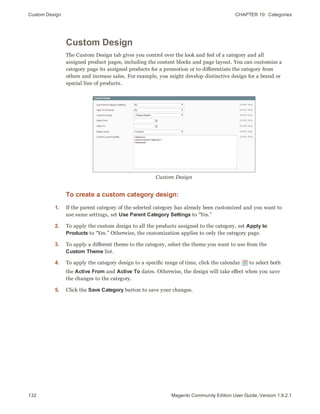
  • 90.
    Admin Tools CHAPTER5:  Store Admin 68 Magento Community Edition User Guide, Version 1.9.2.1 MENU LIST ACTIONS CUSTOMERS Manage Customers Delete Subscribe to Newsletter Unsubscribe from Newsletter Assign a Customer Group NEWSLETTER Newsletter Subscribers Unsubscribe Delete Actions by List (cont.)
  • 91.
    69Magento Community EditionUser Guide, Version 1.9.2.1 CHAPTER 6: Store Details The basic information for your store includes the store name and address, telephone number and email address, that appear on email messages, invoices, and other communications sent to your customers. Topics in this chapter: l Store Information l Locale Options l States Options l Countries Options l Currency l Basic Shipping Settings l Store Email Addresses l Contact Us
  • 92.
    Store Information CHAPTER6:  Store Details 70 Magento Community Edition User Guide, Version 1.9.2.1 Store Information The Store Information section provides the basic information that appears on sales documents and in other communications. To enter the store information: 1. On the Admin menu, select System > Configuration. 2. In the panel on the left, under General, select Store Information. Then, do the following: a. Enter the Store Name as you want it to appear in all communications. b. Enter the Store Contact Telephone number, formatted as you want it to appear in all communications. c. Select the Country where your business is located. d. If applicable, enter the Value Added Tax number of your store. To verify the number, click the Validate VAT Number button. e. In the text box, enter your Store Contact Address as you want it to appear on sales documents. 3. When complete, click the Save Config button. Store Information
  • 93.
    CHAPTER 6:  StoreDetails Locale Options Locale Options The locale determines the language, country, tax rate, and other settings used throughout a store. The Locale Options configure the time zone and language of each store, and identify the days of your work week in the area. Locale Options To set the store locale: 1. On the Admin menu, select System > Configuration. 2. Click to expand the Locale Options section. 3. Select your Timezone from the list. Then, do the following: a. Set Locale to the store language. b. Set First Day of the Week to the day that is considered to be the first day of the week in your area. c. In the Weekend Days list, select the days which fall on a weekend in your area. (To select multiple options, hold down the Ctrl (PC) or Command (Mac) key.) 4. When complete, click the Save Config button. 71Magento Community Edition User Guide, Version 1.9.2.1
  • 94.
    States Options CHAPTER6:  Store Details 72 Magento Community Edition User Guide, Version 1.9.2.1 States Options In many countries, the state, province, or region is a required part of a postal address. The information is used for shipping and billing information, to calculate tax rates, and so on. For countries where it is not required, the field can be omitted entirely from the address, or included as an optional field. Because standard address formats vary from one country to another, you can also edit the address template that determines how the information appears on invoices, packing slips, and shipping labels. States Options To set up the state options: 1. On the Admin menu, select System > Configuration. 2. Click to expand the States Options section, and do the following: 3. In the State is required for list, select each country where you want State / Province to be a required entry. To select multiple options, hold down the Ctrl key (PC) or Command key (Mac), and click each option. 4. Set Display not required State to one of the following: Yes In countries where the state field is not required, the field is included in the form as an optional entry. No In countries where the state field is not required, the field is omitted from the form. 5. When complete, click the Save Config button.
  • 95.
    CHAPTER 6:  StoreDetails Countries Options Countries Options The Countries Options establish the country where your business is located, and the countries from which you accept payment. Countries Options To set the country options for your store: 1. From the Admin menu, select System > Configuration. 2. Click to expand the Countries Options section. Then, do the following: a. Set Default Country to the country where your business is located. b. In the Allow Countries list, select each country from which you accept orders. By default, all countries in the list are selected. To select multiple countries, hold down the Ctrl (PC) or Command (Mac) key. c. In the Postal Code is Optional list, select each country where you conduct business that does not require a ZIP or postal code to be included as part of the street address. d. In the European Union Countries list, select each country in the EU where you conduct business. By default, all EU countries are selected. 3. When complete, click the Save Config button. 73Magento Community Edition User Guide, Version 1.9.2.1
  • 96.
    Currency CHAPTER 6: Store Details 74 Magento Community Edition User Guide, Version 1.9.2.1 Currency Magento Community Edition gives you the ability to accept currencies from more than two hundred countries around the world. Setting Up Currency Rates The Currency Rate configuration defines the base currency of your store, and the currencies that you accept as payment. Currency Symbols Currency symbols appear in product prices and sales documents such as orders and invoices. Updating Currency Rates Currency rates can be updated manually or imported into your store as needed, or according to a predefined schedule.
  • 97.
    CHAPTER 6:  StoreDetails Basic Shipping Settings Basic Shipping Settings Shipping Settings The Shipping Settings establish the point of origin for all shipments made from your store or warehouse, and also your preference for managing orders that are shipped to multiple addresses. Shipping Methods Magento supports a wide range of built-in shipping methods, including Flat Rate, Free Shipping, Table Rates, and real-time online rates. Shipping Carriers If you have a commercial account with a supported carrier, you can offer your customers the convenience of real-time shipping rates, package tracking, and labels. Shipping Labels You can easily create shipping labels for new and existing orders from the Admin of your store. Labels can be produced at the time a shipment is created, or at a later time. Shipping labels are stored in PDF format and are downloaded to your computer. 75Magento Community Edition User Guide, Version 1.9.2.1
  • 98.
    Store Email AddressesCHAPTER 6:  Store Details 76 Magento Community Edition User Guide, Version 1.9.2.1 Store Email Addresses You can have up to five different email addresses to represent distinct functions or departments for each store or view. In addition to the following predefined email identities, there are two custom identities that you can set up according to your needs. l General Contact l Sales Representative l Customer Support Each identity and its associated email address can be associated with specific automated email messages and appear as the sender of email messages that are sent from your store. Store Email Addresses Step 1: Set Up the Email Addresses for Your Domain Before you can configure email addresses for the store, each must be set up as a valid email address for your domain. Follow the instructions from your server administrator or email hosting provider to create the email address you need. Step 2: Configure the Email Addresses for Your Store 1. On the Admin menu, select System > Configuration. 2. In the Configuration panel on the left, under General, select Store Email Addresses. Then, do the following: a. Click to expand the General Contact section. b. If you have multiple stores or views, set the Current Configuration Scope in the upper-left corner to identify the store or view where the configuration applies. Then, clear the checkbox after each field so new values can be entered.
  • 99.
    CHAPTER 6:  StoreDetails Store Email Addresses General Contact c. In the Sender Name field, type the name of the person that you to appear as the sender of all email messages that are associated with the General Contact. d. In the Sender Email field, type the associated email address. 3. Repeat this process for any other email addresses that you plan to use. 4. When complete, click the Save Config button. Step 3: Update the Sales Email Configuration as Needed If you use custom email addresses, make sure to update the configuration of any related email messages, so the correct identity appears as the sender. 1. In the panel on the left, under Sales, select Sales Email. 2. Click to expand each section, and make sure that the correct store email is selected as the sender of the message. 3. When complete, click the Save Config button. 77Magento Community Edition User Guide, Version 1.9.2.1
  • 100.
    Contact Us CHAPTER6:  Store Details 78 Magento Community Edition User Guide, Version 1.9.2.1 Contact Us The Contact Us link in the footer of each page is an easy way for customers to keep in touch with you. The form is enabled by default, and can be configured to send inquiries to a specific email address and replies from a specific store identity. Contact Us
  • 101.
    CHAPTER 6:  StoreDetails Contact Us To configure the Contact Us form: 1. On the Admin menu, select System > Configuration. 2. In the panel on the left, under General, click Contacts. 3. Click to expand the Contact Us section, and set Enable Contact Us to “Yes.” Contact Us 4. Click to expand the Email Options section. Then, do the following: Email Options a. In the Send Emails To field, enter the email address of the recipient. b. Set Email Sender to the store identity you want to use for the replies sent. c. Select the Email Template used to format the data sent from the form. 5. When complete, click the Save Config button. 79Magento Community Edition User Guide, Version 1.9.2.1
  • 102.
    Contact Us CHAPTER6:  Store Details Notes 80 Magento Community Edition User Guide, Version 1.9.2.1
  • 103.
    81Magento Community EditionUser Guide, Version 1.9.2.1 CHAPTER 7: Websites, Stores & Views When Magento is installed, a main website, default store, and store view are created. You can create as many additional websites, stores, and store views as you need. Within each website, you can have multiple stores, and within each store, separate views. The term hierarchy refers to the organization of websites, stores, and views in a Magento installation. Websites You can set up as many websites as you need, and each can have a different domain. Stores A single website can have multiple stores—all are managed from the same Admin. Each store can have a different main menu, product selection, and appearance. Store Views Store views are usually used to present the store in different languages, although they can be used for other purposes, as well. Customers use the language chooser in the header to change the store view.
  • 104.
    Setting Up StoreHierarchy CHAPTER 7:  Websites, Stores & Views 82 Magento Community Edition User Guide, Version 1.9.2.1 Setting Up Store Hierarchy Before you begin, carefully plan your store hierarchy in advance because it is referred to throughout the configuration. Each store can have a separate root category, which makes it possible to have an entirely different set of navigation for each store. Also consider the prices and product attributes that are needed for each store view. Magento allows for only one standard price with a tiered pricing structure, per SKU. If you want to use a different pricing structure for a specific customer group in a store view, you must create a unique SKU for each view. Manage Stores To set up a new website: 1. On the Admin menu, select System > Manage Stores. 2. From Manage Stores, click the Create Website button. Then, do the following: Website Information a. Enter the Name of the website. The name is for internal reference, and can refer to the domain of the site or anything else distinguish it from other sites in the hierarchy. b. Enter a Code that will be used on the server to point to the domain. The code must begin with a lowercase character, and can include any other combination of letters, numbers, and underscore (_) character. c. (Optional) Enter a Sort Order number to determine the sequence in which this site is listed with other sites. Enter a zero to make this site appear at the top of the list. 3. When complete, click the Save Website button. To set up a new store: 1. Before you begin, set up the root category that will be used for this store. 2. On the Admin menu, select System > Manage Stores.
  • 105.
    CHAPTER 7:  Websites,Stores & Views Setting Up Store Hierarchy 3. From Manage Stores, click the Create Store button. Then, do the following: New Store a. Set Website to the site that is the parent of this store. b. Enter a Name for the store. The name is for internal reference to distinguish it from other stores in the hierarchy. For example: Private Sales Store. c. Set Root Category to the root category that will be used for the main navigation of the store. The root category can be the same as used for other stores, or unique to this store. For example: Private Sales Root. 4. When complete, click Save Store. To set up a new store view: 1. On the Admin menu, select System > Manage Stores. 2. From Manage Stores, click the Create Store View button. Then, do the following: Store View Information a. Set Store to the parent store of this view. b. Enter a Name for this store view. The name appears in the “language chooser” in the header of the store. For example: French. c. Enter a Code in lowercase characters to identify the view. For example: french. d. To activate the view, set Status to “Enabled.” e. (Optional) Enter a Sort Order number to determine the sequence in which this view is listed with other views. 3. When complete, click the Save Store View button. 83Magento Community Edition User Guide, Version 1.9.2.1
  • 106.
    Configuration Scope CHAPTER7:  Websites, Stores & Views 84 Magento Community Edition User Guide, Version 1.9.2.1 Configuration Scope If your Magento installation has multiple websites, stores, or views, you can set the scope of a configuration parameter to apply to a specific part of your installation. The Current Configuration Scope box in the upper-left corner of the Admin workspace determines the scope of the current settings. By default, the configuration scope is set to “Default Config.” For Admin users with restricted access, the list includes only the areas where the user is granted permission to access. The configuration scope applies to products categories, attributes, customer management setting, and so on. The scope of each item appears in brackets after the field to indicate the range of the setting. Current Configuration Scope If your installation includes multiple websites, stores or views, you should always set the scope to identify where you want the settings to apply. The possible settings are: [STORE], [WEBSITE], and [GLOBAL]. Any item with the scope of [STORE] can be set differently for each view. For example, because the scope of a product name and description is [STORE], the fields can have a different value for each language. However, some configuration settings—such as postal code—are [GLOBAL] because the same setting applies throughout the system. The [WEBSITE] scope also applies to the entire site, including all views.
  • 107.
    CHAPTER 7:  Websites,Stores & Views Configuration Scope To set the configuration scope: Before making a configuration setting that applies only to a specific website, store, or view, do the following: 1. On the Admin menu, select System > Configuration. 2. In the panel on the left, select the page with the configuration settings you want to change. If necessary, click to expand the section to be configured. Then, do the following: a. In the upper-left corner of a configuration page, set Current Configuration Scope to the website, store, or view where the configuration applies. A checkbox appears after each field, and sometimes additional fields become available. b. Clear the Use Default checkbox that is after the field that you want to edit. Then, enter the new value. c. Repeat this process for every field that needs to be updated on the page. 3. When complete, click the Save Config button. Scope Settings SCOPE DESCRIPTION Store The setting is limited to the store view, which is often used to display a store in multiple languages. Website The setting is limited to the website. Global The setting applies to the entire installation. 85Magento Community Edition User Guide, Version 1.9.2.1
  • 108.
    Adding a LanguageCHAPTER 7:  Websites, Stores & Views 86 Magento Community Edition User Guide, Version 1.9.2.1 Adding a Language Most of the text that appears to be hard-coded on pages throughout your store can be instantly changed to a different language by changing the locale of the view. Changing the locale doesn’t actually translate the text word-for-word, but simply references a different translation table that provides the interface text that is used throughout the store. The text that can be changed includes navigational titles, labels, buttons, and links such as “My Cart” and “My Account.” There is a wide selection of language packs available on Magento Connect. You can also use the Inline Translation tool to touch up any remaining interface text that was not translated for the locale, or to fine-tune the translated text. After changing the language of the locale, the remaining content that you have created, including product names and descriptions, categories, CMS pages, blocks, and polls must be translated separately for each store view. Language Packs on Magento Connect Step 1: Install a Language Pack 1. Log in to your Magento account. 2. Go to Magento Connect, and find the language pack that you want to download. Read the terms of the license, and click the checkbox to proceed. 3. Click the Install Now button. Then, do the following: a. Click the Get the Extension Key button. b. Click the Select button. Then, copy the license key.
  • 109.
    CHAPTER 7:  Websites,Stores & Views Adding a Language 4. Return to the Admin of your store. Then on the Admin menu, select System > Magento Connect > Magento Connect Manager. 5. When prompted, log in to Magento Connect Manager. Then, do the following: a. In the Install New Extensions section, paste your extension key. b. Click the Install button. The language pack you have chosen appears below. Install Language Pack c. When ready to begin, click the Proceed button. You can follow the progress in the output frame. During the installation, the language pack is uploaded to the following folder on your server: [magento]/app/locale Output Frame 6. To return to your store, click the Return to Admin link at the top of the page. 87Magento Community Edition User Guide, Version 1.9.2.1
  • 110.
    Adding a LanguageCHAPTER 7:  Websites, Stores & Views 88 Magento Community Edition User Guide, Version 1.9.2.1 Step 2: Create a Store View for the Language 1. On the Admin menu, select System > Manage Stores. 2. From Manage Stores, click the Create Store View button. Then, do the following: New Store View a. Select the Store that is the parent of the view. b. Enter a Name for the store view. For example: Spanish. This is the name that appears in the “language chooser” in the header. c. Enter a Code in lowercase characters to identify the view. For example: spanish. d. To activate the view, set Status to “Enabled.” e. (Optional) Enter a Sort Order number to determine the sequence in which this view is listed with other views. 3. When complete, click the Save Store View button. Step 3: Change the Locale of the Store View 1. On the Admin menu, select System > Configuration. 1. In the upper-left corner, set Current Configuration Scope to the store view. 2. Click to expand the Locale Options section. Then, do the following: a. To the right of the Locale field, clear the Use Website checkbox. b. Set Locale to the language that you want to assign to the view. If there are several variations of the language available, make sure to select the one that matches the language pack that you installed. For example, the Spanish language pack downloaded in this example works only when the locale is set to “Spanish (Spain).” You will need a different language pack to support a specific regional variation. You will need a different language pack to support the regional variations of other countries.
  • 111.
    CHAPTER 7:  Websites,Stores & Views Store URLs Change the Locale 3. When complete, click the Save Config button. Store URLs The URLs that are associated with your store were configured during the initial installation of Magento. The Web access options that were entered at that time specify both unsecure and secure URLs, and whether or not a security certificate is available. Magento uses variables to define internal links in relation to the base URL, which makes it possible to move an entire store from one URL to another without having to update the internal links. Web Access Options 89Magento Community Edition User Guide, Version 1.9.2.1
  • 112.
    Store URLs CHAPTER7:  Websites, Stores & Views 90 Magento Community Edition User Guide, Version 1.9.2.1 Secure and Unsecure Base URLs Each website in a Magento installation has a base URL that is assigned to the storefront and to the Admin. If you have a security certificate for your domain, you can configure either, or both base URLs to operate over a securely encrypted SSL channel. Unsecure base URLs begin with “http,” and secure base URLs begin with “https.” Unsecure Base URL http://www.yourdomain.com/magento/ Secure Base URL https://www.yourdomain.com/magento/ URL with IP address http://10.9.220.154/magento/ If Magento was installed before you registered a domain, the base URL might include the IP address of the server. If you don’t yet have security certificate, the store will not be able to switch to secure URLs (https) for transactions that normally take place over the secure socket layer (SSL). These configuration settings can be updated later to reflect the values you need before the store “goes live.” Important! Do not change the Admin URL from the default in the Base URL configuration. To change the Admin URL or path, see: Using a Custom Admin URL. To configure the unsecure base URL: 1. On the Admin menu, select System > Configuration. 2. In the panel on the left, under General, select Web. 3. Click to expand the Unsecure section. Then, do the following: 4. Enter the unsecure (http) Base URL for your store. Make sure to end the URL with a forward slash. Unsecure For a typical installation, you do not need to update the paths for the skin, media, and JavaScript files. Be careful not to change the markup tags in the other fields in the section. 5. If you do not plan to use a secure base URL for the Admin, do the following:
  • 113.
    CHAPTER 7:  Websites,Stores & Views Store URLs a. Click to expand the Secure section. b. Enter your unsecure (http) Base URL. The URL should be the same in both the Secure and Unsecure sections. 6. When complete, click the Save Config button. To configure the secure base URL: If your domain has a valid security certificate, you can configure the URLs for either the storefront and Admin—or both—to run over a secure (https) channel. 1. Click to expand the Unsecure section. Then, do the following: a. To use a secure (https) for the storefront, enter the Base URL, followed by a forward slash. Typically, you will not need to update the paths for the skin, media, and JavaScript files. Be careful not to change the markup tags in the other fields in the section. b. If you want to run the entire storefront over a secure (https) channel, set Use Secure URLs in Frontend to “Yes.” c. If you want to run the entire Admin over a secure (https) channel, set Use Secure URLs in Admin to “Yes.” Secure 2. When complete, click the Save Config button. 91Magento Community Edition User Guide, Version 1.9.2.1
  • 114.
    Store URLs CHAPTER7:  Websites, Stores & Views 92 Magento Community Edition User Guide, Version 1.9.2.1 Using a Custom Admin URL In a typical Magento installation, the Admin URL and path is immediately below the Magento base URL. The path to the store Admin is one directory below the root. http://yourdomain.com/magento/ Default Base URL http://yourdomain.com/magento/admin Default Admin URL and Path Although it is possible to change the Admin URL and path to another location, any mistake removes access to the Admin, and must be corrected from the server. As a precaution, do not try to change the Admin URL by yourself unless you know how to edit configuration files on the server. Method 1: Change from the Magento Admin: 1. On the Admin menu, select System > Configure. 2. In the panel on the left, under Advanced, select Admin. 3. Click to expand the Admin Base URL section, and do the following: a. Set Use Custom Admin URL to “Yes.” Then, enter the Custom Admin URL in the following format: http://yourdomain.com/magento/ Important! The Admin URL must be in the same Magento installation, and have the same document root as the storefront. b. Set Custom Admin Path to “Yes.” Then, enter the name of the Custom Admin Path in the following format: backend
  • 115.
    CHAPTER 7:  Websites,Stores & Views Store URLs Admin Base URL 4. When complete, click the Save Config button. After the changes are saved, you must log in to the Admin using the new Admin URL and path. Method 2: Change from the Server Command Line 1. Open the app/etc/local.xml file in a text editor, and change the name of the [admin] path. Make sure to use only lowercase characters. Then, save the file. On the server, the admin path is located in the app/etc/local.xml file. Look for the <adminhtml> argument in the <admin> section: # <frontName><![CDATA[admin]]></frontName> Default Admin Path # <frontName><![CDATA[backend]]></frontName> New Admin Path 2. Do one of the following methods to clear the Magento cache: l On the Admin menu, select System > Cache Management. Then, click the Flush Magento Cache button. l On the server, navigate to the var/cache folder, and delete the contents of the cache folder. 93Magento Community Edition User Guide, Version 1.9.2.1
  • 116.
    Store URLs CHAPTER7:  Websites, Stores & Views Notes 94 Magento Community Edition User Guide, Version 1.9.2.1
  • 117.
    95Magento Community EditionUser Guide, Version 1.9.2.1 CHAPTER 8: Industry Compliance Magento Community Edition offers a range of security and privacy capabilities that meet legal requirements and industry guidelines for online merchants. Some are mandated by the payment card industry, and others are required by law, depending on your location. Topics in this chapter: l PCI Compliance l Privacy Policy l Cookie Law You will learn about PCI compliance, and the importance of establishing procedures to protect payment information. You will also learn how to bring your store into compliance with the Cookie Law, which is a requirement in some countries, and considered a “best practice” in others. In addition, you will learn how to customize and maintain a privacy policy for your store.
  • 118.
    PCI Compliance GuidelinesCHAPTER 8:  Industry Compliance 96 Magento Community Edition User Guide, Version 1.9.2.1 PCI Compliance Guidelines The Payment Card Industry (PCI) has established a set of requirements for businesses that accept payment by credit card over the Internet. In addition to the need to maintain a secure hosting environment, there are additional requirements that merchants must meet to ensure the privacy of cardholder data. Every merchant who handles customer credit card information is required by the Payment Card Industry to conduct business within the following guidelines: Install and maintain a firewall configuration to protect cardholder data. Do not use vendor-supplied defaults for system passwords and other security parameters. Protect stored cardholder data. Encrypt transmission of cardholder data across open, public networks. Use and regularly update antivirus software. Develop and maintain secure systems and applications. Restrict access to cardholder data by business need to know. Assign a unique ID to each person with computer access. Restrict physical access to cardholder data. Track and monitor all access to network resources and cardholder data. Regularly test security systems and processes. Maintain a policy that addresses information security. PCI Requirements As your business grows, you may be required to file a compliance report on an annual basis. PCI reporting requirements increase in proportion to merchant level, but are waived for businesses that process fewer than 20,000 credit card transactions per year. To learn more, visit the PCI Security Standards Council website.
  • 119.
    CHAPTER 8:  IndustryCompliance Privacy Policy Privacy Policy Your store includes a sample privacy policy that must be updated with your own information. Your privacy policy should describe the type of information that your company collects, and how it is used. It should also list the filenames of cookies that are placed on the computers of people who visit your store. Any additional cookies that are associated with third-party extensions and add-ons should be included in the list. For a complete list of the cookies used by Magento, see Cookie Restriction Mode. If you change the URL key of the privacy policy, you must also create a custom URL rewrite to redirect traffic to the new URL key. Privacy Policy To edit your privacy policy: 1. On the Admin menu, select CMS > Pages > Manage Content. 2. Find the privacy policy in the list, and click to open the page. 3. In the panel on the left, click Content. 4. To work in WYSIWYG mode, click the Show/Hide Editor button. 5. Make the necessary changes to the content. 6. When complete, click the Save Page button. 97Magento Community Edition User Guide, Version 1.9.2.1
  • 120.
    Cookie Law ComplianceCHAPTER 8:  Industry Compliance 98 Magento Community Edition User Guide, Version 1.9.2.1 Cookie Law Compliance Cookies are small files that are saved to the computer of each visitor to your site, and used as temporary holding places for information. Information that is saved in cookies is used to personalize the shopping experience, link visitors to their shopping carts, measure traffic patterns, and improve the effectiveness of promotions. To keep pace with legislation in many countries regarding the use of cookies, Magento offers merchants a choice of methods for obtaining customer consent: Implied Consent Implied consent means that visitors to your store have a clear understanding that cookies are a necessary part of operations, and by using your site, have indirectly granted permission to use them. The key to gaining implied consent is to provide enough information for a visitor to make an informed decision. Many stores display a message at the top of all standard pages that provides a brief overview of how cookies are used, with a link to the store’s privacy policy. The privacy policy should describe the type of information that your store collects, and how it is used. Expressed Consent Operating your store in “cookie restriction mode” requires visitors to express their consent before any cookies can be saved to their computers. Unless consent is granted, many features of your store will be unavailable. For example, if Google Analytics is available for your store, it can be invoked only after the visitor has granted permission to use cookies. Cookie Restriction Mode When Cookie Restriction Mode is enabled, visitors to your store are notified that cookies are required for full-featured operations. Depending on your theme, the message might appear above the header, below the footer, or somewhere else on the page. The message links to your privacy policy for more information, and encourages visitors to click the Allow button to grant consent. After consent is granted, the message disappears. The Cookie Restriction Mode message resides in a CMS static block, and can be edited to suit your voice and style. Your privacy policy should include the name of your store and contact information, and explain the purpose of each cookie that is used by your store. See the end of this topic for a complete list of the cookies used. See the end of this topic for a complete list of the cookies used. If you change the URL key of the privacy policy, you must also create a custom URL rewrite to redirect traffic to the new URL key. Otherwise, the link in the Cookie Restriction Mode message will return “404 Page Not Found.”
  • 121.
    CHAPTER 8:  IndustryCompliance Cookie Law Compliance Cookie Restriction Notice In Footer Step 1: Enable Cookie Restriction Mode 1. On the Admin menu, select System > Configuration. Then in the panel on the left, under General, click Web. 2. Click to expand the Session Cookie Management section, and do the following: Cookie Session Management a. Enter the Cookie Lifetime in seconds. b. If you want to make cookies available to other folders, enter the Cookie Path. To make the cookies available anywhere in the site, enter a forward slash. c. To make the cookies available to a subdomain, enter the subdomain name in the Cookie Domain field. (subdomain.yourdomain.com) To make cookies available to all subdomains, enter the domain name preceded by a period. (.yourdomain.com) d. To prevent scripting languages such as JavaScript from gaining access to cookies, set Use HTTP Only to “Yes.” e. Set Cookie Restriction Mode to “Yes.” 99Magento Community Edition User Guide, Version 1.9.2.1
  • 122.
    Cookie Law ComplianceCHAPTER 8:  Industry Compliance 100 Magento Community Edition User Guide, Version 1.9.2.1 Step 2: Edit the Cookie Restriction Message 1. On the Admin menu, select CMS > Static Blocks. 2. Find the Cookie Restriction Notice, and click to open the block. Then, do the following: Editing the Cookie Restriction Notice a. Select each Store View where the notice should appear. b. Set Status to “Enabled.” c. In the Content box, edit the message as needed. 3. When complete, click the Save Block button. Step 3: Update Your Privacy Policy 1. On the Admin menu, select CMS > Pages > Manage Content. 2. Find your Privacy Policy in the list, and click to open the page. 3. In the panel on the left, click Content. If necessary, click the Show/Hide Editor button to work in WYSIWYG mode.
  • 123.
    CHAPTER 8:  IndustryCompliance Cookie Law Compliance Privacy Policy 4. Update your privacy policy to describe the information that your company collects, and how it is used. You can include the information from the tables at the end of this topic. 5. When complete, click the Save Page button. 101Magento Community Edition User Guide, Version 1.9.2.1
  • 124.
    Cookie Law ComplianceCHAPTER 8:  Industry Compliance 102 Magento Community Edition User Guide, Version 1.9.2.1 Cookie Reference Magento Standard Cookies COOKIE NAME COOKIE DESCRIPTION USER_ALLOWED_SAVE_ COOKIE Indicates if a customer is allowed to use cookies. external_no_cache A flag that indicates if caching is disabled. persistent_shopping_ cart The session key. Stf If product links were sent to friends, stores the timestamps in the format: $timeStamp1, $timestamp2, ..., $timestampN. pollN A poll ID that indicates if a vote has occurred. frontend Session ID guest-view Allows guests to edit their orders. Google Analytics Cookies COOKIE DESCRIPTION _utma Distinguishes users and sessions. _utmb Determines new sessions/visits. _utmc Determines if the user was in a new session/visit. _utmz Stores the traffic source or campaign that explains how the user reached your site.
  • 125.
  • 126.
    In this section… Navigation Categories Attributes Usinga Flat Catalog Creating Products Images Swatches Pricing Inventory Product Information
  • 127.
    105Magento Community EditionUser Guide, Version 1.9.2.1 CHAPTER 9: Navigation The term, navigation refers to the methods shoppers use to move from page to page throughout your store. The main menu, or top navigation of your store is actually a list of category links. The category structure of your catalog is the main way people find products in your catalog. You will also find categories in the breadcrumb trail that runs across the top of most pages, and in the “layered navigation” that appears on the left side of some two- or three-column pages. These are all examples of how categories can be used to navigate throughout your store. For a product to be visible in your store, it must be assigned to at least one category. Each category can have a dedicated landing page with an image, static block, a description, and list of products. You can also create special designs for category pages that become active for a specific period of time such as for a holiday season or promotion. Categories in Main Menu
  • 128.
    Top Navigation CHAPTER9:  Navigation Top Navigation The main menu of your store displays the selection of categories that are available in your catalog. You can think of the top navigation as different departments in your store. A top- level category serves as landing page for all the subcategories below. The position and presentation of the top navigation might vary by theme, but the way it works is the same. Top Navigation The first level of categories below the root typically appear as options in the main menu. Below that, you can have as many additional subcategories as needed. The category structure of your catalog can influence how well your site is indexed by search engines. The deeper a category, the less likely it is to be thoroughly indexed. As a general rule, anywhere between one and three levels is considered to be the best. You can set the maximum number of levels that are available in your top navigation in the system configuration. 106 Magento Community Edition User Guide, Version 1.9.2.1
  • 129.
    CHAPTER 9:  NavigationBreadcrumb Trail Breadcrumb Trail A breadcrumb trail is a set of links that shows where you are in relation to other pages in the store. You can click any link in the breadcrumb trail to return to a previous page. Here’s an example of a breadcrumb trail from the Magento Demo Store: HOME/ACCESSORIES/JEWELRY/PEARL STUD EARRINGS The breadcrumb trail can be configured to appear on CMS content pages, as well as catalog pages. The format and position of the breadcrumb trail varies by theme, but it is usually located in the upper-left, just below the header. Breadcrumb Trail To add breadcrumbs to CMS pages: 1. On the Admin menu, select System > Configuration. 2. In the panel on the left, under General, select Web. Then, do the following: a. Click to expand the Default Pages section. b. Set Show Breadcrumbs for CMS Pages to “Yes.” 3. When complete, click the Save Config button. Default Pages 107Magento Community Edition User Guide, Version 1.9.2.1
  • 130.
    Product List ConfigurationCHAPTER 9:  Navigation 108 Magento Community Edition User Guide, Version 1.9.2.1 Product List Configuration Product listings can be configured to appear by default as either a list or grid. You can also determine how many products appear per page, and which attribute is used to sort the list. Each product list has a set of page controls that can be used to sort the products, change the format of the list, sort by attribute, and advance from one page to the next. View As Displays the list in either a Grid or List format. Sort By Changes the sort order of the list. Products Displayed as a Grid To configure product listings: 1. On the Admin menu, select System > Configuration. Then in the panel on the left, under Catalog, select Catalog. 2. Click to expand the Frontend section. 3. Set the default List Mode to one of the following: l Grid Only l List Only l Grid (default) / List l List (default / Grid
  • 131.
    CHAPTER 9:  NavigationProduct List Configuration Frontend Then, do the following: a. In the Products per Page on Grid Allowed Values field, enter the number of products that you want to appear per page when shown in grid format. To enter a selection of values, separate each number by a comma. b. In the Products per Page on Grid Default Value field, enter the default number of products to appear in the grid per page. c. In the Products per Page on List Allowed Values field, enter the number of products that you want to appear per page when shown in list format. To enter a selection of values, separate each number by a comma. d. In the Products per page on List Default Value field, enter the default number of products that appear in the list, per page. 4. To give customers the option to list all products, set Allow All Products on Page to “Yes.” 5. Set Product Listing Sorted by to the default attribute that is initially used to sort the list. 6. If using a flat catalog, do the following: a. To display a flat category listing of products, set Use Flat Catalog Category to “Yes.” b. To display a flat product listing, set Use Flat Catalog Product to “Yes.” 7. If you want to allow dynamic references to media assets in category and product URLs, set Allow Dynamic Media URLs in Products and Categories to “Yes.” 8. When complete, click the Save Config button. 109Magento Community Edition User Guide, Version 1.9.2.1
  • 132.
    Product List ConfigurationCHAPTER 9:  Navigation 110 Magento Community Edition User Guide, Version 1.9.2.1 Pagination Controls The Pagination settings control the format of the pagination links in product listings. You can set the number of links that appear in the control, and configure the Next and Previous links. For the pagination links to appear, there must be more products in the list than are allowed per page in the product list configuration. Show per Page Determines how many products appear per page. Pagination Links Navigation links to other pages. Pagination Control
  • 133.
    CHAPTER 9:  NavigationProduct List Configuration To configure the pagination control: 1. On the Admin menu, select System > Configuration. Then in the panel on the left under General, select Design. 2. Click to expand the Pagination section. Then, do the following: Pagination a. In the Pagination Frame field, enter the number of links that you want to appear in the control. b. In the Pagination Frame Skip field, enter the number of links to skip ahead to display the next set of links in the control. For example, if the pagination frame has five links, and you want to jump to the next five links, how many links do you want to skip ahead? If you set this to four, then the last link from the previous set will be the first link in the next set. c. In the Anchor Text for Previous field, enter the text that you want to appear for the Previous link. Leave blank to use the default arrow. d. In the Anchor Text for Next field, enter the text that you want to appear for the Next link. Leave blank to use the default arrow. 3. When complete, click the Save Config button. 111Magento Community Edition User Guide, Version 1.9.2.1
  • 134.
    Layered Navigation CHAPTER9:  Navigation 112 Magento Community Edition User Guide, Version 1.9.2.1 Layered Navigation Layered navigation makes it easy to find products based on category, price range, or any other available attribute. Layered navigation usually appears in the left column of search results and category pages and sometimes on the home page. The standard navigation includes a “Shop By” list of categories and price range. You can configure the display of layered navigation, including product count and price range. The following instructions show how to set up basic layered navigation. For advanced layered navigation with price steps, see Price Navigation. Layered Navigation by Category and Price
  • 135.
    CHAPTER 9:  NavigationLayered Navigation Step 1: Configure Attributes and Anchor Categories Make sure that the attribute properties and the anchor categories that are required for layered navigation are configured correctly. Step 2: Set Up Basic Layered Navigation 1. On the Admin menu, select System Configuration. Then in the panel on the left, under Catalog, select Catalog. 2. Click to expand the Layered Navigation section. Then, do the following: Layered Navigation a. To display the number of products found for each attribute, set Display Product Count to “Yes.” b. Set Price Navigation Step Calculation to “Automatic (equalize price ranges).” 3. When complete, click the Save Config button. 113Magento Community Edition User Guide, Version 1.9.2.1
  • 136.
    Layered Navigation CHAPTER9:  Navigation 114 Magento Community Edition User Guide, Version 1.9.2.1 Filterable Attributes Layered navigation can be used to search for products by category or by attribute. For example, when a shopper chooses the Apparel/Shoes category from the top navigation, the initial results include all products in the shoes category. The list can be filtered further by choosing a specific color or size, or by specifying values for both color and size. For an attribute to be included in layered navigation, its property settings must be set to make it filterable. Anchor categories can be set to appear in an additional section that filters the list by attribute value. The attribute section appears only if a category is set to “Is Anchor.” Each attribute can be configured to display the number of matching records found. The attribute properties, combined with the product properties, determine which attributes can be used as filters for layered navigation. Only those with the catalog input type of Dropdown, Multiple Select or Price can be used as filterable attributes. Filterable Attributes In Layered Navigation
  • 137.
    CHAPTER 9:  NavigationLayered Navigation Step 1: Set the Attribute Properties 1. On the Admin menu, select Catalog > Attributes > Manage Attributes. 2. Click to open the attribute in edit mode, and do the following: a. Scroll down to the Frontend Properties section, and set Use In Layered Navigation to one of the following: l Filterable (with results) l Filterable (no results) b. Set Use In Search Results Layered Navigation to “Yes.” Step 2: Make the Category an Anchor 1. On the Admin menu, select Catalog > Manage Categories. 2. In the Categories panel on the left, click to open the category. 3. On the Display Settings tab, set Is Anchor to “Yes.” 4. Click the Save Category button. 5. To test the setting, go to your store and select the category in the top navigation. The selection of filterable attributes for the products in the category appears in the layered navigation. 115Magento Community Edition User Guide, Version 1.9.2.1
  • 138.
    Layered Navigation CHAPTER9:  Navigation 116 Magento Community Edition User Guide, Version 1.9.2.1 Price Navigation Price navigation can be used to distribute products by price range in layered navigation. You can also split each range in intervals. There are ways to calculate price navigation: l Automatic (Equalize Price Ranges) l Automatic (Equalize Product Counts) l Manual With the first two methods, the navigation steps are calculated automatically. The manual method lets you specify a division limit for price intervals. The following example shows the difference between price navigation steps of 10 and 100. Iterative splitting provides the best distribution of products among price ranges. With iterative splitting, after a customer chooses to view the $0.00-$99 range, the customer can drill-down through several sub-ranges of prices. Price-range splitting stops when the number of products reaches the threshold set by the Interval Division Limit. Example: Price Navigation Steps PRICE STEP BY 10 PRICE STEP BY 100 $20.00 - $29.99 (1) $30.00 - $39.99 (2) $70.00 - $79.99 (1) $100.00 - $109.99 (1) $120.00 - $129.99 (2) $150.00 - $159.99 (1) $180.00 - $189.99 (1) $420.00 - $429.99 (1) $440.00 - $449.99 (1) $710.00 and above (1) $0.00 - $99.99 (4) $100 - $199.99 (5) $400.00 - $499.99 (2) $700.00 and above (1)
  • 139.
    CHAPTER 9:  NavigationLayered Navigation To configure price layered navigation: 1. On the Admin menu, select System > Configuration. Then in the panel on the left, under Catalog, select Catalog. 2. In the upper-left corner, set Current Configuration Scope to the store view to be configured. 3. Click to expand the Layered Navigation section. Layered Navigation 4. If you want to display the number of products in parentheses after each filtered item, set Display Product Count to “Yes.” 5. Set Price Navigation Steps Calculation to one of the following methods: Method 1: Automatic (equalize price ranges) Set Price Navigation Steps Calculation to “Automatic (equalize price ranges.)” This setting uses the existing price layered navigation algorithm, and is similar to the Automatic option in earlier versions of Magento. Layered Navigation 117Magento Community Edition User Guide, Version 1.9.2.1
  • 140.
    Layered Navigation CHAPTER9:  Navigation 118 Magento Community Edition User Guide, Version 1.9.2.1 Method 2: Automatic (equalize product counts) 1. Set Price Navigation Steps Calculation to “Automatic (equalize product counts).” 2. Set Display Price Interval as One Price to “Yes” if you want to display a single price when multiple products with the same price. 3. In the Interval Division Limit field, enter the threshold for a number of products within a price range. The range cannot be further split beyond this limit., The default value is 9. Automatic (equalize product counts) Method 3: Manual 1. Set Price Navigation Steps Calculation to “Manual.” 2. Enter a value to determine the Default Price Navigation Step. 3. Enter the Maximum Number of Price Intervals allowed, up to 100. Manual 6. When complete, click the Save Config button.
  • 141.
    119Magento Community EditionUser Guide, Version 1.9.2.1 CHAPTER 10: Categories Before you add products to your catalog, you must first establish the basic category structure of your catalog. Every product in your catalog must be assigned to at least one category. Topics in this chapter: l Creating Categories l Modifying Categories l Root Categories l Hidden Categories l General Information l Display Settings l Custom Design l Category Products Categories in Main Menu
  • 142.
    Category Levels CHAPTER10:  Categories 120 Magento Community Edition User Guide, Version 1.9.2.1 Category Levels The number of subcategory levels that you can have in the top navigation is set in the system configuration.By default, there is no limit to the number of levels of subcategories you can set up. In the following image, the Home & Decor category has a depth of two levels. Subcategory Levels To set the depth of the top navigation: 1. On the Admin menu, select System > Configuration. Then in the panel on the left, under Catalog, select Catalog. 2. Click to expand the Category Top Navigation section. Category Top Navigation 3. To place a limit on the number of subcategories that can be used in the top navigation, enter the number in the Maximal Depth field. The default Maximal Depth value is 0, which does not limit the number of subcategory levels you can have. 4. When complete, click the Save Config button.
  • 143.
    CHAPTER 10:  CategoriesCreating Categories Creating Categories When working in the Admin, the category structure is like an upside-down tree, with the root at the top. Each section of the tree can be expanded and collapsed. Any disabled or hidden categories are grayed out. Category Structure Process Overview: Step 1: Create a Category Step 2: Complete the General Information Step 3: Complete the Display Settings Step 1: Create a Category 1. On the Admin menu, select Catalog > Manage Categories. 2. Before you begin, set Choose Store View to the store or view. By default, the scope of the category configuration is set to “All Store Views.” 3. In the category tree, click the category that is to be the parent of the new category. The parent is the level just above the new category. If you’re starting from the beginning without any data, there might be only two categories in the list: “Default Category,” which is the root, and an “Example Category.” 4. Click the Add Subcategory button. 121Magento Community Edition User Guide, Version 1.9.2.1
  • 144.
    Creating Categories CHAPTER10:  Categories 122 Magento Community Edition User Guide, Version 1.9.2.1 Category Tree Step 2: Complete the General Information 1. In the General Information section, do the following: a. (Required) Type the Name of the category. b. (Required) To enable the category, set Is Active to “Yes.” c. You can enter a URL Key for the category, or let the system automatically create one that is based on the category name. 2. If supported by your theme, you can display a Thumbnail image in the main menu for each category. Click the Choose File button and select the image to upload. 3. In the Description box, enter a paragraph or two of descriptive text for the category landing page. 4. To display an Image at the top of the category landing page, click the Choose File button and select the image to upload. 5. Complete the category meta data: l Page Title l Meta Keywords l Meta Description 6. (Required) To include the category in the main menu, set Include in Navigation Menu to “Yes.” 7. Click the Save Category button. Then, take note of the following:
  • 145.
    CHAPTER 10:  CategoriesCreating Categories l The new category now appears in the tree. If it’s not in the correct position, you can drag it to another location in the tree. l In addition to the category name, it has an ID number shown in parentheses, just after the name at the top of the page. l A URL Key that is based on the category name can be automatically generated for the category. Category URL Key Step 3: Complete the Display Settings You can configure the category landing page to display both a static block and product list, or one or the other. A static block can provide additional information, including text, images, and even embedded video. Display Settings 1. On the Display Settings tab, do the following: a. Set Display Mode to one of the following: l Products Only l Static Block Only l Static Block and Products b. If applicable, set CMS Block to the static block that you want to appear on the category page. c. If you want this category page to display the “Filter by Attribute” section of layered navigation, set Is Anchor to “Yes.” 123Magento Community Edition User Guide, Version 1.9.2.1
  • 146.
    Creating Categories CHAPTER10:  Categories 124 Magento Community Edition User Guide, Version 1.9.2.1 d. Clear the checkbox under Default Product Listing Sort By. Then select one of the available values to sort the list. By default, all available attributes are listed. The default values typically include: l Best Value l Name l Price 2. When complete, click the Save Category button. Modifying Categories After a category is established, it can be edited, moved to another position in the category tree, or deleted from the catalog. However, if your catalog is live, you should consider how the change might impact any existing links to products in the category. For example, if your product URLs include the category path, and the category name is changed, any existing links to products in the category will be broken. To avoid this problem, you can configure your catalog to automatically create a permanent redirect if the URL key changes. You can also use the URL Rewrite tool to redirect traffic from an old URL to a new one. To move a category: 1. On the Admin menu, select Catalog > Manage Categories. 2. To move a category, simply drag-and-drop it to a new location. Category order changes are saved automatically. To delete a category: 1. On the Admin menu, select Catalog > Manage Categories. 2. Click to select the category you want to delete. A deleted category cannot be restored, so make sure that you have selected the correct category before proceeding. 3. Click the Delete Category button to save your changes.
  • 147.
    CHAPTER 10:  CategoriesCreating Categories Root Categories The category structure is like an upside-down tree, with the root on top. All categories in your catalog are nested below the root. Because the root category is the highest level of the catalog, your store can have only one root category active at a time. You can, however, create additional root categories for alternate catalog structures, different stores, and views. The root category is not visible to customers in the store, and does not have a URL key. Root Categories Step 1: Create a New Root Category 1. On the Admin menu, select Catalog > Manage Categories. 2. In the upper-left of the Manage Categories page, click the Add Root Category button. Then, complete the following required fields: a. Enter a Name for the root category. b. Set Is Active to “Yes.” c. If you want this root category to be in the main menu, set Include in Navigation Menu to “Yes.” 3. Complete the remaining optional fields as needed: a. Click the Choose File to upload a Thumbnail Image for the root category. b. Enter a Description of the root category. c. Click the Choose File button to upload an Image to the root category. d. Complete the following meta data: 125Magento Community Edition User Guide, Version 1.9.2.1
  • 148.
    Creating Categories CHAPTER10:  Categories 126 Magento Community Edition User Guide, Version 1.9.2.1 l Page Title l Meta Keywords l Meta Description 4. Click the Display Settings tab. Then, set Is Anchor to “Yes.” 5. When complete, click the Save Category button. Step 2: Add Subcategories to the New Root 1. On the Categories page, click the General tab. 2. In the category tree on the left, click to select the new root category you created in the last step. 3. Click the Add Subcategory button. 4. Give the subcategory a Name, and set Is Active to “Yes.” 5. Click the Save Category button. 6. Repeat this process to create as many subcategories as you need. Step 3: Apply the New Root Category to Your Store 1. On the Admin menu, select System > Manage Stores. 2. On the Manage Stores page, under Store Name, click the Main Store link. 3. Change Root Category to the new root category. 4. Click the Save Store button.
  • 149.
    CHAPTER 10:  CategoriesCreating Categories Hidden Categories There are many ways to use hidden categories. You might want to create additional category levels for your own internal purposes, but show only the higher-level categories to your customers. Or, you might want to link to a category that is not included in the navigation menu. To create hidden categories: 1. On the Admin menu, select Catalog > Manage Categories. 2. In the category tree, select the category you want to hide. 3. On the General Information tab, do the following: a. Set Is Active to “No.” b. Set Include in Navigation Menu to “No.” 4. On the Display Settings tab, set Is Anchor to “No.” 5. Although the category is hidden, you can still create additional subcategories beneath it, and make them active. Complete the following settings for each hidden subcategory: a. On the General Information tab, set Is Active to “Yes.” b. On the Display Settings tab, set Is Anchor to “Yes.” As active categories, you can now link to them from other places in your store, but they will not appear in the navigation menu. 6. When complete, click the Save Category button. 127Magento Community Edition User Guide, Version 1.9.2.1
  • 150.
    General Information CHAPTER10:  Categories 128 Magento Community Edition User Guide, Version 1.9.2.1 General Information On the General Information tab, complete the basic information about the category you are creating or editing. You can enter keywords to improve the way the category is indexed by search engines, create a URL key for the category, and activate or deactivate the category. General Information
  • 151.
    CHAPTER 10:  CategoriesGeneral Information FIELD SCOPE DESCRIPTION Name Store View (Required) The category name appears in the navigation, and also in the URL key of the category page and associated product pages. Is Active Store View (Required) To make this category available, select “Yes.” Options include: Yes / No URL Key Store View The URL Key is a relative path to the category, and is automatically generated when the category is saved. The URL Key must be all lower-case characters, with no spaces. As a best practice, each word is separated by a hyphen. If you edit the default URL key, a custom redirect is created automatically. A root category does not have a URL key. Thumbnail Image Store View If supported by your theme, a thumbnail image can be associated with each category and appear as part of the option in the main menu of the store. Description Store View The category description, if used, appears below the category image- and before the product list. Image Store View The category image, if used, appears at the top of the category page, before the description and product list. As an alternative, you can display a CMS static block in place of the description and image. (See Category Display Settings.) Page Title Store View The category page title appears in the browser tab and title bar. As a best practice, the title should be not more than twelve words in length, and should include a combination of primary and secondary keywords. Meta Keywords Store View Keywords are used by some search engines, and not by others. You can use a keyword search tool to identify high value keywords that relate to your category. A general rule is to use no more than thirty keywords, or 180 characters. Avoid repeats, and empty words such as “a,” “an,” “or” and “that.” Field Descriptions 129Magento Community Edition User Guide, Version 1.9.2.1
  • 152.
    Display Settings CHAPTER10:  Categories 130 Magento Community Edition User Guide, Version 1.9.2.1 FIELD SCOPE DESCRIPTION Meta Description Store View Enter a description of the category, using approximately twenty-five words or 150 characters. Include in Navigation Menu Store View (Required) Determines if the category is included in the main menu. Options include: Yes Include this category in the top navigation, select “Yes.” No Hides the category, although it is active.Hidden categories do not appear in the top navigation, but are included in layered navigation. Field Descriptions (cont.) Display Settings The Display Settings determine which content elements appear on a category page and the order that products are listed. You can enable CMS blocks, set the anchor status of the category, and manage sorting options from this page. Display Settings
  • 153.
    CHAPTER 10:  CategoriesDisplay Settings FIELD SCOPE DESCRIPTION Display Mode Store View Determines the content elements displayed on the category page. Options include: Products Only Static Block Only Static Block and Products CMS Block Store View To display a CMS static block at the top of the category page, select the name of the block from the list. Is Anchor Global When set to “Yes,” includes the “filter by attribute” section in the layered navigation. Options include: Yes / No Available Product Listing Sort By Store View (Required) The default values are Value, Name, and Price. To customize the sorting option, clear the Use All Available Attributes checkbox and select the attributes you want to use. You can define and add attributes as needed. Default Product Listing Sort By Store View (Required) To define the default “Sort By” option, clear the “Use Config Settings” checkbox and select an attribute. Layered Navigation Price Step Store View By default, Magento displays the price range in increments of 10, 100, and 1000, depending on the products in the list. To change the Price Step range, clear the “Use Config Settings” checkbox. Field Descriptions 131Magento Community Edition User Guide, Version 1.9.2.1
  • 154.
    Custom Design CHAPTER10:  Categories 132 Magento Community Edition User Guide, Version 1.9.2.1 Custom Design The Custom Design tab gives you control over the look and feel of a category and all assigned product pages, including the content blocks and page layout. You can customize a category page its assigned products for a promotion or to differentiate the category from others and increase sales. For example, you might develop distinctive design for a brand or special line of products. Custom Design To create a custom category design: 1. If the parent category of the selected category has already been customized and you want to use same settings, set Use Parent Category Settings to “Yes.” 2. To apply the custom design to all the products assigned to the category, set Apply to Products to “Yes.” Otherwise, the customization applies to only the category page. 3. To apply a different theme to the category, select the theme you want to use from the Custom Theme list. 4. To apply the category design to a specific range of time, click the calendar to select both the Active From and Active To dates. Otherwise, the design will take effect when you save the changes to the category. 5. Click the Save Category button to save your changes.
  • 155.
    CHAPTER 10:  CategoriesCustom Design FIELD SCOPE DESCRIPTION Use Parent Category Settings Store View Allows the current category to inherit the design settings from the parent category. Options include: Yes / No Apply to Products Store View Applies the custom settings to all products in the category. Options include: Yes / No Custom Theme Store View Applies a custom theme to the category. Active From Store View The beginning of a date range that specifies the first day the theme is to be used in the store. The date can be entered or selected from the calendar. Active To Store View The end of a date range that specifies the last day the theme is to be used in the store. The date can be entered or selected from the calendar Page Layout Store View Applies a different layout to the category page. Options include: No layout updates Pre-selected by default, and does not apply layout changes to the category page. Empty Use to define your own page layout.(Requires an understanding of XML.) 1 column Applies a one-column layout to the category page. 2 columns with left bar Applies a two-column layout with a left sidebar to the category page. 2 columns with right bar Applies a two-column layout with a right sidebar to the category page. 3 columns Applies a three-column layout to the category page. Custom Layout Update Store View Updates the theme layout with custom XML code. Field Descriptions 133Magento Community Edition User Guide, Version 1.9.2.1
  • 156.
    Category Products CHAPTER10:  Categories 134 Magento Community Edition User Guide, Version 1.9.2.1 Category Products The Category Products tab lists the products that are currently assigned to the category. From the list, you can easily add and remove products from the category. Category Products To assign products to a category: 1. From the category record, click the Category Products tab. Then, do the following: a. Use the filters and checkbox control to find the products you want to assign: l To display all products currently assigned to the category, set the checkbox control to “Yes.” l To display all products that are not assigned to the category, set the checkbox control to “No.” l To display all products, set the checkbox control to “Any.” b. Press the Search button. c. To list all products again, click the Reset Filter button. 2. Select the checkbox of each product you want to assign to the category. 3. When complete, click the Save Category button.
  • 157.
    135Magento Community EditionUser Guide, Version 1.9.2.1 CHAPTER 11: Attributes Attributes are the building blocks of your product catalog, and describe specific characteristics of a product. Here are a few ways you can use attributes to enhance the shopping experience: l Input controls for product options l Provide additional information on product pages l Search parameters l In product comparison reports l As layered navigation “Shop By” parameters l In catalog and shopping cart price rules Each attribute contains a value that describes a characteristic of a product, such as “color” or “fabric.” The “color” attribute with the “dropdown” input type might contain many values, although only a few apply to any given product. Because a single attribute can be used with multiple products, your store needs to have only one attribute for color. You can create as many attributes as you need, and assign the most common value as the default, to make it easy for your customers to select the option. The attributes that make up a product are combined into an attribute set, which is used as template to create new products. The attribute set determines which fields are included in a product, and how they are grouped in the Product Information panel. Magento has a default attribute set with a standard selection of product attributes such as Name, Price, Description, and so on. If you want to keep it simple, you can use the default attribute set for your entire catalog.
  • 158.
    Attribute Input TypesCHAPTER 11:  Attributes 136 Magento Community Edition User Guide, Version 1.9.2.1 Attribute Input Types When viewed from the Admin, attributes are the fields that you complete when you create a product. The input type that is assigned to an attribute determines the type of data that can be entered and the format of the field or input control. From the standpoint of the customer, attributes provide information about the product, and are the options and data entry fields that must be completed to purchase a product. PROPERTY DESCRIPTION Text Field A single line input field for text. Text Area A multiple-line input field for entering paragraphs of text such as a product description. You can use the WYSIWYG Editor to format the text with HTML tags, or type the tags directly into the text. Date Date values can be entered by making a selection from a drop- down list, or from a popup calendar. Depending on your system configuration, dates can be typed directly into a field, or selected from the calendar or list. To format date and time values, see: Date & Time Custom Options. Yes/No Displays a drop-down list with pre-defined options of “Yes” and “No.” Dropdown Displays a drop-down list of values. Only one item can be selected at a time. The Dropdown input type is a key component of configurable products. Multiple Select Displays a drop-down list of values. To select more than one option, hold the Ctrl key down and click each item. Price This input type is used to create price fields that are in addition to the predefined attributes, Price, Special Price, Tier Price and Cost. The currency used is determined by your system configuration. Media Image Associates an additional image with a product, such as a product logo, care instructions, or ingredients from a food label. When you add a media image attribute to the attribute set of a product, it becomes an additional image type, along with Base, Small, and Thumbnail. The media image attribute can be excluded from the thumbnail gallery, but can still be used. Fixed Product Tax Lets you define FPT rates based on the requirements of your locale. To learn more, see: General Tax Settings.
  • 159.
    CHAPTER 11:  AttributesAttribute Input Types Date & Time Custom Options You can customize the format of date and time fields, and select the input control used for dates. Dates values can be selected from a drop-down list, or from a popup JavaScript calendar. The following page has an example of each type of date input control. Date Input Controls To format date/time fields: 1. On the Admin menu, select System > Configuration. Then in the panel on the left under Catalog, select Catalog. 2. Click to expand the Date & Time Custom Options section. Then, do the following: Date & Time Custom Options 137Magento Community Edition User Guide, Version 1.9.2.1
  • 160.
    Creating Attributes CHAPTER11:  Attributes 138 Magento Community Edition User Guide, Version 1.9.2.1 a. To display the JavaScript calendar as an input control for date fields, set Use JavaScript Calendar to “Yes.” b. To establish the Date Fields Order, set each to one of the following: l Month l Day l Year c. Set your preferred Time Format to one of the following: l 12h AM/PM l 24h d. To set the Year Range for the drop-down year values, enter the year in YYYY format to establish the beginning and ending from and to dates. If left blank, the field defaults to the current year. 3. When complete, click the Save Config button. Creating Attributes The properties of an attribute determine how it can be used in your catalog and how it appears throughout your store. In addition to the basic properties, there are additional properties for drop-down and multiple-select input types, their values, and associated labels. The title, or label, identifies the attribute in the Admin and your storefront. If your store is available in multiple languages, you can enter a different translated label for each language. Attributes can be created with the Manage Attributes tool, and also from inside a product record. Manage Attributes
  • 161.
    CHAPTER 11:  AttributesCreating Attributes Process Overview: Step 1: Assign the Attribute Properties Step 2: Define the Label and Values Step 1: Assign the Attribute Properties 1. On the Admin menu, select Catalog > Attributes > Manage Attributes. Then, click the Add New Attribute button. 2. In the Attribute Properties section, complete the following required (*) properties: a. Enter a unique Attribute Code to identify the attribute internally. The code should be all lowercase characters without spaces. b. In the Apply To list, choose each product type that is associated with the attribute. Attribute Properties 3. Complete the remaining Attribute Properties as needed. a. Set Scope to the indicate where the attribute can be used. b. Set Catalog Input Type for Store Owner to the type of input control used by the store administrator during data entry. c. If you want to prevent duplicate values from being entered in this field, set Unique Value to “Yes.” d. To require that a value must be entered in the field before the record can be saved, set Values Required to “Yes.” e. To run a validity test of data entered into the field, set Input Validation for Store Owner to the type of data the attribute should contain. 4. In the Frontend Properties section, complete as many of the settings as needed. 139Magento Community Edition User Guide, Version 1.9.2.1
  • 162.
    Creating Attributes CHAPTER11:  Attributes 140 Magento Community Edition User Guide, Version 1.9.2.1 Frontend Properties Step 2: Define the Label and Values 1. In the Attribute Information panel on the left, select Manage Label / Options. Then, do the following: a. In the Manage Titles section, under Admin, enter a descriptive label to identify the field during data entry. b. The next column determines how the label appears in your storefront. You can leave the box blank to use the Admin label as the default. c. If your store is available in multiple languages, enter a translated label into each box, as needed. 2. For drop-down or multiple-select input types, do the following: a. In the Manage Options section, click the Add Option button. b. In the new row, under Admin, type the value you want to use in your store's Admin. c. Enter the value you want your customers to see. (Leave blank to use the Admin value as the default.) d. If applicable, enter a translated value for each language supported. e. Enter a number to determine the Position of this value in relation to other options in the list. f. Select Is Default to automatically select this value. g. Repeat these steps for each value you want to add to the list.
  • 163.
    CHAPTER 11:  AttributesCreating Attributes Manage Label / Options for Dropdown Input Type 3. When complete, click the Save Attribute button. The attribute appears in the Manage Attributes list, sorted in alphabetical order by Attribute Code. Use the Page controls to view each page of the list. Deleting Attributes If you used sample data while setting up your store, you might have attributes that aren’t needed for your catalog. When an attribute is deleted, it is removed from any related products and attribute sets. System attributes are part of the core functionality of your store and cannot be deleted. To delete an attribute: 1. On the Admin menu, select Catalog > Attributes > Manage Attributes. 2. In the list, find the attribute and click to open the record. 3. Click the Delete Attribute button. 4. When prompted to confirm, click OK. 141Magento Community Edition User Guide, Version 1.9.2.1
  • 164.
    Creating an AttributeSet CHAPTER 11:  Attributes 142 Magento Community Edition User Guide, Version 1.9.2.1 Creating an Attribute Set One of the first steps when creating a product is to choose the attribute set that is used as a template for the product record. The attribute set determines the fields that are available during data entry, and the values that appear to the customer. Manage Attribute Sets Your store comes with an initial attribute set called “default” which contains a set of commonly-used attributes. If you would like to add only a small number of attributes, you can add them to the default attribute set. However, if you sell products that require specific types of information, such as cameras, it might be better to create a dedicated attribute set that includes the special attributes (fields) needed to describe the product. A single attribute can be used by as many different attribute sets as is necessary. For example, the attribute “color” can be included in an attribute set for clothing, paint, or for any number of different products. To create an attribute set: 1. On the Admin menu, select Catalog > Attributes> Manage Attribute Sets. 2. Click the Add New Set button. Then, do the following: Edit Set Name a. Enter a Name for the attribute set. b. In the Based On field, select another attribute set from which this attribute set is to inherit attributes. This option enables you to reuse the attributes already defined in a set to build other attribute sets. The simple option is to leave the Default option that appears in this field.
  • 165.
    CHAPTER 11:  AttributesCreating an Attribute Set 3. Click the Save Attribute Set button. The next page displays the following: l The top left of the page shows the name of the attribute set defined earlier. You have the option to edit the name because this value is for internal use. l The center of the page shows a hierarchical tree representing Groups for attributes. l The right side of the page shows a list of defined attributes that are not assigned to this attribute set. 4. Select the attribute to be assigned to this Group by dragging them from the Unassigned Attributes area on the right into the relevant Group in the middle of the page. 5. When the attribute set is complete, click the Save Attribute Set button. Edit Attribute Set System Attributes are marked with a dot and cannot be removed from the Groups list. However, you can drag them to another Group in the attribute set. To create a new attribute group: 1. In the Groups section of the attribute set, click the Add New button. 2. Enter a Name for the new group, and click OK. 3. Do either of the following: l Drag Unassigned Attributes to the new group. l Drag attributes from any other group to the new group. The new group becomes a section in the Product Information panel for any product that is based on this attribute set. 143Magento Community Edition User Guide, Version 1.9.2.1
  • 166.
    Attribute Quick ReferenceCHAPTER 11:  Attributes 144 Magento Community Edition User Guide, Version 1.9.2.1 Attribute Quick Reference Product Type Properties PROPERTY DESCRIPTION Apply To Identifies the product types that can use the attribute. Visibility must be set to include the catalog. Use to Create Configurable Product Identifies an attribute that is used to create a drop-down list of options for a configurable product. Data Entry Properties PROPERTY DESCRIPTION Default Value Displays a common entry as a starting value. Unique Value Prevents duplicate values from being entered. Values Required Requires a value to be entered before the record can be saved. Input Validation Performs a validation check of the data, based on data type, or format. Search and Navigation Properties PROPERTY DESCRIPTION Use in Quick Search Lets customers use the Search box to find items based on the value of the attribute. Use in Advanced Search Includes the attribute as a field on the Advanced Search form. Use in Layered Navigation Includes the attribute in the layered navigation that is displayed for category lists. Use in Search Results Layered Navigation Includes the attribute in the layered navigation that is displayed for search results lists. Position Determines the position of the attribute when listed with others in the layered navigation list. Use in Product Listing (Depending on theme) Includes the attribute in the product listing. Use for Sorting in Product Listing (Depending on theme) Includes this attribute as an option in the Sort By list, which can be used to sort a product list.
  • 167.
    CHAPTER 11:  AttributesAttribute Quick Reference Rules and Comparison Properties PROPERTY DESCRIPTION Comparable on Front-end Includes the attribute in the Compare Products report. Use for Promo Rule Conditions Allows the attribute to be used as the basis of a condition that triggers a promotional Price Rule or Shopping Cart rule. Presentation Properties PROPERTY DESCRIPTION Visible on Product View Page Includes the attribute on the Additional Information tab of the product view page. Allow HTML Tags on Frontend Permits text fields and areas to be manually tagged with HTML. Enable WYSIWYG Editor Makes the WYSIWYG Editor available for tagging a text field or text area with HTML. 145Magento Community Edition User Guide, Version 1.9.2.1
  • 168.
    Attribute Properties CHAPTER11:  Attributes 146 Magento Community Edition User Guide, Version 1.9.2.1 Attribute Properties The Attribute Properties define the individual characteristics that determine how an attribute can be used in the product catalog. Attribute Properties PROPERTY DESCRIPTION Attribute Code (Required) A unique identifier for internal use. The Attribute Code must begin with a letter, but can include a combination of lowercase letters (a-z) and numbers (0-9).The code must be less than thirty characters in length and cannot include any special characters or spaces, although an underscore (_) can be used to indicate a space. Scope Limits the use of an attribute to a specific store view or website. Options include: Store View Website Global Catalog Input Type for Store Owner Determines the data type and input control that is used to manage the product from the store Admin. Options include: Text Field A single line input field for text. Text Area A multiple-line input field that can display paragraphs of text formatted with HTML. Property Descriptions
  • 169.
    CHAPTER 11:  AttributesAttribute Properties PROPERTY DESCRIPTION Date An input field for date values. The date can be typed directly into the field, or selected from a list or calendar. Yes/No A drop-down list with pre-defined options of “Yes” and “No.” Dropdown A drop-down list of configurable options, from which only one can be selected. Multiple Select Displays a drop-down list of configurable options. To select more than one option, hold down the Ctrl key and click each item. Price An input type that can be used to create price fields in addition to the predefined attributes: Price, Special Price, Tier Price and Cost. Media Image An additional image that can be included in the attribute set of a product. Fixed Product Tax An input type that gives you the ability to define FPT rates based on the requirements of your locale. Default Value Assigns a starting value to the attribute to help during data entry. To assign a default value for Multiple Select or Dropdown input types, see: Creating Attributes. A default value cannot be set for Multiple Select, Dropdown, or Fixed Product Tax input types. Unique Value To prevent duplicate values in a data entry field, set Unique Value to “Yes.” Options include: Yes / No Property Descriptions (cont.) 147Magento Community Edition User Guide, Version 1.9.2.1
  • 170.
    Attribute Properties CHAPTER11:  Attributes 148 Magento Community Edition User Guide, Version 1.9.2.1 PROPERTY DESCRIPTION Values Required To require that a value to be entered in this field before the record can be saved, set Values Required to “Yes.” Options include: Yes / No Input Validation for Store Owner Performs a validation check of the data entered in the field, based on the following options: None Decimal Number Integer Number Email URL Letters Letters (a-z, A-Z) or Numbers (0-9) Apply To (Required) Identifies the product types to which this attribute applies. Options include: All Product Types Selected Product Types Simple Product Grouped Product Configurable Product Virtual Product Bundle Product Use to Create Configurable Product (Dropdown input type only) Select “Yes” if this attribute will be used to create a drop-down list for a configurable product. Options include: Yes / No Property Descriptions (cont.)
  • 171.
    CHAPTER 11:  AttributesAttribute Frontend Properties Attribute Frontend Properties The Frontend Properties determine how an attribute can be used in your store. You can specify how attributes are used in search, layered navigation, product comparisons, price rules, and sorting. For text attributes, you can enable the WYSIWYG editor and specify if HTML tags can be used to format the value. Frontend Properties PROPERTY DESCRIPTION Use in Quick Search Select “Yes” if you want people to be able to search the catalog based on the value of this attribute. Options include: Yes / No Use in Advanced Search Gives shoppers the ability to enter their search criteria through a form. Options include: Yes / No Using too many attributes can slow down search. Comparable on Front-end Select “Yes” to include this attribute as a row in the Compare Products report. Options include: Yes / No Use In Layered Navigation (Dropdown, Multiple Select and Price input types only) Includes the attribute as a filter in the “Shop By” section of layered navigation. Options include: No The attribute is not used in layered navigation. Property Descriptions 149Magento Community Edition User Guide, Version 1.9.2.1
  • 172.
    Attribute Frontend PropertiesCHAPTER 11:  Attributes 150 Magento Community Edition User Guide, Version 1.9.2.1 PROPERTY DESCRIPTION Filterable (with results) Lists only products that match the filter value. Filterable (no results) Lists all attribute values, even those that do not apply to any product in the list. Layered navigation appears on a category page only if there are filterable attributes available. Use In Search Results Layered Navigation To include the attribute in the layered navigation for search results, select “Yes.” Options include: Yes / No Use for Promo Rule Conditions To make the attribute available for use in price rules, select “Yes.” Options include: Yes / No Position Determines the position of the attribute in layered navigation in relation to other filterable attributes. Enable WYSIWYG (Text Area input type only) To display the editor when entering or editing the attribute value, select “Yes.” The editor can be used to format field descriptions with HTML tags. Options include: Yes / No Allow HTML Tags on Frontend (Text Field and Text Area input types only) To be able to format the attribute value with HTML tags, select “Yes.” Options include: Yes / No Visible on Product View Page on Front-end (Simple and virtual products only) To include the attribute on the Additional Information tab of the product page, select “Yes.” Options include: Yes / No Used in Product Listing Depends on the theme. To include the attribute in product summaries that appear in catalog listings, select “Yes.” Used for Sorting in Product Listing (Depends on theme) To include this attribute as a “Sort By” option for catalog listings, select “Yes.“  Property Descriptions (cont.)
  • 173.
    151Magento Community EditionUser Guide, Version 1.9.2.1 CHAPTER 12: Flat Catalog Magento typically stores catalog data in multiple tables, based on the Entity-Attribute- Value (EAV) model. Because attributes are stored in many tables, SQL queries are sometimes long and complex. In contrast, a flat catalog creates new tables on the fly, where each row contains all the necessary data about a product or category. The flat catalog is updated automatically— either every minute, or according to your cron job. Flat catalog indexing also applies to catalog and shopping cart price rules. A catalog with as many as 500,000 SKUs can be indexed quickly as a flat catalog. To learn more, see: Setting Up a Flat Catalog. Frontend
  • 174.
    Setting Up aFlat Catalog CHAPTER 12:  Flat Catalog 152 Magento Community Edition User Guide, Version 1.9.2.1 Setting Up a Flat Catalog Before you enable a flat catalog for a live store, make sure to test the configuration in a development environment. Process Overview: Step 1: Enable the Flat Catalog Step 2: Verify the Results Step 1: Enable the Flat Catalog 1. On the Admin menu, select System > Configuration. Then in the panel on the left under Catalog, select Catalog. 2. Click to expand the Frontend section. Then, do the following: Frontend a. Set Use Flat Catalog Category to “Yes.” b. Set Use Flat Catalog Product to “Yes.” 3. When complete, click the Save Config button. 4. When prompted to refresh the indexes, click the Index Management link in the message at the top of the workspace and follow the instructions to reindex the data.
  • 175.
    CHAPTER 12:  FlatCatalog Setting Up a Flat Catalog Reindex Required Step 2: Verify the Results Method 1: Verify the Results for a Single Product 1. On the Admin menu, select Catalog > Manage Products. Then, do the following: a. Choose a product to modify. Then, open the product in edit mode. b. In the Name field, add the text “_DEMO” to the product name. 2. Click the Save button. 3. On a new browser tab, navigate to the home page of your store. 4. Search for the product you edited, and browse to its assigned category. If necessary, refresh the page to verify the results. The change will appear within the minute or according to your cron job schedule. Method 2: Verify the Results for Multiple Products 1. On the Admin menu, select Catalog > Categories > Manage Categories. 2. In the upper-left corner, set Current Configuration Scope to one of the following: l All Store Views l A specific store view 3. In the panel on the left, select an existing category. Click the Add Subcategory button, and do the following: a. In the Name field, enter “Test Category.” b. Set Is Active to “Yes.” c. Click the Save Category button. 153Magento Community Edition User Guide, Version 1.9.2.1
  • 176.
    Setting Up aFlat Catalog CHAPTER 12:  Flat Catalog 154 Magento Community Edition User Guide, Version 1.9.2.1 New Subcategory d. Click the Category Products tab. Then, click the Reset Filter button to display all products. e. Select the checkbox of several products to add them to the new category. Then, click the Save Category button. Category Products 4. On a new browser tab, navigate to the home page of your store. then, Find the category you created. If necessary, refresh the page to verify the results. The change will appear within the minute or according to your cron job schedule.
  • 177.
    155Magento Community EditionUser Guide, Version 1.9.2.1 CHAPTER 13: Creating Products Choosing a product type is one of the first things you must do to create a new product. In this chapter, you will learn how to create a product of each type. To learn more about all the available options, see Product Information. If you are just starting out, you can create a few sample products and experiment with each type. Before building your catalog, make sure to read Navigation by Category and Catalog URL Options. This material will give you a good understanding of the relationship between your store’s navigation, the categories in your catalog. Products in Catalog
  • 178.
    Product Types CHAPTER13:  Creating Products 156 Magento Community Edition User Guide, Version 1.9.2.1 Product Types Simple Product A simple product is a physical item with a single SKU. Simple products have a variety of pricing and of input controls which makes it possible to sell variations of the product. Simple products can be used in association with grouped, bundle, and configurable products. Grouped Product A grouped product presents multiple, standalone products as a group. You can offer variations of a single product, or group them for a promotion. The products can be purchased separately, or as a group. Configurable Product A configurable product appears to be a single product with lists of options for each variation. However, each option represents a separate, simple product with a distinct SKU, which makes it possible to track inventory for each variation. Virtual Product Virtual products do not have a physical presence, and are typically used for such things as services, warranties, and subscriptions. Virtual products can be used in association with grouped and bundle products.
  • 179.
    CHAPTER 13:  CreatingProducts Product Types Bundle Product A bundle product let customers “build their own” from an assortment of options. The bundle could be a gift basket, computer, or anything else that can be customized. Each item in the bundle is a separate, standalone product. Downloadable A digitally downloadable product that consists of one or more files that are downloaded. The files can reside on your server or be provided as URLs to any other server. 157Magento Community Edition User Guide, Version 1.9.2.1
  • 180.
    Simple Product CHAPTER13:  Creating Products 158 Magento Community Edition User Guide, Version 1.9.2.1 Simple Product One of the keys to harnessing the power of product types is learning how and when to use a simple, standalone product. Simple products can be sold individually, or as part of a grouped, configurable, or bundle product. A simple product with custom options is sometimes referred to as a composite product. Simple Product The following instructions take you through the process of creating a simple product with the basic fields. Each required field is marked in the Admin with a red asterisk (*). After you complete the required settings and save the product, you can add images and complete the remaining product information as needed. Process Overview: Step 1: Choose the Attribute Set Step 2: Complete the Basic Information Step 3: Complete the Remaining Product Information
  • 181.
    CHAPTER 13:  CreatingProducts Simple Product Step 1: Choose the Attribute Set The first step is to choose the attribute set, which is used as a template for the product record. The product in this example is based on the Default attribute set, which includes a standard of set of fields that can be used for most products. 1. On the Admin menu, go to Catalog > Manage Products. 2. In the upper-right corner of the Manage Products page, click the Add Product button. 3. In the Create Product Settings section, do the following: a. Accept the “default” Attribute Set, or select another. b. Set Product Type to “Simple,” and click the Continue button. Create Product Settings Step 2: Complete the Basic Information The basic set of required fields must be completed before the product record can be saved. The Product Information panel groups related fields by topic and the required fields are marked with a red asterisk (*). 1. In the Product Information panel, select General. Then, complete the required fields as follows: a. Enter the product Name as you want it to appear in all catalog listings. b. In the Description box, enter the main description that will appear on the Product Detail page. c. Enter a Short Description of the product. d. Assign a unique SKU for the product. e. Enter the Weight of the product, which is used to calculate shipping. f. Set Status to “Enabled.” g. Set Visibility to “Catalog, Search.” 159Magento Community Edition User Guide, Version 1.9.2.1
  • 182.
    Simple Product CHAPTER13:  Creating Products 160 Magento Community Edition User Guide, Version 1.9.2.1 General 2. In the Product Information panel, select Prices. Then, complete the required fields as follows: a. Enter the Price that you will charge for the product. b. Set Tax Class to the appropriate tax classification for the product. Prices 3. In the Product Information panel, select Inventory. Then, do the following:
  • 183.
    CHAPTER 13:  CreatingProducts Simple Product a. If you do not need to keep track of inventory for the product, set Manage Stock to “No.” Depending on the configuration, you might need to clear the Use Config Settings checkbox. Inventory with No Stock Management b. If you want to keep track of inventory, set Manage Stock to “Yes.” Then, do the following: l In the Qty field, type the quantity of the item that is currently in stock. l Set Stock Availability to “In Stock.” Inventory with Stock Management 4. To be visible in your catalog, the product must be assigned to a category. To assign the product to a category, do the following: a. In the Product Information panel, select Categories. b. In the category tree, click to expand the section where the item belongs. c. Select the checkbox of each category where you want the product to appear. 5. If your Magento installation has multiple websites, the product must be assigned to each one where the product is available for sale. (This option appears only if multiple websites exist in the store hierarchy.) To configure the scope of the product, do the following: 161Magento Community Edition User Guide, Version 1.9.2.1
  • 184.
    Simple Product CHAPTER13:  Creating Products 162 Magento Community Edition User Guide, Version 1.9.2.1 a. In the Product Information panel, select Websites. b. On the Websites tab, select the checkbox of each website where the product is available for sale. 6. After completing these steps, click the Save and Continue button. At this point, the product should be visible on the assigned category page of your catalog. Until the product image is uploaded, a placeholder appears in its place. Step 3: Complete the Product Information Although not required, there is still more product information to complete. At the very least, you will want to upload product images and complete the meta data. In addition, you can create additional custom options. THINGS TO REMEMBER A simple product can have custom options with a variety of input controls, which makes it possible to sell many product variations from a single SKU. Custom options are not tracked as separate inventory items. A simple product that is included in a configurable, or bundle product type cannot have custom options.
  • 185.
    CHAPTER 13:  CreatingProducts Grouped Product Grouped Product A grouped product is made up of multiple, standalone products that are presented as a group. You can offer variations of a single product, or group them by season or theme to create a coordinated set. Each product can be purchased separately, or as part of the group. Grouped Product The following instructions take you through the process of creating a grouped product with the basic fields. Each required field is marked in the Admin with a red asterisk (*). After you complete the required settings and save the product, you can add images and complete the remaining product information, as needed. Process Overview: Step 1: Create the Grouped Product Step 2: Add the Associated Products Step 3: Configure the Shopping Cart Thumbnails 163Magento Community Edition User Guide, Version 1.9.2.1
  • 186.
    Grouped Product CHAPTER13:  Creating Products 164 Magento Community Edition User Guide, Version 1.9.2.1 Step 1: Create the Grouped Product The first step is to choose the attribute set, which is used as a template for the product record. The product in this example is based on the Default attribute set, which includes a standard of set of fields that can be used for most products. 1. On the Admin menu, select Catalog > Manage Products. Then, click the Add Product button. 2. In the Create Product Settings section, do the following: a. Select the Attribute Set you want to use as a template for the product. b. Set Product Type to “Grouped Product,” and click the Continue button. Create Product Settings 3. Complete the main configuration settings as you would for a simple product, with the following exceptions: l A grouped product does not have price options because the price of each item in the group originates from the associated product. l On the Inventory tab, you can set quantity increments and stock availability for the group as a whole, but the inventory of individual items is managed by the individual associated products. 4. Click the Save and Continue button.
  • 187.
    CHAPTER 13:  CreatingProducts Grouped Product Step 2: Add the Associated Products 1. In the Product Information panel on the left, select Associated Products. Then, do the following: Associated Products a. To display the complete unfiltered list, click the Reset Filter button. b. If you need help finding the products you want, use the filter controls at the top of a column. c. Select the checkbox of each product that you want to include. d. To list only the products you have selected, set the filter control at the top of the checkbox column to “Yes.” Then, click the Search button. 2. Click the Save button to save your changes. Step 3: Configure the Shopping Cart Thumbnails 1. On the Admin menu, select System > Configuration. 2. In the Configuration panel on the left, under Sales, select Checkout. 3. Click to expand the Shopping Cart section. Then, set Grouped Product Image to one of the following: l Product Thumbnail Itself l Parent Product Thumbnail 165Magento Community Edition User Guide, Version 1.9.2.1
  • 188.
    Grouped Product CHAPTER13:  Creating Products 166 Magento Community Edition User Guide, Version 1.9.2.1 Shopping Cart 4. Click the Save Config button to save the setting. THINGS TO REMEMBER A grouped product is essentially a collection of simple associated products. Simple and virtual products associated with a grouped product cannot have custom options. Each item purchased appears individually in the shopping cart, rather than as part of the group. The thumbnail image in the shopping cart can be set to display the image from the grouped product record, or from the associated product.
  • 189.
    CHAPTER 13:  CreatingProducts Configurable Product Configurable Product A configurable product looks like a single product with drop-down lists of options for each variation. Each option is actually a separate simple product with a unique SKU, which makes it possible to track inventory for each product variation. You could achieve a similar effect by using a simple product with custom options, but without the ability to track inventory for each variation. Products with multiple options are sometimes referred to as composite product. Although a configurable product uses more SKUs, and may initially take a little longer to set up, it can save you time in the long run. If you plan to grow your business, the configurable product type might be a better choice for a product with multiple options. Configurable Product The following instructions take you through the process of creating a configurable product with the basic fields. Each required field is marked in the Admin with a red asterisk (*). After you complete the required settings and save the product, you can add images and complete the remaining product information, as needed. 167Magento Community Edition User Guide, Version 1.9.2.1
  • 190.
    Configurable Product CHAPTER13:  Creating Products 168 Magento Community Edition User Guide, Version 1.9.2.1 Process Overview: Step 1: Create Attributes for Drop-down Options Step 2: Create the Attribute Set Step 3: Create the Configurable Product Step 4: Add the Associated Products Step 5: Make Any Necessary Price Adjustments Step 6: Configure the Shopping Cart Thumbnails Step 1: Create Attributes for Drop-Down Options Create an attribute for each drop-down list of options that you want to include in the configurable product. If the attribute already exists and has the correct properties, you can add it to the attribute set in the next step. To learn more, see: Creating Attributes. Required Attribute Properties PROPERTY SETTING Scope Global Catalog Input Type for Store Owner Dropdown Apply to Configurable Product or All Product Types Use to Create Configurable Product Yes Step 2: Create the Attribute Set 1. On the Admin menu, select Catalog > Attributes > Manage Attribute Sets. Then, click the Add New Set button. 2. Assign a Name to the attribute set. 3. In the Based On list, select an existing attribute set, such as “Default,” to use as a template. Then, click the Save Attribute Set button. 4. Starting from the list of Unassigned Attributes, drag and drop each attribute you want to include in the product to the center column. You can arrange them in any order. 5. To group the attributes in their own section of the Product Information panel, do the following: a. In the Groups section, click the Add New button. If prompted by your browser, select “Temporarily Allow Scripted Windows” to continue. Then, click the Add New button again.
  • 191.
    CHAPTER 13:  CreatingProducts Configurable Product b. When prompted, enter a Name for the new group. Then, click the OK button. The new group appears at the bottom of the Groups column. c. Drag and drop each attribute that you created for the drop-down options to group where you want them to appear. Attribute Set 6. Click the Save Attribute Set button. 7. When prompted to update your cache, click the link in the message and refresh the invalid cache. Step 3: Create the Configurable Product 1. On the Admin menu, select Catalog > Manage Products. Then, click the Add Product button. 2. In the Create Product Settings section, do the following: a. Select the Attribute Set that you created for the product. b. Set Product Type to “Configurable Product,” and click the Continue button. Create Product Settings 3. In the Select Configurable Attributes section, select the checkbox of each attribute that you want to include in the product. Then, click the Continue button. 169Magento Community Edition User Guide, Version 1.9.2.1
  • 192.
    Configurable Product CHAPTER13:  Creating Products 170 Magento Community Edition User Guide, Version 1.9.2.1 Select Attributes 4. Complete the Product Information as you would for a simple product, with the exception of the following fields: l On the Prices tab, the Price is a required field, but is used as a default price. The price of each individual associated product can be adjusted accordingly. l On the Inventory tab, Manage Stock is set to “No” by default, because inventory is managed by each associated product. 5. When complete, click the Save and Continue Edit button. Step 4: Add the Associated Products Process Overview: Method 1: Quick Simple Product Creation Method 2: Create Empty Method 3: Copy from Configurable 1. In the panel on the left, select the last option, Associated Products. 2. Then, use one of the following methods to add the associated products. Method 1: Quick Simple Product Creation This method automatically creates the associated products and optionally, assigns a Name and SKU to each one. 1. In the Quick Simple Product Creation section, the Name and SKU are set to Autogenerate, which makes it easy to see which products belong to the configurable product,. However, if you want to change the default value, you can clear the checkbox and enter a different value. 2. For each associated product that you want to create, do the following: a. Enter the Weight. b. Set Status to “Enabled.” c. To prevent the associated products from being listed individually in the catalog, set Visibility to “Not Visible Individually.”
  • 193.
    CHAPTER 13:  CreatingProducts Configurable Product 3. To complete the fields for the drop-down lists, do the following: a. For each of the configurable attributes that you set up, select the values that apply to the first product. b. Enter the Qty, and set Stock Availability to “In Stock.” c. Click the Quick Create button to create the associated product record. Quick Simple Product Creation 4. To create additional associated products, do the following: a. Select the value for each configurable attribute. b. If there is an extra charge for the selection, enter the adjustment in the Price field. c. Click the Quick Create button. Repeat this step to create as many associated product as you need. As each associated products is created, it appears in the list at the bottom of the page. List of Associated Products 171Magento Community Edition User Guide, Version 1.9.2.1
  • 194.
    Configurable Product CHAPTER13:  Creating Products 172 Magento Community Edition User Guide, Version 1.9.2.1 Method 2: Create Simple Associated Product This method opens a blank Product Information form, which you can complete for each associated product. 1. In the Create Simple Associated Product section, click the Create Empty button. A pop-up window with a blank Product Information form appears. 2. Complete the required fields as you would for any simple product. 3. Click the Save button to add the associated product. Method 3: Copy from Configurable This method opens a Product Information form that contains the values already entered for the configurable product. The only fields that need to be completed are the Name, SKU, and values for each drop-down attribute. 1. In the Create Simple Associated Product section, click the Copy From Configurable button. A pop-up window with the basic Product Information from the configurable product appears. 2. Complete the following required fields: l SKU l Weight 3. Complete the fields with values for each drop-down list. 4. Click the Save button to add the associated product to the configurable product record. Step 5: Make Any Necessary Price Adjustments Use the Super Products Attributes Configuration section to make price adjustments to a specific associated product. The adjustment can be entered as a fixed value or percentage, and is made in relation to the price of the configurable product. Super Products Attributes Configuration
  • 195.
    CHAPTER 13:  CreatingProducts Configurable Product Step 6: Configure the Shopping Cart Thumbnails 1. On the Admin menu, select System > Configuration. Then in the panel on the left, under Sales, select Checkout. 2. Click to expand the Shopping Cart section. Then, set Configurable Product Image to one of the following: l Product Thumbnail Itself l Parent Product Thumbnail Shopping Cart 3. Click the Save Config button to save the setting. THINGS TO REMEMBER A configurable product allows the shopper to select options from drop-down lists. Each option is actually a separate, simple product. The drop-down list values are based on attributes that must be set up in advance with required settings. The attribute Scope must be set to “Global,” and Use to Create Configurable Product must be “True.” The drop-down attributes must be included in an attribute set, which is then used as a template for the configurable product. The simple products associated with a configurable product cannot include custom variants or options, and must be based on the same attribute set that is used to create the configurable product. The associated products can be generated automatically from inside with configurable product record. The thumbnail image in the shopping cart can be set to display the image from the configurable product record, or from the associated product. 173Magento Community Edition User Guide, Version 1.9.2.1
  • 196.
    Virtual Product CHAPTER13:  Creating Products 174 Magento Community Edition User Guide, Version 1.9.2.1 Virtual Product Although virtual products are not physical in nature, they do represent something that can be sold, such as a membership, service, warranty, or subscription. Virtual products can be sold individually, or included as part of the following product types: l Grouped Product l Bundle Product The process of creating a virtual product and a simple product is nearly the same. However, because a virtual product is not shipped, there is no Weight field or option to include a gift card. Virtual Product The following instructions take you through the process of creating a virtual product with the basic fields. Each required field is marked in the Admin panel with a red asterisk (*). After you complete the required settings and save the product, you can complete the remaining product information as needed.
  • 197.
    CHAPTER 13:  CreatingProducts Virtual Product Process Overview: Step 1: Choose the Attribute Set Step 2: Complete the Required Fields Step 3: Complete the Remaining Product Information Step 1: Choose the Attribute Set 1. On the Admin menu, select Catalog > Manage Products. 2. In the upper-right corner of the Manage Products page, click the Add Product button. 3. In the Create Product Settings section, do the following: a. Accept the “default” Attribute Set, or select another. b. Set Product Type to “Virtual Product,” and click the Continue button. Create Product Settings Step 2: Complete the Required Fields Complete the required fields as you would for a simple product. The only difference is that a virtual product has no weight. All required fields are marked with a red asterisk (*). 1. On the General tab, complete the required fields as follows: a. Type the product Name as you want it to appear in all catalog listings. b. In the Description box, enter the main description that will appear on the product view page. c. Enter a Short Description of the product. d. Assign a unique SKU to the product. e. Set Status to “Enabled.” f. Set Tax Class to the appropriate setting for your area. g. Set Visibility to “Catalog, Search.” 2. On the Prices tab, enter the Price you intend to charge for the product or service. 3. If you’re not going to manage your inventory, you can skip this section. Otherwise, complete the required fields on the Inventory tab as follows: 175Magento Community Edition User Guide, Version 1.9.2.1
  • 198.
    Virtual Product CHAPTER13:  Creating Products 176 Magento Community Edition User Guide, Version 1.9.2.1 a. Under Manage Stock, clear the Use Config Settings checkbox. Then, set Manage Stock to “Yes.” b. In the Qty field, enter the quantity of the item currently in stock. c. Set Stock Availability to “In Stock.” 4. If applicable, on the Website tab, select the checkbox for the website where the product or service will be available for sale. 5. On the Categories tab, assign the product to the appropriate categories, as follows: a. In the Product Category tree, click to expand the section where the item belongs. b. Select the checkbox to assign the product to each category where you want the product to be listed in the catalog. 6. When the required fields are complete, click the Save and Continue button. Step 3: Complete the Product Information You have now completed the required fields. The next step is to complete the rest of the product information as needed for this product. The meta information and product images are a good place to start. THINGS TO REMEMBER Virtual products can be used for anything that is not physical in nature, such as services, subscriptions, and warranties. Virtual products are much like simple products, but without the Weight and Allow Gift Message fields. Shipping Options appear during checkout only if there is also a physical product in the cart.
  • 199.
    CHAPTER 13:  CreatingProducts Bundle Product Bundle Product A bundle is a “build your own,” customizable product. Each item in a bundle can be based on one of the following product types: l Simple Product l Virtual Product Bundle Product The following instructions take you through the process of creating a bundle product with the basic fields. Each required field is marked with a red asterisk (*). After you complete the required settings and save the product, you can complete the remaining Product Information as needed. 177Magento Community Edition User Guide, Version 1.9.2.1
  • 200.
    Bundle Product CHAPTER13:  Creating Products 178 Magento Community Edition User Guide, Version 1.9.2.1 Process Overview: Step 1: Create the Bundle Product Step 2: Complete the Product Information Step 3: Add Bundle Items Step 1: Create the Bundle Product 1. On the Admin menu, select Catalog > Manage Products. Then, click the Add Product button. 2. In the Create Product Settings section, select the Attribute Set for the product. 3. In the Create Product Settings section, do the following: a. Accept the “default” Attribute Set, or select another. b. Set Product Type to “Bundle Product.” Then, click the Continue button. Create Product Settings Step 2: Complete the Product Information 1. Complete the product information as you would for a simple product, with the exception of the following: a. On the General tab, set both the SKU and Weight fields to one of the following: l Dynamic l Fixed If using a fixed SKU or Weight, enter the actual value in the field to the right. Dynamic SKU and Weight b. On the Prices tab, set Price to one of the following: l Dynamic l Fixed If using a fixed price, enter the actual value in the field to the right.
  • 201.
    CHAPTER 13:  CreatingProducts Bundle Product Minimum Advertised Price (MAP) is not available for Bundle products with dynamic pricing. Dynamic Price c. Then, set Price View to one of the following: l As Low as l Price Range 2. Click the Save and Continue Edit button. Step 3: Add Bundle Items 1. In the Product Information panel on the left, select the last option, Bundle Items. 2. Then in the Shipment section, set Ship Bundle Items to one of the following: l Together l Separately Shipment 3. In the Bundle Items section, click the Add New Option button. 4. In the Default Title box, enter a label for the bundle item, as you want it to appear on the Customize Product page. Then, do the following: 179Magento Community Edition User Guide, Version 1.9.2.1
  • 202.
    Bundle Product CHAPTER13:  Creating Products 180 Magento Community Edition User Guide, Version 1.9.2.1 Bundle Items a. Set Input Type to one of the following: l Drop-down l Radio Buttons l Checkbox l Multiple Select b. Set Is Required as needed. c. In the Position field, enter the order that you want this item listed in relation to other items included in the bundle. 5. Click the Add Selection button. Then, do the following: Select Products a. Click the Reset Filter button to display the unfiltered list of products. b. Select the checkbox of each product that you want to include in this item. c. In the Qty to Add column, enter the quantity of each item to be included. 6. Click the Add Selected Product(s) to Option button. When the items appear in the Bundle Items list, do the following: a. Set User Defined Qty to one of the following: Yes Displays an input box so the customer can change the quantity. No Prevents the customer from changing the default quantity. b. Enter a number in the Position column of each item to determine its place in relation to other items.
  • 203.
    CHAPTER 13:  CreatingProducts Bundle Product c. To make an item the default selection, select the Default option of the item to be pre- selected in the form. Bundle Items 7. Repeat steps 3-7 for each bundle item you want to include. 8. When complete, click the Save button to save the bundle product. Field Descriptions FIELD DESCRIPTION SKU Determines if each item is assigned a variable, dynamic SKU, or if a fixed SKU is used for the bundle. Options include: Fixed / Dynamic. Weight Specifies the weight is calculated based on the items selected, or is a fixed weight for the entire bundle. Options include: Fixed / Dynamic. Price View Determines if the product price is shown as a range, from the least expensive to the most expensive (Price Range), or with the least expensive shown (As Low As). Options include: Price Range / As Low As. Ship Bundle Items Specifies if individual items can be shipped separately. 181Magento Community Edition User Guide, Version 1.9.2.1
  • 204.
    Bundle Product CHAPTER13:  Creating Products 182 Magento Community Edition User Guide, Version 1.9.2.1 THINGS TO REMEMBER A bundle is a “build your own” product. Bundle items can be simple or virtual products without custom options. The Price View can be set to a price range or “As Low As.” SKU and Weight can be either “Fixed” or “Dynamic.” The Quantity can be set to a pre-set or user-defined value. Items can be shipped together or separately.
  • 205.
    CHAPTER 13:  CreatingProducts Downloadable Product Downloadable Product A downloadable product can be anything that you can deliver as a file, such as an eBook, music, video, software application, or an update. You can offer an album for sale, and sell each song individually. You can also use a downloadable product to deliver an electronic version of your product catalog. Because the actual download doesn’t become available until after the purchase, you can provide samples, such as an excerpt from a book or a clip from an audio file, that the customer can try from the product page. Download with Sample Downloadable products can be configured to require that the customer log in to an account to receive the link, or can be sent by email and shared with others. The status of the order before the download becomes available, default values, and other delivery options are set in the configuration. The files for download can be either uploaded to your server, or linked to on a different server on the Internet. Downloadable product file names can include letters and numbers. You can to use either a dash or underscore character to represent a space between words. Any invalid characters in the file name are replaced with an underscore. 183Magento Community Edition User Guide, Version 1.9.2.1
  • 206.
    Downloadable Product CHAPTER13:  Creating Products 184 Magento Community Edition User Guide, Version 1.9.2.1 The following instructions take you through the process of creating a downloadable product with the basic fields. Each required field is marked in the Admin with a red asterisk (*). After you complete the required settings and save the product, you can add images and complete the remaining product information as needed. Process Overview: Step 1: Choose the Attribute Set Step 2: Complete the Basic Product Information Step 3: Complete the Download Information Step 4: Complete the Samples Information Step 5: Complete the Remaining Product Information Step 1: Choose the Attribute Set The first step is to choose the attribute set, which is used as a template for the product record. The product in this example is based on the Default attribute set, which includes a standard of set of fields that can be used for most products. 1. On the Admin menu, go to Catalog > Manage Products. 2. In the upper-right corner of the Manage Products page, click the Add Product button. 3. In the Create Product Settings section, do the following: a. Attribute Set is currently set to “Default.” You can leave it as it is, or select another. b. Set Product Type to “Downloadable Product,” and click the Continue button. Create Product Settings Step 2: Complete the Basic Product Information The basic set of required fields must be completed before the product record can be saved. The Product Information panel groups related fields by topic and the required fields are marked with a red asterisk (*). 1. In the Product Information panel, select General. Then, complete the required fields as follows: a. Enter the product Name as you want it to appear in all catalog listings. b. In the Description box, enter the main description that will appear on the Product Detail page.
  • 207.
    CHAPTER 13:  CreatingProducts Downloadable Product c. Enter a Short Description of the product. d. Assign a unique SKU for the product. e. Set Status to “Enabled.” f. Set Visibility to “Catalog, Search.” 2. In the Product Information panel, select Prices. Then, complete the required fields as follows: a. Enter the Price that you will charge for the product. The price entered here becomes the base price of the download and is listed in the catalog before the customers selects items for download. Any additional price that is associated with an individual download is added to the base price. b. Set Tax Class to the appropriate tax classification for the product. 3. In the Product Information panel, select Inventory. Then, do the following: a. If you do not need to keep track of inventory for the product, set Manage Stock to “No.” b. If you do need to keep track of inventory, set Manage Stock to “Yes.” Then, do the following: l Set Manage Stock to “Yes.” l In the Qty field, type the quantity of the item that is currently in stock. l Set Stock Availability to “In Stock.” 4. In the Product Information panel, select Categories. Then, do the following: a. In the category tree, click to expand the section where the item belongs. b. Select the checkbox of each additional category where you want the product to appear. 5. To make the product available on multiple websites, it must be assigned to each one. (This option appears only if you have multiple websites.) To configure the scope of the product, do the following: a. In the Product Information panel, select Websites. b. Select the checkbox of each website where the product will be available for sale. 6. After completing these steps, click the Save and Continue Edit button. 185Magento Community Edition User Guide, Version 1.9.2.1
  • 208.
    Downloadable Product CHAPTER13:  Creating Products 186 Magento Community Edition User Guide, Version 1.9.2.1 Step 3: Complete the Download Information 1. In the Product Information panel, select Downloadable Information. 2. In the Links section, do the following: a. Enter a Title for the list of downloadable products. b. Set Links can be purchased separately to one of the following: l If you want to offer multiple download links, such as to sell individual songs on an album, select “Yes.” l To offer a single download of this item, select “No.” 3. Click the Add New Row button, and do the following: a. Enter the Title and Price of the download. b. To limit the number of downloads a customer can make, enter the number in the Max number of downloads field. To allow unlimited downloads, select the Unlimited checkbox. c. Set Sharable to your preference. l To require that customers log in to their accounts to access the download link, select “No.” l To send the link by email, which the customer can then share with others, select “Yes.” 4. Under Sample, use one of the following methods to deliver a sample of the downloadable product. l Select the File option. Then, click the Browse button, and select the sample file to upload to the server. l Select the URL option. Then, paste the full URL of the sample file. 5. Under File, use one of the following methods to deliver the actual downloadable product. l Select the File option. Then, click the Browse button, and select the file to upload. l Select the URL option. Then, paste the full URL of the file that is available for download. 6. In the Sort Order field, enter a number to indicate the sequence that this download will be listed with other downloads on the product page. 7. To add another download, click the Add New Row button, and repeat the process.
  • 209.
    CHAPTER 13:  CreatingProducts Downloadable Product Links 8. When complete, if uploading files to the server, click the Upload Files button. 9. Click the Save and Continue Edit button. Step 4: Complete the Samples Information 1. Click to expand the Samples section. 2. Enter a Title for the section of samples on the product page. 3. Click the Add New Row button. Then, do one of the following: l Select the File option. Then, click the Browse button, and select the sample file to upload. l Select the URL option. Then, paste the full URL of the sample file. Add New Sample 4. To add a new row, click the Add New Row button, and repeat the process. 5. When complete, click the Save button. 6. When prompted to refresh the index and cache, click the links in the message at the top of the workspace, and follow the instructions. At this point, the product should be visible on the assigned category page of your catalog. Until a product image is uploaded, a placeholder appears in its place. 187Magento Community Edition User Guide, Version 1.9.2.1
  • 210.
    Downloadable Product CHAPTER13:  Creating Products 188 Magento Community Edition User Guide, Version 1.9.2.1 Step 5: Complete the Product Information Although not required, there is other product information to complete. At the very least, you will want to upload product images and complete the meta data. THINGS TO REMEMBER Downloadable products can be uploaded to the server, or linked to from another server on the Internet. You can determine the number of times a customer can download a product. Customers purchasing downloadable products can be required to log in before going through checkout. The delivery of a downloadable product can be made when the order is in either a “Pending” or “Invoiced” state. Downloadable Product Options The configuration settings determine guest checkout, default values, and delivery options for downloadable products. To configure downloadable options: 1. On the Admin menu, select System > Configure. Then in the panel on the left, under Catalog, select Catalog. 2. Click to expand the Downloadable Product Options section. Then do the following: Downloadable Product Options a. To determine the status an order must have to access available downloads, set Order Item Status to Enable Downloads to one of the following: l Pending l Invoiced
  • 211.
    CHAPTER 13:  CreatingProducts Downloadable Product b. Enter the Default Maximum Number of Downloads that a customer can purchase in a single order. c. To determine if customers must log in to their accounts to access the download link, set Shareable to one of the following: Yes Allows the link to be sent by email, which can then be shared with others. No Prevents gues purchases by requiring customers to log in to their accounts to access the download link. d. Enter a Default Sample Title to be used for all downloadable files. e. Enter a Default Link Title to be used for all download links. f. If you want download links to open in a new window, set Open Links in New Window to “Yes.” g. To specify how the download link is to be delivered, set Use Content Disposition to one of the following: Attachment Delivers the download link as an email attachment. Inline Delivers the download link as an inline link on a web page. h. To require that guests who purchase downloadable products create an account to complete the checkout process, set Disable Guest Checkout if Cart Contains Downloaded Items to “Yes.” 3. When complete, click the Save Config button. 189Magento Community Edition User Guide, Version 1.9.2.1
  • 212.
    Downloadable Product CHAPTER13:  Creating Products Notes 190 Magento Community Edition User Guide, Version 1.9.2.1
  • 213.
    191Magento Community EditionUser Guide, Version 1.9.2.1 CHAPTER 14: Swatches Swatches provide an alternate way to display the selection of options for configurable products. Rather than choosing an option from a drop-down list, customers can make their selection by clicking a swatch. Configurable swatches can be used on the product page, product list, and in layered navigation. In this chapter , you will learn how to use swatches to make the presentation of configurable products more appealing and informative. Topics include: l How Swatches are Used l Swatch Configuration l Adding New Attribute Values l Preparing Swatch Images l Uploading Swatch Images l Swatch Images Cache Color and Size Swatches on Product Page
  • 214.
    Swatch Workflow CHAPTER14:  Swatches 192 Magento Community Edition User Guide, Version 1.9.2.1 Swatch Workflow On the product page, swatches can be used to indicate the combinations of color and size that are currently available. Any option that is not available is crossed out. In the following example. the pistachio loafer is available only is size 8, so the rest of the sizes are crossed out. You can click each color swatch to see the available sizes, and click each size swatch to see the available colors. When a swatch is selected, the value appears in the input field, and the selected swatch is outlined as the current selection. Unavailable Size Swatches Crossed Out Swatches can be set up to display the corresponding product image when the swatch is clicked. For example, from the product list or product page, you can click the swatch to change the color of the main image. Text-Based Swatches If there isn’t an image available for a swatch, the attribute value appears as text. A text- based swatch is like a button with a text label, and behaves in the same way as a swatch with an image. In the following example, the color swatches are identified with a text label for the color name, just as the shoe size swatches have a text label for the size. If the size attribute values were “Small,” “Medium,” and “Large,” rather than numbers, then that text would appear in the swatches instead. Text-Based Color and Size Swatches
  • 215.
    CHAPTER 14:  SwatchesSwatch Configuration Swatches in Layered Navigation Swatches can also be used in layered navigation, if the Use in Layered Navigation property of the corresponding attribute is set to “Yes.” The following example shows both text-based and color image swatches in layered navigation. Color Swatches in Layered Navigation and Product List Swatch Configuration This discussion begins with the understanding that you already have configurable products in your catalog. If you do not have working configurable products, you will need to set them up to continue. Process Overview: Step 1: Complete the Configuration Step 2: Test the Swatches In Your Store Step 1: Complete the Configuration 1. On the Admin menu, select System > Configuration. Then in the panel on the left under Catalog, select Configurable Swatches. 2. Click to expand the General Settings section. Then, do the following: 193Magento Community Edition User Guide, Version 1.9.2.1
  • 216.
    Swatch Configuration CHAPTER14:  Swatches 194 Magento Community Edition User Guide, Version 1.9.2.1 General Settings a. Set Enabled to “Yes.” b. In the list of Products Attributes to Show as Swatches in Product Detail, select each attribute whose values you want to appear as a swatch. The list includes only the attributes that can be used to create configurable products. The attribute must be the Dropdown type, and Use to Create Configurable Product must be set to “Yes.” c. Select the Product Attribute to Use for Swatches in Product Listing. Because of the limited space in the product listing, only one attribute can chosen to appear as a swatch in the product list. 3. To set the size of the swatches used on the product detail page, do the following: a. Click to expand the Swatch Dimensions on Product Detail Page section. b. Enter the Width and Height in pixels. Just for reference, the swatches in the product page examples in this guide are 35 pixels square. Swatch Dimensions on Product Detail Page 4. To set the size of the swatches used in the product listing, do the following: a. Click to expand the Swatch Dimensions in Product Listing section. b. Enter the Width and Height in pixels.
  • 217.
    CHAPTER 14:  SwatchesSwatch Configuration Swatch Dimensions in Product Listing 5. To set the size of the swatches used in layered navigation, do the following: a. Click to expand the Swatch Dimensions in Layered Navigation section. b. Enter the Width and Height in pixels. Swatch Dimensions in Layered Navigation 6. When complete, click the Save Config button. 7. If prompted that the cache needs to be refreshed, click the Cache Management link in the message at the top of the workspace. Select the checkbox of each invalid cache. Then, with the Actions control set to “Refresh,” click the Submit button. While you’re in Cache Management, notice the Flush Swatch Images Cache button in the Additional Cache Management section at the bottom of the page. If you ever need to update or replace existing swatches, this is how you can clear all cached swatches. Step 2: Test the Swatches In Your Store 1. Verify that the swatches work correctly from your storefront. Even without any swatch images, the text-based swatches should appear in the store, and work correctly. 2. If any drop-down options from the configurable product are missing from layered navigation, do the following: l Verify that the attribute frontend property, Use in Layered Navigation is set to “Yes.” l Return to Cache Management and click the Flush Magento Cache button. 195Magento Community Edition User Guide, Version 1.9.2.1
  • 218.
    Swatch Configuration CHAPTER14:  Swatches 196 Magento Community Edition User Guide, Version 1.9.2.1 Adding Swatch Attribute Values As you add products to your catalog, you will need to update the attribute values that correspond to each swatch. For example, if you sell clothing, you will need to add new colors to the color attribute to match the products. You can add as many values as you need to any attribute that is represented by a swatch. We use color as an example, but the process is the same for any attribute you might use. Add New Color Value To add new colors: 1. On the Admin menu, select Catalog > Attributes > Manage Attributes. 2. In the list, open the color attribute in edit mode. 3. In the panel on the left, click Manage Label / Options. Then, do the following: a. In the list under Manage Options, click the Add Option button. b. Under Admin, enter the names of the color as you want it to appear when working from the Admin. Then, enter the name of the color for each language supported, as you want it to appear in the storefront. c. To determine the order in which the colors appear, enter a number in the position column. d. Repeat this process for as many colors as you need. 4. Click the Save Attribute button. 5. When prompted to refresh the cache, click the Cache Management link. Then, refresh any cache that is invalid.
  • 219.
    CHAPTER 14:  SwatchesPreparing Swatch Images Preparing Swatch Images A swatch image can provide an accurate representation of color, and also illustrate a pattern or texture. There are two different methods you can use to create swatches for your products. You can use either method, or a combination of both. l The default method is to create global swatches that represent a plain color, and upload them to Media Storage. l You can also create custom swatches that illustrate a fabric or texture, and upload them to a specific product. The size of the swatch that is set in the configuration, and the size of the uploaded image determine the level of detail that can be seen in the swatch. To show a pattern clearly, make sure that the image is large enough to capture the essence of the design. To show a fabric weave, texture, or grain of leather, capture the image at as high a resolution as possible, and crop the image as close to the display size of the swatch as possible. Any reduction in size makes the detail harder to see. Capture Swatch from Product Image To capture a swatch, you can open the main product image in a photo editor, and crop a section from the image. You can also use the eyedropper tool to pick up the exact color you need, and fill the swatch with the selected color. If you have the product available, you can take a photograph of the fabric with your camera. The swatches below were captured from the side of a shoe in the main product image. Swatch Samples 197Magento Community Edition User Guide, Version 1.9.2.1
  • 220.
    Preparing Swatch ImagesCHAPTER 14:  Swatches 198 Magento Community Edition User Guide, Version 1.9.2.1 Uploading Swatch Images The swatches folder in Media Storage is the most common place where uploaded swatch images are stored. Swatch images that are uploaded to Media Storage are globally available and can be used by any product. The name of each uploaded image file must exactly match the attribute value that it represents. In this example, each file name is a color. Swatches in Media Storage Swatches can also be associated with a specific product, and uploaded directly to the product’s thumbnail gallery. Swatches that are uploaded directly to a product do not appear in the gallery or in layered navigation. However, in some cases, there are advantages to using this method. It is also the recommended method for languages with a non-Latin character set, such as Arabic, Chinese, Cyrillic, or Japanese. The system uses a “fall back” method to locate swatches. It looks first to see if there are any swatches associated with the product image. If it doesn’t find a swatch, it then looks in Media Storage. If you use a language other than English for attribute values, it is recommended that you upload swatch images to each configurable product, rather than to Media Storage. Files uploaded to Media Storage can only include the characters a-z and 0-9. Characters from non-Latin alphabets, such as Arabic, Chinese, Cyrillic, and Japanese are not recognized by the system. To learn more, see the developer documentation.
  • 221.
    CHAPTER 14:  SwatchesPreparing Swatch Images Method 1: Upload Swatches to Media Storage Before uploading swatch images, make sure that the file names exactly match the corresponding attribute values. For example, if you upload a file named “gray.png,” it will match the attribute value “Gray,” but not “Grey.” All file names are converted to lowercase. In addition, any characters other than a-z and 0- 9 are replaced with a hyphen. Therefore, the swatch name “Royal Blue” becomes “royal- blue.” If you have access to the server, swatch files can be uploaded to the following location: [Magento install directory]/media/wysiwyg/swatches 1. On the Admin menu, select CMS > Pages > Manage Content. 2. In the list, click to open any page in edit mode. The purpose of this step is to launch the editor. Media Storage can be accessed from any place the editor is used. 3. In the panel on the left, select Content. 4. From the editor, click the Insert Image button. In the directory tree on the left, click the swatches folder, and do the following: a. Click the Browse button, and locate the swatch image files that you want to upload. You can upload individual images, or multiple images at the same time. b. Click the Upload Files button to copy the file to Media Storage. Newly uploaded images appear at the bottom of the list. 199Magento Community Edition User Guide, Version 1.9.2.1
  • 222.
    Preparing Swatch ImagesCHAPTER 14:  Swatches 200 Magento Community Edition User Guide, Version 1.9.2.1 Uploading Multiple Swatches 5. When you are done, click the Close button in the upper-left corner of the Media Storage window. Then, click the Back button to exit the editor. 6. If prompted to refresh the cache, click the Cache Management link in the message at the top of the workspace, and refresh any cache that is invalid. 7. Go to your storefront to verify that the swatches work correctly. The text-based swatches should now be replaced with the swatch images that you uploaded. 8. If any drop-down options from the configurable product are missing from layered navigation, return to Cache Management and click the Flush Magento Cache button. Method 2: Upload Swatches as Product Images Use this method to associate swatch images with a specific product. Swatches uploaded with this method take precedence over those uploaded to Media Storage. 1. On the Admin menu, select Catalog > Manage Products. 2. Find the product the configurable product in the list, and open the record in edit mode. 3. If the image is intended for a specific store view, set Choose Store View to the store view where the images will be used. 4. In the panel on the left, click Images. Then, do the following: a. Click the Browse Files button, and select the images files to upload to your store. b. Click the Upload Files button to upload the selected images to your store.
  • 223.
    CHAPTER 14:  SwatchesPreparing Swatch Images Product Swatch with Label c. Enter a Label for each swatch image uploaded, in the following format: color name, followed by a hyphen, and the word “swatch.” This label identifies the image as a swatch that is associated with this specific variation of the product. color-swatch Do not select any of the remaining options. It is not necessary to select the Exclude checkbox, because by default, Swatch images do not appear in the thumbnail gallery. 5. When complete, click the Save button. 6. When prompted to clear the cache, click the Cache Management link in the message at the top of the workspace, and refresh any cache that is invalid. 201Magento Community Edition User Guide, Version 1.9.2.1
  • 224.
    Setting Up DynamicImages CHAPTER 14:  Swatches 202 Magento Community Edition User Guide, Version 1.9.2.1 Setting Up Dynamic Images Dynamic images change when the corresponding swatch is clicked, and can be used on the product and product listing pages. The easiest way to understand this is to see how the products are set up. Swatches With this technique, each associated product must have an image that depicts the variation, even if the products are different sizes of the same color. These are the images that appear dynamically when the swatch is clicked. As with all swatch images, the dynamic image does not appear in the thumbnail gallery. Method 1: Upload Images to Configurable Product When you view this product in the store and click a swatch, the corresponding product appears as the main product image. You can click any swatch to change the image. Also, notice in the example below that the fourth swatch is a miniature version of the Royal Blue product image. Because there isn’t a Royal Blue swatch available, the fall-back method used the product image with the “Royal Blue” label. Dynamic Product Image
  • 225.
    CHAPTER 14:  SwatchesSetting Up Dynamic Images 1. Each associated simple product has a single product image that depicts the variation. Because these images are not swatches, they do not need the “-swatch” suffix. The product variations used in this example are labeled “Royal Blue,” “Pink,” and “Red.” Image Uploaded to Associated Simple Product 2. The Color attribute for each variation is set to the correct color. Set Value of Color Attribute 3. In addition to the standard product images, images for each product variation are also uploaded to the configurable product, and given labels that exactly match the corresponding color attribute values. No options are selected for the product variations. Although these images are not swatches, they will be used if no other swatch is available. 203Magento Community Edition User Guide, Version 1.9.2.1
  • 226.
    Setting Up DynamicImages CHAPTER 14:  Swatches 204 Magento Community Edition User Guide, Version 1.9.2.1 Images Uploaded to Configurable Product Method 2: Upload Swatches to Configurable Product This method features custom swatches that are uploaded to the configurable product. Each associated product has a product image that depicts the variation. When you click each swatch, the corresponding product image appears. Dynamic Image
  • 227.
    CHAPTER 14:  SwatchesSetting Up Dynamic Images 1. An image is uploaded to each associated product that shows the product variation. Image Uploaded to Associated Simple Product 2. The Color attribute of the product variation is set to the correct color. Set Value of Color Attribute 3. In addition to the standard product images, a complete set of the swatch images is uploaded to the configurable product, and labeled as a swatch for each variation. In this example, the swatches are named: l Royal Blue-swatch l Charcoal-swatch l Red-swatch l Khaki-swatch 205Magento Community Edition User Guide, Version 1.9.2.1
  • 228.
    Setting Up DynamicImages CHAPTER 14:  Swatches 206 Magento Community Edition User Guide, Version 1.9.2.1 Images Uploaded to Configurable Product
  • 229.
    CHAPTER 14:  SwatchesSwatch Localization Swatch Localization If you use a language other than English for attribute values, it is recommended that you upload swatch images to each configurable product record, rather than upload the images to Media Storage. Swatch image file names that are uploaded to Media Storage are also used as CSS classes, and can only include the characters a-z, A-Z, and 0-9. Characters from non-Latin alphabets, such as Arabic, Chinese, Cyrillic, and Japanese are not recognized by the system. English as Primary Language By default, the same swatch image can be used for all languages. The easiest way to localize a swatch is to simply translate the attribute label that appears in the store. However, if the translated labels include accented characters, see the next section. The system uses a simple fallback strategy to locate a suitable swatch. The system looks first for a swatch image that is based on the current language. If no image is found, the system looks next for an attribute label that is associated with the configurable product option. Using Manage Attribute / Labels, you can enter a translated label for each language supported. For example, the label for the color value “Red” would be entered as “Rot” for German. The following table shows the relationship between the attribute label, the product image label, and the image file name: ATTRIBUTE LABEL IMAGE LABEL IMAGE FILE NAME Red Red-swatch media/wysiwyg/swatches/red.png Rot Rot-swatch media/wysiwyg/swatches/rot.png Label Translation Other Primary Languages If possible, we recommend that you upload swatch images from the Magento Admin, which allows you to use any character in the image file name. However, if either of the following is true, you must upload swatches directly to the server: l If you use a language other than English and the translated labels have Latin characters with diacritics (that is, accented characters) l Your localized images have names that do not transliterate from UTF-8 to ASCII using PHP. Swatch images are located on the server in the following directory: media/wysiwyg/swatches/. If you choose to upload images directly to the server, you must understand how attribute labels are converted to image names. 207Magento Community Edition User Guide, Version 1.9.2.1
  • 230.
    Swatch Localization CHAPTER14:  Swatches 208 Magento Community Edition User Guide, Version 1.9.2.1 1. The label is transliterated from UTF-8 to ASCII. a. If the label contains Latin characters with diacritics, many of the characters are transliterated to ASCII. For example, Ô is converted to ^O. b. If the label cannot be transliterated into ASCII, no swatch images can be uploaded from media/wysiwyg/swatches/. Languages with characters that cannot be transliterated include Cyrillic, Chinese, Japanese, and Arabic. c. If the language contains characters that cannot be transliterated to ASCII, do one of the following: l Upload all swatch images to each configurable product l In the Admin, change the attribute values to English as the primary language, and set up the swatch files in English. 2. The label is converted to lowercase. 3. Any characters other than 0-9 and a-z are replaced with the dash character (-). LABEL CONVERTS TO Königsblau media/wysiwyg/swatches/k-onigsblau.png Weiß media/wysiwyg/swatches/weiss.png красный (No transliteration is possible, and no image is uploaded.) Conversion Examples CHARACTER TRANSLITERATION REPLACEMENT French À `A -a  ^A -a Æ AE ae Ä "A -a Ç C c É 'E -e È `E -e Ê ^E -e Common Transliteration Values
  • 231.
    CHAPTER 14:  SwatchesSwatch Localization CHARACTER TRANSLITERATION REPLACEMENT Ë "E -e Î ^I -i Ï "I -i Ô ^O -o Œ OE oe Ö "O -o Ù `U -u Û ^U -u Ü "U -u Ÿ "Y -y German Ä "A -a Ö "O -o Ü "U -u ß ss ss Spanish Ñ ~N -n Á 'A -a É 'E -e Í 'I -i Ó 'O -o Ú 'U -u Common Transliteration Values (cont.) 209Magento Community Edition User Guide, Version 1.9.2.1
  • 232.
    Clearing the SwatchCache CHAPTER 14:  Swatches 210 Magento Community Edition User Guide, Version 1.9.2.1 Clearing the Swatch Cache Swatch images are resized and cached before they are used. Swatch images are stored on the server in the Magento installation directory, at the following location: [Magento install directory]/media/catalog/swatches/ Whenever changes are made to existing swatch images, the swatch cache must be flushed before the changes can be seen in the store. To flush the swatch cache: 1. On the Admin menu, select System > Cache Management. 2. In the Additional Cache Management Section, click the Flush Swatch Images Cache button. Flush Swatch Images Cache
  • 233.
    211Magento Community EditionUser Guide, Version 1.9.2.1 CHAPTER 15: Product Images Using images of consistent quality, size, and proportion gives your product catalog a professional look with commercial appeal. If you have a large catalog with several images per product, you can easily have hundreds, if not thousands of product images to manage. Before you get started, it’s a good idea to establish a naming convention for your image files, and organize them so you can find the originals if you ever need them. The Images tab in the Product Information panel is used to upload and manage individual images for the current product. You can upload multiple images for each product, with different images for each website or store view. However, if you have a large quantity of images to manage, it is more efficient to import, rather than upload each one individually. To learn more, see: Importing Product Images. Product Images
  • 234.
    Thumbnail Gallery CHAPTER15:  Product Images 212 Magento Community Edition User Guide, Version 1.9.2.1 Thumbnail Gallery The thumbnail gallery on the product page can be used to display multiple images of the product. Although the position of the gallery varies by theme, it is usually just below the main image on the product page. Click each image to browse through the thumbnail gallery. Image Zoom Light Boxes and Sliders Some stores use third-party light boxes or sliders to replace the default product image display. You will find a variety of light box and slider extensions available in Magento Connect. Image Zoom Magento displays a magnified portion of the image on mouseover, provided that you have uploaded a larger image that can be used to zoom in for a closer look. When zoom is activated, you can click the main image and move the cursor around to magnify different parts of the image. The magnified selection appears to the right of the image.
  • 235.
    CHAPTER 15:  ProductImages Image Size and Type Image Size and Type As a best practice, you should standardize the size of your images so they appear at the highest possible resolution. A single product image can be displayed in several different sizes throughout your catalog. In addition to the main image on the product page, there are smaller images and thumbnails. Image types are used in different places in your catalog. If you have only one product image, you can use the same image for each type. If you do not assign an image to each type, a placeholder image is used to mark its place in the catalog. To configure product images: 1. On the Admin menu, select System > Configuration. Then in the panel on the left under Catalog, select Catalog. 2. Click to expand the Product Image section, and do the following: Product Image a. In the Base Image Width field, enter the maximum width that the base image is to be rendered. b. In the Small Image Width field, enter the maximum width that the small image is to be rendered. 3. When complete, click the Save Config button. 213Magento Community Edition User Guide, Version 1.9.2.1
  • 236.
    Image Size andType CHAPTER 15:  Product Images 214 Magento Community Edition User Guide, Version 1.9.2.1 IMAGE TYPE DESCRIPTION Thumbnail Thumbnail images appear in the thumbnail gallery, shopping cart, and in some blocks such as Related Items. Example size: 50 x 50 pixels Small Image The small image is used for the product images in listings on category and search results pages, and to display the product images needed for sections such as for Up-sells, Cross-sells, and the New Products List. Example size: 470 x 470 pixels Base Image The base image is the main image on the product detail page. Image zoom is activated if you upload an image that is larger image than the image container. Example sizes: 470 x 470 pixels (without Zoom) 1100 x 1100 pixels (with Zoom) Media Image (Optional) A media image you the ability to associate additional images with a product, that are other than a product image. For example, you might include the product logo, care instructions, or an image of the ingredients from a food label. If you add a media image attribute to the attribute set of a product, it is listed as an additional image type, along with Base, Small, and Thumbnail. You can set it to "Exclude" so it doesn't appear in the gallery. Image Types
  • 237.
    CHAPTER 15:  ProductImages Adding Product Images Adding Product Images The Images tab is used to upload and manage images for a single product. You can upload multiple images for the product, and maintain different images for each website or store view. However, if you have many images to manage, you might prefer to import them, rather than upload product images individually. Adding Product Images To add product images: 1. If the images are to be used for only a specific store view, set Choose Store View in the upper-left corner to identify the view where the images will be used. 2. In the panel on the left, click Images. 3. Click the Browse Files button, and select the product images files you want to upload to your store. 4. Click the Upload Files button to upload the selected images to your store. Then, for each image, do the following: a. Enter a descriptive Label for the image. This text appears on mouseover and can improve indexing by search engines. b. If using multiple images, enter a numeric value in the Sort Order field to determine the sequence in which they appear in the thumbnail gallery. c. To prevent an image from being included in the thumbnail gallery, click the Exclude checkbox. For example, if the product has only one image, there’s no reason to include it in the gallery. d. To delete any image, select the Remove checkbox. 5. When complete, click the Save and Continue Edit button. 215Magento Community Edition User Guide, Version 1.9.2.1
  • 238.
    Adding Product ImagesCHAPTER 15:  Product Images 216 Magento Community Edition User Guide, Version 1.9.2.1 To add images to the gallery: Follow the same process to add a new product image. For best results, gallery image files should be the same size and proportion as the main product image. Field Descriptions FIELD SCOPE DESCRIPTION Image On mouseover, a thumbnail of each uploaded image appears. Label The label is the descriptive “Alt” text that appears on mouseover. Including a label for each image improves indexing by search engines, and accessibility for people who use screen readers. Sort Order Determines the order in which images are displayed in the gallery. Thumbnail Store View The Thumbnail image is used in the shopping cart and in some blocks, such as Related Items. Small Image Store View The Small Image is used in product listings on the category and search results pages, and to display product images in additional sections such as Up- sells, Cross-sells, and the New Products List. Base Image Store View The Base Image is the main image on the product page, and is also used to produce the magnified area displayed during image zoom. Media Image Store View (Optional) The Media Image appears only if an attribute of the Media Image type is included in the attribute set. Exclude Select the Exclude checkbox to prevent the image from being listed in the thumbnail gallery. Remove Select the Remove checkbox to delete the image. Selected images are deleted when the product record is saved.
  • 239.
    CHAPTER 15:  ProductImages Placeholders Placeholders Magento uses a temporary image as a placeholder until permanent product images are available. The initial placeholder image is the Magento logo, which you can replace with placeholder images of your own design. Placeholder To upload placeholder images: 1. On the Admin menu, select System > Configuration. Then in the Configuration panel on the left under Catalog, select Catalog. 2. Click to expand the Product Image Placeholders section. Then, do the following: Product Image Placeholders a. For each image type, click the Choose File button to navigate to, and upload the placeholder image you want to use for the Base Image, Small Image, and Thumbnail images. You can use the same image, or upload a different image for each type. b. When complete, click the Save Config button. 217Magento Community Edition User Guide, Version 1.9.2.1
  • 240.
    Watermarks CHAPTER 15: Product Images 218 Magento Community Edition User Guide, Version 1.9.2.1 Watermarks If you go to the expense of creating your own original product images, there is not much you can do to prevent unscrupulous competitors from stealing them with the click of a mouse. However, you can place a watermark on each image to identify it as your property and make it a less attractive target. A watermark file can be either a .jpg (jpeg), .gif, or .png image. Example: Watermark Positions The watermark used in these examples is a .png file 470 x 470 pixels square, with a black logo and transparent background. The size and opacity were later adjusted to 100 x 100 pixels at 10% using the watermark configuration settings in the Admin panel. You can experiment with different watermark settings until you find the look you want. None Tile Top Left Top Right Bottom Left Bottom Right Center Stretch
  • 241.
    CHAPTER 15:  ProductImages Watermarks To place watermarks on product images: 1. On the Admin menu, select System > Configuration. Then in the Configuration panel on the left under General, select Design. 2. Click to expand the Product Image Watermarks section. Product Image Watermarks 3. Complete the following steps for the Base, Small, and Thumbnail images: a. Enter the Watermark Default Size, in pixels. For example: 200 x 300 b. Enter the Watermark Opacity, as a percentage. For example: .40 c. Click the Browse button and select the Watermark image file to upload. d. Set Watermark Position to your preference. 4. When complete, click the Save Config button. 219Magento Community Edition User Guide, Version 1.9.2.1
  • 242.
    Shopping Cart ThumbnailsCHAPTER 15:  Product Images 220 Magento Community Edition User Guide, Version 1.9.2.1 Shopping Cart Thumbnails The thumbnail images in the shopping cart give customers a quick overview of the items they are about to purchase. However, for products with multiple options, the standard product image may not match the actual item being purchased. If the customer purchased a pair of red shoes, ideally, the thumbnail in the shopping cart should show the product in the same color. The thumbnail image for both grouped and configurable products can be set to display the image from either the “parent” product record or associated product. The setting applies to all grouped or configurable products in the current store view. To configure shopping cart thumbnails: 1. On the Admin menu, select System > Configuration. Then in the Configuration panel on the left under Sales, select Checkout. 2. Click to expand the Shopping Cart section, do the following: Shopping Cart a. Set Grouped Product Image to one of the following: l Product Thumbnail Itself l Parent Product Thumbnail b. Set Configurable Product Image to one of the following: l Product Thumbnail Itself l Parent Product Thumbnail 3. When complete, click the Save Config button.
  • 243.
    221Magento Community EditionUser Guide, Version 1.9.2.1 CHAPTER 16: Product Pricing Magento Community Edition supports a number of pricing options that you can use for promotions, and to meet minimum advertised price requirements. Topics in this chapter: l Prices l Special Price l Tier Price l Package Price l Minimum Advertised Price l Product Group Price
  • 244.
    Prices CHAPTER 16: Product Pricing 222 Magento Community Edition User Guide, Version 1.9.2.1 Prices The Prices tab is used to establish the pricing structure of the product. Options include special and tier pricing, and manufacturer’s suggested retail price. Prices FIELD SCOPE DESCRIPTION Price Global The retail price of the product. Group Price Global Sets up promotional prices for specific customer groups within the selected website. Special Price Website To offer a Special Price, enter a discounted price and complete the date range fields to establish when the promotion goes into effect. When available, the retail price is crossed out and the special price appears below in a large, bold font. Special Price From Date Website Sets the beginning date for the range of time the Special Price is offered. Special Price To Date Website Sets the ending date for the range of time the Special Price is offered. Tier Price Website Tier pricing is used to offer a quantity discount. The discount can be applied to specific customer groups within the selected website. Field Descriptions
  • 245.
    CHAPTER 16:  ProductPricing Prices FIELD SCOPE DESCRIPTION Apply MAP Website When applied, hides the actual product price from the customer. Options include: Yes / No / Use Config Display Actual Price Website Determines when the customer can see the actual product price. Options include: In Cart Displays the actual product price in the shopping cart. Before Order Confirmation Displays the actual product price only at the end of the checkout process, just before the order is confirmed. On Gesture Displays the actual product price Use Config Displays the actual price according to the configuration setting. Manufacturer’s Suggested Retail Price Global The retail price as suggested by the manufacturer (MSRP). Tax Class The tax class associated with the product. Field Descriptions (cont.) 223Magento Community Edition User Guide, Version 1.9.2.1
  • 246.
    Special Price CHAPTER16:  Product Pricing 224 Magento Community Edition User Guide, Version 1.9.2.1 Special Price To offer a Special Price, enter a discounted price and complete the date range fields to establish when the promotion goes into effect. On both the catalog list and product pages, the regular price is crossed out, and the Special Price appears in bold red. Special Pricing To display a special price: 1. In the Product Information panel on the left, select Prices. 2. Enter the amount of the Special Price. 3. Complete the Special Price From Date and Special Price To Date to define the period of time that the special price is in effect. You can pick the dates from the Calendar to the right of each field. 4. Click the Save button to save your changes. 5. When prompted to update the cache and indexes, follow the instructions at the top of the page.
  • 247.
    CHAPTER 16:  ProductPricing Tier Price Tier Price Tier pricing lets you offer a quantity discount from the catalog list and product detail pages. The discount can be applied to a specific store view or customer group. Tier Price “As Low as” l On the catalog page, the product price includes the words, “As Low As,” followed by the lowest tier price. l On the product page, the calculated quantity discount has the message: Buy 2 for $__._ each and save _% The prices in the storefront take precedence from the highest to the lowest quantity. Therefore, if you have a tier for the quantity 5 and one for the quantity 10 and a customer adds 5, 6, 7, 8 or 9 items to the shopping cart, then the customer gets the discounted price that you specified for the quantity 5 tier. As soon as the customer adds the 10th item, the discounted price specified for the quantity 10 tier supersedes the quantity 5 tier and that discounted price (of 10) applies instead. 225Magento Community Edition User Guide, Version 1.9.2.1
  • 248.
    Tier Price CHAPTER16:  Product Pricing 226 Magento Community Edition User Guide, Version 1.9.2.1 Tier Price on Product Page To display a tier price: 1. In the Product Information panel on the left, select Prices. 2. In the Tier Price section, click the Add Tier button. Then, do the following: Tier Pricing a. Select the Website to which the tier pricing applies. b. Select the Customer Group for whom the tier pricing is available.
  • 249.
    CHAPTER 16:  ProductPricing Quantity Increments Packaging To apply a tier to multiple groups, but not all groups, create multiple tiers, each with the same Qty and Price information and select a different customer group for each. c. In the Qty field, enter the quantity that must be ordered to receive the discount. d. In the Price field, enter the adjusted price of the item. 3. When complete, click the Save button. 4. When you are prompted to update the cache and indexes, follow the instructions in the message at the top of the workspace. Quantity Increments Packaging Unlike a unit price, a package price refers to multiple items of the same product that are packaged together and sold as a single unit. A six-pack of soft drinks is an example of package pricing. How to sell multiple products as a package: 1. On the Admin menu, select Catalog > Manage Products. 2. In the list, click to select the product you want to sell as a package. 3. In the Product Information panel on the left, select Inventory. Then, do the following: a. Set Qty for Item’s Status to Become Out of Stock to the lowest inventory threshold for this item. (If necessary, clear the Use Config Settings checkbox.) The number should be a multiple of the number of items in the package. For example, for a six-pack, the threshold might be 6, 12, 18, and so on. b. Set Enable Qty Increments to “Yes.” c. Set Qty Increments to the number of units included in the package. For example, 6. 4. When complete, click the Save Config button. 227Magento Community Edition User Guide, Version 1.9.2.1
  • 250.
    Minimum Advertised PriceCHAPTER 16:  Product Pricing 228 Magento Community Edition User Guide, Version 1.9.2.1 Minimum Advertised Price Merchants are sometimes prohibited from displaying a price that is lower than the manufacturer’s suggested retail price (MSRP). Magento’s Minimum Advertised Price (MAP) gives you the ability to remain in compliance with the manufacturer’s requirements while offering your customers a better price. Because requirements differ from one manufacturer to another, you can configure your store to prevent the display of your actual price on pages where it is not allowed to appear according to the terms of the manufacturer. “Click for Price” Gesture with Popup
  • 251.
    CHAPTER 16:  ProductPricing Minimum Advertised Price MAP Logic For products that allow configuration from the storefront, with prices that depend on a selected option, (such as custom options, or simple products with their own SKUs and stock management), the following logic is implemented: l MAP is applied to the main price. The prices of options, bundle items, and associated products (which add or subtract from the main price) appear normally. l If a product does not have a main price, and its price is derived from the associated product prices (such as in a grouped product), the MAP settings of the associated products are applied. l If a product in the cart has the Manufacturer’s Suggested Retail Price (MSRP) specified, the price is not crossed-out. For other price settings, the following MAP logic is used: l If tier pricing is set, the tier price appears according to the Display Actual Price setting. l If a special price is set, it is considered to be the actual price for MAP. In the order management and customer management tools, as well as in the reports sections of the Admin, only the actual price appears. Using MAP with Product Types PRODUCT TYPE DESCRIPTION Simple, Virtual The actual price does not automatically appear on catalog list and product pages, but is included only according to the Display Actual Price setting. Custom option prices appear normally. Grouped The prices of associated simple products do not automatically appear on catalog list and product pages, but are included only according to the Display Actual Price setting. Configurable The actual price does not automatically appear on catalog list and product pages, but is included only according to the Display Actual Price setting. Option prices appear normally. Bundle with fixed price The actual price does not automatically appear on catalog pages, but is included only according to the Display Actual Price setting. The prices of bundle items appear normally. MAP is not available for bundle products with dynamic pricing. Downloadable The actual price does not automatically appear on catalog list and product pages, but is included only according to the Display Actual Price setting. The price associated with each download link appears normally. 229Magento Community Edition User Guide, Version 1.9.2.1
  • 252.
    Minimum Advertised PriceCHAPTER 16:  Product Pricing 230 Magento Community Edition User Guide, Version 1.9.2.1 Using MAP with Price Settings PRICE SETTING DESCRIPTION Tier Price If tier pricing is set, the tier pricing message is not displayed in the catalog. On the product page a notification is displayed that indicates that the price can be lower when ordering more than a certain quantity, but the discount is displayed in percentages only. For associated products of a grouped product, the discounts are not displayed on the product page. The tier price is shown according to the Display Actual Price setting. Special Price If the Special price is specified, the special price is displayed according to the Display Actual Price setting. MAP Configuration MAP can be configured at both the global and product levels. There are a variety of configuration options that you can use to remain in compliance with the terms of your agreement with the manufacturer, while still offering your customers a better price. Your store’s MAP settings can be applied to all products in your catalog or configured for only specific products. On the global level, you can enable or disable MAP, apply it to all products, define how the actual price is displayed, and edit the text of the related messages and information tips that appear in the store. When MAP is enabled globally, product-level MAP settings become available. For a product you can choose to apply MAP, specify the MSRP, and define how the actual price is displayed. Product-level MAP settings override the global MAP settings. Minimum Advertised Price
  • 253.
    CHAPTER 16:  ProductPricing Minimum Advertised Price To configure MAP globally: 1. On the Admin menu, select System > Configuration. 2. If applicable, in the upper-right corner, set Current Configuration Scope to the website where the configuration applies. 3. In the panel on the left, under Sales, select Sales. Then, click to expand the Minimum Advertised Price section. 4. To activate MAP, set Enable MAP to “Yes.” a. Set Apply MAP (Default Value) to one of the following: l To apply MAP to certain products, select “No.” l To apply MAP by default to all products and hide all prices throughout the site, select “Yes.” b. To determine when and where you want your actual price to be visible to the customer, set Display Actual Price to one of the following: l In Cart l Before Order Confirmation l On Gesture (on click) 5. When complete, click the Save Config button. To configure MAP for a specific product: 1. On the Admin menu, select System > Configuration. 2. In the Configuration panel on the left, under Sales, click to expand the Minimum Advertised Price section. Then, do the following: Minimum Advertised Price Configuration 231Magento Community Edition User Guide, Version 1.9.2.1
  • 254.
    Product Group PriceCHAPTER 16:  Product Pricing 232 Magento Community Edition User Guide, Version 1.9.2.1 a. Set Enable MAP to “Yes.” b. Set Apply MAP (Default Value) to “No.” c. Complete the remaining settings as needed. Then, click the Save Config button. 3. Select Catalog > Manage Products, and open the product record. 4. In the Product Information panel on the left, selectPrices. Then, do the following: a. Enter your Price that is lower than the manufacturer’s minimum advertised price. b. Set Apply MAP to “Yes.” c. Set Display Actual Price according to your preference. d. Enter the Manufacturer’s Suggested Retail Price. 5. When complete, click the Save button. Product Group Price Product Group Price enables you to set promotional prices for different customer groups at the product level. Group price can be used with the following product types: l Simple l Configurable l Virtual l Bundle l Downloadable For Bundle products, the group price is specified as a discount percentage. If bundle items have their own group prices set for the same customer group, then the discount specified for the entire Bundle applies to the group prices. For Grouped products, the Group Price is not applied, even if the product type is selected in the Apply To field of the group_price attribute. In this case, the Group Price field does not appear in the Prices section of Product Information. Product Group Price Setup The display of group prices in the store follows the general logic used for Magento pricing. If, in addition to the regular price, a product has promotional price(s), the lowest price appears in the storefront. If a product custom option has price set as a percentage, then the lowest promotional price is used as base for the calculation. The same logic applies when the associated products (the options) of a configurable product have prices set as a percentage. Examples: Promotional Prices in Storefront The following table illustrates how the minimum promotional price logic is implemented.
  • 255.
    CHAPTER 16:  ProductPricing Product Group Price The table provides several examples, but it is not an exhaustive list of possible combinations. ADMIN PRICE STOREFRONT PRICE Price = $4 Special Price = $5 Tier Price = $3 For customers from the tier price group(s): $ 4 As low as: $3 For customers from other groups: $4 Price = $5 Special Price = $3 Tier Price = $4 For all customers: Regular Price: $5 Special Price: $3 Price = $5 Special Price = $3 Tier Price = $4 Price after a catalog price rule applied = $2 For customers from the catalog price rule group: Regular Price: $5 Special Price: $2 For customers from other groups: Regular Price: $5 Special Price: $3 Price = $5 Special Price = $4 Group Price = $3 For customers from the price group: Regular Price: $5 Special Price: $3 For customers from other groups: Regular Price: $5 Special Price: $4 Promotional Pricing Important! When a group price is set for a product, the catalog price rules for the corresponding customer groups are applied to the group price, not to the regular price. To set up a group price for a product: 1. On the Admin menu, select Catalog > Manage Products. Then in the list, click to open the product in edit mode. 2. In the panel on the left, click Prices. Then, do the following: a. In the Group Price field, click the Add Group Price button. b. Select the target Customer Group and enter the product Price for the group. The Website column defines the scope of the Group Price field. 3. When complete, click the Save button. 233Magento Community Edition User Guide, Version 1.9.2.1
  • 256.
    Product Group PriceCHAPTER 16:  Product Pricing 234 Magento Community Edition User Guide, Version 1.9.2.1 Group Price Attribute The group_price attribute gives you the ability to offer a different price to members of a customer group for any product type that is specified in the attribute’s Apply To property. Attribute Properties To set up a group price: 1. On the Admin menu, select Catalog > Manage Products. Then, open the product in edit mode. 2. In the panel on the left, select Prices. Then, do the following: Group Price a. Under Group Price, click the Add Group Price button. b. Select the Website to determine the scope of the setting. c. Choose the Customer Group that is eligible for the group price. d. Enter the Price of the product for members of the selected group. 3. When complete, click the Save button.
  • 257.
    235Magento Community EditionUser Guide, Version 1.9.2.1 CHAPTER 17: Inventory Managing stock creates opportunities for customer engagement by displaying stock availability messages in your store, and giving your customers the opportunity to receive product alerts. Even if your store doesn’t have a large inventory of products, your customers can benefit from the way you manage your inventory. Inventory settings can be made for the catalog as a whole, and fine tuned for each individual product. In addition to controlling stock levels, the inventory settings determine how backorders and returned items are managed. If your needs are simple, you might choose not to manage inventory at all. However, inventory management is more than just keeping track of how many products you have on hand. Topics in this chapter: l Inventory Configuration l Managing Stock l Stock Availability Messages l Out of Stock Threshold l Product Alerts
  • 258.
    Inventory Configuration CHAPTER17:  Inventory 236 Magento Community Edition User Guide, Version 1.9.2.1 Inventory Configuration The Product Stock Items configuration determines the default product inventory settings. The configuration applies to individual products, rather than to the contents of the cart as a whole. To configure the default inventory settings: 1. On the Admin menu, select System > Configuration. Then in the panel on the left, under Catalog, select Inventory. 2. Click to expand the Product Stock Options section, and do the following: Product Stock Options a. Set Manage Stock to one of the following: Yes Activates full inventory control to keep track of the number of items currently in stock. No Does not keep track of the number of items currently in stock. b. Set Backorders to one of the following: No Backorders Does not accept backorders when product is out of stock. Allow Qty Below 0 Accepts backorders when the quantity falls below zero. Allow Qty Below 0 and Notify Customer Accepts backorders when the quantity falls below zero, but notifies customers that orders can still be placed. c. In the Maximum Qty Allowed in Shopping Cart field, enter the default maximum quantity of any product that a customer can place into the shopping cart. d. In the Qty for Item’s Status to Become Out of Stock field, enter the stock level that indicates a product to be out of stock.
  • 259.
    CHAPTER 17:  InventoryManaging Stock 3. At the Minimum Qty Allowed in Shopping Cart field, click the Add Minimum Qty button. Then, do the following: a. Select the Customer Group. b. Enter the default Minimum Quantity for members of the group. Repeat these steps as needed. 4. In the Notify for Quantity Below field, enter the stock level that triggers a notification to be sent that a product has fallen below the threshold. 5. If you want to sell product packaged as multiples—such as a six-pack—set Enable Qty Increments to “Yes.” Then, enter the number of Qty Increments to be sold together as a package. 6. If you want to return any item that appears on a credit memo back to inventory, set Automatically Return Credit Memo Item to Stock to “Yes.” 7. When complete, click the Save Config button. Managing Stock Each product in your catalog has both a short and long version of the Inventory options, depending on whether you need to manage inventory for the product. To take full advantage of Magento’s advanced inventory management capabilities, Manage Stock must be enabled. . To set up a simple catalog without stock management, complete the Inventory short form. For full inventory management, complete the long form. The initial values reflect the default Product Stock Options set in the configuration. Inventory (Short Form) 237Magento Community Edition User Guide, Version 1.9.2.1
  • 260.
    Managing Stock CHAPTER17:  Inventory 238 Magento Community Edition User Guide, Version 1.9.2.1 To set up a product without stock management: 1. On the Admin menu, select Catalog > Manage Products. Then, open the product in edit mode. 2. In the panel on the left, under Catalog, select Inventory. Click to expand the Product Stock Options section. 3. To change the default setting of any field, first clear the Use Config Settings checkbox. Then, do the following: a. Set Manage Stock to “No.” b. In the Minimum Qty Allowed in Shopping Cart field, enter the minimum quantity of the product that a customer can place into the shopping cart. c. In the Maximum Qty Allowed in Shopping Cart field, enter the maximum quantity of the product that a customer can place into the shopping cart. d. If you want to sell this product packaged in multiples, such as a six-pack, set Enable Qty Increments to “Yes.” 4. When complete, click the Save Config button. To set up a product with full inventory control: 1. On the Admin menu, select Catalog > Manage Products. Then, open the product in edit mode. 2. In the panel on the left, under Catalog, select Inventory. Click to expand the Product Stock Options section. 3. If necessary, clear the checkbox below the Manage Stock field. Then, set Manage Stock to “Yes.”
  • 261.
    CHAPTER 17:  InventoryManaging Stock Inventory (Long Form) 4. To change the default setting of any field, first clear the Use Config Settings checkbox. Then, do the following: a. In the Qty field, type the number of units you currently have in stock. b. In the Qty For Item’s Status to become Out of Stock field, enter the stock level that indicates the item is considered to be out of stock. c. In the Minimum Qty Allowed in Shopping Cart field, enter the default maximum quantity of any product that a customer can place into the shopping cart. d. In the Maximum Qty Allowed in Shopping Cart field, enter the default maximum quantity of any product that a customer can place into the shopping cart. e. If the quantify of the product is indicated with decimal precision, set Qty Uses Decimals to “Yes.” l If the product can be shipped in separate boxes, set Can be divided into Multiple Boxes for Shipping to “Yes.” f. Set Backorders to one of the following: No Backorders Does not accept backorders when product is out of stock. Allow Qty Below 0 Accepts backorders when the quantity falls below zero. Allow Qty Below 0 and Notify Customer Accepts backorders when the quantity falls below zero, but notifies customers that orders can still be placed. g. In the Notify for Quantity Below field, enter the stock level that triggers a notification to be sent that a product has fallen below the threshold. 239Magento Community Edition User Guide, Version 1.9.2.1
  • 262.
    Managing Stock CHAPTER17:  Inventory 240 Magento Community Edition User Guide, Version 1.9.2.1 h. If you want to sell product packaged as multiples—such as a six-pack—set Enable Qty Increments to “Yes.” Then in the Qty Increments field, enter the number of products that are packaged together. i. Set Stock Availability to one of the following: In Stock Makes the product available for purchase. Out of Stock Unless Backorders are activated, prevents the product from being available for purchase and removes the listing from the catalog. 5. When complete, click the Save button. FIELD SCOPE DESCRIPTION Manage Stock Global Determines if you use full inventory control to manage the items in your catalog. Options include: Yes Activates full inventory control to keep track of the number of items currently in stock. (To change the setting, clear the Use Config Settings checkbox and select “Yes.”) No Does not keep track of the number of items currently in stock. (This is the default setting.) Qty Global (Required) The quantity of the item in stock. Qty For Item’s Status to become Out of Stock Global Determines the stock level at which a product is considered to be out of stock. Minimum Qty Allowed in Shopping Cart Global Determines the minimum amount of this item that is available for purchase. By default, the minimum quantity is set to 1. Maximum Qty Allowed in Shopping Cart Global Determines the maximum number of this item that can be purchased in a single order. By default, the maximum quantity is set to 10,000. Field Descriptions
  • 263.
    CHAPTER 17:  InventoryManaging Stock FIELD SCOPE DESCRIPTION Qty Uses Decimals Global Determines if customers can use a decimal value rather than a whole number when entering the quantity ordered. Options include: Yes Permits values to be entered as decimals, rather than whole numbers, which is suitable for products sold by weight, volume or length. No Quantity values must be entered as whole numbers. Can be divided into Multiple Boxes for Shipping Global Determines if parts of the product can shipped separately. Options include: Yes / No Backorders Global Determines how your store manages backorders. A backorder does not change the processing status of the order. Funds are still authorized or captured immediately when the order is placed, regardless of whether the product is in stock. When the product becomes available, it will be shipped. Options include: No Backorders Does not accept backorders when product is out of stock Allow Qty Below 0 Accepts backorders when the quantity falls below zero. Allow Qty Below 0 and Notify Customer Accepts backorders when the quantity falls below zero, but notifies customers that orders can still be placed. Field Descriptions (cont.) 241Magento Community Edition User Guide, Version 1.9.2.1
  • 264.
    Managing Stock CHAPTER17:  Inventory 242 Magento Community Edition User Guide, Version 1.9.2.1 FIELD SCOPE DESCRIPTION Notify for Quantity Below Global Determines the stock level at which notification is sent that the inventory has fallen below the threshold. Enable Qty Increments Global Determines if the product can be sold in quantity increments. Options include: Yes / No Qty Increments Global Establishes the number of products that make up a quantity increment. Stock Availability Global Determines the current availability of the product. Options include: In Stock Makes the product available for purchase. Out of Stock Unless Backorders are activated, prevents the product from being available for purchase and removes the listing from the catalog. Field Descriptions (cont.)
  • 265.
    CHAPTER 17:  InventoryManaging Stock Stock Options The Stock Options settings determine if items are removed from stock when an order is placed, and returned to stock if an order is canceled. The Stock Options determine if out-of- stock products are included in the catalog, and control the display of the “In Stock,” “Out of Stock,” and “Only x left” messages. Only 1 Left 243Magento Community Edition User Guide, Version 1.9.2.1
  • 266.
    Managing Stock CHAPTER17:  Inventory 244 Magento Community Edition User Guide, Version 1.9.2.1 To configure stock options: 1. On the Admin menu, select System > Configuration. Then in the panel on the left, under Catalog, select Inventory. 2. Click to expand the Stock Options section. Then, do the following: Stock Options a. To return items to stock if an order is cancelled, Set Items Status to be in Stock When Order in Cancelled to “Yes.” b. To adjust the quantity on hand when an order is placed, set Decrease Stock When Order is Placed to “Yes.” c. Set Display Out of Stock Products to “Yes” to continue to display products in the catalog that are no longer in stock. If price alerts are enabled, customers can sign up to be notified when the product is back in stock. d. To display the message, “Only x left,” enter the number in the Display X left Threshold field. The message begins to appear when the quantity in stock reaches the threshold. For example, if set to 3, the message “Only 3 left” appears when the quantity in stock reaches 3. The message adjusts to reflect the quantity in stock, until the quantity reaches zero. e. To display an “In Stock” or “Out of Stock” message on the product page, set Display products availability in stock in the frontend to “Yes.” 3. When complete, click the Save Config button.
  • 267.
    CHAPTER 17:  InventoryManaging Stock Stock Availability You can define an inventory level that becomes the threshold to determine when an item needs to be reordered. The out of stock threshold can be set to any number greater than zero. Another way you can use the stock availability threshold is to manage products that are in high demand. If you want to capture new customers, rather than sell to high-quantity buyers, you can set a maximum quantity to prevent a single buyer from taking out your entire inventory. Your catalog can be configured to display the availability of each item as “In Stock” or “Out of Stock” on the product page. The configuration setting applies to the catalog as a whole, and the message changes according to the stock status of the product. There are several display variations possible, including how “out of stock” products are managed in the catalog and search results lists. “In Stock” Message on Product Page Process Overview: Step 1: Configure the Inventory Stock Options Step 2: Set the Product to Manage Stock Step 3: Set the “Out of Stock” Threshold 245Magento Community Edition User Guide, Version 1.9.2.1
  • 268.
    Managing Stock CHAPTER17:  Inventory 246 Magento Community Edition User Guide, Version 1.9.2.1 Step 1: Configure the Inventory Stock Options 1. On the Admin menu, select System > Configuration. Then in the Configuration panel on the left, under Catalog, select Inventory. 2. Click to expand the Stock Options section. Then, do the following: Stock Options a. To configure how “out of stock” products are handled in the category and search results lists, set Display Out of Stock Products to one of the following: Yes Includes “out of stock” products on catalog pages. No Omits “out of stock” products from catalog pages. b. To configure the stock availability message on the product page, set Display products availability in stock in the frontend to one of the following: Yes Displays an availability message indicating the product stock status. No Does not display an availability message. 3. Click the Save Config button to save the setting. Step 2: Set the Product to Manage Stock 1. On the Admin menu, select Catalog > Manage Products. 2. In the list, click to open the product. Then in the Product Information panel on the left, select Inventory. 3. If necessary, clear the Use Config Settings checkbox, and set Manage Stock to “Yes.” Then, complete the inventory settings as needed. 4. Make sure that Stock Availability is set to “In Stock.” 5. Click the Save button to save the product settings.
  • 269.
    CHAPTER 17:  InventoryManaging Stock Step 3: Set the "Out of Stock" Threshold 1. On the Inventory tab, set the Qty for Item’s Status to Become Out of Stock to a value above zero. 2. To set the quantity of the product that is allowed in the cart, set the following fields to the appropriate values for your product, store, and strategy: l Minimum Quantity Allowed in Shopping Cart l Maximum Quantity Allowed in Shopping Cart 3. To be notified when stock drops below the threshold, clear the Use Config Settings checkbox. Then, set Notify for Quantity Below to a number to establish the threshold. The default the value is 1. If you need time to restock your inventory, you can use this value to indicate when it is time to replenish. Message Scenarios You can use a combination of configuration settings to control stock availability messages on product pages and in listings of products on catalog pages. Grouped Product with Both Messages 247Magento Community Edition User Guide, Version 1.9.2.1
  • 270.
    Managing Stock CHAPTER17:  Inventory 248 Magento Community Edition User Guide, Version 1.9.2.1 Product Page There are several variations of messaging available for the product page, depending on the combination of Manage Stock and Stock Availability settings. “Out of Stock” Message Example 1: Show Availability Message Scenario 1: This combination of settings causes the availability message to appear on the product page, according to the stock availability of each product. STOCK OPTIONS MESSAGE Display product availability in stock in the frontend: Yes Product Inventory Manage Stock Yes Stock Availability In Stock Out of Stock “Availability: In Stock” “Availability: Out of Stock” Scenario 2: When stock is not managed for a product, this combination of settings can be used to display the availability message on the product page. STOCK OPTIONS MESSAGE Display product availability in stock in the frontend: Yes Product Inventory Manage Stock No “Availability: In Stock”
  • 271.
    CHAPTER 17:  InventoryManaging Stock Example 2: Hide Availability Message Scenario 1: This combination of configuration and product settings prevents the availability message from appearing on the product page. STOCK OPTIONS MESSAGE Display product availability in stock in the frontend: No Product Inventory Manage Stock Yes Stock Availability In Stock Out of Stock None None Scenario 2: When stock is not managed for a product, this combination of configuration and product settings prevents the availability message from appearing on the product page. STOCK OPTIONS MESSAGE Display product availability in stock in the frontend: No Product Inventory Manage Stock No None 249Magento Community Edition User Guide, Version 1.9.2.1
  • 272.
    Managing Stock CHAPTER17:  Inventory 250 Magento Community Edition User Guide, Version 1.9.2.1 Catalog Page The following display options are possible for the category and search results lists, depending on the product availability and configuration settings. “Out of Stock” Message on Category Page Example 1: Show Product with “Out of Stock Message” This combination of configuration settings includes out of stock products in the category and search results lists, and displays an “out of stock” message. STOCK OPTIONS MESSAGE Display Out of Stock Products Display product availability in stock in the frontend Yes Yes “Out of stock” Display Out of Stock Products Yes Display product availability in stock in the frontend No None Example 2: Show Product without “Out of Stock Message” This combination of configuration settings includes out of stock products in the category and search results lists, but does not display a message. STOCK OPTIONS MESSAGE Display Out of Stock Products Display product availability in stock in the frontend Yes No None
  • 273.
    CHAPTER 17:  InventoryManaging Stock Example 3: Hide Product Until Back in Stock This configuration setting omits out of stock products entirely from the category and search results lists, until they are back in stock. STOCK OPTIONS MESSAGE Display Out of Stock Products No None Out of Stock Threshold You can define an inventory level that becomes the threshold to determine when an item needs to be reordered. The out of stock threshold is set to a number above zero. To set the out of stock threshold: 1. In the Product Information panel, select Inventory. 2. Set the Qty for Item’s Status to Become Out of Stock to a value above zero. To change the quantity allowed in cart: This option is helpful for products in high demand. If you want to capture a larger number of new customers rather than selling high volumes to high-quantity buyers, you can set a maximum quantity to prevent a high-quantity buyer from taking out your entire inventory. 1. In the Product Information panel, select Inventory. 2. Change the Minimum and Maximum Quantity Allowed in Shopping Cart fields to appropriate values for your product, store, and strategy. To be notified when stock drops below threshold: 1. In the Product Information panel, select Inventory. 2. Clear the Use Config Settings checkbox, and set Notify for Quantity Below to indicate the level when you want to be notified. By default, the value is set to 1. 251Magento Community Edition User Guide, Version 1.9.2.1
  • 274.
    Product Alerts CHAPTER17:  Inventory 252 Magento Community Edition User Guide, Version 1.9.2.1 Product Alerts You can enable your customers to subscribe to two types of customer alerts by email: price change alerts and in-stock alerts. For each alert type, choose whether to enable users to subscribe to it, and select the email template to use. Also, select a sender display name, which applies to both alert types. Sign Up for Price Alert When price change alerts are enabled, a “Sign up for price alert” link appears on every product page. Customers can click the link to subscribe to alerts related to the product. Guests are prompted to open an account with your store. Whenever the price changes, or the product goes on special, everyone who has signed up to be notified receives an email alert. The in-stock alert creates a link called “Sign up to get notified when this product is back in stock” for every product that is out of stock. Customers can click the link to subscribe to the alert. When the product is back in stock, customers receive email notification that the product is available. Products with alerts have a Product Alerts tab in the Product Information panel that lists the customers who have subscribed to an alert.
  • 275.
    CHAPTER 17:  InventoryProduct Alerts List of Price Alert Subscriptions To set up product alerts: 1. On the Admin menu, select System > Configuration. Then in the panel on the left, under Catalog, select Catalog. 2. Click to expand the Product Alerts section, and do the following: Product Alerts a. To offer price change alerts to your customers, set Allow Alert When Product Price Changes to “Yes.” b. Set Price Alert Email Template to the template that you want to use for the price alert notifications. c. To offer alerts when out-of-stock products become available again, set Allow Alert When Product Comes Back in Stock to “Yes.” The “Sign up to get notified when this product is back in stock” message appears only when Inventory Stock Options - Display Out of Stock Products is set to “Yes.” d. Set Stock Alert Email Template to the template that you want to use for product stock alerts. 253Magento Community Edition User Guide, Version 1.9.2.1
  • 276.
    Product Alerts CHAPTER17:  Inventory 254 Magento Community Edition User Guide, Version 1.9.2.1 e. Set Alert Email Sender to the store contact that you want to appear as the sender of the email alert. 3. When complete, click the Save Config button. FIELD SCOPE DESCRIPTION Allow Alerts When Product Price Changes Store View Determines if email alerts are available for product price changes. Options include: Yes / No Price Alert Email Template Store View Identifies the template that is used for product price change email alerts.Default template: Product price alert Allow Alert When Product Comes Back in Stock Website Determines if customers can choose to receive an alert when the product comes back in stock. Options include: Yes / No Stock Alert Email Template Store View Identifies the template that is used for stock alert email notifications. Default template: Product stock alert Alert Email Sender Store View Determines the store contact that appears as the sender of the product alert email message. Field Descriptions
  • 277.
    CHAPTER 17:  InventoryProduct Alerts Scheduling Product Alerts These settings enable you to select how often Magento checks for changes that require alerts to be sent. Additionally, you can select the recipient, sender, and template for emails that are sent if the sending of alerts fails. To set up product alerts: 1. On the Admin menu, select System > Configuration. Then in the panel on the left under Catalog, select Catalog. 2. Click to expand the Product Alerts Run Settings section. Then, do the following: Product Alert Run Settings a. To determine how often product alerts are sent, set Frequency to one of the following: l Day l Week l Month b. To determine the time of day product alerts are sent, set Start Time to the hour, minute, and second. c. In the Error Email Recipient field, enter the email of the person to be contacted if an error occurs. d. In the Error Email Sender field, select the store identity that appears as the sender of the error notification. e. Set Error Email Template to the transactional email template to be used for the error notification. 3. When complete, click the Save Config button. 255Magento Community Edition User Guide, Version 1.9.2.1
  • 278.
    Product Alerts CHAPTER17:  Inventory 256 Magento Community Edition User Guide, Version 1.9.2.1 Managing Stock for Configurable Products By default, Manage Stock is turned off for a configurable product, because the inventory is managed through each associated product. However, at times it may be necessary to apply inventory settings to a configurable product as a whole, such as to set quantity increments and change the stock availability. To enable quantity increments: 1. On the Inventory tab of the configurable product, clear the Use Config Settings checkbox, and set Manage Stock to “Yes.” The Enable Qty Increments field appears. 2. To sell the product in quantity increments, do the following: a. Below the Enable Qty Increments field, clear the Use Config Settings checkbox. Then, set Enable Qty Increments to “Yes.” b. In the Qty Increments field, enter the number of products that you want to sell together as a single batch. To set product as “Out of Stock:” 1. On the Inventory tab of the configurable product, clear the Use Config Settings checkbox, and set Manage Stock to “Yes.” The Stock Availability field appears. 2. To temporarily remove the product from sale, set Stock Availability to “Out of Stock.” 3. When you are ready to offer the product for sale, set Stock Availability to “In Stock.”
  • 279.
    257Magento Community EditionUser Guide, Version 1.9.2.1 CHAPTER 18: Product Information The Product Information panel provides access to the full range of settings that make up a product record. The information in this section can be used for reference when creating a product of any type. The selection of Product Information tabs, and the organization of the fields on each page is determined by the attribute set that was used to create the product. Product Information
  • 280.
    General CHAPTER 18: Product Information 258 Magento Community Edition User Guide, Version 1.9.2.1 General Use the General tab to enter information about the product. In addition to providing basic information about the product, this section determines the product's visibility in the catalog and search. The selection, order, and grouping of the fields is determined by the attribute set that was used to create the product. As a result, the product attributes might differ from what is shown in the example. General Information FIELD DESCRIPTION Create New Attribute Gives you the ability to create a new attribute while working in product edit mode. Although you can save the new attribute, it is not automatically included in the attribute set that is associated with the current product. WYSIWYG Editor Opens the editor so you can format the description fields with HTML. The frontend properties of the description attributes must set to allow HTML. Button Descriptions
  • 281.
    CHAPTER 18:  ProductInformation General FIELD SCOPE DESCRIPTION Name Store View (Required) The name of the product you want to appear in catalog. The name is also used to auto- generate the URL Key. Description Store View (Required) The main product description that appears on the product page. The text should be plain ASCII text. HTML tags can be used to format the description if permitted by the attribute properties. Do not paste text directly from a word processor, because the text might include print control codes that will not render correctly. To strip out any control codes, save the file as a .txt file before copying and pasting the text into the product description. Short Description Store View (Required) Depending on the theme, the Short Description might appear on catalog pages. Because of its length, it is often used for RSS feeds. SKU Global (Required) The Stock Keeping Unit is a unique identifier for each individual product or service provided. Weight Global (Required) The weight of the product is a decimal value used for shipping calculations, and refers to the standard measurement system used by shipping carriers in your locale. In the United States, weight is measured in pounds and ounces, whereas countries on the metric system measure weight in grams and kilograms. Set Product as New from Date Website Sets the beginning date for the range of time the product is featured in the “New Product” block on the Home page. The date can be typed directly into the box, or selected from the calendar. Set Product as New to Date Website Sets the ending date for the range of time the product is featured in the “New Product” block on the Home page. Field Descriptions 259Magento Community Edition User Guide, Version 1.9.2.1
  • 282.
    General CHAPTER 18: Product Information 260 Magento Community Edition User Guide, Version 1.9.2.1 FIELD SCOPE DESCRIPTION Status Website (Required) The Status indicates when the product is ready to be offered for sale in your store. Options include: Enabled / Disabled. URL Key Store View Determines the online address of the product. It is added to the base URL of the store, and appears in the address bar of a browser. The URL Key should be all lowercase characters, with hyphens instead of spaces. Magento initially creates a default, “search engine friendly” URL, based on the product name. Do not type the suffix .html in the URL Key, because use of the suffix is controlled by your store configuration. To learn more, see , SEO URL Options. Visibility Store View (Required) Determines the level of visibility the product has throughout the store. Options include: Not Visible Individually The product may be associated with a one-to- many product, but is not listed in the catalog. Catalog The product appears in the catalog listing, but is not included in Search results. Search The product appears in search results, but is not listed in the catalog. Catalog, Search The product is listed in the catalog and search results. Country of Manufacture Website Select the manufacturer of the product. To add new options to the list, see Manage Label / Options. Field Descriptions (cont.)
  • 283.
    CHAPTER 18:  ProductInformation Product Meta Data Product Meta Data Meta data is your first level of contact with potential customers who are searching for a product. Your title and description are selling tools that will either help to motivate a visitor to click your link or not. It is wise to use a descriptive title and a description that includes relevant words that a potential customer might search. The information is read by search engines that index your site. Although Google no longer places a value on meta keywords, other search engines continue to use the information. It’s a good practice to incorporate high-value keywords in your product titles and related content. Meta Information Field Descriptions FIELD SCOPE DESCRIPTION Meta Title Store View The title appears in the title bar and tab of your browser, and is also used as the title on a search engine results page (SERP). Meta Keywords Store View Relevant keywords for the product. Consider using keywords that customers might use to find the product. Meta Description Store View A few sentences that describe the product. Although not visible to the customer, some search engines include the meta description on the search results page. 261Magento Community Edition User Guide, Version 1.9.2.1
  • 284.
    Recurring Profile CHAPTER18:  Product Information 262 Magento Community Edition User Guide, Version 1.9.2.1 Recurring Profile Recurring Profiles are most often used for subscriptions or products with installment payment plans. When such a product is purchased from your store, the customer is redirected to a third-party payment system. The customer enters into a recurring payment agreement to authorize the payment system to charge the customer account according to the recurring profile settings. When a customer purchases a product with recurring payments, the profile parameters specified from Magento are transferred to the payment system. Magento supports recurring profiles for items paid with PayPal Express Checkout. For example, to set up a product with monthly subscription payments, the following parameters are specified in the recurring profile of the product. The customer is charged by the payment system once a month, for a year. Billing Period Unit: Month Billing Frequency: 1 Maximum Billing Cycles: 12 You can also set up a trial period where the customer pays a special, introductory price for a period of time. Wen the trial ends, the customer is charged the regular amount. Creating a recurring profile for a product does not create additional sales orders. In the third-party payment system, a recurring profile is an accounting record that captures payments on a regular basis and according to the payment schedule defined in the recurring profile. A recurring profile submits the information about the frequency of a payment being initiated to the payment system. The Recurring Profile tab appears by default for simple and virtual products. However you can configure it to become available for other product types by changing the Apply To property of the recurring_profile attribute. To learn more about recurring profiles, see: Working with Recurring Profiles in the knowledge base.
  • 285.
    CHAPTER 18:  ProductInformation Recurring Profile To set up a recurring profile: 1. On the Admin menu, select Catalog > Manage Products. Find the product in the list, and click to open it in edit mode. 2. In the panel on the left, select Recurring Profile. 3. Set Enable Recurring Profile to “Yes.” The section expands to include additional options. Recurring Profile 4. In the Schedule section, do the following: Schedule a. To let the customer determine the starting date for the payments, set Customer Can Define Start Date to “Yes.” b. In the Schedule Description field, enter a brief description of the recurring payment. The description is used as the name of the recurring payment on the Review Information page. c. In the Maximum Payment Failures filed, enter the number of times payment can fail before the recurring profile is suspended. d. To automatically initiate a payment transaction at the end of the next billing cycle, set Auto Bill on Next Cycle to “Yes.” 5. In the Billing section, do the following: 263Magento Community Edition User Guide, Version 1.9.2.1
  • 286.
    Recurring Profile CHAPTER18:  Product Information 264 Magento Community Edition User Guide, Version 1.9.2.1 Billing a. Set Billing Period Unit to the period of time that defines the billing cycle. b. Set Billing Frequency to how often a payment transaction is initiated during the billing cycle. c. In the Maximum Billing Cycles field, enter the maximum number of payments allowed for the recurring profile. If left blank, the customer will continue to be charged until the recurring profile is canceled. 6. In the Trial Period section, do the following: Trial Period a. Set Trial Billing Period Unit to the period of time that defines the billing cycle during the trial period. b. Set Trial Billing Period Frequency to how often a payment transaction is initiated during the trial billing cycle. c. In the Trial Billing Period Cycles field, enter the maximum number of payments allowed during the trial period. d. In the Trial Billing Amount field, enter the product price during the trial period. The trial billing period parameters are optional, but if specified, make sure that all fields are complete. Otherwise, the payment system will not authorize the payment. 7. In the Initial Fees section, do the following:
  • 287.
    CHAPTER 18:  ProductInformation Recurring Profile Initial Fees a. In the Initial Fees field, enter the amount that the customer is charged at the time of purchase. The initial fee is paid only once during the life of a subscription. b. If you want to cancel the recurring if the initial payment fails, set Allow Initial Fee Failure to “Yes.” If set to “No,” the initial fee is added to the customer’s outstanding amount and is charged by the payment system as soon as the customer account has a sufficient amount. 8. When complete, click the Save button. FIELD SCOPE DESCRIPTION SCHEDULE Customer Can Define Start Date Global Determines if the customer can set the starting date for the payments. Options include: Yes Displays the Recurring Profile Start Date as an option on the product page. No The customer cannot set the start date. Schedule Description Global A brief description of the recurring payment. The description appears as the name of the recurring payment on the review information page of the payment system. If left empty, the name of the selected product appears as the name of the recurring profile. Maximum Payment Failures Global Determines the number of failed scheduled payments before the recurring profile is automatically be suspended. Field Descriptions 265Magento Community Edition User Guide, Version 1.9.2.1
  • 288.
    Recurring Profile CHAPTER18:  Product Information 266 Magento Community Edition User Guide, Version 1.9.2.1 FIELD SCOPE DESCRIPTION Auto Bill on Next Cycle Global Determines if the payment system automatically initiates a payment transaction after the regular billing cycle. In the event of a number of payment failures and the customer has an outstanding amount, the customer is charged in the next billing cycle. Options: Yes / No BILLING Billing Period Unit Global Determines the period of time included in a subscription billing cycle, and how frequently a payment transaction is initiated. Options include: Day Week Two Weeks Month Year Billing Frequency Global Determines how often within the billing period a payment transaction is initiated for the recurring profile. Maximum Billing Cycles Global Limits the number of payments that can be made during a billing cycle. If you do not specify the maximum of billing cycles, the recurring profile remains permanently active and the customer is charged by the payment system until the recurring profile is suspended or canceled. TRIAL PERIOD Trial Billing Period Unit Global Determines the period of time included in a trial subscription billing cycle, and how frequently a payment transaction is initiated. Options include: Day Week Two Weeks Month Year Field Descriptions (cont.)
  • 289.
    CHAPTER 18:  ProductInformation Recurring Profile FIELD SCOPE DESCRIPTION Trial Billing Frequency Global Determines how often during the billing period a payment transaction is initiated for the recurring profile. Maximum Trial Billing Cycles Global Limits the number of recurring payments that can be made during a trial billing cycle. Trial Billing Amount Global The price of the product during the trial period. Initial Fees Global Initial Fee Global The amount the customer is charged at the time of purchase. The initial fee is paid only once during the life of a subscription. Allow Initial Fee Failure Global Determines if the payment profile is suspended if the initial fee payment fails. In case the field is set to No, Options include: Yes The payment profile is suspended if the initial fee fails. No The initial fee is added to the customer’s outstanding amount and is charged by the payment system as soon as the customer account has the sufficient amount. Field Descriptions (cont.) 267Magento Community Edition User Guide, Version 1.9.2.1
  • 290.
    Design CHAPTER 18: Product Information 268 Magento Community Edition User Guide, Version 1.9.2.1 Design The Design page gives you the ability to apply a different theme to the product page, and make updates to the XML code that controls the page layout. Product Design FIELD SCOPE DESCRIPTION Custom Design Store View To apply a custom theme, select the one you want from the list of available themes. Active From Store View If applying a custom theme for a period of time, enter the beginning date, or select the date from the Calendar. Active To Store View If applying a custom theme for a period of time, enter the ending date, or select the date from the Calendar. Custom Layout Update Store View You can further customize the theme with XML coding. Page Layout Store View To apply a different layout to the product page, select one of the following: No layout updates This option is preselected by default and does not apply layout changes. Field Descriptions
  • 291.
    CHAPTER 18:  ProductInformation Design FIELD SCOPE DESCRIPTION Empty This option lets you define your own layout, such as a 4-column page. Requires an understanding of XML. 1 column Applies the 1-column layout. 2 columns with left bar Applies the 2 column layout. 2 columns with right bar Applies the 2-columns with right bar layout. 3 columns Applies the 3 column layout. Display product options in Store View Options include: Product Info Column / Block after Info Column Field Descriptions (cont.) 269Magento Community Edition User Guide, Version 1.9.2.1
  • 292.
    Gift Options CHAPTER18:  Product Information 270 Magento Community Edition User Guide, Version 1.9.2.1 Gift Options Gift Options determine if customers have the option to add a gift message and to gift wrap the product during checkout. To configure gift options for the store, see: Gift Options Configuration. To set up gift options for a product: 1. On the Admin menu, select Catalog > Manage Products. Then, click to open the product in edit mode. 2. In the panel on the left, select Gift Options. Then, do the following: Gift Options a. The Allow Gift Message reflects the default configuration. To override the setting, clear the Use Config Settings checkbox. Then, change the value as needed. b. To charge for gift wrapping, enter the amount in the Price for Gift Wrapping field, as a decimal, without the currency symbol. 3. When complete, click the Save button.
  • 293.
    CHAPTER 18:  ProductInformation Websites Websites If your Magento installation has multiple websites, stores, or views, you can set the scope of a configuration setting, product, category, or attribute to apply to a specific website, store, or store view. To learn more, see: Websites, Stores & Views. Product Information: Websites To assign a product to a store view: 1. In the Product Information panel on the left, select Websites. 2. Select the checkbox for each store view where the product is offered for sale. 3. When complete, click the Save button. 271Magento Community Edition User Guide, Version 1.9.2.1
  • 294.
    Categories CHAPTER 18: Product Information 272 Magento Community Edition User Guide, Version 1.9.2.1 Categories Every product in your catalog must be assigned to at least one category. Before you can add products to your catalog, you must first establish its basic category structure. A product cannot be saved until after it has been assigned to at least one category. Product Categories To set up the product categories: 1. In the Product Information panel on the left, select Categories. 2. In the category tree, select the checkbox of each category to which you want to associate the product. Click the plus [+] icon to show any available subcategories. A single product can be assigned to more than one category. 3. When complete, click the Save button.
  • 295.
    CHAPTER 18:  ProductInformation Related Products Related Products Related products are meant to be purchased in addition to the item the customer is viewing. Simply click the checkbox of a product to place it in the shopping cart. The placement of the Related Products block varies according to theme and page layout. In the example below, it appears at the bottom of the Product View page. With a 2 column layout, the Related Product block often appears in the right column. Related Products To set up related products: 1. In the Product Information panel on the left, click Related Products. 2. Click the Reset Filter button in the upper-right to list all the available products, or use the search filters at the top of each column to find specific products. 3. In the list, select the checkbox in the first column of any product you want to feature as a related product. Select Related Products 4. When complete, click the Save button. 273Magento Community Edition User Guide, Version 1.9.2.1
  • 296.
    Up-sells CHAPTER 18: Product Information 274 Magento Community Edition User Guide, Version 1.9.2.1 Up-sells Up-sell products are items that your customer might prefer instead of the product currently viewed. An item offered as an up-sell might be of a higher quality, more popular, or have better profit margin. Up-sell products appear on the product page, under a heading such as, “You may also be interested in the following product(s).” Up-Sell on Product Page To select up-sell products: 1. In the Product Information panel, select Up-sells. 2. Click the Reset Filter button in the upper-right to list all the available products, or use the search filters at the top of each column to find specific products. 3. In the list, select the checkbox in the first column of any product you want to feature as an up-sell. 4. When complete, click the Save button.
  • 297.
    CHAPTER 18:  ProductInformation Cross-sells Cross-sells Cross-sells are similar to impulse purchases in the checkout line of a grocery store. Cross- sell products appear on the shopping cart page, just before the customer begins checkout. Cross-sell Offered During Checkout To set up cross-sell products: 1. In the Product Information panel on the left, click Cross-sells. 2. Click the Reset Filter button to list all the available products, or use the filters at the top of each column to find specific products. 3. Select the checkbox in the first column of any product you want to feature as a cross-sell. Cross-Sell Product 4. When complete, click the Save button. 275Magento Community Edition User Guide, Version 1.9.2.1
  • 298.
    Custom Options CHAPTER18:  Product Information 276 Magento Community Edition User Guide, Version 1.9.2.1 Custom Options Custom options are an easy way to offer a selection of product variations that do not rely on attributes. The limitations are that you cannot track inventory based on any variation, and that a product with custom options cannot be used with a configurable, grouped, or bundle product. Custom options are a good solution if your inventory needs are simple. Custom Options on Product Page To create custom options: 1. On the Admin menu, select Catalog > Manage Products. 2. In the list, open the product record in edit mode. 3. In the panel on the left, select Custom Options. 4. In the upper-right corner, click the Add New Option button. Then, do the following: a. In the Title field, enter a name for the property. b. Set the Input Type you want to use for data entry. c. Set Is Required to “Yes” if the option must be selected before the product can be purchased. d. In the Sort Order field, enter a number to indicate the order of this item in the list of options. Enter the number 1 to display this option first.
  • 299.
    CHAPTER 18:  ProductInformation Custom Options Custom Options 5. Click the Add New Row button. Then, complete the following: Add New Row a. In the Title field, enter a name for this option. b. In the Price field, enter any markup or markdown from the base product price that applies to this option. c. Set Price Type to one of the following: Fixed The price of the variation differs from the price of the base product by a fixed monetary amount, such as $1. Percentage The price of the variation differs from the price of the base product by a percentage, such as 10%. d. Enter a SKU for the option. The option SKU is a suffix to the product SKU. e. In the Sort Order field, enter a number to indicate the order of this item in the list of options. Enter the number 1 to display this option first. 6. When complete, click the Save button. 277Magento Community Edition User Guide, Version 1.9.2.1
  • 300.
    Translating Products CHAPTER 18: Product Information 278 Magento Community Edition User Guide, Version 1.9.2.1 Translating Products If your store has multiple views in different languages, the same products are available in each store view. You can use the same basic product information, such as SKU, price, and inventory level, regardless of language. Then, translate only the product name, description fields, and meta data as needed for each language. Change the Product Scope to Store View Step 1: Translate Product Fields 1. On the Admin menu, select Catalog > Manage Products. 2. In the list, find the product and click Edit to open. 3. In the upper-left corner set Choose Store View to the view where the changes you make will be visible. When prompted to confirm, click OK. Only fields with a scope of [STORE VIEW] can be edited separately for each view or language. 4. For each field to be edited, do the following: a. Clear the Use Default Value checkbox to the right of the field. b. Either paste or type the translated text into the field. 5. When complete, click the Save button.
  • 301.
    CHAPTER 18:  ProductInformation Translating Products Step 2: Translate Field Labels 1. On the Admin menu, select Catalog > Attributes. 2. In the list, find the attribute and click to open in edit mode. 3. In the panel on the left, select Manage Label / Options. 4. In the Manage Titles section, enter the translated label text for each store view. Enter Translated Labels 5. When complete, click the Save Attribute button. 279Magento Community Edition User Guide, Version 1.9.2.1
  • 302.
    Translating Products CHAPTER 18: Product Information Notes 280 Magento Community Edition User Guide, Version 1.9.2.1
  • 303.
  • 304.
    In this section… StorefrontSearch Tools Managing Search Terms SEO Best Practices Managing URL Rewrites
  • 305.
    283Magento Community EditionUser Guide, Version 1.9.2.1 CHAPTER 19: Storefront Search Tools Research shows that people who use search are more likely to make a purchase than those who rely on navigation alone. In fact, according to some studies, people who use search are nearly twice as likely to make a purchase. Magento Community Edition has a powerful search engine that you can use as is, or enhance to make even more effective. In this chapter, we will examine the search tools that are available to your customers while shopping in your store, including: l Quick Search l Advanced Search l Search Results In addition, Magento’s layered navigation gives your customers the ability to filter product options by price, manufacturer, or any other criteria to reduce the time it takes to make a purchase.
  • 306.
    Quick Search CHAPTER19:  Storefront Search Tools 284 Magento Community Edition User Guide, Version 1.9.2.1 Quick Search The Quick Search box in the upper-right corner helps visitors find products in your catalog. The search text can be the full or partial product name, or any other word or phrase that describes the product. To do a quick search: 1. Type the first few letters of what you are looking for into the search box. 2. Press either the Enter key or the button to the right of the search box to retrieve a list of matching products from the catalog. Quick Search
  • 307.
    CHAPTER 19:  StorefrontSearch Tools Advanced Search Advanced Search Advanced Search lets shoppers search through your catalog by entering values into a form. Because the form contains multiple fields, a single search can include several parameters. The result of the search is a list of the products that match the search criteria. A link to Advanced Search is in the footer of your store. Advanced Search Each field in the form corresponds to an attribute from your product catalog. You can determine which fields to include by setting the attribute frontend properties to “Include in Advanced Search.” As a best practice, you should include only the fields that your customers are most likely to use to find a product, because too many can slow down the search. To use advanced search: 1. In the footer of the store, click the Advanced Search link. 2. In the Search Settings form, enter any value you want to match in as many fields as necessary. You can find records based on a full or partial match. 3. Click the Search button at the bottom to display the results. 285Magento Community Edition User Guide, Version 1.9.2.1
  • 308.
    Advanced Search CHAPTER19:  Storefront Search Tools 286 Magento Community Edition User Guide, Version 1.9.2.1 Search Settings 4. If you don’t see what you are looking for in the search results, click Modify your search and try another combination of values. Search Results
  • 309.
    CHAPTER 19:  StorefrontSearch Tools Search Results Search Results The Search Results list includes all products that match the search parameters entered through the Quick Search box or the Advanced Search form. Any page in the catalog that lists products has essentially the same controls. The only difference is that one is the result of a search query, and the other is the result of navigation. Search Results with Pagination Controls The results can be formatted as either a grid or list, and the records can be sorted by a selection of attributes. Controls can be used to sort the list and change the format from a list to a grid. Page links appear when there are more products than can fit on the page, and allow you to move from one page to the next. Depending on the layout, the left column of the page might also include layered navigation under the “Shop By” heading, with products listed by category and attribute. 287Magento Community Edition User Guide, Version 1.9.2.1
  • 310.
    Popular Search TermsCHAPTER 19:  Storefront Search Tools 288 Magento Community Edition User Guide, Version 1.9.2.1 Popular Search Terms The Search Terms link in the footer of your store displays the search terms that have been used by visitors to your store, and ranks them by popularity. Search terms appear in a “tag cloud” format, where the size of the text indicates the popularity of the term. By default, Popular Search Terms is enabled as a search engine optimization tool, but has no direct connection to the catalog search process. Because the Search Terms page is indexed by search engines, any terms included on the page will help improve your search engine ranking and the visibility of your store. Popular Search Terms
  • 311.
    CHAPTER 19:  StorefrontSearch Tools Popular Search Terms To configure Popular Search Terms: 1. On the Admin menu, select System > Configuration. Then in the Configuration panel on the left under Catalog, select Catalog. 2. Click to expand the Search Engine Optimizations section. Search Engine Optimizations 3. Set Popular Search Terms to “Enable.” 4. When complete, click the Save Config button. 289Magento Community Edition User Guide, Version 1.9.2.1
  • 312.
    Catalog Search ConfigurationCHAPTER 19:  Storefront Search Tools 290 Magento Community Edition User Guide, Version 1.9.2.1 Catalog Search Configuration By adjusting the Catalog Search configuration, you can control the behavior of the search operations and determine the size of valid query text, and the display of search recommendations. To configure catalog search: 1. On the Admin menu, select System > Configuration. 2. In the Configuration panel on the left, under Catalog, select Catalog. Then, click to expand the Catalog Search section. Catalog Search 3. To limit the length and word count of search query text, do the following: a. Set Minimal Query Length to the minimum number of characters that can be submitted in a query. b. Set Maximum Query Length to the maximum number of characters that can be submitted in a query. c. Set Maximum Query Words Count to the maximum number of words that can be submitted in a query. 4. Set Search Type to one of the following: Like Performs a search based on individual keywords. Fulltext Performs a search based on the full text of each attribute and ranks each by relevance. Combine (Like and Fulltext) This combination of Like and Fulltext matches by keyword, but takes into consideration its relevance. 5. To limit the number of records that can be used with layered navigation, enter the maximum number allowed in the Apply Layered Navigation if Search Results are Less Than field. To allow any number of records, enter zer0 (0). 6. When complete, click the Save Config button.
  • 313.
    291Magento Community EditionUser Guide, Version 1.9.2.1 CHAPTER 20: Managing Search Terms You can learn what your customers are looking for by examining the search terms they use to find products in your store. If enough people are looking for a product that you don’t carry, perhaps it’s time to add it to your catalog. Meanwhile, rather than have them leave them empty handed, why not redirect them to another product in your catalog? Here are a few ways you can leverage customer search terms: Landing Page The landing page for a search term can be a content page, a category page, a product detail page, or even a page on a different site. Synonyms One way to improve the effectiveness of catalog search is to include different terms that people may use to describe the same item. You don’t want to lose a sale just because someone is looking for a “sofa,” and your product is listed as a “couch.” You can capture a broader range of search terms by entering the words, “sofa” “davenport,” and “loveseat” as synonyms for “couch,” and direct them to the same landing page. Misspelled Words Use search terms to capture common misspellings and redirect them to the appropriate page. For example, if you sell wrought iron patio furniture, you know that many people misspell the term as “rod iron,” or even “rot iron.” You can enter each misspelled word as a search term, and make them synonyms for “wrought iron.” Even though the word is misspelled, the search will be directed to the page for “wrought iron.”
  • 314.
    Adding Search TermsCHAPTER 20:  Managing Search Terms 292 Magento Community Edition User Guide, Version 1.9.2.1 Adding Search Terms As you learn new words that people use to search for products in your catalog, you can add them to your search terms list to direct people to the closely matching products in your catalog. Search Terms To add a new search term: 1. On the Admin menu, select Catalog > Search Terms. 2. Click the Add New Search Term button. Then, do the following: a. In the General Information section, in the Search Query box, type the word or phrase that you want to add as a new search term. General Information b. Select the Store where the search term will be used. If your store is available in multiple languages, select the applicable store view.
  • 315.
    CHAPTER 20:  ManagingSearch Terms Adding Search Terms c. If this term is a synonym for another search term, enter the other term in the Synonym For field. Any search for the synonym will be automatically redirected to the page for the other term. d. To redirect the search results to another page in your store, or to another website, type the full URL of the target page in the Redirect URL field. e. If you want this term to be available for use as a suggestion whenever a search returns no results, set Display in Suggested Terms to “Yes.” 3. When complete, click the Save Search button. To edit a search term: 1. On the Admin menu, select Catalog > Search Terms. 2. Click the row of any record to open the search term in edit mode. 3. Make the necessary changes. 4. When complete, click the Save Search button. To delete a search term: 1. In the list, select the checkbox of the term to be deleted. 2. In the upper-right corner of the list, set the Actions control to “Delete.” 3. When complete, click the Submit button. 293Magento Community Edition User Guide, Version 1.9.2.1
  • 316.
    Adding Search TermsCHAPTER 20:  Managing Search Terms Notes 294 Magento Community Edition User Guide, Version 1.9.2.1
  • 317.
    295Magento Community EditionUser Guide, Version 1.9.2.1 CHAPTER 21: SEO Best Practices Search engine optimization is the practice of fine-tuning the content and presentation of a site to improve the way the pages are indexed by search engines. Magento Community Edition includes a number of features that support your ongoing effort to improve the indexing of your site, such as: l Meta Information l Sitemap l Catalog URL Options l Dynamic Media URLs l Canonical Meta Tag l URL Rewrites Commerce Resources See the latest Magento eBooks to gain access to expert insight and online business resources to help develop and improve your store.
  • 318.
    Meta Information CHAPTER21:  SEO Best Practices 296 Magento Community Edition User Guide, Version 1.9.2.1 Meta Information Your store is loaded with places where you can enter keyword-rich meta data to improve the way search engines index your site. While setting up your store, you might enter preliminary meta data, with the intention of finishing it later. Over time, you can fine-tune the meta data to target the buying patterns and preferences of your customers. Meta Title The meta title appears in the title bar and tab of your browser, and search results listings. The meta title should be unique to the page, and less than 70 characters in length. Meta Keywords Although some search engines ignore meta keywords, others continue to use them. The current best practice is to incorporate high-value keywords in the meta title and meta description. Meta Description Meta descriptions provide a brief overview of the page for search results listings. Ideally, a meta description should be between 150-160 characters in length, although the field will accept up to 255 characters.
  • 319.
    CHAPTER 21:  SEOBest Practices Sitemap Sitemap The default Magento sitemap has links to every product and category in your store, and can help improve the way your products are indexed by some search engines. Like a table of contents, the sitemap also gives visitors a quick overview of the organization of your catalog. To switch between the category and product lists, click the link on the right. By default, the footer of your store includes a link to the sitemap. Sitemap The sitemap can be formatted as a nested, tree-like structure, or as a simple list. The number of lines included per page, and the use of indentation is set in your system configuration. Because the Magento sitemap does not include CMS pages, it is not a complete index to the content on your site. In addition to the default sitemap, it is recommended that you also generate a Google sitemap that can be used for reference when your site is indexed by Google. 297Magento Community Edition User Guide, Version 1.9.2.1
  • 320.
    Sitemap CHAPTER 21: SEO Best Practices 298 Magento Community Edition User Guide, Version 1.9.2.1 To set up the sitemap: 1. On the Admin menu, select System > Configuration. Then in the panel on the left under Catalog, select Catalog. 2. Click to expand the Sitemap section. Then, set the following options according to your preference: l Use Tree Like Category Sitemap l Minimum Lines per Page Sitemap 3. Scroll down the page and click to expand the Search Engine Optimizations section. Then, set Autogenerated Site Map to “Enable.” 4. When complete, click the Save Config button.
  • 321.
    CHAPTER 21:  SEOBest Practices Catalog URLs Catalog URLs The URLs you assign to products and categories play a major role in determining how well your site is indexed by search engines. Before you start building your catalog is an ideal time to consider the available options. Dynamic URL A dynamic URL is created “on the fly,” and might include a query string with variables for the product ID, sort order, and the page where the request was made. When a customer searches for a product in your store, the resulting URL might look something like this: http://mystore.com/catalogsearch/result/?q=tee+shirt Static URL A static URL is a fixed address for a specific page. A static URL can be displayed in a search-engine friendly format, or one that references products and categories by ID. Search- engine friendly URLs include words that people might use to look for a product, and are created by enabling Web Server Rewrites. http://mystore.com/accessories/eyewear.html http://mystore.com/catalog/product/view/id/409/s/chelsea-tee- 409/category/16/ URL Key The URL key is the part of a static URL that describes the product or category. When you create a product or category, an initial URL key is automatically generated based on the name. The URL key should consist of lowercase characters with hyphens to separate words. A well-designed, “search engine friendly” URL key might include the product name and key words to improve the way it is indexed by search engines. The URL key can be configured to create an automatic redirect if the URL key is changed. Store Code The store code can be included in the URL. However, it might cause problems if third-party services, such as PayPal, are configured to work with a URL that does not include the code. By default, the store code is not included in URLs. 299Magento Community Edition User Guide, Version 1.9.2.1
  • 322.
    Catalog URLs CHAPTER21:  SEO Best Practices 300 Magento Community Edition User Guide, Version 1.9.2.1 URL Options HTML Suffix Your catalog can be configured to either include or exclude the .html suffix as part of category and product URLs. There are various reasons why people might choose to use or to omit the suffix. Some believe that the suffix no longer serves any useful purpose, and that pages without a suffix are indexed more effectively by search engines. However, your company might have a standardized format for URLs, that requires a suffix. The most important thing to understand is that the suffix is controlled by your system configuration. Never type the suffix directly into the URL key of a category or product. (Doing so will result in a double suffix at the end of the URL.) Whether you decide to use the suffix or not, be consistent and use the same setting for all your product and category pages. Here are examples of a category URL with, and without, the suffix. http://mystore.com/accessories/eyewear.html http://mystore.com/accessories/eyewear/retro-chic-eyeglasses Category Path You can configure the URL to either include or exclude the category path. By default, the category path is included in all category and product pages. The following examples show the same product URL with, and without, the category path. http://mystore.com/accessories/eyewear/retro-chic-eyeglasses http://mystore.com/retro-chic-eyeglasses To prevent search engines from indexing multiple URLs that lead to the same content, you can exclude the category path from the URL. Another method is to use a canonical meta tag to let search engines know which URLs to index and which to ignore.
  • 323.
    CHAPTER 21:  SEOBest Practices Catalog URLs URL Options Catalog URLs play a major role in how well your store is indexed by search engines. All of the following options use web server rewrites to change the format of the URL. URL Suffix Determines if a suffix, such as “html” or “htm,” is used for category URLs. Do not enter a period before the suffix, because it is applied automatically. Store Code Inserts the Store Code of the current view in the URL immediately after the magento root. Category Path Determines if category paths are included in product URLs. However, doing so can impact SEO by creating multiple URLs that give the appearance of duplicate content. To configure the URL suffix: 1. On the Admin menu, select System > Configuration. Then in the panel on the left under Catalog, select Catalog. 2. Click to expand the Search Engine Optimizations section. Then, do the following: Search Engine Optimizations a. Set Product URL Suffix to “html” or “htm.” Do not include a period before the suffix. b. Set Category URL Suffix to “html” or “htm.” Do not include a period before the suffix. c. Set the category path to your preference. To omit the category path from product URLs, set Use Categories Path for Product URLs to “No.” 3. When complete, click the Save Config button. 4. After the setting is saved, you will be prompted to refresh the cache. Click the Cache Management link in the message at the top of the workspace. Then, follow the instructions to refresh the cache. 301Magento Community Edition User Guide, Version 1.9.2.1
  • 324.
    Catalog URLs CHAPTER21:  SEO Best Practices 302 Magento Community Edition User Guide, Version 1.9.2.1 To include the store code in URLs: 1. On the Admin menu, select System > Configuration. Then in the panel on the left under General, select Web. 2. Click to expand the URL Options section. URL Options 3. Set Add Store Code to your preference. http://www.yourdomain.com/magento/store-view/index.php/url-identifier URL with Store Code http://www.yourdomain.com/magento/index.php/url-identifier URL without Store Code 4. When complete, click the Save Config button. 5. After the setting is saved, you will be prompted to refresh the cache. Click the Cache Management link in the message at the top of the workspace. Then, follow the instructions to refresh the cache. To include the category path in URLs: 1. On the Admin menu, select System > Configuration. Then in the panel on the left under Catalog, select Catalog. 2. Click to expand the Search Engine Optimizations section.
  • 325.
    CHAPTER 21:  SEOBest Practices Catalog URLs Search Engine Optimizations 3. Set Use Categories Path for Product URLs to “Yes.” http://mystore.com/furniture/living-room/microfiber-sofa-sleeper URL with Category Path 4. When complete, click the Save Config button. 5. After the setting is saved, you will be prompted to refresh the cache. Click the Cache Management link in the message at the top of the workspace. Then, follow the instructions to refresh the cache. 303Magento Community Edition User Guide, Version 1.9.2.1
  • 326.
    Catalog URLs CHAPTER21:  SEO Best Practices 304 Magento Community Edition User Guide, Version 1.9.2.1 Dynamic Media URLs A dynamic media URL is a relative reference to an image or other media asset. When enabled, dynamic media URLs can be used to link directly to assets on your server, or even on a CDN. As with all markup tags, the code is enclosed in double curly braces. The format of a dynamic media URL looks like this: {{media url="path/to/image.jpg"}} If you prefer to use a static URL, you can change the configuration setting. If dynamic media URLs are included in your catalog, but later the setting is disabled, each reference in your catalog will appear as a broken link. However, the links can be restored by again enabling dynamic media URLs. Using dynamic media URLs can enhance your catalog, but can also impact the performance of catalog search. To configure dynamic media URLs: 1. On the Admin menu, select System > Configuration. Then in the Configuration panel on the left under Catalog, select Catalog. 2. Click to expand the Frontend section. Frontend 3. Then, set Allow Dynamic Media URLs in Products and Categories to either “Yes” or “No.” 4. Click the Save Config button to save the setting.
  • 327.
    CHAPTER 21:  SEOBest Practices Catalog URLs To use static URLs by default for media files: By default, images inserted into the catalog from media storage have relative, dynamic URLs. If you prefer to use a static URL, you can change the configuration setting. 1. On the Admin menu, select System > Configuration. Then in the Configuration panel on the left under General, select Content Management. 2. Click to expand the WYSIWYG Options section. WYSIWYG Options 3. Set Use Static URLs for Media Content in WYSIWYG for Catalog to “Yes.” 4. When complete, click the Save Config button. 305Magento Community Edition User Guide, Version 1.9.2.1
  • 328.
    Canonical Meta TagCHAPTER 21:  SEO Best Practices 306 Magento Community Edition User Guide, Version 1.9.2.1 Canonical Meta Tag Some search engines penalize websites that have multiple URLs that point to the same content. The canonical meta tag tells search engines which page to index when multiple URLs have identical or very similar content. Using the canonical meta tag can improve your site ranking and aggregate pageviews. The canonical meta tag is placed in the <head> block of a product or category page. It provides a link to your preferred URL, so search engines will give it greater weight. Example 1: Category Path Creates Duplicate URLs For example, if your catalog is configured to include the category path in product URLs, your store will generate multiple URLs that point to the same product page. http://mystore.com/furniture/living-room/microfiber-sofa-sleeper http://mystore.com/microfiber-sofa-sleeper Example 2: Category Page Full URL When canonical meta tags for categories are enabled, the category page of your store includes a canonical URL to the full category URL: http://mystore.com/furniture/living-room/microfiber-sofa-sleeper Example 3: Product Page Full URL When canonical meta tags for products are enabled, the product page includes a canonical URL to the domain-name/product-url-key because product URL keys are globally unique. http://mystore.com/microfiber-sofa-sleeper If you also include the category path in product URLs, the canonical URL remains domain- name/product-url-key. However, the product can also be accessed using its full URL, which includes the category. For example, if the product URL key is microfiber-sofa-sleeper and is assigned to the Furniture > Living-Room category, the product can be accessed using either URL. You can avoid being penalized by search engines by omitting the category from the URL, or by using the canonical meta tag to direct search engines to index either by product or category. As a best practice, it is recommended that you enable canonical meta tags for both categories and products.
  • 329.
    CHAPTER 21:  SEOBest Practices Canonical Meta Tag To enable the canonical meta tag: 1. On the Admin menu, select System > Configuration. Then in the panel on the left under Catalog, select Catalog. 2. Click to expand the Search Engine Optimizations section. Search Engine Optimizations 3. If want search engines to index only pages that have a full category path, do the following: a. Set Use Canonical Link Meta Tag for Categories to “Yes.” b. Set Use Canonical Link Meta Tag for Products to “No.” 4. If you want search engines to index only product pages, do the following: a. Set Use Canonical Link Meta Tag for Products to “Yes.” b. Set Use Canonical Link Meta Tag for Categories to “No.” 5. When complete, click the Save Config button. 307Magento Community Edition User Guide, Version 1.9.2.1
  • 330.
    Canonical Meta TagCHAPTER 21:  SEO Best Practices Notes 308 Magento Community Edition User Guide, Version 1.9.2.1
  • 331.
    309Magento Community EditionUser Guide, Version 1.9.2.1 CHAPTER 22: Managing URL Rewrites The URL Rewrite tool lets you change any URL that is associated with a product, category, or CMS page. When the rewrite goes into effect, any links that point to the previous URL are redirected to the new address. The terms rewrite and redirect are often used interchangeably, but refer to slightly different processes. A URL rewrite changes the way a URL appears in the browser. A URL redirect, on the other hand, updates the URL that is stored on the server. A URL redirect can be either temporary or permanent. Your store uses URL rewrites and redirects to make it easy for you to create search engine friendly URLs and to preserve existing links. Create Permanent Redirect for Old URL
  • 332.
    Automatic Product RedirectsCHAPTER 22:  Managing URL Rewrites 310 Magento Community Edition User Guide, Version 1.9.2.1 Automatic Product Redirects Your store can be configured to automatically generate a permanent redirect whenever the URL key of a product changes. In the product record, the checkbox below the URL key indicates if permanent redirects are enabled for your catalog. If your store is already configured to automatically redirect catalog URLs, making a redirect is as easy as updating the URL key. To set up automatic redirects: 1. On the Admin menu, select System > Configuration. Then in the panel on the left under Catalog, select Catalog. 2. Click to expand the Search Engine Optimizations section. Search Engine Optimizations 3. Set Create Permanent Redirect for URLs if URL Key Changed to “Yes.” 4. When complete, click the Save Config button. To automatically redirect catalog URLs: 1. On the Admin menu, select Catalog > Manage Products. 2. Find the product in the list, and click to open the record. 3. In the URL Key field, do the following: a. Make sure that the Create Permanent Redirect for old URL checkbox is selected. If not, complete the instructions to enable automatic redirects. b. Update the URL Key as needed, using all lowercase characters and hyphens instead of spaces. 4. When complete, click the Save button.
  • 333.
    CHAPTER 22:  ManagingURL Rewrites Creating URL Rewrites 5. When prompted to refresh the cache and index, click the links in the messages that appear at the top of the workspace. Follow the instructions. The permanent redirect is now in effect for the product and any associated category URLs. 6. To view the redirect records, select Catalog > URL Rewrite Management. The most recent permanent redirects are at the top of the list. Creating URL Rewrites The URL Rewrite tool can be used to create product and category rewrites, and custom rewrites for any page in your store. When the rewrite goes into effect, any existing links that point to the previous URL are seamlessly redirected to the new address. The following instructions show how to use the URL Rewrite tool to create three different kinds of rewrites: l Product Rewrite l Category Rewrite l Custom Rewrite All rewrites reference a “Target Path” and “Request Path,” as shown in the following examples. The “Request Path” is the old URL, and the “Target Path” is where you want the URL to go from now on. Example: Permanent 301 Target Path: category-1.html Request Path: catalog/category/id/6 Redirect Type: Permanent 301 Example: Temporary 302 Target Path: catalog/category/id/6 Request Path: product.html http://magentocommerce.com Redirect Type: Temporary 302 311Magento Community Edition User Guide, Version 1.9.2.1
  • 334.
    Creating URL Rewrites CHAPTER22:  Managing URL Rewrites 312 Magento Community Edition User Guide, Version 1.9.2.1 You can use rewrites to create additional URLs for items, as a temporary seasonal change, or as a permanent change. Rewrites can be created for any valid path, including CMS content pages. Internally, the system references products and category by ID. No matter how often the URL changes, the ID remains the same. Here are some ways you can use URL rewrites: http://www.example.com/peripherals/ergonomic-keyboard.html Original URL http://www.example.com/best-keyboard.html Additional Product URL http://www.example.com/all-on-sale.html http://www.example.com/save-now/spring-sale Additional Category URL URL Rewrite Management
  • 335.
    CHAPTER 22:  ManagingURL Rewrites Creating URL Rewrites Configuring URL Rewrites URL rewrites make it possible to make “search engine friendly” URLs by adjusting the format and content. Initially, all Magento URLs include a file called “index.php” that resides in the root folder. By default, the file name appears in the URL just after the name of the root folder. When Web Server Rewrites are enabled, the system rewrites the URL to omit “index.php.” The rewrite has no impact on performance or site rank, and is more of a usability issue than anything else. http://www.yourdomain.com/magento/index.php/storeview/url-identifier URL without Web Server Rewrite http://www.yourdomain.com/magento/storeview/url-identifier URL with Web Server Rewrite To enable URL rewrites: 1. On the Admin menu, select System > Configuration. Then in the panel on the left under General, select Web. 2. Click to expand the Search Engine Optimization section. Search Engine Optimization 3. Set Use Web Server Rewrites to “Yes.” 4. When complete, click the Save Config button. 313Magento Community Edition User Guide, Version 1.9.2.1
  • 336.
    Creating URL Rewrites CHAPTER22:  Managing URL Rewrites 314 Magento Community Edition User Guide, Version 1.9.2.1 Product Rewrite Before you begin, you should know exactly what you want the redirect to accomplish. Just remember— the “Request Path” is the old URL, and the “Target Path” is where you want the URL to go from now on. To manage multiple paths that lead to the same product, see: Canonical Meta Tag. New Product Rewrite Process Overview: Step 1: Get the Product ID of the Target URL Step 2: Create the Product Rewrite Step 3: Refresh the Index Step 4: Test the Rewrite Step 1: Get the Product ID of the Target URL 1. On the Admin menu, select Catalog > Manage Products. 2. Find the product in the list that is the destination of the rewrite and take note of its product ID. Step 2: Create the Product Rewrite 1. On the Admin menu, select Catalog > URL Rewrite Management. 2. In the upper-right corner, click the Add URL Rewrite button. 3. Set Create URL Rewrite to “For product.”
  • 337.
    CHAPTER 22:  ManagingURL Rewrites Creating URL Rewrites Create URL Rewrite for Product 4. In the list, find the product that you want to redirect, and click the record. 5. Scroll down to the bottom of the Select Category tree, and click the Skip Category Selection button. 6. In the URL Rewrite Information section, do the following: URL Rewrite Information a. If you have multiple stores, set Store to the specific view where the rewrite applies. b. In the Request Path field, enter the URL key of the page to be redirected. c. Set Redirect to one of the following: l Temporary (302) l Permanent (301) d. For your own reference, enter a brief description of the rewrite. 7. When complete, click the Save button. Your new product rewrite now appears at the top of the list. Step 3: Refresh the Index 1. On the Admin menu, select System > Index Management. 2. Select the Catalog URL Rewrites checkbox. 3. Set the Actions control to “Reindex Data,” and click the Submit button. 315Magento Community Edition User Guide, Version 1.9.2.1
  • 338.
    Creating URL Rewrites CHAPTER22:  Managing URL Rewrites 316 Magento Community Edition User Guide, Version 1.9.2.1 Refresh Catalog URL Rewrite Index Step 4: Test the Rewrite Test the rewrite from your store, to make sure that it works correctly. FIELD DESCRIPTION Create URL Rewrite Indicates the type of rewrite to be made. The type cannot be changed after the rewrite is created. Options include: For Category For Product Custom ID Path The ID of the target page. The ID Path and Target Path refer to the same page. Request Path The URL of the page that is to be redirected. Depending on your configuration, the Request Path might include the .html suffix and category. For example: brandname brand/brandname catalog/category/view/id/56 private-sale-shoes/prima-pump.html brand/brandname.html A Request Path must be unique, and must not have been used previously. If you have made several attempts to redirect the same page, delete any unsuccessful redirects and refresh the cache. Target Path The URL that points to the destination page. The Target Path can be a different CMS page, or the result of a search. To avoid getting a 404 "Page Not Found" error, the path must exactly match what the system expects to find. The following examples are valid target paths: Field Descriptions
  • 339.
    CHAPTER 22:  ManagingURL Rewrites Creating URL Rewrites FIELD DESCRIPTION brandname brand/brandname catalog/category/view/id/52 catalogsearch/advanced/result/?brand=brandname http://magentocommerce.com Redirect Indicates whether the rewrite is temporary or permanent. Options include: No No redirect is specified. Temporary (302) Indicates to search engines that the rewrite is for a limited duration. Search engines do not preserve page rank information for temporary rewrites. In the URL Rewrite Management list, temporary redirects have the letter “R” in the Options column. Permanent (301) Indicates to search engines that the rewrite is permanent. Search engines generally preserve page rank information for permanent rewrites. In the URL Rewrite Management list, permanent redirects have the letters “RP” in the Options column. Description Describes the purpose of the rewrite. This field is for reference and is not visible to customers. Field Descriptions (cont.) 317Magento Community Edition User Guide, Version 1.9.2.1
  • 340.
    Creating URL Rewrites CHAPTER22:  Managing URL Rewrites 318 Magento Community Edition User Guide, Version 1.9.2.1 Category Rewrite If a category changes, or no longer exists, you can use a category rewrite to redirect links that point to the previous category to another URL. It is possible to have multiple URLs that point to the same product, if your store is configured to include categories in the URL key. To manage multiple paths that lead to the same product, see: Canonical Meta Tag. Select Category Process Overview: Step 1: Get the Category ID of the Target URL Step 2: Create the Category Rewrite Step 3: Refresh the Index Step 4: Test the Rewrite Step 1: Get the Category ID of the Target URL 1. On the Admin menu, select Catalog > Categories > Manage Categories. 2. In the category in the tree, find the target category and click to open the record. 3. Take note of its category ID at the top of the page. Step 2: Create the Category Rewrite 1. On the Admin menu, select Catalog > URL Rewrite Management. 2. In the upper-right corner, click the Add URL Rewrite button.
  • 341.
    CHAPTER 22:  ManagingURL Rewrites Creating URL Rewrites 3. By default, Create URL Rewrite is set to “For category.” In the category tree, click to select the category to be redirected. 4. In the URL Rewrite section, do the following: a. If you have multiple stores, select the Store where the rewrite applies. b. In the Request Path field, enter the URL key of the category to be redirected. c. Set Redirectto one of the following: l Temporary (302) l Permanent (301) d. For your own reference, enter a brief description of the rewrite. 5. When complete, click the Save button. Category URL Rewrite Information Your new category rewrite now appears at the top of the list of rewrites. New Category Rewrite 319Magento Community Edition User Guide, Version 1.9.2.1
  • 342.
    Creating URL Rewrites CHAPTER22:  Managing URL Rewrites 320 Magento Community Edition User Guide, Version 1.9.2.1 6. Test the rewrite from your store, to make sure that it works correctly. Step 3: Refresh the Index 1. On the Admin menu, select System > Index Management. 2. Select the Catalog URL Rewrites checkbox. 3. Set the Actions control to “Reindex Data,” and click the Submit button. Refresh Catalog URL Rewrite Index Step 4: Test the Rewrite Test the redirect from your store, to make sure that it works correctly. Make sure that the URL you test goes directly to the category, rather than to a subcategory. For example: http://yourstore.com/catalog/category/view/id/56 http://yourstore.com/catalog/category/view/s/my-category/id/56/
  • 343.
    CHAPTER 22:  ManagingURL Rewrites Creating URL Rewrites Custom Rewrite You can use a custom rewrite to redirect CMS pages, or any other type of page. For example, if you change the URL key of the privacy policy from privacy-policy- cookie-restriction-mode to privacy-policy, the link in the cookie restriction mode will return “404 - Page Not Found.” To redirect traffic to the new URL key, create a custom rewrite with the following settings: ID Path: privacy-policy Request Path: privacy-policy-cookie-restriction-mode Target Path: privacy-policy Redirect: Permanent (301) Before you begin, figure out the URL keys that you need for the ID Path, Request Path, and Target Path. Just remember— the “Request Path” is the old URL, and the “ID Path” and “Target Path” are the new URL. New Custom Rewrite Process Overview: Step 1: Establish the Request and Target Paths Step 2: Create the Custom Rewrite Step 3: Refresh the Index Step 4: Test the Rewrite 321Magento Community Edition User Guide, Version 1.9.2.1
  • 344.
    Creating URL Rewrites CHAPTER22:  Managing URL Rewrites 322 Magento Community Edition User Guide, Version 1.9.2.1 Step 1: Establish the Request and Target Paths Before you begin, write down the URL key of the page to be redirected (Request Path), and the target page where it will be redirected (Target Path). Step 2: Create the Custom Rewrite 1. On the Admin menu, select Catalog > URL Rewrite Management. 2. In the upper-right corner, click the Add URL Rewrite button. 3. Set Create URL Rewrite to “Custom.” Custom URL Rewrite 4. In the URL Rewrite Information section, do the following: a. If you have multiple stores, select the Store where the rewrite applies. b. In the ID Path field, enter the relative path of the destination page. l To redirect to another CMS page in your store, enter the relative path to the page, without a leading forward slash. l To redirect to a page on a different site, enter the fully qualified URL of the new destination. new-page URL key of target page. somewhere/new-page Relative path to target page, without leading forward slash. http://magento.com Fully qualified URL of target page on external website. c. In the Request Path field, enter the relative path of the page to be redirected. d. In the Target Path field, enter the valid URL of an existing page that will be the new destination. This refers to the same page as the ID Path. e. Set Redirect to one of the following: l Temporary (302) l Permanent (301) f. For your own reference, enter a brief Description of the rewrite.
  • 345.
    CHAPTER 22:  ManagingURL Rewrites Creating URL Rewrites In the following illustration, the CMS page “about-magento-demo-store” is temporarily redirected to the target, “my-page.” Custom URL Rewrite Information 5. When complete, click the Save button. Your new rewrite now appears at the top of the list. Step 3: Refresh the Index 1. On the Admin menu, select System > Index Management. 2. Select the Catalog URL Rewrites checkbox. 3. Set the Actions control to “Reindex Data,” and click the Submit button. Refresh Catalog URL Rewrite Index Step 4: Test the Rewrite Test the rewrite from your store, to make sure that it works correctly. 323Magento Community Edition User Guide, Version 1.9.2.1
  • 346.
    Creating URL Rewrites CHAPTER22:  Managing URL Rewrites Notes 324 Magento Community Edition User Guide, Version 1.9.2.1
  • 347.
  • 348.
    In this section… Promotions ShoppingTools Newsletters Sales Channels Google Tools
  • 349.
    327Magento Community EditionUser Guide, Version 1.9.2.1 CHAPTER 23: Promotions In this chapter, you will learn how to set up product relationships, and use price rules to trigger discounts based on a variety of conditions. Here are a few ways you can use price rules to offer incentives to your customers: l Send your best customers a coupon for a discount on a specific product l Offer free shipping for purchases over a certain amount l Schedule a promotion for a period of time With price rules, you can set up your promotions in advance, so they spring into action whenever the required conditions are met.
  • 350.
    Product Relationships CHAPTER23:  Promotions 328 Magento Community Edition User Guide, Version 1.9.2.1 Product Relationships An easy way to promote products throughout your catalog is to establish relationships between products. The options available are: Up-sell products, Related products, and Cross-sell products. Related Products Related products are meant to be purchased in addition to the item the customer is viewing. They compliment, enhance, or add optional features to the product. Up-sells Up-sell products are items that are similar, but are perhaps of a higher-quality, more popular, or have a better profit margin than the item the customer is considering. Cross-sells Cross-sell products are offered on the shopping cart page as last-minute purchases before the checkout process begins.
  • 351.
    CHAPTER 23:  PromotionsCatalog Price Rules Catalog Price Rules Catalog price rules can be used to selectively put products on sale under certain conditions. Catalog price rules do not use coupon codes, because they are triggered before a product is placed into the shopping cart. Catalog Rules Process Overview: Step 1: Add a New Rule Step 2: Define the Conditions Step 3: Define the Actions Step 4: Apply the Rule Step 1: Add a New Rule 1. On the Admin menu, select Promotions > Catalog Price Rules. 2. In the upper-right corner, click the Add New Rule button. The options in the panel on the left include Rule Information, Conditions, and Actions. 329Magento Community Edition User Guide, Version 1.9.2.1
  • 352.
    Catalog Price RulesCHAPTER 23:  Promotions 330 Magento Community Edition User Guide, Version 1.9.2.1 Rule Information 3. On the Rule Information page, do the following: a. Complete the Rule Name and Description fields. These fields are for your internal reference only. b. Set Status to “Active.” c. Select the Websites where the rule will be available. d. Select the Customer Groups to which this rule applies. To select multiple options, hold down the Ctrl key (PC) or Command key (Mac), and click each option. e. Set From Date and To Date to define the range of dates when the rule will be in effect. If you leave the dates blank, the rule is enabled as soon as the price rule is saved. f. Enter a number to establish the Priority of this rule in relation to other rules. Step 2: Define the Conditions Most of the available conditions are based upon existing attribute values. If you want to apply the rule to all products, leave the conditions blank. 1. In the panel on the left, select Conditions. The first rule begins: Condition - Line 1
  • 353.
    CHAPTER 23:  PromotionsCatalog Price Rules The statement has two underlined links, which when clicked, display the options for that part of the statement. If you save the condition without making additional selections, the rule will apply to all products. l Click the ALL link, and select “ALL” or “ANY.” l Click the TRUE link and select “TRUE” or “FALSE.” l Leave the condition unchanged to apply the rule to all products. You can create different conditions by changing the combination of these values. If ALL of these conditions are TRUE: 2. Click the Add button at the beginning of the next line. a. In the list under Product Attribute, select the attribute that you want to use as the basis of the condition. For this example, the selected condition is “Attribute Set.” Condition Line 2, Part 1 For an attribute to appear in the list, it must be configured to be used in promo rule conditions. To learn more, see: Attribute Frontend Properties. The selected condition appears in the statement, followed by two more underlined links. The statement now says: If ALL of these conditions are TRUE: Attribute Set is … b. Click the is link, and select the comparison operator that is needed to describe the condition to be met. In this example, the options are “IS” or “IS NOT.” c. Then, click the ... “more” link, and choose the attribute set upon which the condition is based. 331Magento Community Edition User Guide, Version 1.9.2.1
  • 354.
    Catalog Price RulesCHAPTER 23:  Promotions 332 Magento Community Edition User Guide, Version 1.9.2.1 Condition Line 2, Part 3 The selected item appears in the statement to complete the condition. If ALL of these conditions are TRUE: Attribute Set is Eyewear 3. To add another line to the statement, click the Add button, and choose one of the following: l Conditions Combination l Product Attribute Then, repeat the process until the condition is complete. If at any time you want to delete part of the statement, click the Delete button at the end of the line. Step 3: Define the Actions 1. In the panel on the left, select Actions. Actions 2. In the Update Prices Using the Following Conditions section, set Apply to one of the following options: By Percentage of the Original Price Discounts item by subtracting a percentage from the original price. For example:
  • 355.
    CHAPTER 23:  PromotionsCatalog Price Rules Enter 10 in Discount Amount for an updated price that is 10% less than the original price. By Fixed Amount Discounts item by subtracting a fixed amount from original price. For example: Enter 10 in Discount Amount for an updated price that is $10 less than the original price. To Percentage of the Original Price Discounts item by defining the final price based on percentage. For example: Enter 10 in Discount Amount for an updated price that is 10% of the original price. To Fixed Amount Sets the price to a fixed amount. 3. Do one of the following: l Enter the Discount Amount. l To apply the discount amount to associated products, set Enable Discount to Subproducts to “Yes.” Then, enter the Discount Amount to apply. 4. If you want to stop the processing of other rules after this rule has been applied, set Stop Further Rules Processing to “Yes.” This safeguard prevents customers from receiving multiple discounts for the same product. 5. Click the Save and Continue Edit button to save your changes. Step 4: Apply the Rule As new rules are added, the prices and the priorities are recalculated accordingly. 1. To apply a new rule immediately, do one of the following: l Click the Save and Apply button. l From the Catalog Price Rules list, click the Apply Rules button. 2. When you create a new price rule, it might take an hour or so for it to become available. Allow enough time for it to get into the system. Then, test the rule to make sure that it works correctly. Unless otherwise specified, price rules are automatically processed with other system rules each night. 333Magento Community Edition User Guide, Version 1.9.2.1
  • 356.
    Catalog Price RulesCHAPTER 23:  Promotions 334 Magento Community Edition User Guide, Version 1.9.2.1 Price Rule with Multiple SKUs A single price rule can be applied to multiple SKUs, which makes it possible to create a variety of promotions based on a product, brand, or category. In the following illustration, multiple products are selected for a catalog price rule. Selecting Multiple SKUs for a Price Rule Condition To apply a price rule to multiple SKUs: 1. On the Admin menu, select Promotions > Catalog Price Rules. 2. Do one of the following: l Follow the instructions to create a catalog price rule. l In the list, click to open the catalog price rule that you want to change. 3. In the panel on the left, select Conditions. Then, do the following: a. In the first line, set the first parameter to “ANY.” If ANY of these conditions are TRUE b. If the price rule doesn't have a line for SKU, Click the Add button at the beginning of the next line. Then, in the list under Product Attribute, select SKU.
  • 357.
    CHAPTER 23:  PromotionsCatalog Price Rules Choose the Condition c. Click the … “more” link to display more options. Then, click the Chooser button to display the list of available products. SKU IS d. In the list, select the checkbox of each product that you want to include. Then, click the Select button to add the SKUs to the condition. Multiple SKUs Added to Condition 4. Complete the rule, including any Actions to be taken when the conditions are met. 5. To apply the rule, click the Save Rule button. 6. When you create a new price rule, it might take an hour or so for it to become available. Allow enough time for it to get into the system. Then, test the rule to make sure that it works correctly. Unless otherwise specified, price rules are automatically processed with other system rules each night. 335Magento Community Edition User Guide, Version 1.9.2.1
  • 358.
    Shopping Cart PriceRules CHAPTER 23:  Promotions 336 Magento Community Edition User Guide, Version 1.9.2.1 Shopping Cart Price Rules Shopping cart price rules create discounts for orders at the checkout level, based on a set of conditions. The discount can be applied automatically when the conditions are met, or be applied when the customer enters a valid coupon code. When applied, the discount appears on the shopping cart page under the subtotal. Once established, the price rule can be used as needed for a season or promotion by changing its status and date range. Apply Coupon in Shopping Cart Process Overview: Step 1: Add a New Rule Step 2: Define the Conditions Step 3: Define the Actions Step 4: Complete the Labels Step 6: Apply the Rule
  • 359.
    CHAPTER 23:  PromotionsShopping Cart Price Rules Step 1: Add a New Rule 1. On the Admin menu, select Promotions > Shopping Cart Price Rules. Then, click the Add New Rule button. Shopping Cart Price Rules The options in the panel on the left include Rule Information, Conditions, Actions, and Labels. Shopping Cart Price Rule General Information 2. Under General Information, complete the Rule Name and Description. These fields are for internal reference only. 3. If you want the rule to go into effect immediately, set Status to “Active.” 4. To establish the scope of the rule, do the following: 337Magento Community Edition User Guide, Version 1.9.2.1
  • 360.
    Shopping Cart PriceRules CHAPTER 23:  Promotions 338 Magento Community Edition User Guide, Version 1.9.2.1 a. Select the Websites where the promotion is to be available. b. Select the Customer Groups to which the promotion applies. l To make the promotion available only to registered customers, do not select the “NOT LOGGED IN” option. l To select multiple options, hold down the Ctrl key (PC) or Command key (Mac), and click each option. 5. To associate a coupon with the price rule, set Coupon to “Specific Coupon.” Then, do the following: a. Enter a numeric Coupon Code that the customer must enter to receive the discount. b. To set a limit on the number of times the coupon can be used, complete the following: Uses per Coupon Determines how many times the coupon code can be used. If there is no limit, leave the field blank. Uses per Customer Determines how many times the coupon code can be used by the same registered customer who belongs to any of the selected customer groups. The setting does not apply to guest shoppers who are members of the NOT LOGGED IN customer group, or to customers who shop without logging in to their accounts. If there is no limit, leave the field blank. 6. To define the “good through” date range for the promotion, do the following: a. Click the Calendar button next to the From Date field, and choose the first date. The promotion will start at the beginning of that day. b. Click the Calendar button next to the To Date field, and choose the last date. The promotion will stop at the end of that day. 7. Enter a number to determine the Priority of this price rule in relation to the Action settings of other price rules that might be active at the same time. (Number 1 has the highest priority.) 8. To apply the rule to published listings in RSS feeds, set Public In RSS Feed to “Yes.”
  • 361.
    CHAPTER 23:  PromotionsShopping Cart Price Rules Step 2: Define the Conditions In this step, the conditions are described that must be met for an order to qualify for the promotion. The rule goes into action whenever the set of conditions is met. 1. In the panel on the left, select Conditions. The first rule appears by default, and states: If ALL of these conditions are TRUE: The statement has two underlined links which when clicked, display the selection of options for that part of the statement. You can create different conditions by changing the combination of these values. Do any of the following: l Click the ALL link, and select “ALL” or “ANY.” l Click the TRUE link and select “TRUE” or “FALSE.” l Leave the condition unchanged to apply the rule to all products. Condition - Line 1 2. Click the Add button at the beginning of the next line. Then, choose one of the following options from the list to describe the condition that you want to set for the rule. l Product attribute combination l Products subselection l Conditions combination l Cart Attribute Condition - Line 2, Part 1 339Magento Community Edition User Guide, Version 1.9.2.1
  • 362.
    Shopping Cart PriceRules CHAPTER 23:  Promotions 340 Magento Community Edition User Guide, Version 1.9.2.1 Example 1: Regional Price Rule To create a regional price rule, select one of the following cart attributes: l Shipping Postcode l Shipping Region l Shipping State/Province l Shipping Country Example 2: Shopping Cart Totals To base the condition on shopping cart totals, select one of the following cart attributes: l Subtotal l Total Items Quantity l Total Weight When you make a selection, the basic structure of the statement appears in the box with additional links to mark where you can select information. Each underlined word is a building block that describes a different aspect of the condition. 3. In the list under Product Attribute, select the attribute upon which the condition is based. For this example, the selected condition is “Attribute Set.” Condition - Line 2, Part 1 For an attribute to appear in the list, its Use for Promo Rules Conditions property must be set to “Yes.” The condition appears in the statement, followed by two more underlined links. The statement now says:
  • 363.
    CHAPTER 23:  PromotionsShopping Cart Price Rules Condition - Line 2, Part 2 If ALL of these conditions are TRUE: If an item is FOUND in the cart with ALL of these conditions true Attribute Set is … 4. Click the is link, and select the comparison operator that is needed to describe the condition to be met. In this example, the options are “IS” and “IS NOT.” 5. Click the ... “more” link, and choose the attribute set upon which the condition is based. The selected item appears in the statement to complete the condition. Completed Condition If ALL of these conditions are TRUE: Attribute Set is Electronics 6. To add more conditions, click the Add button and again, choose one of the following: l Conditions Combination l Product Attribute Then, repeat the process until the condition is complete. If at any time you want to delete part of the statement, click the Delete button at the end of the line. 341Magento Community Edition User Guide, Version 1.9.2.1
  • 364.
    Shopping Cart PriceRules CHAPTER 23:  Promotions 342 Magento Community Edition User Guide, Version 1.9.2.1 Step 3: Define the Actions The shopping cart price rule actions describe how prices are updated when the conditions of the rule are met. Shopping Cart Price Rule Actions 1. In the panel on the left, select Actions. 2. Set Apply to one of the following discount options: Percent of product price discount Discounts item by subtracting a percentage from the original price. The discount applies to each qualifying item in the cart. For example: Enter 10 in Discount Amount for an updated price that is 10% less than the original price. Fixed amount discount Discounts item by subtracting a fixed amount from original price. The discount applies to each qualifying item in the cart. For example: Enter 10 in Discount Amount for an updated price that is $10 less than the original price. Fixed amount discount for whole cart Discounts the entire cart by subtracting a percentage from the cart total. For example: Enter 10 in Discount Amount to subtract 10% from the cart total. Buy X get Y free Defines a quantity that the customer must purchase to receive a quantity for free. (The Discount Amount is Y.) 3. Enter the Discount Amount as a number, without symbols. For example, depending on the discount option selected, the number 10 might indicate a percentage, a fixed amount, or a quantity of items.
  • 365.
    CHAPTER 23:  PromotionsShopping Cart Price Rules 4. In the Maximum Qty Discount is Applied To field, enter the largest number of the same product that can qualify for the discount. 5. To determine how free shipping is applied, set Free Shipping to one of the following: No Free shipping is not available for the promotion. For matching items only Free shipping is available only for specific items in the cart that match the rule. For shipment with matching items Free shipping is available for the entire cart when a coupon that is based on the rule is used. 6. Set Stop Further Rules Processing to “Yes” to stop processing other rules as soon as this one is applied. This safeguard prevents customers from receiving multiple discounts for the same purchase. 7. To define an additional action that applies to specific items in the cart, only when a specific set of conditions is met, click the Add button. Then, choose an item from the following sections in the list: l Cart item attribute l Price in cart l Quantity in cart l Row total in cart l Product attribute (from all available in your catalog) Add as many levels as you need to describe the conditions to be met. 8. When complete, click the Save Rule button. Step 4: Complete the Labels The label appears on the order below the subtotal to identify the discount. You can enter a default label for all store views, or enter a different label for each view. 1. In the panel on the left, select Labels. 2. In the Default Label section, enter the text for the Default Rule Label for All Store Views. Default Label 343Magento Community Edition User Guide, Version 1.9.2.1
  • 366.
    Shopping Cart PriceRules CHAPTER 23:  Promotions 344 Magento Community Edition User Guide, Version 1.9.2.1 3. In the Store View Specific Labels section, enter the label text for each store view. For example, if each store view is in a different language, enter the label translation for each view. Store View Specific Labels Step 5: Apply the Rule 1. When complete, click the Save Rule button. 2. When you create a new price rule, it might take an hour or so for it to become available. Allow enough time for it to get into the system. Then, test the rule to make sure that it works correctly. Unless otherwise specified, price rules are automatically processed with other system rules each night. As new rules are added, Magento recalculates the prices and the priorities accordingly.
  • 367.
    CHAPTER 23:  PromotionsShopping Cart Price Rules FIELD DESCRIPTION RULE INFORMATION Rule Name (Required) The name of the rule is for internal reference. Description A description of the rule should include the purpose of the rule, and explain how it is used. Status (Required) Determines if the rule is currently active in the store. Options: Active / Inactive Websites (Required) Identifies the websites where the rule can be used. Customer Groups (Required) Identifies the customer groups to which the rule applies. Coupon (Required) Indicates if a coupon is associated with the rule. Options: No Coupon No coupon is associated with the rule. Specific Coupon A specific coupon is associated with the rule. Coupon Code When prompted, enter the Coupon Code that the customer must enter to take advantage of the promotion. Use Auto Generation Select the checkbox to automatically generate multiple coupon codes which can be used with the promotion. Uses per Coupon The number of times the coupon code can be used. Field Descriptions 345Magento Community Edition User Guide, Version 1.9.2.1
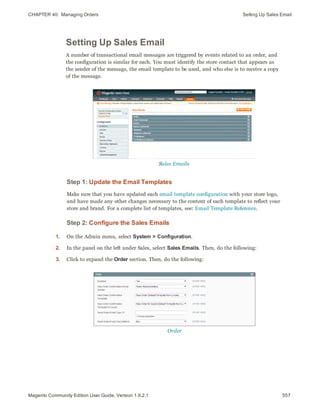
  • 368.
    Shopping Cart PriceRules CHAPTER 23:  Promotions 346 Magento Community Edition User Guide, Version 1.9.2.1 FIELD DESCRIPTION Uses per Customer Determines how many times the coupon code can be used by the same registered customer who belongs to any selected customer group. Does not apply to guest shoppers who are members of the NOT LOGGED IN customer group, or to customers who shop without logging in to their accounts. For no limit, leave blank. From Date The first date the coupon can be used. To Date The last date the coupon can be used. Priority A number that indicates the priority of this rule in relation to others. The highest priority is number 1. Public in RSS Feed Determines if the promotion is included in your store’s public RSS feed. Options: Yes / No. ACTIONS Apply Determines the type of calculation that is applied to the purchase. Options: Percent of product price discount Discounts item by subtracting a percentage from the original price. For example: Enter 10 in Discount Amount for an updated price that is 10% less than the original price. Fixed amount discount Discounts item by subtracting a fixed amount from original price. For example: Enter 10 in Discount Amount for an updated price that is $10 less than the original price. Fixed amount discount for whole cart Discounts the entire cart by subtracting a percentage from the cart total. For example: Enter 10 in Discount Amount to subtract 10% from the cart total. Buy X Get Y Free (discount amount is Y) Defines a quantity that the customer must purchase to receive a quantity for free. (The Discount Amount is Y.) Field Descriptions (cont.)
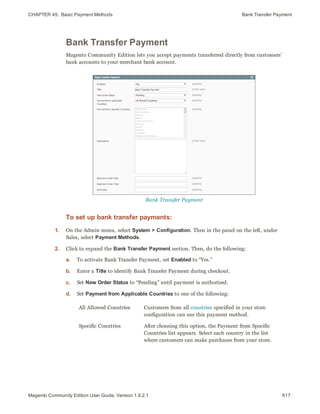
  • 369.
    CHAPTER 23:  PromotionsShopping Cart Price Rules FIELD DESCRIPTION Discount Amount (Required) The amount of discount that is offered. Maximum Qty Discount is Applied To Sets the maximum number of products that the discount can be applied to in the same purchase. Discount Qty Step (Buy X) Sets the number of products represented by “X” in a “Buy X Get Y Free” promotion. Apply to Shipping Amount Determines if the discount can be applied to the cost of shipping. Options: Yes / No. Free Shipping Determines if free shipping is included in the promotion, and if so, for which items. Options: No Free shipping is not available when a coupon that is based on the rule is used. For matching items only Free shipping is available only for specific items in the cart that match the rule. For shipment with matching items Free shipping is available for the entire cart when a coupon that is based on the rule is used. Stop Further Rules Processing Determines if additional rules can be applied to this purchase. To prevent multiple discounts from being applied to the same purchase, select “Yes.” Options: Yes / No DEFAULT LABEL Default Rule Label for All Store Views A default label that identifies the discount and can be used for all store views. Store View Specific Labels If applicable, a different label that identifies the discount for each store view. Field Descriptions (cont.) 347Magento Community Edition User Guide, Version 1.9.2.1
  • 370.
    Shopping Cart PriceRules CHAPTER 23:  Promotions 348 Magento Community Edition User Guide, Version 1.9.2.1 Coupon Codes Coupons codes can be associated with shopping cart price rules to apply a discount when a set of conditions is met. For example, a coupon code can be created for a specific customer group, or for anyone who makes a purchase over a certain amount. To apply the coupon to a purchase, the customer can enter the coupon code from the shopping cart page, or possibly at the cash register of your “brick and mortar” store. In-store Coupon for Mobile Users Here are a few ways that you can use coupons in your store: l Email coupons to customers l Produce printed coupons l Create in-store coupons for mobile users Coupon codes can be sent by email, or included in newsletters, catalogs, and advertisements. You can even create in-store coupons with a quick response code that shoppers can scan with their smart phones. The QR code links to a page on your site with more information about the promotion.
  • 371.
    CHAPTER 23:  PromotionsShopping Cart Price Rules Enter Coupon Code in Shopping Cart To set up a coupon code: 1. Follow the instructions to create a shopping cart price rule. 2. On the General Information page, do the following: a. Set Coupon to “Specific Coupon.” b. Do one of the following: l Enter a numeric Coupon Code to be used with the promotion. l Select the Use Auto Generation checkbox. c. To limit the number of times the coupon can be used, complete the following: l Uses per Coupon l Uses per Customer For unlimited use, leave these fields blank. d. To make the coupon valid for a limited period of time, complete the From Date and To Date fields. To select the date, click the Calendar button next to each field. If you leave the date range empty, the rule will never expire. 349Magento Community Edition User Guide, Version 1.9.2.1
  • 372.
    Shopping Cart PriceRules CHAPTER 23:  Promotions 350 Magento Community Edition User Guide, Version 1.9.2.1 Price Rule Coupon Code Settings 3. Follow the standard instructions to complete the shopping cart price rule. Auto-Generated Coupon Codes Batches of discount coupon codes can be formatted and generated automatically. Coupon codes can also be exported, and incorporated into other applications. For example, you might use a series of auto-generated coupon codes to produce printed coupons with unique codes. Generated Coupon Codes
  • 373.
    CHAPTER 23:  PromotionsShopping Cart Price Rules To configure auto-generated codes: 1. On the Admin menu, select System > Configuration. Then in the panel on the left under Customers, select Promotions. 2. Click to expand the Auto Generated Specific Coupon Codes section. Auto Generated Specific Coupon Codes 3. To create a specific format for your codes, enter the following: l Code Length l Code Format l Code Prefix l Code Suffix l Dash Every X Characters 4. When complete, click the Save Config button. These settings can be overridden from the Shopping Cart Price Rule page. To generate a batch of coupon codes: 1. On the Admin menu, select Promotions > Shopping Cart Price Rules. 2. Select an existing rule, or create a new one. 3. Set Coupon to “Specific Coupon.” Then, do the following: a. Select the Use Auto Generation checkbox. b. Complete the other rule settings as needed. 4. Click the Save and Continue Editing button. 5. In the panel on the left, select Manage Coupon Codes. Then, do the following: a. In the Coupon Qty field, enter the number of codes to be generated. b. Adjust the code format settings, as needed. c. Click the Generate button. 351Magento Community Edition User Guide, Version 1.9.2.1
  • 374.
    Shopping Cart PriceRules CHAPTER 23:  Promotions 352 Magento Community Edition User Guide, Version 1.9.2.1 The generated coupon codes appear below. The list shows how many times each coupon code has been used. To delete coupon codes: 1. In the list, select the checkbox of each code that you want to delete. 2. Set the Actions control to “Delete.” 3. Click the Submit button. When prompted, click OK to confirm. To export coupon codes: 1. In the list of generated codes, use the filter controls at the top of each column to display the codes that you want to export. 2. Set Export to to the file format that you want to use for the data file. 3. Click the Export button. FIELD SCOPE DESCRIPTION Code Length Global Defines the length of the coupon code, excluding the prefix, suffix and separators. Code Format Global Defines the coupon code format. Options: Alphanumeric Any combination of letters and numbers. Alphabetical Letters only. Numeric Numbers only. Code Prefix Global A value appended to the beginning of all coupon codes. Leave blank to omit the prefix. Code Suffix Global A value appended to the end of all codes. Leave blank to omit the suffix. Dash Every X Characters Global An interval where a dash (-) can be inserted into all coupon codes. If you do not want to use a dash, leave the field blank. Coupon codes that differ by only a dash are considered to be different codes. Field Descriptions
  • 375.
    CHAPTER 23:  PromotionsShopping Cart Price Rules Coupon Report To learn how your coupons are used, you can run a detailed coupon usage report for each website, store, or view. To generate a coupon report: 1. On the Admin menu, select Reports > Sales > Coupons. 2. In the upper-right corner, set Show Report For to define the scope of the report. 3. Set the filters as needed. Then, do one of the following: l To include coupon codes from all price rules in the report, set Shopping Cart Price Rule to “Any.” l To include coupon codes related to specific rules, set Shopping Cart Price Rule to “Specified.” Then, select the rules that you want to include in the report. 4. When complete, click the Show Report button. Coupon Usage Report 353Magento Community Edition User Guide, Version 1.9.2.1
  • 376.
    Shopping Cart PriceRules CHAPTER 23:  Promotions 354 Magento Community Edition User Guide, Version 1.9.2.1 Free Shipping Promotion Free shipping can be offered as a promotion, either with, or without a coupon. A free shipping coupon, or voucher, can also be applied to customer pick-up orders, so the order can be invoiced and “shipped” to complete the workflow. Some shipping carrier configurations give you the ability of offer free shipping based on a minimum order. To expand upon this basic capability, you can use shopping cart price rules to create complex conditions based on multiple product attributes, cart contents, and customer groups. Process Overview: Step 1: Enable Free Shipping Step 2: Create the Shopping Cart Price Rule Step 3: Test the Rule Step 1: Enable Free Shipping 1. Enable the Free Shipping method in the configuration of your store. 2. Complete the free shipping settings for any carrier service that you want to use for free shipping. Step 2: Create the Shopping Cart Price Rule 1. On the Admin menu, select Promotions > Shopping Cart Price Rules. 2. Follow the steps below to set up the type of free shipping promotion that you want to offer. 3. When complete, click the Save Rule button. When you create a new price rule, it might take an hour or so for it to become available. Allow enough time for it to get into the system. Then, test the rule to make sure that it works correctly. Unless otherwise specified, price rules are automatically processed with other system rules each night. Example 1: Free Shipping for Any Order 1. Complete the General Information settings as follows: a. Enter a Rule Name for internal reference. b. Set Status to “Active.” c. Set Website to “Main Website.” (Click to make sure the entry is selected.) d. Select the Customer Groups to which the rule applies.
  • 377.
    CHAPTER 23:  PromotionsShopping Cart Price Rules e. Do one of the following: l To offer a free shipping promotion without a coupon, accept the default, “No Coupon” setting. l To use a coupon with the price rule, set Coupon to “Specific Coupon.” If necessary, complete the instructions to set up a coupon. 2. In the panel on the left, select Actions. Then, do the following: a. Set Apply to “Percent of product price discount.” b. Set Apply to Shipping Amount to “Yes.” c. Set Free Shipping to “For shipment with matching items.” Price Rule Action 3. In the panel on the left, select Labels. Then, do one of the following: l Enter a Default Rule Label for All Store Views. This label is visible to the customer. l If your store is available in multiple stores, enter a label for each view, as needed. 4. When complete, click the Save Rule button. Example 2: Free Shipping for Orders Over $Amount 1. Complete the General Information settings as follows: a. Enter a Rule Name for internal reference. b. Set Status to “Active.” c. Set Website to “Main Website.” (Click to make sure the entry is selected.) d. Select the Customer Groups to which the rule applies. e. Do one of the following: 355Magento Community Edition User Guide, Version 1.9.2.1
  • 378.
    Shopping Cart PriceRules CHAPTER 23:  Promotions 356 Magento Community Edition User Guide, Version 1.9.2.1 l To offer a free shipping promotion without a coupon, accept the default, “No Coupon” setting. l To use a coupon with the price rule, set Coupon to “Specific Coupon.” If necessary, follow the instructions to set up a coupon. 2. In the panel on the left, select Conditions. 3. Click the Add button to insert a condition. Then, do the following: a. In the list under Cart Attribute, click Subtotal. b. Click the underlined is link, and select “equals or greater than.” c. Click the … “more” link, and enter a threshold value for the Subtotal, such as 100, to complete the condition. 4. In the panel on the left, select Actions. Then, do the following: a. Set Apply to “Percent of product price discount.” b. Set Apply to Shipping Amount to “Yes.” c. Set Free Shipping to “For shipment with matching items.” 5. In the panel on the left, select Labels. Then, do one of the following: l Enter a Default Rule Label for All Store Views. The label is visible to the customer during checkout. l If your store is available in multiple views, enter a label for each view, as needed. 6. When complete, click the Save Rule button. Step 3: Test the Rule When you create a new price rule, it might take an hour or so for it to become available. Allow enough time for it to get into the system. Then, test the rule to make sure that it works correctly. Unless otherwise specified, price rules are automatically processed with other system rules each night.
  • 379.
    CHAPTER 23:  PromotionsShopping Cart Price Rules Buy X Get Y Free This example shows how to set up a shopping cart price rule for a “Buy X, Get Y Free” promotion. The format of the discount is as follows: Buy X quantity of product, get Y quantity for free. Process Overview: Step 1: Create a Shopping Cart Price Rule Step 2: Define the Conditions Step 3: Define the Actions Step 4: Complete the Label Step 5: Apply the Rule Step 1: Create a Shopping Cart Price Rule Complete Step 1 of the shopping cart price rule instructions to create a shopping cart rule with the general information. Step 2: Define the Conditions Complete Step 2 of the shopping cart instructions to define the conditions for the price rule. The conditions can be triggered by purchasing a specific product, making a purchase of a certain amount, or any other scenario. Step 3: Define the Actions 1. In the panel on the left, select Actions. Then, do the following: a. Set Apply to “Buy X get Y free (discount amount is Y).” b. Set Discount Amount to 1. This is the quantity the customer will receive for free. c. To limit the number of discounts that can be applied when the condition is met, enter the number in the Maximum Qty Discount is Applied To field. For example, enter “1” to discount only one item. d. In the Discount Qty Step (Buy X) field, enter the quantity that the customer must purchase to qualify for the discount. 357Magento Community Edition User Guide, Version 1.9.2.1
  • 380.
    Shopping Cart PriceRules CHAPTER 23:  Promotions 358 Magento Community Edition User Guide, Version 1.9.2.1 Buy X Get Y Free 2. Click the Save and Continue Edit button. Then, complete the rest of the rule as needed. Step 4: Complete the Label Complete Step 4 of the shopping cart price rule instructions to enter the label that appears during checkout. Step 5: Apply the Rule 1. When complete, click the Save Rule button. 2. When you create a new price rule, it might take an hour or so for it to become available. Allow enough time for it to get into the system. Then, test the rule to make sure that it works correctly. Unless otherwise specified, price rules are automatically processed with other system rules each night.
  • 381.
    CHAPTER 23:  PromotionsShopping Cart Price Rules Discount with Minimum Purchase Shopping cart price rules can be used to offer a percentage discount based on a minimum purchase. In the following example, a 25% discount is applied to all purchases over $200.00 in a specific category. The format of the discount is as follows: X% off all Y (category) over $Z dollars Process Overview: Step 1: Create a Shopping Cart Rule Step 2: Define the Conditions Step 3: Define the Actions Step 1: Create a Shopping Cart Rule Follow the basic instructions to create a shopping cart rule. Step 2: Define the Conditions 1. In the panel on the left, select Conditions. 2. Click the Add button at the beginning of the next line, and select Product Attribute Combination. Product Attribute Combination 3. Click the Add button at the beginning of the next line. If an Item is FOUND 359Magento Community Edition User Guide, Version 1.9.2.1
  • 382.
    Shopping Cart PriceRules CHAPTER 23:  Promotions 360 Magento Community Edition User Guide, Version 1.9.2.1 4. In the list under Product Attribute, click Category. Choose Condition to Add a. Click the … “more” link to display additional options. Category IS b. Click the Chooser button to display the available categories. Then in the category tree, select the checkbox of each category that you want to include. Category Tree c. Click the Select button at the end of the line to add the categories to the condition.
  • 383.
    CHAPTER 23:  PromotionsShopping Cart Price Rules Category Condition 5. Click the Add button at the beginning of the next line, and do the following: a. In the list under Product Attribute, select Price. a. Click the first underlined parameter, IS. Then in the list, select “equals or greater than.” Price Equals or Greater Than b. Click the ... “more” link to display the price field. Then, enter the amount that the price must be to meet the condition. For example, enter 200.00. Enter the Price to Complete the Condition 6. Click the Save and Continue Edit button. 361Magento Community Edition User Guide, Version 1.9.2.1
  • 384.
    Shopping Cart PriceRules CHAPTER 23:  Promotions 362 Magento Community Edition User Guide, Version 1.9.2.1 Step 3: Define the Actions 1. In the panel on the left, select Actions. Then, do the following: Actions a. Set Apply to “Percent of product price discount.” b. Enter the Discount Amount. For example, enter 25 for a twenty-five percent discount. c. If you want to prevent the purchase from qualifying for additional promotions, set Stop Further Rules Processing to “Yes.” 2. Click the Save and Continue Edit button. Then, complete the rule as needed.
  • 385.
    363Magento Community EditionUser Guide, Version 1.9.2.1 CHAPTER 24: Shopping Tools Your store includes a set of shopping tools that create opportunities for your customers to interact with your store, and to share the experience with friends. Topics in this chapter : l Wishlists l Compare Products l Recently Viewed / Compared Products l Product Reviews l Tags l Polls l Email a Friend l Gift Options Commerce Resources See the latest Magento eBooks to gain access to expert insight and online business resources to help develop and improve your store.
  • 386.
    Customer Engagement CHAPTER24:  Shopping Tools 364 Magento Community Edition User Guide, Version 1.9.2.1 Customer Engagement Wishlist The Wishlist block displays the items from the customer’s wishlist. Compare Products The Compare Products block lets your customers quickly compare the features of one product with another. Product Reviews Product reviews help build a sense of community, and are considered to be more credible than any advertising money can buy. Tags Tags help customers organize and remember the products that they have seen, offer quick navigation, and help search engines index your store.
  • 387.
    CHAPTER 24:  ShoppingTools Customer Engagement Polls The Poll block displays a series of polls or surveys that you can use to learn more about your customers. Email a Friend The Email a Friend link makes it easy for your customers to share links to products with their friends. 365Magento Community Edition User Guide, Version 1.9.2.1
  • 388.
    Wishlists CHAPTER 24: Shopping Tools 366 Magento Community Edition User Guide, Version 1.9.2.1 Wishlists A wishlist is a list of products that registered customers can share with friends or transfer to their shopping carts at a later date. When wishlists are enabled, the Add to Wishlist link appears on the category and product pages of your store. Depending on the theme, it might be a text link or a graphic image. Add to Wishlist Links on Category Page Wishlist Workflow Shared wishlists are sent from a store email address, but the body of the message contains a personalized note from the customer. You can customize the email template that is used for the notification message when wishlists are shared, and choose the store contact that appears as the sender. Each wishlist can be maintained in the customer’s account dashboard, where it can be updated, and used to add products to the shopping cart. Wishlists can be set to public or private, and shared with friends. Items can be transferred between the wishlist and shopping cart by the customer or from the Admin. When a product with multiple options is added to a wishlist, any options that have been selected by the customer are included in the wishlist item description. For example, if the customer adds the same pair of shoes, but in three different colors, each pair appears as a separate wishlist item. On the other hand, if the customer adds the same product to the wishlist multiple times, the product
  • 389.
    CHAPTER 24:  ShoppingTools Wishlists appears in the wishlist only once, but with an updated quantity that reflects the number of times the product was added. Customers can update their wishlists from their account dashboard. Merchants can also update a customer’s wishlist from the Admin. Updating Wishlists Customers can manage their wishlist from the customer account dashboard. Store administrators can manage customer wishlists from the Admin. To update the wishlist from “My Account:” 1. From the customer account dashboard, in the panel on the left, click Wishlists. 2. To view the current options for an item, point to View Details. 3. To update the selection of product options, click Edit. 4. On the product page, update the quantity and selected options as needed. 5. When complete, click Update Wishlist. If the options don’t appear in the wishlist, return to the product page to make sure that they are selected. Customer Dashboard with Wishlist 367Magento Community Edition User Guide, Version 1.9.2.1
  • 390.
    Wishlists CHAPTER 24: Shopping Tools 368 Magento Community Edition User Guide, Version 1.9.2.1 To update wishlist items from the Admin: 1. On the Admin menu, select Customers > Manage Customers. 2. Find the customer in the list, and click to open the record. 3. In the Customer Information panel on the left, click Wishlist. 4. Find the item to be edited in the list. Any options selected for the product appear below the product name. To edit the product options, do one of the following: l Select the checkbox for the item. Then, set the Action control to "Configure" and click Submit. l Click the Configure link. 5. On the product page, update the Quantity and selected options as needed. 6. When complete, click Update Wishlist. Wishlist Reports A customer Wishlist report includes the following information for each wishlist the customer has created: l The date when a product was added l The customer name l The wishlist name and status (public or private) l The product name and SKU l Customer comments l Quantity of the product in the Wishlist, quantity currently available in the store, and the difference between these two values. You can choose to see a report for the entire website or for an individual store view. The scope is selected in the Show Report For field. The report can be exported to .csv or Excel .xml format. To generate a wishlist report: On the Admin menu, select Reports > Customers > Customers Wishlist.
  • 391.
    CHAPTER 24:  ShoppingTools Compare Products Compare Products The Compare Products block usually appears in the far right column, or sidebar of the category page, and can be used to generate a detailed, side-by-side comparison of two or more products. You can customize the report to include additional attributes or remove ones that you don’t want to include. Depending on the theme, the Add to Compare link can be represented by an icon or a link. Compare Products To compare products: 1. From your storefront, find the products that you want to compare, and click the Add to Compare link for each. 2. In the Compare Products block in the right sidebar, click the Compare button. The Compare Products report opens in a new window. 3. To print the report, click Print This Page. 4. To clear the Compare Products list, click the Clear All link. 369Magento Community Edition User Guide, Version 1.9.2.1
  • 392.
    Compare Products CHAPTER24:  Shopping Tools 370 Magento Community Edition User Guide, Version 1.9.2.1 Compare Products Report
  • 393.
    CHAPTER 24:  ShoppingTools Recently Viewed/Compared Products Recently Viewed/Compared Products The Recently Viewed and Recently Compared blocks usually appear in the right sidebar of a catalog page. The number of products listed in each block can be configured for each website, store, or store view. Recently Viewed 371Magento Community Edition User Guide, Version 1.9.2.1
  • 394.
    Recently Viewed/Compared ProductsCHAPTER 24:  Shopping Tools 372 Magento Community Edition User Guide, Version 1.9.2.1 To configure Recently Viewed/Compared Products: 1. On the Admin menu, select System > Configuration. Then in the panel on the left under Catalog, select Catalog. 2. Click to expand the Recently Viewed/Compared Products section. Then, do the following: Recently Viewed/Compared Products a. Set Show for Current to the website, store, or store view where the configuration applies. b. In the Default Recently Viewed Products Count field, enter the number of recently viewed products to appear in the list. c. In the Default Recently Compared Products Count, enter the number of recently compared products to appear in the list. 3. When complete, click the Save Config button.
  • 395.
    CHAPTER 24:  ShoppingTools Product Reviews Product Reviews Product reviews help to build a sense of community, and are considered more credible than any advertising money can buy. In fact, some search engines give sites with product reviews a higher ranking than those without. For those who find your site by searching for a specific product, a product review is essentially the landing page of your store. Product reviews help people find your store, keep them engaged, and often lead to sales. The configuration determines whether customers must open an account with your store to be write a product review, or can submit a review as a guest. Requiring reviewers to open an account with your store can improve the quality of reviews by preventing anonymous submissions. Add Your Review Customers can write reviews for any product in your catalog. Reviews can be written from the product page by clicking the “Add Your Review” link. For products that haven't been reviewed, the link says, “Be the first to review this product.” The number of stars indicates the satisfaction rating. Visitors can click the link to read the reviews and write their own. As an incentive, customers can receive reward points for submitting a review. When a review is submitted, it is sent to the Admin for moderation. When approved, the review is published in your store. 373Magento Community Edition User Guide, Version 1.9.2.1
  • 396.
    Product Reviews CHAPTER24:  Shopping Tools 374 Magento Community Edition User Guide, Version 1.9.2.1 To configure product reviews: 1. On the Admin menu, select System > Configuration. T hen in the panel on the left, under Catalog, select Catalog. 2. Click to expand the Product Reviews section. Product Reviews 3. Set Allow Guests to Write Reviews according to your preference. 4. When complete, click the Save Config button. Write a Product Review
  • 397.
    CHAPTER 24:  ShoppingTools Product Reviews To moderate reviews: 1. On the Admin menu, select Catalog > Reviews and Ratings > Customer Reviews > Pending Reviews. Pending Reviews 2. In the list, click a pending review to view the details, and edit if necessary. 3. To approve a pending review, change the Status from “Pending” to “Approved.” To reject a review, select “Not Approved.” 4. When complete, click the Save Review button. Custom Ratings By default, customer can rate the quality, price, and value of a product. In addition, you can add your own custom ratings that relate to your products and customers. The average rating for each product appears in catalog lists and on the product page. Manage Ratings 375Magento Community Edition User Guide, Version 1.9.2.1
  • 398.
    Tags CHAPTER 24: Shopping Tools 376 Magento Community Edition User Guide, Version 1.9.2.1 To create your own ratings: 1. On the Admin menu, select Catalog > Reviews and Ratings > Manage Ratings. 2. In the upper-right corner, click the Add New Rating button. 3. In the Rating Title section, enter the Default Value for the new rating. Then, enter the translation for each language supported by your store. Rating Title 4. In the Rating Visibility section, set Visibility In to the store view where the rating will be used. (Hold down the Ctrl key to select multiple options.) 5. In the Sort Order field, enter a number to determine the sequence that this rating appears in the list of ratings. Rating Visibility 6. When complete, click the Save Rating button. Tags Tags are one-word descriptors that are used as keywords for your catalog. Tags can be assigned to products by registered customers who are logged in, and also by guests. Tags help customers organize and remember the products that they have seen, offer quick navigation, and help search engines index your store. The tags that customers assign to a product appear on the Customers Tagged Product tab of the product record. The detail includes the tag, the customer name, and email address. A tag cloud typically appears in the Popular tags block in the right sidebar of catalog pages. The size of the text indicates the popularity of the tag. Each product page has an “Tag this Product” section at the bottom of the page, where shoppers can enter their own tags. As an incentive, customers can earn reward points for tagging a product.
  • 399.
    CHAPTER 24:  ShoppingTools Tags Popular Tags To add a tag from the store: 1. From any product page, scroll down to the Tag this Product section. Tag this Product 2. In the Add a Tag text box, type the tag you want to associate with the product. l To enter multiple tags, separate each with a blank space. l To enter a phrase, enclose the text in single quotes. 3. Click the Add Tags button. The tag will be submitted for review and published on the site when approved. 377Magento Community Edition User Guide, Version 1.9.2.1
  • 400.
    Tags CHAPTER 24: Shopping Tools 378 Magento Community Edition User Guide, Version 1.9.2.1 Products Tagged by Administrators There’s no reason to wait for customers to tag products. The store administrator can apply new tags to products, and reuse existing tags. Products Tagged by Administrators To add a new tag: 1. On the Admin menu, select Catalog >Tags > All Tags. 2. In the upper-right corner, click the Add New Tag button. Then, do the following: a. Enter the Tag Name. b. Set Status to “Approved.” c. In the Base Popularity field, enter a numeric value to assign a weight to the tag. The number assigns a base value to the tag and increases its size in the tag cloud. 3. When complete, click the Save Tag button. To apply an existing tag to specific products: 1. In the Manage Tags list, click to open the tag. 2. Click to expand the Products Tagged by Administrators section. Then, do the following: a. Click the Reset Filter button to display all product records. b. Select the checkbox of each product that you want to tag. 3. When complete, click the Save Tag button. The products now appear in the list of Products Tagged by Administrators.
  • 401.
    CHAPTER 24:  ShoppingTools Tags Moderating Tags After a customer submits a product tag, an administrator must approve the tag before it becomes visible in the store. After a tag has been approved, it can be used for other products without further approval. Changing the Status of Pending Tags The remaining sections give you a snapshot of the tag activity, including which customers have used the tag, and products tagged by the store administrator and customers. Customers Submitted this Tag You can jump to a specific customer or product by clicking its row in the list. Products Tagged by Customers To approve multiple tags: 1. On the Admin menu, select Catalog > Tags > Pending Tags. Then in the list, click to open a pending tag. 2. In the list, select the checkbox of each tag that you want to approve. 3. Set the Actions control to “Change Status.” Then, set the Status control to “Approved.” 4. When complete, click the Submit button. 379Magento Community Edition User Guide, Version 1.9.2.1
  • 402.
    Polls CHAPTER 24: Shopping Tools 380 Magento Community Edition User Guide, Version 1.9.2.1 To manage a single tag: 1. On the Admin menu, select Catalog >Tags > Pending Tags. Then in the list, click to open a pending tag. Editing a Tag 2. If necessary, you can edit the text as needed. Then, do one of the following: l To approve and publish the pending tag, set Status to “Approved.” l To reject the tag, set Status to “Disapproved.” 3. When complete, click the Save Tag button. Polls Polls make it easy to learn about your customers’ opinions and preferences. The poll occupies a small amount of space and is usually placed in the right sidebar of a catalog page. Poll results appear immediately after a response is submitted. If you create multiple polls, a new poll appears each time the page is refreshed. Original Poll and Results
  • 403.
    CHAPTER 24:  ShoppingTools Polls To create a poll: 1. On the Admin menu, select CMS > Polls. 2. In the upper-right corner of the Poll Manager, click the Add New Poll button. 3. In the Poll Information section, do the following: Poll Information a. Enter the Poll Question. b. By default, Status is set to “Open.” If you later want to remove the poll from your store, set Status to “Closed.” c. Set Visible In to the store view where you want the poll to appear. 4. In the panel on the left, select Poll Answers. Then, for each answer, do the following: a. Click the Add New Answer button. Then, do the following: Assigned Answers a. In the Answer Title field, enter the answer as you want it to appear in the poll. b. To weight an answer, enter a number in the Votes Count field. The number will increment each time a customer chooses the answer. 5. Click the Save Poll button to save your poll. 381Magento Community Edition User Guide, Version 1.9.2.1
  • 404.
    Polls CHAPTER 24: Shopping Tools 382 Magento Community Edition User Guide, Version 1.9.2.1 To prevent multiple voting: You can protect the poll results by preventing people from voting multiple times from the same computer. 1. On the Admin menu, select System > Configuration. Then in the panel on the left under General, select Web. 2. Click to expand the Polls section. Polls 3. Set Disallow Voting in a Poll Multiple Times from Same IP Address to “Yes.” 4. When complete, click the Save Config button. To edit a poll: 1. From the Poll Manager list, click to open the poll in edit mode. Then, make the necessary changes. l To close the poll so that it no longer appears in the store, set Status to “Closed.” l To see the vote count for each answer, click Poll Answers in the panel on the left. 2. When complete, click the Save Poll button. Poll Answer Count
  • 405.
    CHAPTER 24:  ShoppingTools Email a Friend Email a Friend The Email a Friend link makes it easy for your customers to share links to products with their friends. In the Magento demo store, the Email a Friend link appears as an envelope icon. The automated message that is sent from your store is referred to as transactional email. The message template can be customized for your voice and brand. To prevent spamming, you can limit the number of recipients for each email, and the number of products that can be shared over a one-hour period. Email a Friend To configure email to a friend: 1. On the Admin menu, select System > Configuration. Then in the panel on the left under Catalog, select Email to a Friend. 2. Click to expand the Email Templates section. Then, do the following: Email Templates 383Magento Community Edition User Guide, Version 1.9.2.1
  • 406.
    Email a FriendCHAPTER 24:  Shopping Tools 384 Magento Community Edition User Guide, Version 1.9.2.1 a. Set Enabled to “Yes.” b. Set Select Email Template to the template you want to use as the basis of the messages. c. If you want to require that only registered customers can send email to friends, set Allow for Guests to “No.” d. In the Max Recipients field, enter the maximum number of friends who can be on the distribution list for a single message. e. In the Max Products Sent in One Hour field, enter the maximum number of products that can be shared by a single user with friends over a one-hour time period. f. Set Limit Sending By to one of the following methods to identify the sender of emails: IP Address (Recommended) Identifies the sender by the IP address of the computer that is used to send the emails. Cookie (unsafe) Identifies the sender by browser cookie. This method is less effective because the sender can delete the cookie to bypass the limit. 3. When complete, click the Save Config button. To send email to a friend: 1. On a catalog page, click the Email a Friend link. When prompted, either log into your customer account or register to open an account. 2. Complete the Message and enter the recipient Name and Email Address. To send the message to more than one person, click the Add Another Recipient link and complete the information for each person. 3. When ready to send the message, click the Send Email button.
  • 407.
    CHAPTER 24:  ShoppingTools Gift Options Email to a Friend Form Gift Options At checkout, customers are presented with the available gift options during the Shipping Method step of the process. If the customer chooses to add gift options, two groups of checkboxes appear: Gift Options for Entire Order and Gift Options for Individual Items. The Gift Options configuration determines if customers have the option to add a gift message for the complete order, and for individual items. The gift options must be configured first for the website, and can then be overridden at the product level. Gift Options During Checkout 385Magento Community Edition User Guide, Version 1.9.2.1
  • 408.
    Gift Options CHAPTER24:  Shopping Tools 386 Magento Community Edition User Guide, Version 1.9.2.1 To enable gift options: 1. On the Admin menu, select System > Configuration. Then in the panel on the left, under Sales, select Sales. 2. Click to expand the Gift Options section. Gift Options 3. Set the following options according to your preference: l Allow Gift Messages on Order Level l Allow Gift Messages for Order Items 4. When complete, click the Save Config button.
  • 409.
    387Magento Community EditionUser Guide, Version 1.9.2.1 CHAPTER 25: Newsletters Publishing a regular newsletter is considered to be one of the most powerful and affordable marketing tools available. Magento Community Edition gives store administrators the ability to publish and distribute newsletters to customers who have registered to receive them, plus all the tools necessary to Promote your newsletter, build and manage your list of subscribers, develop content, maintain an archive of back issues, and drive traffic to your store. Topics in this chapter: l Newsletter Setup l Newsletter Templates l Newsletter Queue
  • 410.
    Newsletter Configuration CHAPTER25:  Newsletters 388 Magento Community Edition User Guide, Version 1.9.2.1 Newsletter Configuration The first step in creating newsletters is to configure the newsletter settings for your site. You can require customers to confirm the registration by clicking a confirmation link sent by email. This technique is called double opt-in, because customers must confirm twice that they want to receive a newsletter. This method reduces the number of customers that might otherwise consider your newsletter as spam. To configure subscription options: 1. On the Admin menu, select System > Configuration. Then in the panel on the left under Customers, select Newsletter. 2. Click to expand the Subscription Options section. Then, do the following: Subscription Options a. Confirm the email templates and senders of the following email messages sent to subscribers: l Success email l Confirmation email l Unsubscription email b. To require people to double-opt in to confirm their subscription, set Need to Confirm to “Yes.” c. To allow people who do not have an account with your store to subscribe to the newsletter, set Allow Guest Subscriptions to “Yes.” d. When complete, click the Save Config button.
  • 411.
    CHAPTER 25:  NewslettersNewsletter Templates Newsletter Templates Before sending a newsletter, create a newsletter template. You can create and save as many of these as required for any situation, from an annual holiday newsletter to a weekly product update. Newsletter Template To create a newsletter template: 1. On the Admin menu, select Newsletter > Newsletter Templates. The page lists the available newsletter templates. You can edit an existing template or create a new one. 2. To add a new template, click the Add New Template button. Then, do the following: a. In the Template Name field, specify a unique and indicative name for this template. This value is not visible for customers. b. In the Template Subject field, specify the subject of the email to be sent to your customers. c. In the Sender Name and Sender Email fields, specify the name and email of the sender of the email to be sent to your customers. d. In the Template Content field, use the WYSIWYG editor to compose the body of the email. Note that this field is pre-filled with tags showing an unsubscribe link in the email. We recommend that you do not remove this link so that all emails that are sent enable your customers to unsubscribe from the newsletter. e. Click Preview Template, to display the content with the formatting as it will be viewed by your subscribers. 3. When complete, click the Save Template button. After you have saved a template, a Save As button appears when you edit this template. You can use the Save As button, so you can make changes and save it as a new template, without affecting the original. This can save you time because you will not need to re-enter 389Magento Community Edition User Guide, Version 1.9.2.1
  • 412.
    Newsletter Queue CHAPTER25:  Newsletters 390 Magento Community Edition User Guide, Version 1.9.2.1 all the template information in order to create a new template. If you already have an existing template that is similar to the new template, simply edit the fields that you require, and then use the Save As button to create a new template. Newsletter Queue A newsletter that has many recipients must be sent in stages. The process of sending the newsletter is managed by a queue. After you start the queue, Magento sends the emails in packs. To ensure delivery of your newsletters, it is recommended that you integrate your Magento installation with a third-party newsletter provider. These services are “white listed” by email service providers. Look for newsletter providers in Magento Connect. To send your newsletter using a queue: 1. On the Admin menu, select Newsletter > Newsletter Templates. 2. Set the Actions control to the relevant template. Then, select Queue Newsletter. 3. In the Queue Date Start field, specify when the newsletter will start being sent. 4. In the Subscribers From field, select one or more store views whose customers this newsletter will be sent to. 5. Review the template and parameters and then click the Save Newsletter button to schedule sending the newsletter.
  • 413.
    391Magento Community EditionUser Guide, Version 1.9.2.1 CHAPTER 26: Sales Channels Publishing your catalog through multiple channels is an effective way to widen your distribution without much effort. You can start by syndicating your content with RSS feeds, and then expand by sending your catalog data to shopping aggregators and marketplaces. Topics in this chapter: l Google Shopping l RSS Feeds l Social Marketing
  • 414.
    Google Shopping CHAPTER26:  Sales Channels 392 Magento Community Edition User Guide, Version 1.9.2.1 Google Shopping Google Shopping is a Google AdWords service that publishes product feeds from merchant catalogs. Any Simple product from your catalog can be uploaded to Google Shopping. Each product attribute is mapped to Google and used as search parameters by customers who are searching for products. After mapping the product attributes to synchronize with Google Content attributes, you can publish products from your store on Google Shopping. To use Google Shopping, you need both a Google Merchant account and a Google AdWords account. To learn more, visit the Google Ads Shopping page on their site. The following instructions show how to set Google Content for your store. You can also find extensions on Magento Connect that might streamline the process. Google Shopping Process Overview Step 1: Set Up Your Google Accounts Step 2: Configure Your Store for Google Shopping Step 3: Map Your Product Attributes Step 4: Add Your Google Content Items Step 5: Manage Your Content
  • 415.
    CHAPTER 26:  SalesChannels Google Shopping Step 1: Set Up Your Google Accounts 1. Visit Google Merchant Center, and sign up for an account. Complete the following steps in the Beginner’s Guide: l Open your Merchant account l Set up your account l Verify and claim your website URL Google Merchant Center Help 2. Write down the following information from your Google account: l Account ID l Account Login l Account Password l Account Type l Target Country Step 2: Configure Your Store for Google Shopping 1. Log in to the Admin of your store. Then on the Admin menu, select System > Configuration. 2. In the panel on the left under Sales, select Google API. 3. Click to expand the Google Shopping section, and do the following: 393Magento Community Edition User Guide, Version 1.9.2.1
  • 416.
    Google Shopping CHAPTER26:  Sales Channels 394 Magento Community Edition User Guide, Version 1.9.2.1 a. Enter the following information from your Google merchant account: l Account ID l Account Login l Account Password l Account Type l Target Country b. Set Update Google Shopping Item When Product Is Updated to “Yes.” c. Set Debug to “No.” You can change this setting later, if necessary. d. Under Destinations, select each place where you want your products to be listed. Each destination can be set to Default, Required, or Excluded. l Google Product Search l Product Ads l Commerce Search Default Your updates are submitted using the Google default settings. Required The update must be submitted to the required destination. If the update does not pass Google’s validation rules, you receive notification of validation errors, and the update is not submitted to any destination. Excluded The update is not submitted to this destination, but it can still be submitted to other destinations, depending on the settings. Google Shopping 4. When complete, click the Save Config button.
  • 417.
    CHAPTER 26:  SalesChannels Google Shopping Step 3: Map Your Product Attributes In this step, you will map your attribute sets to match Google item types and attributes, so Google can retrieve your product information. During the process, you will add the attributes you want to upload from your catalog to Google Content. In addition to the two required attributes, Product Type and Product Condition, it is recommended that you include the Title, Description and Price in the attribute section. In addition to these, you should include any other attributes that will help people find the product. To learn more about mapping different product types, see Google’s Summary of Attribute Requirements. REQUIRED RECOMMENDED Product Type Condition Title Description Price Product Attributes Because Condition is a required field, why not create a drop-down attribute called “condition” with the values “New” and “Used” before you begin? Then, add it to the attribute set that you are mapping. 1. On the Admin menu, select Catalog > Google Content > Manage Attributes. 2. Click the Add Attribute Mapping button. Then do the following: a. Select the Target Country where your business is located. b. In the Attribute Set list, select the first attribute set you want to map. For example: Clothing. Add Attribute Mapping 3. To begin mapping attributes, click the Add New Attribute button. Then do the following: a. Set Target Country to where the products are available for sale. b. Choose the first Attribute Set from your catalog that you want to map. c. Set the Google Product Category to the best match for your catalog’s attribute set. For example, the closest match for “Clothing” is “Apparel & Accessories.” 395Magento Community Edition User Guide, Version 1.9.2.1
  • 418.
    Google Shopping CHAPTER26:  Sales Channels 396 Magento Community Edition User Guide, Version 1.9.2.1 New Attribute Set Mapping 4. When that attribute set is mapped, click the Add New Attribute button to map the individual attributes. Then, do the following: a. Select an Attribute from your store. Then, find the Google Content Attribute that is the best match. b. Click Add New Attribute to map the next attribute that you want to use. c. Repeat these steps until you have mapped all the attributes that you need. Attribute Mapping 5. When complete, click the Save Mapping button.
  • 419.
    CHAPTER 26:  SalesChannels Google Shopping Mapping Complete Step 4: Add Your Google Content Items After you finish mapping, the next step is to select the products that you want to publish to Google Content. From this page, you can publish, delete, and synchronize your products to Google Content. After the products are synchronized, you can view the status and expiration date of each product, the number of clicks and impressions it has received.  1. On the Admin menu, select Catalog > Google Content > Manage Items. 2. Use the list and filter controls to find the products that you want. Then, select the checkbox of each product you want to add to Google Content. 3. When you finish selecting products, set the Actions control to “Add to Google Content.” Then click the Submit button. 397Magento Community Edition User Guide, Version 1.9.2.1
  • 420.
    Google Shopping CHAPTER26:  Sales Channels 398 Magento Community Edition User Guide, Version 1.9.2.1 Add Your Products Step 5: Manage Your Content It can take up to twenty-four hours for a product to be published in Google Content, and products do not immediately appear in the Manage Items list. Changes also can take up to a day to process. After you make changes, you can synchronize your content Google Shopping. After completing the configuration, return to your Google merchant account to make sure that your products appear. If they don’t appear, make sure that the Country setting in the upper-right corner is correct. When your product feed is live, you can view the number of impressions and clicks from the Manage Items page.
  • 421.
    CHAPTER 26:  SalesChannels Social Media Social Media There are many social marketing extensions that can be added to your store. To learn more, see: Magento Connect. Social Marketing Extensions 399Magento Community Edition User Guide, Version 1.9.2.1
  • 422.
    Social Media CHAPTER26:  Sales Channels 400 Magento Community Edition User Guide, Version 1.9.2.1 Adding Facebook Plugins Facebook has a number of social plugins that can easily be added to your store. The following example shows how to add a Like Button to your store. Facebook Plugins Step 1: Get the Button Code 1. On the Facebook site, go to the button setup page. 2. In the URL to Like field, enter the URL of the page in your store that you want people to Like. For example, enter the URL of your store’s home page. Then, do the following: a. Choose the Layout for the button. b. Enter the Width in pixels that is available on your site for the button and any associated text message. c. Set Action Type to one of the following: l Like l Recommend 3. Click the Get Code button to copy the generated code to the clipboard.
  • 423.
    CHAPTER 26:  SalesChannels Social Media Like Button Setup Step 2: Create a Static Block 1. Return to your store. On the Admin menu, select CMS > Static Blocks. 2. In the upper-right corner, click the Add New Block button. Then, do the following: a. Enter a descriptive Block Title. For example: Facebook Like Button. b. Assign a unique Identifier to the block, using all lowercase characters, with underscores instead of spaces. For example: facebook_like_button. c. Select the Store View(s) where you want the block to appear. d. Set Status to “Enabled.” e. Paste the snippet of code that you copied from Facebook into the Content box. 3. When complete, click the Save Block button. Step 3: Place the Block 1. On the Admin menu, select CMS > Widgets. 2. In the upper-right corner, click the Add New Widget Instance button. 3. In the Settings box, do the following: Widget Settings 401Magento Community Edition User Guide, Version 1.9.2.1
  • 424.
    Social Media CHAPTER26:  Sales Channels 402 Magento Community Edition User Guide, Version 1.9.2.1 a. Set Type to “CMS Static Block.” b. Set Design Package/Theme to your current theme. c. Click the Continue button. 4. In the Frontend Properties box, do the following: a. Enter the Widget Instance Title to appear in the list of widgets that are available in your store. For example: Facebook Like Button. b. If you want the button to appear in all views of your store, set Assign to Store Views to “All Store Views.” c. You can leave Sort Order blank for now. Frontend Properties 5. In the Layout Updates section, click the Add Layout Update button. Then, do the following: Layout Updates a. Set Display On to “All Pages.” b. Set Block Reference to the place on the page where you want the button to appear. For a diagram of block references, see: Standard Block Layout. In general, either the header or footer are good places for a Like button because it will appear in the same place on every page of the store. Depending on your store, you
  • 425.
    CHAPTER 26:  SalesChannels Social Media might need to update the Sort Order field to position the button in relation to other content that is assigned to the same place on the page. You can try several settings to see what works best. c. Click Save and Continue Edit. 6. In the panel on the left, select Widget Options. Then, do the following: a. Click the Select Block button. Select Block b. In the list, find the block that you created for the Facebook Like button, and select the block. c. When complete, click Save. 7. When prompted, follow the instructions in the message at the top of the workspace to update the index and page cache. Step 4: Verify the Location in Your Store Return to your storefront to make sure that the Facebook Like button is in the right location. If you want to try a different place, reopen the widget and change the block reference. 403Magento Community Edition User Guide, Version 1.9.2.1
  • 426.
    Social Media CHAPTER26:  Sales Channels 404 Magento Community Edition User Guide, Version 1.9.2.1 Facebook Open Graph The Facebook Open Graph 2.0 extension is a tool developers can use to add custom social networking buttons to your store. The extension uses the new Facebook Open Graph 2.0 protocol. Facebook Open Graph When the Facebook Open Graph 2.0 extension is successfully installed and all configuration is complete, the Facebook buttons appear on each product page in the store, along with the Facebook blocks that provide information about other Facebook users and friends who have clicked the social buttons. The information provided in the blocks depends on the customer who is logged in to Facebook and whether friends have performed actions with your app, such as clicked a social button. Process Overview Step 1: Download and install the extension Step 2: Create an application on the Facebook Developer site Step 3: Configure Magento Step 1: Download and Install the Extension The Facebook Open Graph 2.0 extension is free of charge and can be downloaded from Magento Connect. Copy the Extension Key to the clipboard. 1. On the Admin menu, select System > Magento Connect > Magento Connect Manager. 2. When prompted, enter your Admin credentials, and click the Log In button. 3. Paste the Extension Key, and click the Install button.
  • 427.
    CHAPTER 26:  SalesChannels Social Media Step 2: Create Application on Facebook Developer Site The current implementation of the Facebook Open Graph 2.0 extension requires an application to be created manually on the Facebook Developers site. 1. Navigate to: https://developers.facebook.com/ 2. In the main menu, click Apps. 3. Click Create New Application and perform all of the steps of the app creation wizard. The App Namespace value that you entered will be used in the Magento configuration. 4. In the left column, select Settings > Basic. Under the “Select how your app integrates with Facebook” heading, select Website. Then in the Site URL field, enter your store address. Important! Your website and store should have one domain name. a. For Action Types in the Advanced settings in the Graph API URL field enter own, want or other action you want to be associated with a social networking button on your product pages. This title is for internal use. The “dislike” action is not supported by Facebook Open Graph 2.0. b. The Object Type you create should have the following Object Properties: l URL (page URL) l Title (product title) l Image (image URL) l Description (product description) l Price By default, a new Object Type has only the first four properties. To add the Price property, use the Add Another Property button on the Object Type page. Step 3: Configure Magento 1. On the Admin menu, select System > Configuration. 2. In the panel on the left, under Social, select Facebook. If the extension is installed, the Social tab appears in the Configuration panel. 3. Set Current Configuration Scope to your website. 4. In the Facebook Config section, do the following: 405Magento Community Edition User Guide, Version 1.9.2.1
  • 428.
    Social Media CHAPTER26:  Sales Channels 406 Magento Community Edition User Guide, Version 1.9.2.1 a. To display Facebook buttons in the store, set Enable Facebook on Frontend to “Yes.” b. Enter the App Namespace value of your application. You can find it in the Basic Settings section of your app on the Facebook Developers site. c. Specify the App ID and App Secret values of your application. You can find them in the Basic Settings section of your app on the Facebook Developers site. d. Enter the Open Graph Type value of your Object Type. To find it on the Facebook Developers site, open the settings of your application, navigate to Open Graph > Dashboard, click your object type, and expand the Advanced settings. On the page header, the system will display the Apps > %Your Facebook Application Name% > Open Graph > Object Type: %Object name%. e. To add and configure a social networking button, click Add Action Button and complete the setup for each button. The action settings can be different for each store view. Action In the Action column, specify the internal button action title, for example, own or want. This value should correspond to the value you have specified in the Graph API URL field on the Facebook Developers site. The Graph API URL field is available in the Advanced section of the Action Type settings. Button Title In the Button Title column, specify the name of the social networking button as you want it to appear in the frontend. Enable Friend Box In the Enable Friend Box column decide if you want to display in the frontend the related Facebook block, which contains the count and the pictures of friends. Count Friend Box In the Count in Friend Box column, set the maximum number of friends that can be displayed in the related Facebook block. By default, it is set to 3. If you set zero value (0) or leave the field empty, then the default value is applied. 5. When complete, click Save Config button. The social network buttons you have created and the corresponding Facebook blocks now appear on the product pages of your store.
  • 429.
    CHAPTER 26:  SalesChannels Setting Up RSS Feeds Setting Up RSS Feeds RSS (Really Simple Syndication) is an XML-based data format that is used to distribute information online. Your customers can subscribe to your RSS feeds and be notified of new products and promotions. RSS Feeds can also be used to publish your product information to shopping aggregation sites, and can also be included in newsletters. When RSS feeds are enabled, any additions to products, specials, categories, and coupons in your store are automatically sent to the subscribers of each feed. A link to all the RSS feeds that you publish is in the footer of your store. The software that is used to read an RSS feed is called a feed reader, and allows people to subscribe to headlines, blogs, podcasts, and much more. Google Reader is one of the many feed readers which are available online for free. To set up RSS feeds for your store: 1. From the Admin menu, select System > Configuration. 2. In the upper-right corner, set Current Configuration Scope to the store view where you want the feeds to be available. 3. In the panel on the left, under Catalog, select RSS Feeds. RSS Feeds 4. In the Rss Config section, set Enable RSS to “Enable.” Then, in each section below, set the feeds that you want to activate to “Enable.” a. In the Wishlist section, set Enable RSS to “Enable.” b. In the Catalog section, set any, or all, of the following feeds to “Enable.” 407Magento Community Edition User Guide, Version 1.9.2.1
  • 430.
    Setting Up RSSFeeds CHAPTER 26:  Sales Channels 408 Magento Community Edition User Guide, Version 1.9.2.1 l New Products l Special Products l Coupons/Discounts l Tags Products l Top Level Category l Top Level Category Catalog c. In the Order section, set Customer Order Status Notification to “Enable.” 5. When complete, click the Save Config button. RSS FEED DESCRIPTION Wishlist When enabled, an RSS feed link appears at the top of customer wishlist pages. Additionally, the wishlist sharing page includes a checkbox that lets you include a link to the feed from shared wishlists. New Products Publishes notification of new products added to the catalog. Special Products Publishes notification of any products with special pricing. Coupons / Discounts Publishes notification of any special coupons or discounts that are available in the store. Tags Products Publishes notification of new product tags. Top Level Category Publishes notification of any change to the top-level category structure of your catalog, which is reflected in the main menu. Customer Order Status Gives customers the ability to track their order status by RSS feed. When enabled, an RSS feed link appears on the order. Types of RSS Feeds
  • 431.
    409Magento Community EditionUser Guide, Version 1.9.2.1 CHAPTER 27: Google Tools Your store includes a number of tools to help optimize your content, analyze your traffic, and connect your catalog to shopping aggregators and marketplaces. Topics in this chapter: l Google Merchant Center l Google Sitemap l Google Universal Analytics l Google “Classic” Analytics Google Merchant Center Login
  • 432.
    Google Merchant CenterCHAPTER 27:  Google Tools 410 Magento Community Edition User Guide, Version 1.9.2.1 Google Merchant Center Google Merchant Center helps you manage Google’s shopping tools and services from a single dashboard. In addition to the following services, you can also link Google Analytics to your Merchant Center account. Google Shopping Google Shopping is a commercial service that helps shoppers find products on Google, compare products, and connect with merchants. Product Listing Ads Your product listings can include rich information, such as product image, price, and merchant name. Whenever a user enters a search query on Google.com that is relevant to an item you are trying to sell, Google will automatically show the most relevant products along with the associated image, price, and product name. Process Overview: Step 1: Open a Google Merchant Account Step 2: Verify Your Website URL Step 3: Claim Your Website URL Step 1: Open a Google Merchant Account 1. Visit the Google Merchant Center, and do one of the following: l If you have a Google account, enter your Email address and password, and click the Sign In button. l Click the Sign Up button, and follow the instructions to create an account.
  • 433.
    CHAPTER 27:  GoogleTools Google Merchant Center Google Merchant Center Dashboard 2. In the panel on the left, click to expand Settings, and select General. 3. Enter your Store name and Description. 4. Enter the full Website URL for your store. Depending on your domain, the URL might be formatted as one of the following: http://mystore.com http://www.mystore.com At this time, your Website URL is unclaimed and unverified. Website URL Unverified - Unclaimed 5. Complete the remaining General settings information, and Save Changes. 411Magento Community Edition User Guide, Version 1.9.2.1
  • 434.
    Google Merchant CenterCHAPTER 27:  Google Tools 412 Magento Community Edition User Guide, Version 1.9.2.1 Step 2: Verify Your Website URL In this step, you will use Google Webmaster Tools to verify that you have the right to upload product listings from your store. 1. On a new browser tab, go to Google Webmaster Tools. Then, do the following: a. Click the Add a Site button. When prompted, enter the URL of your store, and click Continue. b. When prompted to verify that you are the owner of the site, click the Alternate methods tab. c. Select the HTML tag method, and press Ctrl + C to copy the meta tag code to the clipboard. HTML Meta Tag Code 1. Return to your store's Admin, and select System > Configuration. Then in the panel on the left under General, select Design. 2. Click to expand the HTML Head section. Then, do the following:
  • 435.
    CHAPTER 27:  GoogleTools Google Merchant Center a. Scroll down to the Miscellaneous Scripts box and press Ctrl + V to paste the verification code from the clipboard. HTML Head b. When complete, click the Save Config button. 3. Return to Google Webmaster Tools, and click the Verify button. When prompted, click Continue. Your site is now verified. Google Webmaster Tools - Site Verified 413Magento Community Edition User Guide, Version 1.9.2.1
  • 436.
    Google Merchant CenterCHAPTER 27:  Google Tools 414 Magento Community Edition User Guide, Version 1.9.2.1 Step 3: Claim Your Website URL In this final step, you will establish the connection between your site and your Google Merchant account. 1. Return to the Google Merchant Center. The General Settings now show that your site is verified, but not claimed. Google Merchant Center- Claim this URL 2. Click the Claim this URL link. Your Website URL is now both verified and claimed. Website URL Verified and Claimed Now that your site is verified, you can submit a sitemap to Google. You can also set up a Google Analytics account, and link it to your Merchant Center Dashboard.
  • 437.
    CHAPTER 27:  GoogleTools Google Sitemap Google Sitemap Google Sitemap improves the way your store is indexed by their search engine, and is specifically designed to find pages which might otherwise be overlooked. As with the standard Magento sitemap, Google Sitemap is an index of all the pages on your site. However, unlike the Magento sitemap, the Google Sitemap is not visible to customers. Process Overview: Step 1: Remove any “robots.txt” Restrictions Step 2: Generate the Sitemap Step 3: Submit Your Sitemap to Google Step 4: Restore Previous “robots.txt” Restrictions Step 1: Remove any "robots.txt" Restrictions When first setting up your Google Sitemap, you must provide full access for Google to index your site. If you have a robots.txt file, make sure that it includes the following instruction: User-agent:* Disallow: After your sitemap has been successfully submitted to Google, you can restore any instructions to exclude certain locations of your site. If you have not yet set up a robots.txt file, you can do so after you finish the sitemap. Step 2: Generate the Sitemap 1. On the Admin menu, select Catalog > Google Sitemap. 2. In the upper-right corner, click the Add Sitemap button. Then, do the following: a. In the Filename field, enter: “sitemap.xml” b. Enter the path to a writable location on your server for the sitemap. l To put the sitemap in a folder, enter the path to the folder: /sitemaps l To put the sitemap at the base path of your store, enter a forward slash: / c. Set Store View to the view where the sitemap will be used. 415Magento Community Edition User Guide, Version 1.9.2.1
  • 438.
    Google Sitemap CHAPTER27:  Google Tools 416 Magento Community Edition User Guide, Version 1.9.2.1 Configure Google Sitemap 3. Click the Save & Generate button to create the sitemap. The sitemap appears in the list, with a link to sitemap.xml file. From here, you can do the following: l To view the sitemap, click the hyperlink in the Link for Google column. This is the link that you will later submit to Google. l To update the sitemap, click the Generate link. Step 3: Submit Your Sitemap to Google 1. Go to Google Webmaster Tools and do one of the following: l Log in to your existing account. l Create a new account, and log in. 2. Click the Add a Site button. Add a Site 3. When prompted to enter your store address, enter the full URL of your store, such as: http://www.mystore.com Then, click the Continue button.
  • 439.
    CHAPTER 27:  GoogleTools Google Sitemap 4. To verify that you are the owner of the site, click the Alternate Methods tab. Then, choose one of the following methods: l Add a DNS record to your domain’s configuration l Add a meta tag to your site’s home page To verify your site with a meta tag, do the following: a. Open two tabs on your browser; one for Google Webmaster Central, and the other that is logged in to the Admin of your store. b. Follow the instructions on Webmaster Central to copy the full text of the Google site verification meta tag. c. On the Admin menu, select System > Configuration. In the Configuration panel on the left, under General, click Design. d. In the HTML Head section, scroll down to Miscellaneous Scripts and paste the site verification meta tag. Then, click the Save Config button. e. Return to Google Webmaster Central, and click Verify. Google Site Verification 5. After your site is verified and appears in your Google dashboard, do the following: a. Click the name of your store. Then, click the Sitemaps button. b. In the upper-right corner, click the Add/Test Sitemap button. 6. Return to your store Admin, and copy the path to your Google sitemap. If necessary, log back in and do the following: 417Magento Community Edition User Guide, Version 1.9.2.1
  • 440.
    Google Sitemap CHAPTER27:  Google Tools 418 Magento Community Edition User Guide, Version 1.9.2.1 a. Go to Catalog > Google Sitemap. b. In the Link for Google column, right-click the link to your sitemap. Then on the context menu, click Copy Shortcut. c. Open a text editor and paste the link. Then, copy the part of the link that comes after the “dot com.” It looks like this: /media/s4d71280645299/sitemaps/sitemap.xml 7. Return to Google Webmaster Tools and paste the text into the box to complete the address of your sitemap. Then, click the Submit Sitemap button. Submit Google Sitemap 8. Make sure that the link to your sitemap is working correctly, and that your Google dashboard shows the number of pages indexed. Step 4: Restore Previous "robots.txt" Restrictions If you changed your robots.txt file to make it fully accessible, you can now restore the previous instructions to disallow access to certain areas of your site.
  • 441.
    CHAPTER 27:  GoogleTools Google Sitemap Google Sitemap Configuration Your Google sitemap should be updated as frequently as the content on your site changes, which could be daily, weekly, or monthly. The configuration lets you set the frequency and priority for each type of content separately. Step 1: Complete the Generation Settings 1. On the Admin menu, select System > Configuration. Then in the panel on the left under Catalog, select Google Sitemap. 2. Click to expand the Generation Settings section. Generation Settings 3. To activate Google Sitemap, set Enabled to “Yes.” Then, do the following: a. Set Start Time to the hour, minute and second that you want the sitemap to be updated. b. Set Frequency to one of the following: l Daily l Weekly l Monthly c. In the Error Email Recipient field, enter the email address of the person who is to receive notification if an error occurs during a sitemap update. d. Set Error Email Sender to the store contact who appears as the sender of the error notification. e. Set Error Email Template to the template used for the error notification. 419Magento Community Edition User Guide, Version 1.9.2.1
  • 442.
    Google Sitemap CHAPTER27:  Google Tools 420 Magento Community Edition User Guide, Version 1.9.2.1 Step 2: Set the Frequency and Priority of Content Updates 1. Click to expand the Categories Options section. Then, do the following: a. Set Frequency to one of the following: l Always l Hourly l Daily l Weekly l Monthly l Yearly l Never b. In the Priority field, enter a value between 0.0 and 1.0. Zero has the lowest priority. Categories Options 2. Click to expand the Products Options section. Then, complete the Frequency and Priority settings as needed. Products Options 3. Click to expand the CMS Pages Options section. Then, complete the Frequency and Priority settings as needed. CMS Pages Options 4. When complete, click the Save Config button.
  • 443.
    CHAPTER 27:  GoogleTools Google Universal Analytics Google Universal Analytics Google Universal Analytics gives you the ability to define additional custom dimensions and metrics for tracking. Universal Analytics supports offline and mobile app interactions, and includes access to ongoing updates. The Google Analytics section of the configuration supports two different account types: l Google Universal Analytics l Google Analytics Because Google will soon retire their “classic” tracking codes, we encourage you to upgrade your existing Google Analytics account to Universal Analytics. Process Overview: Step 1: Sign Up or Upgrade to Google Universal Analytics Step 2: Complete the Magento Configuration Step 1: Sign Up or Upgrade to Google Universal Analytics Do one of the following: l Sign up for a new Google Universal Analytics account. l Upgrade your classic Google Analytics account to Universal Analytics. During the first part of the upgrade process, your existing account properties and tracking code are converted to the Universal Analytics format, but your data and settings are preserved. In the second part of the process, your tracking code is converted to the Universal Analytics format. Before beginning the upgrade, visit the Universal Analytics Upgrade Center, and read the Upgrade Guide. Take note of the Important Considerations section at the bottom of the page. 421Magento Community Edition User Guide, Version 1.9.2.1
  • 444.
    Google Universal AnalyticsCHAPTER 27:  Google Tools 422 Magento Community Edition User Guide, Version 1.9.2.1 Step 2: Complete the Magento Configuration 1. Return to your store, and log in to the Admin. Then on the Admin menu, select System > Configuration. 2. In the panel on the left, under Sales, select Google API. 3. Click to expand the Google Analytics section, and do the following: a. Set Enable to “Yes.” b. Set Account type to “Universal Analytics.” Then, enter your Universal Analytics Account Number. c. To anonymize part of your visitor’s IP address before it is sent to Google, set Enable IP Anonymization to “Yes.” According to Google, anonymizing IP addresses can reduce the accuracy of geographic data in the Analytics report. Google Analytics 4. When complete, click the Save Config button.
  • 445.
    CHAPTER 27:  GoogleTools Google Universal Analytics Google “Classic” Analytics The following instructions walk you through the process of setting up a basic Google Analytics account. Because this version of Google Analytics is being discontinued, we strongly recommend that you install a Google Universal Analytics account instead. Process Overview: Step 1: Set Up a Google Merchant Account Step 2: Turn On Ecommerce Tracking Step 3: Complete the Magento Configuration Step 1: Set Up a Google Merchant Account 1. The first step is to establish a Google merchant account, and then verify and claim your website URL. For detailed instructions, see: Google Merchant Center. 2. When you sign up for an account, a report appears that shows your new Google Analytics account number in the following format: UA-XXXXXXX-1. Write this number down, because it is required to complete the configuration for your store. Step 2: Turn On Ecommerce Tracking 1. Sign in to your Google Analytics account. 2. On the main menu, select Admin. The options in the Administration section are organized into three columns under Account, Property, and View. If you have multiple accounts or stores, make sure that the Account button is set to the correct account, and that the Property button is set to the correct store. 423Magento Community Edition User Guide, Version 1.9.2.1
  • 446.
    Google Universal AnalyticsCHAPTER 27:  Google Tools 424 Magento Community Edition User Guide, Version 1.9.2.1 Google Analytics Admin 3. In the View column, select the View Settings option. 4. In the panel on the left, select Ecommerce Settings. Then, do the following: a. Click the Status switch to turn on Ecommerce Tracking. Then, click the Next step button. b. Click the Submit button to save the setting. When the Success message appears at the top of the page, you are done.
  • 447.
    CHAPTER 27:  GoogleTools Google Universal Analytics Ecommerce Tracking On Step 3: Complete the Magento Configuration 1. On the Admin menu, select System > Configuration. Then in the panel on the left under Sales, select Google API. 2. Click to expand the Google Analytics section, and do the following: Google Analytics 3. Set Enable to “Yes.” 4. Set the Type of Google Analytics service to one of the following: Universal Analytics Google’s advanced service that is paid by subscription. Google Analytics Google’s basic free service. 5. In the Account Number field, enter the Google Analytics account number, or tracking code that you wrote down when you signed up for the service. 425Magento Community Edition User Guide, Version 1.9.2.1
  • 448.
    Google Universal AnalyticsCHAPTER 27:  Google Tools 426 Magento Community Edition User Guide, Version 1.9.2.1 6. To render as anonymous part of your visitors’ IP addresses before the data is sent to Google, set Enable IP Anonymization to “Yes.” According to Google, anonymizing IP addresses can reduce the accuracy of geographic data in the Analytics report. 7. When complete, click the Save Config button.
  • 449.
  • 450.
    In this section… MagentoCMS Content Pages Blocks Widgets Variables Markup Tags
  • 451.
    429Magento Community EditionUser Guide, Version 1.9.2.1 CHAPTER 28: Magento CMS The old adage, “content is king” is more true now than ever before. The term, content marketing refers to the art of promoting your products or services by providing valuable information to your customers at no charge. The quality of your content helps distinguish your store from others, increases your visibility to search engines, and provides support to your customers. This soft-sell approach is often more effective than advertising, builds credibility and trust, and can turn your store into a destination. Your content should reflect the branding of your store, and be delivered with your distinctive visual presentation and voice to convey your message. Use pictures to tell a story. Educate, inspire, and entertain. With quality content, sometimes less is more. Magento Community Edition includes a powerful content management system (CMS) that you can use to create rich content for your store. In this chapter, you will learn how to create new content, and incorporate existing content to create a compelling experience that will bring your customers back to your store for more. Commerce Resources See the latest Magento eBooks to gain access to expert insight and online business resources to help develop and improve your store.
  • 452.
    CMS Menu CHAPTER28:  Magento CMS 430 Magento Community Edition User Guide, Version 1.9.2.1 CMS Menu Pages Create pages with text, images, blocks, variables, and widgets, that can be incorporated into the navigation of your store, and linked to other pages. Static Blocks The CMS makes it easy to create blocks of content without writing any code. Blocks can contain text, images, and even video, and can be assigned to any part of the page layout. Widgets Use the Widget tool to display dynamic data and add blocks, links, and interactive elements most anywhere in your store. Polls Create polls to learn about your customers’ opinions and preferences. They're fun to take and see the results!
  • 453.
    431Magento Community EditionUser Guide, Version 1.9.2.1 CHAPTER 29: Content Pages All content can be viewed in terms of its shelf life, just as any product in a store. Did you know that the shelf life of social media content is less than twenty-four hours? The potential shelf life of the content you create can help you decide where to invest your resources. Content with a long shelf life is sometimes referred to as evergreen content. Examples of evergreen content include customer success stories, "how to" instructions, and Frequently Asked Questions (FAQ.) Other content is perishable by nature, such as events, industry news, and press releases. Topics in this chapter: l Core Content l Creating a Page l Using the Editor l Media Storage l Translating Pages
  • 454.
    Core Content CHAPTER29:  Content Pages 432 Magento Community Edition User Guide, Version 1.9.2.1 Core Content The Magento demo store has examples of core content pages that can help you get started. Take a look at the following pages in your store, to make sure that they convey your message and brand. Home The demo “Home” page includes a banner, an image carousel, several static blocks with links, and a list of new products. About Us The “About Us” page is linked from the footer of your store. You can include images, video, links to press releases and announcements. The sample page has an image on the right, and one of a decorative sort to indicate the end of the page. Customer Service The “Customer Service” page is another node in the page hierarchy. The two headers on the page have content that only becomes visible when the header is clicked.
  • 455.
    CHAPTER 29:  ContentPages Core Content Privacy Policy Your store’s “Privacy Policy” page should be updated with your own information. As a best practice, your privacy policy should explain to your customers the type of information that your company collects and how it is used. Page Not Found The “404 Page Not Found” page is named for the response code that is returned when a page cannot be found. URL redirects reduce the number of times that this page appears. However, for those times when it is necessary, you might as well take advantage of the opportunity to offer some links to products that the customer might find interesting. Enable Cookies The “Enable Cookies” page appears when visitors to your site do not have cookies enabled in their browsers. The page provides step-by-step, illustrated instructions to enable cookies for the most popular browsers. Service Unavailable The “503 Service Unavailable" page is named for the response code that is returned when the server is unavailable. 433Magento Community Edition User Guide, Version 1.9.2.1
  • 456.
    Core Content CHAPTER29:  Content Pages 434 Magento Community Edition User Guide, Version 1.9.2.1 Default Pages The Default Pages configuration determines the landing page that is associated with the base URL, and the corresponding CMS home page. It also determines which CMS page appears when a “404 Page Not Found” error occurs, and if a breadcrumb trail appears at the top of CMS pages. To configure the default pages: 1. On the Admin menu, select System > Configuration. 2. If necessary, set Current Configuration Scope in the upper-left corner to the store view where the setting applies. 3. In the panel on the left under General, select Web. 4. Click to expand the Default Pages section. Then, do the following: Default Pages a. In the Default Web URL field, enter the relative path to the folder in the Magento installation that contains the landing page. The default value is “cms.” For a specific store view, clear the Use Default checkbox next to the Default Web URL field, and any other default fields to be changed. b. Set CMS  Home Page to the CMS page to be used as the home page. c. In the Default No-route URL field, enter the relative path to the folder in the Magento installation where the page is redirected when a “404 Page Not Found” error occurs. The default value is “cms/index/noRoute.” d. Set CMS No Route Page to the CMS page that appears when a “404 Page Not Found” error occurs. e. Set CMS No Cookies Page to the CMS page that appears when cookies are disabled in the browser. f. If you want a breadcrumb trail to appear at the top of all CMS pages, set Show Breadcrumbs for CMS Pages to “Yes.” 5. When complete, click the Save Config button.
  • 457.
    CHAPTER 29:  ContentPages Creating a Page Creating a Page The process of adding a new content page to your store is essentially the same for any type of page you might want to create. You can include text, images, blocks of content, variables, and widgets. Most content pages are designed to be read by search engines first, and by people second. Keep the needs of each of these two very different audiences in mind when choosing the page title and URL, composing the meta data, and writing the content. Process Overview: Step 1: Add a New Page Step 2: Select the Page Layout Step 3: Complete the Content Step 4: Complete the Meta Data Step 5: Publish the Page Step 6: Make a New Home Page (Optional) Step 1: Add a New Page 1. On the Admin menu, select CMS > Pages > Manage Content. 2. Click the Add New Page button. 3. In the Page Information section, do the following: Page Information a. Enter a Title for the new page. b. Enter a URL Key for the page that is based on the Title. It should be all lowercase characters, with hyphens instead of spaces. The URL Key is added to the base URL to create the online address for the page. c. In the Store View list, select each view where this page will be available. d. Set Status to “Disabled.” (This will be changed when the page is ready to publish.) 4. With the required fields complete, click the Save and Continue Edit button. 435Magento Community Edition User Guide, Version 1.9.2.1
  • 458.
    Creating a PageCHAPTER 29:  Content Pages 436 Magento Community Edition User Guide, Version 1.9.2.1 Step 2: Select the Page Layout 1. In the Page Information panel on the left, select Design. 2. In the Page Layout section, set Layout to one of the following: l 1 column l 2 columns with left bar l 2 columns with right bar l 3 columns Page Layout Step 3: Complete the Content 1. In the Page Information panel on the left, select Content. 2. In the Content Heading box, type the text you want to appear as the main heading at the top of the page. Complete the remaining content, as you want it to appear in the main content column, according to the page layout selected. The content can include text, images, variables, and widgets with dynamic data. 3. Click the Show / Hide Editor button to display the WYSIWYG editor. You can format the text with the toolbar buttons.
  • 459.
    CHAPTER 29:  ContentPages Creating a Page WYSIWYG Editor 4. Click the Show / Hide Editor button again to return to the HTML mode. You can work in either mode that you prefer. HTML Mode 5. Click the Save and Continue Edit button. Step 4: Complete the Meta Data 1. In the panel on the left, select Meta Data. 2. Complete the Keywords and Description for the page. This information is used by search engines to index the page. Step 5: Publish the Page 1. In the panel on the left, select Page Information. 2. Set Status to “Published.” 3. Click the Save Page button. When the page is complete, it can be added to the navigation of your store, linked to other pages, or added as a link in the footer. 437Magento Community Edition User Guide, Version 1.9.2.1
  • 460.
    Using the EditorCHAPTER 29:  Content Pages 438 Magento Community Edition User Guide, Version 1.9.2.1 Step 6: Make a New Home Page (Optional) 1. Complete the steps to create a new page. 2. On the Admin menu, select System > Configuration. 3. In the panel on the left under General, select Web. Then, click to expand the Default Pages section. 4. Set CMS Home Page to the new page. 5. Click the Save Config button. 6. In the message at the top of the workspace, click the Cache Management link. 7. Select the checkbox for the invalid Layout cache. Then, click the Submit button to refresh the cache. Using the Editor The WYSIWYG editor gives you the ability to enter and format while working in a “What You See Is What You Get” view of the content. If you prefer to work directly with the underlying HTML code, you can easily change modes. The editor can be used to create content for pages, blocks, and product descriptions. When working in the product catalog, the editor is accessed by clicking the WYSIWYG Editor button. For a complete list of toolbar buttons, see the Editor Toolbar in the appendix of this guide. Editor Toolbar
  • 461.
    CHAPTER 29:  ContentPages Using the Editor Inserting a Link The easiest way to insert a link is to use the Link button in the editor toolbar. It doesn’t require any knowledge of HTML and the result is the same. Link Button To insert a link: 1. Highlight the text where you want to create the link. Then, in the editor toolbar, click the Link button. 2. In the Link URL field, enter one of the following: l The URL Key of a page in your store. l The full URL of an external page to be linked. 3. Set Target to one of the following: l Open link in the same window l Open in a new window 4. In the Title field, enter the tooltip text that appears when someone hovers over the link. 5. Click the Insert button to create the link. 439Magento Community Edition User Guide, Version 1.9.2.1
  • 462.
    Using the EditorCHAPTER 29:  Content Pages 440 Magento Community Edition User Guide, Version 1.9.2.1 Inserting Images From the editor, you can insert an online image that resides on another server, or display an image that has been uploaded to Media Storage. Media Storage Method 1: Insert an Image from Media Storage 1. If necessary, click the Show / Hide Editor button to display the code. 2. Position the cursor where you want the code to be inserted. Then, click the Insert Image button. 3. Select the image that you want to use, and click the Insert File button. 4. To view the image in WYSIWYG mode, click the Show / Hide Editor button.
  • 463.
    CHAPTER 29:  ContentPages Using the Editor Method 2: Insert an Image from Another Server Use this method to insert an image that is available online, but resides on another server. You must have the full URL of the image to complete the process. 1. Click the Show / Hide Editor button to work in WYSIWYG mode. 2. Position your cursor where you want the image to appear. 3. On the Editor toolbar, click the Insert Image button. Then, do the following: Insert Image Button a. In the Image URL field, paste the full Web address to the image. b. In the Image Description field, write a brief description of the image. c. In the Title field, write a relevant title for the image. 4. Click the Insert button to complete the process. 441Magento Community Edition User Guide, Version 1.9.2.1
  • 464.
    Using the EditorCHAPTER 29:  Content Pages 442 Magento Community Edition User Guide, Version 1.9.2.1 Adding a Widget The Widget tool can be used to add a variety of content elements to the page, including links to any content page or node, product, or category. Links can be positioned on the page by block reference or incorporated directly into CMS content and email templates. You can create links to the following types of content: l CMS Pages l Catalog Categories l Catalog Products Links can be displayed as a block, or used inline and incorporated into existing text. By default, a link inherits its style from the location (block reference) according to the style sheet (styles.css) of the theme. To add a widget to a page: 1. Open the CMS page to be edited. 2. In the panel on the left, select Content. Then, use either of the following methods: Method 1: WYSIWYG Mode 1. Click the Show / Hide Editor button to display the page in WYSIWYG mode. 2. Position the cursor in the text where you want the widget to appear. 3. On the editor toolbar, click the Insert Widget button. Method 2: HTML Mode From the HTML editor, click the Insert Widget button.
  • 465.
    CHAPTER 29:  ContentPages Using the Editor 3. Do the following: a. When prompted, select the Widget Type. In this example, we insert a link to a product. b. You can leave the Anchor Custom Text field empty to use the product name. c. Enter a Anchor Custom Title for best SEO practice. (The title isn't visible on the page.) d. Set Template to one of the following: l To incorporate the link into text, select “Product Link Inline Template.” l To place the link on a separate line, select “Product Link Block Template.” 4. Click the Select Product button, and do the following: a. In the tree, navigate to the category you want. b. In the list, click the product that you want to include in the link. Select the Product c. Click the Insert Widget button to place the link on the page. The link markup tag is enclosed in double curly braces. 443Magento Community Edition User Guide, Version 1.9.2.1
  • 466.
    Using the EditorCHAPTER 29:  Content Pages 444 Magento Community Edition User Guide, Version 1.9.2.1 d. If needed, use Cut (Ctrl + x) and Paste (Ctrl + v) to position the markup tag in the code where you want the link to appear. Widget Link Code 5. Click the Show / Hide Editor button to see the link in WYSIWYG mode. Now you can continue editing the page, and incorporate the links into the rest of the content. Widget Links on CMS Page
  • 467.
    CHAPTER 29:  ContentPages Media Storage Media Storage Media storage is a tool you can use to organize and access miscellaneous media files on the server. The path to the physical location of the files is determined by the Base URL configuration. Files in media storage can be accessed from the editor while working on pages and static blocks. Media storage is usually located in the file system on the same server as the Magento program files. Alternatively, the files can be managed in a database, or located on a separate server or content delivery network. Media Storage To upload an image to media storage: 1. From the editor, do the following: a. Click the Browse Files button. Find the file on your computer, and click to select it. Then, click the Open button to copy the file to Media Storage. b. Click the Upload File button to add the image to Media Storage. 2. To link the image to a file, click to select the image. Then, click the Insert File button. 3. To complete the Alt tag, place the cursor between the double-quotes, and enter the alt text. 4. To see the image in WYSIWYG mode, click the Show / Hide Editor button. 445Magento Community Edition User Guide, Version 1.9.2.1
  • 468.
    Translating Pages CHAPTER29:  Content Pages 446 Magento Community Edition User Guide, Version 1.9.2.1 Translating Pages If your store has multiple views in different languages, and you have set the locale for each view to a different language, the result is a partially translated site. The next step is to create a translated version of each page that is available only from the specific store view. The Store View column of the Manage Pages list shows each view that has a translated version of the page. In the following example, the About Us page is available in for the English, French, and German store views, but not Spanish. To translate a CMS page, you must create a new page that has the same URL Key as the original, but is assigned to the specific store view. Then, update the page with the translated text. The following example shows how to create a translated version of the About Us page for the Spanish store view. Original “About Us” and Translated Page
  • 469.
    CHAPTER 29:  ContentPages Translating Pages To create a translated page for a view: 1. On the Admin menu, select CMS > Pages. 2. From the Manage Pages list, open the page to be translated and copy the URL Key to the clipboard. Then, press the Back button to return to the Magage Pages list. 3. Click the Add New Page button. Then, do the following: a. Enter the translated Page Title. b. Paste the URL Key that you copied from the original page. c. In the Store View box, select the store view where the page will be available, which in this case is “Spanish.” Translated Page Information d. In the panel on the left, select Contents. Then, complete the translated text for the page. e. On the Design tab, set the column Layout for the page. f. On the Meta Data tab, enter the translated text for the Keywords and Description. 4. When complete, click the Save Page button. 447Magento Community Edition User Guide, Version 1.9.2.1
  • 470.
    Translating Pages CHAPTER29:  Content Pages 448 Magento Community Edition User Guide, Version 1.9.2.1 5. If prompted to refresh the cache, click the link at the top of the page. Then, refresh any invalid caches. 6. Return to the storefront and select the view from the language chooser. Notice that there are still some elements on the page that need to be translated, including the company footer links block, which on this page, appears in the left sidebar, the welcome message, and product information. Translated Page
  • 471.
    449Magento Community EditionUser Guide, Version 1.9.2.1 CHAPTER 30: Blocks A block is a modular unit of content that can be positioned most anywhere on the page. Blocks can be used to display static information such as text, images, and embedded video, as well as dynamic information. You can use Magento Community Edition’s content management system to create custom blocks of content without writing any code. Blocks can contain text, images, and even video, and can be assigned to any part of the page layout. In addition, your store includes a selection of built-in blocks that make it easy to add features and functionality to your store. Some built-in blocks are required components of your store, while others are shopping tools that can be enabled or disabled according to your preference. Many of the built-in blocks can be added to your store with the Widget tool. Blocks can also be defined and positioned by entering XML code in the Layout Update box on the target page.. Topics in this chapter: l Creating a Static Block l Positioning Blocks by Reference
  • 472.
    Creating a StaticBlock CHAPTER 30:  Blocks 450 Magento Community Edition User Guide, Version 1.9.2.1 Creating a Static Block Custom, static blocks of content can be added to any page, group of pages, or even to another block. The carousel image slider on the home page of the demo store is generated by code that is placed in a static block. The three smaller blocks below are also static blocks that link to other pages. Although they look like graphic images, they are actually defined using HTML and CSS. Static Blocks on Home Page
  • 473.
    CHAPTER 30:  BlocksCreating a Static Block To create a block: 1. On the Admin menu, select CMS > Static Blocks. 2. In the upper-right corner, click the Add New Block button. Then, do the following: a. Assign a descriptive Block Title. b. Assign a unique Identifier to the block. Use all lowercase characters, with underscores instead of spaces. The identifier is used for internal reference. c. Select the Store View(s) where this content block will be visible. d. Set Status to “Enabled” to make the block visible in the store. e. Complete the Content for the block. You can use the Editor to format text, create links and tables, add images, video, and audio. 3. When complete, click the Save Block button. General Information 451Magento Community Edition User Guide, Version 1.9.2.1
  • 474.
    Positioning Blocks CHAPTER30:  Blocks 452 Magento Community Edition User Guide, Version 1.9.2.1 Positioning Blocks The code that controls the page layout and placement of blocks is written in XML. You may have noticed references to XML Page Layout Updates throughout the Admin of your store. Every product, category, and piece of content—whether it’s a page, block, or widget—has a section where you can update the XML code that controls the positioning of the item. The selection of available block references that is available varies by page type, and whether the customer is logged in, or is visiting the as a guest. Widgets make it easy to position a block at a specific place on the page, and even for a specific product or category. You can select each option from a list, rather than trying to remember all of the possible combinations. Category and CMS Pages BLOCK REFERENCE POSITION Breadcrumbs The navigation aid at the top of many pages that shows your current location as a link. Any additional content placed in the Breadcrumbs reference floats to the right of the breadcrumbs, if displayed. Left Column Content is added to the left column. Main Content Area Content is added to the main content area. My Cart Extra Actions Content appears below the Cart Subtotal in the My Cart popup located within the top link. Navigation Bar Content appears below the main navigation bar. Page Bottom Content appears at the bottom of the page. Page Footer Content appears above the footer of the page. Page Header Content appears below the header of the page. Page Top Content appears at the top of the page. Right Column Content appears in the right column. Store Language Content appears in the upper-left corner of the header.
  • 475.
    CHAPTER 30:  BlocksPositioning Blocks Product Page BLOCK REFERENCE POSITION Alert URLs Content appears below the title of the product on the product detail page. Bottom Block Options Wrapper If custom options are added, content appears below the Add to Cart button. Breadcrumbs Content appears to the right of breadcrumbs—the navigation aid that provides links as a path—that’s showcased below the navigation bar. Info Column Options Wrapper If a custom options are added, content appears to the right. The same location applies to configurable options. Left Column Content appears below the left column blocks. Main Content Area Content appears below the main content area. My Cart Extra Actions Content appears below the Cart Subtotal in the My Cart popup located within the top link. Navigation Bar Content appears below the main navigation bar. Page Bottom Content appears at the bottom of the page. Page Footer Content appears above the footer of the page. Page Header Content appears below the header of the page. Page Top Content appears at the top of the page. PayPal Express Checkout (Payflow Edition) Shortcut Wrapper If the PayPal payment method is enabled, content appears below the PayPal buy button. PayPal Express Checkout Shortcut Wrapper If the PayPal payment method is enabled, content appears below the PayPal buy button. Product Tags List Content appears below the products tag bar. Product View Extra Hint Content appears below the main top price of the product. Right Column Content appears below the right column blocks. Store Language Content appears to the right of the language chooser. Tags List Before Content appears above the Add Your Tags field. 453Magento Community Edition User Guide, Version 1.9.2.1
  • 476.
    Positioning Blocks CHAPTER30:  Blocks Notes 454 Magento Community Edition User Guide, Version 1.9.2.1
  • 477.
    455Magento Community EditionUser Guide, Version 1.9.2.1 CHAPTER 31: Widgets A widget is a snippet of code that makes it possible to display a wide range of content and place it at specific block references in your store. Many widgets display real-time, dynamic data and create opportunities for your customers to interact with your store. The Widget tool makes it easy to place existing content such as static blocks with images and text, and interactive elements most anywhere in your store. You can use widgets to create landing pages for marketing campaigns, display promotional content at specific locations throughout the store. Widgets can also be used to add interactive elements and action blocks for external review systems, video chats, voting, and subscription forms, or to provide navigation elements for tag clouds and image sliders. Topics in this chapter: l Widget Types l Creating a Widget l Static Block Widget l New Products List l Mini Shopping Cart
  • 478.
    Widget Types CHAPTER31:  Widgets 456 Magento Community Edition User Guide, Version 1.9.2.1 Widget Types CMS Page Link Displays a link to a selected page. Allows you to specify custom text and title. When the link is complete, it can be used in content pages and blocks. CMS Static Block Displays a block of content at a specific location on a page. Catalog Category Link Displays either an inline or block-style link to a selected catalog category. When the link is complete, it can be used in content pages and blocks. Catalog New Products List Displays a block of products which have been designated as new, for the duration of time specified in the product record. Catalog Product Link Displays either an inline or block-style link to a selected catalog product. When the link is complete, it can be used in content pages and blocks. Orders and Returns The Orders and Returns widget gives customers the ability to submit their own requests for return merchandise authorization. Recently Compared Products Displays the built-in block of recently compared products. You can specify the number of products included, and format them as a list or product grid. Recently Viewed Products Displays the built-in block of recently viewed products. You can specify the number of products included, and format them as a list or product grid. Mini Shopping Cart If the store has a responsive theme, the Mini Shopping Cart widget can be used to display additional information, such as a banner or contact information, in the mini shopping cart.
  • 479.
    CHAPTER 31:  WidgetsCreating a Widget Creating a Widget The process of creating a widget is nearly the same for each type. You can follow the first part of the instructions, which is the same for all types, and then complete the last part that is specific to the type of widget you want to create. Process Overview: Step 1: Choose the Widget Type Step 2: Specify Where It Goes Step 3: Complete the Widget Options Step 4: Check It Out! Step 1: Choose the Widget Type 1. On the Admin menu, select CMS > Widgets. 2. Click the Add New Widget Instance button. Then, do the following; a. In the Settings section, select the Type of widget you want to create. b. Select the Design Package/Theme that will be used with the widget. 3. Click the Continue button. Widget Settings 4. In the Frontend Properties section, do the following: Frontend Properties 457Magento Community Edition User Guide, Version 1.9.2.1
  • 480.
    Creating a WidgetCHAPTER 31:  Widgets 458 Magento Community Edition User Guide, Version 1.9.2.1 a. In the Widget Instance Title field, enter a descriptive title for the widget. This title is for internal use only, and won’t be visible to your customers. b. Set Assign to Store Views to “All Store Views,” or to the view where the widget to be available. To select more than one, hold the Ctrl key down, and select each option. c. Enter a number in the Sort Order field to determine the order of the block when listed with others in the column. The top position is zero. Step 2: Specify Where It Goes 1. In the Layout Updates section, click the Add Layout Update button. 2. Set Display On to the type of category or product page where you want the widget to appear. 3. In the Block Reference list, select the block or section of your page layout where you want the widget to appear. Layout Updates 4. If the widget is a link, set Template to one of the following: Block Template Formats the content so it can be placed as standalone unit on the page. Inline Template Formats the content so it can be placed inside other content. For example, a link that goes inside a paragraph of text. 5. Click Save and Continue Edit to save your changes and continue editing.
  • 481.
    CHAPTER 31:  WidgetsCreating a Widget Step 3: Complete the Widget Options The options for each type vary slightly, but the process is essentially the same. The following instructions show how to place a CMS Static Block. 1. In the panel on the left, select Widget Options. 2. Click the Select Block button. 3. In the list, click to select the block you want to place. Select Block 4. When complete, click the Save button. The widget appears in the Manage Widget Instances list. 5. When prompted, follow the instructions at the top of the workspace to update the cache, as needed. Step 4: Check It Out! Return to your storefront to verify that the block is in the correct location. To move the block to a different location, you can reopen the widget and try a different page or block reference. 459Magento Community Edition User Guide, Version 1.9.2.1
  • 482.
    Creating a WidgetCHAPTER 31:  Widgets 460 Magento Community Edition User Guide, Version 1.9.2.1 CMS Static Block Widget The CMS Static Block widget gives you the ability to place an existing CMS block most anywhere in your store. Process Overview: Step 1: Choose the Widget Type Step 2: Complete the Layout Updates Step 3: Place the Block Step 1: Choose the Widget Type 1. On the Admin menu, select CMS > Widgets. 2. Click the Add New Widget Instance button. 3. In the Settings section, set Type to “CMS Static Block.” Then, click the Continue button. 4. In the Frontend Properties section, do the following: a. In the Widget Instance Title field, enter a descriptive title for the widget. This title is for internal use only, and is not visible to your customers. b. Enter a number in the Sort Order field to determine the order of the block when listed with others in the column. The top position is zero. c. Set Assign to Store Views to “All Store Views,” or to the view where the app will be available. To select more than one, hold the Ctrl key down, and select each option. Step 2: Complete the Layout Updates 1. In the Layout Updates section,set Display On to the category, product, or page where you want the block to appear. 2. To complete the Layout Updates, do the following: a. Select the Page where you want the block to appear. b. Select the Block Reference to identify the place on the page where the block will appear c. Accept the default setting for Template, which is set to "CMS Static Block Default Template." d. Click Save and Continue Edit.
  • 483.
    CHAPTER 31:  WidgetsCreating a Widget Step 3: Place the Block 1. In the panel on the left, select Widget Options. 2. Click the Select Block button. Then in the list, click to select the block you want to place. 3. When complete, click the Save button. The app appears in the Manage Widget Instances list. 4. When prompted, follow the instructions at the top of the workspace to update the index and page cache. 5. Return to your storefront to verify that the block is in the correct location. To move the block, you can reopen the widget and try a different page or block reference. New Products List The list of new products is an example of dynamic content, and consists of live data that is pulled from your product catalog. By default, the “New Products” list includes the first eight of the most recently added products. However, it can also be configured to include only products within a specified date range. New Products List on Home Page Process Overview: Step 1: Set the Date Range for Each Product Step 2: Create a Working Copy of the Widget Step 3: Select the Location for the List Step 4: Configure the List Step 5: Preview Your Work 461Magento Community Edition User Guide, Version 1.9.2.1
  • 484.
    Creating a WidgetCHAPTER 31:  Widgets 462 Magento Community Edition User Guide, Version 1.9.2.1 Step 1: Set the Date Range for Each Product To make a product appear in the list by date range, the dates must be specified in the product record. The product then appears in the New Products list during the date range specified. 1. On the Admin menu, select Catalog > Manage Products. 2. Find the product you want to feature, and open the record. Then, do the following: a. In the Set Product as New From Date field, click the calendar button and select the first date that you want the product to be featured. b. In the Set Product as New To Date field, click the calendar button and select the last date that you want the product to be featured. "Set Product As New " Date Range 3. When complete, click the Save button. 4. When you are prompted to reindex and refresh the page cache, click the links at the top of the workspace, and follow the instructions. The product will now appear in the New Products list during this date range. Repeat this step for each product that you want to feature.
  • 485.
    CHAPTER 31:  WidgetsCreating a Widget Step 2: Create a Working Copy of the Widget The code that determines the content of the list and its placement in your store is generated by the Widget tool. To create your own working copy of the New Products list, simply save a copy of the existing widget. Your working copy is a new “instance” of the widget, and any changes you make will not affect the original. 1. On the Admin menu, select CMS > Widgets. 2. In the upper-right corner, click the Add New Widget Instance button. 3. In the Settings section, do the following: a. Set Type to “Catalog New Products List.” b. Select the Design Package/Theme that is used by the store. 4. Then, click the Continue button. Widget Type 5. In the Frontend Properties section, complete the following fields: Widget Instance Title Enter a descriptive title for your widget. This title is visible only from the Admin. Assign to Store Views Select the store views where the widget will be visible. You can select a specific store view, or "All Store Views." Sort Order (Optional) Enter a number to determine the order this items appears with others in the same part of the page. (0 = first, 1 = second, 3= third, and so on.) Widget Frontend Properties 463Magento Community Edition User Guide, Version 1.9.2.1
  • 486.
    Creating a WidgetCHAPTER 31:  Widgets 464 Magento Community Edition User Guide, Version 1.9.2.1 Step 3: Select the Location for the List 1. In the Layout Updates section, click the Add Layout Update button. Then, do the following: a. Set Display On to “Specified Page.” b. Set Page to “CMS Home Page.” c. Set Block Reference to “Main Content Area.” d. Set Template to one of the following: l New Product Lists Templates l New Products Grid Template Layout Updates 2. Click the Save and Continue Edit button to save your changes. Step 4: Configure the List 1. In the panel on the left, select Widget Options. Then, do the following: 2. Set Display Products to one of the following: All Products Lists products in sequence, starting with those most recently added. New Products Lists only the products which are identified as “New.” A product is considered to be new during the date range specified in the “Set Product As New From” date and “Set Product As New To” date. fields of the product. The list will be blank if the date range expires and no additional products have been set as "New." 3. Complete the remaining information as follows:
  • 487.
    CHAPTER 31:  WidgetsCreating a Widget a. To provide navigation control for lists with multiple pages, set Display Page Control to “Yes.” Then, in the Number of Products per Page field, enter the number of products you want to appear on each page. b. Set Number of Products to Display to the number of new products you want to include in the list. The default setting is 10. c. In the Cache Lifetime (Seconds) field, select how often you want to refresh the list of new products. By default, the cache is set to 86400 seconds, or 24 hours. Widget Options 4. When complete, click the Save button. 5. When prompted to refresh the cache, click the link in the message at the top of the workspace, and follow the instructions. Step 5: Preview Your Work 1. On the Admin menu, select CMS > Pages > Manage Content. 2. Find the published page in the list, where you placed the New Products list. Then, in the Action column, click the Preview link. 465Magento Community Edition User Guide, Version 1.9.2.1
  • 488.
    Creating a WidgetCHAPTER 31:  Widgets 466 Magento Community Edition User Guide, Version 1.9.2.1 Mini Shopping Cart Widget You can use a widget to show relevant information to your customers when the mini shopping cart is displayed in your store. For example, you might want to display a promotional message, or you could provide a phone number or other contact information. The mini shopping cart widget can be used only with responsive web design themes. Widget in Mini Shopping Cart Process Overview: Step 1: Choose the Widget Type Step 2: Complete the Layout Updates Step 3: Place the Block Step 1: Choose the Widget Type 1. On the Admin menu, select CMS > Widgets. 2. Click the Add New Widget Instance button. 3. In the Settings section, do the following: a. Set Type to “CMS Static Block.” b. Set Design Package/Theme to any responsive web design (RWD) theme. You must select a responsive package/theme to use the mini cart widget. c. Click the Continue button.
  • 489.
    CHAPTER 31:  WidgetsCreating a Widget Widget Settings 4. In the Frontend Properties section, do the following: a. In the Widget Instance Title field, enter a descriptive title for the widget. This title is for internal use only, and is not visible to your customers. b. Enter a number in the Sort Order field to determine the order of the block when listed with others in the column. The top position is zero. c. Set Assign to Store Views to “All Store Views,” or to the view where the block will be available. To select more than one, hold the Ctrl key down and select each option. Frontend Properties Step 2: Complete the Layout Updates 1. In the Layout Updates section, set Display On to the category, product, or page where you want the block to appear. 2. To complete the Layout Updates, do the following: a. Select the Page where you want the block to appear. b. Set Block Reference to “Mini-cart promotion block.” c. Accept the default Template setting, “CMS Static Block Default Template.” d. Click Save and Continue Edit. 467Magento Community Edition User Guide, Version 1.9.2.1
  • 490.
    Creating a WidgetCHAPTER 31:  Widgets 468 Magento Community Edition User Guide, Version 1.9.2.1 Step 3: Place the Block 1. In the panel on the left, select Widget Options. 2. Click the Select Block button. Then in the list, click to select the block you want to place. 3. When complete, click the Save button. The block appears in the Manage Widget Instances list. 4. When prompted, follow the instructions at the top of the workspace to update the index and page cache. 5. Return to your storefront to verify that the block is in the correct location.
  • 491.
    469Magento Community EditionUser Guide, Version 1.9.2.1 CHAPTER 32: Variables Variables are reusable pieces of information that can be created once and used in multiple places, such as email templates, blocks, and content pages. Your Magento store includes a large number of predefined attributes, and also gives you the ability to create your own custom variables. Topics in this chapter: l Predefined Variables l Custom Variables
  • 492.
    Predefined Variables CHAPTER32:  Variables 470 Magento Community Edition User Guide, Version 1.9.2.1 Predefined Variables Predefined variables are easy to add to content pages, blocks, and email templates. To add a variable to a page: 1. On the Admin menu, select CMS > Pages > Manage Content. Then, click to open the page. 2. In the Page Information panel on the left, select Content. Then from the editor, do one of the following: l Click the Insert Variable button. l If you prefer to work with the code, click the Show / Hide Editor button. 3. Position the insertion point in the text where you want the variable to appear. Then, click the Insert Variable button. 4. In the list of available store contact variables, click the one you want to use. Insert Variable 5. When complete, click the Save button. To add a variable to a block: 1. On the Admin menu, select CMS > Static Block. Then, click to and open the block. 2. From the editor, do one of the following: l Click the Insert Variable button. l If you prefer to work with the code, click the Show / Hide Editor button.
  • 493.
    CHAPTER 32:  VariablesPredefined Variables 3. Position the insertion point in the text where you want the variable to appear. Then, click the Insert Variable button. 4. In the list of available variables,click to select the one you want to use. 5. When complete, click the Save Block button. To add a variable to an email template: 1. On the Admin menu, select System > Transactional Emails. 2. Do one of the following: l Click to edit a predefined template. l Click the Add New Template button to create a new one. 3. In the Template Content box, position the insertion point where you want the variable to appear. Then, click the Insert Variable button. 4. In the list of available variables, click to select the one you want to use. 5. When complete, click the Save Template button. Predefined Variables STORE CONTACT VARIABLES Store Contact Information Base Unsecure URL Base Secure URL General Contact Name General Contact Email Sales Representative Contact Name Sale Representative Contact Email Custom 1 Contact Name Custom 1 Contact Email Custom 2 Contact Name Custom 2 Contact Email Store Name Store Contact Telephone Store Contact Address 471Magento Community Edition User Guide, Version 1.9.2.1
  • 494.
    Custom Variables CHAPTER32:  Variables 472 Magento Community Edition User Guide, Version 1.9.2.1 Custom Variables If you know a little basic HTML, you can create custom variables and incorporate them into pages, blocks, banners, and email templates. When a variable is inserted into HTML, it is formatted as a markup tag, and enclosed in double curly braces. {{CustomVar code= "store_hours"}} To create a custom variable: 1. On the Admin menu, select System > Custom Variable. 2. Click the Add New Variable button. 3. Enter an identifier in the Variable Code field. Use all lowercase characters, without spaces. 4. Enter a Variable Name, which is used for internal reference. Then, do one of the following: l In the Variable HTML Value text field, enter any content you want to include, using basic HTML tags. This option allows you to format the value. l In the Variable Plain Value field, enter the variable value as plain text. New Custom Variable 5. When complete, click the Save button.
  • 495.
    473Magento Community EditionUser Guide, Version 1.9.2.1 CHAPTER 33: Markup Tags A markup tag is a snippet of code that contains a relative reference to an object in your store, such as a page, block, or image. Markup tags can be incorporated into the HTML content of CMS pages, blocks, images, and email templates. Topics in this chapter: l Markup Tag Syntax l Using Markup Tags in Links
  • 496.
    Markup Tag SyntaxCHAPTER 33:  Markup Tags 474 Magento Community Edition User Guide, Version 1.9.2.1 Markup Tag Syntax Markup tags are enclosed in double, curly braces, and can be generated by the Widget tool, or typed directly into HTML content. For example, rather than hard-coding the full path to a page, you can use a markup tag to represent the store URL. The markup tags featured in the following examples include: Store URL The Store URL markup tag represents the base URL of your website, and is used as a substitute for the first part of a full URL, including the domain name. There are two versions of this markup tag: One that goes directly to your store, and the other with a forward slash at the end that is used when a path is added. {{store url='apparel/shoes/womens'}} Media URL The dynamic media URL markup tag represents the location and file name of an image that is stored on a content delivery network (CDN). The tag can be used to place an image on a page, block, banner, or email template. {{media url='shoe-sale.jpg'}} Block ID The Block ID markup tag is one of the easiest to use, and can be used to place a block directly on a CMS page, or even nested inside another block. You can use this technique to modify a block for different promotions or languages. The Block ID markup tag references a block by its identifier. {{block id='block-id'}} Template Tag A template tag references a PHTML template file, and can be used to display the block on a CMS page or static block. The code in the following example can be added to a page or block to display the Contact Us form. {{block type="core/template" name="contactForm" template="contacts/form.phtml"}} “Contact Us” Template Tag
  • 497.
    CHAPTER 33:  MarkupTags Markup Tag Syntax The code in the next example can be added to a page or block to display the a list of products in a specific category, by category ID. {{block type="catalog/product_list" category_id="22" template="catalog/product/list.phtml"}} “Category Product List” Template Tag Non-Inline CSS Tag Because many email clients do not support CSS, this markup tag provides a way to convert the CSS styles that are used in email and newsletter templates to inline styles. The tag references the non_inline_styles variable to point to a CSS file on the server for the styles to be converted. The styles that are non-inline are copied to the <styles> tag of each message or newsletter that is sent. This tag can be used only with templates for transactional email and newsletters. To learn more, see the developer documentation. {{var non_inline_styles.css}} Widget Code The Widget tool can be used to display lists of products, or to insert complex links, such as one that goes to a specific product page, based on product ID. The code that is generated includes the block reference, location of the code module, and corresponding PHTML template. After the code is generated, you can copy and paste it from one place to another. The code in the following example can be added to a page or block to display the list of new products. {{widget type="catalog/product_widget_new" display_type="new_products" products_count="10" template="catalog/product/widget/new/content/new_grid.phtml"}} “New Products Grid” Code The code in the next example can be added to a page or block to display a link to a specific product, by product ID. {{widget type="catalog/product_widget_link" anchor_text="My Product Link" title="My Product Link"template="catalog/product/widget/link/link_ block.phtml" id_path="product/31"}} “Link to Product” Code 475Magento Community Edition User Guide, Version 1.9.2.1
  • 498.
    Using Markup Tagsin Links CHAPTER 33:  Markup Tags 476 Magento Community Edition User Guide, Version 1.9.2.1 Using Markup Tags in Links You can use markup tags with HTML anchor tags, and link directly to any page in your store. The link can be incorporated into CMS content, such as a page, static block, banner, or email template. You can also use this technique to link an image to a specific page. Process Overview: Step 1: Identify the Destination URL Step 2: Add the Markup to the URL Step 3: Complete the Anchor Tag Step 1: Identify the Destination URL If possible, navigate to the page that you want to link to, and copy the full URL from the address bar of your browser. The part of the URL that you need comes after the “dot com forward slash.” Otherwise, copy the URL Key from the CMS page that you want to use as the link destination. http://mystore.com/apparel/shoes/womens http://mystore.com/apparel/shoes/womens.html Full URL to Category Page http://mystore.com/apparel/shoes/womens/nine-west-pump http://mystore.com/apparel/shoes/womens/nine-west-pump.html Full URL to Product Page http://mystore.com/about-us Full URL to CMS Page Step 2: Add the Markup to the URL The Store URL tag represents the base URL of your website, and is used as a substitute for the “http address” part of the store URL, including the domain name and “dot com.” There are two versions of the tag, which you can use, depending on the results you want to achieve. store direct_url Links directly to a page. store url Places a forward slash at the end, so additional references can be appended as a path.
  • 499.
    CHAPTER 33:  MarkupTags Using Markup Tags in Links In the following examples, the URL Key is enclosed in single quotes, and the entire markup tag is enclosed in double curly braces. When used with an anchor tag, the markup tag is placed inside the double quotes of the anchor. To avoid confusion, you can alternate using single-and double quotes for each nested set of quotes. 1. If you are starting with a full URL, delete the “http address” part of the URL, up through and including the “dot.com forward slash.” In its place, type the Store URL markup tag, up through the opening single quote. http://mystore.com/apparel/shoes/womens {{store url='apparel/shoes/womens'}} Store URL Markup Tag Otherwise, type the first part of the Store URL markup tag, and paste the URL key or path that you copied earlier. {{store url=' {{store url='apparel/shoes/womens'}} Store URL Markup Tag with URL Key 2. To complete the markup tag, type the closing double quotes and double braces. Step 3: Complete the Anchor Tag 1. Wrap the completed markup tag inside an anchor tag, using the markup tag instead of the target URL. Then, add the link text, and closing anchor tag. <a href="{{markup tag goes here}}">Link Text</a> Markup in Anchor Tag 2. Paste the completed anchor tag into the code of any CMS page, block, banner, or email template, where you want the link to appear. <a href="{{store url='apparel/shoes'}}">Shoe Sale</a> Complete Link with Markup 477Magento Community Edition User Guide, Version 1.9.2.1
  • 500.
    Category Listing onHome Page CHAPTER 33:  Markup Tags 478 Magento Community Edition User Guide, Version 1.9.2.1 Category Listing on Home Page By default, Magento uses a CMS page for the home page. You can add a markup tag to the content of your home page to display a product list from a specific category. Home Page with Category Listing To list a category on the home page: 1. On the Admin menu, select Catalog > Manage Categories. 2. In the category tree, select the category that you want to use. Take note of the category ID that appears in parentheses after the category title. For example: (ID:4) 3. On the Admin menu, select CMS > Pages. Then, open your home page and do the following: a. In the panel on the left, select Content. b. In the editor, “comment out” the current code by enclosing it in beginning and ending comment tags. <!-- (your current home page code) -->
  • 501.
    CHAPTER 33:  MarkupTags Category Listing on Home Page c. Paste the following markup tag into the editor, substituting the ID of the category that you want to appear: {{block type="catalog/product_list" name="home.catalog.product.list" alias="products_homepage" category_id="4" template="catalog/product/list.phtml"}} <!-- (your current home page code) --> If you ever want to restore your previous home page, simply remove the comment tags from the original code, and comment out the markup tag. If you don’t plan to ever use the original code, it can be deleted from the page. Home Page Content 4. Click the Save Page button. 5. In the message at the top of the workspace, click the Cache Management link. 6. Select the checkbox for the invalid Layout cache. Then, click the Submit button to refresh the cache. 479Magento Community Edition User Guide, Version 1.9.2.1
  • 502.
    Category Listing onHome Page CHAPTER 33:  Markup Tags Notes 480 Magento Community Edition User Guide, Version 1.9.2.1
  • 503.
  • 504.
    In this section… YourStore Design Page Layout Layout Updates Page Setup Your Store's Theme
  • 505.
    483Magento Community EditionUser Guide, Version 1.9.2.1 CHAPTER 34: Your Store Design Magento provides a variety of easy-to-use design options that you can use to apply your own customized look-and-feel to your store. To learn more advanced techniques, such as how to use themes, skins, layouts, and blocks, see the Magento Design Guide. Magento is an object-oriented environment with pages that are assembled from separate components. For some, this approach requires a slightly different way of thinking, because there isn’t a single HTML page that corresponds to any given page. After you understand the basics, you’ll appreciate working in such a flexible and fluid environment! Topics in this chapter: l Uploading Your Logo l Uploading a Favicon l Welcome Message l Store Demo Notice
  • 506.
    Uploading Your LogoCHAPTER 34:  Your Store Design 484 Magento Community Edition User Guide, Version 1.9.2.1 Uploading Your Logo The size of the logo in the header is determined by your theme. If your theme has a sample logo, right-click and download the logo to make sure the new logo is the same size. Logo In Header The logo image path points to its location on the server. What is actually a long path is entered as a short path that is relative to the theme. For example: Actual path: skin/frontend/base/default/images/logo.gif Relative path: images/logo.gif The header image filename is hard-coded into some theme files. If you change the name of the logo file, you will have to make updates to some source files. For non-programmers, the easiest approach is to use the default filename, “logo.gif,” and write over the existing file. To change the logo: 1. On the server, copy your new logo file to the images folder of your theme. For example: skin/frontend/base/default/images/logo.gif 2. On the Admin menu, select System > Configuration. Then in the panel on the left under General, select Design. 3. If you have multiple stores or views, set the Current Configuration Scope in the upper-left corner to the store or view where the configuration applies. Then, clear the checkbox after each field so new values can be entered. 4. Click to expand the Header section. Then, do the following: Header
  • 507.
    CHAPTER 34:  YourStore Design Uploading a Favicon a. If the path or filename has changed, enter it in the Logo Image Src field. b. In the Logo Image Alt field, enter the alt text for the image. If the configuration is for a different language view, enter the alt text in the appropriate language. c. If your store uses a responsive theme, in the Small Logo Image Src field, enter the path to a version of the logo that is optimized for small devices. 5. When complete, click the Save Config button. Uploading a Favicon Favicon is short for “favorite icon,” and refers to the little icon on the tab of each browser page. Depending on the browser, the favicon also appears in address bar, just before the URL. Favicons are generally 16 x 16 pixels or 32 x 32 pixels in size. Although Magento accepts .ico, .png, .jpg, .jpeg, .apng, and .svg file types, not all browsers support these formats. The most widely-supported file format to use for a favicon is .ico. There are many free tools available online that you can use to generate an .ico image or convert an exiting image to the .ico format. Favicon in Address Bar Process Overview: Step 1: Create a Favicon Step 2: Upload the Favicon to Your Store Step 3: Refresh the Cache Step 1: Create a Favicon 1. Create a 16x16 or 32x32 graphic image of your logo, using the image editor of your choice. 2. (Optional) Use one of the available online tools to convert the file to the .ico format. Then, save the file to your computer. 485Magento Community Edition User Guide, Version 1.9.2.1
  • 508.
    Uploading a FaviconCHAPTER 34:  Your Store Design 486 Magento Community Edition User Guide, Version 1.9.2.1 Step 2: Upload the Favicon to Your Store 1. On the Admin menu, select System > Configuration. Then in the panel on the left under General, select Design. 2. Click to expand the HTML Head section. Then, do the following: HTML Head a. Click the Choose File button. Then, select the favicon file that you prepared. b. If you want to delete the current favicon, select the Delete Image checkbox. 3. When complete, click the Save Config button. Step 3: Refresh the Cache 1. As soon as the favicon is uploaded, you are prompted to refresh the cache. Click the Cache Management link in the message at the top of the workspace. 2. In the list, select the Page Cache checkbox that is marked “Invalidated.” 3. In the upper-right corner, set Actions to “Refresh” and click the Submit button. 4. To view the new favicon, return to your storefront and press F5 to refresh the browser.
  • 509.
    CHAPTER 34:  YourStore Design Changing the Welcome Message Changing the Welcome Message The "Welcome" message in the upper-left corner expands to include the name of customers who are logged in. You can change the text for each store or store view. Welcome Message To change the welcome message: 1. On the Admin menu, select System > Configuration. Then in the panel on the left, under General, select Design. 2. If you have multiple stores or views, set the Current Configuration Scope in the upper-left corner to the store or view where the configuration applies. Then, clear the checkbox after each field so new values can be entered. 3. Click to expand the Header section. Header 4. In the Welcome text box, enter the text that you want to appear in the header, 5. When complete, click the Save Config button. 6. When prompted to update the Page Cache, click the Cache Management link at the top of the workspace. Then, follow the instructions to refresh the cache. 487Magento Community Edition User Guide, Version 1.9.2.1
  • 510.
    Store Demo NoticeCHAPTER 34:  Your Store Design 488 Magento Community Edition User Guide, Version 1.9.2.1 Store Demo Notice If you are using a store as a demo, or if it is online but still “under construction,” you can display a store demo notice at the top of the page. When you are ready to “go live” with the store, simply remove the message. Store Demo Notice To set the store demo notice: 1. On the Admin menu, select System > Configuration. Then in the panel on the left, under General, select Design. 2. Click to expand the HTML Head section. HTML Head 3. Scroll down to the bottom, and set the Display Store Demo Notice to your preference. 4. When complete, click the Save Config button.
  • 511.
    CHAPTER 34:  YourStore Design Copyright Notice Copyright Notice Your Magento store has a copyright notice in the footer of each page in the storefront, as well as the Admin. As a best practice, the copyright notice should include the current year, and identify your company as the legal owner of the site. The &Copy; character code is used to to insert the copyright symbol, as shown in the following examples: Copyright &Copy; 2015 Magento, Inc. All rights reserved. Long Format Example &Copy; 2015 Magento, Inc. All rights reserved. Short Format Example To change the copyright notice: 1. On the Admin menu, select System > Configuration. Then in the panel on the left under General, select Design. 2. Click to expand the Footer section. Footer 3. In the Copyright box, enter the copyright notice that you want to appear in the footer of each page. Use the &Copy; character code to insert a copyright symbol. 4. When complete, click the Save Config button. 489Magento Community Edition User Guide, Version 1.9.2.1
  • 512.
    Copyright Notice CHAPTER34:  Your Store Design Notes 490 Magento Community Edition User Guide, Version 1.9.2.1
  • 513.
    491Magento Community EditionUser Guide, Version 1.9.2.1 CHAPTER 35: Page Layout The layout of each page in your store consists of distinct sections, or containers, that define the header, footer, and content areas of the page. Depending on the layout, each page might have one, two, three columns, or more. You can think of the layout as the “floor plan” of the page. Content blocks float to fill the available space, according to the section of the page layout where they are assigned to appear. You will discover that if you change the layout from a three-column to a two-column layout, the content of the main area expands to fill the available space, and any blocks that are associated with the unused side bar seem to disappear. However, if you restore the three-column layout, the blocks reappear. This fluid approach, or liquid layout, makes it possible to change the page layout without having to rework the content. If you are used to working with individual HTML pages, you will discover that this modular, “building block” approach requires a different way of thinking. Topics in this chapter: l Standard Layouts l Storefront Examples l Layout Updates
  • 514.
    Standard Layouts CHAPTER35:  Page Layout 492 Magento Community Edition User Guide, Version 1.9.2.1 Standard Layouts 1 Column The “1 Column” layout can be used to create a dramatic home page with a large image or focal point. It’s also a good choice for a landing page, or any other page that has a combination of text, images, and video. 2 Columns with Left Bar The “2 Columns with Left Bar” layout is often used for pages with navigation on the left, such as a catalog or search results pages with layered navigation. It is also an excellent choice for home pages that need additional navigation or blocks of supporting content on the left.
  • 515.
    CHAPTER 35:  PageLayout Standard Layouts 2 Columns with Right Bar With a “2 Columns with Right Bar” layout, the main content area is large enough for an eye-catching image or banner. This layout is also often used for Product pages that have blocks of supporting content on the right. 3 Columns The “3 Column” layout has a center column that is wide enough for the main text of the page, with room on each side for additional navigation and blocks of supporting content. Empty The “Empty” layout can be used to define custom page layouts. To learn more, see the Magento Design Guide. 493Magento Community Edition User Guide, Version 1.9.2.1
  • 516.
    Storefront Examples CHAPTER35:  Page Layout 494 Magento Community Edition User Guide, Version 1.9.2.1 Storefront Examples The column dimensions are determined by style sheet of the theme. Some themes apply a fixed pixel width to the page layout, while others use percentages to make the page respond to the width of the window or device. Most desktop themes have a fixed width for the main column, and all activity takes place within this enclosed area. Depending on your screen resolution, there is empty space on each side of the main column. 1 Column Layout The content area of a “1 Column” layout spans the full-width of the main column. This layout is often used for a home page with a large banner or slider, or pages that require no navigation, such as a login page, splash page, video, or full-page advertisement. 1 Column Layout
  • 517.
    CHAPTER 35:  PageLayout Storefront Examples 2 Columns with Left Bar The content area of this layout is divided into two columns. The main content column floats to the right, and the side bar floats to the left. 2 Columns Left Bar 2 Columns with Right Bar This layout is a mirror image of the other two-column layout. This time, the side bar floats to the right, and the main content column floats to the left. 2 Columns Right Bar 495Magento Community Edition User Guide, Version 1.9.2.1
  • 518.
    Storefront Examples CHAPTER35:  Page Layout 496 Magento Community Edition User Guide, Version 1.9.2.1 3 Columns A 3-column layout has a main content area with two side columns. The left side bar and main content column are wrapped together, and float as a unit to the left. The other side bar floats to the right. 3 Columns
  • 519.
    CHAPTER 35:  PageLayout Layout Updates Layout Updates Before you begin working with custom layout updates, it is important to understand how the pages of your store are constructed, and the difference between the terms layout and layout update. The term layout refers to the visual and structural composition of the page. However, the term layout update refers to a specific set of XML instructions that determines how the page is constructed. The XML layout of your Magento Community Edition store is a hierarchical tree of blocks. Some elements appear on every page, and others appear only on specific pages. You can see how these structural blocks are referenced by examining the layout update code for your home page. To do so, simply open your CMS home page in edit mode, and select the Design tab to view the Page Layout section. Depending on the theme, it might contain instructions to remove blocks, unset blocks, and add blocks by referencing specific areas of the page layout. In many cases, the same result can be achieved with a widget. To place a CMS static block of content with a widget, you must identify the page, and location on the page, where you want the block to appear. You can use the Widget tool to place a block on any generic page of your store, including the home page and all CMS pages. However, to place a block in the sidebar of a specific CMS page, you must make a layout update. 497Magento Community Edition User Guide, Version 1.9.2.1
  • 520.
    Layout Updates CHAPTER35:  Page Layout 498 Magento Community Edition User Guide, Version 1.9.2.1 Placing a Block with a Layout Update Blocks can be placed in the left or right column of a specific page by making a layout update to the XML code. With a few simple changes to the code, you can position the block in either column, and control its position in relation to other blocks. As you work with the underlying code, you will encounter slightly different terminology. For example, the term callout is sometimes used to refer to a block that is defined as a layout update with XML code. The term sidebar refers to the left or right columns of the page layout. For our general discussion, we use the terms block and column. However, when entering layout update code, make sure to follow the syntax exactly as shown in the example. To place a block in a side column: 1. On the Admin menu, select CMS > Pages > Manage Content. 2. Click to open the CMS page. Then, in the panel on the left, select Design. 3. In the Layout Update XML box, enter the code for the right or left sidebar, as shown in example. Then, do the following: a. Change the reference name to identify either the “right” or “left” column. b. Change the block_id to the identifier of the block to be placed. <reference name="right"> <block type="cms/block" name="right.permanent.callout"> <action method="setBlockId"><block_id>your-block-id</block_id></action> </block> </reference> Code for CMS Block in Side Column 4. When complete, click the Save Page button.
  • 521.
    CHAPTER 35:  PageLayout Layout Updates Controlling Block Order To control the order of blocks in an XML layout update, include a “before” or “after” positioning property in the code. To place a block—either before, or after a specific block— replace the hyphen with the block identifier, as shown in the following examples: before="-" Places the block at the top of the sidebar, before other blocks. after="-" Places the block at the bottom of the sidebar, after other blocks. <block type="cms/block" before="-" name="left.permanent.callout"> <block type="cms/block" before="some-other-block" name="left.permanent.callout"> <block type="cms/block" after="-" name="left.permanent.callout"> <block type="cms/block" after="some-other-block" name="left.permanent.callout"> Code to Position CMS Blocks 499Magento Community Edition User Guide, Version 1.9.2.1
  • 522.
    Layout Updates CHAPTER35:  Page Layout 500 Magento Community Edition User Guide, Version 1.9.2.1 Standard Block Layout In the following diagram, the block names that can be used to refer to a block in the layout are black, and the block types, or block class paths, are blue. Standard Block Layout
  • 523.
    CHAPTER 35:  PageLayout Layout Updates BLOCK TYPE DESCRIPTION page/html There can be only one block of this type per page. The block name is "root," and, it is one of the few root blocks in the layout.You can also create your own block and name it "root," which is the standard name for blocks of this type. page/html_head There can be only one block of this type per page. The block name is "head," and it is a child of the root block. This block must not be removed from layout. page/html_notices There can be only one block of this type per page. The block name is "global_notices," and it is a child of the root block. If this block is removed from the layout, the global notices will not appear on the page. page/html_header There can be only one block of that type per page. The block name is "header," and it is a child of the root block. This block corresponds to the visual header at the top of the page, and contains several standard blocks. This block must not be removed. page/html_wrapper Although included in the default layout, this block is deprecated, and only is included to ensure backward compatibility. Do not use blocks of this type. page/html_breadcrumbs There can be only one block of this type per page. The name of this block is "breadcrumbs," and it is a child of the header block. This block displays breadcrumbs for the current page. page/html_footer There can be only one block of this type per page. The block name is "footer," and it is a child of the root block. The footer block corresponds to the visual footer at the bottom of the page, and contains several standard blocks. This block must not be removed. page/template_links There are two blocks of this type in the standard layout. The "top.links" block is a child of the header block, and corresponds to the top navigation menu. The "footer_links" block is a child of the footer block, and corresponds to the bottom navigation menu. It is possible to manipulate the template links, as shown in the examples. Block Descriptions 501Magento Community Edition User Guide, Version 1.9.2.1
  • 524.
    Layout Updates CHAPTER35:  Page Layout 502 Magento Community Edition User Guide, Version 1.9.2.1 BLOCK TYPE DESCRIPTION page/switch There are two blocks of this type in a standard layout. The "store_language" block is a child of the header block, and corresponds to the top language switcher. The "store_switcher" block is a child of the footer block, and corresponds to the bottom store switcher. core/messages There are two blocks of this type in a standard layout. The "global_messages" block displays global messages. The "messages" block is used to display all other messages. If you remove these blocks, the customer won't be able to see any messages. core/text_list This type of block is widely used throughout Magento, and is used as a placeholder for rendering children blocks. core/profiler There is only one instance of this type of block per page. It is used for the internal Magento profiler, and should not be used for other purposes. Block Descriptions (cont.) Layout Update Syntax Custom layout updates can be applied to product category pages, product pages, and CMS page to achieve a variety of results, such as: <block> Create new block. <reference> Update existing content. <action> Assign actions to blocks. <remove> Remove blocks. Any change made to the layout is applied when the associated entity—which can be either a product, category, or CMS page—becomes active in the frontend of the store. Custom layout update instructions consist of well-formed XML tags, without the <?xml ...> declaration and root tag. As with normal XML, every tag must either be empty or properly closed, as shown in the following examples: <tag attribute="value" /> <tag attribute="value"> ... </tag>
  • 525.
    CHAPTER 35:  PageLayout Layout Updates <block> Creates a new block within the current context. Layout block nesting defines the ordering of block initialization location of the blocks on the page. NAME VALUE type * block class path An identifier of the block class path that corresponds to the class of the block. See the list of the available block types below. name * block name identifier A name that can be used to address the block in which this attribute is assigned. If you create a new block with the name that is the same as one of the existing blocks, your newly created block substitutes the previously existing block. See the list of names of existing blocks below. before block name | '-' Is used to position the block before a block with the name specified in the value. If "-" value used the block is positioned before all other sibling blocks. after block name | '-' Is used to position the block after a block with the name specified in the value. If "-" value used the block is positioned after all other sibling blocks. template template filename A template filename used for the specific block type. As you have no way to see the list of template files, use whatever template value is demanded for every block type listed below. as block alias An alias name by which a template calls the block in which this attribute is assigned. Sometimes it's necessary to specify the alias for a specific block type. Syntax 503Magento Community Edition User Guide, Version 1.9.2.1
  • 526.
    Layout Updates CHAPTER35:  Page Layout 504 Magento Community Edition User Guide, Version 1.9.2.1 <reference> Changes the context for all included instructions to a previously defined block. An empty <reference> tag if of no use, because it affects only the instructions which are children. NAME VALUE name * block name A name of a block to reference. Syntax <action> Used to access block API, in other words, call block's public methods. It is used to set up the execution of a certain method of the block during the block generation. Action child tags are translated into block method arguments. The list of all available methods depends on the block implementation (e.g. public method of the block class). NAME VALUE method * block method name A name of the public method of the block class this instruction is located in that is called during the block generation. Syntax <remove> Removes an existing block from the layout. NAME VALUE name * block name The name of the block to be removed. Syntax <extend> This instruction performs final modifications to blocks which are already part of the layout. Every attribute in the <block> instruction—except for the block name—is subject for change. In addition,the special attribute parent can be used to change the parent of the block. Simply put the name of the new parent block into the <extend> instruction, and the parent of the block that is referenced will be changed in the layout.
  • 527.
    CHAPTER 35:  PageLayout Layout Updates NAME VALUE name * block name The name of any block to be extended. * any other Any other attribute specific for the <block> instruction. parent block name The name of the block that should become a new parent for the referenced block. * Indicates a required value Syntax Layout Update Examples The following blocks types can be manipulated with custom layout instructions. Each action must be specified using the full syntax of the instruction. In the following examples, a simplified notation is used to refer to each action, which corresponds to the full syntax of the instruction. ? <!-- Action can be specified inside either a <block> or <reference> instruction. --> <action method="someActionName"> <arg1>Value 1</arg1> <arg2>Value 2</arg2> <!-- --> <argN>Value N</argN> </action> <!-- --> Full Syntax ? someActionName($arg1, $arg2, ..., $argN)  Simplified Syntax 505Magento Community Edition User Guide, Version 1.9.2.1
  • 528.
    Layout Updates CHAPTER35:  Page Layout 506 Magento Community Edition User Guide, Version 1.9.2.1 page/template_links ACTION DESCRIPTION addLink($label, $url, $title, $prepare Adds another link to the end of the list of existing links. Just specify the $label (link caption), $url (link URL) and $title (link tooltip), and you'll see a new link in the corresponding place. The $prepare parameter must be "true" if you want the URL to be prepared, or converted to the full URL from the shortened URL. For example, the new page becomes BASE_URL/newpage if prepared. removeLinkByUrl($url) Removes a link from the block by its URL. Note that the URL must be properly specified and exactly match corresponding URL of the link you want to remove. Syntax cms/block ACTION DESCRIPTION setBlockId($blockId) Specifies the ID of a CMS block, so its content can be fetched and displayed when the page is rendered. Syntax ? <!--...--> <reference name="content"> <block type="cms/block" name="additional.info" as="additionalInfo"> <action method="setBlockId"><id>additional_info</id></action> </block> </reference> <!-- -->
  • 529.
    CHAPTER 35:  PageLayout Layout Updates core/text A core/text block can be used to enter free form text directly into the template. ACTION DESCRIPTION addText($textContent) Specifies text to be rendered as the block's content. After the text is specified, the layout update instructions must continue to be a valid XML statement. If you use HTML tags as part of the text, it is recommended to use: <![CDATA[...]]> Syntax ? <!--...--> <reference name="content"> <block type="core/text" name="test.block"> <action method="addText"> <txt><![CDATA[<h2>ATTENTION!</h2><p>Check your options carefully before you submit.</p>]]></txt> </action> </block> </reference> <!-- --> page/html_welcome This block can be used to duplicate the “Welcome, <USERNAME>!” message that appears in the header block. When the user is not logged in, the welcome message specified in the configuration appears. 507Magento Community Edition User Guide, Version 1.9.2.1
  • 530.
    Layout Updates CHAPTER35:  Page Layout 508 Magento Community Edition User Guide, Version 1.9.2.1 XML Load Sequence For developers, it is important to understand that blocks and layout updates must be loaded in the correct order, in keeping with the rules of precedence and load sequence which determine how the page is rendered. Magento supports the following page layout scenarios: Default Layout The default layout consists of the visual elements that are visible from every page of the store. Whether it is a menu item, or a shopping cart block, each item has a handle in the default section of the layout definition. Changes to Specific Pages The second case allows you to create a different layout for a specific page. The XML layout for specific pages is constructed in the same sequence that Magento loads modules, and is determined by the system configuration. In addition to the instructions in the layout update files which are specific to each module, you can make a custom layout update that applies to a special case in the backend, and is merged each time the special case occurs.
  • 531.
    509Magento Community EditionUser Guide, Version 1.9.2.1 CHAPTER 36: Page Setup The main sections of the page are controlled, in part, by a set of standard HTML tags. Some of these tags control the selection of fonts, color, size, and background colors and images that appear in each section of the page. Other settings control page elements such as the logo that appears in the header, and the copyright notice in the footer. The basic page properties can be set for the following sections of an HTML page from the Admin: l HTML Head l Header l Footer
  • 532.
    HTML Head CHAPTER36:  Page Setup 510 Magento Community Edition User Guide, Version 1.9.2.1 HTML Head The settings in the HTML Head section correspond to the <head> tag of an HTML page and can be configured for each store view. In addition to meta data for the page title, description, and keywords, the section includes a link to the favicon, and miscellaneous scripts. Instructions for search engine robots and the display of the store demo notice are also configured in this section. To configure the HTML Head: 1. On the Admin menu, select System > Configuration. Then in the panel on the left, under General, select Design. 2. If you have multiple stores or views, set the Current Configuration Scope in the upper-left corner to the store or view where the configuration applies. Then, clear the checkbox after each field so new values can be entered. 3. Update the fields as needed. 4. When complete, click the Save Config button. HTML Head
  • 533.
    CHAPTER 36:  PageSetup HTML Head FIELD SCOPE DESCRIPTION Favicon Icon Store View Uploads the small graphic image that appears in the address bar and tab of the browser. Default Title Store View The title that appears at the title bar of each page when viewed in a browser. The default title is used for all pages, unless another title is specified for individual pages. Title Prefix Store View A prefix can be added before the title to create a two- or three-part title. A vertical bar or colon can be used as a separator at the end of the prefix to differentiate it from the text of the main title. Title Suffix Store View A suffix can be added after the title to create a two-or three part title. A vertical bar or colon can be used as a separator at the end of the prefix to differentiate it from the text of the main title. Default Description Store View The description provides a summary of your site for search engine listings and should not be more than 160 characters in length. Default Keywords Store View A series of keywords that describe your store, each separated by a comma. Default Robots Store View Instructions that tell search engines how to index your site. Options include: INDEX, FOLLOW NOINDEX, FOLLOW INDEX, NOFOLLOW NOINDEX, NOFOLLOW Miscellaneous Scripts Store View An input box that where you can upload miscellaneous scripts to the server. For example, any third-party JavaScript that must be placed before the <body> tag, can be entered here. Display Demo Store Notice Store View Controls the display of the demo store notice at the top of the page. Options include: Yes / No Field Descriptions 511Magento Community Edition User Guide, Version 1.9.2.1
  • 534.
    Header CHAPTER 36: Page Setup 512 Magento Community Edition User Guide, Version 1.9.2.1 Header The Header section identifies the path to the logo file, and specifies the logo alt text and welcome message. Header To configure the header: 1. On the Admin menu, select System > Configuration. 2. In the panel on the left, under General, select Design. 3. Click to expand the Header section. Then, make any changes necessary. 4. When complete, click the Save Config button. FIELD SCOPE DESCRIPTION Logo Image Src Store View Identifies the path to the logo that appears in the header. Logo Image Alt Store View The Alt text that is associated with the logo. Small Logo Image Src Store View Identifies the path to a smaller version of the logo that is used with responsive themes and optimized for a small screen. Welcome Text Store View The welcome message appears in the header of the page and includes the name of customers who are logged in. Field Descriptions
  • 535.
    CHAPTER 36:  PageSetup Footer Footer The Footer configuration section is where you can update the copyright statement that appears at the bottom of the page, and enter miscellaneous scripts. Footer FIELD SCOPE DESCRIPTION Copyright Store View The copyright statement that appears at the bottom of each page. To include the copyright symbol, use the HTML character entity: &copy; Miscellaneous HTML Store View An input box where you can upload miscellaneous scripts to the server. For example, third-party JavaScript— such as an analytics tracking code—that must be placed after the <body> tag, can be entered here. Field Descriptions 513Magento Community Edition User Guide, Version 1.9.2.1
  • 536.
    Footer CHAPTER 36: Page Setup Notes 514 Magento Community Edition User Guide, Version 1.9.2.1
  • 537.
    515Magento Community EditionUser Guide, Version 1.9.2.1 CHAPTER 37: Your Store’s Theme A theme is a collection of files that determines the visual presentation of your store. You might think of a theme as the “window dressing” of your store. When you first install Magento Community Edition, the design elements of the store are based on the “Default” Theme. In addition to the initial default theme that comes with your Magento installation, there is a wide variety of themes that are available “off the shelf” on Magento Connect. Magento themes include layout files, template files, translation files, and skins. A skin is a collection of supporting CSS, images, and JavaScript files that together, create the visual presentation and interactions that your customers experience when they visit your store. Themes and skins can be modified and customized by a developer or designer who has knowledge of Magento theme design and access to your server. To learn more, see the Designer’s Guide to Magento. Topics in this chapter: l Responsive Web Design l Using the Default Theme l Installing a New Theme
  • 538.
    Design Packages CHAPTER37:  Your Store’s Theme 516 Magento Community Edition User Guide, Version 1.9.2.1 Design Packages A design package is simply a collection of related themes. There can be any number of design packages installed, but there must always be one that serves as the base package for the installation. The base package is named “default.” Each package contains a default theme. In addition, the package might contain any number of variations of the default theme. Themes contain the files that determine the visual presentation of each page, and how the elements on the page interact with the user. Magento themes contain templating information (layout files, template files, theme-specific translation files) and skinning information (CSS files, images, and theme-specific JavaScript files). Each theme can belong to only one design package. Packaging Variations You can also set up exceptions to dynamically change the package when a specific user agent, such as a mobile device, tablet, or desktop browser, is detected. Exceptions can also be applied at the theme level. The names that are used to identify user agents are constantly evolving, along with the technology. You can search on the Internet for a list of user agent strings. For an installation with multiple stores, each store in the hierarchy can have a separate theme, share the same theme, or a combination of both. The design package and theme can be assigned at either the website and/or store view level. If you assign a package at the website level, all stores in the website inherit the package. To override the default package, you can assign a different package at the store, or store view level. If no additional packages are available, the system falls back to the default package.
  • 539.
    CHAPTER 37:  YourStore’s Theme Design Packages Before a design package can be assigned, it must be copied to the server. If you purchase and install a design package or theme from Magento Connect, the necessary files are copied to your server automatically. However, it might need to update the configuration with the name of the package, theme, or both. The developer of any design package or theme typically provides specific configuration instructions. To assign a design package: 1. On the Admin menu, select System > Configuration. Then in the panel on the left under General, select Design. 2. Click to expand the Package section, and do the following: Package a. To assign the package to a specific store view, set the Current Configuration Scope in the upper-left corner to the store view where the configuration applies. Then, clear the Use Default checkbox next to the Current Package Name field. b. Enter the Current Package Name in lower-case characters. 3. To add an exception for a specific user agent, click the Add Exception button. Then, do the following: a. In the Matched Expression field, enter the standard name for the user agent to be matched. For multiple entries, separate each with a vertical bar. b. In the Value field, enter the name of the package to be used as the exception. c. Repeat these steps to add as many exceptions as necessary. Add Exception 4. When complete, click the Save Config button. 5. When prompted to update the cache, click the Cache Management link and follow the instructions. 517Magento Community Edition User Guide, Version 1.9.2.1
  • 540.
    Theme Assets CHAPTER37:  Your Store’s Theme 518 Magento Community Edition User Guide, Version 1.9.2.1 Theme Assets The assets associated with a theme are organized in the skin folder. JavaScript libraries which are shared across themes, are placed in the js/ directory at the Magento root. FILE TYPE DESCRIPTION CSS Directory that contains the CSS files that control the visual styling that is associated with the skin. Location on server: [magento]/skin/frontend/[designPackage]/[theme]/css Images Directory that contains all images used by the theme, including buttons, background textures, and so on. Location on server: [magento]/skin/frontend/[designPackage]/[theme]/images JS Directory that contains theme-specific JavaScript routines and callable functions. Location on server: [magento]/skin/frontend/[designPackage]/[theme]/ja
  • 541.
    CHAPTER 37:  YourStore’s Theme Theme Assets CSS Settings As part of an effort to optimize your site and reduce page load time, you can reduce the number of separate CSS files by merging them into a single condensed file. If you open a merged CSS file, you’ll find one continuous stream of text, with line breaks removed. Because you can’t edit the merged file, it’s best to wait until you are out of the development mode, and no longer making frequent changes to the CSS. To merge CSS files: 1. On the Admin menu, select System > Configuration. Then in the panel on the left under Advanced, select Developer. 2. Click to expand the CSS Settings section. CSS Settings 3. Set Merge CSS Files to “Yes.” 4. When complete, click the Save Config button. JavaScript Settings Multiple JavaScript files can be merged into a single, condensed file to reduce page load time. If you open a merged JavaScript file, you’ll find one continuous stream of text, with line breaks removed. If you are finished with the development process, and the code contains no errors, you might consider merging the files. To merge JavaScript files: 1. On the Admin menu, select System > Configuration. Then in the panel on the left under Advanced, select Developer. 2. Click to expand the JavaScript Settings section. JavaScript Settings 3. Set Merge JavaScript Files to “Yes.” 4. When complete, click the Save Config button. 519Magento Community Edition User Guide, Version 1.9.2.1
  • 542.
    Responsive Web DesignCHAPTER 37:  Your Store’s Theme 520 Magento Community Edition User Guide, Version 1.9.2.1 Responsive Web Design Responsive design is an approach to web page creation that flows the page layout to fit the visitor’s screen size and orientation, and changes the layout accordingly. The Magento default responsive theme features style sheets that support flexibility for layouts and images, and helps provide a pleasing experience for site visitors using mobile devices. By comparison, non-responsive sites or sites not optimized for smaller screens or mobile devices are often slow or difficult to read, and offer a clunky mobile eCommerce experience. Responsive Theme on Tablet and Smartphone Benefits of using the Magento default responsive theme include: l You can get a tablet and smart phone friendly responsive site in about half the time as before, speeding time to market and freeing up resources for other projects. l Your responsive site makes you better able to participate in the fast growing mobile commerce space, and gives you the ability to create a website that is more easily adapted to new opportunities and less expensive to maintain. A responsive site also offers potential search engine optimization (SEO) benefits from using Google’s preferred approach to mobile-optimizing sites. l You no longer need to develop separate content per device. The default theme is easy to customize for simple sites, and provides a powerful starting point for developing themes for more complex sites. To learn more about creating custom responsive themes, see the Responsive Theme Developer's Guide.
  • 543.
    CHAPTER 37:  YourStore’s Theme Responsive Web Design Using the Default Theme The default Magento Community Edition theme is based on a responsive design that renders the display of your storefront for different devices. The theme incorporates best practices for mobile sites and experiences. Technologies used in Magento’s default responsive theme include Sass/Compass and jQuery in noConflict() mode. Additional JavaScript libraries are discussed in more detail in the Responsive Theme Developer’s Guide. The responsive theme code is located on the server in the following directories, relative to your Magento installation: app/design/frontend/rwd skin/frontend/rwd Code Location To view the default theme: 1. On the Admin menu, select System > Configuration. Then in the panel on the left under General, select Design. 2. Click to expand the Package section. The new responsive theme is enabled by default, and the default package name is “rwd.” Package 3. Click to expand the Themes section. The Default theme name is “default” (although the field appears blank). Themes 4. When complete, click the Save Config button. 521Magento Community Edition User Guide, Version 1.9.2.1
  • 544.
    Installing a NewTheme CHAPTER 37:  Your Store’s Theme 522 Magento Community Edition User Guide, Version 1.9.2.1 Installing a New Theme When you first install Magento, the design elements of the store are based on the “Default” Theme. You can modify the theme, add themes created by others, or create new ones. To learn more, see the Designer’s Guide to Magento. Magento Connect contains hundreds of extensions, which are add-ons to Magento that can extend the functionality or enhance the appearance of your store. The following example shows how to add a mobile theme from Magento Connect. Magento Connect To install a new theme: 1. Go to Magento Connect. 2. In the upper-right corner, click to extend the All Platforms list, and choose Enterprise 3. You can browse through the available themes based on price or popularity, or do a keyword search. For more information, click the thumbnail of any theme. 4. To get the registration key, you must be a registered Magento Community Edition owner and be logged into your account. Then, click the Install Now button to get the license key.
  • 545.
    CHAPTER 37:  YourStore’s Theme Installing a New Theme Install Now 5. To complete the process, follow the instructions to install an extension from Magento Connect. To activate the theme for your store: 1. On the Admin menu, select System > Configuration. In the panel on the left under General, select Design. 2. Click to expand the Themes section. Then, do the following: Themes 3. In the Default field, enter the name of the theme. The name of the Magento demo store theme is “mds.” 523Magento Community Edition User Guide, Version 1.9.2.1
  • 546.
    Installing a NewTheme CHAPTER 37:  Your Store’s Theme 524 Magento Community Edition User Guide, Version 1.9.2.1 4. If you want to use an alternate them for different browsers or devices, do the following: a. Click the Add Exception button. The Add Exception button is used to use a different theme for specific browsers. For example, a theme that is optimized for mobile can be used whenever a mobile device is detected. Add Exception b. In the Matched Expression field, enter the name of the browser or device that triggers the use of the alternate theme. If there are multiple browsers, separate the name of each with a vertical bar. For example, because the mobile theme can be used with multiple devices, you can enter them all in the Match Expression field, as follows: Android|Blackberry|Googlebot-Mobile|iPhone|iPod|mobi|Palm|Opera Mini|Windows Mobile c. In the Value field, enter the name of the theme. In this example, the value is “Mobile.” 5. Click the Save Config button on the top right of the page. 6. Test the new theme from your store. If you installed an exception for different browsers, view the store with each browser or device. If the new theme uses a different page layout than your current home page, you might need to change its page layout setting to match the theme.
  • 547.
    CHAPTER 37:  YourStore’s Theme Changing UI Text Changing UI Text You can use the Translate Inline tool to touch up the text in the interface to reflect your voice and brand. When the Translate Inline mode is activated, all text on the page that can be edited is outlined in red. It’s easy to edit field labels, messages, and other text that appears throughout the storefront and Admin. For example, many themes use terminology such as “My Account,” “My Wishlist,” and “My Dashboard,” to help customers find their way around. However, you might prefer to simply use the words “Account,” “Wishlist,” and “Dashboard.” If your store is available in multiple languages, you can make fine adjustments to the translated text for the locale. On the server, interface text is maintained in a separate CSV file for each output block, and is organized by locale. As an alternate approach, rather than use the Translate Inline tool, you can also edit the CSV files directly on the server. To use the Translate Inline tool, your browser must allow pop-ups. Step 1: Add Your IP Address to the Developer Mode Whitelist To use the Inline Translator without disrupting the shopping experience of customers in the store, add your IP address to the Developer Client Restrictions whitelist. If you don’t know your IP address, you can search for it online. 1. On the Admin menu, select System > Configuration. Then in the panel on the left under Advanced, select Developer. 2. Click to expand the Developer Client Restrictions section. Developer Client Restrictions 3. In the Allow IPs field, enter your IP address. If access is needed from multiple IP addresses, separate each with a comma. 4. When complete, click the Save Config button. Step 2: Disable Output Caches 1. On the Admin menu, select System > Cache Management. 2. Select the following checkboxes: l Blocks HTML output l Translations 525Magento Community Edition User Guide, Version 1.9.2.1
  • 548.
    Changing UI TextCHAPTER 37:  Your Store’s Theme 526 Magento Community Edition User Guide, Version 1.9.2.1 3. Set the Actions control to “Disable.” Then, click the Submit button. Disable Output Caches Step 3: Activate the Translate Inline Tool 1. On the Admin menu, select System > Configuration. 2. To work with a specific store view, set Current Configuration Scope to the store view to be updated. 3. In the panel on the left under Advanced, select Developer. 4. Click to expand the Translate Inline section. Then, do the following: Translate Inline a. Set Enabled for Frontend to “Yes.” For a specific store view, you must first clear the Use Website checkbox. The Enabled for Admin option is not available when editing a store view. 5. When complete, click the Save Config button. Step 4: Update the Text 1. Open your storefront in a browser, and go to the page that you want to edit. If necessary, select the store view from the language switcher in the upper-left corner. Each string of text that can be translated is outlined in red. When you hover over any text box, a book icon appears.
  • 549.
    CHAPTER 37:  YourStore’s Theme Changing UI Text Translatable Text 2. Click the book icon to open the Translation window. Then, do the following: a. If the change is for a specific store view, select the Store View Specific checkbox. b. Enter the Custom text. c. Click the Submit button. Enter Custom Text 3. To see your changes in the store, press the F5 key to refresh the browser. 4. Repeat this process for any elements in the store to be changed. 527Magento Community Edition User Guide, Version 1.9.2.1
  • 550.
    Changing UI TextCHAPTER 37:  Your Store’s Theme 528 Magento Community Edition User Guide, Version 1.9.2.1 Step 5: Restore Original Settings 1. On the Admin menu, select System > Developer. a. In the panel on the left under Advanced, select Developer. b. Click to expand the Translate Inline section. Translate Inline a. Set Enabled for Frontend to “No.” b. Click the Save Config button. 2. On the Admin menu, select System > Cache Management. Then, do the following: a. Select the following checkboxes: l Blocks HTML output l Translation b. Set the Actions control to “Enable.” Then, click the Submit button. Enable Output Caches
  • 551.
  • 552.
    In this section… CustomerAccounts Customer Groups
  • 553.
    531Magento Community EditionUser Guide, Version 1.9.2.1 CHAPTER 38: Customer Accounts The header of every page in your store extends an invitation for shoppers to “Log in or register” for an account with your store. Customers who open an account with your store enjoy a range of benefits, including: Faster Checkout Registered customers move through checkout faster because much of the information is already in their accounts. Ability to Self-Serve Registered customers can update their information, check the status of orders, and even reorder from their account dashboard.
  • 554.
    Account Configuration CHAPTER38:  Customer Accounts 532 Magento Community Edition User Guide, Version 1.9.2.1 Account Configuration The customer account settings determine the information that you collect during customer registration, and the experience customers have during the process. Topics in this section include: l Account Scope l Login Landing Page l Basic Account Options l Name and Address Options l Password Options
  • 555.
    CHAPTER 38:  CustomerAccounts Customer Account Scope Customer Account Scope The scope of customer accounts can be limited to the website where the account was created, or shared with all websites and stores in the store hierarchy. To set the scope of customer accounts: 1. On the Admin menu, select System > Configuration. 2. In the panel on the left, under Customers, select Customer Configuration. 3. Click to expand the Account Sharing Options section. Account Sharing Options 4. Set Share Customer Accounts to one of the following: Global To share customer account information with every website and store in the Magento installation. Per Website To limit customer account information to the website where the account was created. 5. When complete, click the Save Config button. 533Magento Community Edition User Guide, Version 1.9.2.1
  • 556.
    Customer Account ScopeCHAPTER 38:  Customer Accounts 534 Magento Community Edition User Guide, Version 1.9.2.1 Login Landing Page Depending on the configuration, customers can be redirected to their account dashboard, or continue shopping after they log in to their accounts. Login Options To set the login landing page: 1. On the Admin menu, select System > Configuration. 2. In the panel on the left, under Customers, select Customer Configuration. 3. Click to expand the Login Options section. 4. Set Redirect Customer to Account Dashboard after Logging in to one of the following: Yes The account dashboard appears when customers log in to their accounts. No Customers can continue shopping after logging in to their accounts. 5. When complete, click the Save Config button.
  • 557.
    CHAPTER 38:  CustomerAccounts Customer Account Scope New Account Options In the customer configuration, the basic account options are combined with advanced options related to VAT ID Validation. The following instructions show how to complete only the basic customer account options, which are highlighted in the following screenshot. To learn about the advanced options, see: VAT ID Validation. Create New Account Options To set up the basic customer account options: 1. On the Admin menu, select System > Configuration. 2. In the panel on the left, under Customers, select Customer Configuration. 3. Click to expand the Create New Account Options section. Then, do the following: a. Set Default Group to the customer group that is assigned to new customers when an account is created. b. Enter the Default Email Domain for the store. For example: mystore.com c. Set Default Welcome Email to the template that is used for the Welcome email sent to new customers. d. Set Email Sender to the store contact that appears as the sender of the Welcome email. e. To require that customers must confirm their request to open an account with your store, set Require Emails Confirmation to “Yes.” Then, set Confirmation Link Email to the template that is used for the confirmation email. f. Set Welcome Email to the template that is used for the Welcome message that is sent after the account is confirmed. 4. When complete, click the Save Config button. 535Magento Community Edition User Guide, Version 1.9.2.1
  • 558.
    Customer Account ScopeCHAPTER 38:  Customer Accounts 536 Magento Community Edition User Guide, Version 1.9.2.1 Name and Address Options The fields that are included in the customer registration form, and the format of the street address are set in the Customer Configuration. When all fields are used, the registration form includes the full name, including the middle initial, with drop-down lists for the prefix and suffix. The registration form can also include the date of birth, gender, and Tax ID or VAT number. To configure the customer name and address: 1. On the Admin menu, select System > Configuration. 2. In the panel on the left, under Customer, select Customer Configuration. 3. Click to expand the Name and Address Options section. Name and Address Options
  • 559.
    CHAPTER 38:  CustomerAccounts Customer Account Scope 4. Enter the Number of Lines in a Street Address. If left blank, the street address defaults to 2. 5. To include a prefix before the name, do the following: a. Set Show Prefix to one of the following: ll Optional l Required b. In the Prefix Dropdown Options field, enter each prefix that you want to appear in the list, separated by a semicolon. Place a semicolon before the first value to display an empty value at the top of the list. 6. To include a suffix after the name, do the following: a. Set Show Suffix to one of the following: ll Optional l Required b. In the Suffix Dropdown Options field, enter each prefix that you want to appear in the list, separated by a semicolon. Place a semicolon before the first value to display an empty value at the top of the list. 7. To include additional fields, do the following: a. Set Show Date of Birth to “Yes.” b. Set Show Tax/VAT Number to “Yes.” c. Set Show Gender to “Yes.” 8. When complete, click the Save Config button. 537Magento Community Edition User Guide, Version 1.9.2.1
  • 560.
    Customer Account ScopeCHAPTER 38:  Customer Accounts 538 Magento Community Edition User Guide, Version 1.9.2.1 Password Options The customer password options determine the email templates that are used when customers forget their passwords, and the lifetime of the password recovery link. You can allow customers to change their own passwords, or require that only store administrators can do so. To configure customer password options: 1. On the Admin menu, select System > Configuration. 2. In the panel on the left under Customers, select Customer Configuration. 3. Click to expand the Password Options section. Then, do the following. Password Options a. Set Forgot Email Template to the template that is used for the email sent to customers who have forgotten their passwords. b. Set Remind Email Template to the template that is used when a password hint is sent to customers. c. Set Forgot and Remind Email Sender to the store contact that appears as the sender of the Forgot Email and Remind Email notifications. d. In the Recovery Link Expiration Period field, enter the number of days before the password recovery link expires. e. To require that only the store administrator can change customer passwords, set Require admin user to change user password to “Yes.” 4. When complete, click the Save Config button.
  • 561.
    CHAPTER 38:  CustomerAccounts Customer Account Login Customer Account Login Customer have easy access to their accounts from every page in your store. Depending on the configuration, customers can be redirected to their account dashboard, or continue shopping after they log in to their accounts. When customers forget their passwords, a reset link is sent to the email address that is associated with the account. Account Login To log in to your customer account: 1. From the header of your store, click the Log in link. 2. When prompted, enter the Email Address that is associated with your account, and your Password. Then, click the Log In button. To reset your password: 1. From the Login page, click the Forgot Your Password? link. 2. When prompted, enter the Email Address that is associated with your account, and click the Submit button. If the email address you entered matches the one that is associated with the account, you will receive a "Password Reset Confirmation" email with a link to reset your password. 3. Click the link in the email, and when prompted, enter your New Password. Enter it again to confirm, and click the Reset a Password button. Your new password must be six or more characters in length, without spaces. After you are notified that the password has been updated, you can use the new password to log in to your account. 539Magento Community Edition User Guide, Version 1.9.2.1
  • 562.
    Account Dashboard CHAPTER38:  Customer Accounts 540 Magento Community Edition User Guide, Version 1.9.2.1 Account Dashboard Customers can access their account dashboard by clicking the “My Account” link in the header of the store. They can use their account dashboard to view and modify their information, including past and current addresses, billing and shipping preferences, newsletter subscriptions, wishlist, and more. Account Dashboard Account Information Customers can update their account information and change their password, as needed. Address Book The customer address book includes the default billing and shipping address, and additional address entries. My Orders Displays a list of all customer orders, with a link to each. If enabled in the configuration, any order can be reordered by simply clicking the Reorder link. Billing Agreements Displays a list of any customer billing agreements. Recurring Profiles Displays a list of any products that are purchased on a recurring basis, as a subscription.
  • 563.
    CHAPTER 38:  CustomerAccounts Account Dashboard My Product Reviews Displays a list of all product reviews submitted by the customer, with a link to each. My Wishlist Displays the customer's wishlist. Products from the wishlist can be added to the cart. My Applications This section is a placeholder for API applications that link the customer account to other applications or extensions. Newsletter Subscriptions Lists all available newsletters,. Those to which the customer is currently subscribed have a checkmark. My Downloadable Products Lists all downloadable products the customer has purchased, with a link to each. 541Magento Community Edition User Guide, Version 1.9.2.1
  • 564.
    Account Dashboard CHAPTER38:  Customer Accounts Notes 542 Magento Community Edition User Guide, Version 1.9.2.1
  • 565.
    543Magento Community EditionUser Guide, Version 1.9.2.1 CHAPTER 39: Customer Groups The customer group determines which discounts are given to a customer, as defined by price rules, and the tax class that is associated with the group. The default customer groups are General, Not Logged In, and Wholesale. In this chapter: l Creating a Customer Group
  • 566.
    Creating a CustomerGroup CHAPTER 39:  Customer Groups 544 Magento Community Edition User Guide, Version 1.9.2.1 Creating a Customer Group Customer groups can be referenced in promotional price rules and associated with specific tax classes. Follow these steps to create the customer groups you need for your store. To create a customer group: 1. On the Admin menu, select Customers > Customer Groups. Customer Groups 2. To create a new group, click the Add New Customer Group button. Then, do the following: a. Enter a unique Group Name to identify the group from the Admin. The name must be less than 32 characters. b. Select the Tax Class that applies to the group. Group Information 3. When complete, click the Save Customer Group button. To edit a customer group: 1. On the Admin menu, select Customers > Customer Groups. 2. In the list, click to open the record. 3. Make the necessary changes. 4. When complete, click the Save Customer Group button.
  • 567.
  • 568.
    In this section… ManagingOrders Assisted Shopping Order Fulfillment Store Credit & Refunds Sales Document Setup
  • 569.
    547Magento Community EditionUser Guide, Version 1.9.2.1 CHAPTER 40: Managing Orders In this chapter , we explore what happens after a customer places an order, and the time the order is delivered. You will learn how to offer shopping cart assistance, fulfill orders, print invoices, collect payment, process credit memos, manage returns, and more. Topics in this chapter: l Order Process Overview l Order Stages l Guest Checkout l Minimum Order Amount l Terms and Conditions Commerce Resources See the latest Magento eBooks to gain access to expert insight and online business resources to help develop and improve your store.
  • 570.
    Order Process OverviewCHAPTER 40:  Managing Orders 548 Magento Community Edition User Guide, Version 1.9.2.1 Order Process Overview Order Submitted During checkout, the customer reviews the order, agrees to the Terms and Conditions, and clicks the Place Order button. Customers receive a confirmation of their orders, with a link to their customer account. Order “Pending" Before payment is processed the status of a sales order is “Pending.” At this point, the order can still be canceled. Payment Received Depending on the payment method, you, may be notified when the transaction is authorized and in some cases, processed. The status of the invoice is now “Processing.” Order Invoiced Sometimes an order is invoiced before payment is received. In this example, the invoice is generated and submitted after the credit card payment has been authorized and processed. After the invoice is generated and submitted, a copy is sent by email to the customer. Order “Processing” When the customer logs into his account to check on the order, the status is still "Processing." Order Shipped The shipment is submitted, and packing slips printed. You ship the package, and the customer is notified by email. Congratulations! You’re in business.
  • 571.
    CHAPTER 40:  ManagingOrders Order Stages Order Stages The Sales menu lists transactions according to where they are in the order workflow. You might think of each of these as a possible stage in the life of an order. Orders When an order is created, either from the storefront or in the Admin, a sales order is created as a temporary record of the transaction. Sales orders can be seen from the Admin by selecting the Orders option from the Sales menu. Payment has not yet been processed and the order can still be canceled. Invoices An invoice is a record of the receipt of payment for an order. Creating an invoice converts the temporary sales order into a permanent record of an order, which can no longer be canceled. Multiple invoices can be created for a single order, each containing as much or as few of the purchased products that you specify. Depending on the payment action, payment can be automatically captured when the invoice is generated. Shipments A shipment is a record of the products in an order that have been shipped. As with invoices, multiple shipments can be associated with a single order, until all of the products in the order are shipped. 549Magento Community Edition User Guide, Version 1.9.2.1
  • 572.
    Order Stages CHAPTER40:  Managing Orders 550 Magento Community Edition User Guide, Version 1.9.2.1 Credit Memos A credit memo is a record of a refund. A product cannot be refunded until it has been paid (which means that it has been invoiced). This means that you are not able to create a credit memo before an invoice has been created. The credit memo serves as a record of a refund, but it is not a record of the actual return of funds to the customer. Transactions The Transactions page lists all payment activity that has taken place between your store and a payment system, and provides access to more detailed information.
  • 573.
    CHAPTER 40:  ManagingOrders Guest Checkout Guest Checkout Your store can be configured to require that customers open an account before making a purchase, or to allow unregistered guests to go through checkout. To allow guest checkout: 1. On the Admin menu, select System > Configuration. 2. In the panel on the left under Sales, select Checkout. 3. Click to expand the Checkout Options section. 4. Set Allow Guest Checkout to “Yes.” Checkout Options 5. Click the Save Config button. 551Magento Community Edition User Guide, Version 1.9.2.1
  • 574.
    Minimum Order AmountCHAPTER 40:  Managing Orders 552 Magento Community Edition User Guide, Version 1.9.2.1 Minimum Order Amount Order subtotals can be required to meet a minimum amount, after any discounts have been applied. Orders shipped to multiple address can be required to meet the minimum order amount per address. The Proceed to Checkout button becomes available only when the minimum order amount is reached. Default Minimum Order Message in Shopping Cart To configure the minimum order amount: 1. On the Admin menu, select System > Configuration. 2. In the panel on the left, under Sales, select Sales. 3. Click to expand the Minimum Order Amount section. Then, do the following: a. To require a minimum order amount, set Enable to “Yes.” b. Enter the Minimum Amount required for the subtotal, after discounts are applied. c. To display a message at the top of the shopping cart that differs from the default, enter the text in the Description Message box. Leave blank to use the default message. d. To display an error message that differs from the default, enter the text in the Error to Show in Shopping Cart box. e. To require that each address in a multi-address order meet the minimum order amount, set Validate Each Address Separately in Multi-address Checkout to “Yes.” f. To display a message at the top of the shopping cart that differs from the default for orders shipped to multiple addresses that do not meet the minimum order requirement, enter the test in the Multi-address Description Message box.
  • 575.
    CHAPTER 40:  ManagingOrders Minimum Order Amount g. To display an error message that differs from the default for orders shipped to multiple addresses that do not meet the minimum order amount, enter the text in the Multi- address Error to Show in Shopping Cart box. 4. When complete, click the Save Config button. Minimum Order Amount 553Magento Community Edition User Guide, Version 1.9.2.1
  • 576.
    Terms and ConditionsCHAPTER 40:  Managing Orders 554 Magento Community Edition User Guide, Version 1.9.2.1 Terms and Conditions When Terms and Conditions are enabled, customers must select a checkbox to verify that they agree to the terms and conditions of the sale. The Terms and Conditions message and checkbox appear during Order Review between the Totals section and the Place Order button. The transaction cannot be finalized until the customer selects the checkbox to agree to the terms and conditions of the sale. Terms and Conditions at Checkout Process Overview: Step 1: Enable Terms and Conditions Step 2: Describe Your Terms and Conditions Step 3: Format the Content
  • 577.
    CHAPTER 40:  ManagingOrders Terms and Conditions Step 1: Enable Terms and Conditions 1. On the Admin menu, select System > Configuration. 2. In the panel on the left, under Sales, select Checkout. Then, click to expand the Checkout Options section. Checkout Options 3. Make sure that Enable Onepage Checkout is set to “Yes.” Otherwise, the Terms and Conditions checkbox will not appear during checkout. 4. To display the terms and conditions checkbox during checkout, set Enable Terms and Conditions to “Yes.” 5. When complete, click the Save Config button. Step 2: Describe Your Terms and Conditions 1. On the Admin menu, select Sales > Terms and conditions. 2. In the upper-right corner, click the Add New Condition button. 3. In the Terms and Conditions Information section, complete the following: a. Enter the Condition Name. The name is for internal reference only. b. Set Status to “Enabled.” 555Magento Community Edition User Guide, Version 1.9.2.1
  • 578.
    Terms and ConditionsCHAPTER 40:  Managing Orders 556 Magento Community Edition User Guide, Version 1.9.2.1 Terms and Conditions Information Step 3: Format the Content 1. Set Show Content as to one of the following: Text Displays the terms and conditions content as unformatted text. HTML Displays the terms and conditions content as HTML, which can be tagged and formatted. 2. Identify the Store View where the Terms and Conditions will appear. 3. Enter the Checkbox Text that you want to appear as a label with the checkbox. For example, you could use “I understand and accept these terms and conditions of the sale.” 4. In the Content field, either type or paste enter the full text of the terms and conditions of the sale. 5. (Optional) Enter the Content Height (css), in pixels, to determine the height of the text box in which the terms and conditions statement appears during checkout. For example, if you want the text box to be one inch high, enter 96, which is the equivalent value in pixels. 6. When complete, click the Save Condition button.
  • 579.
    CHAPTER 40:  ManagingOrders Setting Up Sales Email Setting Up Sales Email A number of transactional email messages are triggered by events related to an order, and the configuration is similar for each. You must identify the store contact that appears as the sender of the message, the email template to be used, and who else is to receive a copy of the message. Sales Emails Step 1: Update the Email Templates Make sure that you have updated each email template configuration with your store logo, and have made any other changes necessary to the content of each template to reflect your store and brand. For a complete list of templates, see: Email Template Reference. Step 2: Configure the Sales Emails 1. On the Admin menu, select System > Configuration. 2. In the panel on the left under Sales, select Sales Emails. Then, do the following: 3. Click to expand the Order section. Then, do the following: Order 557Magento Community Edition User Guide, Version 1.9.2.1
  • 580.
    Setting Up SalesEmail CHAPTER 40:  Managing Orders 558 Magento Community Edition User Guide, Version 1.9.2.1 a. Verify that Enabled is set to “Yes.” b. Set New Order Confirmation Email to the store contact that appears as the sender of the message. c. Set New Order Confirmation Template to the template that is used for the email that is sent to registered customers. d. Set New Order Confirmation Template for Guest to the template that is used for the email that is sent to guests who do not have an account with your store. e. In the Send Order Email Copy To field, enter the email address of anyone who is to receive a copy of the new order email. If sending a copy to multiple recipients, separate each address with a comma. f. Set Send Order Email Copy Method to one of the following: Bcc Sends a “blind courtesy copy” by including the recipient in the header of the same email that is sent to the customer. The BCC recipient is not visible to the customer. Separate Email Sends the copy as a separate email. 4. Click to expand the Order Comments section, and repeat these steps. Order Comments 5. Complete the configuration in a similar manner for the remaining sales emails: l Invoice l Shipment l Credit Memo 6. When complete, click the Save Config button.
  • 581.
    559Magento Community EditionUser Guide, Version 1.9.2.1 CHAPTER 41: Assisted Shopping Customers sometimes need assistance to complete a purchase. Some customers like to shop online, but would rather the order by phone. While you’re on the phone, the customer might decides to take advantage of a coupon. To complete the sale, you must know how to edit the contents of the shopping cart, apply the discount from the coupon, and complete the order from the Admin—all while the customer is on the phone. No problem! You can offer immediate shopping cart assistance to any customer who has registered for an account with your store. The Manage Shopping Cart tool gives you the ability to edit the contents of the customer’s shopping cart in real time, from the Admin of your store. Topics in this chapter: l Update a Cart l Create a New Order l Create a Customer Account l Update an Order l Persistent Shopping Cart Customer Service reps can see the contents of a customer’s shopping cart while the customer is on the phone, and the changes can be seen by the customer immediately after the page is refreshed.
  • 582.
    Online Customers CHAPTER41:  Assisted Shopping 560 Magento Community Edition User Guide, Version 1.9.2.1 Online Customers You can see who’s online in your store at any given time, and examine the contents of the customer’s shopping cart, past purchases, and recent activity. The length of the online session is set in the configuration, and determines how long the customer is visible from the Admin. By default, the online session is set to fifteen minutes. Online Customers To configure the session length: 1. On the Admin menu, select System > Configuration. 2. In the panel on the left, under Customers, select Customer Configuration. 3. Click to expand the Online Customers Options section. 4. In the Online Minutes Interval field, enter the number of minutes before the online session expires. You can leave the field empty to accept the default of fifteen minutes. Online Customers Options 5. When complete, click the Save Config button.
  • 583.
    CHAPTER 41:  AssistedShopping Online Customers To see customers online: 1. On the Admin menu, select Customers > Online Customers. 2. In the list, click the customer record to view the customer information. 3. To see the contents of the customer's shopping cart, click to expand the Shopping Cart section. Customer's Shopping Cart 561Magento Community Edition User Guide, Version 1.9.2.1
  • 584.
    Update a ShoppingCart CHAPTER 41:  Assisted Shopping 562 Magento Community Edition User Guide, Version 1.9.2.1 Update a Shopping Cart To begin an assisted shopping session, the customer must be logged into the account dashboard, so that the information is available. If the customer doesn’t have an account, you can create one. What service! Apply Coupon and Update Qty To offer assisted shopping: 1. On the Admin menu, select Customers > Online Customers. 2. In the list, click to open the customer record in edit mode. When the customer record opens, the first thing you’ll notice is that the Last Logged In value is “(Online).” 3. In the panel on the left, select Shopping Cart. Then, click the Manage Shopping Cart button to enter assisted shopping mode. To apply a coupon code: 1. In the Apply Coupon Code section, enter the Code. 2. Click the Apply button.
  • 585.
    CHAPTER 41:  AssistedShopping Update a Shopping Cart To adjust the quantity ordered: 1. In the Qty column of the product to be adjusted, enter the correct amount. 2. Click the Update Items and Qty's button. To add products to the shopping cart: 1. Click to expand the Products section. In the Qty to Add column, enter the quantity of the product the customer wants to order. 2. If the product is configurable, click the Configure link. Then, select the options the customer wants, and click the OK button. Configure Product Options To transfer products from a wishlist: 1. Click to expand the Wishlist section. 2. By default, it is set to transfer all items in the wishlist. If there are multiple items, select the checkbox of the items that you do not want to transfer, and set Qty to Add to 0. Add to Cart from Wishlist Customer service reps can remove items from a cart by setting the quantity to 0 and updating the cart. However, only the customer can move items from the cart to the wishlist or to the product compare list. 563Magento Community Edition User Guide, Version 1.9.2.1
  • 586.
    Create an OrderCHAPTER 41:  Assisted Shopping 564 Magento Community Edition User Guide, Version 1.9.2.1 3. Follow the same procedure to add items from the remaining sections: l Products in Comparison List l Recently Compared Products l Recently Viewed Products l Last ordered items 4. When complete, click the Add Selected Products to the Shopping Cart button. 5. Ask the customer to press F5 to refresh the page, so the products appear in the cart. At this point, the customer can continue shopping and checkout unassisted, or have the customer service representative create the order. 6. To create an order, click the Create Order button, and follow the normal process to complete the order for the customer. Create an Order For registered customers who need assistance, you can create an entire order directly from the Admin. The Create New Order form includes all the information that is needed to complete the normal checkout process, with activity summaries from the customer’s account dashboard. For existing customers, new orders can be created both from the Manage Customer page and from the Sales Order page.The Sales Order page can also be used to open accounts for new customers. Create Order Process Overview: Step 1: Initiate the Order Step 2: Add Products to the Order
  • 587.
    CHAPTER 41:  AssistedShopping Create an Order Step 1: Initiate the Order Method 1: Create New Order from Existing Account 1. On the Admin menu, select Customers > Manage Customers. 2. Find the customer in the list and click to open the record. 3. Click the Create Order button. New Order Detail 4. To complete the order, do the following: a. To add products from the Current Activities section, find the product in the list and select the Add to Order checkbox. Then, click the Update Changes button. New Order Detail b. To add products from the catalog, click the Add Products link. Then, select the checkbox of each product to be added to the cart, and the Qty to be purchased. 565Magento Community Edition User Guide, Version 1.9.2.1
  • 588.
    Create an OrderCHAPTER 41:  Assisted Shopping 566 Magento Community Edition User Guide, Version 1.9.2.1 Add Products c. If the product has multiple options, click the Configure button. Complete the options as needed, and click the OK button. Then, click the Add Selected Product(s) to Order link to update the cart. Configure d. To override the price of an item, select the Custom Price checkbox. Then, enter the new price in the box below. Click the Update Items and Qty’s button to update the cart totals. Custom Price e. Complete the following sections, as needed for the order: l Apply Coupon Codes l Payment Method l Shipping Method f. In the Order Comments section, enter any comments that you want to accompany the order. To include the comments in the email notification that is sent to the customer, click the Order Comments button.
  • 589.
    CHAPTER 41:  AssistedShopping Create an Order Order Comments and Email Confirmation g. The Email Order Confirmation checkbox is selected by default. If you don’t want to send an email confirmation to the customer, clear the checkbox. 5. When complete, click the Submit Order button. Method 2: Create New Order from Sales 1. On the Admin menu, select Sales > Orders. 2. Click the Create New Order button. Create New Order 3. Do one of the following: l For registered customers, find the customer in the list and click to open the record. l For unregistered customers, click the Create New Customer button. 4. Complete the order information as you would if going through the checkout process .For a new customer account, complete the following sections: l Account Information l Billing Address l Shipping Address 567Magento Community Edition User Guide, Version 1.9.2.1
  • 590.
    Create an OrderCHAPTER 41:  Assisted Shopping 568 Magento Community Edition User Guide, Version 1.9.2.1 Step 2: Add Products to the Order Products can be added to the order by selecting each item from the catalog, or by transferring the information from a previous order, the customer’s wishlist, recently viewed products, or other activities. 1. To add products to the order, do the following: a. Click to the Add Products button. b. Click the Reset Filter button to list all products. Then, use the filter controls as needed to find the products to be added. Then, click the Search button. c. Select the checkbox of each product to be added to the cart and if applicable, enter the Qty to be purchased. If the product has multiple options, click the Configure link. Complete the options as needed and click the OK button. 2. Click the Add Selected Product(s) to Shopping Cart button to update the cart. The current content of the cart appear in the Items Ordered section. 3. To override the price of an item, select the Custom Price checkbox. Then, enter the new price in the box below. Click the Update Items and Qty’s button to update the cart totals. 4. Complete the following sections, as applicable to the order: l Apply Coupon Codes l Payment Method l Shipping Method 5. When complete, click the Submit Order button.
  • 591.
    CHAPTER 41:  AssistedShopping Update an Order Update an Order After a customer has placed an order, it is sometimes necessary to edit the order, place it on hold, or cancel the order entirely. When you make changes to an order, the original order is canceled and a new order is generated. You can, however, make changes to the billing or shipping address without generating a new order. To edit an order: 1. On the Admin menu, select Sales > Orders. 2. Select the pending order that you want to edit. 3. Click the Edit button at the top of the screen. When prompted to confirm, click OK to continue. Edit Order 4. Make the necessary changes to the order. 5. When complete, do one of the following: l Click Save to save changes made to the billing or shipping address. l Click Submit Order to save changes made to line items, and reprocess the order. 569Magento Community Edition User Guide, Version 1.9.2.1
  • 592.
    Update an OrderCHAPTER 41:  Assisted Shopping 570 Magento Community Edition User Guide, Version 1.9.2.1 To place an order on hold: If the customer’s preferred method of payment is not available, or if the item is temporarily out of stock, you can put the order on hold. 1. On the Admin menu, select Sales > Orders. 2. In the list, find the pending order that you want to place on hold. Then, click to open the order. 3. Click Hold to place the order on hold. Hold Order 4. When you are ready to return the order to an active state, repeat the process and click Unhold. To cancel an order: Canceling an order removes it from the list of pending orders. 1. On the Admin menu, select Sales > Orders. 2. Find the pending order that you want to cancel, and click to open the order. 3. In the upper-right corner, click the Cancel button to remove this order.
  • 593.
    CHAPTER 41:  AssistedShopping Update an Order Cancel Order 4. The status of the order is now “Canceled.” Canceled Order 571Magento Community Edition User Guide, Version 1.9.2.1
  • 594.
    Create a CustomerAccount CHAPTER 41:  Assisted Shopping 572 Magento Community Edition User Guide, Version 1.9.2.1 Create a Customer Account Customers usually create their own accounts from your store. However, you can also create customer accounts directly from the Admin, which is useful when customers order by phone. Add New Customer To create a new customer account: 1. On the Admin menu, select Customers > Manage Customers. 2. Click the Add New button. 3. In the Associate to Website list, select one of the following: l Admin l Main Website You can associate a customer with the Admin website to require that orders are placed only from the store Admin. Customers associated with the Admin website cannot log in to their accounts from the store. 4. Assign the customer to a Customer Group. 5. Complete the remaining customer information.
  • 595.
    CHAPTER 41:  AssistedShopping Create a Customer Account Customer Information 6. In the Password Management section, do one of the following l Manually assign a password. l Select the Send auto-generated password checkbox. The new password is generated after the customer information is saved. 7. When complete, click the Save Customer button. To add a new address to a customer account: 1. On the Admin menu, select Customers > Manage Customers. Then, click to open the customer record. 2. In the panel on the left, select Addresses. Then, do the following: a. To add a new address, click the Add New Address and complete the information. b. To assign a Default Address check either the Default Billing Address or Default Shipping Address as needed. 573Magento Community Edition User Guide, Version 1.9.2.1
  • 596.
    Create a CustomerAccount CHAPTER 41:  Assisted Shopping 574 Magento Community Edition User Guide, Version 1.9.2.1 Customer Addresses 3. When complete, click the Save Customer button. FIELD DESCRIPTION Associate to Website Identifies the website associated with the customer account. Group Identifies the customer group to which the customer belongs. Select the checkbox to disable automatic group change based on VAT. Prefix If used, the prefix that is associated with the customers name. For example: Mr, Mrs. or Dr. First Name The customer's first name. Middle Name / Initial The customer's middle name or middle initial. Last Name The customer's last name. Suffix If used, the suffix that is associated with the customer's name. For example: Jr.,Sr., or III. Email The customer's email address. Date of Birth The customer's date of birth. Tax / VAT Number The customer's Tax or Value Added Tax number, if applicable. Gender Identifies the customer's gender as Male or Female. Field Descriptions
  • 597.
    CHAPTER 41:  AssistedShopping Create a Customer Account FIELD DESCRIPTION Send Welcome Email Select the checkbox if you want the system to send the customer a welcome email message. Send From If you have multiple stores, select the store from which the welcome message will be sent. Field Descriptions (cont.) Update a Customer Account The panel on the left of the Customer Information page includes information about customer activity, such as when the customer last logged in and out, addresses, order statistics, recent orders, shopping cart contents, product reviews, newsletter subscriptions, and so on. Customer Account To view customer information: 1. On the Admin menu, select Customers > Manage Customers. The Manage Customers page lists all customers who have opened an account with your store or were added by the administrator . 2. Click to open a customer record. 3. In the panel on the left, select the type of information you need to edit. Then, make the necessary changes. 4. When complete, click the Save Customer button. 575Magento Community Edition User Guide, Version 1.9.2.1
  • 598.
    Persistent Shopping CartCHAPTER 41:  Assisted Shopping 576 Magento Community Edition User Guide, Version 1.9.2.1 Persistent Shopping Cart A persistent shopping cart keeps track of unpurchased items which are left in the cart, and saves the information for the customer’s next visit. Customers who are “remembered” can have the contents of their shopping carts restored the next time they visit your store. Using a persistent shopping cart can help reduce the number of abandoned shopping carts and increase sales. It is important to understand that the persistent shopping cart does not expose sensitive account information at any time. While the persistent shopping cart is use, both registered customers and guest shoppers are required to either log in to an existing account, or create a new account before going through checkout. For guest shoppers, a persistent shopping cart is the only way to retrieve information from a previous session. Types of Cookies To use the persistent shopping cart, the customer’s browser must be set to allow cookies. During operation, the following cookies are used: Session Cookie A short-term session cookie exists for the duration of a single visit to your site, and expires when the customer leaves, or after a set period of time. Persistent Cookie A long-term persistent cookie continues in existence after the end of the session, and saves a record of the customers’ shopping contents for future reference.
  • 599.
    CHAPTER 41:  AssistedShopping Persistent Shopping Cart Persistent Cart Workflow When Persistent Shopping Cart is enabled, the workflow depends on the values of the “Enable Remember Me” and “Clear Persistence on Log Out” settings, the customer’s decision to select or clear the “Remember Me” checkbox, and when the persistent cookie is cleared. When a persistent cookie is applied, a Not %Jane Smith%? link appears in the page header, to give the customer the ability to terminate the persistent session and start working as a guest, or log in as a different customer. The system retains a record of the shopping cart contents, even if the customer later uses different devices to shop in your store. For example, a customer can add an item to the shopping cart from a laptop, edit the cart contents from a desktop computer, add more items from a mobile device, and complete the checkout process from a tablet. There is a separate independent persistent cookie for each browser. If the customer uses multiple browsers while visiting your store during a single, persistent session, any changes made in one browser will be reflected in any other browser when the page is refreshed. While the persistent shopping cart is enabled, your store creates and maintains a separate persistent cookie for each browser that is used by a customer to log in or create an account. An Open Session on a Shared Computer Jane is finishing up her holiday shopping with a persistent session, and adds a present for John to her cart, as well as something for her mother. Then she goes to the kitchen for some milk and cookies. John sits down at the computer to do some quick shopping while Jane’s in the kitchen. Without noticing the “Not %Jane%” link at the top of the page, he finds a nice present for Jane and adds it to the cart. When he goes to checkout and logs in as himself, both the items in Jane’s cart are added to his cart. John’s in such a hurry that he doesn’t notice the additional item during Order Review, and submits the order. Jane’s cart is now empty, and John bought presents for both Jane and her mother. Jane brings John some milk and cookies, and asks, “What’s up?” He says, “Oh, nothing.” 577Magento Community Edition User Guide, Version 1.9.2.1
  • 600.
    Persistent Shopping CartCHAPTER 41:  Assisted Shopping 578 Magento Community Edition User Guide, Version 1.9.2.1 Remember Me Customers can click the “Remember Me” checkbox on the Login page to save the contents of the their shopping carts. Yes A persistent cookie is created, and the contents of the shopping cart is saved for the customer’s next logged-in session. No If “Remember Me” is not selected or is cleared, a persistent cookie is not created, and the cart information is not saved for the customer’s next logged-in session. Continue Persistence After Logout (No) No When the customer logs in, the persistent cookie is invoked, in addition to the session cookie which is already in use. No When the customer logs out, the session cookie is deleted, but the persistent cookie remains in effect. The next time the customer logs in, the cart items are restored, or added to any new items that have been placed in the cart. No If the customer does not log out, but the session cookie expires, the persistent cookie remains in effect. Clear Persistence on Logout (Yes) Yes When the customer logs in, the persistent cookie is invoked, in addition to the session cookie which is already in use. Yes When the customer logs out, both cookies are deleted. Yes If the customer does not log out, but the session cookie expires, the persistent cookie remains in effect.
  • 601.
    CHAPTER 41:  AssistedShopping Persistent Shopping Cart Persistent Cart Settings and Effects SETTINGS EFFECT Enable Remember Me = “No” Clear Persistence on Log Out = any value The Remember Me checkbox is not available on the login and registration page. The persistent cookie is not used. Enable Remember Me = “Yes” Clear Persistence on Log Out = any value Remember Me (not selected) The session cookie is applied as usual; the persistent cookie is not used. Enable Remember Me = “Yes” Clear Persistence on Log Out = “Yes” Remember Me = “Yes” When a customer logs in, both cookies are applied. When a customer logs out, both cookies are deleted. If a customer does not log in, but the session cookie expires, the persistent cookie is still used. Apart from logging out, the persistent cookie is deleted when its lifetime runs out or when the customer clicks the Not %Jane Smith% link. Enable Remember Me = “Yes” Clear Persistence on Log Out = “No” Remember Me = “Yes” When a customer logs in, both cookies are applied. When a customer logs out, the session cookie is deleted, the persistent session continues. The persistent cookie is deleted when its lifetime runs out or when the customer clicks the Not %Jane Smith% link. Persistent Shopping Cart Configuration During the setup of a persistent shopping cart, you can specify the lifetime of the cookies, and which options you want to make available for various customer activities. If the session cookie expires while the customer is logged in, the persistent cookie remains active. To set up a persistent shopping cart: 1. On the Admin menu, select System > Configuration. Then in the panel on the left, under Customers, select Persistent Shopping Cart. 2. Click to expand the General Options section. 579Magento Community Edition User Guide, Version 1.9.2.1
  • 602.
    Persistent Shopping CartCHAPTER 41:  Assisted Shopping 580 Magento Community Edition User Guide, Version 1.9.2.1 General Options 3. To enable the persistent shopping cart and to display additional configuration options, set Enable Persistence to “Yes.” 4. Do the following: a. Set Persistence Lifetime (seconds) to the length of time that you want the persistent cookie to last. The default value 31,536,000 seconds is equal to one year, and is the maximum time allowed. b. Set Enable “Remember Me” to one of the following: Yes Displays the “Remember Me” checkbox on the Login page of your store, so customers can choose to save their shopping cart information. No Persistence can still be enabled, but customers are not given the option to choose if they want to save their information. c. To preselect the “Remember Me” checkbox, set Remember Me Default Value to “Yes.” d. Set Clear Persistence on Log Out to one of the following: Yes The shopping cart is cleared when a registered customer logs out. No The shopping cart is saved when a registered customer logs out. If the session cookie expires while the customer is still logged in, the persistent cookie remains in use. e. Set Persist Shopping Cart to one of the following: Yes If the session cookie expires, the persistent cookie is preserved. If a guest shopper later logs in or creates a new account, the shopping cart is restored. No The shopping cart is not preserved for guests after the session cookie expires. 5. When complete, click the Save Config button.
  • 603.
    CHAPTER 41:  AssistedShopping Persistent Shopping Cart FIELD SCOPE DESCRIPTION Enable Persistence Website Determines if the persistence is enabled. Persistence Lifetime (seconds) Website Defines the lifetime of the persistent cookie in seconds. Maximum allowed value is 3153600000 seconds (100 years). Enable “Remember Me” Website Defines whether the “Remember Me” checkbox appears on the login and registration pages of the store. Options include: Yes Displays the “Remember Me” checkbox. No Does not display the “Remember Me” checkbox, and the persistent cookie is used only for customers who already have it. “Remember Me” Default Value Website Defines the default state for the “Remember Me” checkbox. Clear Persistence on Log Out Website Defines whether the persistent cookie is deleted when a store customer logs out. No matter how Clear Persistence on Log Out is configured, if a customer does not log out, but the session cookie expires, the persistent cookie is still used. Persist Shopping Cart Website Defines whether using the persistent cookie gives access to the shopping cart data of the correspondent account. Options include: Yes The shopping cart contents are saved after the session ends. No The shopping cart contents are not saved after the session ends. Field Descriptions 581Magento Community Edition User Guide, Version 1.9.2.1
  • 604.
    Persistent Shopping CartCHAPTER 41:  Assisted Shopping Notes 582 Magento Community Edition User Guide, Version 1.9.2.1
  • 605.
    583Magento Community EditionUser Guide, Version 1.9.2.1 CHAPTER 42: Order Fulfillment When the order is placed, a sales order is created as a temporary record of the transaction. In the Orders list, sales orders are shown with a status of "Pending," and can be canceled at any time until the payment is processed. After payment confirmed, the order can be invoiced and shipped. Topics in this chapter: l Order Workflow l Order Status l Invoice an Order l Ship an Order l Transactions Place Order
  • 606.
    Order Workflow CHAPTER42:  Order Fulfillment 584 Magento Community Edition User Guide, Version 1.9.2.1 Order Workflow
  • 607.
    CHAPTER 42:  OrderFulfillment Order Status Order Status All orders have an order status that is associated with a stage in the order processing workflow. You can see the status of an order by clicking the control at the top of the Status column. Order Status Your store has a set of predefined order status and order state settings. The state describes the position of an order in the workflow. ORDER STATUS ORDER STATE Canceled Canceled Ogone Closed Complete Declined Ogone Suspected Fraud On Hold Payment Review PayPal Canceled Reversal PayPal Reversed Pending Pending Ogone Pending Payment Pending PayPal Processed Ogone Payment Processing Processing Ogone Payment Waiting Authorization New Pending Payment Processing Complete Closed Canceled On Hold Payment Review Order Status and State 585Magento Community Edition User Guide, Version 1.9.2.1
  • 608.
    Custom Order StatusCHAPTER 42:  Order Fulfillment 586 Magento Community Edition User Guide, Version 1.9.2.1 Custom Order Status In addition to the preset order status values, you can create custom order status values of your own, assign order statuses to order states, and set a default order status for order states. For example, you might need a custom order status for orders, such as “packaging” or “backordered,” or for a status that is specific to your needs. You can create a descriptive name for the custom status, and then assign it to the associated order state in the order processing workflow. Currently only default custom order status values are applied in the order management workflow. The custom status values that are not set as default are available only in the comments section in the order view in the Admin . Order Statuses To create a custom order status: 1. On the Admin menu, select System > Order Statuses. 2. In the upper-right corner, click the Create New Status button. 3. In the Order Status Information section, do the following: a. Enter a Status Code. This value is for internal use only. The first character must be a letter (a-z), and the rest can be any combination of letters and numbers (0-9). You can use the underscore character instead of a space. b. Enter a Status Label to identify the status setting in both the Admin and store. Order Status Information
  • 609.
    CHAPTER 42:  OrderFulfillment Custom Order Status 4. In the Store View Specific Labels section, enter any labels that you need for different store views and languages. 5. When complete, click the Save Status button. The new order status now appears in the Order Statuses list. To assign an order status to a state: 1. Front the Order Statuses list, click the Assign Status to State button. 2. In the Assignment Information section, do the following: a. Select the Order Status that you want to assign. They are listed by status label. b. Select the Order State that represents where the order status belongs in the workflow. c. To make this status the default for the order state, select the Use Order Status as Default checkbox. Assign Status to State 3. When complete, click the Save Status Assignment button. To edit an existing order status: 1. On the Order Statuses page, click to open the status record in edit mode. 2. Update the status labels as needed. 3. When complete, click the Save Status button. To remove an order status from an assigned state: 1. On the Order Statuses page, find the order status record that you want to unassign. 2. In the Action column on the far right of the row, click the Unassign link. A message appears at the top of the workspace that the order status has been unassigned. Although the order status label still appears in the list, it is no longer assigned to a state. Order statuses cannot be deleted. 587Magento Community Edition User Guide, Version 1.9.2.1
  • 610.
    Invoice an OrderCHAPTER 42:  Order Fulfillment 588 Magento Community Edition User Guide, Version 1.9.2.1 Invoice an Order An invoice is a record of the receipt of payment for an order. Creating an invoice for an order converts the temporary sales order into a permanent record of the order, which cannot be canceled. A new invoice page looks similar to a completed order page, with some additional fields that can be edited. Every activity that is related to an order is noted in the Comments section of the invoice. Invoice Order Multiple invoices can be created for a single order, and each can include as many or as few of the purchased products that you specify. Invoices can be generated for a single order, or for a batch of orders. The payment method determines which invoicing options can be used for the order. For payment methods with Payment Action set to “Authorize and Capture,” the Invoice button does not appear. Before an invoice can be printed, the invoice must first be generated for the order. To view or print the PDF, you must have a PDF reader. You can download Adobe Reader at no charge.
  • 611.
    CHAPTER 42:  OrderFulfillment Invoice an Order Invoice To invoice an order: 1. On the Admin menu, select Sales > Orders. 2. In the list, find the “Pending” order, and click to open the record. 3. If the items are ready to ship, you can create a packing slip for the shipment with the invoice. To create a packing slip, do the following: a. In the Shipping Information section, select the Create Shipment checkbox. b. To include a tracking number, click the Add Tracking Number button and enter the Carrier, Title, and Number. Shipping Information 589Magento Community Edition User Guide, Version 1.9.2.1
  • 612.
    Invoice an OrderCHAPTER 42:  Order Fulfillment 590 Magento Community Edition User Guide, Version 1.9.2.1 4. To make a partial invoice scroll down to the Items to Invoice section, and enter the Qty to Invoice for each item. 5. Under the Invoice History menu, in the Invoice Comments section, complete the comments as needed. Then, in the Invoice Totals section, select the Append Comments checkbox to add the comments to the invoice. 6. Select the Email Copy of Invoice checkbox to send a copy of the invoice to your customer. 7. Do one of the following: l Click the Submit Invoice button to process the invoice and capture the sale. l If your store requires that you ship before invoicing, click the Ship button, complete the shipping information and submit the shipment. When that is complete, you can finish the invoicing steps. PAYMENT ACTION DESCRIPTION Capture Online When the invoice is submitted, the system captures the payment from the third-party payment gateway. You have the ability to create a credit memo and void the invoice. Capture Offline When the invoice is submitted, the system does not capture the payment. It is assumed that the payment is captured directly through the gateway, and you no longer have the option to capture this payment through Magento. You have the ability to create a credit memo, but you do not have the option to void the invoice. (Even though the order used an online payment, the invoice is essentially an offline invoice.) Not Capture When the invoice is submitted, the system does not capture the payment. It is assumed that you will capture the payment through Magento at a later date. There is a Capture button in the completed invoice. Before capturing, you are able to cancel the invoice. After capturing you are able to create a credit memo and void the invoice. Do not select Not Capture unless you are certain that you are going to capture the payment through Magento at a later date. You will not be able to create a credit memo until the payment has been captured using the Capture button. Payment Actions
  • 613.
    CHAPTER 42:  OrderFulfillment Print Invoices Print Invoices You can print an invoice for a single order, or for multiple invoices as a batch, or group. However, before an invoice can be printed, the invoice must first be generated for the order. To view or print the PDF, you must have a PDF reader. You can download Adobe Reader at no charge. To print invoices: 1. On the Admin menu, select Sales > Invoices. 2. In the Invoices list, select the checkbox of each invoice that you want to print. 3. Set the Actions control to “Print Invoices.” Print Invoices 4. Click the Submit button to generate the PDF and display the document in a new window. 5. After the file has been downloaded and saved to your computer, you can open and print the document with Adobe Reader. Ship an Order An order that has been paid, but is awaiting shipment has the “Processing” status. The shipment record contains a detailed history of the fulfillment process associated with the order. Partial shipments can be made until the order is fulfilled. 591Magento Community Edition User Guide, Version 1.9.2.1
  • 614.
    Ship an OrderCHAPTER 42:  Order Fulfillment 592 Magento Community Edition User Guide, Version 1.9.2.1 Ship an Order To ship an order: 1. On the Admin menu, select Sales > Orders. 2. In the Orders list, click to open the order to be shipped. 3. In the upper-right corner, click the Ship button. 4. If you need to update the billing or shipping address, click the Edit link in the upper-right corner of the section. Make the necessary changes, and click the Save Order Address button. 5. To have the carrier generate a shipping label, select the Create Shipping Label checkbox. Then, do the following: a. To add a tracking number, scroll down to the Shipping Information section, and click the Add Tracking Number button. b. Do one of the following: l Select the Carrier, and enter the tracking Number. l Set Carrier to “Custom Value.” Enter a Title for the custom carrier, and enter the tracking Number. Shipping Information 6. To make a partial shipment, scroll down to the Items to Ship section, and enter the Qty to Ship for each item. 7. To notify customers by email of the shipment, do the following:
  • 615.
    CHAPTER 42:  OrderFulfillment Ship an Order a. Enter any comments you would like to include in the Shipment Comments box. b. To include the comments in the notification email that is sent to the customer, select the Append Comments checkbox. c. To send a copy of the shipment email to yourself, select the Email Copy of Shipment checkbox. The status of an invoice email appears next to the invoice number of the completed invoice as either sent or not sent. 8. When complete, click the Submit Shipment button. The status of the order changes from “Processing” to “Complete.” To view the shipment detail: 1. On the Admin menu, select Sales > Shipments. 2. Find the shipment in the list, and click to open the record. 3. If you want to add a comment to the order, scroll down to the Comments History section, and enter the comment in the box. l To send the comment to the customer by email, select the Notify Customer by Email checkbox. l To post the comment in the customer’s account, select the Visible on Frontend checkbox. 4. Click the Submit Comment button. 593Magento Community Edition User Guide, Version 1.9.2.1
  • 616.
    Print Packing SlipsCHAPTER 42:  Order Fulfillment 594 Magento Community Edition User Guide, Version 1.9.2.1 Print Packing Slips A packing slip is a sales document that accompanies shipments sent from your store, and lists each item included in the package. You can print a packing slip for a single order, or print multiple packing slips as a batch, or group. However, before a packing slip can be printed, it must first be created for the order. To view or print the PDF, you must have a PDF reader. You can download Adobe Reader at no charge. To print packing slips: 1. On the Admin menu, select Sales > Shipments. Method 1: Print Single Packing Slip from Shipment 1. In the Shipments list, open the record that needs a packing slip. 2. In the upper-right corner of the shipment page, click the Print button. Look for the download indicator in the lower-left corner of your browser window. Packing Slip
  • 617.
    CHAPTER 42:  OrderFulfillment Print Packing Slips Method 2: Print Multiple Packing Slips 1. In the Shipments list, select the checkbox of each shipment record that needs a packing slip. 2. In the upper-right corner, set the Actions control to “PDFpackingslips” and click the Submit button. Printing Multiple Packing Slips 2. Do one of the following: l To save the document, click the Save button. Then, follow the prompts to save the file to your computer.When the download is complete, open the PDF in Adobe Reader, and print the document. l To view the document in Adobe Reader, click the Open button. From here, you can either print the packing slip or save it to your computer. 595Magento Community Edition User Guide, Version 1.9.2.1
  • 618.
    Review Transactions CHAPTER42:  Order Fulfillment 596 Magento Community Edition User Guide, Version 1.9.2.1 Review Transactions The Transactions page lists all payment activity that has taken place between your store and external payment systems, and provides access to detailed information about each transaction. To view transactions: On the Admin menu, select Sales > Transactions. Transactions
  • 619.
    597Magento Community EditionUser Guide, Version 1.9.2.1 CHAPTER 43: Store Credit and Refunds Store credit is an amount to be restored to a customer account. Store credit can be used by customers to pay for purchases, and by administrators as cash refunds. Gift card balances can be credited to the customer’s account, instead of using the gift card code for future purchases. After an order has been paid for and invoiced, all of the order, or a portion of it, can be refunded by issuing a credit memo. A credit memo differs from a refund because the amount of the credit is restored to the customer’s account where it can be applied to future purchases, rather than returned to the customer as cash. In some cases, a refund can be given at the same time that a credit memo is issued, just as payment can be made at the time of invoicing. The amount of store credit in a customer’s account can be managed from Admin. Topics in this chapter: l Product Return Workflow l Create Credit Memo l Print Credit Memo
  • 620.
    Product Return WorkflowCHAPTER 43:  Store Credit and Refunds 598 Magento Community Edition User Guide, Version 1.9.2.1 Product Return Workflow Product Return Workflow
  • 621.
    CHAPTER 43:  StoreCredit and Refunds Create a Credit Memo Create a Credit Memo A credit memo is a document that lists the amount that is owed to the customer. The amount can be applied toward a purchase, or refunded to the customer. You can print a credit memo for a single order, or for multiple orders as a batch, or group. Before a credit memo can be printed, it must first be generated for the order. Credit Memo To create a credit memo: 1. On the Admin menu, select Sales > Orders. 2. Find the order in the list, click to open the order. 3. In the upper right corner, click the Credit Memo button. (The button appears only if an invoice has been generated for the order.) The New Credit Memo page looks similar to the completed order page, with an Items to Refund section that lists each item from the invoice. 599Magento Community Edition User Guide, Version 1.9.2.1
  • 622.
    Create a CreditMemo CHAPTER 43:  Store Credit and Refunds 600 Magento Community Edition User Guide, Version 1.9.2.1 New Credit Memo If an online payment method was used, you will not be able to edit these fields. 4. Do one of the following: l If the product is to be returned to inventory, check the Return to Stock checkbox. l If the product will not be returned to inventory, leave the checkbox blank. The Return to Stock checkbox appears only if you have set the inventory Stock Options to “Decrease Stock When Order Is Placed.” Return to Stock 5. Complete the following: a. In the Qty to Refund box, type the number of items to be returned and press the Enter key to record the change. The Update Qty’s button appears. b. Set the Qty to Refund of any items not to be refunded to 0. c. Click the Update Qty’s button to recalculate the total. (The amount to be credited cannot exceed the maximum quantity that is available for refund.)
  • 623.
    CHAPTER 43:  StoreCredit and Refunds Create a Credit Memo Update Quantities 6. In the Refund Totals section, do the following, as applicable: a. In the Refund Shipping field, enter the amount that is to be refunded from the shipping fee. This field initially displays the total shipping amount from the order that is available for refund. It is equal to the full shipping amount from the order, less any shipping amount that has already been refunded. Like the quantity, the amount can be reduced, but not increased. b. In the Adjustment Refund field, enter a value to be added to the total amount refunded as an additional refund that does not apply to any particular part of the order (shipping, items, or tax). The amount entered cannot raise the total refund higher than the paid amount. c. In the Adjustment Fee field, enter a value to be subtracted from the total amount refunded. This amount is not subtracted from a specific section of the order such as shipping, items, or tax. Update Quantities d. If the purchase was made using store credit, select the Refund to Store Credit checkbox, to credit the amount back to the customer’s account balance. e. To add a comment, type the text in the Credit Memo Comments box. f. To send an email notification to the customer, select the Email Copy of Credit Memo checkbox. g. If you want to include the comments you have entered, check the Append Comments checkbox. The status of a credit memo notification appears in the completed credit memo next to the credit memo number. 601Magento Community Edition User Guide, Version 1.9.2.1
  • 624.
    Create a CreditMemo CHAPTER 43:  Store Credit and Refunds 602 Magento Community Edition User Guide, Version 1.9.2.1 Refund Totals 7. To complete the process and generate the credit memo, select one of the following refund option buttons, depending on the payment type: l Refund Offline l Refund Online 8. To add a comment to the completed credit memo, scroll down to the Comments History section, and enter the comment in the box. l To send the comment to the customer by email, select the Notify Customer by Email checkbox. l To post the comment in the customer’s account, select the Visible on Frontend checkbox. Below the credit memo is a complete list of all activity related to the order. 9. Click the Submit Comment button. Credit Memo Submit Comment
  • 625.
    CHAPTER 43:  StoreCredit and Refunds Print a Credit Memo Print a Credit Memo To print or view the completed credit memo, you must have a PDF reader installed on your computer. You can download Adobe Reader at no charge. Credit Memos To print a credit memo: 1. On the Admin menu, select Sales > Credit Memos. Selected Credit Memo with Action 2. Use one of the following methods to print the credit memo: Method 1: Open the Credit Memo 1. In the list, click to open the credit memo. 2. Click the Print button to print the PDF document. Method 2: Use the Action Control 1. In the list, select the checkbox of each credit memo that you want to print. 2. Set the Actions control to “PDF Credit Memos,” and click the Submit button. 3. When prompted, do one of the following: 603Magento Community Edition User Guide, Version 1.9.2.1
  • 626.
    Print a CreditMemo CHAPTER 43:  Store Credit and Refunds 604 Magento Community Edition User Guide, Version 1.9.2.1 l To save the document, click Save. Then, follow the prompts to save the file to your computer.When the download is complete, open the PDF in Adobe Reader, and print the document. l To view the document, click Open. The printed-ready PDF credit memo opens in Adobe Reader. From here, you can either print the credit memo or save it to your hard disk. PDF Credit Memo
  • 627.
    605Magento Community EditionUser Guide, Version 1.9.2.1 CHAPTER 44: Sales Document Setup Your store generates invoices, packing slips, and credit memos in both HTML and PDF formats. Before your store goes live, make sure to update these documents with your logo and store address. You can customize the address format, and also include the Order ID for reference. Topics in this chapter: l PDF Logo Requirements l Show Order ID and IP Address l PDF Invoice with High-Resolution Logo
  • 628.
    PDF Logo Requirements CHAPTER44:  Sales Document Setup 606 Magento Community Edition User Guide, Version 1.9.2.1 PDF Logo Requirements The logo that is used for PDF print-outs can be a high-resolution, 300 dpi image, but must be a specific size. However, the size of the logo that appears in the HTML print view version of sales documents is determined by your theme. One way to resize your logo to fit the required size is to create a new, blank image with the correct dimensions.Then, paste your logo image and resize it to fit the height. With most image editing programs, you can preserve the aspect ratio by holding down the shift key as you resize the image. The following image is a 200px by 50px .png file with a transparent background, (which is represented by the checkerboard pattern). The same image is used for the high-resolution image on the PDF invoice, but saved as a 300 dpi jpg. To set up your sales documents: 1. On the Admin menu, select System > Configuration. Then in the panel on the left, under Sales, select Sales. 2. Click to expand the Invoice and Packing Slip Design section, and do the following: Invoice and Packing Slip Design
  • 629.
    CHAPTER 44:  SalesDocument Setup PDF Logo Requirements a. To upload the Logo for PDF Print-outs, click the Browse button. Then, select the logo that you have prepared and click Open. The path to the file appears in the text box. b. To upload the Logo for HTML Print View, click the Browse button. Then, select the logo that you have prepared and click Open. The path to the file appears in the text box. 3. Enter your address as you want it to appear on invoices and packing slips. 4. When complete, click the Save Config button. For reference, a thumbnail of the uploaded image appears before each field. Unless the uploaded image is square, the thumbnail appears distorted. The proportion of the logo will be correct on the invoice. To replace an image: 1. Click the Browse button and select the new logo. 2. Select the Delete Image checkbox for the image you want to replace. 3. Click the Save Config button. FORMAT REQUIREMENTS PDF File Format jpg (jpeg), png, tif (tiff) Image Size 200 pixels wide x 50 pixels high Resolution 300 dpi recommended HTML File Format jpg (jpeg), png,gif Image Size Determined by theme. Resolution 72 or 96 dpi Image Formats 607Magento Community Edition User Guide, Version 1.9.2.1
  • 630.
    Add Reference IDsto Header CHAPTER 44:  Sales Document Setup 608 Magento Community Edition User Guide, Version 1.9.2.1 Add Reference IDs to Header The order ID and customer IP address can be included in the header of sales documents that accompany an order. Follow the instructions below to include either, or both of these identifiers for reference in the header of invoices, shipment packing slips, and credit memos. PDF Print-outs To show the Order ID: 1. On the Admin menu, select System > Configuration. Then in the panel on the left under Sales, select PDF Print-outs. 2. Click to expand the Invoice section. Invoice 3. To include the Order ID in the header, Set Display Order ID in Headerto “Yes.” 4. Repeat these steps for the Shipment and Credit Memo sections. 5. When complete, click the Save Config button.
  • 631.
    CHAPTER 44:  SalesDocument Setup Add Reference IDs to Header To show the customer IP address: 1. On the Admin menu, select System > Configuration. 2. In the panel on the left, under Sales, select Sales. 3. Click to expand the General section. General 4. To show the IP address of the computer that was used to place the order, set Hide Customer IP to “No.” 5. When complete, click the Save Config button. 609Magento Community Edition User Guide, Version 1.9.2.1
  • 632.
    Add Reference IDsto Header CHAPTER 44:  Sales Document Setup 610 Magento Community Edition User Guide, Version 1.9.2.1 PDF Invoice with Logo This print-ready invoice has a high-resolution, 300 dpi logo that reproduces well with the text on the page. PDF Invoice with High-Resolution Logo
  • 633.
    CHAPTER 44:  SalesDocument Setup Customer Address Templates Customer Address Templates The store administrator can modify the address templates that control the format of the customer billing and shipping addresses that appear in the following locations: l General customer billing and shipping address format l Shipping and billing addresses in customer’s address book (available during the shopping cart checkout) l Address format for PDF sales documents, such as invoices, shipments, and refunds Example 1: Text Templates {{depend address attribute code}} a space, a character, or UI label {{/depend}}; {{if address attribute code}}{{var address attribute code}} a space, a character, or UI label {{/if}} For Text, Text One Line, HTML and PDF Address Templates Example 2: JavaScript Template #{address attribute code} or User Interface label #{address attribute code} For JavaScript Address Template 611Magento Community Edition User Guide, Version 1.9.2.1
  • 634.
    Customer Address TemplatesCHAPTER 44:  Sales Document Setup 612 Magento Community Edition User Guide, Version 1.9.2.1 Address Templates To change the order of address fields: 1. On the Admin menu, select System > Configuration. Then in the panel on the left under Customers, select Customer Configuration. 2. Click to expand the Address Templates section. The section includes a separate set of formatting instructions for each of the following: l Text l Text One Line l HTML l PDF l JavaScript Template 3. Edit each template as needed, using the examples below for reference. 4. When complete, click the Save Config button.
  • 635.
  • 636.
    In this section… BasicPayment Methods PayPal Payment Solutions Payment Solutions & Gateways Payment Services
  • 637.
    615Magento Community EditionUser Guide, Version 1.9.2.1 CHAPTER 45: Basic Payment Methods Magento Community Editionsupports a wide variety of payment methods, services, and gateways that you can offer for your customers’ convenience. In addition to the payment methods in this guide, other solutions can be downloaded from Magento Connect. Topics in this chapter: l Merchant Location l Bank Transfer Payment l Cash On Delivery l Check / Money Order l Purchase Order l Zero Subtotal Checkout l Saved Credit Card
  • 638.
    Merchant Location CHAPTER45:  Basic Payment Methods 616 Magento Community Edition User Guide, Version 1.9.2.1 Merchant Location Setting the merchant location is the first step to configure any payment method. To set the merchant location country: 1. On the Admin menu, select System > Configuration. Then in the panel on the left, under Sales, select Payment Methods. 2. In the upper-right corner, set Current Configuration Scope to either your website or leave it set to “Default Config.” 3. If necessary, click to expand the Merchant Location section. Merchant Location 4. Set Merchant Country to your country. 5. When complete, click the Save Config button.
  • 639.
    CHAPTER 45:  BasicPayment Methods Bank Transfer Payment Bank Transfer Payment Magento Community Edition lets you accept payments transferred directly from customers’ bank accounts to your merchant bank account. Bank Transfer Payment To set up bank transfer payments: 1. On the Admin menu, select System > Configuration. Then in the panel on the left, under Sales, select Payment Methods. 2. Click to expand the Bank Transfer Payment section. Then, do the following: a. To activate Bank Transfer Payment, set Enabled to “Yes.” b. Enter a Title to identify Bank Transfer Payment during checkout. c. Set New Order Status to “Pending” until payment is authorized. d. Set Payment from Applicable Countries to one of the following: All Allowed Countries Customers from all countries specified in your store configuration can use this payment method. Specific Countries After choosing this option, the Payment from Specific Countries list appears. Select each country in the list where customers can make purchases from your store. 617Magento Community Edition User Guide, Version 1.9.2.1
  • 640.
    Bank Transfer PaymentCHAPTER 45:  Basic Payment Methods 618 Magento Community Edition User Guide, Version 1.9.2.1 e. Enter the Instructions your customers must follow to set up a bank transfer. Depending on the country where your bank is located and your bank’s requirements, you might need to include the following information: l Bank account name l Bank account number l Bank routing code l Bank name l Bank address f. Set Minimum Order Total and Maximum Order Total to the amounts required to qualify to use this payment method. An order qualifies if the total falls between, or exactly matches, the minimum or maximum total values. 3. Enter a Sort Order number to determine the position of Bank Transfer Payment in the list of payment methods during checkout. (0 = first, 1 = second, 2 = third, and so on.) 4. When complete, click the Save Config button.
  • 641.
    CHAPTER 45:  BasicPayment Methods Cash On Delivery Cash On Delivery Magento Community Edition allows you to accept COD payments from your customers. With a cash on delivery payment, the customer pays at the time of delivery. The customer pays the order amount to the shipping carrier, who sends a check to you. Shipping carriers typically charge an extra fee for COD service. You can account for this fee in your shipping and handling charges. Cash On Delivery Payments To set up cash on delivery payments: 1. On the Admin menu, select System > Configuration. Then in the panel on the left under Sales, select Payment Methods. 2. Click to expand the Cash on Delivery Payments section. Then, do the following: a. To activate Cash on Delivery Payments, set Enabled to “Yes.” b. Enter a Title to identify the COD method during checkout. c. Set New Order Status to “Pending” until receipt of payment is confirmed. d. Set Payment from Applicable Countries to one of the following: All Allowed Countries Customers from all countries specified in your store configuration can use this payment method. 619Magento Community Edition User Guide, Version 1.9.2.1
  • 642.
    Check / MoneyOrder CHAPTER 45:  Basic Payment Methods 620 Magento Community Edition User Guide, Version 1.9.2.1 Specific Countries Select each country in the list where customers can make purchases from your store. e. Enter Instructions for making a COD payment. f. Set Minimum Order Total and Maximum Order Total to the order amounts which are required to qualify for COD payment. An order qualifies if the total is between, or matches, the minimum or maximum order total. g. Enter a Sort Order number to determine the sequence in which COD is listed with other payment methods during checkout. (0 = first, 1 = second, 2 = third, and so on.) 3. When complete, click the Save Config button. Check / Money Order Magento Community Edition allows you to accept payments by either check or money order. The Check / Money Order payment method is enabled for your store by default. Check / Money Order
  • 643.
    CHAPTER 45:  BasicPayment Methods Check / Money Order To set up payment by check or money order: 1. On the Admin menu, select System > Configuration. Then in the panel on the left under Sales, select Payment Methods. 2. Click to expand Check / Money Order, and do the following: a. To activate the Check / Money Order payment method, set Enabled to “Yes.” b. Enter a Title to identify Check / Money Order during checkout. c. Set New Order Status to "Pending” until receipt of payment is confirmed. d. Set Payment from Applicable Countries to one of the following: All Allowed Countries Customers from all countries specified in your store configuration can use this payment method. Specific Countries After choosing this option, the Payment from Specific Countries list appears. Select each country in the list where customers can make purchases from your store. e. In the Make Check Payable To field, enter the name of the party to whom the check must be payable. f. In the Send Check To field, enter the street address or PO Box where the checks are mailed. g. Set Minimum Order Total and Maximum Order Total to the order amounts required to qualify for this payment method. An order qualifies if the total falls between, or exactly matches, the minimum or maximum total values. h. Enter a Sort Order number to determine the position of Check / Money Order in the list of payment methods that appears during checkout. (0 = first, 1 = second, 2 = third, and so on.) 3. When complete, click the Save Config button. 621Magento Community Edition User Guide, Version 1.9.2.1
  • 644.
    Purchase Order CHAPTER45:  Basic Payment Methods 622 Magento Community Edition User Guide, Version 1.9.2.1 Purchase Order A purchase order (PO) allows commercial customers to pay for purchases with prior authorization by referencing the PO number. During checkout, the customer is prompted to enter the purchase order number as the method of payment. Always establish the credit worthiness of a customer before accepting payment by purchase order. For example, your customer represents the company that sells computers and needs to buy some monitors from your store. In their accounting system, the customer creates a purchase order that is assigned a unique PO number. The customer places an order in your store using the Purchase Order payment method and references the PO number from their accounting system. All order-related documents, including the order confirmation email, invoice, shipment, and credit memo, will have the PO number on them. The company’s accounting department can reference the PO number on the Magento sales order to track the order. When the customer receives your invoice, the payment is processed in their accounts payable system. Purchase Order To set up payment by purchase order: 1. On the Admin menu, select System > Configuration. Then in the panel on the left under Sales, select Payment Methods. 2. Click to expand the Purchase Order section. Then, do the following: a. To activate the Purchase Order payment method, set Enabled to “Yes.” b. Enter a Title to identify Purchase Order during checkout. c. Set New Order Status to “Pending” until payment is authorized. d. Set Payment from Applicable Countries to one of the following:
  • 645.
    CHAPTER 45:  BasicPayment Methods Zero Subtotal Checkout All Allowed Countries Customers from all countries specified in your store configuration can use this payment method. Specific Countries After choosing this option, the Payment from Specific Countries list appears. Select each country in the list where customers can make purchases from your store. e. Set Minimum Order Total and Maximum Order Total to the amounts required to qualify for this payment method. An order qualifies if the total falls between, or exactly matches, the minimum or maximum total values. f. Enter a Sort Order number to determine the position of Purchase Order in the list of payment methods during checkout. (0 = first, 1 = second, 2 = third, and so on.) 3. When complete, click the Save Config button. Zero Subtotal Checkout Zero Subtotal Checkout is available only for orders created from the Admin. It can be used for orders with a subtotal of zero that are taxed after any discount has been applied. This situation might occur when a discount covers the entire price of the purchase, and there is no additional charge for shipping. To save time, these orders can be set to invoice automatically. Unlike other payment methods for which you can set order amount filters, this method contains an intrinsic order amount filter, so that the method appears only when the subtotal equals zero. Zero Subtotal Checkout can be used when: l The product that the customer adds to the shopping cart is of the Downloadable or the Virtual product type and the price equals zero. l The price of a Simple product is zero and the Free Shipping method is available. l A coupon code that covers the full price of products and shipping is applied in the shopping cart. To set up Zero Subtotal Checkout: 1. On the Admin menu, select System > Configuration. Then in the panel on the left under Sales, select Payment Methods. 2. Click to expand the Zero Subtotal Checkout section. Then, do the following: 623Magento Community Edition User Guide, Version 1.9.2.1
  • 646.
    Zero Subtotal CheckoutCHAPTER 45:  Basic Payment Methods 624 Magento Community Edition User Guide, Version 1.9.2.1 Zero Subtotal Checkout a. Enter a Title to identify the Zero Subtotal Checkout payment method during checkout from the Admin. b. Set Enabled to “Yes” to activate Zero Subtotal Checkout. c. Set New Order Status to “Pending” until payment is authorized. Pending The order is waiting for authorization. Processing Payment has been authorized, and the transaction is being processed. d. Set Automatically Invoice All Items to “Yes” if you want to automatically invoice all items with a zero balance. e. Set Payment from Applicable Countries to one of the following: All Allowed Countries Customers from all countries specified in your store configuration can use this payment method Specific Countries After choosing this option, the Payment from Specific Countries list appears. Select each country in the list where customers can make purchases from your store. f. Enter a Sort Order number to determine the position of Zero Subtotal Checkout in the list of payment methods during checkout from the Admin. (0 = first, 1 = second, 2 = third, and so on.) 3. When complete, click the Save Config button.
  • 647.
    CHAPTER 45:  BasicPayment Methods Saved Credit Cards Saved Credit Cards This option gives you the ability store credit card numbers to process offline. This method is useful when you have a card terminal in a “brick and mortar” store, or have access to a virtual terminal. As with all online payment methods, it is highly recommended that you configure an SSL certificate for your store. Important! Saving customer card data is discouraged unless absolutely necessary. Even though the data is encrypted, being in possession of the data increases your security risk. If you save customer credit card numbers online, your store will be out of compliance with Payment Card Industry (PCI) requirements. Saved CC 625Magento Community Edition User Guide, Version 1.9.2.1
  • 648.
    Saved Credit CardsCHAPTER 45:  Basic Payment Methods 626 Magento Community Edition User Guide, Version 1.9.2.1 To set up the Saved Credit Cards: 1. On the Admin menu, select System > Configuration. Then in the panel on the left under Sales, select Payment Methods. 2. Click to expand the Saved CC section. Then, do the following: a. To activate the Saved CC payment method, set Enabled to “Yes.” b. Enter a Title to identify Saved CC as a payment method during checkout. c. Select the New Order Status to be assigned to all purchases made with Saved CC. The default value is “Pending.” d. In the Credit Card Types list, select each credit card that you accept for payment by Saved CC. e. Request Card Security Code f. 3D Secure Card Validation g. Severe 3D Secure Card Validation h. Centinel API URL i. Payment from Applicable Countries j. Payment from Specific Countries k. Minimum Order Total l. Maximum Order Total m. Sort Order 3. Complete each field in this section, using the following field descriptions for reference. 4. When complete, click the Save Config button.
  • 649.
    627Magento Community EditionUser Guide, Version 1.9.2.1 CHAPTER 46: PayPal Payment Solutions PayPal is a global leader in online payments and a fast and secure way for your customers to pay online. With PayPal and Magento Community Edition, you can accept payments from all major debit and credit cards, and PayPal account holders. Since customers don’t even need a PayPal account to pay with PayPal, both you and your customers can get extra convenience without extra effort. The PayPal payment methods that are available in Magento, and the method names, are different depending on merchant location. For country-specific PayPal methods, see the list at the end of this chapter. The two PayPal payment methods that can be used all over the world are Express Checkout and PayPal Payments Standard. PayPal payment methods are mutually exclusive, with the exception of PayPal Express Checkout. You cannot have more than one method enabled at a time. PayPal Express Checkout can be used with other PayPal payment methods except PayPal Payments Standard. PayPal Payments Standard cannot be enabled simultaneously with any other method, including Express Checkout. Overview PayPal Express Checkout With PayPal Express Checkout enabled, customers can click the “Checkout with PayPal” button to make a secure payment from the PayPal site. You can use Express Checkout as a standalone solution, or in combination with one of the other solutions. PayPal Credit For US merchants, PayPal Credit is now a payment option during checkout. PayPal Credit, (formerly Bill Me Later) offers your customers access to financing, so they can buy now and pay later, at no additional cost to you. You are not charged when customers choose PayPal Credit, and only pay your normal PayPal transaction fee. You can also use free, ready-made banner ads and a prominent PayPal Credit button in checkout, to tell your customers while they shop that financing is available.
  • 650.
    Overview CHAPTER 46: PayPal Payment Solutions All-In-One Solutions PayPal offers a variety of PCI-compliant solutions to meet the needs of your growing business. PayPal Payments Advanced (Includes Express Checkout) PayPal Payments Advanced offers your customers a secure checkout experience without leaving your site. Flexible templates and a low monthly fee make this an ideal choice for merchants who want to create a more customized checkout experience. PayPal Payments Pro PayPal Payments Pro brings you all the benefits of a merchant account and payment gateway in one, plus the ability to create your own, fully customized checkout experience. l PayPal Payments Pro Hosted Solution (Includes Express Checkout) l PayPal Payments Pro Payflow Edition (Includes Express Checkout) (UK only) PayPal Payments Standard PayPal Payments Standard is the easiest way to accept payments online. You can offer your customers the convenience of payment by credit card and PayPal by simply adding a checkout button to your site. During checkout, customers are redirected to PayPal to complete the payment part of the checkout process. There are no lengthy applications to complete, or monthly charges to set up in advance. When you make your first sale, PayPal will guide you through the process of setting up your account. Payment Gateways PayPal offers a choice of two payment gateway solutions for your business. You can let PayPal host your checkout on its secure payment site, or you can take control of the entire payment experience with a completely customizable solution. PayPal Payflow Pro PayPal Payflow Pro is a fully customizable payment gateway that can be used with any Internet merchant account to process credit card transactions online. Payflow Pro can also be used to process PayPal Express Checkout transactions. PayPal Payflow Link PayPal Payflow Link is a hosted payment gateway with an embedded checkout that keeps customers on your site. It’s the fast and easy way to add transaction processing to your site. 628 Magento Community Edition User Guide, Version 1.9.2.1
  • 651.
    CHAPTER 46:  PayPalPayment Solutions PayPal Business Account PayPal Access The PayPal Access Card is like a debit card that can be used to spend or withdraw money from the PayPal balance of the cardholder. It can be used to make purchases online, or anywhere else that MasterCard is accepted. It’s like having your PayPal account in your wallet. PayPal Access streamlines the process of opening an account with your store.When customers with PayPal Access register with your store, their address and contact information is read directly from their PayPal account. PayPal Business Account PayPal payment methods that are integrated with Magento require the merchant to have a PayPal business account and/or a PayPal Payflow account. The type of PayPal account that is required is specified in the description of each method. Customers who make purchases using Express Checkout and the Express Checkout for Payflow Pro must have buyer accounts with PayPal to pay for their purchases. PayPal Payments Standard (and Website Payments Standard) can work either directly or through a buyer account, if the PayPal Account Optional parameter is enabled in the Premier or Business account of the merchant. By default, this parameter is enabled and customers can choose to enter their credit card information and the billing and shipping addresses and pay the order amount, or to create a buyer account with PayPal and then pay the order amount. When the parameter is disabled, the customer must create a buyer account with PayPal before paying for the order. Website Payments Pro, Website Payments Pro Payflow Edition, Payflow Pro Gateway, and Payflow Link require the customer to enter credit card information during checkout. Fraud filters can be managed from your PayPal merchant account. 629Magento Community Edition User Guide, Version 1.9.2.1
  • 652.
    PayPal Payments AdvancedCHAPTER 46:  PayPal Payment Solutions 630 Magento Community Edition User Guide, Version 1.9.2.1 PayPal Payments Advanced PayPal Payments Advanced is a PCI-compliant solution that lets your customers pay by debit or credit card without leaving your site. It includes an embedded checkout page that can be customized to create a seamless and secure checkout experience. Even customers without a PayPal account can make purchases through PayPal’s secure payment gateway. Accepted cards include Visa, MasterCard, Switch/Maestro, and Solo credit cards in the United States and United Kingdom. For additional convenience, PayPal Express Checkout is included with PayPal Payments Advanced. You can have two PayPal solutions active at the same time: Express Checkout, plus any All-In-One or Payment Gateway solution. If you change payment solutions, the one used previously is disabled. Checkout Workflow With PayPal Payments Advanced, your customer stays on your site during the checkout process. The customer selects the PayPal Payments Advanced payment method on the Payment Information checkout step and clicks Continue. The Order Review step appears, with the Pay Now button, instead of the Place Order button. After the customer clicks the Pay Now button, a PayPal-hosted form opens in the customer’s browser. The customer specifies the card information and clicks Verify Card. If the transaction is successful, the customer is redirected to the order confirmation page. The form also includes the Pay with PayPal button, which redirects the customer to the PayPal site, where payment can be made with PayPal Express Checkout. If the transaction fails for any reason, an error message appears on the checkout page and the customer is directed to repeat the checkout process. These issue are managed by PayPal. Order Processing Workflow Processing orders with PayPal Payments Advanced is the same as processing any regular order with PayPal. An invoice, shipment, and credit memo (online/offline refund) can be created. Multiple online refunds are not available for the PayPal Payments Advanced payment method. With PayPal Payments Advanced, an order is created in the Admin when a customer clicks the Place Order button. The order status can be any of the following, depending on the response from PayPal. Processing The transaction was successful. Pending Payment The system did not receive any response from PayPal.
  • 653.
    CHAPTER 46:  PayPalPayment Solutions PayPal Payments Advanced Canceled The transaction was not successful for some reason. Suspected Fraud The transaction did not pass some of the PayPal fraud filters; the system receives the response from PayPal that the transaction is under review by Fraud Service. PayPal Payments Advanced cannot be used for orders created from the Admin of your store. Merchant Requirements PayPal Business Account If you manage multiple Magento websites, you must have a separate PayPal merchant account for each. Setting Up PayPal Payments Advanced For step-by-step configuration instructions, see PayPal Payments Advanced in the Magento Community Editiononline user guide. Setting Up PayPal Payments Advanced 631Magento Community Edition User Guide, Version 1.9.2.1
  • 654.
    PayPal Payments ProCHAPTER 46:  PayPal Payment Solutions 632 Magento Community Edition User Guide, Version 1.9.2.1 PayPal Payments Pro PayPal Payments Pro brings you all the benefits of a merchant account and payment gateway in one, plus the ability to create your own, fully customized checkout experience. PayPal Express Checkout is automatically enabled with PayPal Payments Pro, so you can tap into more than 110 million active PayPal users. For merchants outside the US, this method is called “PayPal Website Payments Pro.” You can have two PayPal solutions active at the same time: PayPal Express Checkout, plus any one of the All-In-One solutions. If you change payment solutions, the one used previously is automatically disabled. Checkout Workflow After customers add products to their shopping carts, they can go to checkout by clicking the Proceed to Checkout button. In the Payment Information checkout section, they select the PayPal Direct Payment option, and enter the credit card information. l PayPal Payments Pro lets your customer stay on your site during the checkout process. l PayPal Express Checkout redirects your customer to the PayPal site to complete the transaction Order Processing Workflow If Payment Action is set to “Authorize,” Magento creates a sales order with the “Processing” status. In this case, the amount of money to be authorized is pending approval. With PayPal Payments Pro, you can process the payment online from either the Admin of your store, or from your PayPal merchant account. If Payment Action is set to “Sale,” Magento creates both a sales order and invoice. When checking out products from the shopping cart to multiple addresses simultaneously, customers can choose to pay with PayPal Payments Pro. At the customer’s request, the store administrator can also create an order from the Admin, and process the transaction with PayPal Payments Pro. An order can be voided online at any time until the order amount is fully invoiced. If required, the order can be online partially invoiced for a specified quantity of products. For each partial invoice submitted through the PayPal payment system, a separate transaction record with a unique ID and of the Capture transaction type will become available on the Transaction tab, and a separate invoice document will be created on the Invoices tab. The payment transaction of the type “Authorization” is closed only after the full order amount is captured.
  • 655.
    CHAPTER 46:  PayPalPayment Solutions PayPal Payments Pro When capturing the payment transaction, PayPal transfers the order amount from the buyer’s balance, bank account or credit card to the merchant’s account. If for any reason the customer returns the purchased products and claims a refund, as with order amount capturing and invoice creation, you can create an online refund either from the Admin or from your PayPal merchant account. Make sure that instant payment notifications are enabled in your PayPal merchant account. An invoice is created in Magento only after an instant payment notification message is delivered to Magento from PayPal. Based on these notifications, you can receive detailed payment information on each transaction from PayPal after you click the Fetch button on the Transaction page of an order. Requirements PayPal Business Account (with Direct Payments Activated) Setting Up PayPal Payments Pro For step-by-step configuration instructions, see PayPal Payments Pro in the Magento Community Edition online user guide. Setting Up PayPal Payment Pro 633Magento Community Edition User Guide, Version 1.9.2.1
  • 656.
    PayPal Payments StandardCHAPTER 46:  PayPal Payment Solutions 634 Magento Community Edition User Guide, Version 1.9.2.1 PayPal Payments Standard PayPal Payments Standard is the easiest way to accept payments online. You can offer your customers the convenience of payment both by credit card and PayPal by simply adding a checkout button to your store. For merchants outside the US, this method is called “PayPal Website Payments Standard.” With PayPal Payments Standard, you can swipe credit cards on mobile devices. There is no monthly fee, and you can get paid on eBay. Supported credit cards include Visa, MasterCard, Discover, and American Express. In addition, customers can pay directly from their personal PayPal accounts. PayPal Payments Standard is available in all countries on the PayPal worldwide reference list. Checkout Workflow During checkout, the customer is redirected to the PayPal site to complete the transaction. PayPal Payments Standard is a one-step process for customers whose credit card information is up-to-date in their personal PayPal accounts. All the customer needs to do is click the “Pay Now” button to complete the purchase. Merchant Requirements PayPal Business Account
  • 657.
    CHAPTER 46:  PayPalPayment Solutions PayPal Payments Standard Setting Up PayPal Payments Standard PayPal Payments Standard cannot be enabled simultaneously with any other PayPal method, including Express Checkout. If you change payment solutions, the one you used previously is disabled. For step-by-step configuration instructions, see PayPal Payments Standard in the online user guide. Setting Up PayPal Payments Standard 635Magento Community Edition User Guide, Version 1.9.2.1
  • 658.
    PayPal Express CheckoutCHAPTER 46:  PayPal Payment Solutions 636 Magento Community Edition User Guide, Version 1.9.2.1 PayPal Express Checkout PayPal Express Checkout helps boost sales by giving your customers the ability to pay by credit card or from the security of their personal PayPal accounts. During checkout, the customer is redirected to the secure PayPal site to complete the payment information. The customer is then returned to your store to complete the remainder of the checkout process. Choosing Express Checkout adds the familiar PayPal button to your store, which has been reported to increase sales.* Customers with current PayPal accounts can make a purchase in a single step, by clicking the “Check out with PayPal” button. Express Checkout can be added as a standalone, or added to an existing PayPal solution. If you already accept credit cards online, you can offer Express Checkout as an additional option to attract new customers who prefer to pay with PayPal. PayPal Express Checkout can be used as a standalone, or in combination with one of PayPal’s All-In-One solutions. Checkout Workflow With Express Checkout, the customer is redirected to the PayPal site to complete the transaction. Unlike other payment methods, PayPal Express Checkout allows the customer to check out at the beginning of the usual checkout flow. With the PayPal Express Checkout enabled, the “Check out with PayPal” button is available on the product page, in the shopping cart, and mini shopping cart. Clicking the button redirects the customer to the PayPal website to review the purchase information. Customers must log in to their PayPal accounts to complete the transaction. The payment system uses the customer’s billing and shipping information from the customer’s PayPal account. The customer is then redirected back to the Magento Review Order page. After the customer places the order in Magento, the payment information is submitted to PayPal and the payment transaction is settled. If the customer uses the one-page checkout and selects the Express Checkout payment method, the customer is redirected to PayPal during the Payment Review process, just before the sales order is submitted. Express Checkout method of payment is unavailable if the customer chooses to check out the products from the shopping cart to multiple addresses. The store administrator cannot place an order using the Express Checkout method of payment, because it is also unavailable from the Admin.
  • 659.
    CHAPTER 46:  PayPalPayment Solutions PayPal Express Checkout Check Out with PayPal Requirements Merchant: Personal PayPal Account Customer: Personal PayPal Account Setting Up PayPal Express Checkout You can have two PayPal solutions active at the same time: Express Checkout, plus an All- In-One solution. If you enable a different solution, the one used previously is automatically deactivated. Process Overview: Step 1: Configure Your PayPal Account Step 2: Complete the Required Settings Step 3: Complete the Basic Settings Step 4: Complete the Advanced Settings 637Magento Community Edition User Guide, Version 1.9.2.1
  • 660.
    PayPal Express CheckoutCHAPTER 46:  PayPal Payment Solutions 638 Magento Community Edition User Guide, Version 1.9.2.1 Step 1: Configure Your PayPal Account 1. Before you begin, you must configure your PayPal merchant account on the PayPal website. a. Log in to your PayPal Advanced account at manager.paypal.com. b. Go to Service Settings > Hosted Checkout Pages > Set Up, and make the following settings: AVS No CSC No Enable Secure Token Yes c. Save the settings. 2. PayPal recommends that you set up an additional user on your account. To set up an additional user, do the following: a. Go to manager.paypal.com and log in to your account. b. Follow the instructions to set up an additional user. c. Save the changes. Step 2: Complete the Required Settings 1. On the Admin menu, select System > Configuration. 2. In the Configuration panel on the left, under Sales, select Payment Methods. 3. If your Magento installation has multiple websites, stores or views, set the Current Configuration Scope box in the upper-left corner to the target configuration. 4. In the Merchant Location section, select the Merchant Country where your business is located. Merchant Location 5. If necessary, click to expand the PayPal Express Checkout section. Then, click the Configure button.
  • 661.
    CHAPTER 46:  PayPalPayment Solutions PayPal Express Checkout PayPal Express Checkout 6. Under Required PayPal Settings, in the Express Checkout section, complete the following: a. Enter the Email Address that is associated with your PayPal merchant account. Important! Email addresses are case sensitive. To receive payment, the email address you enter must match the email address specified in your PayPal merchant account. b. Set API Authentication Methods to one of the following: l API Signature l API Certificate c. If necessary, click the Get Credentials from PayPal button. Then, complete the following: l API Username l API Password l API Signature d. If you are using credentials from your sandbox account, set Sandbox Mode to “Yes.” If necessary, click the Sandbox Credentials button and follow the instructions to set up your testing environment. e. If your system uses a proxy server to establish the connection between Magento and the PayPal payment system, set API Uses Proxy to “Yes.” Then,, complete the following: l Proxy Host l Proxy Port 7. When these sections are complete, set Enable this Solution to “Yes.” 8. To offer financing through PayPal to your customers, see PayPal Credit to learn more. You have now completed the Required PayPal Settings. At this point, you can either continue with the Basic and Advanced Settings, or click the Save Config button. You can return later fine-tune the configuration. 639Magento Community Edition User Guide, Version 1.9.2.1
  • 662.
    PayPal Express CheckoutCHAPTER 46:  PayPal Payment Solutions 640 Magento Community Edition User Guide, Version 1.9.2.1 PayPal Express Checkout Required Settings Step 3: Complete the Basic Settings 1. If your store has multiple views, make sure to set the Current Configuration Scope box in the upper-left corner to the view where these settings apply. 2. In the Basic Settings - PayPal Express Checkout section, complete the following: a. Enter a Title to identify this payment method during checkout. It is recommended to set the title to “PayPal” for each store view. b. If you offer multiple payment methods, enter a number in the Sort Order field to determine the sequence in which PayPal Payments Standard is listed with the other methods. Payment methods appear in ascending order based on the Sort Order value. c. Set Payment Action to one of the following: Authorization Approves the purchase, but puts a hold on the funds. The amount is not withdrawn until it is “captured” by the merchant. Sale The amount of the purchase is authorized and immediately withdrawn from the customer’s account.
  • 663.
    CHAPTER 46:  PayPalPayment Solutions PayPal Express Checkout Order The amount of the order is neither captured nor authorized in the customer’s balance, bank account, or credit card at PayPal. The Order payment action represents an agreement between the PayPal payment system and the merchant, which enables the merchant to capture one or more amounts up to the “ordered” total from the customer’s buyer account, over a maximum of 29 days. After the funds are “ordered,” the merchant can capture them at any time during the following 29 days. Capturing of the order amount can be done only from the Magento backend, by creating one or more invoices. d. If Payment Action is set to “Order,” complete the following fields: Authorization Honor Period (days) Defines how long the primary authorization stays valid. The value should be equal to the corresponding value in your PayPal merchant account. The default value in your PayPal merchant account is 3. To increase this number you need to contact PayPal. The authorization becomes invalid at 11:49 p.m., U.S. Pacific Time, of the last day. Order Valid Period (days) Defines how long the order remains valid. When the order becomes invalid, you can no longer create invoices for it. Specify the value equal to the Order Valid Period value in your PayPal merchant account. The default value in your PayPal merchant account is 29. To change this number, you need to contact PayPal. Number of Child Authorizations Defines the maximum number of authorizations for one order; that is, the maximum number of the online partial invoices you can create for one order. The number in this field should be equal to the corresponding setting in your PayPal merchant account. The default number of child authorizations in your PayPal account is 1. To increase this number, you need to contact PayPal. e. To display the “Check out with PayPal” button on the product page, set Display on Product Details Page to “Yes.” 641Magento Community Edition User Guide, Version 1.9.2.1
  • 664.
    PayPal Express CheckoutCHAPTER 46:  PayPal Payment Solutions 642 Magento Community Edition User Guide, Version 1.9.2.1 Basic Settings - PayPal Express Checkout Step 4: Complete the Advanced Settings 1. At the bottom of the Basic Settings section, click to expand Advanced Settings. Then, complete the following: a. Set Payment Applicable From to one of the following: All Allowed Countries Accepts payment from the countries already specified in your configuration. Specific Countries Accepts payments from only the countries you specify. Hold the Ctrl key down and in the Payment Applicable From list, click each country where you accept payment. b. Set Debug Mode to “Yes” to write communications with the payment system into the log file. The log file for PayPal Payments Advanced is payments_payflow_ advanced.log. In accordance with PCI Data Security Standards, credit card information is not recorded in the log file. c. To enable host authenticity verification, set Enable SSL Verification to “Yes.” d. To display a full summary of the customer’s order by line item from the PayPal site, set Transfer Cart Line Items to “Yes.” To include up to ten shipping options in the summary, set Transfer Shipping Options to “Yes.” (This option appears only if line items are set to transfer.) e. To determine the type of image used for the PayPal acceptance button, set Shortcut Button Flavor to one of the following: Dynamic (Recommended) Displays an image that can be dynamically changed from the PayPal server. Static Displays a specific image that cannot be dynamically changed.
  • 665.
    CHAPTER 46:  PayPalPayment Solutions PayPal Express Checkout f. To allow customers without PayPal accounts to make a purchases with this method, set Enable PayPal Guest Checkout to “Yes.” g. Set Require Customer’s Billing Address to one of the following: Yes Requires the customer’s billing address for all purchases. No Does not require the customer’s billing address for any purchases. For Virtual Quotes Only Requires the customer’s billing address for virtual quotes only. h. To specify whether the customer can sign a billing agreement with your store in the PayPal payment system when there are no active billing agreements available in the customer account, set Billing Agreement Signup to one of the following: Auto The customer can either sign a billing agreement during the Express Checkout flow or use another method of payment. Ask Customer The customer can decide whether to sign a billing agreement during the Express Checkout flow. Never The customer cannot sign a billing agreement during the Express Checkout flow. The store owner needs to apply to PayPal Merchant Technical Support to enable billing agreements. The Billing Agreement Signup parameter must be enabled only after PayPal confirms that billing agreements are enabled for your merchant account. i. To allow the customer to complete the transaction from the PayPal site without returning to your Magento store for Order Review, set Skip Order Review Step to “Yes.” 643Magento Community Edition User Guide, Version 1.9.2.1
  • 666.
    PayPal Express CheckoutCHAPTER 46:  PayPal Payment Solutions 644 Magento Community Edition User Guide, Version 1.9.2.1 PayPal Express Checkout Advanced Settings 2. Complete the following sections as needed for your store: PayPal Billing Agreement Settings A billing agreement is a sales agreement between the merchant and customer that has been authorized by PayPal for use with multiple orders. During the checkout process, the Billing Agreement payment option appears only for customers who have already entered into a billing agreement with your company. After PayPal authorizes the agreement, the payment system issues a unique reference ID to identify each order that is associated with the agreement. Similar to a purchase order, there is no limit to the number of billing agreements a customer can set up with your company. 1. To make billing agreements available to your customers, click to expand the PayPal Billing Agreement Settings section. 2. Set Enabled to “Yes.” Then, do the following: a. Enter a Title to identify the PayPal Billing Agreement method during checkout. b. If you offer multiple payment methods, enter a number in the Sort Order field to determine the sequence in which Billing Agreement appears when listed with other payment methods during checkout. c. Set Payment Action to one of the following: Authorization Approves the purchase, but puts a hold on the funds. The amount is not withdrawn until it is “captured” by the merchant.
  • 667.
    CHAPTER 46:  PayPalPayment Solutions PayPal Express Checkout Sale The amount of the purchase is authorized and immediately withdrawn from the customer’s account. d. Set Payment Applicable From to one of the following: All Allowed Countries Accepts payment from the countries already specified in your configuration. Specific Countries Accepts payments from only the countries you specify. Hold the Ctrl key down and in the Payment Applicable From list, click each country where you accept payment. e. To record communications with the payment system in the log file, set Debug Mode to “Yes.” The log file is stored on the server and is accessible only to developers. In accordance with PCI Data Security Standards, credit card information is not recorded in the log file. f. To enable SSL verification, set Enable SSL verification to “Yes.” g. To display a summary of each line item in the customer’s order on your PayPal payments page, set Transfer Cart Line Items to “Yes.” h. To allow customers to initiate a billing agreement from the dashboard of their customer account, set Allow in Billing Agreement Wizard to “Yes.” PayPal Billing Agreement Settings Settlement Report Settings 1. Click to expand the Settlement Report Settings section. 2. If you have signed up for PayPal’s Secure FTP Server, enter the following SFTP login credentials: 645Magento Community Edition User Guide, Version 1.9.2.1
  • 668.
    PayPal Express CheckoutCHAPTER 46:  PayPal Payment Solutions 646 Magento Community Edition User Guide, Version 1.9.2.1 l Login l Password 3. To run test reports before “going live” with Express Checkout on your site, set Sandbox Mode to “Yes.” 4. Enter the Custom Endpoint Hostname or IP Address. By default, the value is: reports.paypal.com 5. Enter the Custom Path where reports are saved. By default, the value is: /ppreports/outgoing 6. To generate reports according to a schedule, under Scheduled Fetching, make the following settings: a. Set Enable Automatic Fetching to “Yes.” b. Set Schedule to one of the following: l Daily l Every 3 Days l Every 7 Days l Every 10 Days l Every 14 Days l Every 30 Days l Every 40 Days PayPal retains each report for forty-five days. c. Set Time of Day to the hour, minute, and second when you want the reports to be generated. PayPal Settlement Report Settings
  • 669.
    CHAPTER 46:  PayPalPayment Solutions PayPal Express Checkout Frontend Experience Settings The frontend experience settings give you the opportunity to choose which PayPal logos appear on your site, and to customize the appearance of your PayPal merchant pages. 1. Click to expand the Frontend Experience Settings section. 2. Select the PayPal Product Logo that you want to appear in the PayPal block in your store. The PayPal logos are available in four styles and two sizes. Options include: l No Logo l We Prefer PayPal (150 x 60 or 150 x 40) l Now Accepting PayPal (150 x 60 or 150 x 40) l Payments by PayPal (150 x 60 or 150 x 40) l Shop Now Using PayPal (150 x 60 or 150 x 40) 3. To customize the appearance of your PayPal merchant pages, do the following: a. Enter the name of the Page Style that you want to apply to your PayPal merchant pages. Options include: paypal Uses the PayPal page style. primary Uses the page style that you identified as the “primary” style in your account profile. your_custom_value Uses a custom payment page style, which is specified in your account profile. b. In the Header Image URL field, enter the URL of the image that you want to appear in the upper-left corner of the payment page. The maximum file size is 750 pixels wide by 90 pixels high. PayPal recommends that the image be located on a secure (https) server. Otherwise, the customer’s browser may warn that “the page contains both secure and nonsecure items.” c. Enter the six-character hexadecimal code, without the “#” symbol, for each of the following: Header Background Color Background color for the checkout page header Header Border Color 2-pixel border around the header. Page Background Color Background color for the checkout page and around the header and payment form. 647Magento Community Edition User Guide, Version 1.9.2.1
  • 670.
    PayPal Express CheckoutCHAPTER 46:  PayPal Payment Solutions 648 Magento Community Edition User Guide, Version 1.9.2.1 PayPal Frontend Experience Settings 3. When complete, click the Save Config button. Save Customer Billing Address The complete billing address of the customer can be saved when the customer pays with PayPal Express Checkout. The billing address can be received from PayPal, and can be edited by the customer. Make sure that your PayPal merchant account is configured to save the customer billing address. Contact PayPal technical support for more information. Billing Address Workflow When customers choose to pay using PayPal Express Checkout, they are redirected to PayPal. After logging in to PayPal and reviewing the payment information, they are redirected back to the Order Review page of your store, where they can complete the checkout process and place the order. If you have set up your PayPal Express Checkout Advanced settings to skip the order review step, the customer can pay for the order on the PayPal site by clicking the Pay Now button. If a billing address cannot be received from PayPal because of your configuration or due to any other reasons, the billing address fields on the Order Review page are prepopulated with the shipping address values. A customer can edit them if necessary. If a customer leaves the billing and shipping addresses without changes, the Place Order button is enabled when the customer selects the shipping method in the Shipping Method field. If the customer edits the billing or shipping address, the Place Order button is disabled. The customer needs to click the Update Order Data button first. The system will update the information, including the available shipping methods, and the Place Order button will be enabled.
  • 671.
    CHAPTER 46:  PayPalPayment Solutions PayPal Express Checkout After the customer clicks Place Order, the order is created in Magento, and PayPal performs the related transaction(s). The complete billing and shipping addresses are saved in the order record in Magento. To save the customer billing address: 1. On the Admin menu, select System > Configuration. 2. In the panel on the left, under Sales, select Payment Methods. 3. Under PayPal Express Checkout, click the Configure link, and do the following: a. Set Require Customer’s Billing Address to “Yes.” b. To request the customer’s billing address only for orders with downloadable and/or virtual products, set Require Customer’s Billing Address to “For Virtual Quotes Only.” 4. Click the Save Config button. Managing Order Transactions Magento includes the option to use the Order payment action for the PayPal Express Checkout payment method. When a store customer submits an order, having paid using the PayPal Express Checkout payment method, for which the Order payment action is set, the funds on the customer’s card are authorized. If the authorization times out before you capture all payment, the authorization is voided, and a new authorization and capture are conducted when you create an invoice. Only the amount equal to the invoice total is authorized and captured. The maximum number of these authorizations for one order, and the periods for which the first authorization and the order in general stay valid, depend on your PayPal merchant account settings. These parameters need to be specified in the Magento Admin Panel as well. Capturing can be done only from the Magento Admin Panel, by creating one or more invoices. Situations in which using the Order transaction may be appropriate include the following: l Back orders, in which available items are sent immediately, and the remaining part of the order is sent when available; this may include more than two shipments l Split orders, in which ordered items are sent in more than one shipment, perhaps to different addresses, and you want to collect a payment for each shipment l Drop shipments, which are shipments from other vendors for which you accept the payment Using the Order payment action does not influence the checkout process for store customers. 649Magento Community Edition User Guide, Version 1.9.2.1
  • 672.
    PayPal Express CheckoutCHAPTER 46:  PayPal Payment Solutions 650 Magento Community Edition User Guide, Version 1.9.2.1 Payment Action Set to “Order” When the store customer submits the order, having paid using the PayPal Express Checkout payment method, for which the Order payment action is set, the order (with Processing status) is created in the Admin. Two transactions are created for this order: one with type Order and one with type Authorization. The funds on the customer’s account are put on hold, and you can capture the payment only from the Admin. To capture, you need to create an online invoice. When you choose to create an online invoice, Magento determines whether the number of days passed from the first authorization exceeds the Order Valid Period value. If more days have passed, you cannot create an online invoice for this order. If the order is valid, Magento determines whether the first authorization is valid, comparing the number of days passed with the Authorization Honor Period value. If the authorization is valid, the necessary sum is captured; the rest is left on hold, and the number of captures is not limited. If the authorization is not valid anymore, it is voided. A new authorization and capture are created, but for the invoice total (not the order total). From this moment, each time you create an online invoice for this order, a new authorization and capture will be conducted only for invoice totals. Also, Magento will determine whether the number of the conducted captures is equal to the Number of Child Authorizations value each time. If the number specified there is already reached, creating online invoices for the order will not be possible.
  • 673.
    CHAPTER 46:  PayPalPayment Solutions PayPal Express Checkout PayPal Credit For US merchants, PayPal Credit is now a payment option during checkout. PayPal Credit, (formerly Bill Me Later) offers your customers access to financing, so they can buy now and pay later, at no additional cost to you. You are not charged when customers choose PayPal Credit, and only pay your normal PayPal transaction fee. You can also use free, ready-made banner ads and a prominent PayPal Credit button in checkout, to tell your customers while they shop that financing is available. PayPal Credit According to an August 2013 Forrester Consulting study commissioned by PayPal, PayPal Credit (Bill Me Later) can increase sales up to 18%, with about one-third resulting from the six months’ same-as-cash payment option. To learn more, visit the PayPal site. Before you configure PayPal Credit in yourstore, make sure it is enabled in yourPayPal account . To enable PayPal Credit: 1. On the Admin menu, select System > Configuration. 2. In the panel on the left, under Sales, select Payment Methods. 3. Under PayPal Express Checkout, or one of the All-In-One solutions that includes PayPal Express Checkout, click the Configure link. Then, do the following: a. Click to expand Required PayPal Settings. b. Set Enable PayPal Credit to “Yes.” 4. Click the Save Config button. 651Magento Community Edition User Guide, Version 1.9.2.1
  • 674.
    PayPal Express CheckoutCHAPTER 46:  PayPal Payment Solutions 652 Magento Community Edition User Guide, Version 1.9.2.1 Learn More about PayPal Credit To enable PayPal Credit banners: 1. On the Admin menu, select System > Configuration. 2. In the panel on the left, under Sales, select Payment Methods. 3. Under PayPal Express Checkout, click the Configure link. 4. Click to expand Required PayPal Settings section. Then, click to expand Advertise PayPal Credit section. Advertise PayPal Credit
  • 675.
    CHAPTER 46:  PayPalPayment Solutions PayPal Express Checkout 5. Click the Get Publisher ID from PayPal button and follow the directions to get your account information. Then, enter your Publisher ID. 6. Click to expand the Home Page section. Then, do the following: a. To place a banner on the page, set Display to “Yes.” b. Set Position to one of the following: l Header (center) l Sidebar (right) c. Set Size to one of the following: l 190 x 100 l 234 x 60 l 300 x 50 l 468 x 60 l 728 x 90 l 800 x 66 7. Repeat the previous step for each of the following sections: l Catalog Category Page l Catalog Product Page l Checkout Cart Page 8. When complete, click the Save Config button. These examples do not represent the actual size of the banners, but show their relative shape and proportion. 653Magento Community Edition User Guide, Version 1.9.2.1
  • 676.
    PayPal Express CheckoutCHAPTER 46:  PayPal Payment Solutions 654 Magento Community Edition User Guide, Version 1.9.2.1 Billing Agreements The Billing Agreement functionality enables customers to sign an agreement with the payment system and eases the process of checkout because customers do not need to specify payment information again and again. During the shopping cart checkout, the customer can simply choose a billing agreement as a payment method and based on its number; the payment system will charge the customer's account. The store administrator can manage customer’s billing agreements from both the Customer and Sales sections of the Admin menu. Sales Management The list of all billing agreements for all customers is available under Sales > Billing Agreements. Here, the store administrator can filter the records by the customer or billing agreement information including billing agreement reference ID, status, and creation date. A specific record provides general information about the selected billing agreement and about all sales orders that relate to it. The store administrator can view, cancel, or delete a customer’s billing agreements in the Sales Management area. Billing agreements can be canceled or deleted by clicking the corresponding buttons located in the upper right part of the Billing Agreement page. An already canceled billing agreement can only be deleted by the store administrator. Customer Management Billing agreements created by a single customer can be seen on the Billing Agreements tab of the customer account page in the Admin (Customers > Manage Customers). From here, the store administrator can open a required billing agreement to view its general information and sales orders relating to it, cancel a billing agreement, or delete it. Customer Account Workflow Customers can create billing agreements by signing in to their customer accounts, selecting the billing agreement payment method, and initiating the Billing Agreement process. When a billing agreement is created, it is submitted to the PayPal payment system and recorded in the customer account, along with reference information. There is no limit to the number of billing agreements a customer can create. The customer can also cancel some, or all of the billing agreements on the Billing Agreement page of the customer account. The status of each billing agreement is shown as either “Active” or “Canceled.” When a billing agreement is canceled, it cannot be reactivated. When checking out products from the shopping cart, a customer who has already entered into a billing agreement with PayPal can choose the PayPal Billing Agreement payment method in the Payment Information section of the checkout page, and select the billing agreement reference ID from the list. When the customer places the order, the billing
  • 677.
    CHAPTER 46:  PayPalPayment Solutions PayPal Express Checkout agreement reference ID and sales order payment details are transferred to the PayPal payment system. After the payment system confirms the payment, a sales order is created in Magento. Sales Order Workflow Customers who do not yet have a billing agreement with PayPal can choose PayPal Express Checkout, and select “Sign a billing agreement” to streamline the process. They are then redirected to the PayPal payment system where the billing agreement can be signed. After the billing agreement is signed, the customer returns to the checkout page. where the order is placed. A corresponding record appears in the billing agreements list. Customers can also sign a billing agreement from the mini shopping cart or product page by clicking the “Check out with PayPal” button. When making a purchase with PayPal Express Checkout, the customer can choose to enter into a billing agreement PayPal. If the customer cancels creating a billing agreement, the order is created through the normal PayPal payment process. Customers with one or more billing agreements can still create a new billing agreement from their customer account, but cannot enter into a new billing agreement through PayPal Express Checkout. When the customer signs a billing agreement during checkout, PayPal creates a payment transaction through ayPal Express Checkout, and a billing agreement reference ID is sent to the customer and to the store. The current order is not related to the billing agreement that is signed. Related billing agreement order records are created the next time the customer chooses to use the billing agreement as a payment method to place an order. To enable billing agreements: 1. On the Admin menu, select System > Configuration. 2. In the panel on the left, under Sales, select Payment Methods. 3. Click the Configure button for one of the following PayPal solutions: l PayPal Express Checkout l PayPal Payments Advanced (includes Express Checkout) l PayPal Payments Pro (includes Express Checkout) 4. Scroll down to the PayPal Billing Agreement Settings section, and do the following: a. Set Enabled to “Yes.” a. Enter a Title to identify the PayPal Billing Agreement method during checkout. b. If you offer multiple payment methods, enter a number in the Sort Order field to determine the sequence in which Billing Agreement appears when listed with other payment methods during checkout. 655Magento Community Edition User Guide, Version 1.9.2.1
  • 678.
    PayPal Express CheckoutCHAPTER 46:  PayPal Payment Solutions 656 Magento Community Edition User Guide, Version 1.9.2.1 c. Set Payment Action to one of the following: Authorization Approves the purchase, but puts a hold on the funds. The amount is not withdrawn until it is “captured” by the merchant. Sale The amount of the purchase is authorized and immediately withdrawn from the customer’s account. d. Set Payment Applicable From to one of the following: All Allowed Countries Accepts payment from the countries already specified in your configuration. Specific Countries Accepts payments from only the countries you specify. Hold the Ctrl key down and in the Payment Applicable From list, click each country where you accept payment. e. To record communications with the payment system in the log file, set Debug Mode to “Yes.” The log file is stored on the server and is accessible only to developers. In accordance with PCI Data Security Standards, credit card information is not recorded in the log file. f. To enable SSL verification, set Enable SSL verification to “Yes.” g. To display a summary of each line item in the customer’s order on your PayPal payments page, set Transfer Cart Line Items to “Yes.” h. To allow customers to initiate a billing agreement from the dashboard of their customer account, set Allow in Billing Agreement Wizard to “Yes.” 5. When complete, click the Save Config button. PayPal Billing Agreement Settings
  • 679.
    CHAPTER 46:  PayPalPayment Solutions PayPal Express Checkout Settlement Reports The PayPal Settlement report provides the store administrator with the information about each transaction that affects the settlement of funds. Before generating settlement reports, the store administrator must contact PayPal Merchant Technical Services to create an SFTP user account, and enable settlement reports and SFTP for the PayPal business account. After configuring and enabling settlement reports in the PayPal merchant account, Magento will start generating reports within twenty-four hours. The store administrator can fetch the most recent settlement reports by clicking the Fetch Updates button located in the upper right part of the page. After clicking it, a dialog box appears, stating that the system will connect to the PayPal SFTP server to fetch the reports. When all recent reports are added to the list, the Infolog message appears, stating the number of reports fetched. The report includes the following additional information for each transaction: To enable settlement reports: 1. On the Admin menu, select System > Configuration. Then in the panel on the left under Sales, select Payment Methods. 2. Click the Configure button for one of the following PayPal solutions: l PayPal Express Checkout l PayPal Payments Advanced (includes Express Checkout) l PayPal Payments Pro (includes Express Checkout) 3. Scroll down to the Settlement Report Settings section, and do the following: Settlement Report Settings 657Magento Community Edition User Guide, Version 1.9.2.1
  • 680.
    PayPal Express CheckoutCHAPTER 46:  PayPal Payment Solutions 658 Magento Community Edition User Guide, Version 1.9.2.1 a. Enter your SFTP Credentials. b. Complete the remaining information according to your business requirements. For detailed configuration instructions, see the knowledge base article for your PayPal solution. c. When complete, click the Save Config button. To view the settlement reports: On the Admin menu, select Reports > Sales > PayPal Settlement Reports. FIELD DESCRIPTION PayPal Reference ID Type One of the following reference codes: Order ID Transaction ID Subscription ID Preapproved Payment ID Options include: Custom The text entered by the merchant on the transaction in PayPal. Transaction Debit or Credit The direction of money movement of gross amount. Fee Debit or Credit The direction of money movement for fee. Field Descriptions
  • 681.
    CHAPTER 46:  PayPalPayment Solutions PayPal Express Checkout FIELD DESCRIPTION Report Date The date when the settlement report was generated. Merchant Account The encrypted merchant account number generated by PayPal. Transaction ID The identification of a transaction of the money moving event. Transaction ID is generated by PayPal and cannot be changed by the merchant. Invoice ID The identification of an invoice generated within Magento. The field can be populated with either an invoice ID sent with the capture request or with the value of the invoice ID (if any) from the authorizing transaction. PayPal Reference ID The identification of a related, pre-existing transaction or event. Event Code The code assigned to the transaction according to the event that has initiated it. Among these can be website payments standard payment, express or direct checkout API, pre-approved payment, subscription payment, and so on. Initiation Date The date and time the transaction was initiated. Completion Date The date and time the transaction was completed. Gross Amount The amount of the payment between the two parties and before fees. Fee Amount The amount of fee associated with the settlement. All transaction fees are included in this amount. Fees are never amortized across several transactions. Settlement Report 659Magento Community Edition User Guide, Version 1.9.2.1
  • 682.
    PayPal Payflow ProCHAPTER 46:  PayPal Payment Solutions 660 Magento Community Edition User Guide, Version 1.9.2.1 PayPal Payflow Pro PayPal Payflow Pro gateway, formerly known as Verisign, is a payment method available for customers of the USA, Canada, Australia, and New Zealand. Similar to other PayPal payment methods that are provided in Magento, PayPal Payflow Pro Gateway requires that the store owner have a merchant account at PayPal. The PayPal Payflow Pro gateway links the merchant account at PayPal and the merchant’s website, and acts both as a gateway and a merchant account. With PayPal Payflow Pro Gateway, payments are processed directly on the merchant websites and customers are not redirected to PayPal. Unlike other PayPal payment methods, the pricing for using the Payflow Pro Gateway method of payment is fixed no matter how many transactions are submitted. That is, merchants pay a fixed monthly fee plus a fixed fee for each transaction regardless of their number. PayPal Payflow Pro allows customers to enter their credit card information during checkout, without leaving the store checkout page and without using PayPal hosted forms. Additionally, payments are accepted through PayPal Payflow Pro at the time an order is placed. PayPal Payflow Pro does not require customers to have buyer accounts at PayPal; but depending on the merchant country, customers may use their PayPal buyer accounts for paying through the gateway. You can view all Payflow Pro Gateway transactions in your PayPal business account. Customer Workflow After customers add products to their shopping carts and proceed to the checkout, they specify their billing and/or shipping addresses and the shipping method. Then, in the Payment Information section of the Checkout page, they can select the Payflow Pro payment method, enter the type of credit card, its number, expiration date, and the card verification number. Customers are not redirected to the PayPal website when they choose to pay with Payflow Pro Gateway. Depending on the payment action selected in the configuration of the payment method, either a sales order or a sales order and an invoice is created. Order Processing Workflow Orders paid with Payflow Pro Gateway can be processed online only from Magento. Here, you can submit an online invoice and as a result a corresponding transaction and an invoice will be created. Regarding order amount refunds, you can also submit them online from the created invoice. Partial invoices are not available when using PayPal Payflow Pro. The Qty to Invoice field is unavailable for editing. The partial refund is unavailable as well.
  • 683.
    CHAPTER 46:  PayPalPayment Solutions PayPal Payflow Link PayPal Payflow Link PayPal PayFlow Link is available for merchants in the United States and Canada only; this method requires a Payflow merchant account. PayFlow Link cannot be used for orders created from the Admin. In general, order processing with PayPal PayFlow Link is the same as processing orders with PayPal. An invoice, shipment, and credit memo (online/offline refund) can be created. PayPal Payflow Link passes the card information directly to PayPal. It is never stored in Magento system. The customer is not required to have a PayPal account to use this method. Multiple online refunds are not available with PayPal PayFlow Link. Customer Workflow The customer selects the PayFlow Link payment method on the Payment Information checkout step and clicks Continue. The Order Review step appears, where the Pay Now button is available instead of the usual Place Order button. After the customer clicks Pay Now, the PayPal-hosted form, where the credit card information can be entered, loads in the checkout page. The customer specifies the card information and clicks Pay Now. If the transaction is successful, the customer is redirected to the order confirmation page. The Cancel Payment link redirects the customer to the Payment Information step of the checkout, with the payment method selected. If the transaction fails on any reason, an error message appears on the checkout page and the customer is directed to repeat the checkout process. These situations are managed by PayPal. Order Workflow When a customer clicks the Pay Now button on the last checkout step, the order is created with a “Pending Payment” status. After the customer enters the card information and clicks the Pay Now button on the PayPal site, the status of the order changes, depending on the response the system receives from PayPal. If the customer clicks the Cancel Payment link, the order status changes to Canceled. The new order is created when a customer proceeds with the checkout. Processing The transaction was successful. Pending Payment The system did not receive any response from PayPal. Canceled The transaction was not successful for some reason. Suspected Fraud The transaction did not pass some of the PayPal fraud filters. The system receives the response from PayPal that the transaction is under review by Fraud Service. 661Magento Community Edition User Guide, Version 1.9.2.1
  • 684.
    PayPal Fraud ManagementFilters CHAPTER 46:  PayPal Payment Solutions 662 Magento Community Edition User Guide, Version 1.9.2.1 PayPal Fraud Management Filters Magento Community Edition supports PayPal fraud management filters for owners of Website Payments Pro PayPal accounts. The filers can be used for orders that are paid by PayPal Express Checkout or PayPal Website Payments Pro. Fraud management filters are managed through your PayPal merchant account. PayPal fraud management filters make it easier to detect and respond to fraudulent transactions, and can be configured to flag, hold for review, or deny riskier payments. Magento order status values changed according to the fraud filter settings. ACTION DESCRIPTION Review If you set the filter action to “Review,” the suspected order receives the status ”Payment Review” when the order is placed. You can review the order and approve, or cancel the payment in the Admin, or on the PayPal side. When you click the Accept Payment or the Deny Payment buttons, no new transactions for the order are created. If you change the status of the transaction on the PayPal site, you must click the Get Payment Update button in the upper-right corner of the Order page in the Admin to apply the changes. If you click Accept Payment or Deny Payment, the changes made at the PayPal site are applied. Deny If you set the filter action to “Deny,” the suspected order cannot be placed by the customer, because the corresponding transaction is rejected by PayPal. To deny the payment from the Admin, click the Deny Payment button in the upper-right corner of the page. The order status changes to “Canceled,” the transaction is reverted, and funds are released on the customer’s account. The corresponding information is added in the Comments History section of the order view. Flag If you set the filter action to “Flag”, the suspected order gets the status ”Processing” when it is placed. The corresponding transaction is marked with a “flag” in the list of the merchant account transactions. Filter Actions
  • 685.
    CHAPTER 46:  PayPalPayment Solutions PayPal Solutions by Country PayPal Solutions by Country COUNTRY PAYPAL PAYMENT SOLUTION United States PayPal Payments Advanced (Includes Express Checkout) PayPal Payments Pro (Includes Express Checkout) PayPal Payments Standard+ PayPal Payflow Pro (Includes Express Checkout) PayPal Payflow Link (Includes Express Checkout) PayPal Express Checkout Canada PayPal Payments Pro (Includes Express Checkout) PayPal Payments Standard PayPal Payflow Pro PayPal Payflow Link (Includes Express Checkout) PayPal Express Checkout Australia PayPal Payments Standard PayPal Payflow Pro PayPal Payments Pro Hosted Solution PayPal Express Checkout United Kingdom PayPal Express Checkout PayPal Payments Standard PayPal Payments Pro Payflow Edition (Includes Express Checkout) PayPal Payments Pro Hosted Solution Japan PayPal Express Checkout PayPal Payments Standard PayPal Website Payments Plus (PayPal Payments Pro Hosted Solution) France PayPal Express Checkout PayPal Payments Standard PayPal Integral Evolution (PayPal Payments Pro Hosted Solution) Italy PayPal Express Checkout PayPal Payments Standard PayPal Pro (PayPal Payments Pro Hosted Solution) PayPal Solutions 663Magento Community Edition User Guide, Version 1.9.2.1
  • 686.
    PayPal Solutions byCountry CHAPTER 46:  PayPal Payment Solutions 664 Magento Community Edition User Guide, Version 1.9.2.1 COUNTRY PAYPAL PAYMENT SOLUTION Spain PayPal Express Checkout PayPal Payments Standard PayPal Pasarela integral (PayPal Payments Pro Hosted Solution) Hong Kong PayPal Express Checkout PayPal Payments Standard PayPal Payments Pro Hosted Solution New Zealand PayPal Express Checkout PayPal Payments Standard PayPal Payflow Pro Others PayPal Express Checkout PayPal Payments Standard PayPal Solutions (cont.)
  • 687.
    665Magento Community EditionUser Guide, Version 1.9.2.1 CHAPTER 47: Payment Solutions & Gateways Magento Community Edition supports a wide range of payment solutions and gateways that offer merchant services in all parts of the world. Unlike some payment solutions that transfer control to complete the transaction on another site, a payment gateway makes it possible for you to accept credit card payments directly from your store. Checkout Payment Information
  • 688.
    Payment Solutions byRegion CHAPTER 47:  Payment Solutions & Gateways Payment Solutions by Region Worldwide Amazon Simple Pay Amazon offers easy payment and checkout solutions for physical goods retailers that allow customers to use their Amazon.com accounts as a payment method. Magento Community Edition supports the following payment solutions from Amazon: l Amazon Simple Pay l Checkout by Amazon PayPal With PayPal’s deep integration with Magento, you can easily accept credit cards and PayPal payments using PayPal, all while keeping customers on your site. Already have a merchant account? Add PayPal Express checkout to increase conversion. Authorize.Net Authorize.Net includes free fraud tools, free customer support, a free website seal, and the ability to accept multi-channel payments: online, mail order/telephone order, retail and mobile. Trusted by 300,000 customers. ChronoPay Established in Amsterdam in 2003, ChronoPay offers payment solutions for the global market. The company has a large presence in the Russian market. Magento Community Edition supports the following ChronoPay payment solutions: l ChronoPay Standard l ChronoPay Gateway CyberSource CyberSource, a wholly-owned subsidiary of Visa Inc., is a payment management company. Over 330,000 businesses worldwide use CyberSource to process online payments, streamline fraud management, and simplify payment security. First Data Fast, convenient, and secure. With over forty years of industry leading experience Express Merchant Processing Solutions (EMPS) powered by First Data helps millions of businesses like yours bring safe, easy, cost-effective payments to their customers with affordable support, regardless of size. 666 Magento Community Edition User Guide, Version 1.9.2.1
  • 689.
    CHAPTER 47:  PaymentSolutions & Gateways Payment Solutions by Region Europe CyberMut Payment CyberMut is a secure payment service operated by the French Bank, Crédit Mutuel. To use CyberMut, you must open a business account with the bank. iDEAL iDEAL is a collection of technical agreements between banks and transaction processors (a protocol) and not a centralized electronic payment system. The iDEAL protocol provides an immediate online transfer from the buyer’s bank account to the bank account of the online store. Magento Community Edition support the following iDEAL payment solutions: l iDEAL Basic l iDEAL Advanced Ogone Ogone Payment Services delivers non-face-to-face businesses the payment solutions platform, added value opportunities and technology advancements that become essential for the way payments are performed, managed and secured today. Paybox Paybox Services provides merchant accounts and eCommerce payment services for merchants in Europe. Magento Community Edition supports the following Paybox payment methods: l Paybox Direct l Paybox System Protx Standard Protx is one of the largest payment processors in the United Kingdom. In 2006, Protx was acquired by Sage Pay. Oceania eWAY Direct Focusing on high-level standards in technology, innovations and customer care, eWay has become Australia’s award-winning payment gateway. eWAY specializes in delivering successful eCommerce payment gateway services to thousands of merchants. Magento Community Edition supports the following eWAY payment methods: l eWAY Direct l eWAY Shared l eWAY 3D Secure 667Magento Community Edition User Guide, Version 1.9.2.1
  • 690.
    Testing Credentials CHAPTER47:  Payment Solutions & Gateways Flo2Cash Payment Web Service New Zealand-based Flo2Cash provides and approves Credit Card and Direct Debit facilities and is a leading provider of payment processing services and solutions, which enables businesses of all sizes to streamline their payment processes; this in turn improves cash flow and reduces operating expense. Testing Credentials When testing the configuration of a payment gateway, use the following credentials for test transactions. Visa 4111111111111111 MasterCard: 5555555555554444 American Express: 378282246310005 Expiration Date: Any future date CVV/CVC: 123 or 000 668 Magento Community Edition User Guide, Version 1.9.2.1
  • 691.
    CHAPTER 47:  PaymentSolutions & Gateways Authorize.Net Authorize.Net Authorize.Net gives merchants the ability to accept credit card and payments through the Authorize.Net payment gateway. It processes the credit card information entered during checkout, and creates a transaction either for the payment authorization or for the payment authorization and a capture of the funds, depending on the configuration. Authorize.Net can be used to pay for purchases made from the storefront or for orders placed from the Admin. Orders that use the Authorize.Net payment method can be processed from your store's Admin and also from the Authorize.Net merchant account.Based on the response that Magento receives from Authorize.Net, an order is created in Magento with an assigned Authorize.Net transaction number. Capture Workflow Authorize.Net does not allow partial invoices to be created from Magento. The Qty to Invoice field cannot be edited on the New Invoice for Order page. When an invoice is captured online, a corresponding document with status of “Paid” is created and appears in the list of Invoices. In addition, a Capture transaction is added to the list of Transactions. You can partially capture the order amount from the Authorize.Net merchant account. However, Authorize.Net does not allow for the remaining amount to be captured. In the case of a partial capture from Authorize.Net, no invoice or transaction is created in Magento for the order. To find an order: 1. On the Admin menu, select Sales > Orders. 2. In the list, click to open the order. 3. On the order detail page, click the Invoice button. The Amount field of the order has the following payment actions: 669Magento Community Edition User Guide, Version 1.9.2.1
  • 692.
    Authorize.Net CHAPTER 47: Payment Solutions & Gateways 670 Magento Community Edition User Guide, Version 1.9.2.1 PAYMENT ACTION DESCRIPTION Capture Online When an invoice is submitted, the system captures the payment amount through the external payment gateway. In this case, an invoice and a transaction of the “Capture” type are added to the order detail page. If a payment is captured online, you can later create an online credit memo from the invoice, if required. A payment capture transaction can be voided only from your Authorize.Net merchant account. Capture Offline When an invoice is submitted using this option, the does not capture the payment, and only an offline invoice is created in Magento. It is assumed that the payment will be captured directly through the payment gateway, and you do not have the option to capture the payment online through Magento. If the invoice is captured online, you cannot create an online refund from Magento. Not Capture When an invoice is submitted using this option, Magento does not capture the payment, and no corresponding transaction is created in the Authorize.Net merchant account. However, it is assumed that you will capture the payment online through Magento at a later date. Therefore, the Capture button is available in the completed invoice, which has a status temporarily set to “Pending.” The order can be canceled at any time before the payment is captured. After the payment has been captured, a credit memo must be generated to cancel the order. Payment Actions
  • 693.
    CHAPTER 47:  PaymentSolutions & Gateways Authorize.Net Authorize.Net Configuration The Authorize.Net payment gateway gives you the ability to accept credit card and electronic check payments in USD, quickly and inexpensively. To configure Authorize.Net: See the step-by-step instructions in the online user guide. For field descriptions, click the link below the screenshot. Authorize.net 671Magento Community Edition User Guide, Version 1.9.2.1
  • 694.
    Authorize.Net CHAPTER 47: Payment Solutions & Gateways 672 Magento Community Edition User Guide, Version 1.9.2.1 Partial Authorization with Authorize.Net Authorize.Net gives you the ability to accept multiple credit cards as payment for a single order. If there isn’t enough remaining balance on a single card to cover the purchase, the amount can be distributed across multiple cards. Up to five credit cards can be used to pay for a single order. Partial authorization can be activated in the Authorize.Net configuration at either the global, or website level. Partial Authorization During Checkout Customer Workflow During the checkout process, the customer selects Authorize.Net, enters the card information, and proceeds to Order Review. When the customer clicks the Place Order button, the request is sent to Authorize.Net. If the amount available on the card is not enough to cover the order total, the following message appears: The amount on your credit card is insufficient to complete your purchase. The available amount has been put on hold. To complete your purchase, click Continue and specify additional credit card number. To cancel the purchase and release the amount on hold, click Cancel.
  • 695.
    CHAPTER 47:  PaymentSolutions & Gateways Authorize.Net If the customer chooses to continue, the Payment Information checkout step reappears, and the customer is prompted to enter another credit card. The information about the previously used credit cards appears as well. If the customer clicks the Cancel button, all authorizations are reversed. The customer can then choose another payment method to complete the purchase. If the customer closes the browser window, the authorizations remain active until they expire. The term of each authorization depends on the bank that issued the credit card. An order is created only after the total amount of the order is captured. If the customer reaches the limit of five cards that can be used for one order, the following message appears during Order Review: You have reached the maximum number of credit cards that can be used for the payment. When the customer clicks the OK button, the Payment Information checkout step reappears, with the following message: You have reached the maximum number of credit cards that can be used for one payment. The available amounts on all used cards were insufficient to complete payment. The payment has been canceled and amounts on hold have been released. The system sends a request to Authorize.Net to void all authorizations of this payment. The customer can now choose another payment method, or try a different credit card. During partial authorization, the bank might reject the transaction, For example, the daily limit for the card might be exceeded. In this case, Authorize.Net sends the appropriate response to Magento and the following message appears: Your credit card has been declined. Click Continue to specify another credit card to complete your purchase. Click Cancel to release the amount on hold and select another payment method. If the customer decides to reverse the payment and clicks Cancel, the payment is reversed, and a request is sent to Authorize.Net to release the amounts on hold from the previously entered cards. The customer can then select another payment method. If the customer chooses to continue, the Payment Information checkout step reappears, and the customer is prompted to enter another credit card. Before the order is placed, the customer can click the Cancel button from the Payment Information step to reverse all authorizations and release all amounts. If the customer changes any order information after having started the partial authorization process, an error will occur when the order is submitted. In such a case, all authorizations are released, and the customer is redirected to the Payment Information checkout step. 673Magento Community Edition User Guide, Version 1.9.2.1
  • 696.
    Authorize.Net CHAPTER 47: Payment Solutions & Gateways 674 Magento Community Edition User Guide, Version 1.9.2.1 Admin Workflow Partial authorization can be applied to new orders and recorders from the Admin. After you choose the Authorize.Net payment method, enter the card information, and click the Submit Order button, the request is sent to Authorize.Net. If the amount on the card is not enough to cover the order, the available funds are put on hold, and the partial authorization is triggered. A message appears on the Create New Order page, asking if you want to continue. If you choose to continue, the system displays the information about the previously used credit cards, and prompts you to enter another credit card. If you click the Cancel button, all authorizations are reversed. If you close the browser window during the partial authorization process, the authorizations remain active until they expire. The term of authorization depends on the bank that issued the credit card. If payment is not complete, you can click the Cancel button in the upper-right corner. Magento then sends a request to Authorize.Net to void the authorization for all cards that were entered during the process, and the amounts on hold are released. If the payment gateway is not able to void authorization for some transactions, the order is canceled by the system only. Do not change any order information after the partial authorization process begins. Otherwise, an error occur when you submit the order, and all authorizations are released automatically.
  • 697.
    CHAPTER 47:  PaymentSolutions & Gateways Authorize.Net Refund Workflow When processing a refund for an order that was paid with partial authorizations, Magento refunds the correct captured amount to each card. The process is managed by the system, and requires no action on your part. When initiating an online invoice or refund, and some authorizations fail, the system proceeds with the remaining authorizations, but does not generate the invoice or refund. After all authorizations have been processed, information about the successful authorizations, as well as any that failed, appears in the header of the order. The same information is added to the order comments section of the order. The administrator is then prompted to process the failed authorizations manually, by creating an offline invoice or offline refund in Magento. For a partial refund, the amounts are refunded to the cards from which they originated, in the order of authorization. The amount captured from the first card is the first to be refunded. In this order, it is possible for the amount reversed on the last card to be less than what was captured during the partial authorization process. In this case the transaction for the card remains open, and can be closed in the next partial refund. Magento stores only the last four digits of the credit card number. For a period of 120 days after the payment, Authorize.Net allows merchant systems to submit a refund using the last four digits of the credit card. After 120 days have passed, you cannot process an online refund for an order that was paid with Authorize.Net. Because American Express does not support authorization reversals, it is not possible to create an online refund for any purchases paid for with this method. In such a case, you can create an offline refund, and settle the situation by releasing the customer’s funds through the appropriate merchant account, outside of the Magento system. To enable partial authorization: 1. On the Admin menu, select System > Configuration. 2. In the panel on the left under Sales, select Payment Methods. Then, click to expand the Authorize.Net section. 3. Set Allow Partial Authorization to “Yes.” 4. When complete, click the Save Config button. 675Magento Community Edition User Guide, Version 1.9.2.1
  • 698.
    Direct Post CHAPTER47:  Payment Solutions & Gateways 676 Magento Community Edition User Guide, Version 1.9.2.1 Direct Post Magento Community Edition incorporates the Direct Post method for payments made through Authorize.Net. When payments are made with Direct Post, Authorize.Net handles all steps in the transaction process— such as payment data collection, data submission, and response to the customer—while the customer remains in your store. Checkout Using Authorize.Net Direct Post Admin Workflow Authorize.Net Direct Post can be used with orders created from the Admin as well as from the store. When creating an order, you can select it in the Payment Method section. After selecting the option, the credit card data entry fields appear. If the transaction fails, an error message appears, and you can select another payment method or try again with another card. The order process is similar to the standard order workflow. As with other orders, and invoice, shipment, and credit memo can be created. Customer Workflow When Direct Post is enabled, the customer can select it in the Payment Information section of the checkout process. After the customer clicks the corresponding option button and clicks Continue, the Order Review section of the checkout appears, with fields to enter the credit card information. The customer then specifies the card information and clicks the Place Order button.
  • 699.
    CHAPTER 47:  PaymentSolutions & Gateways Direct Post If the transaction is successful, the customer is redirected to the order confirmation page. If the transaction fails on some reason, an error message is displayed in a dialog box and the customer may then select another payment method or try Authorize.Net Direct Post with another card. To configure Authorize.net Direct Post: See the step-by-step instructions in the online user guide. For field descriptions, click the link below the screenshot. Authorize.net Direct Post 677Magento Community Edition User Guide, Version 1.9.2.1
  • 700.
    Direct Post CHAPTER47:  Payment Solutions & Gateways Notes 678 Magento Community Edition User Guide, Version 1.9.2.1
  • 701.
    679Magento Community EditionUser Guide, Version 1.9.2.1 CHAPTER 48: Payment Services Your Magento Community Edition includes support for the following service to provide an additional layer of protection against fraudulent charges and chargebacks for sales. 3D Secure Credit Card Validation 3D Secure Credit Card Validation provides an additional layer of protection against fraudulent charges and chargebacks for sales. The service is available only for eligible payment gateways, and must be enabled in the gateway configuration. PayPal Fraud Management Filters Magento Community Edition includes support for PayPal fraud management filters available for Website Payments Pro PayPal accounts, and orders that are paid with either PayPal Express Checkout or Website Payments Pro.
  • 702.
    3D Secure CreditCard Validation CHAPTER 48:  Payment Services 680 Magento Community Edition User Guide, Version 1.9.2.1 3D Secure Credit Card Validation Magento Community Edition includes the option to use 3D Secure authentication for payment transactions made with Authorize.Net. Cardinal Centinel® is the company that provides the 3D Secure Credit Card Validation service. During checkout, the customer is prompted to enter a secret code that is assigned to the card, which is then used to confirm the identity of the cardholder. The bank also provides additional data elements to confirm the cardholder’s identity. The service provider arranges the communication between the banks and payment systems. 3D Secure authentication can be used for orders placed from the store, or from the Admin. Customer Workflow During the checkout process, the customer selects the Authorize.Net payment method, enters the credit card information, and clicks the Continue button. During Order Review, the bank that issued the credit card displays a form to verify the customer’s identity. Depending on the bank’s requirements, the customer might be required to enter a secret code, log in to an account, or complete another activity. After submitting the form, the customer is returned to Order Review. The customer clicks the Place Order button. If the authentication succeeds, the customer proceeds to the order confirmation page. If the authentication fails for any reason, an error message appears and the customer can select another payment method or try again with Authorize.Net. 3D Secure Authentication with Verified by VISA
  • 703.
    CHAPTER 48:  PaymentServices 3D Secure Credit Card Validation Admin Workflow When creating an order from the Admin that uses 3D Secure with Authorize.Net, a form appears with the fields to enter the credit card information, and a Start/Reset Validation button. After you complete the credit card information, and click the Start/Reset Validation button, the bank that issued the credit card displays a form to verify the customer's identity. Depending on the bank’s requirements, you might be required to enter a secret code, log in to an account, or complete another activity on behalf of the customer. If successful, a message indicates that the transaction has been validated, and you can proceed with the order. 3D Secure Authentication from the Admin To configure 3D Secure Credit Card Validation: See the step-by-step instructions in the online user guide. For field descriptions, click the link below the screenshot. 3D Secure Credit Card Validation 681Magento Community Edition User Guide, Version 1.9.2.1
  • 704.
    3D Secure CreditCard Validation CHAPTER 48:  Payment Services Notes 682 Magento Community Edition User Guide, Version 1.9.2.1
  • 705.
  • 706.
    In this section… BasicShipping Methods Shipping Carriers Shipping Labels
  • 707.
    685Magento Community EditionUser Guide, Version 1.9.2.1 CHAPTER 49: Basic Shipping Methods Magento Community Edition supports a wide range of shipping methods and carriers. This section shows how to configure the following basic shipping methods. Topics in this chapter: l Shipping Settings l Flat Rate l Free Shipping l Table Rates l Online Rates l Dimensional Weight Before you proceed, make sure that you have completed the Shipping Settings to establish the point of origin for your store, and your preference for handling orders shipped to multiple addresses.
  • 708.
    Shipping Settings CHAPTER49:  Basic Shipping Methods 686 Magento Community Edition User Guide, Version 1.9.2.1 Shipping Settings The Shipping Settings establish the point of origin for all shipments made from your store or warehouse, and determine if you support shipments to multiple addresses. The point of origin also determines the store tax rate for products sold. Origin To establish the point of origin: 1. On the Admin menu, select System > Configuration. Then in the panel on the left under Sales, click Shipping Settings. 2. Click to expand the Origin section, and complete the following: l Country l Region / State l ZIP / Postal Code l City l Street Address (and line 2, if needed) 3. When complete, click the Save Config button.
  • 709.
    CHAPTER 49:  BasicShipping Methods Shipping Settings To support shipments to multiple addresses: 1. Continuing in the Shipping Settings section, click to expand the Options section, and complete the following: 2. Set Allow Shipping to Multiple Addresses to “Yes.” 3. To limit the number of address you accept per shipment, enter the number in the Maximum Qty Allowed for Shipping to Multiple Addresses field. Options 4. When complete, click the Save Config button. 687Magento Community Edition User Guide, Version 1.9.2.1
  • 710.
    Flat Rate CHAPTER49:  Basic Shipping Methods 688 Magento Community Edition User Guide, Version 1.9.2.1 Flat Rate Flat rate is a fixed, predefined charge that can be applied per item, or per shipment. Flat rate is a simple solution, especially when used with the flat-rate packaging that is available from some carriers. Flat Rate To set up flat rate shipping: 1. On the Admin menu, select System > Configuration. In the panel on the left under Sales, select Shipping Methods. 2. Click to expand the Flat Rate section. Then, do the following: a. Set Enabled to “Yes.” Flat Rate appears as an option in the Estimate Shipping and Tax section of the shopping cart, and also in the Shipping section during checkout. b. Enter a descriptive Title for this shipping method. The default is “Flat Rate.” c. Enter a Method Name that appears next to the calculated rate in the shopping cart. The default method name is “Fixed.” If you charge a handling fee, you can change the Method Name to “Plus Handling” or something else that is suitable. d. To describe how flat rate shipping can be used, set Type to one of the following:
  • 711.
    CHAPTER 49:  BasicShipping Methods Flat Rate None Disables the payment type. The Flat Rate option is listed in the cart, but with a rate of zero—which is the same as free shipping. Per Order Charges a single flat rate for the entire order. Per Item Charges a single flat rate for each item. The rate is multiplied by the number of items in the cart, regardless of whether there are multiple quantities of the same, or of different items. e. Enter the Price to be charged for the flat rate fee. f. If charging a handling fee, set Calculate Handling Fee to one of the following: l Fixed l Percent Then, enter the Handling Fee rate according to the method used to calculate the fee. For example, if the fee is calculating based on a percentage, enter 0.06 for 6 percent. If using a fixed amount calculation, enter the fee as a decimal. g. In the Displayed Error Message box, type the message that appears if this method becomes unavailable. h. Set Ship to Applicable Countries to one of the following: All Allowed Countries Customers from all countries specified in your store configuration can use this shipping method. Specific Countries After choosing this option, the Ship to Specific Countries list appears. Select each country in the list where this shipping method can be used. i. Enter a Sort Order number to determine the position of Flat Rate in the list of shipping methods during checkout. (0 = first, 1 = second, 2 = third, and so on.) 3. When complete, click the Save Config button. 689Magento Community Edition User Guide, Version 1.9.2.1
  • 712.
    Free Shipping CHAPTER49:  Basic Shipping Methods 690 Magento Community Edition User Guide, Version 1.9.2.1 Free Shipping Free shipping is one of the most effective promotions you can offer. It can be based on a minimum purchase, or set up as a shopping cart price rule that applies when a set of conditions is met. If both apply to the same order, the configuration setting will take precedence over the shopping cart rule. Check your shipping carrier configuration for any additional settings that may be required for free shipping. Free Shipping To set up free shipping: 1. On the Admin menu, select System > Configuration. In the panel on the left, under Sales, select Shipping Methods. 2. Click to expand the Free Shipping section. Then, do the following: a. Set Enabled to “Yes.” b. Enter a Title for this shipping method that will be displayed during checkout. c. Enter a descriptive Method Name to identify the Free Shipping method. d. Enter the Minimum Order Amount to qualify for free shipping.
  • 713.
    CHAPTER 49:  BasicShipping Methods Free Shipping To use Free Shipping with Table Rates, you must enter a Minimum Order Amount so high that it is never met. This prevents Free Shipping from going into effect, unless triggered by a price rule. e. In the Displayed Error Message box, type the message to appear if this method becomes unavailable. f. Set Ship to Applicable Countries to one of the following: All Allowed Countries Customers from all countries specified in your store configuration can use this shipping method. Specific Countries After choosing this option, the Ship to Specific Countries list appears.Select each country in the list where this shipping method can be used. g. Set Show Method if Not Applicable to one of the following: Yes Always shows the Free Shipping method, even when not applicable. No Shows the Free Shipping method only when applicable. h. Enter a Sort Order number to determine the position of Free Shipping in the list of shipping methods during checkout. (0 = first, 1 = second, 2 = third, and so on.) 3. When complete, click the Save Config button. 4. Make sure that you complete any configuration that is required for each carrier that you plan to use for free shipping. For example, assuming that your UPS configuration is complete, make the following settings to enable and configure free shipping: a. From the Shipping Methods configuration, click to expand the UPS section. b. In the UPS section, set Free Method to “Ground.” c. To require a minimum order for free shipping, set Free Shipping with Minimum Order Amount to “Enable.” d. Enter the required amount in the Minimum Order Amount for Free Shipping field. 5. When complete, click the Save Config button. 691Magento Community Edition User Guide, Version 1.9.2.1
  • 714.
    Table Rates CHAPTER49:  Basic Shipping Methods 692 Magento Community Edition User Guide, Version 1.9.2.1 Table Rates The table rate shipping method lets you set up a table to calculate shipping rates for a combination of conditions. The shipping rate can be based on the following: l Weight v. Destination l Price v. Destination l # of Items v. Destination If your warehouse is located in Los Angeles, it costs less to ship to San Diego than to Vermont. You can use table rate shipping to pass the savings on to your customer. Example 1: Price v. Destination This example uses the Price v. Destination condition to create a set of three different shipping rates based on the amount of the order subtotal for the continental United States, Alaska, and Hawaii. The asterisk (*) is a wildcard that represents all values. COUNTRY REGION / STATE ZIP / POSTAL CODE ORDER SUBTOTAL (and above) SHIPPING PRICE USA * * 0 15 USA * * 50 10 USA * * 100 5 USA AK * 0 20 USA AK * 50 15 USA AK * 100 10 USA HI * 0 20 USA HI * 50 15 USA HI * 100 10 Example 2: Restrict Free Shipping to the Continental United States You can use table rates to limit free shipping to only the continental United States, while excluding Alaska and Hawaii. 1. Create a tablerates.csv file that includes all the state destinations to which you are willing to provide free shipping. 2. Complete the table rate configuration with the following settings:
  • 715.
    CHAPTER 49:  BasicShipping Methods Table Rates SETTING VALUE Condition Price v. Destination Method Name Free Shipping Ship to Applicable Countries Specific Countries Ship to Specific Countries Select only United States Show method if not applicable No 3. Set Current Configuration Scope to the main website. Then, click the Import button to import the tablesrates.csv file. Table Rate in Shopping Cart Setting Up Table Rates The data that is used to calculate the rate is prepared in a spreadsheet and imported into your store. When the customer requests a quote, the results appear in the shipping estimate section of the shopping cart. Only one set of table rate data can be active at a time. Process Overview: Step 1: Complete the Default Settings Step 2: Prepare the Table Rate Data Step 3: Import the Table Rate Data 693Magento Community Edition User Guide, Version 1.9.2.1
  • 716.
    Table Rates CHAPTER49:  Basic Shipping Methods 694 Magento Community Edition User Guide, Version 1.9.2.1 Step 1: Complete the Default Settings The first step is to complete the default settings for table rates. You can complete this step without changing the scope of the configuration. 1. On the Admin menu, select System > Configuration. 2. In the Configuration panel on the left, under Sales, select Shipping Methods. 3. Click to expand the Table Rates section. Then, do the following: a. Set Enabled to “Yes.” b. Enter a Title for the section of table rates that appears during checkout. (The default title is “Best Way.”) c. Enter the Method Name that appears next to the calculated rate in the shopping cart. d. Set Condition to one of the following calculation methods: l Weight v. Destination l Price v. Destination l # of Items v. Destination e. For orders that include virtual products, set Include Virtual Products in Price Calculation to “Yes” if you want to be able to include the virtual product(s) in the calculation. Because virtual products—such as services—have no weight, they cannot change the result of a calculation that is based on the Weight v. Destination condition. However, virtual products can change the result of a calculation that is based on either the Price v. Destination or # of Items vs Destination condition. f. If charging a handling fee, set Calculate Handling Fee to one of the following: l Fixed l Percent Then, enter the Handling Fee rate according to the method used to calculate the fee. If the handling fee is based on a percent, enter the whole number without the percent sign. g. In the Displayed Error Message box, type the message that appears when this method is not available. h. Set Ship to Applicable Countries to one of the following: All Allowed Countries Customers from any country specified in your store configuration can use table rate shipping.
  • 717.
    CHAPTER 49:  BasicShipping Methods Table Rates Specific Countries After choosing this option, the “Ship to Specific Countries” list appears. Select each country where customers can use table rate shipping. i. Enter a Sort Order number to determine where table rates appear in the list of shipping methods during checkout. (0 = first, 1 = second, 2 = third, and so on.) 4. When complete, click the Save Config button. Table Rates Step 2: Prepare the Table Rate Data 1. In the upper-left corner, set Current Configuration Scope to the “Main Website,” or any other website where you want the configuration to apply. Export and Import options appear in the Table Rates section, with “Use Default” checkboxes to the right of each option. To change any of the current settings, you must first clear the “Use Default” checkbox next to the field. 2. If you want to change the Condition, clear the Use Default checkbox. Then, select another option. 3. Click the Export CSV button. Then, save the tablerates.csv file to your computer. 695Magento Community Edition User Guide, Version 1.9.2.1
  • 718.
    Table Rates CHAPTER49:  Basic Shipping Methods 696 Magento Community Edition User Guide, Version 1.9.2.1 Export CSV 4. Open the file in Excel, or any other spreadsheet program. 5. Complete the table with appropriate values for the shipping calculation condition being used. l You can use an asterisk (*) as a wildcard to represent all possible values in any category. l The Country column must contain a valid three-character code for each row. Weight vs. Destination 6. When complete, save the tablerates.csv file. Step 3: Import the Table Rate Data 1. Return to the Table Rates section of the Shipping Methods confiuguration. 2. In the upper-left corner, set Current Configuration Scope to the website where this method will be used.
  • 719.
    CHAPTER 49:  BasicShipping Methods Online Rates 3. Next to the Import field, click the Choose File button. Select your completed tablerates.csv file, and import the rates. Import Table Rates 4. When complete, click the Save Config button. Then, go through the payment process with different addresses to make sure the shipping and handling rates are correct. Online Rates Magento offers dynamic retrieval of rates from various shipping providers. To enable and configure online rates, see the carrier configuration for the following carriers: l UPS l USPS l FedEx l DHL Setting up online rates is similar to setting up Flat Rates. Because the online rate options differ for each service, contact the carrier for more information. Most shipping providers require that you open an account with them. Consult your shipping provider for details on how to obtain API credentials. 697Magento Community Edition User Guide, Version 1.9.2.1
  • 720.
    Dimensional Weight CHAPTER49:  Basic Shipping Methods 698 Magento Community Edition User Guide, Version 1.9.2.1 Dimensional Weight Dimensional weight, sometimes called volumetric weight, is a common industry practice that bases the transportation price on a combination of weight and package volume. In simple terms, dimensional weight is used to determine the shipping rate based on the amount of space a package occupies in the cargo area of the carrier. Dimensional weight is typically used when a package is relatively light compared to its volume. All major carriers now apply dimensional weight to some shipments. However, the manner in which dimensional weight pricing is applied varies from one carrier to another. l DHL l FedEx l UPS l USPS We recommend that you become familiar with the method used by each carrier to determine and apply dimensional weight. If your company has a high volume of shipments, even a slight difference in shipping price can translate to thousands of dollars over the course of a year. Magento’s native shipping configuration does not include support for dimensional weight. However, WebShopApps has developed a Dimensional Shipping extension that manages rates for FedEx, UPS, and USPS. WebShopApps is a Magento Technology Partner.
  • 721.
    699Magento Community EditionUser Guide, Version 1.9.2.1 CHAPTER 50: Shipping Carriers If you have a commercial account with a supported carrier, you can offer your customers the convenience of choosing that carrier during checkout. The rates are automatically downloaded, so you do not need to look up the information. Before you can offer your customers a selection of shipping carriers, you must first complete the shipping settings to establish the point of origin for your store. Then, complete the configuration for each carrier service that you want to offer. The configuration options vary for each carrier. However, all require that you first open a shipping account with the carrier, and enter your account number or user ID, and the gateway URL to their system into the configuration of your store. See Magento Connect for additional shipping services for your Magento Community Edition installation. UPS United Parcel Service offers domestic and international shipping services by land and air to more than 220 countries. USPS The United States Postal Service is the independent postal service of United States government. USPS offers domestic and international shipping services by land and air. FedEx Offers domestic and international shipping services by land and air to more than 220 countries. DHL Offers integrated international services and tailored, customer-focused solutions for managing and transporting letters, goods and information.
  • 722.
    UPS CHAPTER 50: Shipping Carriers 700 Magento Community Edition User Guide, Version 1.9.2.1 UPS United Parcel Service offers domestic and international shipping services by land and air to more than 220 countries. UPS now uses dimensional weight to determine some shipping rates. Process Overview: Step 1: Open a UPS Shipping Account Step 2: Enable UPS for Your Store Step 3: Complete the Container Description Step 4: Set Up Handling Fees Step 5: Specify Allowed Methods and Applicable Countries Step 1: Open a UPS Shipping Account To offer this shipping method to your customers, you must first open an account with UPS. Step 2: Enable UPS for Your Store 1. On the Admin menu, select System > Configuration. 2. In the panel on the left, under Sales, select Shipping Methods. Then, click to expand the UPS section. 3. Set Enabled for Checkout to “Yes.” 4. For a standard UPS account, set UPS Type to “United Parcel Service.” Then in the Gateway URL field, enter the URL that is used to calculate UPS shipping rates. This field is preset by default, and normally does not need to be changed. To generate shipping labels, UPS Type must be set to “United Parcel XML.” 5. For a UPS XML account, do the following: a. Set UPS Type to “United Parcel Service XML.” b. Enter the following UPS credentials: l User ID l Access License Number l Password
  • 723.
    CHAPTER 50:  ShippingCarriers UPS c. Set Mode to “Live” to send data to the UPS shipping system over a secure connection. (Development mode does not send data over a secure connection.) d. Verify the Gateway XML URL that is required to send requests by XML file. e. Set Order of Shipment to the region where the shipment originates. f. If you have special rates with UPS, set Enable Negotiated Rates to “Yes.” Then, enter the six-digit Shipper Number assigned to you by UPS. Step 3: Complete the Container Description 1. In the Title field, type the name of this shipping option that appears during checkout. By default, this field is set to “United Parcel Service.” 2. Set Packages Request Type to one of the following: l Use origin weight (few requests) l Divide to equal weight (one request) 3. In the Container field, specify the typical packaging type that is used for shipment. 4. Set Destination Type to one of the following: Residential Most of your shipments are business to consumer (B2C). Commercial Most of your shipments are business to business (B2B). Define Automatically UPS determines the destination as either residential or commercial, and uses the appropriate rate from the merchant’s UPS account. 5. Set Weight Unit to the system you use to measure product weight. The weight system supported by UPS varies by country. If in doubt, ask UPS which weight system you should use. Options include: l LBS l KGS 6. Set Pickup Method to one of the following: l Regular Daily Pickup l On Call Air l One Time Pickup l Letter Center l Customer Counter 7. Enter the Maximum Package Weight allowed by the carrier. 8. Enter the Minimum Package Weight allowed by the carrier. 701Magento Community Edition User Guide, Version 1.9.2.1
  • 724.
    UPS CHAPTER 50: Shipping Carriers 702 Magento Community Edition User Guide, Version 1.9.2.1 Step 4: Set Up Handling Fees 1. Set Calculate Handling Fee to one of the following methods: l Fixed l Percent 2. To determine how the handling fee is applied, set Handling Applied to one of the following: l Per Order l Per Package 3. Enter the amount of the Handling Fee to be charged. To enter a percentage, use the decimal format. For example, enter 0.25 for 25%. Step 5: Specify Allowed Methods and Applicable Countries 1. In the Allowed Methods list, select each UPS method offered to your customers. The methods appear under UPS during checkout. (Hold the Ctrl key down to select multiple options). 2. Set Free Method to the UPS service you want to use for offers of free shipping. Then, do one of the following: l Set Free Shipping with Minimum Order Amount to “Enable.” Then, enter the Minimum Order Amount for Free Shipping. l Set Free Shipping with Minimum Order Amount to “Disable.” 3. In the Displayed Error Message box, type the message customers see if UPS shipping becomes unavailable. 4. Set Ship to Applicable Countries to one of the following: All Allowed Countries Customers from all countries specified in your store configuration can use this shipping method. Specific Countries After choosing this option, the Ship to Specific Countries list appears. Select each country in the list where this shipping method can be used. 5. To create a log file with the details of UPS shipments made from your store, set Debug to “Yes.”
  • 725.
    CHAPTER 50:  ShippingCarriers UPS 6. Set Show Method if Not Applicable to one of the following: Yes To list all UPS shipping methods to customers, regardless of their availability. No To list only the methods which are available to customers. 7. In the Sort Order field, type a numeric value to determine the order in which UPS appears when listed with other shipping methods during checkout. The number with the highest priority is 0, which puts it at the top of the list. 8. When complete, click the Save Config button. UPS 703Magento Community Edition User Guide, Version 1.9.2.1
  • 726.
    USPS CHAPTER 50: Shipping Carriers 704 Magento Community Edition User Guide, Version 1.9.2.1 USPS The United States Postal Service is the independent postal service of United States government, offering domestic and international shipping services by land and air. Process Overview: Step 1: Open a USPS Shipping Account Step 2: Enable USPS for Your Store Step 3: Complete the Container Description Step 4: Specify Allowed Methods and Applicable Countries Step 1: Open a USPS Shipping Account 1. Open a USPS Web Tools account. After you complete the registration process, you will receive your User ID and a URL to the USPS test server. 2. You can also open a USPS Web Tools account. After you complete the registration process, you will receive your User ID and a URL to the USPS test server. To learn more about USPS Web Tools, see their Technical Documentation. Step 2: Enable USPS for Your Store 1. On the Admin menu, select System > Configuration. 2. In the Configuration panel on the left, under Sales, click Shipping Methods. 3. Click to expand the USPS section. Then, do the following: a. Set Enabled for Checkout to "Yes." b. The Gateway URL is needed to access USPS shipping rates. The field is preset by default, and normally does not need to be changed. c. Enter a Title for this shipping method that will appear during checkout. d. Enter the User ID for your USPS account. Step 3: Complete the Container Description 1. Set Container to the type of packaging usually used to ship products ordered for your store. Options include: l Variable l Flat-Rate Box l Flat-Rate Envelope
  • 727.
    CHAPTER 50:  ShippingCarriers USPS l Rectangular l Non-Rectangular 2. Set the Size of the typical package shipped from your store. Options include: l Regular l Large l Oversize 3. Set Machinable to one of the following: Yes If your typical package can be processed by a machine. No If your typical package must be processed manually. Step 4: Specify Allowed Methods and Applicable Countries 1. In the Allowed Methods list, select each USPS offered to your customers. The methods will appear under USPS during checkout. (Hold the Ctrl key down to select multiple options). Then, do the following: a. Set the Free Method list to the method you want to use for free shipping. You may also select None. b. Set the Free Shipping with Minimum Order Amount to one of the following: Enable Provides free shipping for orders that meet the minimum monetary amount specified. Then in the field below, enter the Minimum Order Amount for Free Shipping. Disable Does not provide free shipping based on minimum order amount. 2. The Displayed Error Message text box is preset with a default message. You can either leave this message or you can type the message you want your customers to see if USPS shipping becomes unavailable. 3. Set Ship to Applicable Countries to one of the following: All Allowed Countries Customers from all countries specified in your store configuration can use this shipping method. Specific Countries After choosing this option, the Ship to Specific Countries list appears. Select each country in the list where this shipping method can be used. 4. Set Show Method if Not Applicable to one of the following: 705Magento Community Edition User Guide, Version 1.9.2.1
  • 728.
    USPS CHAPTER 50: Shipping Carriers 706 Magento Community Edition User Guide, Version 1.9.2.1 Yes Lists all available USPS shipping methods during checkout, including those that don’t apply to the shipment. No Lists only the USPS shipping methods that are applicable to the shipment. 5. Set Debug to “Yes” to create a log file with the details of all USPS activity related to your store. 6. In the Sort Order field, enter a numeric value to determine the order in which USPS shipping method appears in the list with other shipping methods during checkout. The highest value is zero, which puts it at the top of the list. 7. When complete, click the Save Config button. USPS
  • 729.
    CHAPTER 50:  ShippingCarriers FedEx FedEx FedEx is one of the world’s largest shipping service companies, providing air, freight, and ground shipping services with several levels of priorities. FedEx now uses dimensional weight to determine some shipping rates. Process Overview: Step 1: Register for FedEx Web Services Production Step 2: Enable FedEx for Your Store Step 3: Package Description and Handling Fee Step 4: Allowed Methods and Applicable Countries Step 1: Register for FedEx Web Services Production You must create a FedEx merchant account and register for FedEx Web Services Production Access. After creating a FedEx account, read through the production account information page, then click the Obtain Production Key link at the bottom of the page to register and obtain a key. Make sure to copy or write down the authentication key. You will need it to set up FedEx in your Magento shipping settings. Step 2: Enable FedEx for Your Store 1. On the Admin menu, select System > Configurations. Then in the panel on the left, under Sales, select Shipping Methods. 2. Click to expand the FedEx section, and do the following: a. To activate the FedEx shipping method, set Enabled for Checkout to "Yes." b. Enter an appropriate Title to identify this shipping method during checkout. c. Enter the following information from your FedEx account: l Account ID l Meter Number l Key l Password d. If you have set up a FedEx sandbox and want to work in the testing environment, set Sandbox Mode to "Yes." 707Magento Community Edition User Guide, Version 1.9.2.1
  • 730.
    FedEx CHAPTER 50: Shipping Carriers 708 Magento Community Edition User Guide, Version 1.9.2.1 Remember to set Sandbox Mode to "No" when you are ready to offer FedEx as a shipping method to your customers. Step 3: Package Description and Handle Fee 1. Select the Packages Request Type to the option that best describes your preference when splitting an order into multiple shipments: l Divide to equal weight (one request) l Use origin weight (few requests) 2. Select the type of Packaging typically used to ship products from your store. Options include: l FedEx Envelope l FedEx Pak l FedEx Box l FedEx Tube l FedEx 10kg Box l FedEx 25kg Box l Your Packaging 3. Set Dropoff to the pick-up method that will be used for delivery. Options include: Regular Pickup If you have a high volume of shipments, it can be cost effective to make arrangements with FedEx for regular pickups. Request Courier You must call and request a FedEx courier to pick-up shipments. Drop Box You must drop off shipments at your nearby FedEx drop box. Business Service Center You must drop off shipments at your local FedEx business service center. Station You must drop off shipments at your local FedEx station. 4. Set Weight Unit to the unit of measurement that is used in your locale. Options include: l Pounds l Kilograms
  • 731.
    CHAPTER 50:  ShippingCarriers FedEx 5. Enter the Maximum Package Weight allowed for FedEx shipments. The default FedEx maximum weight is 150 lbs. Please consult your shipping carrier for more information. We recommend using the default value, unless you have made special arrangements with FedEx. See also: Dimensional Weight. 6. An optional handling fee can be added to the amount charged by FedEx, which is not visible during checkout. If you want to charge a handling fee, do the following: a. Set Calculate Handling Fee to one of the following: l Fixed Fee l Percentage b. In the Handling Applied list, choose one of the following methods for managing handling fees: l Per Order l Per Package c. Enter the Handling Fee as either a fixed amount or percentage, depending on the method of calculation. 7. Set Residential Delivery to one of the following, depending on whether you sell Business- to-Consumer (B2C) or Business-to-Business (B2B). Yes For B2C residential deliveries. No For B2B residential deliveries. Step 4: Allowed Methods and Applicable Countries 1. Set Allowed Methods to each method of shipment that you want to offer. When choosing methods, take into consideration your FedEx account, the frequency and size of your shipments, and if you allow international shipments. You can offer as many or as few methods as you want. Options include: Europe First Priority 1 Day Freight 2 Day Freight 2 Day 2 Day AM 3 Day Freight Express Saver Ground First Overnight Home Delivery International Economy Intl Economy Freight International First International Ground International Priority Intl Priority Freight Priority Overnight Smart Post* Standard Overnight Freight National Freight * If offering the Smart Post method, enter the Hub ID. 2. To set up free shipping through FedEx, do the following: 709Magento Community Edition User Guide, Version 1.9.2.1
  • 732.
    FedEx CHAPTER 50: Shipping Carriers 710 Magento Community Edition User Guide, Version 1.9.2.1 a. Set Free Method to any shipping method that you want to offer your customers at no charge. You may also select None. This is similar to Free Shipping, however it is listed in the FedEx section, so customers will know exactly which method is being used for their order. b. The Free Shipping with Minimum Order Amount option allows you to offer free FedEx shipping for orders that meet a minimum amount. Enable Lets you set the minimum amount for orders to qualify for free shipping. If an order does not meet the minimum amount, FedEx Free Shipping will still appear as an option,however it will be set to an amount determined by FedEx. Disable Does not let you set a minimum amount for orders to qualify for free shipping. c. If you choose "Enable," enter the minimum order amount in the Minimum Order Amount for Free Shipping. d. The Displayed Error Message text box is preset with a default message. You can leave this as is or edit as needed. e. Set Ship to Applicable Countries to one of the following: l All Allowed Countries l Specific Countries If applicable, set Ship to Specific Countries to each country where your customers are allowed to ship by UPS. (Hold the Ctrl key down to select multiple options.) f. Set Debug to "Yes" or "No." g. Set Show Method if Not Applicable to one of the following: Yes To list all FedEx shipping methods to customers, regardless of their availability. No To list only the methods which are available to customers. h. Enter a Sort Order numeric value to determine the sequence in which UPS appears when listed with other shipping methods during checkout. The number with the highest priority is 0, which puts it at the top of the list. 3. When the configuration is complete, click the Save Config button.
  • 733.
    CHAPTER 50:  ShippingCarriers FedEx FedEx 711Magento Community Edition User Guide, Version 1.9.2.1
  • 734.
    DHL CHAPTER 50: Shipping Carriers 712 Magento Community Edition User Guide, Version 1.9.2.1 DHL DHL offers integrated international services and tailored, customer-focused solutions for managing and transporting letters, goods and information. Process Overview: Step 1: Enable DHL Step 2: Enter Package Description and Handling Fee Step 3: Specify Allowed Shipping Methods Step 4: Specify Applicable Countries Step 1: Enable DHL 1. On the Admin menu, select System > Configuration. Then in the panel on the left, under Sales, select Shipping Methods. 2. Click to expand the DHL section. Then, do the following: a. Set Enabled for Checkout to "Yes." b. In the Title field, type a name that will be used to refer to this shipping method during checkout. c. In most cases, you can accept the default Gateway URL. However, if DHL has given you an alternate URL, enter the value in this field. d. Use the credentials provided by DHL to complete the following fields: l Access ID l Password l Account Number Step 2: Enter Package Description and Handling Fee 1. In the Content Type list, select the option that best describes the type of package you ship: l Documents l Non documents 2. The handling fee is optional, and appears as an additional charge that is added to the DHL shipping cost. If you want to include a handling fee, do the following:
  • 735.
    CHAPTER 50:  ShippingCarriers DHL a. In the Calculate Handling Fee list, select the method you want to use to calculate handling fees: l Fixed l Percentage b. In the Handling Applied list, select how you want the handling fees applied: l Per Order l Per Package c. In the Handling Fee field, enter the amount to be charged, based on the method you have chosen to calculate the amount. For example, if the charge is based on a fixed fee, enter the amount as a decimal, such as: 4.90. However, if the handling fee is based on a percentage of the order, enter the amount as a percentage. For example, if you are charging six percent of the order, enter the value as: .06. d. You can allow the total order weight to be broken up to ensure an accurate calculation of shipping charges. To permit this, set Divide Order Weight to "Yes." e. Set the Weight Unit of the package to one of the following: l Pounds l Kilograms f. Set the Size of the package to one of the following: l Regular l Specific If you are using Specific, enter the Height, Depth, and Width of the package. Specify these numbers in centimeters. Step 3: Specify Allowed Shipping Methods 1. In the Allowed Methods list, select each shipment method that you support. (Hold the Ctrl key down to select multiple options.) To display the correct list of shipping methods, you must first specify the Country of Origin in Shipping Settings. 2. Enter the Ready Time in hours after submission, that it takes for a package to be ready to ship. 3. Edit the Displayed Error Message as needed. This message appears when a selected method is unavailable. 4. In the Free Method list, select the shipping method you prefer to use for offers of free shipping. Then, set the Free Shipping with Minimum Order Amount to one of the following: 713Magento Community Edition User Guide, Version 1.9.2.1
  • 736.
    DHL CHAPTER 50: Shipping Carriers 714 Magento Community Edition User Guide, Version 1.9.2.1 Enable If offering Free Shipping with Minimum Order, enter the Minimum Order Amount for Free Shipping. Disable Does not apply free DHL shipping to any orders. This is similar to the standard Free Shipping method, but appears in the DHL section so customers know which method is used for their order. 5. Enter the Minimum Order Amount for Free Shipping that must be met for a package to qualify. Step 4: Specify Applicable Countries 1. Set Ship to Applicable Countries to one of the following: l All Allowed Countries l Specific Countries If shipping to specific countries, select each country from the Ship to Specific Countries list. 2. Set Show Method if Not Applicable to one of the following: Yes Displays all options,even if not applicable to the order. No Displays only applicable options. 3. In the Sort Order field, type a numeric value to determine the sequence in which DHL appears when listed with other shipping methods during checkout. 4. To create a log file with the details of DHL shipments made from your store, set Debug to “Yes.” 5. When complete, click the Save Config button to save your changes.
  • 737.
    CHAPTER 50:  ShippingCarriers DHL DHL 715Magento Community Edition User Guide, Version 1.9.2.1
  • 738.
    Package Type byCarrier CHAPTER 50:  Shipping Carriers 716 Magento Community Edition User Guide, Version 1.9.2.1 Package Type by Carrier The following tables list the shipping methods and supported package types for U.S. and international shipments, by carrier. l Custom packaging has been added to each shipping method of each shipping carrier. l Shipping methods are divided into U.S. and International. Those that are marked as “U.S.” are for US domestic shipments only. Those that are marked as "International" can be those shipped from the U.S. to other countries, from other countries to the U.S. and within countries other than the U.S. FedEx does not offer domestic shipments for countries other than the U.S. at this time. USPS offers shipments from the U.S. only for both domestic and international. l For international shipping, available package types sometimes depend on the country of origin (U.S. or other). If a shipment originates outside of the U.S., the available package types are filtered according to the types that are acceptable. For shipments that originate in countries other than the U.S., the full list of package types available for the selected shipping carrier is provided. FedEx (U.S.) SHIPPING METHOD PACKAGE TYPE FedEx First Overnight FedEx Envelope FedEx Pak FedEx Box FedEx Tube Your Packaging FedEx Priority Overnight (same as above) FedEx Standard Overnight (same as above) FedEx 2Day (same as above) FedEx Express Saver FedEx Envelope FedEx Pak Your Packaging FedEx Ground FedEx Home Delivery FedEx SmartPost Your Packaging Package Types: FedEx (U.S.)
  • 739.
    CHAPTER 50:  ShippingCarriers Package Type by Carrier FedEx (International) SHIPPING METHOD PACKAGE TYPE FedEx International First FedEx Envelope FedEx Pak FedEx Box FedEx Tube Your Packaging FedEx International Priority FedEx Envelope FedEx Pak FedEx Box FedEx 10 kg Box FedEx 25 kg Box FedEx Tube Your Packaging FedEx International Ground Your Packaging FedEx Europe First Priority FedEx Envelope FedEx Pak FedEx 10 kg Box FedEx 25 kg Box Your Packaging Package Types: FedEx (Int'l) UPS (U.S.) SHIPPING METHOD PACKAGE TYPE UPS Next Day Air Early AM Small Express Box Medium Express Box Large Express Box UPS Express Tube UPS Pak UPS Letter Your Packaging UPS 2nd Day Air (same as above) Package Types: UPS (U.S.) 717Magento Community Edition User Guide, Version 1.9.2.1
  • 740.
    Package Type byCarrier CHAPTER 50:  Shipping Carriers 718 Magento Community Edition User Guide, Version 1.9.2.1 SHIPPING METHOD PACKAGE TYPE UPS Next Day Air (same as above) UPS 2nd Day Air AM (same as above) UPS 3 Day Select Your Packaging UPS Ground Your Packaging Package Types: UPS (U.S.) (cont.) UPS (International) SHIPPING METHOD PACKAGE TYPE UPS Worldwide Express Small Express Box Medium Express Box Large Express Tube UPS Express Tube UPS 10 kg Box UPS 25 kg Box UPS Pak UPS Letter Customer Packaging UPS Worldwide Express Plus (same as above) UPS Worldwide Saver (same as above) UPS Worldwide Expedited (same as above) UPS Worldwide Expedited Small Express Box Medium Express Box Large Express Tube UPS Express Tube UPS 10 kg Box UPS 25 kg Box UPS Pak Customer Packaging Package Types: UPS (Int'l)
  • 741.
    CHAPTER 50:  ShippingCarriers Package Type by Carrier USPS (International) SHIPPING METHOD PACKAGE TYPE Express Mail® International Flat Rate Envelope Express Mail International Flat Rate Envelope Express Mail Flat Rate Envelop Hold for Pickup Express Mail International Flat Rate Envelope Priority Mail International Large Flat Rate Box Priority Mail International Medium Flat Rate Box Priority Mail International Small Flat Rate Box Priority Mail International Small Flat Rate Box Priority Mail International Flat Rate Envelope Priority Mail International Flat Rate Envelope Global Express Guaranteed (GXG) Large Package/Non-Rectangular (Regular and Medium) Variable USPS GXG Envelopes Large Package/Rectangular (Regular and Medium) Large Package/Non-Rectangular (Regular and Medium) Variable Express Mail International (same as above) Priority Mail International (same as above) First-Class Mail International Package (same as above) Package Types: USPS (Int'l) DHL (International) SHIPPING METHOD PACKAGE TYPE Express Package Express International Letter Package Types: DHL (Int'l) 719Magento Community Edition User Guide, Version 1.9.2.1
  • 742.
    Package Type byCarrier CHAPTER 50:  Shipping Carriers Notes 720 Magento Community Edition User Guide, Version 1.9.2.1
  • 743.
    721Magento Community EditionUser Guide, Version 1.9.2.1 CHAPTER 51: Shipping Labels Magento Community Edition has a high level of integration with major shipping carriers that gives you access to carrier shipping systems to track orders, create shipping labels, and more. Topics in this chapter: l Shipping Label Setup l Creating Shipping Labels l Package Configuration USPS Priority Shipping Label
  • 744.
    Shipping Label WorkflowCHAPTER 51:  Shipping Labels 722 Magento Community Edition User Guide, Version 1.9.2.1 Shipping Label Workflow Shipping labels can be produced at the time a shipment is created, or later. Shipping labels are stored in PDF format and downloaded to your computer. Depending on your browser settings, you can open the file at once and print the labels. Each shipping label appears on a separate page in the PDF file. Shipment Workflow When you create a shipping label, Magento prompts you for information about packaging you want to use (type, size, etc.) and which products go with which package. When you finish, Magento connects to the shipping carrier web-services, creates an order in its system, and receives the shipping label for the shipment. The tracking number(s) are also received and added in the Admin. After the shipping label is generated, the new shipment is saved and the label can be printed. If the shipping label cannot be created due to problems with connection or any other reason, the shipment is not created. Tracking Number Workflow Magento receives the tracking numbers related to the shipment when labels are generated. and inserts the numbers into the Shipping and Tracking Information section of the order. If you generate the same shipping labels multiple times, the original tracking numbers are preserved.
  • 745.
    CHAPTER 51:  ShippingLabels Shipping Label Setup Shipping Label Setup Shipping label settings must be made at the product level, as well as in the configuration of each carrier. Complete the configuration for each carrier that you intend to use to produce shipping labels. To configure shipping labels: 1. On the Admin menu, select Catalog > Manage Products. 2. The Country of Manufacture field is required for each product that is shipped internationally by USPS and FedEx, Update the field for each product record, as needed. Country of Manufacture 3. When complete, click the Save button. If you have many products that need to be updated with the same information, do the following: a. In the Manage Products list, select the checkbox of each product that needs to be updated. For example, all products that are manufactured in China. b. Set the Actions control to “Update Attributes,” and click the Submit button. c. In the Update Attributes form, find the Country of Manufacture field and select the Change checkbox. Then, select the country from the list and click the Save button. 4. On the Admin menu, select System > Configuration. Then, do the following: a. In the panel on the left, under Sales, select Shipping Settings. Click to expand the Origin section, and verify that the following fields are complete: Street Address The street address of the place from which shipments are sent. For example, the location of your company or warehouse. This field is required for shipping labels. Street Address Line 2 Any additional address information, such as the floor, entrance and so on. We strongly recommend that you use this field. 723Magento Community Edition User Guide, Version 1.9.2.1
  • 746.
    Shipping Label SetupCHAPTER 51:  Shipping Labels 724 Magento Community Edition User Guide, Version 1.9.2.1 Origin b. In the Configuration panel under Sales, select Shipping Methods. Click to expand the USPS section, and verify that the following fields are complete: Secure Gateway URL This field is pre-populated by Magento. Password The password is provided by USPS, and gives you access to their system through Web Services. Length, Width Height, Girth The default dimensions of the package. To make these fields appear, set Size to “Large,” c. Click to expand the FedEx section, and verify that the following fields are complete: l Meter Number l Key l Password This information is provided by the carrier, and is required to gain access to their system through Web Services. d. In the Configuration panel under General, select Store Information. Verify that the fields in this section are complete. If you have multiple stores, and the contact information differs from the default, set Current Configuration Scope to the store view and verify that the information is complete. If any of this information is missing, an error message will appear when you try to print shipping labels. Store Name The name of the store or store view. Store Contact Telephone The telephone number of the primary contact for the store or store view. Country The country where your store is based. VAT Number If applicable the Value Added Tax number of your store. (Not required for stores based in the U.S.) Store Contact Address The street address of the primary contact for the store or store view.
  • 747.
    CHAPTER 51:  ShippingLabels Shipping Label Setup Store Information e. When complete, click the Save Config button. CARRIER REQUIREMENTS USPS Requires a USPS account. UPS Requires a UPS account. Shipping labels are available only for shipments that originate in the U.S. Specific credentials are required for stores outside the US. FedEx Requires a FedEx account. For stores outside of the U.S., shipping labels are supported for international shipments only. FedEx does not allow domestic shipments that originate outside of the U.S DHL Requires a DHL account. Shipping labels are supported only for shipments that originate in the U.S. Carrier Requirements 725Magento Community Edition User Guide, Version 1.9.2.1
  • 748.
    Create Shipping LabelsCHAPTER 51:  Shipping Labels 726 Magento Community Edition User Guide, Version 1.9.2.1 Create Shipping Labels You can easily create shipping labels for new and existing orders from the Admin of your store. To create shipping labels, you must first set up your shipping carrier account to support labels. Then, follow the prompts to enter a description of the package and its contents. Magento contacts the shipping carrier, creates an order in the carrier’s system, and receives a shipping label and tracking number for the shipment. An individual order is created for each package shipped. A single shipment with multiple packages receives multiple shipping labels. Process Overview: Step 1: Contact Your Shipping Carriers Step 2: Update the Configuration for Each Carrier Step 3: Create Shipping Labels Step 4: Print Shipping Labels Step 1: Contact Your Shipping Carriers Before you begin, make sure that your shipping accounts are set up to process labels. Some carriers might charge an additional fee to add shipping labels to your account. 1. Contact each carrier that you use to activate shipping labels for your store. 2. Follow the instructions provided by each carrier to add shipping label support to your account. FedEx Contact FedEx Web Services regarding their label evaluation process. USPS Contact uspstechsupport@esecurecare.net to request that API Signature Confirmation V3 be enabled for your live USPS API Access account. UPS Contact UPS to confirm your account type supports shipping labels. To generate shipping labels, you must use the UPS XML option. DHL Contact the DHL Resource Center to learn more about their services or send an inquiry through their Contact Center.
  • 749.
    CHAPTER 51:  ShippingLabels Create Shipping Labels Step 2: Update the Configuration for Each Carrier 1. Make sure that your Store Information is complete. 2. Follow the instructions below for each carrier account that has been activated for label printing. UPS United Parcel Service ships both domestically and internationally. However, shipping labels can be generated only for shipments that originate within the United States. 1. On the Admin menu, select System > Configuration. 2. In the Configuration panel on the left, under Sales, select Shipping Methods. 3. Click to expand the UPS section. Then, verify that your UPS Shipper Number is correct. Your Shipper Number appears only when United Parcel Service XML is enabled. 4. When complete, click the Save Config button. USPS The United States Postal Service ships both domestically and internationally. 1. On the Admin menu, select System > Configuration. 2. In the Configuration panel on the left, under Sales, select Shipping Methods. 3. Click to expand the USPS section. Then, do the following: a. Verify that the Secure Gateway URL is entered. The correct URL should be entered automatically. b. Enter the Password provided to you by USPS. c. Set Size to “Large.” Then, enter the following dimensions: l Length l Width l Height l Girth 4. When complete, click the Save Config button. FedEx FedEx ships domestically and internationally. Stores located outside the United States can create FedEx labels for international shipments only. 727Magento Community Edition User Guide, Version 1.9.2.1
  • 750.
    Create Shipping LabelsCHAPTER 51:  Shipping Labels 728 Magento Community Edition User Guide, Version 1.9.2.1 1. On the Admin menu, select System > Configuration. 2. In the Configuration panel on the left, under sales, select Shipping Methods. 3. Click to expand the FedEx section. Then, make sure that the following FedEx credentials are correct: l Meter Number l Key l Password 4. When complete, click the Save Config button. DHL DHL provides international shipping services. 1. On the Admin menu, select System > Configuration. 2. In the Configuration panel on the left, under sales, select Shipping Methods. 3. Click to expand the DHL section. Then, do the following: a. Verify that the Gateway URL is entered. The correct URL should be entered automatically. b. Make sure that the following credentials are complete: l Access ID l Password l Account Number 4. When complete, click the Save Config button.
  • 751.
    CHAPTER 51:  ShippingLabels Create Shipping Labels Step 3: Create Shipping Labels Process Overview: Method 1: Create Label for New Shipment Method 2: Create Label for Existing Shipment Method 1: Create Label for New Shipment 1. On the Admin menu, select Sales > Orders. 2. Find the order in the list, and click to open the record. The status of the order must be either “Pending” or “Processing.” 3. In the upper-right corner, click the Ship button. Then, confirm the shipping information according to carrier requirements. 4. In the lower-right corner, select the Create Shipping Label checkbox. Click the Submit Shipment button, and do the following: a. To add products from the order to the package, click the Add Products button. The Quantity column shows the maximum number of products that are available for the package. b. Select the check box of each product to be added to the package and enter the Quantity of each. Then, click the Add Selected Product(s) to Package button. l To add a new package, click the Add Package button. l To delete a package, click the Delete Package button. If you use a package type other than the default, or require a signature, the cost of shipping might differ from what you have charged the customer. Any difference is not reflected in your store. 5. When complete, click OK. l If you need to cancel an order, click the Cancel button. A shipping label will not be created, and the Create Shipping Label checkbox is cleared. 6. Magento now connects to the shipping carrier system, submits the order, and receives a shipping label and tracking number for each package. l If the label is successfully created, the shipment is submitted, the tracking number appears in the form, and the label is ready to print. l If the carrier cannot create the label due to the problems with connection, or for any other reason, the shipment is not processed. 729Magento Community Edition User Guide, Version 1.9.2.1
  • 752.
    Create Shipping LabelsCHAPTER 51:  Shipping Labels 730 Magento Community Edition User Guide, Version 1.9.2.1 Method 2: Create Label for Existing Shipment 1. On the Admin menu, select Sales > Orders. 2. Find the order in the list and click to open the Shipping form. Then, do the following: a. In the Shipping and Tracking Information section, click the Create Shipping Label button. b. Distribute the ordered product(s) to the appropriate package(s), and click OK. c. To review the package information, click the Show Packages button. Magento connects to the shipping carrier system, submits an order, and receives a shipping label and a tracking number. If a shipping label for this shipment already exists in the system, it is replaced with a new one. However, existing tracking numbers are not replaced. Any new tracking number is added to the existing one. Step 4: Print Shipping Labels Shipping labels are generated in PDF format, and can be printed from the Admin panel. Each label includes the order number and package number. Process Overview: Method 1: Print Label from Shipment Form Method 2: Print Labels for Multiple Orders Method 1: Print Label from Shipment Form 1. On the Admin menu, do one of the following: l Select Sales > Orders. Find the order in the list, and click to open the record. In the panel on the left, select Shipments. Then, click to open the shipment record. l Select Sales > Shipments. Find the order in the list, and click to open the record. 2. To download the PDF file, go to the Shipping and Tracking section of the form and click the Print Shipping Label button. Depending on your browser settings, the shipping labels can be viewed and printed directly from the PDF file. The Print Shipping Label button appears only after the carrier has generated labels for the shipment. If the button is missing, click the Create Shipping Label button. The button will appear after Magento receives the label from the carrier.
  • 753.
    CHAPTER 51:  ShippingLabels Create Shipping Labels Method 2: Print Labels for Multiple Orders 1. On the Admin menu, do one of the following: l Select Sales > Orders. l Select Sales > Shipments. 2. In the list, select the checkbox of each order that has shipping labels to be printed. 3. In the upper-right corner, set the Actions control to "Print Shipping Labels." 4. Click the Submit button. A complete set of labels is printed for each shipment that is related to the selected orders. FIELD DESCRIPTION Type Package types differ by carrier and method. The default package type for each carrier is initially selected. USPS does not require the package type for domestic shipments. Customs Value (International shipments only) The declared value or sales price of the contents of an international shipment. Total Weight The total weight of all products added to the package is calculated automatically. The value can also be changed manually, and entered as pounds or kilograms. Length, Width, Height (Optional) The package dimensions are used for custom packages only. You can specify the measurements units as inches or centimeters. Signature Confirmation Indicates if a signature is required to confirm receipt of the package. Although the options vary by carrier and shipping method. Options include: Not Required No confirmation of delivery is sent to the store by the shipping carrier. No Signature A delivery confirmation without the signature of the recipient is sent to the store by the shipping carrier. Required Carrier Settings 731Magento Community Edition User Guide, Version 1.9.2.1
  • 754.
    Create Shipping LabelsCHAPTER 51:  Shipping Labels 732 Magento Community Edition User Guide, Version 1.9.2.1 FIELD DESCRIPTION Signature Required The shipping carrier obtains the signature of the recipient and provides the store with a printed copy. Direct (FedEx Only) FedEx obtains a signature from someone at the delivery address. If no one is available to sign for the package, the carrier tries to deliver the package at another time. Indirect (FedEx Residential Deliveries Only) FedEx obtains the signature of someone, possibly a neighbor or building manager, at the delivery address. The recipient can leave a signed FedEx door tag to authorize the package to be left without anyone present to sign for it. Contents (USPS Only) Select one of the following descriptions of the package: Gift Documents Commercial Sample Returned Goods Merchandise Other Explanation (USPS Only) A detailed description of the package contents. Adult Required The shipping carrier obtains the signature of an adult recipient and provides the store with a printed copy. Required Carrier Settings (cont.)
  • 755.
    CHAPTER 51:  ShippingLabels Create Packages Create Packages The Create Packages pop-up window appears if you choose to create a shipping label. You can start configuring the first package at once. Create Package To configure a package(s): 1. When the Create Packages window appears, do the following to complete the description of Package 1: a. Select the Type of packaging. (Not required for UPS domestic shipments.) b. Enter the Total Weight and verify that the unit of measurement is correct.. c. Enter the Length, Width, and Height of the package, and verify that the unit of measurement is correct. d. Set Signature Confirmation as needed. If you select the non-default value in the Type field or require a signature confirmation, the price of a shipment may differ from the rate you quoted the customer. e. To view a list of shipped products and add them to the package, click the Add Products button. The Qty column is pre-populated with the maximum available quantity to add (for the Package 1 this number is equal to the total shipped quantity of the product). f. Specify the products and quantities. To add the products to the package, click the Add Selected Product(s) to Package button in the header of the grid. The products are added to the package. 2. To view a list of shipped products and add them to the package, click the Add Products button. The Qty column is pre-populated with the maximum available quantity to add (for the Package 1 this number is equal to the total shipped quantity of the product). 3. Specify the products and quantities. To add the products to the package, click the Add Selected Product(s) to Package button in the header of the grid. The products are added to the package. 733Magento Community Edition User Guide, Version 1.9.2.1
  • 756.
    Create Packages CHAPTER51:  Shipping Labels 734 Magento Community Edition User Guide, Version 1.9.2.1 l To add a new package, click the Add Package button in the window header. You can add several packages, and edit them simultaneously. l To delete a package, click the Delete Package button. After products have been added to the package, the quantity cannot be edited directly. To increase the quantity: 1. Click the Add Selection button. 2. Enter the additional quantity. The number is added to the previous quantity of the product in the package. To decrease the quantity: 1. Delete the product from the package. 2. Click the Add Selection button. 3. Enter the new, smaller value. After you distribute all products, the total number of the packages you are going to use equals the number of the last package in the list. The OK button is disabled until all shipped items are distributed between packages and all necessary information is specified. 4. When complete, click the OK button to generate the labels. If you need to stop the process, click the Cancel button. The packages are not saved, and the shipping label creation is canceled.
  • 757.
    CHAPTER 51:  ShippingLabels Create Packages FIELD DESCRIPTION Type (Non-domestic only) Identifies the type of a package. Available package types are different for each shipping carrier, and depend on the shipping method selected when the order is created. When the Create Packages pop-up window opens, the default package for the shipping carrier set in system configuration is selected in the Type field. For shipping labels created for DHL, FedEx, and UPS shipments, the “Type of Goods” field is set to “Merchandise.” If you select a package, that is not designed by a shipping carrier, you must enter the package dimensions Total Weight The total weight of a package. The field is pre-populated with the total weight of products in a package, after you add them, but can be edited manually. The measurement units can be specified using the drop-down menu next to the field; select between pounds and kilograms. Length The length of a package, integer and floating point numbers. The field is enabled if the custom package type is used. The measurement units can be specified using the drop-down menu next to the Height field; select between inches and centimeters. Width The width of a package, integer and floating point numbers. The field is enabled if the custom package type is used. The measurement units can be specified using the drop-down menu next to the Height field; select between inches and centimeters. Height The height of a package, integer and floating point numbers. The field is enabled if the custom package type is used. The measurement units can be specified using the drop-down menu next to the Height field; select between inches and centimeters. Signature Confirmation Establishes how delivery is confirmation. Options include: Not Required No delivery confirmation letter is sent. No Signature A delivery confirmation letter without a recipient’s signature is sent to you. Signature Required The shipping carrier obtains the recipient’s signature and provides you with its printed copy. Field Descriptions 735Magento Community Edition User Guide, Version 1.9.2.1
  • 758.
    Create Packages CHAPTER51:  Shipping Labels 736 Magento Community Edition User Guide, Version 1.9.2.1 FIELD DESCRIPTION Adult Required The shipping carrier obtains the adult recipient’s signature and provides you with its printed copy. Direct (FedEx only) FedEx obtains a signature from someone at the delivery address and reattempts delivery if no one is available to sign for the package. Indirect (FedEx only) FedEx obtains a signature in one of three ways: (1) from someone at the delivery address; (2) from a neighbor, building manager or other person at a neighboring address; or (3) the recipient can leave a signed FedEx Door Tag authorizing release of the package without anyone present. Available for residential deliveries only. The field availability and options may vary slightly for different shipping methods. For the most up to date information please refer to shipping carrier’s resources. Contents (USPS only) Description of the package contents. Options include: Gift Documents Commercial Sample Returned Goods MerchandiseOther Explanation (USPS only) Detailed description of the package content. Field Descriptions (cont.)
  • 759.
  • 760.
    In this section… ManagingTaxes Value Added Tax (VAT) Quick Reference
  • 761.
    739Magento Community EditionUser Guide, Version 1.9.2.1 CHAPTER 52: Managing Taxes Magento provides a variety of options to help you meet the tax requirements for your locale. Magento also supports the calculation of Value-Added Tax (VAT) for business- to-business transactions in the European Union. Admin permissions can be set to restrict access to tax resources, based on the business “need to know.” Tax classes are used to define “tax rules.” Tax rules incorporate a combination of product class, customer class and tax zone, and rate. Each type of customer can be assigned a customer class when you define them, and each product is assigned a tax class. Magento analyzes the shopping cart of each customer and calculates the appropriate tax according to the class of the customer, the class of the products in the shopping cart, and the region (as determined by the customer’s shipping address, billing address or shipping origin). Important! No guarantee is made regarding any information in this guide. Please contact an expert before making decisions about tax matters.
  • 762.
    General Tax SettingsCHAPTER 52:  Managing Taxes 740 Magento Community Edition User Guide, Version 1.9.2.1 General Tax Settings The following instructions take you through the basic tax setup for your store. Before setting up your taxes, make sure that you are familiar with the tax requirements of your locale. Then, you can complete the tax configuration as needed for your store. Admin permissions can be set to restrict access to tax resources, based on the business “need to know.” To create an Admin role with access to tax settings, select both the Sales/Tax and System/Tax resources. If setting up a website for a region that differs from your default shipping point of origin, you must also allow access to the System/Shipping resources for the role, because the shipping settings determine the store tax rate used for catalog prices. Process Overview: Step 1: Set Up Tax Classes Step 2: Complete the Calculation Settings Step 3: Set Up the Default Tax Destination Step 4: Complete the Display Settings Step 1: Set Up Tax Classes 1. On the Admin menu, select System > Configuration. Then in the panel on the left under Sales, select Tax. 2. If you have multiple websites, set Current Configuration Scope to the website where the tax configuration applies. 3. Click to expand the Tax Classes section. Tax Classes 4. Set Tax Class for Shipping to the appropriate class. The default classes are: l Taxable Goods l Shipping l Tax Exempt
  • 763.
    CHAPTER 52:  ManagingTaxes General Tax Settings Step 2: Complete the Calculation Settings 1. Click to expand the Calculation Settings section. Calculation Settings 2. In the Tax Calculation Method Based On field, select whether the tax is based on the price of each unit, or on the “row total” (that is, the total for a line item in the order, accounting for any discounts). 3. In the Tax Calculation Based On field, select whether the tax is calculated based on the customer’s shipping address, billing address, or your store’s shipping origin. 4. In the Catalog Prices field, specify whether the catalog prices of items include tax or exclude tax. 5. In the Shipping Prices field, select whether the shipping amounts include tax or exclude tax. 6. In the Apply Customer Tax field, select whether tax is applied to the original or discounted price. 7. In the Apply Discount on Prices field, select whether any discounts applied include the tax or exclude it. 8. In the Apply Tax On field, select whether tax is applied to custom prices or to original prices. 9. In the Enable Cross Border Trade field, select “Yes” to use consistent pricing across different tax rates, or select “No” to vary the price by tax rate. 741Magento Community Edition User Guide, Version 1.9.2.1
  • 764.
    General Tax SettingsCHAPTER 52:  Managing Taxes 742 Magento Community Edition User Guide, Version 1.9.2.1 Important! If cross-border trade is enabled, the profit margin changes by tax rate. Profit is determined by the formula (Revenue - CustomerVAT - CostOfGoodsSold). To enable cross- border trade, set prices to include tax. Step 3: Set Up the Default Tax Destination Calculation 1. Click to expand the Default Tax Destination Calculation section. 2. Select the Default Country to be used for tax calculations. 3. Select the Default State to be used for tax calculations. 4. Select the Default Post Code to be used for tax calculations. An asterisk can be used as a wildcard to represent all State and Post Code values. Default Tax Calculation Step 4: Complete the Price Display Settings Important! Some combinations of settings related to a price display that both includes and excludes tax can be confusing to the customer. To avoid triggering a warning message, see the recommended settings. 1. Click to expand the Price Display Settings section. Then, do the following: Price Display Settings a. Set Display Product Prices in Catalog to one of the following: l Excluding Tax l Including Tax l Including and Excluding Tax
  • 765.
    CHAPTER 52:  ManagingTaxes General Tax Settings If you set the Display Product Prices field to “Including Tax,” the tax appears only if there is a tax rule that matches the tax origin, or if Magento detects that the customer address matches the tax rule. This can happen after a customer creates an account, logs in, or uses the Tax and Shipping estimation tool in the cart. b. Set Display Shipping Prices to one of the following: l Excluding Tax l Including Tax l Including and Excluding Tax 2. Click to expand the Shopping Cart Display Settings section. For each section listed, chose how you want taxes and prices to be shown for products in a shopping cart, according to the requirements of your store and locale. Shopping Cart Display Settings 3. Click to expand the Orders, Invoices, Credit Memos Display Settings section. Then, select how prices and taxes are displayed in orders, invoices, and credit memos. Orders, Invoices, Credit Memos Display Settings 4. When complete, click the Save Config button. 743Magento Community Edition User Guide, Version 1.9.2.1
  • 766.
    Tax Classes CHAPTER52:  Managing Taxes 744 Magento Community Edition User Guide, Version 1.9.2.1 Tax Classes Every product and customer is assigned to a tax class. Tax classes, in turn, are used to define tax rules. Tax rules are a combination of a customer tax class, product tax class, and tax rates. The two basic types of tax classes are: l Product Tax Classes l Customer Tax Classes Product Tax Classes Product tax classes can be created and assigned according to the tax requirements of the product. For example, food might not be taxed (or might be taxed at a different rate). If your store charges an additional tax on shipping, you should designate a separate product tax class for shipping. Product Tax Classes To define a product tax class: 1. On the Admin menu, select Sales > Tax > Product Tax Class. 2. In the upper-right corner, click the Add New button. Product Tax Class Information 3. Enter a Class Name for this tax class. The new tax class now appears as a Tax Class option for product prices. 4. When complete, click the Save Class button.
  • 767.
    CHAPTER 52:  ManagingTaxes Tax Classes Shipping Tax Class A separate product class can be set up for shipping. Then, you must identify it in the configuration as the tax class used for shipping. Step 1: Set Up a Product Tax Class for Shipping 1. On the Admin menu, select Sales > Tax > Product Tax Class. 2. In the upper-right corner, click the Add New button. 3. Enter a Class Name for the new tax class. For example, “Shipping.” Product Tax Class for Shipping 4. When complete, click the Save Class button. Step 2: Configure the Shipping Tax Class 1. On the Admin menu, select System > Configuration. 2. In the panel on the left, under Sales, select Tax. 3. Click to expand the Tax Classes section. 4. Set Tax Class for Shipping to the class you created for shipping. Tax Classes 5. When complete, click the Save Config button. 745Magento Community Edition User Guide, Version 1.9.2.1
  • 768.
    Tax Classes CHAPTER52:  Managing Taxes 746 Magento Community Edition User Guide, Version 1.9.2.1 Customer Tax Classes Customer tax classes are created and assigned by customer type. For example, in some jurisdictions, wholesale transactions are not taxed, although retail transactions are. Customer Tax Classes To define a customer tax class: 1. On the Admin menu, select Sales > Tax > Customer Tax Classes. 2. In the upper-right corner, click the Add New button. Customer Tax Class Information 3. Enter a Class Name for this tax class. To link a customer tax class to a customer group, edit the customer group. You can then assign the customer group when creating or editing a customer. 4. When complete, click the Save Class button.
  • 769.
    CHAPTER 52:  ManagingTaxes Tax Zones & Rates Tax Zones & Rates Tax rates generally apply to transactions that take place within a specific geographical area. The Tax Zones and Rates tool enables you to specify the tax rate for each geographical area for which you collect and remit taxes. Because you give each tax zone and rate specification a unique identifier, you can have multiple tax rates for a given geographic area (for example, for places that do not tax food or medicine but tax other products). Store tax is calculated based on the store’s address. The actual customer tax for an order is calculated after the customer completes the order information. Magento then calculates the actual tax based upon the tax configuration of the store. Manage Tax Zones & Rates To define tax zones and rates: 1. On the Admin menu, select Sales > Tax > Manage Tax Zones & Rates. 2. In the upper-right corner, click the Add New Tax Rate button. Tax Rate Information 3. In the Tax Rate Information section, do the following: 747Magento Community Edition User Guide, Version 1.9.2.1
  • 770.
    Tax Zones &Rates CHAPTER 52:  Managing Taxes 748 Magento Community Edition User Guide, Version 1.9.2.1 a. In the Tax Identifier field, enter a unique name for this tax. Do not use spaces. This identifier is not shown in the store if the Tax Titles section is completed, as described below. b. Select the location of the Country and State. (Starting in EE 1.13.1, you can use the wildcard character * for State.) c. Do one of the following: l If you want the ZIP or postal code represented as an individual code, set Zip/Post is Range, to “No.” Then, enter the Zip/Post Code. l If you want the ZIP or postal code represented as a range, set Zip/Post is Range to “Yes.” Then, enter the Range From and Range To values. The wildcard character * can be used to represent all values. For example, 90* means all ZIP codes from 90000 through 90999. d. In the Rate Percent field, enter the percentage of tax. 4. In the Tax Titles section, enter a name of this tax for each store view. Tax Titles 5. When complete, click the Save Rate button.
  • 771.
    CHAPTER 52:  ManagingTaxes Tax Zones & Rates Import / Export Tax Rates If you have nexuses in several states and ship a large volume of product, you might consider downloading a tax rate by ZIP code data set. The rates can then be imported into Magento. In the following example, we import a set of California tax rates that was downloaded from the Avalara website. Avalara provides tax rate tables that can be downloaded at no charge for every ZIP code in the United States. Avalara is a Magento Technology Partner. Import / Export Tax Rates Process Overview: Step 1: Export the Magento Tax Rate Data Step 2: Prepare the Import Data Step 3: Import the Tax Rates Step 1: Export the Magento Tax Rate Data 1. On the Admin menu, select Sales > Tax > Import / Export Tax Rates. 2. Click the Export Tax Rates button. When prompted, click Save. Then, open the exported file in OpenOffice Calc. 749Magento Community Edition User Guide, Version 1.9.2.1
  • 772.
    Tax Zones &Rates CHAPTER 52:  Managing Taxes 750 Magento Community Edition User Guide, Version 1.9.2.1 Export Tax Rates 3. In a second instance of OpenOffice Calc, open the new tax rate data, so you can see both, side by side. The basic Magento tax rate data includes the following columns: l Code l Country l State l Zip/Post Code l Rate Exported Tax Rate Data 4. In the new tax rate data, take note of any additional tax rate data that you might need to set up in your store before the data is imported. For example, the tax rate data for California also includes: l TaxRegionName l CombinedRate l StateRate l CountyRate l CityRate l SpecialRate
  • 773.
    CHAPTER 52:  ManagingTaxes Tax Zones & Rates If you need to import additional tax zones and rates, you must first define them from the Admin of your store, and update the tax rules as needed. Then, export the data, and open the file in OpenOffice Calc, so it can be used for reference. However, to keep this example simple, we will import only the standard tax rate columns. Step 2: Prepare the Import Data You now have two spreadsheets open, side by side. One with the Magento export file structure, and the other with the new tax rate data that you want to import. 1. To create a place to work in the spreadsheet with the new data, insert as many blank columns at the far left as needed. Then, use cut and paste to rearrange the columns so they match the order of the Magento export data. 2. Rename the column headers to match the Magento export data. 3. Delete any columns that have no data. Otherwise, the structure of the import file should match the original Magento export data. 4. Before saving the file, scroll down and make sure that the tax rate columns contain only numeric data. Any text found in a tax rate column will prevent the data from being imported. 5. Save the prepared data as a .CSV file. When prompted, verify that a comma is used a Field delimiter, and double quotes as the Text delimiter. Then, click OK. Magento requires all text strings to be enclosed in double quotes. Because Microsoft Excel removes the double quotes, we recommend that you use OpenOffice Calc instead. Step 3: Import the Tax Rates 1. On the Admin menu, select Sales > Tax > Import / Export Tax Rates. 2. Click the Browse button, and select the .CSV tax rate file that you prepared to import. Then, click the Import Tax Rates button. It might take several minutes to import the data. When the process is complete, the message, "The tax rate has been imported" appears. If you receive an error message, correct the problem in the data and try again. 751Magento Community Edition User Guide, Version 1.9.2.1
  • 774.
    Tax Zones &Rates CHAPTER 52:  Managing Taxes 752 Magento Community Edition User Guide, Version 1.9.2.1 Import Tax Rates 3. On the Admin menu, select Sales > Tax > Manage Tax Zones & Rates. The new data appears in the list. Use the page controls to view the new tax rates. Imported Tax Rates 4. Run some text transactions in your store with customers from different ZIP codes to make sure that the new tax rates work correctly.
  • 775.
    CHAPTER 52:  ManagingTaxes Tax Zones & Rates Cross-Border Price Consistency Cross-border trade (also referred to as price consistency) supports European Union (EU) and other merchants who want to maintain consistent prices for customers whose tax rates are different than the store tax rate. Merchants operating across regions and geographies can show their customers a single price. Pricing is clean and uncluttered regardless of tax structures and rates that vary from country to country. To use cross-border price consistency, your store must include tax in product prices. To enable cross-border price consistency: 1. On the Admin menu, select System > Configuration. Then in the panel on the left, under Sales, select Tax. 2. Click to expand the Calculation Settings section. Calculation Settings 3. To enable cross-border price consistency, set Enable Cross Border Trade to “Yes.” Important! If you enable cross-border trade your profit margin changes by tax rate. Profit is determined by the formula: (Revenue - CustomerVAT - CostOfGoodsSold). 4. When complete, click the Save Config button. 753Magento Community Edition User Guide, Version 1.9.2.1
  • 776.
    Tax Zones &Rates CHAPTER 52:  Managing Taxes 754 Magento Community Edition User Guide, Version 1.9.2.1 EU Place of Supply European Union (EU) merchants must report their digital goods sold by quarter to each member country. Digital goods are taxed based on the customer's billing address. The law requires merchants to run a tax report and identify the relevant tax amounts for digital goods, as opposed to physical goods. Merchants must report all digital goods sold by EU member countries on a quarterly basis to a central tax administration, along with payment due for tax collected during the period. Merchants who have not yet reached the threshold (50k/100k Euro of annual business) must continue to report physical goods sold to the EU states where they have registered VAT numbers. Merchants who are audited for taxes paid for digital goods, must provide two pieces of supporting information to establish the customer place of residence. l The customer’s billing address and a record of a successful payment transaction can be used to establish the customer place of residence. (Payment is accepted only if the billing address matches payment provider information.) l The information can also be captured directly from the data store in the Magento database tables. To collect digital goods tax information: 1. Load the tax rates for all EU member countries. 2. Create a digital goods product tax class. 3. Assign all your digital goods to the digital goods product tax class. 4. Create tax rules for your physical goods, using physical product tax classes, and associate them with the appropriate tax rates. 5. Create tax rules for your digital goods, using use the product tax class for digital goods, and associate them with the appropriate tax rates for EU member countries. 6. Run the tax report for the appropriate period, and collect the required digital goods information. 7. Export the tax amounts that are related to the tax rates for the digital goods product tax class. See also: European Commission Taxation and Customs Union EU 1015 Place of Supply Changes
  • 777.
    CHAPTER 52:  ManagingTaxes Tax Rules Tax Rules Tax rules put all the taxation elements together: product tax classes, customer tax classes, and tax zones and rates. Each tax rule consists of a customer tax class, a product tax class, and a tax rate. When numerous taxes must be defined, you can simplify the process by importing them from a spreadsheet. Select Sales > Tax > Import/Export Tax Rates. Manage Tax Rules To define tax rules: 1. On the Admin menu, select Sales > Tax > Manage Tax Rules. 2. In the upper-right corner, click the Add New Tax Rule button. Then, do the following: Tax Rule Information 755Magento Community Edition User Guide, Version 1.9.2.1
  • 778.
    Tax Rules CHAPTER52:  Managing Taxes 756 Magento Community Edition User Guide, Version 1.9.2.1 a. Enter a Name for the rule. b. Select a Customer Tax Class. To select multiple options, hold the Ctrl key down and click each item. c. Select a Product Tax Class. d. Select the Tax Rate. This rule applies the tax rate to customers in the selected customer tax class and to products in the selected product tax class. e. In the Priority field, enter a number to indicate the priority of this tax, when more than one tax applies. If two tax rules with the same priority apply, then the taxes are added together. If two taxes with different priority settings apply, then the taxes are compounded. 3. In the Sort Order field, enter a number to indicate the order in which tax rules are displayed on the Manage Tax Rules page. 4. If you want taxes to be based on the order subtotal, select the Calculate off Subtotal Only checkbox. 5. When complete, click the Save Rule button.
  • 779.
    CHAPTER 52:  ManagingTaxes Tax Rules FIELD DESCRIPTION Name Enter a name for this tax rule to make it easy to identify. Customer Tax Class Select the customer tax class associated with this rule. Product Tax Class Select the product tax class associated with this rule. Tax Rate Select the tax rate that applies to this rule. Priority Enter a number to indicate the priority of this tax, when more than one tax applies. Lower numbers have higher priority. If two tax rules with the same priority apply then the taxes are added together. If two taxes with a different priority apply then the taxes are compounded. When taxes are compounded, the first priority tax is calculated on the subtotal amount, and then the second priority tax is calculated on the subtotal plus the first priority tax amount. Calculate off Subtotal Only Select this checkbox for taxes to be calculated based on the subtotal of the order. This means that for this tax rule, tax applies only to the subtotal of the order. Sort Order Specify the order in which tax rules are displayed on the Manage Tax Rules page. Lower numbers have higher sort order in the list. Field Descriptions 757Magento Community Edition User Guide, Version 1.9.2.1
  • 780.
    Fixed Product TaxCHAPTER 52:  Managing Taxes 758 Magento Community Edition User Guide, Version 1.9.2.1 Fixed Product Tax Some tax jurisdictions have a fixed tax that must be added to certain types of products. You can set up a fixed product tax (FPT) for your store's tax calculations. For example, in some countries FPT can be used to set up a Waste Electrical and Electronic Equipment Directive (WEEE) tax, also known as "ecological tax" or "eco tax," that is collected on certain types of electronics to offset the cost of recycling. This tax is a fixed amount, rather than a percentage of the product price. Fixed product taxes apply at the item level, based on the product. In some jurisdictions this tax is subject to an additional % tax calculation. Your tax jurisdiction might also have rules about how the product price appears to customers, either with or without tax. Be sure that you understand the rules, and set your FPT display options accordingly. We recommend that you exercise caution when quoting FPT prices in email, because the difference in price can affect customer confidence in their orders. For example, if you display Order Review prices without showing FPT, customers who buy items with associated FPT will see a total that includes the FPT tax amount, but without an itemized breakdown. The difference in price might lead some customers to abandon their carts because the total differs from the amount expected. FPT DISPLAY SETTING AND CALCULATION Not Taxed Excluding FPT FPT appears as a separate row in the cart, and the value is used in appropriate tax calculations. Including FPT FPT is added to the base price of an item but is not included in tax- rule-based calculations. Excluding FPT, FPT Description, Final Price Item prices are shown without FPT, FPT amount, and with FPT included. FPT is not included in tax- rule-based calculations. Taxed Excluding FPT FPT appears as a separate row in the cart, and the value is used in appropriate tax calculations. Including FPT FPT is included in the price of an item, and no change to tax calculations is required. Excluding FPT, FPT Description, Final Price Item prices are shown without FPT, FPT amount, and with FPT included. FPT is included in tax-rule- based calculations. FPT Display Prices
  • 781.
    CHAPTER 52:  ManagingTaxes Fixed Product Tax Fixed Product Tax Setup The following instructions show how to set up a fixed product tax for your store. An “eco tax” is an example of how you might used FPT. After setting the scope for the tax and the countries and states where the tax applies, and depending on the options you choose, the input fields can change to accommodate the local requirements. Process Overview: Step 1: Enable the FPT Tax Step 2: Create an FPT Attribute Step 3: Add the FPT to an Attribute Set Step 4: Apply the FPT to Products Step 1: Enable the FPT Tax 1. On the Admin menu, select System > Configuration. Then in the panel on the left under Sales, select Tax. 2. Click to expand the Fixed Product Taxes section. Then, complete the fields as needed, using the Field Description section at the end of this section for reference. Fixed Product Taxes 3. When complete, click the Save Config button. Step 2: Create an FPT Attribute 1. On the Admin menu, select Catalog > Attributes > Manage Attributes. 2. In the upper-right corner, click the Add New Attribute button. Then, do the following: 759Magento Community Edition User Guide, Version 1.9.2.1
  • 782.
    Fixed Product TaxCHAPTER 52:  Managing Taxes 760 Magento Community Edition User Guide, Version 1.9.2.1 Fixed Product Tax a. In the Attribute Code field, specify a unique identifier for this attribute. Do not use spaces or special characters. However, you can use hyphens or underscores. The maximum length is 30 characters. b. Set Scope to indicate where in your Magento installation the attribute will be available. c. Set Catalog Input Type for Store Owner to “Fixed Product Tax.” d. Set Apply To to one of the following: All Product Types Makes the FPT attribute available for all product types. Selected Product Types If you select this option, select each product type in the list that will use the attribute. 3. In the panel on the left, select Manage Label / Options. Then, enter a label to identify the field. If you enter one label for the Admin, it will be used for the other views. Manage Label / Options 4. When complete, click the Save Attribute button. To learn more, see: Creating Attributes.
  • 783.
    CHAPTER 52:  ManagingTaxes Fixed Product Tax Step 3: Add the FPT Attribute to an Attribute Set 1. On the Admin menu, select Catalog > Attributes > Manage Attribute Sets. 2. Open the attribute set that needs the FPT attribute. 3. Drag the FPT attribute from the list of Unassigned Attributes on the right to the Groups list. The group folders correspond to sections in the Product Information panel. You can place the attribute wherever you want it to appear. Edit Attribute Set 4. When complete, click the Save Attribute Set button. To learn more, see: Creating Attribute Sets. Step 4: Apply the FPT to Products 1. On the Admin menu, select Catalog > Manage Products. 2. Find the product that needs the FPT and open it in edit mode. 3. In the product information, find the FPT field that you added to the attribute set. Then, do the following: 761Magento Community Edition User Guide, Version 1.9.2.1
  • 784.
    Fixed Product TaxCHAPTER 52:  Managing Taxes 762 Magento Community Edition User Guide, Version 1.9.2.1 Product Information with FPT Field 4. Click the Add Tax button. Then, do the following: a. Select the Country/State where the FPT applies. b. Enter the amount in the Tax field. c. To add more FPT taxes, click the Add Tax button and repeat the process. 5. When complete, click the Save button.
  • 785.
    CHAPTER 52:  ManagingTaxes Compound Taxes Compound Taxes For compound taxes, the total cost of a product or service is taxed at one rate, and then the total of that amount, including the first tax amount, is taxed a second time. Compound tax is also known as stacked tax. Compound taxes use different tax rule priorities. If two tax rules with the same priority apply then the taxes are added together. If two taxes with a different priority apply then the taxes are compounded. When taxes are compounded, the first priority tax is calculated on the subtotal amount, and then the second priority tax is calculated on the subtotal plus the first priority tax amount. Lower numbers have higher priority. Important! In order for compound taxes to work correctly do not select the Calculate off subtotal only check box when you set up your tax rules that apply to compound taxes. This check box overrides the compounding calculation and cannot be used in conjunction with compound taxes. Example 1: Regular Two-Tax Calculation For example, in a regular tax calculation involving two tax rules, each rule is applied separately to the product subtotal, and the taxes are added together to calculate the total tax, which is then added to the product subtotal to calculate the grand total: $50.00 +   $50.00 $100.00 Product Price Product Price Subtotal $5.00 +    $10.00 $15.00 Subtotal x 1st tax rate 5% Subtotal x 2nd tax rate 20% Total Taxes $100.00 +   $15.00 $115.00 Subtotal Total Taxes Grand Total Regular Two-Tax Calculation 763Magento Community Edition User Guide, Version 1.9.2.1
  • 786.
    Compound Taxes CHAPTER52:  Managing Taxes 764 Magento Community Edition User Guide, Version 1.9.2.1 Example 2: Compound Tax Calculation With compound taxes, the first tax is added to the product subtotal, and the second tax is applied to that total: $50.00 +   $50.00 $100.00 Product Price Product Price Subtotal $5.00 +    $10.50 $15.50 Subtotal x 1st tax rate 5% [Subtotal + (Subtotal x 1st rate)] x 2nd tax rate: $105 x 10% Total Taxes $100.00 +   $15.50 $115.50 Subtotal Total Taxes Grand Total Compound Tax Calculation To set up compound taxes: 1. Set up all the tax rates that will be used in your compound tax rule. See: Tax Zones & Rates. 2. Set up the first tax rule for compounding. For the first tax rule, be sure that you set a higher priority than you will set for the next tax rule, which will be compounded on top of this first tax rule. Lower numbers are used for higher priority. Use 0 for the highest priority. See: Tax Rules. 3. Set up the second tax rule for compounding. For the second rule, be sure that you set a lower priority (use a higher number) than you set for the first tax rule.
  • 787.
    765Magento Community EditionUser Guide, Version 1.9.2.1 CHAPTER 53: Value Added Tax (VAT) Some countries charge a value added tax, or VAT, on goods and services. There can be different VAT rates depending on which stage you as a merchant are at in the manufacture or distribution of the products, materials, or services that you sell to your customers. In this case you may need to use more than one VAT rate in your store for tax calculation purposes. This section provides a sample procedure for setting up a 20% VAT in the U.K. for sales to retail customers. For other tax rates and countries, follow the general procedure but enter specific information that corresponds to your country, VAT rate, customer types, and so on. Before proceeding, find out which rules and regulations apply to VAT in your area. In certain business-to-business transactions, VAT is not assessed. Magento can validate a customer’s VAT ID to ensure that VAT is assessed (or not assessed) properly. To learn more, see: VAT Validation.
  • 788.
    CHAPTER 53:  ValueAdded Tax (VAT) Process Overview: Step 1: Set Up Customer Tax Classes Step 2: Set Up Product Tax Classes Step 3: Set Up Tax Zones and Rates Step 4: Set Up Tax Rules Step 5: Apply Tax Classes to Products Step 1: Set Up Customer Tax Classes 1. On the Admin menu, select Sales > Tax > Customer Tax Classes. 2. Ensure that there is a customer tax class that is appropriate to use with the VAT. For this example, ensure that there is a customer tax class named Retail Customer. If Retail Customer does not exist, click the Add New button and add it. Step 2: Set Up Product Tax Classes 1. On the Admin menu, select Sales > Tax > Product Tax Classes. 2. Click the Add New button and create three new classes: l VAT Standard l VAT Reduced l VAT Zero 3. Click the Save Class button for each new class that you add. Step 3: Set Up Tax Zones and Rates 1. On the Admin menu, select Sales > Tax > Manage Tax Zones & Rates. For this example you can remove the U.S. tax rates, or leave them as they are. 2. Click the Add New Tax Rate button. Add new rates as follows: Tax Identifier: VAT Standard Country and State: United Kingdom Rate Percent: 20.00 VAT Standard Tax Identifier: VAT Reduced VAT Reduced 766 Magento Community Edition User Guide, Version 1.9.2.1
  • 789.
    CHAPTER 53:  ValueAdded Tax (VAT) Country and State: United Kingdom Rate Percent: 5.00 3. Click the Save Rate button for each rate. Step 4: Set Up Tax Rules A tax rule is a combination of a customer tax class, a product tax class, and a tax rate. 1. On the Admin menu, select Sales > Tax > Manage Tax Rules. 2. Add new tax rules as follows: Name: VAT Standard Customer Tax Class: Retail Customer Product Tax Class: VAT Standard Tax Rate: VAT Standard Rate VAT Standard Name: VAT Reduced Customer Tax Class: Retail Customer Product Tax Class: VAT Reduced Tax Rate: VAT Reduced Rate VAT Reduced 3. Click the Save Rule button for each rate. Step 5: Apply Tax Classes to Products 1. On the Admin menu, select Catalog > Manage Products. 2. Open a product from your catalog in edit mode. 3. On the General page, find the Tax Class field. Then, select the VAT Class that applies to the product. 4. When complete, click the Save button. 767Magento Community Edition User Guide, Version 1.9.2.1
  • 790.
    VAT ID Validation CHAPTER53:  Value Added Tax (VAT) VAT ID Validation VAT ID Validation automatically calculates the required tax for B2B transactions that take place within the European Union (EU), based on the merchant and customer locale. Magento performs VAT ID validation using the web services of the European Commission server. VAT-related tax rules do not influence other tax rules, and do not prevent the application of other tax rules. Only one tax rule can be applied at a given time. l VAT is charged if the merchant and customer are located in the same EU country. l VAT is not charged if the merchant and customer are located in different EU countries, and both parties are EU-registered business entities. The store administrator creates more than one default customer group that can be automatically assigned to the customer during account creation, address creation or update, and checkout. The result is that different tax rules are used for intra-country (domestic) and intra-EU sales. Important: If you sell virtual or downloadable products, which by their nature do not require shipping, the VAT rate of a customer’s location country should be used for both intra-union and domestic sales. You must create additional individual tax rules for product tax classes that correspond to the virtual products. Customer Registration Workflow If VAT ID Validation is enabled, after registration each customer is prompted to enter the VAT ID number. However only those who are registered VAT customers are expected to complete the field. After a customer specifies the VAT number and other address fields, and chooses to save, the system saves the address and sends the VAT ID validation request to the European Commission server. According to the results of the validation, one of the default groups is assigned to a customer. This group can be changed if a customer or an administrator changes the VAT ID of the default address, or changes the entire default address. In some cases, the group is temporarily changed during checkout by emulating a group change. Checkout Workflow If a customer’s VAT validation is performed during checkout, the VAT request identifier and VAT request date are saved in the Comments History section of the order. The system behavior of the VAT ID validation and the customer group change during the checkout depends on how the Validate on Each Transaction and the Disable Automatic Group Change settings are configured. If a customer uses PayPal Express Checkout, Google 768 Magento Community Edition User Guide, Version 1.9.2.1
  • 791.
    CHAPTER 53:  ValueAdded Tax (VAT) VAT ID Validation Express Checkout, or another external checkout method that uses an external payment gateway, the Validate on Each Transaction setting cannot be applied. Thus the customer group cannot be changed during checkout. “One-Page” Checkout with VAT ID Validation 769Magento Community Edition User Guide, Version 1.9.2.1
  • 792.
    VAT ID Validation CHAPTER53:  Value Added Tax (VAT) 770 Magento Community Edition User Guide, Version 1.9.2.1 Setting Up VAT ID Validation Use the following tax rule examples when setting up VAT ID Validation for your store. Example: Minimal Tax Rules Required for VAT ID Validation TAX RULE #1 Customer Tax Class Customer tax classes must include: A class for domestic customers A class for customers with invalid VAT ID A class for customers, for whom VAT ID validation failed Product Tax Class Product tax classes must include a class for products of all types, except bundle and virtual. Tax Rate The tax rate must include the VAT rate of the merchant’s country. TAX RULE #2 Customer Tax Class A class for intra-union customers. Product Tax Class A class for products of all types, except virtual. Tax Rate VAT rates for all EU countries, except merchant’s country. Currently this rate is 0%. TAX RULE #3 (REQUIRED FOR VIRTUAL AND DOWNLOADABLE PRODUCTS) Customer Tax Class Customer tax classes must include: A class for domestic customers A class for customers with invalid VAT ID A class for customers, for whom VAT ID validation failed Product Tax Class A class for virtual products. Tax Rate VAT rate of the merchant’s country. TAX RULE #4 (REQUIRED FOR VIRTUAL AND DOWNLOADABLE PRODUCTS) Customer Tax Class A class for intra-union customers. Product Tax Class A class for virtual products. Tax Rate VAT rates for all EU countries, except merchant’s country. Currently this rate is 0%.
  • 793.
    CHAPTER 53:  ValueAdded Tax (VAT) VAT ID Validation Process Overview: Step 1: Create VAT-Related Customer Groups Step 2: Create VAT-Related Classes, Rates and Rules Step 3: Enable and Configure VAT ID Validation Step 4: Set your VAT ID and Location Country Step 5: Verify the List of EU Member Countries Step 1: Create VAT-Related Customer Groups VAT ID Validation automatically assigns one of the four default customer groups to customers according to VAT ID validation results: l Domestic l Intra-EU l Invalid VAT ID l Validation error You can create new customer groups for VAT ID Validation or use existing groups, if they comply with your business logic. When configuring VAT ID Validation, you must assign each of the created customer groups as a default for customers with appropriate VAT ID validation results. Step 2: Create VAT-Related Classes, Rates, and Rules Each tax rule is defined be three entities: l Customer Tax Classes l Product Tax Classes l Tax Rates Create the tax rules that you need to use VAT ID Validation effectively. l Tax rules include tax rates and tax classes. l Tax classes are assigned to customer groups. Step 3: Enable and Configure VAT ID Validation 1. On the Admin menu, select System > Configuration. Then in the panel on the left under Customers, select Customer Configuration. 2. Set Current Configuration Scope to “Default Config,” or the applicable store view. 3. Click to expand the Create New Account Options section. 771Magento Community Edition User Guide, Version 1.9.2.1
  • 794.
    VAT ID Validation CHAPTER53:  Value Added Tax (VAT) 772 Magento Community Edition User Guide, Version 1.9.2.1 Create New Account Options 4. Set Enable Automatic Assignment to Customer Group to “Yes.” Then complete the fields as described below. 5. When complete, click the Save Config button. Step 4: Set Your VAT ID and Location Country 1. On the Admin menu, select System > Configuration. 2. In the panel on the left, under General, select General. 3. Set Current Configuration Scope to the applicable store view. 4. Click to expand the Store Information section. Then, do the following: Store Information
  • 795.
    CHAPTER 53:  ValueAdded Tax (VAT) VAT ID Validation a. Select your Country. b. Enter your VAT Number. Then, click the Validate VAT Number button. The result appears immediately. 5. When complete, click the Save Config button. Step 5: Verify the List of EU Member Countries 1. Continuing in the General configuration section, 2. Verify that the Current Configuration Scope is set to the correct store view. 3. Click to expand the Countries Options section. Countries Options 4. In the European Union Countries list, verify that each member country of the EU is selected. 5. When complete, click the Save Config button. 773Magento Community Edition User Guide, Version 1.9.2.1
  • 796.
    VAT ID Validation CHAPTER53:  Value Added Tax (VAT) 774 Magento Community Edition User Guide, Version 1.9.2.1 Managing VAT ID Validation The customer group that is assigned to a customer for the validation results, might differ from the customer group that is currently assigned to the customer. The system displays suggested groups that the administrator can confirm or reject the current order. If the administrator confirms, the group change is emulated for the current order and the corresponding VAT rate is applied (if the corresponding tax rule is configured in the system). The actual customer group of a customer is not changed. If a new customer account is added when an order is created, and an administrator confirms the customer group that corresponds to the VAT ID validation results, after the order is created, the customer account is saved in the system, and the customer group that was used to create the order is assigned to the customer. If a customer fails VAT Validation, it is recommended that you apply the merchant’s VAT rate for customers with invalid VAT IDs, and those for whom validation fails. You can create other tax rules that apply other tax rates according to your business logic. Customer Address Workflow When an administrator adds a new default address with a VAT ID to the account of a new or existing customer or changes the VAT ID of the existing default address, the system validates the VAT ID and assigns the appropriate customer group to the customer. The validation is performed after the Save or Save and Continue button is clicked. The system behavior is as described when the VAT ID Validation functionality is enabled and configured. If you want to disable the automatic change of a customer group, select the Disable automatic group change check box on the Account Information tab of the Customer Information page. Order Creation Workflow When an order is created from the Admin, VAT ID validation is not performed automatically. To validate the VAT ID of the customer address, an administrator must click the Validate VAT Number button in the Billing Address or Shipping Address section of the Create New Order page. After the validation, the administrator receives a pop-up notification of the validation results.
  • 797.
    CHAPTER 53:  ValueAdded Tax (VAT) VAT ID Validation Validating Customer VAT ID at Order Creation Automatic Customer Group Changes When VAT ID Validation is enabled, the group that a customer is assigned to must be changed manually from the Admin. The system automatically and permanently changes a customer group in the following situations: l The VAT ID of the customer’s default address or the whole default address changes. l The customer group change was emulated during the checkout for a registered customer who had no previously saved address, or for a customer who registered during checkout. To set the default automatic group change behavior: The configuration setting is made on the global level, and applies to new customers and those whose records are available in the system when VAT ID Validation is enabled for the first time. 1. On the Admin menu, select System > Configuration. 2. In the panel on the left, under Customers, select Customer Configuration. 3. Click to expand the Create New Account Options section. 4. Set Default Value for Disable Automatic Group Changes Based on VAT ID as needed. 5. When complete, click the Save Config button. 775Magento Community Edition User Guide, Version 1.9.2.1
  • 798.
    VAT ID Validation CHAPTER53:  Value Added Tax (VAT) 776 Magento Community Edition User Guide, Version 1.9.2.1 To disable automatic group change for a customer: 1. On the Admin menu, select Customers > Manage Customers. 2. Open the customer record in edit mode. 3. Just below the Group field, select the Disable Automatic Group Change Based on VAT ID checkbox. Important! The setting does not influence the emulation of the customer group change during checkout. Disabling Automatic Group Change on Customer Level
  • 799.
    777Magento Community EditionUser Guide, Version 1.9.2.1 CHAPTER 54: Tax Quick Reference Configuration Options Some tax settings have a choice of options that determines the way the tax is calculated and presented to the customer. To learn more, see: International Tax Configurations. Tax Calculation Methods Tax calculation method options include Unit Price, Row Total, and Total. The following table explains how rounding (to two digits) is handled for different settings. SETTING CALCULATION AND DISPLAY Unit Price Magento calculates the tax for each item and displays prices tax-inclusive. To calculate the tax total, Magento rounds the tax for each item, and then adds them together. Row Total Magento calculates the tax for each line. To calculate the tax total, Magento rounds the tax for each line item and then adds them together. Total Magento calculates the tax for each item and adds those tax values to calculate the total unrounded tax amount for the order. Magento then applies the specified rounding mode to the total tax to determine the total tax for the order. Tax Configuration Options
  • 800.
    Configuration Options CHAPTER54:  Tax Quick Reference Catalog Prices With or Without Tax The possible display fields vary depending on the calculation method and whether the catalog prices include or exclude taxes. Display fields have two-decimal precision in normal computations. Some combinations of price settings display prices that both include and exclude tax. When both appear on the same line item, it can be confusing to customers, and triggers a warning. SETTING CALCULATION AND DISPLAY Excluding Tax Using this setting, the base item price is used as it is entered and the tax calculation methods are applied. IncludingTax Using this setting, the base item price excluding tax is calculated first. This value is used as the base price, and the tax calculation methods are applied. Tax Configuration Options Important! Changes have been made from earlier versions for EU merchants or other VAT merchants who display prices including tax and operate in several countries with multiple store views. If you load prices with more than two digits of precision, Magento automatically rounds all prices to two digits to ensure that a consistent price is presented to buyers. Shipping Prices With or Without Tax SETTING DISPLAY CALCULATION Excluding Tax Appears without tax. Normal calculation. Shipping is added to cart total, typically displayed as a separate item. Including Tax Can be tax inclusive, or tax can be displayed separately. Shipping is treated as another item in cart with taxes, using the same calculations. Tax Configuration Options Tax Amounts as Line Items To display two different tax amounts as separate line items, such as GST and PST for Canadian stores, you must set different priorities for the related tax rules. However, in previous tax calculations, taxes with different priorities would automatically be compounded. To correctly display separate tax amounts without an incorrect compounding of the tax amounts, you can set different priorities, and also select the Calculate off subtotal only checkbox. This produces correctly calculated tax amounts that appear as separate line items. 778 Magento Community Edition User Guide, Version 1.9.2.1
  • 801.
    CHAPTER 54:  TaxQuick Reference International Tax Configurations International Tax Configurations TAX OPTION RECOMMENDED SETTING Load catalog prices Excluding tax FPT No, because FPT is not taxed. Tax based on Shipping origin Tax Calculation On total Tax shipping? No Apply Discount Before tax Comment All tax zones are the same priority; ideally, a zone for state and one or more zones for zip code lookup. U.S. Tax Configuration TAX OPTION RECOMMENDED SETTING Load catalog prices Excluding tax FPT Yes, including FPT and description Tax based on Shipping address Tax Calculation On total Tax shipping? Yes Apply Discount Before tax, discount on prices, including tax. Comment For merchants marking up supplier invoices (including VAT). U.K. B2C Tax Configuration TAX OPTION RECOMMENDED SETTING Load catalog prices Excluding tax FPT Yes, including FPT and description Tax based on Shipping address Tax Calculation On item U.K. B2B Tax Configuration 779Magento Community Edition User Guide, Version 1.9.2.1
  • 802.
    International Tax ConfigurationsCHAPTER 54:  Tax Quick Reference TAX OPTION RECOMMENDED SETTING Tax shipping? Yes Apply Discount Before tax, discount on prices, including tax. Comment For B2B merchants to provide simpler VAT supply chain considerations. Tax calculation on row is also valid; however, check with your taxing jurisdiction. Setup assumes a merchant is in the supply chain and that goods sold are used by other vendors for VAT rebates and so on. This makes it easy to discern tax by item for faster rebate generation. Note that some jurisdictions require different rounding strategies not currently supported by Magento, and that not all jurisdictions allow item or row level tax. U.K. B2B Tax Configuration (cont.) TAX OPTION RECOMMENDED SETTING Load catalog prices Excluding tax FPT Yes, including FPT, description, and apply tax to FPT. Tax based on Shipping origin Tax Calculation On total Tax shipping? Yes Apply Discount Before tax Comment Merchants located in a GST/PST province (Montreal) should create one tax rule and show a combined tax amount. Be sure to consult a qualified tax authority if you have any questions. For information about the tax requirements of specific provinces, see the following: Revenu Québec Government of Saskatchewan Manitoba Information for Vendors Canada Tax Configuration U.S. Tax Configuration Recommendations 780 Magento Community Edition User Guide, Version 1.9.2.1
  • 803.
    CHAPTER 54:  TaxQuick Reference International Tax Configurations Tax Classes TAX CLASS RECOMMENDED SETTING Tax Class for Shipping None Calculation Settings CALCULATION RECOMMENDED SETTING Tax Calculation Method Based On Total Tax Calculation Based On Shipping Origin Catalog Prices Excluding Tax Shipping Prices Excluding Tax Apply Customer Tax After Discount Apply Discount on Prices Excluding Tax Default Tax Destination Calculation SETTING RECOMMENDED SETTING Default Country United States Default State State where business is located. Default Post Code The postal code that is used in your tax zones. Price Display Settings SETTING RECOMMENDED SETTING Display Product Prices in Catalog Excluding Tax Display Shipping Prices Excluding Tax 781Magento Community Edition User Guide, Version 1.9.2.1
  • 804.
    International Tax ConfigurationsCHAPTER 54:  Tax Quick Reference Shopping Cart Display Settings SETTING RECOMMENDED SETTING Display Prices Excluding Tax Display Subtotal Excluding Tax Display Shipping Amount Excluding Tax Display Gift Wrapping Prices Excluding Tax Display Printed Card Prices Excluding Tax Include Tax in Grand Total Yes Display Full Tax Summary Yes Display Zero Tax Subtotal Yes Orders, Invoices, Credit Memos, Display Settings SETTING RECOMMENDED SETTING Display Prices Excluding Tax Display Subtotal Excluding Tax Display Shipping Amount Excluding Tax Include Tax in Grand Total Yes Display Full Tax Summary Yes Display Zero Tax Subtotal Yes Fixed Product Taxes SETTING RECOMMENDED SETTING Enable FPT No, except in California. Canada: Example Tax Configuration The following example shows how to set up GST tax rates for Canada and PST tax rates for Saskatchewan, with tax rules that calculate and display the two tax rates. Because this is 782 Magento Community Edition User Guide, Version 1.9.2.1
  • 805.
    CHAPTER 54:  TaxQuick Reference International Tax Configurations an example configuration, be sure to verify the correct tax rates and rules for your tax jurisdictions. When setting up taxes, set the store scope to apply the configuration to all applicable stores and websites. l Fixed product tax is included for relevant goods as a product attribute. l In Quebec, PST is referred to as TVQ. If you need to set up a rate for Quebec, make sure to use TVQ as the identifier. Process Overview: Step 1: Complete the Tax Calculation Settings Step 2: Set Up Canadian Goods & Services Tax (GST) Step 3: Set Up Canadian Provincial Sales Tax (PST) Step 4: Create a GST Tax Rule Step 5: Create a PST Tax Rule for Saskatchewan Step 6: Save and Test the Results Step 1: Complete Tax Calculation Settings 1. On the Admin menu, select System > Configuration. Then in the panel on the left, under Sales, select Tax. 2. Click to expand each section, and complete the following settings: FIELD RECOMMENDED SETTING Tax Calculation Method Based On Total Tax Calculation Based On Shipping Address Catalog Prices Excluding Tax Shipping Prices Excluding Tax Apply Customer Tax After Discount Apply Discount on Prices Excluding Tax Apply Tax On Custom Price (if available) Tax Calculation Settings FIELD RECOMMENDED SETTING Tax Class for Shipping Shipping (shipping is taxed) Tax Classes 783Magento Community Edition User Guide, Version 1.9.2.1
  • 806.
    International Tax ConfigurationsCHAPTER 54:  Tax Quick Reference FIELD RECOMMENDED SETTING Default Country Canada Default State (as appropriate) Default Postal Code * (asterisk) Default Tax Destination Calculation FIELD RECOMMENDED SETTING Include Tax in Grand Total Yes Display Full Tax Summary Yes Display Zero in Tax Subtotal Yes Shopping Cart Display Settings FIELD RECOMMENDED SETTING Enable FPT Yes All FPT Display Settings Including FPT and FPT description Apply Discounts to FPT No Apply Tax to FPT Yes Include FPT in Subtotal No Fixed Product Taxes Step 2: Set Up Canadian Goods & Services Tax (GST) To print the GST number on invoices and other sales documents, include it in the name of the applicable tax rates. The GST will appear as part of the GST amount on any order summary. FIELD RECOMMENDED SETTING Tax Identifier Canada-GST Country Canada State * (asterisk) Manage Tax Zones & Rates 784 Magento Community Edition User Guide, Version 1.9.2.1
  • 807.
    CHAPTER 54:  TaxQuick Reference International Tax Configurations FIELD RECOMMENDED SETTING Zip/Post is Range No Zip/Post Code * (asterisk) Rate Percent 5.0000 Manage Tax Zones & Rates (cont.) Step 3: Set Up Canadian Provincial Sales Tax (PST) Set up another tax rate for the applicable province. FIELD RECOMMENDED SETTING Tax Identifier Canada-SK-PST Country Canada State Saskatchewan Zip/Post is Range No Zip/Post Code * (asterisk) Rate Percent 5.0000 Tax Rate Information Step 4: Create a GST Tax Rule To avoid compounding the tax and to correctly display the calculated tax as separate line items for GST and PST, you must set different priorities for each rule, and select the “Calculate off subtotal only” checkbox. Each tax appears as a separate line item, but the tax amounts are not compounded. FIELD RECOMMENDED SETTING Name Retail-Canada-GST Customer Tax Class Retail Customer Product Tax Class Taxable Goods Shipping Tax Rate Canada-GST Tax Rule Information 785Magento Community Edition User Guide, Version 1.9.2.1
  • 808.
    International Tax ConfigurationsCHAPTER 54:  Tax Quick Reference FIELD RECOMMENDED SETTING Priority 0 Calculate off subtotal only Select this checkbox. Sort Order 0 Tax Rule Information (cont.) Step 5: Create a PST Tax Rule for Saskatchewan For this tax rule, make sure to set the priority to 0 and select the "Calculate off subtotal only" checkbox. Each tax appears as a separate line item, but the tax amounts are not compounded. FIELD RECOMMENDED SETTING Name Retail-Canada-PST Customer Tax Class Retail Customer Product Tax Class Taxable Goods Shipping Tax Rate Canada-SK-PT Priority 1 Calculate off subtotal only Select this checkbox. Sort Order 0 Tax Rule Information Step 6: Save and Test the Results 1. When complete, click the Save Config button. 2. Return to your storefront, and create a sample order to test the results. E.U. Example Tax Configuration The following example depicts a store based in France that sells > 100k Euros in France and > 100k Euros in Germany. l Tax calculations are managed at the website level. l Currency conversion and tax display options are controlled individually at the store view level, (Click the Use Website checkbox to override the default). 786 Magento Community Edition User Guide, Version 1.9.2.1
  • 809.
    CHAPTER 54:  TaxQuick Reference International Tax Configurations l By setting the default tax country you can dynamically show the correct tax for the jurisdiction. l Fixed product tax is included for relevant goods as a product attribute. l It might be necessary to edit the catalog to ensure that it shows up in the correct category/website/store view. Process Overview: Step 1: Create Three Product Tax Classes Step 2: Create Tax Rates for France and Germany Step 3: Set Up the Tax Rules Step 4: Set Up a Store View for Germany Step 5: Configure Tax Settings for France Step 6: Configure Tax Settings for Germany Step 1: Create Three Product Tax Classes For this example, it is assumed that multiple VAT-Reduced product tax classes are not needed. 1. Create a VAT-Standard product tax class. 2. Create a VAT-Reduced product tax class. 3. Create a VAT-Free product tax class. Step 2: Create Tax Rates for France and Germany Create the following tax rates: TAX RATE SETTING France-StandardVAT Country: France State/Region: * ZIP/Postal Code: * Rate: 20% France-ReducedVAT Country: France State/Region: * Tax Rates 787Magento Community Edition User Guide, Version 1.9.2.1
  • 810.
    International Tax ConfigurationsCHAPTER 54:  Tax Quick Reference TAX RATE SETTING ZIP/Postal Code: * Rate: 5% Germany-StandardVAT Country: Germany State/Region: * ZIP/Postal Code: * Rate: 19% Germany-ReducedVAT Country: Germany State/Region: * ZIP/Postal Code: * Rate: 7% Tax Rates (cont.) Step 3: Set Up the Tax Rules Create the following tax rules: TAX RULE SETTING Retail-France- StandardVAT Customer Class: Retail Customer Tax Class: VAT-Standard Tax Rate: France-StandardVAT Priority: 0 Sort Order: 0 Retail-France- ReducedVAT Customer Class: Retail Customer Tax Class: VAT Reduced Tax Rate: France-ReducedVAT Priority: 0 Tax Rules 788 Magento Community Edition User Guide, Version 1.9.2.1
  • 811.
    CHAPTER 54:  TaxQuick Reference International Tax Configurations TAX RULE SETTING Sort Order: 0 Retail-Germany- StandardVAT Customer Class: Retail Customer Tax Class: VAT-Standard Tax Rate: Germany-StandardVAT Priority: 0 Sort Order: 0 Retail-Germany- ReducedVAT Customer Class: Retail Customer Tax Class: VAT-Reduced Tax Rate: Germany-ReducedVAT Priority: 0 Sort Order: 0 Tax Rules (cont.) Step 4: Set Up a Store View for Germany 1. In the upper-left corner of the Admin, click the Manage Stores link. 2. Under the default website, create a store view for Germany. Then, do the following: a. On the Admin menu, select System > Configuration. In the upper-left corner, set Default Config to the French store. b. On the General page, click to expand the Countries Options section, and set the default country to “France.” c. Complete the locale options as needed. 3. In the upper-left corner, set Current Configuration Scope to the German website. Then, do the folloiwng: a. On the General page, click to expand Countries Options, and set the default country to “Germany.” b. Complete the locale options as needed. Step 5: Configure Tax Settings for France Complete the following General tax settings: 789Magento Community Edition User Guide, Version 1.9.2.1
  • 812.
    International Tax ConfigurationsCHAPTER 54:  Tax Quick Reference FIELD RECOMMENDED SETTING Tax Class for Shipping Shipping (shipping is taxed) Tax Calculation Method Based On Total Tax Calculation Based On Shipping Address Catalog Prices Including Tax Shipping Prices Including Tax Apply Customer Tax After Discount Apply Discount on Prices Including Tax Apply Tax On Custom Price (if available) Default Country France Default State Default Postal Code * (asterisk) Include Tax in Grand Total Yes Enable FPT Yes All FPT Display Settings Including FPT and FPT description Apply Discounts to FPT No Apply Tax to FPT Yes Include FPT in Subtotal Yes General Settings 790 Magento Community Edition User Guide, Version 1.9.2.1
  • 813.
    CHAPTER 54:  TaxQuick Reference International Tax Configurations Step 6: Configure Tax Settings for Germany 1. On the Admin menu, select System > Configuration. 2. In the panel on the left, under Sales, select Tax. 3. Click to expand the Default Tax Destination Calculation section, and do the following: Default Tax Destination Calculation a. In the upper-right corner, set Current Configuration Scope to the German store. b. To the right of the Default Country field, clear the Use Website checkbox. Then, set Default Country to “Germany.” c. To the right of the Default State field, clear the Use Website checkbox. Then, set Default State to “*.” d. To the right of the Default Post Code field, select the Use Website checkbox. Then, set Default Post Code to “*.” 4. When complete, click the Save Config button to save the settings. 791Magento Community Edition User Guide, Version 1.9.2.1
  • 814.
    Warning Messages CHAPTER54:  Tax Quick Reference 792 Magento Community Edition User Guide, Version 1.9.2.1 Warning Messages Some combinations of tax-related options might cause customers to lose confidence in the purchase, and abandon their carts. In general, these conditions occur when the tax calculation method is set to “Row” or “Total,” and the customer is presented with prices that both exclude and include tax, or tax on an item basis in the cart. Because the tax calculation is rounded, the amount that appears in the cart might differ from the amount that a customer expects to pay. Shopping Cart Line Item that Includes and Excludes Tax If your tax calculation is based on a problematic configuration, the following warnings appear:
  • 815.
    CHAPTER 54:  TaxQuick Reference Warning Messages Calculation Settings Some combinations of price settings display prices which both include and exclude tax. This mixed message can be confusing to customers, and trigger a warning. Use the following tables for reference when configuring tax calculation settings: Tax Calculation Method: Excluding Tax PRICE DISPLAY UNIT PRICE ROW TOTAL TOTAL Tax Class for Shipping Shipping (is taxed) Excluding tax OK OK OK Including tax OK OK OK Including and Excluding tax OK OK Warning Catalog Prices: Including Tax PRICE DISPLAY UNIT PRICE ROW TOTAL TOTAL Excluding tax OK OK OK Including tax OK OK OK Including and Excluding tax OK Warning Warning Calculation Settings 793Magento Community Edition User Guide, Version 1.9.2.1
  • 816.
    Warning Messages CHAPTER54:  Tax Quick Reference 794 Magento Community Edition User Guide, Version 1.9.2.1 Discount Settings We strongly recommend that you use the following settings to avoid issues when configuring taxes in relation to discounts. FIELD RECOMMENDED SETTING Apply Customer Tax After Discount Apply Discount on Prices US and Canada Excluding Tax EU Including Tax Discount Settings Calculation Settings
  • 817.
  • 818.
    In this section… CurrencyRates Email Templates Data Transfer Reports Permissions Security
  • 819.
    797Magento Community EditionUser Guide, Version 1.9.2.1 CHAPTER 55: Currency Rates Magento Community Edition gives you the ability to accept currencies from more than two hundred countries around the world. When a store supports multiple currencies, a Currency Chooser appears in the header of every page after the rates are updated. Currency Chooser If you accept payment in multiple currencies, make sure to monitor the currency rate settings, because any fluctuation can affect your profit margin. Currency symbols appear in product prices and sales documents such as orders and invoices. You can customize the currency symbols as needed, and also set the display of the price separately for each store or view. Topics in this chapter include: l Currency Rate Setup l Currency Symbols l Updating Currency Rates
  • 820.
    Currency Configuration CHAPTER55:  Currency Rates 798 Magento Community Edition User Guide, Version 1.9.2.1 Currency Configuration Before setting up individual currency rates, you must first specify which currencies you accept, and the currency used to display prices in your store. Currency Options Step 1: Choose the Currencies You Accept 1. On the Admin menu, select System > Configuration. Then in the panel on the left under General, select Currency Setup. 2. Click to expand the Currency Options section. Then, do the following: a. Set Base Currency to the primary currency that you use for online transactions. b. Set Default Display Currency to the currency that you use to display pricing in your store. c. In the Allowed Currencies list, select all currencies that you accept as payment in your store. Make sure that you also select your primary currency. (To select multiple currencies, hold down the Ctrl key and click each option.) 3. To define the scope of the base currency configuration, do the following: a. In the panel on the left, under Catalog, select Catalog. Then, click to expand the Price section. b. Set Catalog Price Scope to define the scope of the base currency configuration as either global, or limited to the website. Price 4. When complete, click the Save Config button.
  • 821.
    CHAPTER 55:  CurrencyRates Currency Configuration Step 2: Configure the Import Connection 1. In the panel on the left under General, select Currency Setup. 2. Click to expand the WebserviceX section. 3. In the Connection Timeout in Seconds field, enter the number of seconds of inactivity to allow before the connection times out. WebserviceX Step 3: Configure the Scheduled Import Settings 1. Continuing with Currency Setup, click to expand the Scheduled Import Settings section. Scheduled Import Settings 2. To automatically update currency rates, set Enabled to "Yes." Then, do the following: a. Set Service to the rate provider. The default value is “Webservicex.” b. Set Start Time to the hour, minute, and second that the rates will be updated according to the schedule. c. To determine how often the rates are updated, set Frequency to one of the following: l Daily l Weekly l Monthy d. In the Error Email Recipient field, enter the email address of the person who is to receive email notification if an error occurs during the import process. To enter multiple email addresses, separate each with a comma. e. Set Error Email Sender to the store contact that appears as the sender of the error notification. 799Magento Community Edition User Guide, Version 1.9.2.1
  • 822.
    Currency Symbols CHAPTER55:  Currency Rates 800 Magento Community Edition User Guide, Version 1.9.2.1 f. Set Error Email Template to the email template used for the error notification. 3. When complete, click the Save Config button. Currency Symbols Manage Currency Symbols gives you the ability to customize the symbol associated with each currency that is accepted as payment in your store. Manage Currency Symbols To customize currency symbols: 1. On the Admin menu, select System > Manage Currency > Symbols. Each enabled currency for your store appears in the Currency list. 2. Enter a custom symbol for each currency you want to use, or select the Use Standard checkbox to the right of each currency. 3. If you want to override the default symbol, clear the Use Standard checkbox. Then, enter the symbol you want to use. It is not possible to change the alignment of the currency symbol from left to right. 4. When complete, click the Save Currency Symbols button. Updating Currency Rates Currency rates can be set manually, or be imported into the store. To ensure that your store has the most current rates, you can configure the currency rates to be updated automatically on schedule. Before importing currency rates, complete the Currency Setup to specify the currencies that you accept, and to set up the import connection and schedule.
  • 823.
    CHAPTER 55:  CurrencyRates Updating Currency Rates Importing Currency Rates To manually update a currency rate: 1. On the Admin menu, select System > Manage Currency Rates. 2. Click the rate you want to change, and type the new value. 3. When complete, click the Save Currency Rates button. To import currency rates: 1. On the Admin menu, select System > Manage Currency Rates. 2. Set Import Service to the currency rate provider. WebserviceX is the default provider. 3. Click the Import button. The updated rates appear in the Manage Currency Rates list. If the rates have changed since the last update, the old rate appears below for reference. 4. When complete, click the Save Currency Rates button. A message appears when the updated rates have been saved. To import currency rates on schedule: 1. Make sure that Cron is enabled for your store. 2. Complete the Currency Setup to specify the currencies that you accept, and to set up the import connection and schedule. 3. To verify that the rates are imported on schedule, check the Manage Currency Rates list. Then, wait for the duration of the frequency setting established for the schedule, and check the rates again. 801Magento Community Edition User Guide, Version 1.9.2.1
  • 824.
    Updating Currency RatesCHAPTER 55:  Currency Rates Notes 802 Magento Community Edition User Guide, Version 1.9.2.1
  • 825.
    803Magento Community EditionUser Guide, Version 1.9.2.1 CHAPTER 56: Managing Email Templates Email templates define the layout, content, and formatting of automated messages sent from your store. They are called transactional emails because each one is associated with a specific type of transaction, or event. Magento includes a set of responsive email templates that are triggered by a variety of events that take place during the operation of your store. Each template is optimized for any screen size, and can be viewed from the desktop, as well as on tablets and smartphones. You will find a variety of prepared email templates related to customer activities, sales, product alerts, admin actions, and system messages that you can customize to reflect your brand. Topics in this chapter: l Supported Email Clients l Template Layout and Styles l Preparing Your Email Logo l Magento Upgrades l Transactional Email Configuration l Email Template Setup l Customizing Email Templates l Email Template Reference
  • 826.
    Supported Email ClientsCHAPTER 56:  Managing Email Templates 804 Magento Community Edition User Guide, Version 1.9.2.1 Supported Email Clients A wide range of technologies is supported by the various email clients and services available today. Although they do not all follow the same standards, and there is some variation in the way email messages are rendered, we have found the following services to be compatible with Magento Community Edition. OPERATING SYSTEM CLIENTS SUPPORTED OS X 10.8 Apple Mail 6 OS X 10.7 Outlook 2011 Outlook 2013 Windows 8 Outlook 2010 Windows 7 Outlook 2007 Outlook 2003 Desktop Clients OPERATING SYSTEM CLIENTS SUPPORTED Android 4.2, “Jelly Bean” Native email app Android 2.3, “Gingerbread” Native email app Gmail App (Android 4.2) Native email app Blackberry 5 OS Native email app IOS 8 iPhone 6 iPhone 6 Plus IOS 7 iPad (Retina) iPad Mini iPhone 5s Mail on these devices: IOS 6 iPhone 5 iPhone 4s Mobile Clients
  • 827.
    CHAPTER 56:  ManagingEmail Templates Supported Email Clients EMAIL APPLICATION BROWSERS SUPPORTED* AOL Mail Chrome Internet Explorer Firefox Gmail Chrome Internet Explorer Firefox Yahoo! Mail Chrome Internet Explorer Firefox Outlook.com Chrome Internet Explorer * The latest version of each browser was used for testing. Web Clients 805Magento Community Edition User Guide, Version 1.9.2.1
  • 828.
    Email Template Layoutand Styles CHAPTER 56:  Managing Email Templates 806 Magento Community Edition User Guide, Version 1.9.2.1 Email Template Layout and Styles Magento Community Edition has a set of responsive templates that define the header, body, and footer of all automated email messages that are sent from your store. The content, or body section, is combined with the header and footer to create each message. You can set up the header and footer one time, and then use them for every message. Inline and Non-Inline Styles Email templates are written in HTML, and are associated with the locale. The CSS files that provide the formatting instructions are stored separately, and reside on the server. Many email clients do not support CSS formatting instructions that are stored separately from the email message. For this reason, the non_inline_styles variable has been added to the header of each message, to convert the external CSS styles to local, inline styles. The variable points to the CSS file on the server that provides the styles that are needed to format the template. The styles are then converted to inline styles, and copied to the <styles> tag of each message. When you examine the header template code, you will find the markup tag with the non_ inline_styles variable just after the <body> tag. <body> {{var non_inline_styles}} <!-- Begin wrapper table --> When customizing transactional email templates from the Admin, you can enter any additional CSS styles that you need directly into the Template Styles box. They will be included when the non_inline_styles are converted. Preparing Your Email Logo To ensure that your logo renders well on high-resolution devices, the uploaded image should be at least twice the size of the dimensions that are specified in the header template. Be careful to preserve the aspect ratio of the logo, so the height and width resize proportionally. Logo with Transparent Background
  • 829.
    CHAPTER 56:  ManagingEmail Templates Email Template Layout and Styles Supported File Formats Logos can be saved as any of the following file types. Logos with transparent backgrounds can be saved as either .gif or .png files. l jpg / jpeg l gif l png Image Size To make the most of the limited vertical space in the header, the logo should be cropped to eliminate any wasted space above or below the image. As a general rule, you can make an image smaller than the original, but not larger without losing resolution. If possible, the original artwork should be at least as large as the uploaded file. Taking a small image and doubling its size in a photo editor does not improve the resolution. For example, in the default header template, the display dimensions of the logo are 168 pixels wide by 48 pixels high. To increase the resolution of the image, the image that is uploaded must be at least twice the size. LOGO DIMENSIONS 1 X (DISPLAY SIZE) 2 X (IMAGE SIZE) 2.5 X (IMAGE SIZE) Width: 168 px 336 px 420 px Height: 48 px 96 px 120 px If the original artwork was created as a vector, rather than a bitmap, it can be scaled up or down to the dimensions needed without losing resolution. The image can then be saved in one of the supported bitmap image formats. If the original logo artwork is a bitmap, the original should be at least twice the display size. Magento Upgrades If you have upgraded from an earlier version of Magento Community Edition, you can use an email client to view each transactional email template that is generated by your store. Verify that the logo, fonts, and styles render correctly. Email templates that were created with earlier versions of Magento do not have the non_inline_styles variable, and are not responsive. However, most can be used as they are. To take advantage of the high-resolution display that is available on many devices, email logos are now uploaded at twice their display size. If you intend to use the responsive email templates, you should upload a higher resolution logo. It is not necessary to reconfigure your email logo for use with custom templates that were created with earlier versions of Magento. 807Magento Community Edition User Guide, Version 1.9.2.1
  • 830.
    Updating Default TemplatesCHAPTER 56:  Managing Email Templates 808 Magento Community Edition User Guide, Version 1.9.2.1 Updating Default Templates Email templates are formatted with HTML and CSS, and can be easily edited. In addition, you can further customize the template by adding variables and widgets. Many of the default email templates contain placeholder information that must be changed before any transactional email messages are sent to customers. When the template is ready to be used, make sure to update your system configuration, so the updated template will be used instead of the sample template. Step 1: Choose a Default Template 1. On the Admin menu, select System > Transactional Emails. 2. Click the Add New Template button. 3. In the Template list, select a default template from the list of predefined templates. Load Default Template 4. If necessary, set the Locale to the store language. 5. Click the Load Template button. Template Information The path to the configuration settings for each default template appears at the top of the Template Information section. Make note of this “Used as Default for” path, because you will later need to update the configuration with the name of the new template.
  • 831.
    CHAPTER 56:  ManagingEmail Templates Updating Default Templates Step 2: Customize the Content 1. In the Template Information section, do the following: a. Enter a Template Name for the new email template. b. In the Template Subject field, type the text to appear in the Subject header of the message. c. Complete the Template Content as needed. 2. (Optional) To insert a variable, do the following: a. Position the cursor in the text where you want the variable to appear. b. Click the Insert Variable button. c. In the list of available predefined variables, click the variable you want to insert into the template. Insert Variable 3. When complete, click the Save Template button. 4. Make sure to Preview the template before associating it with a transactional email message that is sent to customers. Step 3: Update Your Configuration Before the template can be used, the configuration must be updated with the name of the new template. Refer to the path that you recorded in Step 1 when updating your configuration with the name of the new template. To learn more, see: Configuring Email Templates. 809Magento Community Edition User Guide, Version 1.9.2.1
  • 832.
    Updating Default TemplatesCHAPTER 56:  Managing Email Templates 810 Magento Community Edition User Guide, Version 1.9.2.1 1. On the Admin menu, select System > Configuration. 2. In the panel on the left, under Sales, select Sales Emails. Sales Emails 3. Update the templates as needed. 4. When complete, click the Save Config button.
  • 833.
    CHAPTER 56:  ManagingEmail Templates Updating Default Templates PREDEFINED VARIABLES STORE CONTACT INFORMATION Base Unsecure URL Base Secure URL General Contact Name General Contact Email Sales Representative Contact Name Sale Representative Contact Email Custom 1 Contact Name Custom 1 Contact Email Custom 2 Contact Name Custom 2 Contact Email Store Name Store Contact Telephone Store Contact Address TEMPLATE VARIABLES Store Url Email Logo Image Url Customer Name Customer Account Url Customer Email Customer Password Email Template Variables 811Magento Community Edition User Guide, Version 1.9.2.1
  • 834.
    Custom Email TemplatesCHAPTER 56:  Managing Email Templates 812 Magento Community Edition User Guide, Version 1.9.2.1 Custom Email Templates Magento includes a default email template for the body section of each message that is sent by the system. Each template with the body content is combined with the header and footer templates to create the complete message. The content is formatted with HTML and CSS, and can be easily edited, and customized by adding variables and widgets. The default templates already include your logo and store information and can be used as they are, without further customization. As a best practice, you should view each default email template and verify any changes you make before sending them to customers. When a custom template is ready to be used, make sure to update your system configuration, so the custom template will be used instead of the default template. Email templates can be customized for each website, store, or store view. For detailed instructions, see the following topics: l Header Template l Footer Template l Content Templates Email Header The default header includes your email logo that is linked to your store. You can easily insert variables to add store contact information to the header. To make more extensive changes requires a working knowledge of both HTML and CSS. On the server, the header template is located at: [Magento install dir]/app/locale/en_US/template/email/html/header. Process Overview: Step 1: Load the Template Step 2: Customize the Template Step 3: Update the Configuration Step 1: Load the Template 1. On the Admin menu, select System > Transactional Emails. 2. Click the Add New Template button. Then, do the following: a. Set Template to “Email - Header.” b. Set Locale to the language of the email recipients. 3. Click the Load Template button.
  • 835.
    CHAPTER 56:  ManagingEmail Templates Custom Email Templates Choosing the Email - Header Template Step 2: Customize the Template When working in the template code, be careful not to overwrite anything that is enclosed in double braces. 1. In the Template Name field, enter a name for your custom header. 2. In the Template Content box, modify the HTML as needed. Template Information 3. To insert a variable, position the cursor in the code where you want the variable to appear, and click the Insert Variable button. Then, do the following: 813Magento Community Edition User Guide, Version 1.9.2.1
  • 836.
    Custom Email TemplatesCHAPTER 56:  Managing Email Templates 814 Magento Community Edition User Guide, Version 1.9.2.1 a. In the list of Store Contact Information variables, click the variable that you want to insert. You are not limited to the variables in this list, although they are the ones most often included in the header. You can actually type the code for any system variable directly into the template. b. Click the Preview Template button. Then, make any adjustments to the template that are needed. Insert Variable 4. When complete, click the Save Template button. Your custom header now appears in the list of Transactional Email templates. Custom Header Template Step 3: Update the Configuration 1. On the Admin menu, select System > Configuration. Then in the panel on the left, under General, select Design. 2. If necessary, set the Current Configuration Scope to the website, store, or store view where the header will be used. 3. Click to expand the Transactional Emails section, and do the following:
  • 837.
    CHAPTER 56:  ManagingEmail Templates Custom Email Templates a. If the header is for a specific view, clear the Use Website checkbox that is next to the Email Header Template field. b. Set Email Header Template to the name of the custom header that you just created. Configuring a Custom Header for a Specific View 4. When complete, click the Save Config button. Field Descriptions FIELD DESCRIPTION LOAD DEFAULT TEMPLATE Template Lists the selection of available templates, and identifies the template to be customized. Locale Identifies the locale where the template is to be used. TEMPLATE INFORMATION Template Name The name of your custom template. Template Subject (N/A) This field isn’t used for header templates. 815Magento Community Edition User Guide, Version 1.9.2.1
  • 838.
    Custom Email TemplatesCHAPTER 56:  Managing Email Templates 816 Magento Community Edition User Guide, Version 1.9.2.1 FIELD DESCRIPTION Template Content The content of the template, in HTML. Template Styles (N/A) This field is not used for header templates. Store Contact Information Variables VARIABLE MARKUP TAG Base Unsecure URL {{config path="web/unsecure/base_url"}} Base Secure URL {{config path="web/secure/base_url"}} General Contact Name {{config path="trans_email/ident_general/name"}} General Contact Email {{config path="trans_email/ident_general/email"}} Sales Representative Contact Name {{config path="trans_email/ident_sales/name"}} Sales Representative Contact Email {{config path="trans_email/ident_sales/email"}} Custom1 Contact Name {{config path="trans_email/ident_custom1/name"}} Custom1 Contact Email {{config path="trans_email/ident_custom1/email"}} Custom2 Contact Name {{config path="trans_email/ident_custom2/name"}} Custom2 Contact Email {{config path="trans_email/ident_custom2/email"}} Store Name {{config path="general/store_information/name"}} Store Contact Telephone {{config path="general/store_information/phone"}} Store Contact Address {{config path="general/store_information/address"}}
  • 839.
    CHAPTER 56:  ManagingEmail Templates Custom Email Templates Email Footer The footer contains the closing and signature line of the email message. You can change the closing to fit your style, and add additional information, such as the company name and address below your name. To make more extensive changes requires a working knowledge of both HTML and CSS. On the server, you will find the footer template in the following location: [Magento install dir]/app/locale/en_US/template/email/html/header.html Process Overview: Step 1: Load the Template Step 2: Customize the Template Step 3: Update the Configuration Step 1: Load the Template 1. On the Admin menu, select System > Transactional Emails. 2. Click the Add New Template button. Then, do the following: a. Set Template to “Email - Footer.” b. Set Locale to the language of the email recipients. 3. Click the Load Template button. Choosing the Email - Footer Template 817Magento Community Edition User Guide, Version 1.9.2.1
  • 840.
    Custom Email TemplatesCHAPTER 56:  Managing Email Templates 818 Magento Community Edition User Guide, Version 1.9.2.1 Step 2: Customize the Template When working in the template code, be careful not to overwrite anything that is enclosed in double braces. 1. In the Template Name field, enter a name for your custom footer. 2. In the Template Content box, modify the HTML as needed. Footer Template Information 3. To insert a variable, position the cursor in the code where you want the variable to appear, and click the Insert Variable button. Then, do the following: a. In the list of Store Contact Information variables, click the variable that you want to insert. b. When you’re done, click the Preview Template button to verity the code. Then, make any adjustments to the template that are needed. Insert Variable 4. When the template is finalized, click the Save Template button. Your custom footer now appears in the list of Transactional Email templates.
  • 841.
    CHAPTER 56:  ManagingEmail Templates Custom Email Templates Custom Footer Template Step 3: Update the Configuration 1. On the Admin menu, select System > Configuration. Then in the panel on the left under General, select Design. 2. If necessary, set the Current Configuration Scope to the website, store, or store view where the header will be used. 3. Click to expand the Transactional Emails section, and do the following: Transactional Emails a. If the header is for a specific view, clear the Use Website checkbox that is next to the Email Footer Template field. b. Set Email Footer Template to the name of the custom header that you just created. 4. When complete, click the Save Config button. 819Magento Community Edition User Guide, Version 1.9.2.1
  • 842.
    Custom Email TemplatesCHAPTER 56:  Managing Email Templates 820 Magento Community Edition User Guide, Version 1.9.2.1 Email Body The process of customizing the main body of each message is the same as the customizing the header or footer. The only difference is that there are many templates, listed in alphabetical order. You can use the templates as they are, or customize the most important messages first, such as messages related to customer accounts, and customer activities. For a complete list, see the Email Template Reference at the end of this section. Process Overview: Step 1: Choose a Default Template Step 2: Customize the Content Step 3: Update the Configuration Step 1: Choose a Default Template 1. On the Admin menu, select System > Transactional Emails. 2. Click the Add New Template button. 3. In the Template list, select a default template from the list of predefined templates. Load Default Template 4. If necessary, set the Locale to the store language. 5. Click the Load Template button. The path to the configuration settings for each default template appears at the top of the Template Information section. You can click this link later when you are ready to update the configuration with the name of the new template.
  • 843.
    CHAPTER 56:  ManagingEmail Templates Custom Email Templates Template Information Step 2: Customize the Content 1. In the Template Information section, do the following: a. Enter a Template Name for the new email template. b. In the Template Subject field, type the text that you want to appear in the Subject line of the message. c. For a better view of the content and variables in the message, click the Convert to Plain Text button. When prompted to confirm, click OK. d. To restore the HTML, click the Return HTML Version button. e. Edit the Template Content as needed. 2. (Optional) To insert a variable, do the following: a. Position the cursor in the text where you want the variable to appear. b. Click the Insert Variable button. The list includes the standard Store Contact Information variables, and an additional list of variables that are specific to the template. 821Magento Community Edition User Guide, Version 1.9.2.1
  • 844.
    Custom Email TemplatesCHAPTER 56:  Managing Email Templates 822 Magento Community Edition User Guide, Version 1.9.2.1 c. In the list of available variables, click the variable you want to insert into the template. When a variable is selected, the markup tag that is associated with the variable is inserted at the cursor position in the code. Insert Variable 3. When complete, click the Save Template button. 4. Make sure to Preview the template code, and verify that the template is customer-ready.
  • 845.
    CHAPTER 56:  ManagingEmail Templates Custom Email Templates Step 3: Update the Configuration Before the template can be used, the configuration must be updated with the name of the new template. Do one of the following: l Click the link at the top of the Template Information section to jump to the configuration settings for the template. l On the Admin menu, select System > Configuration. Then in the panel on the left, under Sales, select Sales Emails. Sales Emails 5. Update the email template information as needed. 6. When complete, click the Save Config button. 823Magento Community Edition User Guide, Version 1.9.2.1
  • 846.
    Email Template ConfigurationCHAPTER 56:  Managing Email Templates 824 Magento Community Edition User Guide, Version 1.9.2.1 Email Template Configuration The configuration for transactional email templates is designed to support multiple devices. The email logo that is uploaded is designed to render well on high-resolution displays. The configuration specifies the header and footer templates that are used for all transactional email messages sent within the scope of the configuration. To support the requirements of many email clients, a variable has been added that is used to convert external CSS styles to inline styles. The name of the external CSS file that it references is specified in the configuration. Transactional Emails Process Overview: Step 1: Upload Your Logo Step 2: Select the Header and Footer Templates Step 3: Choose the CSS File(s) Step 1: Upload Your Logo 1. On the Admin menu, select System > Configuration. 2. In the panel on the left, under General, select Design. 3. If needed, set Current Configuration Scope in the upper-left corner to the website, store, or store view where the configuration applies. 4. Click to expand the Transactional Emails section. Then, do the following:
  • 847.
    CHAPTER 56:  ManagingEmail Templates Email Template Configuration a. To upload your prepared Logo Image, click the Browse button. Find the file on your computer, and click to copy the path to the field. b. In the Logo Image Alt field, enter the alternate text to identify the image. If you uploaded a logo image, enter the Logo Width and Logo Height in pixels. Enter each value as a number, without the “px” abbreviation. These values refer to the display dimensions of the logo in the header, and not to the actual size of the image. Step 2: Select the Header and Footer Templates If you have custom header and footer templates for your store, or for different stores, you can specify which templates should be used for each, according to the scope of the configuration. 1. Select the Email Header Template to be used for all transactional email messages. 2. Select the Email Footer Template to be used for all transactional email messages. Step 3: Choose the CSS File(s) In the Non-inline CSS File(s) field, enter the name of each CSS file that is needed to format the content of your transactional email messages. Separate the names of multiple files with a comma. On the server, the CSS files reside in the following location: [magento install dir]/skin/frontend/[package]/[theme]/css/ FIELD SCOPE DESCRIPTION Logo Image Store View Identifies the logo file that appears in the header of transactional email messages. To support high- resolution displays, upload an image that is twice the size that is needed. For example, if the actual display dimensions of the logo are 100 pixels high and 200 pixels wide, you should upload an image that is 200 pixels high and 400 pixels wide. To delete the current image and upload another, select the Delete Image checkbox. Then, browse to select the new image. Allowed file types: .jpg / .jpeg .gif .png Field Descriptions 825Magento Community Edition User Guide, Version 1.9.2.1
  • 848.
    Email Template ConfigurationCHAPTER 56:  Managing Email Templates 826 Magento Community Edition User Guide, Version 1.9.2.1 FIELD SCOPE DESCRIPTION Logo Image Alt Store View Enter alternative text that appears if the logo image is not available. Logo Width Store View Enter the display width of the image in pixels, as a number. Do not include the “px” abbreviation. It is important to specify both width and height to preserve the aspect ratio when the image is rendered at different sizes. Logo Height Store View Enter the display height of the image in pixels, as a number. Do not include the “px” abbreviation. It is important to specify both width and height to preserve the aspect ratio when the image is rendered at different sizes. Email Header Template Store View Select the template to be used for the header of all transactional email messages. Email Footer Template Store View Select the template to be used for the footer of all transactional email messages. Non-inline CSS File(s) Store View Because many mail clients do not support separate CSS files, Magento uses the non_inline_ styles variable to convert CSS styles to inline style declarations that reside in the <style> tag of the template. The markup tag is enclosed in double braces, and includes a variable that contains the name of the external CSS file. {{var non_inline_styles}} The location of the CSS file on the server is relative to the following path: skin/frontend/[package]/[theme]/css/ Field Descriptions (cont.)
  • 849.
    CHAPTER 56:  ManagingEmail Templates Email Template Configuration System Configuration Update After creating a customized version of a template, remember to update your system configuration so the correct template is used for each message. You can access the template configuration from the System Configuration menu, or by clicking the link at the top of the template when open in edit mode. Sales Email Configuration Method 1: Link to Configuration This method is convenient to use when you finish customizing a template. With the template open in edit mode, simply click the link at the top of the Template Information section to jump to the configuration settings for the template. Link to Template Configuration Settings Method 2: Navigate to the Configuration Use this method if you have many customized templates that need to be added to the configuration. 827Magento Community Edition User Guide, Version 1.9.2.1
  • 850.
    Email Template ConfigurationCHAPTER 56:  Managing Email Templates 828 Magento Community Edition User Guide, Version 1.9.2.1 Sales Email Templates 1. On the Admin menu, select System > Configuration. 2. In the panel on the left, under Sales, select Sales Emails. Then, select the appropriate templates for each of the following sections: l Order and Order Comments l Invoice and Invoice Comments l Shipment and Shipment Comments l Credit Memo and Credit Memo Comments Order Email Configuration 3. When complete, click the Save Config button. Customer Email Templates 1. On the Admin menu, select System > Configuration. 2. In the panel on the left, under Customer, select Customer Configuration. Then, select the appropriate templates for each of the following sections: l Create New Account Options l Password Options Password Options 3. When complete, click the Save Config button.
  • 851.
    CHAPTER 56:  ManagingEmail Templates Email Template Reference Email Template Reference Email Templates Customer Account l New Account l New Account Confirmation Key l New Account Confirmed l Forgot Password l Remind Password Customer Activity l Contact Form l Send Product to a Friend l Share Wishlist Newsletters l Newsletter Subscription Confirmation l Newsletter Subscription Success l Newsletter Unsubscription Success Admin Activity l Forgot Admin Password l Currency Update Warnings l Email - Footer l Email - Header System Notifications l Log Cleanup Warnings l Token Status Change l Sitemap Generate Warnings Product Alerts l Product Alerts Cron Error l Product Price Alert l Product Stock Alert Sales l New Order l New Order for Guest l Order Update l Order Update for Guest l Payment Failed l New Invoice l New Invoice for Guest l Invoice Update l Invoice Update for Guest l New Shipment l New Shipment for Guest l Shipment Update l Shipment Update for Guest l New Credit Memo l New Credit Memo for Guest l Credit Memo Update l Credit Memo Update for Guest l Moneybookers Activate Email 829Magento Community Edition User Guide, Version 1.9.2.1
  • 852.
    Email Template ReferenceCHAPTER 56:  Managing Email Templates Notes 830 Magento Community Edition User Guide, Version 1.9.2.1
  • 853.
    831Magento Community EditionUser Guide, Version 1.9.2.1 CHAPTER 57: Managing Data Transfer The Import/Export tool gives you the ability to manage multiple customer and product records in a single operation. If you have a large catalog of products, you will find it much easier to export the data, edit the data in a spreadsheet, and then import the data back into your store. The CSV file format separates each data element by a comma, and is used as the standard for data exchange operations. All spreadsheet and database applications support the CSV file format. If you are working with a Mac, you should save the data in the CSV (Windows) format. Topics in this chapter: l Working with CSV Files l Importing Data l Exporting Data
  • 854.
    Working with CSVFiles CHAPTER 57:  Managing Data Transfer 832 Magento Community Edition User Guide, Version 1.9.2.1 Working with CSV Files CSV files have a specific structure that must match the database. Each column heading must exactly match the Attribute Code of the attribute that is represented by the column. To ensure that the column headings can be read by Magento, first export the data from your store as a CSV file. You can then edit the data and re-import it into Magento. Important! We recommend that you use a program that supports UTF-8 encoding to edit CSV files, such as Notepad++ or OpenOffice Calc. Microsoft Excel inserts additional characters into the column header of the CSV file, which can prevent the data from being imported back into Magento. Product CSV Structure The catalog products CSV file contains information about products and the relationships between them. The table has the following structure: Exported Product CSV in OpenOffice Calc The first row of the table contains the names of the columns, there are two types of the names, as shown in the following table. Other rows contain attributes values, service data, and complex data. If a row contains the value in the SKU column, then this row the rows below it describe the product. Each new SKU value begins the description of the next product. Each category is entered as a path, with a forward slash (/) between each level. For example: Furniture/Living Room. Do not include the Root Category in the path. During import, if a row that contains the SKU value is found to be invalid, then the row, and all other rows with data for that product cannot be imported. The minimal table that can be imported contains only the SKU column, which can be used to delete records from the database. There is no limit to the number of the columns he table can have. Columns without data are ignored during the import process.
  • 855.
    CHAPTER 57:  ManagingData Transfer Working with CSV Files Exported Product CSV in Notepad++ COLUMN NAME DESCRIPTION _<name> The names of the service columns and complex data columns. Service columns contain entity properties, which are not attributes. For example, columns with website or product type information are service columns. The underscore as first character is used to distinguish these columns from the attribute column names. <attribute name> The names of the columns with values of both system-created attributes and attributes created by the store administrator. CSV Product Structure Customer CSV Structure The customers CSV file contains customer information from the database, and has the following structure: Exported Customer CSV in OpenOffice Calc The first row of the table contains the names of the attribute columns (which are the same as attribute codes). There are two types of column names, as shown in the following table. Other rows contain attribute values, service data, and complex data. Each row with non- empty values in the “email” and “_website” columns starts the description of the subsequent customer. Each row can represent customer data with or without address data, or the address data only. In case a row contains only the address data, values in the columns, related to the customer profile, will be ignored and may be empty. 833Magento Community Edition User Guide, Version 1.9.2.1
  • 856.
    Importing Data CHAPTER57:  Managing Data Transfer 834 Magento Community Edition User Guide, Version 1.9.2.1 To add or replace more than one address for a customer, in the import file add a row for each new address with empty customer data and the new or updated address data below the customer data row. Exported Customer CSV in Notepad++ COLUMN NAME DESCRIPTION _<name> The names of the service columns, and complex data columns. Service columns contain entity properties, which are not attributes. For example, columns with website or store information are service columns. The underscore as first character is used to distinguish these columns from the other attributes names. The “_address_default_billing” and the “_address_default_ shipping” columns are the default billing and shipping addresses flags. If the address in the row is the default billing and/or shipping address of the client, the “_address_default_billing” and/or “_address_default_shipping” columns in this row will have the “1” value. <attribute name> The names of the columns with values of both system-created attributes, and attributes created by the store administrator. CSV Customer Structure Importing Data Data for all product types can be imported into the store, with the exception of bundle and downloadable products. In addition, you can import customer data, and product images. During the validation process, all items are verified, including: l Attribute values according to data type (decimal, integer, varchar, text, datetime). l Complex data, service data. and attributes with values that originate from a defined set (such as a drop-down or multiple select input type), are checked to ensure the values exist in the defined sets. l For new entities, the presence of required attribute values in the file is checked. For existing entities, the presence of required attributes values is not checked, but if a required value is specified, it is validated according to the attribute type.
  • 857.
    CHAPTER 57:  ManagingData Transfer Importing Data To import customer or product data: 1. On the Admin menu, select System > Import/Export > Import. Then, do the following: Import Settings a. Set Entity Type to one of the following: l Products l Customers b. Set Import Behavior to the way you want complex data to be managed if imported records already exist in the database. l Complex data for products includes categories, websites, custom options, tier prices, related products, up-sells, cross-sells, and associated products data. l Complex data for customers includes addresses. c. Choose one of the following options: Append Complex Data The new complex data will be added to the existing complex data for the existing entries in the database. Replace Existing Complex Data The existing complex data for the existing entities will be replaced. Delete Entities If entities that are imported already exist in the database, they will be deleted from the database. d. At the Select File to Import field, click the Choose File button. Then, select the CSV file that you have prepared for import. 2. Click the Check Data button in the upper-right corner of the page. The system validates the file. If the file is valid, the corresponding message and the Import button appear. If some of the rows in the imported file are not valid and cannot be imported, the corresponding information is included to the message, but you can proceed with importing. The invalid rows will be skipped. 3. If needed, make corrections to the CSV file. 4. Click the Import button to import the data into the database. 835Magento Community Edition User Guide, Version 1.9.2.1
  • 858.
    Importing Data CHAPTER57:  Managing Data Transfer 836 Magento Community Edition User Guide, Version 1.9.2.1 Importing Product Images Multiple product images of each type can be imported into Magento, and associated with a specific product. The path and file name of each product image is entered in the CSV file, and the image files to be imported are uploaded to the corresponding path on the Magento server or external server, or uploaded to Media Storage. Magento creates its own directory structure for product images that is organized alphabetically. When you export product data to a CSV file, you can see the alphabetized path before the file name of each image. However, when you import images, you typically don’t need to specify a path, because Magento manages the directory structure automatically. All you need to do is enter a forward slash before the file name of each image to be imported, and let Magento take care of the rest. Review the steps in the import method that you want to use, and run through the process with a few products. After you understand how it works, you’ll feel confident importing large quantities of images. Important! We recommend that you use a program that supports UTF-8 encoding to edit CSV files, such as Notepad++ or OpenOffice Calc. Microsoft Excel inserts additional characters into the column header of the CSV file, which can prevent the data from being imported back into Magento. Method 1: Import Images to Default Path The easiest way to import product images is to use Dataflow, and let Magento manage the directory structure. For complete instructions, see Dataflow. Method 2: Import Images to Specific Path 1. To import image files into a specific path, you must first create the required directory structure in the media/import folder. The import folder is located on the server in the following location: [magento installation folder]/media/import 2. Create the directory structure as follows: a. Create the parent folder, named for the first character of the image file name. b. Create a subfolder, named for the second character of the image file name. For example, the import path for filename.jpg would be as follows: [magento installation folder]/media/import/f/i/filename.jpg c. Set the following permissions for all image folders and files:
  • 859.
    CHAPTER 57:  ManagingData Transfer Importing Data Image Folders: 0777 Image Files: 0666 (or greater) On the server, change directories to the media/import folder, and enter the following from the command line: find . -type d -exec chmod 777 {} ; find . -type f -exec chmod 666 {} ; 3. In the CSV file, the image path and file name must be entered in the image, small_ image, and media_image columns for the correct SKU, according to image type. If you want, you can use the same image for each type. a. In the appropriate column, enter the relative path to each image in the following format: /f/i/filename.jpg Important! Use only lowercase characters in the image path and filename of any image to be imported. b. Make sure that the correct SKU is entered on each row that has an image file. 4. Complete the standard process to import product data. Import Guidelines New Entities Entities are added with the attribute values specified in the CSV file. If there is no value, or there is a non-valid value, for a required attribute with no default value set, then the entity (the corresponding row or rows) cannot be imported. If there is no value, or there is a non-valid value, for a required attribute with the default value set, then the entity (the corresponding row or rows) is imported, and the default value is set for the attribute. If the complex data is not valid, then the entity (the corresponding row or rows) cannot be imported. 837Magento Community Edition User Guide, Version 1.9.2.1
  • 860.
    Importing Data CHAPTER57:  Managing Data Transfer 838 Magento Community Edition User Guide, Version 1.9.2.1 Existing Entities For attributes that are not complex data, the values from the import file, including the empty values for the non-required attributes, replace the existing values. If there is no value, or there is a non-valid value, for a required attribute, then the existing value is not replaced. If the complex data for the entity is invalid, the entity (the corresponding row or rows) cannot be imported, except the case, when Delete Entities was selected in the Import Behavior drop-down menu. Complex Data If an attribute that is specified in the import file already exists, and its value is derived from a defined set of values, the following applies: If the value is not already included in the defined set of values, the row can be imported and a default value, if defined, is set for the attribute. If the value is already included in the defined set, the corresponding row cannot be imported. If an attribute name is specified in the import file but is not yet defined in the system, it is not created, and its values are not imported. Invalid Files A file cannot be imported if all rows are invalid. A non-existing service data or complex data name is specified in the import file, such as a column with a “_<non-existing name>” heading.
  • 861.
    CHAPTER 57:  ManagingData Transfer Exporting Data Exporting Data The best way to become familiar with the structure of your database is to export the data and open it in a spreadsheet. Once you become familiar with the process, you’ll find that it is an efficient way to manage large amounts of information. To export customer or product data: 1. On the Admin menu, select System > Import/Export > Export. 2. In the Export Settings section, do the following: Export Settings a. Set Entity Type to one of the following: l Products l Customers Main File l Customer Addresses b. Accept the default Export File Format of “CSV.” 3. In the Entity Attributes section, you can include or exclude data to be exported according to the entity attribute values. l To include records with specific attribute values, set the required values of the attributes in the Filter column. l To omit an attribute from the export, select the Skip checkbox at the beginning of the row. 839Magento Community Edition User Guide, Version 1.9.2.1
  • 862.
    Exporting Data CHAPTER57:  Managing Data Transfer 840 Magento Community Edition User Guide, Version 1.9.2.1 Export Customers Based on Attribute Value 4. Scroll down and click the Continue button in the lower-right corner of the page. Look for the download prompt in the lower-right corner of your browser. The CSV file that is generated can be edited and imported back into your store. Or, it can be used for mailing or other application.
  • 863.
    CHAPTER 57:  ManagingData Transfer Dataflow Dataflow Magento Dataflow is a data exchange framework that can be used by both merchants and developers. The basic Dataflow tool includes preconfigured profiles that make it easy to import and export product and customer data. The profiles can be used as they are, or be modified to meet your needs. You can create additional profiles for operations that are performed on a regular basis. For more sophisticated applications, Advanced Profiles can be defined in XML to perform custom data exchange operations. The following instructions show how to use Dataflow profiles to export all product data, and import new product images. Dataflow Profiles Process Overview: Step 1: Export All Products Step 2: Copy the Product Images to the Server Step 3: Edit the CSV File Step 4: Import the Products Step 5: Update the Index Step 1: Export All Products 1. Before you begin, make sure that all changes to the product data have been saved. 2. On the Admin menu, select System > Import/Export > Dataflow - Profiles. 3. In the list of profiles, select Export All Products. 4. In the panel on the left, click Run Profile. 841Magento Community Edition User Guide, Version 1.9.2.1
  • 864.
    Dataflow CHAPTER 57: Managing Data Transfer 842 Magento Community Edition User Guide, Version 1.9.2.1 Run Profile 5. To begin the process, click the Run Profile in Popup button. Run Profile in Popup 6. Wait a few moments for the profile to begin execution. The length of time it takes to complete the process depends on the size of the database. Do not close the window. Profile Execution 7. When the process is complete,you can find the exported CSV file in the following location on the server: [magento-install-dir]/var/export/export_all_products.csv Here’s how the exported data file looks from the command line of the server:
  • 865.
    CHAPTER 57:  ManagingData Transfer Dataflow Exported CSV File from Command Line 8. Use an SFTP utility to download the export_all_products.csv file from the server to your desktop. Downloaded File 9. Then, open the file in any editor that supports UTF-8 encoding, such as Notepad++ or OpenOffice Calc. To open the CSV file in OpenOffice Calc, specify a comma as the separator, and double quotes as the text delimiter. Text Import Separator Options The CSV data appears in the spreadsheet as rows of product records organized into columns of attributes, with the Attribute Code in the header of each column. 843Magento Community Edition User Guide, Version 1.9.2.1
  • 866.
    Dataflow CHAPTER 57: Managing Data Transfer 844 Magento Community Edition User Guide, Version 1.9.2.1 Exported Product Data in OpenOffice Calc Step 2: Copy the Product Images to the Server The CSV file contains a path to each product image, but the actual image files must be uploaded to the server. To make the images available to import, place them in the media/import directory. [magento-install-dir]/media/import Use your SFTP utility to copy the product images that you want to import to the media/import folder. Copy Images to media/import Folder Step 3: Edit the CSV File 1. Edit the data as needed. 2. Save your changes to the CSV file. For this example, we will add three new images to SKU #hdb005. Because this is the only product record that we’re going to update, the others can be deleted from the CSV file.
  • 867.
    CHAPTER 57:  ManagingData Transfer Dataflow Currently, this product has only one image that is used for the base image, small image, and thumbnail. Because we’re going to now offer this product in three colors, we need to upload an image for each color, and replace the image that’s currently assigned to the product. Because this is a simple product, we can later use Custom Options to add an option for each color. Magento creates a directory structure of product image files that is organized alphabetically. You can see that path before each image file name in the CSV data. However, when you import images, you must never include that path before the file name. The only thing you have to do is to enter a forward slash before the file name of each image that you want to import. Magento takes care of the rest. For this example, we need to add the three image files that were uploaded to the media/import folder. /hdb005_HOTP_600.jpg /hdb005_MARM /hdb005_SALM_600.jpg In the data, we will replace the original image file name, and add the other two image file references on separate blank lines. just below the original row. You must also enter the SKU on each additional line, to associate the images with the product. Update the CSV File with the Import Data Step 4: Import the Products 1. On the Admin menu, select System > Import/Export > Dataflow - Profiles. 2. In the list of profiles, select Import All Products. This general-purpose profile that can be used to import or update any number or product records. 845Magento Community Edition User Guide, Version 1.9.2.1
  • 868.
    Dataflow CHAPTER 57: Managing Data Transfer 846 Magento Community Edition User Guide, Version 1.9.2.1 Import All Products 3. In the panel on the left, select Upload File. Upload File 4. Because we’re uploading only one file, click the Browse button for File 1. Then, find the file on your computer and click to select it. The path to the file appears in the input box. 5. Click the Save and Continue Edit button.
  • 869.
    CHAPTER 57:  ManagingData Transfer Dataflow Browse to Select Import File 6. In the panel on the left, select Run Profile. 7. Select the CSV file that you edited. If there are several files in the list, make sure to select the right one. Then, click the Run Profile in Popup button. Run Profile 8. Wait a few moments for the profile to begin the import process. Do not close the window or interrupt the process. Look for the “Finished Profile Execution” message at the bottom of the list when the import process is complete. If you receive an error message, correct the problem in the CSV file, and try again. Finished Profile Execution Step 5: Update the Index Usually the index needs to be updated after changes are made to product data. If you receive a message that the indexes are out of date, click the link and update the index. 847Magento Community Edition User Guide, Version 1.9.2.1
  • 870.
    Dataflow CHAPTER 57: Managing Data Transfer Notes 848 Magento Community Edition User Guide, Version 1.9.2.1
  • 871.
    849Magento Community EditionUser Guide, Version 1.9.2.1 CHAPTER 58: Reports Magento Community Edition provides a wide selection of reports to keep you current on everything from the contents of your customers’ shopping carts to the tags they use. Report data can be viewed online or downloaded as a CSV or XML data file. Your store’s selection of reports includes: l Dashboard l Sales l Shopping Cart l Products l Customers l Tags l Wishlists l Reviews l Newsletters l Search Terms
  • 872.
    Dashboard CHAPTER 58: Reports 850 Magento Community Edition User Guide, Version 1.9.2.1 Dashboard The dashboard is usually the first page that appears when you log in to the Admin, and gives an overview of sales and customer activity. The blocks on the left provide a snapshot of lifetime sales, average order amount, the last five orders, and search terms. The graph depicts the orders and amounts for the selected date range. You can use the tabs above the graph to toggle between the two views. Although by default, the dashboard is the startup page for the Admin, you can change the configuration to show a different page when you log in. You can also set the starting dates used in dashboard reports, and disable the display of the charts section. Dashboard
  • 873.
    CHAPTER 58:  ReportsDashboard Snapshot Reports The tabs at the bottom provide quick reports about your best-selling and most viewed products, new customers and those who have purchased the most. Bestsellers Lists your best-selling products, showing the price and quantity ordered. Most Viewed Products Lists the most recently viewed products and the number of times viewed. New Customers Lists recently registered customers. Customers Lists the customers who have ordered the most during the specified range of time. 851Magento Community Edition User Guide, Version 1.9.2.1
  • 874.
    Dashboard CHAPTER 58: Reports 852 Magento Community Edition User Guide, Version 1.9.2.1 Dashboard Setup By default, the dashboard is the startup page for the Admin. However, if you prefer, you can change the configuration to display a different page when you log in. You can also set the starting dates used in dashboard reports, and disable the display of the charts section. To set the date range: Set Select Range to one of the following: l Last 24 Hours l Last 7 Days l Current Month l YTD l 2YTD To set the starting dates: 1. On the Admin menu, select System > Configuration. 2. In the Configuration panel on the left, under General, select Reports. 3. Click to expand the Dashboard section, do the following: a. Set Year-To-Date Starts to the month and year that the current year began. b. Set Current Month Starts to the current month. Dashboard To change the Admin startup page: 1. On the Admin menu, select System > Configuration. Then in the panel on the left, under Advanced, select Admin. 2. In the Admin UI section, set Startup Page to the page you want to first appear when you log in to the Admin. 3. Click the Save Config button to save the setting.
  • 875.
    CHAPTER 58:  ReportsRunning Reports Startup Page To turn off real-time data: If you have a lot of data to process, the performance of the Dashboard can be improved by turning off the display of real time data. 1. On the Admin menu, select System > Configuration. Then in the Configuration panel on the left, under Sales, select Sales. 2. Click to expand the Dashboard section. Then, set Use Aggregated Data (beta) to “Yes.” To disable charts: 1. On the Admin menu, select System > Configuration. Then in the Configuration panel on the left, under Advanced, select Admin. Turn Off Dashboard Charts 2. In the Dashboard section, set Enable Charts to “No.” 3. When complete, click the Save Config button. A message on the Dashboard indicates that the chart is now disabled. Running Reports Magento provides a variety of reports that you can access at any time. To see the reports that you can generate in Magento, from the Reports menu, select a type of report and then select a specific report of that type. Some report pages have filter controls that enable you to narrow the scope of the report. When you are finished making filter selections, click Show Report (or Refresh, in some reports) to generate the report. Reports Menu 853Magento Community Edition User Guide, Version 1.9.2.1
  • 876.
    Running Reports CHAPTER58:  Reports 854 Magento Community Edition User Guide, Version 1.9.2.1 To run the Orders report: The Orders report includes real-time data, and can include orders of any status during a specific period of time. Orders Report by Month 1. On the Admin menu, select Reports > Sales > Orders. Then, do the following: a. A message indicates the last time the report statistics were refreshed. If necessary, click the link to refresh the statistics. b. Set Show Report for to the website, store, or store view that you want to include in the report. c. Set Match Period To to one of the following: l Order Created Date l Order Updated Date d. To determine how the report data is aggregated by row, set Period to one of the following: l Day l Month l Year e. To include activity during a specific period, click the calendar icon and select the From and To dates. f. To choose the orders that are included in the report, do one of the following:
  • 877.
    CHAPTER 58:  ReportsRunning Reports l To include all orders, set Order Status to “Any.” l To include only orders with a specific status, set Order Status to “Specified.” Then, select each order status that you want to include in the report. g. To omit any empty rows from the report, set Empty Rows to “No.” h. To show actual, rather than projected values, set Show Actual Values to “Yes.” 2. When ready to run the report, click the Show Report button. To export report data: 1. Set the Export to control to one of the following: l CSV l Excel XML 2. Click the Export button. Then, look for the download file in the lower-left corner of your browser window. 855Magento Community Edition User Guide, Version 1.9.2.1
  • 878.
    Running Reports CHAPTER58:  Reports 856 Magento Community Edition User Guide, Version 1.9.2.1 Field Descriptions FILTER CONTROL DESCRIPTION Show Report For Determines the store view or website (or all websites) that are included in the report. Match Period To Determines how the records are selected to be included, based on either the order creation date or the order modified date. Options include: Order Created Date Order Updated Date Period Determines how report data is aggregated. Options include: Day Month Year From and To Determines the start and end dates that are covered by the report. Order Status Determines the status of orders that are included in the report. Options include: Any / Specified. Empty Rows Determines if rows without data are included in the report. Options include: Yes / No. Show Actual Values Determines if report values reflect actual or projected values based on an estimate. Options include: Yes / No.
  • 879.
    CHAPTER 58:  ReportsRunning Reports Refreshing Report Statistics To reduce the performance impact of generating sales reports, Magento calculates and stores the required statistics for each report. When you generate a report, the report uses the stored statistics, rather than recalculating the statistics each time you generate a report. To include the most recent data, the sales report statistics must be refreshed. Refreshing the sales report statistics is a manual process. Report Statistics To refresh sales report statistics: 1. On the Admin menu, select Reports > Refresh Statistics. 2. In the list, select the checkbox of each report that needs to be refreshed. 3. Set the Actions control to one of the following: l Refresh Lifetime Statistics l Refresh Statistics for the Last Day 4. When complete, click the Submit button. 857Magento Community Edition User Guide, Version 1.9.2.1
  • 880.
    Running Reports CHAPTER58:  Reports 858 Magento Community Edition User Guide, Version 1.9.2.1 Available Reports REPORT DESCRIPTION Sales Reports Total Ordered Reports > Sales > Orders Shows orders for the specified time period. Order Taxes Reports > Sales > Tax Shows taxes charged for orders in the specified time period; grouped by tax rate. Total Invoiced vs. Paid Reports > Sales > Invoiced Shows amounts paid and unpaid for invoiced orders in the specified time period. Total Shipped Reports > Sales > Shipping Shows orders shipped in the specified time period, grouped by carrier/method; includes shipping charge amounts. Total Refunded Reports > Sales > Refunds Shows refunds applied to orders in the specified time period. Coupons Usage Reports > Sales > Coupons Shows coupons used for orders in the specified time period, grouped by coupon code. PayPal Settlement Reports > Sales > PayPal Settlement Reports Shows PayPal settlements for the specified time period. Click Fetch Updates to retrieve data from PayPal. Shopping Cart Reports Products in Carts Reports > Shopping Cart > Products in carts Shows products that are currently in shopping carts. Abandoned Carts Reports > Shopping Cart > Abandoned Carts Shows shopping carts that were started but then abandoned. Enables you to contact customers to offer incentives to turn an abandoned cart into a conversion. Product Reports Products Bestsellers Reports > Products > Bestsellers Report Descriptions
  • 881.
    CHAPTER 58:  ReportsRunning Reports REPORT DESCRIPTION Shows the products that were sold in the highest quantity in the specified time period. Products Ordered Reports > Products > Products Ordered Shows all products that were ordered in the specified time period. Most Viewed Reports > Products > Most Viewed Shows the products that were viewed the most times in the specified time period. Low Stock Reports > Products > Low Stock Shows the products whose stock levels are low. Downloads Reports > Products > Downloads Shows the number of purchases and downloads for each downloadable product. Customer Reports New Accounts Reports > Customers > New Accounts Shows the new accounts that were created during the specified time period. Customers by Orders Total Reports > Customers > Customers by orders total Shows the customers listed in descending order of total order amount. Customers by Number of Orders Reports > Customers > Customers by number of orders Shows the customers listed in descending order of number of orders placed. Tag Reports Customers Tags Reports > Tags > Customers Shows the customers listed with the number of tags each one has created. Products Tags Reports > Tags > Products Shows the number of unique tags and total number of tags created for each product. Popular Tags Reports > Tags > Popular Shows the number of times each tag has been applied. Report Descriptions (cont.) 859Magento Community Edition User Guide, Version 1.9.2.1
  • 882.
    Running Reports CHAPTER58:  Reports 860 Magento Community Edition User Guide, Version 1.9.2.1 REPORT DESCRIPTION Review Reports Customers Reviews Reports > Reviews > Customers Reviews Shows the customers listed in descending order of number of reviews contributed. Products Reviews Reports > Reviews > Products Reviews Shows the products listed in descending order of number of reviews. Search Term Report Search Terms Reports > Search Terms Shows terms submitted with the search tool.If Hits are high, but the Results are low, you should review product names and descriptions so you can promote products related to the term. Report Descriptions (cont.)
  • 883.
    861Magento Community EditionUser Guide, Version 1.9.2.1 CHAPTER 59: Admin Permissions Magento uses roles and permissions to create different levels of access to the Admin. When your store is first set up, you receive a set of login credentials for the Administrator role, with full permissions. However, you can restrict the level of permissions on a “need to know” basis for other people who work on your site. For example, a designer can be given access to only the Design tools, but not to areas with customer and order information. Topics in this chapter: l New Users l Custom Roles
  • 884.
    Creating New UsersCHAPTER 59:  Admin Permissions 862 Magento Community Edition User Guide, Version 1.9.2.1 Creating New Users When your store is first installed, your login credentials have with full administrative access. As a best practice, one of the first things you should do is to create another user account with full Administrator permissions. That way, you can use one account for your everyday Administrative activities, and reserve the other as a “Super Admin” account in case you forget your regular credentials or they somehow become otherwise unusable. If there are others on your team, or service providers who need access, you can create a separate user account for each, and assign a restricted role. To limit the websites or stores that admin users can access when they log in, you must first create a role with limited scope and resources. Then, you can assign the role to a specific user account. Admin users assigned to a restricted role can see and change data only for websites or stores that are associated with the role. They cannot change any global settings or data. Process Overview: Step 1: Create a New User Step 2: Assign the Role Step 1: Create a New User 1. On the Admin menu, select System > Permissions > Users. 2. Click the Add New User button. 3. In the Account Information section, do the following: Account Information
  • 885.
    CHAPTER 59:  AdminPermissions Creating New Users a. Enter the User Name for account. The User Name should be easy to remember. It is not case-sensitive. For example, if your user name is “John,” you can also log in as “john.” b. Complete the following information: l First Name l Last Name l Email address This email address must be different from the one that is associated with your original Admin account. c. Assign a Password to the account. The password should be seven or more characters long, and include both letters and numbers. d. In the Password Confirmation box, repeat the password to make sure it was entered correctly. 4. Set This Account is to “Active.” Step 2: Assign the Role 1. In the User Information panel on the left, click User Role. Then, in the list of Roles, select Administrators. (Initially, it will be the only role available.) Add New User Role 2. When complete, click the Save User button. You now have two accounts with Administrator access. 863Magento Community Edition User Guide, Version 1.9.2.1
  • 886.
    Creating Custom RolesCHAPTER 59:  Admin Permissions 864 Magento Community Edition User Guide, Version 1.9.2.1 Creating Custom Roles To give someone restricted access, the first step is to create a role with the appropriate level of permissions. After the role is created, you will add the new user, set up the login credentials, and assign the role to the user account. After the role is established, you can create new Administrator users at any time, and assign the restricted role to grant limited access to the user. For example, Admin permissions can be set to restrict access to tax resources, based on the business “need to know.” To create an Admin role with access to tax settings, select both the Sales/Tax and System/Tax resources. If setting up a website for a region that differs from your default shipping point of origin, you must also allow access to the System/Shipping resources for the role, because the shipping settings determine the store tax rate used for catalog prices. Role Resources Process Overview: Step 1: Define the Role Step 2: Add the New User Step 1: Define the Role 1. On the Admin menu, select System > Permissions > Roles. Then in the upper-left corner, click the Add New Role button. 2. In the Role Information section, enter a descriptive Role Name.
  • 887.
    CHAPTER 59:  AdminPermissions Creating Custom Roles Role Name 3. In the panel on the left, select Role Resources. 4. In the Roles Resources section, select the checkbox of each Admin Resource that you want to grant those with the role permission to access. Important! Be sure to disable access to the Permissions tool if you are limiting access for a given role. Otherwise, users with this role will be able to modify their own restrictions. Role Resources, Collapsed View 5. (Optional) In the panel on the left, select Role Users. Then, assign additional Administrator user accounts to the new role. 6. When complete, click the Save Role button. The role now appears in the list of available roles Step 2: Add the New User 1. On the Admin menu, select System > Permissions > Users. 2. Click the Add New User button. 3. In the Account Information section, do the following: Account Information 865Magento Community Edition User Guide, Version 1.9.2.1
  • 888.
    Creating Custom RolesCHAPTER 59:  Admin Permissions 866 Magento Community Edition User Guide, Version 1.9.2.1 a. Assign a User Name to the account. The User Name should be easy to remember. It is not case-sensitive. For example, if your user name is “john,” you can also log in as “John.” b. Complete the following information: l First Name l Last Name l Email address c. Assign a Password to the account. The password should be at least seven characters long, and include letters and numbers. d. In the Password Confirmation field, type the password again to make sure it was entered correctly. e. Set This Account is to “Active.” 4. In the User Information panel on the left, click User Role. Then, in the list of Roles, select the option for the role you want to assign to the new user. New User Role 5. When complete, click the Save User button.
  • 889.
    867Magento Community EditionUser Guide, Version 1.9.2.1 CHAPTER 60: Security In this chapter, you will learn how to manage Admin sessions and credentials, implement CAPTCHA, and manage website restrictions. Topics include: l Security Best Practices l Security Configuration l CAPTCHA l Session Validation l Browser Capabilities Detection
  • 890.
    SOLUTION SERIES: MagentoSecurity Best Practices CHAPTER 60:  Security 868 Magento Community Edition User Guide, Version 1.9.2.1 SOLUTION SERIES: Magento Security Best Practices All eCommerce sites are attractive targets to hackers because of the personal and payment information that is required to complete a sale. Even if the system does not directly process credit card transactions, a compromised site might reroute customers to a false page, or alter an order before it is transmitted to the payment processor. A compromised site can have long-term consequences for both customers and merchants. Customers might suffer financial loss and identify theft, while merchants can face damage to their reputations, loss of merchandise, higher processing fees, revoked privileges with financial institutions, and the threat of lawsuits. This guide outlines a multifaceted approach to improve the security of your Magento installation. Although there is no single way to eliminate all security risks, there are many things that you can do to make your site a less attractive target. It is crucial for hosting providers, system integrators, and merchants to work together to establish and maintain a secure environment, implement methods for early detection, and determine a plan of action in the event of a breach. Make sure to stop by our Magento Security Center, and sign up for the Security Alert Registry to receive notification from our security team of any emerging issues and solutions. Start Right Work with reliable hosting providers and solution integrators. When evaluating their qualifications, ask about their approach to security. Verify that they have a secure software development life cycle in accord with industry standards such as The Open Web Application Security Project (OWASP), and that they test their code for security issues. If you are starting a new site, consider launching the entire site over HTTPs. Taking the lead on this issue, Google now uses HTTPs as a ranking factor. For an existing installation, plan to upgrade the entire site to run over to a securely encrypted, HTTPs channel. Although you will need to create redirects from HTTP to HTTPs, the effort will future-proof your site. We recommend that you plan to make this change sooner, rather than later. Protect the Environment Protecting the environment is the most critical aspect of ensuring the security of your store. Keep all software on the server up to date, and apply security patches as recommended. This applies not only to Magento, but to any other software that is installed on the server, including database software and other websites that use the same server. Any system is only as secure as the weakest link.
  • 891.
    CHAPTER 60:  SecuritySOLUTION SERIES: Magento Security Best Practices Make sure that the server operating system is secure. Work with your hosting provider to ensure that there is no unnecessary software running on the server. Use only secure communications protocol (SSH/SFTP/HTTPS) to manage files, and disable FTP. Use strong, long, and unique passwords, and change them periodically. Keep the system up to date, and immediately install patches when new security issues are discovered. Closely monitor any issues that are reported for software components used by your Magento installation, including the operating system, MySQL database, PHP, Redis (if used), Apache or Nginx, Memcached, Solr, and any other components in your specific configuration. Server Environment Automate the deployment process, if possible, and use private keys for data transfer. Limit access to the Magento Admin by updating the whitelist with the IP address of each computer that is authorized to use the Admin and Magento Connect downloader. For examples of how to whitelist IP addresses, see: Secure Your Magento Admin. Do not install extensions directly on a production server. To disable the Magento Connect downloader on the production site, either remove or block access to the /downloader directory. You can also use the same whitelisting methods. Use two-factor authorization for Admin logins. There are several extensions available that provide additional security by requiring an additional passcode that is generated on your phone, or a token from a special device. Review your server for “development leftovers.” Make sure there are no accessible log files, publicly visible .git directories, tunnels to execute SQL helper scripts, database dumps, phpinfo files,or any other unprotected files that are not required, and that might be used in an attack. Limit outgoing connections to only those that are required, such as for a payment integration. Use a Web Application Firewall to analyze traffic and discover suspicious patterns, such as credit card information being sent to an attacker. Advanced Techniques 869Magento Community Edition User Guide, Version 1.9.2.1
  • 892.
    SOLUTION SERIES: MagentoSecurity Best Practices CHAPTER 60:  Security 870 Magento Community Edition User Guide, Version 1.9.2.1 Make sure that all applications running on the server are secure. Avoid running other software on the same server as Magento, especially if it is accessible from the Internet. Vulnerabilities in blog applications such as Wordpress can expose private information from Magento. Install such software on a separate server or virtual machine. Keep all software up to date, and apply patches as recommended. Server Applications Make sure that the computer that is used to access the Magento Admin is secure. Keep your antivirus software up to date, and use a malware scanner. Do not install any unknown programs, or click suspicious links. Use a strong password to log in to the computer, and change it periodically. Use a password manager such as LastPass, 1Password, or Dashlane to create and manage secure, unique passwords. Do not save FTP passwords in FTP programs, because they are often harvested by malware and used to infect servers. Delete user accounts for employees or contractors who no longer work with you. A large number of intrusions can be attributed to insider knowledge. Admin Desktop Environment Protect Magento Your effort to protect your Magento installation starts with the initial setup, and continues with the security-related configuration settings, password management, and ongoing maintenance.
  • 893.
    CHAPTER 60:  SecuritySOLUTION SERIES: Magento Security Best Practices Use the latest version of Magento to ensure that your installation includes the most recent security enhancements. If for any reason you cannot upgrade to the latest version, make sure to install all security patches as recommended by Magento. Although Magento issues security patches to fix major issues, new product releases include additional improvements to help secure the site. Use a unique, custom Admin URL instead of the default “admin” or the often-used “backend,” Although it will not directly protect your site from a determined attacker, it can reduce exposure to scripts that try to break into every Magento site. (Never leave your valuables in plain sight.) Check with your hosting provider before implementing a custom Admin URL. Some hosting providers require a standard URL to meet firewall protection rules. Block access to any development, staging, or testing systems. Use IP whitelisting and .htaccess password protection. When compromised, such systems can produce a data leak or be used to attack the production system. Use the correct file permissions. Core Magento and directory files should be set to read only, including app/etc/local.xml files. Use a strong password for the Magento Admin. To learn more, see: Creating a strong password. Take advantage of Magento’s security-related configuration settings for Admin Security, Password Options, and CAPTCHA. Your Magento Installation Don’t be Taken for a Ride Install extensions only from trusted sources. Never use paid extensions that are published on torrent or other sites. If possible, review extensions for security issues before installing them. Do not click suspicious links, or open suspicious email. Do not disclose the password to your server or to the Magento Admin, unless you are required to do so. 871Magento Community Edition User Guide, Version 1.9.2.1
  • 894.
    SOLUTION SERIES: MagentoSecurity Best Practices CHAPTER 60:  Security 872 Magento Community Edition User Guide, Version 1.9.2.1 Be Prepared! Develop a disaster recovery/business continuity plan. Even a basic plan will help you get back on track in the event of a problem. Ensure that your server and database are automatically backed up to external location. A typical setup requires daily incremental backups, with a full backup on a weekly basis. Make sure to test the backup regularly to verify that it can be restored. For a large site, simple text file dumps of the database take an unacceptable amount of time to restore. Work with your hosting provider to deploy a professional database backup solution. Monitor for Signs of Attack If your system is not immediately patched after a major security breach, there is a high probability that your site is already compromised. Complete a security review periodically to check for signs of attack, and also when contacted by customers with security-related concerns. Check periodically for unauthorized Admin users. (Magento Enterprise only) Check the Admin Actions Log for suspicious activity. Use automated log review tools such as Apache Scalp. Work with your hosting provider to review server logs for suspicious activity, and to implement an Intrusion Detection System (IDS) on your network. Use a file and data integrity checking tool such as TripWire to receive notification of any potential malware installation. Monitor all system logins (FTP, SSH) for unexpected activity, uploads, or commands. Security Review
  • 895.
    CHAPTER 60:  SecuritySOLUTION SERIES: Magento Security Best Practices Follow Your Disaster Recovery Plan In the event of a compromise, work with your internal IT security team if available, or hosting provider, and system integrator to determine the scope of the attack. Taking into consideration the type of compromise and the size of the store. Then, adjust the following recommendations to your business needs. 1. Block access to the site, so the attacker cannot remove evidence or steal more information. 2. Backup the current site, which will include evidence of the installed malware or compromised files. 3. Try to determine the scope of the attack. Was credit card information accessed? What information was stolen? How much time has elapsed since the compromise? Was the information encrypted? Typically you can expect the following types of attack: Defacing of Site Site access is compromised, but often the payments information is not. User accounts might be compromised. Botnetting Your site becomes part of a botnet that sends spam email. Although data is probably not compromised, your server is blacklisted by spam filters which prevents email that you send to customers from being delivered. Direct Attack on Server Data is compromised, backdoors and malware are installed, and the site no longer works. Payment information— provided that it is not stored on the server— is probably safe. Silent Card Capture In this most disastrous attack, intruders install hidden malware or card capture software, or possibly modify the checkout process to collect and send out credit card data. Such attacks can go unnoticed for extended periods of time, and result in major compromise of customer accounts and financial information. 4. Try to find the attack vector to determine how the site was compromised, and when. Review server log files and file changes. Note that sometimes there are multiple different attacks on the same system. 5. If possible, wipe and reinstall everything. In case of virtual hosting, create a new instance. Malware might be hidden in an unsuspected location, just waiting to restore itself. Remove all unnecessary files. Then, reinstall all required files from a known, clean source such as files from your own version control system, or the original distribution files from magento.com. 6. Apply all the latest security patches necessary. 7. Reset all credentials, including the database, file access, payment and shipping integrations, web services, and Admin login. 873Magento Community Edition User Guide, Version 1.9.2.1
  • 896.
    SOLUTION SERIES: MagentoSecurity Best Practices CHAPTER 60:  Security 874 Magento Community Edition User Guide, Version 1.9.2.1 8. If payment information was compromised, it might be necessary to inform your payment processor. 9. Inform your customers about the attack and the type of information affected. If payment information was compromised, they should look for unauthorized transactions. If personal information, including email addresses was compromised, they might be targeted with phishing attacks or spam. Acknowledgments Parts of this article were inspired by real-world solutions that were shared by community members. The resulting article incorporates content from the community, with input from our team. We’d like to thank the following people for contributing to this article: l Bryan (BJ) Hoffpauir for sharing his insight on the Magento forum, and for contributing recommendations in the Attack Response Plan section of this article. See the original post by beejhuff for more information. l Anna Völkl (@rescueann), Magento developer at LimeSoda. l Robert Mangiafico (@robfico) CTO at LexiConn l @dracony_gimp for his security presentation, Being Hacked is Not Fun.
  • 897.
    CHAPTER 60:  SecuritySecurity Configuration Security Configuration The security settings give you the ability to control the lifetime of user sessions, and whether to allow your Magento store to run in a frame. (This setting can prevent clickjacking.) In addition you can add a secret key to URLs, and determine the case sensitivity of login credentials. For security reasons Magento strongly recommends against running your store in a frame. Security To configure Admin security: 1. On the Admin menu, select System > Configuration. 2. In the panel on the left, under Advanced, select Admin. 3. Click to expand the Security section, and complete the settings as needed. 4. When complete, click the Save Config button. 875Magento Community Edition User Guide, Version 1.9.2.1
  • 898.
    CAPTCHA CHAPTER 60: Security 876 Magento Community Edition User Guide, Version 1.9.2.1 CAPTCHA CAPTCHA is an acronym for “Completely Automated Public Turing test to tell Computers and Humans Apart.” A CAPTCHA is a visual device that ensures that a human being, rather than a computer, is interacting with the site. CAPTCHA can be used for both the Admin and customers. Users can reload the CAPTCHA as many times as is necessary by clicking the Reload icon in the upper right corner of the image. The Magento CAPTCHA was implemented using a Zend Framework module, and is fully configurable. CAPTCHA in Customer Login
  • 899.
    CHAPTER 60:  SecurityCAPTCHA Admin CAPTCHA For an extra level of security, you can add a CAPTCHA to the Admin Login page. Administrator users can reload the displayed CAPTCHA by clicking the Reload icon in the upper-right corner of the image. The number of reloads is not limited. Admin CAPTCHA To configure CAPTCHA for the Admin: 1. On the Admin menu, select System > Configuration. Then in the panel on the left under Advanced, select Admin. 2. In the upper-right corner, set Current Configuration Scope to “Default.” 3. Click to expand the CAPTCHA section, and complete the settings as described below. 4. When complete, click the Save Config button. CAPTCHA 877Magento Community Edition User Guide, Version 1.9.2.1
  • 900.
    CAPTCHA CHAPTER 60: Security 878 Magento Community Edition User Guide, Version 1.9.2.1 Customer CAPTCHA CAPTCHA can be required to log in to a customer account, or be configured to appear after several unsuccessful attempts.. It can also be used for other forms in the storefront. CAPTCHA To configure CAPTCHA for customers: 1. On the Admin menu, select System > Configuration. Then in the panel on the left under Customers, select Customer Configuration. 2. Set Current Configuration Scope to the website where you want the configuration to apply. 3. Click to expand the CAPTCHA section, and complete the fields as described below. 4. When complete, click the Save Config button.
  • 901.
    CHAPTER 60:  SecuritySession Validation Session Validation Magento Community allows you to validate session variables as a protective measure against possible session fixation attacks, or attempts to poison or hijack user sessions. The Session Validation Settings determine how session variables are validated during each store visit, and if the session ID is included in the URL of the store. The validation checks to see that visitors are who they say they are by comparing the value in the validation variables against the session data that is already stored in $_SESSION data for the user. Validation fails if the information is not transmitted as expected, and the corresponding variable is empty. Depending on the session validation settings, if a session variable fails the validation process, the client session immediately terminates. Enabling all of the validation variables can help prevent attacks, but might also impact the performance of the server. By default, all session variable validation is disabled. We recommend that you experiment with the settings to find the best combination for your Magento installation. Activating all of the validation variables might prove to be unduly restrictive, and prevent access to customers who have Internet connections that pass through a proxy server, or that originate from behind a firewall. To learn more about session variables and their use, see the system administration documentation for your Linux system. To configure the Session Validation Settings: 1. On the Admin menu, select System > Configuration. Then in the panel on the left under General, select Web. 2. Click to expand the Session Validation Settings section. Then, do the following: Session Validation Settings 879Magento Community Edition User Guide, Version 1.9.2.1
  • 902.
    Session Validation CHAPTER60:  Security 880 Magento Community Edition User Guide, Version 1.9.2.1 a. To verify that the IP address of a request matches what is stored in the $_SESSION variable, set Validate REMOTE_ADDR to “Yes.” b. To verify that the proxy address of an incoming request matches what is stored in the $_SESSION variable, set Validate HTTP_VIA to “Yes.” c. To verify that the forwarded-for address of a request matches what is stored in the $_ SESSION variable, set Validate HTTP_X_FORWARDED_FOR to “Yes.” d. To verify that the browser or device that is used to access the store during a session matches what is stored in the $_SESSION variable, set Validate HTTP_USER_AGENT to “Yes.” e. If you want a user to stay logged in while switching between stores, set Use SID on Frontend to “Yes.” If including SID with analytics, you must configure your analytics software to filter the SID from URLs, so the page visit counts are correct. 3. When complete, click the Save Config button.
  • 903.
    CHAPTER 60:  SecurityBrowser Capabilities Detection Browser Capabilities Detection As is true of most websites and applications on the Internet, Magento requires that the visitor’s browser allow both cookies and JavaScript for full operations. However, occasionally a user’s browser might be set to the highest privacy setting which disallows both cookies and JavaScript. Your store can be configured to test the browser capabilities of each visitor, and to display a notice if the settings need to be changed. l If the browser’s privacy settings disallow cookies, you can configure the system to automatically redirect them to the “CMS No Cookies Page, ” which explains how to make the recommended settings with most browsers. l If the browser’s privacy settings disallow JavaScript, you can configure the system to display the following message above the header of every page: JavaScript Disabled Notice To configure browser capabilities detection: 1. On the Admin menu, select System > Configuration. Then in the panel on the left under General, select Web. 2. Click to expand the Browser Configuration Detection section. Then, do the following: Browser Capabilities Detection a. If you want to display instructions that explain how to configure the browser to allow cookies, set Redirect to CMS-page if Cookies are Disabled to “Yes.” b. If you want to display a banner above the header when JavaScript is disabled in the user’s browser, set Show Notice if JavaScript is Disabled to “Yes.” 3. When complete, click the Save Config button. 881Magento Community Edition User Guide, Version 1.9.2.1
  • 904.
    Browser Capabilities DetectionCHAPTER 60:  Security Notes 882 Magento Community Edition User Guide, Version 1.9.2.1
  • 905.
  • 906.
    In this section… IndexManagement Cache Management Alternate Media Storage Magento Connect Web Services System Tools
  • 907.
    885Magento Community EditionUser Guide, Version 1.9.2.1 CHAPTER 61: Index Management Indexing is how Magento transforms data such as products, categories, and so on, to improve the performance of your web store. As data changes, the transformed data must be updated—or reindexed. Magento has very sophisticated architecture that stores merchant data (including catalog data, prices, users, stores, and so on) in many database tables. To optimize storefront performance, Magento accumulates data into special tables using indexers. For example, suppose you change the price of an item from $4.99 to $3.99. Magento must reindex the price change to display it on your store. Without indexing, Magento would have to calculate the price of every product on the fly—taking into account shopping cart price rules, bundle pricing, discounts, tier pricing, and so on. Loading the price for a product would take a long time, possibly resulting in cart abandonment. Topics in this chapter: l Manual Reindexing l Indexing Modes Index Management
  • 908.
    CHAPTER 61:  IndexManagement To access Index Management: 1. On the Admin menu, select System > Index Management. 2. Any indexer with a checkbox next to its name can be managed manually. The other indexers update automatically according to your Magento cron job. The default mode for each indexer is set in the system configuration. COLUMN DESCRIPTION Index The name of the indexer. Description A description of the indexer. Mode Applies only to the indicated indexers. Most of the indicated indexers are set to Update on Save, which means a reindex is required when a change is saved. See: Manual Reindexing. Status Displays one of the following: Reindex Required A change has been made that requires reindexing. If a checkbox and Reindex Required link appears, can be reindexed manually. Ready The index is up-to-date. Scheduled * Reindexing is required but hasn't run yet according to your Magento cron job. Running * Reindexing is required and is either running or in the queue. Outdated * Indicates reindexing is required but there is an issue preventing it from running. If this state persists, submit a bug report. * Applies to automatic indexers only. Column Descriptions 886 Magento Community Edition User Guide, Version 1.9.2.1
  • 909.
    CHAPTER 61:  IndexManagement Manual Reindexing COLUMN DESCRIPTION Update Required Applies only to the indicated indexers. Indicates whether or not you must manually reindex. (The value in the Mode column indicates whether the indexer must be manually updated.) Updated At Displays the date and time an index was last manually updated, or Never if the index has never been manually updated. Action Indexers that require manual updating display a Reindex Data link. Click the link to reindex that option only. Column Descriptions (cont.) Manual Reindexing Indexers that require manual updates have a checkbox in the first column next to their name (Product Attributes, Tag Aggregation Data, and optionally, Catalog Search Index). The example below shows one index that requires a full reindex (Product Attributes), an index that requires a partial reindex (Catalog Search Index), and an index that is up-to- date (Tag Aggregation Data). l If the Status column indicates “Reindex Required,” and the Update Required column indicates “No,” only a partial index is produced when you index manually. l If the Status column indicates “Reindex Required,” and the Update Required column indicates “Yes,” a full index is produced when you index manually. Index States To reindex manually: 1. On the Admin menu, select System > Index Management. 2. Select the checkbox of each item to be reindexed. 3. Set Actions to “Reindex Data.” 4. Click the Submit button. 887Magento Community Edition User Guide, Version 1.9.2.1
  • 910.
    Automatic Indexing CHAPTER61:  Index Management 888 Magento Community Edition User Guide, Version 1.9.2.1 Automatic Indexing Magento reindexes automatically whenever one or more items are changed (for example, price changes, catalog or shopping cart price rules are created, new categories added, and so on). Reindexing is performed as a background process; your store is accessible during all reindexing processes. Indexing by Multiple Users To avoid problems when multiple Admin users update objects that trigger automatic reindexing, set all indexers to run as cron jobs. Otherwise, every time an object is saved, any affected objects with interdependencies might cause a deadlock. Symptoms of a deadlock include high CPU usage and MySQL errors. As a best practice, schedule indexing as a cron job to prevent deadlocks from occurring. Index Modes The default mode for each indexer is specified in the system configuration. By default, indexers that require manual updating are set to “Update on Save,” which means reindexing occurs after a change is made from the Admin. The other option is to manually reindex every time a change is made. (For example, if you change product attributes in the Admin, you must manually update the Product Attributes index.) If you ever need to override the default index mode, you can use the Action control. Examples: Index Actions and Controls ACTION RESULT TO CONTROL Creating a new store, new customer group, or any action listed in “Actions that Cause a Full Reindex.” Full reindex . Full reindexing is performed on the schedule determined by your Magento cron job. In a few cases, full reindexing must be performed manually. Bulk loading of items in the following ways: l Magento import/export l Direct SQL query l Any other method that directly adds, changes, or deletes data. Partial reindex (only changed items are reindexed) At the frequency determined by your Magento cron job. Index Actions
  • 911.
    CHAPTER 61:  IndexManagement Automatic Indexing ACTION RESULT TO CONTROL Changing scope (for example, from global to website) Partial reindex (only changed items are reindexed) At the frequency determined by your Magento cron job. Index Actions (cont.) To change the index mode: 1. On the Admin menu, select System > Index Management. 2. Select the checkbox of each indexer you want to change. 3. Set Actions to “Change Index Mode.” Then, set Index Mode to one of the following: l Update on Save l Manual Update Change Index Mode 4. Click the Submit button to apply the change to each selected indexer. 889Magento Community Edition User Guide, Version 1.9.2.1
  • 912.
    Automatic Indexing CHAPTER61:  Index Management 890 Magento Community Edition User Guide, Version 1.9.2.1 Events that Trigger Reindexing INDEX TYPE REINDEXING EVENT Product Prices Add customer group. Change configuration settings. Flat catalog1 product data Add store. Add store group. Add, edit, or delete attribute (for searching and filtering). Flat catalog category data Add store. Add store group. Add, edit, or delete attribute (for searching and filtering). Catalog category/product index Add, edit, or delete products (single, mass, and import). Change product-to-category relations. Add, edit, or delete categories. Add or delete stores. Delete store groups. Delete websites. Catalog search index Add, edit, or delete products (single, mass, and import). Add or delete stores. Delete store groups. Delete websites. Stock status index Change inventory configuration settings. Category permissions index Add store, add store group, add or delete or update attribute (for searching and filtering), Reindex Triggers 1 The flat product and category indexers also influence how catalog and shopping cart price rules are indexed. If you have a large number of SKUs (about 500,000 or more), you will notice a dramatic improvement in indexing time for price rules. To take advantage of this improvement, you must enable Use Flat Catalog Product.
  • 913.
    CHAPTER 61:  IndexManagement Automatic Indexing Events that Trigger a Full Reindex INDEXER EVENT Catalog Category Flat Indexer Create a new store. Create a new store view. Create, or delete an attribute that is any of the following: l Searchable or visible in advanced search l Filterable l Filterable in search l Used for sorting Change an existing attribute to be any of the preceding. Enable flat category frontend options. Catalog Product Flat Indexer Create a new store. Create a new store view. Create, or delete an attribute that is any of the following: l Searchable or visible in advanced search l Filterable l Filterable in search l Used for sorting Change an existing attribute to be any of the preceding. Enable flat category frontend options. Stock status indexer When the following Catalog Inventory options changes in the system configuration: Stock Options: Display Out of Stock Products Product Stock Options: Manage Stock Price Indexer Adding a new customer group. When any of the following Catalog Inventory options changes in the system configuration: Stock Options: Display Out of Stock Products Product Stock Options: Manage Stock Price: Catalog Price Scope Full Reindex Triggers 891Magento Community Edition User Guide, Version 1.9.2.1
  • 914.
    Automatic Indexing CHAPTER61:  Index Management 892 Magento Community Edition User Guide, Version 1.9.2.1 INDEXER EVENT Category or Product Indexer Create or delete a store view. Delete a store. Delete a website. Full Reindex Triggers (cont.)
  • 915.
    893Magento Community EditionUser Guide, Version 1.9.2.1 CHAPTER 62: Cache Storage Using Magento’s cache management system is an easy way to improve the performance of your site. The Cache Storage Management page shows the status of each primary cache and its associated tag. Whenever one of the caches needs to be refreshed, a notice appears at the top of the workspace to guide you through the process. There are separate buttons to flush the Magento-specific cache, and the all-inclusive cache storage. At the bottom of the page there are additional buttons to flush the catalog product images cache and JavaScript/CSS cache. On the server, the default location for the primary Magento cache is var/cache. As an alternative to using the Cache Management tool, the contents of each cache can be manually deleted from the server. Topics in this chapter: l Clearing Caches l External Full-Page Cache Cache Storage Management
  • 916.
    Clearing Caches CHAPTER62:  Cache Storage 894 Magento Community Edition User Guide, Version 1.9.2.1 Clearing Caches After clearing a cache, always refresh your browser to make sure that it uses the most recent files. Cache Storage Management To refresh specific caches: 1. Do one of the following: l Click the Cache Management link in the message above the workspace. l On the Admin menu, select System > Cache Management. The status of each cache that needs to be refreshed appears in yellow and marked, “Invalidated.” 2. Do one of the following: l For each cache that needs to be refreshed, click the checkbox at the beginning of the row. l To select a group, click one of the selection options above the list. 3. Set Actions to “Refresh,” and click the Submit button. To flush the product image cache: 1. From the Cache Storage Management page, under Additional Cache Management, click the Flush Catalog Images Cache button. The message, “Image cache was cleaned” appears at the top of the workspace. 2. Make sure to also clear the cache of your browser.
  • 917.
    CHAPTER 62:  CacheStorage Clearing Caches To flush the JavaScript/CSS cache: 1. From the Cache Storage Management page, under Additional Cache Management, click the Flush JavaScript/CSS Cache button. The message, “The JavaScript/CSS cache has been cleaned” appears at the top of the workspace. 2. Make sure to also clear the cache of your browser. Button Descriptions BUTTONS DESCRIPTION Flush Magento Cache Removes all items in the default Magento cache (var/cache), according to their associated Magento tags. Flush Cache Storage Removes all items from the cache, regardless of Magento tag. If your system uses an alternate cache location, any cached files used by other applications are removed in the process. Flush Catalog Images Cache Removes all automatically resized and watermarked catalog images that are stored at: media/catalog/product/cache. If recently uploaded images aren't reflected in the catalog, try flushing the catalog and refreshing your browser. Flush JavaScript/CSS Cache Removes the merged copy of JavaScript and CSS files from the cache. If recent changes to the style sheet or JavaScript aren't reflected in the store, try flushing the JavaScript/CSS cache and refreshing your browser. TYPE DESCRIPTION Configuration System and module configuration files. Associated tag: CONFIG System: config.xml local.xml Module: config.xml Layouts Page layout building instructions. Associated tag: LAYOUT_GENERAL_CACHE_TAG Blocks HTML Output The HTML that is associated with page blocks. Cache Types 895Magento Community Edition User Guide, Version 1.9.2.1
  • 918.
    External Full-Page CacheCHAPTER 62:  Cache Storage 896 Magento Community Edition User Guide, Version 1.9.2.1 TYPE DESCRIPTION Associated tag: BLOCK_HTML Translations Language translation files. Associated tag: TRANSLATE Collections Data Files that contain data that is the result of a query. Associated tag: COLLECTION_DATA EAV Types and Attributes Attribute entities, types, and values. Associated tag: EAV Web Services Configuration Web Services definition files (api.xml) Associated tag: CONFIG_API Web Services Configuration Web Services definition files (api2.xml) Associated tag: CONFIG_API2 Cache Types (cont.) External Full-Page Cache Full-page caching can improve response time and reduce the load on the server. Magento Community Edition supports the external Send Full Page Cache. To learn more, see Content Caching (Dynamic) on the Zend website. To enable external caching: 1. On the Admin menu, select System > Configuration. 2. In the panel on the left, under Advanced, select System. 3. Click to expand the External Full Page Cache Settings section. Then, do the following: a. Set Enable External Cache to “Yes.” b. Set External Cache Control to “Zend Full Page Cache.” External Full-Page Cache Settings 4. When complete, click the Save Config button.
  • 919.
    897Magento Community EditionUser Guide, Version 1.9.2.1 CHAPTER 63: Alternate Media Storage Magento Community Edition gives you the option to store media files in a database on a database server, or on a Content Delivery Network (CDN), as opposed to storing them on the file system of the web server. The advantage of using alternate storage is that it minimizes the effort required to synchronize media when multiple instances of the system that are deployed on different servers that need access to the same images, CSS files, and other media files. Using CDN as alternate media storage is implemented as a self-support option only, and not as a full integration with a specific CDN. You must choose and configure the CDN on your own. Topics in this chapter: l Using a Database for Media Storage l Using a Content Delivery Network
  • 920.
    Media Storage DatabaseSetup CHAPTER 63:  Alternate Media Storage 898 Magento Community Edition User Guide, Version 1.9.2.1 Media Storage Database Setup By default, all images, compiled CSS files, and compiled JavaScript files of the Magento instance are stored in the file system on the web server. You can choose to store these files in a database on a database server. One advantage of this approach is the option of automatic synchronization and reverse synchronization between the web server file system and the database. You can use the default database to store media or create a new one. To be able to use a newly created database as media storage, you must add information about it and its access credentials to the local.xml file. Database Workflow When the customer opens the store page, its browser requests the HTML code and the media specified in the HTML code from the Magento system. The system searches the requested media in the file system and passes it to the browser, if it is found. If the system does not find the media in the file system, it requests the media from the database specified in the settings, places the media to the file system, and sends it to the customer’s web browser. To get the files from the database to the file system on the web server a PHP script is used. When the browser requests media from the web server, there are two alternatives for when a PHP script is run: l If web server rewrites are enabled in the Magento system and supported by the server, the PHP script is run only when the requested media is not found in the web server file system. l If web server rewrites are disabled in the Magento system or not supported by the server, the PHP script is run in any case, even when the required media exists in the file system of the web server.
  • 921.
    CHAPTER 63:  AlternateMedia Storage Media Storage Database Setup To use a database for media storage: 1. On the Admin menu, select System > Configuration. 2. In the panel on the left, under Advanced, select System. 3. This configuration takes place at the global level, so set Current Configuration Scope to “Default Config.” 4. Click to expand the Storage Configuration for Media section. Then, do the following: Storage Configuration for Media a. Set Media Storage to “Database.” b. Set Select Media Database to the database you want to use. c. Click the Synchronize button to transfer the existing media to the newly selected database. d. Enter the Environment Update Time in seconds. 5. When complete, click the Save Config button. 899Magento Community Edition User Guide, Version 1.9.2.1
  • 922.
    Media Storage CDNSetup CHAPTER 63:  Alternate Media Storage 900 Magento Community Edition User Guide, Version 1.9.2.1 Media Storage CDN Setup Storing media files in a CDN is another alternative supported in Magento. There is no full integration with a specific CDN, and you are responsible for choosing and configuring a CDN on your own. After configuring the CDN, you must complete the configuration from the Admin. The changes can be made at either the global or website level. CDN Workflow When a CDN is selected as media storage, all paths to media on the web store pages are changed to paths to the CDN. Retrieving media that is stored in a CDN works as follows: l When a customer opens a page in the store, the browser addresses the CDN with the request to acquire some media files, such as images. l If the CDN does not yet have these images in its storage, it requests them from the server, and provides images to the customer’s browser. l If the CDN already has the required images in storage, it simply serves the requested images to the customer's browser. Important! When a CDN is used as media storage, JavaScript may not function properly if the CDN is not in your subdomain. This is a browser security feature. To configure a content delivery network: 1. On the Admin menu, select System > Configuration. 2. In the panel on the left, under General, select Web. 3. Set the Current Configuration Scope as needed. 4. Click to expand the Unsecure section. Then, do the following: Unsecure a. Change the value of the Base Media URL. b. Change the value of the Base JavaScript URL. 5. Click to expand the Secure section.
  • 923.
    CHAPTER 63:  AlternateMedia Storage Media Storage CDN Setup Secure a. Change the value of the Base Media URL. b. Change the value of the Base JavaScript URL. 6. When complete, click the Save Config button. 901Magento Community Edition User Guide, Version 1.9.2.1
  • 924.
    Media Storage CDNSetup CHAPTER 63:  Alternate Media Storage Notes 902 Magento Community Edition User Guide, Version 1.9.2.1
  • 925.
    903Magento Community EditionUser Guide, Version 1.9.2.1 CHAPTER 64: Magento Connect Magento Connect is the marketplace for Magento extensions. There are hundreds of extensions available from all over the world. Magento out-of-the-box supports a few of the most popular ones. However, community members are developing and publishing new extensions in order to extend Magento with various new features. Topics in this chapter: l Updating Magento Community Edition l Installing Extensions Magento Connect
  • 926.
    Upgrading Magento CHAPTER64:  Magento Connect 904 Magento Community Edition User Guide, Version 1.9.2.1 Upgrading Magento Magento Community Editionis constantly evolving. New features are added and problems resolved on an ongoing basis. From time to time you will be notified that a new Magento CE version is available. This notice will be published in the Magento blog, and in your Admin InBox. Consider the following before upgrading your store: l If the update is critical, contains mandatory updates, or resolves issues that you have encountered, you should update your store. l If your store has a custom theme, you will benefit from the bug fixes in the update, but new the functionality might not be implemented in your theme. l Upgrading between major versions, such as between version 1.1 and 1.2, might require minor configuration changes. See the update release notes for more information. l We strongly recommend that you test all updates in a staging environment before upgrading a live store. To update your store to a new version: 1. On the Admin menu, select System > Magento Connect > Magento Connect Manager. 2. Enter your Admin username and password, and click the Log In button. 3. Click the Check for Upgrades button. Any upgrades available for Magento CE modules are marked in yellow. 4. In the Actions column, select the upgrades to be installed. Then, click the Commit Changes button. 5. When the installation is complete, click the Return to Admin link in the header. Congratulations! You have upgraded Magento Community Edition. Now check your site to make sure everything works as expected.
  • 927.
    CHAPTER 64:  MagentoConnect Installing Extensions Installing Extensions Many extensions and themes are available on Magento Connect, and the installation process varies for each. Some extensions require additional configuration after the installation. For complete installation and configuration instructions, see the documentation provided by the extension developer. The following instructions outline the general process. Before installing any extension, always back up your store. Log In to Magento Connect Manager To back up your store: 1. On the Admin menu, select System > Magento Connect > Magento Connect Manager. 2. Select the Create Backup checkbox and select the backup type. The backup is created automatically, and listed under System > Tools > Backups. To install an extension: 1. Go to Magento Connect. 2. Use the filters to browse through the available extensions. 3. On the page of the extension you want to install, do the following: a. If the extension is available for sale, click the Get Extension button. Then, follow the prompts to purchase the extension. b. Click the Get Extension Key key button. c. Click the link to read the license agreement, and if you agree to the terms, select the checkbox. 905Magento Community Edition User Guide, Version 1.9.2.1
  • 928.
    Installing Extensions CHAPTER64:  Magento Connect 906 Magento Community Edition User Guide, Version 1.9.2.1 An extension key similar to this appears: magento-core/Mage_xxxx. The key is a special link that Magento needs to install the extension to your store. d. Click Select to select the key, and press Ctrl + C to copy it to the clipboard. 4. Log in to your store Admin, and do the following: a. On the Admin menu, select System > Magento Connect > Magento Connect Manager. b. When prompted, enter your Admin User Name and Password. Then, click the Log In button. c. In the Install New Extensions section, paste the Extension Key. d. Click the Install button and wait for the installation to complete. 5. You can now return to your store Admin and use the extension. Look for new options in the related section of the Admin. For example, payment extensions appear in System > Configuration > Sales > Payment Methods.
  • 929.
    907Magento Community EditionUser Guide, Version 1.9.2.1 CHAPTER 65: Web Services Web services share information across networks using standards-based technologies. Information from your store can be shared with other Web-based services to help create a more integrated set of tools for your business. Web services retrieve information from your store using an application programming interface, the Magento Core API. The Magento Core API includes all the parameters for data requests that other web services need to access information from your store. Topics in this chapter: l Magento Core API Settings l Activating Web Services l Rest Roles
  • 930.
    Magento Core APISettings CHAPTER 65:  Web Services 908 Magento Community Edition User Guide, Version 1.9.2.1 Magento Core API Settings The Magento Core API supports both SOAP and XML RPC protocols. The API is permission-based, and allows access to the Customer, Catalog, and Order modules of your store. The WSDL (Web Services Description Language) definition that you create for your Magento Community Edition API solution is WS-I compliant by default. This makes it possible to use tools that require a WS-I complaint WSDL definition for API integration. No additional settings are required. By default, the API default character set is UTF-8, and the timeout for client sessions is 3600 seconds. You can change the default settings through the system configuration of the store. Use the following endpoint URL for all WSI-I APIs, and replace {site_url} with the store domain: http://{site_url}/api/wsi_soap/?wsdl WS-I Endpoint URL To change the general settings: 1. On the Admin menu, select System > Configuration. Then in the panel on the left under Services, select Magento Core API. 2. Cick to expand the General Settings section. Then, do the following: General Settings a. Enter the name of the Default Response Charset that you want to use. b. Enter the length of the Client Session Timeout in seconds. c. To enable WS-I Compliance, select “Yes.” d. To enable the WSDL Cache, select “Yes.” 3. When complete, click the Save Config button.
  • 931.
    CHAPTER 65:  WebServices Activating Web Services Activating Web Services Web Services give you the ability to grant permission to third-party applications to access your store data for the purpose of integration. Magento Community Edition supports both SOAP and REST services. Process Overview: Step 1: Create a Web Service Role Step 2: Create a Web Service User Step 3: Add Custom Scripts to Your Store Step 1: Create a Web Service Role 1. On the Admin menu, select System > Web Services > SOAP/XML-RPC Roles. 2. Click the Add New Role button. 3. In the Role Information section, enter a Role Name such as “API.” 4. In the panel on the left, select Role Resources. Then do one of the following: l To enable full access, set Resource Access to “All.” l To provide limited access to data, set Resource Access to “Custom.” Then, select the checkbox of each resource that is available to this role. l By default, when a area is selected, full access is granted. However, you can specify the actions that a person is allowed to take. Specific types of access are listed under many of the resource links, so it is easy to determine exactly what a user is allowed to do with the resource. 5. When complete, click the Save Role button. Step 2: Create a Web Service User 1. On the Admin menu, select System > Web Services > SOAP/XML-RPC-Users. 2. Click the Add New User button. 3. Complete the following fields: l User Name l First Name l Last Name l Email 909Magento Community Edition User Guide, Version 1.9.2.1
  • 932.
    Activating Web ServicesCHAPTER 65:  Web Services 910 Magento Community Edition User Guide, Version 1.9.2.1 4. In the API Key field, type in a verification key, or password. This is the access credentials that third-party web services will use to access your Magento store. Web Service User 5. To confirm, re-enter the key in the API Key Confirmation field. 6. In the panel on the left, select User Role. Then, select a role for the user. 7. When complete, click the Save User button. Step 3: Add Custom Scripts to Your Store Some third-party web services rely on snippets of JavaScript code to gather data. Some web services require you to insert code in the HTML <head> section, while others require the code to be in the HTML footer, below the closing </body> tag. REST Roles The REST API defines a set of functions that developers can use to perform requests and receive responses. To learn more about REST permissions, see: Web Services.
  • 933.
    911Magento Community EditionUser Guide, Version 1.9.2.1 CHAPTER 66: System Tools The system tools give developers, system administrators, and support engineers easy access to routine system processes and reports. Topics in this chapter: l Backups l Installing Magento Patches l Compilation l System Log l Cron l Magento Test Framework l Database Repair Tool
  • 934.
    Server Backups &Rollback CHAPTER 66:  System Tools 912 Magento Community Edition User Guide, Version 1.9.2.1 Server Backups & Rollback Magento Community Edition gives you the ability to back up different parts of the system—such as the database, file system, or both—and to rollback automatically. Files are compressed using the .gz and .tgz formats. Backups Best Practices Restrict Access to Backup Tools Access to the backup and rollback tools can be restricted by configuring user permissions for backup and rollback resources. To restrict access, leave the corresponding checkbox unselected. If you need to grant access to the rollback resources, you must grant access to backup resources as well. Backup Before Installing Extensions and Updates Always perform a backup before installing an extension or updating Magento. Magento Connect Manager (MCM) includes a backup option that you can use before installing an extension or upgrading to a new release.
  • 935.
    CHAPTER 66:  SystemTools Server Backups & Rollback Creating a Backup Database backup files are compressed using the .gz format. The .tgz format is used for system, database, and media backups. Backup files are stored in the var/backups directory in your Magento file system. The files that are stored in the /var/cache, /var/log, /var/session and /var/report folders are excluded from the backup. Create a Backup To create a single backup: 1. On the Admin menu, select System > Tools > Backups. 2. Click one of the following buttons, depending on the type of backup you need to create: System Backup Creates a complete backup of the database and the file system. In the next step you can choose whether to include the media folder to the backup. Database and Media Backup Creates a backup of the database and the media folder. Database Backup Creates a backup of the database. 3. When prompted that the backup will take time, click OK to continue. 4. To put the store into maintenance mode during the backup, select the checkbox. After the backup is created, maintenance mode is turned off automatically. 5. If you are creating a system backup, select the Include Media folder to System Backup checkbox if you want to include the media folder. When prompted, confirm the action. All backups are listed on the Backups page. Deleting a record from the list deletes the archive file as well. To configure regularly scheduled backups: 1. On the Admin menu, select System > Configuration. 2. In the panel on the left, under Advanced, select System. 913Magento Community Edition User Guide, Version 1.9.2.1
  • 936.
    Server Backups &Rollback CHAPTER 66:  System Tools 914 Magento Community Edition User Guide, Version 1.9.2.1 3. Click to expand the Scheduled Backup Settings section. Then, do the following: a. Set Backup Type to one of the following: l Database l Database and Media l System l System (excluding Media) b. Set the Start Time of the backup to the hour, minute, and second. c. Set the Frequency of the backup to one of the following: l Daily l Weekly l Monthly Scheduled Backup Settings 4. To take the store offline during the backup process, set Maintenance Mode to “Yes.” To backup from Magento Connect Manager 1. On the Admin menu, select System > Magento Connect > Magento Connect Manager. 2. Select the Create Backup checkbox and select the backup type. 3. Proceed with an extension installation or Magento update. The backup is created automatically and available at System > Tools > Backups.
  • 937.
    CHAPTER 66:  SystemTools Server Backups & Rollback Rolling Back Changes Important! Use Rollback with caution. Customers who are in the process of checking out when you start the rollback may not be able to complete the process. To roll back the whole system or the database: 1. On the Admin menu, select System > Tools > Backups. 2. On the Backups page, find the backup you want. Then in the Action column, click the Rollback link. All changes made since the backup was created will be lost after the rollback. 3. Confirm the rollback. When prompted, enter your Admin Password. Then, choose whether you want to put your store into the maintenance mode during the roll back. When restoring file system or database and media files you can choose to use the FTP connection. After the rollback, you are redirected to the Admin login page. 4. Refresh all cache types and rebuild required indexes. 915Magento Community Edition User Guide, Version 1.9.2.1
  • 938.
    SOLUTION SERIES: InstallingMagento Patches CHAPTER 66:  System Tools 916 Magento Community Edition User Guide, Version 1.9.2.1 SOLUTION SERIES: Installing Magento Patches Magento recently launched several patches to correct vulnerabilities in the system. It is recommended that you upgrade your store to the latest version of Magento, and install any security-related patches as soon as they become available. Make sure to stop by our Magento Security Center, and sign up for the Security Alert Registry to receive direct notification from our security team of any emerging issues and solutions. Because of the variation in hosting environments and access to the server, there is no “one size fits all” way to install a patch. This article describes three methods to install a patch, and also how to revert a patch. l Use SSH l Run a Script l Upload Pre-Patched Files l Revert an Installed Patch If your hosting provider doesn’t provide SSH access to the server, try one of the other methods. Although the focus of this article is on security patches, the same methods can be used to install any Magento patch. Step 1: Back Up Your Magento Installation Always back up your Magento installation before installing a patch. To learn more, see: Creating a Backup Step 2: Download the Patch To download the recommended patches for your version of Magento Community Edition, visit the Magento download page. Step 3: Disable the Compiler If your store is compiled, make sure to disable compilation before installing a patch. After installing a patch, test the store thoroughly. Then, run the compiler again. Your store must be recompiled for the patch to take effect.
  • 939.
    CHAPTER 66:  SystemTools SOLUTION SERIES: Installing Magento Patches Step 4: Install the Patch Method 1: Use SSH Secure Shell (SSH) is the recommended way to install a patch. If you don’t know how to set up SSH, contact your hosting provider. For detailed instructions, see: Installing Patches with SSH. 1. Upload the patch files to the root of your [magento] installation folder. 2. If the store is compiled, make sure the compiler is disabled. 3. In the SSH console, run the following commands according to the patch extension: sh patch_file_name.sh .sh extension patch --p0<patch_file_name.patch .patch extension 4. Use either of the following methods to verify that the patch was installed: l Download or view the file: app/etc/applied.patches.list. applied.patches.list l From the command line, run the patch file with the --list argument for a report of all patch installations. --list argument 917Magento Community Edition User Guide, Version 1.9.2.1
  • 940.
    SOLUTION SERIES: InstallingMagento Patches CHAPTER 66:  System Tools 918 Magento Community Edition User Guide, Version 1.9.2.1 Method 2: Run a Script The following example shows how to install the SUPEE_5344.sh patch. Make sure to replace the patch name in the example with the name of the patch file to be installed. 1. Upload the patch files to the root of your [magento] installation folder. 2. If the store is compiled, make sure the compiler is disabled. 3. From your desktop, do the following: a. Use a text editor to create a file named patch.php that contains the following script. <?php print("<PRE>"); passthru("/bin/bash PATCH_SUPEE-5344.sh"); print("</PRE>"); echo "Done"; ?> b. Upload the patch.php file to the root of your [magento] installation folder. 4. Run the script from your browser. http://www.[yourstore.com]/patch.php Then, look for the following message: Checking if patch can be applied/reverted successfully... Patch was applied/reverted successfully. Done 5. After the patch is successfully installed, delete the patch.php file from your server. If you receive the following error, either ask your hosting provider to install the missing tools, or try one of the other methods. “Error! Some required system tools, that are utilized in this sh script, are not installed; Tool (s) “patch” is (are) missed, please install it(them). 6. Refresh your cache from the Magento Admin, Don’t forget to refresh your OPcode or APC cache as well. 7. If your store is compiled, rerun the compiler.
  • 941.
    CHAPTER 66:  SystemTools SOLUTION SERIES: Installing Magento Patches Method 3: Upload Pre-Patched Files 1. Download your Magento installation to your local machine. 2. Apply the patch locally. 3. Upload the updated files to your server. Reverting an Installed Patch Occasionally it is necessary to uninstall a patch. The command to revert a patch is essentially the same as the command that is used to install a patch, but with the addition of the -R flag. 1. Before you begin, make sure that you have appropriate permissions to the Magento installation directory on the server. If the directory is owned by a web server user such as apache or root, change to the appropriate user to ensure that you have the necessary permissions. For example: su - apache Then when prompted, enter the password. 2. Change to your magento installation folder. 3. On the command line, enter the following command to revert the patch: sh patch_file_name.sh -R Acknowledgment We’d like to thank Shivbhadra Gohil and the MageComp team for sharing solutions on the Magento Forums, and for contributing practical, real-world solutions for this article. See the original forum post for additional insight and links. 919Magento Community Edition User Guide, Version 1.9.2.1
  • 942.
    Installing Patches withSSH CHAPTER 66:  System Tools 920 Magento Community Edition User Guide, Version 1.9.2.1 Installing Patches with SSH Whenever a patch is released to fix an issue in the code, a notice is sent directly to your Admin InboxInbox. If the update is security related, the incoming message is color-coded red, and marked as a “Critical Update.” Make sure to stop by our Magento Security Center, and sign up for the Security Alert Registry to receive direct notification from our security team of any emerging issues and solutions. The following instructions explain how to download and install a patch, starting with a notice that appears in your Admin Inbox. The example takes place on a Windows system, and uses the WinSCP utility to upload patch files to the server, and Putty to access the server from the command line. You can download both utilities at no charge. If you are a Mac user, you can access the command line with Terminal. If this is the first time you have installed a patch, we recommend that you complete the optional steps to create a backup copy of your store and install a patch as a test run. If you have experience installing patches, you can take the fast track and skip the optional steps. For advanced instructions, see the following articles in the Magento developer documentation:  How to Apply and Revert Magento Patches Recommended File System Ownership and Privileges Before you begin... To install a patch, you must have a user name and password to access the server. In addition to your own login credentials, you might also need the apache password. If you don’t have these credentials, contact the person who set up your server. Incoming Message of Critical Importance
  • 943.
    CHAPTER 66:  SystemTools Installing Patches with SSH Process Overview: Step 1:   Download the Patch Step 2:   Set the Necessary Permissions Step 3:   Create a Backup of the Magento Folder (Optional) Step 4:   Upload the Patch Step 5:   Install the Patch on the Backup (Optional) Step 6:   Install the Patch to Your Store Step 7:   A Little Housekeeping (Optional) Step 8:   Look for Signs of Unauthorized Access (For security-related issues) Step 9:   Clear the Magento Cache Step 10: Recompile the Store (Only if compiled) Step 11: Restart the Server Step 1: Download the Patch 1. When you receive the message in your Inbox, click the Read details link to open the Magento Community Edition Download page. (The link in the Inbox is for convenience, and you can access the Download page at any time.) Download Tab 2. Scroll down to the Download tab, under the Magento Community Edition Patches section. Then, find the patches that need to be installed. For this example, we’ll download the following patches: SUPEE-5344 Addresses a potential remote code execution exploit (Added Feb 9, 2015) SUPEE-1533 Addresses two potential remote code execution exploits (Added Oct 3, 2014) 921Magento Community Edition User Guide, Version 1.9.2.1
  • 944.
    Installing Patches withSSH CHAPTER 66:  System Tools 922 Magento Community Edition User Guide, Version 1.9.2.1 Magento Community Edition Patches 3. For each patch to be downloaded, do the following: a. In the Select your format box, select the version of Magento Community Edition that is installed on your server. If you don’t know the version number, you can find it in the footer of the Admin. Magento Version in Footer b. Click the Download button. Look for the downloaded file in the lower-left corner of your browser. If prompted, log in to your account. If you don’t have an account, click the Create an Account Now! button, and follow the instructions. Then, return to the Download page and continue. Show Downloads Folder
  • 945.
    CHAPTER 66:  SystemTools Installing Patches with SSH c. Click the down arrow next to the download file name to display the menu. Then, select Show in folder. The patches are in the Download folder of your desktop computer. Downloaded Patch Files Step 2: Set the Necessary Permissions For a live store, permissions are locked down to prevent unauthorized access. However, you must change the permissions of the contents of the Magento installation folder before you can install the patch. In the following instructions, Putty is used to access the command line and change the permissions. 1. Click the Start button in the lower-left corner of your desktop, and launch Putty. When prompted, enter the Host Name or IP Address of your store, and click the Open button. 2. Servers have different directory structures, and the path to your Magento installation folder is most likely different from the one shown in the examples. Depending on your server, the path to your Magento installation folder might be one of the following: SERVER PATH Ubuntu /var/www/magento CentOS /var/www/html/magento From the command line, use the Change Directory command to navigate to your Magento installation folder. In this example, Magento is installed on a CentOS server, and the Magento installation folder is located three levels below the html folder. cd /var/www/html/stores/ce/magento 923Magento Community Edition User Guide, Version 1.9.2.1
  • 946.
    Installing Patches withSSH CHAPTER 66:  System Tools 924 Magento Community Edition User Guide, Version 1.9.2.1 3. List the directory to check the permission status of the magento folder. To install a patch, you must temporarily change the folder permissions. After the patch is installed, you can restore the appropriate permissions to your live store. ls -l If you get a “Permission denied” message, add sudo to the beginning of the List Directory command. sudo ls -l The second column shows the current permission settings for the contents of the magento folder. It includes a combination of read only, read/write, and execute permissions, depending on the type of folder or file. Take note of the owner and group in the next two columns. You probably won’t need this information, but it’s good to know. In this example, each folder and file is owned by the apache user and belongs to the root group. Recommended Permissions for a Live Store 4. To install a patch, you must change the permissions to allow the necessary files to be copied and overwritten, and to make it possible for the script to execute. Enter the following commands to change the permissions of the directories and files in the folder. Then, list the directory. To save time, copy each command from the example, and press the mouse button to paste it into the command line.
  • 947.
    CHAPTER 66:  SystemTools Installing Patches with SSH find . -type d -exec chmod 700 {} ; find . -type f -exec chmod 600 {} ; ls -l Open Up Permissions If your Magento installation is on a shared virtual server, you might need to begin each command as a sudo super administrator: sudo find . -type d -exec chmod 700 {} ; sudo find . -type f -exec chmod 600 {} ; sudo ls -l The first column in the directory shows the updated permission settings. After the patch is installed, you will restore the recommended permissions to your store. Updated Permissions 925Magento Community Edition User Guide, Version 1.9.2.1
  • 948.
    Installing Patches withSSH CHAPTER 66:  System Tools 926 Magento Community Edition User Guide, Version 1.9.2.1 Step 3: Create a Backup of the Magento Folder (Optional) 1. Use the Change Directory command, followed by two dot to move one level up in the directory tree. Then, list the directory so you can see the magento folder. cd .. ls -l 2. Enter the following command to create a new folder, called backup. mkdir backup ls -l a. If you get a “Permission denied” message, add sudo to the beginning of the Make Directory command. Then, list the directory to see the folder that you created. sudo mkdir backup sudo ls -l b. The backup folder must have the same owner and group as the magento folder. If not, enter the following command to change the ownership of the backup folder and its contents. In this command, the backup folder is assigned to the apache user and root group, and followed by a single dot. (Don’t forget to use sudo if you need super administrator access.) chown -hR apache:root backup . ls -l c. Enter the “who am I” command to see if you are logged in as the correct owner. whoami d. If you are not logged in as the web server or apache user, enter the following command. When prompted, enter the password for the web server or apache user account. su - apache
  • 949.
    CHAPTER 66:  SystemTools Installing Patches with SSH Notice that the prompt has changed. You are now in the bash folder of the apache user. While you’re logged in as the apache user, you won’t need to use sudo for super administrator access. 3. Use the Change Directory command to return to the location of your magento and backup folders. List the directory to see where you are. Then, check to see who you are. cd /var/www/html/stores/ce ls -l whoami Backup Folder with Correct Owner and Group 4. Copy the contents of the magento folder to the backup folder. cp -r magento/* backup 5. Wait for the process to complete and for the system prompt to return. Then, take a look at the contents of the backup folder to make sure the files were copied. cd backup ls -l cd .. 6. Because you’ll be working with the backup folder for awhile, it’s a good idea to restore the original permissions to your magento folder before continuing. Enter the following commands to restore the recommended permissions to the magento folder. Then, list the directory to verify that the permissions are restored. To save time, copy each command from the example, and press the mouse button to paste it into the command line. 927Magento Community Edition User Guide, Version 1.9.2.1
  • 950.
    Installing Patches withSSH CHAPTER 66:  System Tools 928 Magento Community Edition User Guide, Version 1.9.2.1 ls -l cd magento find . -type d -exec chmod 500 {} ; find . -type f -exec chmod 400 {} ; find var/ -type f -exec chmod 600 {} ; find media/ -type f -exec chmod 600 {} ; find var/ -type d -exec chmod 700 {} ; find media/ -type d -exec chmod 700 {} ; ls -l Lock Down Permissions Locked Down Permissions
  • 951.
    CHAPTER 66:  SystemTools Installing Patches with SSH Step 4: Upload the Patch 1. To avoid permission problems when you upload the patch from your desktop, create a folder for the patch without any restrictive permissions. From Putty, navigate back to the level of the magento and backup folders. Then, make a new folder called patch, and change the permissions of the folder to 777. cd .. ls -l mkdir patch chmod 777 patch ls -l You now have three folders with different permissions. The patch folder is wide open with read, write and execute permissions. For this limited purpose, it’s OK. Folders with Different Permissions 2. Return to your desktop, and launch WinSCP, or a similar tool. Then, log in to the server. 3. In the right pane, navigate on the server to the location of the patch folder. 4. In the left pane, go to your Downloads folder, and find the patch files that you downloaded. Drag the files over to the right pane, and drop them on the patch folder. Upload the Patch Files 929Magento Community Edition User Guide, Version 1.9.2.1
  • 952.
    Installing Patches withSSH CHAPTER 66:  System Tools 930 Magento Community Edition User Guide, Version 1.9.2.1 Step 5: Install the Patch to the Backup (Optional) 1. Return to Putty in the directory where the patch, backup, and magento folders are located. Change directories to the patch folder, and list a directory to verify that the patch files are there. Then, copy each patch file up one level. (Just remember—two dots up, one dot down.) cd patch ls -l cp PATCH_SUPEE-1533_EE_1.13.x_v1-2015-02-10-08-18-32.sh .. cp PATCH_SUPEE-5344_CE_1.8.0.0_v1-2015-02-10-08-10-38.sh .. cd .. ls -l Now the patch files are at the same level as the backup and magento folders, where they can be easily accessed. Patch Files Uploaded and Ready to Go 2. Because the temporary patch folder has served its purpose, enter the following command to remove it from the server: rm -rf patch ls -l 3. Copy each patch file to the backup folder. Then, change directories to the backup folder, and list the directory. You should see the patch files in the directory. cp PATCH_SUPEE-1533_EE_1.13.x_v1-2015-02-10-08-18-32.sh backup cp PATCH_SUPEE-5344_CE_1.8.0.0_v1-2015-02-10-08-10-38.sh backup cd backup ls -l
  • 953.
    CHAPTER 66:  SystemTools Installing Patches with SSH 4. To install the patch, use the appropriate syntax for the type of patch, and substitute the file name of the patch to be installed. There are two command formats, depending on the patch file name extension. To avoid typos, copy the patch file name from Putty, and paste it into Notepad. Then, add the required command syntax, paste it into the command line, and press Enter. EXTENSION COMMAND SYNTAX .sh sh [patch_filename.sh] .patch patch –p0 < [patch_filename.patch] sh PATCH_SUPEE-1533_EE_1.13.x_v1-2015-02-10-08-18-32.sh sh PATCH_SUPEE-5344_CE_1.8.0.0_v1-2015-02-10-08-10-38.sh The following message appears if the installation succeeds: Patch was applied/reverted successfully. If the patch is already installed on your computer, an error message appears. You don’t need to install it again. So that’s really all there is to it. It might seem rather anticlimactic after so much preparation, but it’s important to understand the process before you apply the patch to your store. 5. The next step is to change directories to the magento folder, and reset the permissions so the patch can be copied and installed to your live store. Then, you will copy the patch file to the magento folder. cd .. ls -l cd magento find . -type d -exec chmod 700 {} ; find . -type f -exec chmod 600 {} ; cd .. cp PATCH_SUPEE-1533_EE_1.13.x_v1-2015-02-10-08-18-32.sh magento cp PATCH_SUPEE-5344_CE_1.8.0.0_v1-2015-02-10-08-10-38.sh magento cd magento ls -l 931Magento Community Edition User Guide, Version 1.9.2.1
  • 954.
    Installing Patches withSSH CHAPTER 66:  System Tools 932 Magento Community Edition User Guide, Version 1.9.2.1 Step 6: Install the Patch to Your Store 1. From your magento folder, enter the appropriate command to install the patch, and press Enter. EXTENSION COMMAND SYNTAX .sh sh [patch_filename.sh] .patch patch –p0 < [patch_filename.patch] To avoid typos, copy the name of the patch file from your Downloads folder and paste it into Notepad. Complete the required command syntax, and copy it to the clipboard. Then, press the mouse button to paste it into the command line. sh PATCH_SUPEE-1533_EE_1.13.x_v1-2015-02-10-08-18-32.sh sh PATCH_SUPEE-5344_CE_1.8.0.0_v1-2015-02-10-08-10-38.sh 2. When the process is complete, remove the patch files from the magento folder. rm PATCH_SUPEE-1533_EE_1.13.x_v1-2015-02-10-08-18-32.sh rm PATCH_SUPEE-5344_CE_1.8.0.0_v1-2015-02-10-08-10-38.sh 3. Enter the following commands to lock down permissions to the magento folder. find . -type d -exec chmod 500 {} ; find . -type f -exec chmod 400 {} ; find var/ -type f -exec chmod 600 {} ; find media/ -type f -exec chmod 600 {} ; find var/ -type d -exec chmod 700 {} ; find media/ -type d -exec chmod 700 {} ; ls -l Lock Down Permissions
  • 955.
    CHAPTER 66:  SystemTools Installing Patches with SSH Step 7: A Little Housekeeping (Optional) To remove the backup folder and patch files from your server, enter the following commands: cd .. ls -l rm -rf backup rm PATCH_SUPEE-1533_EE_1.13.x_v1-2015-02-10-08-18-32.sh rm PATCH_SUPEE-5344_CE_1.8.0.0_v1-2015-02-10-08-10-38.sh ls -l Step 8: Look for Signs of Unauthorized Access (For security-related issues) 1. Log in to the Admin of your store. 2. On the Admin menu, select System > Users. Then, do the following: a. Verify that there are no unauthorized user accounts in the list. b. If you find an unknown user account in the list, click to open the account. Then, click the Delete User button. To learn more about detecting signs of unauthorized access, see: Critical Security Advisory. If you suspect that your site is compromised, contact the security department of your hosting company and request an audit. 933Magento Community Edition User Guide, Version 1.9.2.1
  • 956.
    Installing Patches withSSH CHAPTER 66:  System Tools 934 Magento Community Edition User Guide, Version 1.9.2.1 Step 9: Clear the Magento Cache 1. On the Admin menu, select System > Cache Management. 2. Click the Flush Cache Storage button. Step 10: Recompile the Store (Only if compiled) If your store is compiled, you must recompile to incorporate the patch. If your store isn’t compiled, you can skip this step. 1. On the Admin menu, select System > Tools > Compilation. 2. Click the Run Compilation Process button. Step 11: Gracefully Restart the Server The final step is to restart the server to flush any remaining caches, such as the APC and/or Zend OpCache. The following steps show how to gracefully restart the server without disrupting pages from being served, or causing loss of data. 1. If your server has a control panel such as c Panel, look for the option to gracefully reboot the server. On cPanel, select Home > System Reboot > Graceful Server Reboot. 2. To gracefully restart from the command line, do the following: a. The syntax to restart the server from the command line varies by operating system. To find the version that is running on your server, enter the following: cat /etc/issue b. Use the appropriate command to gracefully restart the server. If necessary, begin the command with sudo. apachectl -k graceful CentOS / Fedora / Redhat apache2ctl graceful Debian / Ubuntu 3. To end the session, close both the Putty and WinSCP windows. If you have more than one server, make sure to install the patch on all Magento servers.
  • 957.
    CHAPTER 66:  SystemTools Compilation Compilation The compiler is disabled by default. The first time you run the compiler, the status changes to “Enabled.” A summary of the compilation state appears at the top, and includes the status of the compiler and state of the compilation, the number of files compiled, and the number of compiled scopes. To run the compiler: 1. On the Admin menu, select System > Tools > Compilation. 2. Click the Run Compilation Process button. To disable the compiler: Click the Disable button. Compilation Complete 935Magento Community Edition User Guide, Version 1.9.2.1
  • 958.
    System Log CHAPTER66:  System Tools 936 Magento Community Edition User Guide, Version 1.9.2.1 System Log The System Log activate system logs, and determine the name of the system and exception log files. To configure system logs: 1. On the Admin menu, select System > Configuration. Then in the panel on the left under Advanced, select Developer. 2. Click to expand the Log Settings section. Then, do the following: Log Settings a. Set Enabled to “Yes.” b. In the System Log File Name field, enter the name you want to use for the system log file, in lowercase characters. The default file name is: system.log c. In the Exceptions Log File Name field, enter the name you want to use for the exceptions log file, in lowercase characters. The default file name is: exceptions.log 3. When complete, click the Save Config button. System Log Cleaning System logs can be scheduled to be cleaned automatically as a Cron job. The configuration determines the number of days that system logs are kept on the server, how frequently the logs are cleaned, and who is notified if an error occurs. To scheule system log cleaning: 1. On the Admin menu, select System > Configuration. Then in the panel on the left under Advanced, select System. 2. Click to expand the Log Cleaning section. Then, do the following:
  • 959.
    CHAPTER 66:  SystemTools System Log Log Cleaning 3. Set Save Log Days to the number of days that system log files are kept on the server. 4. To automatically clean the system log on schedule, set Enable Log Cleaning to “Yes.” Then, do the following: a. Set Start Time to the hour, minute, and second that the system log is to be cleaned. b. To determine how often the system log is cleaned, set Frequency to one of the following: l Daily l Weekly l Monthly c. In the Enter Email Recipient field, enter the email address of the person to receive notificaition if an error occurs during log cleaning. Separate multiple addresses with a comma. d. In the Error Email Sender field, select the store contact that appears as the sender of the error notification. e. Select the Error Email Template to be used for the notification 5. When complete, click the Save Config button. 937Magento Community Edition User Guide, Version 1.9.2.1
  • 960.
    Cron (Scheduled Tasks)CHAPTER 66:  System Tools 938 Magento Community Edition User Guide, Version 1.9.2.1 Cron (Scheduled Tasks) Magento performs some operations on schedule by periodically running a script. You can control the execution and scheduling of Magento cron jobs from the Admin of your store. Store operations that run according to a cron schedule include: l Email (Transactional and any other email sent from the store.) l Catalog Price Rules l Newsletters l Google Sitemap Generation l Customer Alerts and Notifications l Currency Rate Updates l Log Cleanup Make sure that the secure and unsecure base URLs for the store are set correctly, so the generated URLs are correct. To learn more, see: Setting Up Cron Jobs. To configure cron: 1. On the Admin menu, select System > Configuration. T hen in the panel on the left under Advanced, select System. 2. Click to expand the Cron section. Cron (Scheduled Tasks) 3. Enter the number of minutes for each of the following: l Generate Schedules Every l Schedule Ahead for l Missed if not Run Within l History Cleanup Every l Success History Lifetime l Failure History Lifetime 4. When complete, click the Save Config button.
  • 961.
    CHAPTER 66:  SystemTools Magento Test Framework Magento Test Framework The Magento Test Framework (MTF) is a tool that can run nearly 170 automated functional tests, which are included in Magento and designed to improve the quality of implementations and to make it easier to perform basic acceptance testing when adding extensions, making customizations, or upgrading Magento. Topics in this section include: l Requirements l Installation l Configuration l Running MTF l FAQ 939Magento Community Edition User Guide, Version 1.9.2.1
  • 962.
    Magento Test FrameworkCHAPTER 66:  System Tools 940 Magento Community Edition User Guide, Version 1.9.2.1 Requirements SYSTEM REQUIREMENTS Operating System Windows, Mac OS, Ubuntu, or CentOs PHP The opensslextension must be enabled for downloading files with HTTPS. Java, version 1.6 or later To determine your current version of Java, enter the following at the command line: java -version If Java isn’t recognized, make sure the java and jar executables are in your system PATH. To learn more, see: Installing Java Using Java Magento Magento URLs must not include a secret URL key. To verify the configuration, do the following: 1. Log in to the Magento Admin with administrator privileges. 2. On the Admin menu, select System > Configuration. 3. In the panel on the left under Advanced, select Admin. Then, click to expand the Security section. 4. Set Add Secret Key to URLs to “No.” 5. Click Save Config. Git Git must be installed. (Windows Only) Add Git to your system PATH variable, or run Composer from the Git bash shell. Browser If using a browser other than Firefox, download drivers that are compatible with Selenium.To learn more, see the Selenium Documentation. The browser must also be declared in the config.xmlfile. For an example, see: Non-Firefox Browsers.
  • 963.
    CHAPTER 66:  SystemTools Magento Test Framework Installation 1. Download Composer for UNIX or Windows. Then, follow the instructions to install Composer. 2. Run Composer from the [Magento install]/dev/tests/functional directory as follows: composer install If you cannot run composer from the command line, do the following: a. Copy composer.phar to the same directory where composer.json is located. The typical location is: [Magento install dir]/dev/tests/functional The composer.json file contains dependency information and settings for PHPUnit, Selenium server, libraries, and so on, and is required to start MTF. It checks out MTF from a separate repository. b. Run Composer as follows: php composer.phar install A new directory named vendor is created with the checked-out MTF. The vendor directory contains: l An MTF framework directory ( magento/mtf ) l bin l composer l netwing l phpunit l symfony l autoload.php (file) 3. To run the generator, do one of the following: l Use your browser to navigate to the following location: [Magento install dir]/dev/tests/functional/utils/generate.php l Execute the following from the command line: php utils/generate/factory.php 941Magento Community Edition User Guide, Version 1.9.2.1
  • 964.
    Magento Test FrameworkCHAPTER 66:  System Tools 942 Magento Community Edition User Guide, Version 1.9.2.1 The generator tool creates generated directories with factories for pages, blocks, handlers, fixtures and repositories. After MTF is initialized, the factories are pre-generated to facilitate creating and running tests. Configuration Non-Firefox Browsers If using a browser other than Firefox, you must first download drivers that are compatible with Selenium. Then, add the following declaration to the config.xml file. The file is is located at: [Magento install]/dev/tests/functional/etc/config.xml <server> <item name="selenium" type="default" browser="Google Chrome" browserName="chrome" host="localhost" port="4444" seleniumServerRequestsTimeout="90" sessionStrategy="shared"> <desiredCapabilities> <platform>ANY</platform> </desiredCapabilities> </item> </server> To learn more, see the Selenium Documentation. Magento URLs Update the phpunit.xml file with the URLs of your storefront and Magento Admin as follows: <env name="app_frontend_url" value="http://localhost/magento2/index.php/"/> <env name="app_backend_url" value="http://localhost/magento2/index.php/backend/"/>
  • 965.
    CHAPTER 66:  SystemTools Magento Test Framework Configuration Reference This reference provides information about each MTF configuration section located at: [Magento install dir]/dev/tests/functional/etc/config.xml application Provides the login credentials for the Magento Admin. <application> <reopenBrowser>testCase</reopenBrowser> <backendLogin>admin</backendLogin> <backendPassword>123123q</backendPassword> <backendLoginUrl>admin/auth/login</backendLoginUrl> </application> Sample ELEMENT DESCRIPTION reopenBrowser Determines if the browser is reopened either before every test, or before every test case. The default behavior is for the browser to open before every test case. backendLogin The user name of the Magento Admin administrator. backendPassword The password of the Magento Admin administrator. backendLoginUrl The URL of the Magento Admin Login page. isolation Specifies the isolation strategies for tests, cases, and suites. <isolation> <resetUrlPath>dev/tests/mtf/isolation.php</resetUrlPath> <testSuite>before</testSuite> <testCase>none</testCase> <test>none</test> </isolation> Sample 943Magento Community Edition User Guide, Version 1.9.2.1
  • 966.
    Magento Test FrameworkCHAPTER 66:  System Tools 944 Magento Community Edition User Guide, Version 1.9.2.1 Your isolation strategy determines when the system returns to its initial state. An isolation strategy can apply to any scope, such as a test, case, or suite. The following four isolation strategies are available: STRATEGY DESCRIPTION none (Default) Specifies that the isolation script is not to be run before or after any test, case, or suite before Specifies that the isolation script is to be run before a test, case, or suite. after Specifies that the isolation script is to be run after a test, case, or suite. both Specifies that the isolation script is to be run both before and after a test, case, or suite. Isolation Strategies server Specifies the Selenium web browser (if not Firefox) and other options. For a list of valid browserName values, see: l Selenium source code l List of Selenium RC Browser Launchers <server> <item name="selenium" type="default" browser="Mozilla Firefox" browserName="firefox" host="localhost" port="4444" seleniumServerRequestsTimeout="90" sessionStrategy="shared"> <desiredCapabilities> <platform>ANY</platform> </desiredCapabilities> </item> </server> Sample
  • 967.
    CHAPTER 66:  SystemTools Magento Test Framework Running MTF 1. Make sure your Magento code is up to date. 2. Change to the dev/tests/functional directory, and run composer update to update any dependencies that might prevent tests from running successfully. composer update 3. Start Selenium. Selenium was downloaded by Composer, and can be found in the following directory: dev/tests/functional/vendor/netwing/selenium-server-standalone java -jar vendor/netwing/selenium-server-standalone/selenium-server- standalone-2.39.0.jar Example 4. Start your tests using PHPUnit, using your integrated development environment (IDE), or from the command line. cd dev/tests/functional phpunit Example Frequently Asked Questions Q: We want to run tests on a custom website. The tests assume that the main website is called “Main Website,” and do not work. Is there a way to provide a custom name without changing the tests? A: This is an error in the tests. Instead of “Main Website,” it should be set to main_website, which will select the default website. The website_selection_patch will be included in next MTF release. Q: I get errors in MageAdminhtmlTestTestCaseCreateWebsiteEntityTest. How can I fix it? A: This is an misconfiguration in the test, which was designed for an internal workflow. The website patch addresses this issue. You might also try this as an alternate solution. In the following file: devtestsfunctionaltestsappMageAdminhtmlTestConstraint AssertProductIsPresentOnCustomWebsite.php 945Magento Community Edition User Guide, Version 1.9.2.1
  • 968.
    Magento Test FrameworkCHAPTER 66:  System Tools 946 Magento Community Edition User Guide, Version 1.9.2.1 Change line 115 to: $this->magentoRoot = realpath(MTF_BP . '/../../../'); Q: I get errors in MageAdminhtmlTestTestCaseCreateStoreEntityTest. How can I fix it? A: This test fails due to lack of translations. Install translations into Magento. Q: I get errors while testing a custom website. A: One possible reason is that translations enabled. The tests expect to find English text on the page. Change the default language to English on the website that is being tested. Q: Why are some of tests so slow, especially when comparing the default address with the data sets? A: This is caused by the way the Selenium server processes the SELECT statement. The next version should address this issue. Q: Some of the tests are very slow, especially when choosing a category for a newly added product. This process slows down when there are a lot of categories. A: This is caused by the algorithm that prepares the tree: MagentoMtfClientElementTreeElement The next version should address this issue. Q: How can I create tests that extend an existing module? For example, how do we add new attributes and assertions to customer tests? A: See this customer attribute example and instructions. Q: How can I create tests for a responsive theme or for any other custom theme? A: See this custom theme example and instructions.
  • 969.
    CHAPTER 66:  SystemTools Database Repair Tool Database Repair Tool The Database Repair tool compares a corrupt database with a target database, and updates the target so it has the same structure as the corrupt database. During the process, Database Repair does the following: l Adds missing tables, or repairs them so they have the same engine type and charset l Adds missing fields or repairs them l Removes inconsistent data from tables with broken foreign key references l Adds missing foreign keys and indexes A typical use case for this tool is to fix the database of an existing Magento installation that has some of the errors mentioned above. Database Repair Tool Important! Do not use DB Repair on a production site without testing it first in a development environment. Always back up the original database before using DB Repair. Step 1: Restrict Access to Website It is highly recommended that you restrict access to your website while repairing the database. The following example restricts your Magento instance to your IP address exclusively. Other visitors, including search spiders, will get the HTTP “503 Service Unavailable” error. 947Magento Community Edition User Guide, Version 1.9.2.1
  • 970.
    Database Repair ToolCHAPTER 66:  System Tools 948 Magento Community Edition User Guide, Version 1.9.2.1 Step 2: Create a Rewrite Rule 1. Create a file called 503.php in your Magento installation root that contains the following code: <?php header('HTTP/1.1 503 Service Unavailable'); header('Content-Type: text/plain; charset=UTF-8'); echo "503 Service Unavailable"; 2. In .htaccess or in Apache server configuration, add the following rewrite rule. Replace the IP address xxx.x.x.x (xxx.x.x.x) with your own IP address. (Be careful to preserve the backslash and dot between the numbers. If running in a cluster environment, uncomment the FileETag line. To learn more, see: Configure ETags. #FileETag none RewriteEngine On RewriteCond %(REMOTE_ADDR) !^xxx.x.x.x$ RewriteRule !503.php /503.php L 3. Save the .htaccess file or reload the Apache configuration. Your site will be down until the end of the process when you restore its original state. Step 3. Install the DB Repair Tool 1. Download the archived Magento Database Repair tool from the Magento Community Edition download page. Database Repair Tool Download 2. Do either of the following:
  • 971.
    CHAPTER 66:  SystemTools Database Repair Tool l Upload the archived file to your server, and extract it to any folder. l Extract the archive. Then, upload the file, magento-db-repair-tool-1.2.php to any folder on your server. Step 4: Back Up and Clone Your Database 1. Back up your existing database that has the problem, so it can be restored in the event of a problem. We’ll call it “database1.” 2. Clone “database1” as the new “database2” on the same server. 3. Create a new empty database, “database3.” 4. Do one of the following: l Copy the entire Magento folder (without the cache and sessions) to a new location, and install “database3.” Then, update the local.xml file with the database credentials. l Since access to the site is restricted, you can update the database credentials to “database3” for the current Magento instance. Then, clean the cache and launch Magento. The new database will be installed automatically. You now have “database2,” which is a clone of your original database, and a Magento installation with the empty “database3.” Step 5: Run DB Repair 1. Enter the following in the address bar of your browser to launch the DB Repair tool: http://[your-domain]/[path-to-folder]/magento-db-repair-tool-1.2.php 2. Under Corrupted Database Connection, complete the following information for “database2:” This information is the same as what is entered during the Configuration step of the Magento Setup. a. In the Host field, enter the server's fully qualified host name or IP address. If your database server is on the same host as your web server, enter “localhost.” b. Enter the following credentials for the MySQL database that has the problem: l Database Name l User Name l User Password c. If there are multiple instances of Magento that share the same database, enter the Table Prefix. 3. Under Reference Database Connection, enter the database credentials for the empty “database3.” 949Magento Community Edition User Guide, Version 1.9.2.1
  • 972.
    Database Repair ToolCHAPTER 66:  System Tools 950 Magento Community Edition User Guide, Version 1.9.2.1 If using a Table Prefix, make sure that it is the same as the the prefix used for Database1. 4. Click Continue to diagnose the database and display the results. Step 6: Examine the Results Examine the results to see the changes that were made. If nothing was changed, there is no need to fix the database. Minor Changes l If only the table charset changed, there is usually nothing to do—especially if the table contains no text data. Major Issues l If the table engine changed from MyIsam to InnoDb, you will need the help of a developer to investigate and resolve the problem. l If a missing foreign key, field, or table was added, you will need the help of a developer to investigate and resolve the problem. Step 7: Perform the Repair If you are satisfied with database repair report and need to fix your live database, you can either switch your installation to “database2” (because it was repaired), or perform the repair directly on the live database. Step 8: A Little Housekeeping 1. Remove the Database Repair file, magento-db-repair-tool-1.2.php from your server. 2. Restore access to your website.
  • 973.
  • 974.
    In this section… ReleaseNotes Glossary Editor Toolbar Configuration Reference
  • 975.
    953Magento Community EditionUser Guide, Version 1.9.2.1 APPENDIX A: Release Notes Magento Community Edition 1.9.2.1 We are pleased to bring to you Magento Community Edition, version 1.9.2.1; a release that includes several significant security enhancements. Important! Use Magento Community Edition 1.9.1.1 or later for all new installations and upgrades to ensure that you have the latest fixes, features, and security updates. If you use an earlier version, you must install the SUPEE-5344 patch to protect your store. Security Patches Stop by our new Magento Security Center, and sign up for the Security Alert Registry to receive direct notification from our security team of any emerging issues and solutions. SUPEE-6482 Patch Bundle This patch bundle protects your Magento installation against several potential threats, one of which is critical. The patch is a proactive, preventative measure, as there are no known attacks at this time. Cross-site Scripting Using Unvalidated Headers PATCH DETAILS Type: Cross-site Scripting/Cache Poisoning CVSS Severity: 9.3 (Critical) Known Attacks: None
  • 976.
    APPENDIX A:  ReleaseNotes PATCH DETAILS Description: Unvalidated host header leaks into response and page. Because the page can be cached, this leak poses a risk for all store customers because any HTML or JavaScript code can be injected. Such an exploit works only with specific server configurations, and allows an attacker to intercept a session or modify a page with fake credit card forms, etc. Product(s) Affected: Magento EE prior to 1.14.2.1; All Magento CE prior to 1.9.2.1 Fixed In: EE 1.14.2.1 and CE 1.9.2.1 Reporter: Internal (ECG) Autoloaded File Inclusion in Magento SOAP API PATCH DETAILS Type: Remote Code Execution (RCE) CVSS Severity: 6.5 (Medium) Known Attacks: None Description: Incorrect validation of a SOAP API request makes it possible to autoload code. The exploit requires the attacker to first log in with API credentials. Depending on the PHP version and/or configuration settings, code can then be loaded from a remote location. Product(s) Affected: Magento CE prior to 1.9.2.1, and Magento EE prior to 1.14.2.1 Fixed In: CE 1.9.2.1 and EE 1.14.2.1 Reporter: Egidio Danilo Romano XSS in Gift Registry Search PATCH DETAILS Type: Cross-site Scripting (XSS) CVSS Severity: 6.1 (Medium) Known Attacks: None 954 Magento Community Edition User Guide, Version 1.9.2.1
  • 977.
    APPENDIX A:  ReleaseNotes PATCH DETAILS Description: Cross-site scripting vulnerability affects registered users. Attack through unescaped search parameter. Risk of cookie theft and impersonating as the user. Product(s) Affected: Magento CE prior to 1.9.2.1, and Magento EE prior to 1.14.2.1 Fixed In: CE 1.9.2.1 and EE 1.14.2.1 Reporter: Hannes Karlsson/Vaimo SSRF Vulnerability in WSDL File PATCH DETAILS Type: Remote File Inclusion CVSS Severity: 5.3 (Medium) Known Attacks: None Description: Incorrect encoding of API password can lead to probing internal network resources or remote file inclusion. Product(s) Affected: Magento CE prior to 1.9.2.1, and Magento EE prior to 1.14.2.1 Fixed In: CE 1.9.2.1 and EE 1.14.2.1 Reporter: Matthew Barry 955Magento Community Edition User Guide, Version 1.9.2.1
  • 978.
    APPENDIX A:  ReleaseNotes 956 Magento Community Edition User Guide, Version 1.9.2.1 Notes
  • 979.
    957Magento Community EditionUser Guide, Version 1.9.2.1 APPENDIX B: Glossary A above the fold The web page content that is immediately visible in the browser window; section of a page that is displayed without the need to scroll. Admin The password-protected back office of your store where orders, catalog, content, and configurations are managed. alt text The text that is displayed in place of an image when the user is unable to view the image. anchor text The visible text that is anchored to another page or page section; the literal text of a hyperlink. API Application Program Interface: A software interface that lets third-party applications read and write to a system using programming language constructs or statements. aspect ratio The proportional relationship between the width and height of an image. attribute A characteristic or property of a product; anything that describes a product. Examples of product attributes include color, size, weight, and price. authorization To give a service permission to perform certain actions or to access resources. average inventory cost Product price, less coupons or discounts, plus freight and applicable taxes. The average is determined by adding the beginning cost of inventory each month, plus the ending cost of inventory for the last month of the period.
  • 980.
    APPENDIX B:  Glossary B B2B Businessto Business: A type of business transaction between two business entities that are not the final consumers of the goods or services. B2C Business to Consumer: Business transactions between a business entity and a consumer. banner Promotional graphics displayed either horizontally on the top of a web page or vertically on the left or right margins. Website advertisements are often displayed as banners. base currency The primary form of currency used in store transactions. base currency rate The base currency rate is the default for your store. batch processing To perform a task or make a change to multiple items all at once, without manual repetition. bounce rate The percentage of visitors to your site that leave without viewing any other pages. brand A unique identity that defines a particular product or group of products. breadcrumb A navigation aid that helps the user to keep track of their location within your store. brick and mortar A retail business with a permanent physical location, as opposed to being entirely virtual. broken link A hyperlink that fails to send the user to its intended web page. C callout A term that is sometimes used to describe a block that is defined as a layout update using XML code. canonical URL The canonical meta tag redirects search engines to the correct URL, when seemingly duplicate content is encountered on the server. 958 Magento Community Edition User Guide, Version 1.9.2.1
  • 981.
    APPENDIX B:  Glossary capture Theprocess of converting the authorized amount into a billable transaction. Transactions cannot be captured until authorized, and authorizations cannot be captured until the goods or services have been shipped. cardholder A person who opens a credit card account and is authorized to make purchases. cascading style sheet The markup standard used to apply styles to HTML elements on the page. category A set of products that share particular characteristics or attributes. CCV Credit Card Verification code. (See CVV) checkout process The process of gathering the payment and shipping information that is necessary to complete the purchase of items in the shopping cart. In the final step, the customer reviews and places the order. CMS Content Management System: A software system that is used to create, edit, and maintain content on a website. composite product Any product type that offers customers a choice of options. Content Delivery Network A large distributed network of servers that specializes in the high performance delivery of multi-media content. content marketing The art of promoting products or services by providing valuable information at no charge. conversion A marketing term that indicates a goal has been reached. If the goal is to sell a product, conversion is reached when a visitor to your site becomes a buyer. conversion rate The percentage of visitors who are converted into buyers. credit memo A document issued by the merchant to a customer to write off an outstanding balance because of overcharge, rebate, or return of goods. 959Magento Community Edition User Guide, Version 1.9.2.1
  • 982.
    APPENDIX B:  Glossary CSS CascadingStyle Sheets: A style sheet language that controls the appearance of HTML documents; a way to control the appearance of text, graphics, lists, links, and all other elements on a web page. CSV Comma Separated Values: A type of file used to store data values which are separated from each other by commas. CVM Card Verification Method: A way to verify the identity of the customer by confirming a 3-digit or 4-digit credit card security code with the payment processor. CVV The Card Verification Value, also known as the Card Security Code, provides an additional level of security for online transactions. D domain The address of a website on the web; what the customer types in their browser address bar to access the store. double opt-in The process for subscribing email recipients by requiring them to take a secondary step to confirm that they want to receive emails. dynamic content A web page that displays different content depending on the user request. Dynamic Media URL A link to an image that contains a relative reference to the file location in media storage. E EAV Entity Attribute Value evergreen content Content that has a long shelf life. F FAQ Frequently Asked Questions. 960 Magento Community Edition User Guide, Version 1.9.2.1
  • 983.
    APPENDIX B:  Glossary favicon Shortfor favorites icon; a 16x16 or 32x32 pixel icon associated with a website; is displayed in the browser address bar and next to the site name in a bookmark list. feed reader Software that is used to read syndicated content from RSS feeds. FOB Freight On Board: A shipping term indicating who is responsible for paying transportation charges. frontend properties Properties that determine the presentation and behavior of an attribute from the standpoint of the customer in your store. fulfillment The process of managing customer shipments. G gateway A transaction bridge between a customer and a payment processing service that is used to transfer money between the customer and the merchant. gross margin The difference between the cost and price of a product. H handle In programming, a name used to reference an object. home page The first home page a visitor sees when they access your website URL. Considered the most important page on your website according to search engine indexing. HTML HyperText Markup Language: A standard for tagging and structuring text, images, videos, and other media on a web page. I invoice A document that provides a detailed description of a purchase, including products purchased, quantity, price, shipping cost, sales tax, and total. 961Magento Community Edition User Guide, Version 1.9.2.1
  • 984.
    APPENDIX B:  Glossary J JavaScript Ascripting language used with HTML to produce dynamic effects and interactions on web pages. jQuery A popular JavaScript library that is often used to create dynamic and responsive effects. K keyword A term or phrase used in a search to filter for content that is of significant importance to that term or phrase. L landing page A page on your site where a visitor arrives after clicking a link or advertisement. layout The visual and structural composition of a page. layout update A specific set of XML instructions that determines how the page is constructed. link juice The value and authority transferred from one web page to another via hyperlinks (or links). Link juice affects a website’s page rank, a factor used to rank a search engine results page. liquid layout A flexible approach to web design that specifies the size and position of elements as percentages rather than as exact measurements in pixels. load sequence The order in which scripts are loaded into memory. To work correctly, some scripts must be loaded before others. locale A set of configurations that defines the user’s language, country, tax rate, and other settings. login The process of signing into an online account. 962 Magento Community Edition User Guide, Version 1.9.2.1
  • 985.
    APPENDIX B:  Glossary M markdown Theamount subtracted from the original price of a product. markup A percentage added to the cost of an item to determine the retail price. media storage A dedicated space on the content delivery network for your store's assets. merchant account An account with a bank or financial institution that makes it possible to accept credit card transactions. meta tags Information in a web page that is not displayed on the page itself, but is used by search engines to determine the page title, description, and page keywords. My Term My definition N navigation The primary group of web page links that a customer uses to navigate around the website; the navigation links to the most important categories or pages on an online store. O opt-in The process by which a user consents to receiving emails from an online store. P packing slip A document that is usually included in a shipped package that describes the contents. Packing slips do not include financial or account information. path to purchase The path a prospect follows that leads to a sale. payment bridge An application that helps merchants meet PCI- DSS requirements. 963Magento Community Edition User Guide, Version 1.9.2.1
  • 986.
    APPENDIX B:  Glossary paymentgateway A service that charges your customers’ credit cards and sends the funds to your merchant account, for deposit into your business bank account. Payment Gateway A third-party service that processes transactions for external payment methods. Payment Method A way for the customer to pay for the merchandise in your store. Payment methods can be internal or external. The Payment Methods section of the System Configuration includes all basic payment methods and gateways. PCI Payment Card Industry: Refers to debit and credit cards and their associated businesses. privacy policy A document that explains the merchant’s policies for handling customer information. purchase order (PO) A written sales contract between a buyer and seller that describes the merchandise or service to be purchased from a vendor. R redirect A method used to alert browsers and search engines that a page has been moved. 301 Redirect: Permanent change 302 Redirect: Temporary change relative link A hyperlink that includes only the address of the linked page that is relative to the linking page, rather than the full URL. return policy A document that explains the merchant’s rules regarding the return of products by customers. robots.txt A file placed on a website that tells search engine crawlers which pages not to index. RSS feed Really Simple Syndication: A technology that creates web content syndication and allows web users to subscribe to product feeds, websites, and blogs. 964 Magento Community Edition User Guide, Version 1.9.2.1
  • 987.
    APPENDIX B:  Glossary S SaaS Softwareas a Service: A software delivery model where the vendor provides the software and hosting environment, and customers pay for the service by subscription or per use. Sass/Compass A CSS pre-compiler that provides organizable, reusable CSS. security certificate Information that is used by the SSL protocol to establish a secure connection. SEO Search Engine Optimization: The process of improving a website’s search engine rankings in order to increase valued visitors. SERP Search Engine Results Page settlement Settlement occurs when the acquiring bank and the issuer exchange funds and the proceeds are deposited into the merchant account. shipping carrier A company that transports packages. Common carriers include UPS, FedEx, DHL, and USPS. shopping cart A grouping of products that the customer wishes to purchase at the end of their shopping session. sidebar The right or left column of a two-column page layout. sitemap A page that provides search engines with an efficient, alternate route through your site. SKU Stock Keeping Unit: A number or code assigned to a product to identify the product, options, price, and manufacturer. splash page A promotional page with a product or advertisement; normally displayed before the home page. 965Magento Community Edition User Guide, Version 1.9.2.1
  • 988.
    APPENDIX B:  Glossary SSLcertificate A validation and security mechanism that identifies the merchant and encrypts credit card and other sensitive information. static block A fixed content block that can be displayed on various content pages in a store. static content Content that does not change frequently. See also dynamic content. T theme A package that contains graphics and appearance information, and customizes the look and feel of the store. transactional email A notification email sent to the customer when a transaction is processed. transactional emails An automated email message that is sent in response to a specific event or transaction. U URL Uniform Resource Locator: The unique address of a page on the internet. usability Refers to the degree to which a product or service is easy to use by its customers. W widget A prepared snippet of code that adds functionality and/or dynamic effects to your store. WYSIWYG What You See Is What You Get: An editor that displays formatted text as it will appear in its final published form. X XML Extensible Markup Language: A markup format derived from SGML that it used to format information for publication and distribution. 966 Magento Community Edition User Guide, Version 1.9.2.1
  • 989.
    967Magento Community EditionUser Guide, Version 1.9.2.1 APPENDIX C: Editor Toolbar Editing Tools Editing Tools Cut Copy Paste Paste as Plain Text Paste from Word Find Find and Replace Undo Redo Citation Abbreviation Acronym Spellchecker (not installed) Mark as Insertion Mark as Deletion
  • 990.
    APPENDIX C:  EditorToolbar Styles and Fonts Styles and Fonts Styles Format Font Family Font Size Character Format Character Format Bold Italic Underline Strikeout Subscript Superscript Special Characters Special Characters 968 Magento Community Edition User Guide, Version 1.9.2.1
  • 991.
    APPENDIX C:  EditorToolbar Insert Symbol Insert Non-Breaking Space Insert Page Break Color Color Select Text Color Select Background Color Paragraph Format Paragraph Format Left Justify Center Right Justify Full Justify Outdent Indent Blockquote 969Magento Community Edition User Guide, Version 1.9.2.1
  • 992.
    APPENDIX C:  EditorToolbar Coding Tools Coding Tools Remove Formatting Cleanup Messy Code Lists Lists Bulleted (Unordered) List Numbered (Ordered) LIst Rules Rules Insert Simple Horizontal Rule Insert Formatted Horizontal Rule Links and Anchors Links and Anchors 970 Magento Community Edition User Guide, Version 1.9.2.1
  • 993.
    APPENDIX C:  EditorToolbar Insert/Edit Link Remove Link Insert/Edit Anchor Images and Media Images and Media Insert/Edit Image Insert Media Tables Tables Insert/Modify Table Table Row Properties Table Cell Properties Insert Row Above Insert Row Below Remove Column Remove Row Split Merged Table Cells Merge Table Cells 971Magento Community Edition User Guide, Version 1.9.2.1
  • 994.
    APPENDIX C:  EditorToolbar Layers Layers Insert New Layer Move Layer Forward Move Layer Backward Toggle Absolute Positioning Variables, Attributes and Widgets Variables, Attributes and Widgets Insert Variable Insert/Edit Attributes Insert Widget 972 Magento Community Edition User Guide, Version 1.9.2.1
  • 995.
    APPENDIX C:  EditorToolbar Workspace Preferences Workspace Preferences Toggle Fullscreen Mode Display Visual Control Characters (On/Off) Toggle Guidelines / Invisible Elements Set Typing Direction Left-to-Right Set Typing Direction Right-to-Left Help 973Magento Community Edition User Guide, Version 1.9.2.1
  • 996.
    APPENDIX C:  EditorToolbar 974 Magento Community Edition User Guide, Version 1.9.2.1 Notes
  • 997.
    975Magento Community EditionUser Guide, Version 1.9.2.1 APPENDIX D: Configuration Reference This online reference has field descriptions for each section of the configuration. Drill down through any section, and click a link to jump to the corresponding topic in the user guide. l General l Catalog l Customers l Sales l Services l Advanced
  • 998.
    APPENDIX D:  ConfigurationReference 976 Magento Community Edition User Guide, Version 1.9.2.1 Notes
  • 999.
    Index [ [GLOBAL] 84 [STORE] 84 [WEBSITE]84 1 1 Column Layout 132, 492, 494 2 2 Columns with Left Bar 133, 492, 495 with Right Bar 133, 493 3 3 Column Layout 493, 496 3D Secure Credit Card Validation 680 4 404 Page Not Found 433-434 5 503 Service Unavailable 433 A Abandoned carts 576 report 858 About Us page 432 Account customer information 540 Magento 29 share 32 Actions control 61, 65 Add Exception, theme 524 New User 865 Root Category 125 to Wishlist 366 Address Book, customer 540 Address format 611 Address templates 611 Admin 49, 65 CAPTCHA 876 login 50 menu 58 Notifications 57 permissions 861 role 862 role, create 863 role, custom 864 security 867, 875 Startup Page 852 user 862 977Magento Community Edition User Guide, Version 1.9.2.1
  • 1000.
    Index user, create 862 AdobeReader 595 Advanced Search 144, 285 Advocacy Tools 44 Allow cookies 576 Countries 73 Gift Message 270 HTML tags 145, 150 HTML Tags on Frontend 150 Printed Card 385 Allowed Currencies 798 Amazon Simple Pay 666 Analytics 38, 44 Anchor category 106, 125-126 Android, email 804 Antivirus software 96 Any, checkbox 66 AOV 40 Apache 10 API 45, 392, 907 Core 908 Key 910 Append Complex Data 835 Apple Mail 804 Approve product review 373, 375 As Low As, bundle product 179 Assisted Shopping 559, 562 Associated Product 165, 170 attribute dropdown 191 swatch values 196 Attribute 135 advanced search 144 code 146 create 138 delete 141 entities 837 filterable 114 Google Shopping 392 group 143 information 140 input types 136 layered navigation 144 predefined 469 price 234 product 144 properties 139 quick search 144 system 143 Attribute set 135, 142, 167-168, 257 Australia, PayPal solutions 663 Authorize.Net 666, 669, 671-672 capture 669 Direct Post Method 676 Auto Bill, recurring payment 263 Autogenerate Site Map 297 Autogenerate Coupon Code 350 Automatic redirect 310 Average Order Value 40 B BackendSee also  Admin 50 978 Magento Community Edition User Guide, Version 1.9.2.1
  • 1001.
    Index Backorders 235, 241 PayPalExpress Checkout 649 Backup create 905 delete 913 permissions 912 Bank Transfer 617 Base currency 800 image 214-215, 217 JavaScript URL 900 media URL 900 Base URL 89 Base URL Home page 434 Best practice industry 95 SEO 295 Bestsellers 851 Bill Me Later, PayPal 627, 651 Billing agreement 540, 654 recurring payment 264, 266 Block 449, 469 category 130, 132 create 450 ID, markup tag 474 Block reference 498-500 category 452 CMS pages 452 product page 453 Blocks HTML Output, cache 895 Blog, as Home Page 434 Blog, Magento 5 Breadcrumb trail 107 Breadcrumb Trail 434 Browser Capabilities Detection 881 Bundle Product 157, 177 group price 232, 234 Items 179 Business location 73 Buy X, Get Y Free 357 C Cache 893 CSS files 895 JavaScript 895 module 895 Storage Management 893 system 895 types 895 Cache Management 210 Callout 498 Canada Example Tax Configuration 782 Canada, PayPal solutions 663 Canadian tax 778 Cancel order 570 Canceled, order status 585 Canonical meta tag 300, 306 CAPTCHA 876 configuration, Admin 877 configuration, store 878 Capture Offline 590, 670 Online 588, 670 Cardholder data 96 979Magento Community Edition User Guide, Version 1.9.2.1
  • 1002.
    Index Cardinal Centinel 680 Cartcontents, retrieve 576 Cash On Delivery 619 Catalog 45 Categories Link 442 Category Link 456 flat 151 images 213 indexing 151 Input Type for Store Owner 139 menu 58 New Products List 456 Price Rules 327, 329 Product Link 456 Products Link 442 Search 260 Catalog Prices, tax 778 Category 105, 272 create 119, 121 Description 129 Display Settings 130 General Information 128 grayed out 119, 121 ID 123 image 129 landing page 123, 132 levels 106 Levels 120 link 442 modify 124 name 129 page 130 path, in URL 300, 306 Products 134 rewrite 318 root 125 tree 119, 121 URL key 123 Category hidden 127 Category List Home Page 478 CDN 897, 900 JavaScript use 900 Certification 5 Channels 391 Check / Money Order 620 Checkbox 61 states 66 Terms and Conditions 556 Checkout process 42, 531 Terms and Conditions 554 Checkout with PayPal 636 Child authorizations, PayPal Express Checkout 650 Chrome, email 805 ChronoPay 666 Clear cache 894 Closed, order status 585 CMS 39, 429 Block, category 131 menu 60 Page Link 442, 456 page redirect 321 page rewrite 322 page, breadcrumbs 107 Pages 431, 435 Static Block 456 Widget 457 980 Magento Community Edition User Guide, Version 1.9.2.1
  • 1003.
    Index CMS Menu 430 COD619 Collections Data, cache 896 Color message importance 56 Column 491 layout 132, 498 sort 63 Comma-separated values 831 Command line server 920 Community 44 Poll 365 Compare Products 145, 149, 364, 369 Comparison operator 331 Comparison properties 145 Compilation 935 Complete, order status 585, 593 Compliance, industry 95 Composite product 158 Compound tax 763 examples 763 Conditions, price rule 339 config.xml 895 configurable swatch 191 configurable product swatch 191 Configurable Product 156 create 167 image 173 inventory 256 Manage Stock 256 configurable products 193 Configuration 975 cache 895 email addresses 76 search, default 290 security 867, 875 Consent, cookies 98 Consistent prices 753 Consulting 5 Contact Us 79 form 474-475 Contacts 79 container size, shipping 704 Content 429, 431 Delivery Network 897, 900 management system 39 page 435 Convert to Plain Text 821 Cookie domain 99 law 98 lifetime 99 persistent 576 Restriction Mode 97-98 Restriction Notice 100 session 576 use, Magento 102 Cookie, Limit Sending By 384 Copy from Configurable 172 Copyright notice 513 Copyright Notice, change 489 Corrupt Database 947 Countries Options 73 Coupon 40, 43, 348, 407, 568 Autogenerate 350 981Magento Community Edition User Guide, Version 1.9.2.1
  • 1004.
    Index Usage, report 858 CouponCode, apply 562 Coupon Usage, report 353 Create New Attribute 258 order 564 Packages, shipping labels 733 Simple Associated Products 172 Store 82 Store View 83, 88 Website 82 Credentials, credit card 668 Credit 597 card 665 cards, multiple 672 memo 550, 599 Credit Card, test numbers 668 Credit care, saved 625 Credit Memo Print 603 Critical, message 56 Cron 938 Cron job 151 Cross-border trade 753 Cross-sells 275, 328 CSS cache 895 email 808, 812 email templates 475, 806 CSV file 696, 831, 837, 849, 855 category path 832 customer structure 833 structure 832 Currency 74 Import Rates 801 rates 800 Rates 797 Setup 800 symbols 800 Symbols 800 Currency Chooser 797 Current Configuration Scope 84-85 Custom Design Category 132 layout 133 Layout Update product 268 Layout Update, category 133 Options 158, 276 redirect 321 rewrite 322 scripts 910 Theme 133, 268 URL 38 variable 469 Custom Order Status 586 Customer account 44, 531, 572 dashboard 540 VAT Validation 771, 774 address template 611 billing address, PayPal Express Checkout 648 CSV structure 833 engagement 39 group 572 create 543-544 982 Magento Community Edition User Guide, Version 1.9.2.1
  • 1005.
    Index edit 544 VAT 771 journey36-37 Order Status, RSS feed 408 retention 43 Reviews, report 860 segment 40 Service page 432 Support 76 Tags, report 859 VAT 771 Customer Account Update 575 Customers 851 by Number of Orders, report 859 by Orders Total, report 859 menu 59 reports 849 Customers online 560 CyberMut Payment 667 CyberSource 666 D Dashboard 44, 850 charts 853 configuration 850, 852 customer 540 menu 58 Database and Media Backup 913 backup 913 compression, backup 913 media storage 898 Database Repair Tool 947 Dataflow 841 Date, input type 136 Day of Week 71 Default Config 84 Country 73 Display Currency 800 email template 808, 812 Robots 511 Title, page 511 Value 144 Default Pages 434 Default theme 521 Delete Entries, Import 835 Demo login 50 Design 39, 45, 483 custom, category 132 product 268 Desktop Environment, security 870 Developer Client Restrictions 525 Development environment 152 DHL 699, 712 shipping labels 725 shipping packages 719 Digital Goods, EU tax 754 Dimensional weight 698 Direct Post Method, Authorize.Net 676 Disaster Recovery Plan 873 Discount 329, 623 quantity 225 Display Actual Price 223 983Magento Community Edition User Guide, Version 1.9.2.1
  • 1006.
    Index in Suggested Terms292 Mode, category 131 not required State 72 Settings Category 130 Store Demo Notice 488, 511 Distributing newsletters 390 Documentation 4 Double opt-in 388 Download links 186 samples 187 Downloadable Product 157, 754 configure 188 create 183 Downloader 13 Downloads, report 859 Drill-down, price 116 Drop shipments, PayPal Express Checkout 649 Dropdown attribute 168 input type 136 Duplicate content 306 Dynamic media URL 304 URL 299 values, bundle product 177 dynamic image swap 202 E EAV 151 Types and Attributes, cache 896 eBook download 183 ECG 6 Eco tax 758 Ecommerce Tracking, Google Analytics 424 Ecosystem, Magento 7 Editor, WYSIWYG 438-439, 967 electronic check 671 Email a Friend 365, 383 a Friend, configure 383 addresses, configuration 76 addresses, domain 76 addresses, store 76 campaign 43 CSS file 824 footer 817, 825 header 824 header template 812 logo 824 message templates 820 Options 79 template 806, 808, 812 template, configure 803 template, default 808, 812 Email clients 804 Email template 79, 829 variables 469 email, browsers 805 email, upgrades 807 Empty, page layout 133, 493 Enable Cookies 433 Qty Increments 256 WYSIWYG Editor 145 984 Magento Community Edition User Guide, Version 1.9.2.1
  • 1007.
    Index Encryption 96 Encryption key24 Entity Attributes 839 Equalize Price Ranges, layered navigation 117 Product Counts, layered navigation 117 EU Member Countries 773 EU Place of Supply 754 European Union Example Tax Configuration 786 Evergreen content 429 eWAY Direct 667 Excel XML 855 Exception Package 516 Export 839 Dataflow 841 product data 839 product types 839 Settings 839 to, report 855 Expressed consent, cookies 98 Extension install 25, 905 social media 399 external cache 896 F Facebook 7, 400 extensions 399 Open Graph 404 Favicon 485, 511 FedEx 699, 707, 716-717 shipping labels 725 Fee failure, recurring payment 265 Feed reader 407 File compression, backup 912 File permissions 14 Filter by Attribute 124 controls 64 Filterable attribute 114, 150 Filters 61 Firefox, email 805 Firewall 96 First Data Global Gateway 666 Fixed Product Tax 758 input type 136 Flat catalog 151 setup 152 Rate Shipping 688 Flo2Cash Payment Web Service 668 Flush Cache Storage 895 Catalog Cache 895 JavaScript cache 895 JavaScript/CSS Cache 895 Magento Cache 895 product image cache 894 Flush Swatch Image Cache 195 Flush Swatch Images Cache 210 Footer 489, 509, 513 Footer, email 817 985Magento Community Edition User Guide, Version 1.9.2.1
  • 1008.
    Index Forum, Magento 5 FPT758 attribute 759 configuration 759 in attribute set 761 in product 761 France, PayPal solutions 663 Fraud Management Filters, PayPal 662 Free shipping 690 shipping, price rule 354 Frontend Properties 139 FTP calculations 758 Fulfillment 583, 594 Full reindex 891 Full Page Cache, external 896 G Gateway, payment 665 General Contact 76-77 Product Information 258 Get Extension Key 905 Gift Options configure 385 product 270, 385 Global attribute scope 168 search 61-62 Gmail 804 Goods & Services Tax 783 Google 409 Analytics 409 Analytics, cookies 102 API for Shopping 392 Classic Analytics 423 Merchant Center 392, 409-410 Product Listing Ads 410 Reader 407 Shopping 410 Sitemap 409, 415 Universal Analytics 421 Webmaster Tools 416 Google API Google Analytics 425 Google Merchant Center 423 Grid filter 64 sort 63 View As 287 Grid, Product 108 Group price 232, 234 group_price attribute 232, 234 Grouped Product 156 create 163 GST 783 Guest retrieve cart contents 576 H Handle 508 handling fee 704 Header 509, 512 welcome message 487 986 Magento Community Edition User Guide, Version 1.9.2.1
  • 1009.
    Index Header template, email812 Help 4 Hidden category 119, 121, 127 Hold, order 570 Home page 432 New Products list 461 Home Page, create 438 Home Page,