User Guide: Efficient Order Export
Page 1
Efficient Order Export
Magento Extension
User Guide
Official extension page: Efficient Order Export
Support: http://amasty.com/contacts/
Table of contents:
1. Creation of export profiles ………………………………………….………………… 3
2. Run export profiles from the ‘Orders’ grid……………………………………… 16
3. Export of 3-rd party extension data …………………..………………………….. 17
4. Export history …………………………….………………………………….…………… 19
5. Specify date for export file names ....……………………………………………… 20
6. Launch of export profiles via url and cron ..……………………………….…… 21
Page 2
User Guide: Efficient Order Export
Support: http://amasty.com/contacts/
Page 3
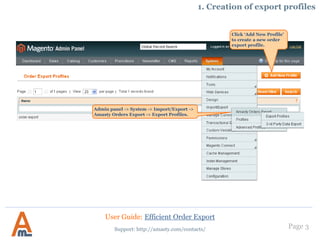
Click ‘Add New Profile’
to create a new order
export profile.
Admin panel -> System -> Import/Export ->
Amasty Orders Export -> Export Profiles.
1. Creation of export profiles
User Guide: Efficient Order Export
Support: http://amasty.com/contacts/
Page 4
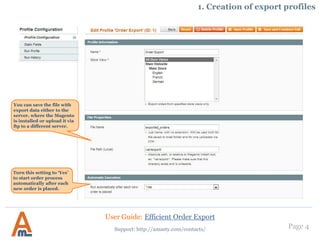
You can save the file with
export data either to the
server, where the Magento
is installed or upload it via
ftp to a different server.
1. Creation of export profiles
Turn this setting to ‘Yes’
to start order process
automatically after each
new order is placed.
User Guide: Efficient Order Export
Support: http://amasty.com/contacts/
Page 5
1. Creation of export profiles
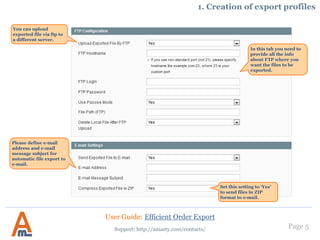
You can upload
exported file via ftp to
a different server.
In this tab you need to
provide all the info
about FTP where you
want the files to be
exported.
Please define e-mail
address and e-mail
message subject for
automatic file export to
e-mail.
Set this setting to ‘Yes’
to send files in ZIP
format to e-mail.
User Guide: Efficient Order Export
Support: http://amasty.com/contacts/
Select the type of
export that should be
used.
Page 6
1. Creation of export profiles
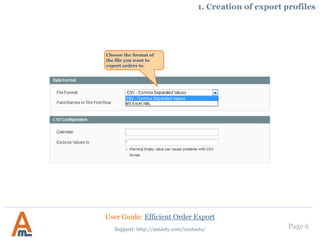
Choose the format of
the file you want to
export orders to.
User Guide: Efficient Order Export
Support: http://amasty.com/contacts/
Page 7
You can indicate from which order to
start the export. The extension displays
the number of the last exported order
and of the next one. First order is not
exported, this is particularly useful for
Magento with multiple store views.
Switch to ‘Yes’ to start export from
the order that comes next after the
one indicated in ‘Starting From #’
field.
Set this option to ‘Yes’ to automatically
populate ‘Starting From #’ field with the
last exported order. In combination
with ‘Skip Starting From’ option set to
‘Yes’ this would let you export only new
orders with each profile run.
1. Creation of export profiles
You can indicate from which order to
start the export according to shipment
numbers.
User Guide: Efficient Order Export
Support: http://amasty.com/contacts/
Page 8
1. Creation of export profiles
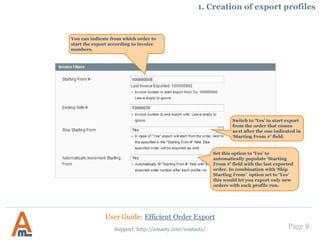
You can indicate from which order to
start the export according to invoice
numbers.
Switch to ‘Yes’ to start export
from the order that comes
next after the one indicated in
‘Starting From #’ field.
Set this option to ‘Yes’ to
automatically populate ‘Starting
From #’ field with the last exported
order. In combination with ‘Skip
Starting From’ option set to ‘Yes’
this would let you export only new
orders with each profile run.
User Guide: Efficient Order Export
Support: http://amasty.com/contacts/
Page 9
1. Creation of export profiles
You can indicate from which
order to start the export
according to credit memo
numbers.
User Guide: Efficient Order Export
Support: http://amasty.com/contacts/
Page 10
1. Creation of export profiles
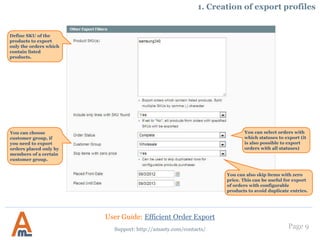
You can select orders with
which statuses to export (it
is also possible to export
orders with all statuses)
You can choose customer
group, if you need to export
orders placed only by
members of a certain
customer group.
You can also skip child products
and items with zero price. This can
be useful for export of orders with
configurable products to avoid
duplicate entries.
Define SKU of the
products to export
only the orders which
contain listed
products.
User Guide: Efficient Order Export
Support: http://amasty.com/contacts/
Page 11
1. Creation of export profiles
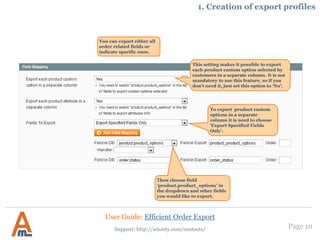
This setting makes it possible to export
each product custom option selected by
customers in a separate column. It is not
mandatory to use this feature, so if you
don’t need it, just set this option to ‘No’.
To export product custom
options in a separate
column it is need to choose
‘Export Specified Fields
Only’.
Then choose field
‘product.product_options’ in
the dropdown and other fields
you would like to export.
You can export either all
order related fields or
indicate specific ones.
User Guide: Efficient Order Export
Support: http://amasty.com/contacts/
Page 12
1. Creation of export profiles
You can combine several fields into a
single value . To do that, please click ‘Add
field to Mapping’, name the field and
specify order. By clicking ‘Add field to
column’ you can add any number of
fields.
User Guide: Efficient Order Export
Support: http://amasty.com/contacts/
Page 13
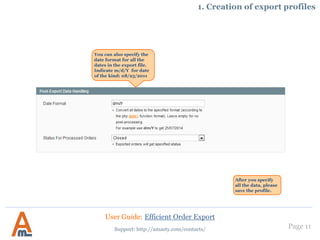
You can also specify the
date format for all the
dates in the export file.
Indicate m/d/Y for date
of the kind: 08/25/2011
After you specify
all the data, please
save the profile.
1. Creation of export profiles
User Guide: Efficient Order Export
Support: http://amasty.com/contacts/
Page 14
1. Creation of export profiles
Here you can create
additional column to the
report, which will
include the same info.
User Guide: Efficient Order Export
Support: http://amasty.com/contacts/
Page 15
1. Creation of export profiles
To start exporting the files please use ‘Run
Profile’ button.
User Guide: Efficient Order Export
Support: http://amasty.com/contacts/
Page 16
2. Run export profiles from the ‘Orders’ grid
Using this option you can
run any export profile from
the ‘Orders’ grid. Just select
the required profile and
click the ‘Export’ button.
Tick off the orders
you need to export.
User Guide: Efficient Order Export
Support: http://amasty.com/contacts/
Page 17
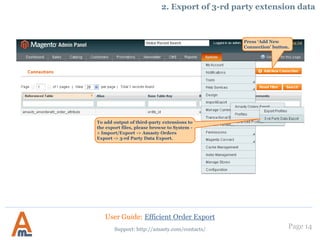
Press ‘Add New
Connection’ button.
To add output of third-party extensions to
the export files, please browse to System -
> Import/Export -> Amasty Orders
Export -> 3-rd Party Data Export.
3. Export of 3-rd party extension data
User Guide: Efficient Order Export
Support: http://amasty.com/contacts/
Page 18
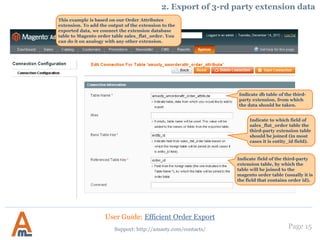
This example is based on our Order Attributes
extension. To add the output of the extension to the
exported data, we connect the extension database
table to Magento order table sales_flat_order. You
can do it on analogy with any other extension.
Indicate db table of the third-
party extension, from which
the data should be taken.
Indicate to which field of
sales_flat_order table the
third-party extension table
should be joined (in most
cases it is entity_id field).
Indicate field of the third-party
extension table, by which the
table will be joined to the
magento order table (usually it is
the field that contains order id).
3. Export of 3-rd party extension data
User Guide: Efficient Order Export
Support: http://amasty.com/contacts/
Page 19
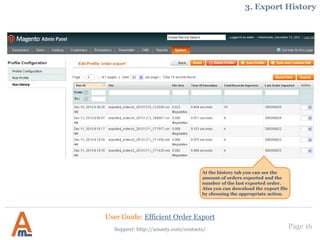
4. Export history
At the history tab you can see the
amount of orders exported and the
number of the last exported order.
Also you can download the export file
by choosing the appropriate action.
User Guide: Efficient Order Export
Support: http://amasty.com/contacts/
Page 20
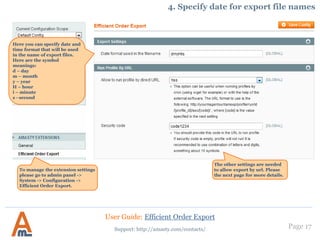
5. Specify date for export file names
To manage the extension settings
please go to admin panel ->
System -> Configuration ->
Efficient Order Export.
Here you can specify date and
time format that will be used
in the name of export files.
Here are the symbol
meanings:
d – day
m – month
y – year
H – hour
i – minute
s - second
Specify a time zone that should
be applied to the exported files.
User Guide: Efficient Order Export
Support: http://amasty.com/contacts/
Page 21
6. Launch of export profiles via url and cron
With the extension you can run an
export profile via url. To do this
please turn this setting to ‘Yes’.
Then enter security code for this
operation (this is mandatory). We
recommend to use combination of
letters and digits, around 10 symbols.
After you complete the above, you can run the profile, using url of the kind:
http://[yourmagentourl]/amexp/profile/run/id/[profile_id]/sec/[security_code]/
Replace [yourmagentourl] with the url of your magento site. Replace [profile_id] with id of the profile you would
like to run, to get a profile id, please go to the profile page and look at the top of the page, e.g. Edit Profile ‘export'
(ID: 19). Replace [security_code] with the security code you’ve entered at the configuration page.
You can also pull the export url via cron, by adding such line to the crontab (in the below example the profile will be
run every 10 minutes):
*/10 * * * * wget -O /dev/null http://[yourmagentourl]/amexp/profile/run/id/[profile_id]/sec/[security_code]/
IMPORTANT. Please be aware that export is run not as a console script (via php), but via url, therefore it is
mandatory to pull the url using wget.
User Guide: Efficient Order Export
Support: http://amasty.com/contacts/
Thank you!
Your feedback is absolutely welcome!
Should you have any questions or feature suggestions, please contact us at:
http://amasty.com/contacts/
Page 22
User Guide: Efficient Order Export
Support: http://amasty.com/contacts/

Efficient Order Export: Magento Extension by Amasty. User Guide.

  • 1.
    User Guide: EfficientOrder Export Page 1 Efficient Order Export Magento Extension User Guide Official extension page: Efficient Order Export Support: http://amasty.com/contacts/
  • 2.
    Table of contents: 1.Creation of export profiles ………………………………………….………………… 3 2. Run export profiles from the ‘Orders’ grid……………………………………… 16 3. Export of 3-rd party extension data …………………..………………………….. 17 4. Export history …………………………….………………………………….…………… 19 5. Specify date for export file names ....……………………………………………… 20 6. Launch of export profiles via url and cron ..……………………………….…… 21 Page 2 User Guide: Efficient Order Export Support: http://amasty.com/contacts/
  • 3.
    Page 3 Click ‘AddNew Profile’ to create a new order export profile. Admin panel -> System -> Import/Export -> Amasty Orders Export -> Export Profiles. 1. Creation of export profiles User Guide: Efficient Order Export Support: http://amasty.com/contacts/
  • 4.
    Page 4 You cansave the file with export data either to the server, where the Magento is installed or upload it via ftp to a different server. 1. Creation of export profiles Turn this setting to ‘Yes’ to start order process automatically after each new order is placed. User Guide: Efficient Order Export Support: http://amasty.com/contacts/
  • 5.
    Page 5 1. Creationof export profiles You can upload exported file via ftp to a different server. In this tab you need to provide all the info about FTP where you want the files to be exported. Please define e-mail address and e-mail message subject for automatic file export to e-mail. Set this setting to ‘Yes’ to send files in ZIP format to e-mail. User Guide: Efficient Order Export Support: http://amasty.com/contacts/ Select the type of export that should be used.
  • 6.
    Page 6 1. Creationof export profiles Choose the format of the file you want to export orders to. User Guide: Efficient Order Export Support: http://amasty.com/contacts/
  • 7.
    Page 7 You canindicate from which order to start the export. The extension displays the number of the last exported order and of the next one. First order is not exported, this is particularly useful for Magento with multiple store views. Switch to ‘Yes’ to start export from the order that comes next after the one indicated in ‘Starting From #’ field. Set this option to ‘Yes’ to automatically populate ‘Starting From #’ field with the last exported order. In combination with ‘Skip Starting From’ option set to ‘Yes’ this would let you export only new orders with each profile run. 1. Creation of export profiles You can indicate from which order to start the export according to shipment numbers. User Guide: Efficient Order Export Support: http://amasty.com/contacts/
  • 8.
    Page 8 1. Creationof export profiles You can indicate from which order to start the export according to invoice numbers. Switch to ‘Yes’ to start export from the order that comes next after the one indicated in ‘Starting From #’ field. Set this option to ‘Yes’ to automatically populate ‘Starting From #’ field with the last exported order. In combination with ‘Skip Starting From’ option set to ‘Yes’ this would let you export only new orders with each profile run. User Guide: Efficient Order Export Support: http://amasty.com/contacts/
  • 9.
    Page 9 1. Creationof export profiles You can indicate from which order to start the export according to credit memo numbers. User Guide: Efficient Order Export Support: http://amasty.com/contacts/
  • 10.
    Page 10 1. Creationof export profiles You can select orders with which statuses to export (it is also possible to export orders with all statuses) You can choose customer group, if you need to export orders placed only by members of a certain customer group. You can also skip child products and items with zero price. This can be useful for export of orders with configurable products to avoid duplicate entries. Define SKU of the products to export only the orders which contain listed products. User Guide: Efficient Order Export Support: http://amasty.com/contacts/
  • 11.
    Page 11 1. Creationof export profiles This setting makes it possible to export each product custom option selected by customers in a separate column. It is not mandatory to use this feature, so if you don’t need it, just set this option to ‘No’. To export product custom options in a separate column it is need to choose ‘Export Specified Fields Only’. Then choose field ‘product.product_options’ in the dropdown and other fields you would like to export. You can export either all order related fields or indicate specific ones. User Guide: Efficient Order Export Support: http://amasty.com/contacts/
  • 12.
    Page 12 1. Creationof export profiles You can combine several fields into a single value . To do that, please click ‘Add field to Mapping’, name the field and specify order. By clicking ‘Add field to column’ you can add any number of fields. User Guide: Efficient Order Export Support: http://amasty.com/contacts/
  • 13.
    Page 13 You canalso specify the date format for all the dates in the export file. Indicate m/d/Y for date of the kind: 08/25/2011 After you specify all the data, please save the profile. 1. Creation of export profiles User Guide: Efficient Order Export Support: http://amasty.com/contacts/
  • 14.
    Page 14 1. Creationof export profiles Here you can create additional column to the report, which will include the same info. User Guide: Efficient Order Export Support: http://amasty.com/contacts/
  • 15.
    Page 15 1. Creationof export profiles To start exporting the files please use ‘Run Profile’ button. User Guide: Efficient Order Export Support: http://amasty.com/contacts/
  • 16.
    Page 16 2. Runexport profiles from the ‘Orders’ grid Using this option you can run any export profile from the ‘Orders’ grid. Just select the required profile and click the ‘Export’ button. Tick off the orders you need to export. User Guide: Efficient Order Export Support: http://amasty.com/contacts/
  • 17.
    Page 17 Press ‘AddNew Connection’ button. To add output of third-party extensions to the export files, please browse to System - > Import/Export -> Amasty Orders Export -> 3-rd Party Data Export. 3. Export of 3-rd party extension data User Guide: Efficient Order Export Support: http://amasty.com/contacts/
  • 18.
    Page 18 This exampleis based on our Order Attributes extension. To add the output of the extension to the exported data, we connect the extension database table to Magento order table sales_flat_order. You can do it on analogy with any other extension. Indicate db table of the third- party extension, from which the data should be taken. Indicate to which field of sales_flat_order table the third-party extension table should be joined (in most cases it is entity_id field). Indicate field of the third-party extension table, by which the table will be joined to the magento order table (usually it is the field that contains order id). 3. Export of 3-rd party extension data User Guide: Efficient Order Export Support: http://amasty.com/contacts/
  • 19.
    Page 19 4. Exporthistory At the history tab you can see the amount of orders exported and the number of the last exported order. Also you can download the export file by choosing the appropriate action. User Guide: Efficient Order Export Support: http://amasty.com/contacts/
  • 20.
    Page 20 5. Specifydate for export file names To manage the extension settings please go to admin panel -> System -> Configuration -> Efficient Order Export. Here you can specify date and time format that will be used in the name of export files. Here are the symbol meanings: d – day m – month y – year H – hour i – minute s - second Specify a time zone that should be applied to the exported files. User Guide: Efficient Order Export Support: http://amasty.com/contacts/
  • 21.
    Page 21 6. Launchof export profiles via url and cron With the extension you can run an export profile via url. To do this please turn this setting to ‘Yes’. Then enter security code for this operation (this is mandatory). We recommend to use combination of letters and digits, around 10 symbols. After you complete the above, you can run the profile, using url of the kind: http://[yourmagentourl]/amexp/profile/run/id/[profile_id]/sec/[security_code]/ Replace [yourmagentourl] with the url of your magento site. Replace [profile_id] with id of the profile you would like to run, to get a profile id, please go to the profile page and look at the top of the page, e.g. Edit Profile ‘export' (ID: 19). Replace [security_code] with the security code you’ve entered at the configuration page. You can also pull the export url via cron, by adding such line to the crontab (in the below example the profile will be run every 10 minutes): */10 * * * * wget -O /dev/null http://[yourmagentourl]/amexp/profile/run/id/[profile_id]/sec/[security_code]/ IMPORTANT. Please be aware that export is run not as a console script (via php), but via url, therefore it is mandatory to pull the url using wget. User Guide: Efficient Order Export Support: http://amasty.com/contacts/
  • 22.
    Thank you! Your feedbackis absolutely welcome! Should you have any questions or feature suggestions, please contact us at: http://amasty.com/contacts/ Page 22 User Guide: Efficient Order Export Support: http://amasty.com/contacts/