Page 1
Google Rich Snippets
Support: http://amasty.com/contacts/
Magento Extension
User Guide
Official extension page: Google Rich Snippets
User Guide: Google Rich Snippets
Table of contents:
1. Rich Snippets: examples..………..……………………..…………... 3
2. Settings: product..……………………………………………….……... 5
3. Settings: rating & breadcrumbs……………………...……….…... 6
4. Settings: organization & category………………….……….…….. 7
5. Settings: search box…..………………………………..………….…... 8
6. Settings: twitter cards………………………………….………….…... 9
7. Twitter summary card: example………………………………..... 13
8. Settings: rich pins………………………………………………………...14
9. Rich Pins example………………………………………………………...15
10. Landing Pages with rich snippets……………………………………16
Page 2
User Guide: Google Rich Snippets
Support: http://amasty.com/contacts/
Page 3
1. Rich Snippets: examples
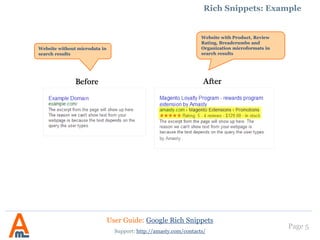
Website with Product, Review
Rating, Breadcrumbs and
Organization microformats in
search results.
Website without microdata in
search results.
User Guide: Google Rich Snippets
Support: http://amasty.com/contacts/
Page 4
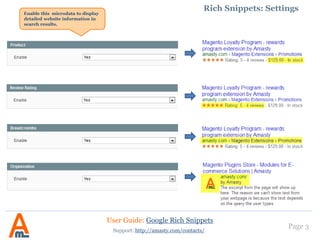
Enable this microdata to display
detailed website information in
search results.
User Guide: Google Rich Snippets
Support: http://amasty.com/contacts/
1. Rich Snippets: examples
Page 5
2. Settings: Product
Specify CSS selectors to add
rich data to page elements.
User Guide: Google Rich Snippets
Support: http://amasty.com/contacts/
For the next three fields
specify CSS selectors of
HTML elements that
contain product info.
In search results you can
display the product price
including tax or the price
excluding tax.
Page 6
3. Settings: rating & breadcrumbs
You can choose whether to
display votes or reviews,
or both votes and reviews
at the same time on Google
search page.
User Guide: Google Rich Snippets
Support: http://amasty.com/contacts/
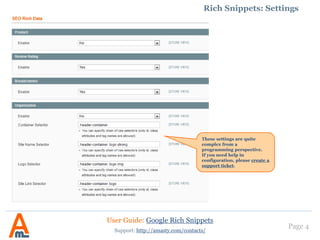
These settings are quite
complex from a
programming perspective.
If you need help in
configuration, please create a
support ticket.
Page 7
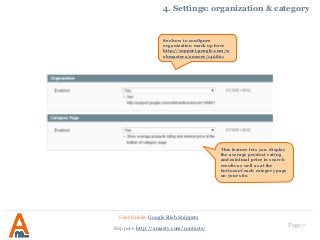
4. Settings: organization & category
User Guide: Google Rich Snippets
Support: http://amasty.com/contacts/
This feature lets you display
the average product rating
and minimal price in search
results as well as at the
bottom of each category page
on your site.
See how to configure
organization mark up here
http://support.google.com/w
ebmasters/answer/146861
Page 8
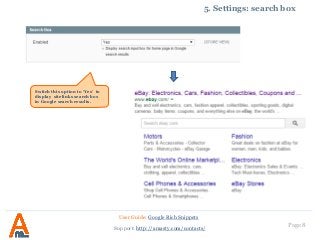
5. Settings: search box
User Guide: Google Rich Snippets
Support: http://amasty.com/contacts/
Switch this option to ‘Yes’ to
display sitelinks search box
in Google search results.
Page 9
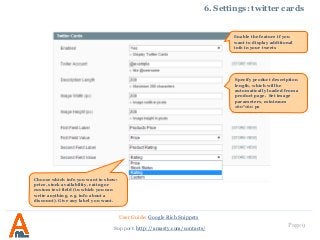
6. Settings: twitter cards
User Guide: Google Rich Snippets
Support: http://amasty.com/contacts/
Specify product description
length, which will be
automatically loaded from a
product page. Set image
parameters, minimum
160*160 px
Enable the feature if you
want to display additional
info in your tweets
Choose which info you want to show:
price, stock availability, rating or
custom text field (in which you can
write anything, e.g. info about a
discount). Give any label you want.
Page 10
6. Settings: twitter cards
User Guide: Google Rich Snippets
Support: http://amasty.com/contacts/
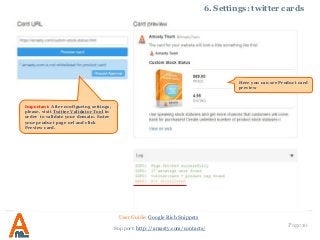
Here you can see Product card
preview
Important: After configuring settings,
please, visit Twitter Validator Tool in
order to validate your domain. Enter
your product page url and click
Preview card.
Page 11
6. Settings: twitter cards
User Guide: Google Rich Snippets
Support: http://amasty.com/contacts/
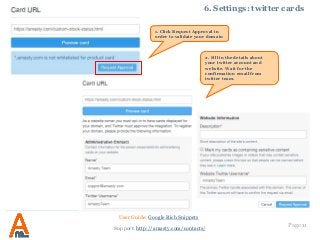
2. Fill in the details about
your twitter account and
website. Wait for the
confirmation email from
twitter team.
1. Click Request Approval in
order to validate your domain
Page 12
6. Settings: twitter cards
User Guide: Google Rich Snippets
Support: http://amasty.com/contacts/
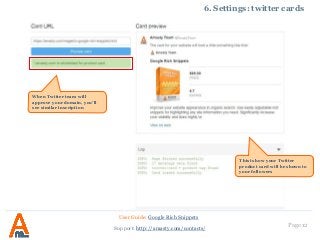
This is how your Twitter
product card will be shown to
your followers
When Twitter team will
approve your domain, you’ll
see similar inscription
Page 13
7. Twitter summary cards example
User Guide: Google Rich Snippets
Support: http://amasty.com/contacts/
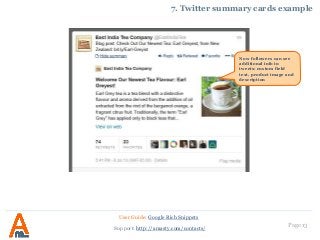
Now followers can see
additional info in
tweets: custom field
text, product image and
description
Page 14
8. Settings: rich pins
User Guide: Google Rich Snippets
Support: http://amasty.com/contacts/
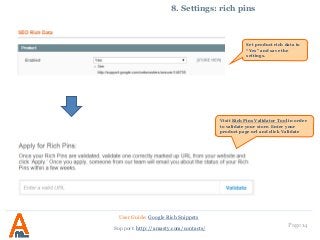
Set product rich data to
“Yes” and save the
settings.
Visit Rich Pins Validator Tool in order
to validate your store. Enter your
product page url and click Validate
Page 15
9. Rich Pins example
User Guide: Google Rich Snippets
Support: http://amasty.com/contacts/
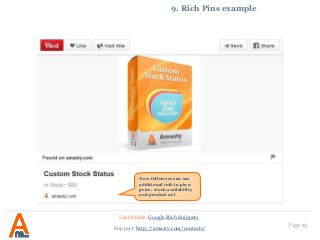
Now followers can see
additional info in pins:
price, stock availability
and product url
Page 16
10. Landing Page with rich snippets
User Guide: Google Rich Snippets
Support: http://amasty.com/contacts/
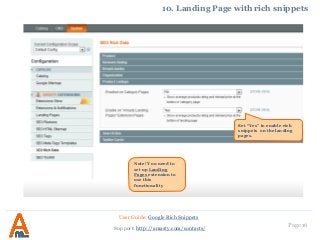
Set “Yes” to enable rich
snippets on the landing
pages.
Note! You need to
set up Landing
Pages extension to
use this
functionality
Page 17
10. Landing Page with rich snippets example
User Guide: Google Rich Snippets
Support: http://amasty.com/contacts/
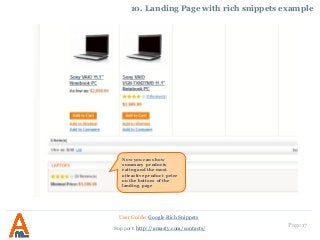
Now you can show
summary products
rating and the most
attractive product price
on the bottom of the
landing page
Thank you!
Your feedback is absolutely welcome!
Page 18
Should you have any questions or feature suggestions, please contact us at:
http://amasty.com/contacts/
User Guide: Google Rich Snippets
Support: http://amasty.com/contacts/

Google Rich Snippets: Magento Extension by Amasty

  • 1.
    Page 1 Google RichSnippets Support: http://amasty.com/contacts/ Magento Extension User Guide Official extension page: Google Rich Snippets User Guide: Google Rich Snippets
  • 2.
    Table of contents: 1.Rich Snippets: examples..………..……………………..…………... 3 2. Settings: product..……………………………………………….……... 5 3. Settings: rating & breadcrumbs……………………...……….…... 6 4. Settings: organization & category………………….……….…….. 7 5. Settings: search box…..………………………………..………….…... 8 6. Settings: twitter cards………………………………….………….…... 9 7. Twitter summary card: example………………………………..... 13 8. Settings: rich pins………………………………………………………...14 9. Rich Pins example………………………………………………………...15 10. Landing Pages with rich snippets……………………………………16 Page 2 User Guide: Google Rich Snippets Support: http://amasty.com/contacts/
  • 3.
    Page 3 1. RichSnippets: examples Website with Product, Review Rating, Breadcrumbs and Organization microformats in search results. Website without microdata in search results. User Guide: Google Rich Snippets Support: http://amasty.com/contacts/
  • 4.
    Page 4 Enable thismicrodata to display detailed website information in search results. User Guide: Google Rich Snippets Support: http://amasty.com/contacts/ 1. Rich Snippets: examples
  • 5.
    Page 5 2. Settings:Product Specify CSS selectors to add rich data to page elements. User Guide: Google Rich Snippets Support: http://amasty.com/contacts/ For the next three fields specify CSS selectors of HTML elements that contain product info. In search results you can display the product price including tax or the price excluding tax.
  • 6.
    Page 6 3. Settings:rating & breadcrumbs You can choose whether to display votes or reviews, or both votes and reviews at the same time on Google search page. User Guide: Google Rich Snippets Support: http://amasty.com/contacts/ These settings are quite complex from a programming perspective. If you need help in configuration, please create a support ticket.
  • 7.
    Page 7 4. Settings:organization & category User Guide: Google Rich Snippets Support: http://amasty.com/contacts/ This feature lets you display the average product rating and minimal price in search results as well as at the bottom of each category page on your site. See how to configure organization mark up here http://support.google.com/w ebmasters/answer/146861
  • 8.
    Page 8 5. Settings:search box User Guide: Google Rich Snippets Support: http://amasty.com/contacts/ Switch this option to ‘Yes’ to display sitelinks search box in Google search results.
  • 9.
    Page 9 6. Settings:twitter cards User Guide: Google Rich Snippets Support: http://amasty.com/contacts/ Specify product description length, which will be automatically loaded from a product page. Set image parameters, minimum 160*160 px Enable the feature if you want to display additional info in your tweets Choose which info you want to show: price, stock availability, rating or custom text field (in which you can write anything, e.g. info about a discount). Give any label you want.
  • 10.
    Page 10 6. Settings:twitter cards User Guide: Google Rich Snippets Support: http://amasty.com/contacts/ Here you can see Product card preview Important: After configuring settings, please, visit Twitter Validator Tool in order to validate your domain. Enter your product page url and click Preview card.
  • 11.
    Page 11 6. Settings:twitter cards User Guide: Google Rich Snippets Support: http://amasty.com/contacts/ 2. Fill in the details about your twitter account and website. Wait for the confirmation email from twitter team. 1. Click Request Approval in order to validate your domain
  • 12.
    Page 12 6. Settings:twitter cards User Guide: Google Rich Snippets Support: http://amasty.com/contacts/ This is how your Twitter product card will be shown to your followers When Twitter team will approve your domain, you’ll see similar inscription
  • 13.
    Page 13 7. Twittersummary cards example User Guide: Google Rich Snippets Support: http://amasty.com/contacts/ Now followers can see additional info in tweets: custom field text, product image and description
  • 14.
    Page 14 8. Settings:rich pins User Guide: Google Rich Snippets Support: http://amasty.com/contacts/ Set product rich data to “Yes” and save the settings. Visit Rich Pins Validator Tool in order to validate your store. Enter your product page url and click Validate
  • 15.
    Page 15 9. RichPins example User Guide: Google Rich Snippets Support: http://amasty.com/contacts/ Now followers can see additional info in pins: price, stock availability and product url
  • 16.
    Page 16 10. LandingPage with rich snippets User Guide: Google Rich Snippets Support: http://amasty.com/contacts/ Set “Yes” to enable rich snippets on the landing pages. Note! You need to set up Landing Pages extension to use this functionality
  • 17.
    Page 17 10. LandingPage with rich snippets example User Guide: Google Rich Snippets Support: http://amasty.com/contacts/ Now you can show summary products rating and the most attractive product price on the bottom of the landing page
  • 18.
    Thank you! Your feedbackis absolutely welcome! Page 18 Should you have any questions or feature suggestions, please contact us at: http://amasty.com/contacts/ User Guide: Google Rich Snippets Support: http://amasty.com/contacts/