User Guide: Meta Tags Templates Page 1
Meta Tags Templates
Magento Extension
User Guide
Official extension page: Meta Tags Templates
Support: http://amasty.com/contacts/
Table of contents:
1. Introduction ……………………………………………………........…………………… 3
2. General settings ………………………………………………………………………….. 4
3. Category-based templates…………………………………………………………….. 7
4. Category-based templates. Conditions.…………………..…………….…………8
5. Category-based templates. Products tags………………….…………..…...…. 10
6. Category-based templates. Category tags………….…………………….…….. 11
7. URL-based templates …………..…………………………………………………..... 12
8. Examples…………………………………...…………………………………………...… 13
Page 2User Guide: Meta Tags Templates
Support: http://amasty.com/contacts/
Page 3
Introduction
With Meta Tags Templates extension you can automatically generate meta tags
as well as descriptions for:
-Product pages
-Category pages
-Any site page by URL
Functionality has hierarchical structure. That means you can choose the
category and specify all the tags for:
-Current category
-Sub categories
-Products in current category
-Products in subcategory
A range of complex variables can be used in tags and descriptions.
User Guide: Meta Tags Templates
Support: http://amasty.com/contacts/
1. Introduction
Page 4
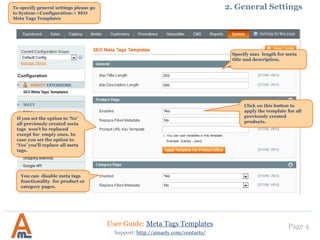
You can disable meta tags
functionality for product or
category pages.
User Guide: Meta Tags Templates
Support: http://amasty.com/contacts/
Specify max length for meta
title and description.
2. General Settings
Click on this button to
apply the template for all
previously created
products.
To specify general settings please go
to System->Configuration-> SEO
Meta Tags Templates
If you set the option to β€˜No’
all previously created meta
tags won’t be replaced
except for empty ones. In
case you set the option to
β€˜Yes’ you’ll replace all meta
tags.
Page 5
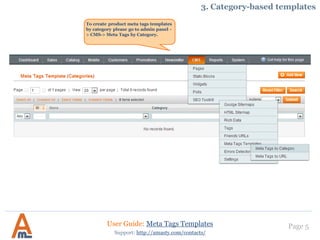
To create product meta tags templates
by category please go to admin panel -
> CMS-> Meta Tags by Category.
User Guide: Meta Tags Templates
Support: http://amasty.com/contacts/
3. Category-based templates
Page 6
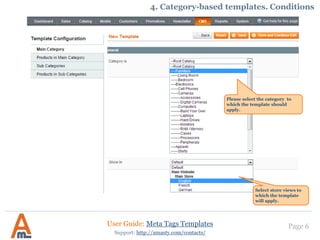
Select store views to
which the template
will apply.
Please select the category to
which the template should
apply.
User Guide: Meta Tags Templates
Support: http://amasty.com/contacts/
4. Category-based templates. Conditions
Page 7
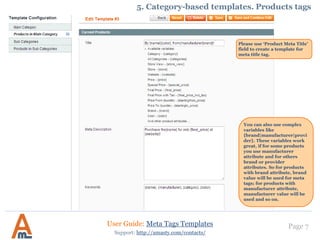
Please use β€˜Product Meta Title’
field to create a template for
meta title tag.
User Guide: Meta Tags Templates
Support: http://amasty.com/contacts/
5. Category-based templates. Products tags
You can also use complex
variables like
{brand|manufacturer|provi
der}. These variables work
great, if for some products
you use manufacturer
attribute and for others
brand or provider
attributes. So for products
with brand attribute, brand
value will be used for meta
tags; for products with
manufacturer attribute,
manufacturer value will be
used and so on.
Page 8
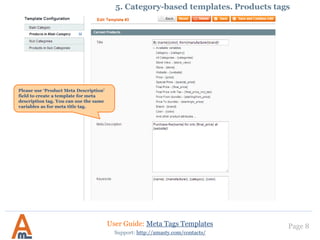
Please use β€˜Product Meta Description’
field to create a template for meta
description tag. You can use the same
variables as for meta title tag.
User Guide: Meta Tags Templates
Support: http://amasty.com/contacts/
5. Category-based templates. Products tags
Page 9
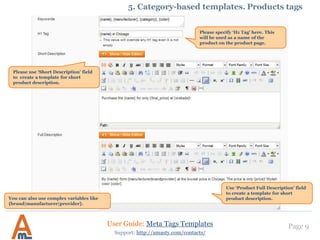
Please use β€˜Short Description’ field
to create a template for short
product description.
User Guide: Meta Tags Templates
Support: http://amasty.com/contacts/
5. Category-based templates. Products tags
Please specify β€˜H1 Tag’ here. This
will be used as a name of the
product on the product page.
Use β€˜Product Full Description’ field
to create a template for short
product description.You can also use complex variables like
{brand|manufacturer|provider}.
Page 10User Guide: Meta Tags Templates
Support: http://amasty.com/contacts/
6. Category-based templates. Category tags
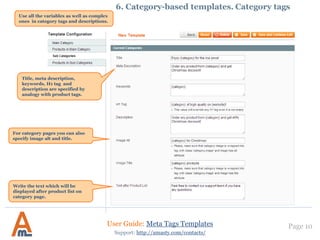
Use all the variables as well as complex
ones in category tags and descriptions.
Title, meta description,
keywords, H1 tag and
description are specified by
analogy with product tags.
For category pages you can also
specify image alt and title.
Write the text which will be
displayed after product list on
category page.
7. URL-based templates.
Page 11User Guide: Meta Tags Templates
Support: http://amasty.com/contacts/
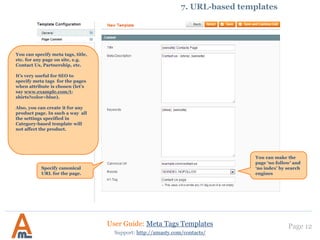
7. URL-based templates
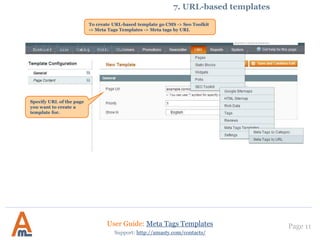
To create URL-based template go CMS -> Seo Toolkit
-> Meta Tags Templates -> Meta tags by URL
Specify URL of the page
you want to create a
template for.
Page 12User Guide: Meta Tags Templates
Support: http://amasty.com/contacts/
7. URL-based templates
You can specify meta tags, title,
etc. for any page on site, e.g.
Contact Us, Partnership, etc.
It’s very useful for SEO to
specify meta tags for the pages
when attribute is chosen (let’s
say www.example.com/t-
shirts?color=blue).
Also, you can create it for any
product page. In such a way all
the settings specified in
Category-based template will
not affect the product.
Specify canonical
URL for the page.
You can make the
page β€˜no follow’ and
β€˜no index’ by search
engines
Page 13User Guide: Meta Tags Templates
Support: http://amasty.com/contacts/
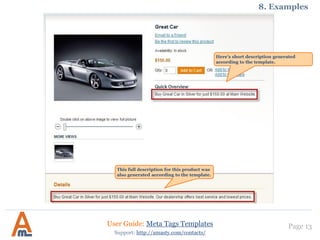
8. Examples
Here’s short description generated
according to the template.
This full description for this product was
also generated according to the template.
Page 14User Guide: Meta Tags Templates
Support: http://amasty.com/contacts/
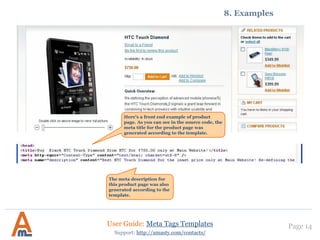
The meta description for
this product page was also
generated according to the
template.
Here’s a front end example of product
page. As you can see in the source code, the
meta title for the product page was
generated according to the template.
8. Examples
Thank you!
Your feedback is absolutely welcome!
Page 15
Should you have any questions or feature suggestions, please contact us at:
http://amasty.com/contacts/
User Guide: Meta Tags Templates
Support: http://amasty.com/contacts/

Meta Tags Templates

  • 1.
    User Guide: MetaTags Templates Page 1 Meta Tags Templates Magento Extension User Guide Official extension page: Meta Tags Templates Support: http://amasty.com/contacts/
  • 2.
    Table of contents: 1.Introduction ……………………………………………………........…………………… 3 2. General settings ………………………………………………………………………….. 4 3. Category-based templates…………………………………………………………….. 7 4. Category-based templates. Conditions.…………………..…………….…………8 5. Category-based templates. Products tags………………….…………..…...…. 10 6. Category-based templates. Category tags………….…………………….…….. 11 7. URL-based templates …………..…………………………………………………..... 12 8. Examples…………………………………...…………………………………………...… 13 Page 2User Guide: Meta Tags Templates Support: http://amasty.com/contacts/
  • 3.
    Page 3 Introduction With MetaTags Templates extension you can automatically generate meta tags as well as descriptions for: -Product pages -Category pages -Any site page by URL Functionality has hierarchical structure. That means you can choose the category and specify all the tags for: -Current category -Sub categories -Products in current category -Products in subcategory A range of complex variables can be used in tags and descriptions. User Guide: Meta Tags Templates Support: http://amasty.com/contacts/ 1. Introduction
  • 4.
    Page 4 You candisable meta tags functionality for product or category pages. User Guide: Meta Tags Templates Support: http://amasty.com/contacts/ Specify max length for meta title and description. 2. General Settings Click on this button to apply the template for all previously created products. To specify general settings please go to System->Configuration-> SEO Meta Tags Templates If you set the option to β€˜No’ all previously created meta tags won’t be replaced except for empty ones. In case you set the option to β€˜Yes’ you’ll replace all meta tags.
  • 5.
    Page 5 To createproduct meta tags templates by category please go to admin panel - > CMS-> Meta Tags by Category. User Guide: Meta Tags Templates Support: http://amasty.com/contacts/ 3. Category-based templates
  • 6.
    Page 6 Select storeviews to which the template will apply. Please select the category to which the template should apply. User Guide: Meta Tags Templates Support: http://amasty.com/contacts/ 4. Category-based templates. Conditions
  • 7.
    Page 7 Please useβ€˜Product Meta Title’ field to create a template for meta title tag. User Guide: Meta Tags Templates Support: http://amasty.com/contacts/ 5. Category-based templates. Products tags You can also use complex variables like {brand|manufacturer|provi der}. These variables work great, if for some products you use manufacturer attribute and for others brand or provider attributes. So for products with brand attribute, brand value will be used for meta tags; for products with manufacturer attribute, manufacturer value will be used and so on.
  • 8.
    Page 8 Please useβ€˜Product Meta Description’ field to create a template for meta description tag. You can use the same variables as for meta title tag. User Guide: Meta Tags Templates Support: http://amasty.com/contacts/ 5. Category-based templates. Products tags
  • 9.
    Page 9 Please useβ€˜Short Description’ field to create a template for short product description. User Guide: Meta Tags Templates Support: http://amasty.com/contacts/ 5. Category-based templates. Products tags Please specify β€˜H1 Tag’ here. This will be used as a name of the product on the product page. Use β€˜Product Full Description’ field to create a template for short product description.You can also use complex variables like {brand|manufacturer|provider}.
  • 10.
    Page 10User Guide:Meta Tags Templates Support: http://amasty.com/contacts/ 6. Category-based templates. Category tags Use all the variables as well as complex ones in category tags and descriptions. Title, meta description, keywords, H1 tag and description are specified by analogy with product tags. For category pages you can also specify image alt and title. Write the text which will be displayed after product list on category page.
  • 11.
    7. URL-based templates. Page11User Guide: Meta Tags Templates Support: http://amasty.com/contacts/ 7. URL-based templates To create URL-based template go CMS -> Seo Toolkit -> Meta Tags Templates -> Meta tags by URL Specify URL of the page you want to create a template for.
  • 12.
    Page 12User Guide:Meta Tags Templates Support: http://amasty.com/contacts/ 7. URL-based templates You can specify meta tags, title, etc. for any page on site, e.g. Contact Us, Partnership, etc. It’s very useful for SEO to specify meta tags for the pages when attribute is chosen (let’s say www.example.com/t- shirts?color=blue). Also, you can create it for any product page. In such a way all the settings specified in Category-based template will not affect the product. Specify canonical URL for the page. You can make the page β€˜no follow’ and β€˜no index’ by search engines
  • 13.
    Page 13User Guide:Meta Tags Templates Support: http://amasty.com/contacts/ 8. Examples Here’s short description generated according to the template. This full description for this product was also generated according to the template.
  • 14.
    Page 14User Guide:Meta Tags Templates Support: http://amasty.com/contacts/ The meta description for this product page was also generated according to the template. Here’s a front end example of product page. As you can see in the source code, the meta title for the product page was generated according to the template. 8. Examples
  • 15.
    Thank you! Your feedbackis absolutely welcome! Page 15 Should you have any questions or feature suggestions, please contact us at: http://amasty.com/contacts/ User Guide: Meta Tags Templates Support: http://amasty.com/contacts/